Alienware Area-51 stability issues with custom overclock settings
요약: How to reset the overclock (OC) from customized to the Dell recommended settings on the Alienware Area-51 R5, Alienware Area-51 Threadripper Edition R6 and R7 systems.
이 문서는 다음에 적용됩니다.
이 문서는 다음에 적용되지 않습니다.
이 문서는 특정 제품과 관련이 없습니다.
모든 제품 버전이 이 문서에 나와 있는 것은 아닙니다.
증상
The Alienware desktop Area-51 series may Blue Screen (Crash Screen), restart or stop responding if the OC (overclock) setting does not follow Dell’s recommended OC profile (Overclock 01, Overclock 02).
Affected platforms:
- Alienware Area-51 R5
- Alienware Area-51 Threadripper Edition R6
- Alienware Area-51 Threadripper Edition R7
원인
Not Applicable
해결
If you are using a custom OC setting which exceeds the system/CPU capability, then stability issues are likely to occur. Use the Overclock 01 or Overclock 02 profile, which is the Dell recommendation.
Follow these steps:
- Load the default BIOS configuration
- Update the Alienware Command Center (AWCC) to the latest (see NOTE1)
- Set Overclock 01/Overclock 02 (see NOTE2)
NOTE 1:
1. Uninstall the previous version of Alienware OC Controls from 'Programs and Features' then restart the system.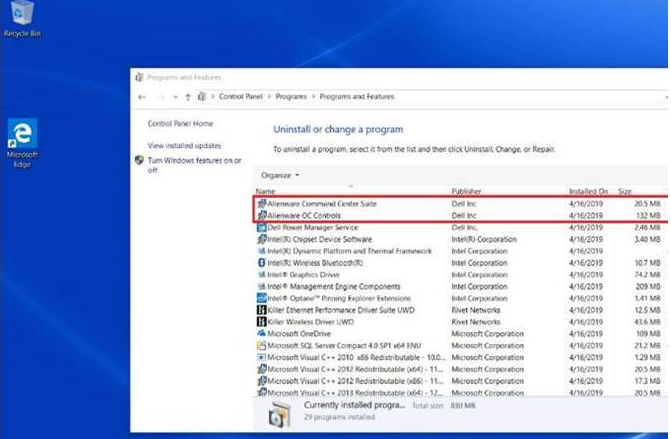
Figure 1: Programs and Features
2. Download and install Alienware OC Controls. For more information, see Dell Knowledge Base article How to Download and Install Dell Drivers.
NOTE 2:
R5 only supports the Alienware Command Center (AWCC) OC setting: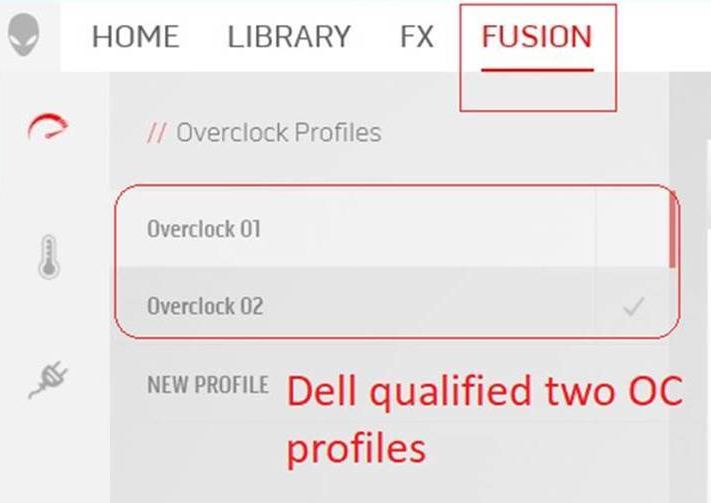
Figure 2: Fusion screen
R7 only supports the BIOS setting:
For the OC Mode, choose Overclock 01/Overclock 02, the 'Customized' option shown as image below is an example to show how to find the options.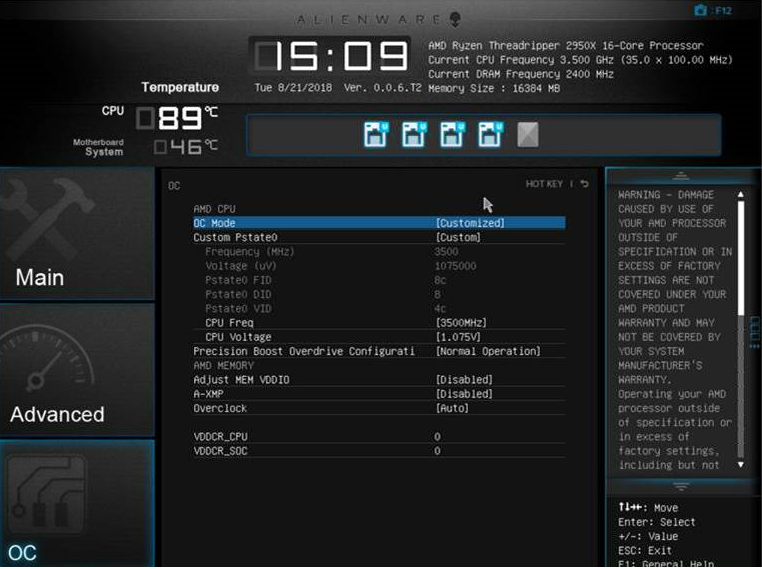
Figure 3: OC Mode
해당 제품
Alienware Area 51, Alienware Area-51 Threadripper Edition R3 and R6, Alienware Area-51 Threadripper Edition R7문서 속성
문서 번호: 000175469
문서 유형: Solution
마지막 수정 시간: 24 4월 2025
버전: 7
다른 Dell 사용자에게 질문에 대한 답변 찾기
지원 서비스
디바이스에 지원 서비스가 적용되는지 확인하십시오.