CloudLink: A CloudLink node is stuck in emergency mode
요약: A CloudLink node is stuck in emergency mode.
이 문서는 다음에 적용됩니다.
이 문서는 다음에 적용되지 않습니다.
이 문서는 특정 제품과 관련이 없습니다.
모든 제품 버전이 이 문서에 나와 있는 것은 아닙니다.
증상
After booting the CloudLink node, the following message is seen:
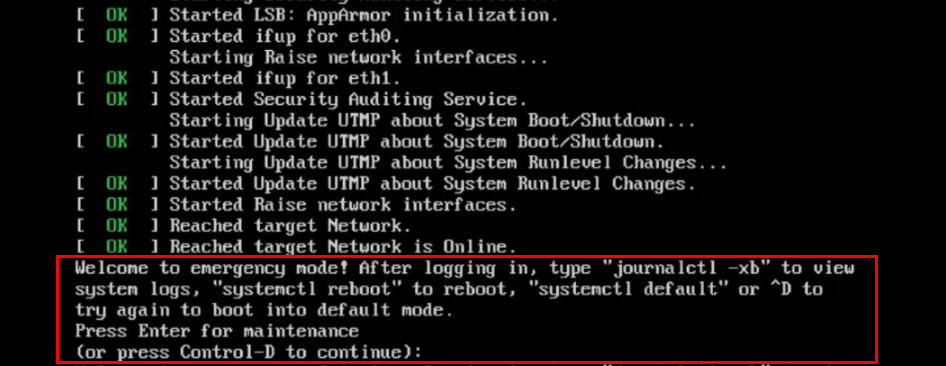
Welcome to emergency mode! After logging in, type "journalctl -xb" to view
system logs, "systemctl reboot" to reboot, "systemctl default" or ^D to
try again to boot into default mode.
Press Enter for maintenance
(or press Control-D to continue):
원인
This issue is due to a file system issue that must be repaired.
해결
To resolve the file system issue on the node, perform the following:
If the root filesystem is clean, you can run fsck on the other filesystems using the same procedure above.
Run command journalctl -xb. These logs might indicate if there is a corrupted filesystem that needs repaired.
You can use commands lsblk and blkid to help link a uuid to its filesystem.
Here are some examples of errors that you might see in journalctl -xb:
/dev/sda6: Inodes that were part of a corrupted orphan linked list found.
/dev/sda6: UNEXPECTED INCONSISTENCY: RUN fsck MANUALLY.
Failed to start File System Check on /dev/disk/by-uuid/fd782a8-a70d-045513691c7e
If you are unable to repair the filesystem using fsck or if you have one Cloudlink node that is frequently getting stuck in emergency mode, you should remove that broken Cloudlink node from the cluster. Then you deploy a new Cloudlink node from OVA and join to the existing cluster.
If you can repair the file system, you should check the health of the cluster from the Cloudlink UI.
This is done in SYSTEM > Cluster and ensure incoming, and outgoing sync states are OK.
- You press Control-D to continue, but it remains in emergency mode.
- Press the ENTER key for maintenance.
- Run a file system check on the root ( / ) file system.
root@cloudlink:~#  lsblk    <------------------- Run this command to identify the / filesystem (typically sda10)
root@cloudlink:~#  fsck /dev/sda10  <-------- It complains that /dev/sda10 is still mounted
root@cloudlink:~#  umount /dev/sda10
root@cloudlink:~#  fsck /dev/sda10
- Press y to fix any errors that are found.
- Reboot the node.
If the root filesystem is clean, you can run fsck on the other filesystems using the same procedure above.
Run command journalctl -xb. These logs might indicate if there is a corrupted filesystem that needs repaired.
You can use commands lsblk and blkid to help link a uuid to its filesystem.
Here are some examples of errors that you might see in journalctl -xb:
/dev/sda6: Inodes that were part of a corrupted orphan linked list found.
/dev/sda6: UNEXPECTED INCONSISTENCY: RUN fsck MANUALLY.
Failed to start File System Check on /dev/disk/by-uuid/fd782a8-a70d-045513691c7e
If you are unable to repair the filesystem using fsck or if you have one Cloudlink node that is frequently getting stuck in emergency mode, you should remove that broken Cloudlink node from the cluster. Then you deploy a new Cloudlink node from OVA and join to the existing cluster.
If you can repair the file system, you should check the health of the cluster from the Cloudlink UI.
This is done in SYSTEM > Cluster and ensure incoming, and outgoing sync states are OK.
해당 제품
CloudLink제품
CloudLink SecureVM문서 속성
문서 번호: 000197726
문서 유형: Solution
마지막 수정 시간: 13 5월 2026
버전: 6
다른 Dell 사용자에게 질문에 대한 답변 찾기
지원 서비스
디바이스에 지원 서비스가 적용되는지 확인하십시오.