Washed Out Color When Using HDR with the AW3423DWF Alienware Gaming Monitor
Samenvatting: Information about High Dynamic Range (HDR) color issues on the AW3423DWF Alienware Gaming monitor.
Dit artikel is van toepassing op
Dit artikel is niet van toepassing op
Dit artikel is niet gebonden aan een specifiek product.
Niet alle productversies worden in dit artikel vermeld.
Symptomen
Color in video can look washed out when using the HDR feature on the AW3423DWF Alienware Gaming monitor.
Oorzaak
No cause information is available.
Oplossing
Washed Out Color with HDR
When HDR is used with the AW3423DWF Alienware Gaming Monitor, the color can look washed out.
Affected Revisions: A00, A01, A02, A03
Solutions
Update the monitor with firmware version M3B104 or newer from Dell.com/Support.
- Click Drivers & Downloads.
- Select Alienware AW3423DWF Monitor Firmware Update.
- Download and install the latest firmware.
Once the monitor firmware has been updated, the firmware version can be validated by going to the Others option in the On Screen Display (OSD) menu (Figure 1). Then under Display Info to identify the firmware version installed.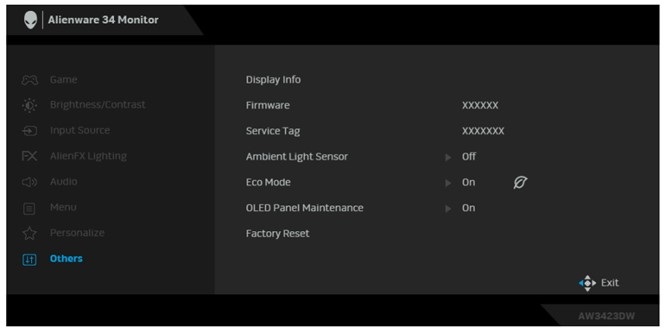
Figure 1
To view the firmware version from the OSD menu (Figure 1), use the joystick at the bottom of the monitor (Figure 2) to navigate the OSD.
Figure 2
For information about how to navigate the monitor using joystick, see the "Operating the Monitor" section of the Alienware AW3423DWF Monitor User's Guide.
Getroffen producten
Alienware 34 Curved QD OLED Gaming Monitor AW3423DWFArtikeleigenschappen
Artikelnummer: 000207382
Artikeltype: Solution
Laatst aangepast: 24 apr. 2025
Versie: 7
Vind antwoorden op uw vragen via andere Dell gebruikers
Support Services
Controleer of uw apparaat wordt gedekt door Support Services.