Data Domain: How to reset iDRAC Password and Configuration
Podsumowanie: How to reset the iDRAC Password and Configuration on relevant Data Domain systems.
Ten artykuł dotyczy
Ten artykuł nie dotyczy
Ten artykuł nie jest powiązany z żadnym konkretnym produktem.
Nie wszystkie wersje produktu zostały zidentyfikowane w tym artykule.
Instrukcje
Scenarios:
- Forgotten iDRAC password
- Change the iDRAC password.
- Reset iDRAC configuration to default settings
- Reset (restart) iDRAC <INTERNAL>
Applies to:
- All PowerProtect Data Domain systems
- Excluding DD3300.
- For DD3300, see: Data Domain: DD3300 How to reset the iDRAC password remotely from Bash <Dell Account log-in credentials may be requested to access this link>.
- Excluding DD3300.
- All DDOS Software versions
Scenario 1: Forgotten the iDRAC password
Reset the iDRAC password in iDRAC Settings.
- Reboot the system, press F2 to enter System Setup during boot.
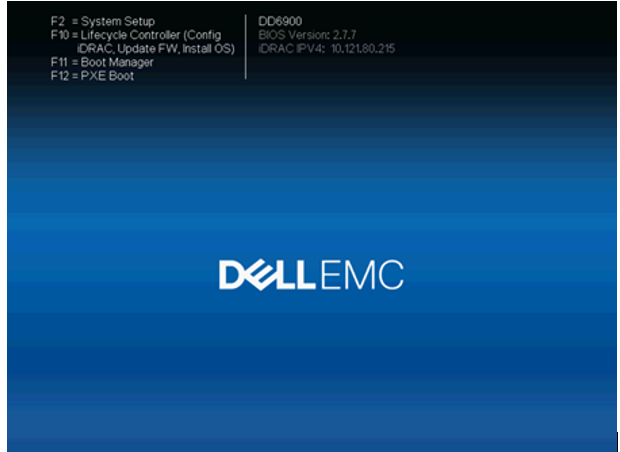
- Select iDRAC Settings.
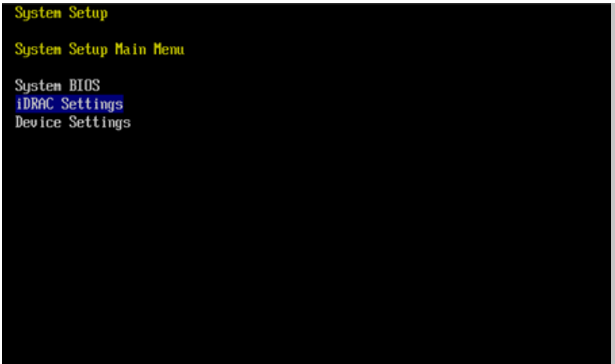
- Select "iDRAC Settings" > "User Configuration."
- Note: The index for the default user 'root' is '2'.
- Check this in DDOS CLI (SSH) command: '# user show list'
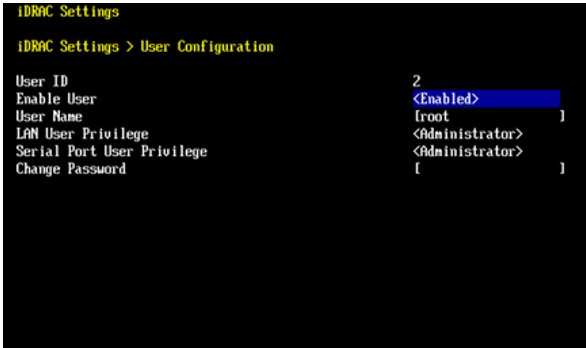
- Select Change Password.
- Enter the new password, as needed. Make sure to use a sufficiently complex password or an error will be encountered.
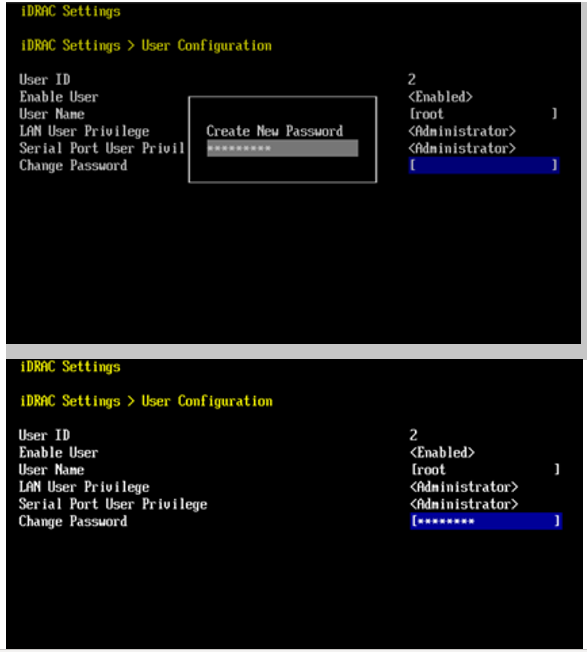
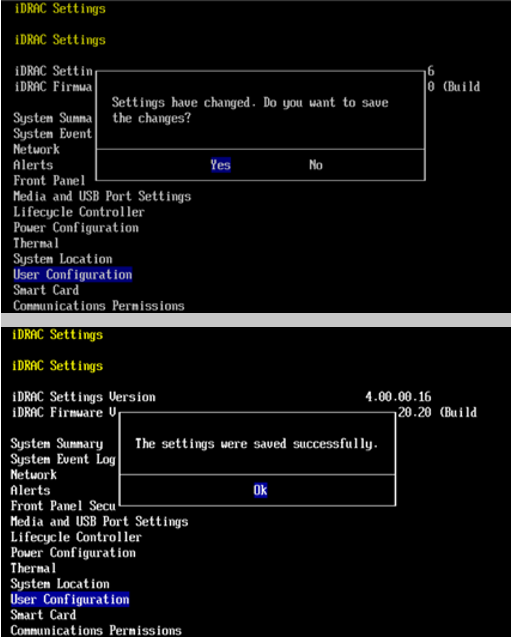
- After entering the new iDRAC password, press Esc to exit, press Yes to save the settings, and then exit the System Setup.
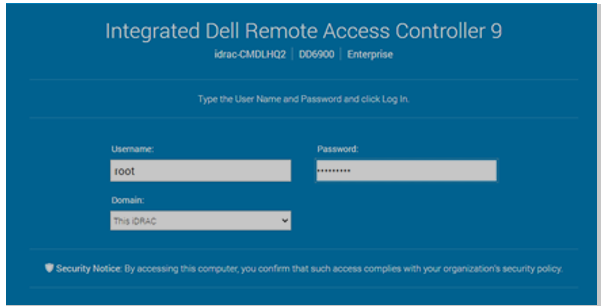
- Log in to the iDRAC UI with the new password to verify the new password works.
Scenario 2: Update the iDRAC password to a new one.
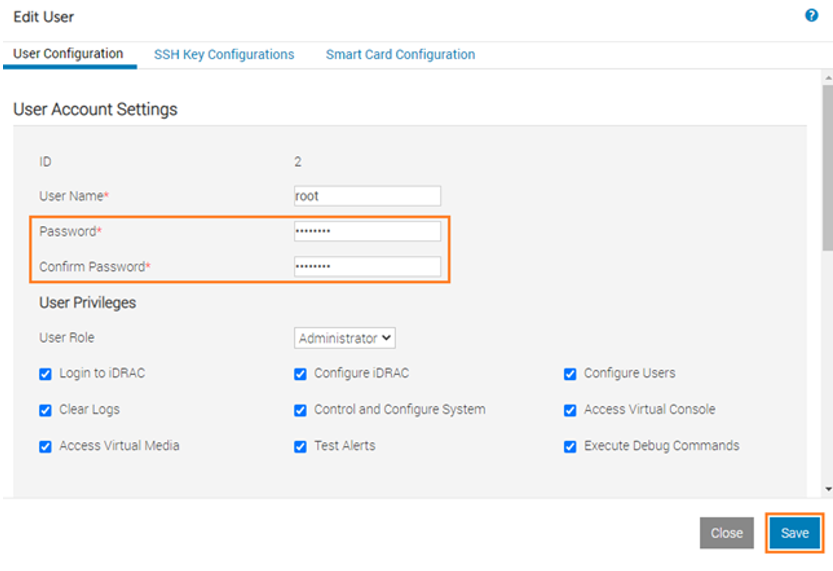
- Change the iDRAC Password using the iDRAC UI.
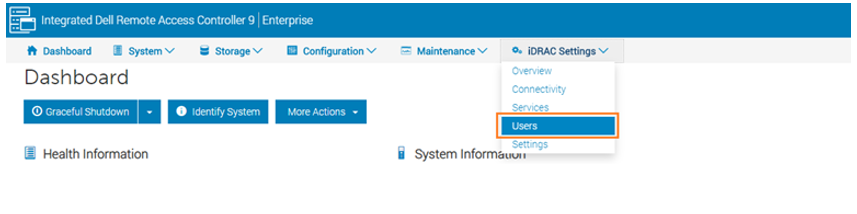
- Log in to the iDRAC UI, click the menu iDRAC Settings, drop down the menu and click Users .
- Click "Local Users," select the User Name root and click Edit .
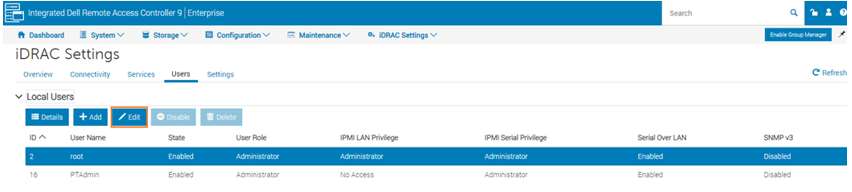
- Enter the new iDRAC password and click Save . Log in to the iDRAC UI with the new iDRAC password to verify the new password works.
Scenario 3: Reset iDRAC configuration to default settings.
To reset all the iDRAC configuration (including resetting the iDRAC password)
-
- Reboot the system, press F2 to enter the System Setup during the system boot.
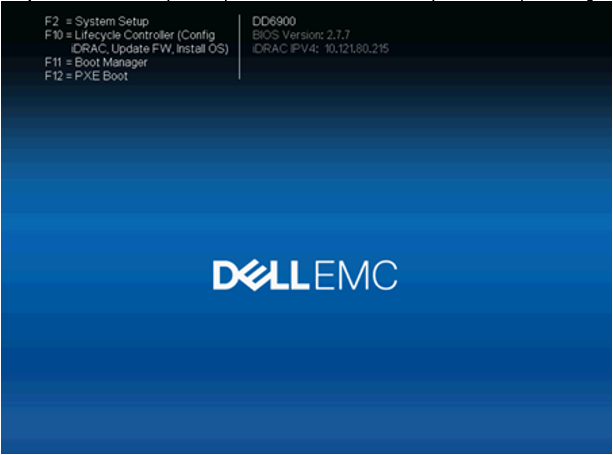
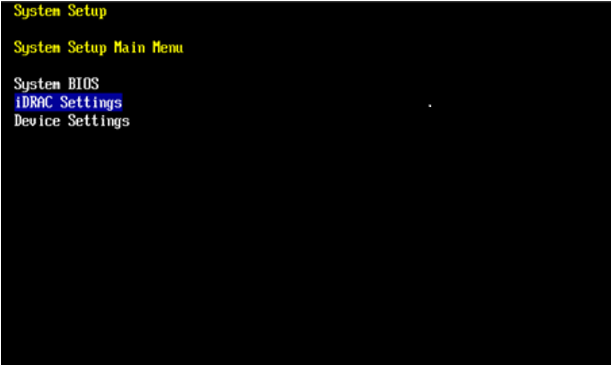
- Select iDRAC Settings.
- Click and enter "iDRAC Settings" > Reset iDRAC configurations to "defaults all".
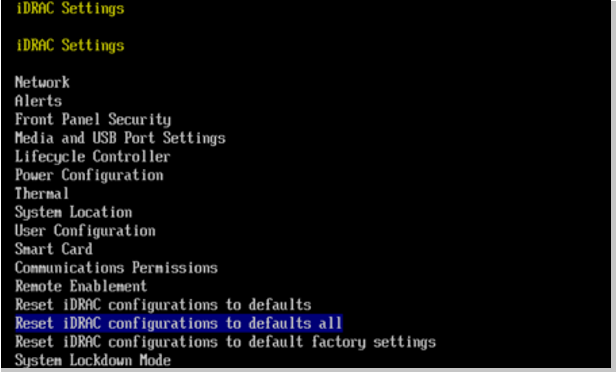
- Choose Yes to reset all the iDRAC configurations. It may take about 5 ~ 10 minutes.
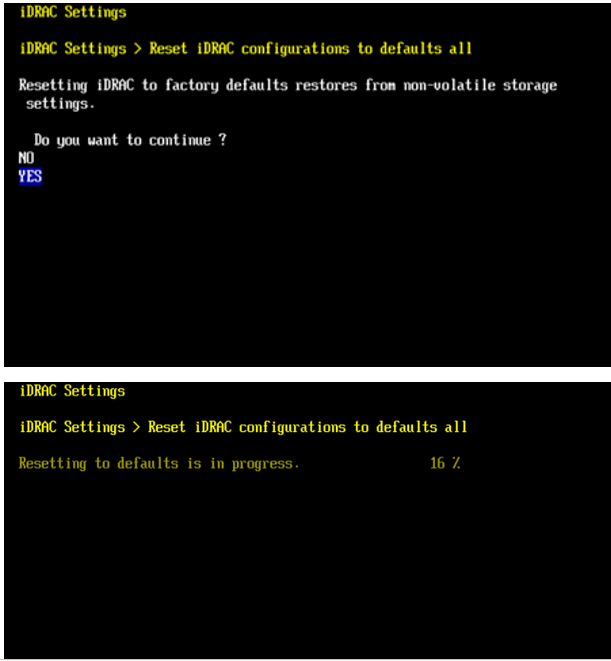
- After the iDRAC reset is completed, the iDRAC password changes to calvin or DD SN for default user root, and the iDRAC IP changes to 192.168.0.120. Log in to the iDRAC UI and verify the new password works.
iDRAC IP: 192.168.0.120
iDRAC user: root
iDRAC password: calvin or DD SN
Produkty, których dotyczy problem
Data DomainProdukty
Data Domain, DD6900 Appliance, DD9400 Appliance, DD9900 ApplianceWłaściwości artykułu
Numer artykułu: 000180909
Typ artykułu: How To
Ostatnia modyfikacja: 07 maj 2026
Wersja: 11
Znajdź odpowiedzi na swoje pytania u innych użytkowników produktów Dell
Usługi pomocy technicznej
Sprawdź, czy Twoje urządzenie jest objęte usługą pomocy technicznej.