Dell Encryption Enterprise에서 WSDeactivate를 실행하는 방법
Resumo: WSDeactivate는 다음 지침에 따라 Dell Encryption Enterprise 또는 Dell Data Protection Enterprise Edition에서 실행할 수 있습니다.
Este artigo aplica-se a
Este artigo não se aplica a
Este artigo não está vinculado a nenhum produto específico.
Nem todas as versões do produto estão identificadas neste artigo.
Instruções
이 문서에서는 다음을 실행하는 방법에 대한 지침을 제공합니다. WSDeactivate Dell Encryption Enterprise(이전 Dell Data Protection | Enterprise Edition)
영향을 받는 제품:
- Dell Encryption Enterprise
- Dell Data Protection | Enterprise Edition
영향을 받는 운영 체제:
- Windows
획득 WSDeactivate 지원 부서에 문의한 다음 실행합니다 . 자세한 내용을 보려면 해당 프로세스를 클릭합니다.
획득
- WSDeactivate를 요청하려면 Dell Data Security 지원에 문의하십시오.
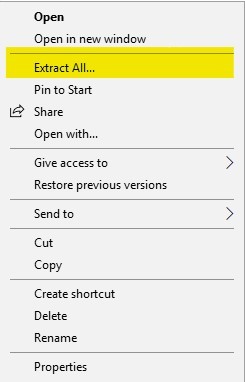
WSDeactivate.Dell Data Security 지원 부서에 문의하는 방법에 대한 자세한 내용은 Dell Data Security 국제 지원 전화번호를 참조하십시오. - 수령 후 지원 부서에서 제공한 파일을 오른쪽 버튼으로 클릭한 다음 Extract All을 선택합니다.
- 마우스 오른쪽 버튼 클릭
WSDeactivate.zip을 클릭한 다음 Extract All을 선택합니다.
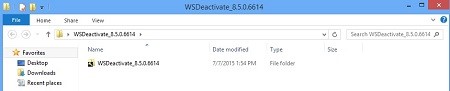
- 압축을 푼 폴더에 WSDeactivate가 포함되어 있습니다.
WSDeactivate.
실행
WSDeactivate WSDeactivate는 UI(User Interface) 또는 CLI(Command-Line Interface)를 사용하여 실행할 수 있습니다. 자세한 내용을 보려면 해당 방법을 클릭하십시오.
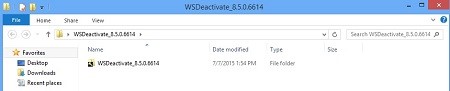
- 열기
WSDeactivate폴더
- 해당 버전의 WSDeactivate를 두 번 클릭합니다.
WSDeactivate.
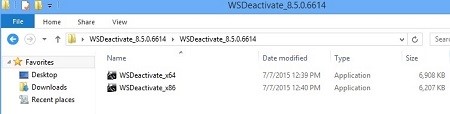 유틸리티의 비트 전송률과 운영 체제의 아키텍처가 일치해야 합니다.
WSDeactivate_x64WSDeactivate_x64 – 64비트 버전WSDeactivate_x86WSDeactivate_x64 – 32비트 버전
- 에서
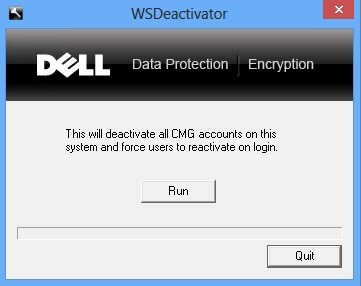
WSDeactivator창에서 실행을 클릭합니다.
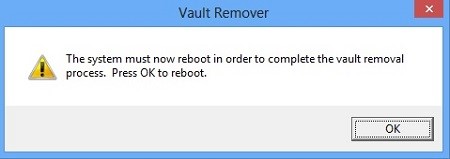
- Vault Remover 창이 표시됩니다. OK를 클릭합니다. 컴퓨터를 다시 부팅합니다.
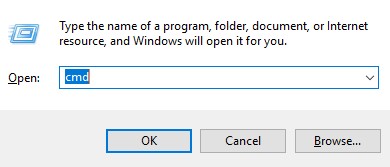
- Windows 시작 메뉴를 마우스 오른쪽 버튼으로 클릭한 다음 Run을 선택합니다.

- 실행 UI(User Interface)에서 cmd를 입력하고 <CTRL+SHIFT+ENTER>를 눌러 관리자 권한으로 명령 프롬프트를 실행합니다.
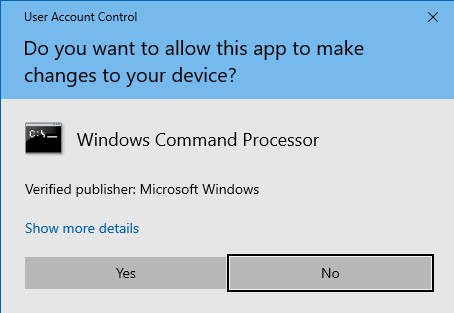
- UAC(User Account Control)가 활성화된 경우 Yes를 클릭합니다.
- 명령 프롬프트에서
WSDeactivate원하는 매개 변수로.
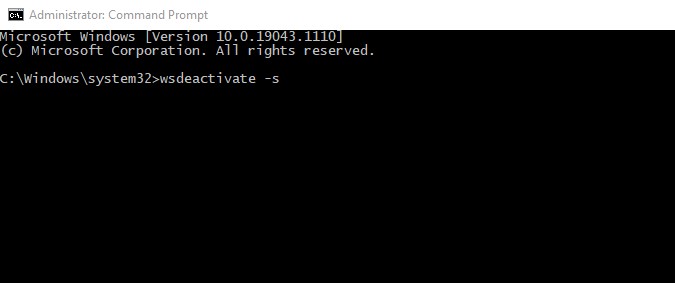
매개 변수:
다음 표에는 WSDeactivate에 사용할 수 있는 매개변수가 나와 있습니다. WSDeactivate.
| 매개변수 | 의미 |
|---|---|
–s |
실행 및 재부팅 확인 메시지를 표시하지 않고 유틸리티를 자동으로 실행 |
–n |
재부팅 안 함, 비활성화 후 재부팅 안 함 |
CLI 예시:
예 #1:
WSDeactivate_x64 -s예 #1에는 다음이 포함됩니다.
- Bit: x64
- Silent install = Yes
- Reboot = Yes
예 #2:
WSDeactivate_x86 -s -n예 #2에는 다음이 포함됩니다.
- Bit: x32
- Silent install = Yes
- Reboot = No
기타 리소스: Dell Encryption 설명서 - Dell Encryption WSDeactivate 사용 가이드
Produtos afetados
Dell EncryptionPropriedades do artigo
Número do artigo: 000126182
Tipo de artigo: How To
Último modificado: 06 ago. 2026
Versão: 13
Encontre as respostas de outros usuários da Dell para suas perguntas.
Serviços de suporte
Verifique se o dispositivo está coberto pelos serviços de suporte.