如何在 Dell Encryption Enterprise 上執行 WSDeactivate
Resumo: 可依照以下指示在 Dell Encryption Enterprise 或 Dell Data Protection Enterprise Edition 上執行 WSDeactivate。
Este artigo aplica-se a
Este artigo não se aplica a
Este artigo não está vinculado a nenhum produto específico.
Nem todas as versões do produto estão identificadas neste artigo.
Instruções
本文提供如何執行的指示 WSDeactivate Dell Encryption Enterprise (先前稱為 Dell Data Protection | Enterprise Edition)
受影響的產品:
- Dell Encryption Enterprise
- Dell Data Protection | Enterprise Edition
受影響的作業系統:
- Windows
取得 WSDeactivate 通過聯繫支持人員,然後 運行 它。如需詳細資訊,請按一下相關程序。
取得
- 請聯絡 Dell Data Security 支援以要求 WSDeactivate。
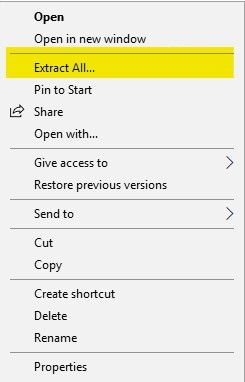
WSDeactivate。若要瞭解如何聯絡 Dell Data Security 支援的更多資訊,請參閱 Dell Data Security 國際支援電話號碼。 - 收到後,以滑鼠右鍵按一下支援提供的檔案,然後選取全部解壓縮。
- 以滑鼠右鍵按一下
WSDeactivate.zip,然後選擇 全部提取。
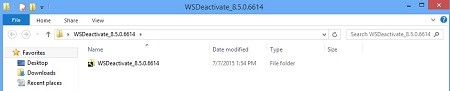
- 解壓縮的資料夾包含 WSDeactivate。
WSDeactivate。
執行
WSDeactivate WSDeactivate 可透過使用者介面 (UI) 或命令行介面 (CLI) 執行。如需詳細資訊,請按一下相關的方法。
- 打開 。
WSDeactivate資料夾。
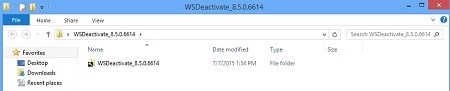
- 連按兩下適當的 WSDeactivate 版本。
WSDeactivate。
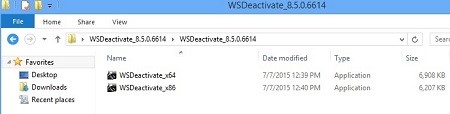 公用程式的位元速率必須與作業系統的架構相符。
WSDeactivate_x64WSDeactivate_x64 - 64 位元版本WSDeactivate_x86WSDeactivate_x64 - 32 位元版本
- 從
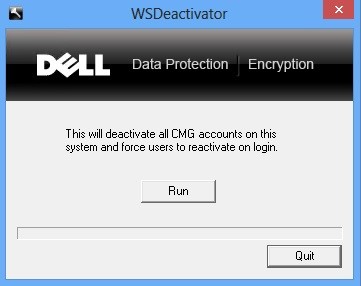
WSDeactivator視窗中,按一下 執行。
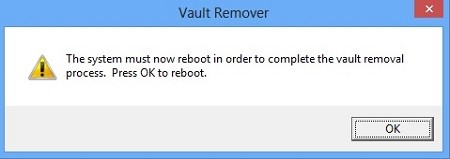
- Vault Remover 視窗隨即顯示。按一下確定。電腦會重新啟動。
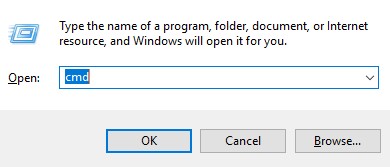
- 以滑鼠右鍵按一下 Windows「開始」功能表,然後選取執行。

- 在「執行」使用者介面 (UI) 中輸入 cmd,然後按下 CTRL+SHIFT+ENTER 以系統管理員身分執行命令提示字元。
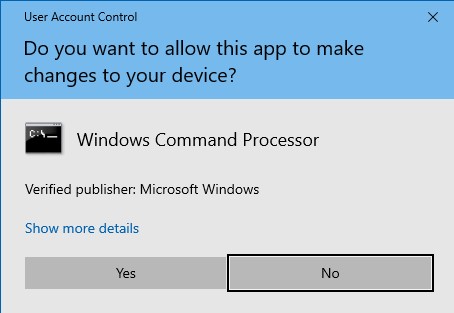
- 如果已啟用使用者帳戶控制 (UAC),請按一下是。
- 在命令提示字元中輸入
WSDeactivate使用所需的參數。
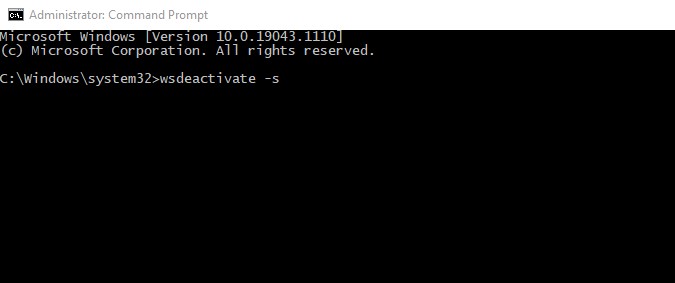
參數:
下表顯示 WSDeactivate 可用的參數。 WSDeactivate。
| 參數 | 意義 |
|---|---|
–s |
以無聲方式執行公用程式、抑制執行和重新啟動確認提示 |
–n |
無重新啟動,在停用後抑制重新啟動 |
CLI 範例:
範例 #1:
WSDeactivate_x64 -s範例 #1 包含:
- 位元:x64
- 無聲模式安裝 = 是
- 重新啟動 = 是
範例 #2:
WSDeactivate_x86 -s -n範例 #2 包含:
- 位元:x32
- 無聲模式安裝 = 是
- 重新啟動 = 否
其他資源: Dell Encryption 說明文件 - Dell Encryption WSDeactivate 使用指南
Produtos afetados
Dell EncryptionPropriedades do artigo
Número do artigo: 000126182
Tipo de artigo: How To
Último modificado: 06 ago. 2026
Versão: 13
Encontre as respostas de outros usuários da Dell para suas perguntas.
Serviços de suporte
Verifique se o dispositivo está coberto pelos serviços de suporte.