How the PING Command Works in ChromeOS
Resumo: This article describes how the PING command works in ChromeOS.
Este artigo aplica-se a
Este artigo não se aplica a
Este artigo não está vinculado a nenhum produto específico.
Nem todas as versões do produto estão identificadas neste artigo.
Instruções
The PING command is a standard command for testing network connectivity and quality. In Chrome, PING behaves more like it does in Linux than in Windows.
Ping command options
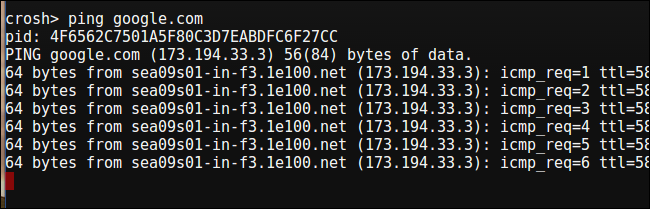
Open a Chrome Shell (CROSH) terminal by pressing Ctrl + Alt + T. The command is the same. Type: ping <hostname or IP address> then press the Enter key
Note: Unlike Windows, using the ping command without any flags or options causes it to repeatedly ping the specified IP address. You must press Ctrl + C to stop the command, and there are no instructions displayed on the screen explaining this.
After you stop the ping command this way, it does not display any statistics on dropped packets.
Ping –c is more useful. It lets you specify how many times to ping the specified IP address. After completing, it does display statistics. A high percentage of dropped packets may indicate noise on the network. Attempts to ping addresses outside your network may be blocked by firewalls. Example: ping -c 6 google.com then press the Enter key.
Tracepath is similar to ping, but it gets replies from each gateway along the route. Again, firewalls may block responses to this command when the address is outside of the network. Tracepath works the same as the Windows tracert command. tracepath "URL you want to trace to" then press the Enter key. See the example below:
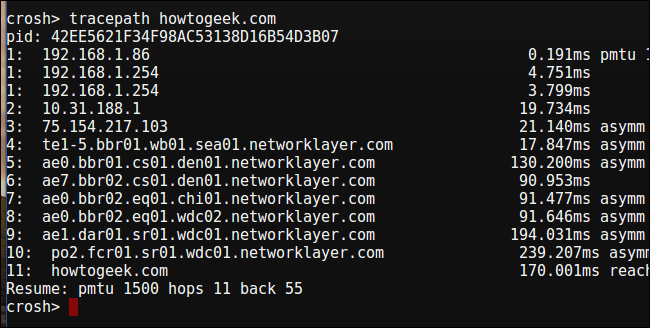
Both ping and tracepath can be used with host or domain names. This can be useful for determining if networking issues are caused by domain name resolution. If you can ping an address, but you cannot ping the host/domain name, then this would point to a problem with your DNS or proxy server.
Last we have the network diagnostic function. network_diag tests the connectivity of your network connection.
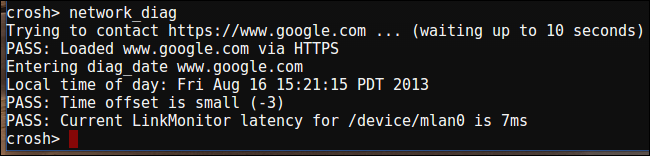
All CROSH windows can be closed by typing EXIT and pressing the Enter key.
Produtos afetados
Chromebook, Chromebook 11, Chromebook 3120 (End of Life)Propriedades do artigo
Número do artigo: 000145483
Tipo de artigo: How To
Último modificado: 02 mai. 2026
Versão: 6
Encontre as respostas de outros usuários da Dell para suas perguntas.
Serviços de suporte
Verifique se o dispositivo está coberto pelos serviços de suporte.