Microsoft SQL Server Repair Installation
Summary: SQL Server install, SQL repair install, repair install, repair, install, SQL Server corruption, SQL corruption
Acest articol se aplică pentru
Acest articol nu se aplică pentru
Acest articol nu este legat de un produs specific.
Acest articol nu acoperă toate versiunile de produs existente.
Symptoms
Issue: The SQL installation we’re working with has become corrupt preventing the basic functions and features of SQL Server from working as expected.
When the program application binary files of a SQL Server installation become corrupted one of the following options must be followed to ensure a stable working environment for the SQL Server installation.
- Perform a new installation of Server and restore SQL Server databases
- Move production databases to another like installation of SQL Server
- Perform a repair installation of the corrupted SQL Server instance retaining existing Databases
This article follows the steps involved in performing a SQL Server repair installation.
Cause
Software corruption of SQL Server application and database files.
Resolution
Installation Process:
1. Go to the Start Menu of the SQL program group for the instance we are attempting to repair. Find the "Installation Center" selection on the start menu and open that up. This example involves SQL Server 2017 and this process is the same for all supported versions of Microsoft SQL Server.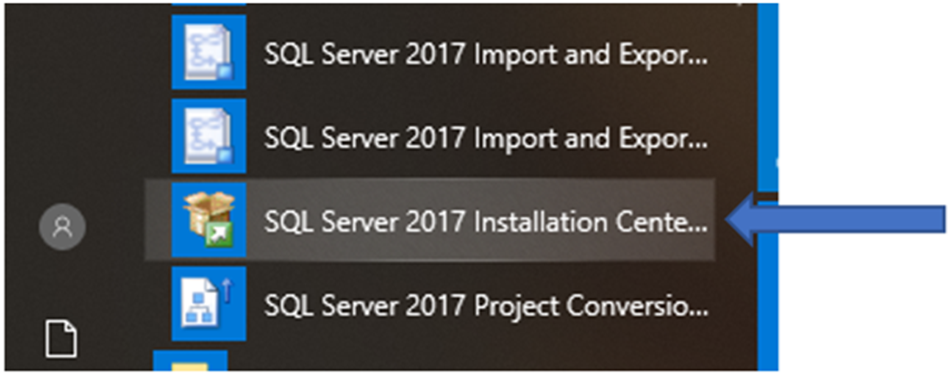
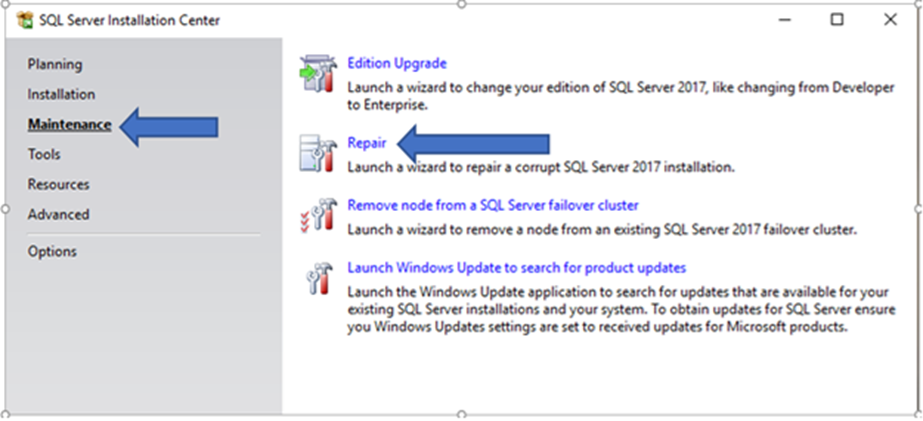
2. Next click on the "Maintenance" section in left hand portion of palate. Find "Repair" in selection list on right side and select.
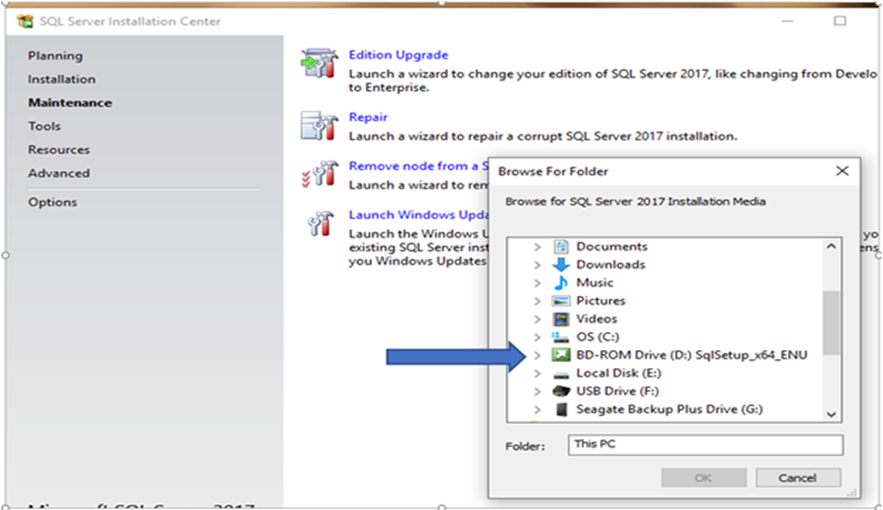
3. In the "Browse For Folder" window find the SQL Server mounted drive as a media source. The media must match the version of the SQL Server instance we are repairing. Click on the media source to begin the Setup program.
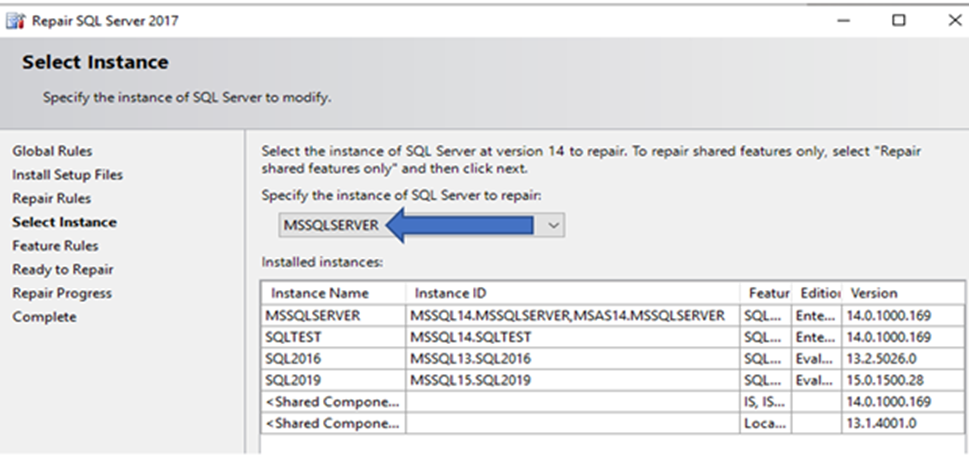
4. On Servers with multiple installations of SQL Server the Instance requiring repair must be selected from the list of registered SQL Server instances. In example below it is "MSSQLSERVER".
5. The "Ready to Repair" screen will display the program features originally installed. Select "Repair" button to begin the repair installation.
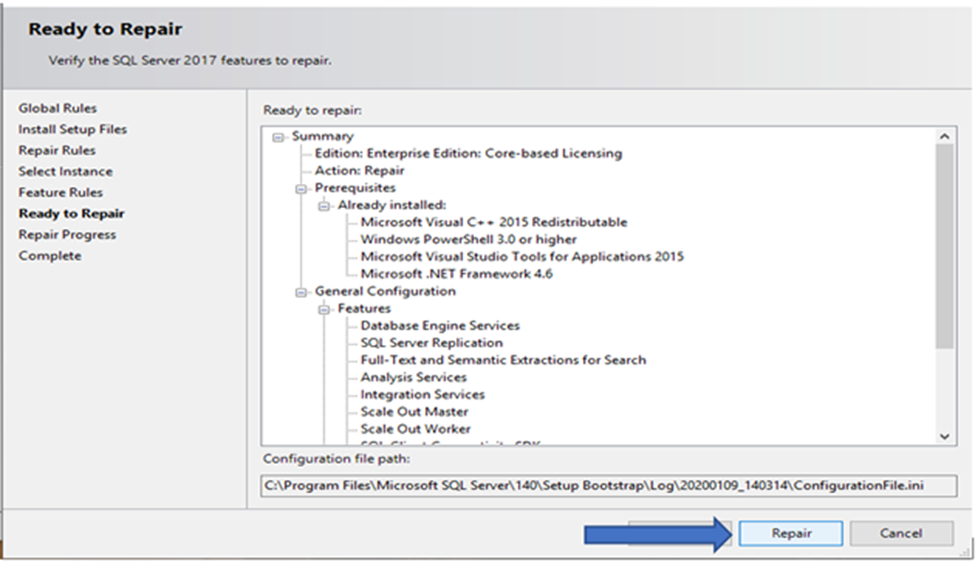
6. "Repair Progress" panel returns installation information.
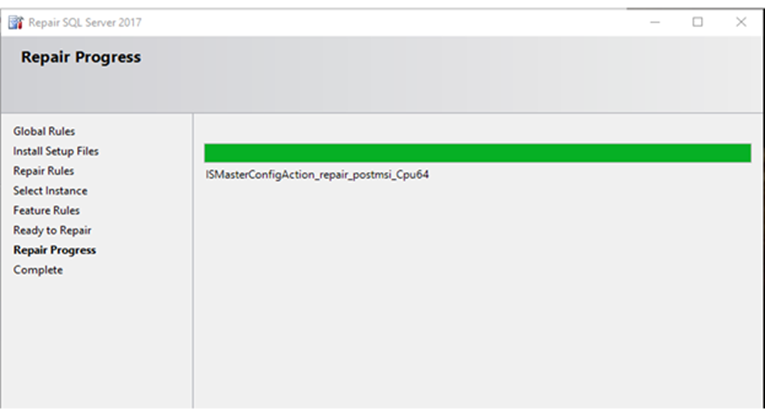
7. Last screen seen reports installation results and should have written a new set of application binaries for the SQL Server instance installation.
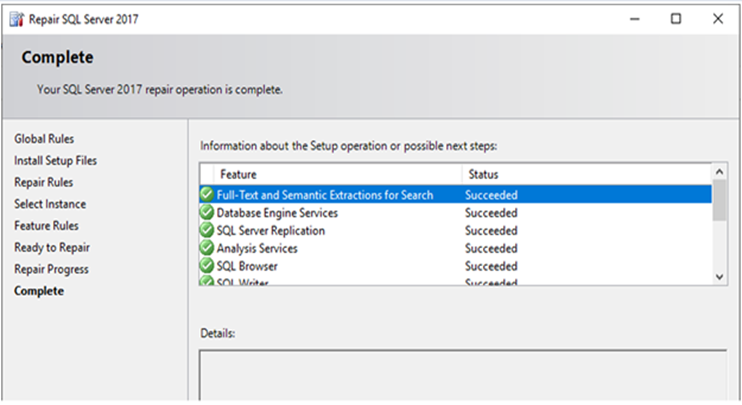
8. After a successful repair installation, the latest SQL Server cumulative updates should be applied insuring that program binary files will match the versions of SQL Server databases contained under the SQL Server instance.
Produse afectate
Dell Quickstart Data Warehouse Appliance, Prosupport for Microsoft SoftwareProprietăți articol
Article Number: 000128944
Article Type: Solution
Ultima modificare: 19 Apr 2026
Version: 6
Găsiți răspunsuri la întrebările dvs. de la alți utilizatori Dell
Servicii de asistență
Verificați dacă dispozitivul dvs. este acoperit de serviciile de asistență.