NVP-vProxy: Windows VM FLR Fails With "Error while browsing: 200: Error received from vProxy "could not get directory contents:"
Summary: A Microsoft Windows Virtual Machine (VM) FLR performed through the NetWorker VMware Protection (NVP) vProxy appliance fails to browse directory contents due to Admin Approval Mode (or heightened UAC) settings on the VM operating system ...
Symptoms
vProxy File Level Recovery (FLR) for a Microsoft Windows VM fails with the following error:
Error while browsing: 200: Error received from vProxy "could not get directory contents: Unable to retrieve file list from 'host' (vm-moref) path 'path'"
The Windows VM does not contain Windows Distributed File System (DFS): NVP vProxy: Virtual Machine FLR Consistently Failing With "Could not get the directory content…"
Cause
This error can appear if the Admin Approval Mode (AAM) is enabled on the operating system. This prevents an administrative user from performing an FLR to the end user s profile. For any User Account Control (UAC) interactions, the administrator must wait for the mount operation to complete, and then access the mountpoint on the target machine.
Resolution
There are three options available:
Option 1:
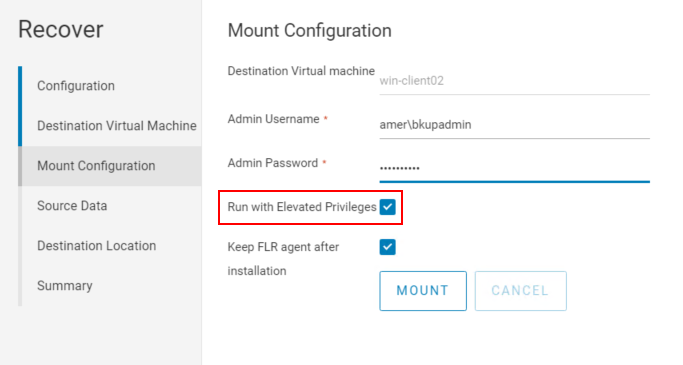
Perform the FLR from the NetWorker Web User Interface (NWUI). There is an option inside the FLR process called "run with elevated privileges." Check this option when performing the FLR.
Option 2:
1. Initiate the FLR mount from the NetWorker Management Console (NMC):
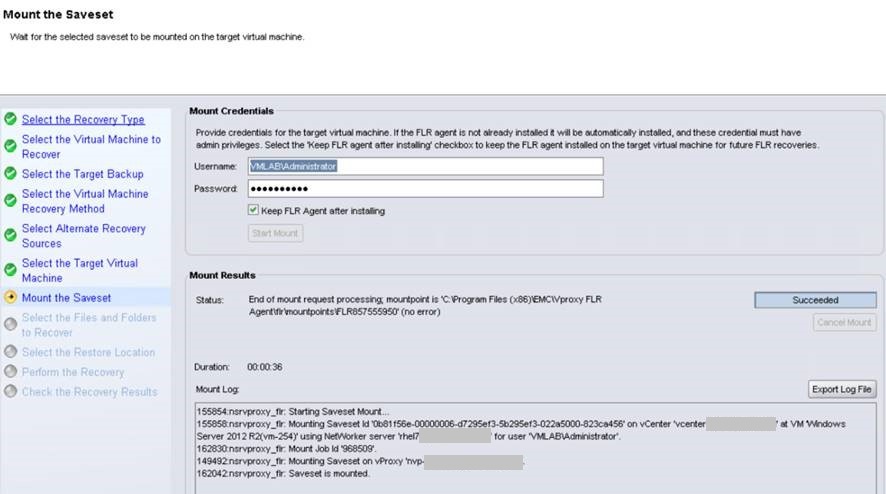
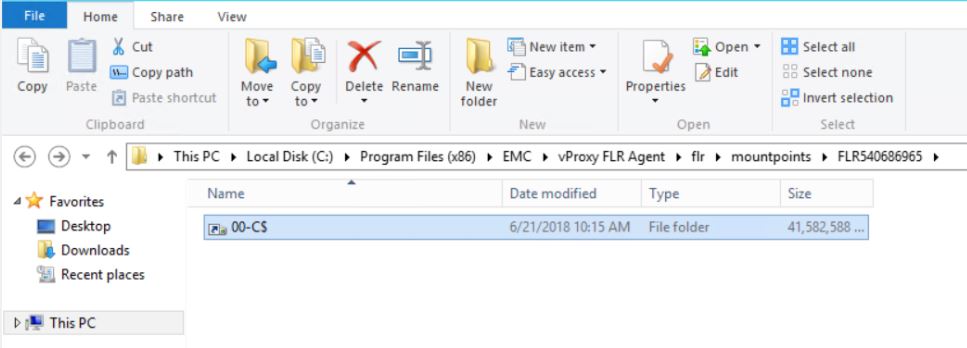
 :
: xcopy mountpoint_folder/file recover_destination /EH
3. When done, close the Recover Wizard in the NMC to disconnect the mount point.
Option 3:
Instant Access restores can also be used as an FLR workaround. This process is documented under:
NVP vProxy: Perform VM FLR without vProxy FLR Agent
Additional Information
If you are observing this issue even while using Run with elevated privileges option, see the following:
- FLR Limitations section of the NetWorker VMware Integration Guide. The VM OS or filesystem configuration may not support FLR. NetWorker documentation is available through: Support for NetWorker | Manuals & Documents (You must sign in with your Dell support account).
- Windows DFS is enabled: NVP vProxy: Virtual Machine FLR Consistently Failing With "Could not get the directory content"
- Windows Deduplication is enabled: NVP-vProxy: FLR fails to browse compressed folders - Unable to perform FLR Agent operation 'browse_files' on VM: Access is denied
- Linux LVM configuration limitations: NVP vProxy: FLR LVM Limitations
User Account Control Admin Approval Mode: https://docs.microsoft.com/en-us/windows/security/threat-protection/security-policy-settings/user-account-control-admin-approval-mode-for-the-built-in-administrator-account