Dell Recovery with USB: Reinstall the OS Using a Direct Media Drive
Summary: Information about Dell recovery and OS reinstallation using Direct Media USB.
Acest articol se aplică pentru
Acest articol nu se aplică pentru
Acest articol nu este legat de un produs specific.
Acest articol nu acoperă toate versiunile de produs existente.
Symptoms
Cause
There is no cause information available.
Resolution
Dell Direct Media Online Instructions
Complete the following steps to use the Dell Direct Media.
Step 1: Connect power to your Dell Desktop or Laptop and insert the Dell Direct Media USB drive. Some devices may need a USB-C adapter.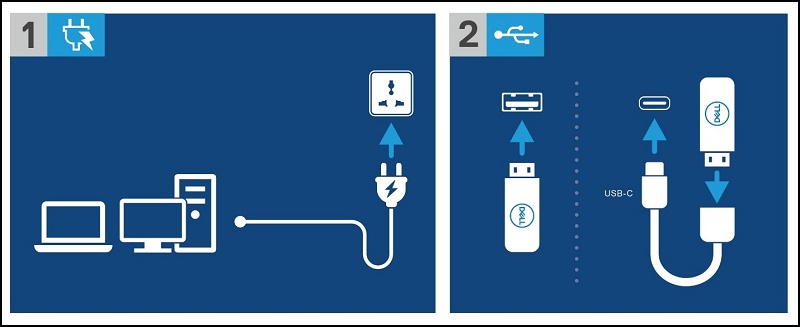
Step 2: Power your Dell Computer or Laptop on and press the F12 Key to enter the "One Time Boot Menu." Select "USB Storage Device" to boot to the Dell Direct Media USB drive.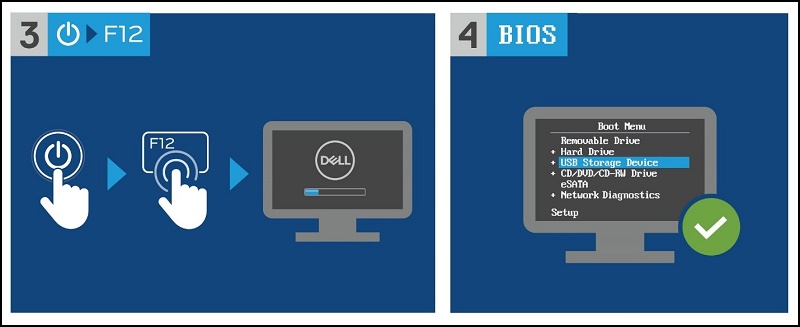
Step 3: The Dell Desktop or Laptop boots to the Dell Direct Media USB drive. Follow the on-screen instructions and Windows begins to install.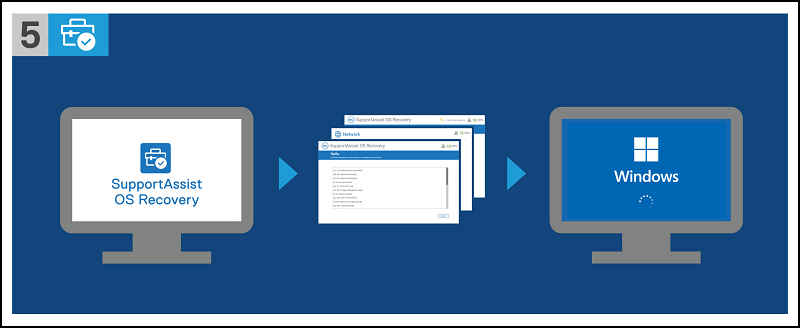
Additional Information
You can find the Dell SupportAssist OS Recovery User’s Guide on the following documentation page:
Produse afectate
Alienware, Inspiron, OptiPlex, Vostro, XPS, G Series, G Series, Alienware, Inspiron, Latitude, Vostro, XPS, Fixed Workstations, Mobile WorkstationsProprietăți articol
Article Number: 000129655
Article Type: Solution
Ultima modificare: 14 iul. 2025
Version: 10
Găsiți răspunsuri la întrebările dvs. de la alți utilizatori Dell
Servicii de asistență
Verificați dacă dispozitivul dvs. este acoperit de serviciile de asistență.