Dell Unity: How to add SMTP server settings for Unity array
Zhrnutie: Dell Unity: How to add SMTP server settings for Unity array.
Tento článok sa vzťahuje na
Tento článok sa nevzťahuje na
Tento článok nie je viazaný na žiadny konkrétny produkt.
V tomto článku nie sú uvedené všetky verzie produktov.
Pokyny
- From the "Update system setting" on the upper right corner, choose "Alerts" tab, then email and SMTP option.
- Add the required list of mails that would like to receive system alerts.
- Add the severity level of the alerts to send.
Here is the figure of the different severity levels:
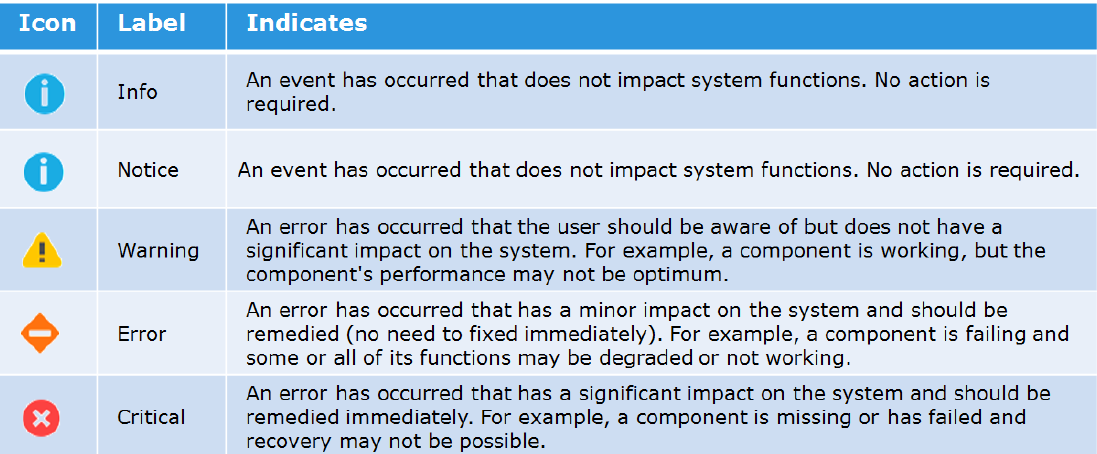
- Then type the IP address or hostname of the Simple Mail Transport Protocol (SMTP) server required to send emails.
Changing the default port for SMTP (25) is not supported with Unity OE version older than Nighthawk (4.5.0).
From Nighthawk onward, unity starts to support customize of SMTP port:06:34:56 service@Peggy spa:~/user> uemcli /net/smtp -hStorage system address: 127.0.0.1Storage system port: 443HTTPS connection
Manage SMTP server settings. Use SMTP to have system alerts emailed to specified addresses.
Actions:[Show]/net/smtp [ -id <value> ] show [ -output { nvp | csv | table [ -wrap ] } ] [ { -brief | -detail | -filter <value> } ][Set]/net/smtp -id <value> set -addr <value> [ -port <value> ] [ -encryptLevel { none | startTLS | ssl } ] [ -authType { none | plain | login | cram_md5 | digest_md5 } ] [ -user <value> { -passwd <value> | -passwdSecure } ] [ -bypassProxy { yes | no } ]
Dotknuté produkty
Dell EMC Unity FamilyProdukty
Dell EMC Unity FamilyVlastnosti článku
Číslo článku: 000022531
Typ článku: How To
Dátum poslednej úpravy: 22 okt 2025
Verzia: 4
Nájdite odpovede na svoje otázky od ostatných používateľov spoločnosti Dell
Služby podpory
Skontrolujte, či sa na vaše zariadenie vzťahujú služby podpory.