Dell APEX Cloud Platform: Network validation failed during node addition
Zhrnutie: In the case of a Full converged Cluster, if user config more than 1 storage vlan ID for the traffic, network validation will be failed.
Symptómy
Validation will fail, and a notification will be prompted 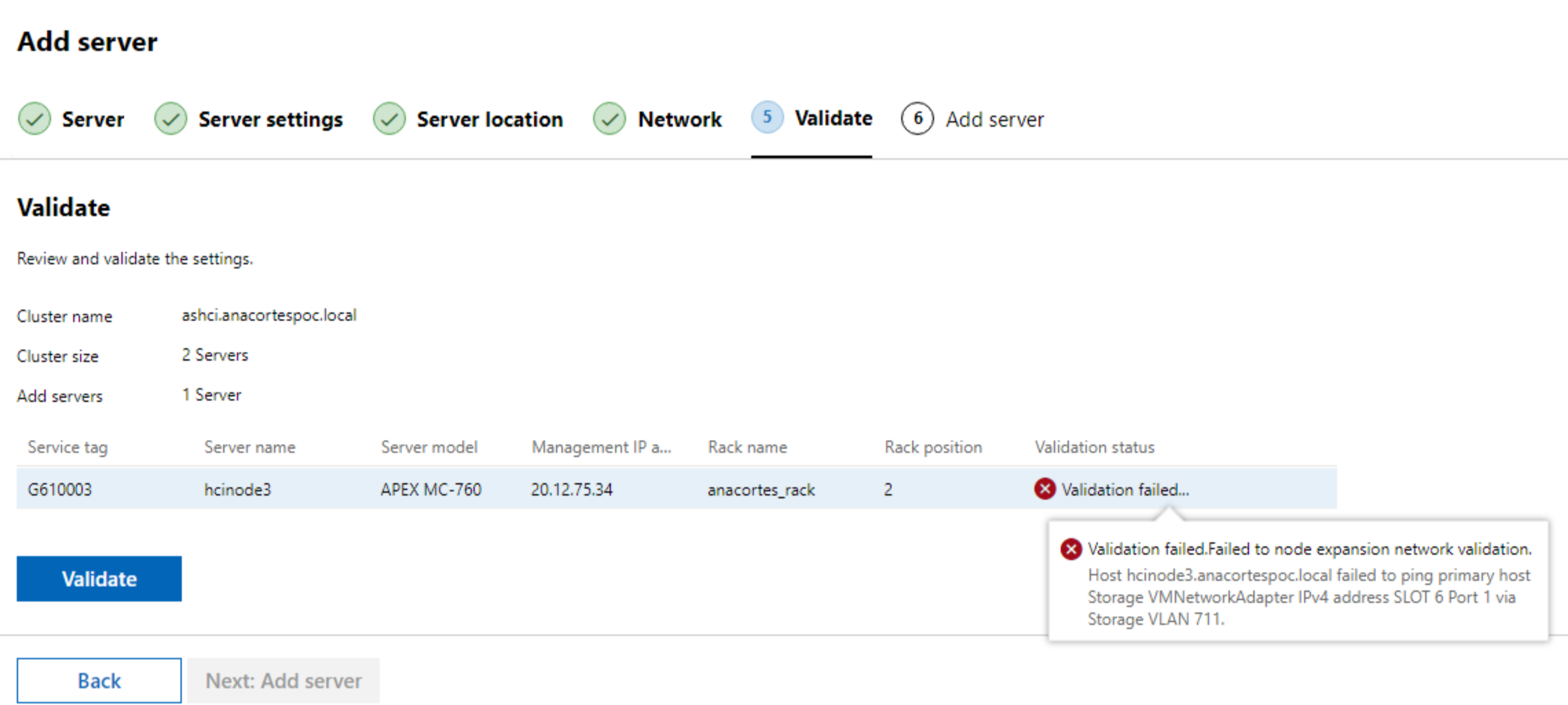
Príčina
In a Fully converged Cluster, if user configured more than one storage VLAN ID for the traffic
For example a two-storage VLAN configuration in a fully converged cluster:
- In the cluster, there are two storage VLAN IDs 711 and 712
- But on the new node, only VLAN 711 is configured for storage traffic during validation, then it failed to validate the VLAN 712 network connection.
Riešenie
Use steps below to skip the validation:
1. Prepare JSON payload
Use Chrome to open WAC UI interface, click F12 and then validate. In the network window, find "expansion api" and get request payload.
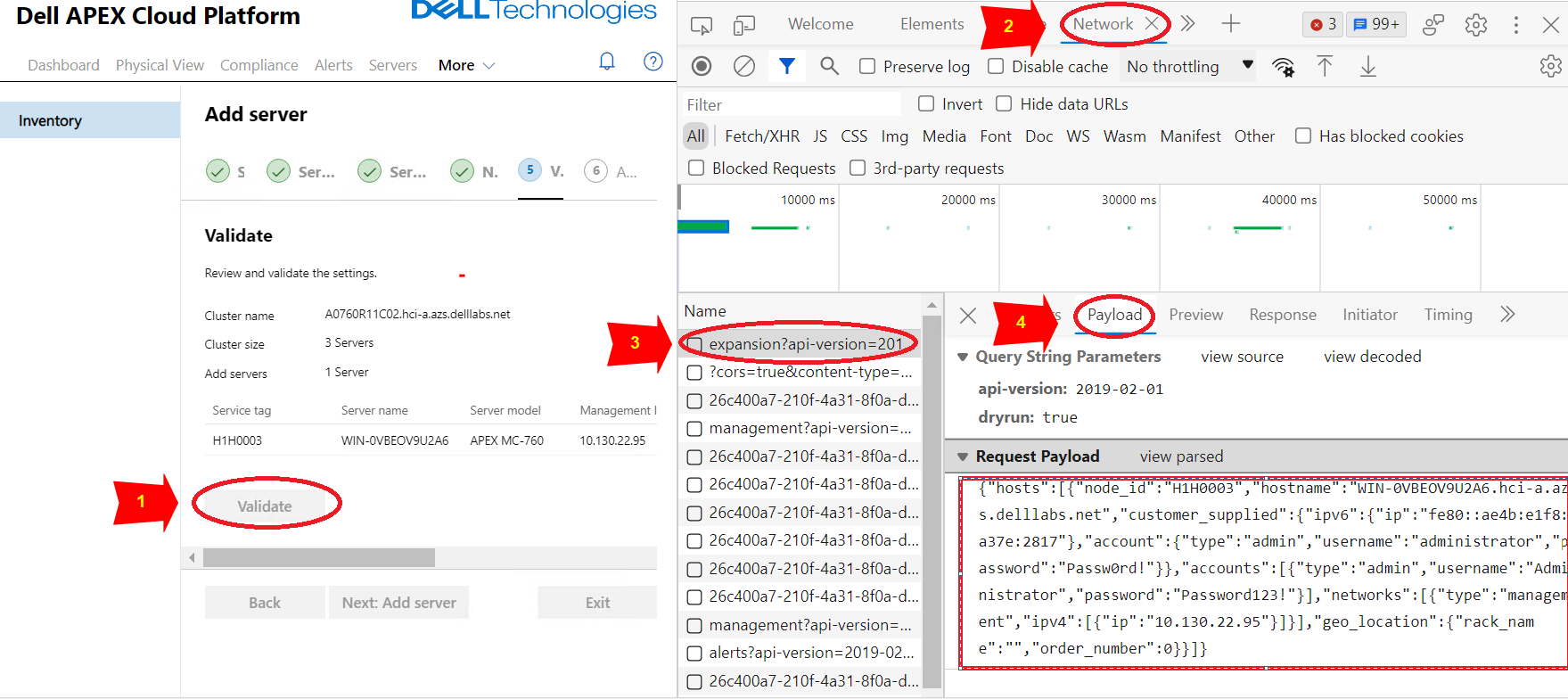
save the payload JSON to a file named payload.json.
JSON payload content example:
| { "hosts":[ { "node_id":"H1H0003", "hostname":"WIN-0VBEOV9U2A6.hci-a.azs.delllabs.net", "customer_supplied":{ "ipv6":{ "ip":"fe80::ae4b:e1f8:a37e:2817" }, "account":{ "type":"admin", "username":"administrator", "password":"Passw0rd!" } }, "accounts":[ { "type":"admin", "username":"Administrator", "password":"Password123!" } ], "networks":[ { "type":"management", "ipv4":[ { "ip":"10.130.22.95" } ] } ], "geo_location":{ "rack_name":"", "order_number":0 } } ] } |
2. Call Node expansion API get the “access token” for authorization
(The following API should be invoked in a place that has network access to APEX Cloud Platform Manager.)
a. Call private API(POST) get the “access token” for authorization:
| curl -k -i -X POST https://<Manager_IP>/rest/apex-cp/v1/login -d '{"username":"<management username>","password":"<management password>"}' --header "Content-Type: application/json" |
Result example:
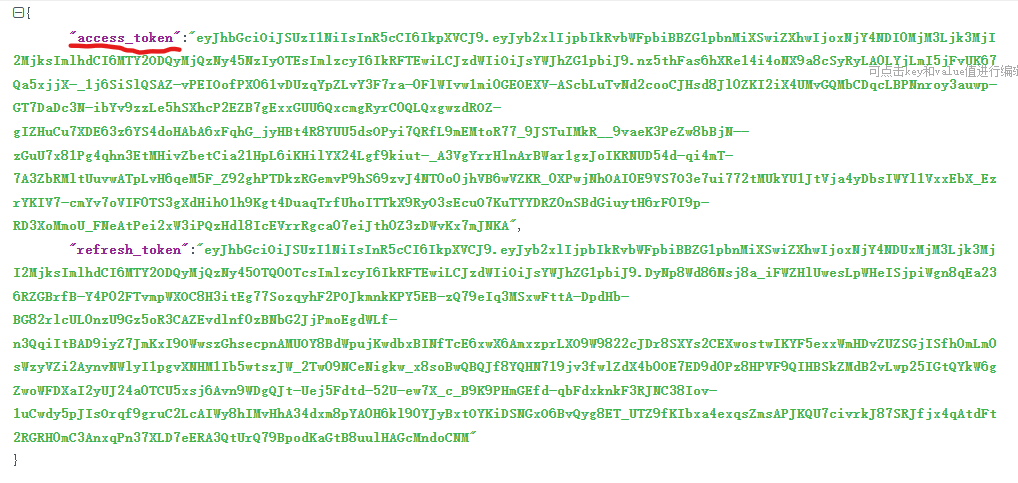
b. Use the access token from last step to call private API(POST) to add node
| curl -k -i -X POST "https://<Manager_IP>/rest/apex-cp/private/v1/cluster/expansion?dryrun=false" --header "Authorization: Bearer<access_token_value>" --header "Content-Type: application/json" -d @</path/to/payload.json> |
3. Monitor node addition status
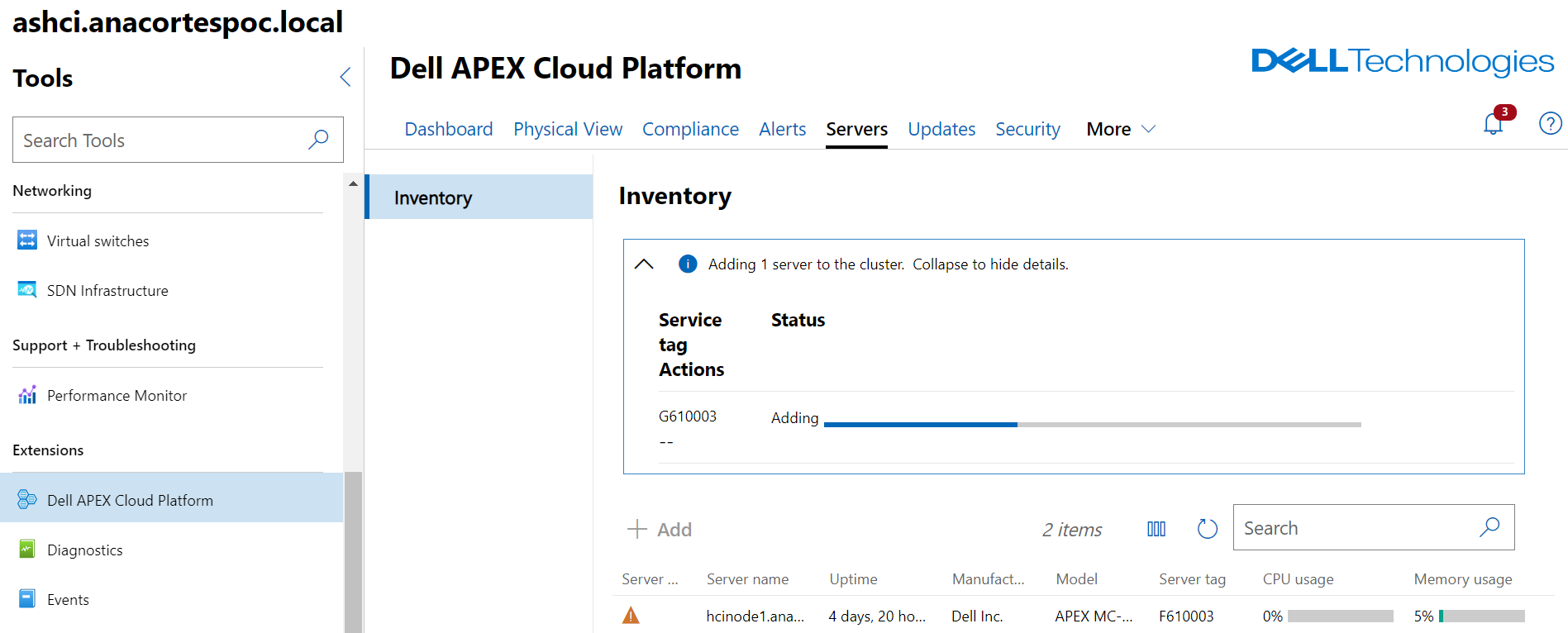
On WAC UI, we can see the job progress:
a