How to Add VMware Carbon Black Cloud Administrators
摘要: Learn step-by-step instructions to configure an administrator account for VMware Carbon Black Cloud by following these directions.
本文适用于
本文不适用于
本文并非针对某种特定的产品。
本文并非包含所有产品版本。
说明
This article discusses how to add additional administrators to the VMware Carbon Black Cloud.
Affected Products:
- VMware Carbon Black Cloud Endpoint
Affected Operating Systems:
- Windows
- Mac
- Linux
VMware Carbon Black Onboarding Part 1: Product Overview, Users, and Roles
Duration: 03:10
Closed captions: Available in multiple languages
- In a web browser, go to [REGION].conferdeploy.net.
Note: [REGION] = Region of tenant
- Americas = https://defense-prod05.conferdeploy.net/
- Europe = https://defense-eu.conferdeploy.net/
- Asia Pacific = https://defense-prodnrt.conferdeploy.net/
- Australia and New Zealand = https://defense-prodsyd.conferdeploy.net
- Americas = https://defense-prod05.conferdeploy.net/
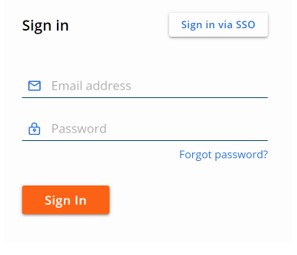
- Sign In to the VMware Carbon Black Cloud.
- In the left menu pane, expand Settings and then click Users.
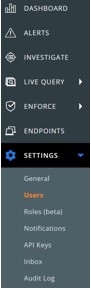 Note: The layout in the example may differ slightly from your environment.
 - In the upper right corner, click Add User.

- In the Add User menu:
- Optionally, populate the user’s:
- First name
- Last name
- Phone number
- Populate the user’s Email.
- Optionally, click Show role descriptions.
- Select a Role.
- Click Save.
 Note:
Note:- The administration access invite comes from noreply@carbonblack.com.
- Additional information about roles can be found in the User Guide under the User Role section.
- For information about creating custom roles, reference How to Create Custom VMware Carbon Black Cloud Roles.
- The examples that are used in the screenshot will differ in your environment.
- Optionally, populate the user’s:

To contact support, reference Dell Data Security International Support Phone Numbers.
Go to TechDirect to generate a technical support request online.
For additional insights and resources, join the Dell Security Community Forum.
受影响的产品
VMware Carbon Black文章属性
文章编号: 000126000
文章类型: How To
上次修改时间: 06 6月 2025
版本: 14
从其他戴尔用户那里查找问题的答案
支持服务
检查您的设备是否在支持服务涵盖的范围内。