How to Check for Policy Updates for Dell Data Security
摘要: Learn how to check for policy updates for Dell Data Security or Dell Data Protection software by following these instructions.
本文适用于
本文不适用于
本文并非针对某种特定的产品。
本文并非包含所有产品版本。
症状
Note:
- As of February 2021, Dell Encryption Enterprise for Mac has reached End of Maintenance. This product and its articles are no longer updated by Dell.
- As of May 2022, Dell Endpoint Security Suite Enterprise has reached End of Maintenance. This product and its articles are no longer updated by Dell.
- As of January 2019, Dell Endpoint Security Suite Pro has reached End of Maintenance. This product and its articles are no longer updated by Dell.
- For more information, reference Product Life Cycle (End of Support and End of Life) Policy for Dell Data Security. If you have any questions on alternative articles, either reach out to your sales team or contact endpointsecurity@dell.com.
- Reference Endpoint Security for additional information about current products.
This article covers how to check for policy updates with Dell Data Security (formerly Dell Data Protection).
Affected Products:
- Dell Encryption Enterprise
- Dell Data Protection | Enterprise Edition
- Dell Encryption Enterprise for Mac
- Dell Data Protection | Enterprise Edition for Mac
- Dell Encryption Enterprise Self-Encrypting Drive Manager
- Dell Data Protection | Self-Encrypting Drive Manager
- Dell Encryption External Media
- Dell Data Protection | External Media Edition
- Dell BitLocker Manager
- Dell Data Protection | BitLocker Manager
- Dell Endpoint Security Suite Pro
- Dell Data Protection | Endpoint Security Suite
- Dell Endpoint Security Suite Enterprise
- Dell Data Protection | Endpoint Security Suite Enterprise
- Dell Full Disk Encryption
Affected Operating Systems:
- Windows
- Mac
原因
Not applicable
解决方案
Checking for policy updates differs based on the operating system for the product that is in use. Click Windows or Mac for more information.
Windows
Policy updates differ between:
Shield
- Dell Encryption Enterprise
- Dell Data Protection | Enterprise Edition
- Dell Encryption External Media
- Dell Data Protection | External Media Edition
Encryption Management Agent (EMAgent)
- Dell Encryption Enterprise Self-Encrypting Drive Manager
- Dell Data Protection | Self-Encrypting Drive Manager
- Dell BitLocker Manager
- Dell Data Protection | BitLocker Manager
- Dell Endpoint Security Suite Pro
- Dell Data Protection | Endpoint Security Suite
- Dell Endpoint Security Suite Enterprise
- Dell Data Protection | Endpoint Security Suite Enterprise
- Dell Full Disk Encryption
Click Shield or EMAgent for more information.
Shield
Policy updates can be checked using the UI or the Registry. Select the appropriate option for more information.
Note: This option is only available if the endpoint policies include Display Local Encryption Processing Control set to True.
- Log in to the Windows computer.
- In the Windows System Tray, right-click the Dell Encryption (formerly Dell Data Protection | Encryption) icon and then select Check for Policy Updates.
| v8.0.0 to 8.13.0 | v8.15.0 and Later |
|---|---|
|
|
|
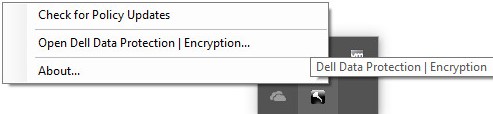
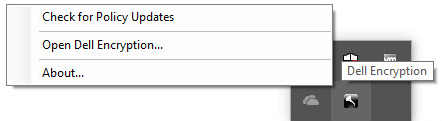
Note: To prevent performance issues, Check for Policy Updates communication is restricted to one minute.
- Right-click the Windows Start menu and then click Run.
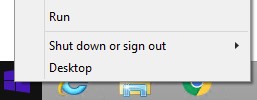
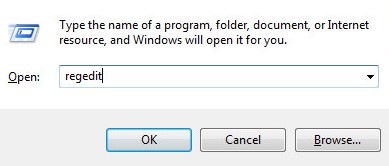
- In the Run user interface (UI), type
regeditand then press OK. This opens the Registry Editor.
- In the Registry Editor, go to
HKEY_LOCAL_MACHINE\Software\Credant\CMGShield\Notify. - Right-click the Notify folder, select New, and then click DWORD (32-bit) Value.
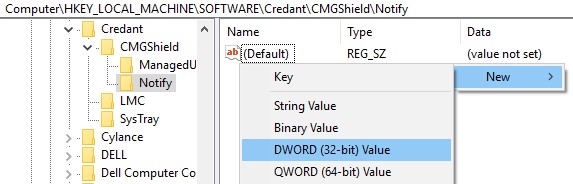
- Name the DWORD
PingProxy.

- Double-click
PingProxy.
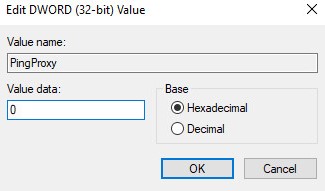
- Populate Value data with
1and then click OK.
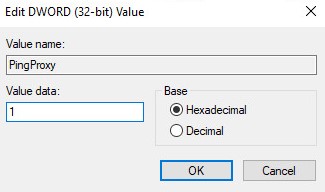
Note: Once the endpoint has queried the server,
PingProxy Value data reverts to 0.
EMAgent
- Log in to the Windows computer.
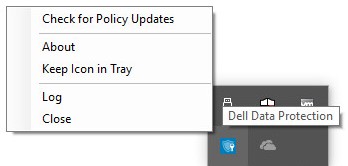
- In the Windows System Tray, right-click the Dell Data Security (formerly Dell Data Protection) icon and then select Check for Policy Updates.
| v8.0.1 to 8.13.0 | v8.15.0 and Later |
|---|---|
|
|
|
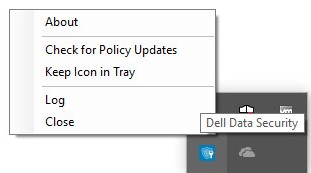
Mac
- Log in to the Mac computer.
- Click System Preferences.

- Double-click Dell Encryption Enterprise (formerly Dell Data Protection).
| v8.0.0 to 8.13.2 | v8.15.0 and Later |
|---|---|
|
|
|


- Click Policies.

- Click the refresh button near the bottom of the window.
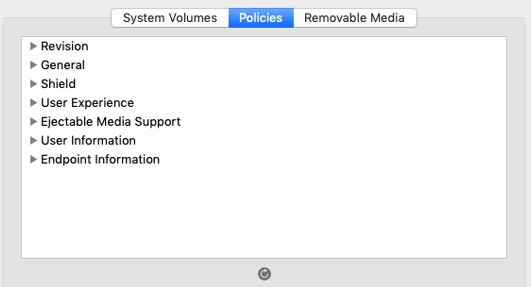
Note: To prevent performance issues, Check for Policy Updates communication is restricted to one minute.
To contact support, reference Dell Data Security International Support Phone Numbers.
Go to TechDirect to generate a technical support request online.
For additional insights and resources, join the Dell Security Community Forum.
其他信息
视频
受影响的产品
Dell Encryption文章属性
文章编号: 000126722
文章类型: Solution
上次修改时间: 24 10月 2023
版本: 10
从其他戴尔用户那里查找问题的答案
支持服务
检查您的设备是否在支持服务涵盖的范围内。