How to Identify the Dell Trusted Device Version
摘要: Learn how to identify the version of Dell Trusted Device by following these step-by-step instructions.
本文适用于
本文不适用于
本文并非针对某种特定的产品。
本文并非包含所有产品版本。
说明
Knowing the version of Dell Trusted Device allows an administrator to:
- Validate system requirements
- Identify known issues
- Understand process changes
Affected Products:
- Dell Trusted Device
Affected Versions:
- v1.0 and Later
Affected Platforms:
- Latitude
- OptiPlex
- Precision
- XPS
Affected Operating Systems:
- Windows
Versioning can be determined either through the product user interface (UI) or by command-line interface (CLI). Click the appropriate method for more information.
UI
- Right-click the Windows Start menu and then click Run.
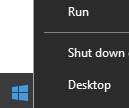
- In the Run UI, type
appwiz.cpland then press OK.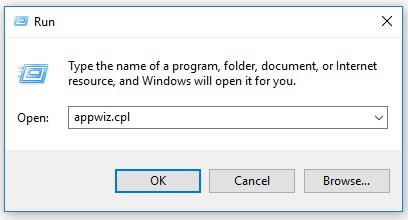
- In Programs and Features, record the Version of Dell Trusted Device. In the example, 2.1.8 is the product version.

CLI
- Right-click the Windows Start menu and then click Run.
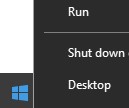
- In the Run UI, type
cmdand then press OK.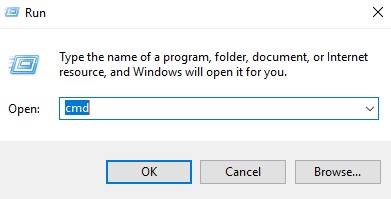
- Type
wmic path win32_product where (Caption like "%Trusted Device%") get versionand then press Enter.
- Record the Version. In the example, 2.1.8.0 is the product version.
 Note: The version of your client may differ from the above screenshot.
To contact support, reference Dell Data Security International Support Phone Numbers.
Go to TechDirect to generate a technical support request online.
For additional insights and resources, join the Dell Security Community Forum.
受影响的产品
Dell Trusted Device文章属性
文章编号: 000131036
文章类型: How To
上次修改时间: 15 9月 2025
版本: 14
从其他戴尔用户那里查找问题的答案
支持服务
检查您的设备是否在支持服务涵盖的范围内。