USB 3.0 Device is Recognized as USB 2.0 on a Dell Computer
摘要: Learn how to resolve a USB 3.0 device recognized as USB 2.0 device on a Dell computer.
本文适用于
本文不适用于
本文并非针对某种特定的产品。
本文并非包含所有产品版本。
症状
Plugging in a USB 3.0 device may cause an error message to be displayed or it may not be recognized at all.
The error message may appear stating "This USB device can transfer information faster if you connect it to a Super-Speed USB 3.0 port." This may occur even though it is plugged into a 3.0 port. The blue plastic insert in each port typically identifies USB 3.0 ports on Dell computers.
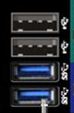
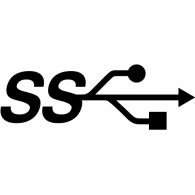
Note: It is not a requirement to have blue plastic inserts to distinguish USB 3.0 ports. With new computers the USB 3.0 ports may have standard black plastic inserts, but they still have the USB 3.0 logo located beside the port. When the computer has a mixture of USB 2.0 and USB 3.0, it is more likely that the USB 3.0 is called out with blue inserts.
原因
When a USB 3.0 device is plugged in slowly to a USB 3.0 port, it is expected behavior of the hardware to recognize as USB 2.0.
解决方案
If the above error is seen try the following steps to resolve:
- Verify that the device that you are using supports USB 3.0. See the documentation of the USB device for more information.
- Plug the USB 3.0 device again and avoid inserting the device slowly.
- If the above steps do not resolve the issue, reference How to Troubleshoot USB Port When it is Not Working.
受影响的产品
Alienware, Inspiron, OptiPlex, Vostro, XPS, G Series, G Series, Alienware, Inspiron, Latitude, Vostro, XPS, Fixed Workstations, Mobile Workstations文章属性
文章编号: 000135207
文章类型: Solution
上次修改时间: 22 7月 2025
版本: 12
从其他戴尔用户那里查找问题的答案
支持服务
检查您的设备是否在支持服务涵盖的范围内。