PowerStore: How to Configure WinSCP to Maintain Executable Permissions for Service Script Uploads
摘要: This article provides step-by-step instructions on how to maintain executable permissions for an injectable service script when uploading it to a PowerStore appliance using WinSCP.
本文适用于
本文不适用于
本文并非针对某种特定的产品。
本文并非包含所有产品版本。
说明
NOTE: This is only required if the uploading packages are in the ZIP format. If the package being uploaded is a TAR file, this is not required.
Perform the following steps to configure WinSCP to maintain executable permissions for an injectable service script when uploading it to a PowerStore appliance.
- Using WinSCP, establish a Secure Copy Protocol (SCP) connection to a node on the PowerStore appliance as (service).
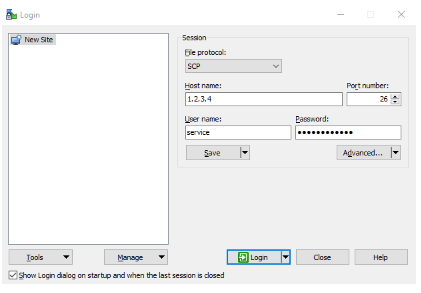
- Go to the left pane of WinSCP to the folder with the file to upload and select one or more files.

- Click the Upload button above the left pane to open the upload dialog box.

- Click Transfer settings:
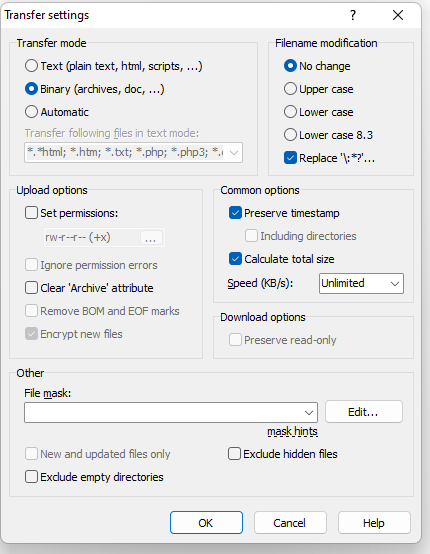
- Check the box for Set permissions and replace rw-r--r-- (+x) with 0777. It changes to rwxrwxrwx when anywhere else is clicked in the window.

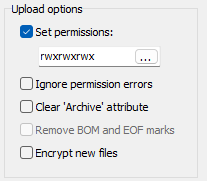
- Click OK on the Transfer settings window and the Upload options window to upload files with proper permissions.
- Verify that the file is uploaded with full permission in the right pane.

This uploads the selected one or more files without making permanent changes to the WinSCP app that have to be reverted.
受影响的产品
PowerStore, PowerStore 1000X, PowerStore 1000T, PowerStore 3000X, PowerStore 3000T, PowerStore 5000X, PowerStore 5000T, PowerStore 500T, PowerStore 7000X, PowerStore 7000T产品
PowerStore 9000X, PowerStore 9000T, PowerStore Employee and Partner文章属性
文章编号: 000197471
文章类型: How To
上次修改时间: 04 9月 2024
版本: 4
从其他戴尔用户那里查找问题的答案
支持服务
检查您的设备是否在支持服务涵盖的范围内。