How to Package .NET Desktop Runtime ARM64 for Microsoft Configuration Manager
摘要: This article provides information about how to package .NET Desktop Runtime ARM64 for Microsoft Configuration Manager as a prerequisite for Dell software solutions.
本文适用于
本文不适用于
本文并非针对某种特定的产品。
本文并非包含所有产品版本。
说明
Affected Products:
- Dell Pro AI Studio
- Dell Core Services
Prerequisites:
- Download the latest version of .NET Desktop Runtime ARM64 from Microsoft
.
- Place the .NET Desktop Runtime ARM64 installation file on a file share in your environment.
Packaging for Microsoft Configuration Manager:
- Open the Configuration Manager Console.

- Go to Software Library > Application Management > Applications
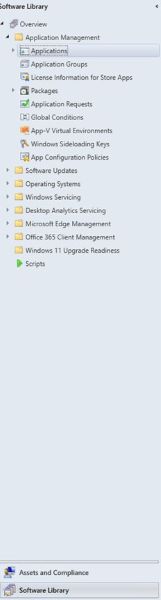
- Click the Create Application button in the top ribbon.

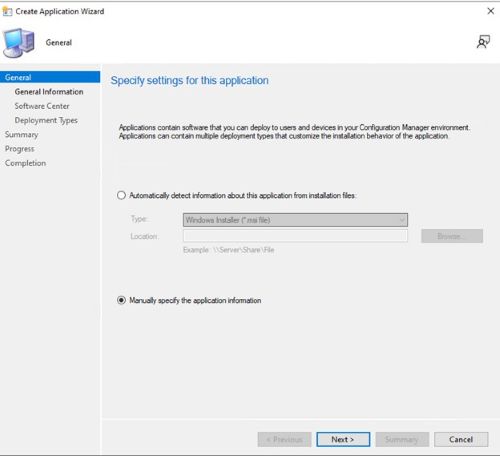
- Click the radio button for Manually specify the application information and click Next.
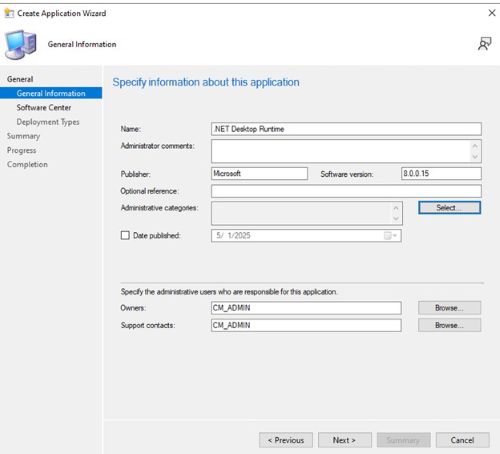
- Enter a name and provide any needed information such as publisher and software version, then update the application owner, and support contact if needed and click Next.
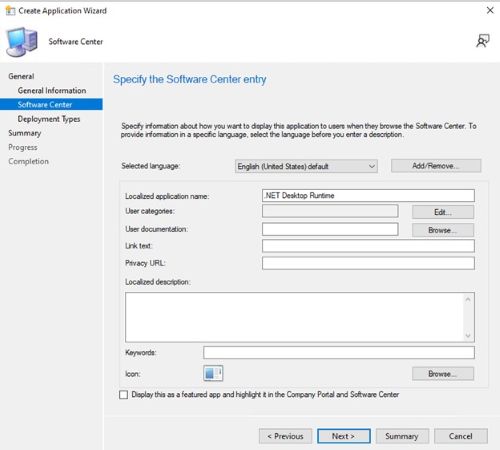
- On the Software Center entry screen, update the language if needed and click Next.
- On the Deployment Types screen, click Add.

- Click the radio button to Manually specify the deployment type information and click Next.
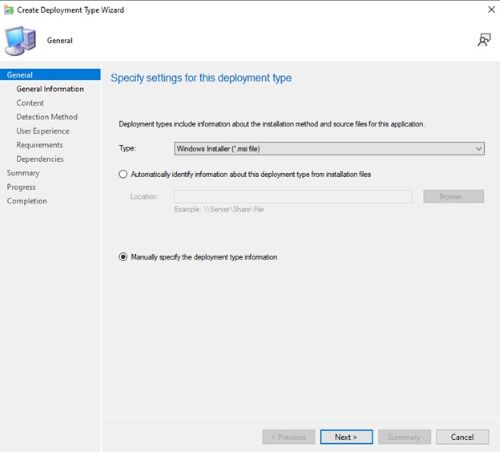
- Provide a name and select a language if needed then click Next.

- Click browse next to Content Location and select the folder where the installer is located.

- In the installation program field type
windowsdesktop-runtime-{VERSION}-win-ARM64.exe /install /quiet /norestartwhere {VERSION} is the application version number example 8.0.15.
- For uninstall program type
windowsdesktop-runtime-{VERSION}-win-ARM64.exe /uninstall /quiet /norestartwhere {VERSION} is the application version number example 8.0.15. Then click Next.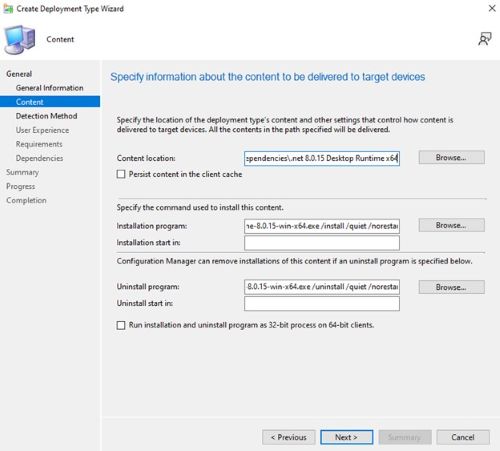
- On the Detection Method page, click the Add Clause button.

- Set the following options then click OK.
Setting Type: File System
Type: File
Path: C:\Program Files\dotnet\shared\MMicrosoft.NETCore.App
File or folder name: 8.0.15
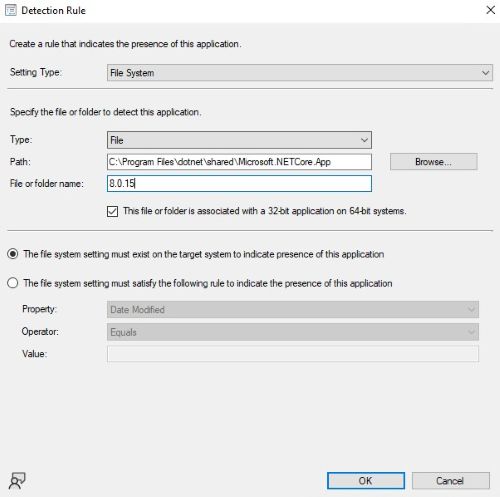
- Click Next.

- On the User Experience page set the options below and click Next.
Installation behavior: Install for system
Logon requirement: Whether or not a user is logged on
Installation program visibility: Hidden
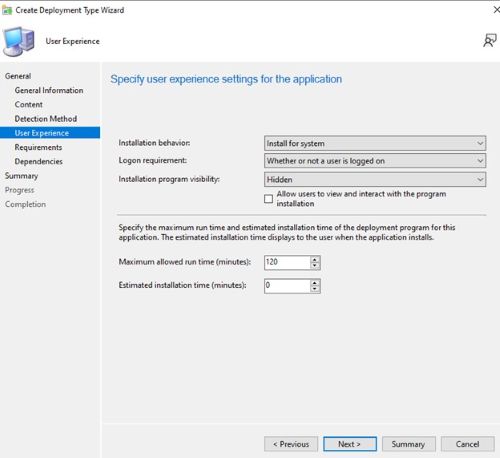
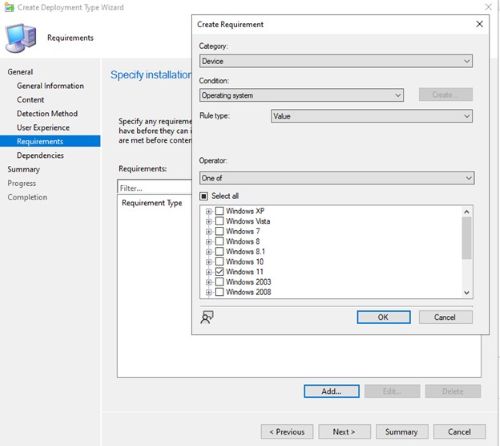
- On the Requirements page, click Add
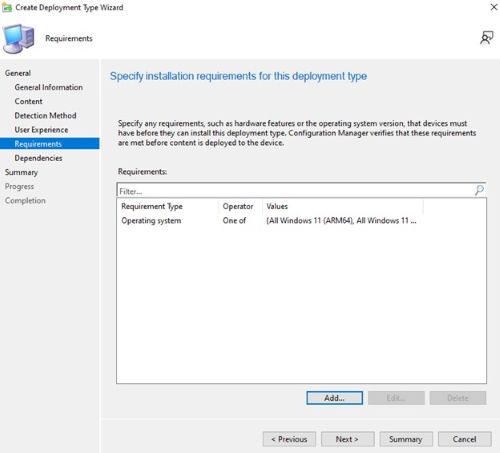
- Select the requirements based on your environment, then click Ok.
- Once finished click Next.
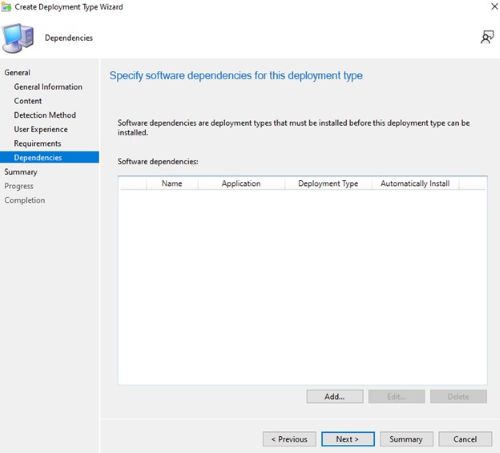
- On the Dependencies page, click Next.
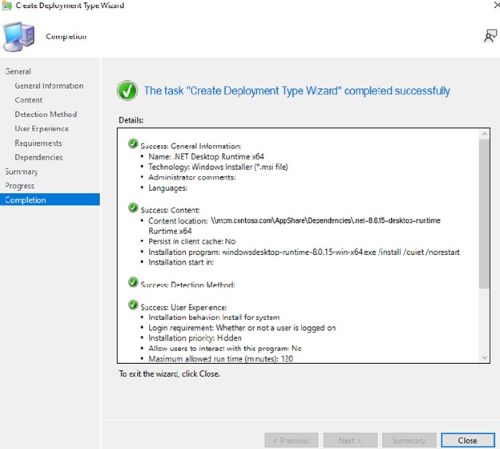
- On the Summary page, click Next then on the completion page click Close.
- Click Next on the Deployment Types page.
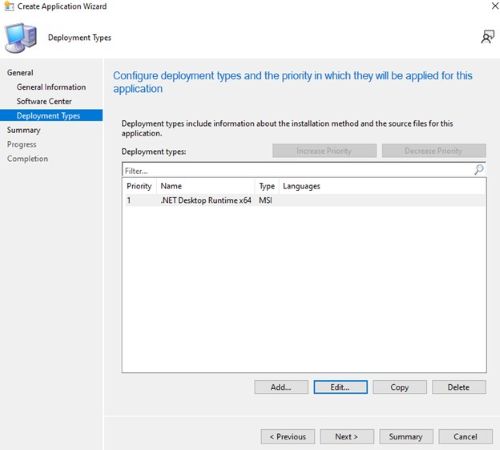
- On the Summary page, click Next then on the completion screen click Close.
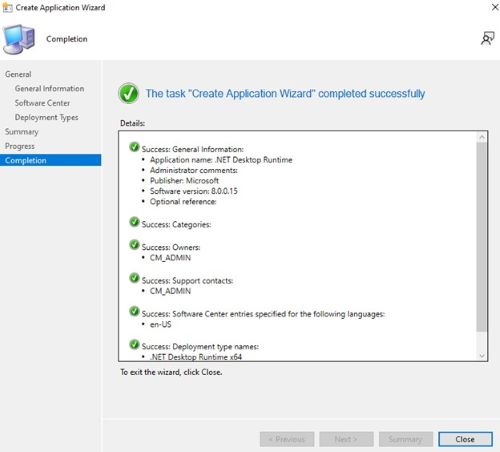
受影响的产品
Dell Pro AI Studio文章属性
文章编号: 000321953
文章类型: How To
上次修改时间: 19 5月 2025
版本: 1
从其他戴尔用户那里查找问题的答案
支持服务
检查您的设备是否在支持服务涵盖的范围内。