VNX: VNX2: How to use Unisphere with Google Chrome (User Correctable)
摘要: Newer versions of Chrome does not allow java. As a work around, you can install a chrome extension to allow Unisphere or the VNX client to run within Chrome.
本文章適用於
本文章不適用於
本文無關於任何特定產品。
本文未識別所有產品版本。
症狀
Customer prefers or requires Chrome.
There is a need to run Unisphere within Google chrome.
There is a need to run Unisphere within Google chrome.
原因
Java is no longer supported with Google Chrome.
解析度
Installing the Google Chrome IE Tab extension allows chrome to emulate IE; which continues to support Java.
- Click the link below, bringing you to the Chrome store:
https://chrome.google.com/webstore/detail/ie-tab/hehijbfgiekmjfkfjpbkbammjbdenadd
- At the bottom of the page, there is a command button stating add to Chrome. Click the button.
- You see it download to the bottom left of the browser.
- Right click the file and select view in folder location. The file name is Ietabhelper.exe. Right click the file and select run as administrator.
- Once installed you should see an icon in the upper right as such

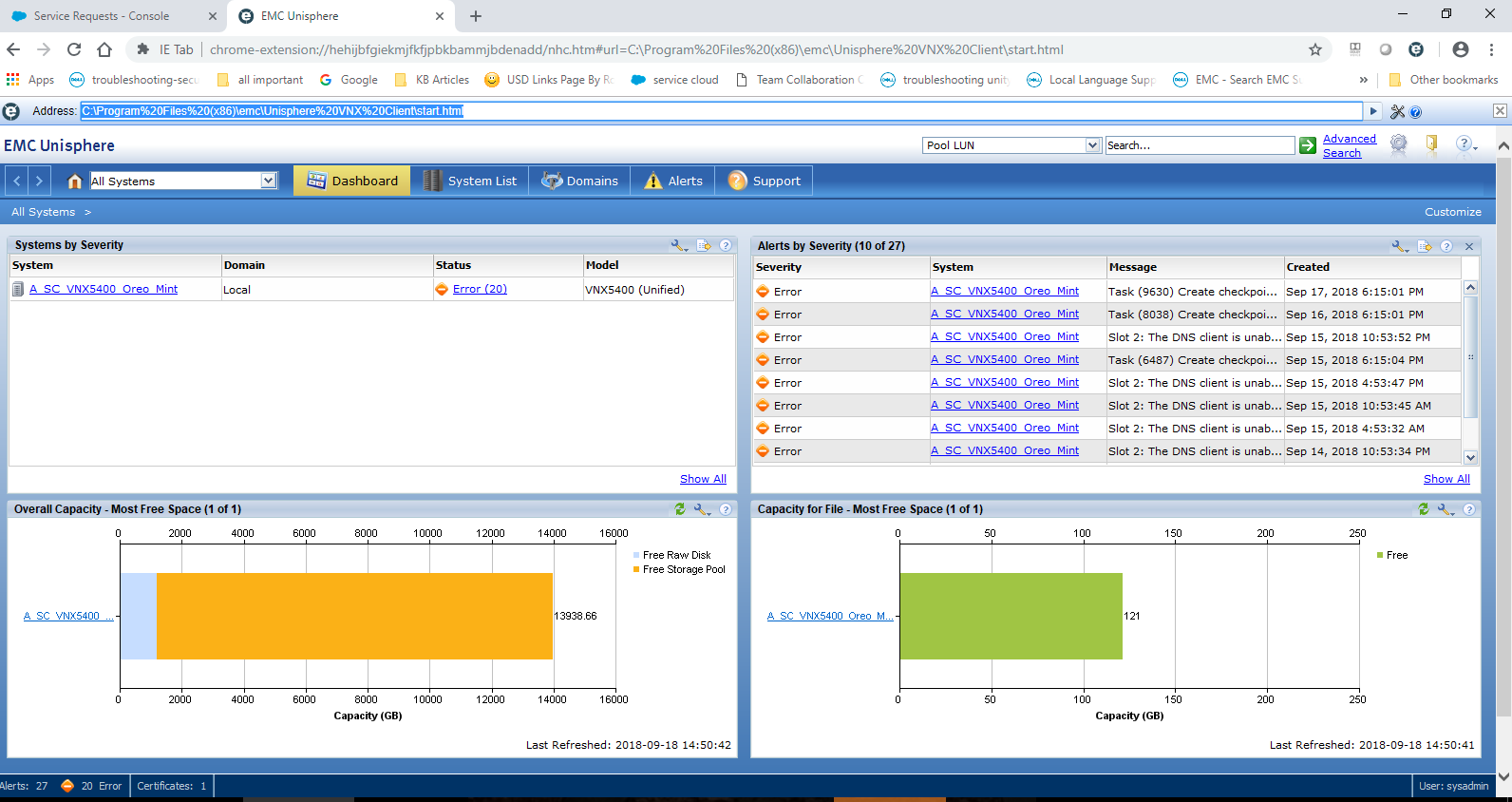
- Click the icon adds an additional URL address input. Here you can type the IP of the array or the path to the VNX Client locally. For example:
受影響的產品
VNX/VNXe文章屬性
文章編號: 000054856
文章類型: Solution
上次修改時間: 29 9月 2025
版本: 4
向其他 Dell 使用者尋求您問題的答案
支援服務
檢查您的裝置是否在支援服務的涵蓋範圍內。