iDRAC:导出和导入 iDRAC 配置信息
摘要: 本文介绍如何导出和导入在 iDRAC Web 控制台上设置的配置信息。但是,只有 iDRAC9 允许 Web 界面访问该信息。
本文章適用於
本文章不適用於
本文無關於任何特定產品。
本文未識別所有產品版本。
說明
提醒: iDRAC9 及更高版本支持 UI,但 iDRAC7/8 仅支持 CLI。
iDRAC 服务器配置配置文件
持续时间:00:10:20 (hh:mm:ss)
如果可用,可以使用此视频播放器上的 CC 图标选择隐藏式字幕(字幕)语言设置。
有关 UI 交互的更多信息,请参阅手册:https://www.dell.com/support/manuals/idrac9-lifecycle-controller-v3.3-series/idrac_3.31.31.31_ug/exporting-server-configuration-profile-using-idrac-web-interface<>
使用 CLI 的步骤
前期准备:
- 如果未安装 racadm,请安装 DRAC 工具。
- 运行以下命令以检查 iDRAC 版本:
racadm -r "iDRAC IP address" -u "iDRAC user ID" -p "iDRAC password" getversion
Command example: racadm -r 192.16.1.120 -u root -p calvin getversion
导出
步骤运行命令以导出 XML 文件。
racadm -r "iDRAC IP address" -u "iDRAC user ID" -p "iDRAC password" get -t xml -f "File path/filename of export destination"
Command example: racadm -r 192.168.0.120 -u root -p calvin get -t xml -f C:\iDRAC_config.xml
提醒:文件名/文件路径是一个示例。指定任何导出目标/文件名。
仅当在高级准备步骤中确认的 iDRAC 版本为 1.x 时,XML 文件才不包含警报信息。
为此,请运行命令以导出警报信息(ini 文件)。
racadm -r "iDRAC IP address" -u "iDRAC user ID" -p "iDRAC password" get -t ini -f "file path/file name"
Command example: racadm -r 192.168.0.120 -u root -p calvin get -t ini -f C:\iDRAC_config.ini
导入
步骤按照以下步骤导入导出的信息。
-
仅适用于 iDRAC 版本 1.x,运行命令以导入警报信息(ini 文件)。
racadm -r "iDRAC IP address" -u "iDRAC user ID" -p "iDRAC password" set -t ini -f "file path/filename of file to be imported"
Command example: racadm -r 192.168.0.120 -u root -p calvin set -t ini -f C:\iDRAC_config.ini
-
运行命令以导入 XML 文件(系统配置)。
racadm -r "iDRAC IP address" -u "iDRAC user ID" -p "iDRAC password" set -t xml -f "file path/filaname of the file to be imported"
Command example: racadm -r 192.168.0.120 -u root -p calvin set -t xml -f C:\iDRAC_config.xml
提醒:在替换 iDRAC 后导入时, 输入 默认密码 作为 iDRAC 密码。 -
等待系统重新启动。
如果系统未自动重新启动,请手动重新启动系统。
由于 iDRAC 的每个用户的密码未恢复,因此请更改每个用户的密码。
此外,由于并非所有密码都会还原,因此如有必要,请还原代理和 VNC 服务器等。
使用 UI 的步骤
提醒:只有 iDRAC9 支持 UI 上的作。
导出步骤
-
登录到 iDRAC Web 控制台。
-
从菜单栏中选择 Configuration ->Server Setting Profile 。
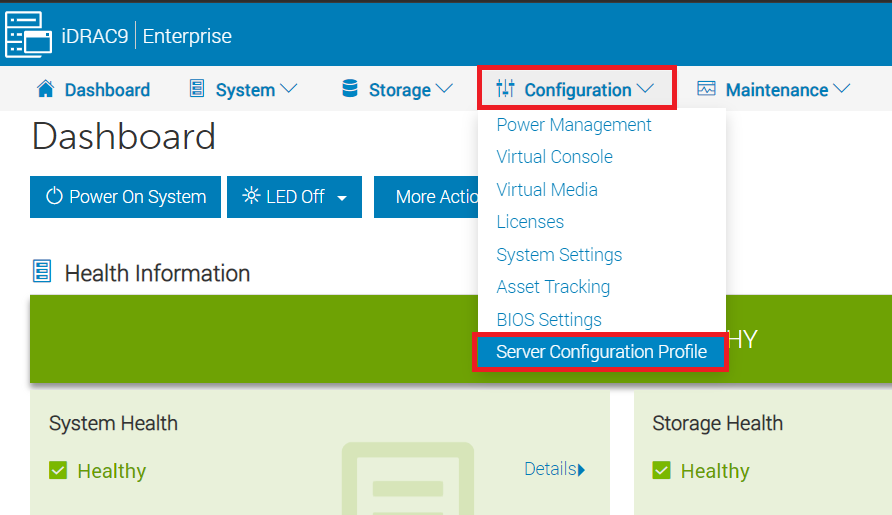
-
展开 导出,并至少输入以下项目。
・文件名:任何文件名
・导出组件:选择要导出的项目。选择“全部”。
将其他设置保留为默认值或根据需要进行设置,然后单击 导出。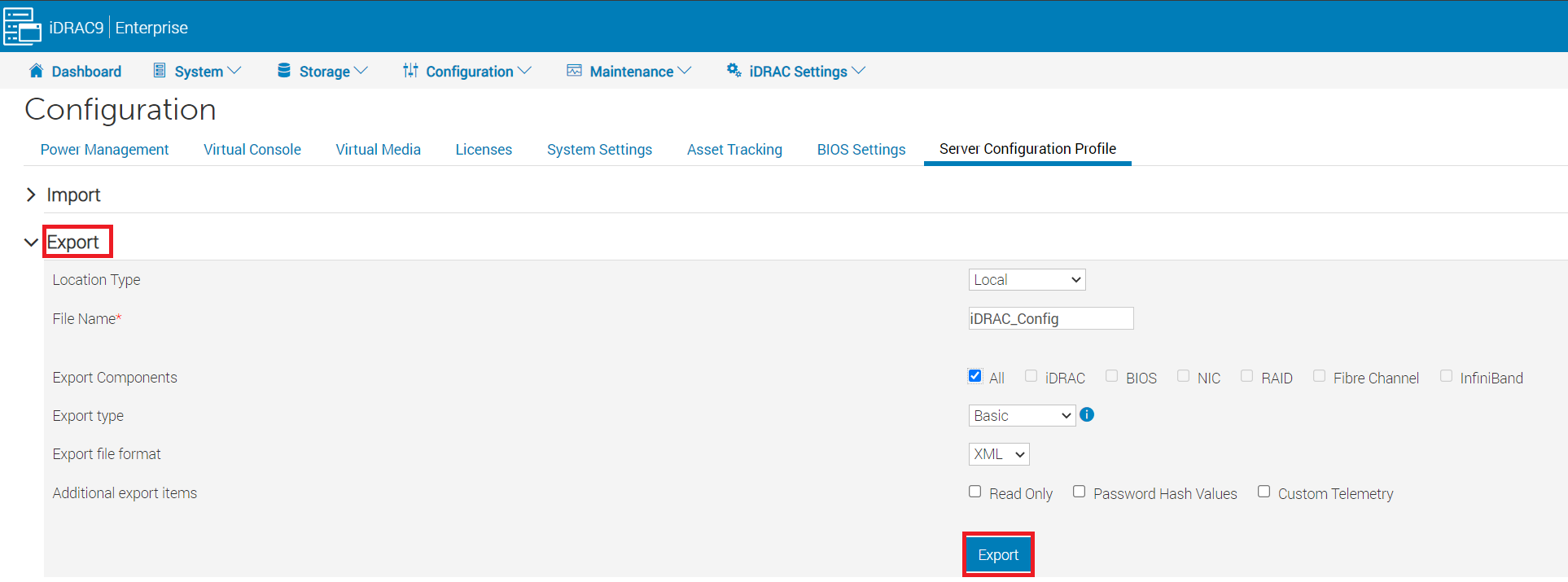
-
在出现的消息上单击 本地保存 ,然后将其保存在任意位置。

导入
步骤按照以下步骤导入导出的信息。
-
按照上述导出步骤作,直到步骤 2。
-
展开 导入,并至少
输入以下项目 ・文件路径:选择要导入
的文件 ・导入组件“:选择要导入的项目。选择“全部”
,将其他设置保留为默认值或根据需要进行设置,然后单击 导入。
其他資訊
受影響的產品
iDRAC6, iDRAC7, iDRAC8, iDRAC9文章屬性
文章編號: 000114972
文章類型: How To
上次修改時間: 09 12月 2024
版本: 12
向其他 Dell 使用者尋求您問題的答案
支援服務
檢查您的裝置是否在支援服務的涵蓋範圍內。