如何在 Dell Endpoint Security Suite Enterprise 中添加签名证书
摘要: 可以按照以下说明在 Dell Endpoint Security Suite Enterprise 中添加应用程序签名证书。
本文章適用於
本文章不適用於
本文無關於任何特定產品。
本文未識別所有產品版本。
症狀
提醒:
- 从 2022 年 5 月起,Dell Endpoint Security Suite Enterprise 停止维护。戴尔不再更新本文。有关详细信息,请参阅 戴尔数据安全产品生命周期(支持终止和停售)政策。如果您对其他文章有任何疑问,请联系您的销售团队或联系 endpointsecurity@dell.com。
- 请参阅端点安全性,了解有关当前产品的其他信息。
应用程序签名证书可用于在 Dell Endpoint Security Suite Enterprise 中将产品加入安全列表。本文讨论如何将签名证书添加到 Dell Endpoint Security Suite Enterprise 的 Dell Data Security(原 Dell Data Protection)管理控制台。
受影响的产品:
- Dell Endpoint Security Suite Enterprise
受影响的操作系统:
- Windows
- Mac
- Linux
原因
不适用
解析度
- 打开 Web 浏览器并访问
https://servername.company.com:8443/webui。

提醒:
- 该示例完全限定域名 (FQDN) 将不同于您环境中的服务器。
- 端口 8443 可能与您环境中的管理控制台端口不同。
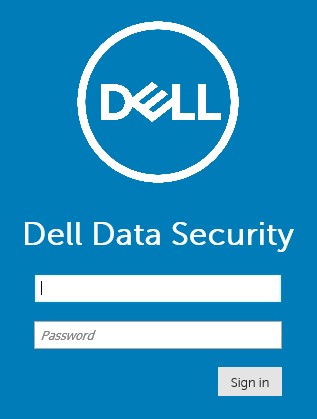
- 登录管理控制台。
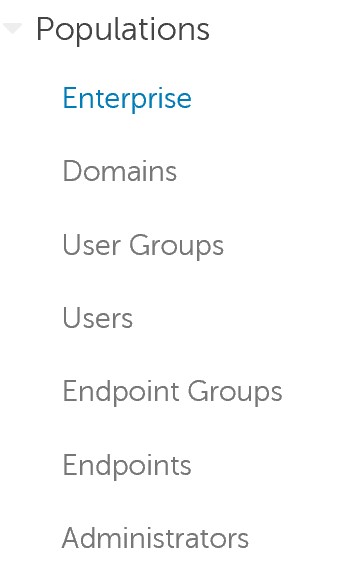
- 在左侧菜单中,展开 Populations 并单击 Enterprise。
- 单击 Advanced Threats 选项卡。

- 单击 Certificate 选项卡。

- 单击 Add Certificate。

- 单击 Browse for certificates to add。

- 转到证书 (.cer) 并单击 Open。
提醒:有关更多信息,请参阅 如何在 Windows 上导出应用程序签名证书。
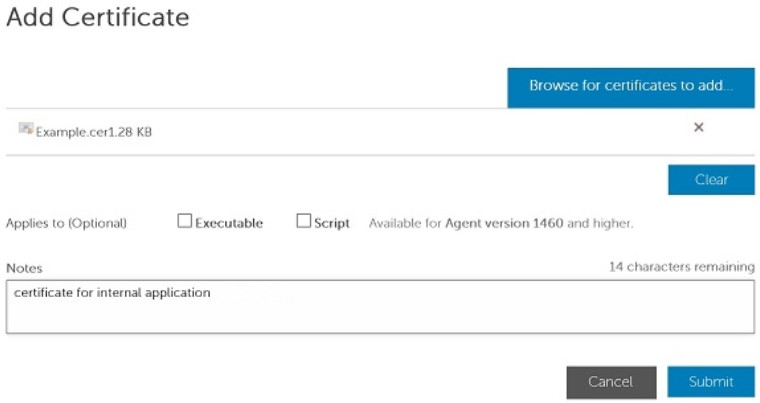
- 在“Add Certificate”菜单中:
- (可选)检查签名证书是否适用于 可执行文件 或 脚本。
- (可选)填充有关证书用途的备注。
- 单击 Submit。
提醒:
- 管理员可以参阅如何在 Dell Endpoint Security Suite Enterprise 中将文件加入安全列表,以继续将签名证书加入安全列表。
- 示例中使用的证书名称会与您环境中的有所不同。
要联系支持部门,请参阅 Dell Data Security 国际支持电话号码。
转至 TechDirect,在线生成技术支持请求。
要获得更多见解和资源,请加入戴尔安全社区论坛。
其他資訊
影片
受影響的產品
Dell Endpoint Security Suite Enterprise文章屬性
文章編號: 000156396
文章類型: Solution
上次修改時間: 24 10月 2023
版本: 13
向其他 Dell 使用者尋求您問題的答案
支援服務
檢查您的裝置是否在支援服務的涵蓋範圍內。