
Achieve network virtualization in small scale data centers with ease, using Static VXLAN

Oct 6, 2026
Achieve network virtualization in small scale data centers with ease, using Static VXLAN This cheat sheet provides an overview of the steps needed to enable and deploy static VXLAN on the Dell EMC switches running SmartFabric OS10

Introduction

Introduction

Dell EMC Networking offers static Virtual Extensible LAN (VXLAN) as part of the Dell EMC Smart Fabric OS10. Static VXLAN allows customers to statically configure virtual tunnel endpoints (VTEPs) for a given traffic flow. A static VXLAN tunnels the packets through an underlying Layer 3 IP network by encapsulating the Layer 2 packet with a VXLAN header at the source VTEP and de-encapsulating at the destination VTEP. 

Static VXLAN

Leaf spine underlay

This section details the topology used in this configuration cheat sheet. The cheat sheet uses a Layer 3 leaf-spine topology for the network underlay.

The physical topology (underlay) provides transit for the virtual network overlays. Dell EMC Networking S5232F-ON switches are used on the spine layer with Dell EMC Networking S5248F-ON switches used on the leaf layer. In rack 1 and rack 2, both leaf switches are configured as Virtual Link Trunking (VLT) pairs. A VLT provides redundancy and load balancing between the two VLT peers, multihoming support, and a loop-free Layer 2 network without running STP. As administrators add racks to the data center, two leaf switches configured for VLT can be added to each new rack. Connections within racks from hosts to leaf switches are Layer 2, and each host is connected using a VLT port channel.

OSPF is used for communication between the leaf and spine establishes a logical, scalable IP address scheme, which is required before deploying a leaf-spine topology. Loopback addresses may be used as router IDs when configuring routing protocols. Loopback addresses should follow a logical pattern that will make it easier for administrators to manage the network and permit growth. In the following example, all loopback addresses are part of the 10.0.0.0/8 address space with each address using a 32-bit mask. The third octet represents Layer 1 for the spine and Layer 2 for leaf. The fourth octet is the counter for the appropriate layer. For example, 10.2.1.1/32 is the first spine switch in the topology while 10.2.2.2/32 is the second leaf switch.
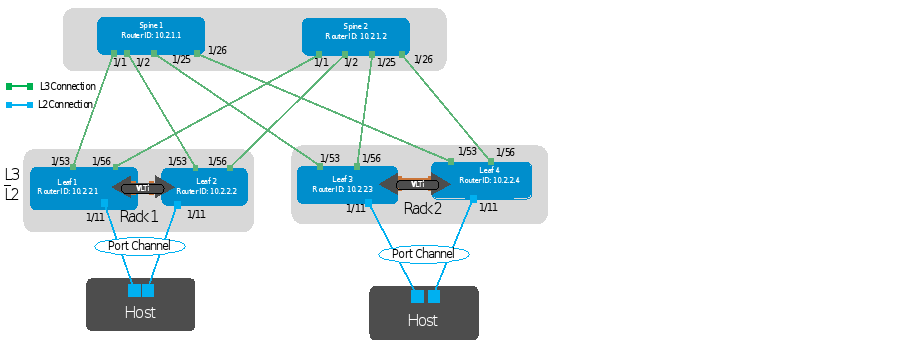
Figure 1.       Leaf-Spine Underlay Topology
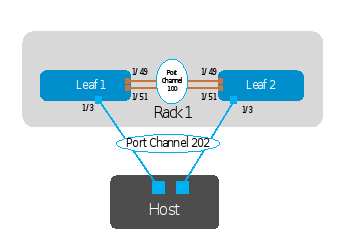
Figure 2.       VLT topology

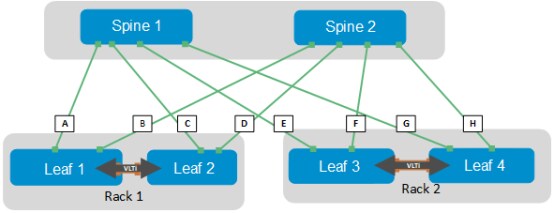
Establishing a logical, scalable IP address scheme is important before deploying a leaf-spine topology. The point-to-point links used in this deployment are labeled A-H in Figure 3.
Diagram

Description automatically generated

Figure 3.       Point-to-point networks

Each link is a separate, point-to-point IP network. The following table details the links labeled in Figure 3. The IP addresses in the table are used in the switch configuration examples.

Link Label

Source Switch

Source IP address

Destination Switch

Destination IP address

Network

A

Spine 1

192.168.1.0

Leaf 1

192.168.1.1

192.168.1.0/31

B

Spine 2

192.168.2.0

Leaf 1

192.168.2.1

192.168.2.0/31

C

Spine 1

192.168.1.2

Leaf 2

192.168.1.3

192.168.1.2/31

D

Spine 2

192.168.2.2

Leaf 2

192.168.2.3

192.168.2.2/31

E

Spine 1

192.168.1.4

Leaf 3

192.168.1.5

192.168.1.4/31

F

Spine 2

192.168.2.4

Leaf 3

192.168.2.5

192.168.2.4/31

G

Spine 1

192.168.1.6

Leaf 4

192.168.1.7

192.168.1.6/31

H

Spine 2

192.168.2.6

Leaf 4

192.168.2.7

192.168.2.6/31

Note: As with all examples in this guide, any valid IP address scheme can be used. The example point-to-point addresses above use a 31-bit mask to save address space. This is optional and covered in RFC 3021

Static VXLAN overlay

In this deployment example, VNIs 1614 and 1615. All VNIs are configured on each of the four leaf switches. Because VNIs 1614 and 1615 are configured with anycast gateways, VMs on those VNIs which route to other networks can use the same gateway information while behind different leaf pairs. This enables VMs to migrate from one leaf pair to another without changing the network configuration. It also eliminates hair-pinning and improves link utilization since routing is performed much closer to the source.
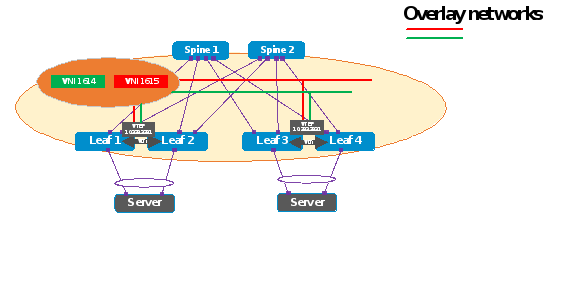
Figure 4.       Leaf-spine overlay topology

Configuration

Leaf switch configuration

Configure a loopback Interface on all four-leaf switches and use that interface as the VXLAN source tunnel interface. 

Leaf 1

Leaf 2

interface loopback0

no shutdown

ip address 10.222.222.1/32

ip ospf 1 area 0.0.0.0

exit

interface loopback0

no shutdown

ip address 10.222.222.1/32

ip ospf 1 area 0.0.0.0

exit


Leaf 3

Leaf 4

interface loopback0

no shutdown

ip address 10.222.222.2/32

ip ospf 1 area 0.0.0.0

exit


interface loopback0

no shutdown

ip address 10.222.222.2/32

ip ospf 1 area 0.0.0.0

exit

Create a Network Virtualization Edge (NVE) instance. Parameters configured at this level are common to all overlay encapsulation types and all virtual-networks unless overridden at a more specific level. Configure the NVE source interface – the IP address at this interface is used as a source IP address in all VXLAN packet headers emitted from this device.

Leaf 1

Leaf 2

nve

source-interface loopback0

exit

nve

source-interface loopback0

exit

Leaf 3

Leaf 4

nve

source-interface loopback0

exit


nve

source-interface loopback0

exit


The local NVE Source IP should be advertised into the underlay IP network to all peer NVEs. Each NVE should have route installed to reach each of the other peer NVE IPs in the network. In the following example, OSPF in the underlay to advertise and learn route reachability to the peer NVEs. Configure the underlay OSPF protocol as follows:

Leaf 1

Leaf 2

hostname Leaf1

router ospf 1

router-id 10.2.2.1

exit

hostname Leaf2

router ospf 1

router-id 10.2.2.2

exit 

Leaf 3

Leaf 4

hostname Leaf3

router ospf 1

router-id 10.2.2.3

exit

hostname Leaf4

router ospf 1

router-id 10.2.2.4

exit 

Configure VXLAN Virtual Networks with a static VTEP. The remote VTEP IP address configured here is the NVE source IP address that is configured on each of the remote VTEP NVEs that participates in the same tenant segment in the overlay network. 

Note: Only IPv4 network addresses are supported. 

BUM traffic in this virtual-network replicated to each remote VTEP configured under the VXLAN tunnel end-point. Each replicated packet carries the VNI assigned to the tunnel end-point in the VXLAN header. SmartFabric OS10 supports replication up to 1024 peer NVE IP addresses.   

Leaf 1

Leaf 2

virtual-network 1614 

vxlan-vni 1614

remote-vtep 10.222.222.2

exit

exit

exit


virtual-network 1615

vxlan-vni 1615

remote-vtep 10.222.222.2

exit

exit

exit


virtual-network 1614 

vxlan-vni 1614

remote-vtep 10.222.222.2

exit

exit

exit


virtual-network 1615

vxlan-vni 1615

remote-vtep 10.222.222.2

exit

exit

exit

Leaf 3

Leaf 4

virtual-network 1614 

vxlan-vni 1614

remote-vtep 10.222.222.1

exit

exit

exit


virtual-network 1615

vxlan-vni 1615

remote-vtep 10.222.222.1

exit

exit

exit

virtual-network 1614 

vxlan-vni 1614

remote-vtep 10.222.222.1

exit

exit

exit


virtual-network 1615

vxlan-vni 1615

remote-vtep 10.222.222.1

exit

exit

exit

Using the following commands, create a virtual network bridge domain and attach a VXLAN tunnel end-point to the bridge domain using a specific VNI. 

Note: Only one tunnel end-point of a given NVO type can be attached to each virtual network. 

Leaf 1

Leaf 2

interface vlan1614

virtual-network 1614

no shutdown

exit


interface vlan1615

virtual-network 1615

no shutdown

exit

interface vlan1614

virtual-network 1614

no shutdown

exit


interface vlan1615

virtual-network 1615

no shutdown

exit

Leaf 3

Leaf 4

interface vlan1614

virtual-network 1614

no shutdown

exit


interface vlan1615

virtual-network 1615

no shutdown

exit

interface vlan1614

virtual-network 1614

no shutdown

exit


interface vlan1615

virtual-network 1615

no shutdown

exit

The commands in the following example configure access ports as VLAN members for switch-scoped VLAN-to-VNI mapping. Packets received for these VLANs on any of these trunk or access ports are assigned to the virtual networking for bridging. If the packet is bridged over a VXLAN tunnel, then the packet VLAN tag is stripped and encapsulated (with VXLAN VNI) before transmitting out on the egress interface for the tunnel. At the remote receiving end, the packet is assigned to a virtual network for bridging based on VXLAN VNI and the VXLAN header is stripped off.  After the bridging on the egress interface is identified, the VLAN tag is regenerated based on the VLAN ID associated with the egress interface for this virtual network.  

Leaf 1

Leaf 2

Interface port-channel100

No shutdown

Switchport trunk allowed vlan 1614-1615

exit


interface ethernet 1/1/11

no shutdown

channel-group 100 mode active

no switchport 

exit

Interface port-channel100

No shutdown

Switchport trunk allowed vlan 1614-1615

exit


interface ethernet 1/1/11

no shutdown

channel-group 100 mode active

no switchport 

exit


Leaf 3

Leaf 4

Interface port-channel100

No shutdown

Switchport trunk allowed vlan 1614-1615

exit


interface ethernet 1/1/11

no shutdown

channel-group 100 mode active

no switchport 

exit


Interface port-channel100

No shutdown

Switchport trunk allowed vlan 1614-1615

exit


interface ethernet 1/1/11

no shutdown

channel-group 100 mode active

no switchport 

exit


Enter the commands below to configure the upstream network-facing ports. The following configurations show the NVE source IP address is advertised using OSPF.

Leaf 1

Leaf 2

interface ethernet1/1/53

no shutdown

no switchport

ip address 192.168.1.1/31

ip ospf 1 area 0.0.0.0

exit


interface ethernet1/1/56

no shutdown

no switchport

ip address 192.168.2.1/31

ip ospf 1 area 0.0.0.0

exit

interface ethernet1/1/53

no shutdown

no switchport

ip address 192.168.1.3/31

ip ospf 1 area 0.0.0.0

exit


interface ethernet1/1/56

no shutdown

no switchport

ip address 192.168.2.3/31

ip ospf 1 area 0.0.0.0

exit

Leaf 3

Leaf 4

interface ethernet1/1/53

no shutdown

no switchport

ip address 192.168.1.5/31

ip ospf 1 area 0.0.0.0

exit


interface ethernet1/1/56

no shutdown

no switchport

ip address 192.168.2.5/31

ip ospf 1 area 0.0.0.0

exit

interface ethernet1/1/53

no shutdown

no switchport

ip address 192.168.1.7/31

ip ospf 1 area 0.0.0.0

exit


interface ethernet1/1/56

no shutdown

no switchport

ip address 192.168.2.7/31

ip ospf 1 area 0.0.0.0

exit

Configure the VLT port-channel and VLTi member links using the following commands: 

Leaf 1

Leaf 2

interface port-channel100

vlt port-channel 100

exit


interface ethernet1/1/51

no shutdown

no switchport

exit


interface ethernet1/1/49

no shutdown

no switchport

exit

interface port-channel100

vlt port-channel 100

exit


interface ethernet1/1/51

no shutdown

no switchport

exit


interface ethernet1/1/49

no shutdown

no switchport

exit 

Leaf 3
Leaf 4

interface port-channel100

vlt port-channel 100

exit


interface ethernet1/1/51

no shutdown

no switchport

exit


interface ethernet1/1/49

no shutdown

no switchport

exit

interface port-channel100

vlt port-channel 100

exit


interface ethernet1/1/51

no shutdown

no switchport

exit


interface ethernet1/1/49

no shutdown

no switchport

exit

Enter the following commands to configure the VLTi. The IP address used in the backup destination command is the management IP address of the other switch in VLT pair. 

Leaf 1

Leaf 2

vlt-domain 127
backup destination 100.94.107.12
discovery-interface ethernet1/1/49-51
vlt-mac aa:bb:cc:dd:ee:ff
exit

vlt-domain 127
backup destination 100.94.107.13
discovery-interface ethernet1/1/49-51
vlt-mac aa:bb:cc:dd:ee:ff
exit

Leaf 3

Leaf 4

vlt-domain 128
backup destination 100.94.107.10
discovery-interface ethernet1/1/49-51
vlt-mac aa:bb:cc:dd:ee:ff
exit

vlt-domain 128
backup destination 100.94.107.11
discovery-interface ethernet1/1/49-51
vlt-mac aa:bb:cc:dd:ee:ff
exit

Using the following commands, configure a tenant VRF, anycast Layer 3 gateway, MAC address, and anycast gateway IP address for each virtual network. 

Leaf 1

Leaf 2

ip vrf tenant1

exit


ip virtual-router mac-address 00:01:01:01:01:01


interface virtual-network 1614

ip vrf forwarding tenant1

ip address 172.16.14.241/24

ip virtual-router address 172.16.14.253

no shutdown

exit


interface virtual-network 1615

ip vrf forwarding tenant1

ip address 172.16.15.241/24

ip virtual-router address 172.16.15.253

no shutdown

exit

ip vrf tenant1

exit


ip virtual-router mac-address 00:01:01:01:01:01


interface virtual-network 1614

ip vrf forwarding tenant1

ip address 172.16.14.241/24

ip virtual-router address 172.16.14.253

no shutdown

exit


interface virtual-network 1615

ip vrf forwarding tenant1

ip address 172.16.15.241/24

ip virtual-router address 172.16.15.253

no shutdown

exit

Leaf 3

Leaf 4

ip vrf tenant1

exit


ip virtual-router mac-address 00:01:01:01:01:01


interface virtual-network 1614

ip vrf forwarding tenant1

ip address 172.16.14.241/24

ip virtual-router address 172.16.14.253

no shutdown

exit


interface virtual-network 1615

ip vrf forwarding tenant1

ip address 172.16.15.241/24

ip virtual-router address 172.16.15.253

no shutdown

exit

ip vrf tenant1

exit


ip virtual-router mac-address 00:01:01:01:01:01


interface virtual-network 1614

ip vrf forwarding tenant1

ip address 172.16.14.241/24

ip virtual-router address 172.16.14.253

no shutdown

exit


interface virtual-network 1615

ip vrf forwarding tenant1

ip address 172.16.15.241/24

ip virtual-router address 172.16.15.253

no shutdown

exit

Spine Switch Configuration

Configure the Underlay OSPF on spine switches as follows. 

Spine 1

Spine 2

hostname Spine1

router ospf 1

router-id 10.2.1.1

exit 

hostname Spine2

router ospf 1

router-id 10.2.1.2

exit

Configure downstream ports on underlay links to leaf switches. 

Spine 1

Spine 2

interface ethernet1/1/1

no shutdown

no switchport

ip address 192.168.1.0/31

ip ospf 1 area 0.0.0.0

exit


interface ethernet1/1/2

no shutdown

no switchport

ip address 192.168.1.2/31

ip ospf 1 area 0.0.0.0

exit


interface ethernet1/1/25

no shutdown

no switchport

ip address 192.168.1.4/31

ip ospf 1 area 0.0.0.0

exit


interface ethernet1/1/26

no shutdown

no switchport

ip address 192.168.1.6/31

ip ospf 1 area 0.0.0.0

exit

interface ethernet1/1/1

no shutdown

no switchport

ip address 192.168.2.0/31

ip ospf 1 area 0.0.0.0

exit


interface ethernet1/1/2

no shutdown

no switchport

ip address 192.168.2.2/31

ip ospf 1 area 0.0.0.0

exit


interface ethernet1/1/25

no shutdown

no switchport

ip address 192.168.2.4/31

ip ospf 1 area 0.0.0.0

exit


interface ethernet1/1/26

no shutdown

no switchport

ip address 192.168.2.6/31

ip ospf 1 area 0.0.0.0

exit


Validation

This section will walk you through the relevant commands to validate the network configuration. 

Step 1

Use the show ip ospf routes command to display the routes calculated by OSPF in the underlay network. In the following example, we used this command on Leaf1 in Rack 1. It shows that Leaf 1 can reach the destination VTEP (VTEP 10.222.222.2) via Interface ethernet 1/1/53 and ethernet 1/1/56. 

Leaf1# show ip ospf routes
Prefix              Cost           Nexthop        Interface           Area           
------------------------------------------------------------------------------
10.222.222.1/32     0              0.0.0.0                            0.0.0.0
10.222.222.2/32     3              192.168.1.0    ethernet1/1/53      0.0.0.0      
                    3              192.168.2.0    ethernet1/1/56      0.0.0.0        

Step 2

Use the show ip ospf topology command to display the routers directly connected in the same OSPF area. 

Leaf1# show ip ospf topology
Router ID           Flags          Cost           Nexthop        Interface          
--------------------------------------------------------------------------------
10.2.1.1            -/-/-/         1              192.168.1.0    ethernet1/1/53      
10.2.1.2            -/-/-/         1              192.168.2.0    ethernet1/1/56      
10.2.2.2            -/-/-/         2              192.168.2.0    ethernet1/1/56     
10.2.2.2            -/-/-/         2              192.168.1.0    ethernet1/1/53      
10.2.2.3            -/-/-/         2              192.168.1.0    ethernet1/1/53     
10.2.2.3            -/-/-/         2              192.168.2.0    ethernet1/1/56      
10.2.2.4            -/-/-/         2              192.168.2.0    ethernet1/1/56      
10.2.2.4            -/-/-/         2              192.168.1.0    ethernet1/1/53

Step 3

To validate the connectivity to the remote virtual tunnel endpoint (VTEP), we used show nve remote-vtep command on Leaf1. For example, the following output indicates that the VXLAN tunnel to the remote VTEP (10.222.222.2) on Rack 2 (Leaf3 & Leaf4) is up. 

Leaf1# show nve remote-vtep
IP Address: 10.222.222.2,  State: up, Encap: VxLAN
   VNI list: 1614-1615

Step 4

To further validate the connectivity to the destination VTEP, a ping test can be performed from Leaf1 to the destination VTEP IP address in Leaf 3 and Leaf4 . 

Leaf1# ping 10.222.222.2 -c 2
PING 10.222.222.2 (10.222.222.2) 56(84) bytes of data.
64 bytes from 10.222.222.2: icmp_seq=1 ttl=63 time=0.351 ms
64 bytes from 10.222.222.2: icmp_seq=2 ttl=63 time=0.217 ms
--- 10.222.222.2 ping statistics ---
2 packets transmitted, 2 received, 0% packet loss, time 1024ms