Cloud native app development using Dell XPS 13 Plus Developer Edition and MicroK8s
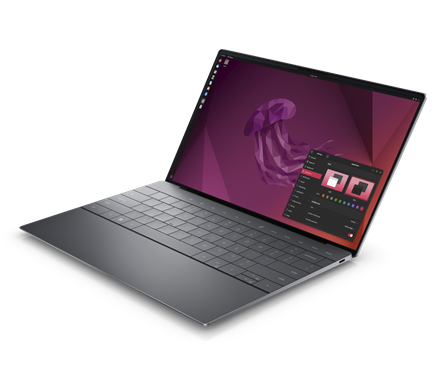
The Dell XPS 13 Plus Developer laptop is an ideal machine to use for local cloud-native app development with Kubernetes and I’m going to show you how to get started.
Using MicroK8s is ideal for this use case, it’s a project from Canonical to enable lightweight single or multi-node Kubernetes environments. The XPS 13 Plus Developer Edition is a powerful laptop and if you want to know more about the specs please check out my colleague Barton George's blog for the details. Let’s explore why Dell XPS 13 Plus Developer Edition with MicroK8s is a great fit for cloud native development.
-
The XPS 13 Developer edition comes with Ubuntu 22.04 LTS Linux.
-
It comes preloaded with development toolchains like Python, PHP, Ruby, Go, Rust and more.
-
Native support for snapd and the snap store.
-
Easily install cloud native developer tooling such as Canonicals’ MicroK8s and Docker via snap.
Get Started
If you’re not familiar with MicroK8s, that’s ok. MicroK8s is a lightweight, secure version of Kubernetes than can easily run on an array of devices from developer workstations to production. In this case, we’ll be using our XPS 13 Plus Developer laptop to run small single and multi-node Kubernetes clusters for local offline development and testing. In my opinion this is a great way to perform local proof of concepts and quickly test code changes before pushing it to a proper CI/CD environment with full-fledged Kubernetes infrastructure. Let’s dive in.
Ubuntu 22.04 LTS comes with support for [ snapd ] which makes the installation of microk8s simple.
Open a terminal and run the following command to install MicroK8s using Kubernetes 1.25 channel. If you need an earlier release, update “1.25” to the Kubernetes version you need.
dell@dell-XPS-9320:~$ sudo snap install microk8s --classic --channel=1.25
Then make sure to set the user and associate it with the Microk8s group.
dell@dell-XPS-9320:~$ USER=dell
dell@dell-XPS-9320:~$ sudo usermod -a -G microk8s $USER
dell@dell-XPS-9320:~$ sudo chown -f -R $USER ~/.kube
You will also need to re-enter the session for the group update to take place.
dell@dell-XPS-9320:~$ su - $USER
Now you should be ready to run microk8s. Some output from this commend is removed because of the verbosity, so its okay if you see more information describing what add-ons are enabled or not.
dell@dell-XPS-9320:~$ microk8s status --wait-ready
microk8s is running
That’s it, you now have a single node Kubernetes cluster to use. Run these commands to view your single node Kubernetes environment.
dell@dell-XPS-9320:~$ microk8s kubectl get nodes
NAME STATUS ROLES AGE VERSION
dell-xps-9320 Ready 11m v1.25.2
Running a single node is great for some basic testing against Kubernetes APIs or maybe running a small application. However, this doesn’t represent a full cluster and sometimes you may want to run a cluster of nodes for testing multi-node applications such as a NodeJS web application using a multi-node Redis Sentinel cluster as we will use four our example.
If you ran microk8s start on your XPS machine directly, let’s stop and cleanup that single node.
dell@dell-XPS-9320:~$ microk8s stop
To enable multiple nodes, we need some virtualization. Ubuntu offers both LXD and multipass as ways in which we can enable multiple virtual Microk8s nodes on a single machine. For this example, we’re going to use multipass . First install multipass using snap .
dell@dell-XPS-9320:~$ sudo snap install multipassmultipass 1.10.1 from Canonical✓ installed\
Next, let’s add three VMs to represent the three nodes in our Kubernetes cluster.
dell@dell-XPS-9320:~$ multipass launch -c 2 -m 2G -d 20G --name microk8s-vm2 22.04
Launched: microk8s-vm2
dell@dell-XPS-9320:~$ multipass launch -c 2 -m 2G -d 20G --name microk8s-vm2 22.04
Launched: microk8s-vm2
dell@dell-XPS-9320:~$ multipass launch -c 2 -m 2G -d 20G --name microk8s-vm3 22.04
Launched: microk8s-vm3
dell@dell-XPS-9320:~$ multipass listName State IPv4 Image
microk8s-vm1 Running 10.251.159.221 Ubuntu 22.04 LTS10.1.132.192
microk8s-vm2 Running 10.251.159.151 Ubuntu 22.04 LTS10.1.169.192
microk8s-vm3 Running 10.251.159.96 Ubuntu 22.04 LTS10.1.83.0
Now, we can install Microk8s on these nodes. You can run the commands on each node by using “ multipass shell ” or you can use the following script to save a little time. Save the file as a bash script named “ install-microk8s-vms.sh ” and make it executable and run it with bash ./install-microk8s-vms.sh .
vms="microk8s-vm1 microk8s-vm2 microk8s-vm3"
for vm in $vms; do
multipass exec $vm -- sudo snap install microk8s --classic --channel=1.25/stable
multipass exec $vm -- sudo iptables -P FORWARD ACCEPT
multipass exec $vm -- sudo usermod -a -G microk8s ubuntu
multipass exec $vm -- sudo chown -f -R ubuntu ~/.kube
done
After the script runs, we should have Microk8s on each VM ready to start. For our cluster we will start one of the nodes as our control node and the other two as worker nodes. Login to the first VM and start MicroK8s.
dell@dell-XPS-9320:~$ multipass shell microk8s-vm1
ubuntu@microk8s-vm1:~$ microk8s start
ubuntu@microk8s-vm1:~$ microk8s status --wait-ready
microk8s is running
Next, we want to enable DNS as our example later in this document will need to find application services in our cluster by name.
ubuntu@microk8s-vm1:~$ microk8s enable dns
Enabling DNS
Applying manifest
serviceaccount/coredns created
configmap/coredns created
deployment.apps/coredns created
service/kube-dns created
clusterrole.rbac.authorization.k8s.io/coredns created
clusterrolebinding.rbac.authorization.k8s.io/coredns created
Restarting kubelet
DNS is enabled
Now we need to add the other two nodes as workers. To do that, first run add-node from microk8s-vm1 and use the command in the output to add the first worker which will be microk8s-vm2 .
ubuntu@microk8s-vm1:~$ microk8s add-node
From the node you wish to join to this cluster, run the following:
microk8s join 10.251.159.221:25000/f332590e3d42a8a3cceec787f9ac6761/1bcd2a12b6fc
Use the '--worker' flag to join a node as a worker not running the control plane, eg:
microk8s join 10.251.159.221:25000/f332590e3d42a8a3cceec787f9ac6761/1bcd2a12b6fc --worker
If the node you are adding is not reachable through the default interface you can use one of the following:
microk8s join 10.251.159.221:25000/f332590e3d42a8a3cceec787f9ac6761/1bcd2a12b6fc
Run the join command within the microk8s-vm2 vm, we can use multipass to execute this commend in the VM.
dell@dell-XPS-9320:~$ multipass exec microk8s-vm2 -- sudo microk8s join 10.251.159.221:25000/f332590e3d42a8a3cceec787f9ac6761/1bcd2a12b6fcContacting cluster at 10.251.159.221
The node has joined the cluster and will appear in the nodes list in a few seconds.
Repeat this process of running add-node and join for microk8s-vm3 and you will have a three-node local Kubernetes cluster for development. You can use kubectl from the control node to list all your nodes.
ubuntu@microk8s-vm1:~$ alias kubectl="microk8s kubectl "
ubuntu@microk8s-vm1:~$ kubectl get no
NAME STATUSROLES AGE VERSION
microk8s-vm2 Ready 2m35s v1.25.2
microk8s-vm3 Ready 32s v1.25.2
microk8s-vm1 Ready 11m v1.25.2
Cloud-native development with Docker and MicroK8s
Now that we have our small Kubernetes cluster running with MicroK8s, lets walk through an example of using it for some basic development and testing using Docker as our build utility. First, let’s install docker so we can use it for our local build tool.
dell@dell-XPS-9320:~$ sudo snap install docker
docker 20.10.14 from Canonical✓ installed
dell@dell-XPS-9320:~$ sudo addgroup --system docker
dell@dell-XPS-9320:~$ sudo adduser $USER docker
dell@dell-XPS-9320:~$ newgrp docker
dell@dell-XPS-9320:~$ sudo snap disable docker
dell@dell-XPS-9320:~$ sudo snap enable docker
First, let’s get our application running, we can use the previously mentioned NodeJS app called moby-counter for our example. Pull the repository and open it in your favorite editor. We’ll use Visual Code .
dell@dell-XPS-9320:~$ git clone --branch k8s https://github.com/wallnerryan/moby-counter
Cloning into 'moby-counter'...remote:
Enumerating objects: 149, done.
remote: Counting objects: 100% (18/18), done.
remote: Compressing objects: 100% (16/16), done.
remote: Total 149 (delta 6), reused 7 (delta 2), pack-reused 131
Receiving objects: 100% (149/149), 84.87 KiB | 3.14 MiB/s, done.
Resolving deltas: 100% (72/72), done.
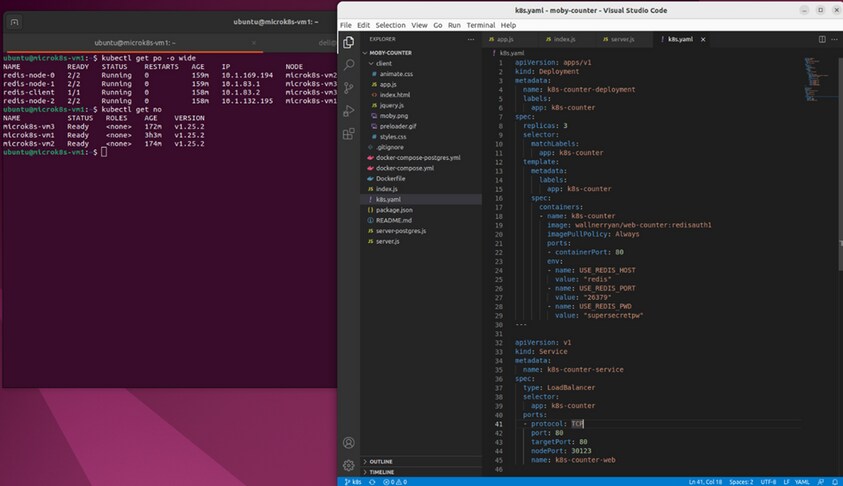
Next, let’s mount our development workspace into our Kubernetes cluster and launch the current version of the application. Mount the workspace into the first VM, microk8s-vm1 .
dell@dell-XPS-9320:~$ multipass mount $HOME/workspace/moby-counter microk8s-vm1
dell@dell-XPS-9320:~$ multipass info microk8s-vm1
Name: microk8s-vm1
State: Running
IPv4: 10.251.159.22 110.1.132.19
2Release: Ubuntu 22.04.1 LTS
Image hash: 473ffcd1c65c (Ubuntu 22.04 LTS)Load: 1.26 0.55 0.24
Disk usage: 3.2G out of 19.2G
Memory usage: 943.6M out of 1.9G
Mounts: /home/dell/workspace/moby-counter => /home/dell/workspace/moby-counter
UID map: 1001:defaultGID map: 1001:default
Now from within our microk8s-vm1 we can use the Kuberntes CLI ( kubectl) to create our application directly from our development workspace.
ubuntu@microk8s-vm1:~$ cd /home/dell/workspace/moby-counter/
ubuntu@microk8s-vm1:/home/dell/workspace/moby-counter
$ kubectl create -f k8s.yaml
deployment.apps/k8s-counter-deployment created
service/k8s-counter-service created
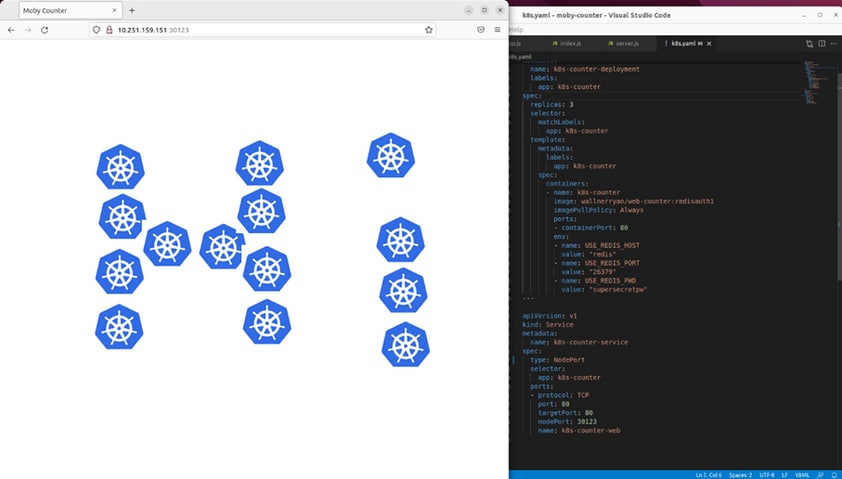
Next, access the application by viewing the NodePort via kubectl and heading to the NodePort on any of the IPs of any of your Kubernetes worker nodes. In short, copy the Cluster-IP of k8s-counter-service and port 30123 which is defined in the k8s.yaml and put that into a local browser http:// :30123/
ubuntu@microk8s-vm1:$ kubectl get po
NAME READY STATUS RESTARTS AGE
redis-node-0 2/2 Running 0 174m
redis-node-1 2/2 Running 0 174m
redis-client 1/1 Running 0 173m
redis-node-2 2/2 Running 0 173m
k8s-counter-deployment-645c58bf8c-mqbbz 1/1 Running 0 2m15s
k8s-counter-deployment-645c58bf8c-j6jsg 1/1 Running 0 2m15s
k8s-counter-deployment-645c58bf8c-whcvk 1/1 Running 0 2m15s
ubuntu@microk8s-vm1:/home/dell/workspace/moby-counter$ kubectl get svc k8s-counter-service
NAME TYPE CLUSTER-IP EXTERNAL-IP PORT(S) AGE
k8s-counter-service NodePort 10.152.183.2080:30123/TCP 2m27s
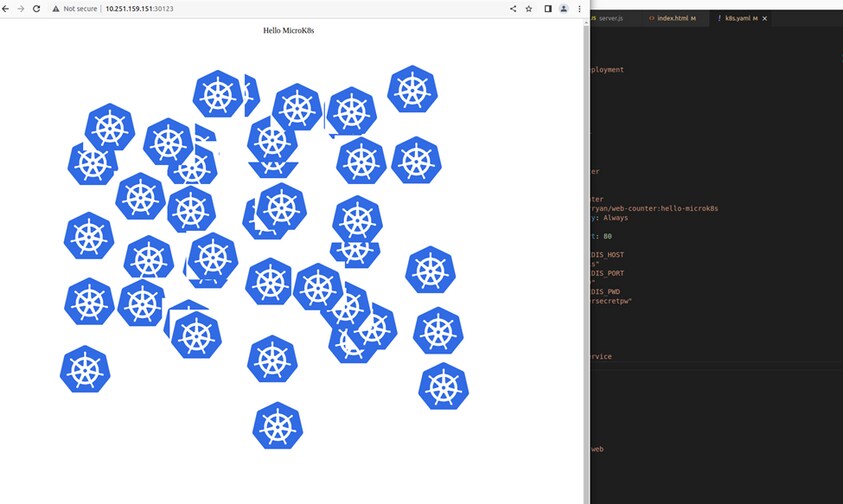
Here we can see the application working by clicking on the screen to create logos. You should be able to refresh the browser and all logos remain. This simple application records clicks via coordinates (X:Y) on screen with NodeJS and writes them to Redis.
Now we can make a small update to our code base to show a very basic example of local development.
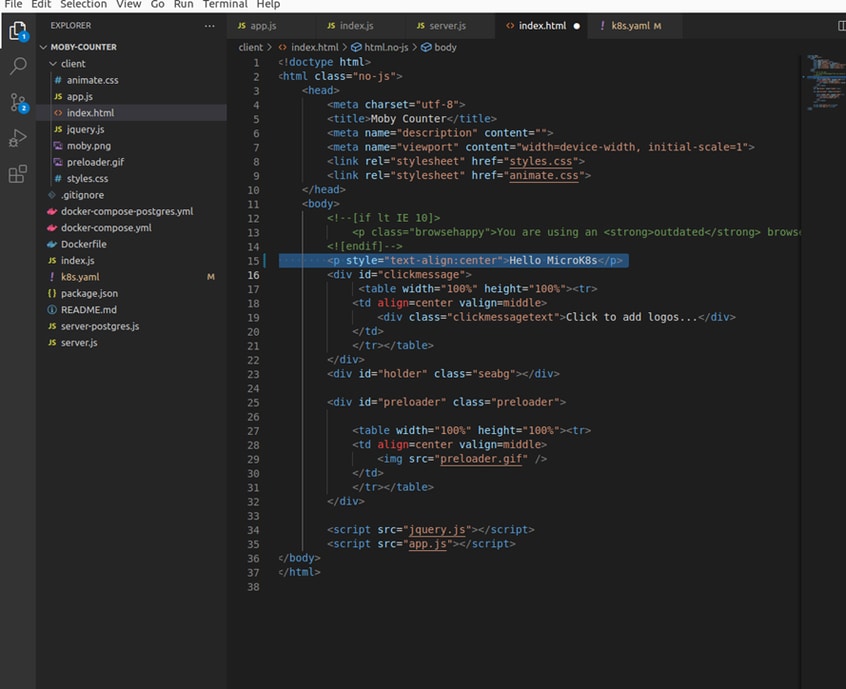
Now that we have modified our code, we can run a docker build on our local Dockerfile.
dell@dell-XPS-9320:~/workspace/moby-counter$ docker build . -t wallnerryan/web-counter:hello-microk8s
Sending build context to Docker daemon 353.3kB
Step 1/7 : FROM developer/iojs-minimal-runtime:v1.0.1
Once we push that to a registry, we can update our YAML file and quickly re-apply. Note you can use a locally deployed docker registry if you truly want to run locally instead of pushing to a public registry like Dockerhub.
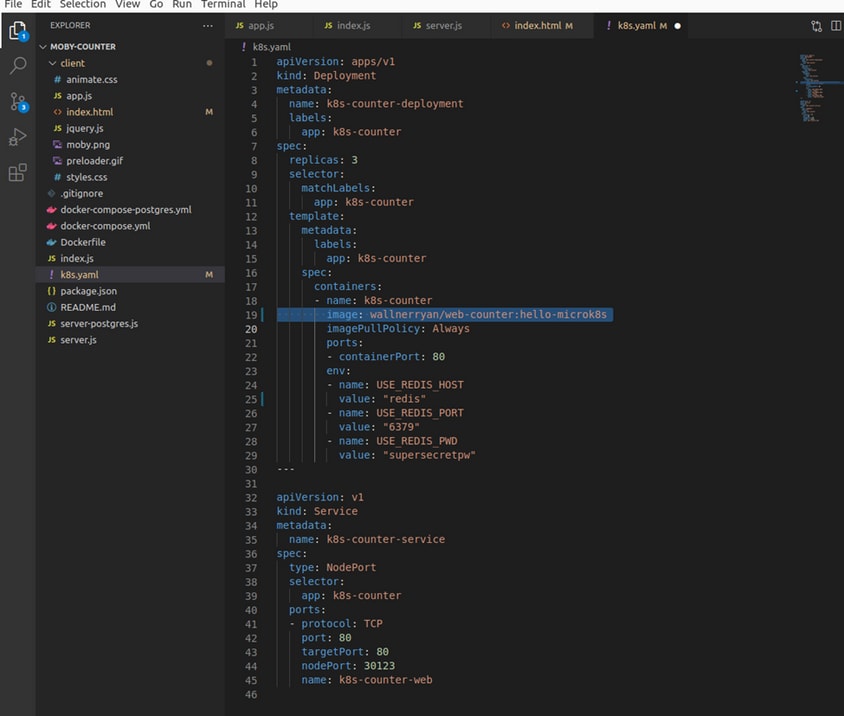
Make sure to save the YAML file and it should be automatically available within your workspace on microk8s-vm1.
ubuntu@microk8s-vm1:/home/dell/workspace/moby-counter$ kubectl apply -f k8s.yaml
deployment.apps/k8s-counter-deployment configured
service/k8s-counter-service unchanged
When we head back to our service running on our cluster, we see our code change from our local development environment. You may continue to click on the screen to add logos.
Parting thoughts
I hope this blog was useful in showing one way of using the Dell XPS 13 Plus Developer edition and MicroK8s for local cloud-native development without needing access to a separate Kubernetes cluster on infrastructure you may not have access to. This will help with initial proof of concept for local development and basic testing before pushing your changes into a proper CI/CD pipeline.