Code Translation
A full-stack code translation application that converts code between programming languages using AI. The system integrates a FastAPI backend, alongside a modern React + Vite + Tailwind CSS frontend for an intuitive translation experience.
The Code Translation application is a full-stack solution designed to translate source code between six programming languages: Java, C, C++, Python, Rust, and Go, using large language models (LLMs). Built with a FastAPI backend and a modern React/Vite/Tailwind frontend, the system provides an intuitive, responsive interface for developers, researchers, and enterprise users. It supports direct code input as well as automated code extraction from uploaded PDF documents using patternrecognition logic.
The backend handles critical operations such as input validation, PDF parsing, token-based API authentication, error handling, and communicating with inference endpoints. The default model showcased is CodeLlama34BInstruct, though alternative LLMs like Qwen34BInstruct are also validated. The system supports multiple deployment patterns, including GenAI Gateway and APISIX Gateway, each requiring specific authentication tokens generated through included scripts.
The architecture depicts a clean separation between the frontend (port 3000) and backend (port 5001). When a user enters or uploads code, the backend performs preprocessing and then sends a translation request to the LLM service. The translated output is returned to the UI for side-by-side comparison, with real-time updates and a copytoclipboard feature.
Extensive configuration instructions are included, particularly for setting up the .env file with model parameters, API endpoints, SSL preferences, max code length, and CORS settings. Docker and Docker Compose are required prerequisites, enabling a streamlined deployment process using containerized services.
The document also provides operational guidance, such as checking logs, verifying service health, and stopping the application. For troubleshooting, a dedicated guide addresses common issues. Overall, the blueprint offers a complete, enterprise-ready reference for deploying an AI-powered code translation platform, emphasizing flexibility, security, and ease of use.
Link to download the code: https://github.com/opea-project/Enterprise-Inference/tree/main/sample_solutions/CodeTranslation
Project Overview
The Code Translation application demonstrates how large language models can be used to translate code between different programming languages. It accepts source code in one language, processes it and returns translated code in the target language. This project integrates seamlessly with cloud-hosted APIs or local model endpoints, offering flexibility for research, enterprise, or educational use.
Features
Backend
- Code translation between 6 languages (Java, C, C++, Python, Rust, Go)
- PDF code extraction with pattern recognition
- Enterprise inference endpoints
- Token-based authentication for inference API
- Comprehensive error handling and logging
- File validation and size limits
- CORS enabled for web integration
- Health check endpoints
- Modular architecture (config + models + services)
Frontend
- Side-by-side code comparison interface
- Language selection dropdowns (6 languages)
- PDF file upload with drag-and-drop support
- Real-time character counter with limits
- Modern, responsive design with Tailwind CSS
- Built with Vite for fast development
- Live status updates
- Copy to clipboard functionality
- Mobile-friendly
Architecture
Below is the architecture as it consists of a server that waits for code input or PDF uploads. Once code is provided, the server calls the CodeLlama model to translate the code to the target language.
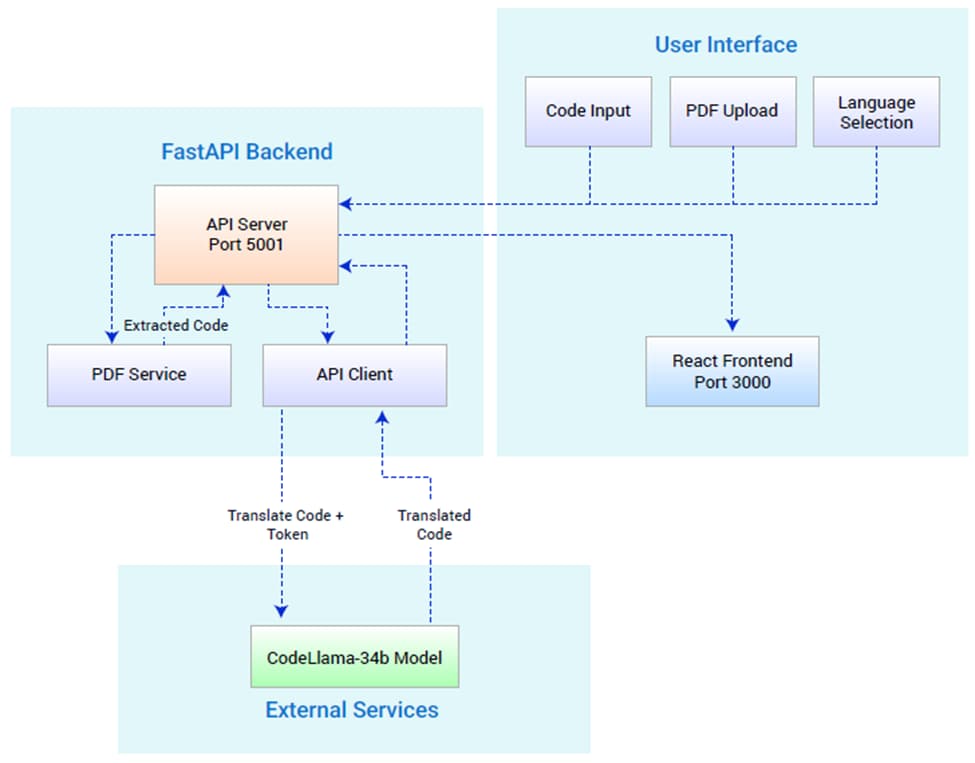
This application is built with enterprise inference capabilities using token-based authentication and CodeLlama-34b-instruct for code translation.
Service Components:
React Web UI (Port 3000)
Provides side-by-side code comparison interface with language selection, PDF upload, and real-time translation results
FastAPI Backend (Port 5001)
Handles code validation, PDF extraction, inference API authentication, and orchestrates code translation through CodeLlama model
Typical Flow:
- User enters code or uploads a PDF through the web UI.
- The backend validates the input and extracts code if needed.
- The backend authenticates with inference API and calls CodeLlama model.
- The model translates the code to the target language.
- The translated code is returned and displayed to the user.
- User can copy the translated code with one click.
Prerequisites
System Requirements
Before you begin, ensure you have the following installed:
- Docker and Docker Compose
- Enterprise inference endpoint access
(token-based authentication)
Required API Configuration
For Inference Service (Code Translation):
This application supports multiple inference deployment patterns:
GenAI Gateway: Provide your GenAI Gateway URL and API key
- To generate the GenAI Gateway API key, use the generate-vault-secrets.sh script
- The API key is the litellm_master_key value from the generated vault.yml file
APISIX Gateway: Provide your APISIX Gateway URL and authentication token
- To generate the APISIX authentication token, use the generate-token.sh script
- The token is generated using Keycloak client credentials
Local Development Configuration
For Local Testing Only (Optional)
If you're testing with a local inference endpoint using a custom domain (e.g., api.example.com
mapped to localhost in your hosts file):
- Edit .env and set:
LOCAL_URL_ENDPOINT=api.example.com
(Use the domain name from your INFERENCE_API_ENDPOINT without https://) - This allows Docker containers to resolve your local domain correctly.
Note: For public domains or cloud-hosted endpoints, leave the default value not-needed.
Verify Docker Installation
# Check Docker version
docker --version

# Check Docker Compose version
docker compose version

# Verify Docker is running
docker ps
Quick Start Deployment
Clone the Repository
git clone https://github.com/opea-project/Enterprise-Inference.git
cd Enterprise-Inference/sample_solutions/CodeTranslation
Set up the Environment
This application requires an .env file in the root directory for proper configuration. Create it with the commands below:
# Create the .env file
cat > .env << EOF
# Backend API Configuration
BACKEND_PORT=5001

# Inference API Configuration
# INFERENCE_API_ENDPOINT: URL to your inference service (without /v1 suffix)
#    - For GenAI Gateway: https://genai-gateway.example.com #    - For APISIX Gateway:
https://apisix-gateway.example.com/CodeLlama-34b-Instruct-hf
#    Note: APISIX Gateway requires the model name in the URL path #
# INFERENCE_API_TOKEN: Authentication token/API key for the inference service
#    - For GenAI Gateway: Your GenAI Gateway API key
#    - For APISIX Gateway: Your APISIX authentication token INFERENCE_API_ENDPOINT=https://your-api-endpoint.com/deployment INFERENCE_API_TOKEN=your-pre-generated-token-here INFERENCE_MODEL_NAME=codellama/CodeLlama-34b-Instruct-hf


# LLM Settings LLM_TEMPERATURE=0.2 LLM_MAX_TOKENS=4096


# Code Translation Settings
# MAX_CODE_LENGTH: Maximum input code length in characters
# Note: For Enterprise Inference with CodeLlama-34b (max tokens: 5196)
#    Set to 4000 characters to stay safely under the token limit with prompt overhead
MAX_CODE_LENGTH=4000 MAX_FILE_SIZE=10485760


# CORS Configuration
CORS_ALLOW_ORIGINS=["http://localhost:5173", "http://localhost:3000"]


# Local URL Endpoint (only needed for non-public domains)
# If using a local domain like api.example.com mapped to localhost, set to the domain without https://
# Otherwise, set to: not-needed LOCAL_URL_ENDPOINT=not-needed


# SSL Verification Settings
# Set to false only for dev with self-signed certs VERIFY_SSL=true
EOF
Or manually create .env with:
# Backend API Configuration
BACKEND_PORT=5001

# Inference API Configuration
# INFERENCE_API_ENDPOINT: URL to your inference service (without /v1 suffix)
#    - For GenAI Gateway: https://genai-gateway.example.com #    - For APISIX Gateway:
https://apisix-gateway.example.com/CodeLlama-34b-Instruct-hf
#    Note: APISIX Gateway requires the model name in the URL path #
# INFERENCE_API_TOKEN: Authentication token/API key for the inference service
#    - For GenAI Gateway: Your GenAI Gateway API key
#    - For APISIX Gateway: Your APISIX authentication token INFERENCE_API_ENDPOINT=https://your-api-endpoint.com/deployment INFERENCE_API_TOKEN=your-pre-generated-token-here INFERENCE_MODEL_NAME=codellama/CodeLlama-34b-Instruct-hf

# LLM Settings LLM_TEMPERATURE=0.2 LLM_MAX_TOKENS=4096

# Code Translation Settings
# MAX_CODE_LENGTH: Maximum input code length in characters
# Note: For Enterprise Inference with CodeLlama-34b (max tokens: 5196)
#    Set to 4000 characters to stay safely under the token limit with prompt overhead
MAX_CODE_LENGTH=4000 MAX_FILE_SIZE=10485760

# CORS Configuration
CORS_ALLOW_ORIGINS=["http://localhost:5173", "http://localhost:3000"]

# Local URL Endpoint (only needed for non-public domains)
# If using a local domain like api.example.com mapped to localhost, set to the domain without https://
# Otherwise, set to: not-needed LOCAL_URL_ENDPOINT=not-needed

# SSL Verification Settings
# Set to false only for dev with self-signed certs VERIFY_SSL=true
Important Configuration Notes:
INFERENCE_API_ENDPOINT: Your actual inference service URL (replace
https://your-api-endpoint.com/deployment)
- For APISIX/Keycloak deployments, the model name must be included in the endpoint URL (e.g., https://apisix-gateway.example.com/CodeLlama-34b-Instruct-hf)
INFERENCE_API_TOKEN: Your actual pre-generated authentication token
LOCAL_URL_ENDPOINT: Only needed if using local domain mapping (see Local Development Configuration)
VERIFY_SSL: Controls SSL certificate verification (default: true)
- Set to false only for development environments with self-signed certificates
- Keep as true for production environments
Note: The docker-compose.yaml file automatically loads environment variables from .env for the backend service.
Running the Application
Start both API and UI services together with Docker Compose:
# From the code-translation directory
docker compose up --build

# Or run in detached mode (background)
docker compose up -d --build
The API will be available at: http://localhost:5001
The UI will be available at: http://localhost:3000
View logs:
# All services
docker compose logs -f

# Backend only
docker compose logs -f code-trans-backend

# Frontend only
docker compose logs -f code-trans-frontend
Verify the services are running:
# Check API health
curl http://localhost:5001/health

# Check if containers are running docker compose ps
User Interface
Using the Application
Make sure you are at the localhost:3000 url
You will be directed to the main page which has each feature
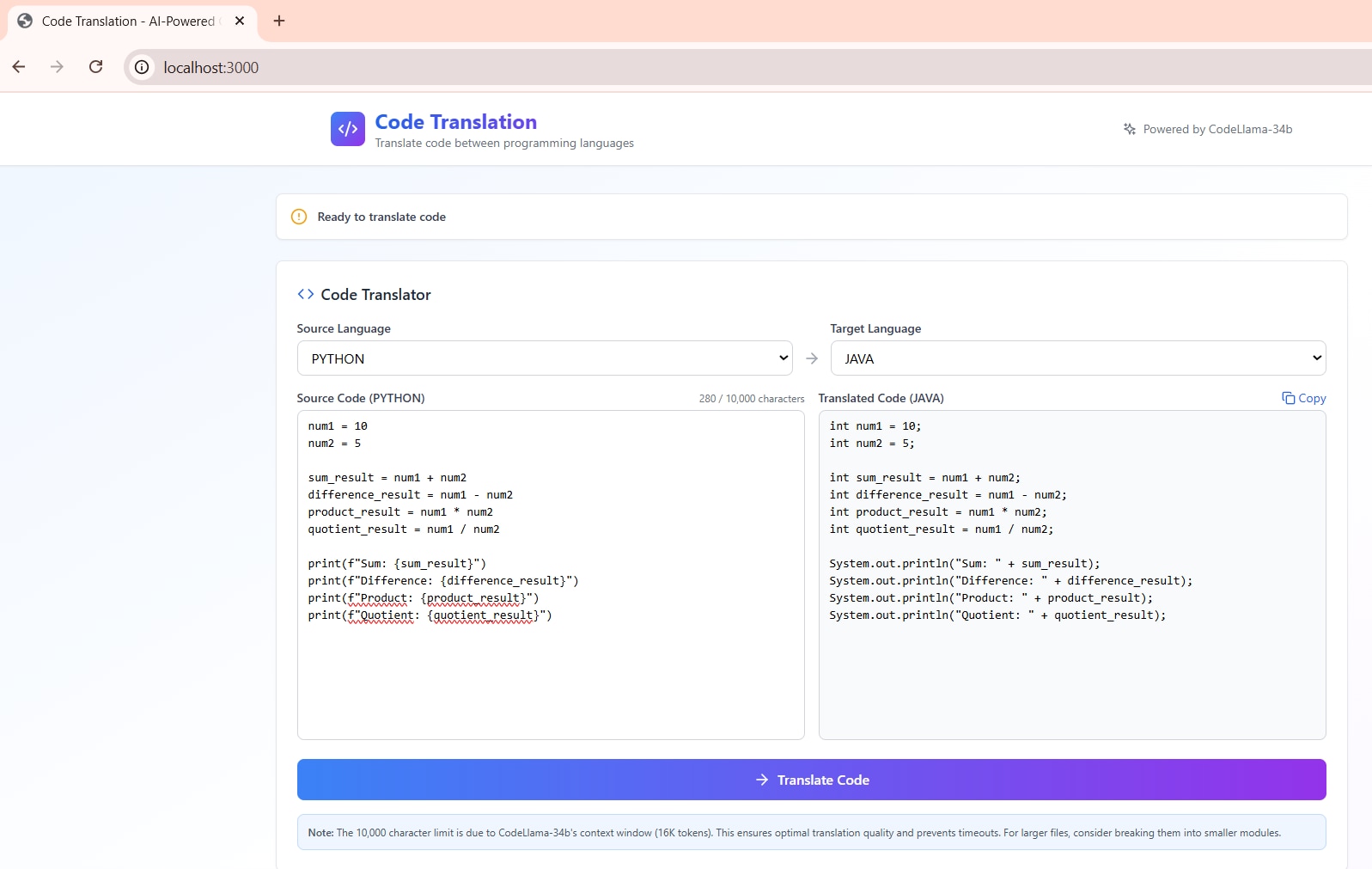
The interface provides:
Translate code:
- Select source language from dropdown (Java, C, C++, Python, Rust, Go)
- Select target language from dropdown
- Enter or paste your code in the left textarea
- Click "Translate Code" button
- View translated code in the right textarea
- Click "Copy" to copy the result
Upload a PDF:
- Scroll to the "Alternative: Upload PDF" section
- Drag and drop a PDF file, or
- Click "browse" to select a file
- Wait for code extraction to complete
- Extracted code appears in the source code box
UI Configuration
When running with Docker Compose, the UI automatically connects to the backend API. The frontend is available at http://localhost:3000 and the API at http://localhost:5001.
For production deployments, you may want to configure a reverse proxy or update the API URL in the frontend configuration.
Stopping the Application
docker compose down
Troubleshooting
For comprehensive troubleshooting guidance, common issues, and solutions, refer to: Troubleshooting Guide - TROUBLESHOOTING.md
Additional Info
The following models have been validated with code-translation:
| Model | Hardware |
|---|---|
| codellama/CodeLlama-34b-Instruct-hf | Gaudi |
| Qwen/Qwen3-4B-Instruct-2507 | Xeon |