Configuration Backup Automation for Dell Enterprise SONiC Switches using Python
Overview
Scheduled configuration backups of network devices are an essential part of a recovery plan from switch failure or loss of specific configurations. In large data center networks, this task is typically managed by a network orchestration, management, or monitoring solution. In smaller environments, network operators or administrators can manually perform the backups. Recently, I conducted a proof of concept (PoC) with a customer who prefers open-source solutions. The customer needed to complete this task without using a commercial orchestration solution or manual methods. Ansible was not an option, as they were using other open-source automation tools that lacked configuration backup features. This blog post describes how we addressed their request and developed a solution.
The solution is a Python script that creates ssh sessions to multiple Dell SONiC switches, retrieves the running configuration from switches, and writes them to individual files for each switch on the server. The script has been tested on Ubuntu 20 with Python 3, connected to six switches, and is working as expected. What follows is a step-by-step guide to test this script using an Ubuntu server:
Step 1. Setting Up a Server for Automation
Download the Ubuntu operating system from Enterprise Open Source and Linux | Ubuntu.
Install the operating system on a bare metal server or as a virtual machine on a hypervisor. For example, you can use Ubuntu Server version 20.04.6 running as a virtual machine on VMware Workstation Pro. See Installing Ubuntu on VMware Workstation [Easiest Guide] - LinuxSimply.
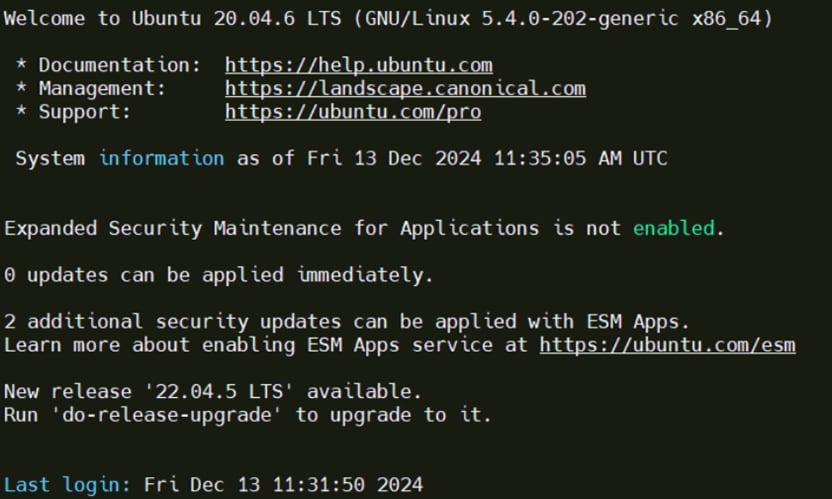 Ubuntu Server 20.04.6 LTS welcome screen
Step 2. Installing, Updating and Upgrading the Required Packages
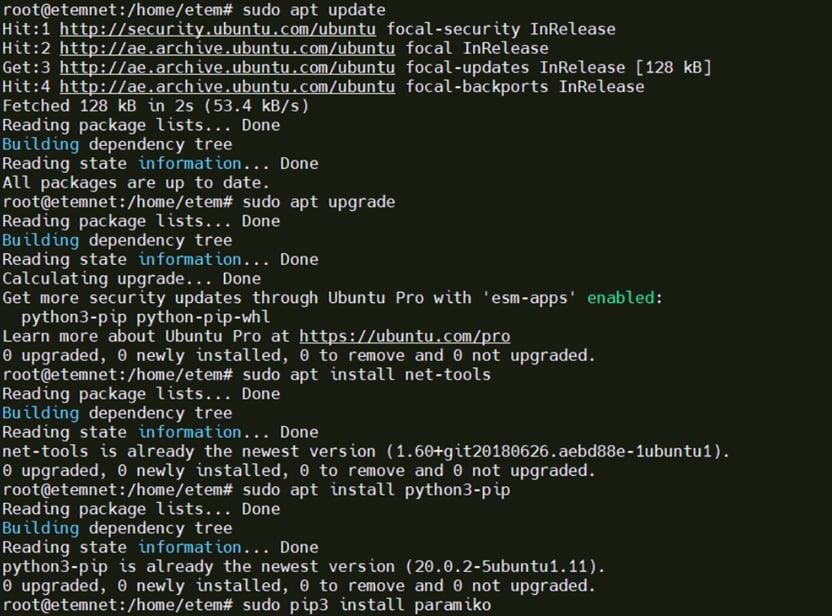
Install, update, and upgrade the required packages by running the following commands (the server needs to be connected to the Internet):
sudo apt update
sudo apt upgrade
sudo apt install net-tools
sudo apt install python3-pip
sudo pip3 install paramiko
Step 3. Setting up IP addresses
Set an IP address on the Ubuntu server that is reachable from the switch IP addresses. Here is a sample command:
ifconfig ens33 10.0.0.111 netmask 255.255.255.0 up
Note: If you want this static IP address to be persistent across reboots, you must edit the yaml file in the /etc/netplan folder.
For more information, see Netplan static IP on Ubuntu configuration - LinuxConfig.
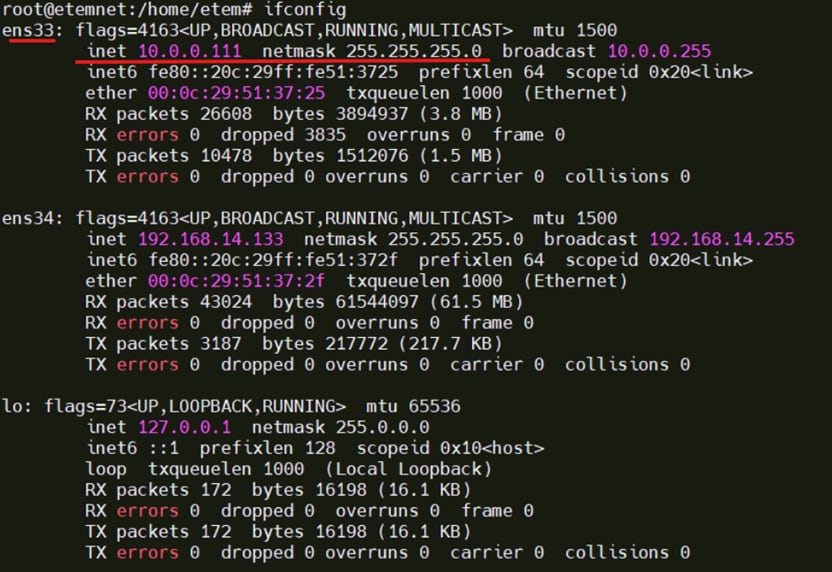 Network configuration output of the server
For information about the switch management IP assignment process in this example, see Dell EMC Networking S-Series: Basic Switch Management Configuration - SONIC 4.0.
Step 4. Downloading and Running the Script
Download the config-backup.py script from GitHub - serhatka/sonic-scripts: various python scripts for SONIC NOS.
Change the IP addresses, username, and password values in the switches section to suit your environment.
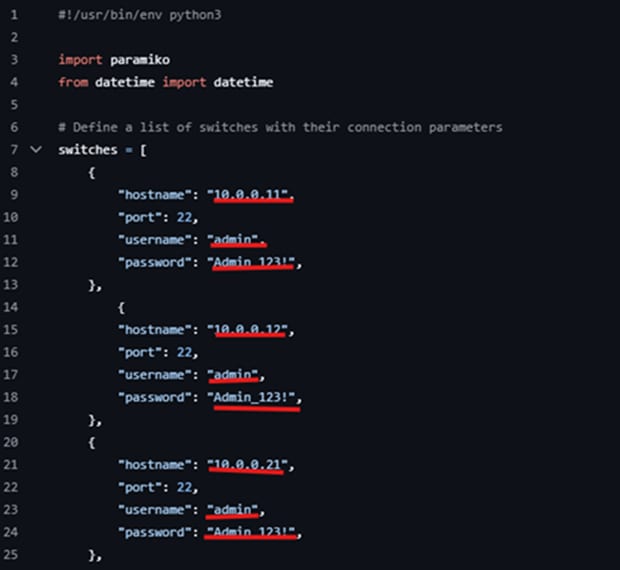 Editing script values
Make the script executable by running the following command: chmod +x /config-backup.py
To run the script, use: ./config-backup.py
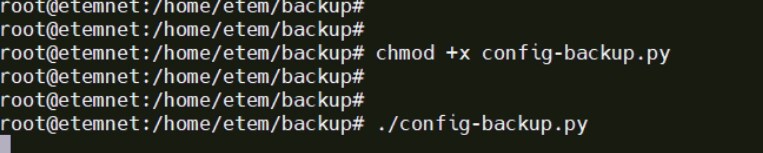 Final steps to run the script
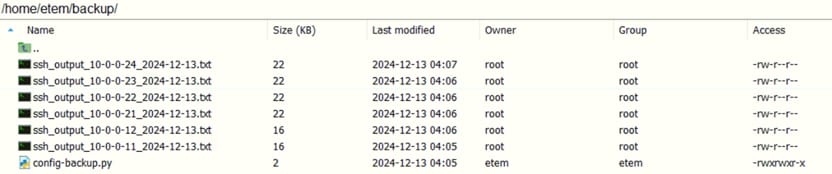
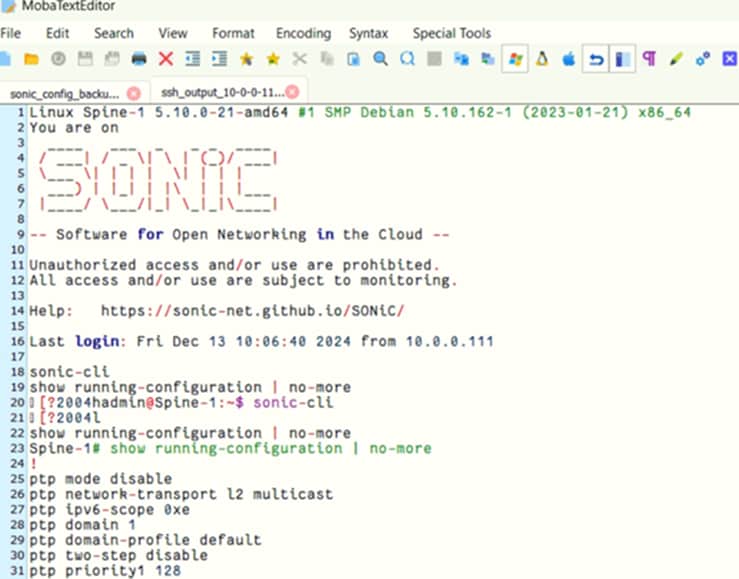
The files are saved in the same folder as the script.
Step 5. Setting Up an Environment for Scheduled Automation
To run this script on a daily schedule, you can set up a scheduled task or cron job on your server. The method depends on your operating system. Here are the general steps for scheduling a daily task on Unix-based systems such as Linux:
- Make the script executable by running the following command: chmod +x config-backup.py
- Open your crontab for editing by running the following command: crontab -e
- Add an entry to the crontab that specifies when and how often you want to run the script. To run the script daily at a specific time, you can use a crontab entry such as the one in the following example: 0 6 * * * /path/to/python3 /path/to/config-backup.py
The 0 in the first position specifies the minute (0-59).
The 6 in the second position specifies the hour (0-23).
The * in the other positions specifies any day of the month and any month of the year. - Replace /path/to/python3 with the actual path to your Python 3 interpreter.
- Replace /path/to/config-backup.py with the actual path to your script.
- Save your changes and exit the crontab editor. The script will now run daily at the specified time.
- Ensure that the Python interpreter and script have the necessary permissions to run.
Note: The specifics of setting up scheduled tasks can vary depending on your operating system and its version. Additionally, you may need to set up proper logging and error handling to ensure that the script runs smoothly in a scheduled environment.
References
- Enterprise Open Source and Linux | Ubuntu
- Welcome to Python.org
- Enterprise SONiC Distribution by Dell Technologies