Data Integrity Capabilities in PowerProtect Data Manager
Executive summary
Overview
Revisions
We value your feedback
Introduction
Introduction
Key capabilities and benefits:
Data Manager integrity checks
Data Manager integrity checks
Dependent Logs Check
This integrity check focuses on Oracle database full copies. The data integrity capability validates that all the necessary logs required for proper database recovery are present. Missing logs are flagged, allowing administrators to address the issue before a restore is needed—ensuring Oracle backups remain restorable.
As shown in figure 1, a critical alert with message ID ‘DIA0002’ is triggered to notify the about the details of the copy that has the dependent log missing issue.
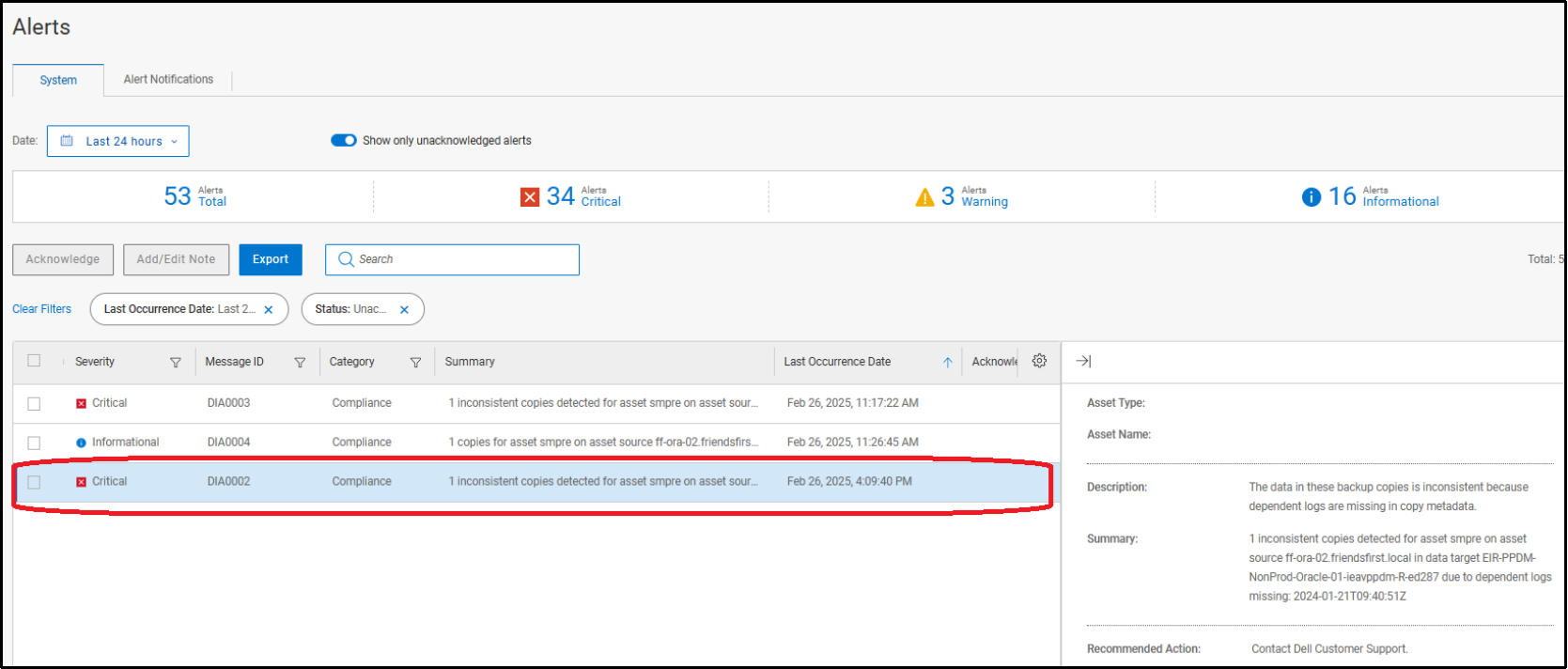
Figure 1. Dependent logs missing alert
To locate copies with potential data integrity issues, use the Copy Integrity Filters in the Copy Management UI and select the filter type “Missing dependent Logs.” This will help identify copies that lack the required log references for successful recovery.
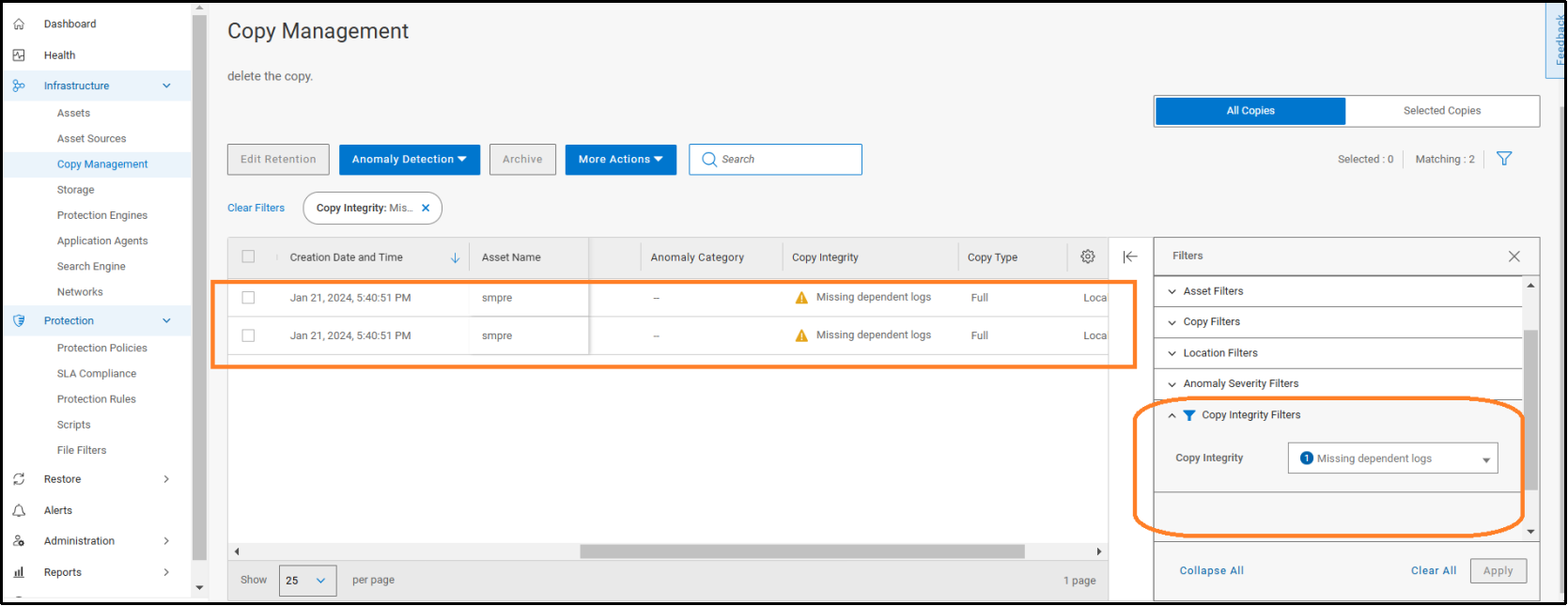
Figure 2. Locating copies with that lack required log references
If any affected copies are identified, it is recommended to contact Dell Customer Support. This helps prevent potential permanent data loss and ensures recovery operations remain reliable.
After the issue is resolved, the data integrity tag - INTERNAL_CHECK_DEPENDENT_LOGS” will be removed from the copy metadata during the next data integrity scan, and the associated alert will be automatically acknowledged.
Retention Time Check
This integrity check focuses on copies missing the retention time. If the retention time is not set, copies will never expire and therefore will not be deleted from the Data Domain. This results in storage space remaining occupied indefinitely, preventing it from being reclaimed and causing inefficiencies in storage management. Copies created more than 12 hours before the current time will be scanned to check their retention time.
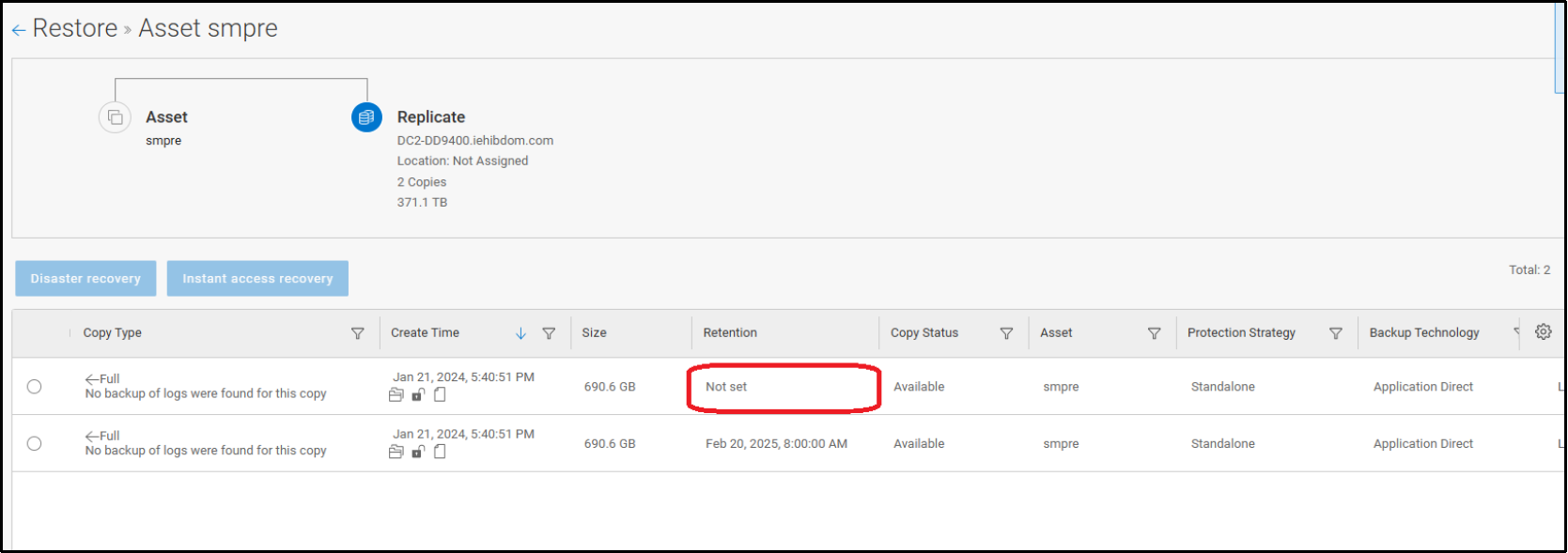
Figure 3. Copy showing retention not set
A critical alert with message ID DIA0003 will be generated to inform the user about the copy affected by the incorrect retention time issue.
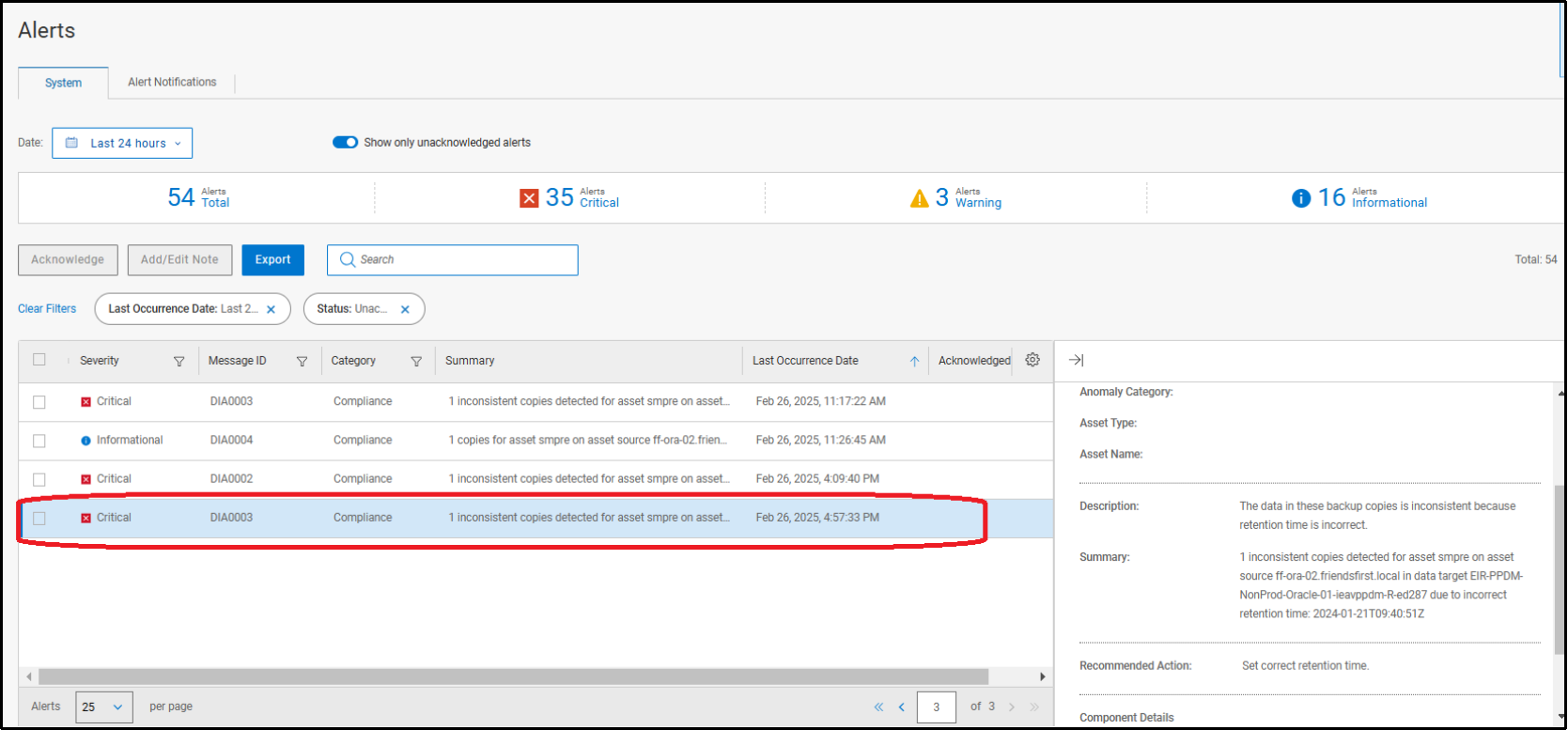
Figure 4. Alert generated for incorrect retention time
To find copies with data integrity issues, use the ‘Incorrect Retention Time’ filter in the Copy Management UI. This helps to quickly locate and isolate copies with retention time problems, so you can address potential data integrity concerns.
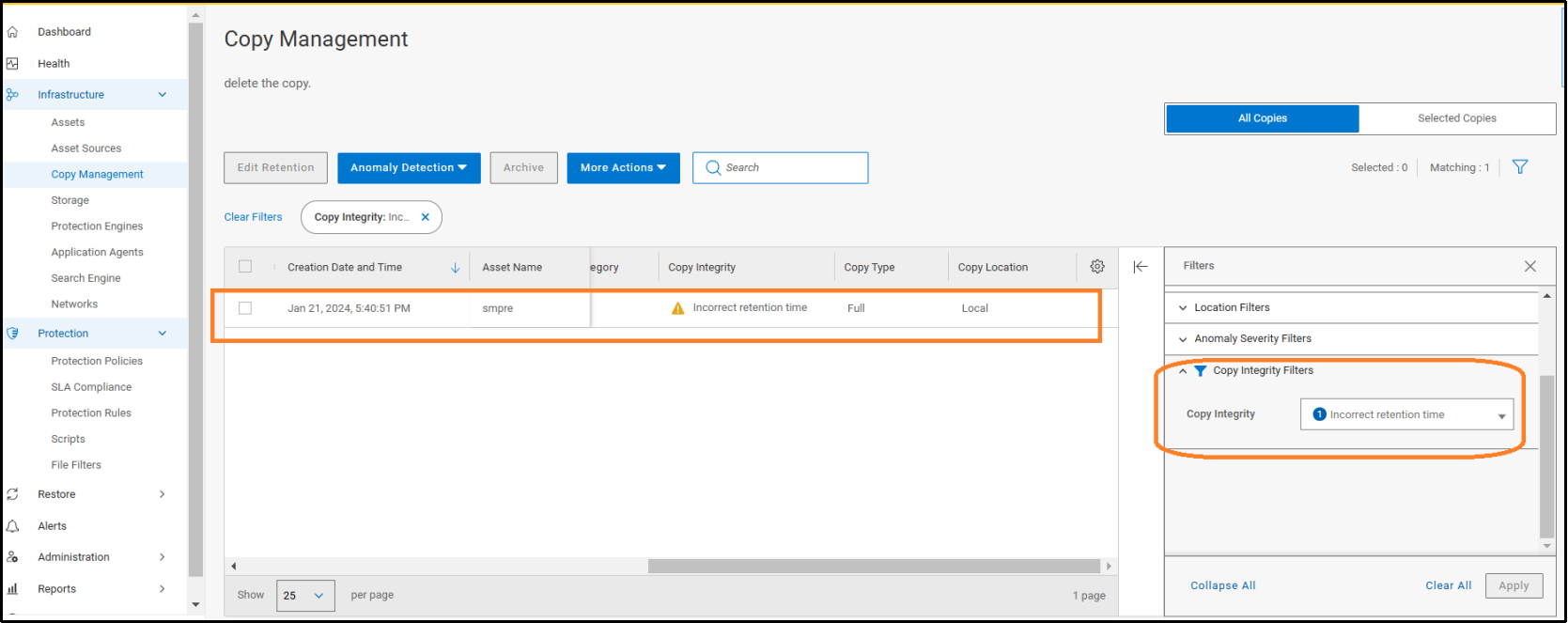
Figure 5. Locating copies with retention time issues
As a recommended step, manually set the retention time for the copy using the Copy Management UI as shown in figure 6 & 7. This ensures the copy has the correct retention settings and resolves the issue.
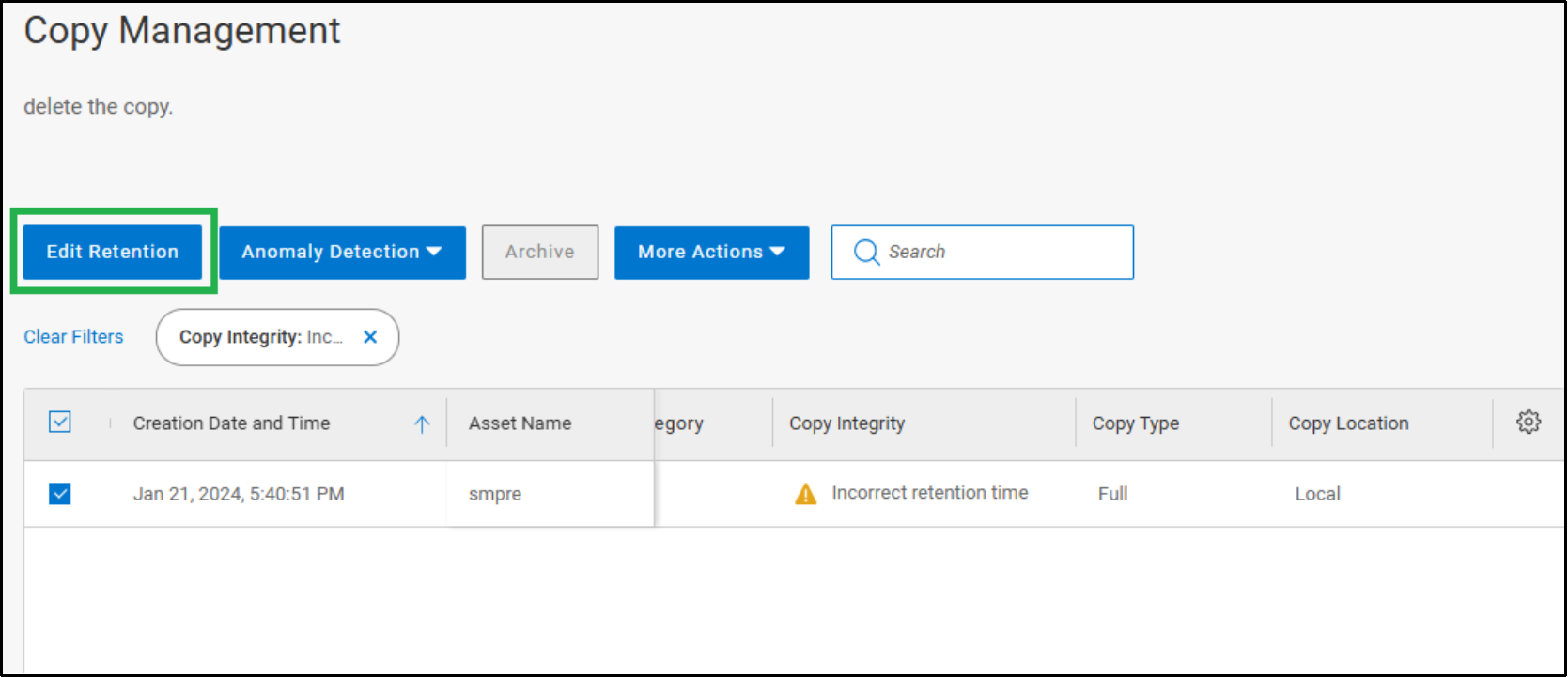
Figure 6. Setting retention time in Copy Management UI
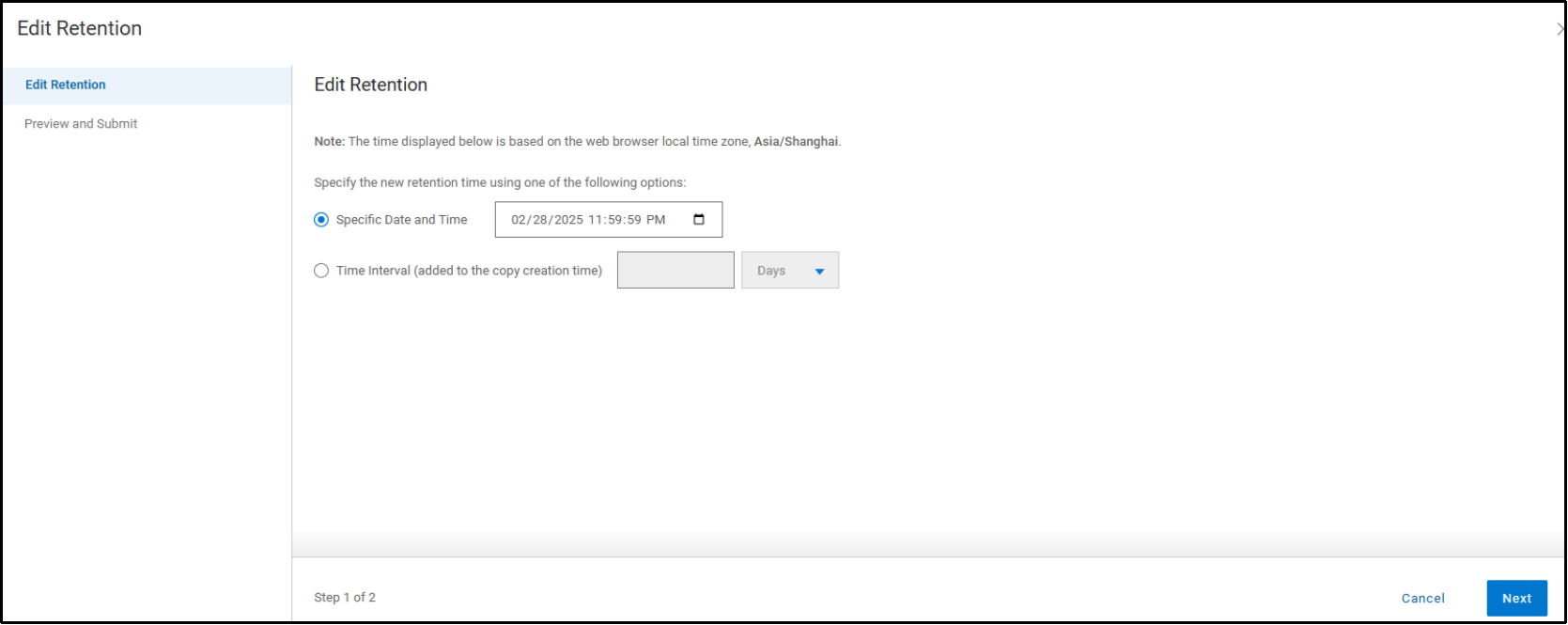
Figure 7. Confirmation of updated retention settings
Schedule Info Check
Checks the retention of the copy to verify if it matches the expected retention. Missing policy schedule information can result in a mismatch because a default retention period gets assigned to the copy. This can result in long-term copies expiring prematurely, potentially causing data loss, or short-term copies remaining for an extended period, leading to inefficiencies in storage management. This presents a potential risk and users are notified through informational alerts with message ID 'DIA0004' as shown in figure 8.
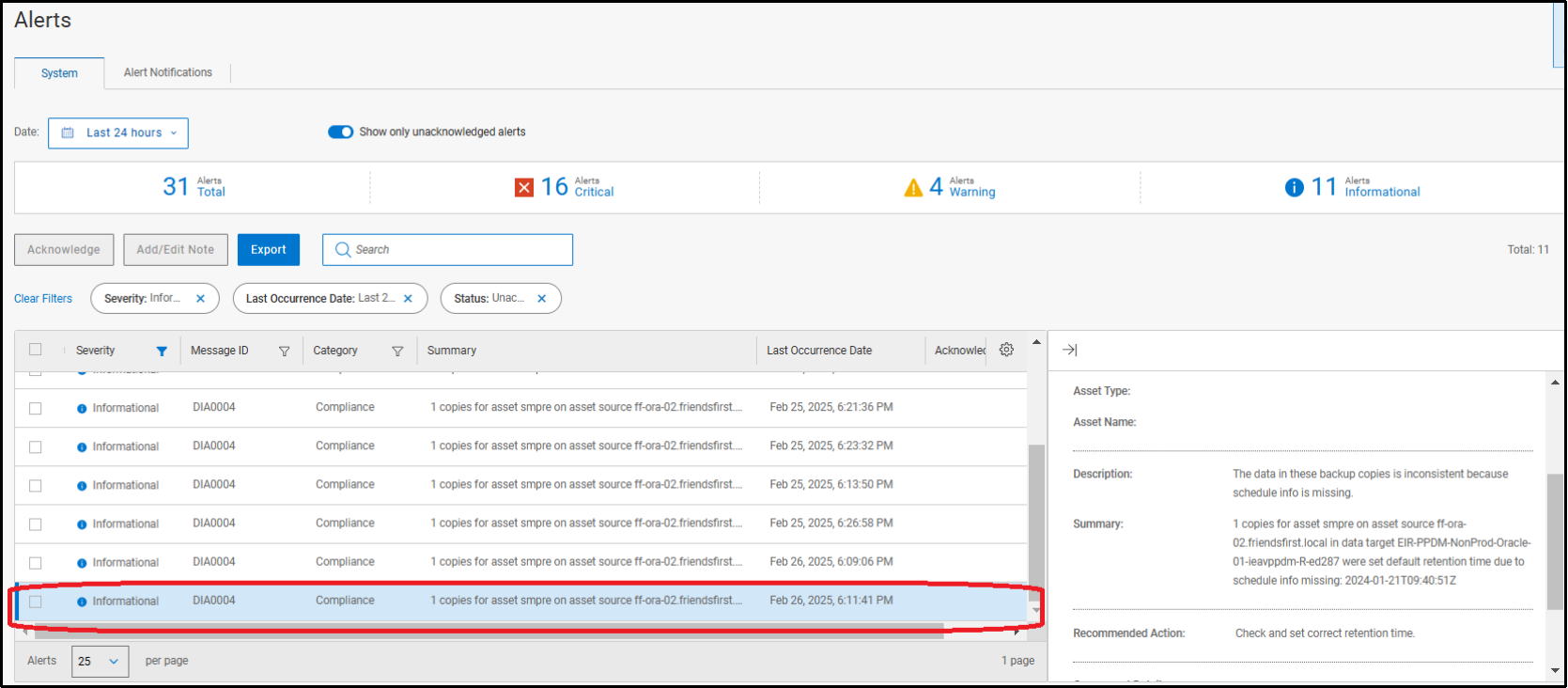
Figure 8. Schedule Information Mismatch Alert
To address this, the recommended action is to first check the protection policy's retention settings, and if the copy’s retention doesn't match, manually update it through the Copy Management UI.
Dependent Logs retention time check
The Dependent logs retention time check identifies cases where dependent log copies have a shorter retention period than the full copies that rely on them. Such misalignment can break recovery chains and impact restore reliability. If any affected copies are detected, it is recommended to contact Dell Customer Support.
As shown in figure 9, a critical alert with message ID DIA0009 will be generated to inform the user about the log copies have a shorter retention period than the full copies.
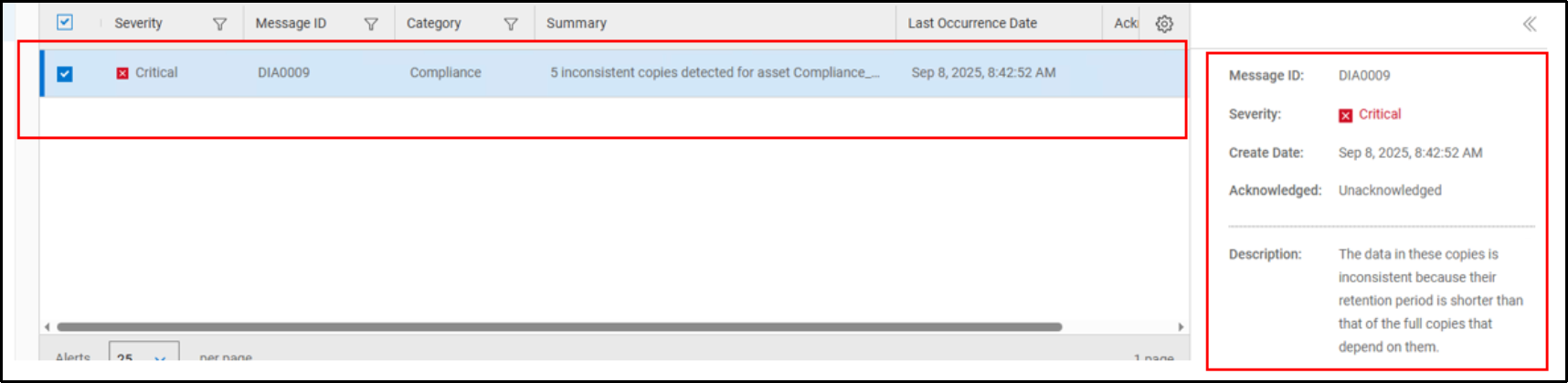
Figure 9. Alert for dependent logs retention time check
To locate copies with potential data integrity issues, use the Copy Integrity Filters in the Copy Management UI and select the filter type “Dependent logs retention time is incorrect.” This will help identify the log copies that have a shorter retention period than the full copies.
Storage information missing check
The storage information missing check identifies backup copies which are inconsistent because of the missing storage information in Data Manager. If any affected copies are detected, it is recommended to contact Dell Customer Support.
As shown in figure 10, a critical alert with message ID DIA0005 is generated to inform the user about the log copies have a shorter retention period than the full copies.
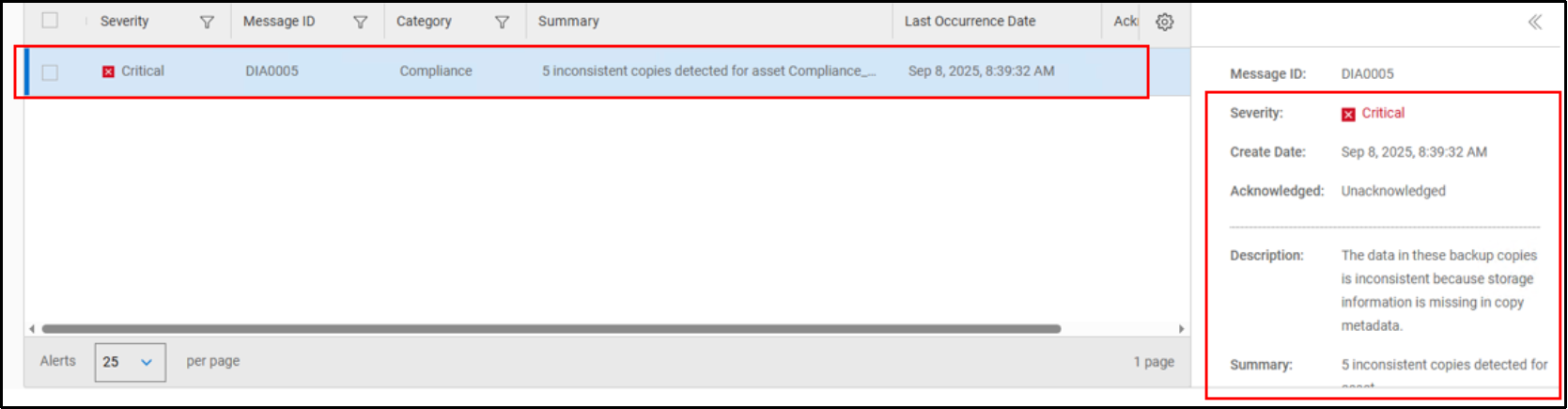
Figure 10. Alert for missing storage information
To locate copies with potential data integrity issues, use the Copy Integrity Filters in the Copy Management UI and select the filter type “Storage information is missing.” This will help identify backup copies which is inconsistent because of missing storage information.
Missing asset information check
The missing asset information check detects backup copies that lack required asset information or reference an asset ID that does not exist in Data Manager. If any affected copies are detected, it is recommended to contact Dell Customer Support.
As shown in figure 11, a critical alert with message ID DIA0006 is generated to inform the user about the missing asset information.
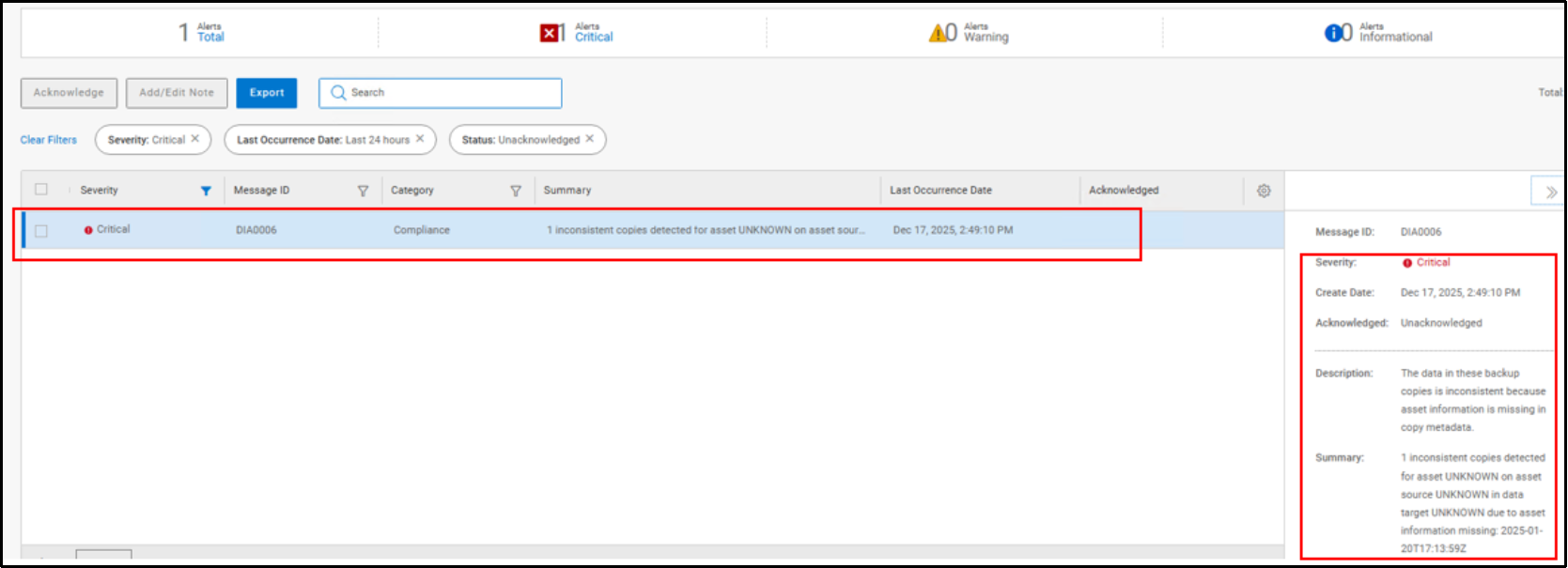
Figure 11. Alert for missing asset information
To locate copies with potential data integrity issues, use the Copy Integrity Filters in the Copy Management UI and select the filter type “Missing asset information.” This will help identify backup copies which is inconsistent because of missing storage information.
Backup time missing check
The backup time missing check identifies backup copies which are inconsistent because of the missing backup time information in Data Manager. If any affected copies are detected, it is recommended to contact Dell Customer Support.
As shown in figure 12, a critical alert with message ID DIA0010 is generated to inform the user about the missing backup time.
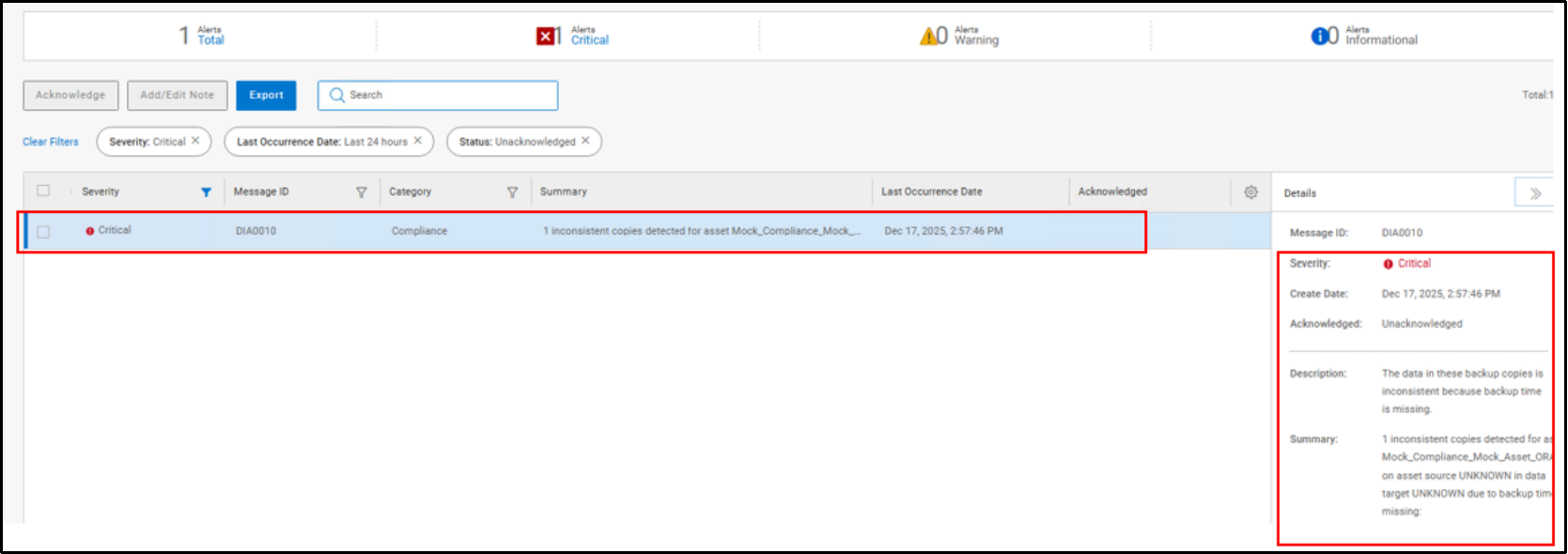
Figure 12. Alert for missing backup time
To locate copies with potential data integrity issues, use the Copy Integrity Filters in the Copy Management UI and select the filter type “Missing backup time.” This will help identify backup copies which is inconsistent because of missing storage information.
Incorrect copy status check
The incorrect copy state error check identifies copies remaining in an intermediate state (e.g., CREATING, DELETING, RESTORING) for more than 24 hours. If any affected copies are detected, it is recommended to contact Dell Customer Support.
As shown in figure 13, a critical alert with message ID DIA0011 is generated to inform the user about the incorrect copy status.
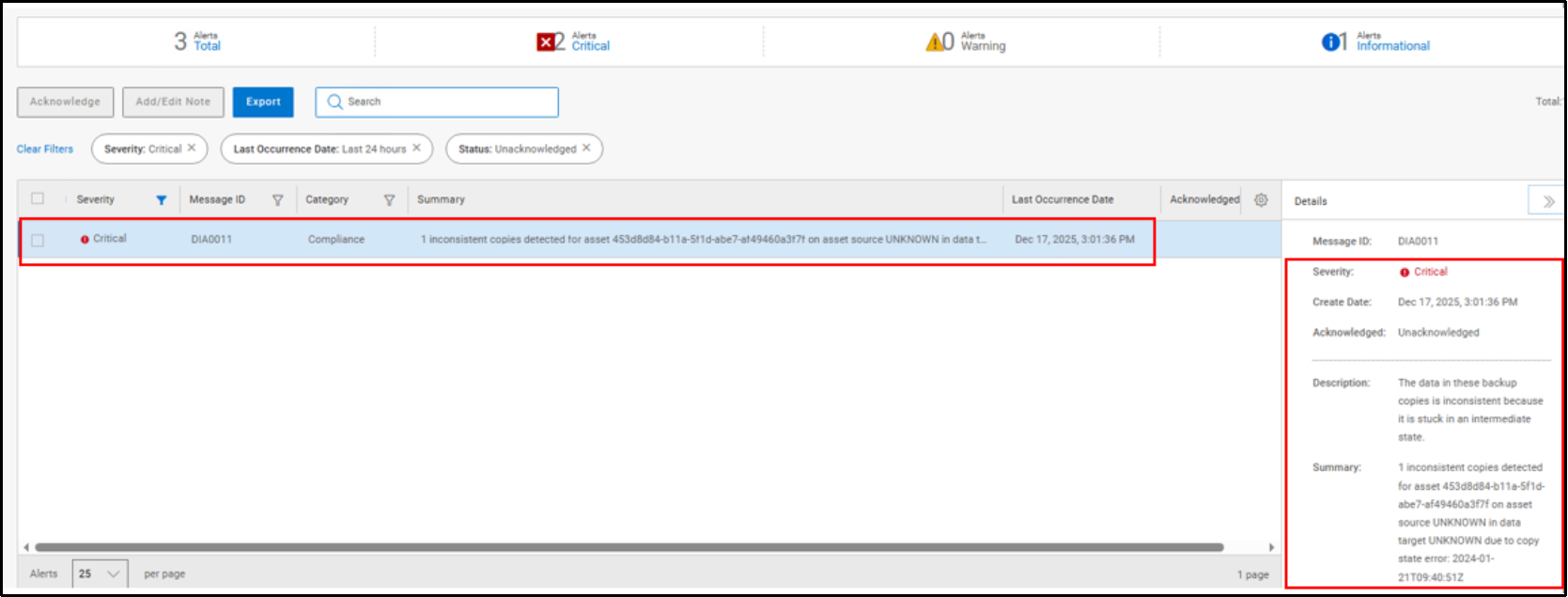
Figure 13. Alert for incorrect copy status
To locate copies with potential data integrity issues, use the Copy Integrity Filters in the Copy Management UI and select the filter type “Incorrect copy status.” This will help identify backup copies remaining in an intermediate state.
Data File Missing Check
Starting an on-demand data integrity check
The following steps outline how to initiate an on‑demand data integrity check. As an example, the procedure below demonstrates how to perform an on‑demand Data Domain file missing check using the data integrity CLI tool.
- Login to Data Manager using admin username and password.
- Type “dia_cli” as shown below to use the data integrity command line tool. This command lists the acceptable commands.
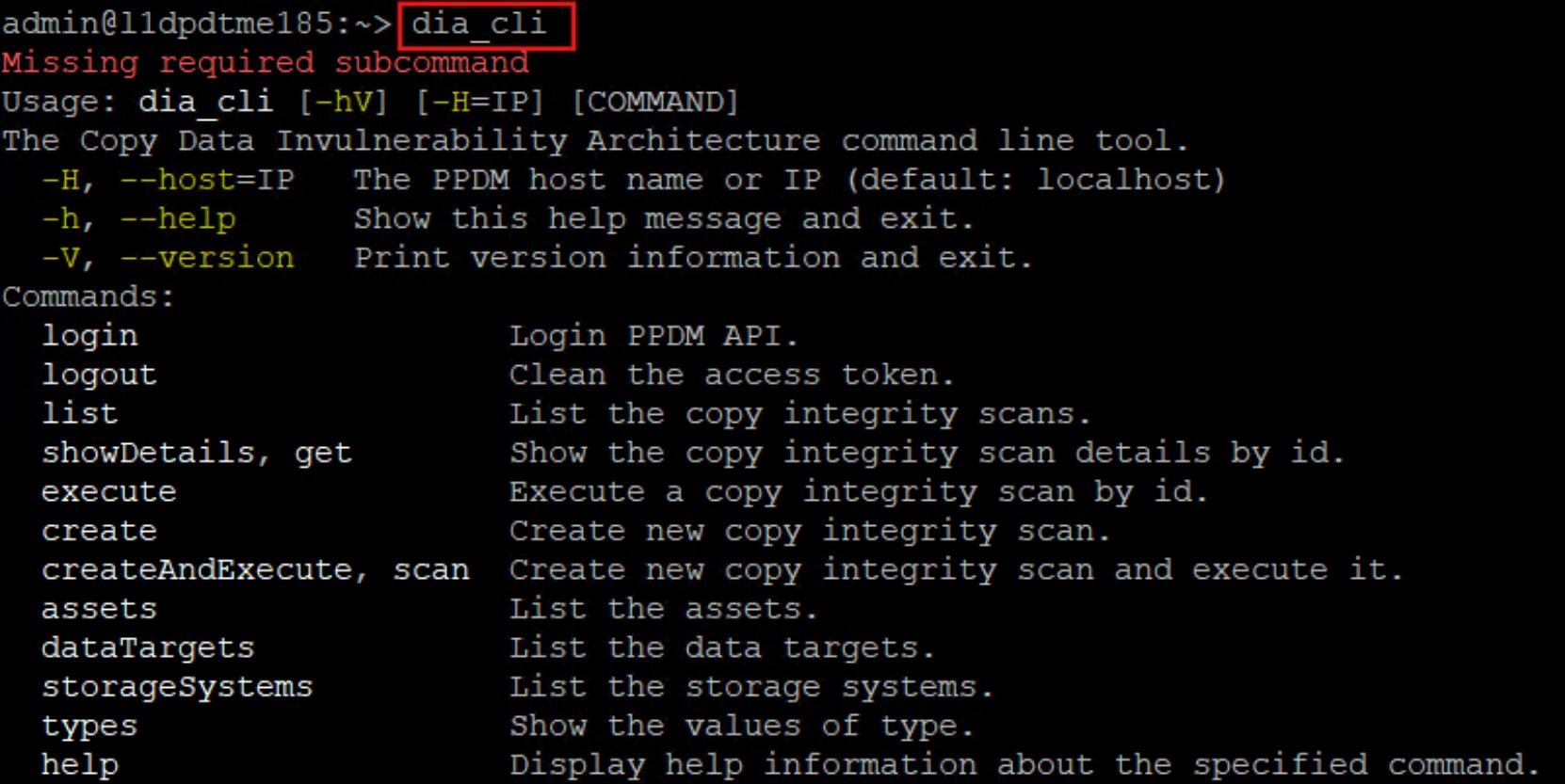
Figure 14. Data integrity cli tool
Type the command “dia_cli login” to login to Data Manager API by entering the Data Manager admin username and password.

Figure 15. Data integrity cli login
Type “dia_cli create” to create a name for the new scan. In this example, below steps showcases a check created and executed for check type “CROSS_CHECK_DD_FILES_MISSING”.
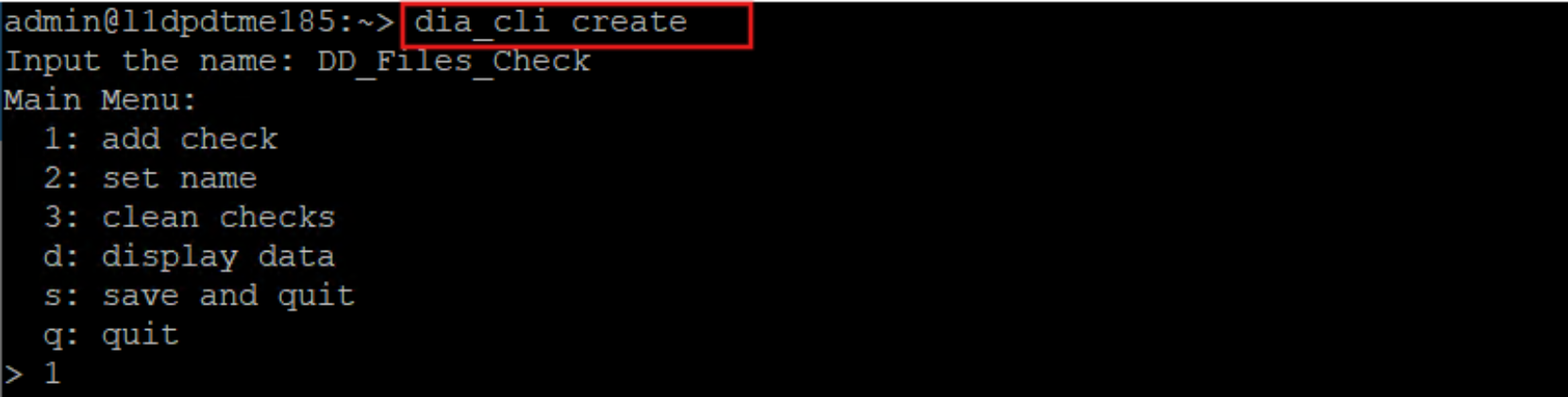
Figure 16. Creating a scan
Select the check type as 8.
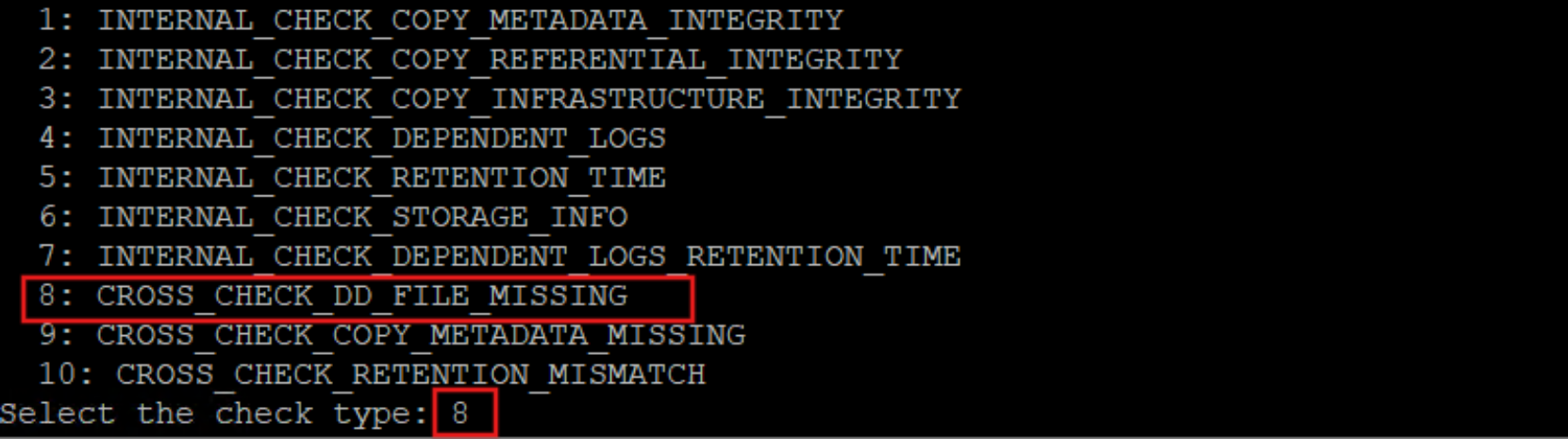
Figure 17. Choosing the san type
On the check menu, type 2 to set copy type.
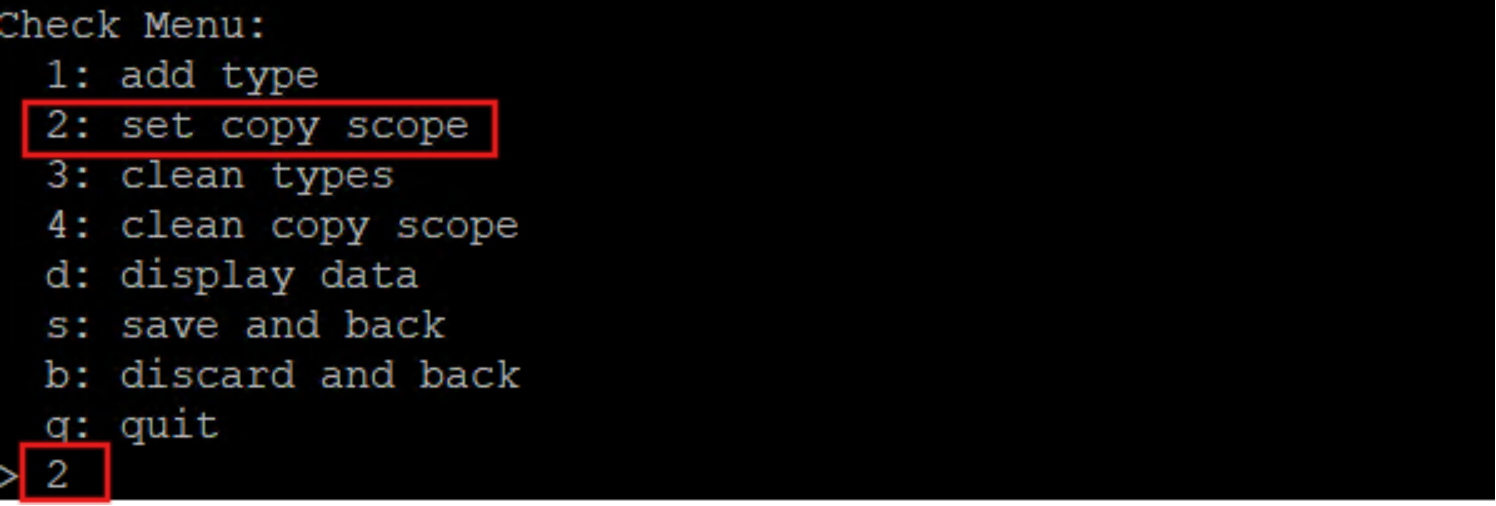
Figure 18. Set copy type
On the copy scope menu, type 5 to set begin time.
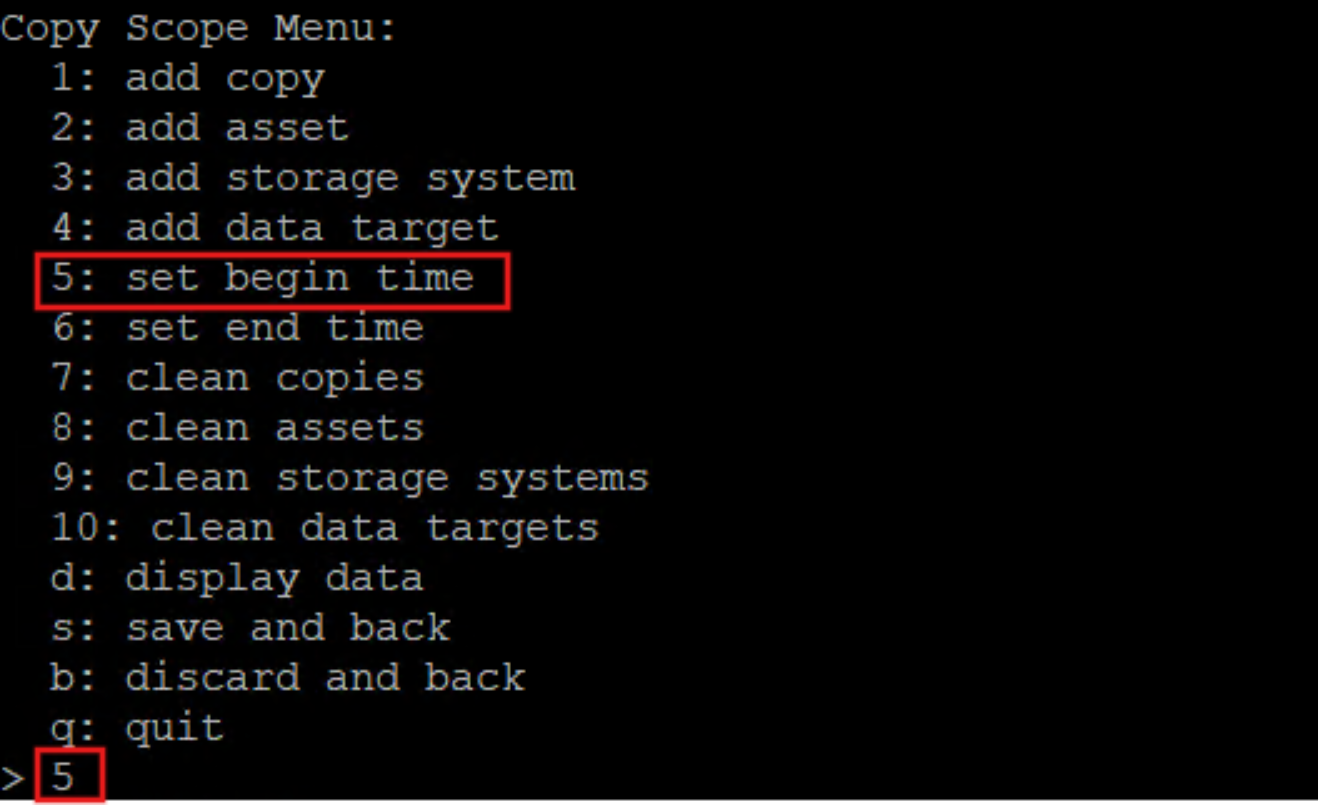
Figure 19. Set begin time
Input the begin time as required, for example sod-7d (Start‑of‑Day – 7 Days)

Figure 20. Begin time set as sod-7d
On the copy scope menu, type s to save and navigate back.
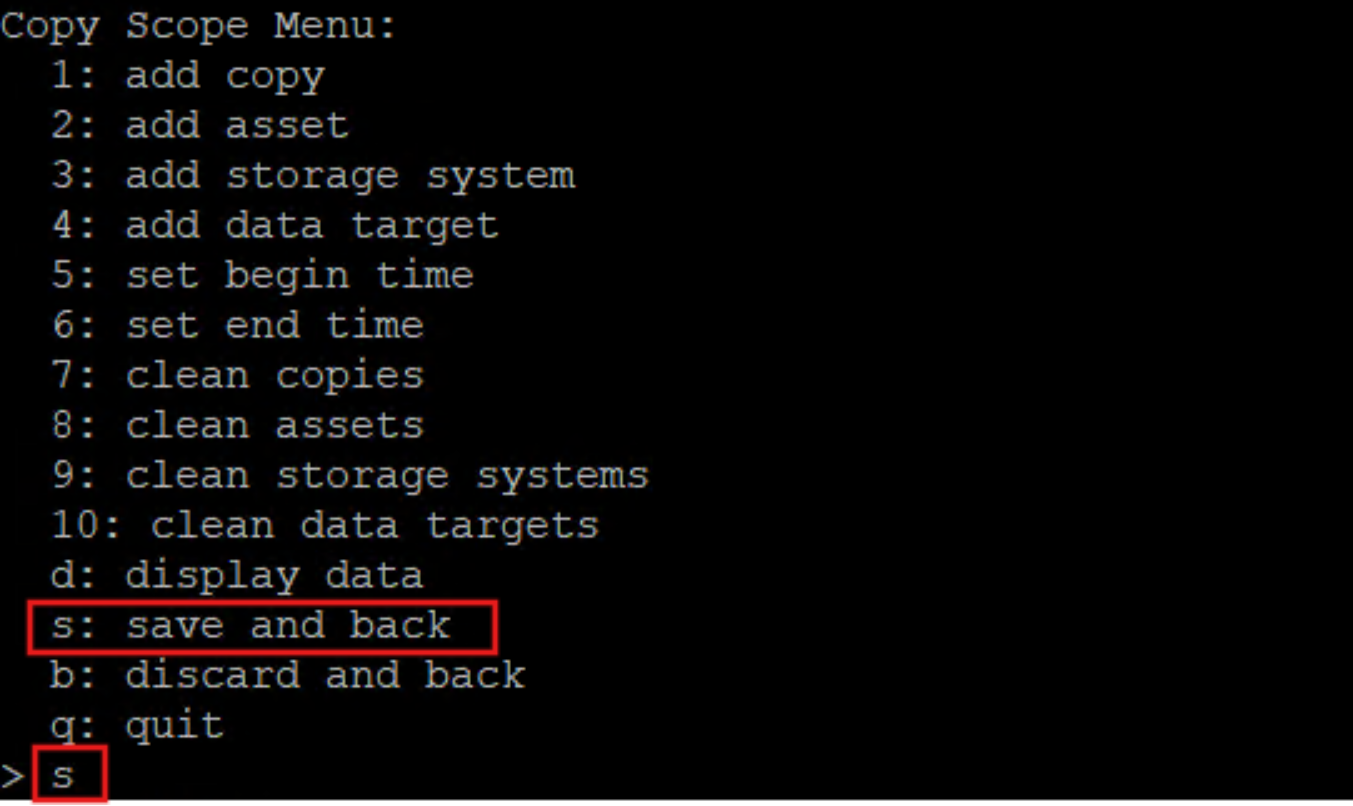
Figure 21. Saving copy type
Type d to display the type created in the previous step.
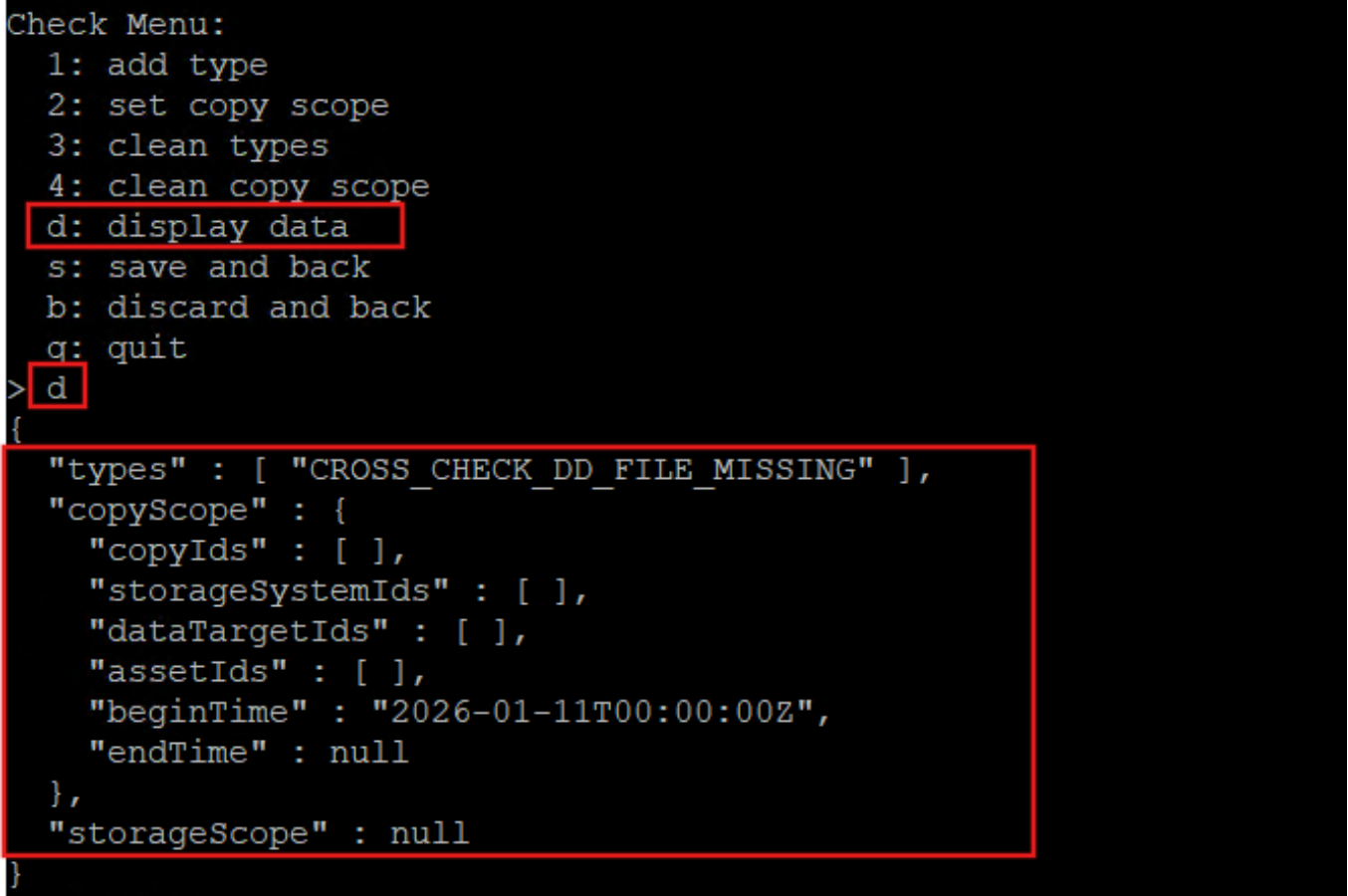
Figure 22. Display the type created
On the check menu, type s to save and navigate back to the main menu. Type d on the main menu to display the created copy integrated scan details.
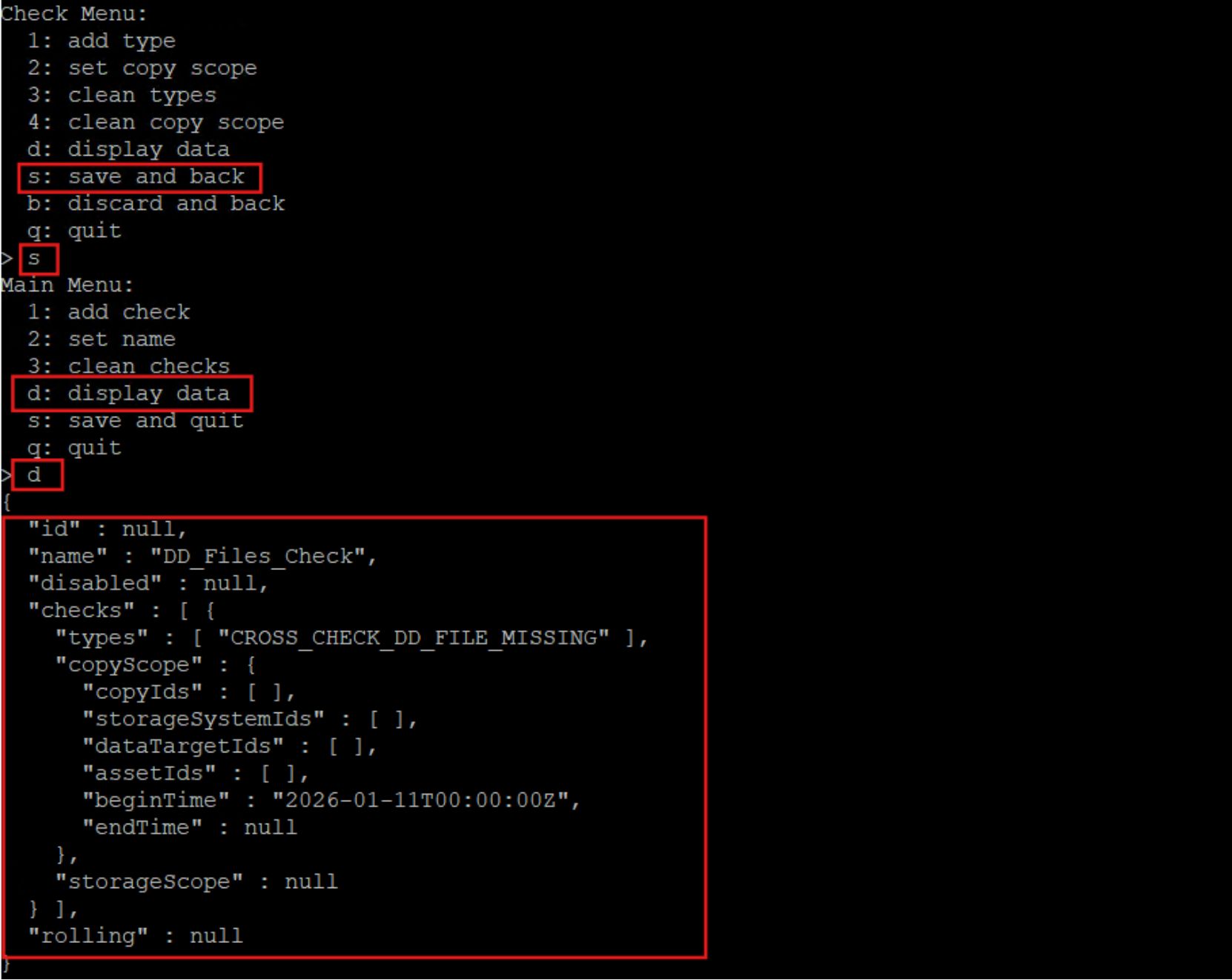
Figure 23. Create check details
On the main menu, type s to save and quit. We see the copy integrity scan has been created successfully as shown below.
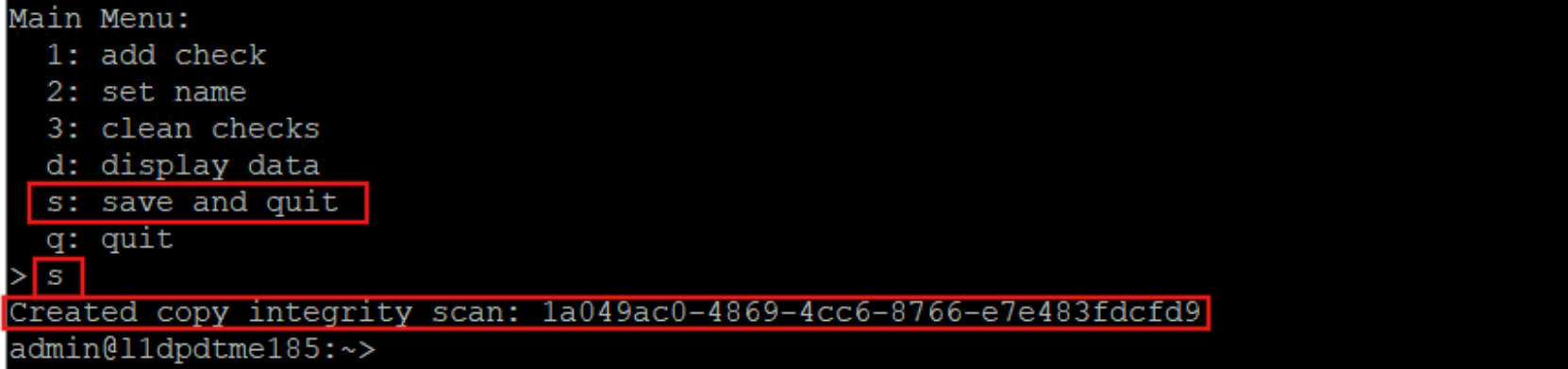
Figure 24. Save and quit main menu
Type the command “dia_cli list” to list the copy integrated scans.

Figure 25. List copy integrated scan
To execute the scan, type “dia_cli execute <copy integrated scan id>”

Figure 26. Executing the scan
Once the scan is complete, the inconsistency copy alert is generated on the Data Manager UI alerts section with the summary and recommended action to contact Dell customer support as shown below.
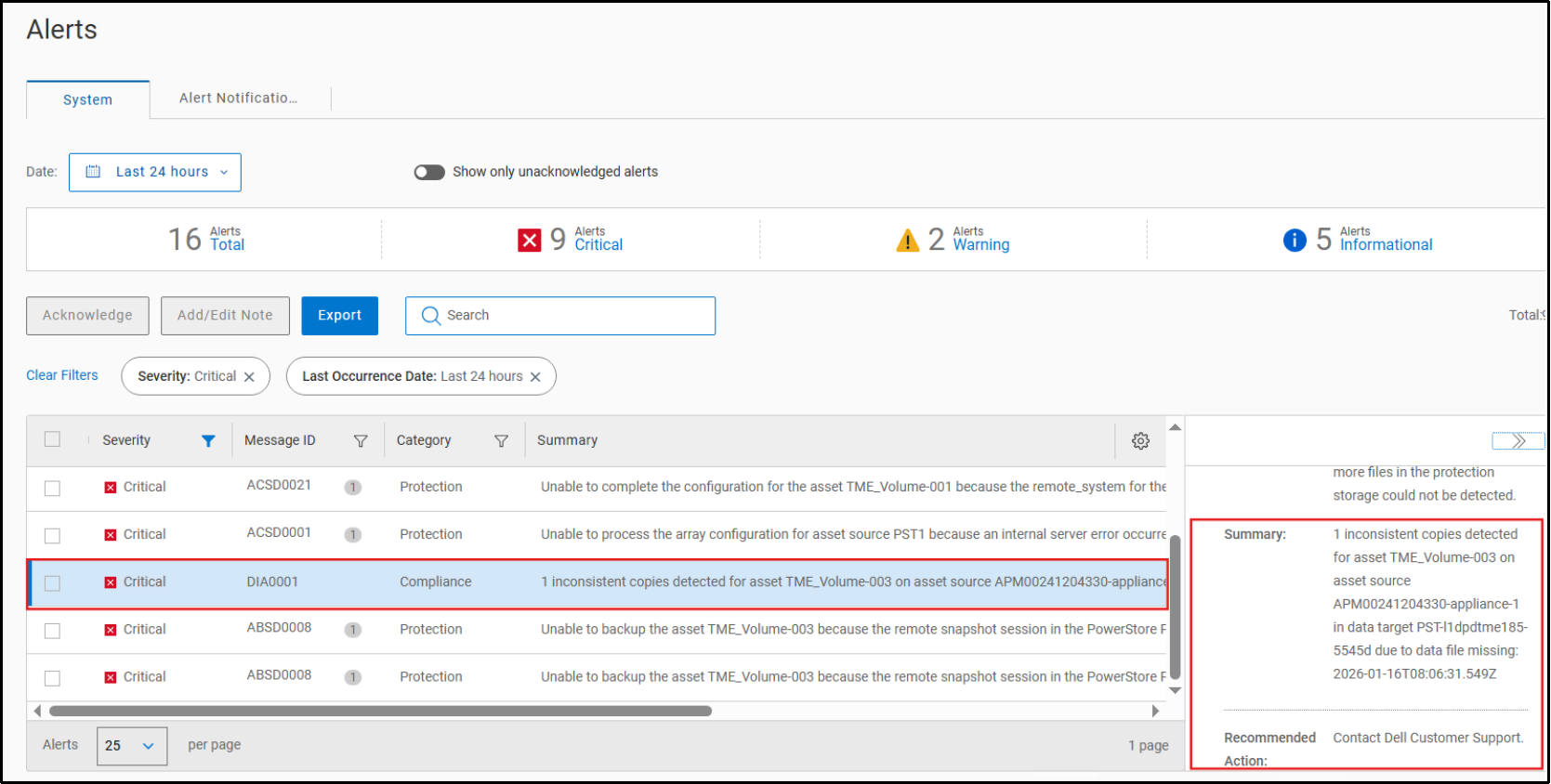
Figure 27. Data integrity compliance alert for Data Domain file missing
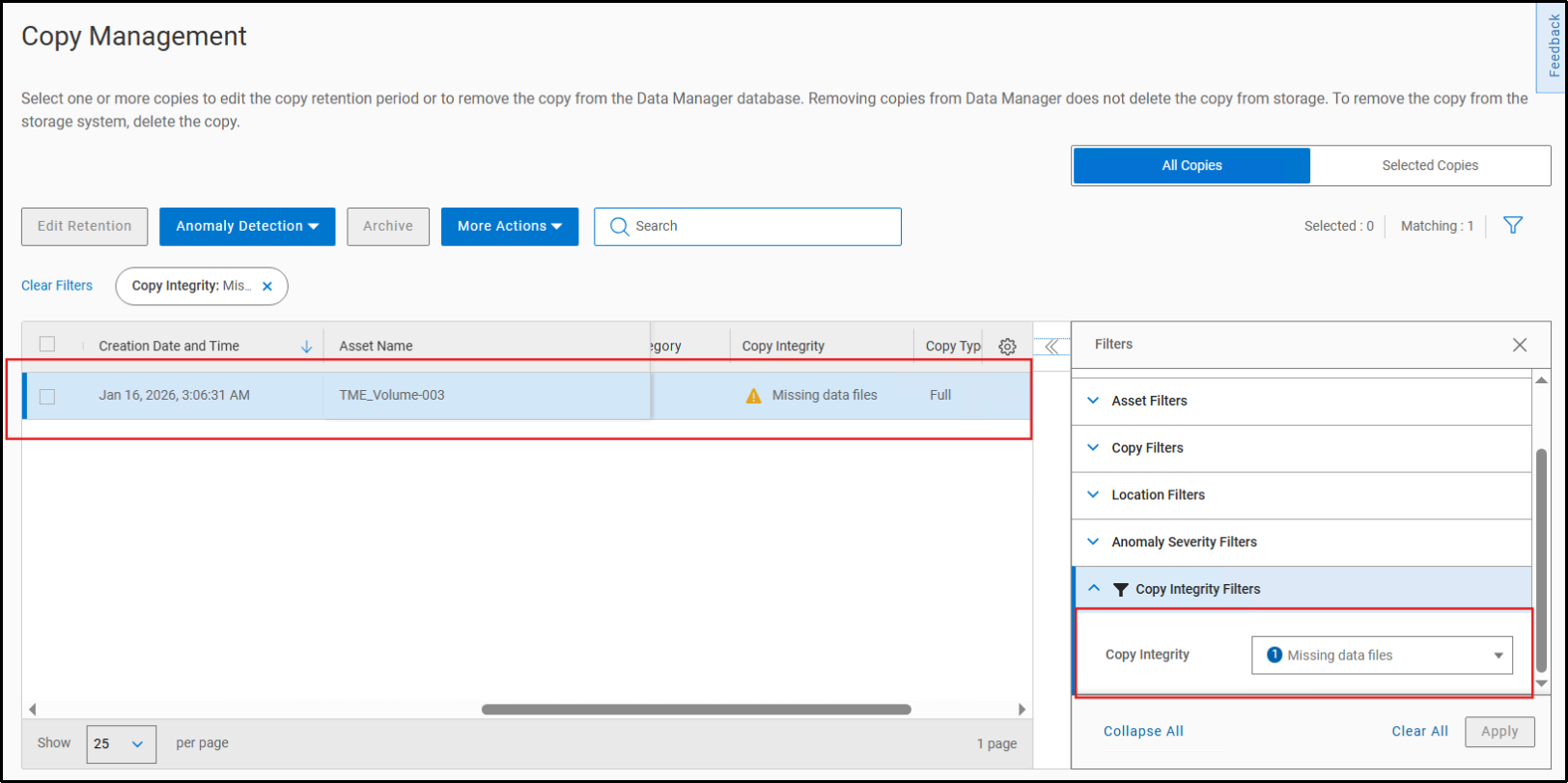
To locate copies with potential data integrity issues, use the Copy Integrity Filters in the Copy Management UI and select the filter type “Missing data files” as shown below in figure 28. This will help identify copies that has missing data files.
|
Data integrity Check Type |
Copy Integrity Filter |
|
INTERNAL_CHECK_DEPENDENT_LOGS |
Missing dependent logs |
|
INTERNAL_CHECK_DEPENDENT_LOGS_RETENTION_TIME |
Dependent logs retention time is incorrect |
|
INTERNAL_CHECK_RETENTION_TIME |
Incorrect retention Time |
|
INTERNAL_CHECK_RETENTION_TIME |
Schedule information is missing |
|
INTERNAL_CHECK_STORAGE_INFO |
Storage information is missing |
|
INTERNAL_CHECK_ASSET_INFO |
Missing asset information |
|
INTERNAL_CHECK_BACKUP_TIME |
Missing backup time |
|
INTERNAL_CHECK_HANG_STATE |
Incorrect copy status |
|
CROSS_CHECK_DD_FILES_MISSING (Not enabled by default) |
Missing data files |
Figure 28. Copy integrity filter for missing data files