Dell Enterprise SONiC Integration with OpenStack
This document shows how to bring up an OpenStack environment with a Dell PowerSwitch-based topology running Dell Enterprise SONiC and its integration with the Dell Modular Layer 2 (ML2) plug-in.
Added a chapter that describes a multitenant example.
H20048
May 2024
Initial release.
Introduction
Introduction
Purpose of this guide
This document shows how to bring up an OpenStack environment with a Dell PowerSwitch-based topology running Dell Enterprise SONiC and its integration with the Dell ML2 plug-in. The plug-in is used to provision VLANs and overlay networks in a BGP-EVPN VXLAN fabric. The sample ML2 plug-in, logs, and procedure are provided in this document to help customers build their own custom ML2 solutions while using Dell Enterprise SONiC.
Dell Technologies Enterprise SONiC
SONiC is an open-source, Linux-based network operating system that runs on switches from multiple vendors. Dell Enterprise SONiC is a hardened and validated version of SONiC supported on selected Dell PowerSwitch platforms. Dell Enterprise SONiC supports an intuitive command-line interface, object-based administration through a REST interface, and Google's gRPC Network Management Interface (gNMI).
OpenStack
OpenStack is the most widely deployed open source cloud software. OpenStack provides the Neutron service Modular Layer 2 (ML2) infrastructure for integrating with networking vendor platforms or network operating systems. Networking plugins are available on the OpenDev networking repositories site.
Scope
This guide includes OpenStack single tenant and multitenant examples. Tenants are also called Virtual Routing and Forwarding (VRF) instances. VRFs allow multiple instances of independent routing tables to co-exist within the same router simultaneously. In Dell Technologies Enterprise SONiC, all interfaces are automatically placed in the default VRF unless configured otherwise.
This document is divided into two parts. Part 1 provides a single tenant example, and Part 2 provides a multitenant example. The single tenant example uses the default VRF, meaning no VRF configuration is necessary. The multitenant example uses nondefault VRFs.
This guide shows how to do the following:
Build an OpenStack environment with a controller, two compute nodes, and Dell PowerSwitch systems.
Install a sample Dell Neutron mechanism ML2 plug-in on the controller.
Use OpenStack to do the following:
Create a VLAN network and validate the leaf switch configurations.
Create instances on the VLAN networks and test connectivity.
Delete a VLAN network and verify that the configuration is removed from the relevant leaf switches.
Create OpenStack projects for nondefault VRFs (multitenant example only)
Create a nondefault VRF and validate the leaf switch configurations (multitenant example only)
Delete nondefault VRFs (multitenant example only)
Prerequisites
Dell PowerSwitch systems must be running Dell Technologies Enterprise SONiC 4.1 or later.
The dedicated management port on Dell PowerSwitch systems must be configured with an IP address to communicate with the OpenStack controller.
OpenStack version 2023.1 (Antelope) or later is recommended.
Referenced files
The Dell ML2 plugin and other files referenced in this guide are available in ZIP format from your sales representative.
Part 1 – Single tenant example
Part 1 – Single tenant example
Note: The files referenced in this chapter are included in Dell_ent_sonic_integration_openstack_part1-single_tenant_example.zip. This file is available from your sales representative.
Topology
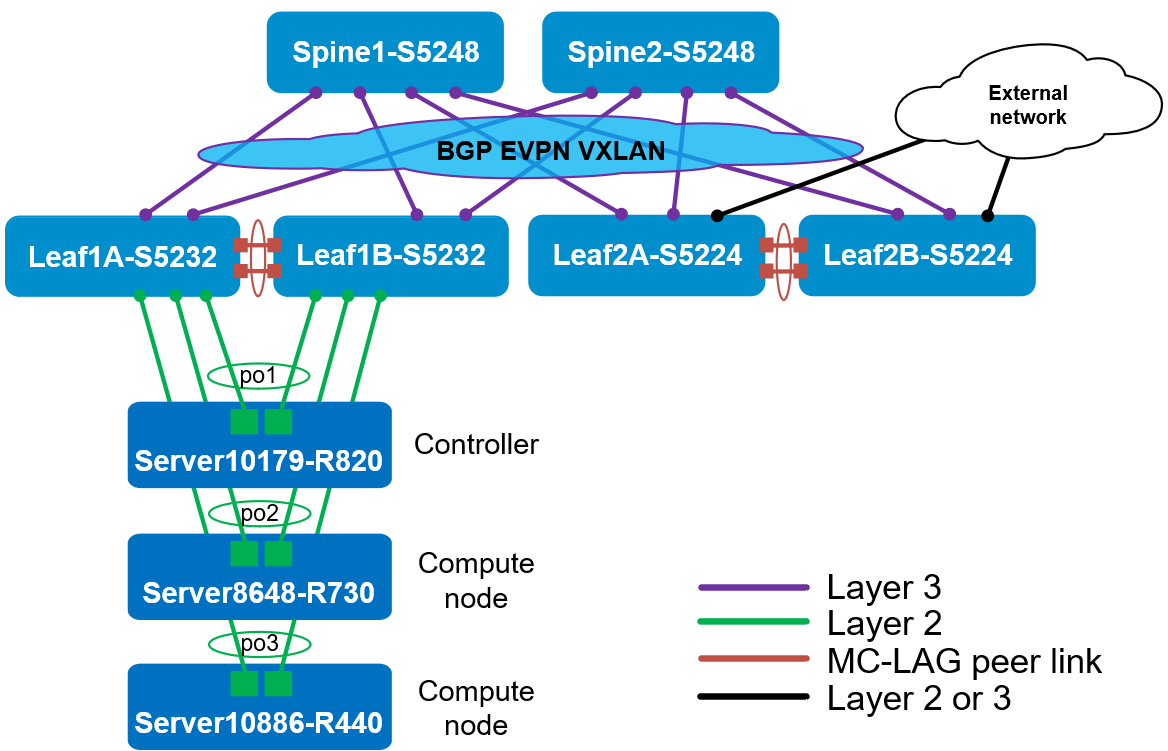
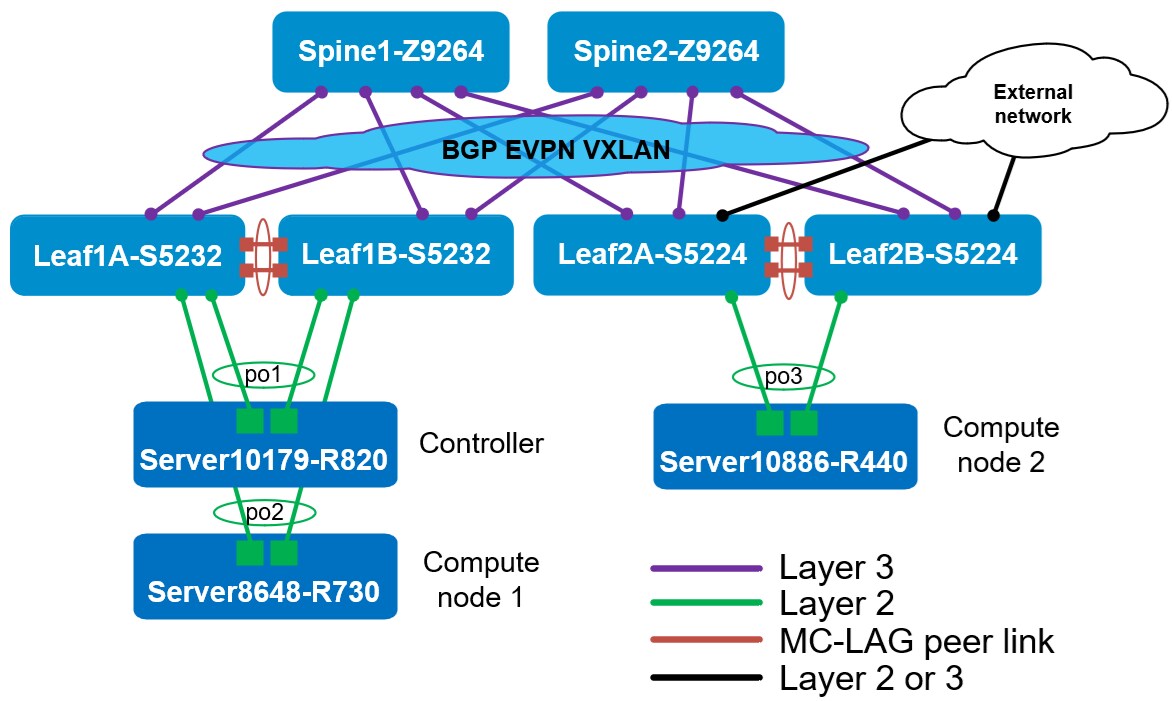
The OpenStack topology used in this single tenant example is shown below:
Figure 1. OpenStack topology – single tenant example
Management IP addresses used in this example are shown in the following table. The addresses are used in the referenced files.
Table 2. IP addresses used in the single tenant example
Role
Name
Management IP
OpenStack Controller
Server10179-R820
100.104.63.215
Compute Node
Server8648-R730
100.104.63.211
Compute Node
Server10886-R440
100.104.63.217
Leaf
Leaf1A-S5232
100.104.63.78
Leaf
Leaf1B-S5232
100.104.63.77
Leaf
Leaf2A-S5224
100.104.49.171
Leaf
Leaf2B-S5224
100.104.49.146
Spine
Spine1-S5248
100.104.49.77
Spine
Spine2-S5248
100.104.49.44
Server10179-R820 acts as the OpenStack controller and provides the OpenStack dashboard service. As a controller, the Neutron ML2 plug-in is installed on this node. All three servers use Nova compute services.
Build OpenStack
There are several options to install OpenStack on Ubuntu Linux including Canonical OpenStack and Devstack. This document follows the Devstack Multi-Node Lab example.
To bring up the multi-node OpenStack, perform the following steps:
Note: The controller and compute nodes in this example are running Ubuntu version 22.04.4 LTS and Python version 3.10.12.
To install the latest stable Devstack release on each server, run the following command:
After installing Devstack, add the configuration files named local.conf and stackrc on each server. Sample files are provided in DevStack_files.tar.gz. In this example, Server10179-R820 is the OpenStack cluster controller, and the other two servers are compute nodes.
All relevant OpenStack services should be active on the controller and compute nodes. Sample systemctl status output for each server is provided in DevStack_services.tar.gz.
To register the two compute nodes with the controller, run the following commands on the controller:
# sudo nova-manage cell_v2 discover_hosts
# sudo nova-manage cell_v2 list_hosts
The list_hosts output should show all compute nodes and the controller.
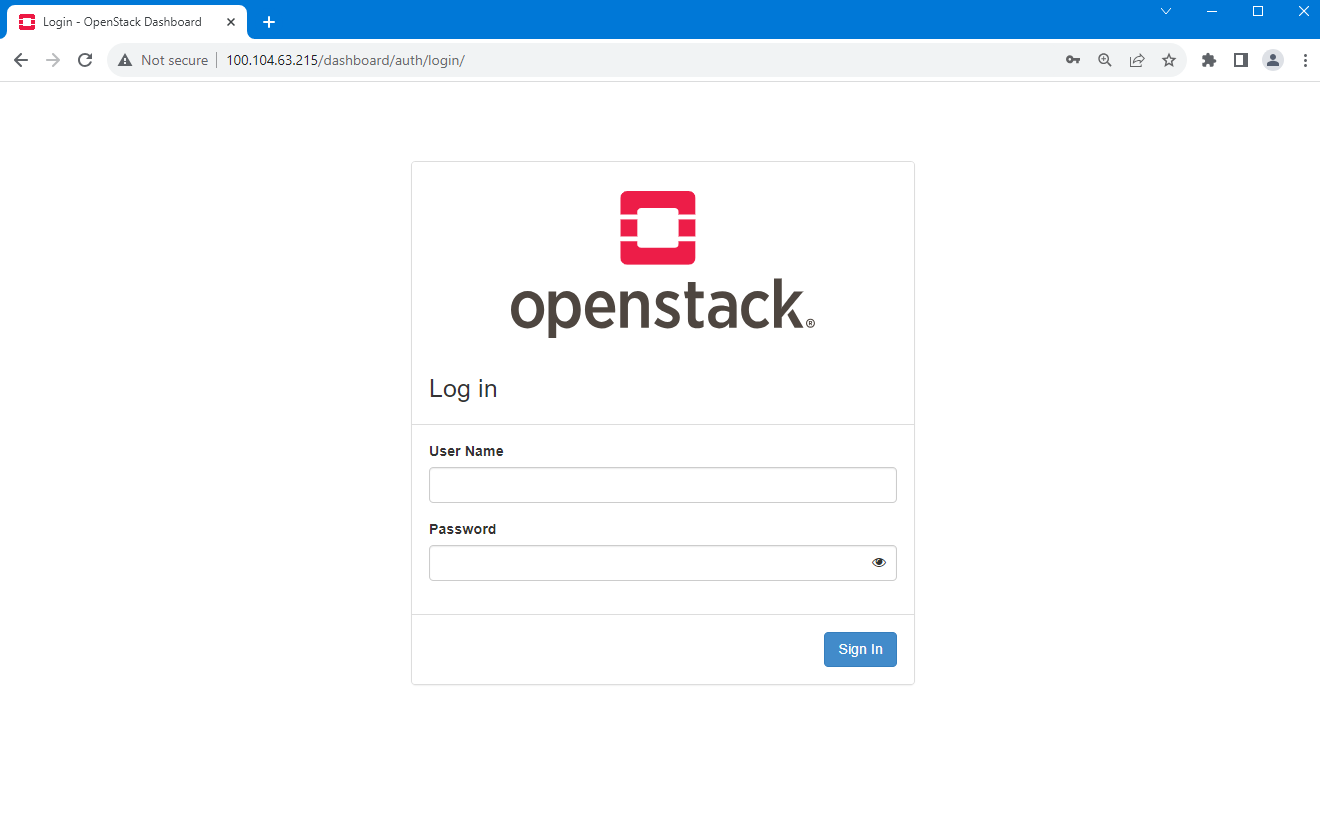
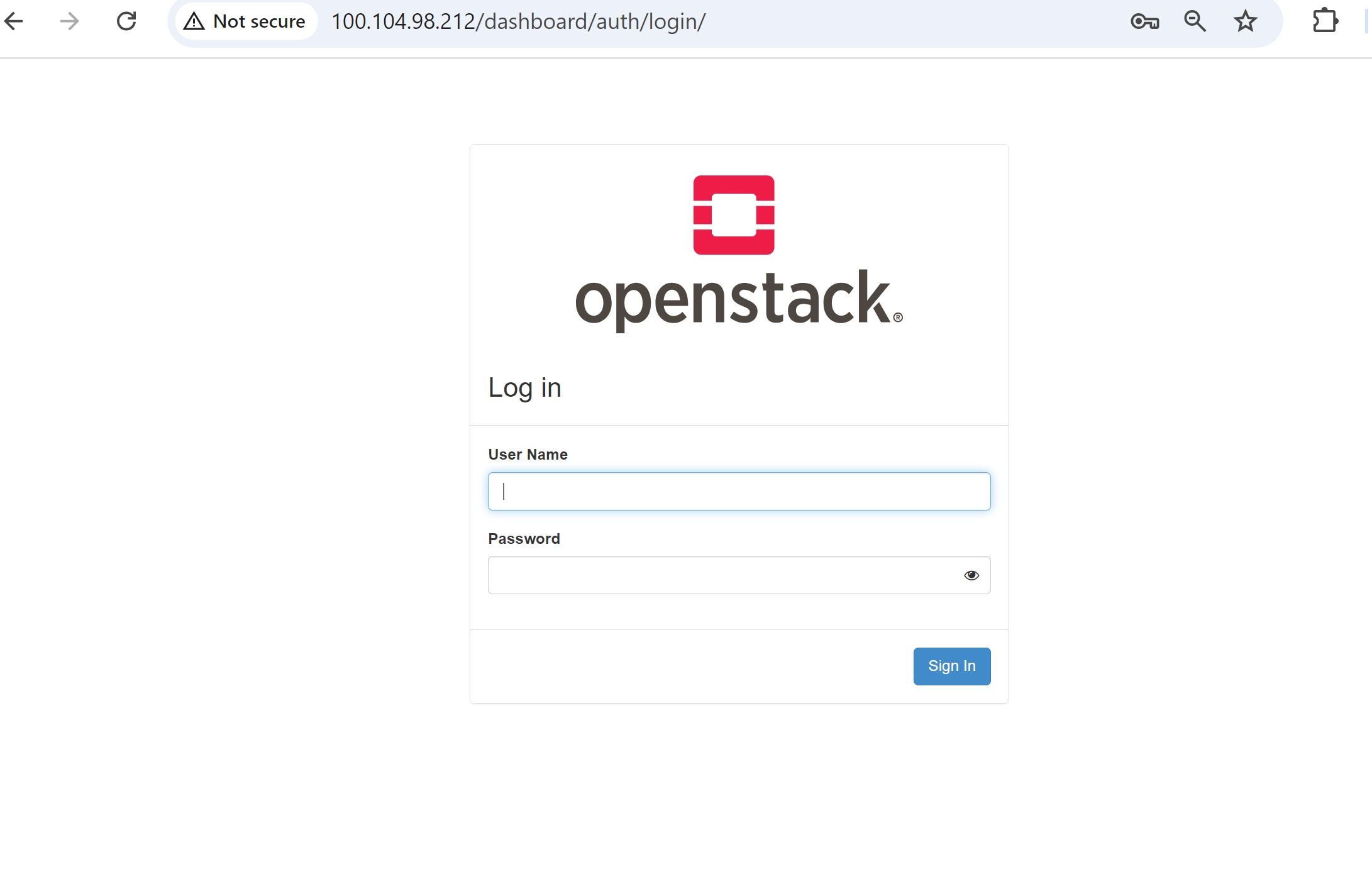
Launch the OpenStack dashboard by browsing to http://<controller_ip>/dashboard/auth/login/ as shown in the following figure.
Figure 2. OpenStack login page
Log in to OpenStack with the username admin and password openpass.
Note: The credentials are configured in local.conf,
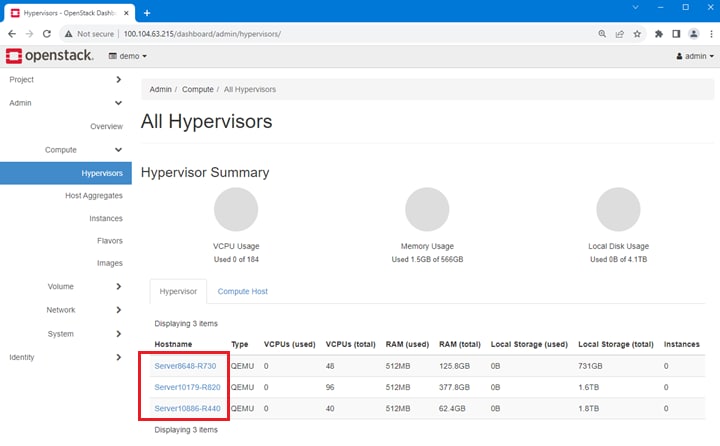
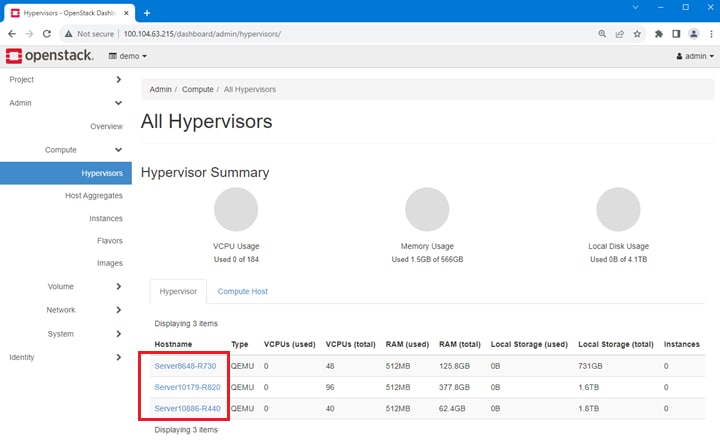
In the OpenStack dashboard, click Admin > Hypervisors and ensure all compute nodes and the controller are listed as shown in the following figure.
Figure 3. OpenStack Hypervisors page
Configure interfaces and bonds on the OpenStack controller and compute nodes. From the Linux CLI on each server, run the following Open vSwitch commands:
# ovs-vsctl add-br br-ex
# ovs-vsctl add-bond br-ex bond0 <interface_1> <interface_2>
# ovs-vsctl set port bond0 lacp=active
# ovs-appctl bond/show
# ovs-vsctl show
Install the Dell Enterprise ML2 plug-in
To install the Dell ML2 Neutron plug-in, perform the following steps:
On the controller node, extract the files from DevStack_Dell_ML2_plugin.tar.gz.
The q-svc service should come up on the controller with ML2 enabled. Sample systemctl output is provided in DevStack_services_with_ML2.tar.gz. The output shows that the q-svc now reads the Dell ML2 configuration file. The OpenStack setup is now ready for creating networks.
Create a network
To create a network, perform the following steps:
To start the debug logging on the controller, run the following command: # tail -f /opt/stack/logml2/sonic.log.
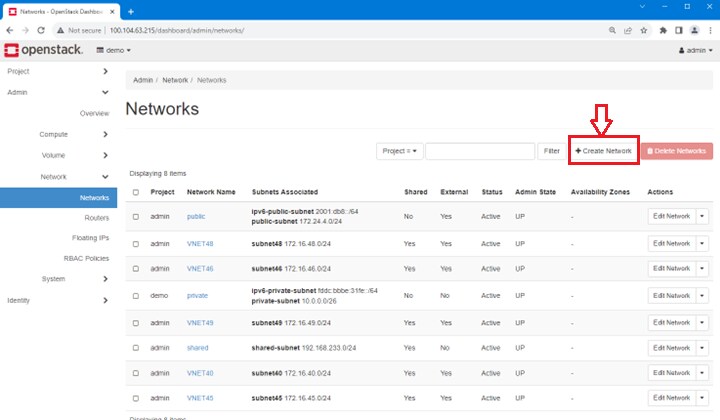
In the OpenStack dashboard, go to Admin > Network > Networks and select +Create Network.
Figure 4. OpenStack Networks page
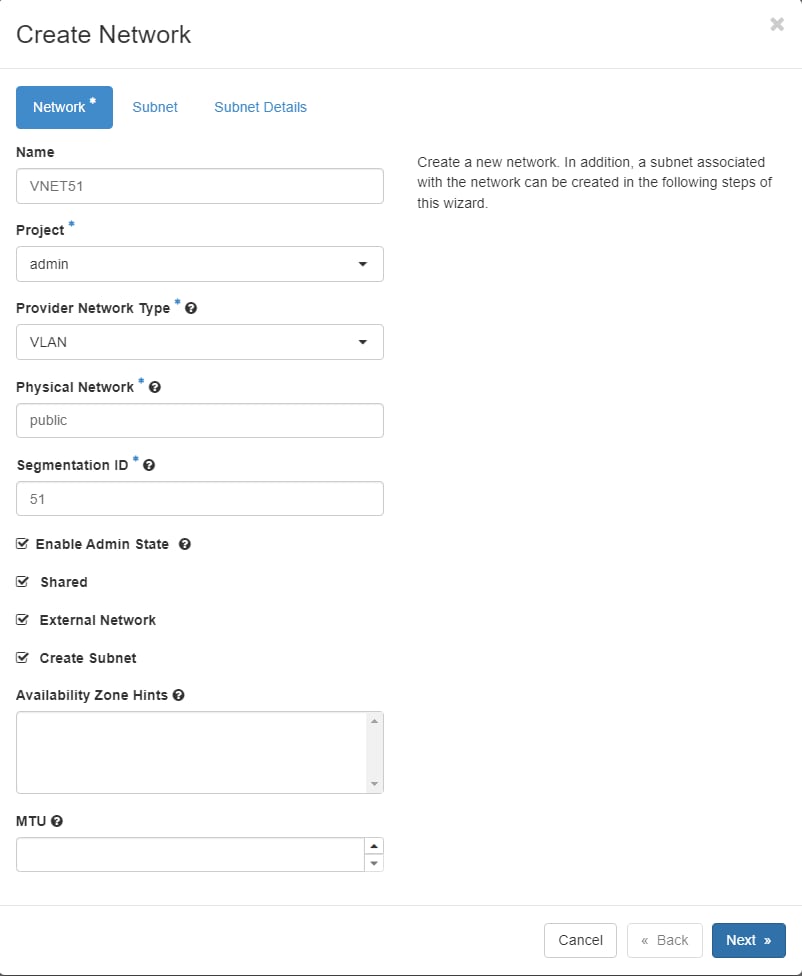
On the Create Network > Network tab, enter the network details as shown.
Figure 5. OpenStack Create Network tab
Click Next.
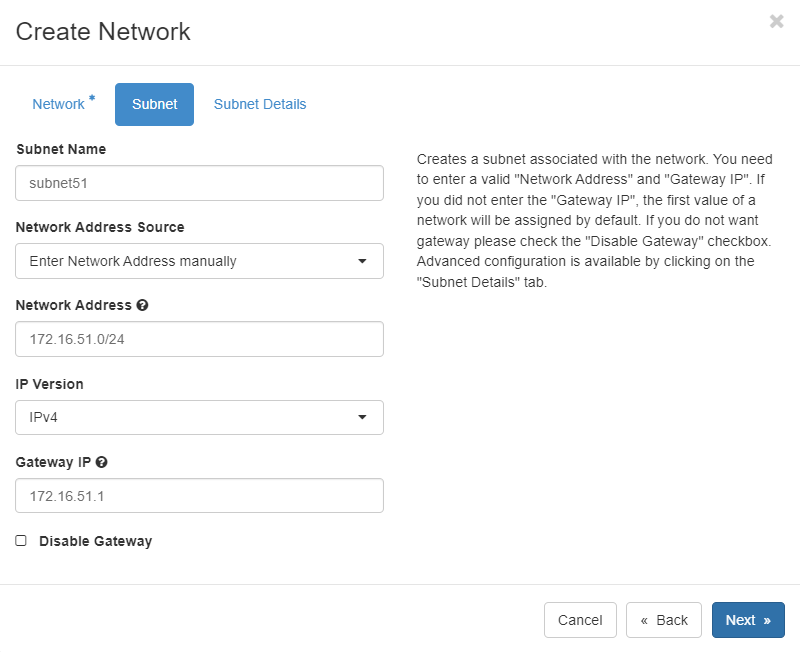
On the Create Network > Subnet tab, enter the subnet details as shown in the following figure.
Figure 6. OpenStack Create Network Subnet tab
Click Next.
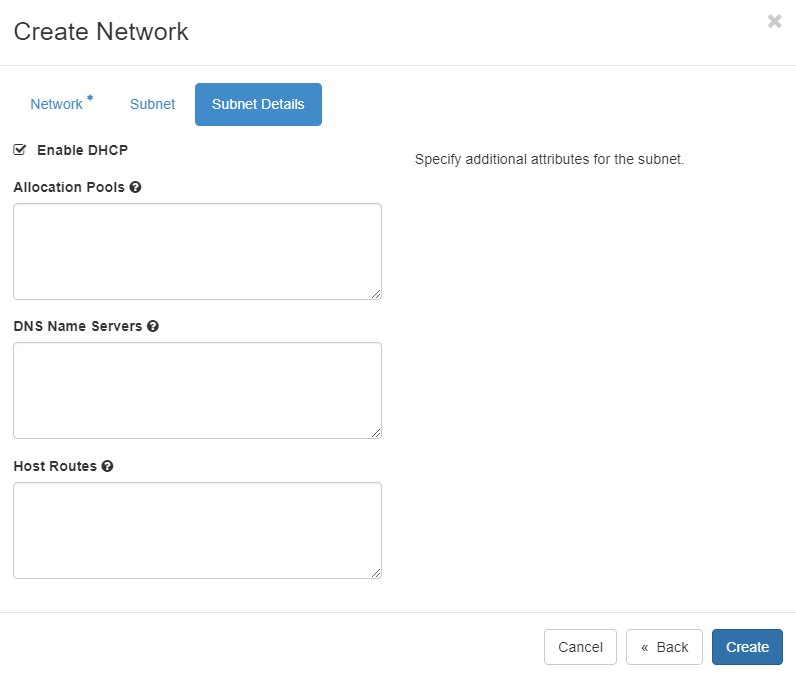
On the Subnet Details tab, leave the default settings, as shown in the following figure.
Figure 7. Create Network Subnet Details tab
Click Create to create the network.
The debug log on the controller should contain REST API calls, as shown in vnet51_create_logs.txt.
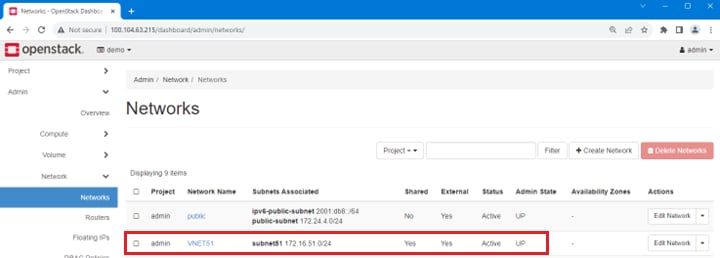
The OpenStack dashboard should show the entry for VNET51.
Figure 8. Network created
To confirm the leaf switch configuration, run the show running-configuration command on each leaf switch.
The output shows that VLAN 51 is configured with the anycast (gateway) address specified in the UI. All server port channels are added to VLAN 51, and the VXLAN VNI mapping for VLAN 51 is configured.
To create a compute instance and attach it to the newly created network named VNET51, perform the following steps:
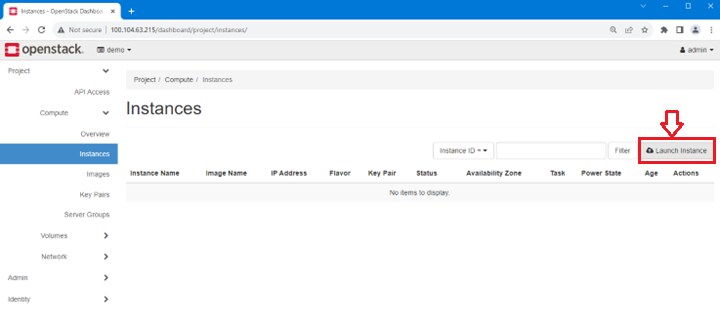
Select Project > Compute > Instances and click Launch Instance.
Figure 9. OpenStack Instances page
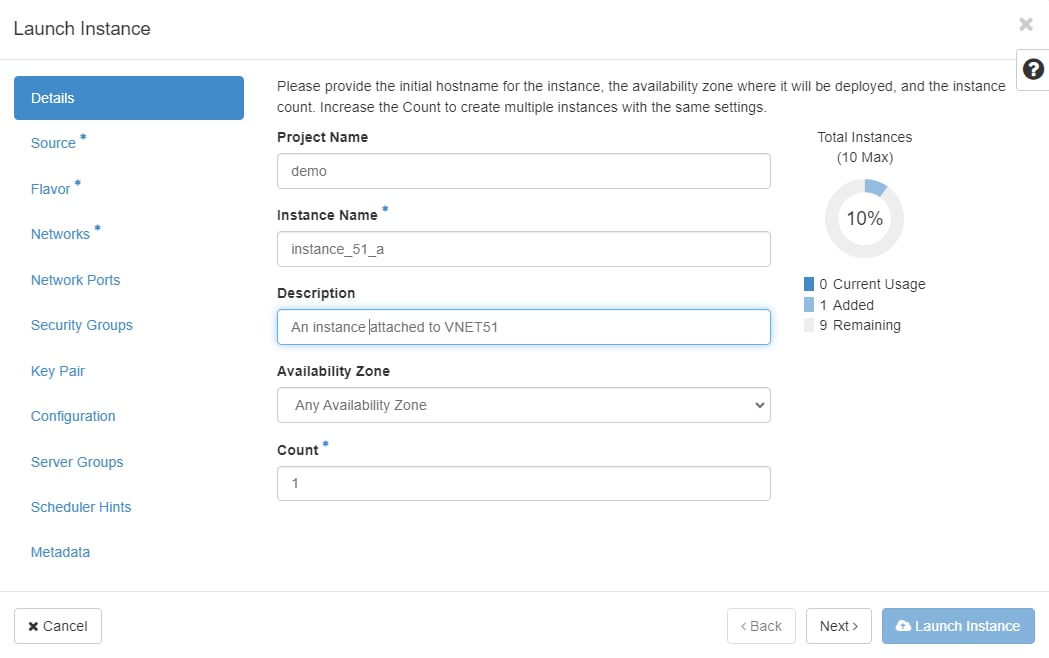
On the Launch Instance page, enter the information on the Details tab as shown.
Figure 10. Instance Details tab
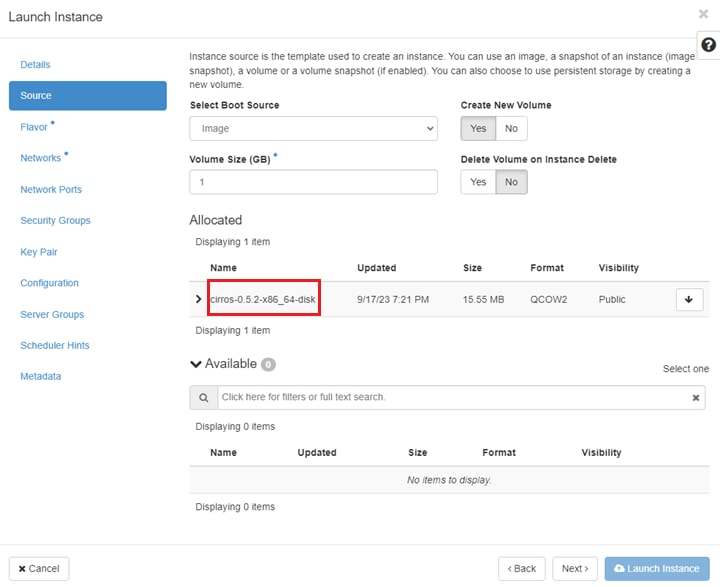
Select the Source tab and select the disk image, named cirros-0.5.2-x86_64-disk in this example.
Figure 11. Instance Source tab
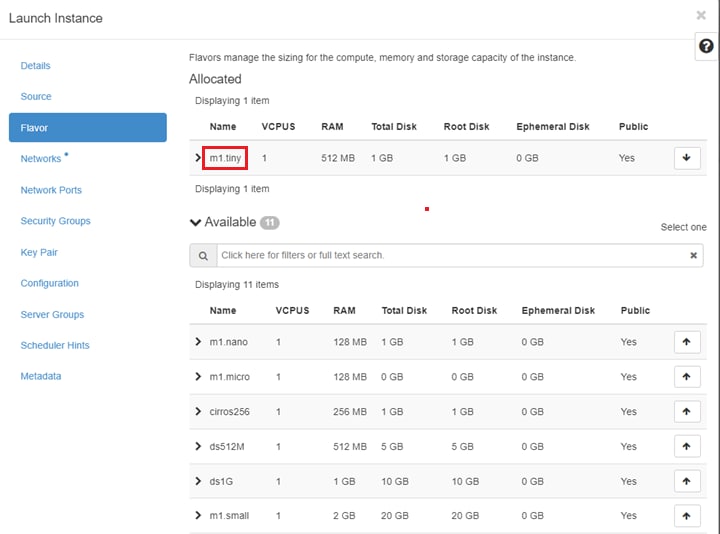
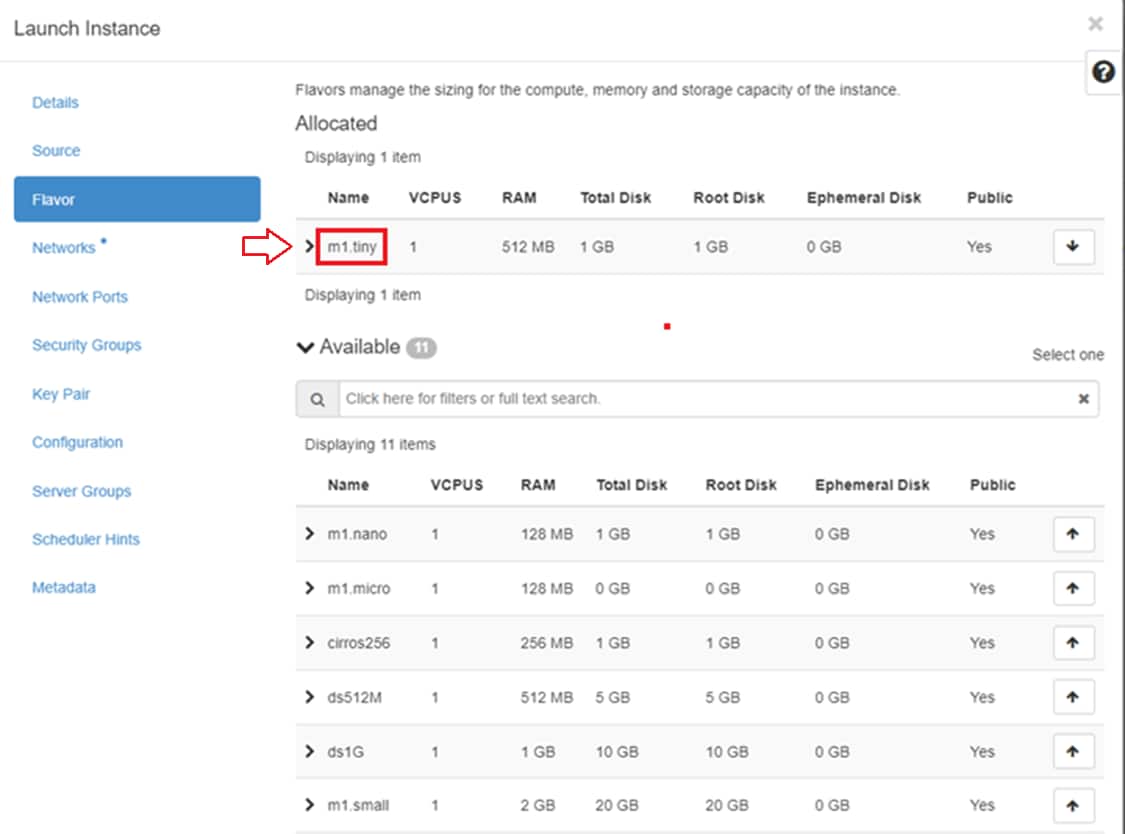
On the Flavor tab, select the m1.tiny flavor:
Figure 12. Instance Flavor tab
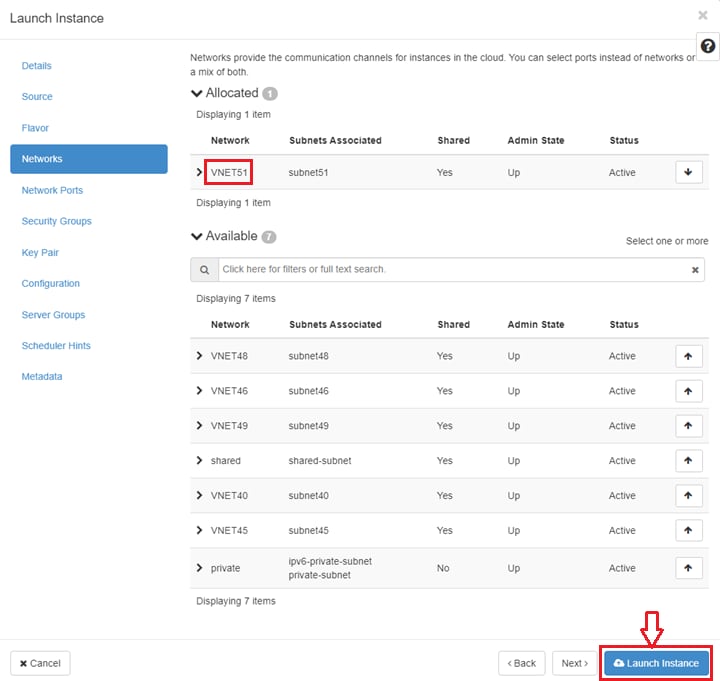
On the Networks tab, select VNET51 and click Launch Instance.
Figure 13. Instance Networks tab
Note: The remaining tabs under Networks are not used in this example.
The new compute instance is shown on the Instances page:
Figure 14. OpenStack Instances page
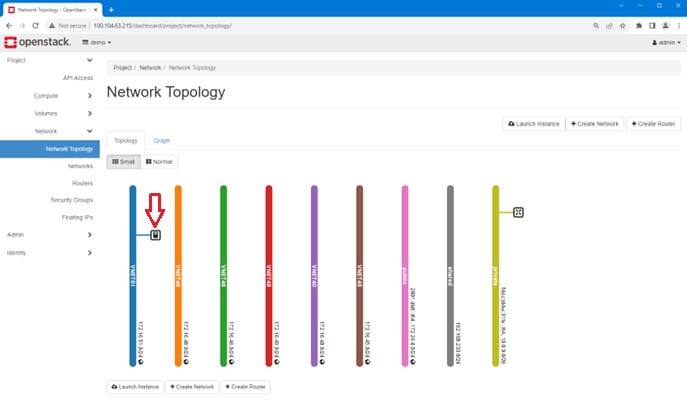
The Project > Network > Network Topology page shows that a new compute instance has been created for VNET51.
Figure 15. OpenStack Network Topology tab
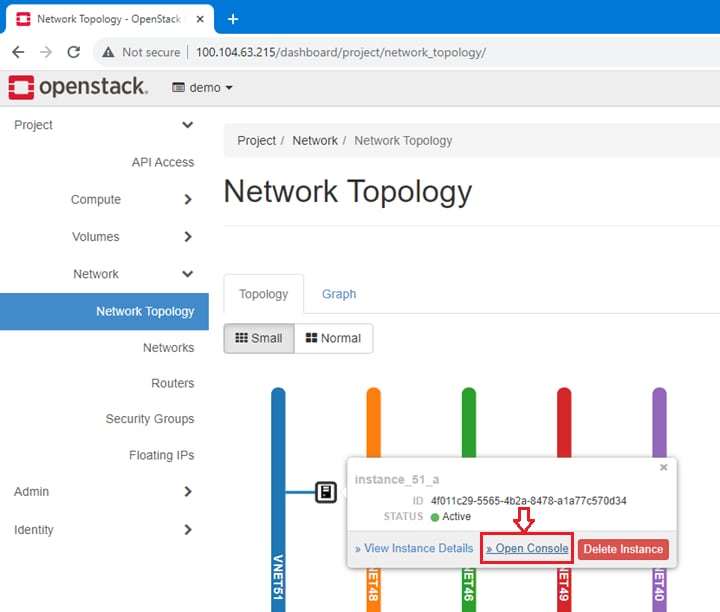
Hover the mouse on the compute instance icon and click Open Console, as shown in the following figure.
Figure 16. Open Console link
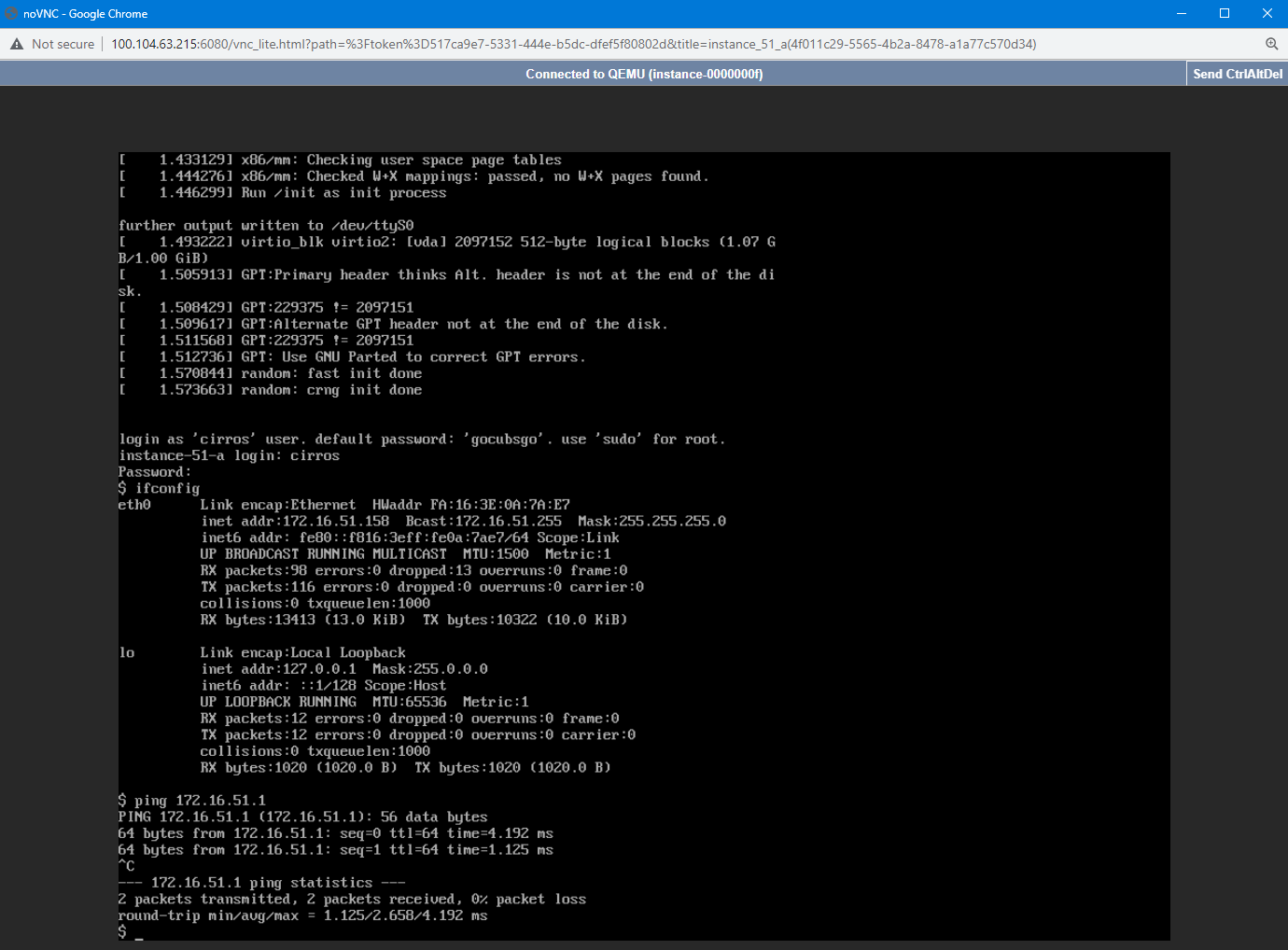
In the console window, log in to the compute instance with the username cirros and the password gocubsgo. Ensure an IP address for eth0 is configured on the 172.16.51.0/24 network and ping the gateway as shown.
Figure 17. Compute instance successfully pings the gateway
Delete a network
To delete a network, perform the following steps:
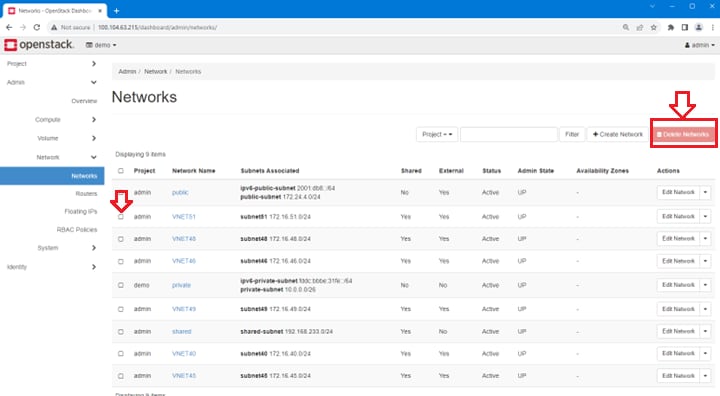
Go to Admin > Network > Networks and click the checkbox next to the Network Name.
Figure 18. OpenStack Networks page
Click Delete Networks.
The VLAN named VNET51 and its associated configurations are removed from all leaf switches. The ML2 plug-in debug logs in vnet51_delete_logs.txt shows the REST APIs used in the delete process.
Part 2 – Multitenant example
Part 2 – Multitenant example
Note: The files referenced in this chapter are included in Dell_ent_sonic_integration_openstack_part2-multitenant_example.zip. This file is available from your sales representative.
Topology
The OpenStack topology used in this multitenant example is shown below:
Figure 19. OpenStack topology – multitenant example
Management IP addresses used in this example are shown in the following table. The addresses are used in the referenced files.
Table 3. IP addresses used in the multitenant example
Role
Name
Management IP
OpenStack Controller
Server10179-R820
100.104.98.212
Compute Node
Server8648-R730
100.104.98.210
Compute Node
Server10886-R440
100.104.98.208
Leaf
Leaf1A-S5232
100.104.96.140
Leaf
Leaf1B-S5232
100.104.96.141
Leaf
Leaf2A-S5224
100.104.96.119
Leaf
Leaf2B-S5224
100.104.96.120
Spine
Spine1-Z9264
100.104.96.115
Spine
Spine2-Z9264
100.104.96.114
Server10179-R820 acts as the OpenStack controller and provides the OpenStack dashboard service. As a controller, the Neutron ML2 plug-in is installed on this node. All three servers use Nova compute services.
Build OpenStack
There are several options to install OpenStack on Ubuntu Linux, including Canonical OpenStack and Devstack. This document follows the Devstack Multi-Node Lab example.
To bring up the multi-node OpenStack, perform the following steps:
Note: The controller and compute nodes in this example are running Ubuntu version 22.04.4 LTS and Python version 3.10.12.
To install the latest stable Devstack release on each server, run the following command:
After the Devstack installation completes, add the configuration files named local.conf and stackrc on each server.
Sample files are provided in DevStack_files_p2.tar. In this example, Server10179-R820 is the OpenStack cluster controller, and the other two servers are compute nodes.
All relevant OpenStack services should be active on the controller and compute nodes. Sample systemctl status output for each server is provided in DevStack_services_p2.tar.
To register the two compute nodes with the controller, run the following commands on the controller:
The list_hosts output should show all compute nodes and the controller.
Launch the OpenStack dashboard by browsing to the http://<controller_ip>/dashboard/auth/login/ as shown in the following figure.
Figure 20. OpenStack login page
Log in to the OpenStack with the username admin and password openpass.
Note: The credentials are configured in local.conf.
In the OpenStack dashboard, click Admin > Compute > Hypervisors and ensure all compute nodes and the controller are listed as shown in the following figure.
Figure 21. OpenStack Hypervisors page
Configure interfaces and bonds on the OpenStack controller and compute nodes. From the Linux CLI on each server, run the following Open vSwitch commands:
# ovs-vsctl add-br br-ex
# ovs-vsctl add-bond br-ex bond0 <interface_1> <interface_2>
# ovs-vsctl set port bond0 lacp=active
# ovs-appctl bond/show
# ovs-vsctl show
Install the Dell Enterprise ML2 plug-in
To install the Dell ML2 Neutron plug-in for this example, perform the following steps:
On the controller node, extract the files from Dell_ML2_plugin_multitenancy_p2.tar.
The q-svc service should come up on the controller with the ML2 plug-in enabled. Sample systemctl output is provided in DevStack_services_with_ML2_p2.tar.
Restart the apache2 service for the changes to take effect:
# sudo service apache2 restart
Ensure that the apache2 service comes up successfully. Sample output is provided in Apache_service_p2.tar.
The OpenStack setup is now ready for creating networks across multiple tenants.
Create a project
In OpenStack, VRFs are created as projects. To create a project, do the following:
On the OpenStack dashboard, click Identity > Projects and then click Create Project.
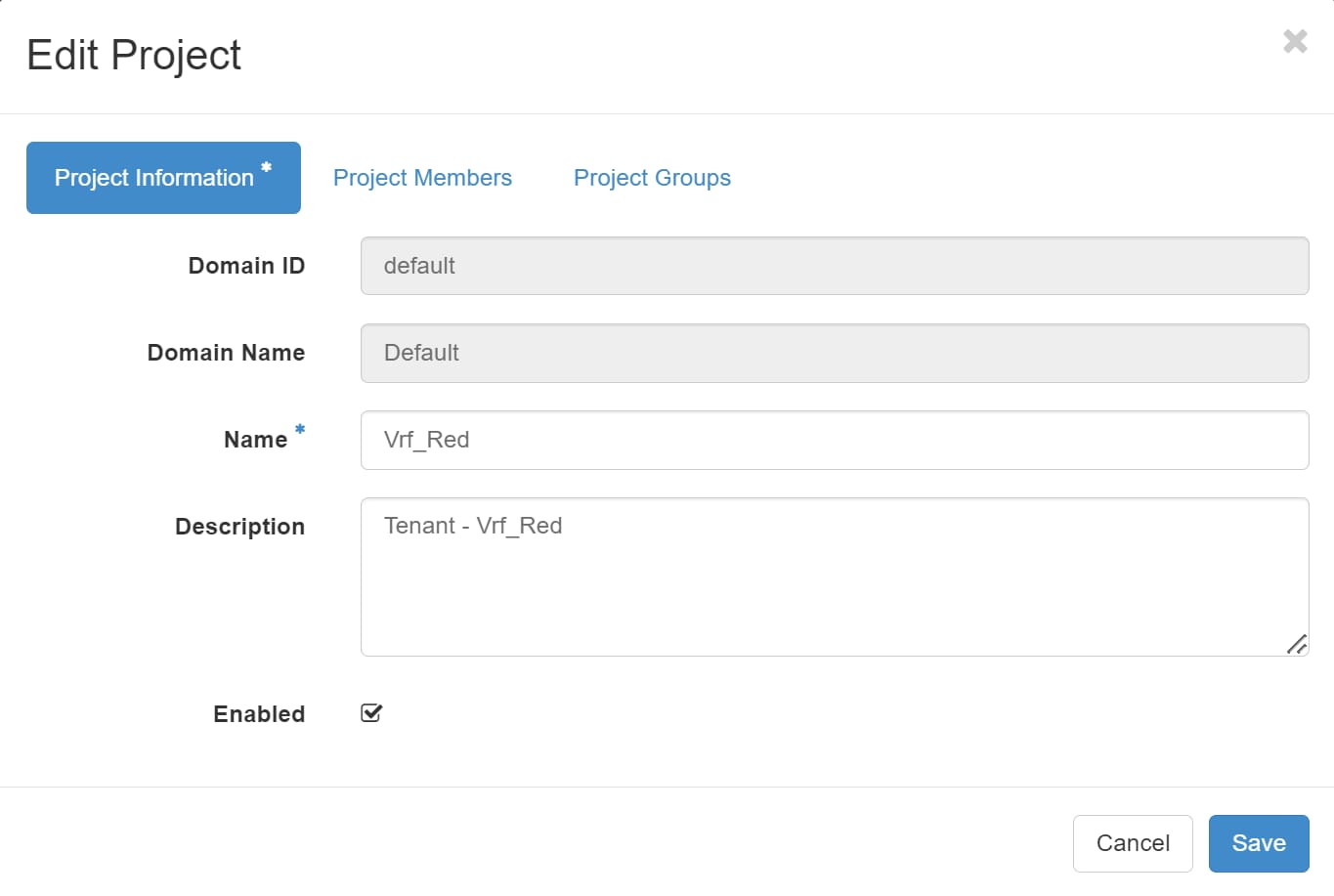
Select the Project Information tab.
Enter the project Name. Vrf_Red is used in this example.
Note: In Dell Enterprise SONiC, VRF names can be up to 15 alphanumeric characters and must start with Vrf (case sensitive).
Check the Enabled box.
Figure 22. OpenStack Project Information tab
Click Save.
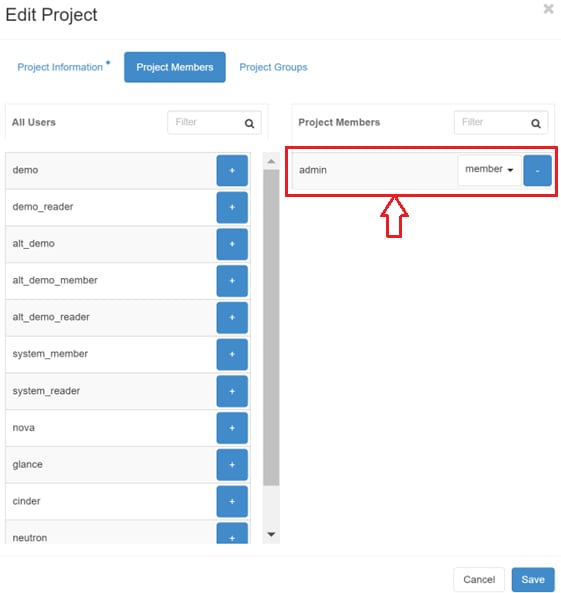
Select the Project Members tab.
Add admin as a Project Member as shown.
Figure 23. OpenStack Project Members tab
Click Save.
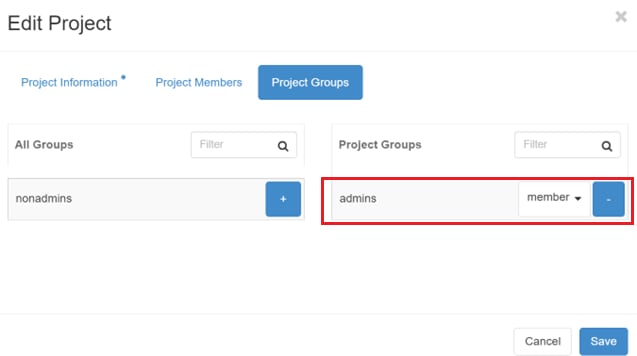
Select the Project Groups tab.
Add admins to Project Groups as shown.
Figure 24. OpenStack Project Groups tab
Click Save.
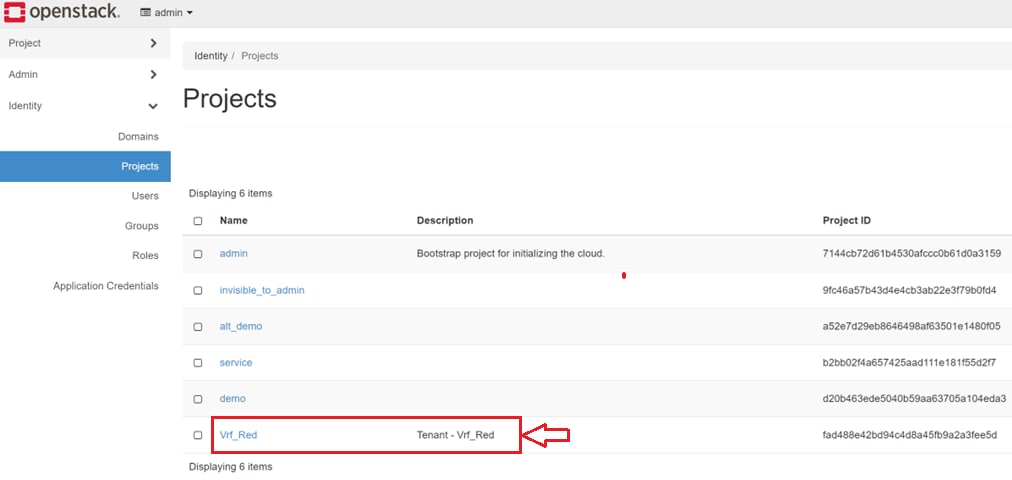
The new project is listed on the Projects page as shown.
Figure 25. OpenStack Projects page
Note: The tenant details are stored in the /opt/stack/dell/tenants.json file on the controller.
Create a network
To start the debug logging on the controller, run the following command:
# tail -f /opt/stack/logml2/sonic.log
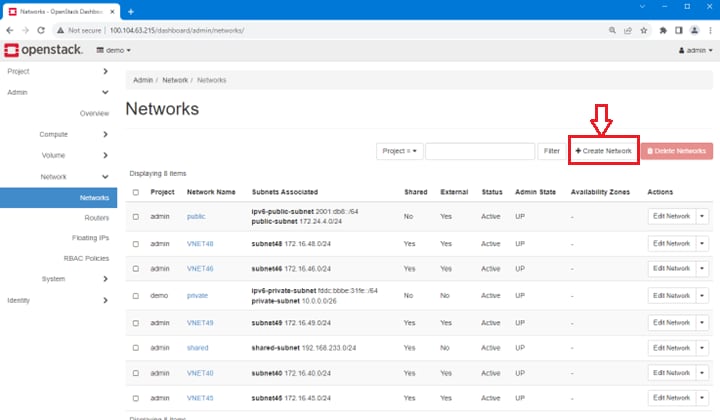
In the OpenStack dashboard, click Admin > Network > Networks and select +Create Network.
Figure 26. OpenStack Networks page
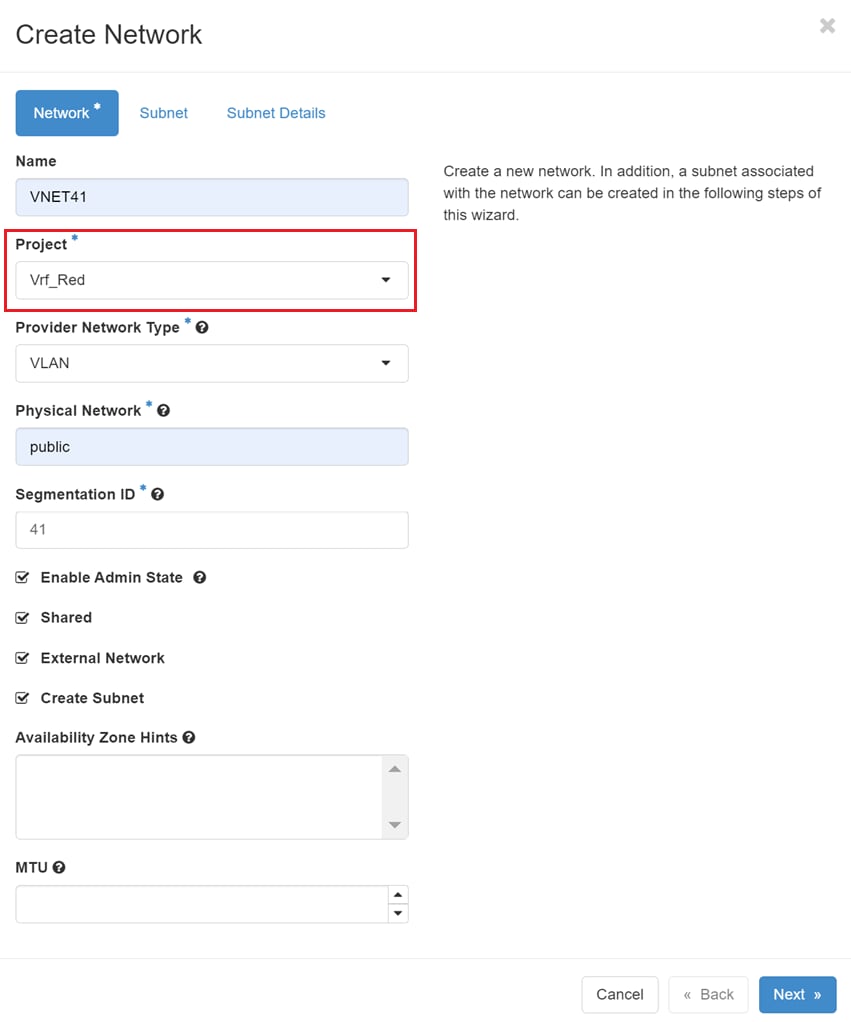
On the Create Network > Network tab, enter the network details.
Under Project, select the project that was created earlier from the drop-down list, named Vrf_Red in this example.
Figure 27. OpenStack Create Network tab - multitenant example
Click Next..
On the Create Network > Subnet tab, enter the subnet details as shown in the following figure.
Figure 28. OpenStack Create Network Subnet tab
Click Next.
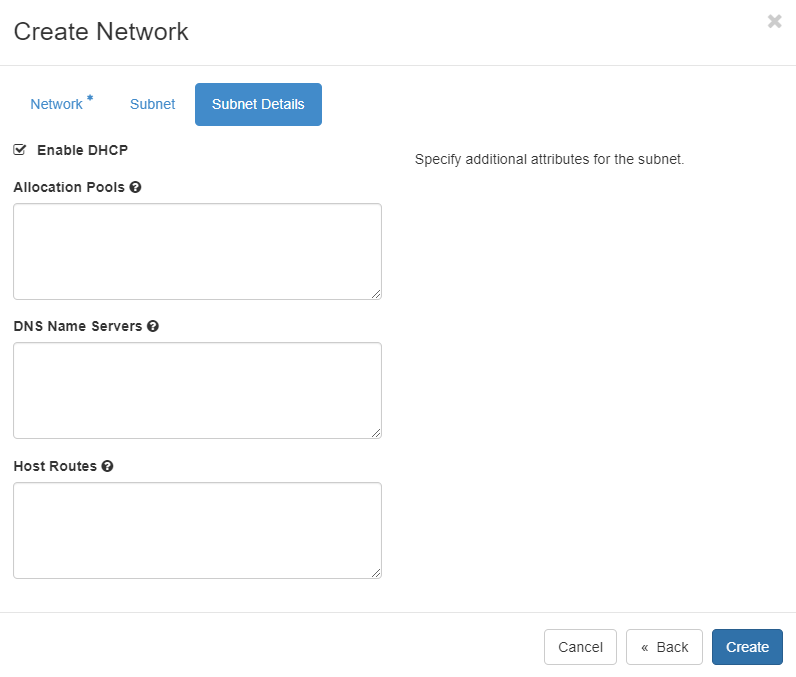
On the Subnet Details tab, leave the default settings, as shown in the following figure.
Figure 29. Create Network Subnet Details tab
Click Create to create the network.
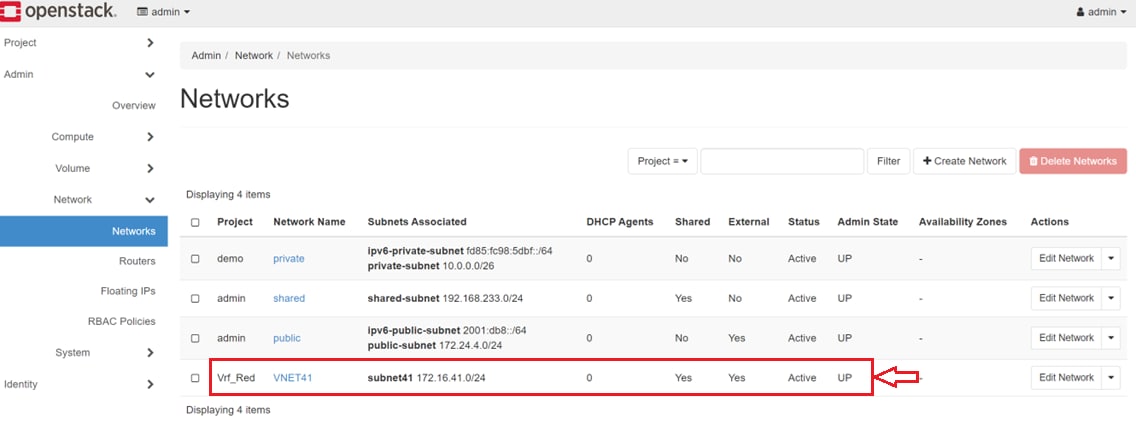
The new network, VNET41 is shown on the Networks page along with its project, Vrf_Red, as shown.
Figure 30. Network created
To confirm the leaf switch configuration, run the following commands on each leaf switch:
The output of the show running-configuration vrf <vrf_name> command shows Vrf_Red is created on the switch. VLAN 2464 is created and assigned to the VRF.
Note: The plug-in automatically creates one VLAN for each nondefault VRF. This VLAN is used as the VNI-to-VRF mapping VLAN, also referred to as the Layer 3 VNI. The VLAN ID is randomly generated from the range 2001-2512 and is 2464 in this example.
The plug-in automatically configures BGP for the VRF. The VNI-to-VLAN mappings for VLAN 2464 and VLAN 41 are also done automatically by the plug-in.
The output of the show running-configuration interface Vlan41 command shows that VLAN 41 is configured with the anycast gateway address and VRF specified in the OpenStack UI.
Leaf1a-S5232# show running-configuration interface Vlan41
!
interface Vlan41
 ip vrf forwarding Vrf_Red
 ip anycast-address 172.16.41.1/24
The output of the show running-configuration interface PortChannel command shows all server-facing port channels, Port Channels 1 and 2 in this example, are added to VLAN 41. The VNI-to-VRF mapping VLAN, 2464 in this example, is also added to Port Channel 100 which is the MC-LAG peer link port channel.
The output of show running-configuration interface vxlan shows the VXLAN VNI mapping for VLANs 41 and 2464 are configured and the VNI for VLAN 2464 is mapped to Vrf_Red.
The debug logs, named Debug_logs_network_creation_p2.tar, show the REST API calls made to the switches during the network creation process. The tenant details are stored in the /opt/stack/dell/tenants.json file on the controller.
Create a compute instance
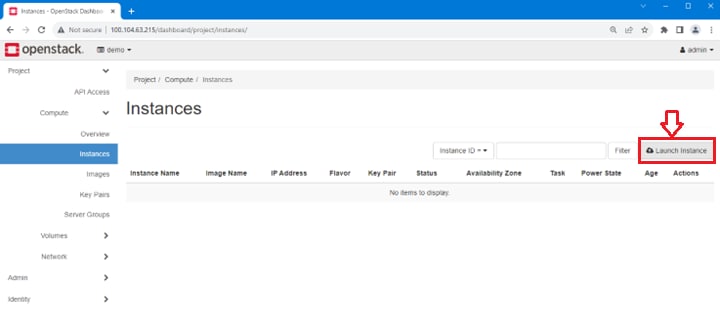
To create a compute instance and attach it to the newly created network named VNET41, click Project > Compute > Instances and click Launch Instance.
Figure 31. OpenStack Instances page
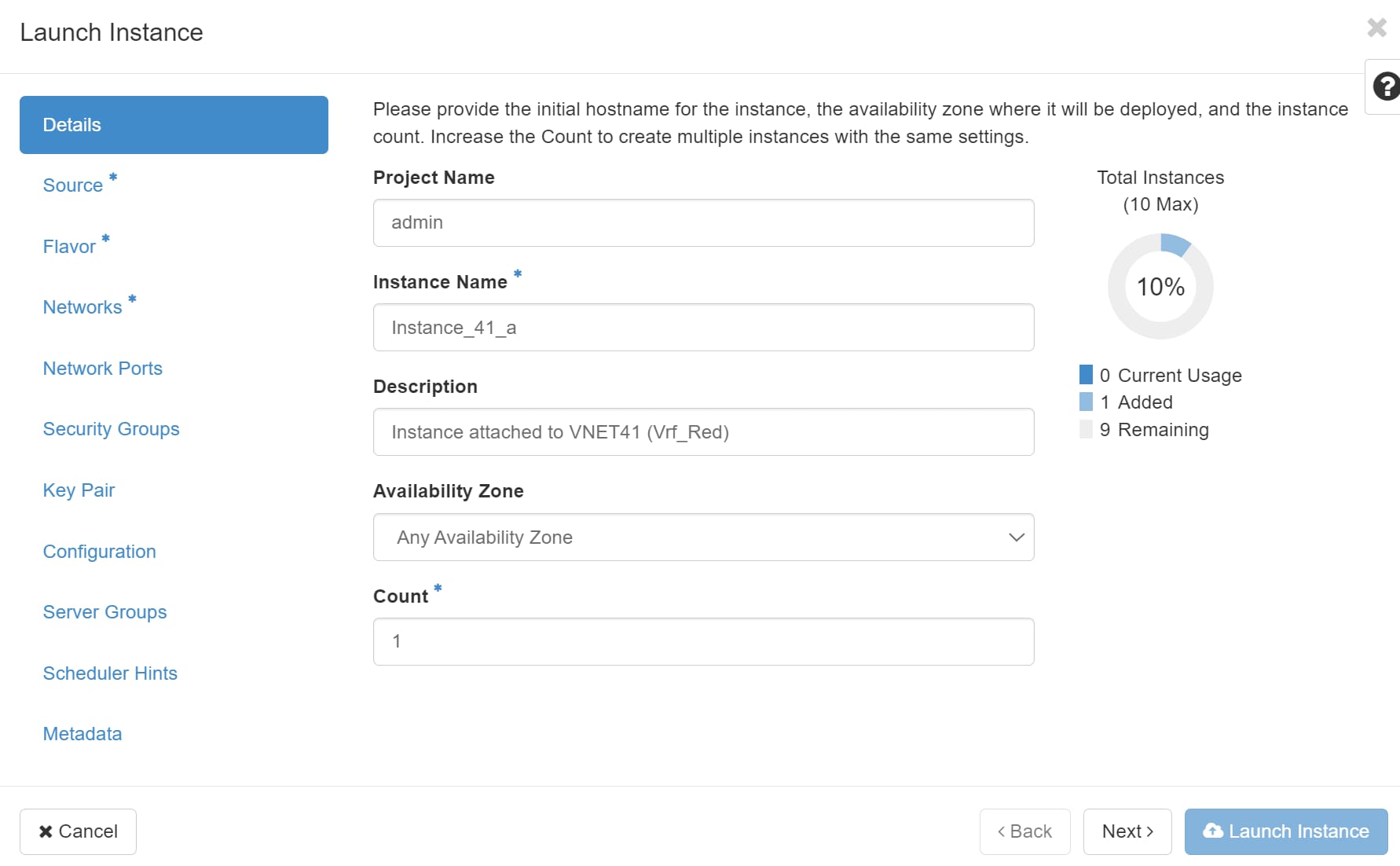
On the Launch Instance page, enter the information shown on the Details tab.
Figure 32. Instance Details tab
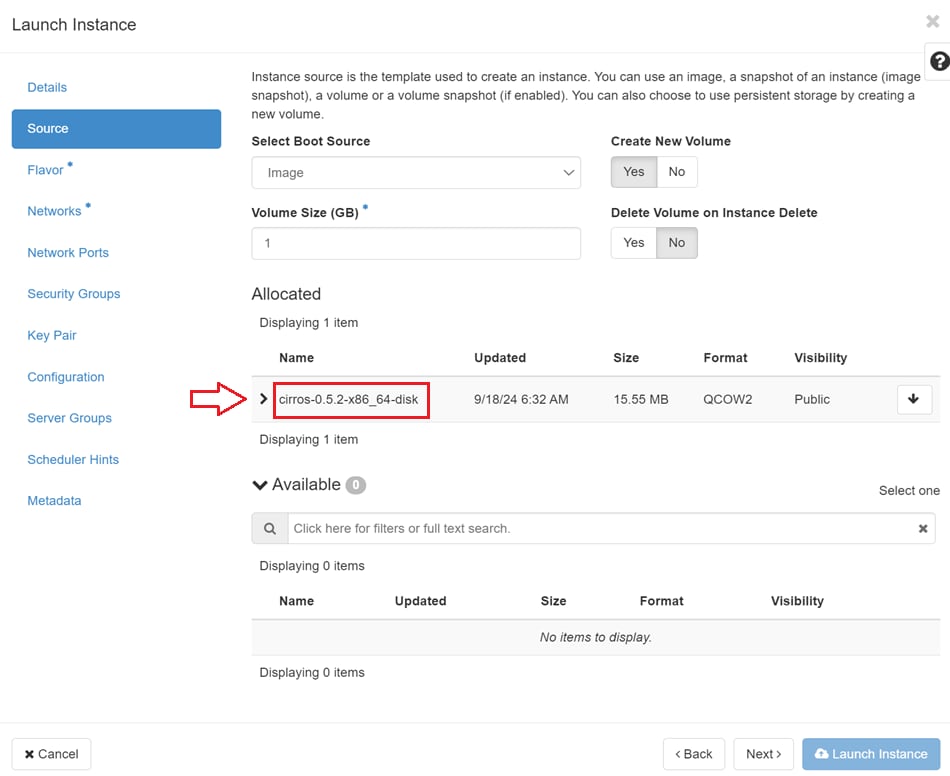
Select the Source tab and select the disk image, named cirros-0.5.2-x86_64-disk in this example.
Figure 33. Instance Source tab
On the Flavor tab, select the m1.tiny flavor:
Figure 34. Instance Flavor tab
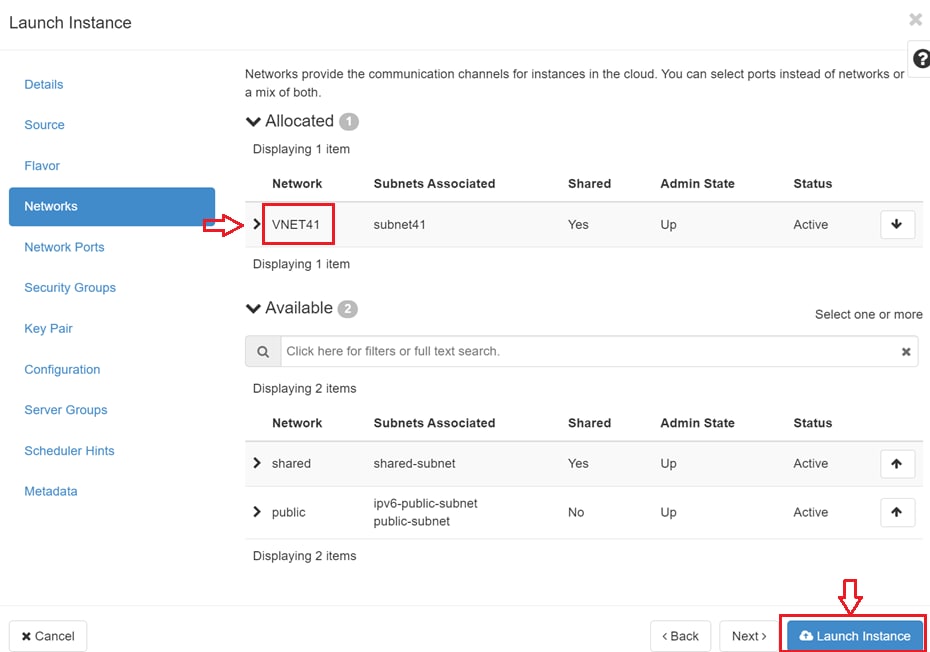
On the Networks tab, select VNET41 and click Launch Instance.
Figure 35. Instance Networks tab
Note: The remaining tabs under Networks are not used in this example.
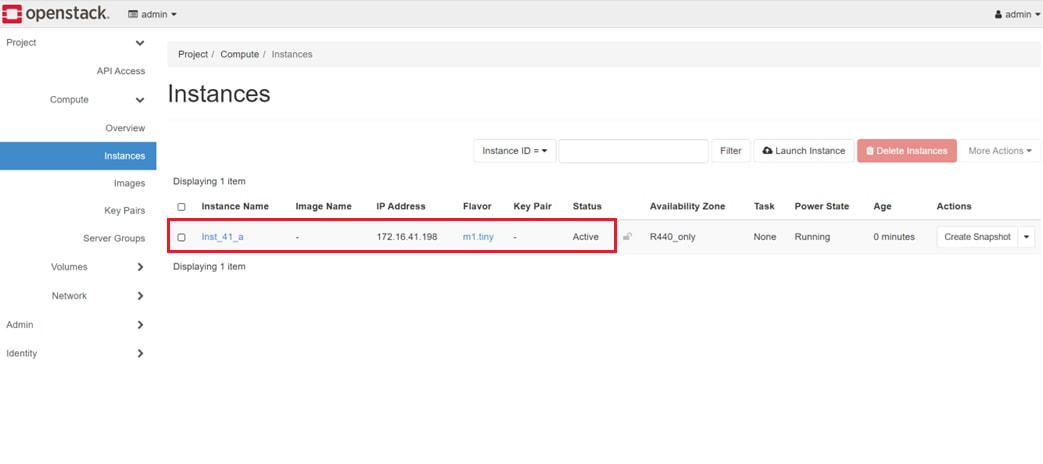
The new compute instance is shown on the Instances page:
Figure 36. OpenStack Instances page
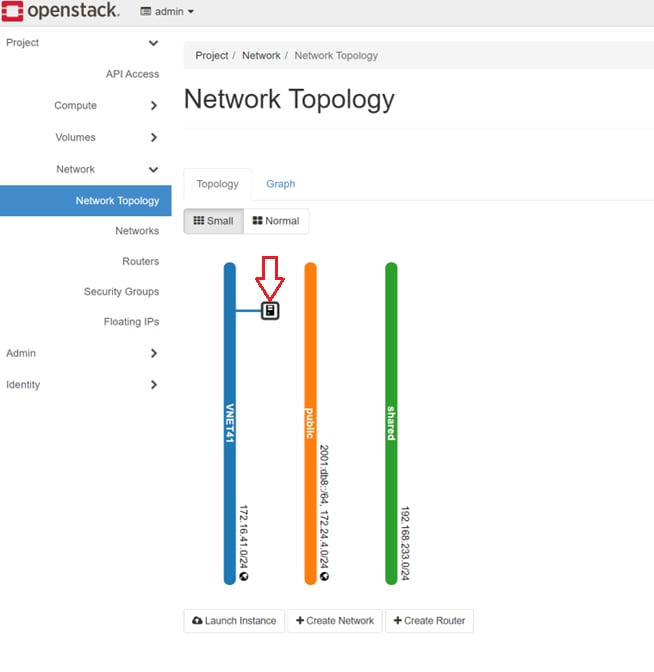
The Project > Network > Network Topology page shows that a new compute instance has been created for VNET41.
Figure 37. OpenStack Network Topology tab
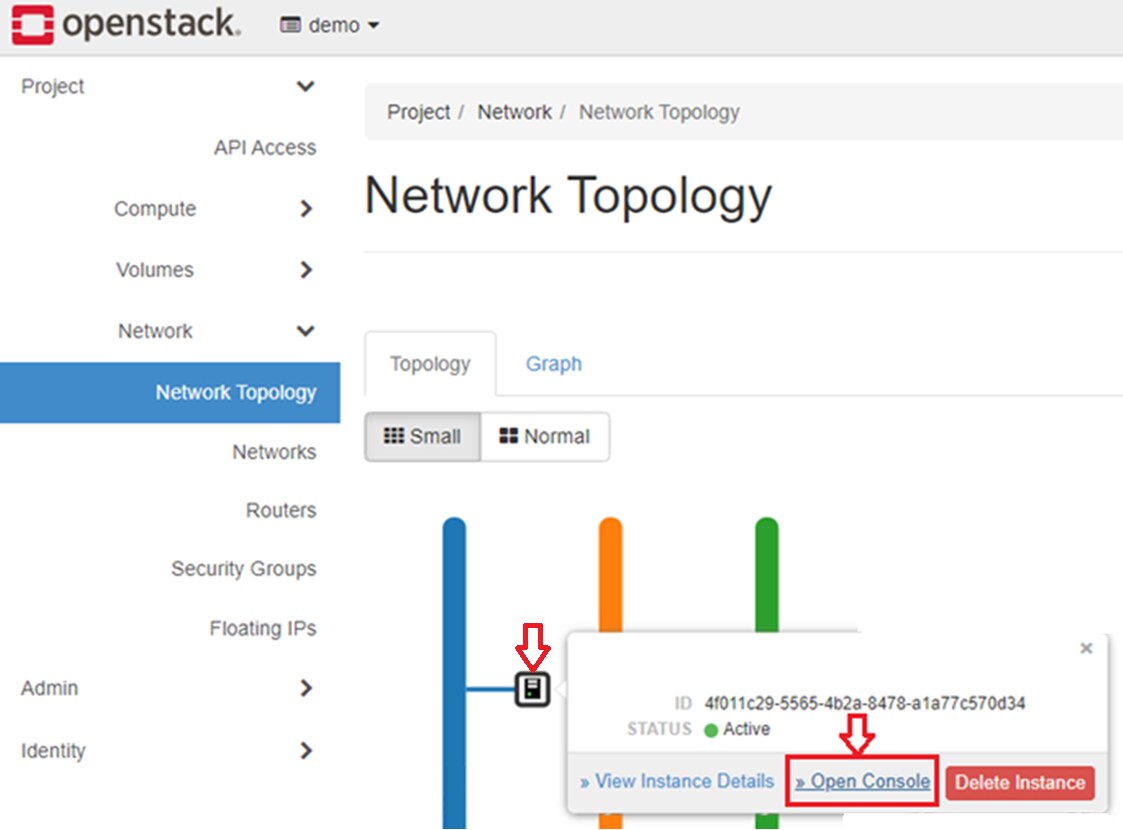
Hover your mouse pointer over the compute instance icon and click Open Console, as shown in the following figure.
Figure 38. Open Console link
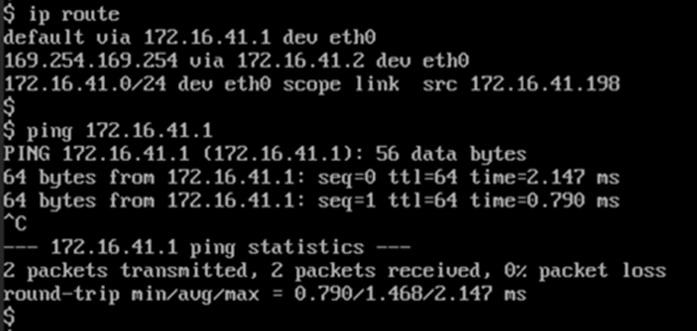
In the console window, log in to the compute instance with the username cirros and the password gocubsgo. Ensure an IP address for eth0 is configured on the 172.16.41.0/24 network and ping the anycast gateway as shown:
Figure 39. Compute instance successfully pings the anycast gateway
Delete a network
To delete a network, do the following:
On the OpenStack dashboard, click Admin > Network > Networks and click the checkbox next to the Network Name.
Figure 40. OpenStack Networks page
Click Delete Networks. In this case, the VLAN named VNET41 and its associated configurations are removed from all leaf switches. If this VLAN is the last network in VRF_Red, all the VRF_Red configurations are also removed from the leaf switches.
The ML2 plug-in debug logs in Debug_logs_network_deletion_p2.tar shows the REST APIs used in the network delete process.
Create multiple projects and networks
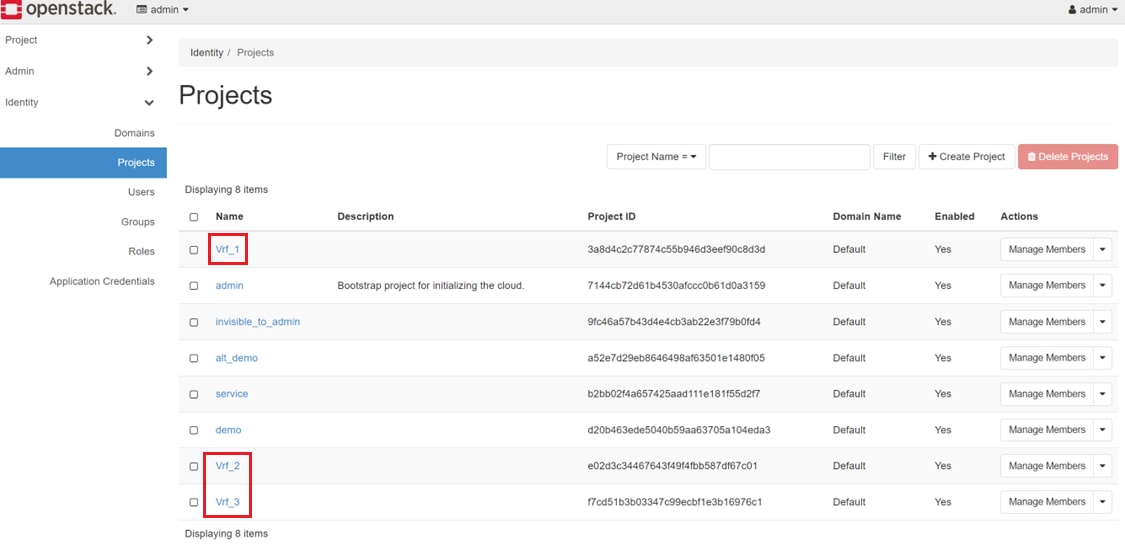
In OpenStack, you can create multiple VRFs as Projects by using the steps shown earlier in Create a project. In this example, projects named Vrf_1, Vrf_2, and Vrf_3 are created as shown below.
Figure 41. Multiple projects created
You can create additional networks and assign them to the new projects using the steps shown in Create a network.
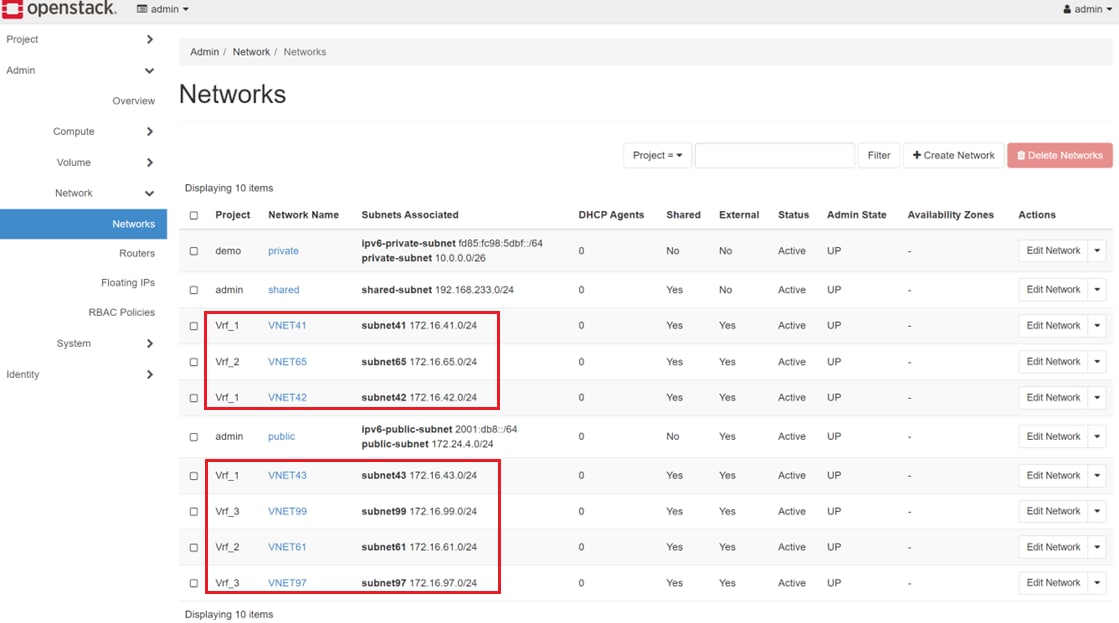
In this example, networks named VNET41, VNET42, and VNET43 are created and placed in the project named Vrf_1. VNET61 and VNET65 are created and placed in Vrf_2. VNET97 and VNET99 are created and placed in Vrf_3. The Networks page for this example is shown below.
Figure 42. Multiple networks created in different projects
Text files that show the REST API calls to SONiC switches and a leaf switch configuration from the example above are provided in MultiTenant_creation_p2.tar.
Delete a project
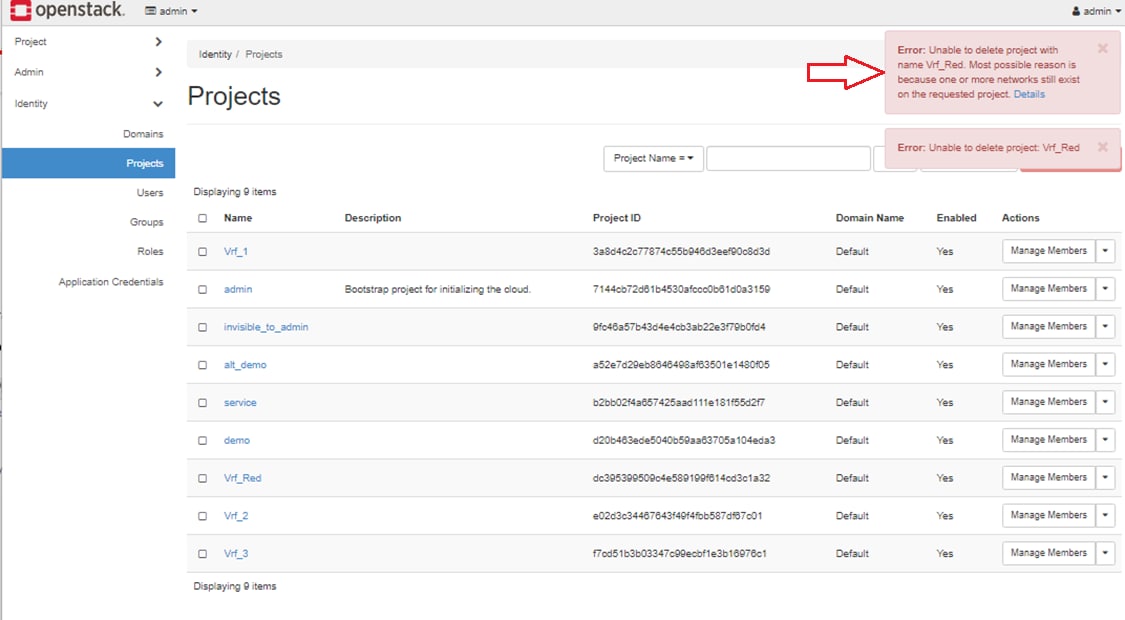
A project can be deleted only when it does not have any networks assigned to it. The OpenStack dashboard will show an error if you attempt to delete a Project with networks assigned to it.
Figure 43. Error message shown
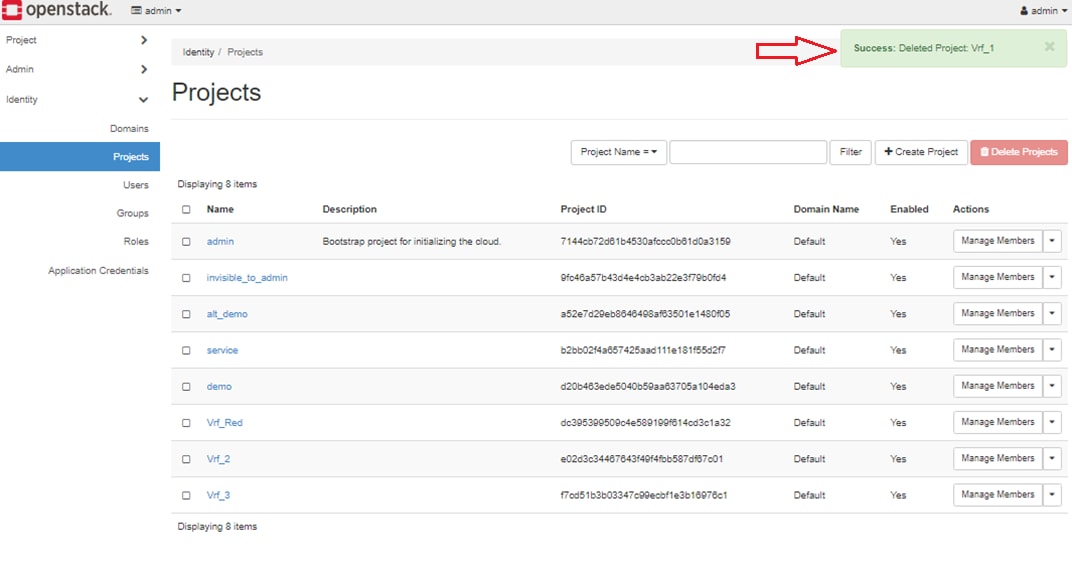
If you need to delete a project, make sure any networks that are assigned to it are moved to another VRF or deleted. Then delete the project by checking the box next to the project name and clicking Delete Projects.
Figure 44. Success message shown
Resources
Resources
Dell Networking Solutions Info Hub - This site provides guides to assist with planning and deploying various solutions with Dell Networking.
Dell Enterprise SONiC Distribution (account required) - This site includes Dell Enterprise SONiC OS software, user guides, release notes, and other documentation.
Dell Technologies Democenter (account required) - This site provides product demos and hands-on labs. Search Category: Networking and Keyword: SONiC
 Note: The remaining tabs under Networks are not used in this example.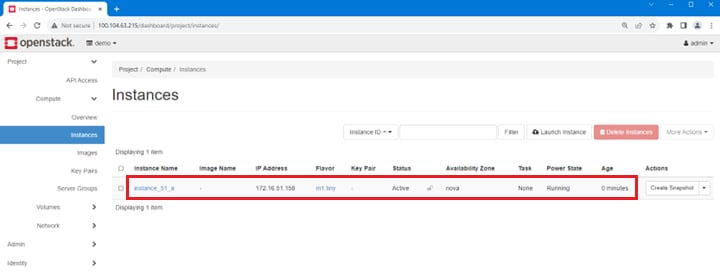

 Note: The remaining tabs under Networks are not used in this example.