
Dell ObjectScale: Using Arctera Enterprise Vault

Oct 19, 2026
Dell ObjectScale: Using Arctera Enterprise Vault This document explains how to use Dell ObjectScale object storage as a primary partition for Arctera Enterprise Vault.

Executive summary

Overview

To support Dell ObjectScale object storage with Arctera Enterprise Vault, the ObjectScale/ECS Streamer driver is used to translate the Arctera Streamer API to the ObjectScale S3 API. This rendering allows content to be archived from Enterprise Vault servers to ObjectScale, as well as queried, restored, and deleted. The ObjectScale Streamer driver leverages the ObjectScale S3 API extensions for retention support and for replication status checking required by Enterprise Vault.

Audience

This document is intended for storage administrators and Dell Technologies professional services personnel who want to learn how to deploy and configure Dell ObjectScale object storage with Arctera Enterprise Vault.

Revisions

Date

Part number/
revision

Description

January 2026

H04645

Initial release; Support for ObjectScale 4.x with Streamer 2.0.7.1; Extension of H15309.2

September 2026

H04645.1

Support for ObjectScale 4.x and ECS 3.8.x with 2.0.7.2, following fault fixes. Updated Supported Environments and Streamer Release Information

Solution overview

ObjectScale/ECS Streamer overview

Arctera has developed an Enterprise Vault storage streamer API with which archive storage vendors must integrate their products to allow Enterprise Vault to archive files, email, and other items to their storage systems. Dell has developed the ObjectScale/ECS Storage Streamer driver to allow Arctera Enterprise Vault to archive to ObjectScale. The ObjectScale/ECS Streamer driver translates the Enterprise Vault storage streamer API calls to the ObjectScale S3 API.

Customers can now create vault store partitions of type Dell ObjectScale within the Enterprise Vault Administration Console (VAC). These vault store partitions are associated with S3 buckets on the ObjectScale cluster where savesets that are archived to the vault store will reside.
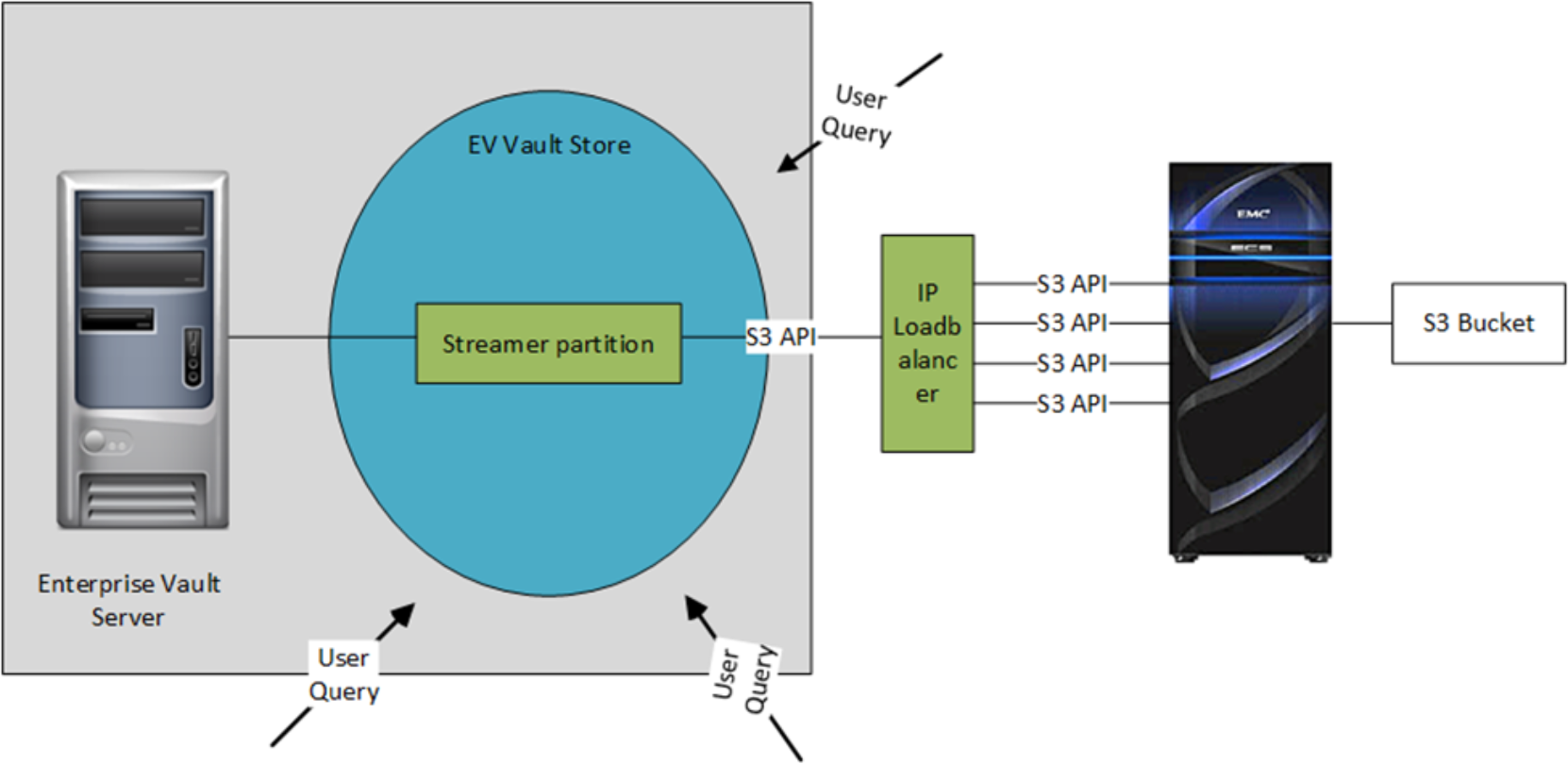
Example of an ObjectScale based storage solution for Arctera Enterprise Vault

Figure 1.        Example of an ObjectScale based storage solution for Arctera Enterprise Vault

The Enterprise Vault system has archive policies that archive files to a vault store in which an ObjectScale based partition has been defined. The ObjectScale/ECS Streamer driver uses the ObjectScale S3 API to store and access objects in the S3 bucket on the ObjectScale cluster.

ObjectScale systems are clusters of five or more individual ObjectScale nodes. Customers can use the ObjectScale/ECS Streamer integrated load balancer (from version 2.0) to distribute I/O across all nodes in the ObjectScale cluster or can deploy an IP load balancer to distribute I/O.

ObjectScale: multiprotocol, API-accessible storage

ObjectScale is a massively scalable, software-defined object storage platform that enables any organization to store, access, and manipulate unstructured data as objects. ObjectScale supports industry-standard APIs such as Amazon S3. In addition, ObjectScale extends the Amazon S3 API with support for retention, byte range updates, and atomic appends.

Simple multitenancy

ObjectScale delivers a flat software architecture ideal for multitenant environments. Configuring and provisioning a multitenant platform, creating a namespace, and managing the platform has never been easier. ObjectScale provides key metrics and reporting for capacity, object count, objects created, objects deleted, and inbound and outbound bandwidth. These activities are all visible through the ObjectScale UI and through the ObjectScale Management REST API.

Multisite, active/active architecture and access

ObjectScale features a truly geo-efficient architecture that stores, distributes, and protects data both locally and geographically. This architecture eliminates any single point of failure and provides seamless failover from site to site with no impact to the business. ObjectScale automatically maximizes throughout, maintains high availability and data durability, and increases capacity and the reliability of applications. Geographic limitations do not exist, so users have a single global namespace with anywhere-access to content.

Today’s modern applications demand a different architecture. Managing both cost and accessibility as storage environments grow and become more complex is one of the biggest challenges facing organizations today. Developers are finding it easier to go to public cloud alternatives, putting data at risk and increasing management costs. ObjectScale provides a cloud-scale storage architecture that is designed to support modern applications with unparalleled availability, protection, simplicity, and scale.

ObjectScale configuration details

Configuration and compliance requirements

The solution architect designing the ObjectScale configuration determines number of ObjectScale nodes, number of VDCs, geo-protection, application location access, and so on. Enterprise Vault is largely unaware of the design. However, the solution architect should consider the compliance requirements of the customer’s Enterprise Vault solution.

NON-WORM mode

If you are setting an ObjectScale Streamer partition to NON-WORM mode, Enterprise Vault will write objects with no retention period even if you are setting a retention period in the Enterprise Vault retention category.

WORM mode

In Dell ObjectScale, you can either use a compliant namespace or object lock feature for the WORM mode.

Namespace compliance

To have an SEC-compliant solution, the namespace that contains the buckets to be used by all Enterprise Vault partitions must be configured as compliant.

When creating the namespace in the ObjectScale Management UI, ensure that the Compliance option is enabled.
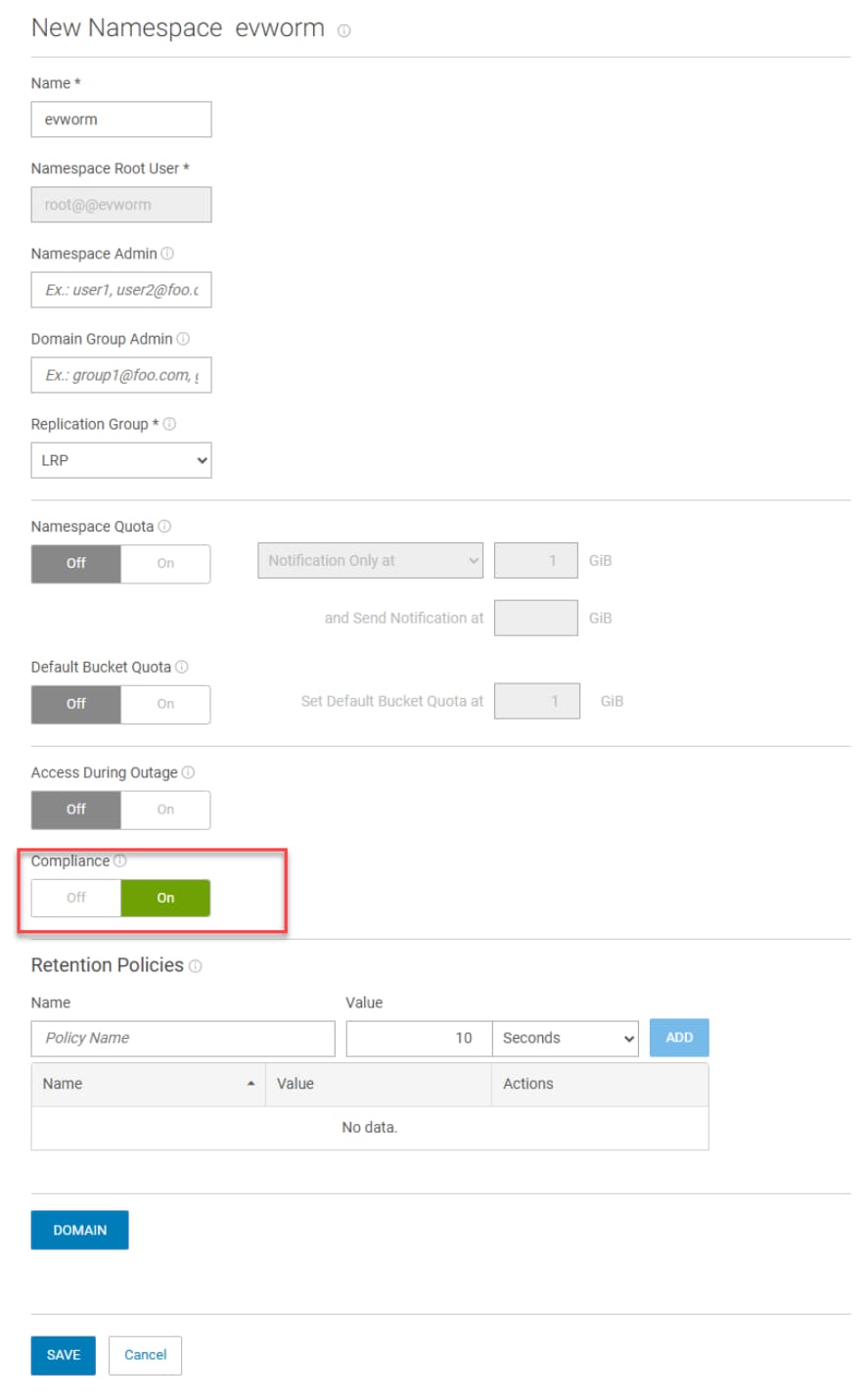
Compliance Namespace creation

Figure 2.   Namespace creation

In a compliant namespace, you must give a minimum of a 1 second retention to the bucket retention value. Therefore, you must set the following option after the Host IP address when creating the ObjectScale/ECS Streamer partition:

ENABLE_WRITE_TEST

If you do not set this option, ObjectScale/ECS Streamer will fail connectivity checking because it will create an object and then delete it as part of its checks. This create and delete activity will occur within 1 second and will fail, causing the connectivity check fail.

Version 2.0.1 of the ObjectScale Streamer driver checks to determine if a retention period has been set on the bucket. If a retention period has been set, the ObjectScale/ECS Streamer does not perform the write test.

Later versions of the ObjectScale/ECS Streamer driver reintroduced write check when there is bucket-level retention is set, but it now retries the operation to ensure that it is performed over a 1-second timeframe.

ObjectScale bucket default retention setting

Create the bucket for the vault store in the compliant namespace.

Ensure that the bucket retention is set to a value that does not conflict with any Enterprise Vault retention category, ideally 1 second. The bucket retention must be set, or an error will occur when you attempt to create the bucket.

Take caution when setting the ObjectScale bucket-level retention. Enterprise Vault expects to be able to delete expired content; although it cleanly handles deletion errors on content that is still under ObjectScale retention, it posts an error in the Microsoft Windows event log.

If you are using a NON-WORM Enterprise Vault partition, do not apply ObjectScale bucket-level retention. Enterprise Vault expects all the savesets written to the partition to have no retention.
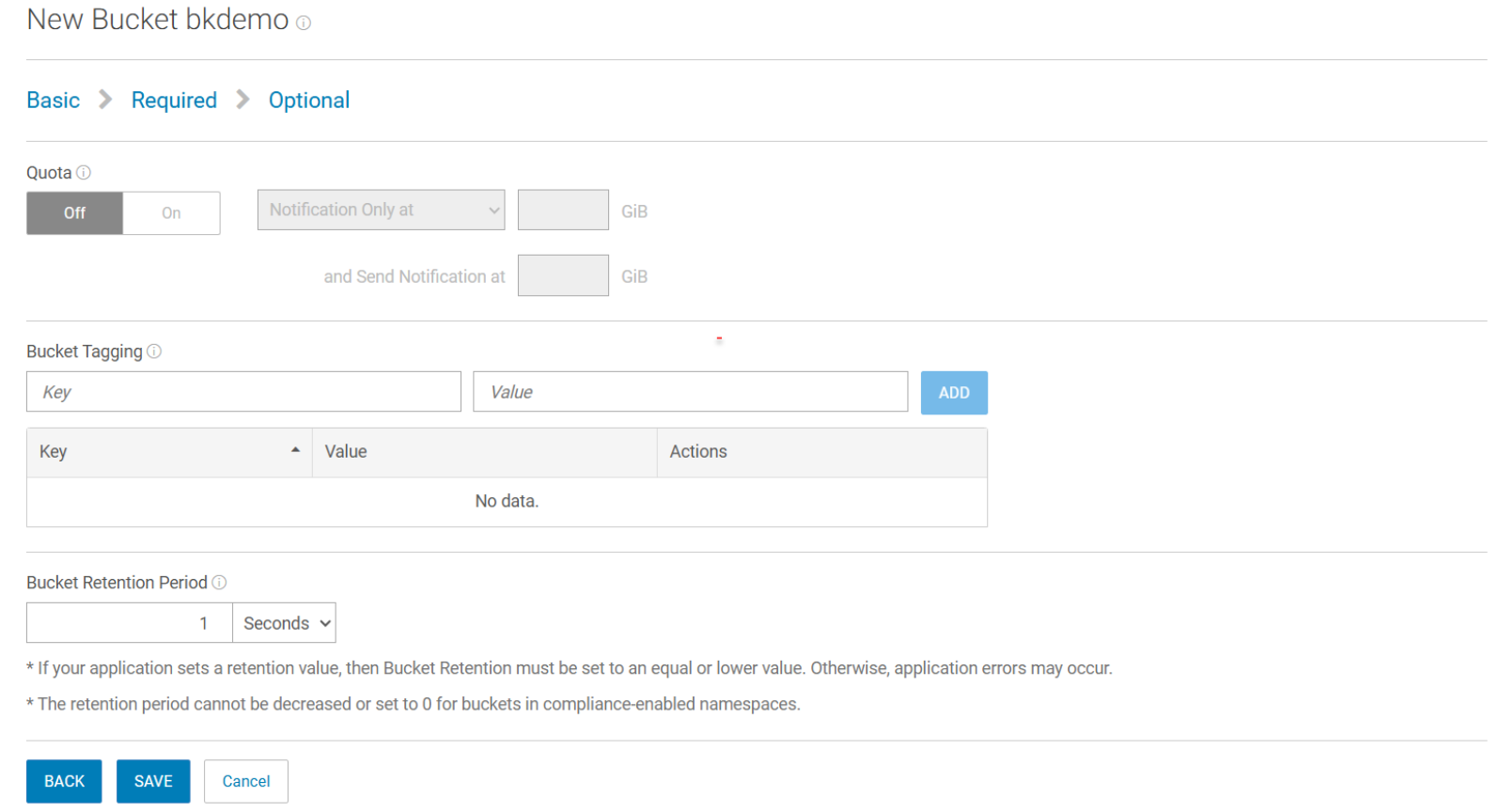
Bucket creation

Figure 3.   Bucket creation

Consider the interaction between Enterprise Vault and bucket-level retention if more than 1 second is used for Enterprise Vault partitions.

Object lock

Dell ObjectScale’s object lock feature is designed to enforce immutability by placing object versions into a WORM state, where access is restricted based on attributes set at the version level. This mechanism prevents deletion or modification until the retention period expires, making it a powerful tool for compliance-driven environments. It aligns with regulatory requirements such as SEC 17a-4(f), FINRA Rule 4511(c), and CFTC Rule 17, ensuring that organizations can meet strict data governance standards. Additionally, ObjectScale’s implementation is fully compatible with Amazon S3 object lock, allowing seamless integration with applications that rely on S3 APIs. By combining compliance assurance with ransomware resilience, object lock in ObjectScale 4.x strengthens data protection strategies for enterprises managing sensitive or long-term archival workloads.

You don’t need to create the bucket in a compliant namespace; just make sure to set the retention mode to compliance so it aligns with Enterprise Vault’s requirements.
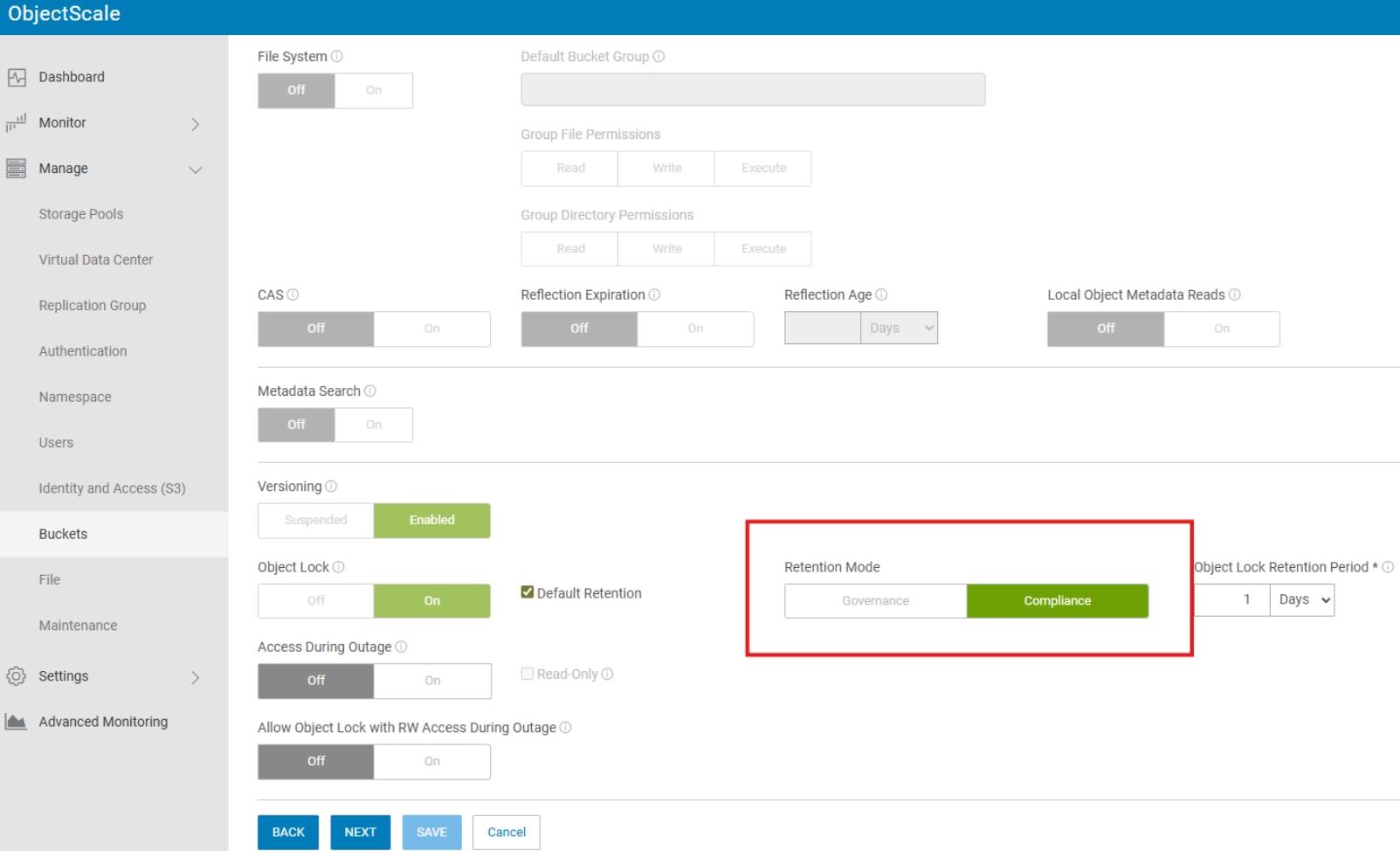
Enable Object lock when creating a bucket

Figure 4.        Enable Object lock when creating a bucket

Therefore, you must set the following option after the Host IP address when creating the ObjectScale/ECS Streamer partition:

ENABLE_WRITE_TEST

If you do not set this option, ObjectScale/ECS Streamer will fail connectivity checking because it will create an object and then delete it as part of its checks. This create and delete activity will occur within 1 second and will fail, causing the connectivity check fail.

ObjectScale/ECS Streamer installation

ObjectScale/ECS Streamer driver installation (simple)

You can use the following procedure to download the ObjectScale/ECS Streamer driver and quickly perform a default installation of the driver on a Windows server:

  1. Locate the Streamer driver installer at Dell Support.
  2. Download the Streamer driver onto the Enterprise Vault server, and then double-click the installation file to begin the installation.

Unless the VC++ Redistributed files have already been installed on this server, you are prompted to allow the installer to install the files.
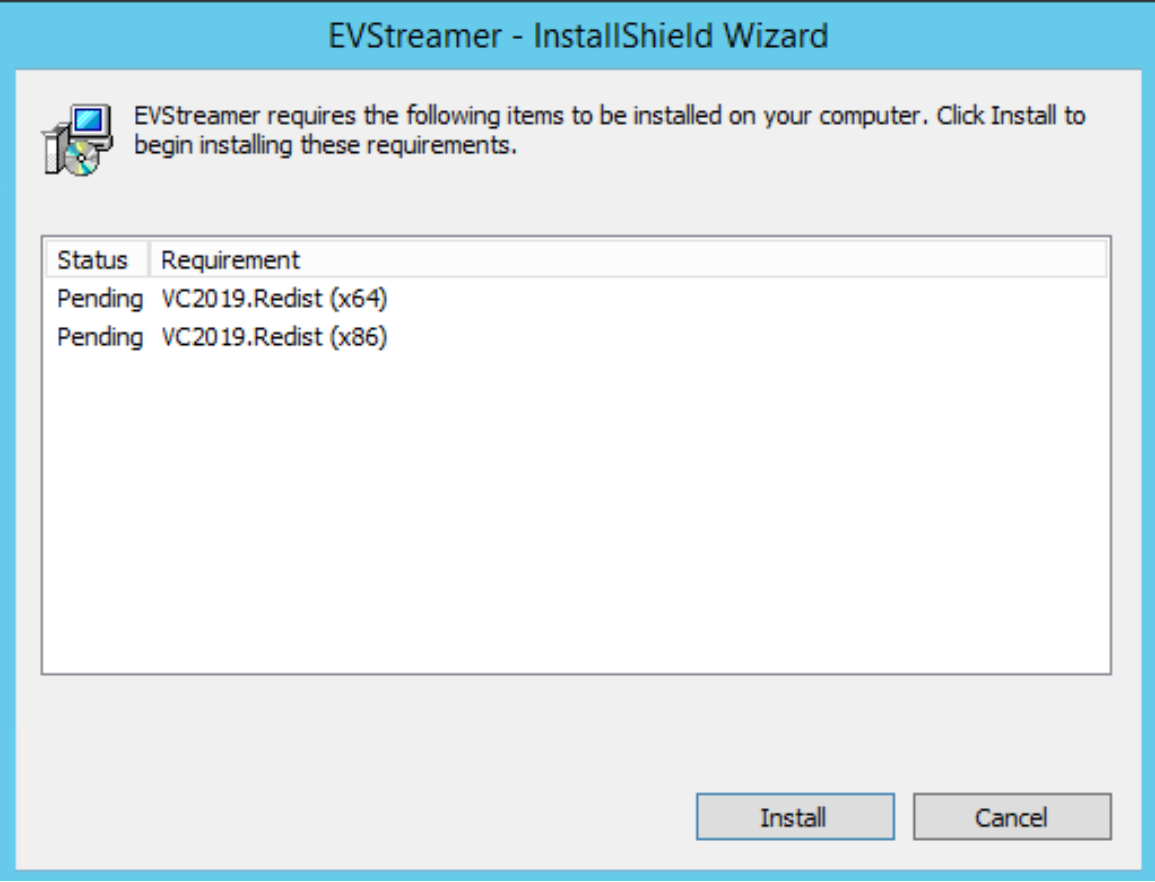
Click Install to install the Visual C++ Redistributable packages

Figure 5.   Click Install to install the Visual C++ Redistributable packages.

You are prompted to reboot the server.
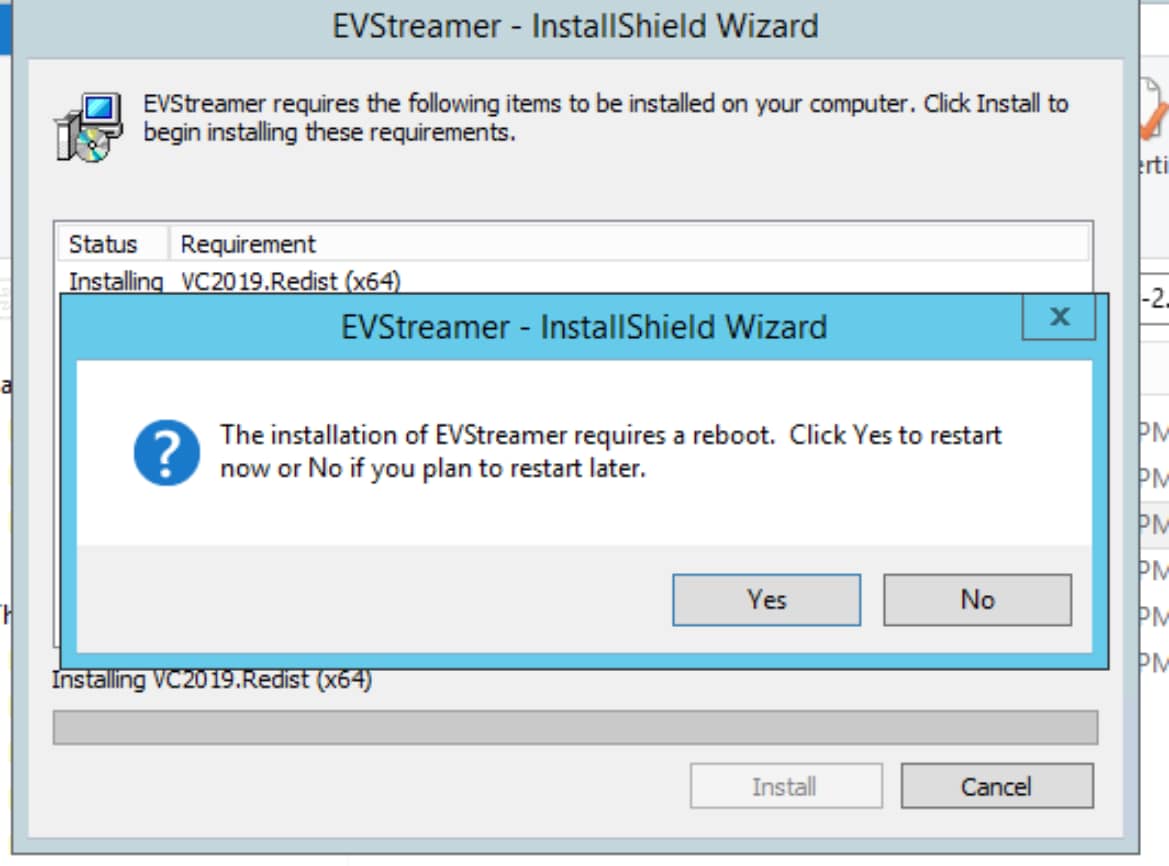
Click Yes to reboot the server

Figure 6.   Click Yes to reboot the server

When you log in after the restart, you might be asked to install the VC++ 32-bit version of the distribution. Follow the instructions and reboot.

  1. When you log in after the reboot, the installer automatically continues the installation.
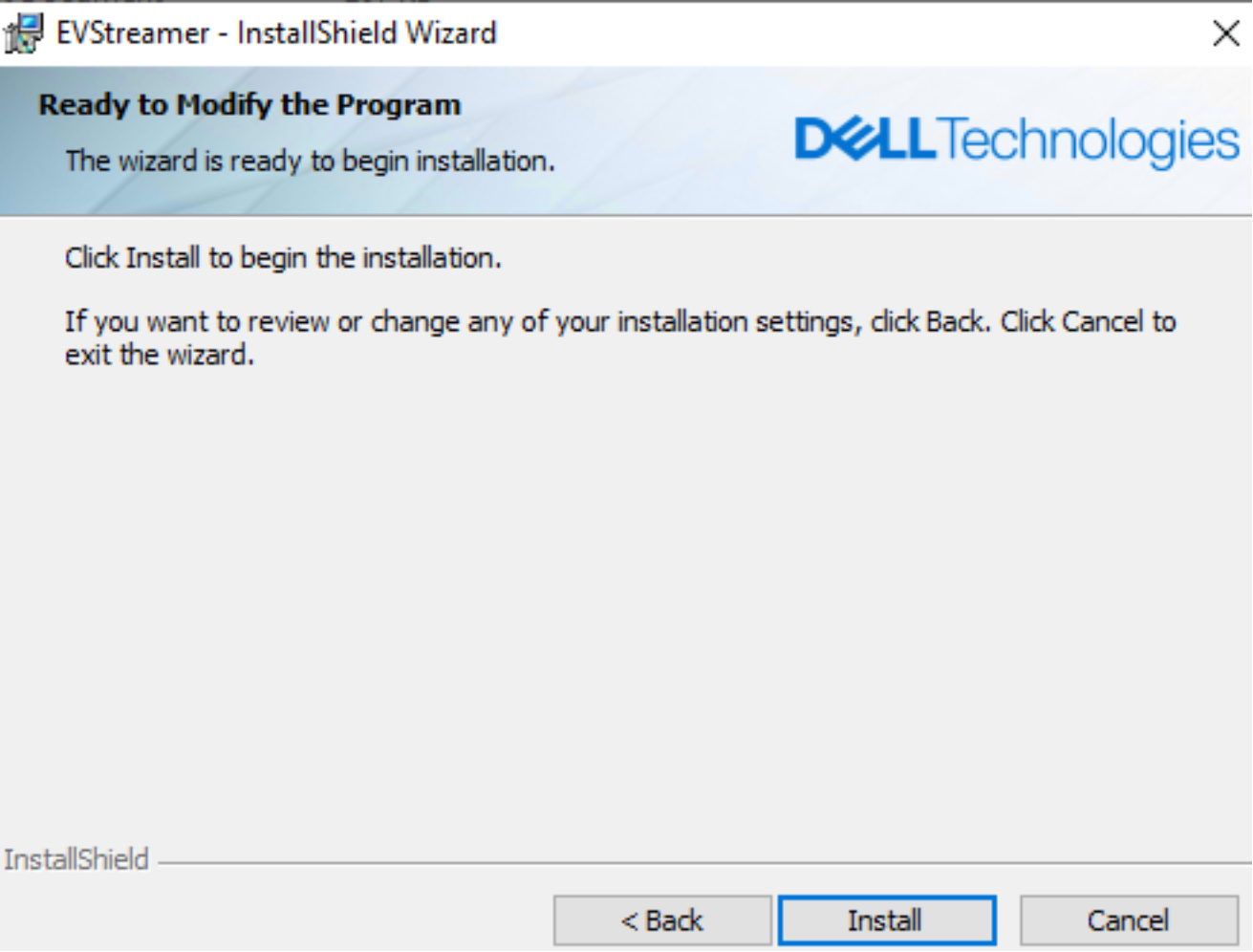
Streamer installing

Figure 7.        Installing streamer driver

  1. Click Install to install the Streamer driver and click through the remaining screens to finish the installation.

For more information about installing the driver, see the ObjectScale/ECS Streamer release notice.

ObjectScale/ECS Streamer driver installation (manual)

To manually install the Streamer driver, follow these steps:

  1. Locate the Streamer driver at Dell Support.
  2. Download the Streamer driver onto the Enterprise Vault server, and, as an administrator, run the Streamer installation from a CLI (DOS) shell:
    1. Specify the log file pathname.
    2. Set the installation directory by specifying a path for the INSTALLDIR property

For example:

ECSStreamer.2.0.5.7.exe /V”/log c:\setuplogs\install.log INSTALLDIR=f:\EVStreamer”

For more information about installing the driver, see the ObjectScale/ECS Streamer release notice.

ObjectScale/ECS Streamer driver remote installation

The EVRemoteInstall.exe utility is a stand-alone executable that aids in scripting remote installations. It takes as parameters the Streamer setup file along with a remote computer target. It also has extensive logging options.

This utility can be run in one of two ways:

  • Install Streamer on a remote system. The utility can be used in a script to install Streamer on any number of systems. Use the /r parameter to specify the remote server.
  • Specify a file containing a list of remote systems and install, uninstall, or get status on all the servers in the list. Use the /rf parameter to specify the list of remote servers.

Command-line use:

C:\>EVRemoteInstall.exe /?
Invalid Parameter: /?
Product: EVStreamer
Usage:
   EVRemoteInstall.exe <options> [<properties>]
   <options>:
      /don’t <path to setup file> - Install (UNC path or local path)
      /x                      - Uninstall
      /s                      - Check Install Status
      [/u <domain\user>]      - Connect with specified‘'domain\use’'
      [/a <password>]         - If /u specified, use password to connect
      [/r <remote server>]    - Remote server
      [/rf <file>]            - File contains one server per-line
      [/n <number>]           - Number of parallel installs (default = 4)
      [/p]                    - Display progress
      [/pv]                   - Verbose progress (list actions)
      [/b]                    - Reboot after install/uninstall

   Logging Options
      /l[i|w|e|a|r|u|c|m|o|p|v|x|+|!|*] <LogFile>
            i–- Status messages
            w–- Nonfatal warnings
            e–- All error messages
            a–- Start up of actions
            r–- Action-specific records
            u–- User requests
            c–- Initial UI parameters
            m–- Out-of-memory or fatal exit information
            o–- Out-of-disk-space messages
            p–- Terminal properties
            v–- Verbose output
            x–- Extra debugging information
            + - Append to existing log file
            !–- Flush each line to the log
            * - Log all information, except for v and x options

      /log <LogFile>
            Equivalent of /l* <LogFile>

   <properties> - any number of install properties of the format:

            PROPERTYNAME=<value>

   if /rf is specified, then /r, /p or /pv are ignored.
   if /rf is not specified, then /n is ignored.

Sample usage:

This command installs the Enterprise Vault streamer on remotecomputer. It sets the installation folder to f:\EVStreamer and saves the installation log:

C:\>EVRemoteInstall.exe /i c:\setupfiles\ECSStreamer.2.0.5.7.exe /r remotecomputer /p /log c:\setuplogs\ECSStreamer.remotecomputer.log INSTALLDIR=f:\EVStreamer

Requirements:

  • EVRemoteInstall.exe does not require installation and can run on any supported version of Windows Server. Supported versions are Windows Server 2012, 2012R2, 2016, 2019, 2022.
  • Client versions of Windows (7, 8, 8.1 and 10) are not supported, either for the system running EVRemoteInstall.exe or the system where the streamer is being installed.
  • All servers must have file sharing enabled.
  • File sharing is used to copy files to and from the target system, and to install a remote service and access remote registry.
  • A named pipe connection is created at the local system to the target system.

Additional information:

Progress is not displayed for the first stage of the installation because the Microsoft Redistributables are being installed during this time. After they are installed, installation progress is displayed.

Do not use the /p option in a script. This option is good for showing progress when using this utility interactively. It displays a row of dots to show progress.

EVRemoteinstall.exe sets an exit code of zero if the installation was successful or nonzero if it was not successful. Capture any standard output and save a log file (/log option) to be able to analyze why the installation failed.

Specifying /rf <file> and a log file (/l) parameter creates one log file for the overall operation and another log file for each server in the file list. The server name is added to the specified log file name.

If the remote server is in a different domain, you must specify credentials: “/u <domain\user>” and “/a <password>” on the command line.

When you are specifying /rf <file>, the file should contain a list of servers, one per line. The syntax of each line is:

[#]<server name/IP>[;<domain/user>;<password>]

Where:

  • Lines starting with # are ignored.
  • Blank lines are ignored.
  • If ;<domain/user>;<password> is included, those values override the same parameters specified on the command line, if any. This override is useful if servers in the list are in different domains.

For more information about installing the driver, see the ObjectScale/ECS Streamer release notice.

ObjectScale/ECS Streamer configuration

Adding ObjectScale as Enterprise Vault storage option

To add ObjectScale as a storage option in Enterprise Vault, see the procedure on the Arctera support website.

Note: Always check the Arctera or Veritas document in case Arctera has changed this procedure since you last reviewed it.

The procedure has to be performed on only one Enterprise Vault server instance (the primary Enterprise Vault server, typically).

Note: You do not have to perform this task with Enterprise Vault version 12.3 and later. Those releases already include the Streamer driver configuration files (not the Streamer driver itself).

Configuring an ObjectScale/ECS Streamer-based vault store partition

Configure a vault store partition based on Streamer as follows:

  1. In the VAC, expand the Enterprise Vault Site and Vault Store Groups.
  1. Right-click the vault store for which you want to create a vault store partition, select New > Partition, and click Next.
  1. Enter a name and description, and click Next.
  2. Select Dell ObjectScale/ Dell EMC ECS from the Storage Type drop-down menu, and click Next.
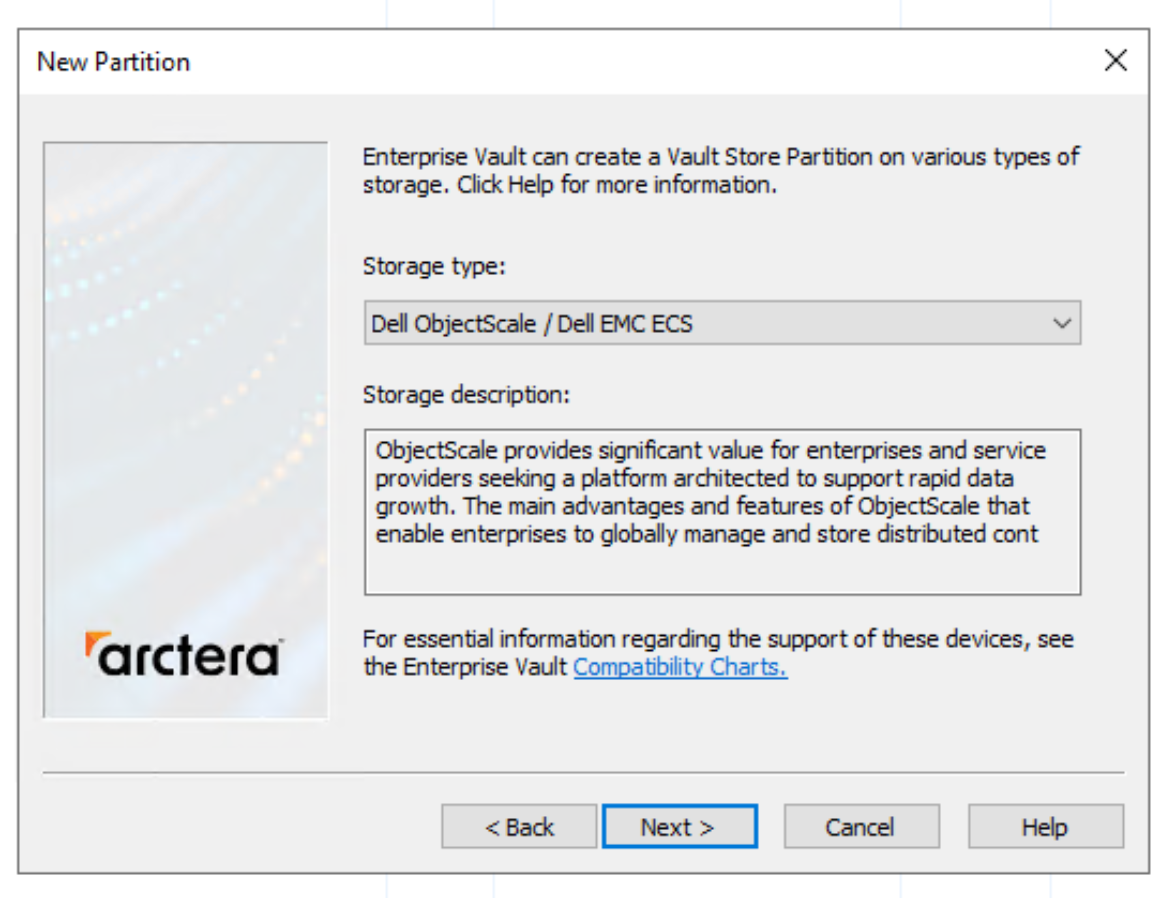
Configure a vault store partition

Figure 8.        Configure a vault store partition

  1. Enter the connectivity details for the ObjectScale cluster to be connected to and select Test to check the configuration details.
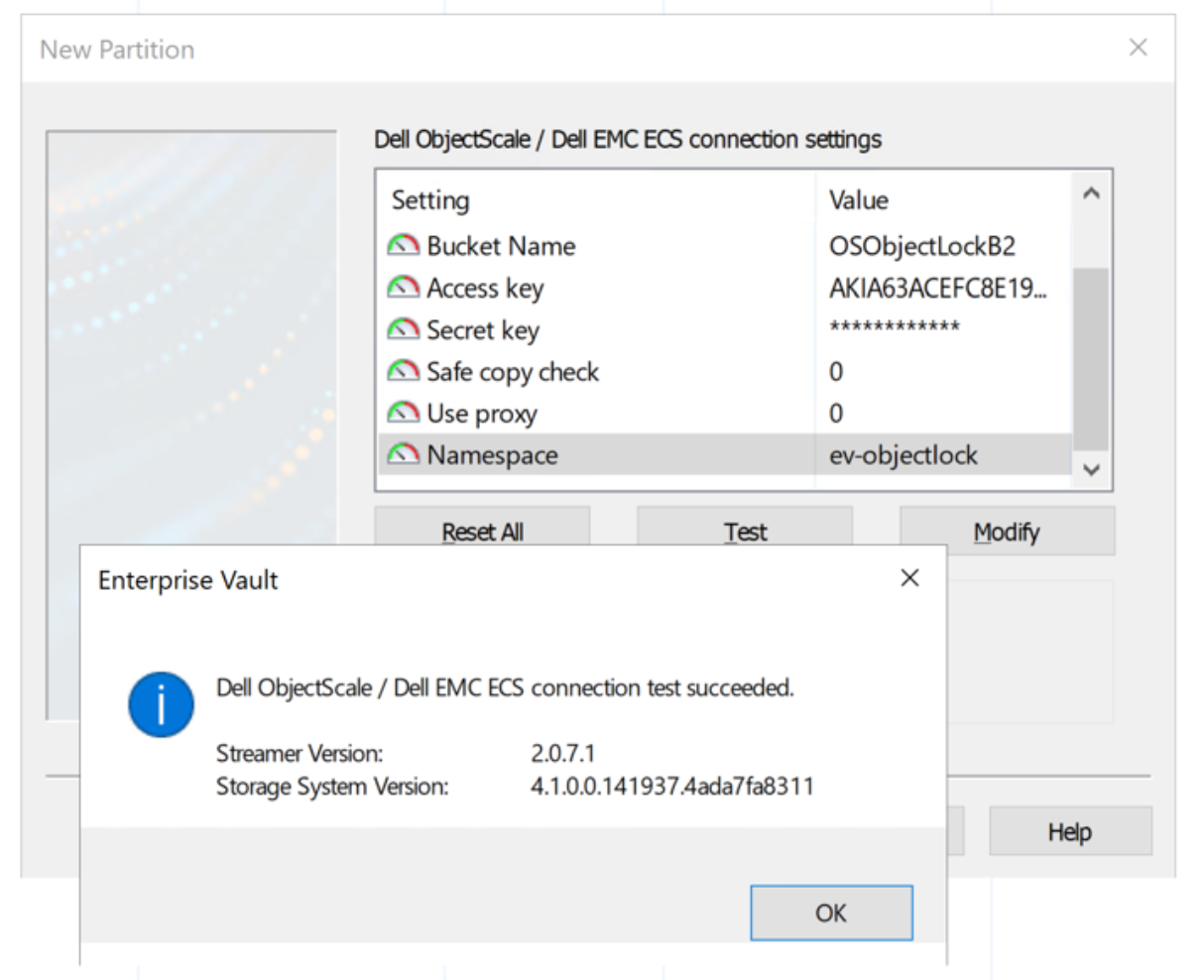
Enter the connectivity details and verification

Figure 9.        Enter the connectivity details and verification

The following table describes the partition properties:

Table 1.      Partition properties

Property

Description

HOST

Enter the IP address or FQDN of the load-balancing service or ObjectScale nodes. See Host property.

Port

Enter the port number being used for data connection to ObjectScale (or the load balancer). The default is 9020.

Bucket Name

Enter the name of the ObjectScale bucket to be used.

ObjectScale buckets used by Enterprise Vault should not be file-system enabled.

Access Key

Enter the ObjectScale access key (object user) to be used.

Secret Key

Enter the Access key secret key.

Safe Copy Check

Select 0, 1, or 2. See Safe Copy Check.

Use proxy

Set to 0 if no proxy is being used or set it to the port that the proxy is using.

  1. Click Test to perform a check of the configuration settings.

If you get an error, recheck the settings as entered. Also check what errors are being logged in the Windows event log.

  1. If the test is successful, click Next.
  2. Select the appropriate WORM setting for the partition.

The Streamer driver has been validated for NON-WORM and well as WORM Enterprise Vault partitions. Select or clear this radio button.
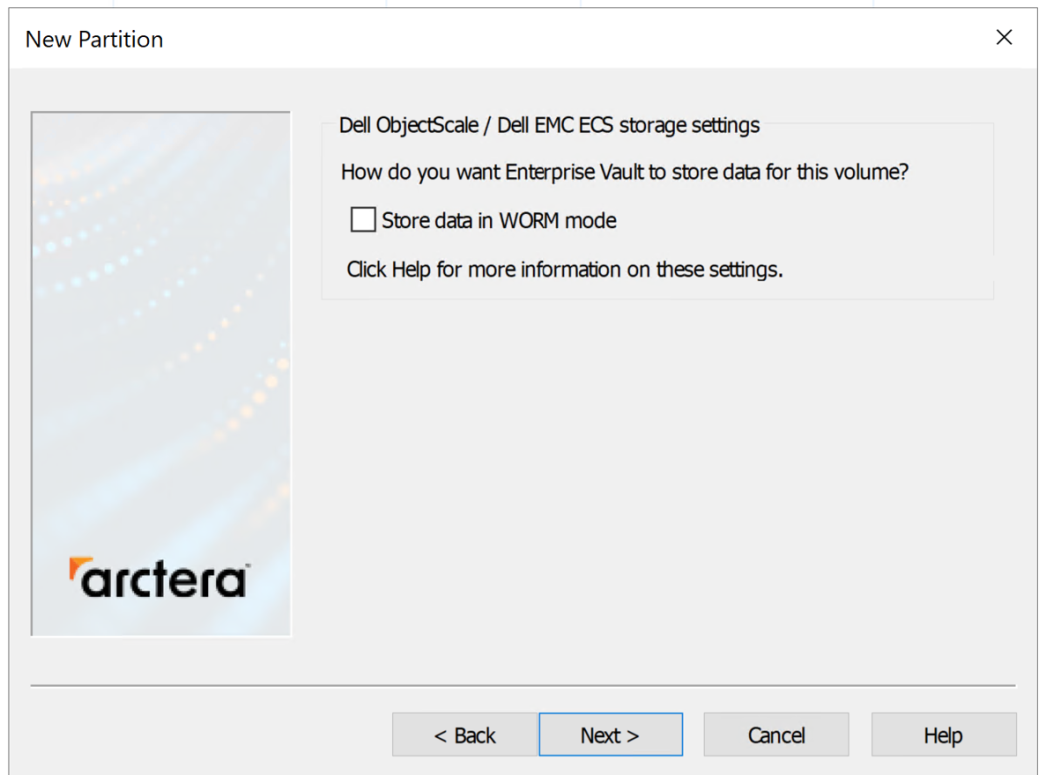
Select or clear ‘WORM mode’ button

Figure 10.    Select or clear ‘WORM mode’ button

  1. Complete the remaining pages as required.

Host property

With version 2.0.1.1, you can specify a comma-separated list of ObjectScale node IP or FQDN addresses as the Host value when you are configuring the partition. For example:

U300-01.lab.emc.com,U300-02.lab.emc.com,U300-03.lab.emc.com,U300-04.lab.emc.com

10.0.0.1,10.0.0.2,10.0.0.3,10.0.0.4

You may also specify an IP address range. For example:

10.0.0.1-10.0.0.8

When you are specifying the host addresses or range, use of the Streamer driver internal IP load balancer is enabled.

The Streamer driver will not attempt to autodiscover any other ObjectScale node IP addresses when a list or range is specified.

If you do use the ;LB option, the Streamer driver will autodiscover all node IP addresses and ignore your list or range.

With version 2.0.2.1 of the Streamer driver, you may just specify the value to have it set to 1 (or true). For example:

10.1.83.51;MAX_TRIES=2;MAX_CONNS=25;DISABLE_WRITE_TEST

MAX_TRIES

When any server failure response is received, Streamer will attempt five tries by default before returning bad status to Enterprise Vault. There is a standard exponential back-off algorithm between retries. This value can be overridden by the MAX_TRIES option, which must be greater than 0 and less than 5.

MAX_CONNS

The MAX_CONNS option controls the maximum number of requests to ObjectScale that can occur at one time. The default is 65. This number might need to be reduced if ObjectScale is showing errors that indicate it is too busy.

Note: As of Streamer version 2.0, this setting is ignored if it is used.

DISABLE_WRITE_TEST

When creating a vault store partition for the first time when there is a Temporary Site Outage (TSO), the tests performed when the user clicks Test will fail because of the TSO. We recommend that you do not create vault store partitions while a TSO is in effect, but, if needed, set DISABLE_WRITE_TEST=1 to disable the test. With version 2.0.2.1 of the Streamer driver, you need only specify DISABLE_WRITE_TEST to set the flag to 1.

Also, if you are using a compliance namespace, disable the write test. When Streamer checks connectivity, it writes a test object and deletes it to check connectivity. This activity occurs in less than 1 second, which would cause even a 1-second bucket-retention setting to fail the deletion. Streamer would then report an error to Enterprise Vault.

With version 2.0.1, the Streamer driver checks to determine if there is a retention period set on the bucket; if a bucket-retention period is not set, it does not perform the write test.

Note: As of Streamer version 2.0.6.21, this setting is ignored if it is used.

DTHOST=<hostname> or <IP>

The DTHOST=<hostname> or <IP> option allows the user to specify the endpoint for the DTQUERY geo-replication checking to a different host than the host specified for the Vault Store partition. Change this option only under the instruction of Dell support personnel.

RDT

RDT=1 sets &random=<someUniqueGuid> to the end of the DTQUERY URL to make sure the URL response is never cached. The <someUniqueGuid> is never reused, ensuring that the request URL is unique. Although additional flags are now used in the request constructor to prevent caching, RDT=1 is still available for use. This was added to version 1.0.14 of the Streamer driver.

SHOWCHUNKS

SHOWCHUNKS=1 includes the chunkIDs and chunk ranges for files written in the DTRACE log, only if the files were archived to the bucket-owning site. Do not enable this option unless told to do so by Dell support personnel. When this option is enabled, performance is affected. This option was added to version 1.0.14 of the Streamer driver.

LB

With version 2.0.0, the Streamer driver has an integrated load balancer. The integrated load balancer obviates the need to use an IP load balancer with the Streamer driver to ensure that all nodes in an VDC are used. To use the integrated load balancer, specify ;LB=true after the IP Address prompt (and any other parameter being used):

10.1.83.51;LB

The IP address must be for an ObjectScale node in the VDC. Streamer will autodiscover the IP addresses of all the ObjectScale nodes in the VDC. The IP address must not be an IP load balancer. Any firewall between the Enterprise Vault server and ObjectScale must open ports 9020/9021 and 9101 for HTTP, HTTPS, and HTTP traffic, respectively.

If you are using IP addresses and SSL certificates with your ObjectScale or IP load balancer, ensure that the ObjectScale node IP addresses are included in the certificates’ SANs.

An example of a SAN in a certificate is as follows:

IP Address=10.1.83.51
IP Address=10.1.83.52
IP Address=10.1.83.53
IP Address=10.1.83.54
DNS Name=*.company.com
DNS Name=*.*.company.com

On Windows 10 or Windows Server 2016, using IP addresses for an SSL connection is acceptable. If the system is Windows Server 2012 R2 or earlier, the connection will fail because Windows does not recognize that the IP address is in the certificate.

Therefore, for Windows Server 2016, you can use the LB option:

Host property: 10.1.83.51;LB

For earlier versions of Windows, you must use the FQDN, such as:

Host property:     ecsnd1.company.com,ecsnd2.company.com,ecsnd3.company.com,ecsnd4.company

DONT_TEST_STOPPING

The DONT_TEST_STOPPING option disables the Streamer INIT check, which tests if the Enterprise Vault storage service is up. Use this option only as instructed by Dell support.

IGNORE_BAD_COMMON_NAME

An HTTPS connection typically fails if the provided hostname does not match the name in the certificate—for example, if an IP address is used.

With Streamer version 2.0.2.1, if you are using an older version of Windows Server, you can use the IGNORE_BAD_COMMON_NAME option in the host parameter to allow the connection to succeed.

10.1.83.51;LB;IGNORE_BAD_COMMON_NAME

Support for S3 V4 authentication

Adding S3V4 to the host field instructs the Streamer driver to use S3 V4 authentication. For example:

10.1.83.51;LB;S3V4

ENABLE_WRITE_TEST

By default, the Write Test of the test method is disabled. In earlier versions, the Write Test was enabled by default. The Write Test can be enabled by adding the ENABLE_WRITE_TEST parameter to the Host field.

Note: This functionality was introduced in Streamer driver 2.0.6.21.

TLS

Use the TLS option to add the ability to specify which TLS versions to select. By default, TLS 1.0, 1.1, and 1.2 can be negotiated. You can modify the settings by adding the following parameters to the Host field:

  • TLS1.0=true/false: default: true
  • TLS1.1=true/false: default: true
  • TLS1.2=true/false: default: true

PROFILE_METHODS

Adding PROFILE_METHODS to the Host parameter causes Streamer to take some performance measurements:

  • Measure the amount of time each method takes to run (Read, Write, Enum, and so on).
  • Count the number of visits to each method
  • Output these statistics every hour as: visits, shortest, longest, and average.

If the streamer COM object is unloaded, the Streamer outputs the statistics gathered so far.

The statistics are output in the Data directory—typically C:\ProgramData\DellEMCEVStreamer.

TIMEOUT_SEC

Use the TIMEOUT_SEC option to set the HTTP timeout to the specified number of seconds. The default is 180 s.

LISTING_PAGE

LISTING_PAGE specifies the maximum number of objects to be obtained for each bucket listing request.

HTTPS

This option allows HTTPS to be specified for a nonstandard port. The default setting is false. Previously, HTTPS was specified by setting the port to either 443 or 9021.

ObjectScale/ECS Streamer driver details

Network ports

The following table lists the network ports that are used for communication between the Enterprise Vault server and ObjectScale:

Table 2.      Network ports

Port number

Port detail

9101

Required to perform the Enterprise Vault Safe Copy Check (TCP to ObjectScale)

Beginning with ECS version 3.4, this port does not have to be used if the safe copy option is set to 1 (see Safe Copy Check).

9020 or 9021

Non-SSL or SSL data connection port

If an IP Load Balancer is used, different HTTP or HTTPS ports can be used for communication between the Enterprise Vault server to the IP load balancer. Ports that are used should be configured in any IP load balancer for TCP to the ECS nodes.

Beginning with ECS revision 3.4, this port is not required so it does not need to be remapped by an IP Load Balancer.

Retention

Enterprise Vault allows users to associate EV retention policies to archived objects, files, email, or other data. The ObjectScale Streamer driver provides Enterprise Vault with the capability of associating these EV retention policies with the objects stored on the ObjectScale. The ObjectScale object store will enforce the objects retention and will not allow objects to be deleted until its retention has expired.

Objects archived to ObjectScale cannot have their retention shortened or extended by Enterprise Vault.

Enterprise Vault will not apply retention periods to objects stored in a Dell Streamer Partition that is configured as NON-WORM.

WORM and NON-WORM support

Arctera defines WORM and NON-WORM as follows:

  • WORM: Enterprise Vault will set the retention period defined in an Enterprise Vault Retention Category to the objects written to an ObjectScale/ECS Streamer Partition.
  • NON-WORM: Enterprise Vault will not set the retention period defined in an Enterprise Vault Retention Category to the objects written to an ObjectScale/ECS Streamer Partition.

With a NON-WORM partition:

  • Even if a Vault Store is using a Retention Category that has a retention period, users using the Enterprise Vault Search Browser can select documents for deletion. Because there is no retention on the objects on the ObjectScale, the ObjectScale allows the deletion to succeed. For example, administrators use this method to set documents to be Retained Forever in Enterprise Vault so that the Enterprise Vault Expiration Task will not be run on the Partition but will still allow users to delete individual documents.
  • Enterprise Vault Administrators can change the retention period of a Retention Category and can shorten it. Subsequent runs of the Enterprise Vault Expiration Task will act on the newly shortened retention period and will attempt to delete the content. The attempt will succeed because there is no retention on the object on the ObjectScale.

ObjectScale 4.x is supported as a WORM or NON-WORM enabled Enterprise Vault archive device for EV15. When any Arctera Vault Store Partition is created and uses the Streamer driver, select the box shown in 11 to enable WORM storage, or clear the box to use NON-WORM.
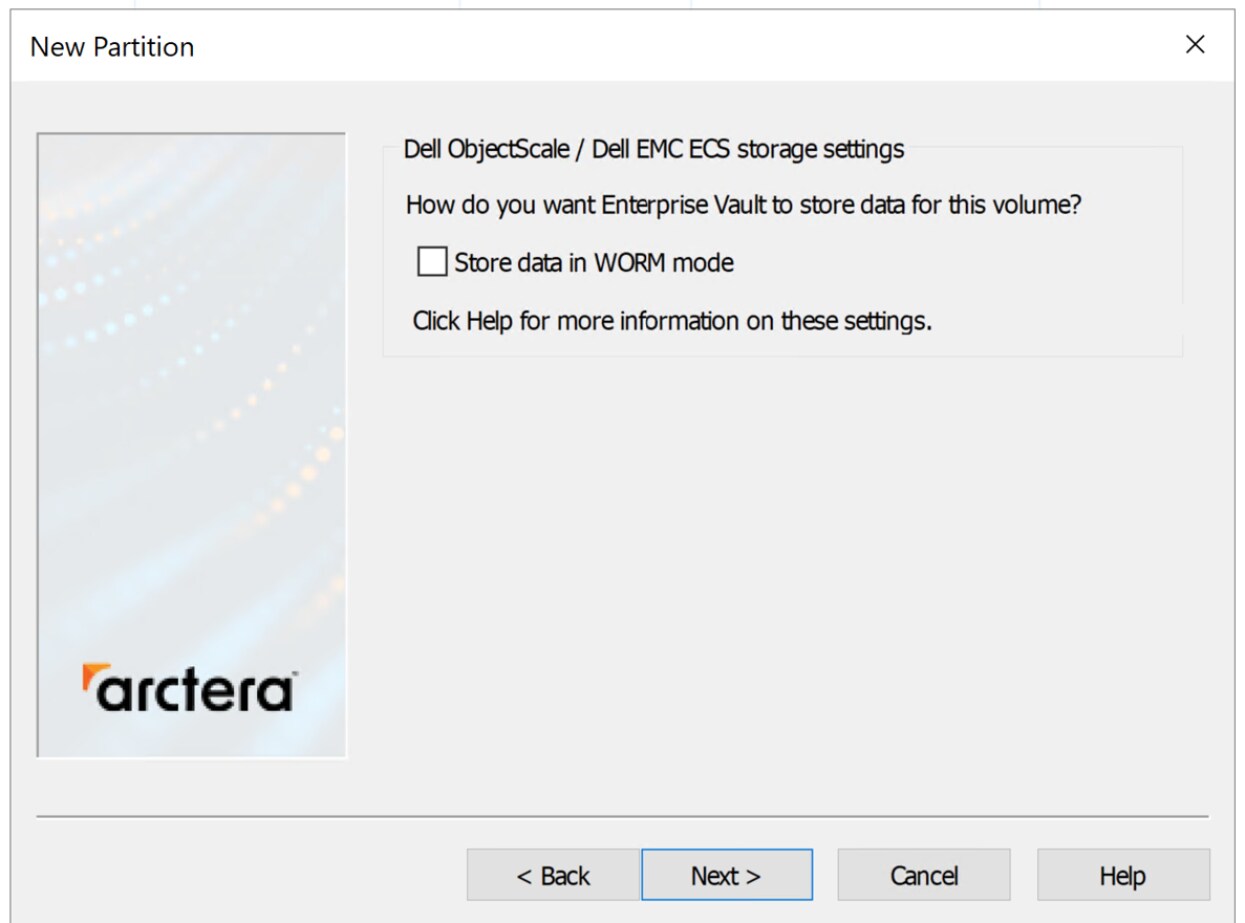
WORM or NON-WORM setting

Figure 11.    WORM or NON-WORM setting

This setting cannot be changed once the partition has been created.

Safe Copy Check

Enterprise Vault has a Safe Copy Check feature that can be enabled by customers at the Vault Store level. This check is to ensure that content archived by Enterprise Vault is not replaced in its original location by an HTM link until it has been backed up to a second archive device through the device’s replication functionality.

This approach is commonly used by customers who use archive devices with replication functionality that have an eventual consistency model. With Dell Centera, for example, it can be several minutes before replication has created the second copy of the archive content, and the Safe Copy Check is commonly used.

ObjectScale implements a strong consistency model and the latencies that exist in the Centera replication queues do not exist in ObjectScale. Customers can be assured that an object that is written to one Virtual Data Center in a Replication Group will also be available to all other Virtual Data Centers in that Replication Group. However, customers might regard even the smallest delta-t window as being unacceptable and might want to perform the Safe Copy check.

The concept of a safe copy is a check that an archived Saveset is geo replicated to a secondary VDC. However, within a VDC, archived files are always stored in a resilient manner (such as Erasure Coding). For more information, see the ObjectScale storage documentation.

When Enterprise Vault makes a Safe Copy Check, the ObjectScale/ECS Streamer driver responds in one of three ways.

Disabled

The ObjectScale/ECS Streamer driver does not check the replication status of the saveset and returns true to Enterprise Vault.

dtQuery

The ObjectScale/ECS Streamer uses the ObjectScale dtQuery functionality to detect the replication status of the saveset. If it is 100 percent replicated, the Streamer returns true to Enterprise Vault; otherwise, it returns false. 

This check uses port 9101, and this must be considered when you plan load balancers and firewalls. Port 9101 is fixed and cannot be mapped to another. The dtQuery option is not available for ECS 3.8.x, ObjectScale 4.x and later.

replicationInfo method

This is an extension to the ObjectScale S3 API to check the replication status of an object. It became available with ObjectScale 4.x. It does not require port 9101 because it uses the port used by S3 requests. 

Request:

GET /bucket/key?replicationInfo
Response:
<ObjectReplicationInfo xmlns=http://s3.amazonaws.com/doc/2006-03001/
<IndexReplicated>false</IndexReplicated>
<ReplicatedDataPercentage>64.0</ReplicatedDataPercentage>
</ObjectReplicationInfo>

This call checks the replication status of both the object and the supporting index blocks it uses.

Replication of the object is very quick, but with ObjectScale systems that have a low archive rate, the indexes might take a long time to replicate.

The ObjectScale/ECS Streamer can be configured to return true for a Save Copy Check if both the object and indexes have been fully replicated or true when the object has been replicated and ignores the replication state of the indexes.

The recommended setting for the replicationInfo method is to check the replication status of both the object and indexes.

Customers who are experiencing delays in index replication due to low throughput can choose to ignore the state of replications of the indexes. They should discuss this with their Dell Support team.

The following table shows the three possible values for the Safe Copy Check parameter.

Table 3.      Safe Copy Check property

Safe Copy Check

ObjectScale 4.x and later

0

Disabled

1

Use new replication info API; check replication status of both the object and indexes.

2

Use new replication API, but only wait for data to be replicated. Do not wait for the indexes to be replicated.

Support of large partition listings

In 2.x versions of ObjectScale/ECS Streamer, when Enterprise Vault asked for an enumeration of the objects in a partition, ObjectScale/ECS Streamer collected the entire listing before returning to Enterprise Vault with the first object. This activity fails if a lot of objects must be listed.

Handling failed ECS nodes

If the ObjectScale/ECS Streamer driver detects that an ObjectScale node has failed or has become unavailable, ObjectScale/ECS Streamer marks the node as bad and retries the I/O on another node.

ObjectScale/ECS Streamer retries the unavailable ObjectScale node after 12 minutes with ObjectScale/ECS Streamer version 2.0.3.1 and after 2 hours with previous versions.

Windows performance monitoring support

Start From ObjectScale/ECS Streamer version 2.0.5.1, support for Windows performance counters has been added.

The new performance monitor counter objects are:

  • Dell EV Streamer: Global counters
  • Dell EV Streamer Instance: Only available if the streamer is active
  • Dell EV Streamer Process: Only available if the streamer is active

These counter objects allow the user to see the streamer’s current activity.

Global counter object

The global counters show the aggregation of all the streamer instances and connections.

Table 4.      Global counters

Counter name

Description

Bytes Received (bytes/sec)

The data rate (bytes/sec) received from ObjectScale

Bytes Sent (bytes/sec)

The data rate (bytes/sec) sent to ObjectScale

EV Request Rate

Request Rate (operations/second) from Enterprise Vault—the aggregation of all requests coming from Enterprise Vault

Init Request Rate

Init Request Rate (operations/second) from Enterprise Vault

Write Request Rate

Write Request Rate (operations/second) from Enterprise Vault

Read Request Rate

Read Request Rate (operations/second) from Enterprise Vault

Update Retention Request Rate

Update Retention Request Rate (operations/second) from Enterprise Vault

Update Metadata Request Rate

Update Metadata Request Rate (operations/second) from Enterprise Vault

Info Request Rate

Info Request Rate (operations/second) from Enterprise Vault

Delete Request Rate

Delete Request Rate (operations/second) from Enterprise Vault

Capacity Request Rate

Capacity Request Rate (operations/second) from Enterprise Vault

Enum Start Request Rate

Enum Start Request Rate (operations/second) from Enterprise Vault

Enum Next Request Rate

Enum Next Request Rate (operations/second) from Enterprise Vault

Enum End Request Rate

Enum End Request Rate (operations/second) from Enterprise Vault

Test Request Rate

Test Request Rate (operations/second) from Enterprise Vault

Streamer Instances

Number of simultaneous streamer instances

Max Streamer Instances

Maximum number of simultaneous streamer instances

Current Requests

Number of simultaneous requests from Enterprise Vault

Max Current Requests

Maximum number of simultaneous requests from Enterprise Vault

Connection Cache Size

Number of connections in Connection Cache

Max Connection Cache Size

Maximum number of connections in Connection Cache

Max Configured Connections

The configured number of MAX_CONNS

Instance counter object

The instance counters break down into a list of streamer instances. The instances are named as follows:

<host>,<bucket>,<partition>

Having more than one instance with the same name is possible—for example, if one of the other parameters, such as a host option, has changed. If more than one instance has the same name, the subsequent instances are named as follows:

<host>,<bucket>,<partition> (n)

In this example, n is a number. These counters are available in each connection instance:

Table 5.      Instance counters

Counter name

Description

Bytes Received (bytes/sec)

The data rate (bytes/sec) received from ObjectScale.

Bytes Sent (bytes/sec)

The data rate (bytes/sec) sent to ObjectScale.

EV Request Rate

Request Rate (operations/second) from Enterprise Vault. This is the aggregation of all requests coming from Enterprise Vault.

Write Request Rate

Write Request Rate (operations/second) from Enterprise Vault.

Read Request Rate

Read Request Rate (operations/second) from Enterprise Vault.

Update Retention Request Rate

Update Retention Request Rate (operations/second) from Enterprise Vault.

Update Metadata Request Rate

Update Metadata Request Rate (operations/second) from Enterprise Vault.

Info Request Rate

Info Request Rate (operations/second) from Enterprise Vault.

Delete Request Rate

Delete Request Rate (operations/second) from Enterprise Vault.

Capacity Request Rate

Capacity Request Rate (operations/second) from Enterprise Vault.

Enum Start Request Rate

Enum Start Request Rate (operations/second) from Enterprise Vault.

Enum Next Request Rate

Enum Next Request Rate (operations/second) from Enterprise Vault.

Enum End Request Rate

Enum End Request Rate (operations/second) from Enterprise Vault.

Test Request Rate

Test Request Rate (operations/second) from Enterprise Vault.

State List Size

State List Size. Each connection can have many states, which roughly relate to the number of different threads that are making requests through the streamer. This list is trimmed during periodic garbage collection.

Max State List Size

Maximum State List Size. Each connection can have many states, which roughly relate to the number of different threads that are making requests through the streamer. This size is reset using EVResetPerf.exe.

Configured Enum Threads

This value reflects the configured number of threads that are spawned during an ENUM operation to speed up the gathering of the metadata on each item.

Process counter object

The Process instance categorizes the instances by process. The Process instance is named as follows:

<processname> (<process id>)

The following counters are available in each process instance:

Table 6.      Process counter object

Name

Description

Bytes Received (bytes/sec)

The data rate (bytes/sec) received from ObjectScale.

Bytes Sent (bytes/sec)

The data rate (bytes/sec) sent to ObjectScale.

EV Request Rate

Request Rate (operations/second) from Enterprise Vault. This is the aggregation of all requests coming from Enterprise Vault.

Write Request Rate

Write Request Rate (operations/second) from Enterprise Vault.

Read Request Rate

Read Request Rate (operations/second) from Enterprise Vault.

Update Retention Request Rate

Update Retention Request Rate (operations/second) from Enterprise Vault.

Update Metadata Request Rate

Update Metadata Request Rate (operations/second) from Enterprise Vault.

Info Request Rate

Info Request Rate (operations/second) from Enterprise Vault.

Delete Request Rate

Delete Request Rate (operations/second) from Enterprise Vault.

Capacity Request Rate

Capacity Request Rate (operations/second) from Enterprise Vault.

Enum Start Request Rate

Enum Start Request Rate (operations/second) from Enterprise Vault.

Enum Next Request Rate

Enum Next Request Rate (operations/second) from Enterprise Vault.

Enum End Request Rate

Enum End Request Rate (operations/second) from Enterprise Vault.

Test Request Rate

Test Request Rate (operations/second) from Enterprise Vault.

Reset performance monitor maximum counters: EVResetPerf.exe

Some of the counters show the highest values that have occurred since the last time they were reset. These counters include:

  • Max Streamer Instances (global)
  • Max Current Requests (global)
  • Max Connection Cache Size (global)
  • Max State List Size (instance)
  • Max Streamer Instances (per-process)
  • Max Current Requests (per-process)
  • Max Connection Cache Size (per-process)

These counters can be reset using the CLI command EVResetPerf.exe. This command takes no parameters and resets the counters to their current values (before version 2.0.6.12).

Beginning with version 2.0.6.12, EVRestPerf.exe supports the /all and /schedule parameters. If no parameters are supplied, the “max” counters are reset.

Usage; EVResetPerf [/all] [/schedule]

  • /all—All counters are reset to zero, which removes all instances and process entries. Use this option only if there are no EVStreamer processes running. To reset all counters without worrying about running processes, use the /schedule parameter.
  • /schedule—All counters are reset to zero and all instances will be deleted at the next reboot.

Log-level registry value to troubleshoot performance monitor support

If performance monitor support is not working, first look in Event Viewer for the following line in the application log:

Source = DellEMCEVStreamer

The logging level can be changed by setting this registry value as follows:

Key: HKEY_LOCAL_MACHINE\SYSTEM\CurrentControlSet\Services\DellEMCEVStreamer\Parameters

Value: DWORD EventLogLevel

The registry can take the values shown in the following table:

Table 7.      Log-level values

Value

Description

0

No event log messages ever

1

Normal event logging; errors only

2

Minimum debug logging

3

Maximum debug logging

Troubleshooting

Windows event log

Whenever you get an error or suspect an error is occurring, use the Windows Event Viewer to check the Windows event log for errors at Applications and Services Log > Arctera Enterprise Vault.
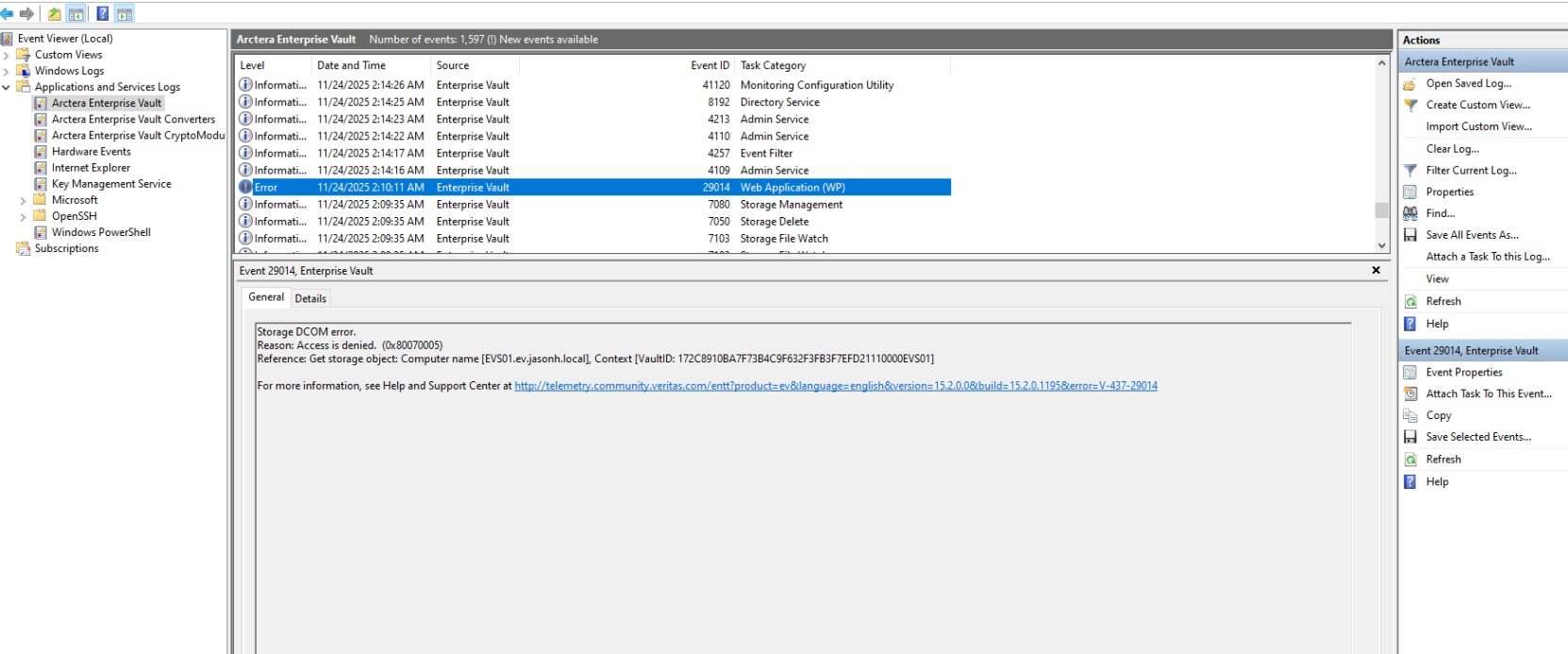
Windows event log

Figure 12.    Windows event log

Fiddler

Fiddler is a web debugging tool that shows the HTTP or HTTPS traffic between the Enterprise Vault server and the ObjectScale system.

Download Fiddler.

After installation, change the vault store partition definition to use a proxy on port 8888.
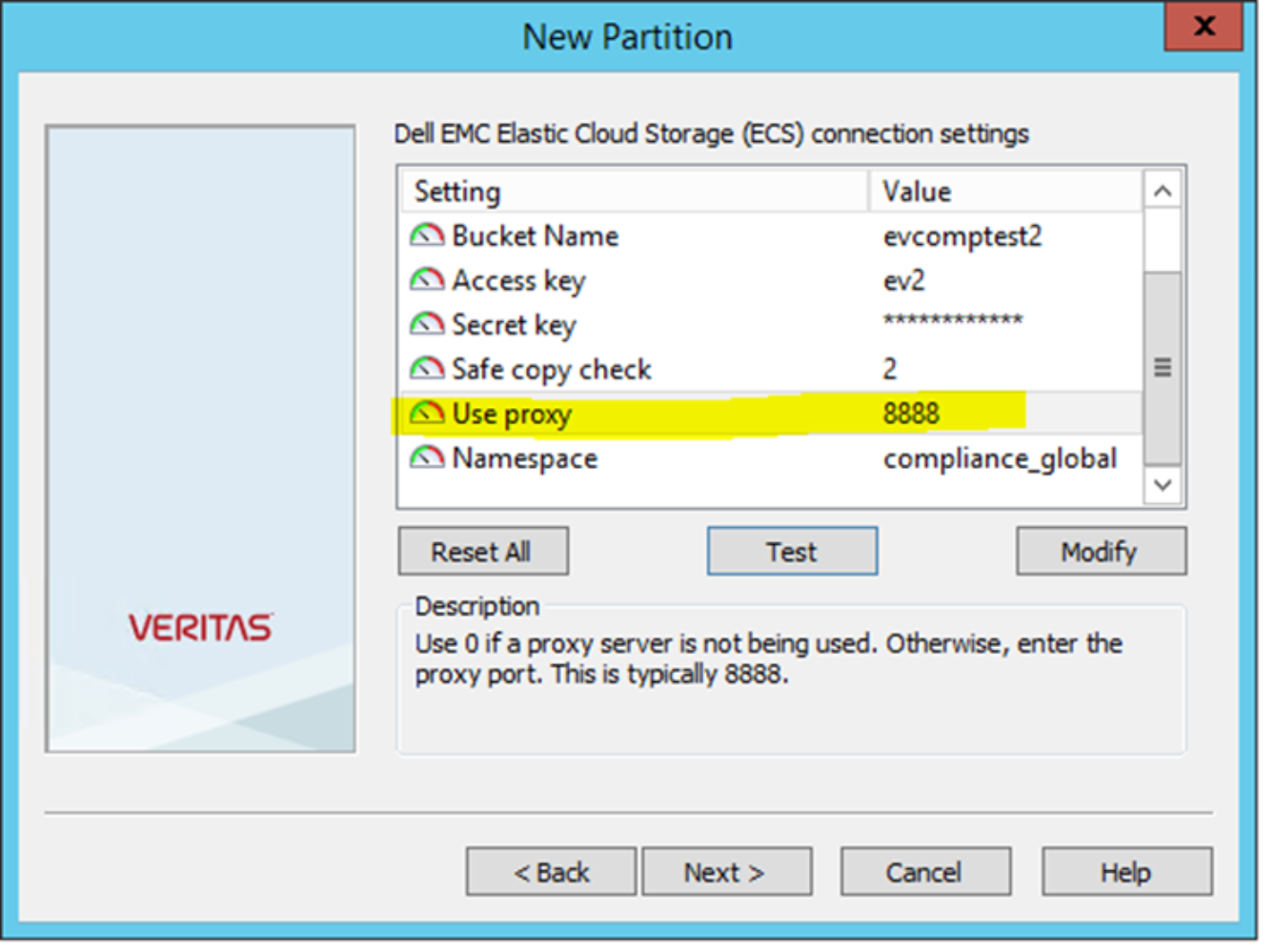
Fiddler change proxy port info

Figure 13.    Fiddler change proxy port info

After updating the credentials, restart the Enterprise Vault storage service.

The following example shows the output in Fiddler from attempting to perform a test of the partition configuration when the partition has been configured to use the Dell online ObjectScale portal and when configuring the partition to use SafeCopy=2. Port 9101 is not open on the ObjectScale portal load balancer and it will fail this check. This failure is one of the more common issues encountered in new installations. The firewall or load balancers, or both, are not configured correctly for this port.
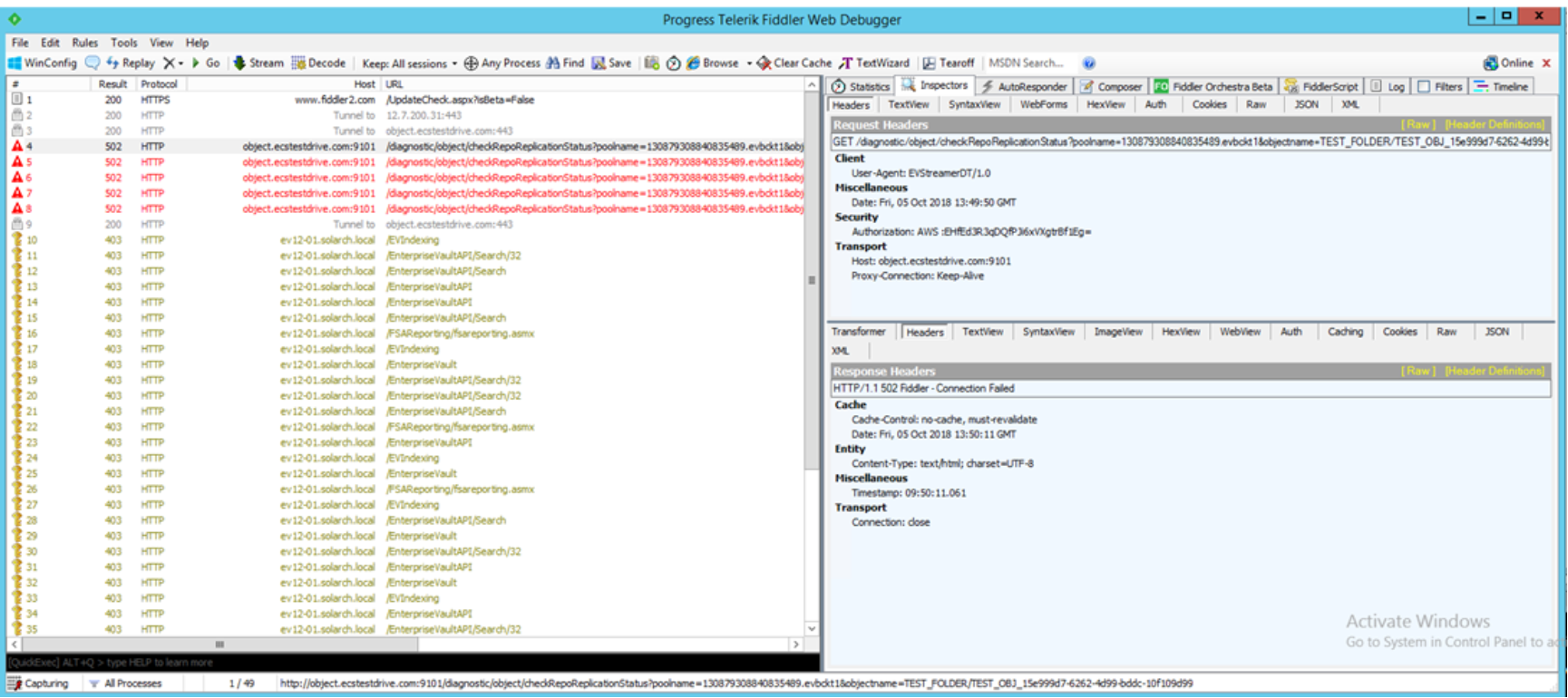
Fiddler output

Figure 14.    Fiddler output

On transactions 4 through 8 in the following figure, you can see the failed attempts to connect to portal.ecstestdrive.com on port 9101 (the portal load balancer is not set up to pass 9101).

Fiddler output 2

Figure 15.    Fiddler output 2

The following figure shows the request and response headers:
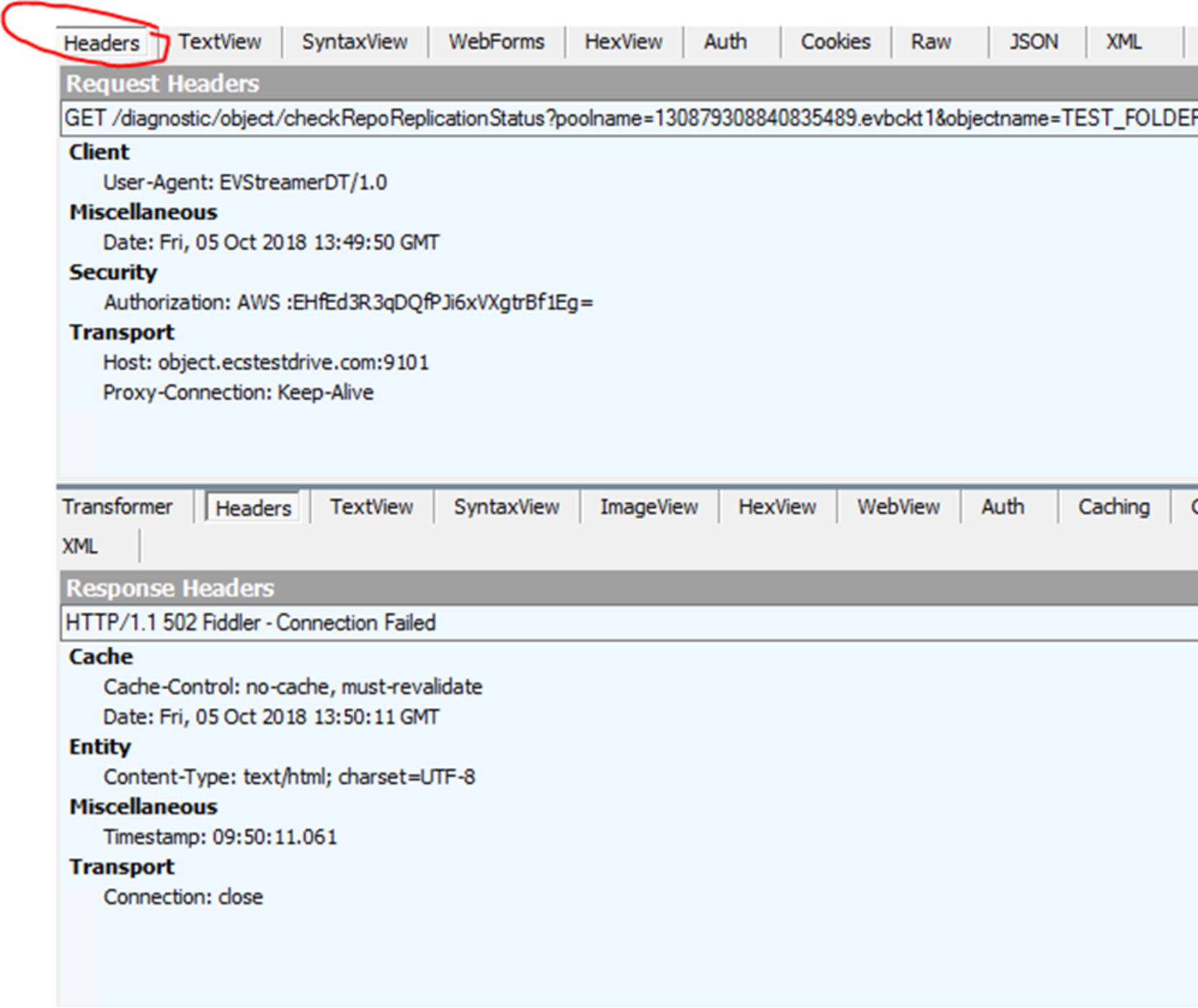
Fiddler header and response

Figure 16.    Fiddler header and response

The following figure shows the response as raw:
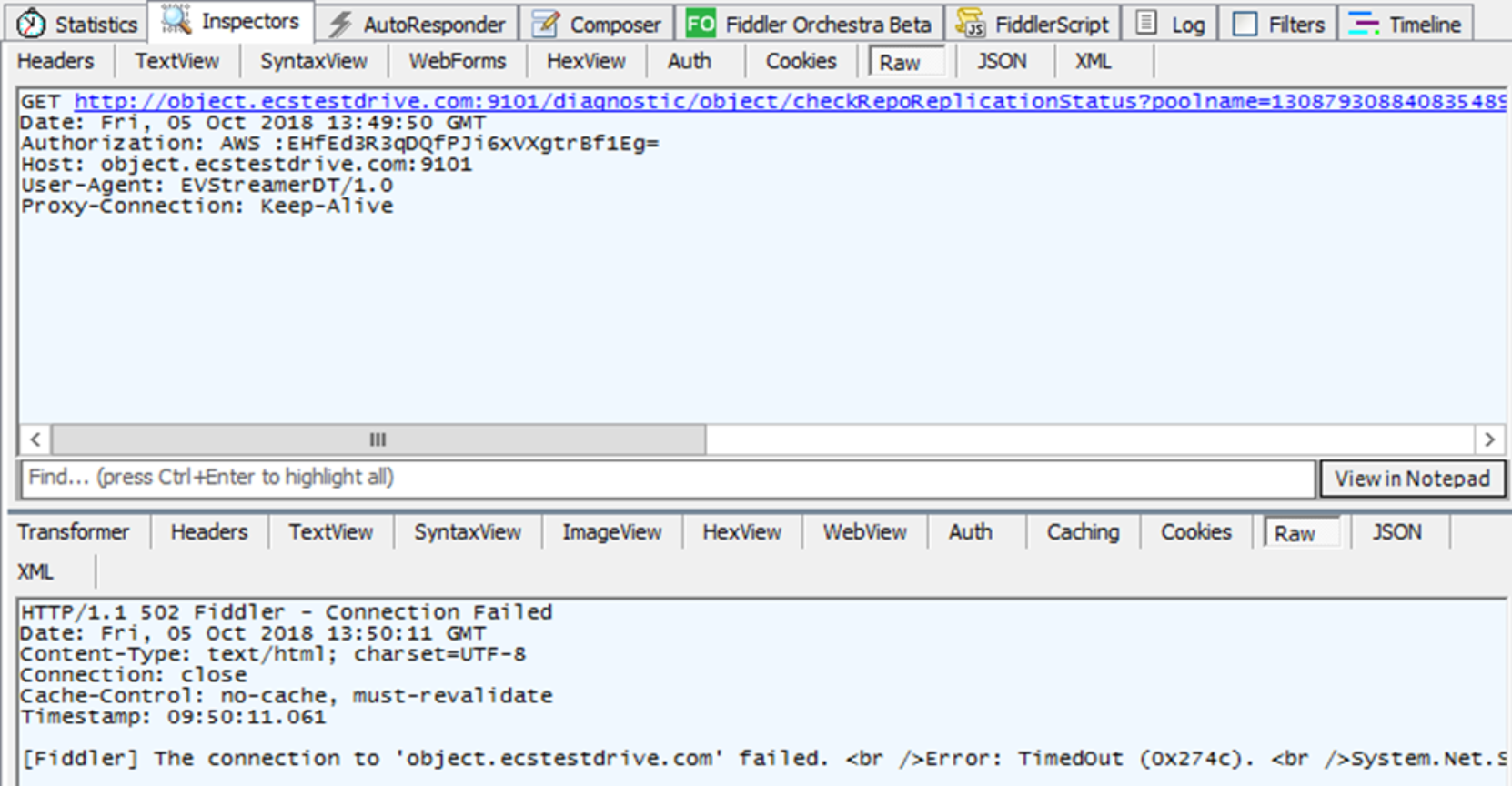
raw output

Figure 17.    Fiddler: raw output

Fiddler is useful for looking at the web traffic from the Enterprise Vault server to ObjectScale, and it may be simpler to use than a full network monitor.

DebugView

The ObjectScale/ECS Streamer driver publishes debug information that is not typically viewable. With the Microsoft DebugView utility, administrators can view and log debug information that all applications write.

Download DebugView.

Run DebugView as administrator.
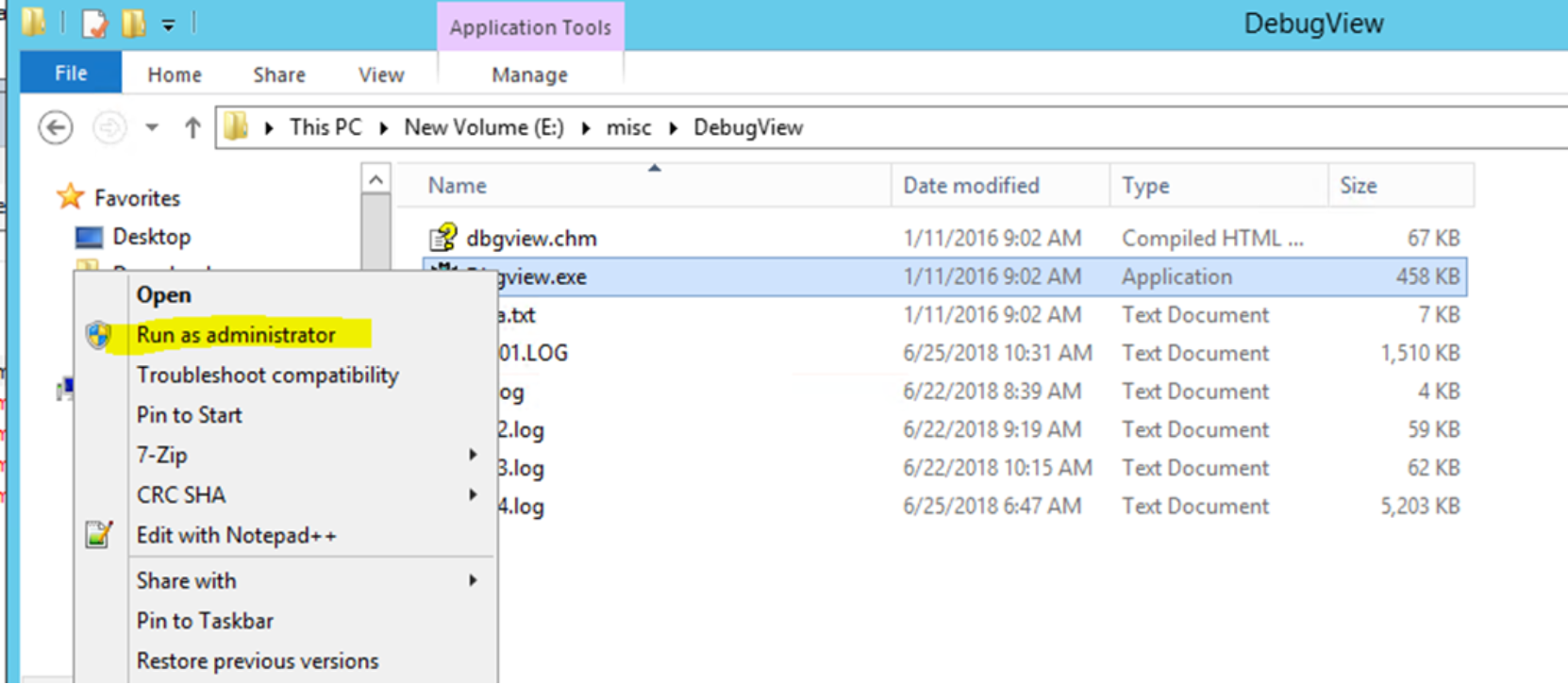
Running DebugView

Figure 18.    Running DebugView

When running DebugView, ensure that Capture Win32 and Capture Global Win32 are selected.
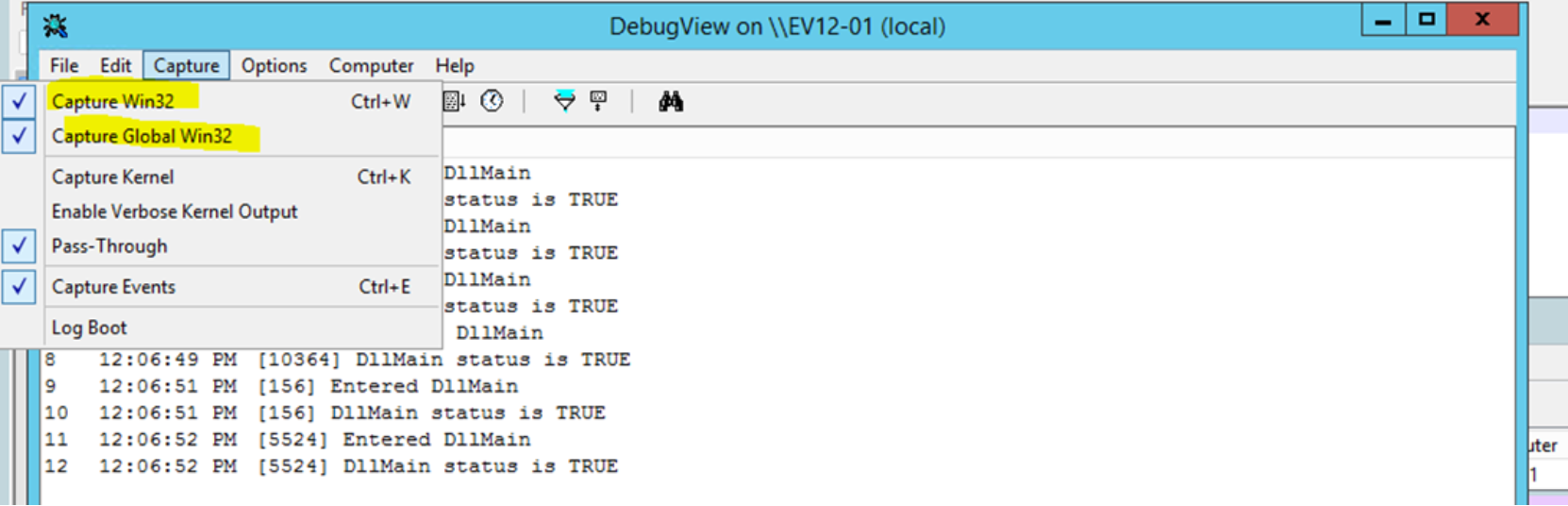
DebugView settings

Figure 19.    DebugView settings

If you repeat a partition properties test specifying ;LB=true, the DebugView window will show the following output:

00140407 10:34:52 AM [9392] IP list coming in Init...prior to any possible client side load balancing

00140408 10:34:52 AM [9392] 10.246.22.187

Enable more debugging output by running the Enterprise Vault dtrace.exe utility from the Enterprise Vault product installation directory and running the following command:

set StorageManagement v y
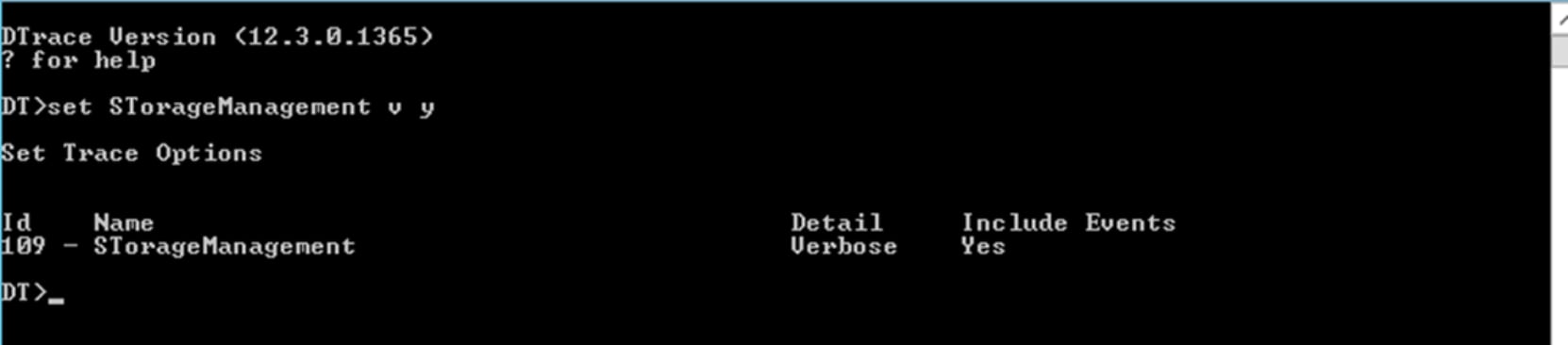
Running Enterprise Vault DTrace

Figure 20.    Running Enterprise Vault DTrace

If you repeat the same test on the ObjectScale partition, you will get a more detailed debug output.

00140427 10:35:31 AM [9392] IP list coming in Init...prior to any possible client side load balancing

00140428 10:35:31 AM [9392] 10.246.22.187

00140429 10:35:31 AM [9392] [TID:9412] EVStreamer: DataNodeEndpointS3 for evtestbckt1 success

00140430 10:35:31 AM [9392] [TID:9412] EVStreamer: setting endpoints for client side load balancing

00140431 10:35:31 AM [9392] [TID:9412] EVStreamer: client side load balancing: set address = 10.246.22.191

00140432 10:35:31 AM [9392] [TID:9412] EVStreamer: client side load balancing: set address = 10.246.22.190

00140433 10:35:31 AM [9392] [TID:9412] EVStreamer: client side load balancing: set address = 10.246.22.194

00140434 10:35:31 AM [9392] [TID:9412] EVStreamer: client side load balancing: set address = 10.246.22.189

00140435 10:35:31 AM [9392] [TID:9412] EVStreamer: client side load balancing: set address = 10.246.22.192

00140436 10:35:31 AM [9392] [TID:9412] EVStreamer: client side load balancing: set address = 10.246.22.188

00140437 10:35:31 AM [9392] [TID:9412] EVStreamer: client side load balancing: set address = 10.246.22.193

00140438 10:35:31 AM [9392] [TID:9412] EVStreamer: client side load balancing: set address = 10.246.22.187

00140439 10:35:31 AM [9392] [TID:9412] EVStreamer: CStreamerObject::Init checking if the bucket has search metadata fields enabled

00140440 10:35:31 AM [9392] [TID:9412] EVStreamer: CStreamerObject::Init does not seem to be search meta but no error

00140441 10:35:31 AM [9392] [TID:9412] EVStreamer: CStreamerObject::Init Exiting with HRESULT 0x0

00140442 10:35:31 AM [9392] [TID:9412] EVStreamer: CStreamerObject::Test Entry

00140443 10:35:31 AM [9392] [TID:9412] EVStreamer: ReadProperties for evtestbckt1 success

00140444 10:35:31 AM [9392] [TID:9412] EVStreamer: property:sOwnerDisplayName 

00140445 10:35:31 AM [9392] [TID:9412] EVStreamer: property:sOwnerID 

00140446 10:35:31 AM [9392] [TID:9412] EVStreamer: property:sETag 

00140447 10:35:31 AM [9392] [TID:9412] EVStreamer: ReadProperties have been logged

00140448 10:35:31 AM [9392] [TID:9412] EVStreamer: CStreamerObject::Test Connectivity check is going to write a test object since replication check 2 is being used

00140449 10:35:31 AM [9392] [TID:9412] EVStreamer: Create object for evtestbckt1 success

00140450 10:35:31 AM [9392] [TID:9412] EVStreamer: CStreamerObject::Test ConnectivityCheckWrite succeeded. About to try dtquery and delete it

00140451 10:35:31 AM [9392] [TID:9412] EVStreamer: dtquery returning false

00140452 10:35:31 AM [9392] [TID:9412] EVStreamer: CStreamerObject::Test Exiting with HRESULT 0x0

The output is displaying the ObjectScale node IP addresses that it will use, and it will read the properties for the ObjectScale bucket being used. It created and deleted a test object and checked the replication status of the test object. 9392 is the PID of the StorageManagement.exe process.

Supported environments

Arctera Enterprise Vault

Arctera supports ECS 3.8.x with Enterprise Vault 14.x/15.x and ObjectScale 4.x with version 15.x of Enterprise Vault for both WORM and NON-WORM.

  • Streamer version 2.0.7.1 is compatible with ECS 3.8.x and earlier releases, and with ObjectScale 4.0.
  • Streamer version 2.0.7.2 is compatible with ECS 3.8.x and ObjectScale 4.x versions.

These ObjectScale versions are also supported with Enterprise Vault when ObjectScale is used as secondary storage, see the Enterprise Vault Compatibility Charts document.

For a detailed support matrix for all versions of Enterprise Vault, including support for third-party software and hardware components, see the Enterprise Vault Compatibility Charts document. Always check the Arctera compatibility charts to confirm support.

Streamer release information

Streamer release information

The following table provides details about each version of ObjectScale/ECS Streamer.

Table 8.      Streamer release information

Release number

Description

2.0.7.2

  • Compatible with ECS 3.8.x and ObjectScale 4.x versions
  • Fixed ECS/OBS version parsing to correctly identify OBS 4.x versions
  • Fixed Safe Copy Check failure when upgrading to OBS 4.1 and later
  • Improved error messages for Safe Copy Check validation

2.0.7.1

  • Compatible with ECS 3.8.x and earlier releases, and ObjectScale 4.0.
  • Change branding and graphics to Dell Technologies.
  • If Trace is enabled, output streamer version to trace file during Init call
  • If Trace is enabled, don’t output S3 secret key to trace log

2.0.6.23

Enhancements in this version aid in addressing HTTP Timeout errors, such as:

Dell EMC Elastic Cloud Storage (ECS) Streamer
CStreamerObject::EnumStart method failed: DirListing Failed Error = 12002 - The operation timed out IP: ecs.company.com:9021 1552: 12002 - The operation timed out

The cause of this error is that the streamer is sending ECS a request for a bucket listing, and ECS is not responding in the allotted time.

Two configuration parameters have been added to aid in addressing this issue:

TIMEOUT_SEC

LISTING_PAGE


Changes in Host Parameters
 

Parameter

Default Value

Description

TIMEOUT_SEC

180 seconds

Set the HTTP timeout to the specified number of seconds.

LISTING_PAGE

1000

Specify the maximum number of objects to get for a bucket listing request.

HTTPS

false

Use secure HTTPS protocol. Previously, HTTPS was specified by setting the port to either 443 or 9021. This keyword allows HTTPS to be specified for a nonstandard port.


Examples:

Increase the timeout to 6 minutes and the lower maximum number of objects to request to 200:

TIMEOUT_SEC=360;LISTING_PAGE=200

Security Enhancements

Defaults have changed to favor increased security:

TLS1.0=false

TLS1.1=false

TLS1.2=true

S3V4=true

2.0.6.21

Changes in Host Parameters

Add ENABLE_WRITE_TEST flag. By default the “Write Test” of the Test method is disabled. In previous versions, the “Write Test” has been enabled by default. The “Write Test” can be enabled by adding the “ENABLE_WRITE_TEST” parameter to the Host field.

Remove DISABLE_WRITE_TEST flag. This flag will continue to be accepted if it exists, but it is ignored.

Add the ability to specify which TLS versions to select. By default, TLS 1.0, 1.1 and 1.2 can be negotiated. This setting can be modified with the following parameters to the Host field:

TLS1.0=true/false: default: true

TLS1.1=true/false: default: true

TLS1.2=true/false: default: true

Add Profiling: Adding PROFILE_METHODS to the Host parameter causes the streamer to take some performance measurements:

Measure the amount of time each method takes to run (Read, Write, Enum, and so on).

Count the number of visits to each method

Every hour output these statistics as: visits, shortest, longest, and average.

If the streamer COM object is unloaded, the output will be the statistics gathered so far.

The stats are output in the Data directory—usually C:\ProgramData\DellEMCEVStreamer.

Better Parameter validation: Log error if parameter entered is not valid. Prior versions would ignore unknown parameters.

Parameters are now accepted case-independent

Boolean parameters now accept a wider range of syntax: FLAG[=0|1|true|false]

Examples:

LB (same as LB=1)

LB=1

LB=true (same as LB=1)

Lb=True

lb = 0 (do not set LB flag)

Functionality Enhancements

Retry HTTP request errors for a wider range of errors, such as SSL errors.

HTTP: Optimize downloading large objects from ECS. Increase the receive queue to prevent excessive task switching.

Optimize garbage collection of various internal structures

Bug Fixes

SDK-538: V4 authentication could be selected even if S3V4 option was not specified

2.0.6.18

Fix for:

SDK-532: EV Streamer: May log: Severe Error! Dump file created here: <path>

SDK-533: EV Streamer: dump files generated similar to:  StorageManagement.exe_translate_exceptions_GUID.dmp

2.0.6.16

Fix for:

SDK-530: EV Streamer: Allow DTQuery to be used for replication check if using ECS 3.4

SDK-528: EV Streamer: if safe-copy = 0, it does not comply with Veritas API spec: remotecopies = 0

2.0.6.13

Update of the Microsoft Visual C++ redistributables

SDK-514: EV Streamer: Error log shows: Unexpected retentionType found: 0

SDK-517: EV Streamer setup does not always upgrade the VC++ redistributable to the required level

SDK-518: EV Streamer: EnumNext returns StoredDate against local time instead of UTC

SDK-519: EV Streamer: EnumNext: if time range is specified, it may not return the entries at start and end of range

2.0.6.2

Faster, more efficient method used to test for bucket level retention.

Better testing of writes when there is bucket level retention of 1 second.

Support for S3 V4 authentication.

Performance monitor stats can be reset.

Admin can specify an install path for the ECS Streamer driver on installation.

Remote installation utility is provided.

2.0.5.6

The Test() method no longer tests for bucket level retention. The admin must set the option DISABLE_WRITE_TEST or Test() will fail.

Metadata search info call removed from initialization.

2.0.5.4

Windows Performance Monitor counter objects added.

The ECS Streamer install directory is added to the Windows PATH environment variable. Addition of the directory allows users to run ECSCheck.exe or EVResetPerf.exe from any directory.

2.0.4.1

Throttle Streamer Instances – the number of outstanding EVStreamer requests by default limited to 65.

Faster enumeration of objects in a vault store.

Improved management of the connection object.

2.0.3.2

Corrections made to the error codes returned when some errors are encountered.

2.0.3.1

Corrections to error returns from ECS Streamer to Enterprise Vault.

Added DONT_TEST_STOPPING switch on HOST – Dell Support use only

Changed the time that the streamer will wait before retrying an ECS node marked as offline to 12 minutes from 2 hours.

2.0.2.3

Improved handling of Partition listings 

Installation

Install file is an .msi instead of an .exe.Cached Connections

S3 connections are cached to greatly reduce the overhead involved with establishing connections. The streamer frequently runs the “Init()” entry, which performs the following ECS requests:

Get endpoint list

Test if search metadata can be used.

With the new version, that initialization only occurs the first time the connection is requested. It will only redo it if any of the parameters change or if the S3 request fails.

Allow HTTPS connections to Ignore Bad CN Error

An HTTPS connection typically fails if the hostname provided does not match the name in the certificate—for example, when an IP address is used. The user can use the IGNORE_BAD_COMMON_NAME option in host parameter to allow the connection to succeed.

Relax syntax for Host Name Options

The current syntax for each hostname option is "<option>=<value>". The “=<value>” is now optional if <value> would be 1. Therefore, the following syntax is now accepted:

10.1.2.3;LB;DISABLE_WRITE_TEST


2.0.1.5

Improved error log messaging

Additional IP range specification

Writes of old files have their retention handled properly, previously an error would be generated.

ecscheck utility.


2.0.0.7

Better error log messages and diagnostics

Multipart uploads are multithreaded and will perform better

Better overall performance

Improved Stability

Integrated IP load balancer across ECS nodes in the VDC being used.


1.0.16

Fix to partial file read requests which where erroneously on occasion performing full file reads unnecessarily.


1.0.14

Default MAX_CONNS changed to 65

Added optional SHOWCHUNKS configuration parameter to assist debugging

Added optional RDT parameter to ensure requests are not cached 

Added option DTHOSTS parameter to assist with debugging 

Issue caused by caching in the Windows HTTP library resolved.


1.0.12

Modified the Test() function. Since Enterprise Vault itself also calls the Test functionality, it is not reasonable to fail the test if the dtquery call fails. This information is logged but does not fail the connectivity test. This portion of the test is only done when safecopy==2. Unfortunately, dtquery has problems during TSO. So any call to the Test functionality by Enterprise Vault when safecopy==2 during TSO, would cause archiving to stop. During archiving, any failure in dtquery sets the safe copy boolean to false and archiving continues.


1.0.11

Added a fix for a potential Read() problem where Windows may require a larger buffer


Technical support and resources

Tags: