Dell PowerFlex Integration with Apache CloudStack
Executive summary
Executive summary
Introduction
Revision
Terminology
Audience
We value your feedback
Product Overview
PowerFlex family
PowerFlex software-defined infrastructure enables broad consolidation across the data center, encompassing almost any type of workload and architecture. The software-defined architecture offers automation and programmability of the complete infrastructure and provides scalability, performance, and resiliency to enable effortless adherence to stringent workload SLAs.
The PowerFlex family provides a foundation that combines compute and high-performance storage resources in a managed unified fabric. PowerFlex comes in flexible deployment options (rack, appliance, or custom nodes and in the public cloud) that enable independent (two-layer), HCI (single-layer), or mixed architectures. PowerFlex is ideal for high-performance applications and databases, building an agile private/hybrid cloud, or consolidating resources in heterogeneous environments.
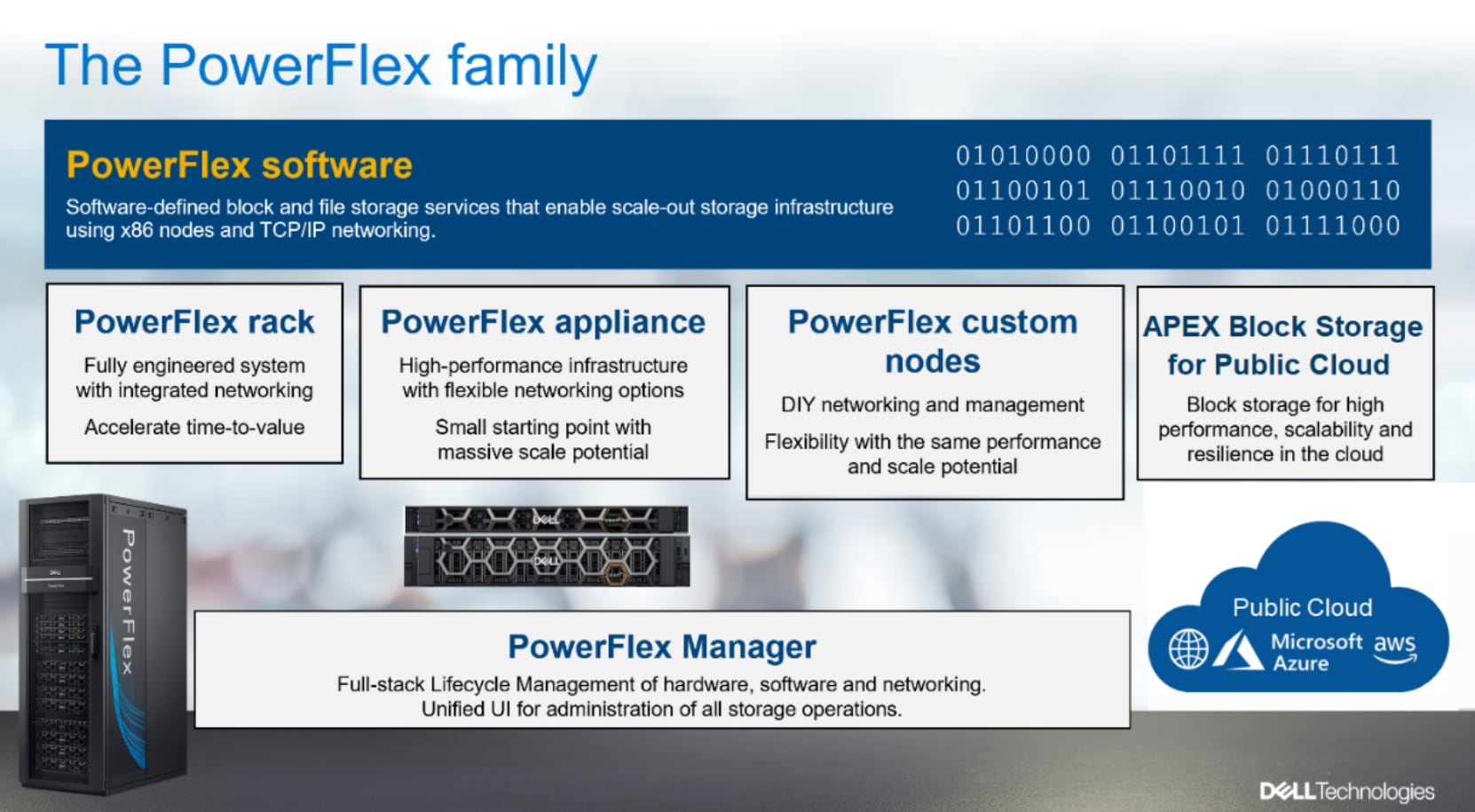
Figure 1. PowerFlex family
PowerFlex software components
Software is the key differentiation in the PowerFlex offering. PowerFlex software components not only provide software-defined storage services, but also help simplify infrastructure management and orchestration. This enables comprehensive IT Operational Management (ITOM) and Life Cycle Management (LCM) capabilities that span compute as well as storage infrastructure, from BIOS and Firmware to nodes, software, and networking.
PowerFlex
PowerFlex is the software foundation of PowerFlex software-defined infrastructure. It is a scale-out block and file storage service that is designed to deliver flexibility, elasticity, and simplicity with predictable high performance and resiliency at scale.
PowerFlex Manager
PowerFlex Manager is the software component in the PowerFlex family that enables ITOM automation and LCM capabilities for PowerFlex systems. Starting with PowerFlex 4.0, the unified PowerFlex Manager brings together three separate components used in previous releases – PowerFlex Manager, the core PowerFlex UI, and the PowerFlex gateway. The new PowerFlex UI runs in Kubernetes and embraces a modern development framework.
PowerFlex file services
PowerFlex File Controllers, also known as File Nodes, are physical nodes that enable PowerFlex software defined File Services. They host the NAS Servers, which in turn host the tenant namespaces and file systems, mapping PowerFlex volumes to the file systems presented by the NAS Servers. All major protocols are supported, such as NFS, SMB/CIFS, FTP, and NDMP. PowerFlex file service is supported from PowerFlex 4.0.
PowerFlex with NVMe over TCP (NVMe/TCP)
NVMe is a family of open specifications that defines an industry standard for both a logical interface and a communication protocol for accessing block storage across an internal PCIe fabric or through external fabrics such as TCP/IP and FC. NVMe is designed to take advantage of the internal parallelism and low latency inherent in flash-based media SSDs.
NVMe/TCP is an extension of the NVMe base specification that defines the binding of the NVMe protocol to message-based fabrics using TCP. By binding the NVMe protocol to TCP, NVMe/TCP enables the efficient end-to-end transfer of commands and data between NVMe hosts and NVMe controller devices by any standard Ethernet-based TCP/IP networks.
From PowerFlex release 4.x onwards, support for NVMe/TCP has been added for on-premises deployment with the introduction of a new Storage Data Target (SDT) component installed in the storage layer. The NVMe initiator in the operating system or hypervisor communicates with the SDT, which then communicates with the Storage Data Server (SDS). The NVMe initiator is part of the kernel of the application host operating system or hypervisor.
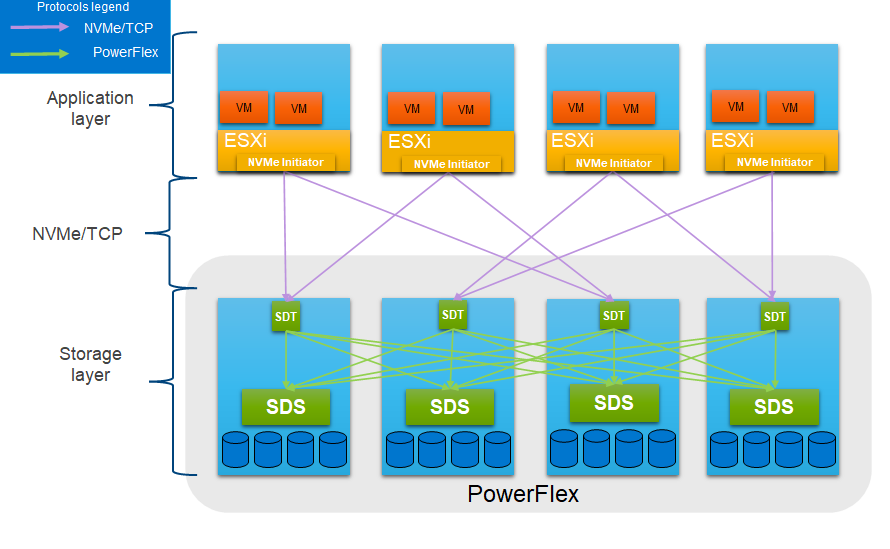
Figure 2. PowerFlex with NVMe/TCP
For more information, see PowerFlex with NVMe over TCP.
PowerFlex deployment architectures
PowerFlex software-defined infrastructure excels in deployment flexibility. PowerFlex can be deployed in a two-layer (independent compute and storage layers), single-layer (Hyperconverged Infrastructure, or HCI), or a mixture of the two architectures (Mixed).
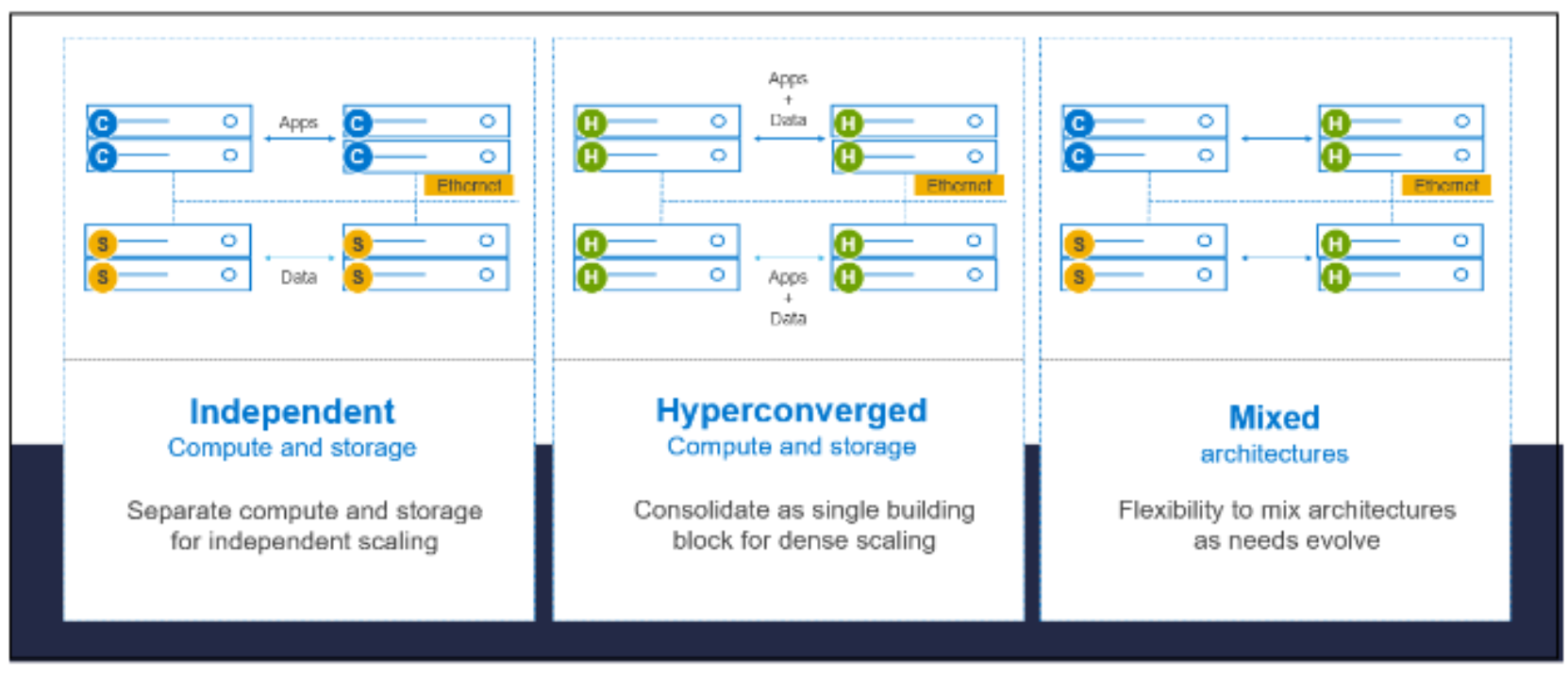
Figure 3. PowerFlex deployment architectures
Independent architecture
In an independent architecture or two-layer architecture, some nodes provide storage capacity for data in applications, while other separate and independent nodes provide compute resources for applications and workloads. Compute and storage resources can be scaled independently by adding nodes to the cluster while it remains active. This separation of compute and storage resources helps to minimize software licensing costs in certain situations. This architecture can be ideal for high-performance databases and application workloads.
Hyperconverged architecture
In an HCI architecture, each node in the cluster contributes storage and compute resources simultaneously to the applications and workloads. This architecture allows you to scale your infrastructure uniformly with building blocks that add both storage and compute resources. This architecture is appropriate for data center and workload consolidation.
Mixed architecture
A mixed architecture is a combination of both the HCI and Independent architectures. As shown in Figure 3 there are some storage-only nodes, compute-only nodes, and HCI nodes as a part of the same PowerFlex cluster. This is a desirable architecture when working with an existing compute infrastructure and adding high-performance software-defined infrastructure. This can also be a starting point for a two-layer deployment design as external workloads are migrated to PowerFlex.
PowerFlex consumption options
PowerFlex rack
PowerFlex rack is a software-defined infrastructure platform that delivers flexibility, elasticity, and simplicity with predictable performance and resiliency at scale by combining compute as well as high-performance storage resources in a managed unified network. This rack-based engineered system, with integrated networking, enables customers to achieve the scalability and management requirements of a modern data center.
PowerFlex appliance
PowerFlex appliance is a PowerEdge server which has been configured to be a node in a software-defined infrastructure deployment that runs PowerFlex software components. This offering allows customers the flexibility and savings to bring their own compatible networking.
PowerFlex custom nodes
PowerFlex Custom Nodes are validated server building-blocks configured for use with PowerFlex. They are available with thousands of configuration options and are available for customers who prefer to build their own environments.
Dell APEX Block Storage for Public Cloud
PowerFlex software is also available in the public cloud as Dell APEX Block Storage for Public Cloud. It offers the same on-premises benefits of high-performance, linear scalability, and high resilience as in cloud. It also adds cloud-specific benefits, such as large volume sizes, extreme performance based on NVMe drives, and predictable scalability. The Dell APEX Block Storage self-healing architecture simplifies and increases the availability of infrastructure. It is designed to remain running even when it encounters failures. With fast rebuilds, Dell APEX Block Storage recovers rapidly from failures and keeps operating, without degrading performance or compromising availability. You can also extend this availability and configure it to protect your application availability across multiple availability zones.
PowerFlex CSI/CSM
An important component outside of PowerFlex that enables a flexible consumption model for Kubernetes is the PowerFlex CSI driver, developed as a part of the Dell Kubernetes strategy. After loading the CSI driver for PowerFlex into Kubernetes, it can be used to provision persistent volumes from the underlying PowerFlex storage resource. If the Kubernetes deployment is running low on PowerFlex storage resources, you can add PowerFlex storage nodes to increase the system capacity and performance.
The CSI driver connects the PowerFlex system and Kubernetes deployments. It is a storage broker which dynamically provisions volumes from PowerFlex through the PowerFlex API gateway to the Kubernetes cluster. Once the volume is available on PowerFlex, it is immediately mapped to the requesting pod. If a pod is destroyed or rescheduled, the CSI plug-in ensures that the volumes are remapped upon rescheduling of that pod.
- Customers running Kubernetes clusters on PowerFlex use the Dell Container Storage Modules (CSM), which extend the CSI driver capabilities. These modules:
- Provide enterprise storage capabilities to Kubernetes for cloud-native stateful applications.
- Reduce management complexity, so that developers can independently use enterprise storage with ease and automate daily operations.
- Extends storage functionality and capabilities beyond using the CSI driver alone.
These modules include snapshot, observability, authorization, application mobility, and resiliency.
PowerFlex supports multiple operating systems, different deployment options on-premises and public cloud deployment model (available in AWS and Azure). PowerFlex is validated with the leading Kubernetes distributions as shown in the following figure:
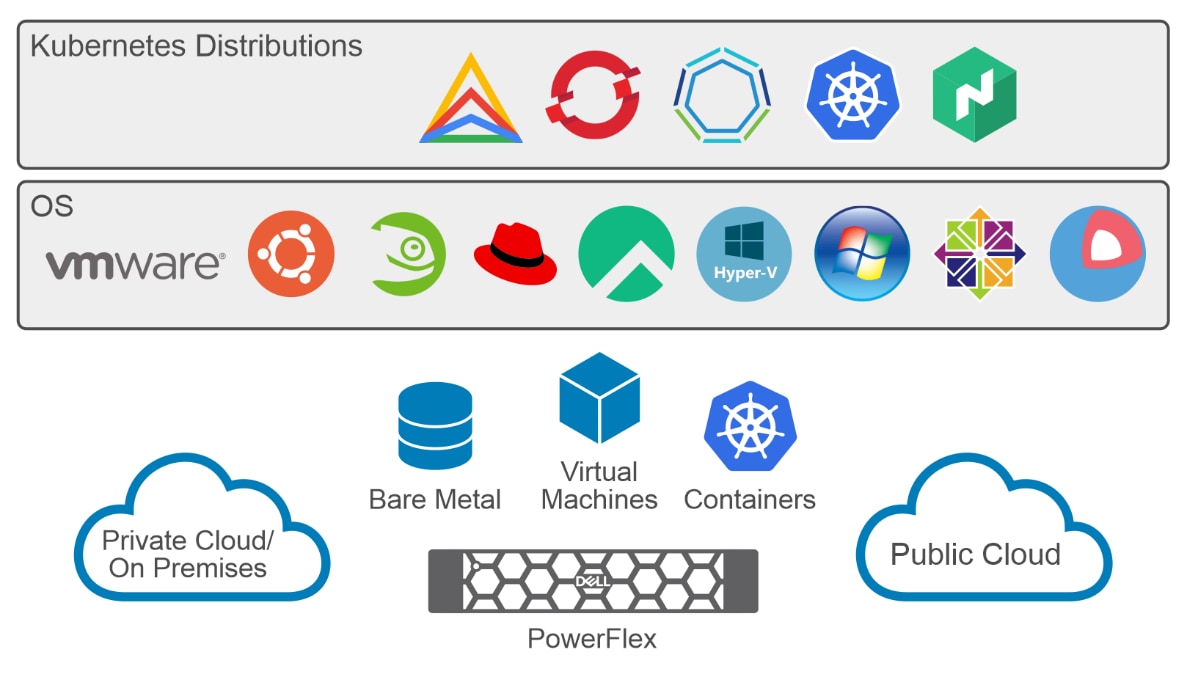
Figure 4. PowerFlex for different Kubernetes distributions
Apache CloudStack
Solution overview
Overview
Logical architecture
The following diagram shows the logical architecture of this solution:
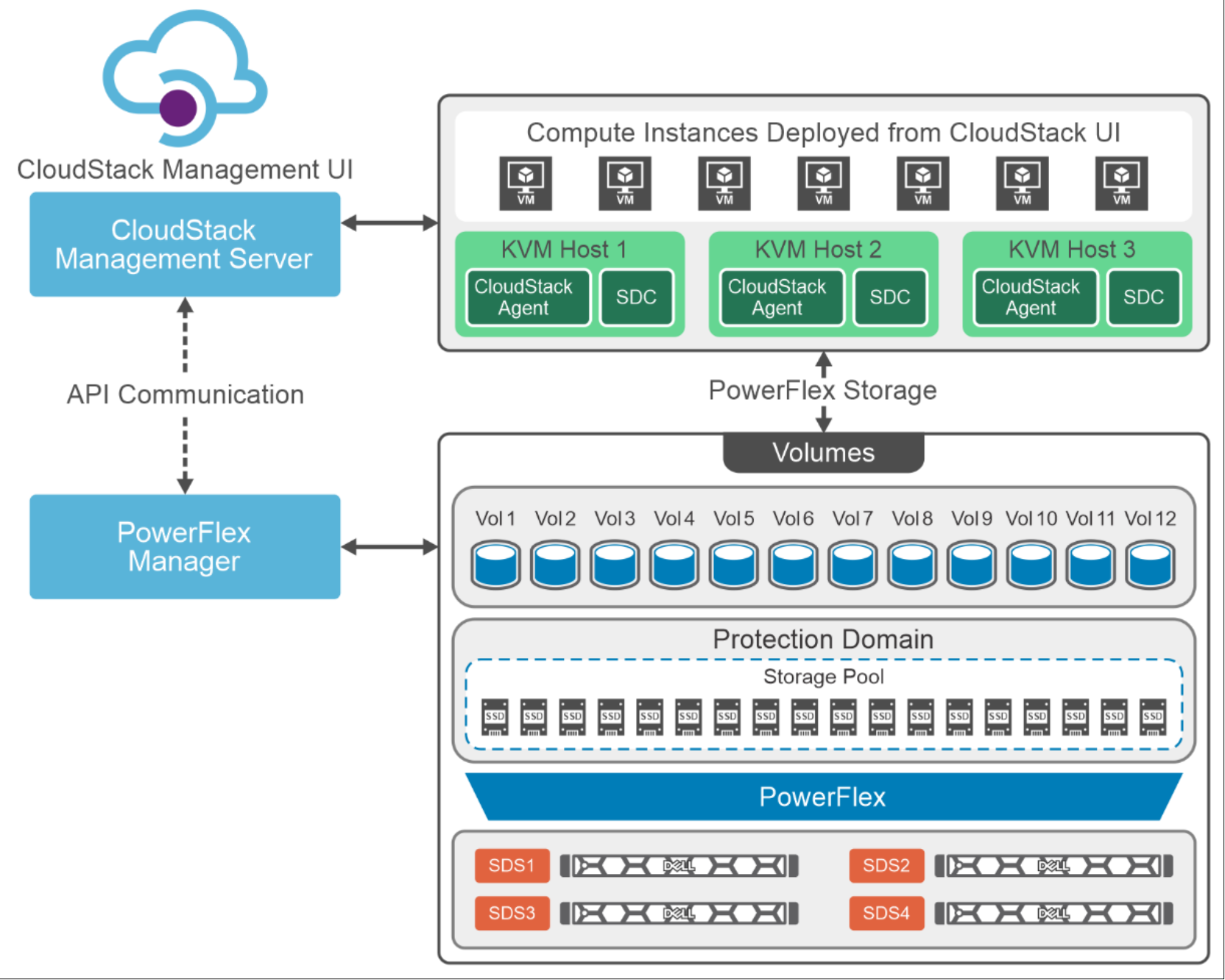
Figure 5. Logical design of CloudStack with PowerFlex
PowerFlex Manager is used to deploy the PowerFlex storage-only (SO) cluster on four bare metal servers followed by the deployment of PowerFlex compute-only (CO) nodes. PowerFlex storage-only cluster deployment is fully automated by the PowerFlex Manager, whereas the PowerFlex CO nodes are deployed manually by installing the KVM hypervisor followed by installing the SDC driver. In further sections, these CO nodes are referred to as KVM hosts.
A single PowerFlex protection domain with multiple storage pools is configured on PowerFlex. The PowerFlex storage pool topology consists of four storage-only nodes with 10 SSD disks in each of the four SO nodes in the PowerFlex system.
A CloudStack installation consists of two parts: the first is the Management Server and the second is the KVM hypervisor, as the managed cloud infrastructure. Once it is configured and managed as CloudStack cloud, resources such as hosts, storage devices, and IP addresses can be provisioned into the Management Server for consumption.
In this white paper, a single Management Server along with three KVM hosts are used for CloudStack setup with basic network configuration.
The PowerFlex SDC driver is installed on each of the KVM hypervisor hosts to enable PowerFlex to serve as the primary storage. The storage plugins feature in the CloudStack Management Server enables the use of PowerFlex storage pool as a managed primary storage for the KVM hypervisor, either as a zone-wide or cluster-wide pool. This pool can be added either from the UI or the API. Whenever VM or any storage related operations are performed, the respective volumes are created at the PowerFlex storage level.
Administrators and users can perform day-to-day operations such as VM provisioning, snapshots, migration, and so on, using the CloudStack UI.
For more information about the configuration of CloudStack and PowerFlex used in this solution, see Configuration details.
CloudStack architecture
Apache CloudStack is a highly scalable IaaS cloud computing platform that provides an orchestration layer, automating the creation, provisioning, and configuration of IaaS components. CloudStack turns the existing virtual infrastructure into a cloud-based Infrastructure as a Service (IaaS) platform.
CloudStack works with multiple hypervisors, and a single deployment can contain multiple hypervisor implementations.
CloudStack deployment consist of the Management Server and the resources to be managed. The Management Server itself can be deployed in a multi-node installation where the servers are load balanced. MySQL can be configured to use replication to provide for failover in the event of database loss.
CloudStack offers an administrator web interface used for provisioning and managing the cloud and an end-user web interface that is used for running VMs and managing VM templates. CloudStack also provides a REST-like API interface for the operation, management, and use of the cloud.
Management Server
The Management Server orchestrates and allocates the resources. It runs in an embedded Jetty server container and requires a MySQL database to store data.
For this paper, a single Management Server is used, and the MySQL database is installed locally on that same VM.
Cloud infrastructure
The infrastructure consists of minimum one host running the hypervisor software.
Resources within the cloud are managed as follows:
- Regions: A collection of one or more geographically proximate zones.
- Zones: A zone is equivalent to a single data center. A zone consists of one or more pods and secondary storage.
- Pod: A pod is a rack of hardware that includes a layer-2 switch and one or more clusters.
- Cluster: A cluster consists of one or more hosts and primary storage.
- Host: A single compute node within a cluster.
- Primary storage is associated with a cluster and provides virtual disk volumes for all the VMs running on hosts in that cluster.
- Secondary storage is associated with a zone, and it stores templates, ISO images, and disk volume snapshots.
For more information about the terminologies, see CloudStack Terminology
The following figure shows a high-level logical architecture of CloudStack at zone level:
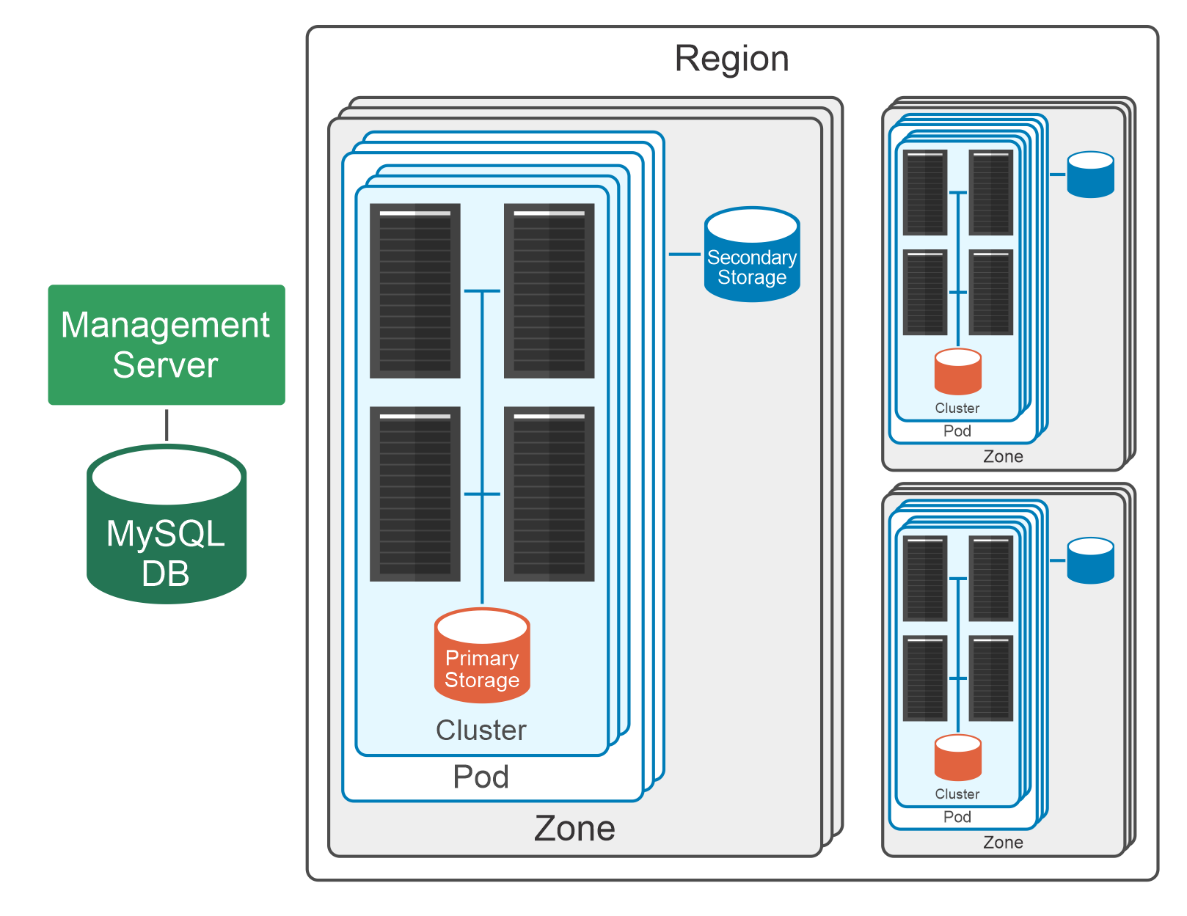
Figure 6. CloudStack Architecture
Note: For more information, see CloudStack Architecture overview.
Network architecture
The following diagram shows the network architecture of this solution.
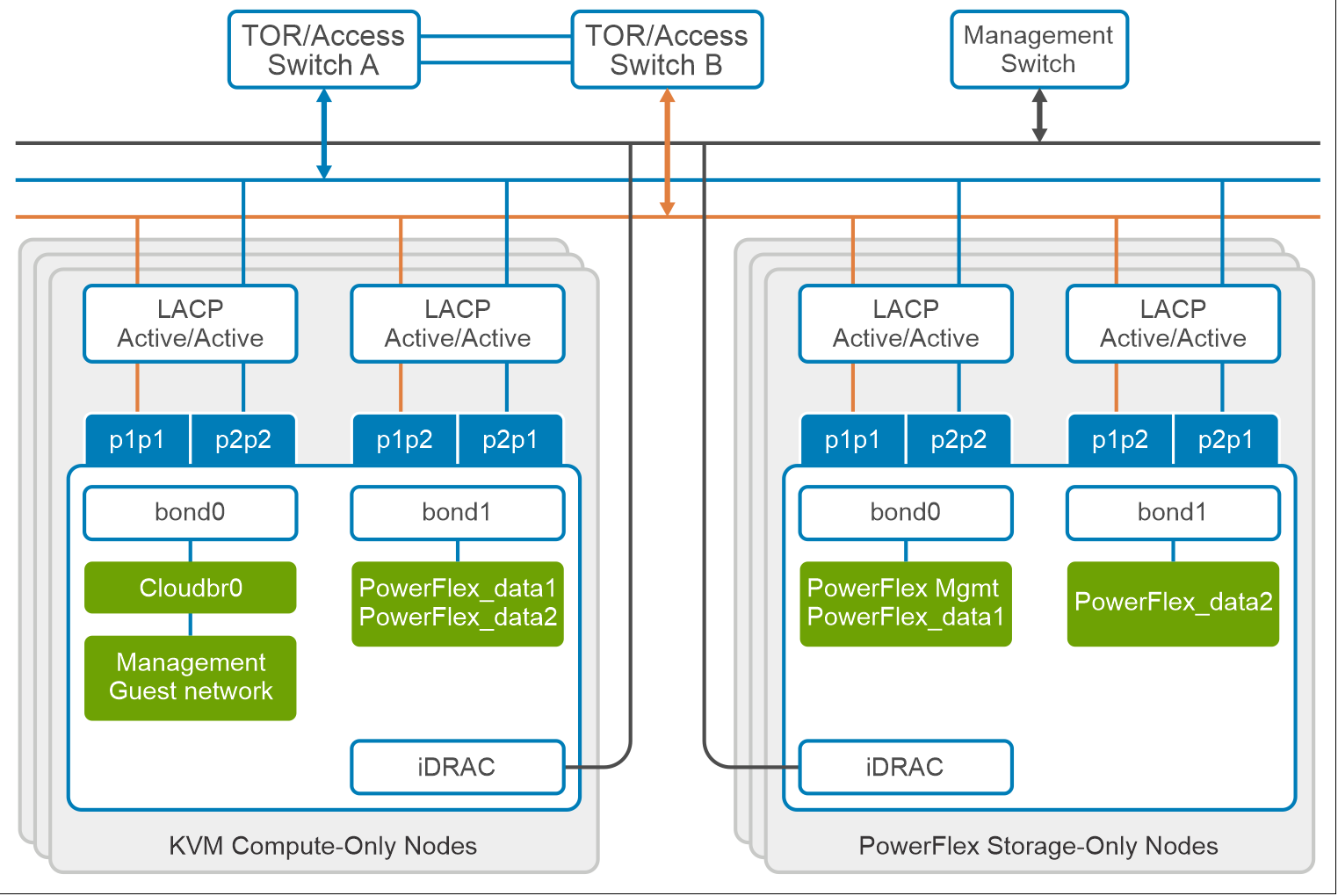
Figure 7. Network architecture
The following table describes the nodes in the architecture:
|
Node |
Description |
|
KVM compute-only node: bond0 |
This bond is configured with bridge networking for: Management and guest traffic |
|
KVM compute-only node: bond1 |
This bond is for PowerFlex data networks. It is used for communication between PowerFlex compute and storage nodes. |
|
PowerFlex storage-only node: bond0 |
This bond interface is for PowerFlex storage management and data network. |
|
PowerFlex storage-only node: bond1 |
This bond interface is for the PowerFlex data network. |
Table 2. Network description
At the physical layer, two supported Top of Rack (TOR) switches are used for redundancy and load-balancing purposes. A peer link is configured on both the TOR switches. VLANs are created to separate different traffic types on the network bonds.
CloudStack has two networking models, basic and advanced. This is decided based on the requirement. For this whitepaper, a basic networking model is used with the shared network concept.
In a Basic networking setup, the guest instances use the same IP range as the underlying CloudStack and hypervisor architecture.
For this whitepaper, CloudStack network bridges are used with KVM to connect the system VMs to the infrastructure, and guest instances to each other and the outside world.
The following figure shows an example of one of the KVM node network configurations:
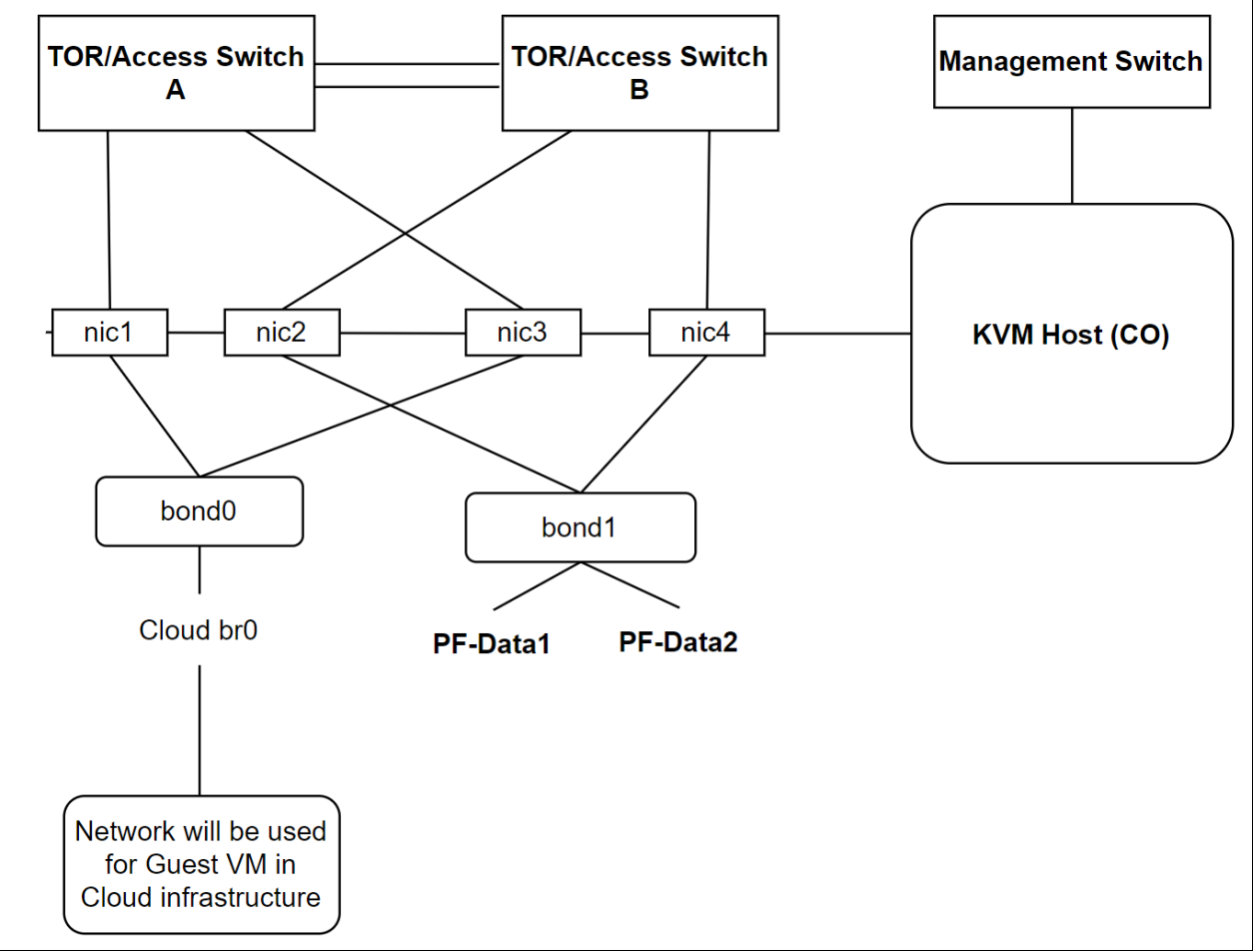
Figure 8. Example of a KVM Host network configuration
Note: It is important to maintain a consistent configuration across all the hypervisor hosts.
For more information about networking details, see Beginner guide to CloudStack Networking and Network setup.
The following table shows the different networks that are configured for this solution:
|
Network type |
VLAN ID |
|
Management |
105 |
|
PowerFlex Management |
150 |
|
PowerFlex Data 1 |
152 |
|
PowerFlex Data 2 |
153 |
|
Guest network |
Based on the requirement |
Table 3. Network details
Note: OS Management network must be routable to the PowerFlex Management network to access the PowerFlex cluster.
Deployment of CloudStack
Overview
Management Server installation
CloudStack Infrastructure: KVM Host setup
PowerFlex SDC installation
Steps to install the SDC driver which is configured on all the KVM hypervisor hosts.
1. Before proceeding with the SDC installation, ensure that the PowerFlex data networks (PowerFlex data1 and data2) have been configured on the KVM hosts.
2. Run the following command to copy the PowerFlex SDC packages onto KVM hosts and install them:
# MDM_IP=<LIST_VIP_MDM_IPS> rpm -i <SDC_PATH>.rpm
where
<LIST_VIP_MDM_IPS> is a comma-separated list of all the MDM IP addresses or the virtual IP address of the MDM. Do not include tiebreaker addresses here.
<SDC_PATH> is the path where the SDC installation package is located.
3. Reboot the host.
4. Verify that the driver is loaded by running the following command:
# service scini status
5. Repeat steps 1 to 4 for all the KVM hosts.
6. Log in to the PowerFlex Manager GUI. Navigate to Block > Hosts and verify that the KVM hosts are listed as shown in the following figure:
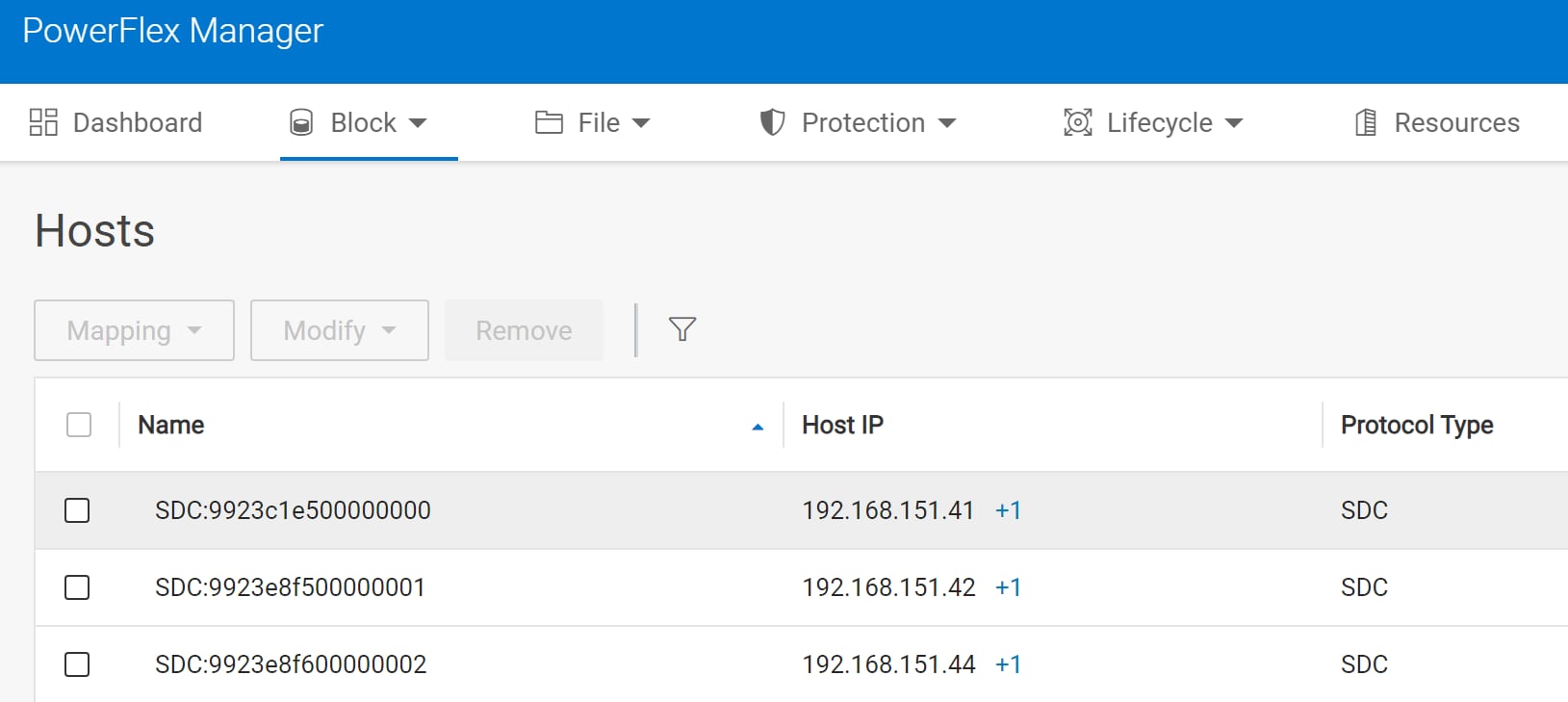
Figure 9. SDC Host lists
Accessing the CloudStack UI
CloudStack provides a web-based UI that can be used by both administrators and end users. The UI uses API auto-discovery to discover APIs allowed for a logged-in user. The CloudStack UI helps users of cloud infrastructure to view and use their cloud resources, including instances, templates and ISOs, data volumes and snapshots, guest networks, and IP addresses.
Access the URL using Management Server IP: http://<management-server-ip-address>:8080/client
In the login screen as shown in Figure 10, specify the following to go to the UI dashboard:
- Username is the User ID of an individual account. The default username is admin.
- The password is associated with the User ID. The password for the default username is password.
- Domain: For admin leave this field blank. For users in the sub-domains, enter the full path to the domain.
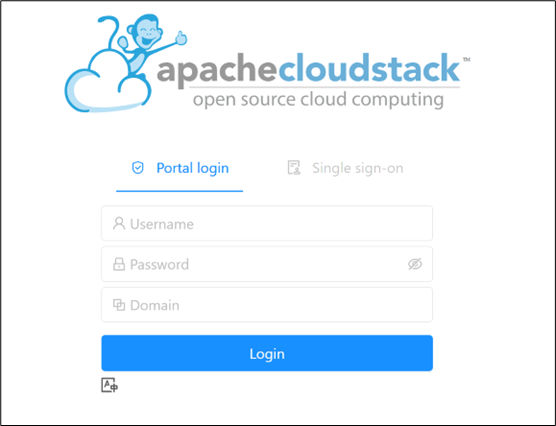
Figure 10. CloudStack UI
CloudStack configuration
This section describes how to add regions, zones, pods, clusters, hosts, storage, and networks to the CloudStack environment for day-to-day operations.
Note: For more information about the CloudStack infrastructure, see CloudStack Architecture.
For detailed information about CloudStack configuration, see Configuring CloudStack Installation.
- Log in to CloudStack UI. Navigate to the left and choose Infrastructure.
- On the Zones section, click Add Zone. The zone creation wizard appears.
- Choose the Zone type as Core and click Next.
- Select Basic networking type, as all the host are configured to use basic network configuration. See the Network architecture section for networking information. Click Next.
- Enter the following zone details and click Next:
- Name: A name for the zone.
- DNS: This is the DNS servers for use by guest VMs in the zone.
- Internal DNS: This is DNS servers for use by system VMs in the zone. These DNS servers are accessed by the management traffic network interface of the System VMs.
- Hypervisor: Choose the hypervisor for the first cluster in the zone.
- Network Offering: Select offering for shared network.
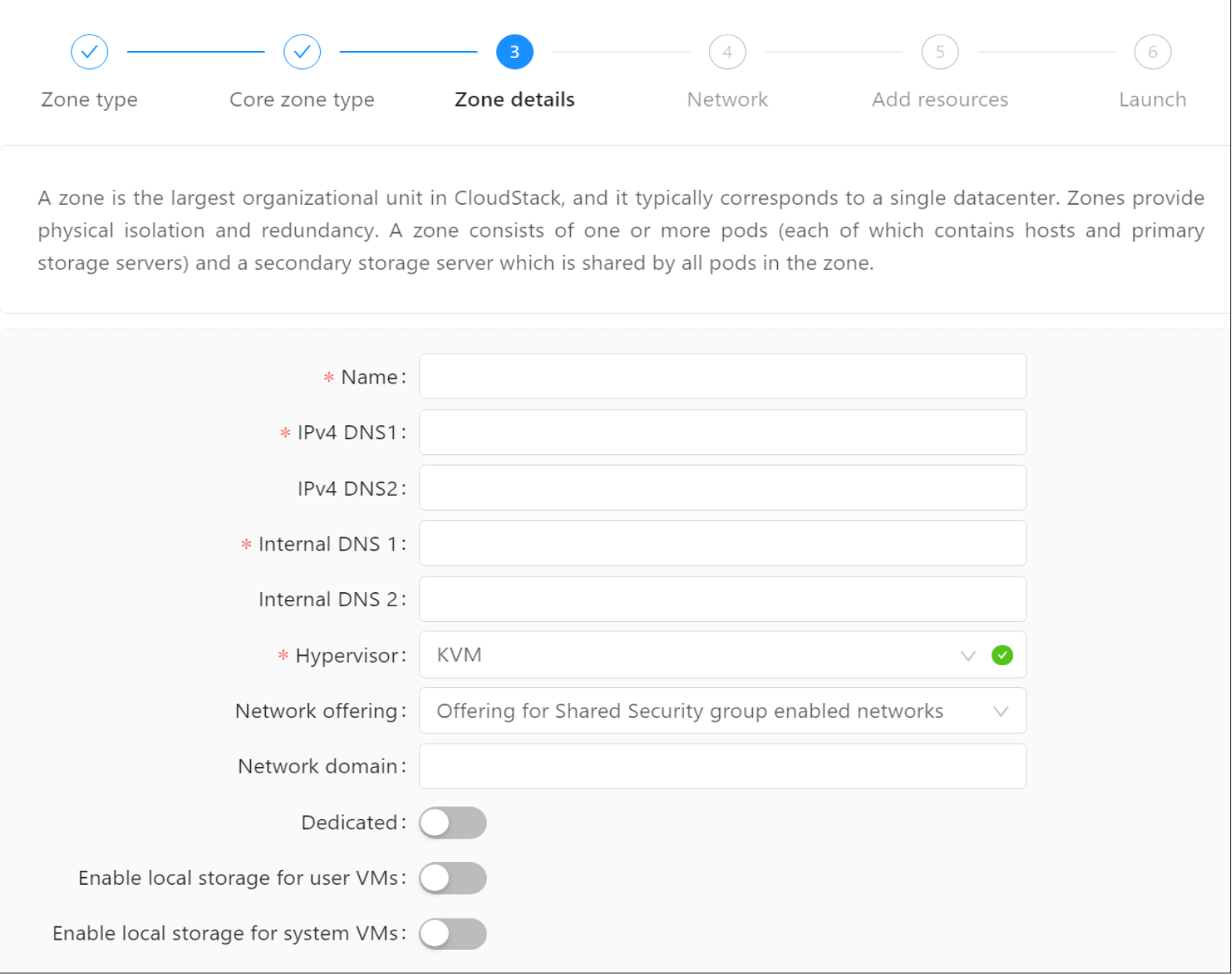
Figure 11. Zone details
- Update the network details.
- Choose the traffic types which will be carried by the physical network such as Guest and Management. Click the Edit button under the traffic type icon and update traffic label to cloudbr0. These labels must match the labels which are already defined on the hypervisor host which carries the respective traffic. Click Next.
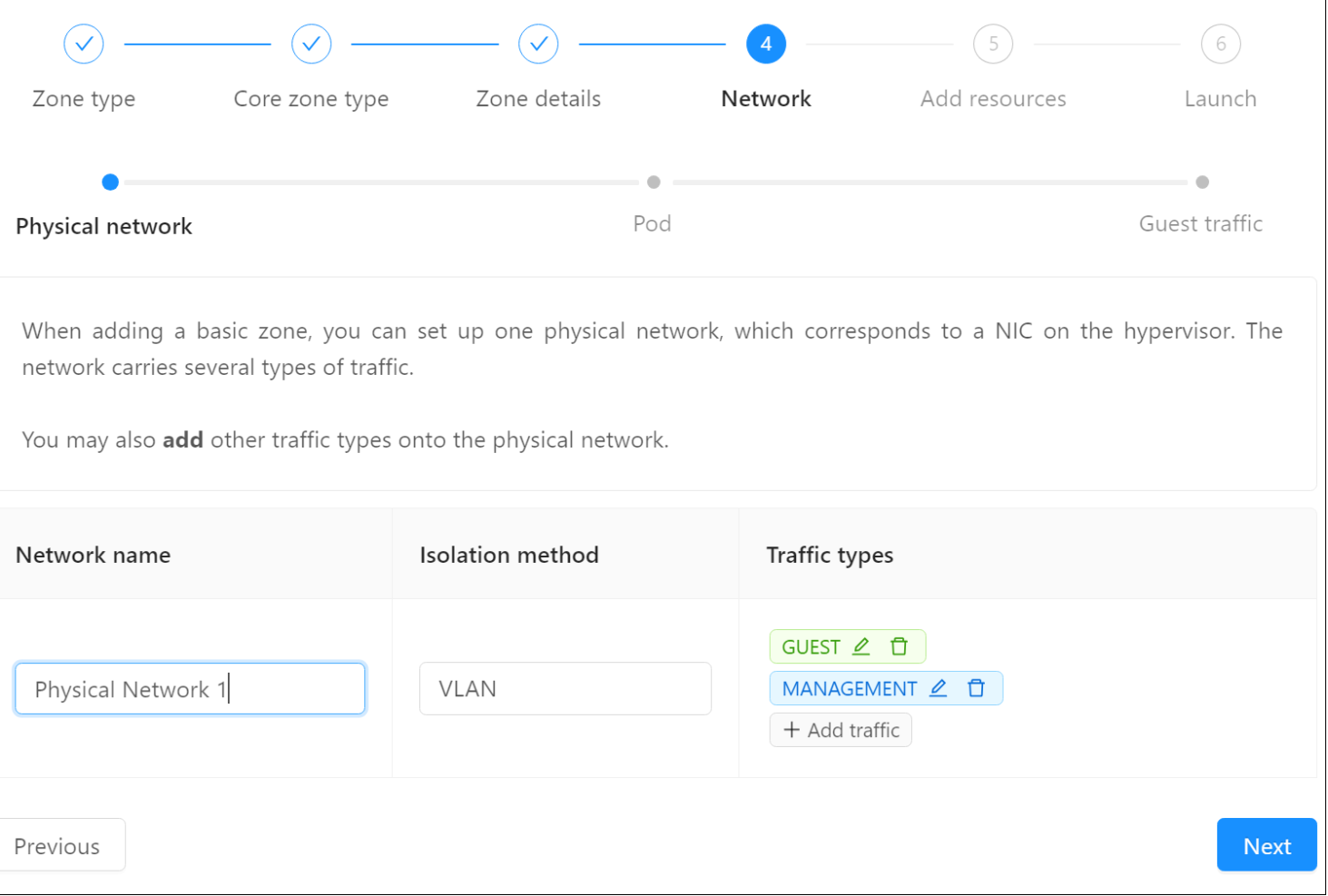
Figure 12. Network update
- In a new zone, CloudStack adds the first pod and multiple pods can be added later. Enter the following details for the Pod and click Next.
- Pod Name: A name for the pod.
- Reserved system gateway: The gateway for the hosts in that pod.
- Reserved system netmask: The network prefix that defines the pod’s subnet.
- Start/End Reserved System IP: The IP range in the management network that CloudStack uses to manage various system VMs, such as Secondary Storage VMs, Console
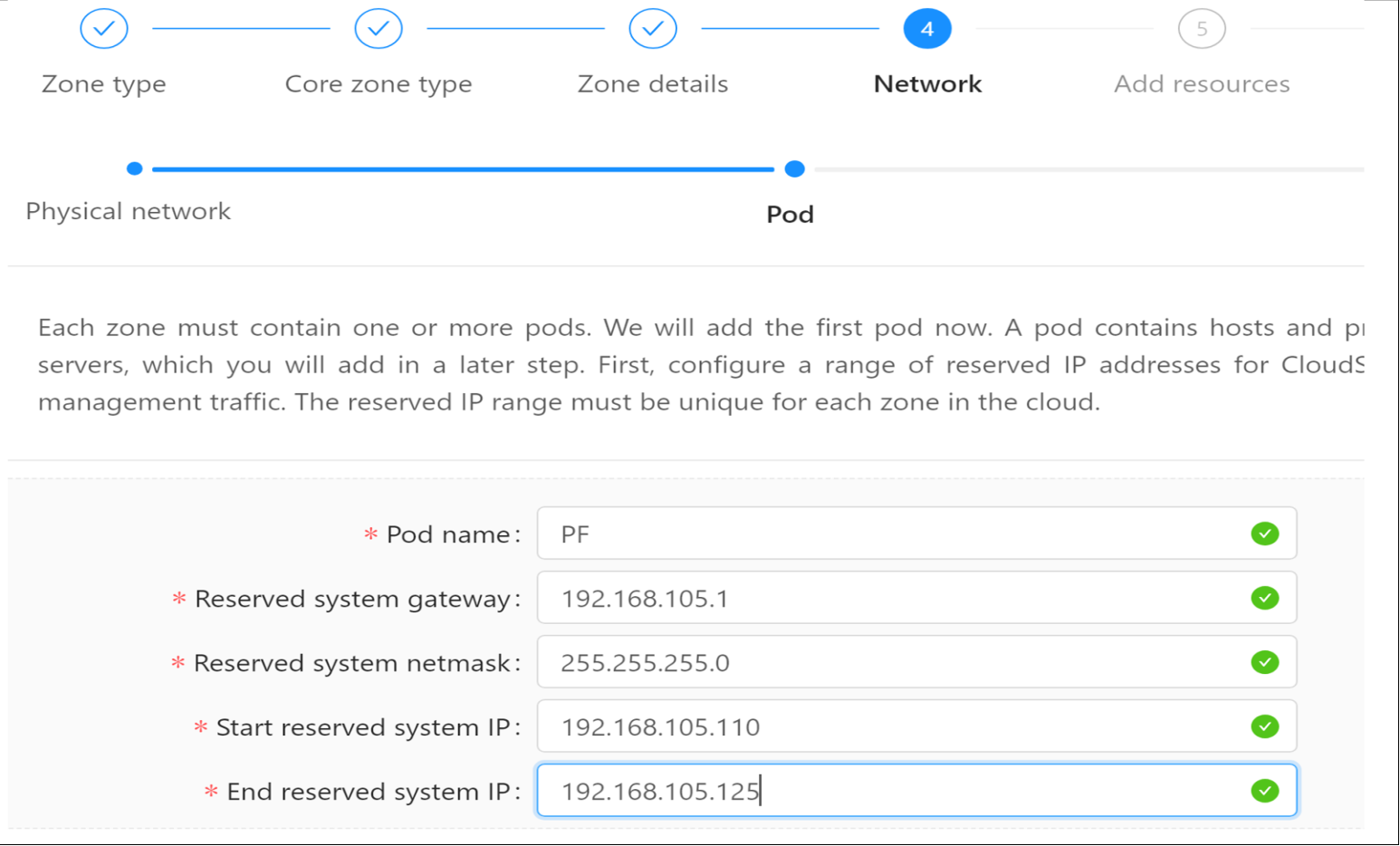
Figure 13. Pod details
- Configure the network for guest traffic. Provide the following details and then click Next:
- Guest gateway: The gateway that the guests should use.
- Guest netmask: The netmask in use on the subnet that the guests use.
- Guest starts IP/End IP: Enter the first and last IP addresses that define a range that CloudStack
Note: Since the basic network type is selected with a shared network model, the same gateway has been used for both management and guest network. Provide different IP ranges for management and guest networks to ensure that there is no network conflict.
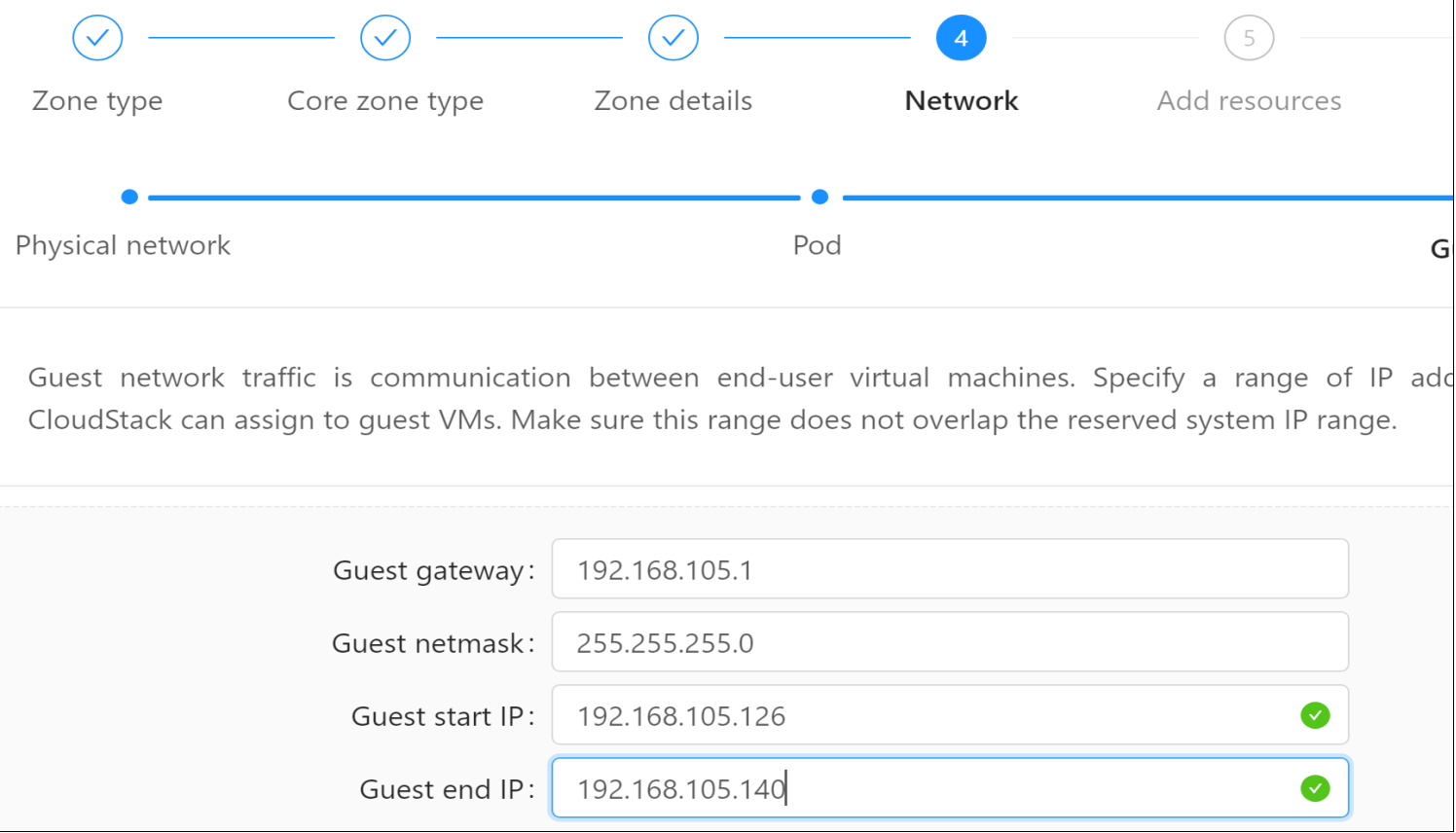
Figure 14. Guest network details
- Provide a Cluster name and Click Next.
- To configure the first host, enter the host IP, its credentials, and tag if required. Click Next.
Note: When adding a hypervisor host to CloudStack, the host must not have any VMs already running.
- In a new cluster, CloudStack adds the first primary storage server. One can always add more servers later. For adding PowerFlex as primary storage provide the following details and click Next:
- Name: Enter a name for storage.
- Scope: Define the scope for the storage, whether it serves the cluster or zone level.
- Protocol: For PowerFlex storage, select custom.
- Provider: Select PowerFlex as provider.
- Gateway: Provide the PowerFlex Manager IP.
- Gateway username and password: Provide the PowerFlex Manager UI credentials.
- Storage pool: Provide PowerFlex storage pool name.
Note: Make sure storage pool is already defined in the PowerFlex storage and the KVM host can access the storage pool.
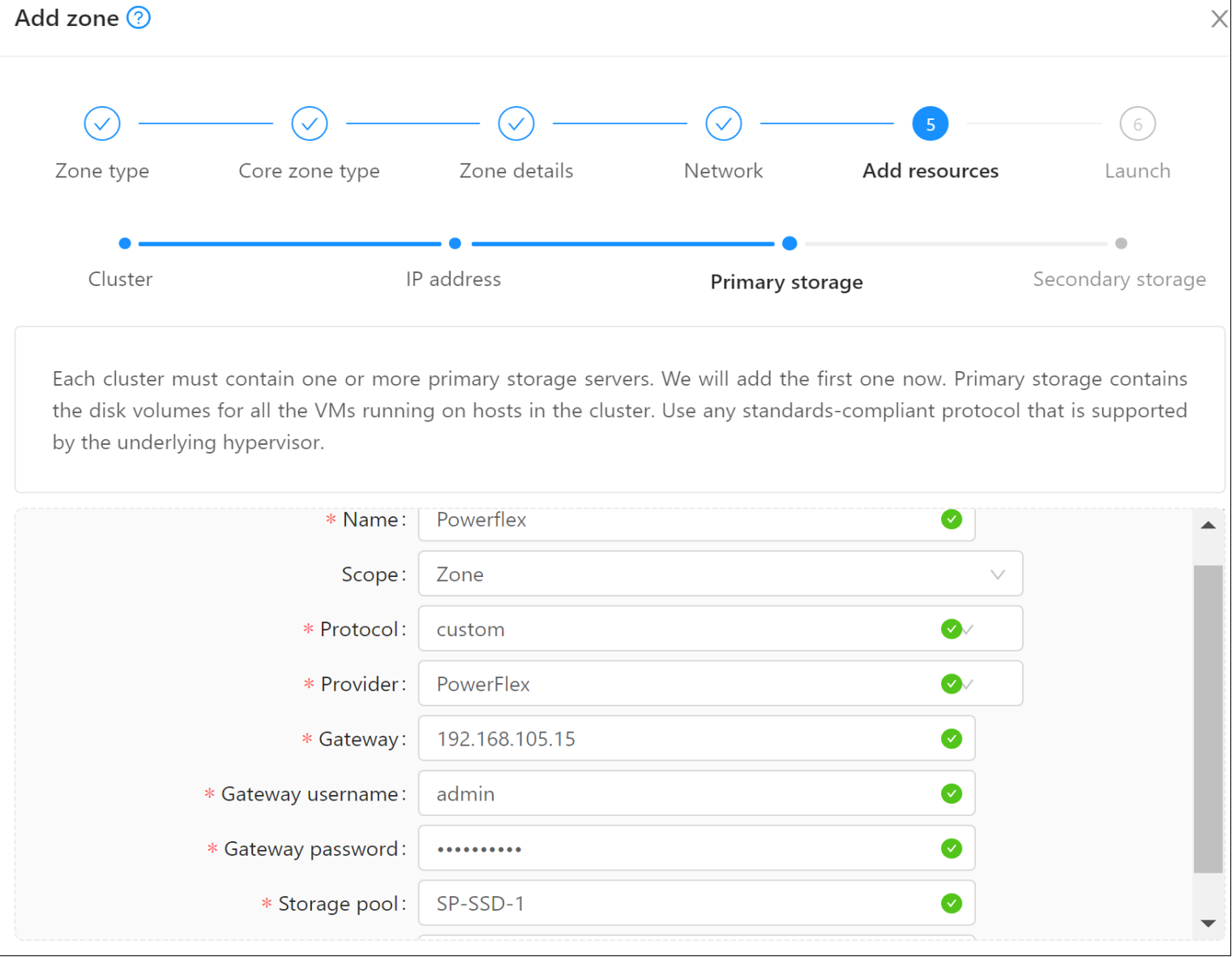
Figure 15. Primary storage details
- Adding secondary storage. Since the secondary storage/NFS is already defined in the CloudStack Management Server, update the details here and click Next.
Note: For secondary storage, see Setting up secondary storage section.
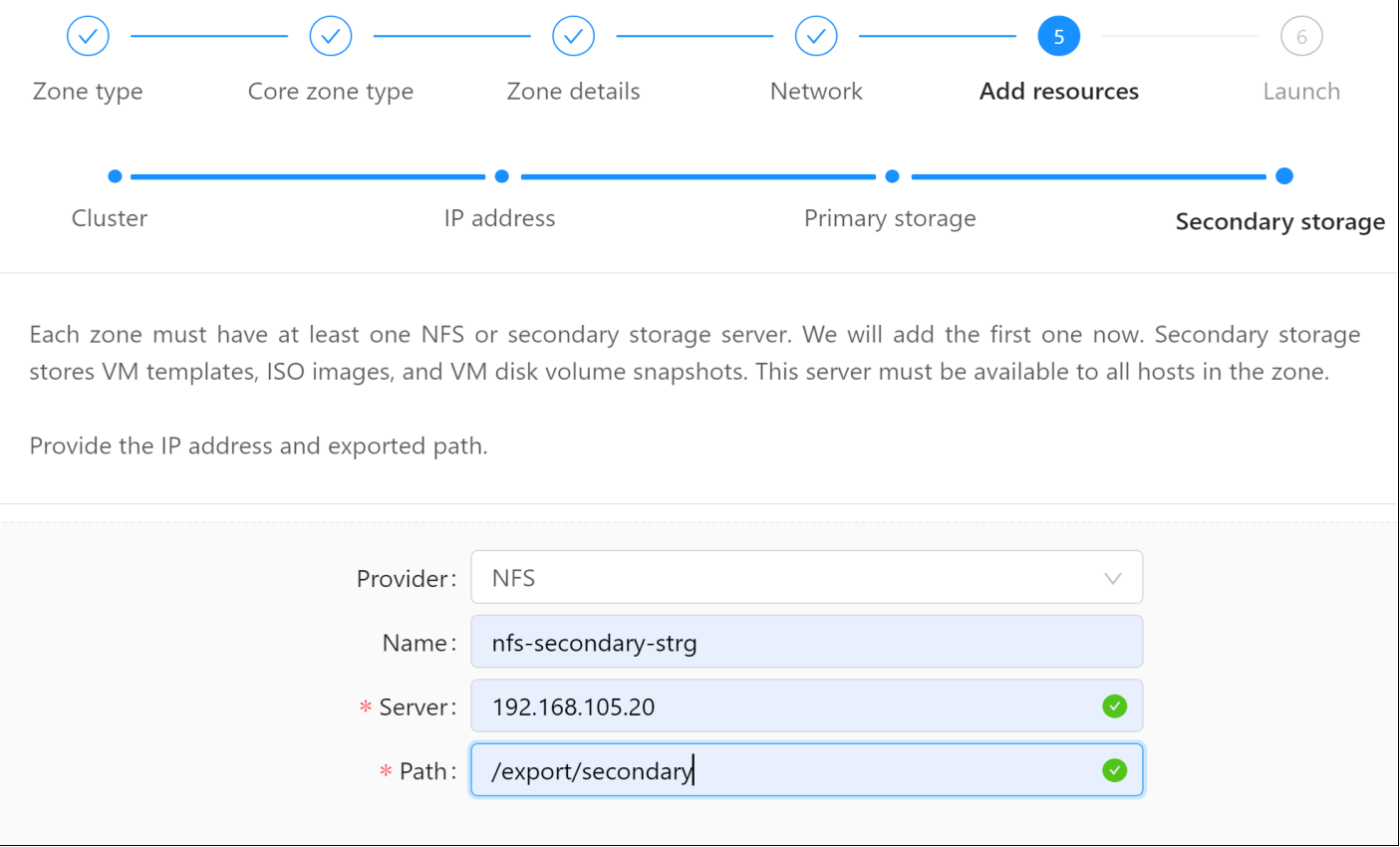
Figure 16. Secondary storage details
- After updating everything correctly, a Zone is ready to launch message appears. Click on the Launch zone button.
- The configuration takes time to complete. Once it is done, all the configurations can be viewed by navigating to Infrastructure > Summary.
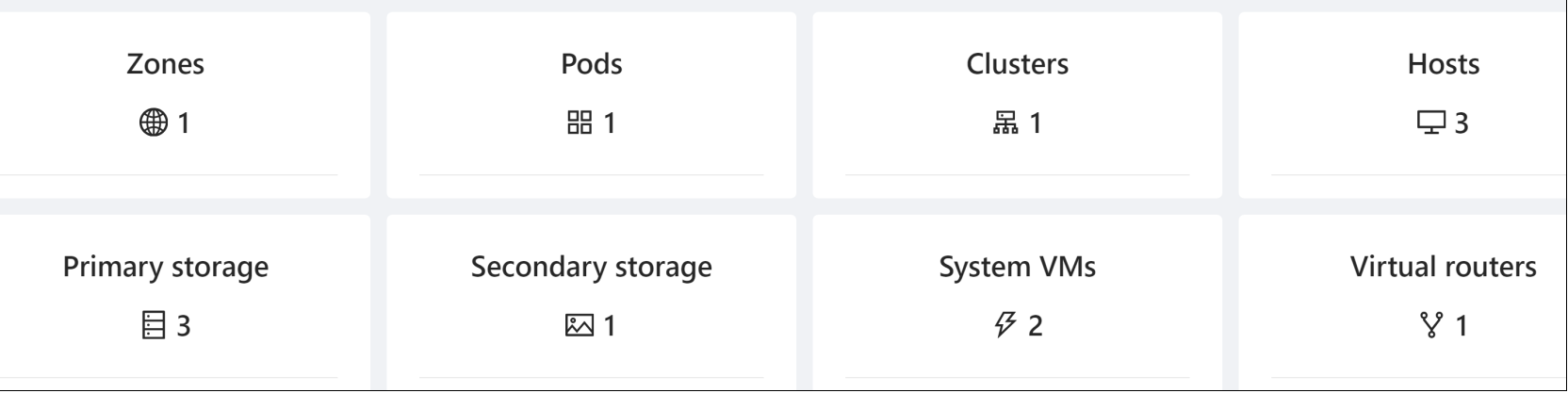
Figure 17. Summary of the infrastructure
Follow these steps if the VMs are not running or failed to run on the PowerFlex storage for the first time:
- Navigate to Infrastructure > Zone > click Disable zone.
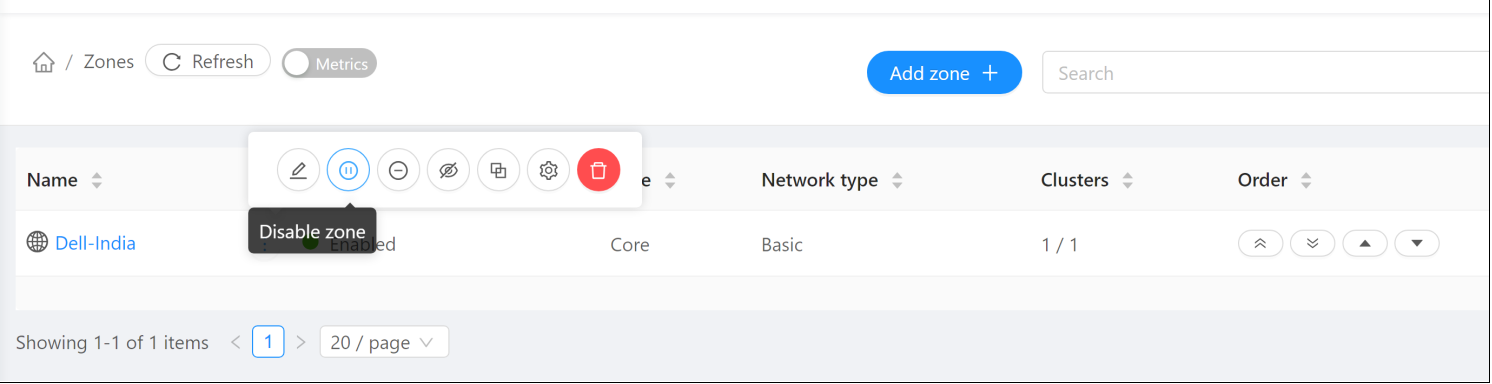
Figure 18. Disabling the zone
- Disable the primary storage pool by selecting the storage pool, Infrastructure > Primary storage > select storage pool > Disable storage pool.
- Next, navigate to Infrastructure > System VMs > select VM (secondary storage VM and console proxy VM) > Destroy the System VMs.
- Enable the Zone and CloudStack automatically creates a new System VM. Since primary storage is disable, now VMs can use the default secondary storage.
- Once the VMs come up, navigate to Infrastructure > Primary storage > select storage pool > Enable storage pool. The System VMs are automatically migrated to use Primary storage.
Note: When creating a new zone, CloudStack provides an option to create other configurations as well such as pod, cluster, adding host, storage pool and so on. However, pods/cluster/host can be added anytime later by directly navigating to the respective section in the UI.
Adding more hosts
Make sure that the KVM is already installed on the host and configured with networking. Networking should be common across all the nodes inside a single zone.
Steps to add multiple KVM hosts in the existing cluster.
- Log in to the CloudStack UI.
- In the left navigation, select Infrastructure. In Hosts, click Add host.
- Enter the following details and click OK:
- Zone, Pod, and cluster name: Select the accordance in which host needs to be added.
- Host name: DNS name or IP address of the host in URL format as shown in the following figure.
- Host username and Password: Provide the credential of the host.
- Host tag: It is optional, any labels that are used to categorize hosts for ease of maintenance.
Note: For a more secured way, a host can also be added using CloudStack’s SSH key without having to provide a host password. Before adding the host in CloudStack do the following.
Copy the SSH public key from /var/lib/cloudstack/management/.ssh/id_rsa.pub on the management server. Add the copied key to the /root/.ssh/authorized_keys file on the KVM host’s.
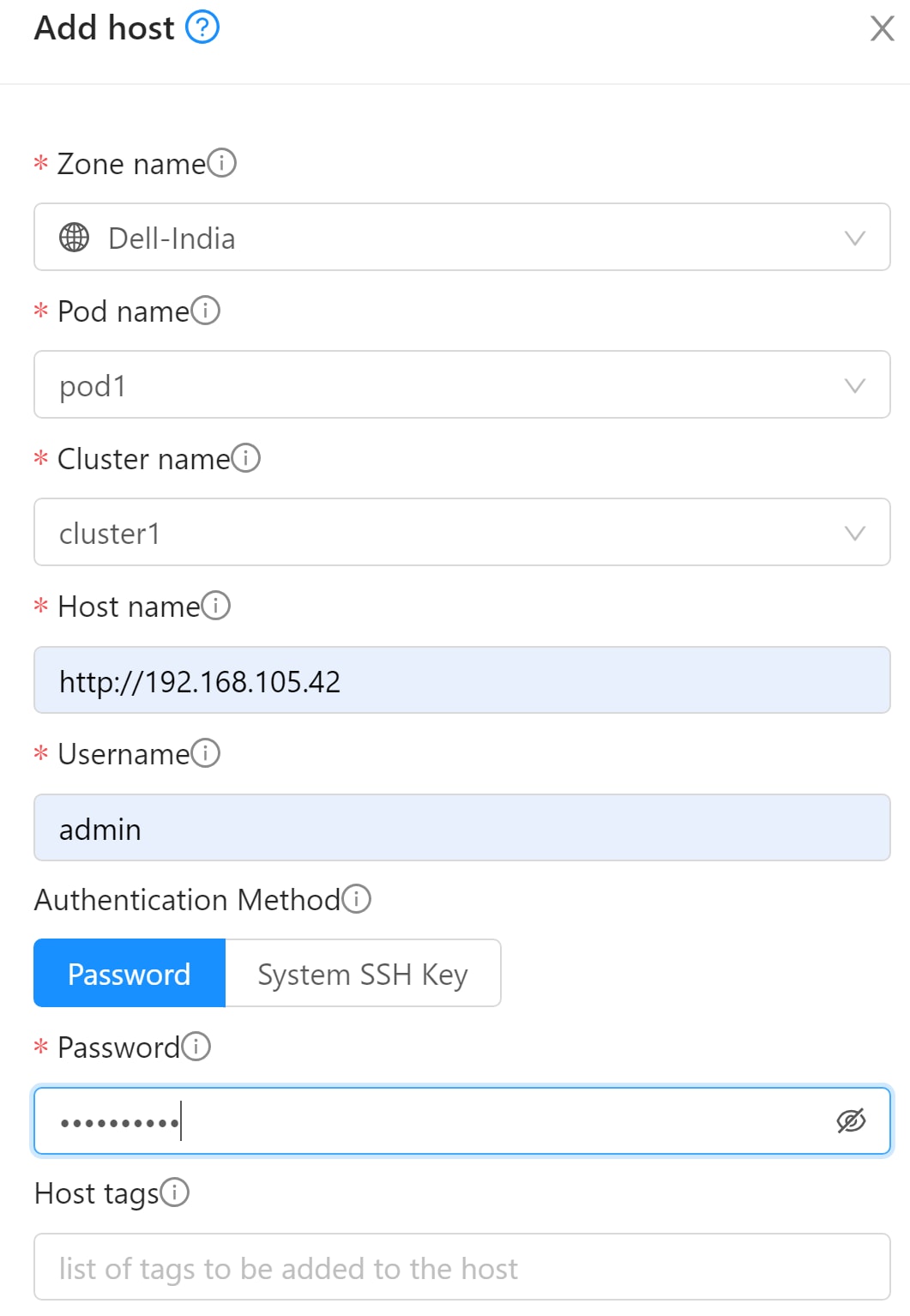
Figure 19. Adding a host
4. Repeat for additional hosts. Once done, verify that the hosts are added by navigating to the Host section as shown in the following figure:
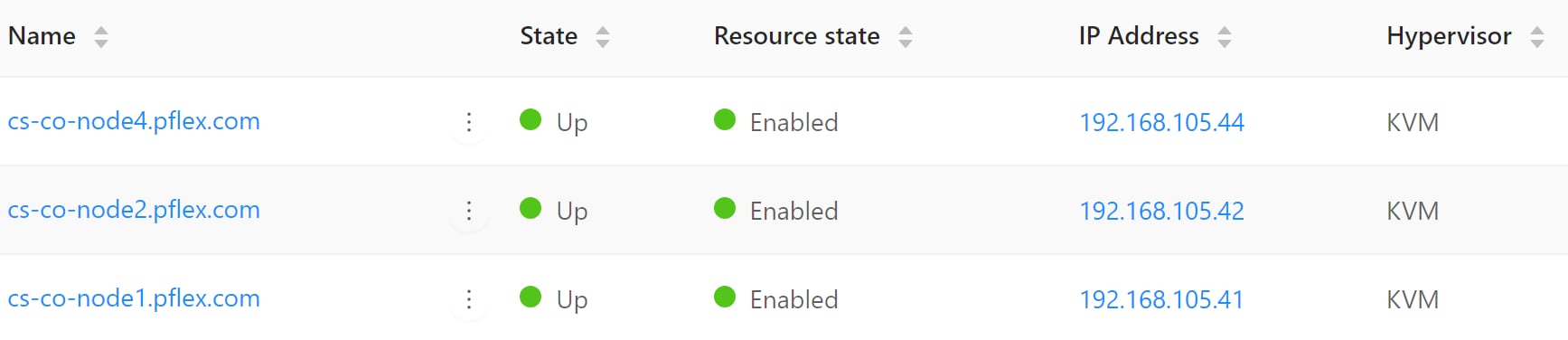
Figure 20. KVM host list
Adding primary storage pool
When creating a new zone, CloudStack provides an option to create a primary storage. However, primary storage can be added at any time, such as when adding a new cluster or adding more servers to an existing cluster.
Note: When using pre-allocated storage for primary storage, make sure that there is no data residing in the storage pool.
Note: Make sure the storage pool is already configured in the PowerFlex storage and the KVM host can access the storage pool. Adding the storage to CloudStack destroys any existing data.
- Log in to the CloudStack UI.
- In the left navigation, choose Infrastructure. In Primary storage, click add primary storage.
- Provide the following information and click OK.
- Scope: Indicate whether the storage is available to all hosts in the zone or only to hosts in a single cluster.
- Pod (available only if Cluster selected in the Scope field): The pod for the storage device.
- Cluster (available only if Cluster is selected in the Scope field): The cluster for the storage device.
- Name: Name for the storage.
- Protocol: For PowerFlex storage. Select custom.
- Provider: Select PowerFlex as provider.
- Gateway: Provide PowerFlex Manager IP.
- Gateway username and password: Provide PowerFlex Manager UI credentials.
- Storage pool: Provide a PowerFlex storage pool name, which is already defined on the PowerFlex storage.
- Storage tags: It is optional, it is a label that you use to categorize for ease of maintenance. If it is defined, then the tag set on primary storage across clusters in a zone must be identical.
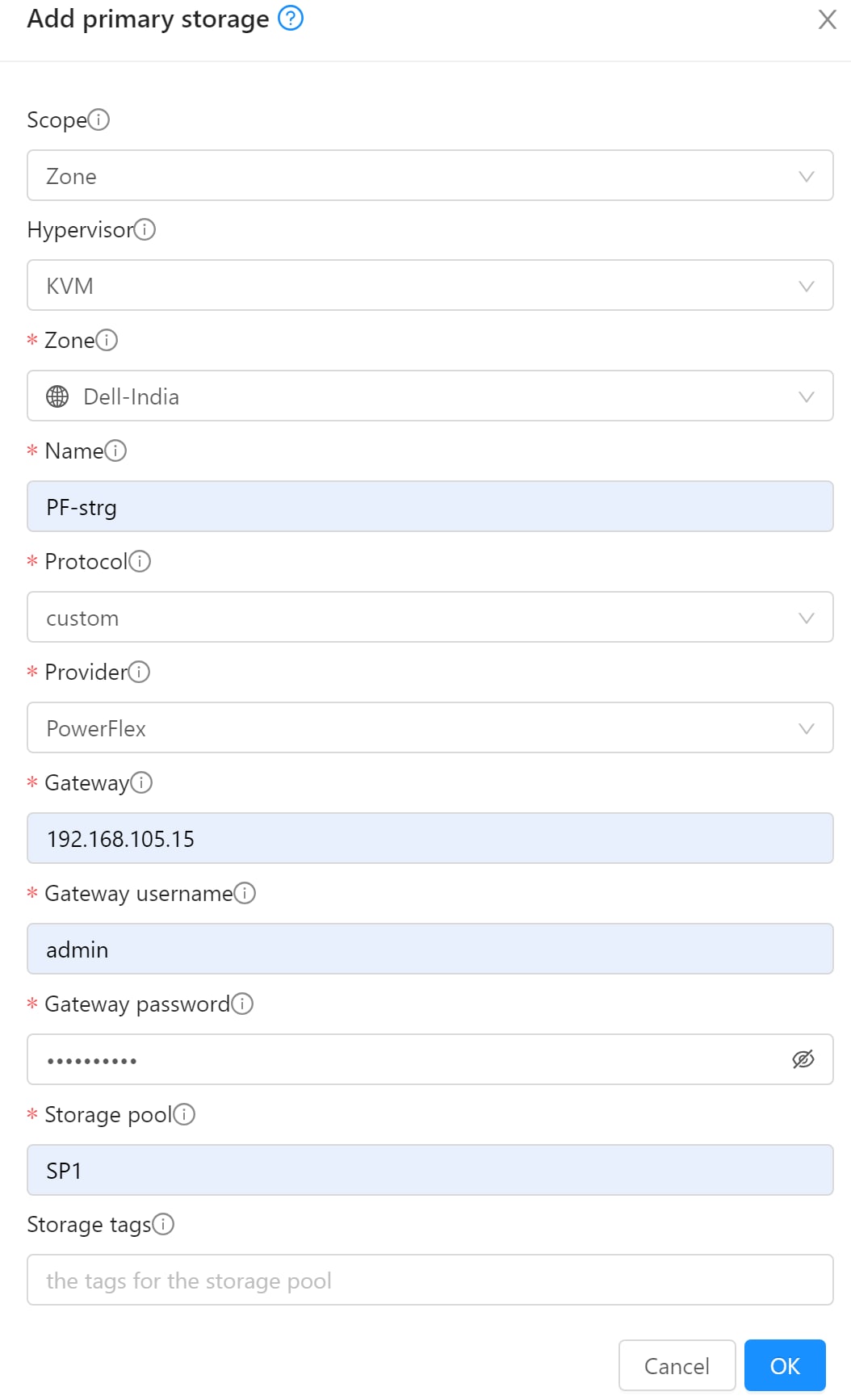
Figure 21. Adding a primary storage pool
Note: The tag set on primary storage across clusters in a Zone must be identical.
4. Verify the storage capacity of the added storage pool with PowerFlex side storage pool.
a. Log in to CloudStack UI and navigate to Infrastructure > Primary storage and click on the respective storage pool to see the size as shown below.
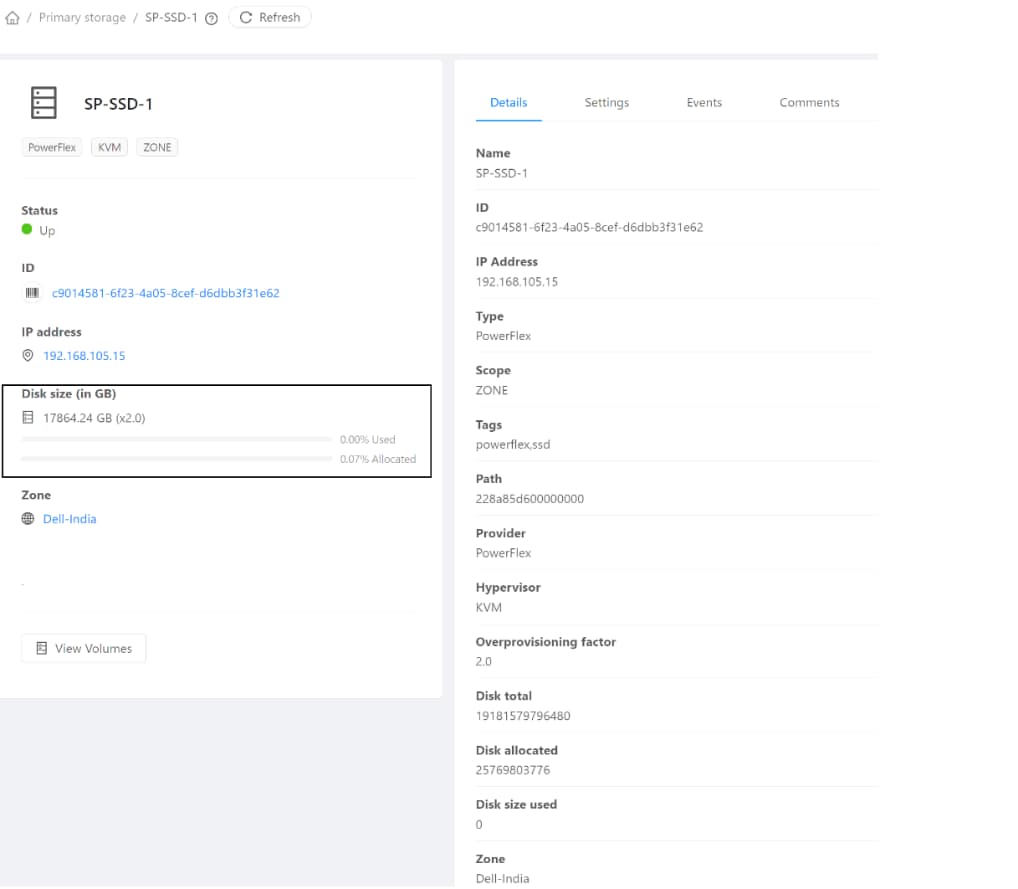
Figure 22. Capacity details of PowerFlex storage in CloudStack
b. Log in to PowerFlex Manager, navigate to Block > Storage Pool and select the respective storage pool. And then click on the Capacity tab to verify the capacity.
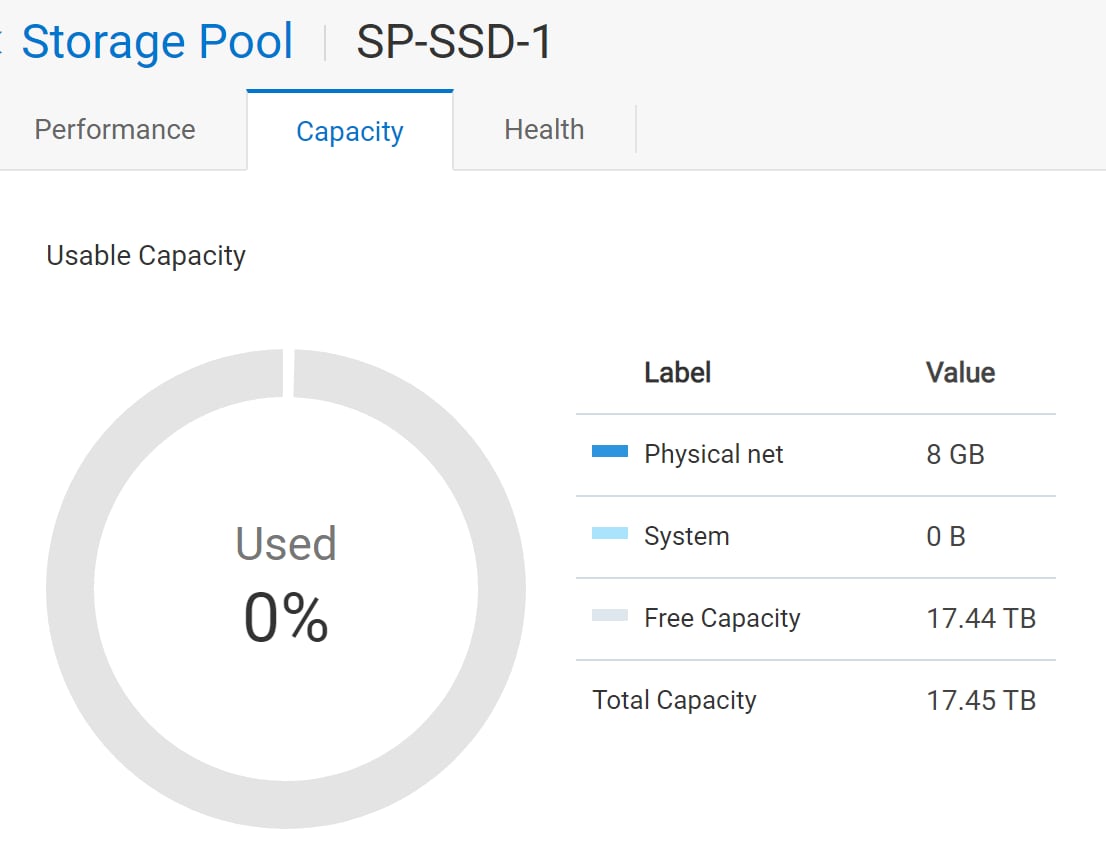
Figure 23. Storage pool capacity from the PowerFlex Manager
The user can add multiple storage pools and define the scope to use as either cluster or zone wide.
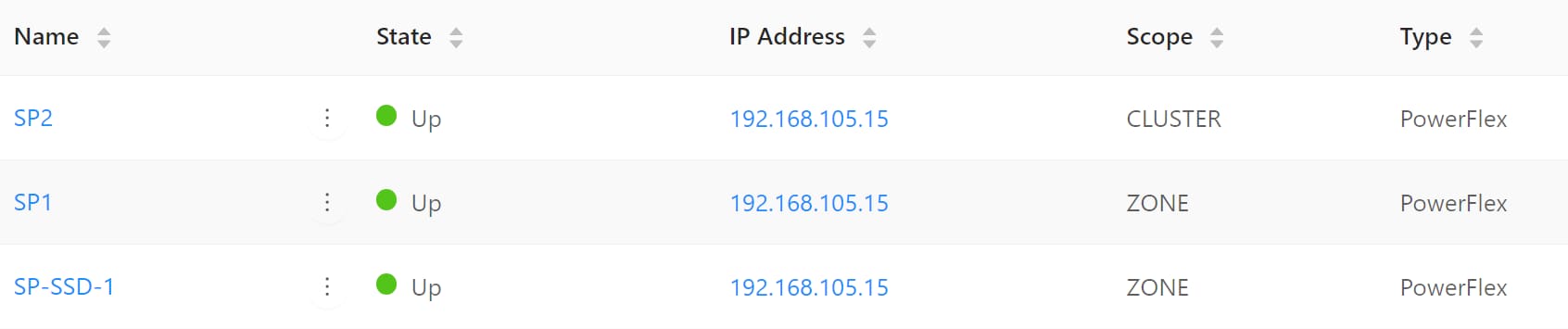
Figure 24. Storage pool list with different scopes
CloudStack and PowerFlex integration
CloudStack and PowerFlex integration
The PowerFlex Gateway details provided when adding PowerFlex storage pool as the primary storage enables the CloudStack communication with the PowerFlex REST APIs for various storage operations.
When a PowerFlex storage pool is configured and used with Compute or Disk Offerings, an administrator can build an environment in which a root or data disk that a user creates leads to the dynamic creation of a PowerFlex volume.
The lifecycle operations of CloudStack resources, templates, volumes, and snapshots in a PowerFlex storage pool can be managed through the CloudStack UI. The following operations are supported for a PowerFlex storage pool:
- Volumes are created from the PowerFlex Storage in the form of root disk and data disk whenever the instance gets deployed.
- Instance snapshot (disk-only, snapshot with memory is not supported).
- Migrating instances from one host to another (within and across clusters, for zone-wide primary storage).
- Volume lifecycle and operations:
- Create ROOT disks using the selected template.
- List, Detach, Resize ROOT volumes.
- Create, List, Attach, Detach, Resize, Delete DATA volumes.
- Create, List, Delete snapshots of volumes (with backup in Primary, no backup to secondary storage).
- Create a template from PowerFlex volume or snapshot.
- Live migration of volume from one PowerFlex storage pool to another.
- Migration of instance with storage: Offline.
Once instances and their volumes are created, the respective volume can be identified on the PowerFlex storage using the path of the volume as shown below.
- Log in to the CloudStack UI. Navigate to Storage > Volumes and select the volumes and identify the path.
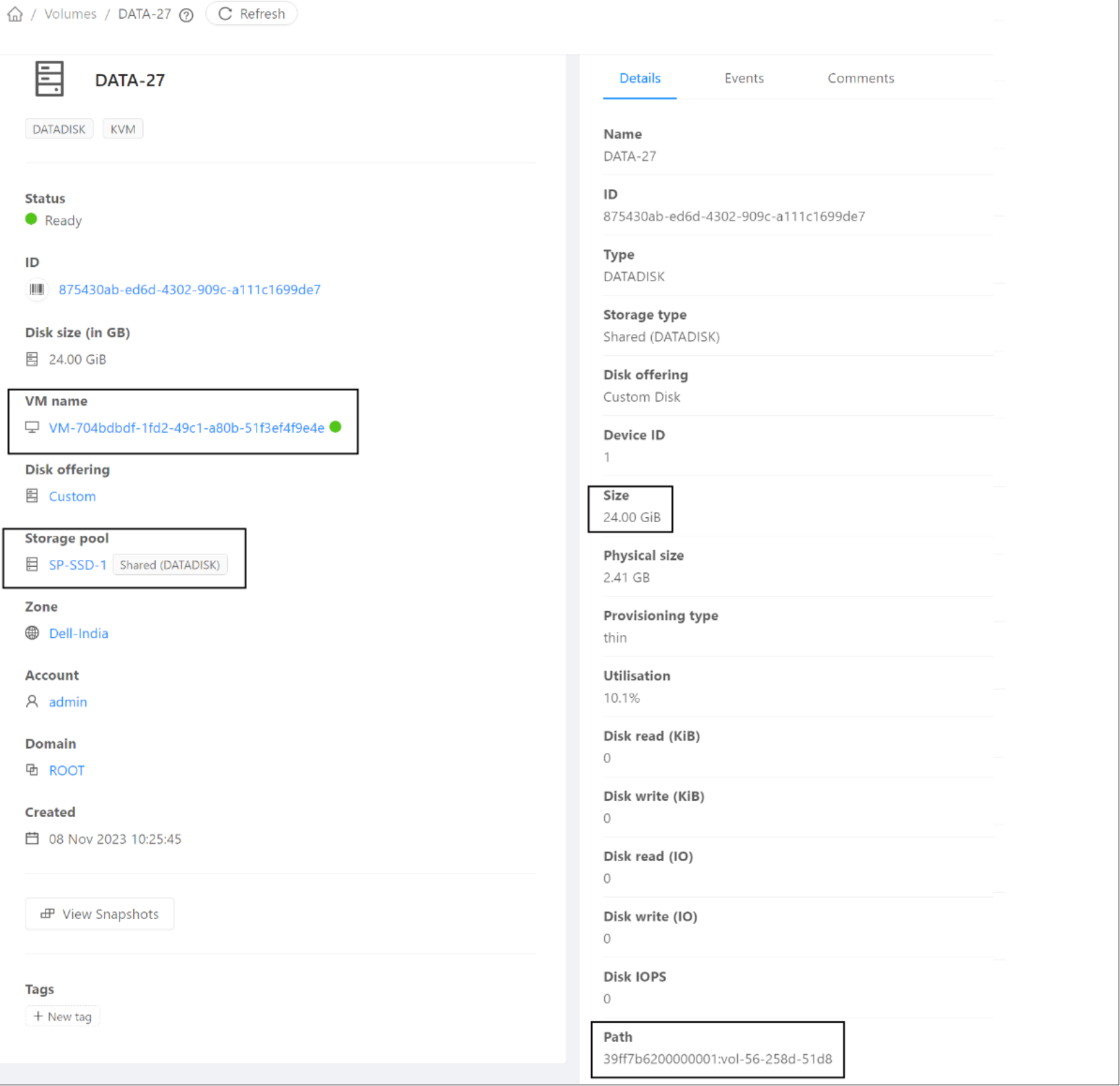
Figure 25. Identifying the volume path at CloudStack UI
- Log in to the PowerFlex Manager UI, navigate to Block > Volumes, cross verify the volume with the identified path name.
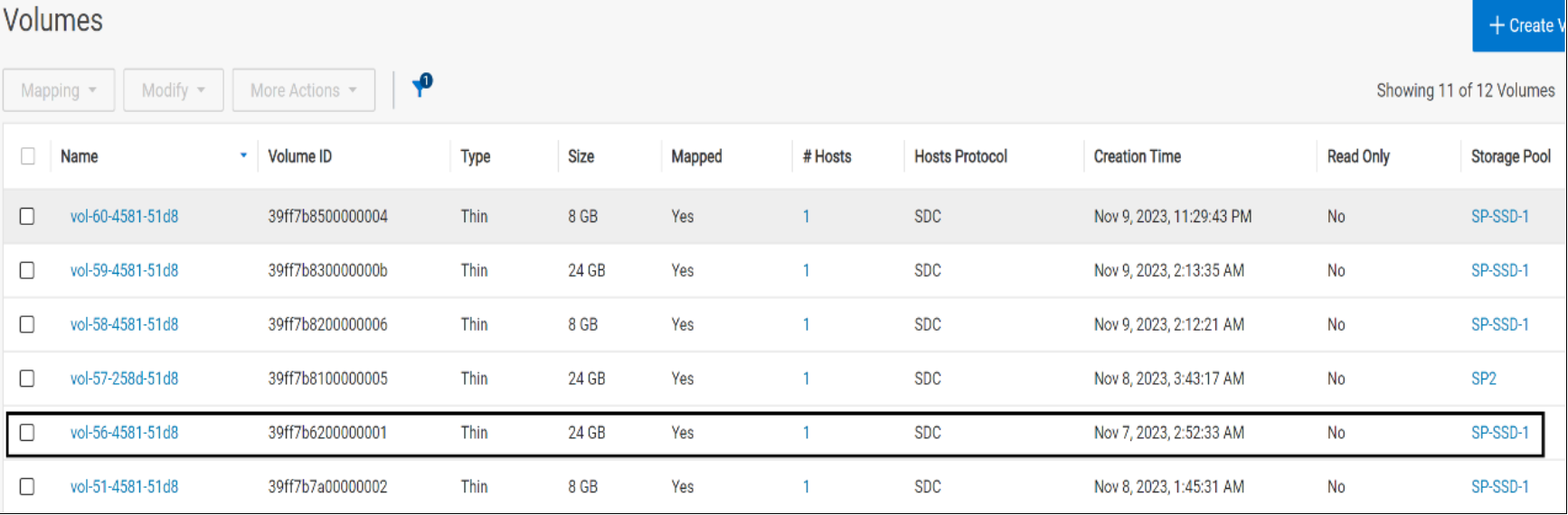
Figure 26. Identified volume in the PowerFlex Manager UI
- The following image shows the list of volumes which are created on PowerFlex when the volumes, instances, snapshot, and templates are created from CloudStack using PowerFlex as the primary storage.
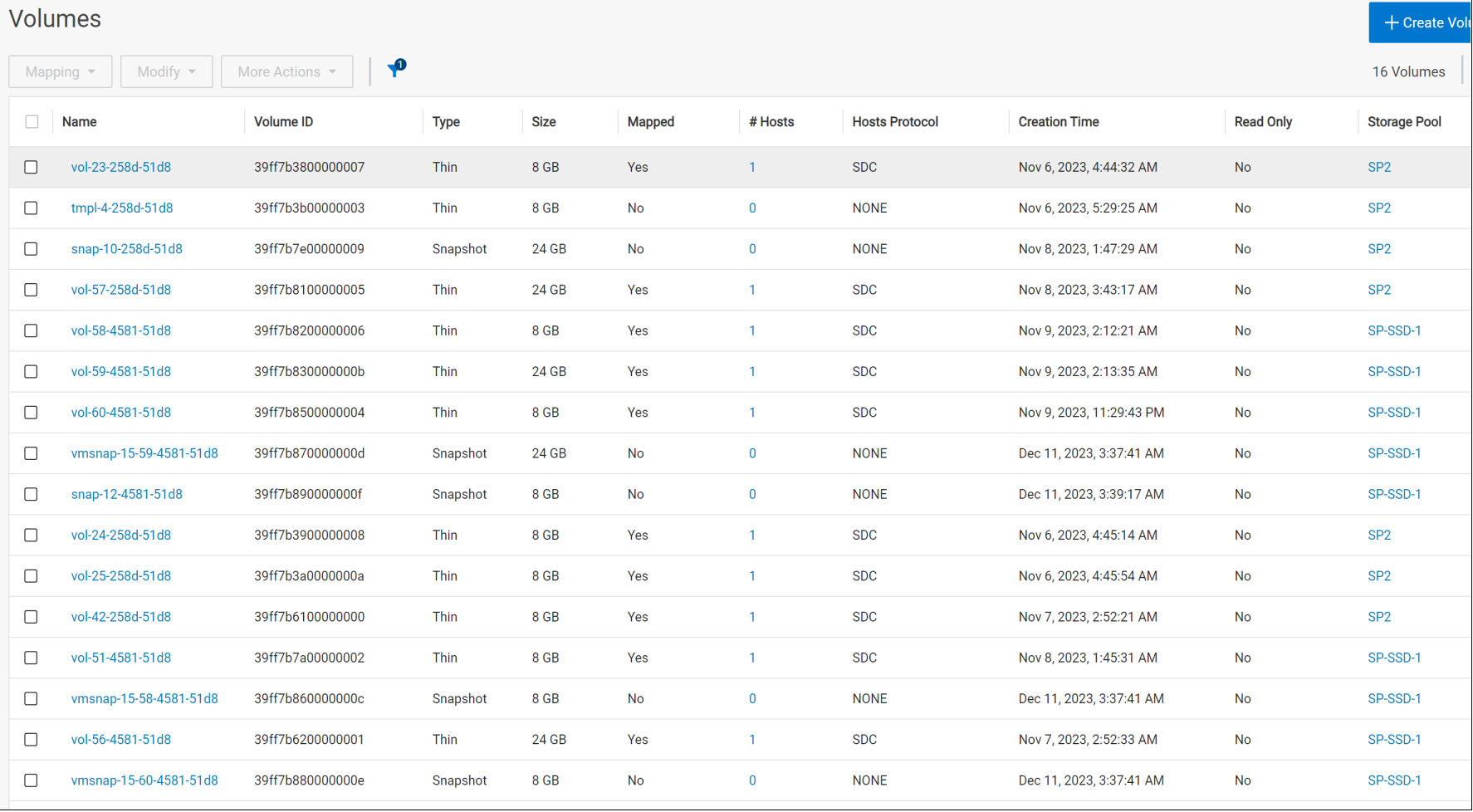
Figure 27. Volume list in the PowerFlex Manager UI