Dell PowerFlex with Nutanix Cloud Platform Technical Overview
Executive summary
Overview
Audience
Terminology
Revisions
We value your feedback
Product overview
Dell PowerFlex family
Dell PowerFlex software-defined infrastructure enables broad consolidation across the data center, encompassing almost any type of workload and architecture. The software- defined architecture offers automation and programmability of the complete infrastructure and provides scalability, performance, and resiliency to enable effortless adherence to stringent workload SLAs.
The Dell PowerFlex family provides a foundation that combines compute and high- performance storage resources in a managed unified fabric. Dell PowerFlex comes in flexible deployment options (rack, appliance, or custom nodes and in the public cloud) that enable independent (disaggregated) architectures. Dell PowerFlex is ideal for high-performance applications and databases, building an agile private/hybrid cloud, or consolidating resources in heterogeneous environments.
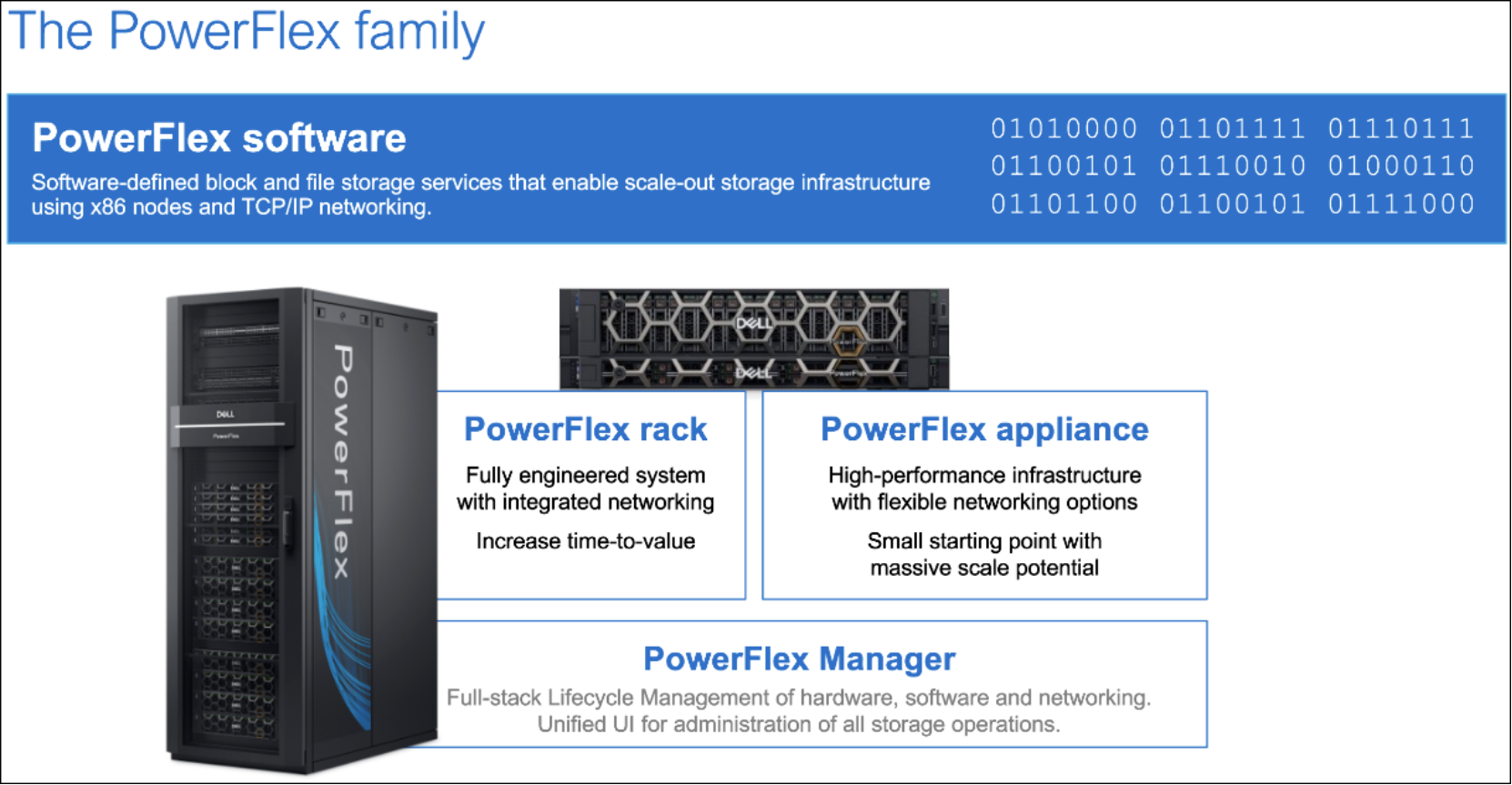
Figure 1. The PowerFlex family
The platform supports a broad range of operating environments – bare metal operating systems, hypervisors, and container platforms – simultaneously with a unified infrastructure platform and management. By allowing users to flexibly mix these architectures in a single deployment, PowerFlex enables you to deploy, scale, and evolve all your applications to meet your business objectives.
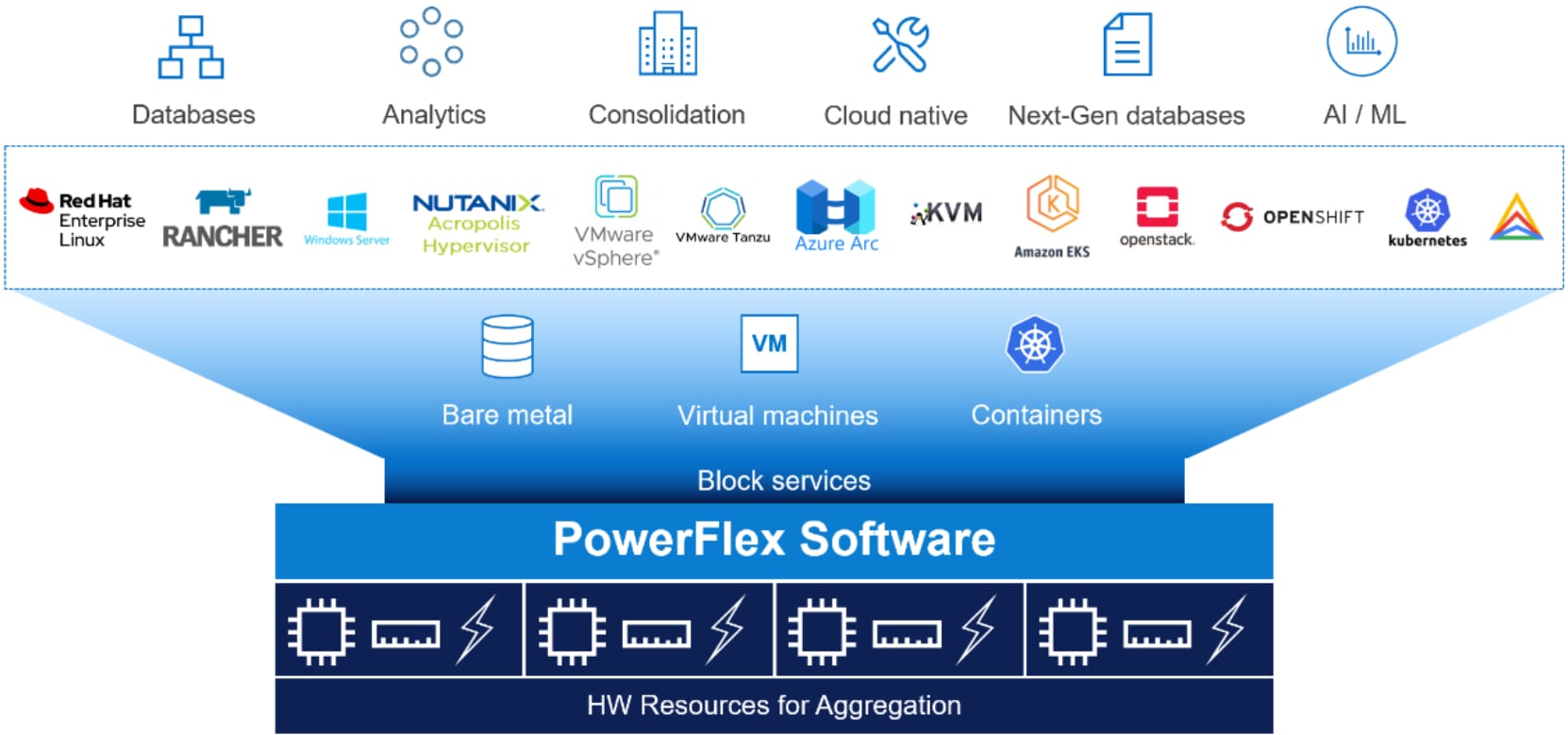
Figure 2. Consolidation: OS, Hypervisor, Platform Support
Dell PowerFlex software components
Software is the key differentiation in the Dell PowerFlex offering. Dell PowerFlex software components not only provide software-defined storage services but also help simplify infrastructure management and orchestration. This software enables comprehensive IT Operational Management (ITOM) and Life Cycle Management (LCM) capabilities that span compute as well as storage infrastructure, from BIOS and Firmware to nodes, software, and networking.
Dell PowerFlex
Dell PowerFlex is the software foundation of Dell PowerFlex software-defined infrastructure. It is a scale-out block storage service that is designed to deliver flexibility, elasticity, and simplicity with predictable high performance and resiliency at scale. For more details, see Dell PowerFlex specifications.
Dell PowerFlex Manager
Dell PowerFlex Manager is the software component in the Dell PowerFlex family that enables ITOM automation and LCM capabilities for Dell PowerFlex systems. Starting with Dell PowerFlex 4.0, the unified Dell PowerFlex Manager brings together three separate components used in previous releases – Dell PowerFlex Manager, the core Dell PowerFlex UI, and the Dell PowerFlex gateway. The new Dell PowerFlex UI runs in Kubernetes and embraces a modern development framework.
Dell PowerFlex deployment architectures
Dell PowerFlex software-defined storage offers flexibility of deployment architecture to help best meet the specific deployment and architectural requirements. Dell PowerFlex can natively be deployed in a disaggregated (Independent) architectures. Dell PowerFlex with Nutanix Cloud Platform uses a disaggregated (independent) architecture.
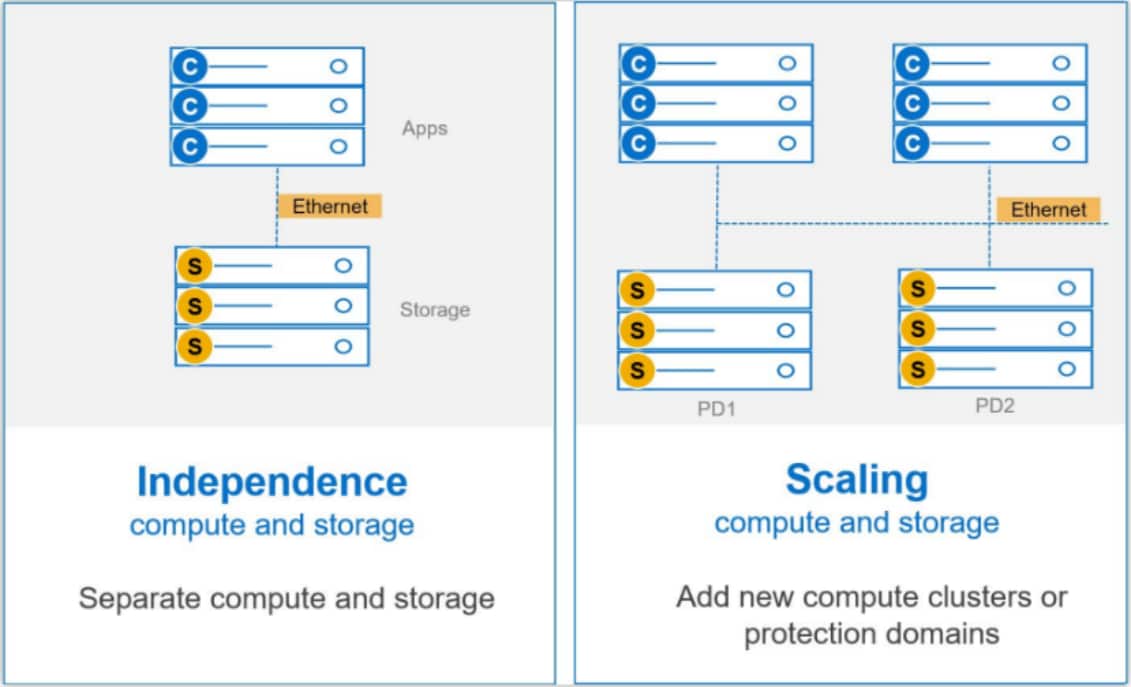
Figure 3. Dell PowerFlex deployment architectures
Note: Dell PowerFlex with Nutanix Cloud Platform uses a two-layer (independent) architecture.
Independent architecture
In an independent architecture, or two-layer architecture, some nodes provide storage capacity and host datasets while other, separate, and independent nodes, host applications and workloads. Compute and storage resources can be scaled independently by adding nodes to the cluster. This separation of compute and storage resources can also help minimize software licensing costs in certain situations. And this architecture can be ideal for hosting high-performance high-value databases and application workloads.
Dell PowerFlex consumption options
Dell PowerFlex and Nutanix Cloud Platform
Dell PowerFlex and Nutanix Cloud Platform
Dell PowerFlex with Nutanix Cloud Platform architecture
Dell PowerFlex with Nutanix Cloud Platform (NCP) is deployed using a disaggregated architecture, as shown in the following illustration.
- Compute Layer: A Nutanix Cloud Infrastructure Compute (NCI-C) cluster with AOS and AHV running on Dell PowerFlex compute-only nodes.
- Storage Layer: A Dell PowerFlex cluster operating in a storage-only model, compatible with PowerFlex configurations. This cluster provides block storage and related services as shown in the dashed blue box in Figure 4.
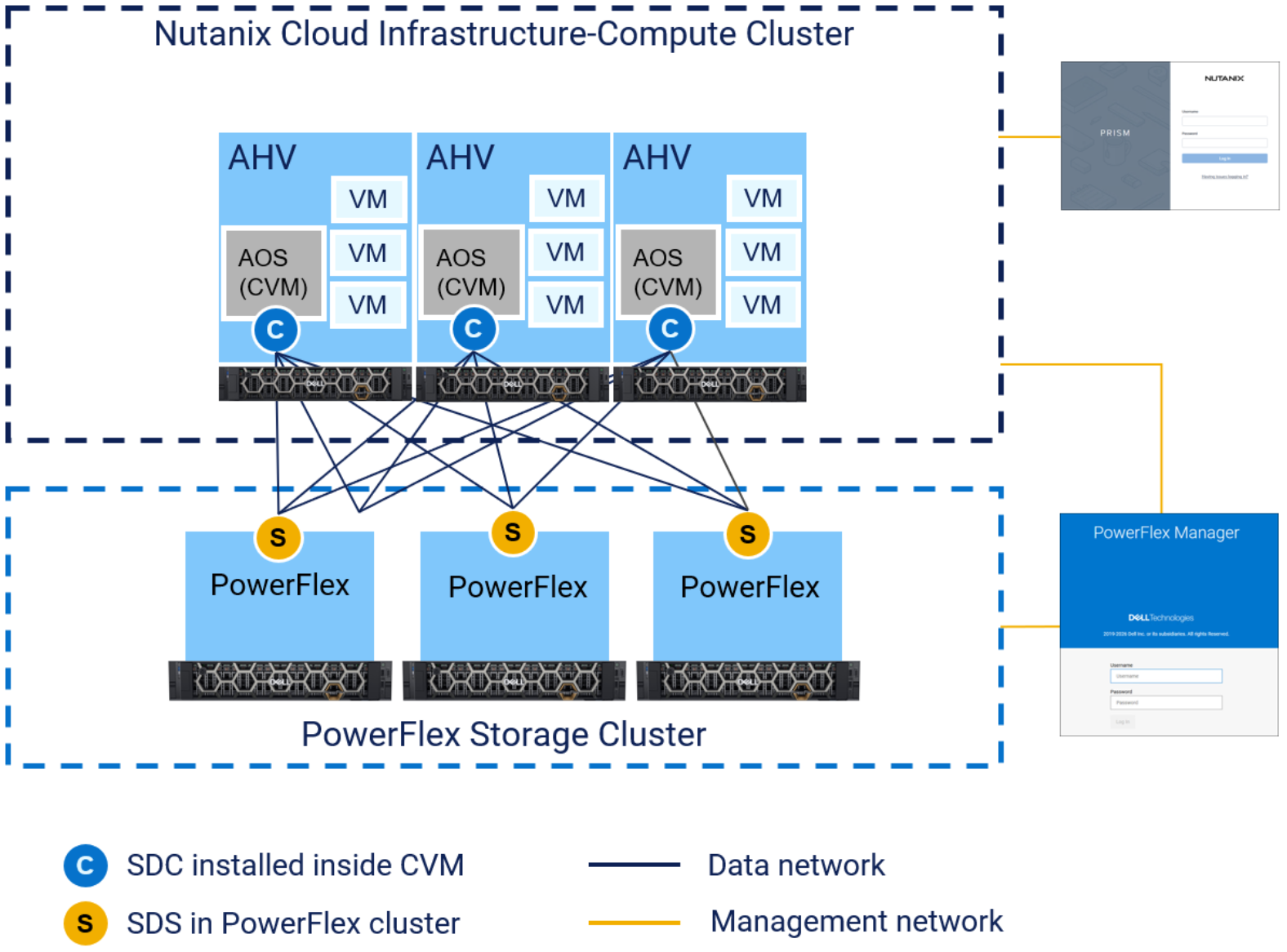
Figure 4. Dell PowerFlex with Nutanix Cloud Platform architecture
The Dell PowerFlex with Nutanix Cloud Platform architecture contains no internal storage within the Nutanix compute only nodes. In this disaggregated architecture, the compute cluster accesses storage over the Ethernet fabric from the external PowerFlex storage cluster via the SDC that is installed on every node of the NCI-C cluster.
When Dell PowerFlex with Nutanix Cloud Platform is deployed, the Nutanix software stack is hosted on the PowerFlex compute only nodes. The NCI-C cluster nodes consume storage from the PowerFlex storage cluster.
Data Services and Platform Tools
Both PowerFlex and Nutanix Cloud Platform offer a variety of data services and tools that are native to each respective platform. In some cases, they overlap and have been configured to work together. In other cases, they remain independent, each offering their own capabilities and value. The table below illustrates how these technologies come together.
Table 4. Data services, platform tools, and where ownership is assigned
|
Feature |
Nutanix |
Integration |
Dell PowerFlex |
|
Snapshots |
Triggered and managed from Nutanix Prism/CLI |
API
|
Maintained as PowerFlex snapshot |
|
Clones |
Triggered and managed from Nutanix Prism/CLI |
API
|
Maintained as PowerFlex volumes |
|
Compression |
Transparent to Nutanix AOS/AHV |
|
Inline compression performed and maintained by PowerFlex FG Storage Pool |
|
Encryption |
Transparent to Nutanix AOS/AHV |
|
D@RE performed and maintained by PowerFlex |
|
VM Configuration Reliability |
Protected by Nutanix RF setting using PowerFlex volumes for persistence |
|
Each VM configuration volume on PowerFlex is protected by SDS resiliency scheme |
|
Application Data Reliability |
Transparent to Nutanix AOS/AHV |
|
Each application data vDisk volume on PowerFlex is protected by SDS resiliency scheme |
|
PC-based Async/Sync Disaster Recovery Metro Availability |
Performed by Nutanix across PowerFlex clusters |
|
|
|
VM Backup |
Performed by Nutanix integration with Dell PowerProtect and 3rd party backup applications, leverages snapshots |
|
|
|
NCI-C Cluster Node Imaging |
Managed by Nutanix Foundation |
|
|
|
NCI-C Software LCM including the digitally-signed PowerFlex SDC |
Managed by Nutanix LCM |
|
|
|
PowerFlex SDS Node Imaging |
|
|
Managed by PowerFlex Installer |
|
PowerFlex Software LCM |
|
|
Managed by PowerFlex Manager |
|
FW/BIOS LCM for PowerFlex CO nodes |
|
|
Managed by PowerFlex Manager |
|
FW/BIOS LCM for PowerFlex SO nodes |
|
|
Managed by PowerFlex Manager |
|
Migration from VMware (and others) |
Nutanix Move |
|
|


Snapshots
Snapshots are performed in Prism Central, resulting in the creation of one additional volume per vDisk inside of PowerFlex external storage. These snapshots are a block image in the form of a storage volume or LUN used to instantaneously capture the state of a volume at a specific point in time. PowerFlex snapshots are thin-provisioned and are writable by default, although they can also be made immutable if required.
All PowerFlex volumes that are created by Prism, including snapshots, are assigned to the Nutanix volume class. This ensures that any snapshots created by Prism cannot be removed or modified from within the PowerFlex Manager UI by a storage admin.
Clones
Clone operations are performed in Prism and result in the creation of two additional volumes per vDisk inside of PowerFlex external storage.
Compression
PowerFlex can provide inline data compression if needed. Compression is enabled by the use of Fine Granularity (FG) Storage Pools.
The FG Storage Pool data layout allocates space at smaller units (4KB) than the default Medium Granularity (MG) Storage Pools, which allocates space in 1MB units. Use of Fine Granularity Storage Pools give better space efficiencies, especially when large numbers of snapshots are used. Compression is enabled on a per Storage Pool basis. If the benefits of storage compression are required, a Fine Granularity Storage Pool must be selected during the initial configuration of the External Storage from within Prism Element.
PowerFlex does not provide data deduplication (dedupe) capabilities.
VM configuration and application data performance and reliability
Dell PowerFlex Distributed Mesh-Mirror architecture ensures there are always two copies of VM configuration and application data. This ensures availability in the event of unplanned hardware failure. VM configuration and application data is intelligently distributed across all the disk devices in each of the nodes within a storage pool. As more nodes are added, the overall performance increases linearly, without affecting application latencies. Adding more devices or nodes also decreases rebuild times during a failure situation – which means that PowerFlex heals itself more quickly as the system grows.
PowerFlex automatically ensures that the two copies of each block of data that gets written to the Storage Pool reside on different SDS (storage) nodes, because Nutanix needs to be able to get a hold of the second copy of data if a device or a storage node that holds the first block fails at any time. Because the data is written across all the devices in all the nodes within a Storage Pool, this allows for fast IO response times, as all data is accessed in parallel.

Figure 5. Simplified view of a 4-Node PowerFlex system presenting 3 storage volumes
Nutanix Disaster Recovery
Performed in Prism Central, Nutanix Disaster Recovery offers an entity-centric automated approach to protect and recover applications using replication between both HCI and disaggregated architectures, or a blend of both. The following replication types are supported with external storage:
- Asynchronous: One hour+ recovery point objective (RPO)
- Synchronous: Zero recovery point objective (RPO)
- Metro Availability:
- Zero recovery point objective (RPO)
- Near-zero recovery time objective (RTO)
- Enables Cross-cluster Live Migration (CCLM) for zer-downtime live migration of entities across fault domains during planned failover events and workload balancing across clusters
Nutanix Disaster Recovery works with sets of physically isolated locations called availability zones (AZs). An instance of Prism Central represents an AZ. One AZ is the primary AZ for an application, while one or more paired AZ is the recovery AZs. When paired, the primary AZ replicates the recovery points of the entities (guest VMs, volume groups, consistency groups) to the recovery AZs in the specified time intervals (RPO). This approach helps application recovery at any recovery AZs when a service disruption occurs at the primary AZ (for example, natural disasters or scheduled maintenance).
Nutanix Disaster Recovery in Prism Central uses categories to group the guest VMs and automate the protection of the guest VMs as the application scales. Application recovery is more flexible with network mappings, an enforceable VM start sequence, and inter-stage delays. Application recovery can also be validated and tested without affecting your production workloads. Nearsync replication is not yet supported. Refer to this section in the Nutanix Bible to get more details about how protection policies and recovery plans work in Nutanix DR. Refer to the Nutanix Disaster Recovery Guide for more detailed information.
VM Backup
A variety of robust options exist to facilitate virtual machine backup and data protection. Dell PowerProtect Data Manager 19.22 or newer supports AHV workloads which can natively be backed up or restored from within Prism Central. For more information, see: PowerProtect Data Manager: Info Hub Product Documents and Information
VM backup is also available via Nutanix integration with 3rd party backup applications, leveraging snapshots maintained on Dell PowerFlex external storage.
Encryption
Data Encryption at Rest (D@RE) is provided at the storage layer by PowerFlex Enterprise Encryption and KeyStore Services (PEEKS), which is a data encryption and key management solution previously known as Dell CloudLink. PowerFlex D@RE protects data from hacking, inside threats, and theft, ensuring that only those with authorized access are allowed to use the data. PowerFlex users can enable D@RE with the option to choose software encryption or key management for self-encrypting drives (SEDs). D@RE is configured when a Storage Pool is initially created by PowerFlex, therefore it is transparent to Prism.
VM Migration
Seamless VM migration across platforms is handled by Nutanix Move. Nutanix Move is a VM appliance that provides the ability to perform cross-hypervisor VM and files migration with minimal downtime. Nutanix Move can migrate VMs onto the Nutanix Cloud Platform from many hypervisors such as VMware ESXi and Microsoft Hyper-V, as well as AWS EC2, VMware Cloud (VMC) on AWS, and Microsoft Azure.
Lifecycle Management
Both Dell PowerFlex and Nutanix Cloud Platform offer fully integrated and comprehensive Lifecycle Management (LCM) of qualified components for their respective architectures. These powerful features combine to provide end to end Lifecycle Management of both software and hardware across storage and compute nodes.
PowerFlex storage only nodes
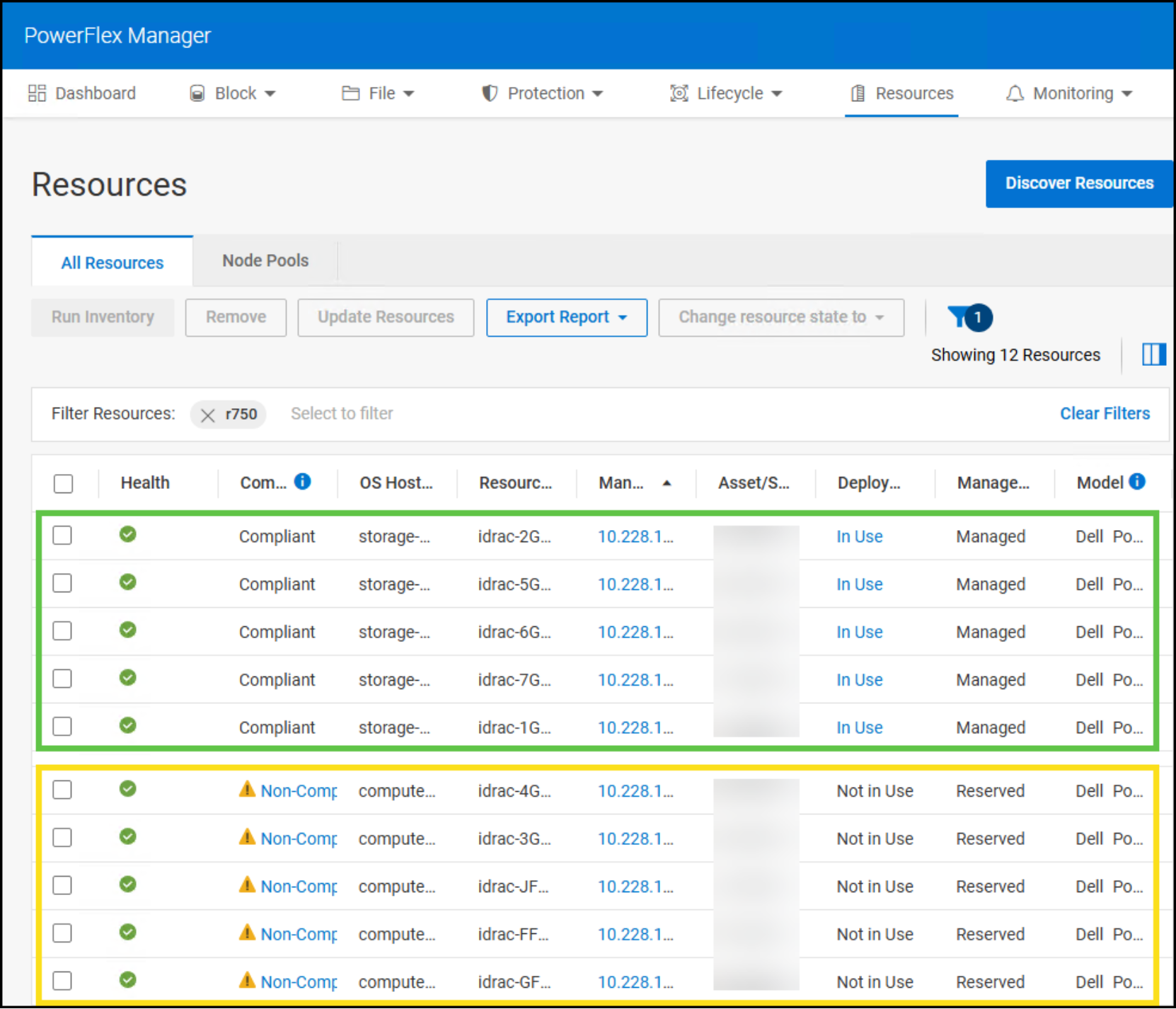
In the PowerFlex Manager UI, storage only nodes have a managed state of Managed. This indicates that PowerFlex Manager controls PowerFlex software and firmware in a turnkey fashion with no interruption to workloads. The state of the nodes can be seen in Figure 6.
Nutanix compute only nodes
In PowerFlex Manager, PowerFlex NCI-C nodes have a managed state of Reserved. This indicates that PowerFlex Manager can upgrade the firmware on a compute node after it has been placed in maintenance mode, bringing it into compliance with a Release Certification Matrix/Intelligent Catalog (RCM/IC). Maintenance mode evacuates the workloads, so they are not impacted by the LCM process. Prism Central LCM manages Nutanix software on NCI-C nodes including AOS and AHV. At the time of this writing, the PowerFlex SDC is signed by Nutanix, downloaded from portal.nutanix.com, and deployed to the NCI-C cluster using Prism Element. The Nutanix software and the PowerFlex SDC are qualified and upgraded together in lock step with each other.
Note: Compute only nodes should be placed in maintenance mode before software or firmware updates are applied.
Environment and system requirements
Introduction
Hardware/ Software
Solution components
Nutanix AHV
Nutanix AHV
AHV Integrated Management Capabilities
You can manage the Nutanix platform from a single pane of glass with Nutanix Prism. Prism provides integrated capabilities for cluster management and VM management available from the Prism web console, command line interface (CLI), PowerShell, and REST API.
Prism Central
Prism Central is a centralized management solution that allows IT administrators to manage multiple Nutanix clusters from a single interface. It provides a unified control plane for monitoring, automation, analytics, and orchestration of virtualized and cloud environments.
Prism Central key features
- Single Pane of Glass Management – Enables administrators to manage multiple Nutanix clusters from one dashboard.
- VM and Infrastructure Management – Facilitates provisioning, monitoring, and lifecycle management of virtual machines (VMs).
- Capacity Planning & Analytics – Uses AI/ML-driven insights for capacity forecasting and workload optimization.
- Security & Compliance – Includes security policies, anomaly detection, and compliance reporting.
- Multi-Cloud Management – Integrates with public clouds (AWS, Azure, Google Cloud) for hybrid cloud deployments.
- Role-Based Access Control (RBAC) – Ensures security and governance by allowing specific user roles and permissions.
Prism Central is a key component of Nutanix’s hyper-converged and disaggregated storage infrastructure ecosystem, making IT operations more efficient and scalable. It differs from Prism Element, which provides management at the cluster level, whereas Prism Central extends visibility and control across multiple clusters.
Prism Central provides a streamlined way to manage virtual machines (VMs) and infrastructure across multiple Nutanix clusters. It simplifies IT operations by offering an intuitive, centralized interface for provisioning, monitoring, and scaling workloads.
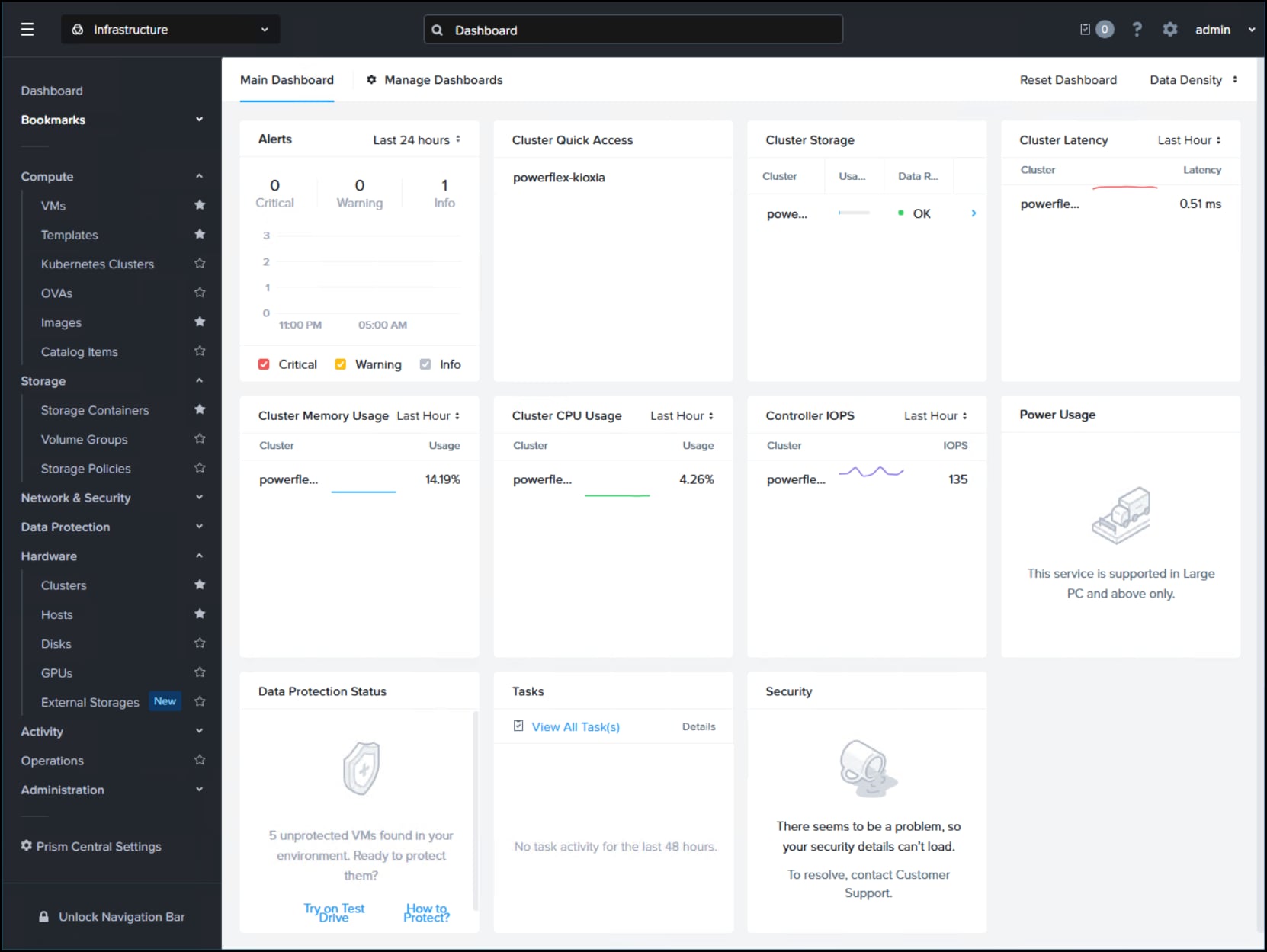
Figure 7. The Prism Central Infrastructure Dashboard
Prism Central benefits
- Simplified Management – One interface for managing VMs across multiple clusters.
- Operational Efficiency – Reduces manual workload with automation and AI-driven insights.
- Scalability – Seamlessly scale VM resources without downtime.
- Resilience – Built-in disaster recovery and high availability ensure uptime.
APIs
The Prism Central and Prism Element HTML5 interfaces are key components of Nutanix Cloud Platform (NCP) management. However, multiple use cases require programmatic control of Prism Central features and functions, combined with equivalent programmatic control over Nutanix products that integrate with Prism Central. Most functionality exposed through the Prism Central and Prism Element interfaces are also exposed through a full set of REST APIs. These APIs provide the ability to programmatically interface with the Nutanix platform, allowing customers and partners to enable automation, 3rd-party tools, scripts, apps or even create a customized UI if required.
The Prism Central REST API exposes nearly every capability and data point of the Prism Central UI and allows for orchestration or automation tools to easily drive Nutanix actions. This enables tools like Terraform, Ansible, Saltstack, Puppet, Ansible and more to easily create custom workflows for Nutanix. Also, this means that any third-party developer could create their own custom UI and pull in Nutanix data via REST. Nutanix v4 APIs are the recommended version to be used for all use cases. All Nutanix v4 API documentation including SDK and API references is available at https://developers.nutanix.com.
Cluster management
Managing clusters on AHV involves creating, updating, deleting, and monitoring cluster resources. These resources include hosts, storage, and networks.
Host profiles
Prism provides a central location for administrators to update host settings like virtual networking and high availability across all nodes in an AHV cluster. Controlling configuration at the cluster level eliminates the need for manual compliance checks and reduces the risk of having a cluster that is not uniformly configured.
Virtual networking
AHV uses Open vSwitch (OVS) for all VM networking. When you create a new AHV cluster, the system configures the CVM and management networking paths automatically. Administrators can easily create new VLAN-backed layer 2 networks through Prism. After the administrator creates a network, they can assign it to existing and new VMs.
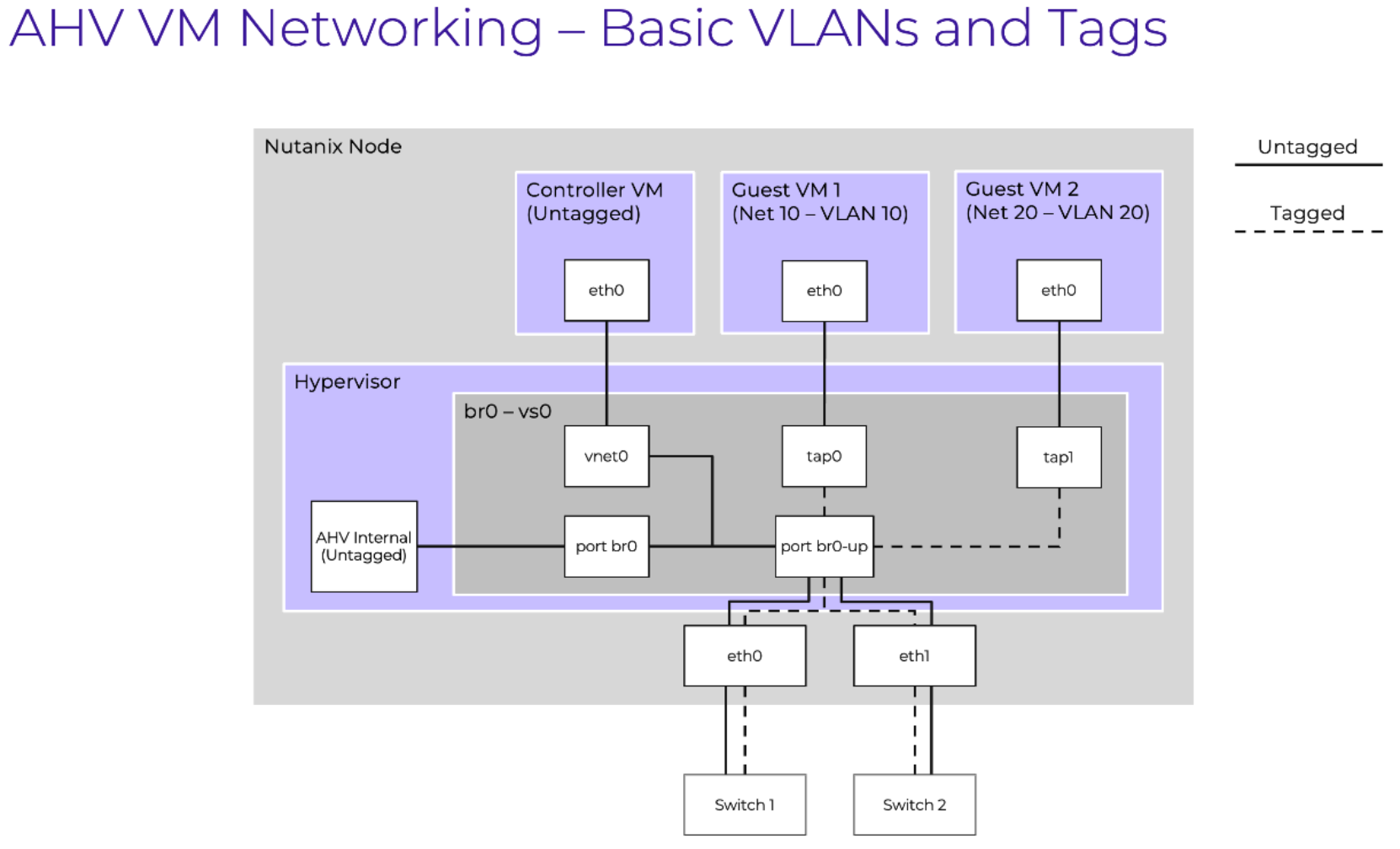
Figure 8. AHV VM Networking – Basic VLANs and Tags
For more information on the AHV implementation of OVS, see the AHV Administration Guide.
Along with streamlining VM network creation, AHV can manage DHCP addresses for each network that administrators create. This functionality allows administrators to configure address pools for each network that they can automatically assign to VMs.
Nutanix Flow networking products offer advanced networking capabilities on AHV clusters. Nutanix Flow Virtual Networking brings virtual private cloud, virtual public cloud, and other advanced virtual networking constructs together to bridge traditional and cloud-native network models. With Nutanix Flow Network Security, you can create Zero Trust firewalls to segment and protect your users, apps, and data from cyber threats without disrupting your current infrastructure.
For more information on AHV networking, see the AHV Networking best practice guide.
Rolling upgrades
Nutanix delivers a one-click upgrade process through Life Cycle Manager (LCM) for all software in the Nutanix platform, including AOS, AHV, firmware, and Nutanix Cluster Check (NCC). Upgrades are nondisruptive and allow the cluster to run continuously during software maintenance while nodes upgrade on a rolling basis in the background. LCM manages the dependencies between products and versions and only shows the supported upgrade options for your environment.
Host maintenance mode
Administrators can place AHV hosts in maintenance mode during upgrades and maintenance-related operations. Maintenance mode live-migrates all VMs running on the node to other nodes in the AHV cluster, and the CVM can safely shut down if required. After the maintenance process finishes all the steps for the node, it returns the CVM to service and synchronizes with other CVMs in the cluster. Maintenance mode enables graceful host suspension for routine cluster maintenance.
VM operations
Prism displays a list of all VMs in an AHV cluster along with configuration, resource usage, and performance details on a per-VM basis. Administrators can create VMs and perform many operations on selected VMs, including power state change, reset, shut down, restart, snapshot, and clone, migrate, category assignment, policy assignment, and launch a remote console. You can manage the entire life cycle of a VM and its policies that govern security and data protection from Prism.
Image management
The image management service in AHV is a centralized repository that provides access to virtual media and disk images and the ability to import from external sources. With AHV's image management service, you can store VMs or virtual disks as images, which you can then use to create new VMs quickly from a known-good base image. The image management service can store the virtual disk files you used to create the VMs or OS installation media as an .iso file that you can mount to provide a fresh OS install experience. Incorporated into Prism, the image management service can import and convert existing virtual disk formats, including .raw, .vhd, .vmdk, .vdi, and .qcow2. The previous virtual hardware settings do not constrain an imported virtual disk, so administrators have the flexibility to fully configure CPU, memory, virtual disks, and network settings when they provision VMs.
OVA Import and Export
Industry-standard Open Virtual Appliance (OVA) files are useful in many situations, but the most common are when you deploy virtual appliances (typically from a non-Nutanix vendor) and when you move VMs to a different hypervisor. To help you accomplish these tasks, the OVA import-and-export process is available in Prism Central. You can export VMs on AHV to the OVA format to keep them on external storage or import standard OVAs to launch third-party VMs quickly.
VM templates
The AHV image library captures data in a single vDisk so that you can clone it easily, requiring input from the administrator to declare the CPU, memory, and network details. VM templates simplify this concept further. You can create AHV VM templates from existing VMs, so that they inherit the attributes of the defining VM, such as the CPU, memory, and networking details. You can then configure the template to customize the guest OS on deployment and provide a Windows license key if needed for a Windows template.
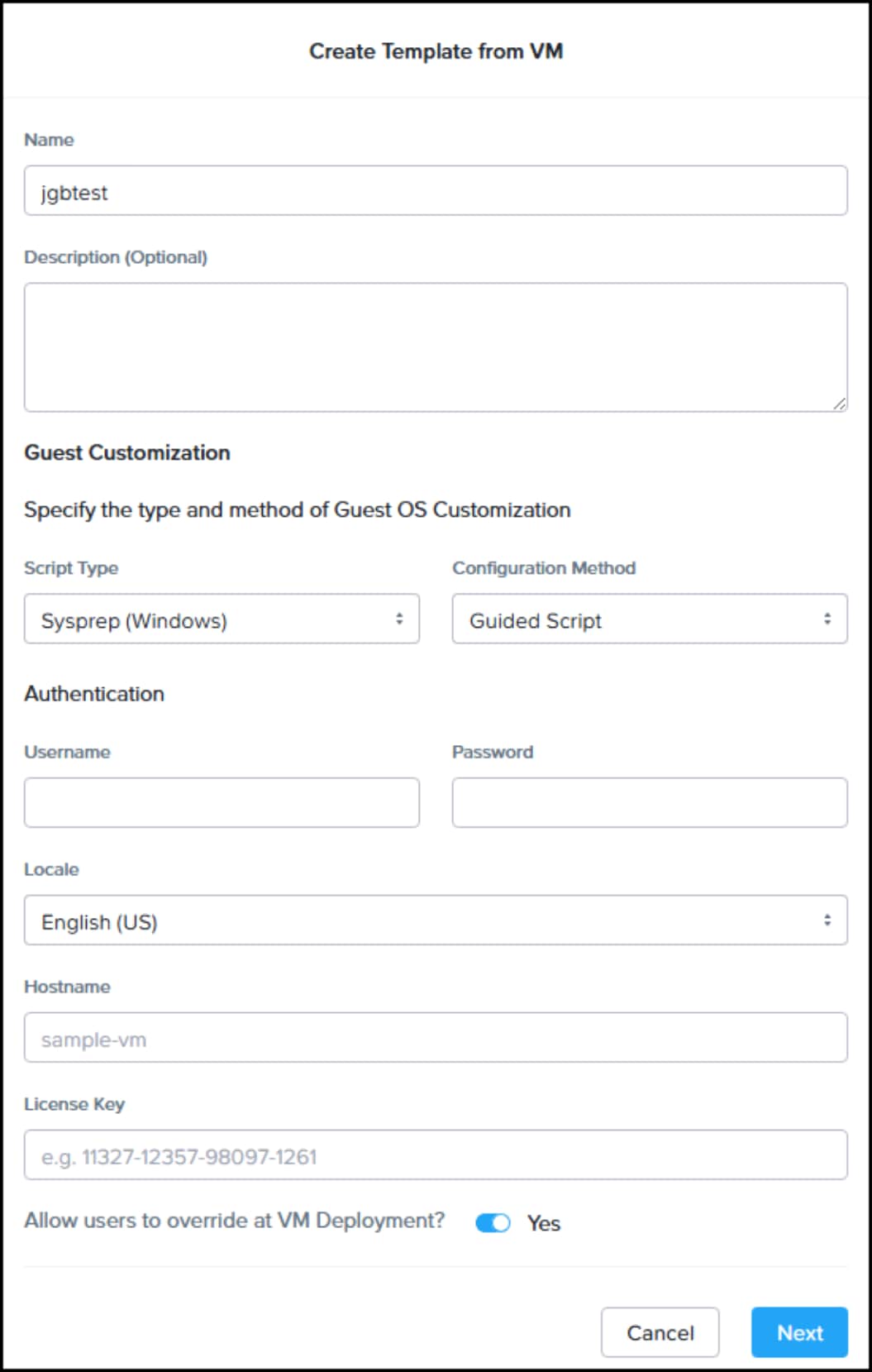
Figure 9. Create Template from VM workflow
VM templates support maintenance of multiple versions of a template, making it easy to apply updates like operating system and application patches without creating new templates. With the template versioning function, you can declare which version of the template is active, so that you can roll back to a previous version if needed or stage updates before making them available.
Acropolis Dynamic Scheduler
The Acropolis Dynamic Scheduler (ADS) is an automatic function enabled on every AHV cluster to avoid hot spots in cluster nodes. ADS continually monitors CPU, memory, and storage data points to make migration and initial placement decisions for VMs and Nutanix Volumes. Starting with existing statistical data for the cluster, ADS watches for anomalies, honors affinity controls, and only makes move decisions to avoid hot spots. Using machine learning, ADS can adjust move thresholds over time from their initial fixed values to achieve the greatest efficiency without sacrificing performance.
ADS tracks each node's CPU and memory usage. When a node's CPU allocation breaches its threshold (currently 85 percent), Nutanix migrates VMs or Nutanix Volumes off that host as needed to rebalance the workload.
ADS only uses migration when the system experiences contention. If the nodes experience skewed usage (for example, three nodes at 10 percent and one at 50 percent), ADS does not migrate the nodes, because migration offers minimal benefit if the system has enough resources.
The following diagrams depict a VM migration plan to alleviate hot spots.
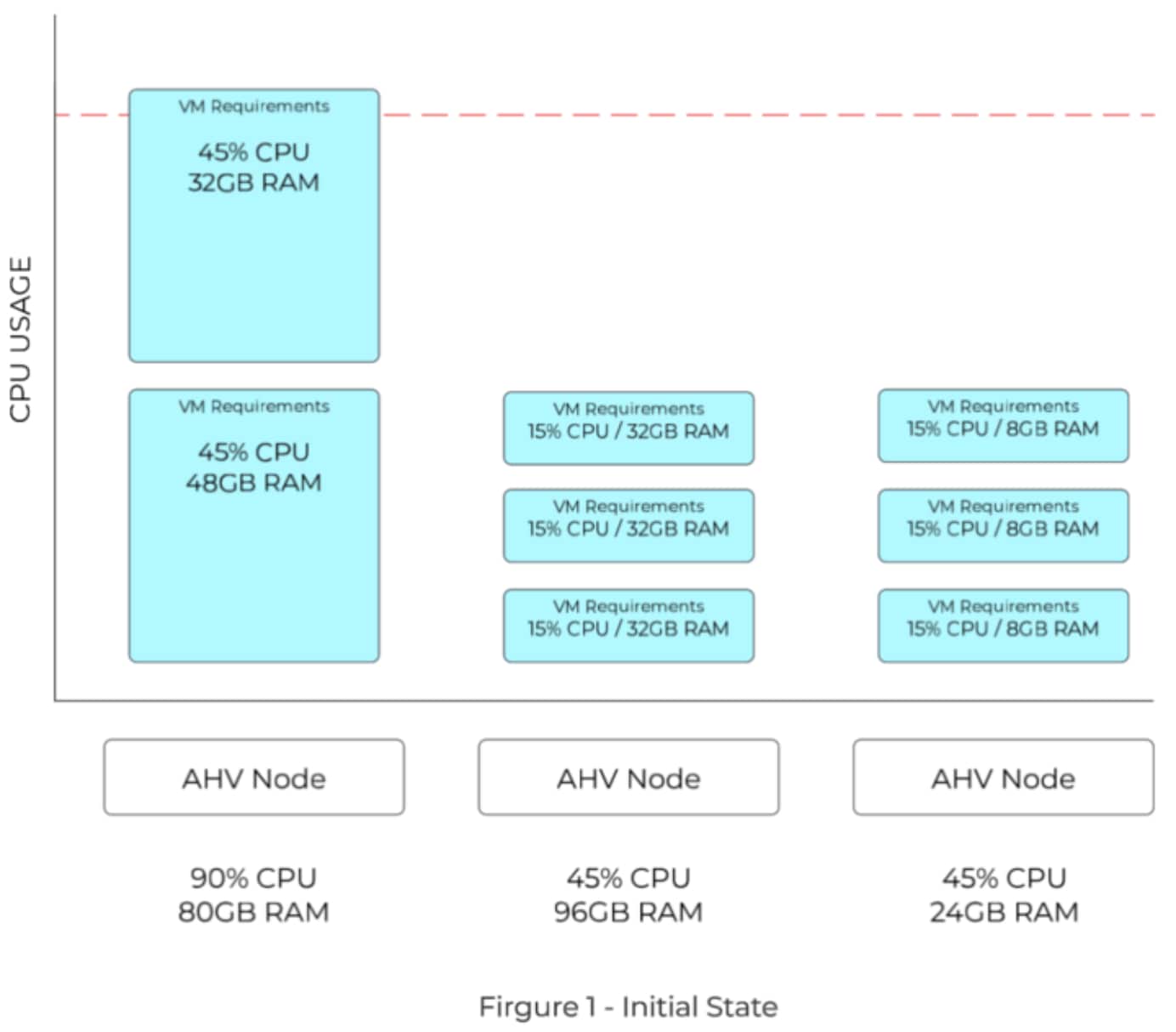
Figure 10. VM migration plan to alleviate hot spots – initial state
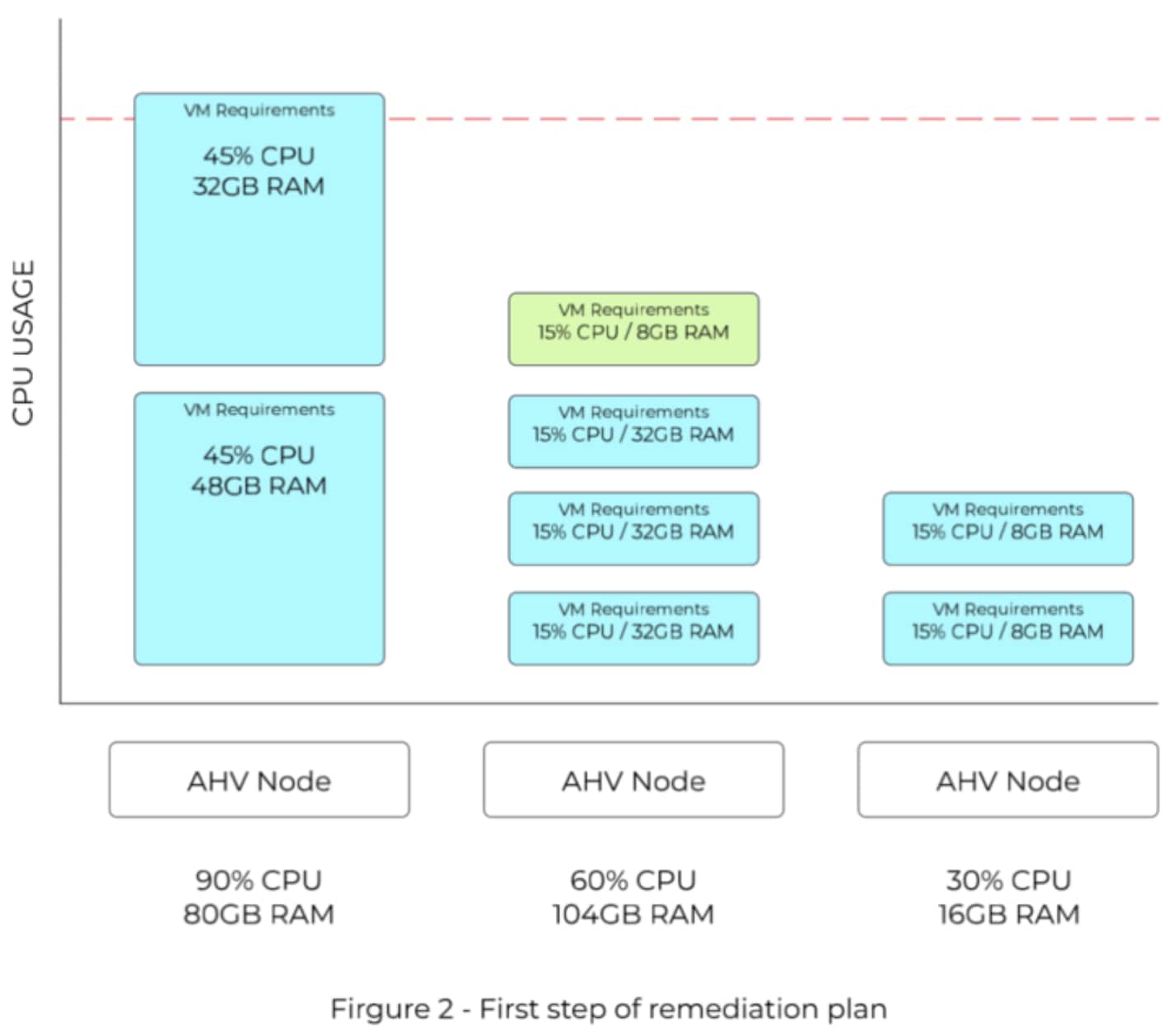
Figure 11. VM migration plan to alleviate hot spots – first step of remediation plan
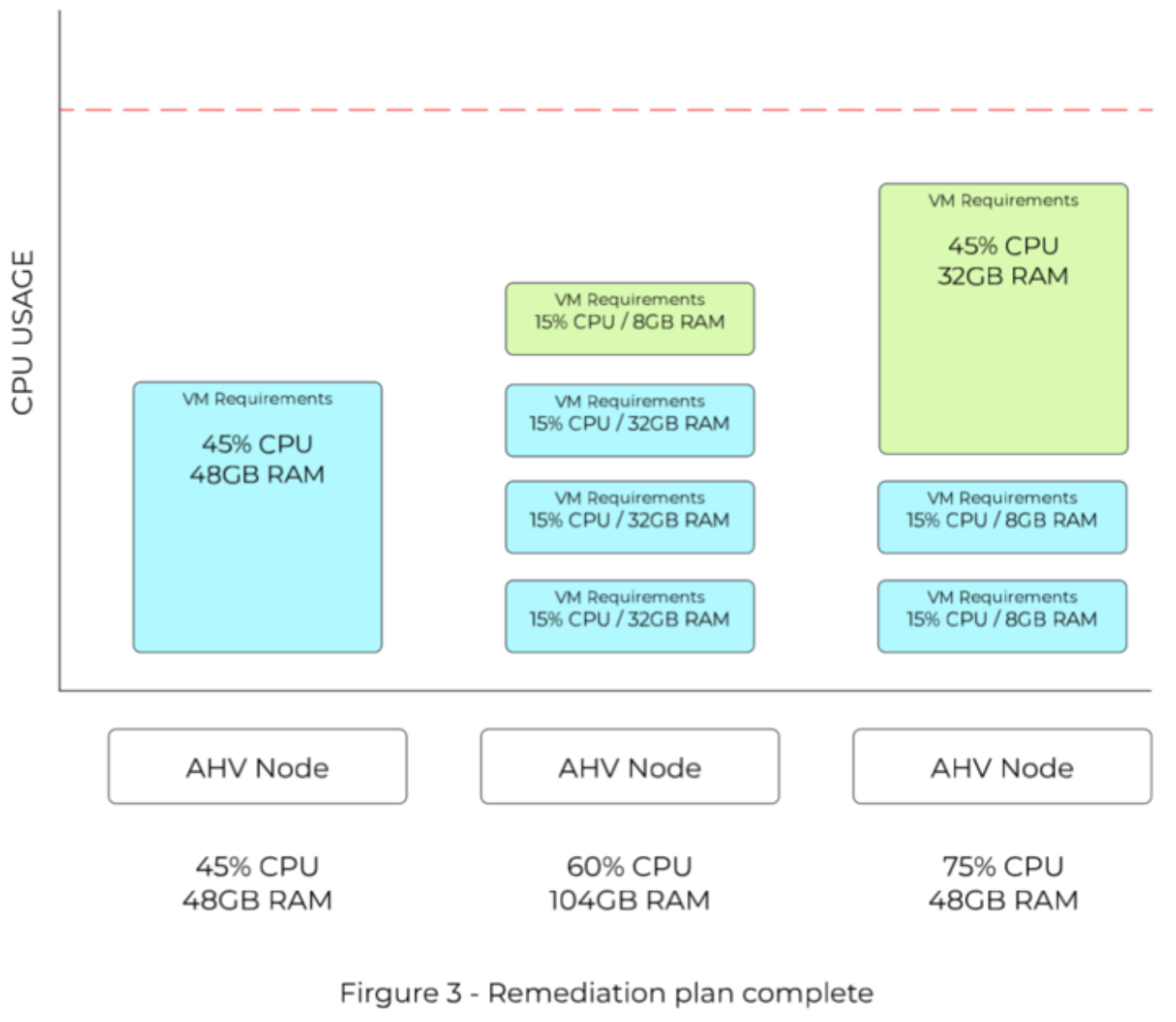
Figure 12. VM migration plan to alleviate hot spots – remediation plan complete
VM high availability
AHV offers virtual machine high availability to ensure VM availability in a host outage. If a host fails, the VMs running on that host restart on healthy nodes throughout the cluster. Multiple high-availability configuration options are available to account for different cluster scenarios:
By default, all AHV clusters provide best-effort high availability, even when you did not configure the cluster for high availability. Best-effort high availability works without reserving any resources and does not enforce admission control, so the capacity might not be sufficient to start all the VMs from the failed host.
You can also configure an AHV cluster for high availability with resource reservation to guarantee that the resources required to restart VMs are always available. To enable guaranteed high-availability reservations, select the Enable HA Reservation checkbox.
The Acropolis leader CVM restarts the VMs on the healthy hosts and tracks host health by monitoring connections to the libvirt on all cluster hosts. If the Acropolis leader becomes partitioned or isolated, or if it fails, the healthy portion of the cluster elects a new Acropolis leader from the Acropolis workers in the CVMs.
The following diagram depicts three different high availability scenarios where VMs are restarted after a host failure.
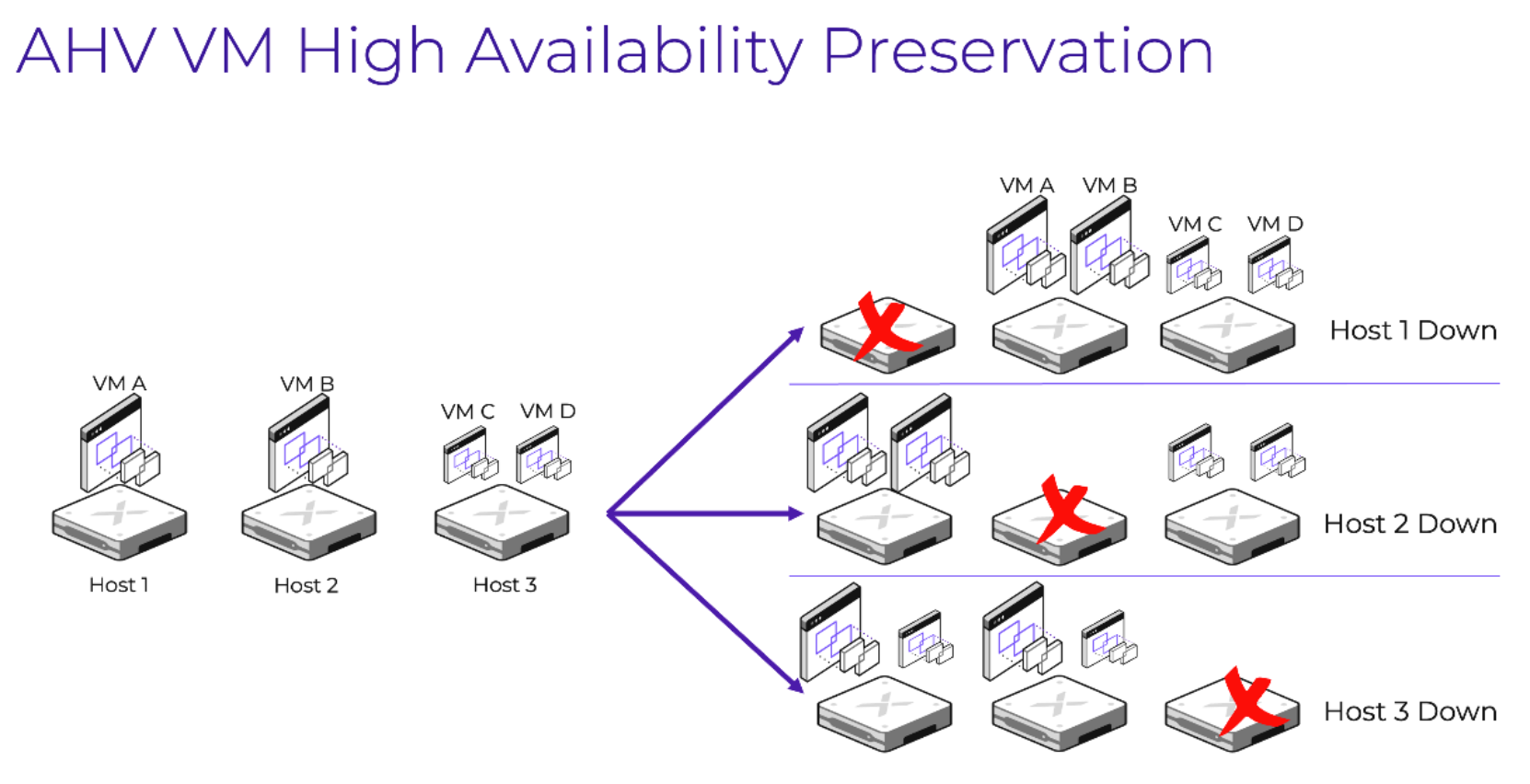
Figure 13. AHV VM high availability preservation
Advanced Processor Compatibility
Advanced Processor Compatibility (APC) can streamline upgrades and transition clusters to the latest generation of CPUs. With APC, clusters are not limited by the slowest CPU. VMs can use APC to accurately identify and take advantage of the CPU features available to them, enabling improved migrations.
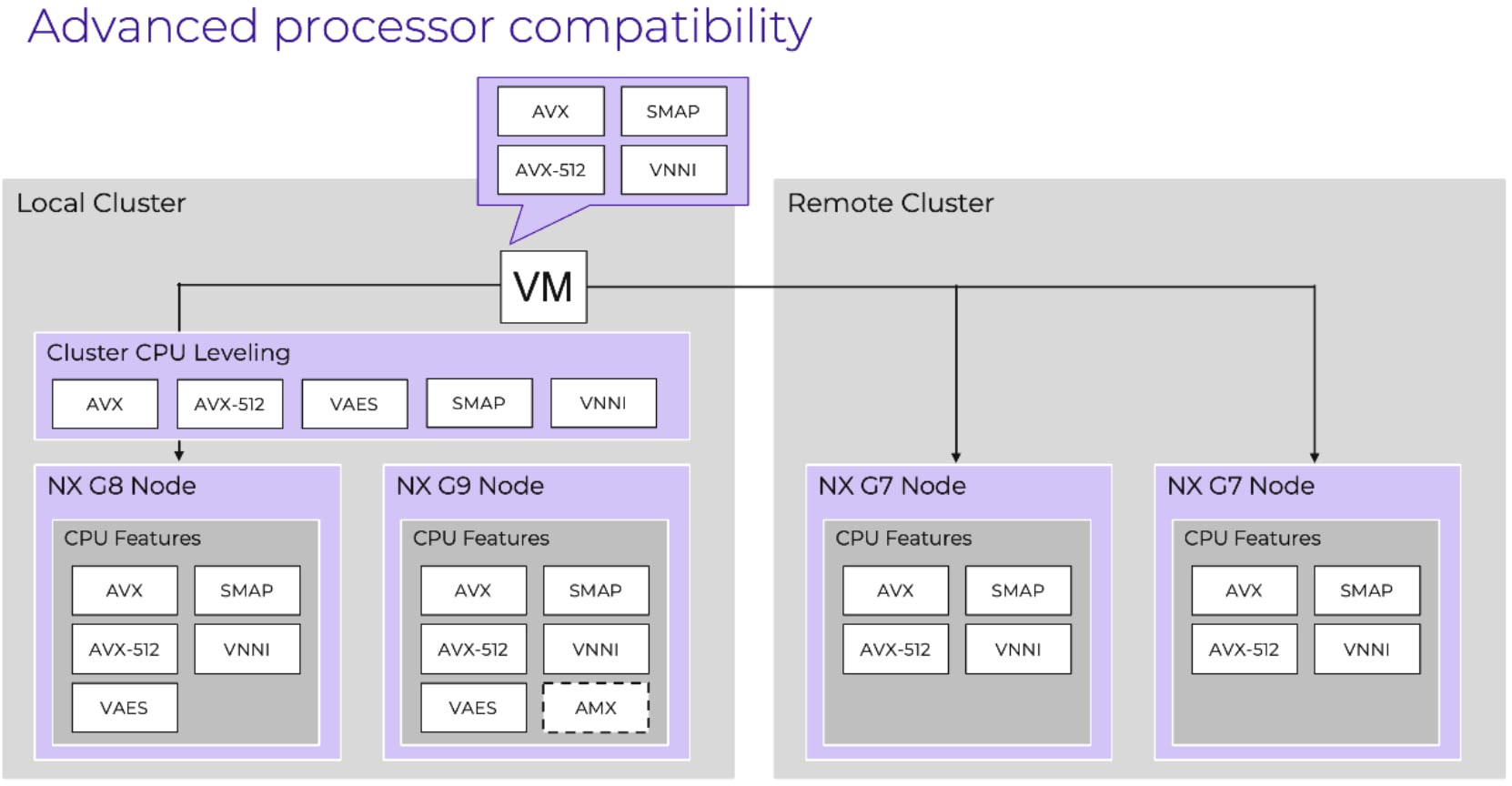
Figure 14. Advanced processor compatibility
APC offers flexibility in multiple ways. Clusters can be leveled for consistent CPU presentation to guest VMs, which is the default behavior. You can also set a baseline CPU model on a per-VM basis for on-demand, cross-cluster live migrations to different hardware generations.
Live migration
Live migration allows the system to move VMs from one host to another while the VM is turned on without workload interruption, regardless of whether the administrator or an automatic process initiates the movement. Live migrations occur regularly in the cluster nodes, triggered by maintenance operations, ADS workload balancing, node expansion, or administrator-driven requests.
You can also use live migration to migrate VMs to another physical cluster in the same location or in a different location to rebalance workloads, run maintenance operations, or avoid planned interruptions. For cross-cluster live migrations, we recommend a network with 5 ms of network latency, however it can support up to 40 ms of network latency.
Start live migration with any of the following methods:
- Put the AHV host in maintenance mode (VM evacuation)
- Use the Prism UI
- Use the aCLI (automatic, targeted, or maintenance mode)
- Use the REST API (automatic, targeted, or maintenance mode)
CPU types are abstracted from the VMs because AHV uses virtual CPUs (vCPUs) that are compatible between all nodes in the AHV cluster. If the destination AHV host has enough CPU cycles, you can migrate a VM.
By default, live migration uses as much available bandwidth as required over the AHV host management interface, br0 and br0-up. To prevent resource contention, AHV limits the number of simultaneous automatic live-migration events to two. Additionally, you can restrict the bandwidth allocated for migration through the aCLI and the REST API using bandwidth_mbps=X during each migration. The following CVM aCLI example enforces a 100 Mbps limit when migrating a VM, slow-lane-VM1, to AHV host 10.10.10.11:
acli vm.migrate slow-lane-VM1 bandwidth_mbps=100 host=10.10.10.11
Note: A live migration between two Prism Central instances requires synchronous replication which is not yet available in Dell PowerFlex with Nutanix Cloud Platform.
Nutanix Guest Tools
NGT is a set of software features installed in a VM and a Nutanix CVM. A Nutanix Guest Agent publishes information about the VM to the Nutanix cluster, such as guest operating system type, VM mobility status, and the Volume Shadow Copy Service (VSS). The Nutanix Guest Agent is installed in both Windows and Linux guests.
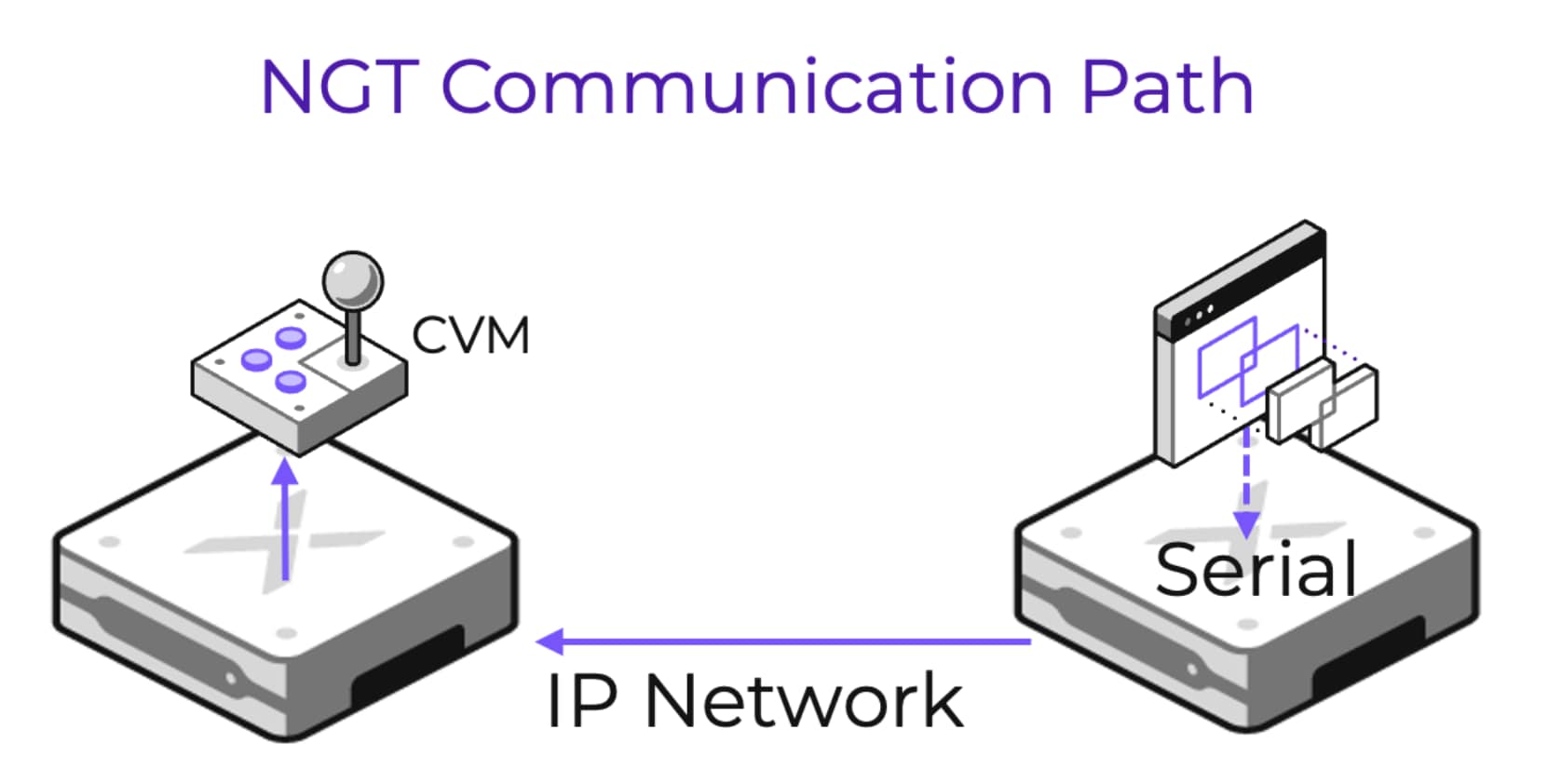
Figure 15. NGT Communication Path
Note: The guest VM ‘OS’ column in Prism Central requires Nutanix Guest Tools in the guest VM.
Nutanix VSS hardware provider
The Nutanix VSS hardware provider enables integration with native Nutanix data protection. The provider allows for application-consistent, VSS-based snapshots when using Nutanix protection domains and is supported with Windows guests.
Self-Service Restore feature
The Self-Service Restore feature enables Nutanix administrators or VM owners to mount snapshots directly to the VM they were taken from. This capability allows users to select specific files from a snapshot.
The Self-Service Restore GUI and CLI are installed in Windows guests. The NGT CLI (ngtcli) runs the Self-Service Restore CLI. To access the Self-Service Restore GUI, open a browser, navigate to http://localhost:5000, and sign in with machine administrator credentials., and sign in with machine administrator credentials.
Nutanix VirtIO drivers
NGT installs Nutanix VirtIO drivers and provides the registry configuration necessary to support the migration or conversion of VMs bidirectionally between Nutanix AHV and VMware ESXi. AOS uses these drivers when performing Nutanix VM Mobility or Nutanix cluster conversion. The required drivers are installed in Windows guests.
Windows guests require the installation of VirtIO drivers to run on Nutanix AHV and other KVM-based hypervisors.
Flow Virtual Networking
Flow Network Security
Nutanix Disaster Recovery
Dell PowerFlex with Nutanix Cloud Platform deployment
Introduction
Installation
The deployment of Dell PowerFlex with Nutanix Cloud Platform consists of a few steps performed in order. Nutanix Foundation is used to deploy the Nutanix Cloud Infrastructure Compute cluster nodes.
Nutanix Foundation
Foundation is a Nutanix provided tool leveraged for bootstrapping, imaging, and deployment of Nutanix clusters. The imaging process will install the AOS and AHV components.
Foundation can be installed on an OS or deployed as a VM appliance. In this example, Foundation is deployed as a VM appliance on an existing VMware ESXi host. Foundation requires layer 2 or layer 3 network connectivity to both the iDRAC network and the host/CVM network of the NCI-C nodes. Additional vNICs and IP addresses can be assigned to the Foundation VM to meet networking requirements.
Once the VM is deployed, it will attempt to discover a DHCP server for each of its vNICs. If a DHCP server is not available, assign a static TCP/IP configuration to the vNIC(s). Access the Foundation interface remotely via a web browser. Alternatively, launch the Foundation interface locally using the Nutanix Foundation icon on the desktop. This will start Mozilla Firefox and open the default web page http://localhost:8000/gui/index.html.
The Create Deployment workflow will guide you through a typical installation.
The following figure shows the first page of the wizard. Here you will enter the subnets for the nodes as well as the iDRACs. Click Next to move to step 2.
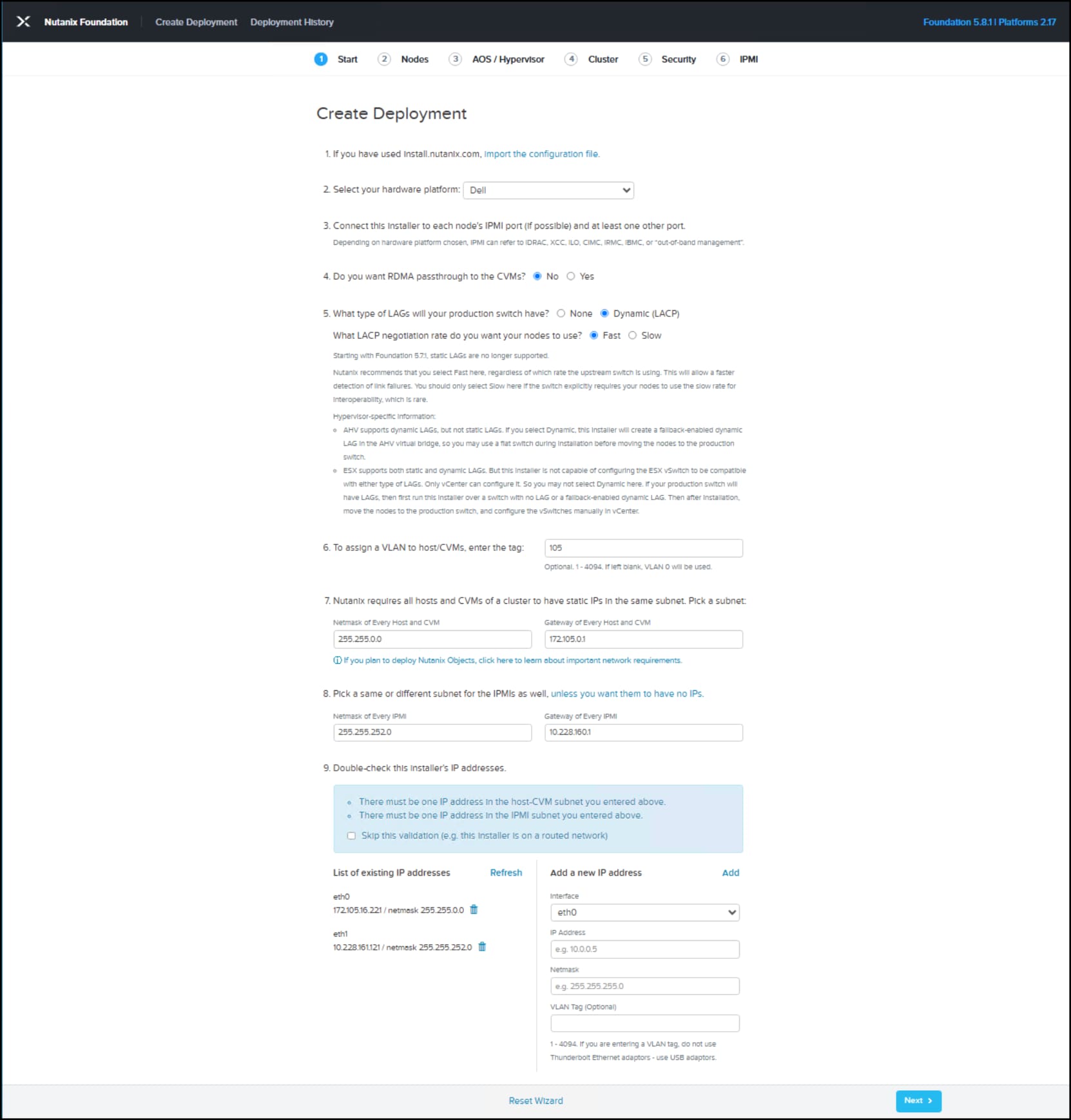
Figure 16. Nutanix Foundation start page
- The column headings for compute nodes are defined as follows:
- NODE – the physical location of the node in the block/chassis
- IPMI IP – the IP address for the iDRAC
- HOST IP – the IP address assigned to the AHV host
- CVM IP – the IP address assigned to the CVM running on the host
- HOSTNAME OF HOST – Arbitrary name of the AHV host
Tick the box indicating external storage. A NODE ROLE of “Compute” will automatically be provided. Use NODE A for a single node block/chassis. In the right-hand corner of the image note that, under the Tools drop-down, there are several options available. One of these is Range Autofill which will sequence the IPs starting from the top.
This provides an efficient way to complete the table cells when there are more nodes in the NCI-C cluster. Provide three IP addresses and the HOSTNAME for each node. Click Next.
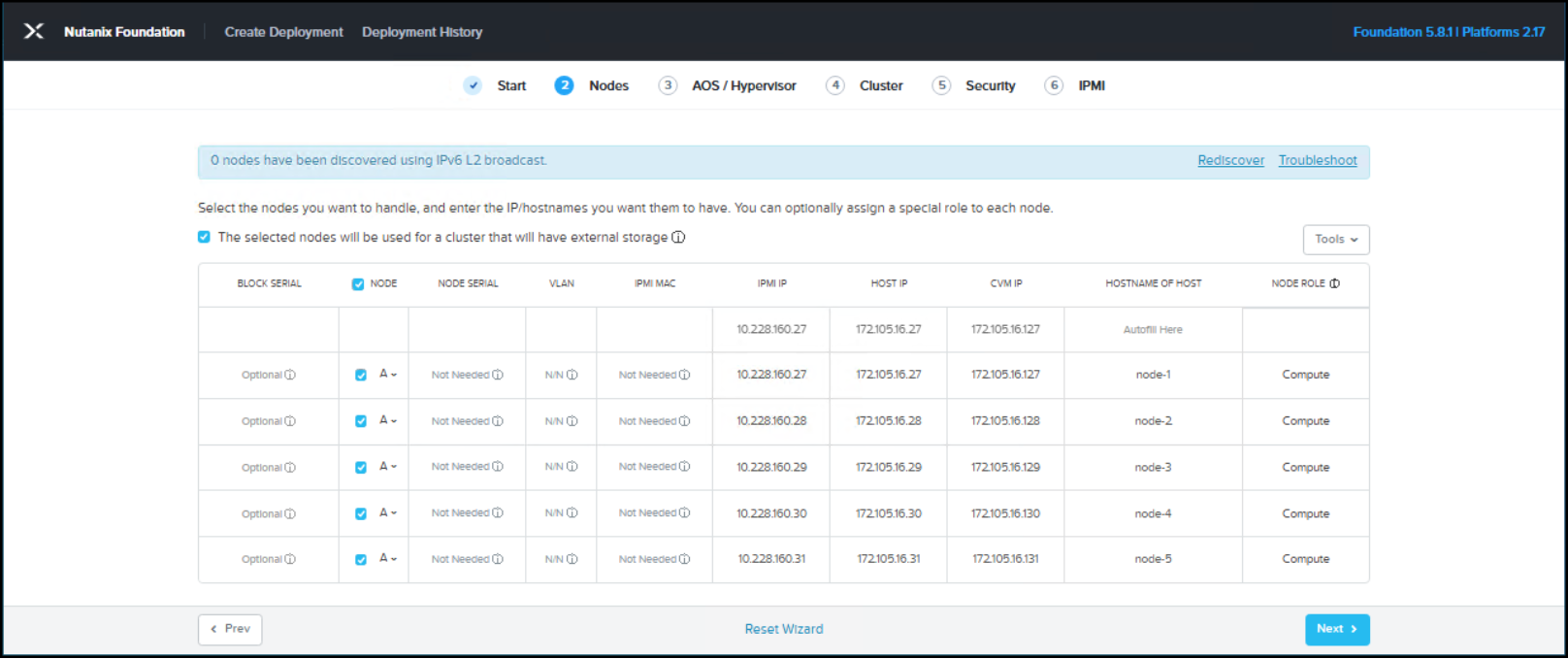
Figure 17. Nutanix Foundation nodes page
Note: Do not use Foundation to image PowerFlex storage nodes. Data loss will occur.
- In the AOS/Hypervisor step you must provide the software to install. At the top select Upload New AOS Binary and provide the .tar file. Next, select the Hypervisor Type, in this example AHV is used. Finally click Upload New AHV Binary and provide the .iso file. Click Next to proceed.
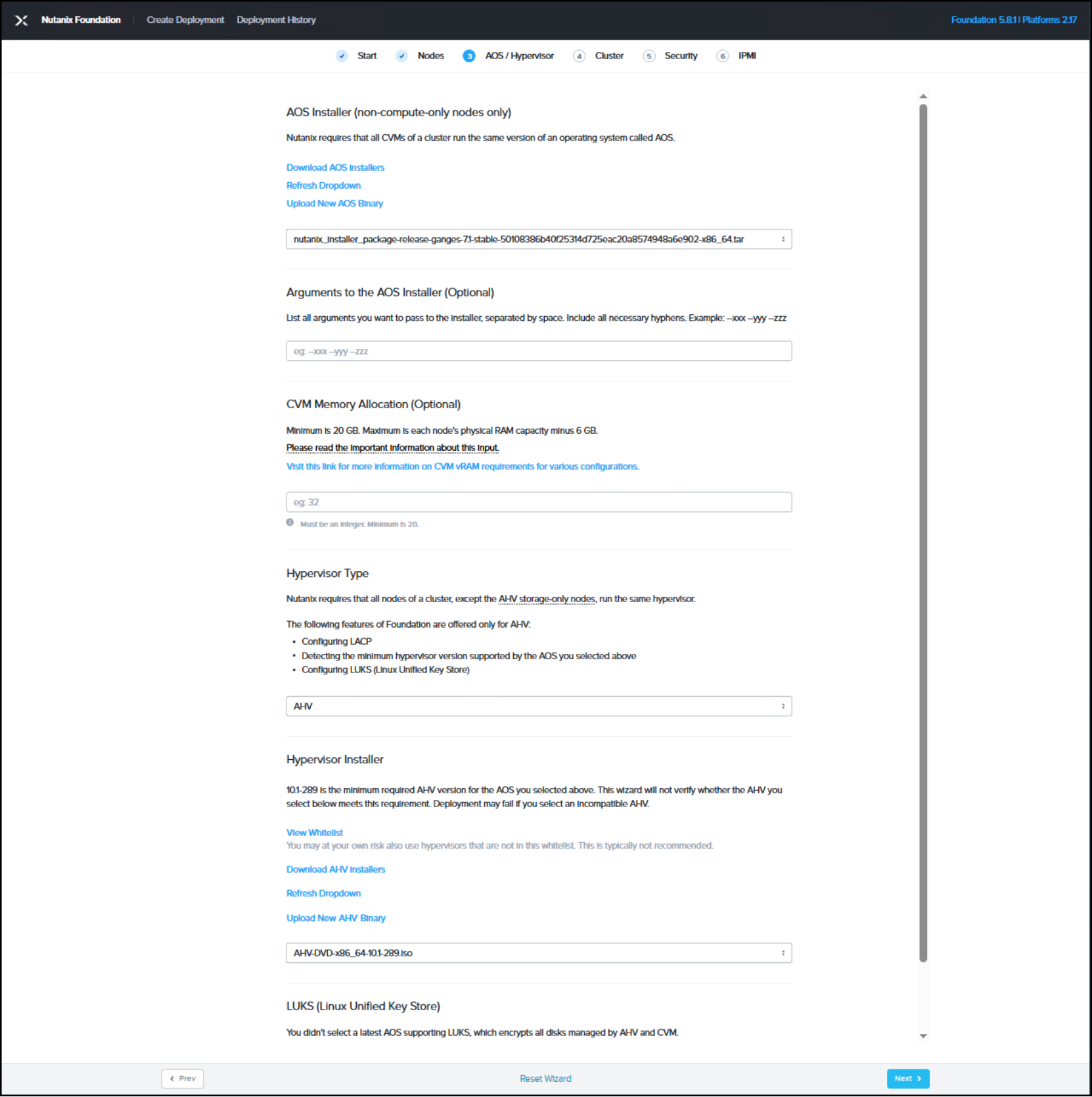
Figure 18. Nutanix Foundation AOS/Hypervisor page
Note: Foundation will configure the CVM vCPUs. The preferred vCPU count for the CVM is 16 but a minimum of 12 vCPUs is supported.
- Provide a Cluster Name, Cluster Fault Tolerance (available RF depends on number of nodes deployed), Cluster Virtual IP, NTP Servers, and finally DNS Servers. Click Next.
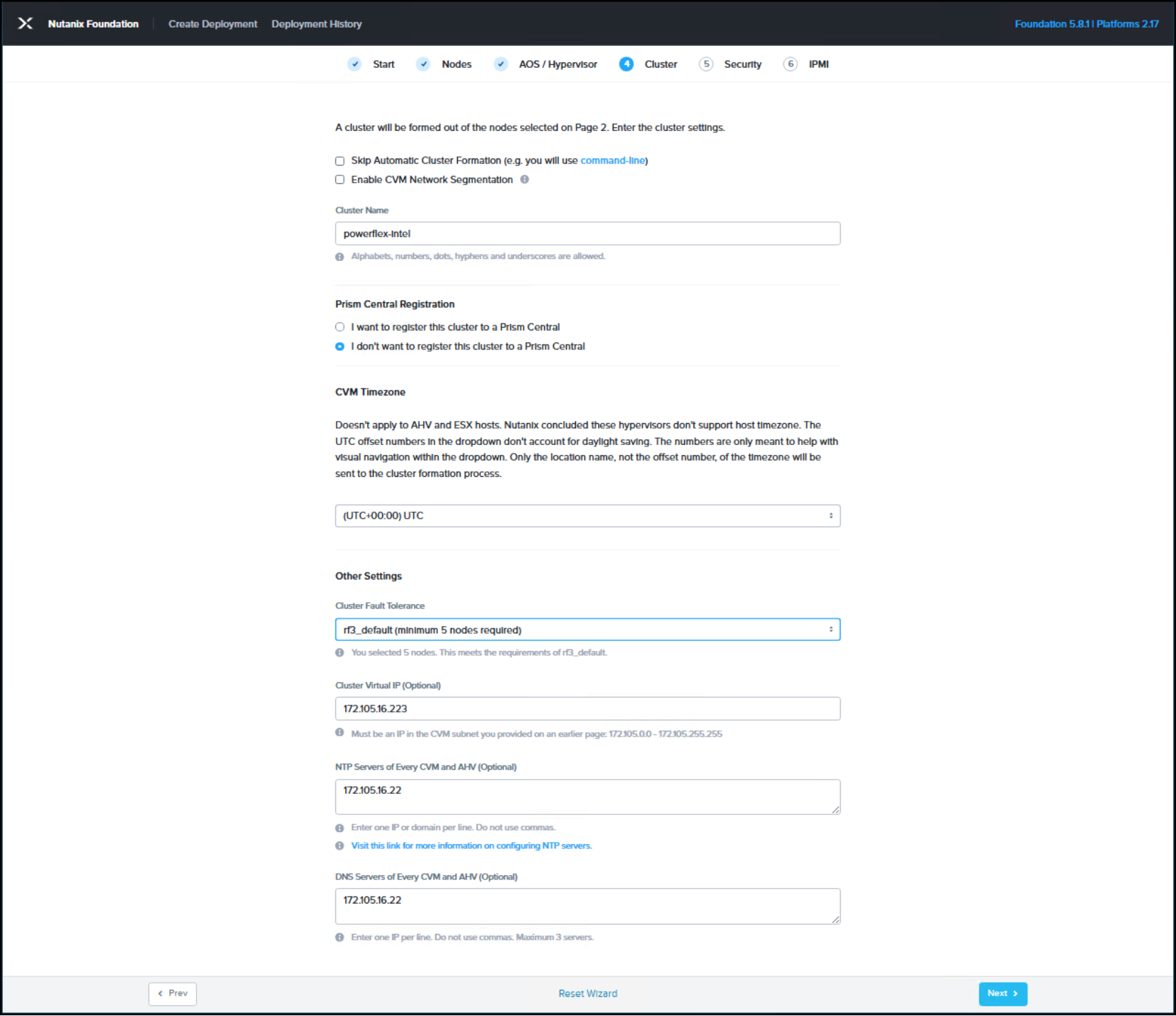
Figure 19. Nutanix Foundation cluster page
- Choose a Cluster Lockdown preference. In this example, SSH Using Password is chosen. Click Next.
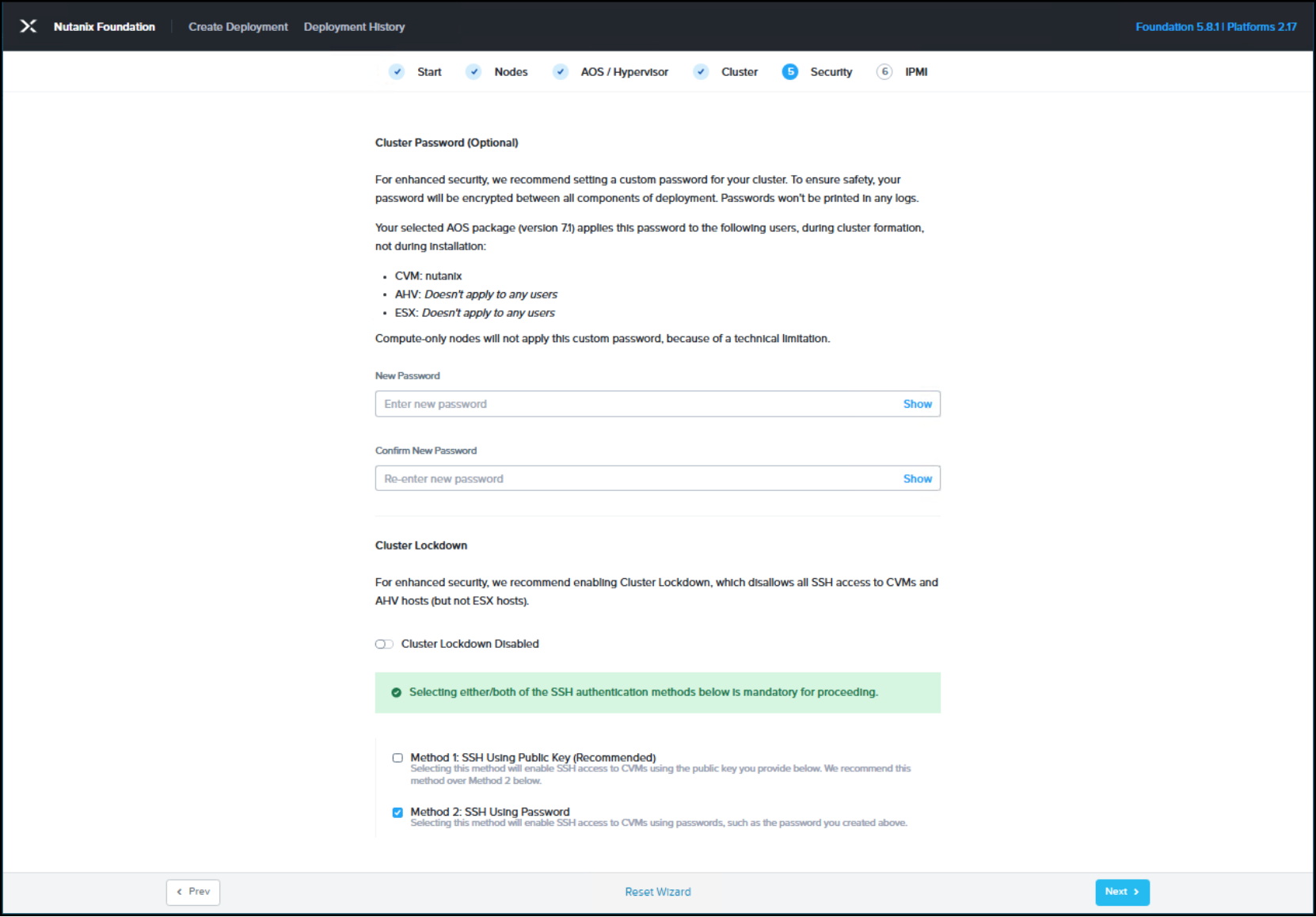
Figure 20. Nutanix Foundation security page
- In the final step of the wizard, provide iDRAC credentials for each NCI-C node. The iDRAC is used to deploy AOS and AHV on each NCI-C node. Click Start to begin the installation.
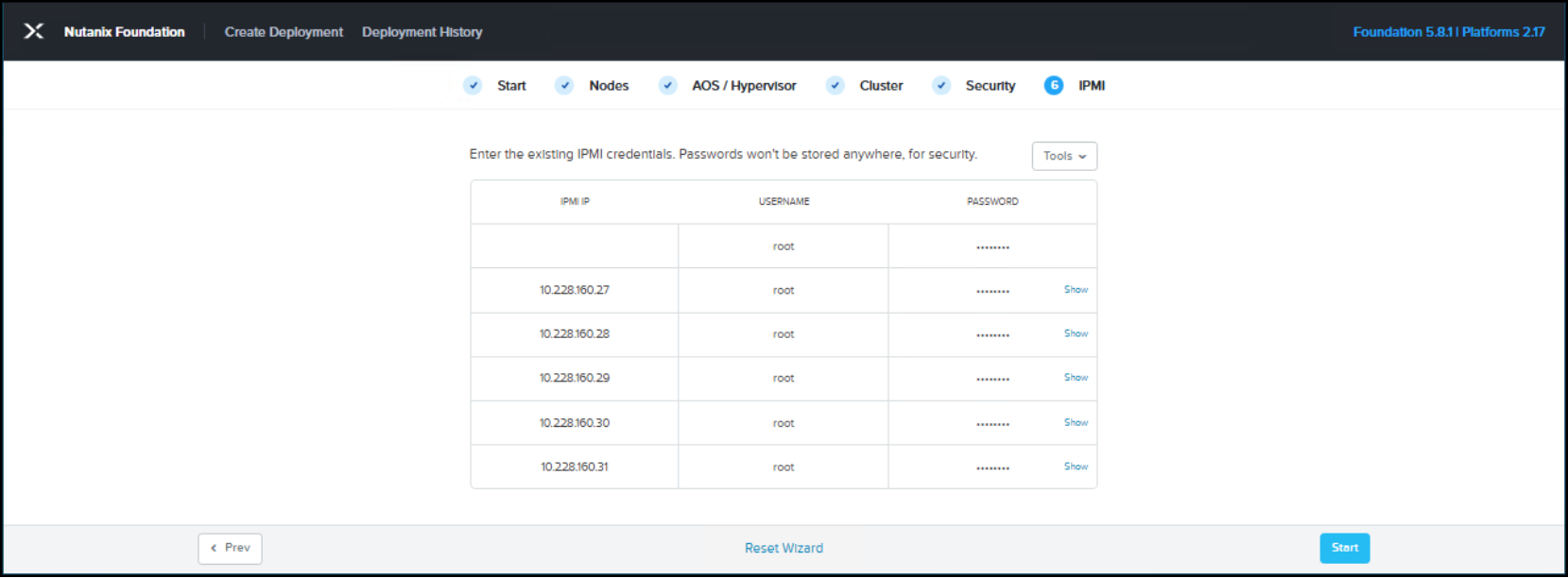
Figure 21. Nutanix Foundation IPMI page
- A warning requires acknowledgement that the browser machine will not sleep during the installation (not shown). The deployment process takes about 45 minutes to an hour depending on the hardware configuration. The Deployment History page provides both summary and detailed status during and post deployment. Ensure all operations are completed successfully before proceeding.
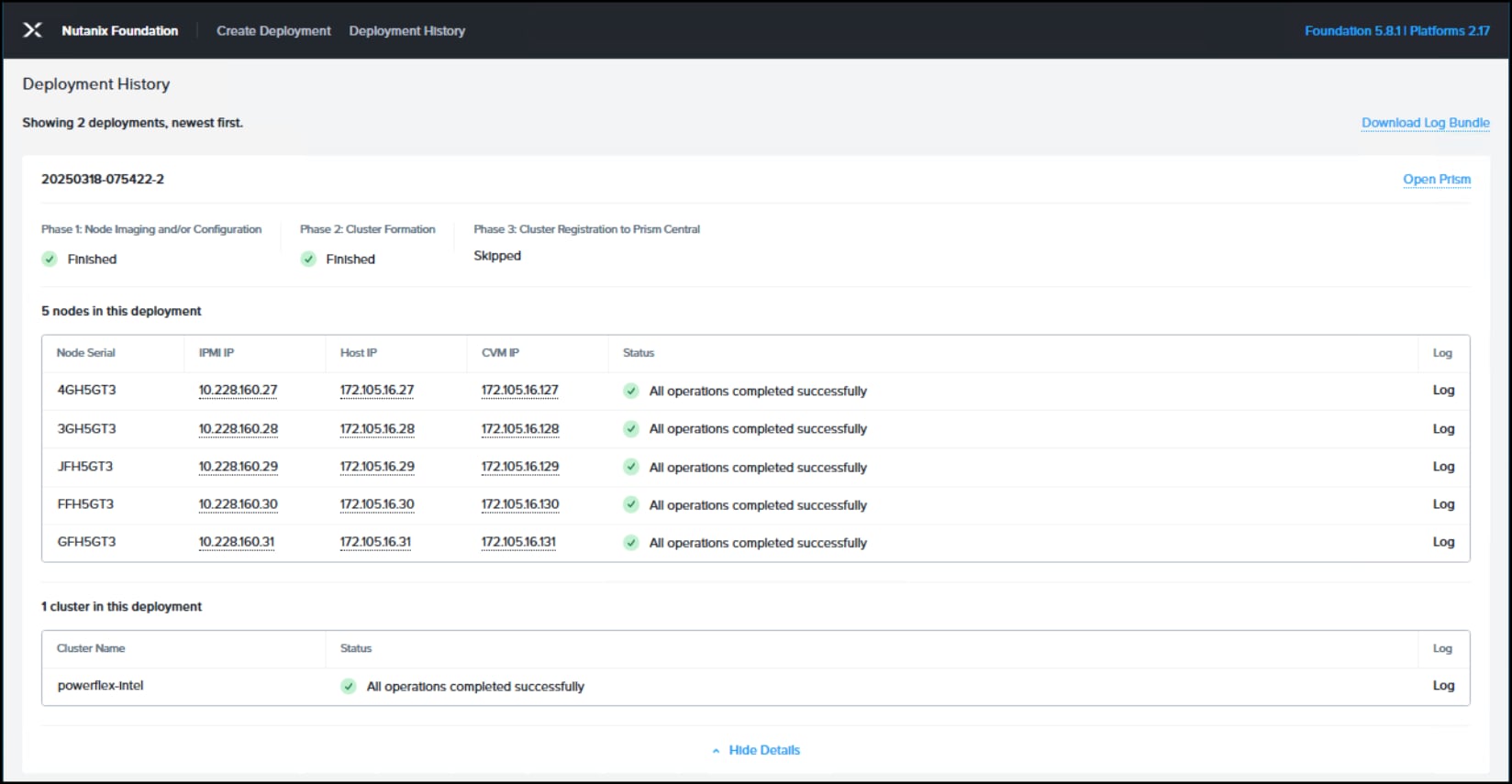
Figure 22. Nutanix Foundation Deployment History page with successful completed deployment
Initial Login
An Open Prism link is provided on the Deployment History page to access Prism Element. Prism Element may also be opened by navigating to the following URL: https://<ANY_CVM_IP>:9440. Prism Element prompts for an admin password change at first login. Accept the EULA and enable Pulse (if possible).
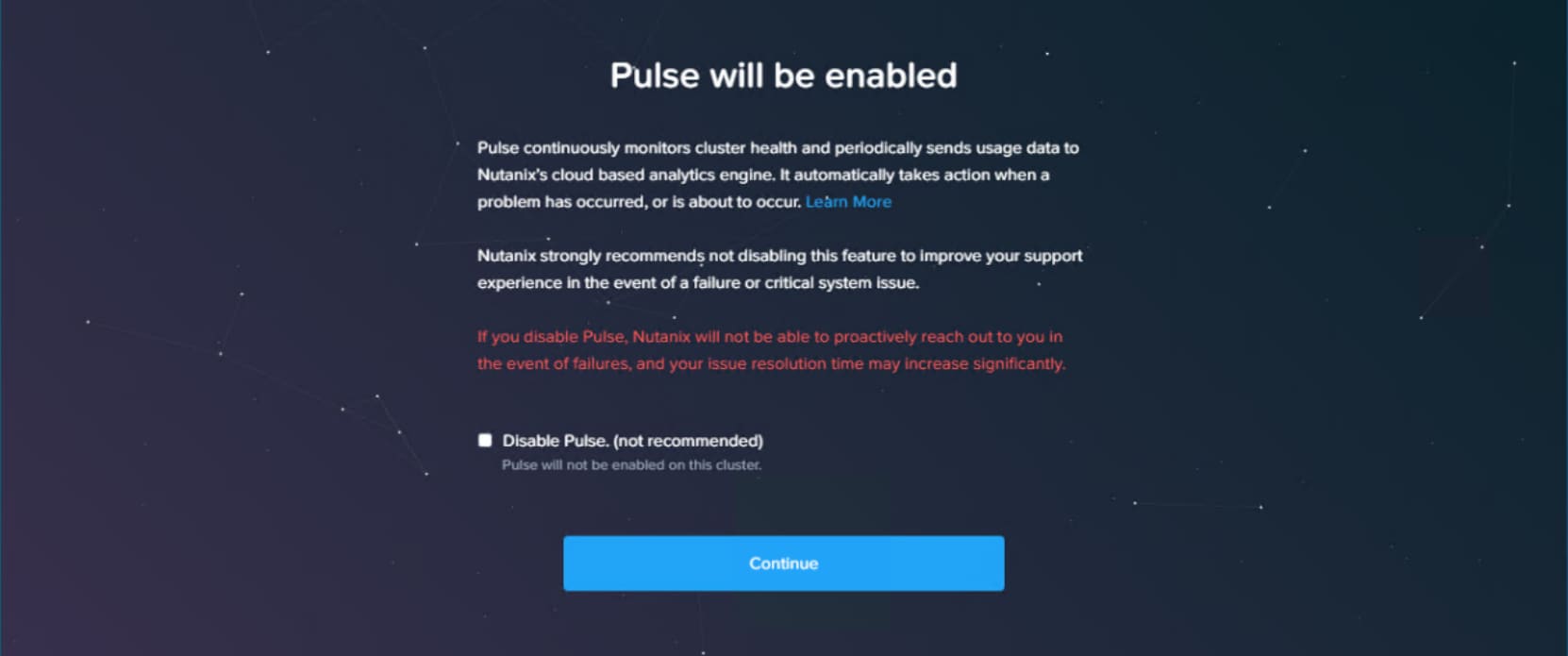
Figure 23. Prism Element UI with Pulse enable or disable feature
Note: The maximum age of the admin account password before a rotation is forced (default 60 days) can be configured via SSH into Prism Central with the following command:
allssh sudo chage -M <MAX_DAYS> admin
Previously used passwords are “remembered” in:
/etc/security/opasswd
A locked admin account can be unlocked with the following command:
sudo faillock --user admin --reset
After navigating through these screens, the dashboard appears with another pop-up dialog to set up external storage. Because of the additional network steps needed, click I’ll do this later.
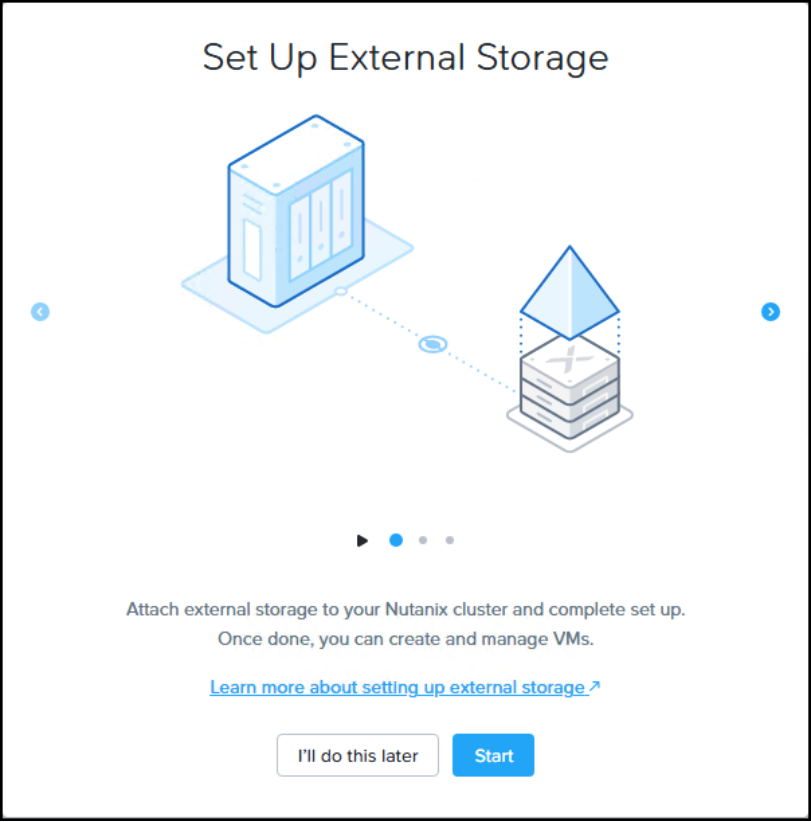
Figure 24. Prompt to set up external storage in Prism Element
Dell PowerFlex as external storage
The following section walks through adding Dell PowerFlex as external storage to the Nutanix instance, including all the prerequisites.
Modify virtual switch
During Foundation deployment, all active NIC ports will be bonded to the default virtual switch (vs0). In a typical NCI-C cluster configuration, two or more of the active NIC ports will be dedicated to storage. Therefore, after installation it will be necessary to modify the default virtual switch (vs0) to remove any active ports that will be dedicated to the Dell PowerFlex storage data networks. The instructions below guide the user through this process.
Note: For this section, the following commands may be useful for identifying NIC ports:
<SSH to host>lldpcli show neighbors
<SSH to host>lldpctl
<SSH to CVM>hostssh lldpctl
<SSH to host>ovs-appctl bond/show | grep -v hash
<SSH to CVM>hostssh ovs-appctl bond/show | grep -v hash
<SSH to ToR switch>show lldp neighbors
- Navigate to the home screen and use the drop-down menu to select Settings. On the left-hand side, select Network Configuration from Network menu. Then click the Virtual Switch tab on the right-hand side. Next select the edit pencil which is boxed in green in the figure below.
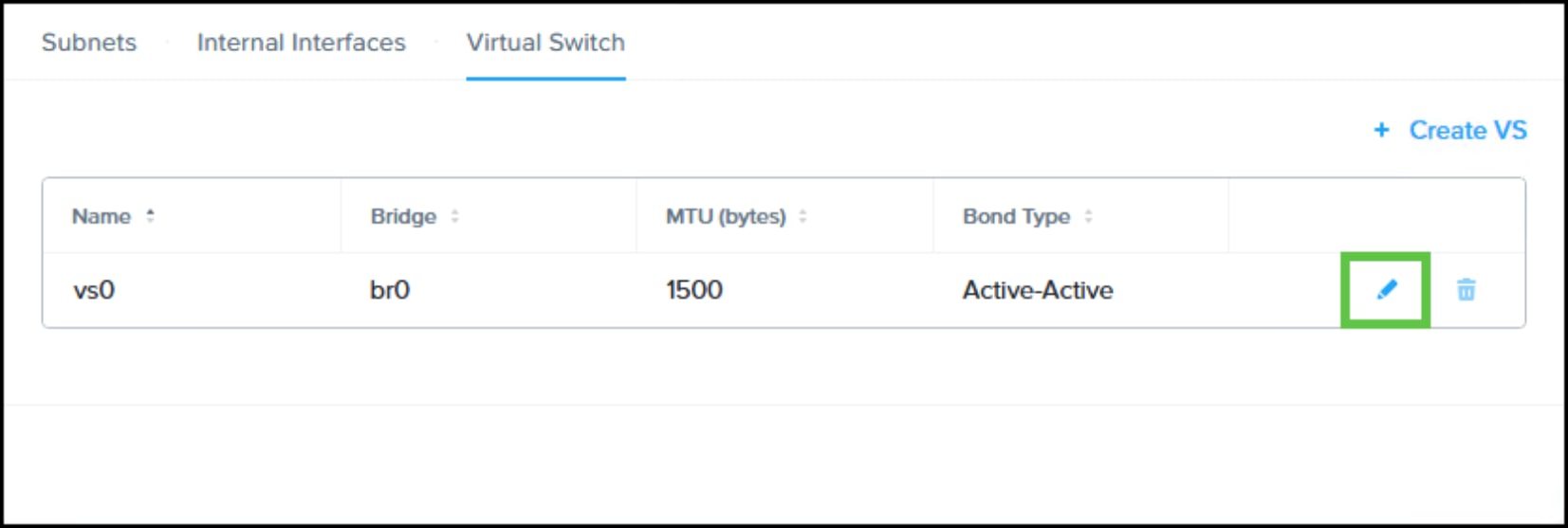
Figure 25. Edit Virtual Switch
- In the Edit Virtual Switch screen, select the Quick configuration method and then Next. Scroll down to the hosts and use the arrow at the end of the host row which will expand all the NIC ports. Uncheck the ports you do not wish to be part of the management network. In the figure below and specific to this NCI-C cluster only, eth3 and eth4 are unchecked. Repeat this process for each host before clicking Save to finalize the modification.
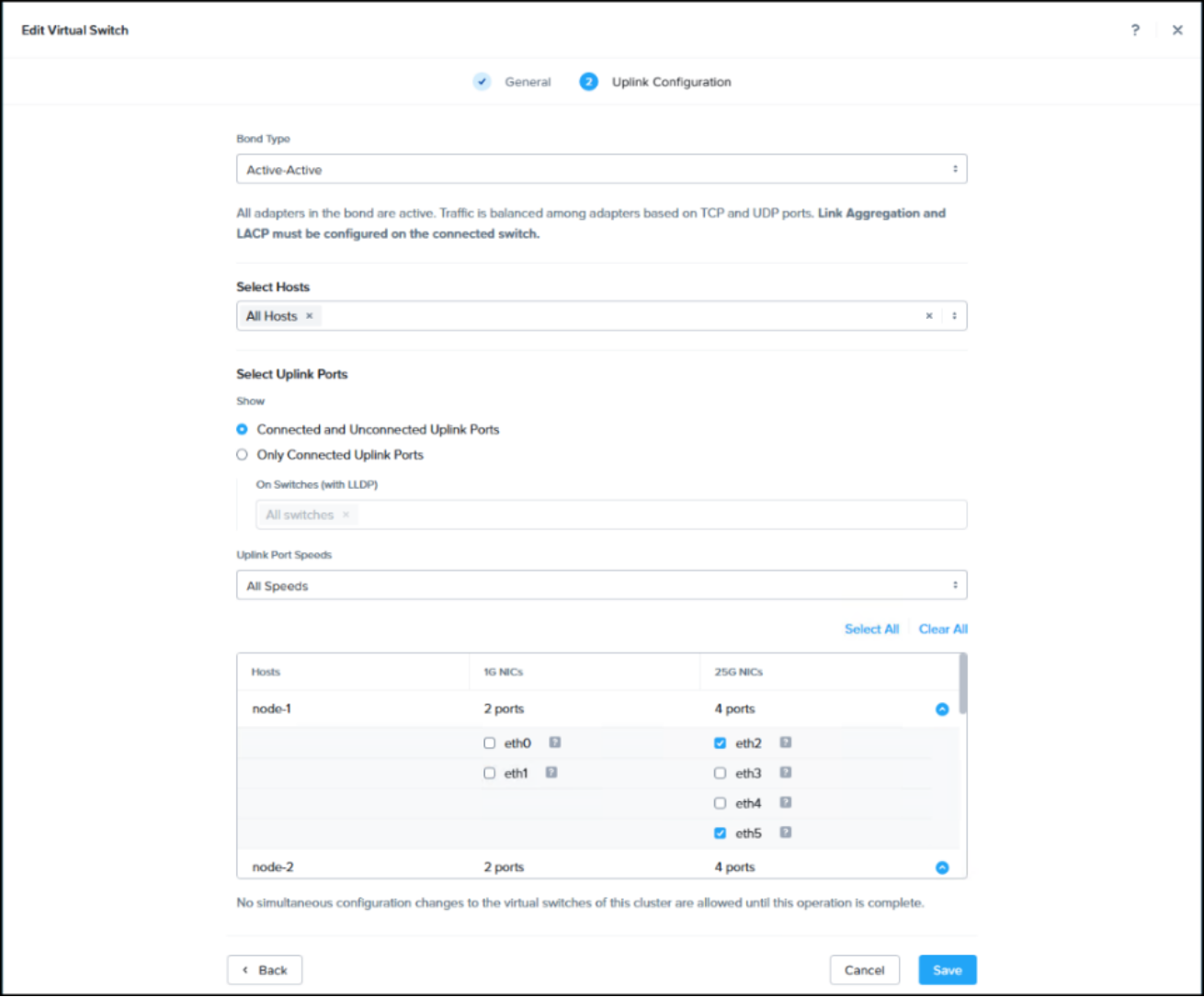
Figure 26. Edit Virtual Switch Ethernet adapter deselection
- The operation will invoke a hypervisor rolling restart. The user can watch the progress by navigating to the Tasks menu in the drop-down menu at the top.
Once complete, return to the virtual switch screen to create a new virtual switch using the available ports.
Create a new virtual switch
Follow these steps to create a new virtual switch. In this example the new virtual switch is specifically for SDC communication with the Dell PowerFlex storage.
- In the virtual switch screen select + Create VS.
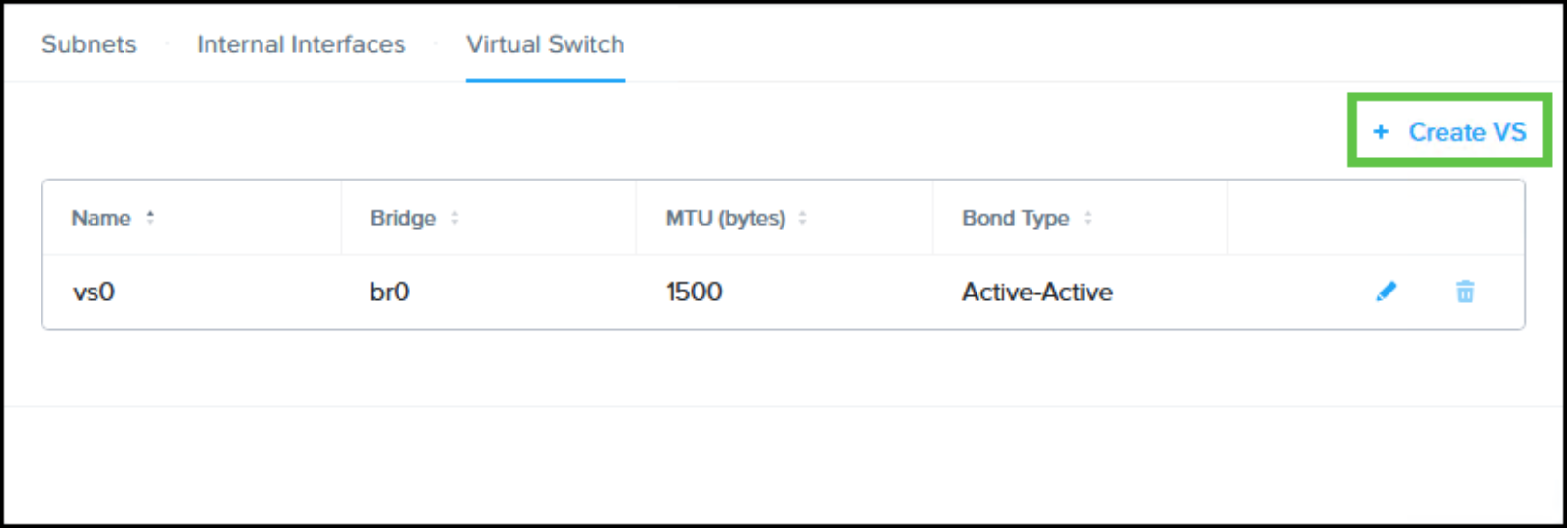
Figure 27. Create Virtual Switch
- In the first screen add in a Virtual Switch Name, Description, and for this cluster we will change the MTU value to 9000 for jumbo frames support. Click Next.
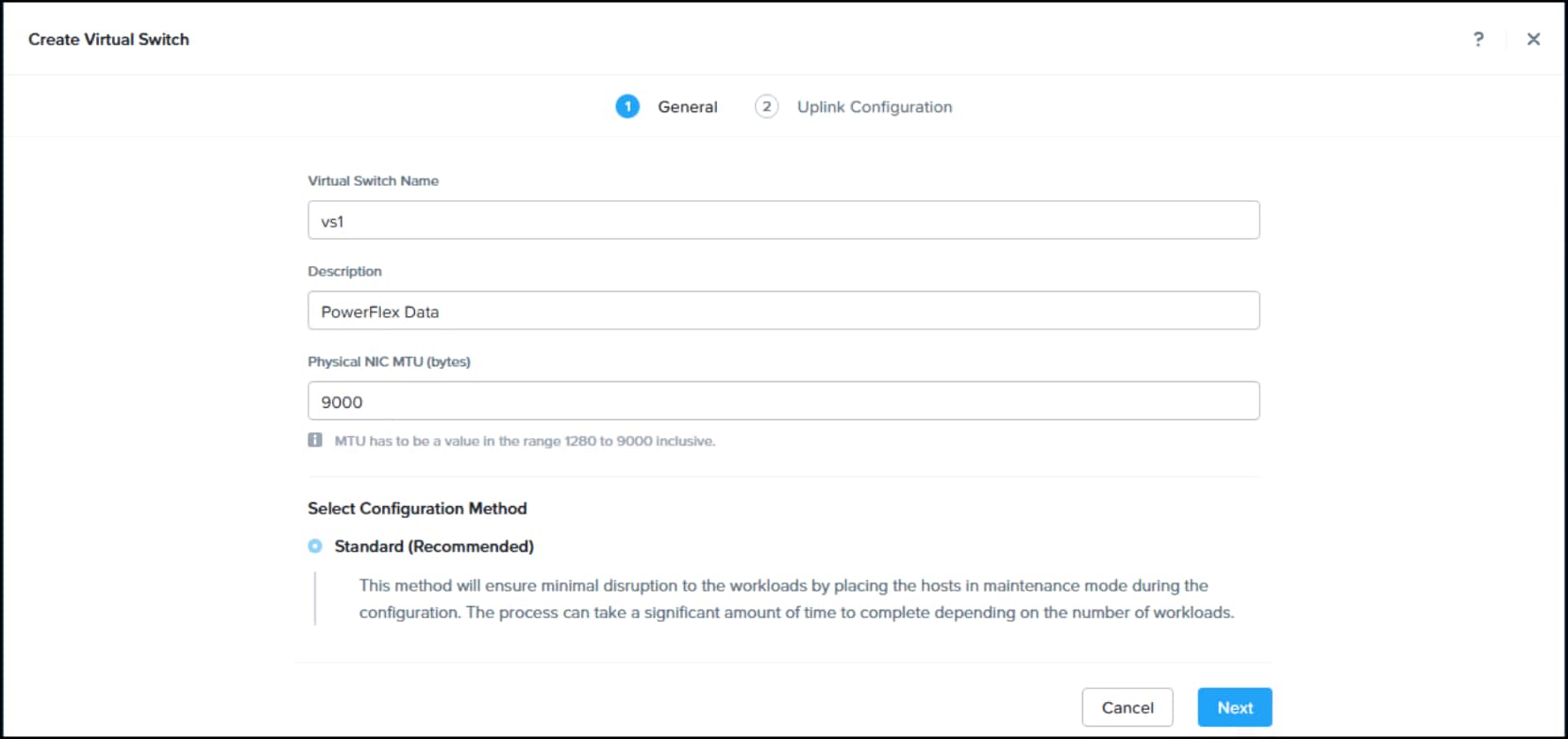
Figure 28. Create Virtual Switch workflow
- Select the appropriate Bond Type based on the Ethernet fabric switch configuration and Nutanix networking best practices, Select Hosts (default All Hosts), and using the check boxes next to the host, select the NICs. Optionally use the Show, Uplink Port Speeds, and Select All toggles to speed up the selection process. In the example below, select eth3 and eth4 which are the NICs previously removed from the vs0 management switch. Click Create to complete the switch creation.
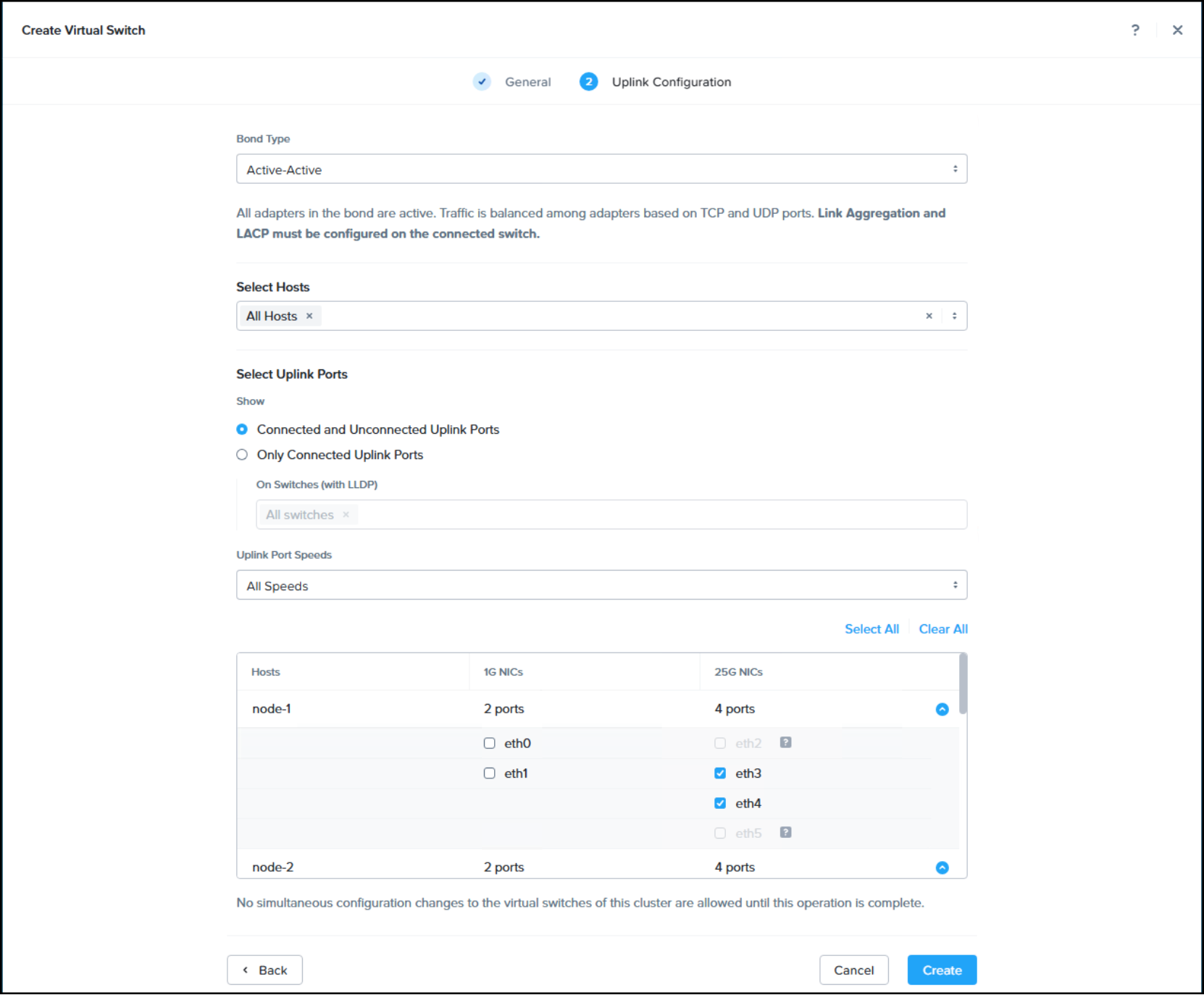
Figure 29. Selecting the bond type and NICs in the bond
- Use the newly created virtual switch to set up the external networks for the Dell PowerFlex SDC.
External networks
Before adding the Dell PowerFlex as external storage, create the Internal Interfaces necessary for communication with the SDC.
- Navigate to the home screen of Prism Element and use the drop-down menu to select Settings. On the left-hand side, select Network Configuration from Network menu. Then select the Internal Interfaces tab on the right-hand side. Click Create New Interface.
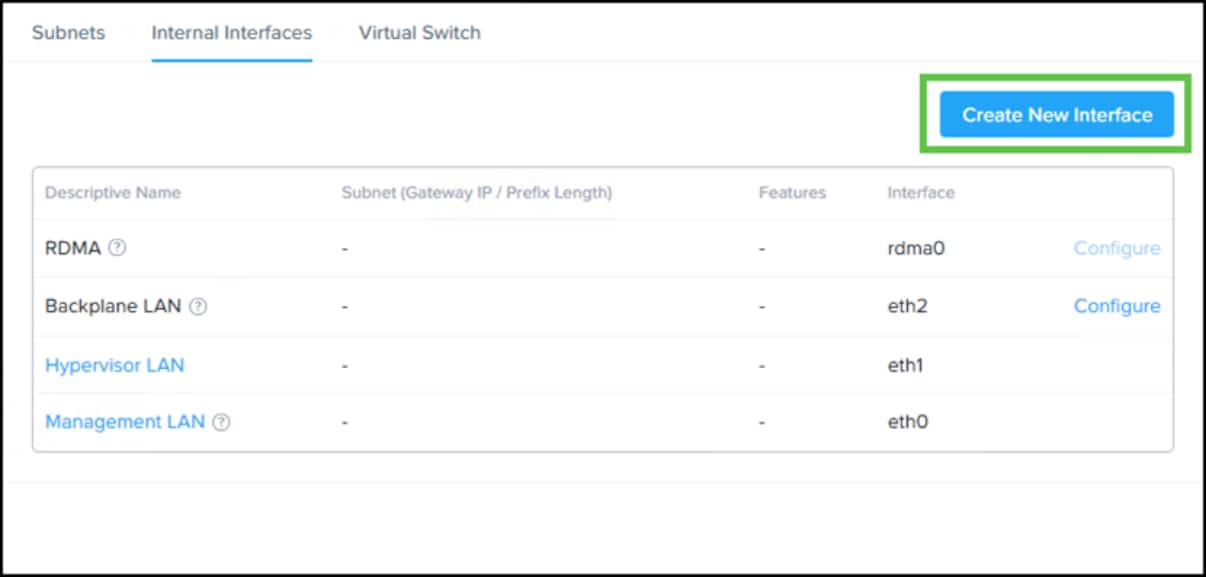
Figure 30. Create a new interface
- In the Interface Details tab enter a Descriptive Name and VLAN ID. Using the drop-down menu for the Virtual Switch, select the newly created virtual switch for SDC communication. Next click on + Create New IP Pool.
- Enter a Pool Name and Netmask and then click + Add an IP range. Enter a Start IP and End IP and click Save. This returns you to the IP Pool dialog and click Save again to return to the Create New Interface dialog.
- Click Next in step 4 which moves to the Feature Selection tab.
- Toggle the External Storage button, change the MTU value to 9000 for jumbo frames support, and click Save to complete the interface.
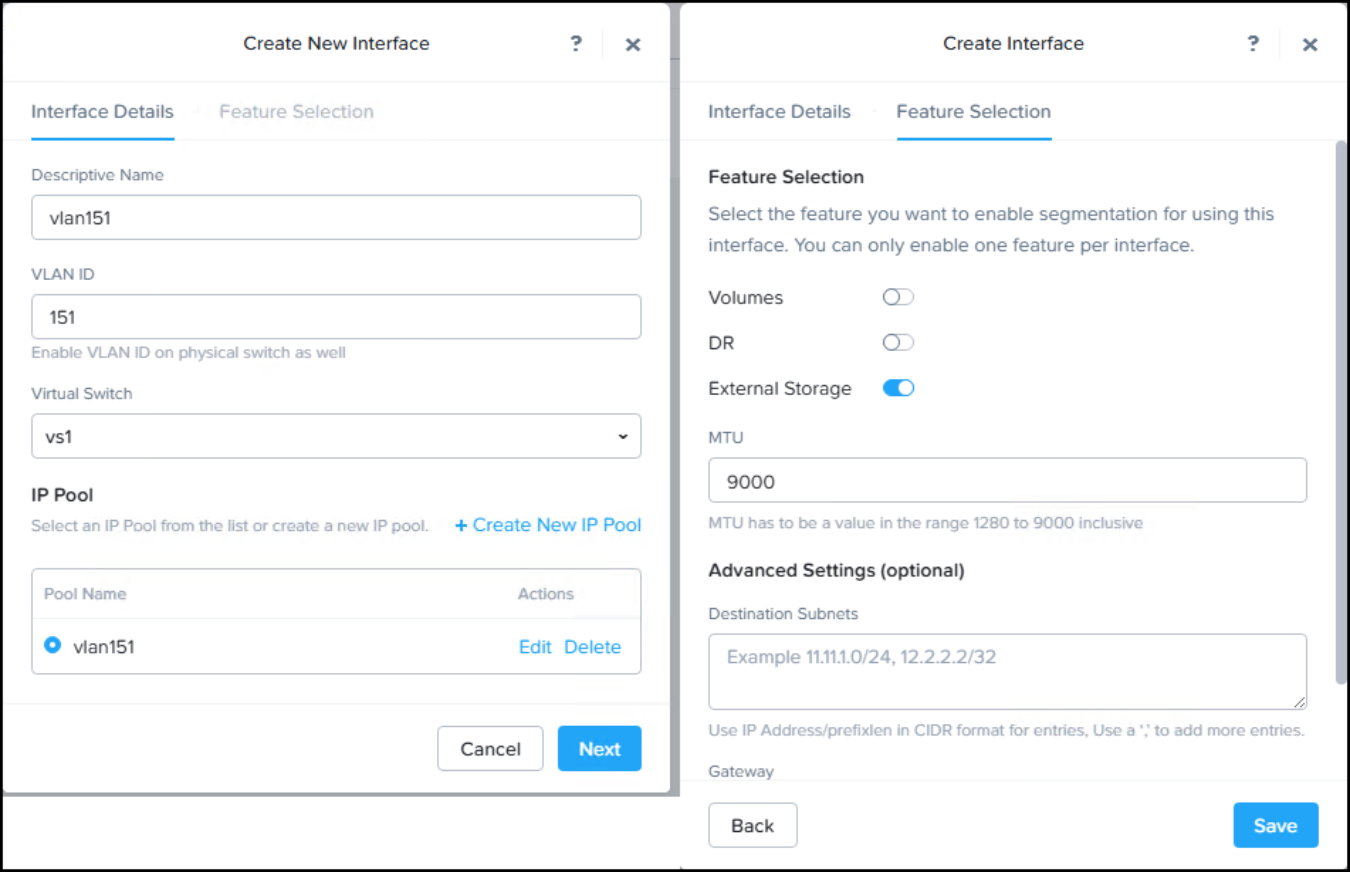
Figure 31. Create new interface workflow
- Repeat the process for additional VLANs. In this example, the SDC requires two VLANs.
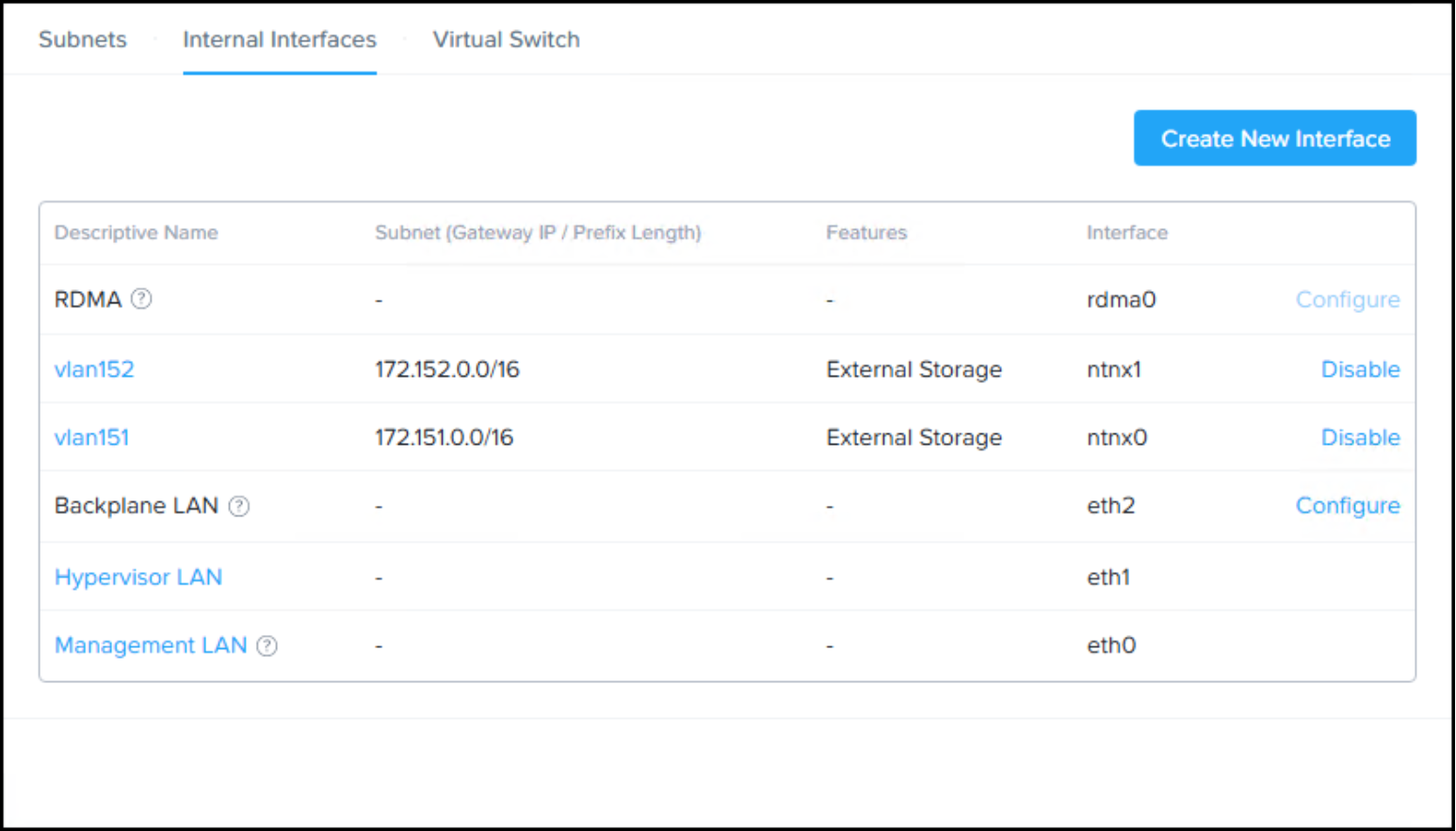
Figure 32. Two internal interfaces have been created
Add external storage
Before adding Dell PowerFlex external storage, ensure the MDM Cluster is configured with Virtual IPs (VIPs). This can be verified in PowerFlex Manager by navigating to Resources | Highlight PowerFlex System row | View Details | MDM Cluster | Virtual IPs.
Add Dell PowerFlex external storage by following the steps below.
- Navigate to the home screen of Prism Element and under Storage Summary on the left-hand side, select + Set up External Storage followed by + Attach External Storage.
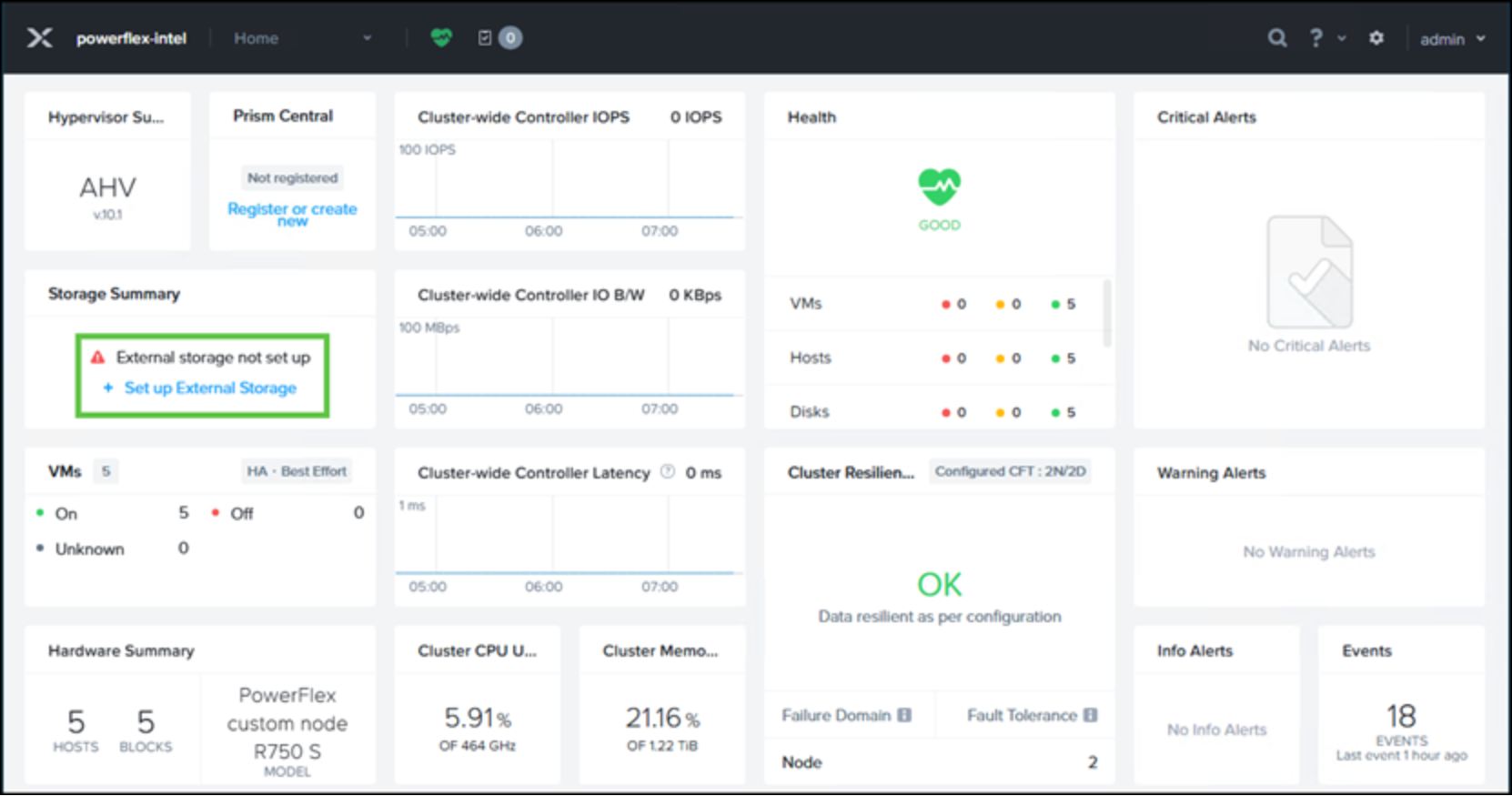
Figure 33. Set up External Storage in Prism Element
- When entering the wizard, the External Storage Vendor will default to Dell PowerFlex as the only fully integrated external storage, as of this writing. First, be sure that network segmentation is set up specifically for external storage. This should have been completed prior to adding external storage. See section External Networks for more detail. The networks will be displayed in the Network Setup (Optional) section at the bottom, though it will not be optional in a properly configured Dell PowerFlex since the SDC should be on a separate network/VLAN. This network(s) is specifically for SDC communication back to the Dell PowerFlex cluster. In the example below, there are two data networks, vlan151 and vlan152.
- In the SDC Installation section, add the .json and .zip files and click Install.
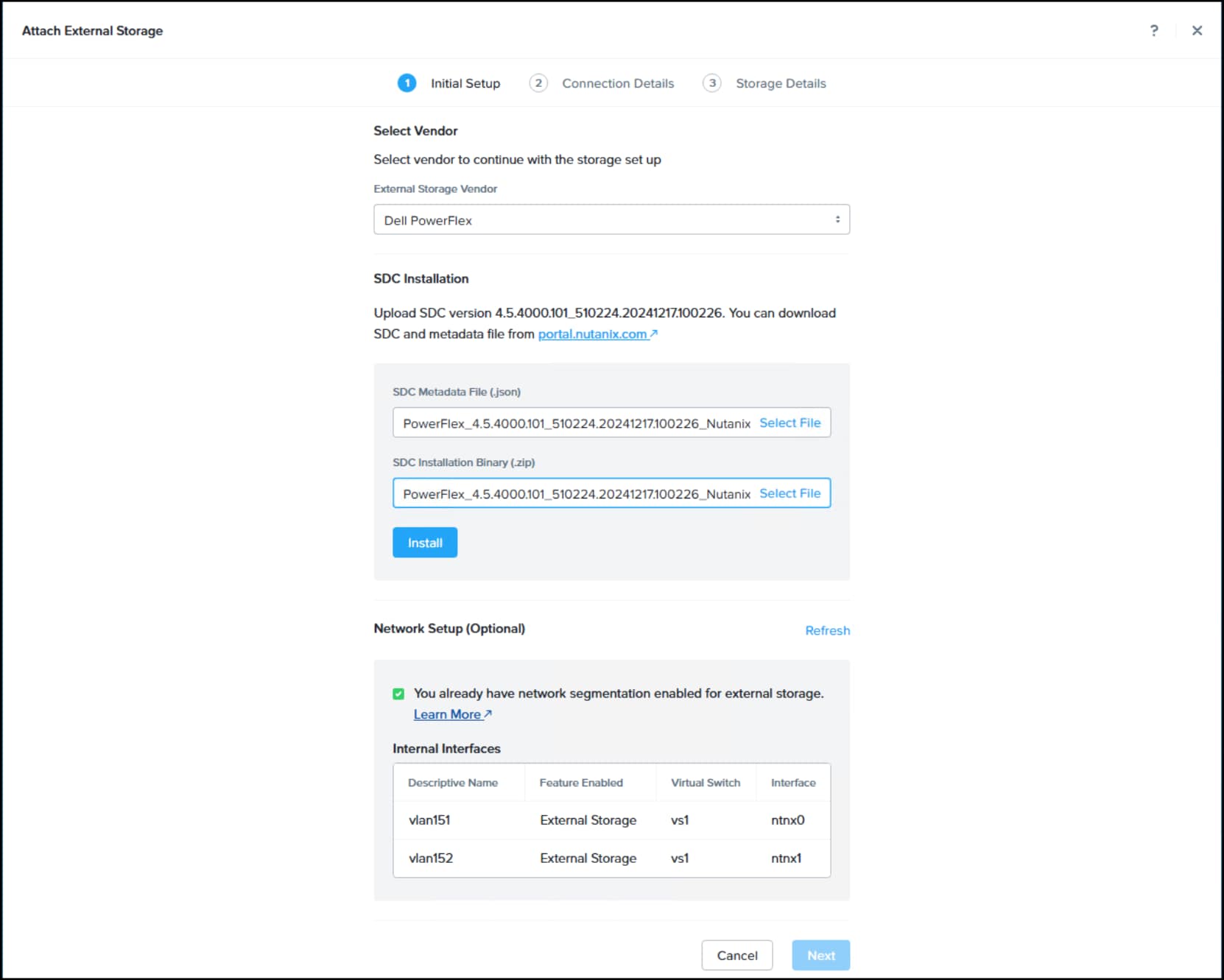
Figure 34. Initial setup page for adding external storage
- Once installation of the SDC is complete, there will be a green checkmark next to each field. Click Next.
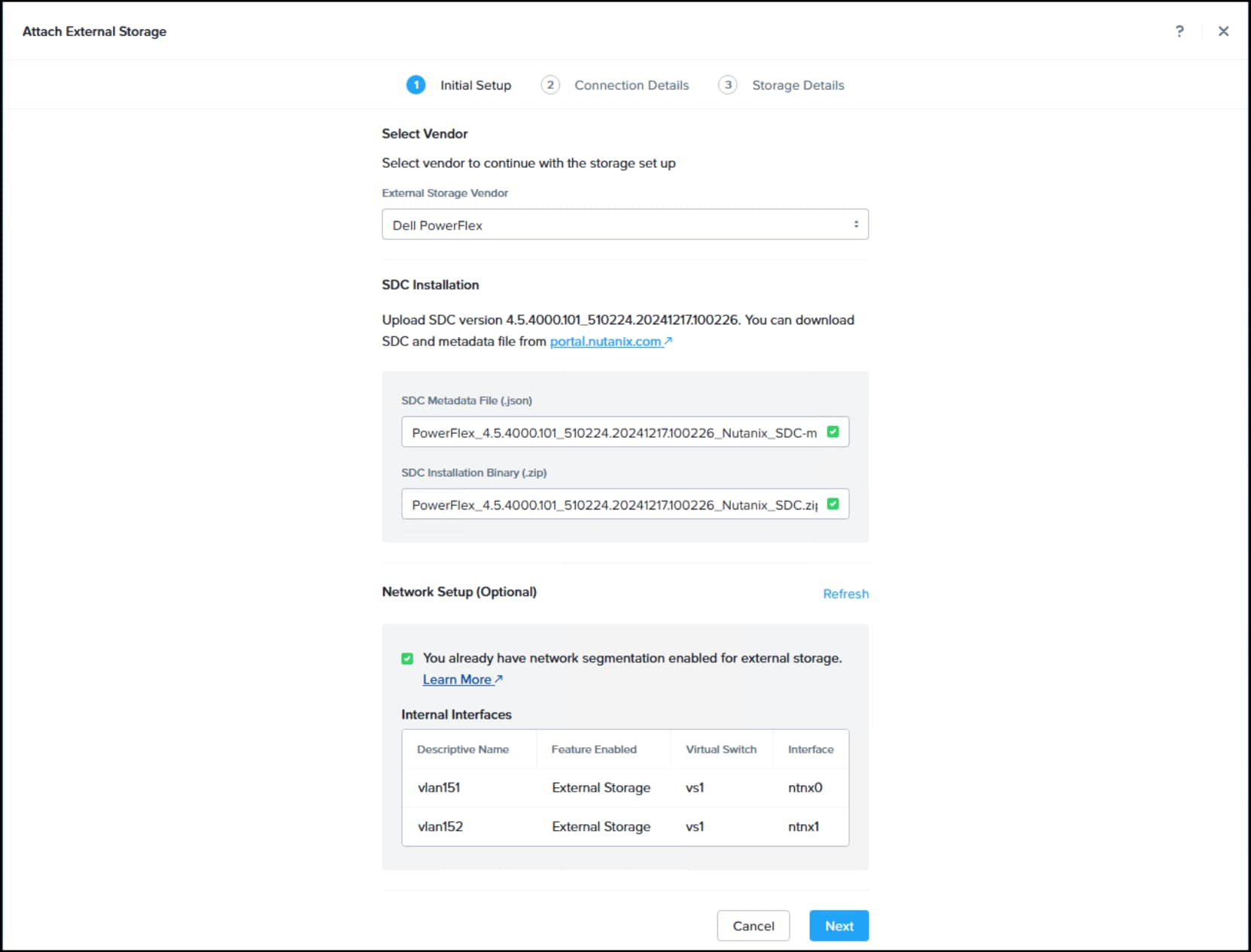
Figure 35. SDC files have been uploaded
- In Connection Details, enter a Name for the Dell PowerFlex, the IP address of the PowerFlex Manager (API Endpoint) and a PowerFlex Manager Username and Password having the StorageAdmin or higher role. Click Next. Nutanix will attempt to connect to the PowerFlex Manager. If it fails an error message will appear. Resolve before proceeding.
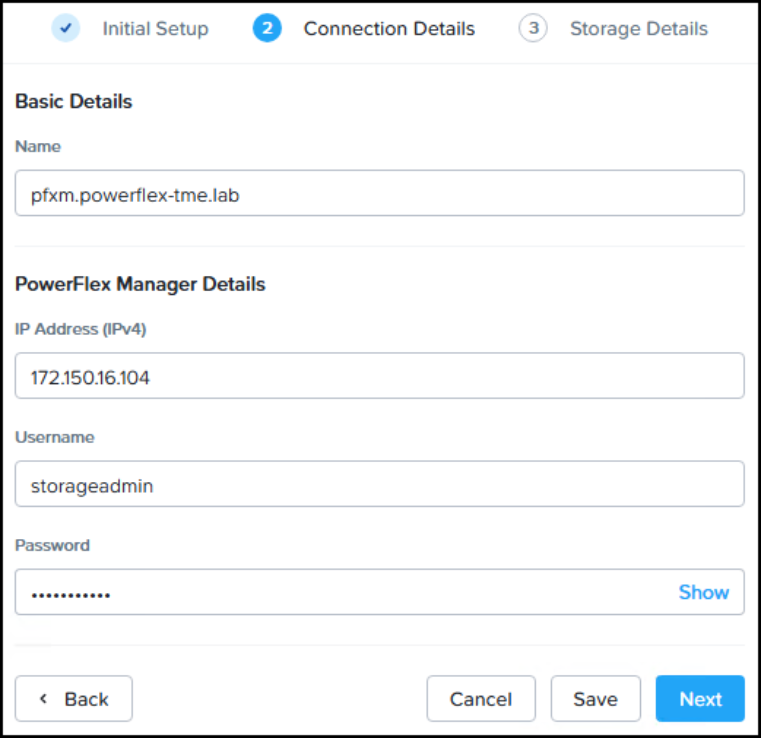
Figure 36. Connection details for PowerFlex Manager are provided
Note: A service account is recommended for the external storage connection. The service account must have the PowerFlex Manager StorageAdmin role or above. If the service account password is changed or rotated on a recurring basis, it must be updated in both PowerFlex Manager and Prism.
- In the Storage Details screen, use the drop-down menus to select the PowerFlex Protection Domain and the Storage Pool Name. Only one of each may be selected. Click Attach to complete.

Figure 37. Attach External Storage workflow Protection Domain and Storage Pool selection
Note: Only one Dell PowerFlex external storage, Protection Domain, and Storage Pool may be attached to an NCI-C cluster. However, a single PowerFlex storage cluster will support multiple NCI-C clusters, as well as all other host types traditionally supported by PowerFlex.
After external storage has been added, a Storage Container will be created automatically and can be immediately used. This Storage Container will be tied to the Protection Domain and Storage Pool specified above and can be used going forward to store all VMs, templates, images, OVAs. Although it is not necessary, additional Storage Containers may be created with different Advertised Capacity characteristics. However, they will be tied to the same Protection Domain and Storage Pool specified above.
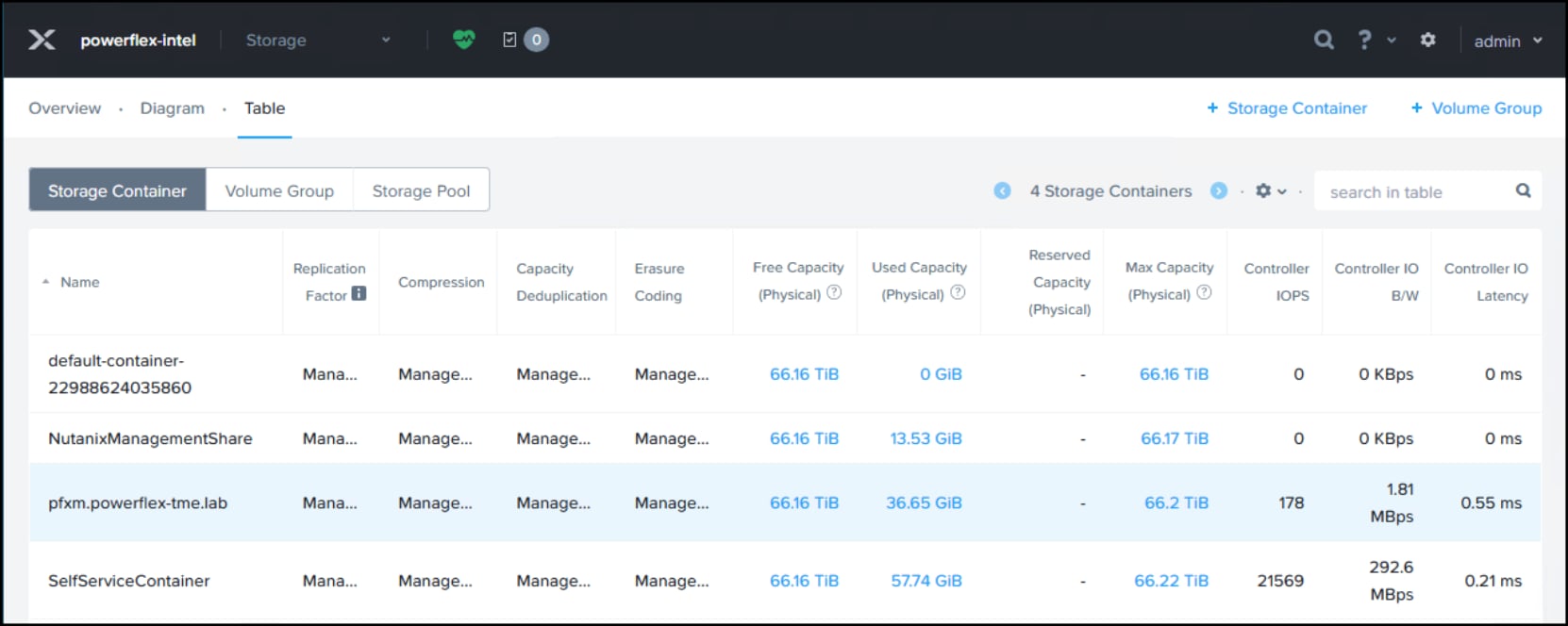
Figure 38. The PowerFlex Storage Container is automatically created, and available Storage Containers are shown in Prism Element
The NCI-C cluster will immediately begin consuming the external storage after it has been added. This is accomplished with the dynamic provisioning of per-node volumes. These will be covered in more detail in a later section.
The CVM, which had previously been provisioned on the BOSS card, will now use external PowerFlex storage for the bulk of its operations going forward. However, the CVM will continue to use BOSS card storage for logs and binary uploads.
After adding the external storage to the system, the Health and Cluster Resiliency/ Fault Tolerance Status applets exist in a Critical state for about 2 hours, and post this timeline, the system turns to Healthy (Green) status.
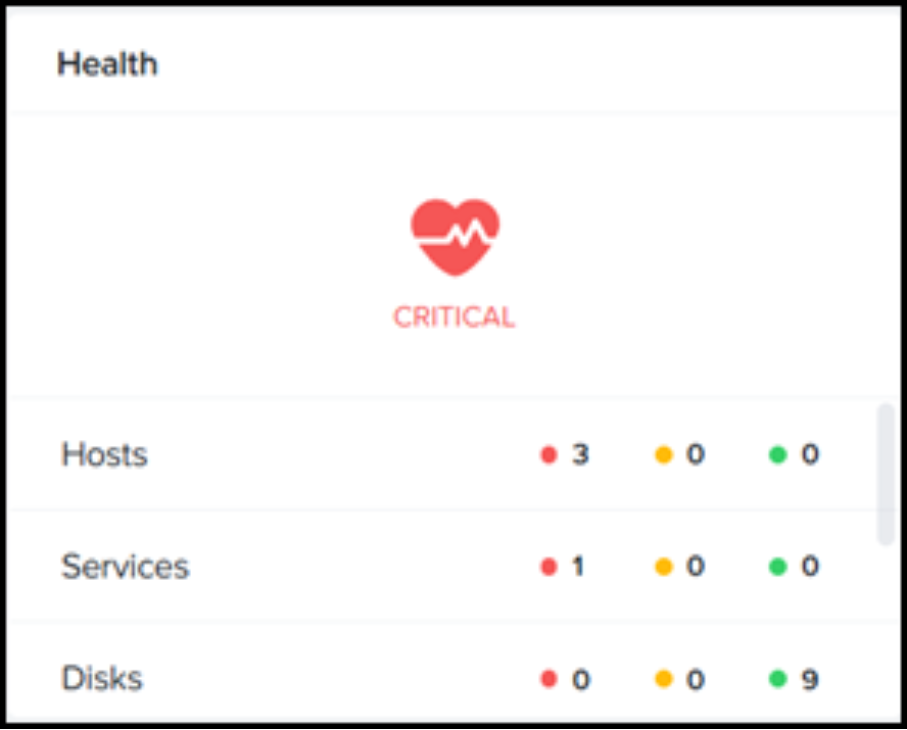
Figure 39. External storage health
Prism Central Deployment
While Prism Element runs on each Nutanix node, it is designed to only manage the local cluster which that node is a member of. Prism Central offers federated management of multiple clusters and provides more advanced analytics, user management, automation, and features. The following sections detail the implementation of Prism Central, including the prerequisites.
Subnet creation
Prior to Prism deployment, create a subnet where Prism will be deployed. A subnet is synonymous with a VM Network. Follow the steps below.
- Like the networking section earlier, navigate to Settings -> Network Configuration and select the Subnets tab on the right-hand side. Click on + Create Subnet.
- Enter a Subnet Name, select a Virtual Switch, and provide the tagged VLAN ID (use VLAN ID 0 for access ports). If you want AHV to control IPAM, click the box and then provide the network prefix and the gateway. The example below uses the VLAN ID of 105 which is the public network and does not enable IP management. Click Save.
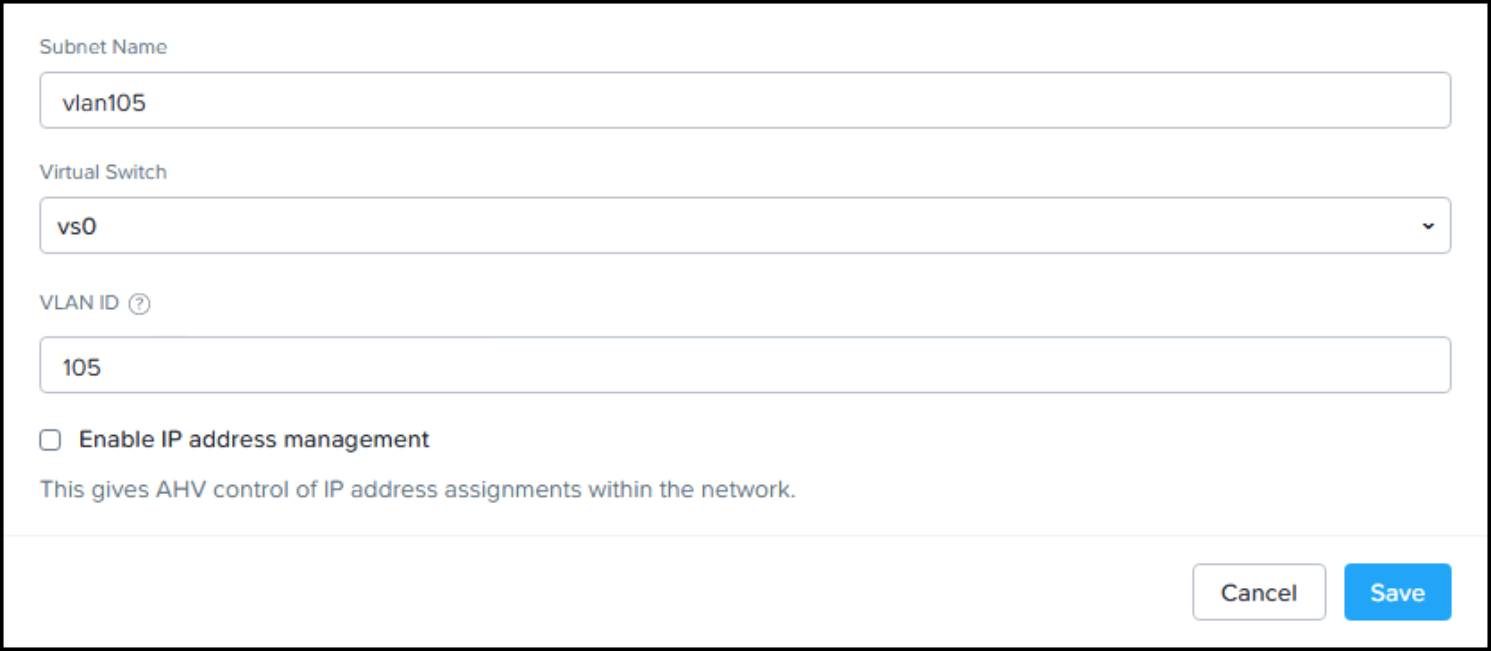
Figure 40. Create subnet workflow
- Navigate to Settings -> Cluster Details. Provide an available IP address on the Host/CVM VLAN for the Data Services IP (DSIP) field. Click Save.
Prism Central Deployment
The following section includes the steps to deploy Prism Central from an existing Nutanix cluster. Refer to the Nutanix Prism Central Deployment Guide for more details.
- From the dashboard of Prism Element, find the Prism Central widget and select Register or create new.
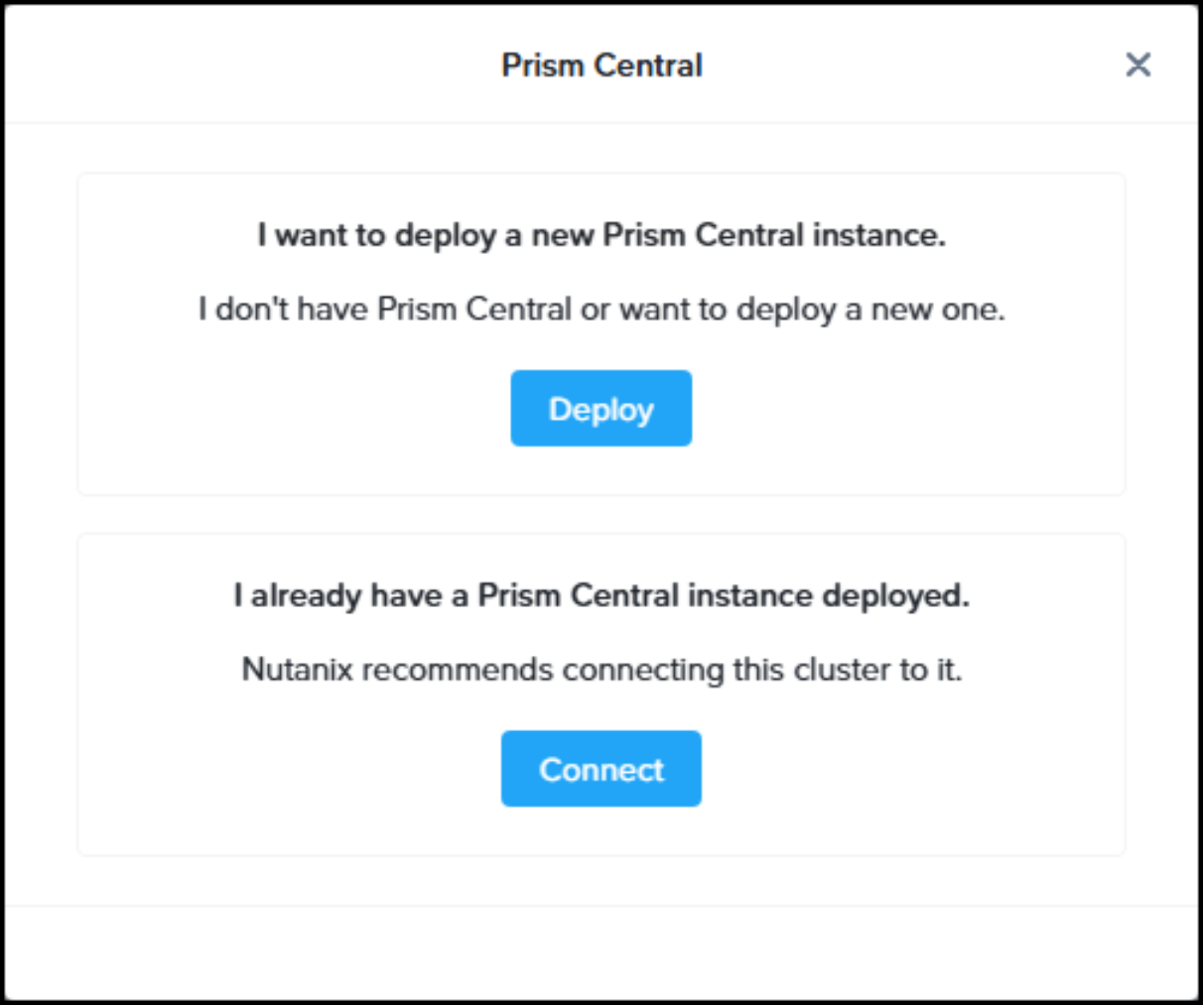
Figure 41. Prism Central can be deployed from Prism Element
- In the initial dialogue shown in the following figure, select Deploy.
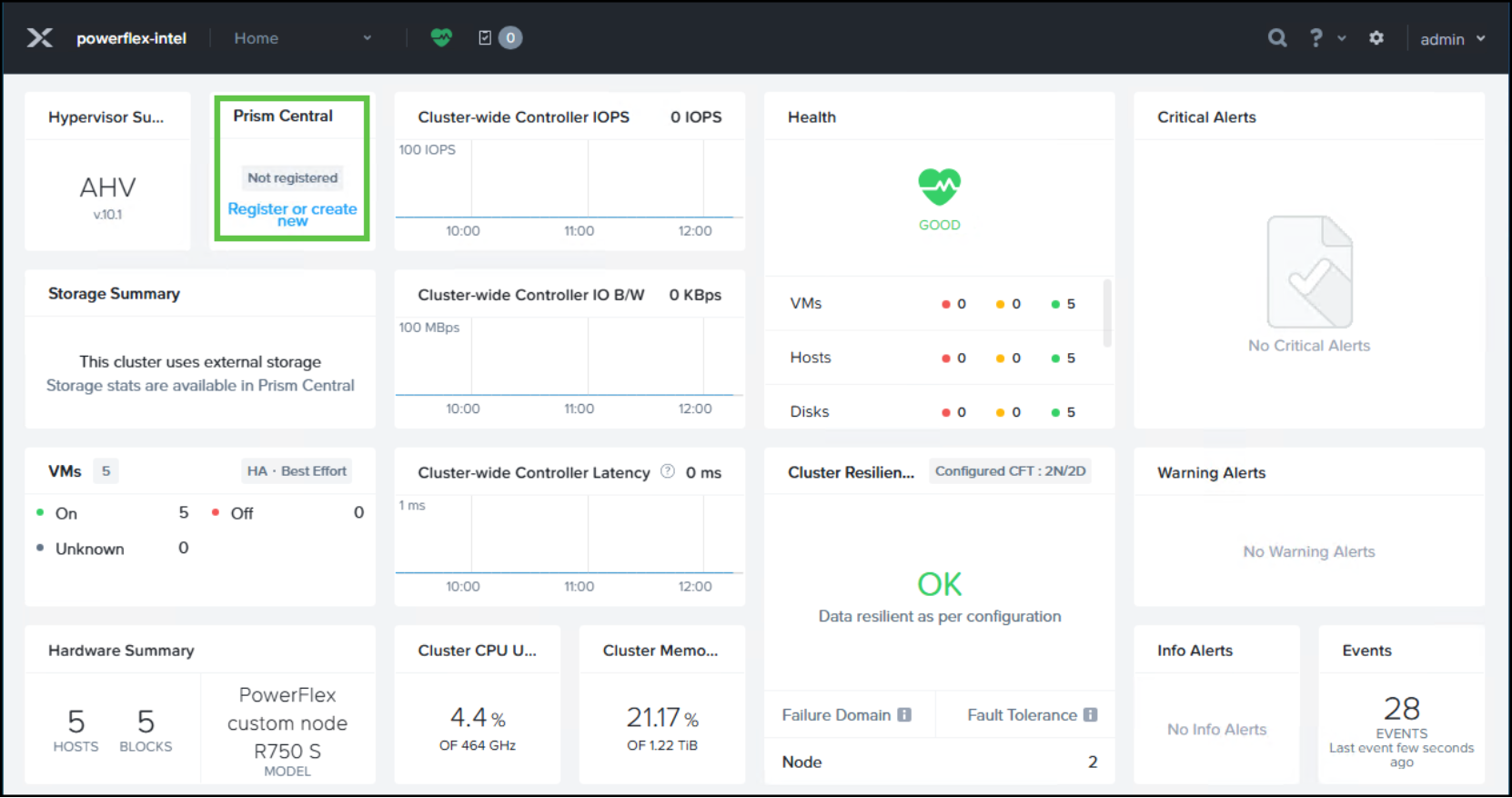
Figure 42. Deploy Prism Central instance workflow
- Select Upload Installation Binary. Select the appropriate .json and .tar file and click Upload. Once it is complete, the latest version will appear as in the Available versions table. Highlight the radio button and click Next.
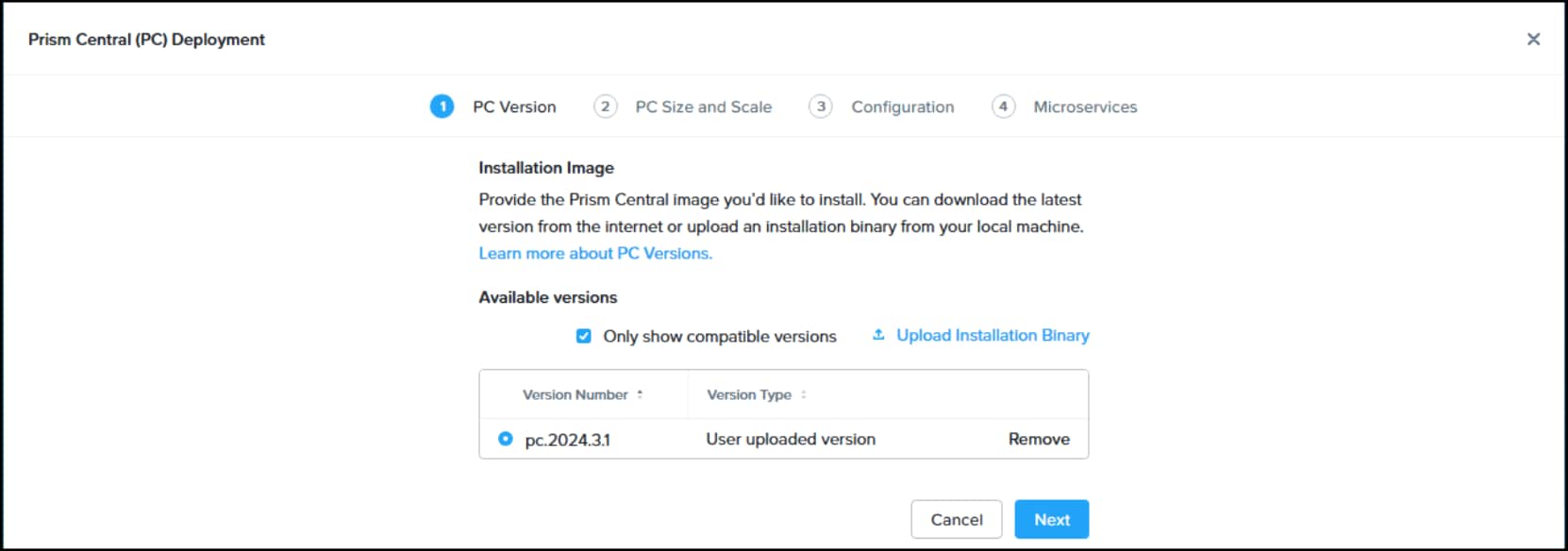
Figure 43. Choose the Prism Central version to deploy
- In the PC Size and Scale screen decide how large to scale the Prism Central deployment. Note that X-Small is for exclusive use cases and should normally not be selected as it lacks support for some features. Click Next.
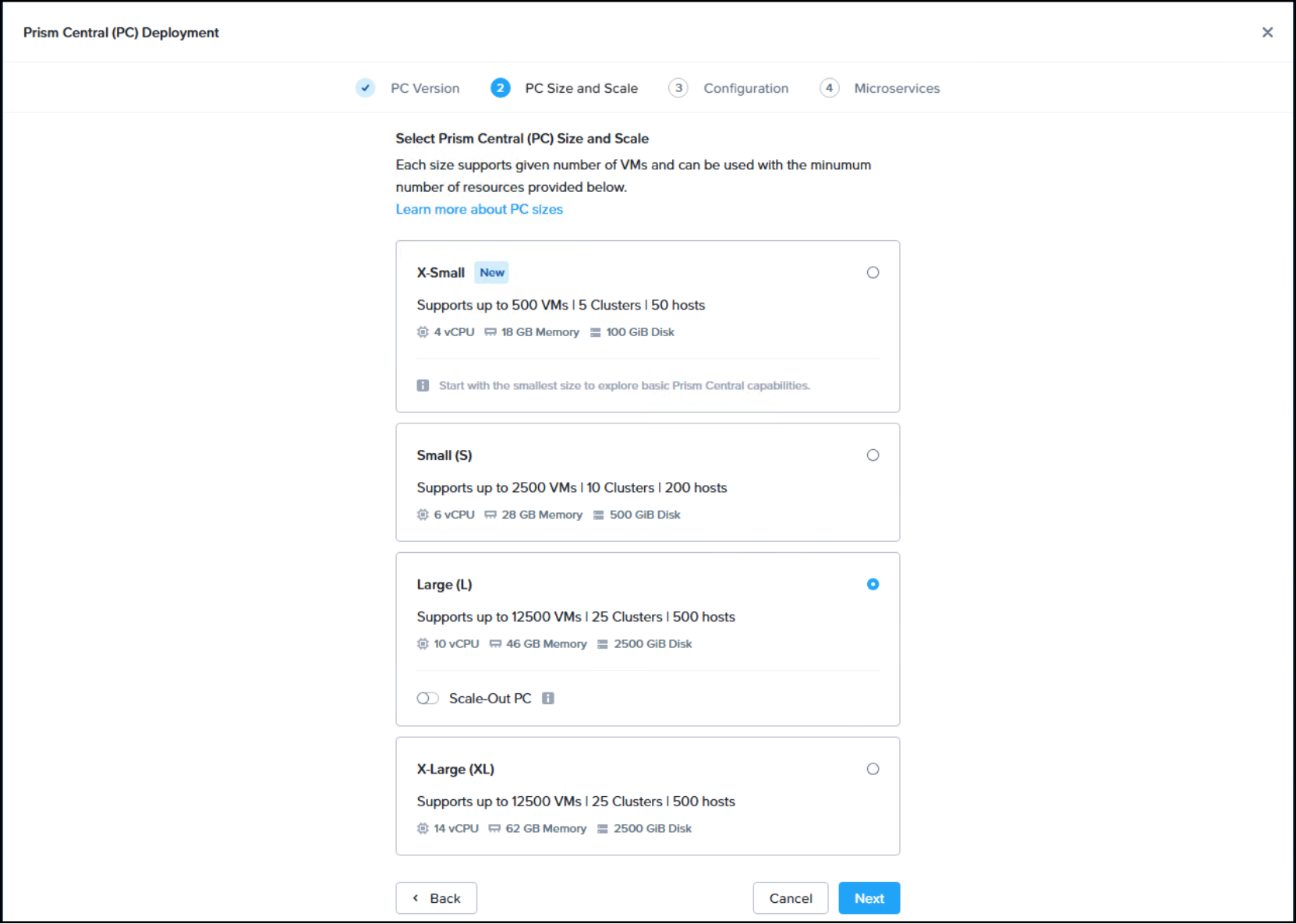
Figure 44. Choose the Prism Central size to deploy
- In the configuration page select the previously created network in the Subnets section. Provide the required network information, select the default Dell PowerFlex Container, provide a VM Name and IP Address.
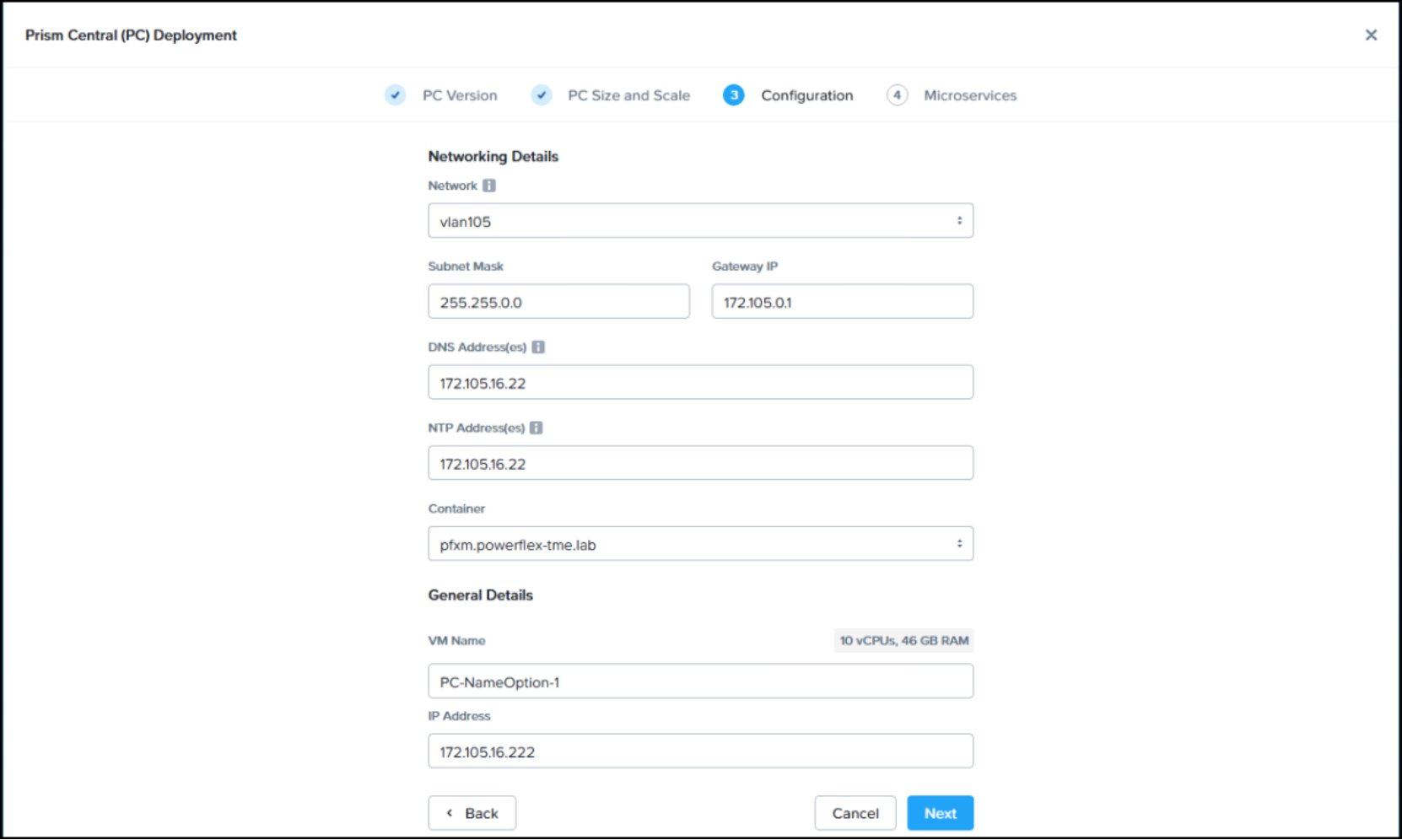
Figure 45. Configure Prism Central networking details
- In the final step Nutanix presents the Microservices infrastructure. Dell recommends accepting the defaults.
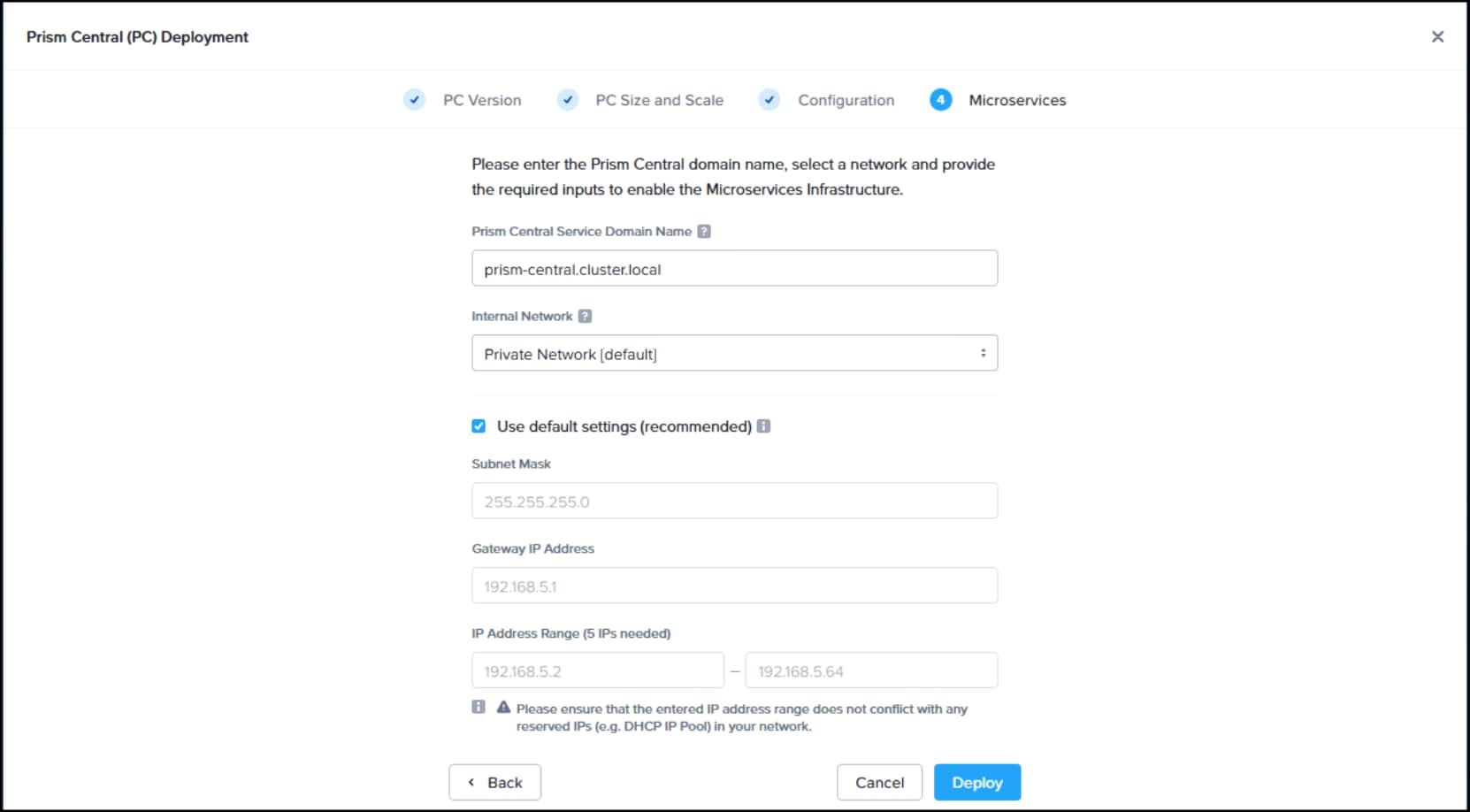
Figure 46. Configure Prism Central Microservices
Note: Prism Central Microservices configuration relies on a healthy and properly configured DNS Address in the previous step. An unexpected DNS server response can cause a failure in the Microservices step of the deployment workflow.
- A new Prism Central deployment will require an admin password change. It is recommended to perform this before cluster registration. One method is to open Prism Central by navigating to the following URL: https://<PRISM_CENTRAL_IP>:9440. Prism Central prompts for an admin password change at first login. Accept the EULA and enable Pulse if possible.
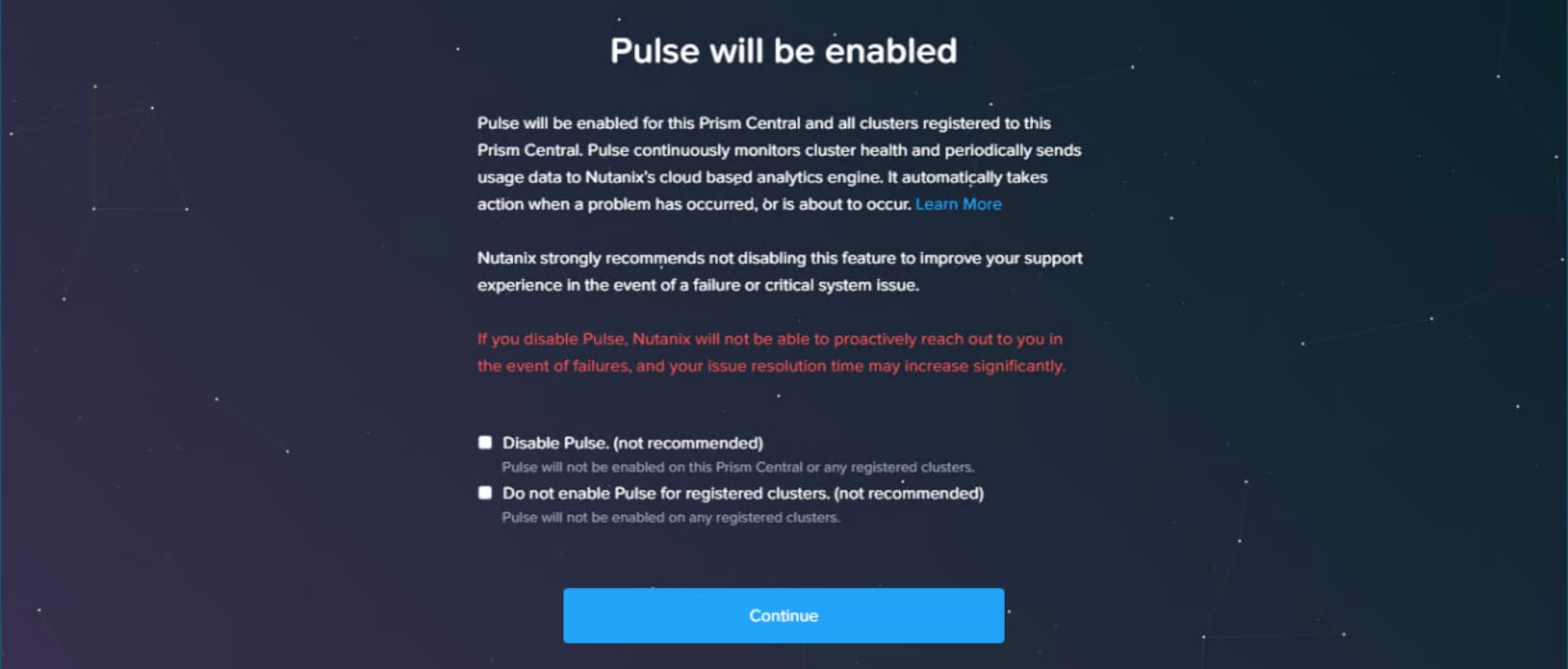
Figure 47. Prism Central UI with Pulse enable or disable feature
Another method is to SSH into the Prism Central IP address and issue the following command:
ncli user reset-password user-name="admin" password="<new password>"
Note: The maximum age of the admin account password before a rotation is forced (default 60 days) can be configured via SSH into Prism Central with the following command:
allssh sudo chage -M <MAX_DAYS> admin
Previously used passwords are “remembered” in:
/etc/security/opasswd
A locked admin account can be unlocked with the following command:
sudo faillock --user admin --reset
- Return to Prism Element. The cluster must be registered. Follow the registration link from the Prism Element dashboard.
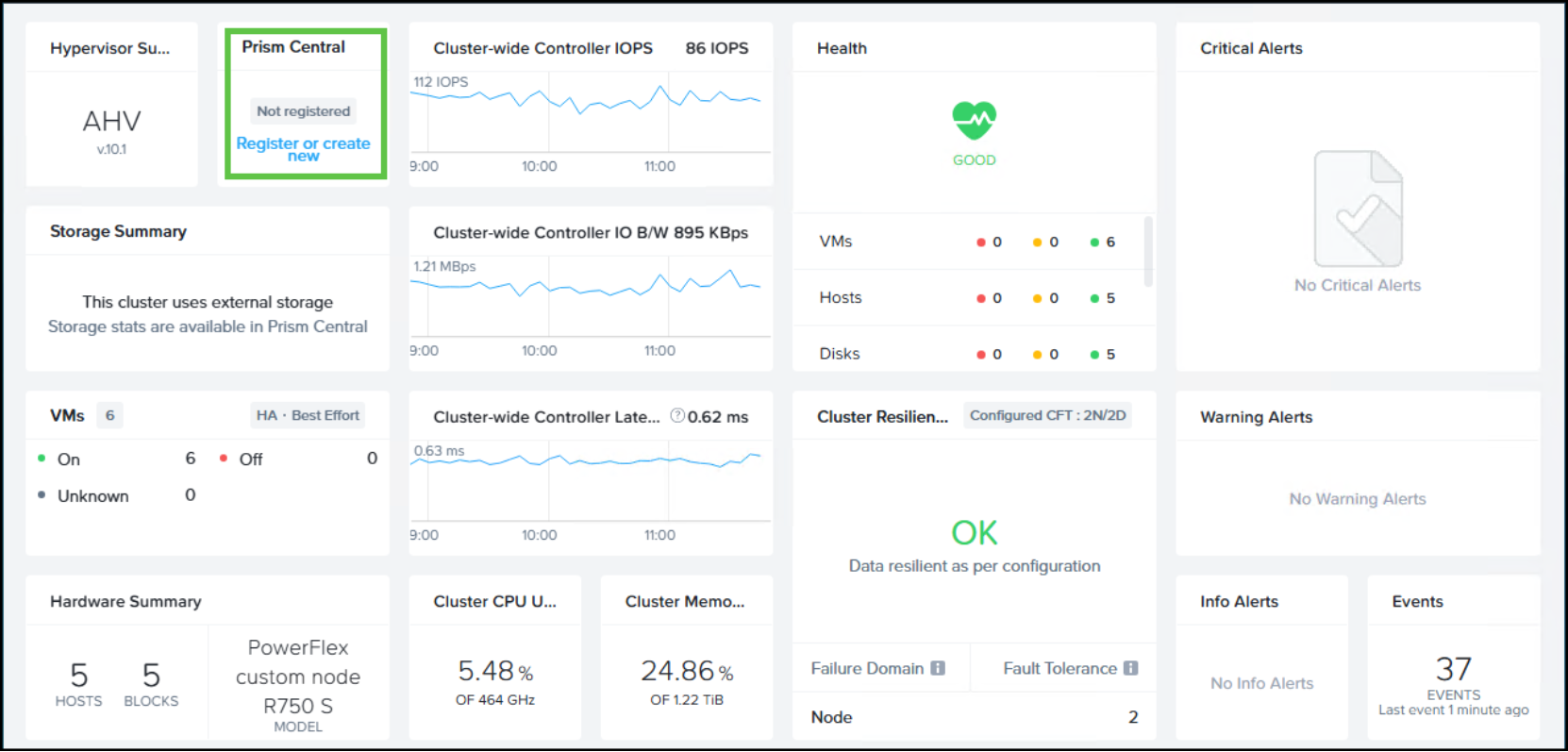
Figure 48. Use Prism Element to register the cluster to Prism Central
- Click Connect.
- Provide the Prism Central connection information and click Connect.
Prism Central is now deployed with the NCI-C cluster registered. Prism Central should be used going forward for most NCI-C tasks.
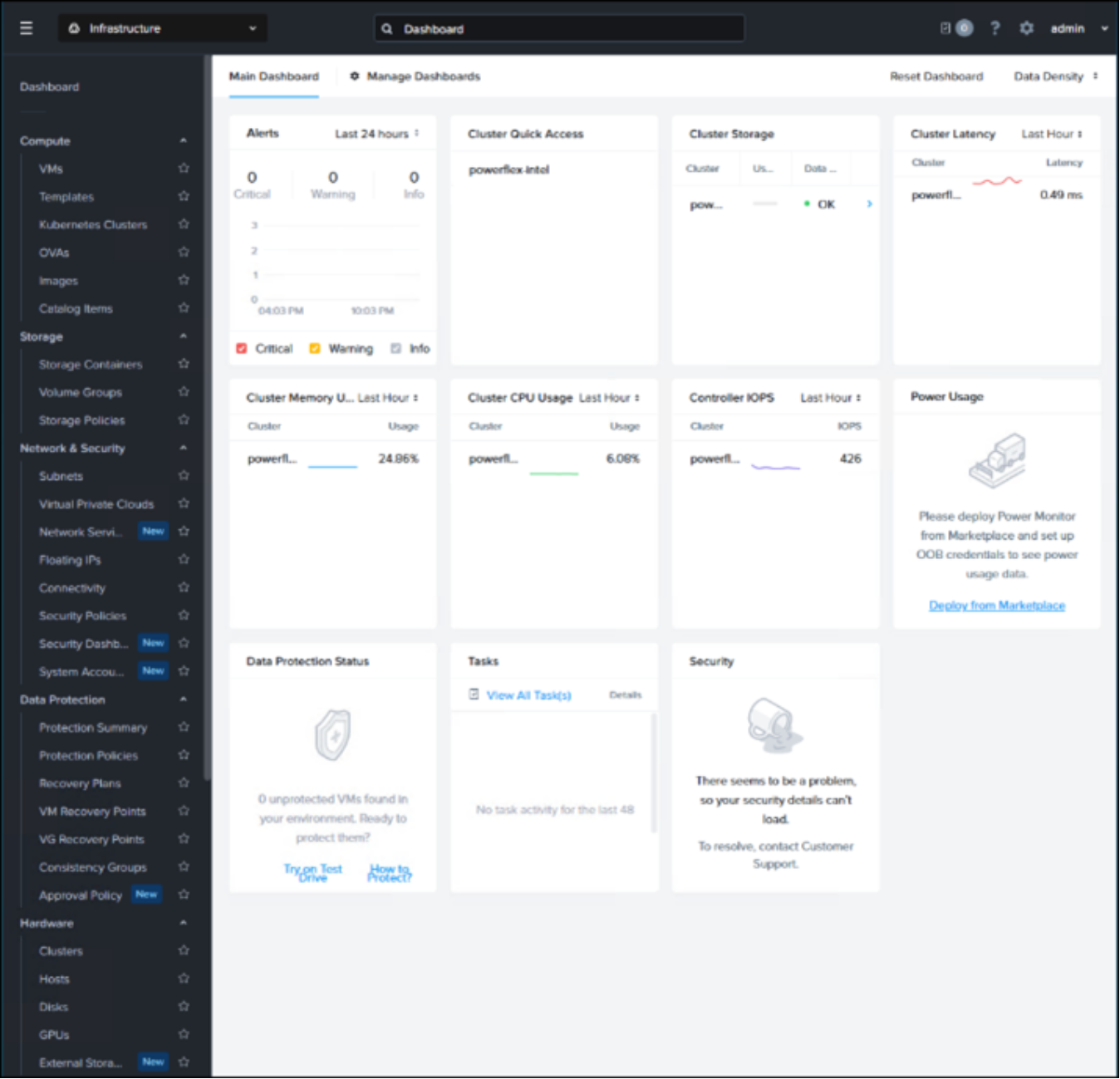
Figure 49. Prism Central Infrastructure dashboard
Viewing Attached External Storage in Prism Central
This section describes how to view the external storage in Prism Central. Use this procedure to view the external storage in Prism Central. To view the external storage (Dell PowerFlex storage clusters), follow these steps:
- Log on to Prism Central.
- From the Application Switcher Function, select the Infrastructure application, and from the navigation bar, select Hardware > External Storages. The External Storages tab provides the following information about the external storage:
- Name: Indicates the name of the attached External Storage. For example, PowerFlex.
- Unique ID: Indicates the unique identification of the external storage hardware.
- Status: Indicates the health status of the attached external storage. The values are:
i Healthy: Indicates the external storage object is healthy.
ii Authentication Failed: Indicates failure to log into the external storage due to incorrect credentials or credentials issue at the external storage (Dell PowerFlex storage cluster).
iii IO Error: Indicates the external storage object is unreachable for the IO or control operations due to network issues or if the external storage system is down.
iv Out of Space: Indicates the external storage is out of space.
v API Server Unavailable: Indicates the external storage API server is unavailable or unreachable due to network issues or if the external storage API server is down.
- Storage Vendor: Indicates the name of the external storage vendor. For example, Dell PowerFlex.
- Storage Usage: Indicates the storage usage and total capacity of the external storage.
- Storage Management: Provides access to the platform provided by the external storage vendor to manage storage. Click the Open link to access the platform. For example, Dell PowerFlex Manager if Dell PowerFlex is the external storage.
- Cluster: Indicates the name of the NCI-C cluster to which the selected Dell PowerFlex external storage is attached.
The system displays the External Storages page with a List tab by default. This tab lists all the Dell PowerFlex external storages attached to the Dell PowerFlex NCI-C clusters that are registered to Prism Central.
Management and migration
Introduction
Volumes
Nutanix consumes external storage through the creation of volumes on PowerFlex. Nutanix virtual disks, or vDisks, can be attached to virtual machines directly using Prism Central, or through the use of volume groups. Volume groups allow the mapping of volumes as virtual disks through iSCSI and the cluster Data Services IP (DSIP).
From a management perspective, most PowerFlex volumes are equal in that they can be created, mapped, expanded in size, replicated, unmapped, and deleted using the PowerFlex Manager UI and workflows. However, PowerFlex Manager 4.6.2 introduced a new ‘ntnx’ volume class for Nutanix volumes. The volume class enables the use of the Filter Volume feature in PowerFlex Manager to toggle the display of Nutanix volumes as either shown or hidden. All Nutanix volumes created on the Dell PowerFlex are prefixed with “nx_” as shown in the figure below. The volume name extension or suffix identifies the type of volume:
- .nd – per-node volumes. These are AOS metadata volumes and the first volumes created by an NCI-C cluster when external storage is added. These volumes are mapped and formatted as ext4 and mounted under /home/nutanix/data/stargate-storage/disks/. In addition, these volumes are placed in zeus_config in external_storage_disk_list with the volume id, size, mount path. Verbose information about these volumes can be obtained with the zeus_config_printer command in the CVM.
Three per-node volumes per CVM are created initially:
- One 8GB for Cassandra (metadata service). Additional volumes will be dynamically created and mounted if Cassandra volume exceeds a configurable threshold.
- One 56GB for Curator (janitor service). Additional volumes will be dynamically created and mounted if Curator volume exceeds a configurable threshold.
- One 8GB for Zookeeper (configuration information service)
- Additional volumes per CVM are created for swap.
- .dt – data volumes which correspond to a vDisk. These are sized according to the vDisk configuration in Prism but must adhere to the Dell PowerFlex sizing rules of the power of 8. For example, if a VM is configured with a 100 GB vDisk, the corresponding volume size in PowerFlex will be 104 GB.
- Snapshots result in the creation of 1 additional RW snapshot volume. (net creation of 1 new PowerFlex volume)
- A clone of a powered off VM results in the creation of 1 additional RW snapshot and 1 additional metadata volume (net creation of 2 new PowerFlex volumes).
- A clone of a powered on VM results in the creation of 1 RO snapshot, 1 RW snapshot, and 1 metadata volume (net creation of 3 new PowerFlex volumes).
- .md – metadata volumes. A thin provisioned 8 GB metadata volume is created for every data volume that is created. Nutanix uses these volumes for changed block tracking (CBT) and to store data-related information. Most of the time, these volumes are unmapped but Nutanix will map them when it needs to record data. For example, a volume under heavy activity or one involved in snapshots would prompt mapping. That mapping will be removed after idle time to avoid exceeding the SDC limit per node. Each vDisk clone will create an additional metadata volume. However, snapshots within a volume tree (vTree) share a single metadata volume. The per-volume vTree limit is 126. This is the maximum number of volumes allowed within a single vTree.
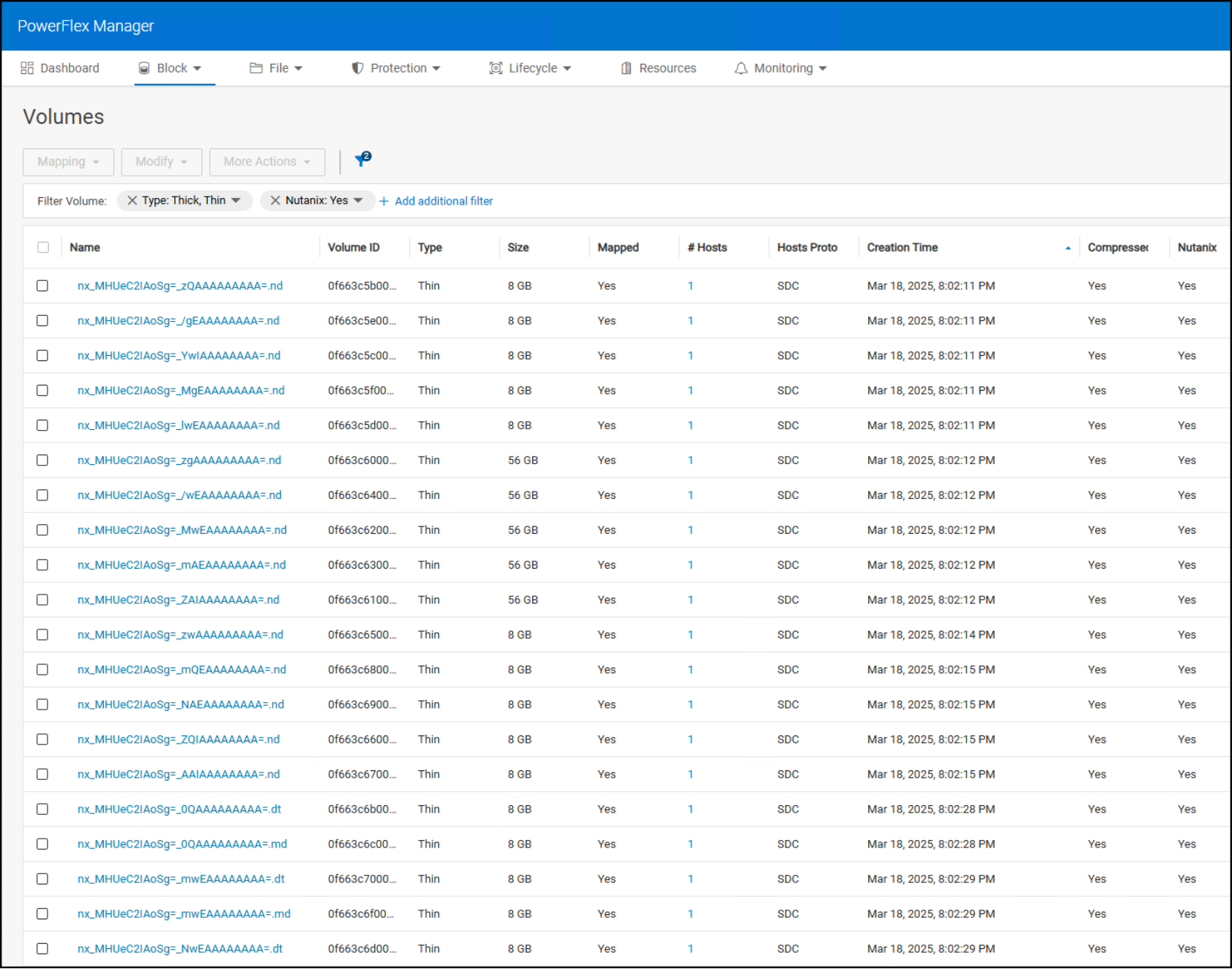
Figure 50. PowerFlex Manager block volumes of the type Nutanix
Note: All day-to-day Nutanix volume management should be orchestrated by following standard Nutanix workflows in Prism. In most circumstances, Nutanix volumes should not be altered within PowerFlex Manager. To maintain integrity of the NCI-C cluster and its workloads, Nutanix volumes are natively protected by the ‘ntnx’ volume classification and cannot be deleted using PowerFlex Manager. However, Nutanix volumes can be queried, unmapped, and deleted forcefully using PowerFlex scli. As an example:
scli --query_all_volumes
scli --unmap_volume_from_host --volume_name <nx_xxx=yyy.dt> --volume_class ntnx
scli --remove_volume --volume_name <nx_xxx=yyy.dt> --volume_class ntnx
Deploying VMs
Migration with Nutanix Move
Nutanix Move is a VM appliance that can perform cross-hypervisor VM and files migration with minimal downtime during final cutover. Nutanix Move can migrate VMs onto the Nutanix Cloud Platform from many hypervisors such as ESXi and Hyper-V as well as from AWS EC2, VMware Cloud (VMC) on AWS and Microsoft Azure. The Move architecture consists of software components that together provide the functionality of VM migration. They consist of:
The management server
The management server maintains source and target cluster information, migration plan details, and status. It also allows APIs and the UI to create and manage migration plans.
Agents for source and target
The source agent is a platform-specific (ESXi, Hyper-V, AHV, or cloud) software component that schedules migration copy requests through disk readers. It collects source cluster and VM details and helps you select the VMs to migrate using the management server UI.
Disk readers and writers
Disk reader processes use source-specific APIs to read data and coordinate with disk writer processes to complete outstanding copy operations. The disk reader checkpoints copy operations to handle failures and resume operations as needed.
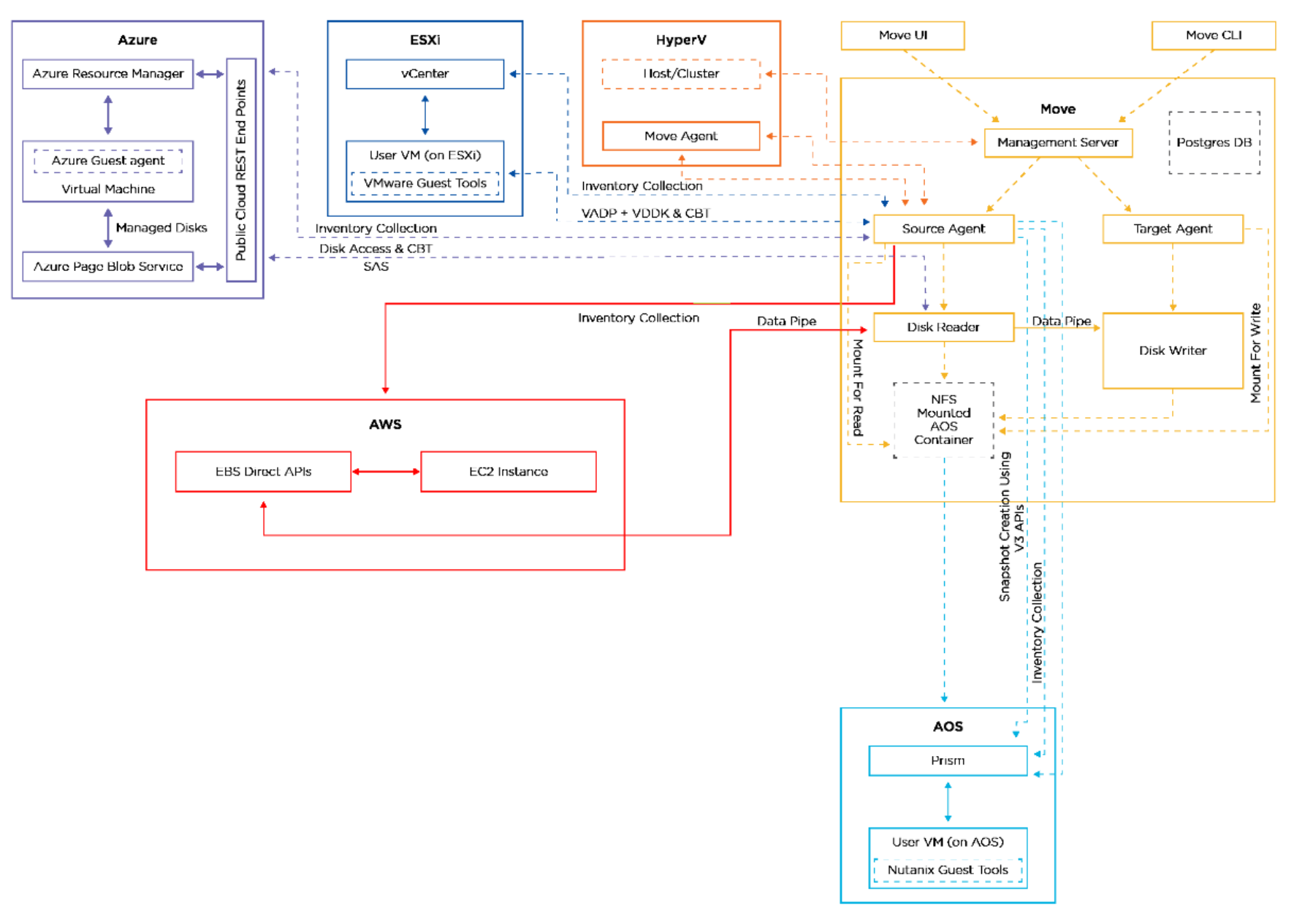
Figure 51. Distributed architecture of Nutanix Move
Nutanix Move for VMware ESXi architecture is detailed in the Nutanix Bible here.
Nutanix Move can also be used to migrate VMware ESXi VMs currently running on Dell PowerFlex storage to Nutanix NCI-C cluster attached to the same Dell PowerFlex storage cluster. This involves VM and data copy where the VMs are moved from an ESXi cluster to a Nutanix NCI-C cluster. Although the source and destination PowerFlex storage can be the same, it still involves copying data from its source storage constructs to the NCI-C cluster volumes on the destination storage pool. Details about how to perform ESXi to AHV migrations using Nutanix Move including adding source and destination clusters, creating a migration plan, and then performing data migration and cutover are detailed here.
Move supports VM migration from the following sources to targets, where the first platform is the source, and the second platform is the target:
- VMware ESXi (legacy infrastructure or Nutanix) to AHV
- VMware ESXi (legacy infrastructure or Nutanix) to VMware ESXi on Nutanix
- VMware ESXi to Nutanix Cloud Clusters (NC2) on AWS
- VMware ESXi to NC2 on Microsoft Azure
- VMware Cloud (VMC) on AWS to AHV
- VMC on AWS to NC2 on AWS
- VMC to ESXi on Nutanix
- Microsoft Hyper-V to AHV
- Microsoft Hyper-V to VMware ESXi on Nutanix
- Microsoft Hyper-V to NC2 on AWS
- Microsoft Hyper-V to NC2 on Azure
- AWS EC2 to AHV
- AWS EC2 to VMware ESXi on Nutanix
- AWS EC2 to NC2 on AWS
- Microsoft Azure Cloud to AHV
- Microsoft Azure Cloud to VMware ESXi on Nutanix
- Microsoft Azure Cloud to NC2 on Azure
- Nutanix AHV to Nutanix AHV
- Nutanix AHV to AWS EC2
- Nutanix AHV to Microsoft Azure Cloud
- Nutanix AHV to NC2 on AWS/Azure
- NC2 on AWS to Nutanix AHV
Migration from VMware vSphere to Dell PowerFlex with Nutanix Cloud Platform
For existing disaggregated deployments Dell PowerFlex storage with the ESXi hypervisor, you can migrate to Dell PowerFlex storage with the AHV hypervisor. Prepare and migrate VMs running on the ESXi hypervisor to the AHV hypervisor by using Nutanix Move. Nutanix does not support the online migration of ESXi VMs. Nutanix only supports offline migration of ESXi VMs. For more information on offline migration from the ESXi hypervisor to the AHV hypervisor, see Nutanix Move User Guide.
Nutanix Kubernetes Platform
Overview
Containers and container management are changing the way applications and services are developed and delivered to businesses globally. In most instances, automated deployment, scaling, management, and orchestration of containerized applications becomes a necessity. Kubernetes is an open-source orchestrator for deploying containerized applications. Originally developed by Google, Kubernetes was inspired by a decade of experience deploying scalable, reliable systems in containers by using application-oriented APIs.
Nutanix Kubernetes Platform (NKP) transforms a Nutanix compute cluster into developer-ready infrastructure with the ability to run both management and managed Kubernetes clusters. In the Dell PowerFlex with Nutanix Cloud Platform disaggregated architecture, PowerFlex provides the high performing and highly scalable block storage used by NKP clusters. Combining NKP and Dell PowerFlex is a good fit for modernized applications.
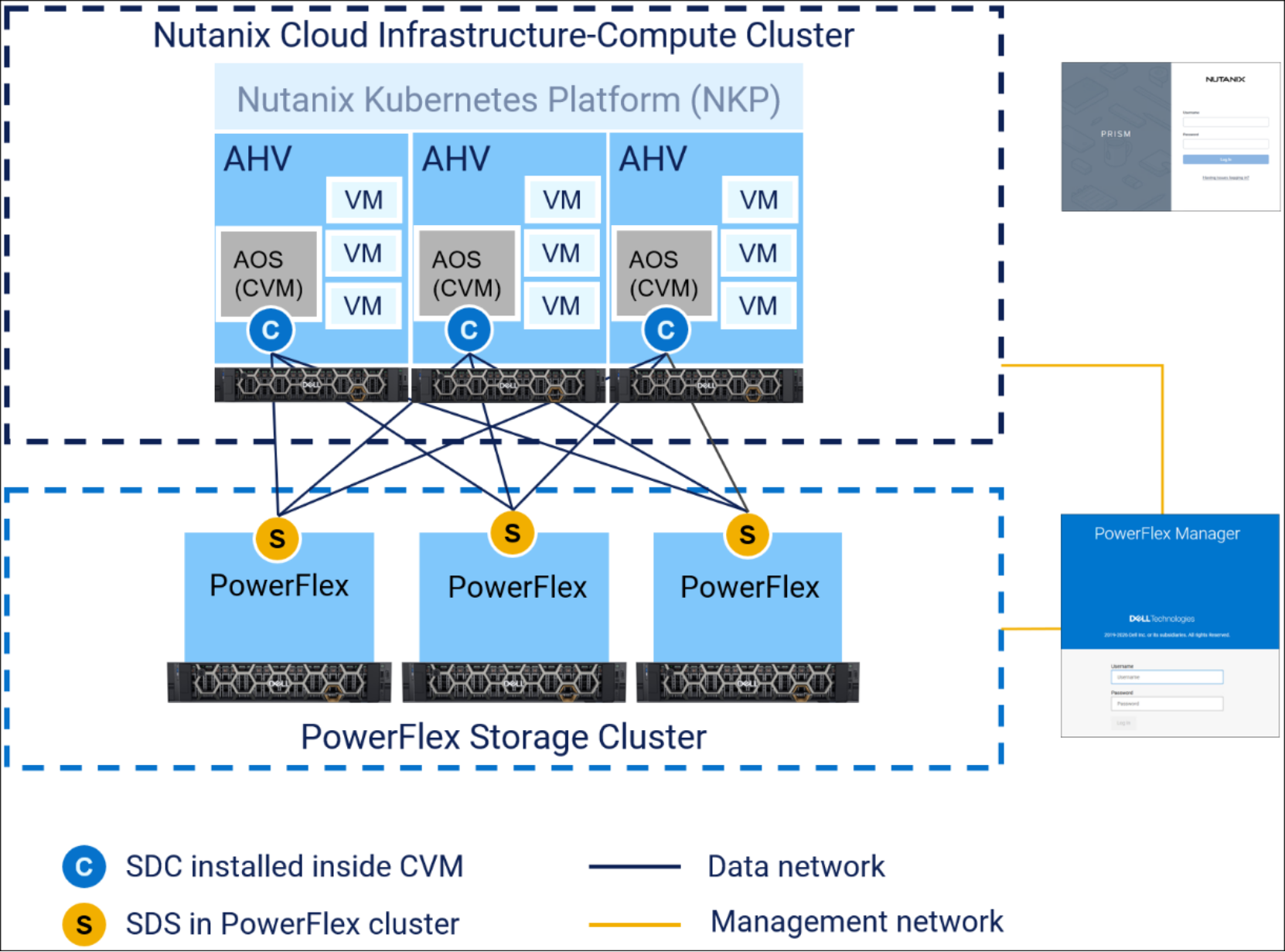
Figure 52. NKP on Dell PowerFlex with Nutanix Cloud Platform architecture
Deployment
Nutanix Kubernetes Platform support for external storage architecture was added with the AOS 7.5 release. NKP is deployed on an existing Nutanix compute cluster managed by Prism Central. For a greenfield environment, the prerequisites and high level order of installation would look like the following:
- Deploy PowerFlex storage infrastructure
- Deploy Nutanix compute nodes with AOS 7.5 or newer and AHV 11 or newer
- When sized properly, Nutanix compute nodes can run mixed workloads of VMs and NKP or be dedicated to NKP
- Attach external PowerFlex storage to compute nodes
- Deploy Prism Central 7.5 or newer
- Deploy NKP management and managed cluster(s)
The purpose of this section is to assume steps one through four above are completed. Focus from this point forward will be on cluster types and the deployment of the management and managed (workload) clusters.
In a single-cluster environment, the initial NKP cluster is a stand-alone cluster. It is self-managed and capable of handling its own scaling, upgrades, and life-cycle. In this single-cluster environment, all workloads are run on the single NKP cluster. If more than one NKP cluster is needed, Nutanix recommends using a multi-cluster environment.

Figure 53. Single-Cluster Environment
In a multi-cluster environment, three cluster types are supported:
- Management Cluster (All NKP editions): Is the cluster where you install NKP, and it is self-managed. In a multi-cluster environment, the Management cluster also manages other clusters. Customers are encouraged to run workloads on Managed and Attached clusters, not on the Management cluster except in single-cluster environments.
- Managed Cluster (All NKP editions): Also called an “NKP cluster,” this is a type of workload cluster that you can create with NKP. Examples include Nutanix Kubernetes Platform (NKP), Amazon Elastic Kubernetes Service (EKS), and Azure Kubernetes Service (AKS). The NKP Management cluster manages its infrastructure, its life cycle, and its applications.
- Attached Cluster (NKP Ultimate only): This is a type of managed cluster that is created outside of NKP but is then connected to the NKP Management Cluster so that NKP can manage its applications. Google Kubernetes Engine (GKE) is one example The lifecycle will not be managed by NKP.
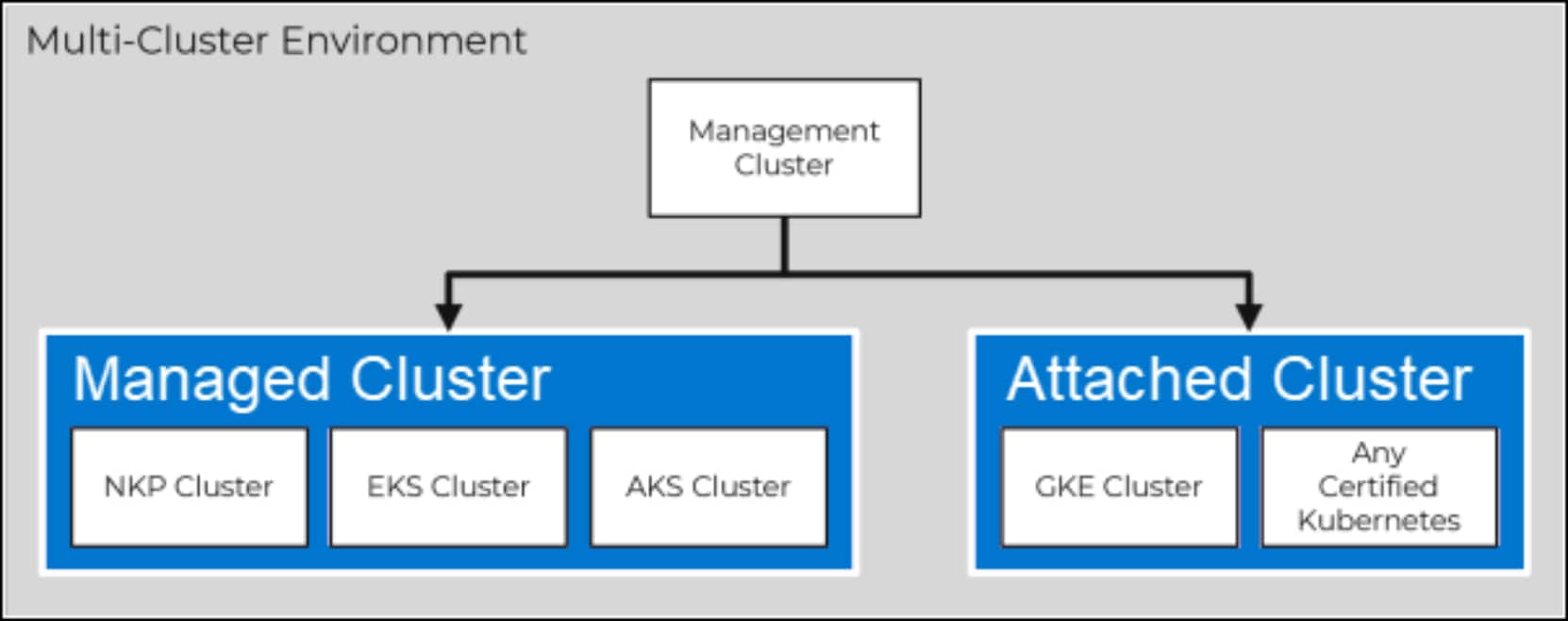
Figure 54. Multi-Cluster Environment
The NKP management cluster deployment is flexible in that it can be deployed in a few different ways, including:
- Deploy using Prism Central Marketplace. This is a graphical user interface driven deployment introduced in Prism Central 7.5 which avoids the need for command line knowledge and related tools, as well as a Linux jump host (a bastion host is automatically created and decommissioned using this method). This deployment method gets NKP up and running quickly. Prism Central access to the internet is required otherwise a local registry is needed.
- Deploy using the Nutanix Kubernetes Platform Guide. This is a comprehensive deployment method with flexibility for any and all supported installation types. Requires Linux command line and related tooling knowledge. Access to the internet is required otherwise a local registry is needed.
- Deploy using nkp-quickstart at GitHub. This is an immensely streamlined variation of the Nutanix Kubernetes Platform Guide method above. It takes a 1,356 page manual and boils the deployment down to a few easy steps for a basic installation. This deployment method gets NKP up and running quickly. A jump host is created, NKP tools are downloaded and installed, and the NKP cluster is deployed. Access to the internet is required otherwise a local registry is needed.
Note: NKP can be deployed in air-gapped or non-air-gapped environments. For more information, refer to the Nutanix Kubernetes Platform Guide.
Management cluster deployment
In the next series of steps, the management cluster will be deployed using Prism Central Marketplace.
In Prism Central, navigate to the Admin Center and then Marketplace. Find Nutanix Kubernetes Platform and choose Get.
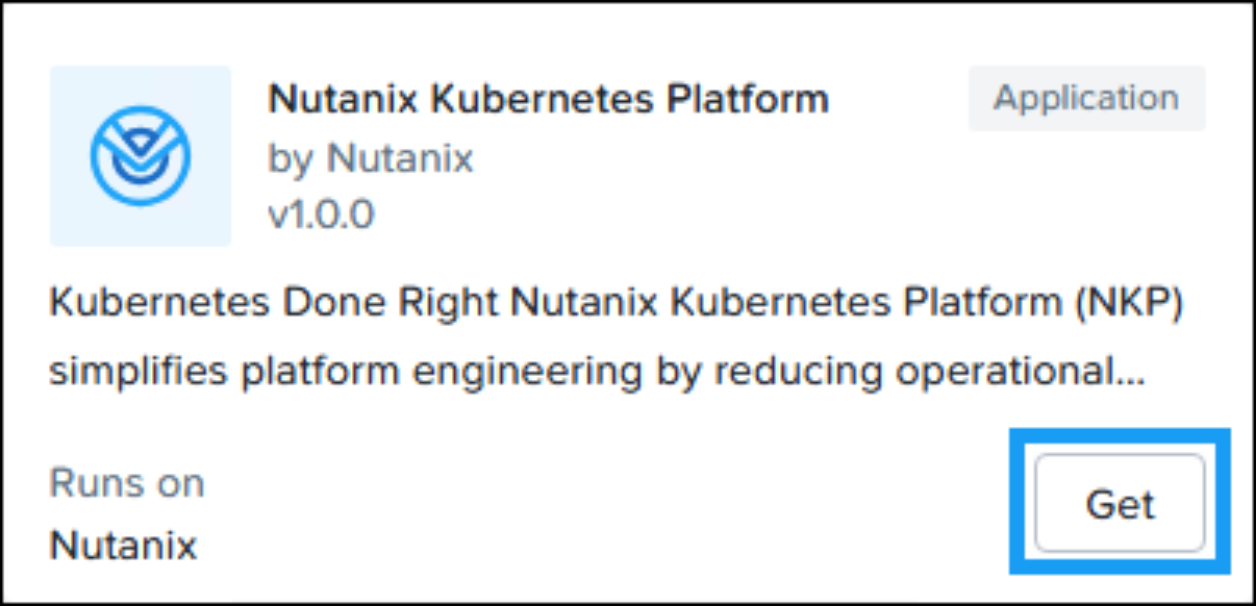
Figure 55. Nutanix Kubernetes Platform in Prism Central Marketplace
Provide a valid NKP Cluster Name avoiding illegal characters. The SSH Public Key would come from the output of ssh-keygen on a Linux host or similar tool. Tick the box to apply the same SSH config to cluster nodes.
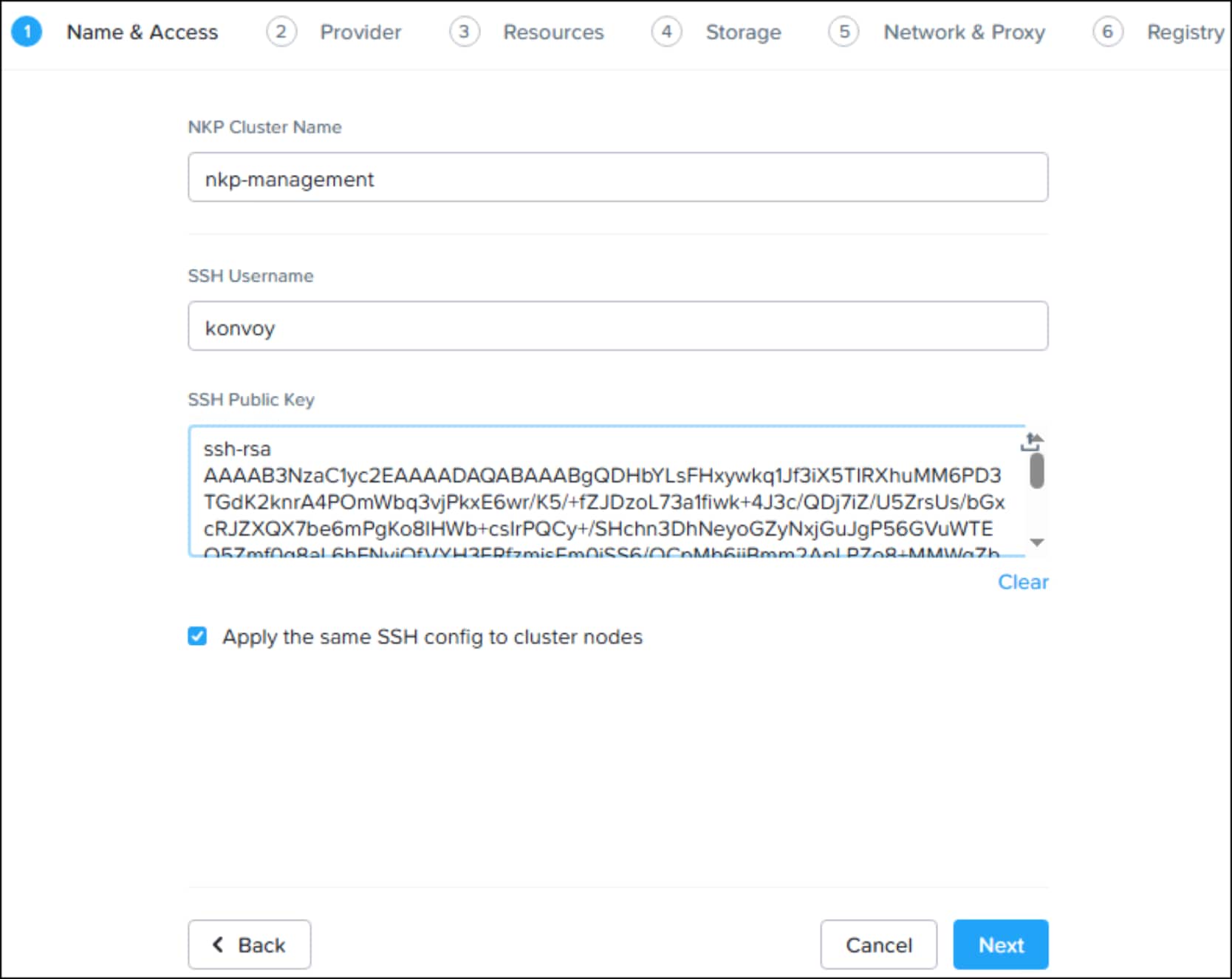
Figure 56. Name and Access
Provide appropriate Prism Central credentials and Prism Element cluster.
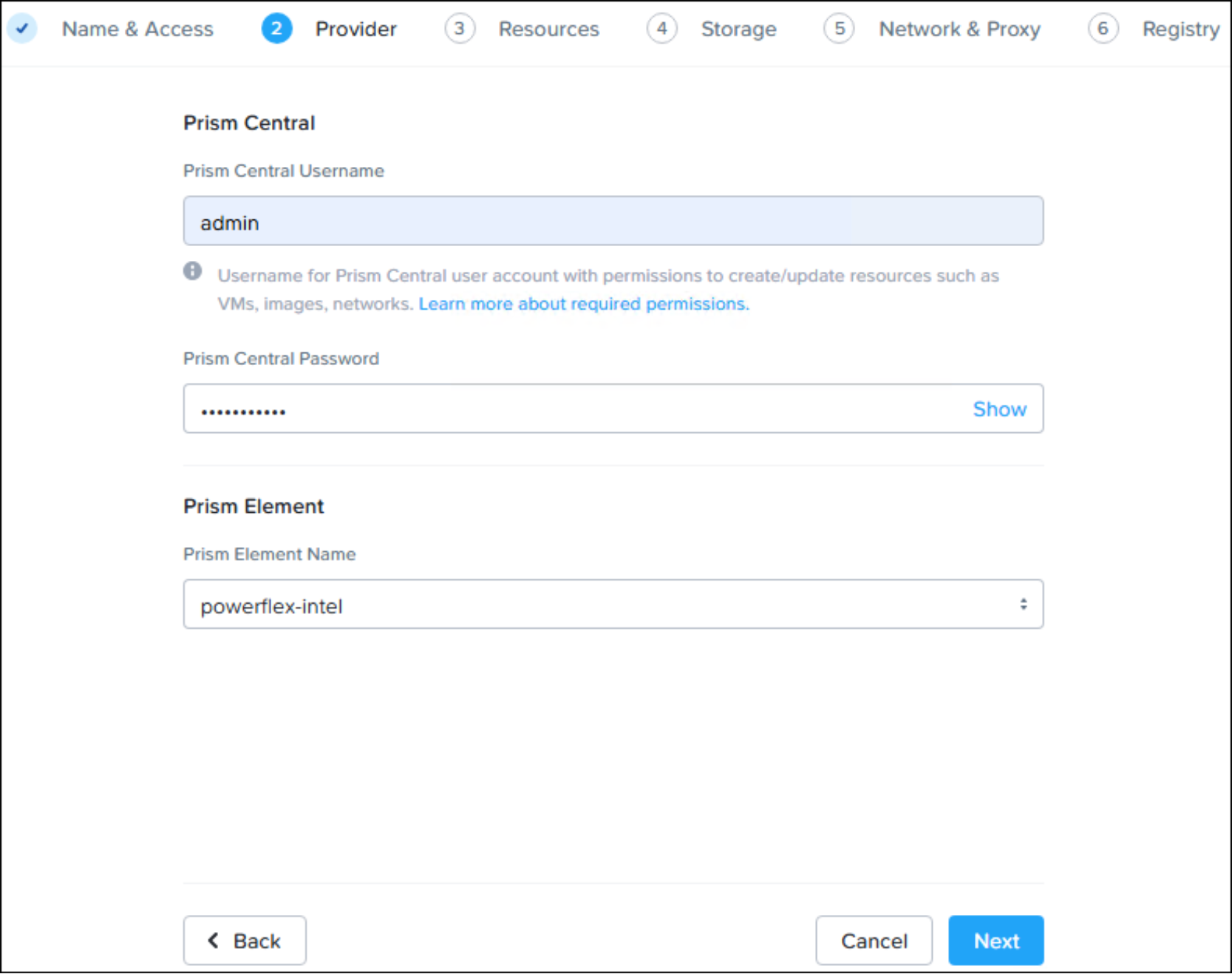
Figure 57. Provider
Choose a compatible nkp-rocky release from the OS image pulldown menu. This image would have been downloaded from Nutanix and uploaded into Prism in order to be available for selection here. Only images compatible with a Prism Marketplace deployment will be shown in the pulldown menu.
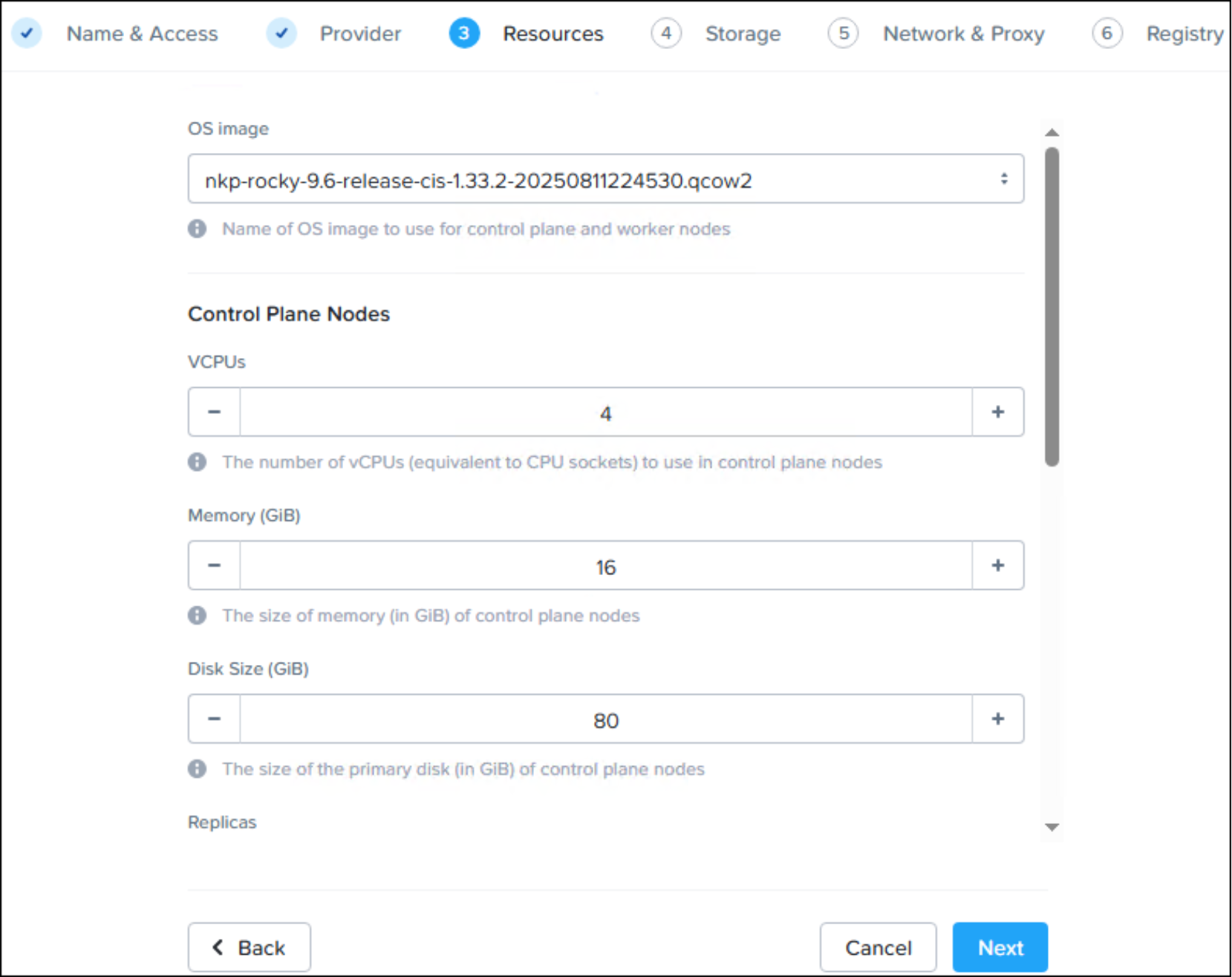
Figure 58. Resources
Choose the PowerFlex Storage Container. This Storage Container will be associated with the storage class used to deploy containerized applications on the management cluster.
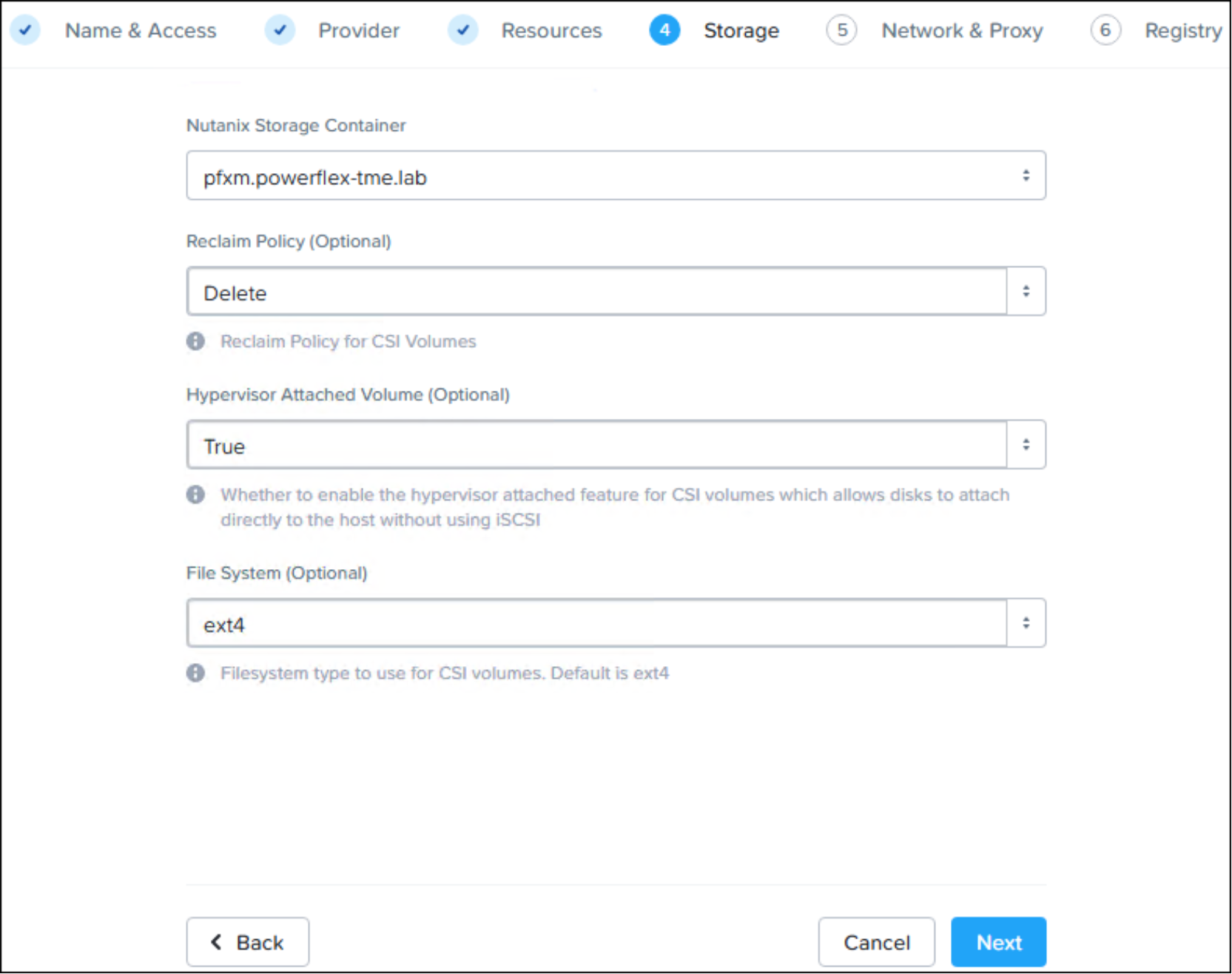
Figure 59. Storage
Provide the subnet, control plane endpoint, and load balancer range.
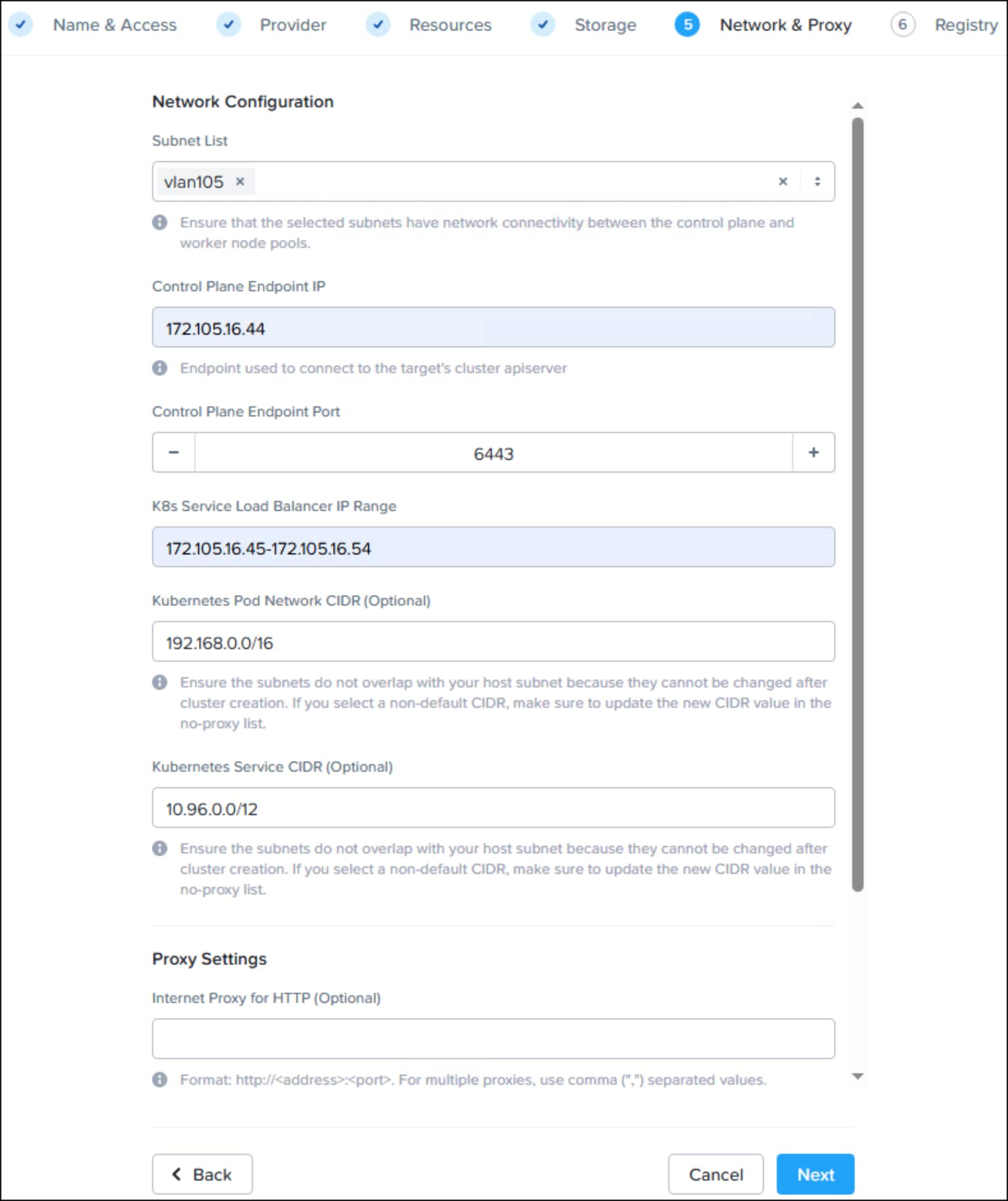
Figure 60. Network & Proxy
Provide an appropriate registry mirror and credentials necessary to authenticate and avoid rate limiting restrictions on image pulls.
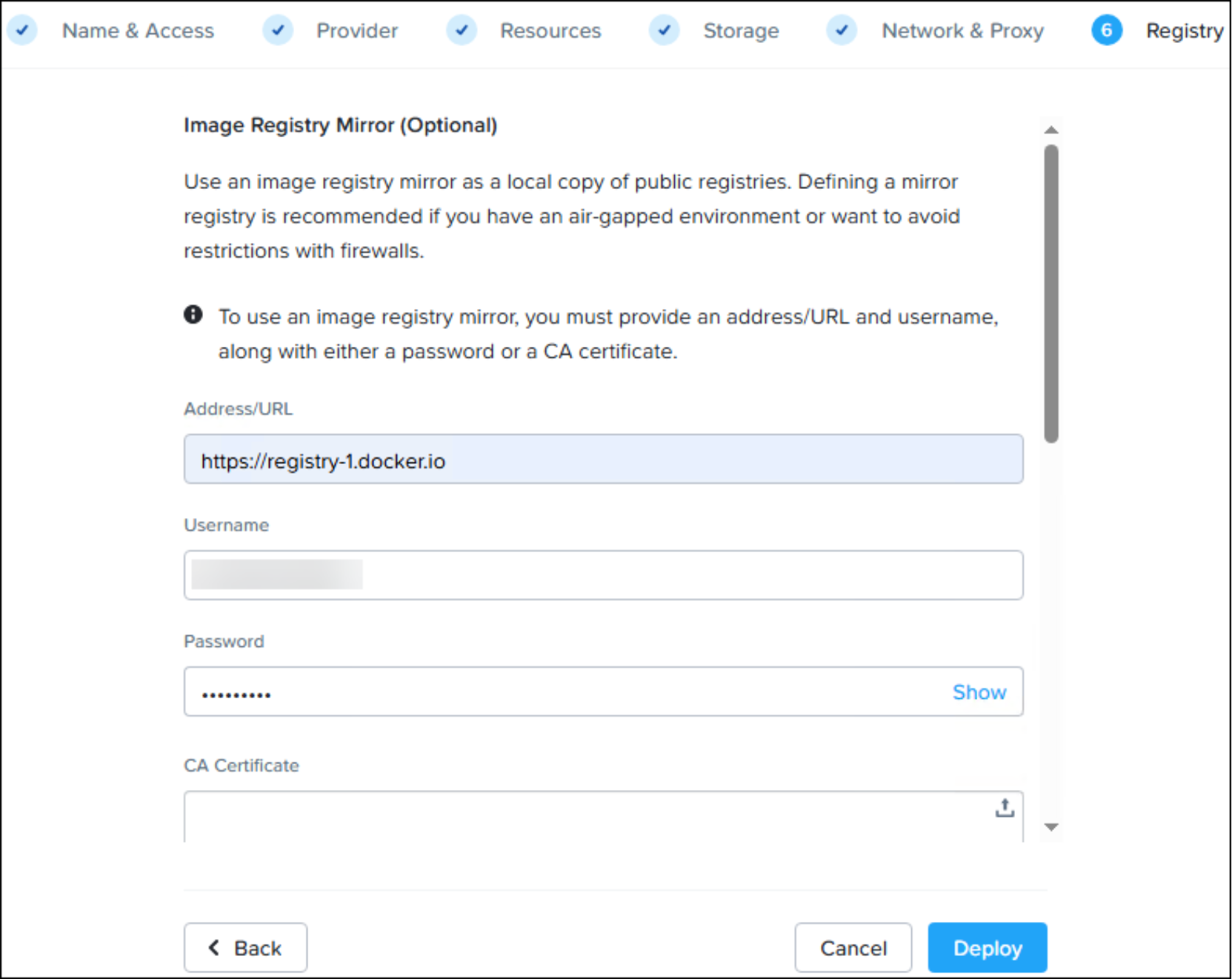
Figure 61. Registry
The deployment will create a temporary bastion host as well as the control plane and worker nodes. After several minutes, the bastion host will be removed and the management cluster deployment will complete.
Workload cluster deployment
In the next series of steps, the managed (workload) cluster will be deployed using Kommander. Kommander is deployed automatically with the management cluster and typically consumes the first available IP address in the load balancer range provided. The Kommander dashboard URL and credentials (as well as the KubeConfig for the management cluster) can be found in Prism Central. Navigate to the Admin Center | My Apps, then click on the Manage link under the NKP deployment.
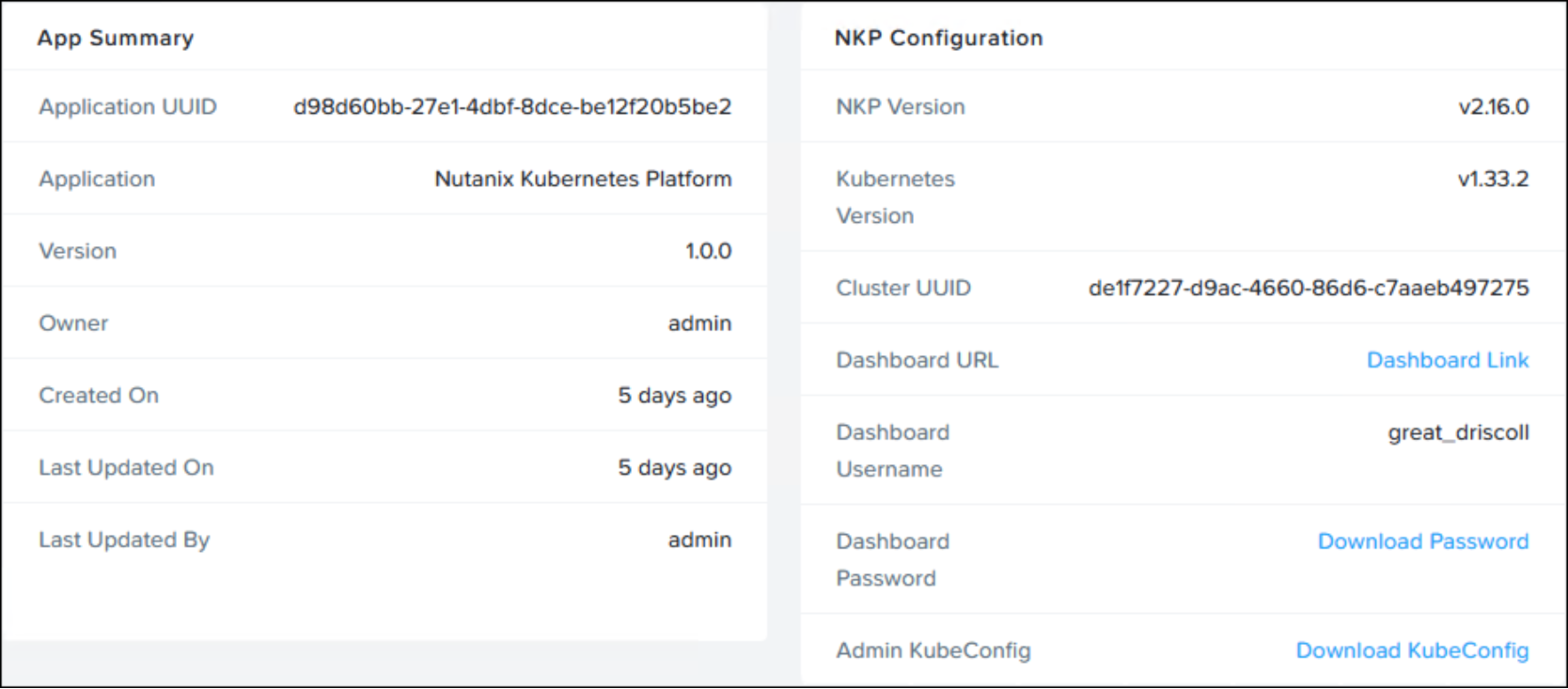
Figure 62. Kommander dashboard URL, credentials, and KubeConfig
In Kommander, choose Create Cluster.
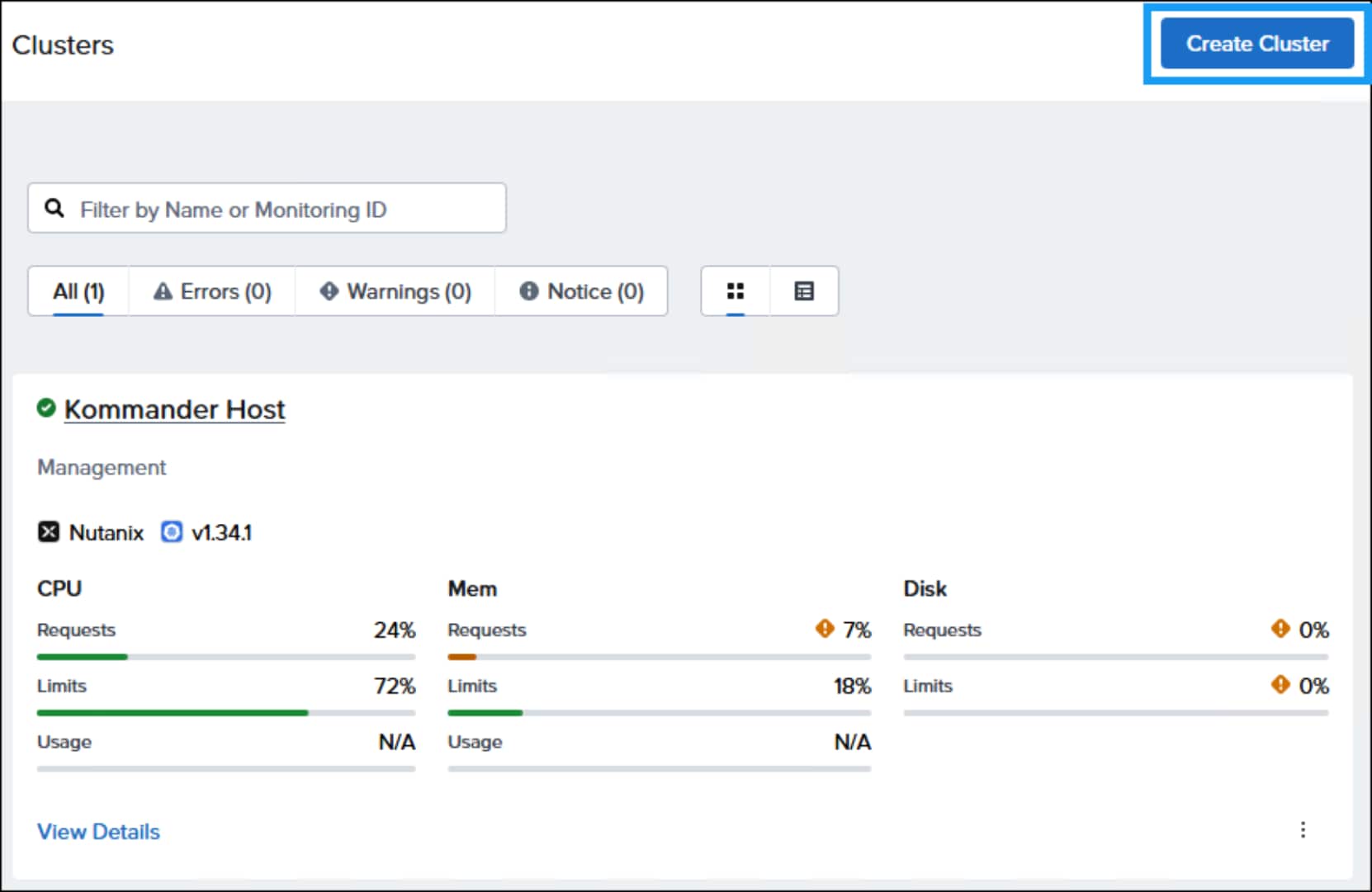
Figure 63. Create Cluster
Provide a valid workload cluster name. Avoid using illegal characters.
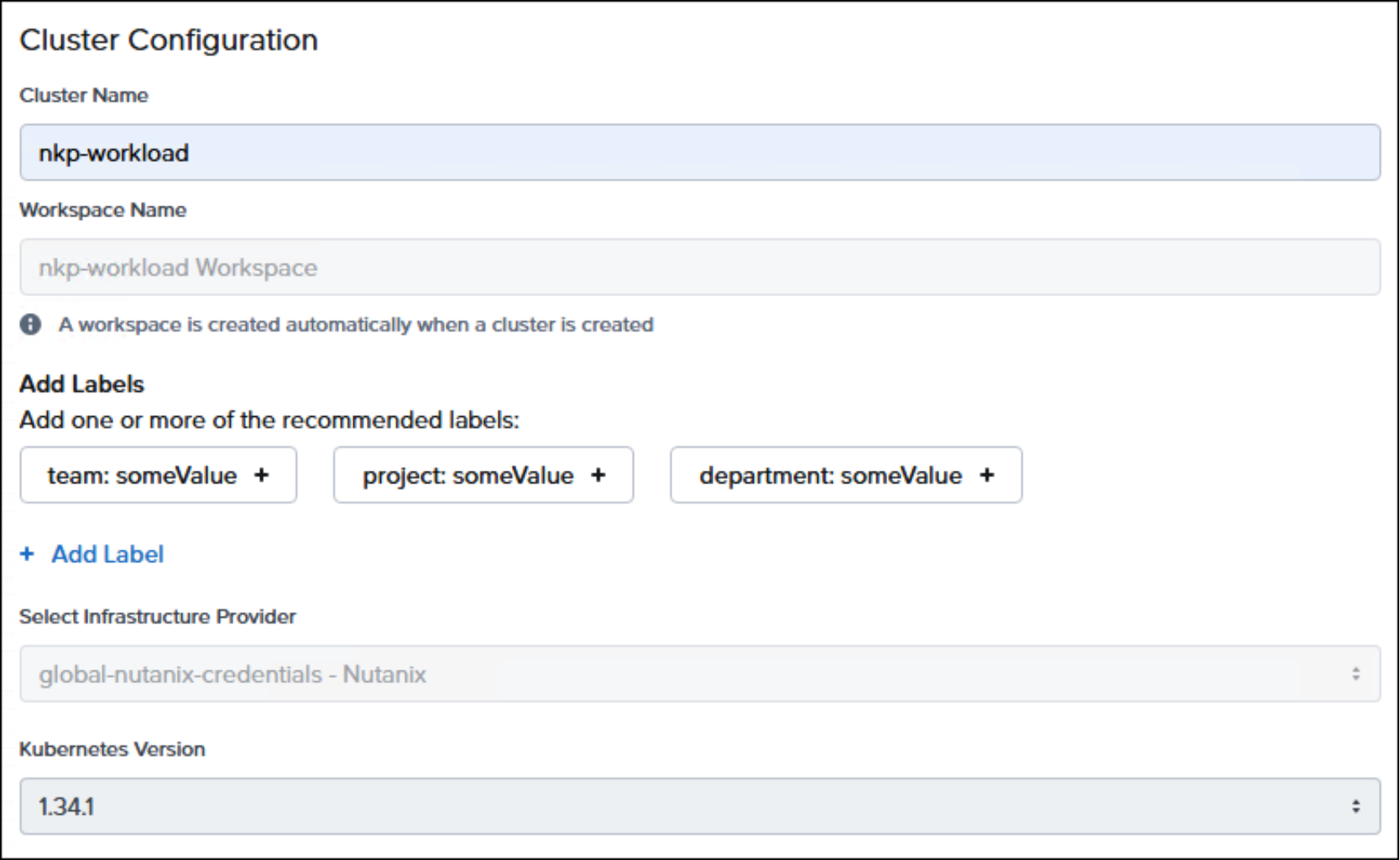
Figure 64. Cluster Name
Provide the same SSH Public Key used in a previous step when creating the management cluster. The AOS cluster, subnet, and OS image for the control plane nodes must also be provided.
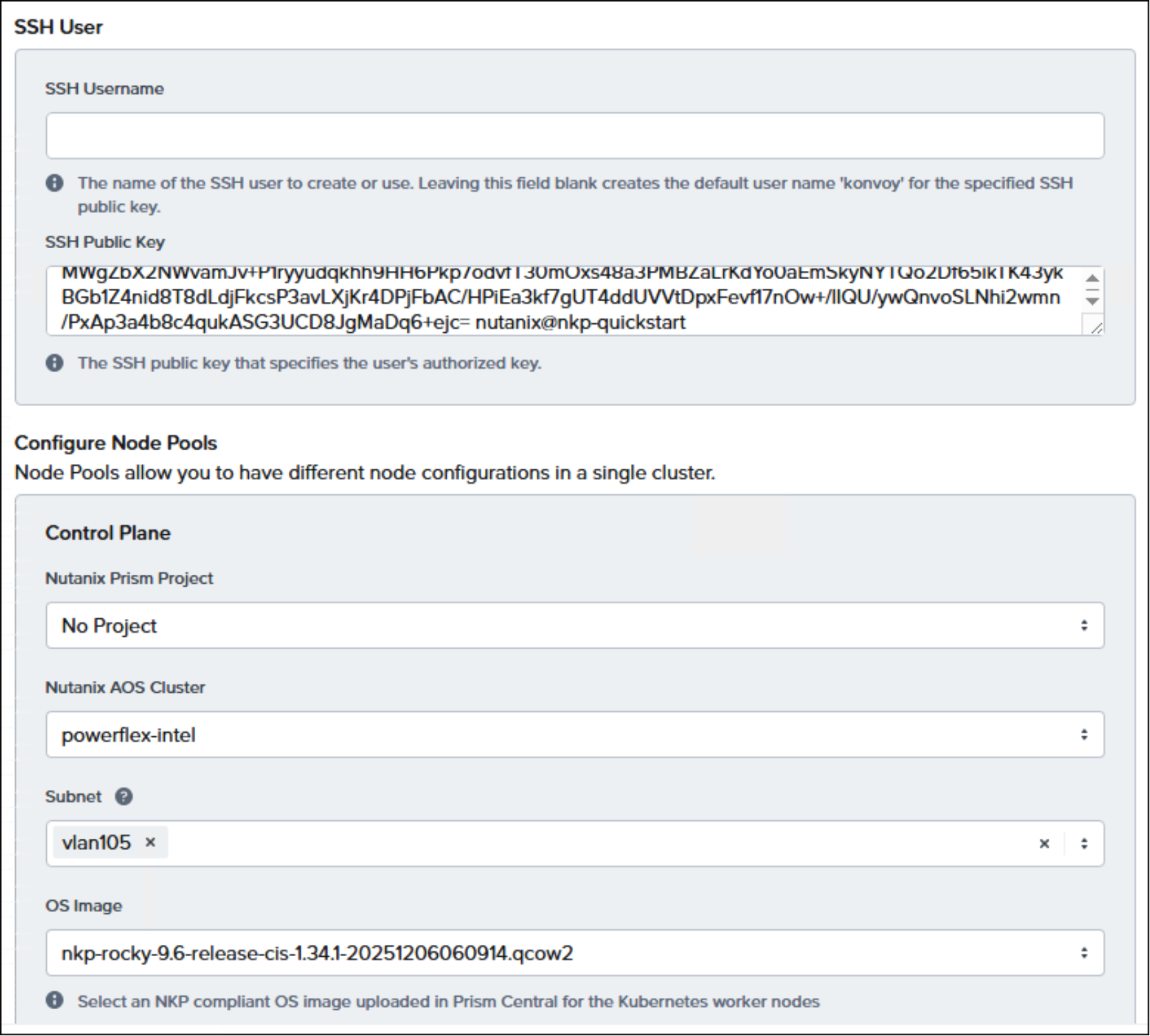
Figure 65. SSH Public Key and control plane details
Specify the control plane endpoint IP for the workload cluster as well as the AOS cluster and subnet for the worker nodes.
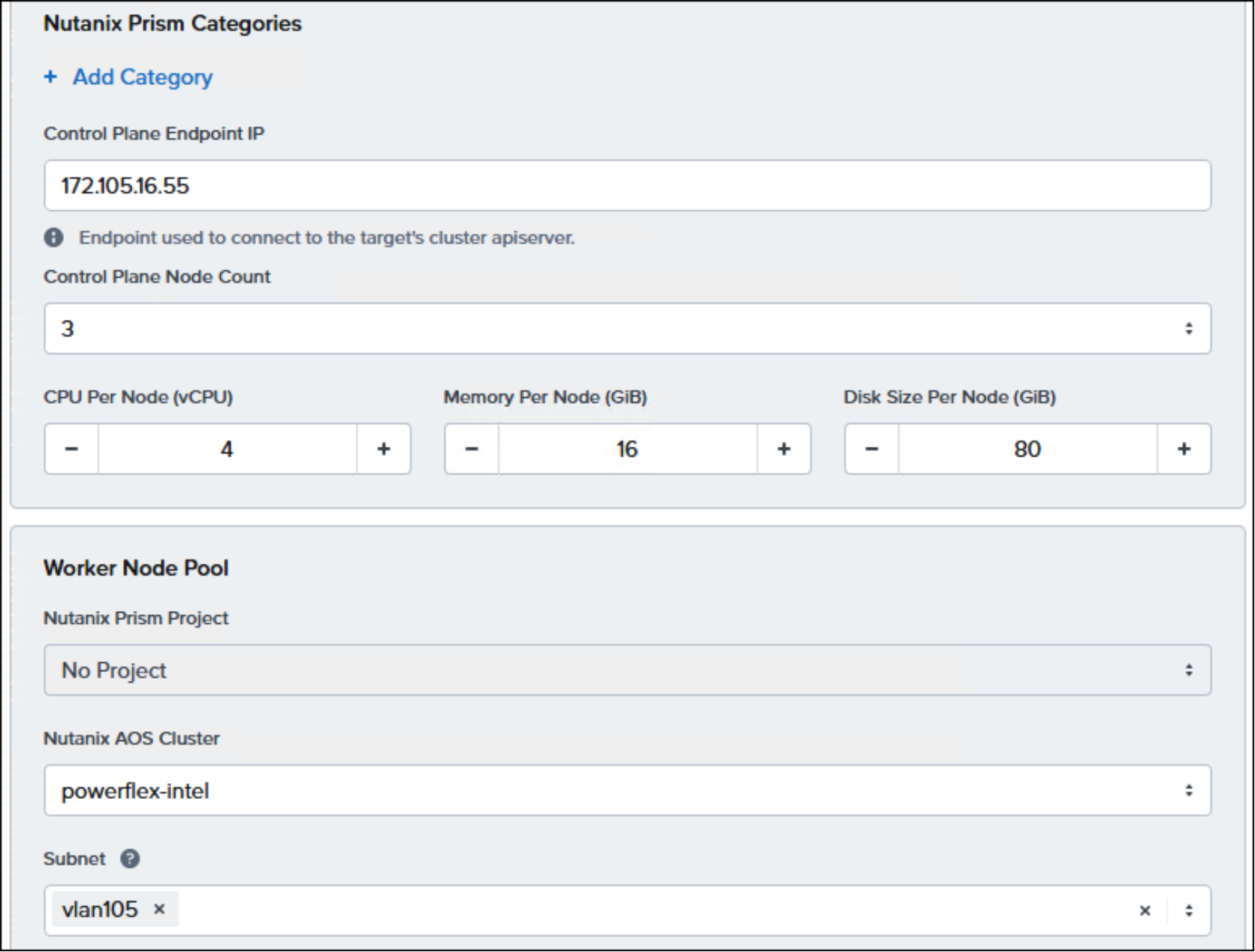
Figure 66. Control plane and worker node details
Choose the OS image for the worker nodes.
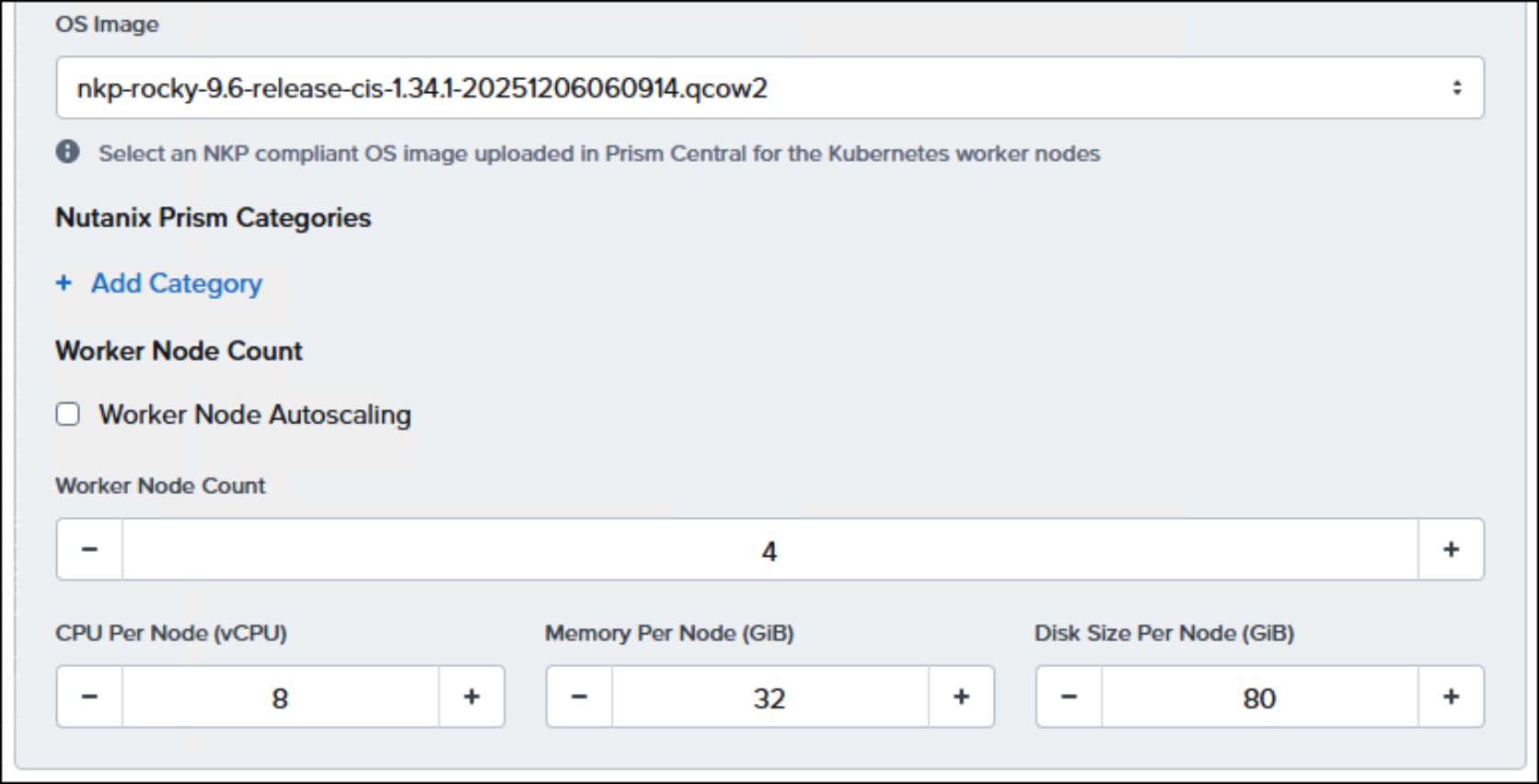
Figure 67. Worker node details
Choose the PowerFlex Storage Container. This Storage Container will be associated with the storage class used to deploy containerized applications on the workload cluster.
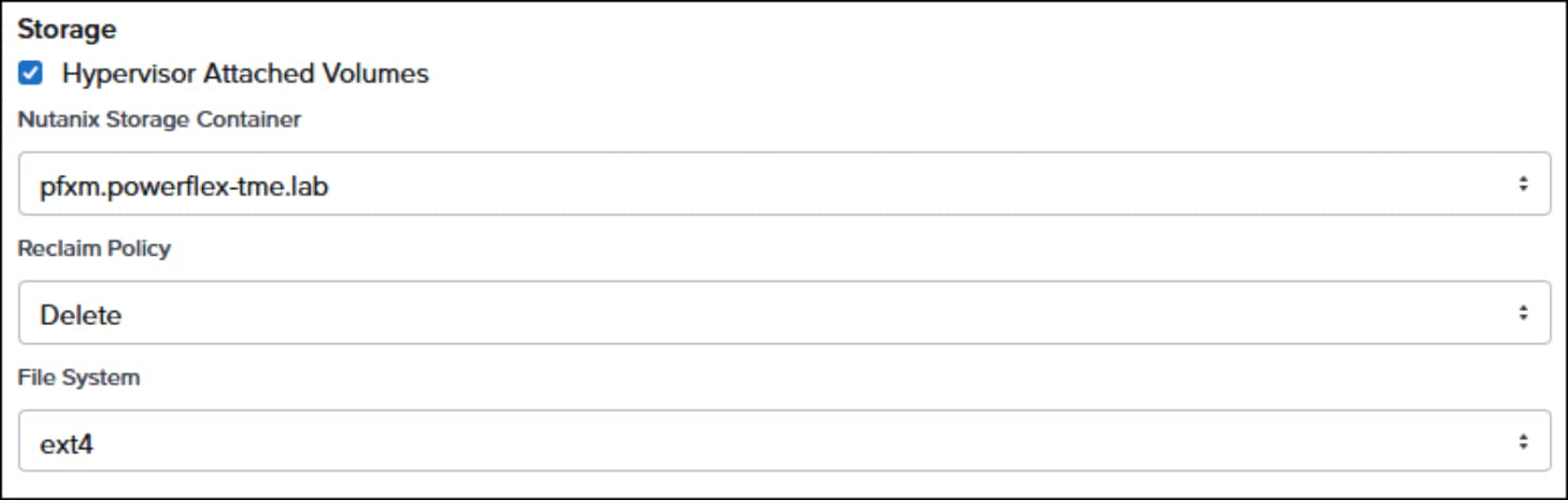
Figure 68. Storage container selection
A range of available IP addresses must be provided for the workload cluster load balancer. Provide an appropriate registry mirror and credentials necessary to authenticate and avoid rate limiting restrictions on image pulls.
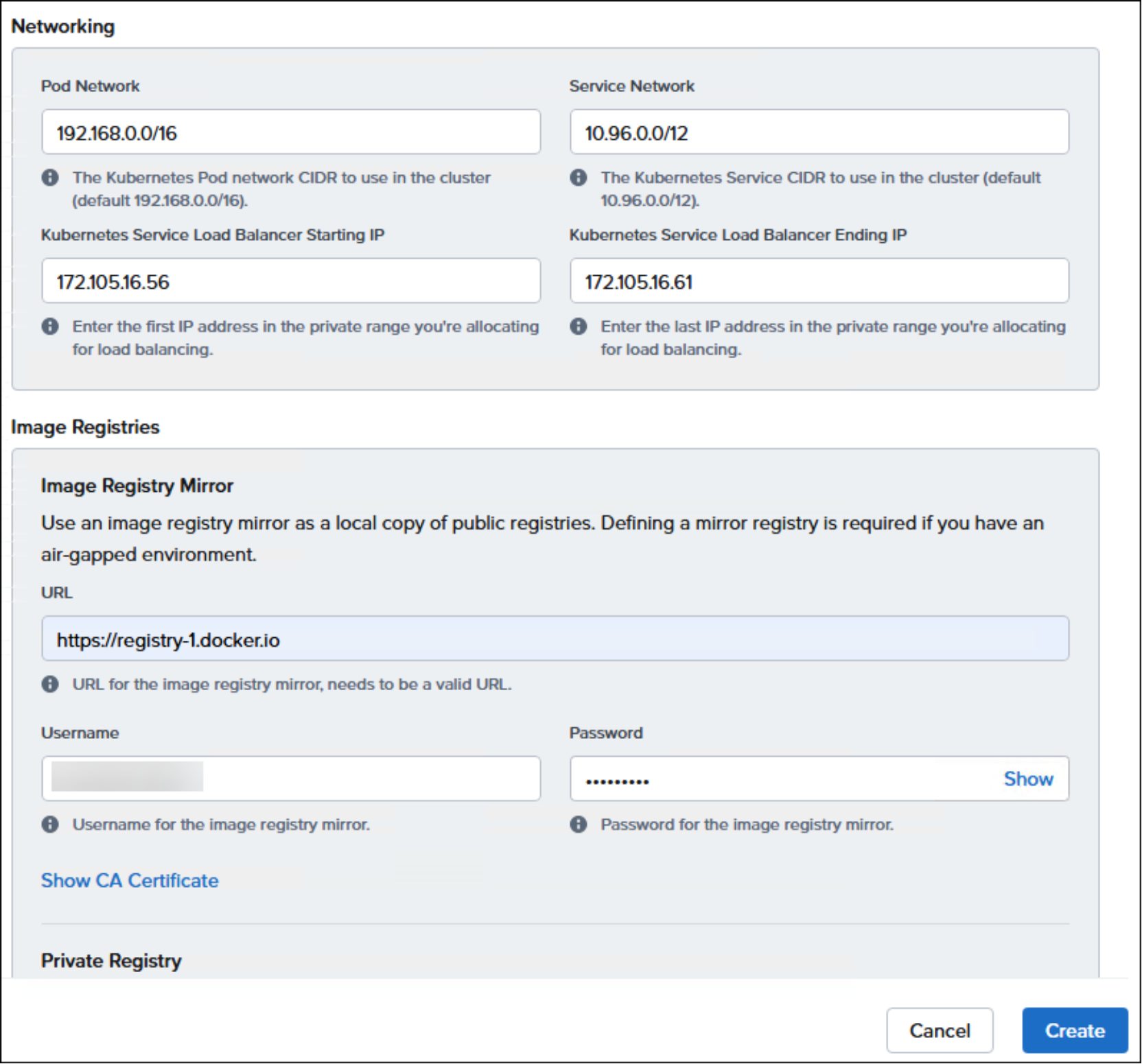
Figure 69. Workload cluster networking and image registry mirror details
After several minutes, the managed (workload) cluster deployment will complete. To manage the workload cluster and deploy containerized applications using kubectl, the kubeconfig for the workload cluster can be downloaded from Kommander.
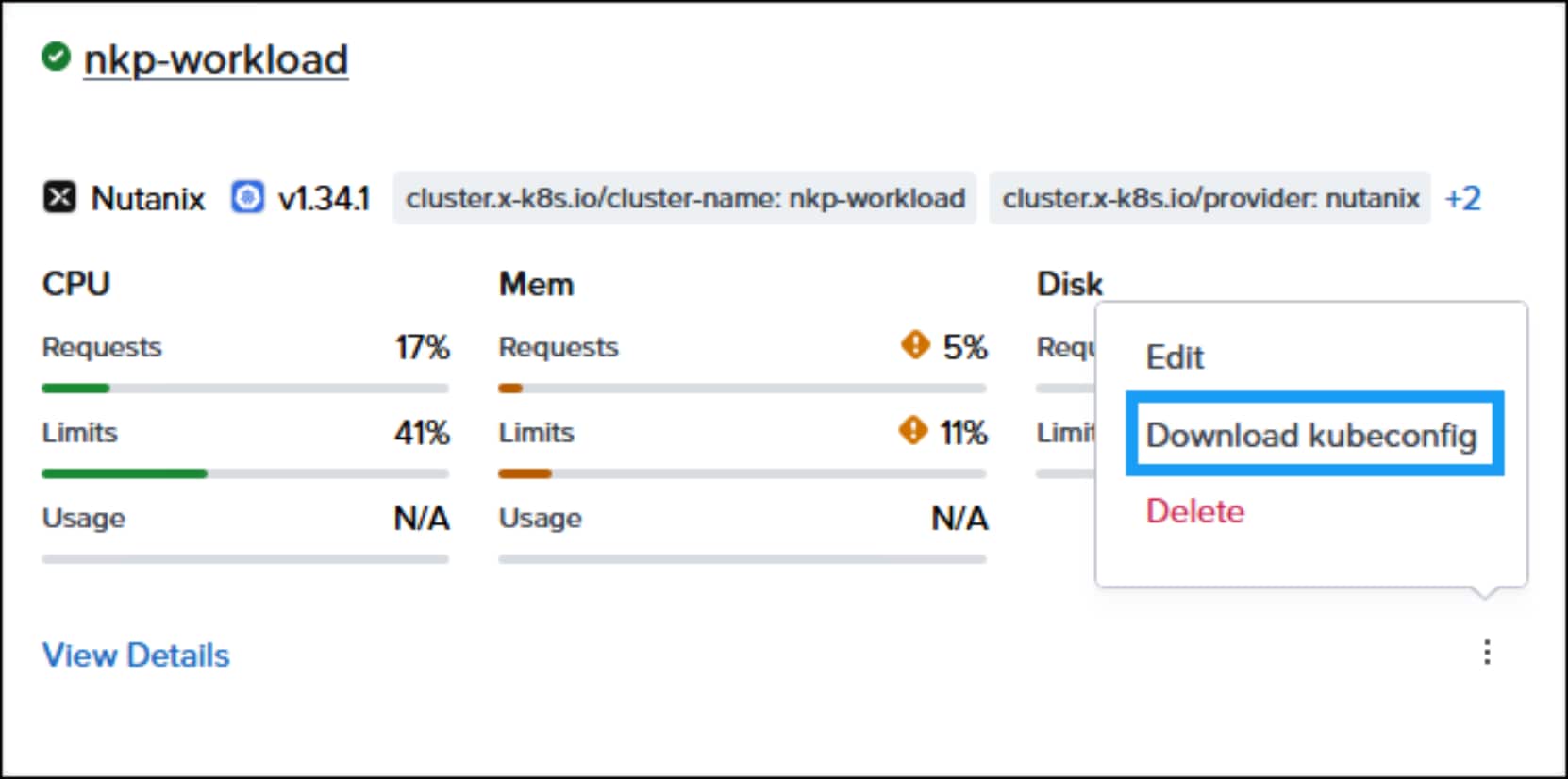
Figure 70. Download the kubeconfig for the workload cluster in Kommander
Management
Storage Class
Volumes
Using the nutanix-volume storage class, NKP clusters consume PowerFlex external storage similar to how virtual machine vDisks do. A storage allocation is backed by a thin provisioned data volume which equals the size of the storage allocation, in 8GB increments, as well as a thin provisioned 8GB metadata volume.
Consider the following .yaml. When deployed, it instantiates a 992GB persistent volume claim and then a scheduled nginx pod consumes it:
[nutanix@nkp-quickstart demo-applications]$ cat task-pvc.yaml
apiVersion: v1
kind: PersistentVolumeClaim
metadata:
name: task-pv-claim
spec:
storageClassName: nutanix-volume
accessModes:
- ReadWriteOnce
resources:
requests:
storage: 992Gi
---
apiVersion: v1
kind: Pod
metadata:
name: task-pv-pod
spec:
volumes:
- name: task-pv-storage
persistentVolumeClaim:
claimName: task-pv-claim
containers:
- name: task-pv-container
image: nginx
ports:
- containerPort: 80
name: "http-server"
volumeMounts:
- mountPath: "/usr/share/nginx/html"
name: task-pv-storage
The pod is deployed in the jgbdemo namespace and the status of the persistent volume claim and the persistent volume is requested. Because the persistent volume claim was consumed in a scheduled pod, its status is Bound (instead of pending):
[nutanix@nkp-quickstart demo-applications]$ kubectl apply -f task-pvc.yaml -n jgbdemo
persistentvolumeclaim/task-pv-claim created
pod/task-pv-pod created
[nutanix@nkp-quickstart demo-applications]$ kubectl get pvc -n jgbdemo
NAME STATUS VOLUME CAPACITY ACCESS MODES STORAGECLASS VOLUMEATTRIBUTESCLASS AGE
task-pv-claim Bound pvc-790b3ae3-299c-47e1-84cf-52294c940ee8 992Gi RWO nutanix-volume <unset> 12s
[nutanix@nkp-quickstart demo-applications]$ kubectl get pv -n jgbdemo
NAME CAPACITY ACCESS MODES RECLAIM POLICY STATUS CLAIM STORAGECLASS VOLUMEATTRIBUTESCLASS REASON AGE
pvc-790b3ae3-299c-47e1-84cf-52294c940ee8 992Gi RWO Delete Bound jgbdemo/task-pv-claim nutanix-volume <unset> 3m25s
Persistent volumes can be viewed in Prism Central under Compute | Kubernetes Clusters | Storage. From there, persistent volume capacity utilization, performance metrics, and other details can be viewed.
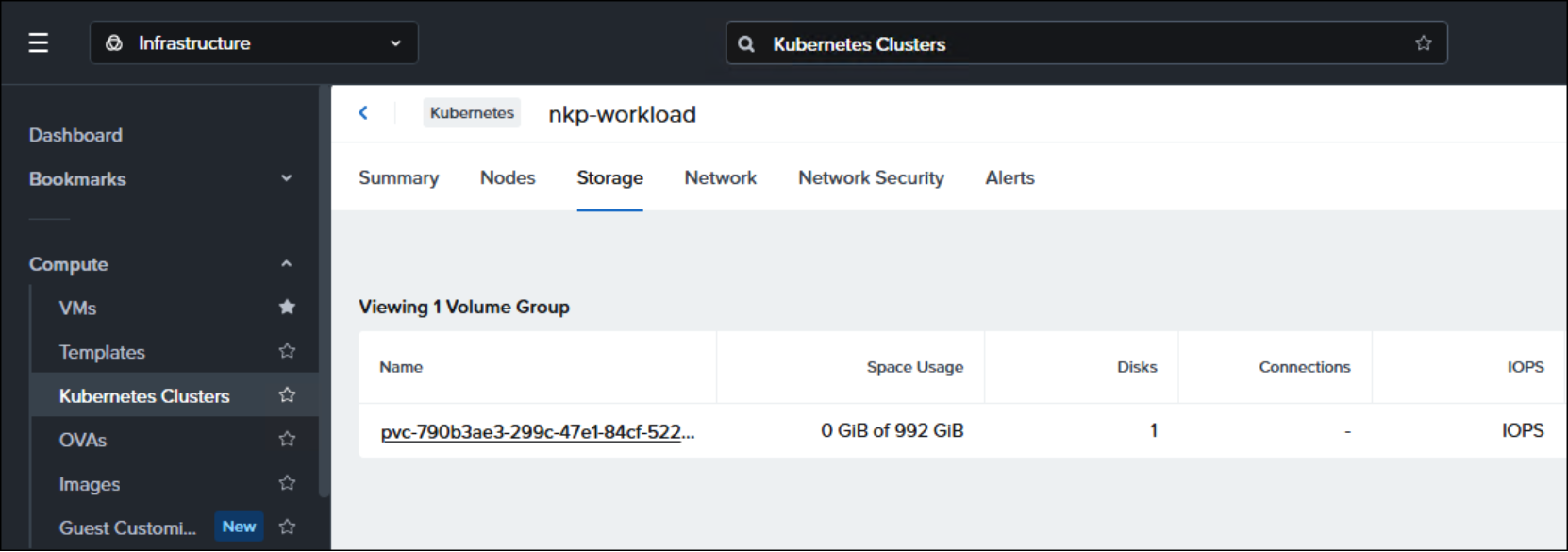
Figure 71. A persistent volume as seen in Prism Central
Lastly, because the persistent volume claim is Bound, its backing data volume (and metadata volume) can be observed in PowerFlex Manager.
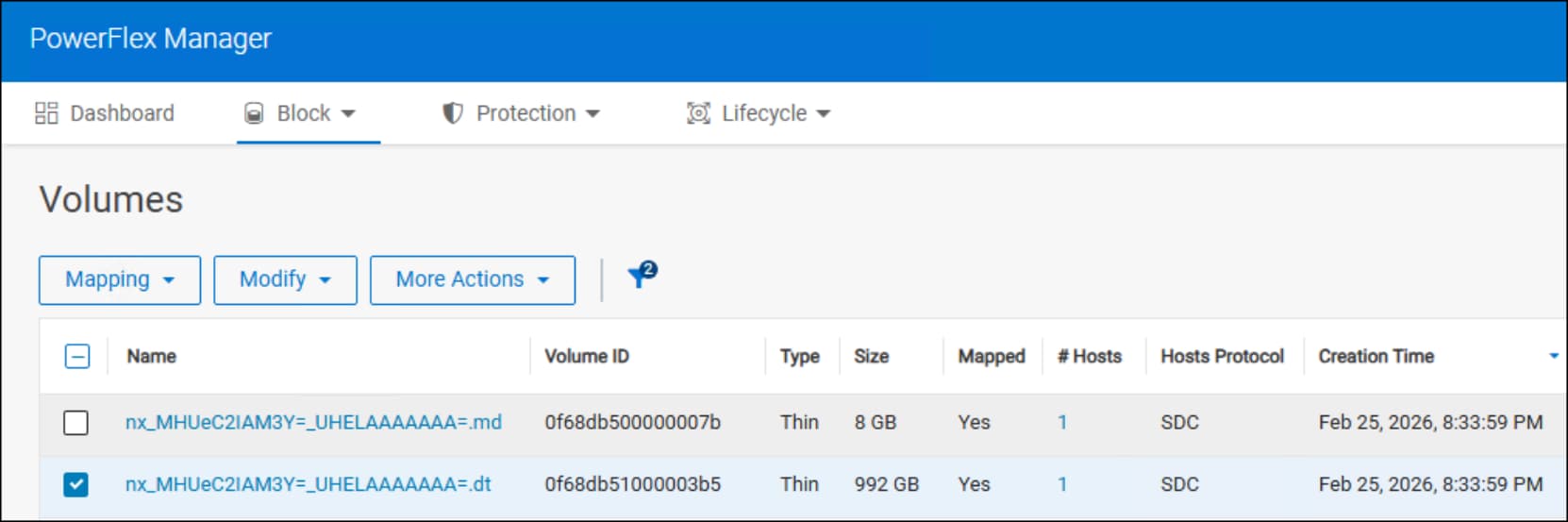
Figure 72. NKP persistent volume observed in PowerFlex Manager
Just as with virtual machines and vDisks, the lifecycle of cloud native storage on PowerFlex is handled autonomously and seamlessly by NKP. While there is observability of storage consumption in PowerFlex Manager, the management of the volumes is delegated to NKP.
This last application example will consume ephemeral storage and make use of the MetalLB load balancer in NKP across a replica set of three (3).
[nutanix@nkp-quickstart demo-applications]$ cat demo-hellokubernetes.yaml
apiVersion: v1
kind: Service
metadata:
name: hello-kubernetes
spec:
type: LoadBalancer
ports:
- port: 80
targetPort: 8080
selector:
app: hello-kubernetes
---
apiVersion: apps/v1
kind: Deployment
metadata:
name: hello-kubernetes
spec:
replicas: 3
selector:
matchLabels:
app: hello-kubernetes
template:
metadata:
labels:
app: hello-kubernetes
spec:
containers:
- name: hello-kubernetes
image: paulbouwer/hello-kubernetes:1.5
imagePullPolicy: IfNotPresent
ports:
- containerPort: 8080
The application is deployed:
[nutanix@nkp-quickstart demo-applications]$ kubectl apply -f demo-hellokubernetes.yaml -n jgbdemo
service/hello-kubernetes created
deployment.apps/hello-kubernetes created
After the application is deployed, view the replicasets, pods, and load balancer service external IP address:
[nutanix@nkp-quickstart demo-applications]$ kubectl get replicasets -n jgbdemo
NAME DESIRED CURRENT READY AGE
hello-kubernetes-66647d4b59 3 3 3 9m
[nutanix@nkp-quickstart demo-applications]$ kubectl get pods -n jgbdemo
NAME READY STATUS RESTARTS AGE
hello-kubernetes-66647d4b59-drd2m 1/1 Running 0 9m6s
hello-kubernetes-66647d4b59-sqv7n 1/1 Running 0 9m6s
hello-kubernetes-66647d4b59-tfmtv 1/1 Running 0 9m6s
task-pv-pod 1/1 Running 0 19h
[nutanix@nkp-quickstart demo-applications]$ kubectl get service -n jgbdemo
NAME TYPE CLUSTER-IP EXTERNAL-IP PORT(S) AGE
hello-kubernetes LoadBalancer 10.109.39.191 172.105.16.57 80:32258/TCP 9m8s
Lastly, the application front end can be accessed by a web browser using the external IP address:
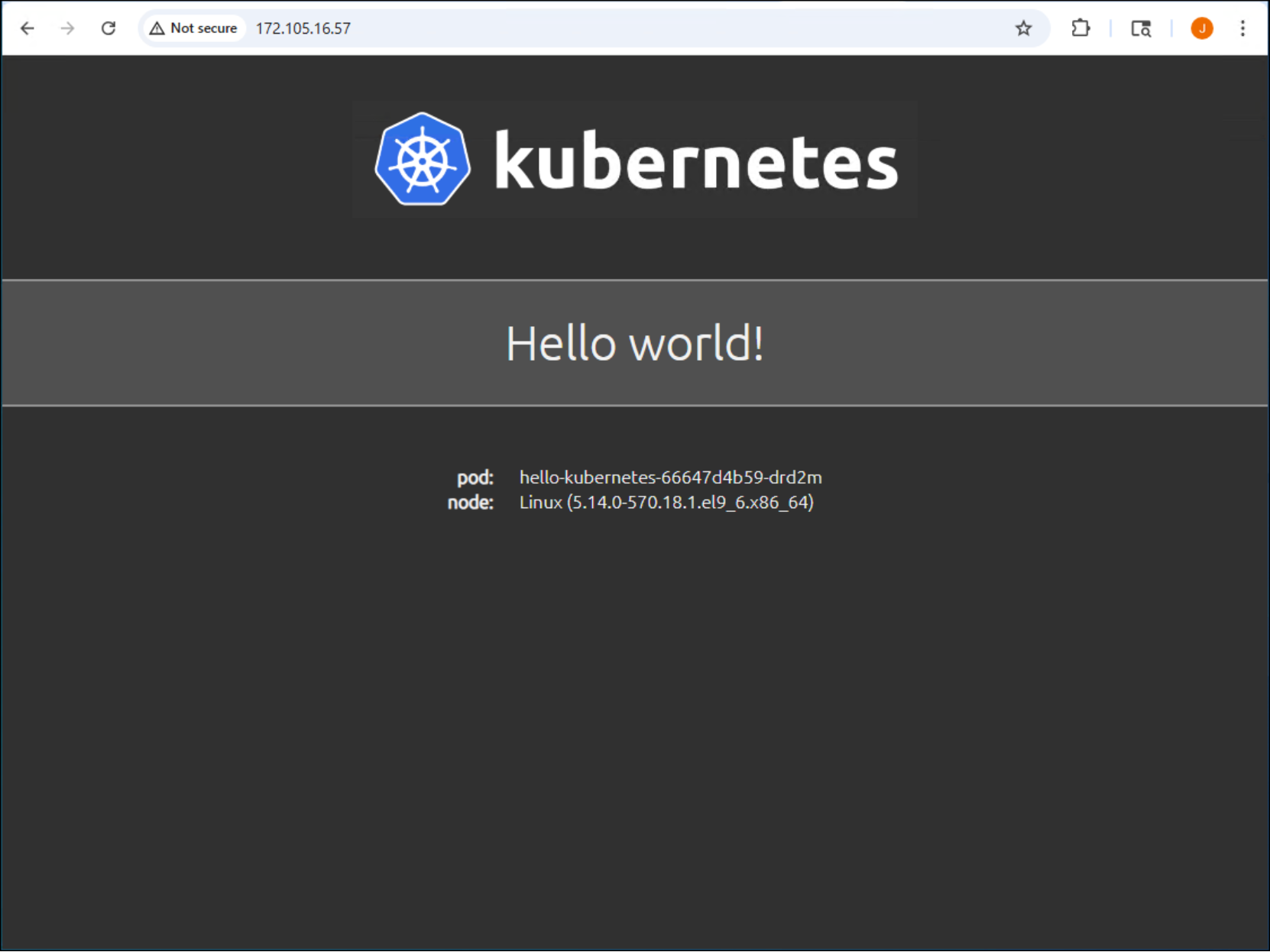
Figure 73. The hello-kubernetes application front end accessed by a web browser