Dell PowerScale: Backup Using Commvault
Executive summary
Overview
Dell PowerScale scale-out NAS storage together with Commvault software provides a comprehensive, flexible, and scalable backup and archive solution. It lets enterprises of all sizes address their backup needs; from data protection to preservation, while providing secure self-service access to data.
This paper describes the best practices and solution-specific configuration steps for the deployment of Commvault Complete Backup & Recovery with PowerScale storage as a backup target or disk library, and PowerScale storage as a backup source using NDMP to perform a backup of the cluster.
Audience
This document is intended for administrators who will deploy and configure PowerScale storage with Commvault software. The assumed level of technical knowledge for the devices and technologies described in this document is high.
Revisions
|
Date |
Description |
|
April 2019 |
Updated to new template |
|
Template update, updated content |
We value your feedback
Dell Technologies and the authors of this document welcome your feedback on this document. Contact the Dell Technologies team by email.
Author: Richard Bicknell
Note: For links to other documentation for this topic, see the PowerStore Info Hub.
Introduction
Backup target challenges with traditional storage
Compounding effect of backups
Each year organizations are generating more data and keeping that data longer. This growth can be exponential, since traditionally many full backup copies are kept weekly, monthly, and yearly. For example: One file could have 25 copies if the most recent weekly backups are kept for 8 weeks, monthly backups for 10 months (covering the remainder of the year), and yearly backups for 7 years. Using this example, just 40 TB of new data would need 1 PB of storage. Mechanisms exist to reduce some of the common data, like compression, deduplication, and snapshots, but portions of the data will be unique or not easily reduced.
This compounding growth affects the cost of tape even more, since many of these data reduction mechanisms are not available, typically only native tape drive compression is available. In addition, many often overlooked issues need to be considered when using tape. Those issues include the cost of secure offsite storage, cost to periodically retrieve backups from storage to perform test restores as needed for compliance or business policy, and the risk of older tapes being unreadable due to age or incompatibilities with new tape drives.
Management overhead
Individually monitoring performance and free space on traditional RAID-based volumes/LUNs becomes a huge burden. The constant juggling and adding of new volumes/LUNs when capacity or hardware limits are reached consumes more and more time. Further, each storage change often requires changes to an application’s configuration. For example, adding capacity to a CommCell that is using traditional RAID-based storage requires many configuration steps on both the storage system and the CommCell. The storage system needs to be manually configured to provision the additional storage on existing or new volumes/LUNs. The CommCell Disk Library might need to be modified with additional mount paths or a new Disk Library created, which might require new Storage Policies to be defined. This could also require that Subclients be manually rebalanced across the Storage Policies. These time-consuming tasks are eliminated when PowerScale storage is used.
Refresh cycle and data migration
The inevitable and often overlooked hardware refresh every 3 to 5 years will more than likely take up many nights and weekends, data center resources, and budget with traditional RAID-based storage systems. This process often requires extensive planning, a complete re-evaluation of performance, capacity, and future needs out to 3 or more years to size the new environment properly. This new environment will then need to be stood up alongside the old to allow for data migration, and it will likely require one or more outage windows to cut over. Provisioning data center rack space, power, cooling, and network infrastructure for this type of hardware refresh can be expensive and time consuming.
Backup target solutions with PowerScale and Commvault
PowerScale scale-out technology removes the hurdles of multiple backup copies, management overhead, application reconfiguration, and data migration so you can focus on your organization’s backup and archive strategy.
The Dell PowerScale OneFS operating system, the intelligence behind the PowerScale scale-out NAS, combines the three layers of traditional storage architecture—file system, volume manager, and data protection—into one unified software layer. It creates a single intelligent file system that spans across all nodes within a cluster. The application only needs to be configured once to use the single namespace provided by OneFS. New cluster capacity can be expanded in minutes and is immediately available for use by the application without any manual intervention. To eliminate performance and capacity hot-spots, and the juggling of volumes/LUNs, PowerScale automatically distributes clients, file data, and free space across the entire cluster. With the PowerScale utilization rate of up to 80 percent, which is not achievable with RAID-based storage systems, fewer hard drives are needed to satisfy the capacity demands while providing a comparable or higher level of data protection. The ability to grow capacity to over 68 PB within a single cluster and push-button retire older hardware greatly simplifies data migration on hardware upgrades and eliminates the need to simultaneously support two infrastructures. This saves valuable data center rack space, power, cooling, and network infrastructure, not to mention time.
Commvault is a comprehensive information protection and preservation platform. It offers advanced features like Deduplication, Compression, and OnePass, which converges backup, archive, and reporting operations into a single job, maximizing efficiency while minimizing any impact of production infrastructure.
Backup source challenges and solutions with PowerScale and Commvault
Tremendous growth is occurring with NAS file data as well. Data approaching PB scale is challenging backup strategies. PowerScale offers several options with Commvault integrations to create a backup solution. For the best RTO and RPO, snapshots can be taken of a directory tree for quick local backup and recovery using SnapshotIQ. For an online remote copy, SyncIQ provides replication of a directory tree snapshot. And for an offline copy, NDMP backups can be taken of a directory tree using various PowerScale features, including the Multi-Stream NDMP feature that is unique to PowerScale, to increase the backup performance and minimize the amount of data to be backed up.
Basic best practices for integrating Commvault with PowerScale enable quick, easy, and straightforward deployments using the fewest settings to get you started. The advanced best practices identify opportunities to configure the system for performance, scalability, or highly secure environments for a more optimized deployment model. These advanced best practices require a high level of knowledge, support, and time to plan for the deployment of all the components.
Terminology
The following table defines terms that are used in this document.
|
Term |
Meaning |
|
2-Way NDMP (Local) |
Tape media is local or directly connected to the PowerScale cluster. Backup or restore data flows between the PowerScale cluster and local tape media over FC, though catalog data flows from the PowerScale cluster to the DMA over Ethernet. Backup Accelerator nodes are added to PowerScale clusters to provide local FC connectivity. |
|
3-Way NDMP (Remote) |
Tape media is remote to the PowerScale cluster. Backup or restore data flows between the PowerScale cluster and remote tape media over Ethernet, including the catalog data, which flows from the PowerScale cluster to the DMA over Ethernet. |
|
BRE |
Backup Restartable Extension |
|
CS |
CommServe Server |
|
DB |
Database |
|
DDB |
Deduplication Database |
|
DMA |
Data Management Application (Commvault) |
|
FC |
Fibre Channel |
|
PowerScale Backup Accelerator Node |
Any PowerScale node that has FC connectivity to tape media. |
|
MA |
MediaAgent Server |
|
MP |
Mount Path (Disk Library) |
|
NDMP |
Network Data Management Protocol |
|
SQL |
Microsoft SQL Server |
|
Tape Media |
Tape Library, Tape Drives, Media Changer, or Virtual Tape Library (VTL) |
|
WORM |
Write Once Read Many |
Solution components
This paper describes Commvault Complete Backup & Recovery 11 and PowerScale scale-out NAS with OneFS 9.4.
Architecture overview
To understand the Commvault architecture, let us first discuss the components and their function. Starting at the edge and working toward the center, the iDataAgent software is deployed on all servers, workstations, and laptops where backups are needed; they are collectively called clients. There are specific iDataAgents for each of the different File Systems, Applications, and Databases supported by Commvault. The MediaAgent software is deployed on dedicated servers that maintains the deduplication databases and manages the transfer of data between the clients and storage systems. Multiple MediaAgents are used to distribute the load. PowerScale is set up as a Disk Library when it is a backup target and is set up as a client when it is a backup source going to tape media. The CommServe software is deployed on a dedicated server that communicates and coordinates all operations—backups, restores, copies, media management, and so on. The CommServe creates a logical grouping of MediaAgents and clients called a CommCell; depending on the size of the environment, or network and physical boundaries, an organization can have multiple CommCells.
The following figure is an overview of the logical architecture for Commvault and PowerScale scale-out storage deployed as a backup target. The figure shows the PowerScale cluster defined as a single Commvault Disk Library shared across multiple MediaAgents.
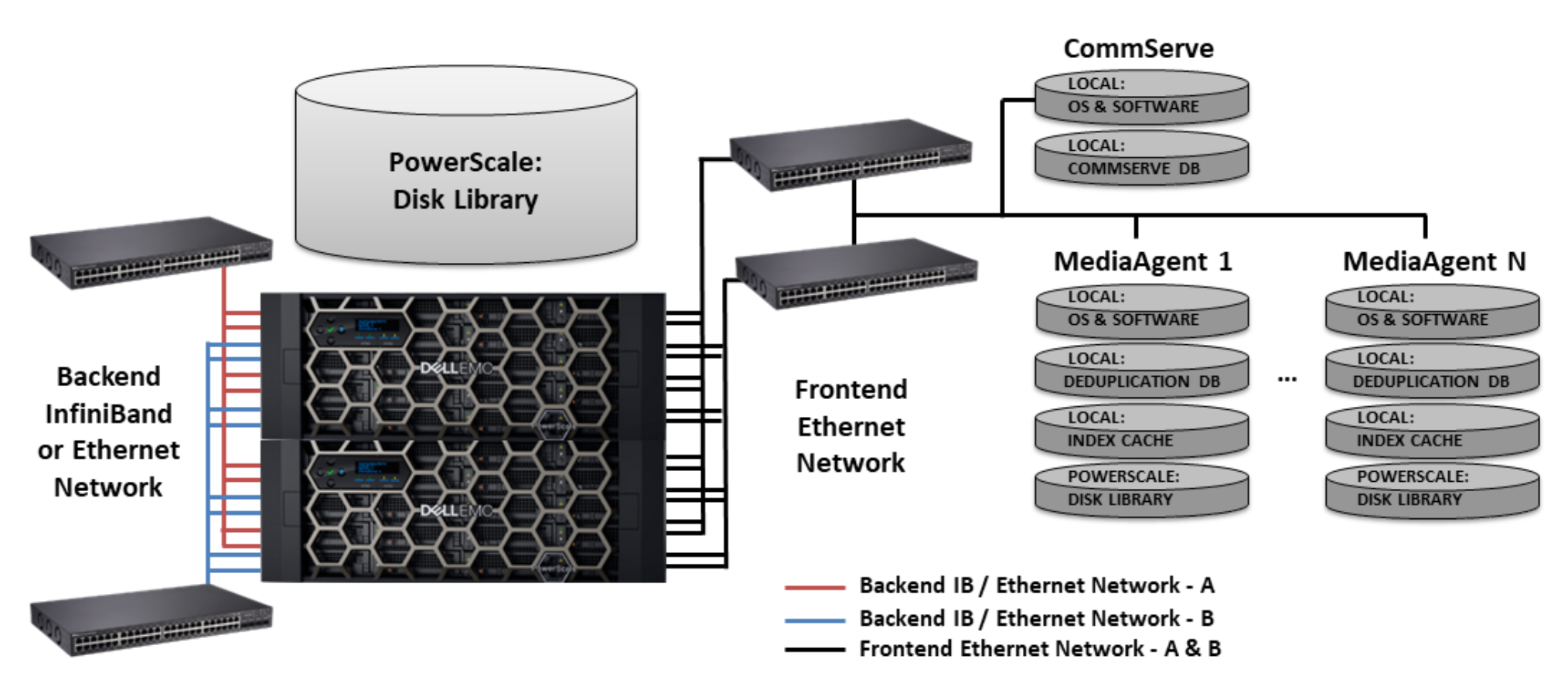
Figure 1. Logical architecture overview: backup target as a disk library
The following figure is an overview of the logical architecture for Commvault and PowerScale scale-out storage deployed as a backup source through 2-way NDMP. The figure shows the PowerScale cluster with direct Fibre Channel connections to tape media.
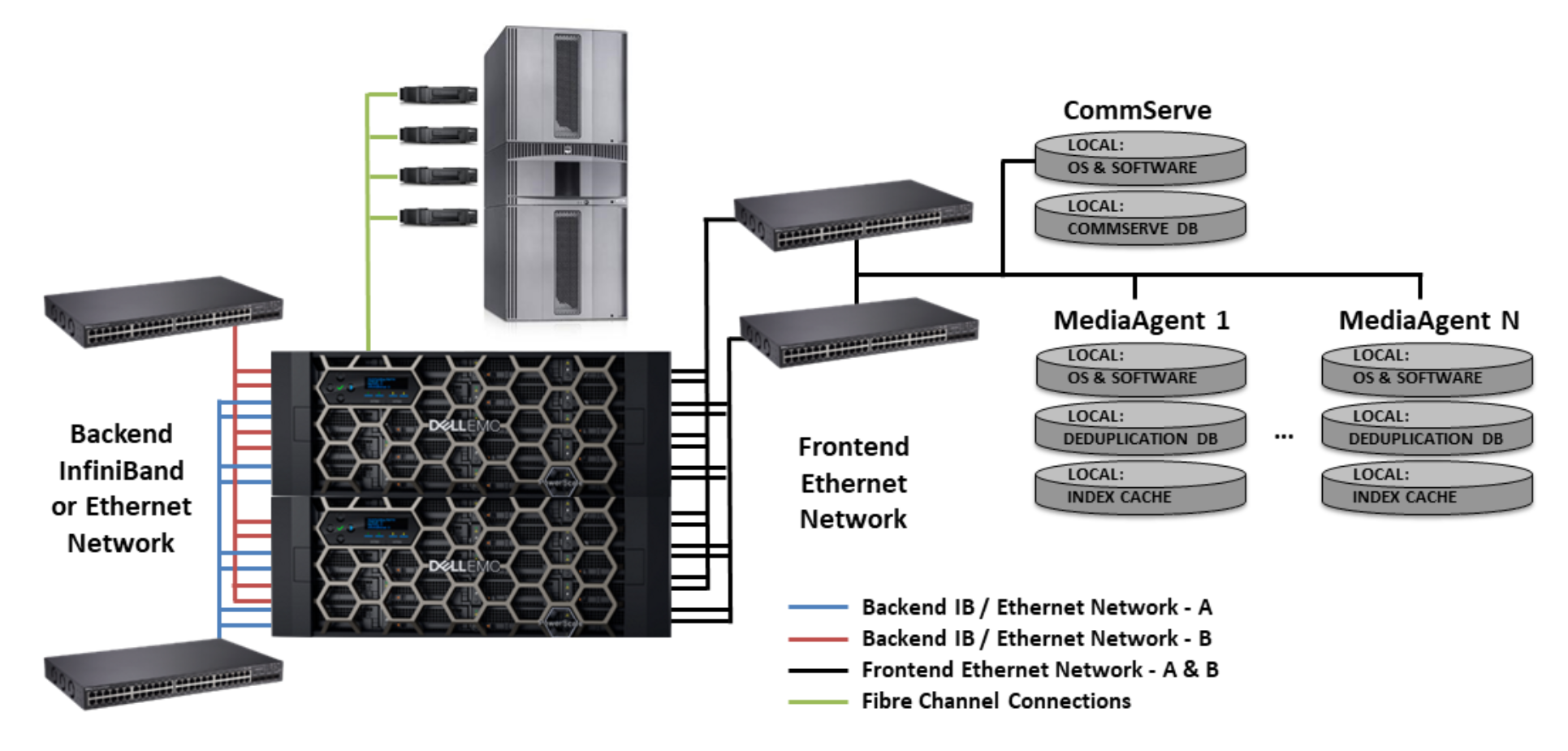
Figure 2. Logical architecture overview: backup source through 2-way NDMP
The following figure is an overview of the logical architecture for Commvault and PowerScale scale-out storage deployed as a backup source through 3-way NDMP. This figure shows the PowerScale cluster with remote access to tape media over Ethernet.
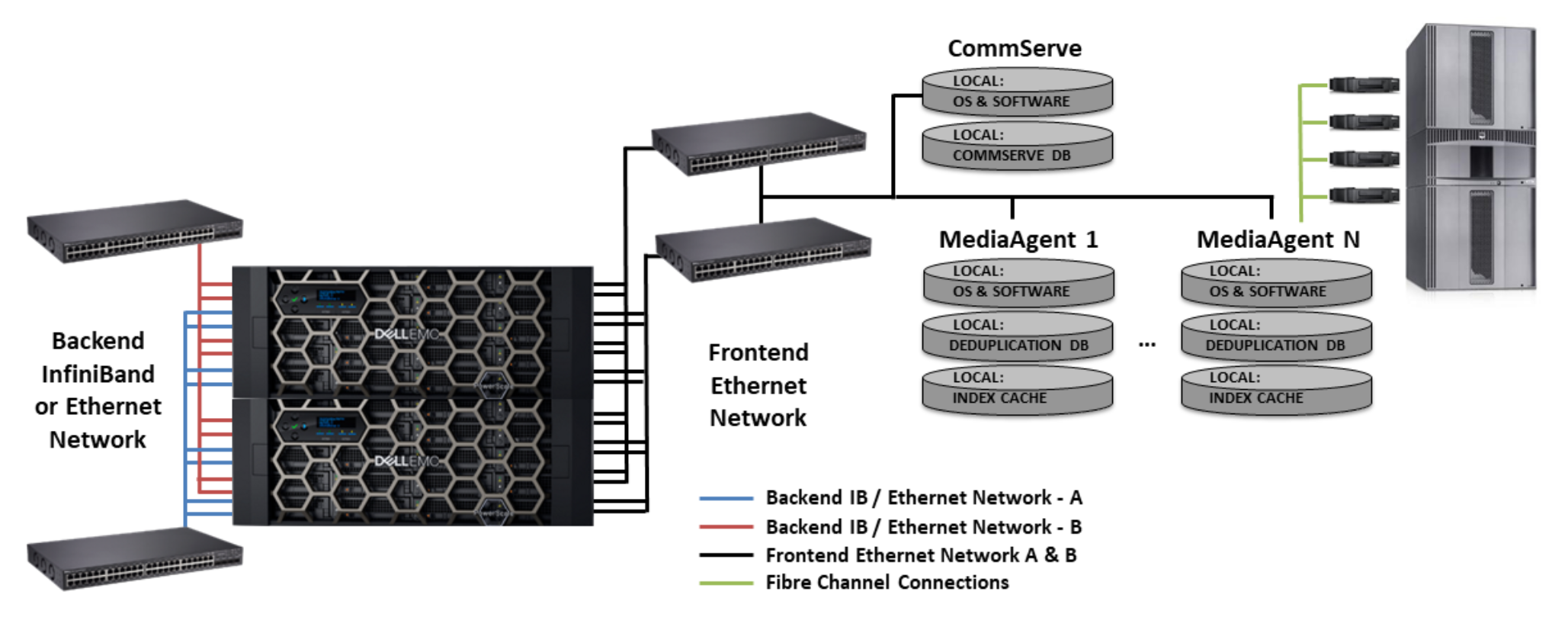
Figure 3. Logical architecture overview: backup source through 3-way NDMP
Backup target configuration and best practices
An overview of the configuration steps for Commvault and PowerScale OneFS scale-out storage deployed as a backup target is provided in Figure 4. The sections that follow provide guidance on best practices or required settings for each step.
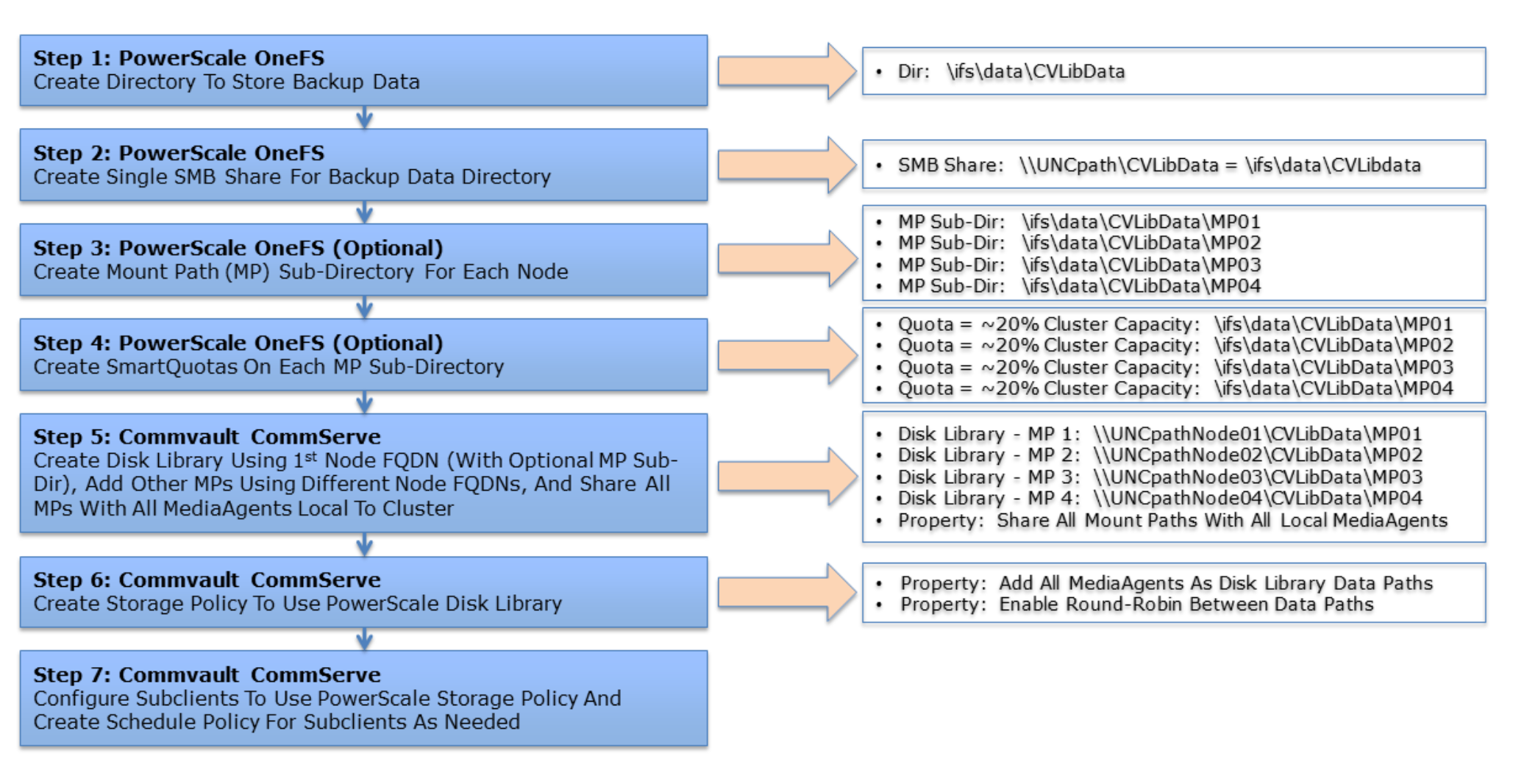
Figure 4. Commvault and PowerScale OneFS deployed as a backup target: configuration workflow
PowerScale storage configuration
The sections that follow provide configuration guidance and best practices for configuring the PowerScale cluster.
Basic
This section describes basic requirements for creating the backup directory on the PowerScale cluster.
Bandwidth
Bandwidth is an important component in overall backup, restore, and Aux/DASH Copy performance. For many deployments, a pair of 10 GbE connections on the CommServe, MediaAgents, and PowerScale cluster nodes will provide good bandwidth and resiliency.
SMB Multichannel
SMB Multichannel is supported in OneFS 7.1.1 and later. This means that both 10 GbE interfaces on each PowerScale node are used automatically when the interfaces are on the same network and the MediaAgents are installed on Microsoft Windows Server 2012 and later.
Commvault backup directory
Commvault will need a backup directory created on PowerScale that will be used as the root of the disk library configuration to store backup data. Within that directory, subdirectories can be created for each of the mount paths that will be defined on the PowerScale disk library so SmartQuotas can be applied to each subdirectory. This will ensure that the appropriate total cluster capacity is visible to Commvault for accuracy and to ensure that Commvault can react accordingly when the disk library free space is low. SmartQuotas can still be applied after an PowerScale disk library has been created with a single common root directory/path using the unique subdirectories Commvault creates for each mount path. However, note that these subdirectories are unique to the minute since the naming includes the date and time to the minute (that is, Folder_12.31.2020_23.59). You might have to monitor the time when adding mount paths in quick succession to a disk library to ensure that each is added during a different minute on the server clock. Otherwise, until enough time has passed for the minute to change due to the directory name collision, Commvault will report an error when a mount path is added.
Commvault backup share and permissions
The default share or export for /ifs can be used to access the newly created backup directory (\\PowerScaleClusterFQDN\ifs\data\CVLibData); however, creating a specific share (that is, \\PowerScaleClusterFQDN\CVLibData) provides better control over access and share settings). Creating a specific share also helps show the workloads on a cluster from a visibility and manageability perspective. Additional details that can be recorded within the share or export description.
The account that will be configured in Commvault to connect to the PowerScale Disk Library should be set up with full control permissions on both the PowerScale share and directory.
Commvault sparse file support: data aging and space reclamation
To enhance space reclamation during the Commvault data aging process of deduplicated data, enable the Sparse File option under the PowerScale SMB share settings. This new option is designed to support the Commvault “Drill Hole” operations to free-up capacity from within backup container files with deduplicated data. The Sparse File option requires Commvault 11 SP10 and later with OneFS 8.2 and later, and it is configurable from the PowerScale CLI. It is in addition to the existing support for space savings from delete and truncate operations on backup container files.
Capacity utilization with sparse file savings is best viewed with the du -sh CLI command on the PowerScale cluster. The file and folder properties from Windows will accurately represent the savings from delete and truncate operations but may not represent the sparse file savings.
For complete configuration procedures, see the PowerScale OneFS CLI Administration Guide. The following CLI example enables SMB sparse file support.
PowerScale-1# isi smb settings share view | grep Sparse
Sparse File: No
PowerScale-1# isi smb settings share modify --sparse-file=True
PowerScale-1# isi smb settings share view | grep Sparse
Sparse File: Yes
Create CIFS/SMB share: WebUI
For complete configuration procedures, see the PowerScale OneFS Web Administration Guide.
Overview:
Ensure that the SMB service is enabled.
Create the SMB share and backup directory at the same time (see Figure 5).
Add Full Control share permissions for the user account used by the CommServe and MediaAgents.
Create subdirectories for the Disk Library Mount Paths.
Configure SmartQuotas on the subdirectories.
Test the SMB share by browsing to it from the CommServe and MediaAgent servers using the above user account.
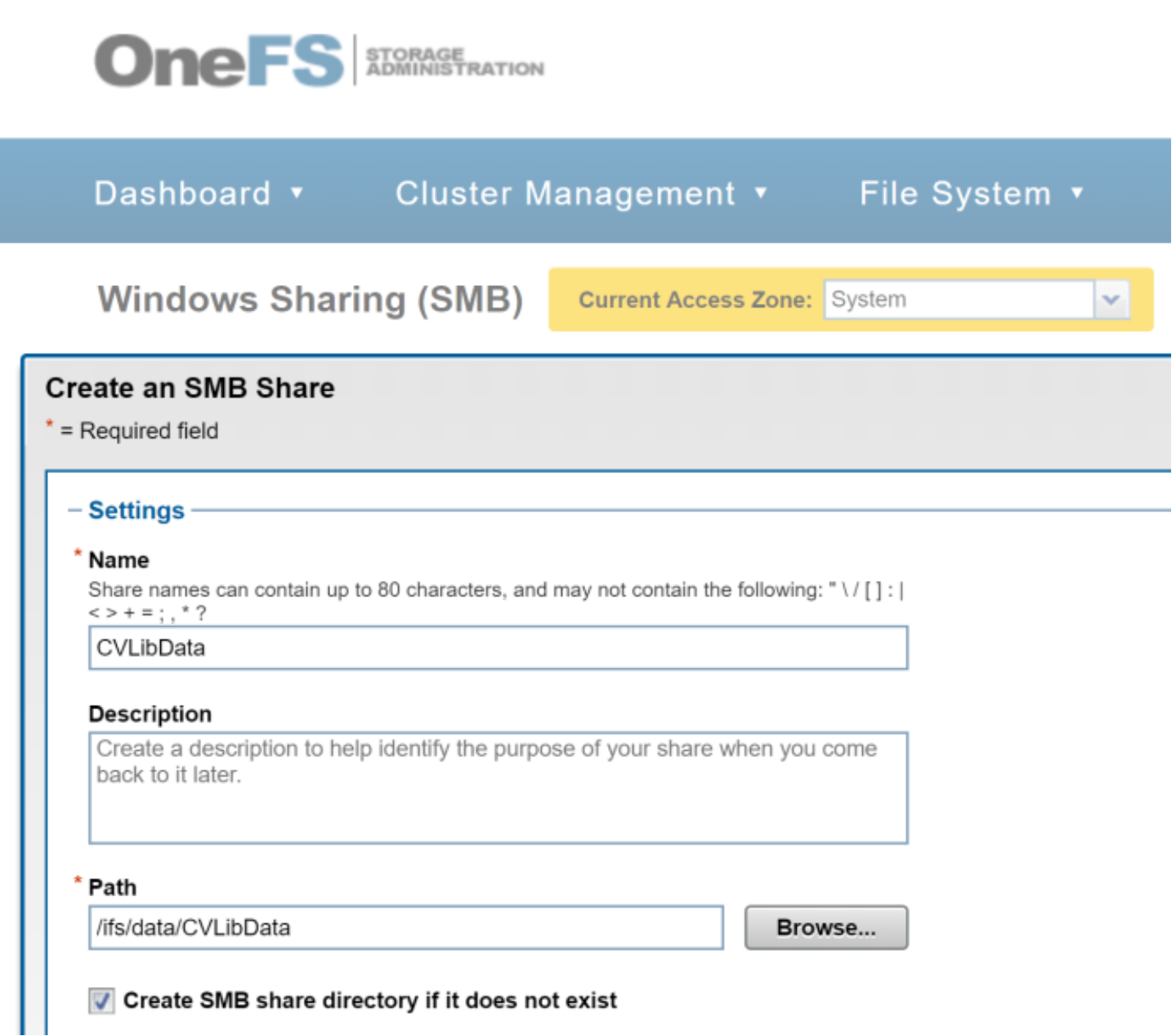
Figure 5. PowerScale SMB WebUI
Create NFS export: WebUI
For complete configuration procedures, see the PowerScale OneFS Web Administration Guide.
Overview:
- Ensure that the NFS service is enabled.
Create an NFS export (see Figure 6).
Add CommServe and MediaAgent Server IP Addresses in the NFS client list and allow Read-Write access.
Create an NFS Alias (optional).
Create subdirectories for the Disk Library Mount Paths.
Configure SmartQuotas on the subdirectories.
Test the NFS export by mounting it on the CommServe and MediaAgent servers.
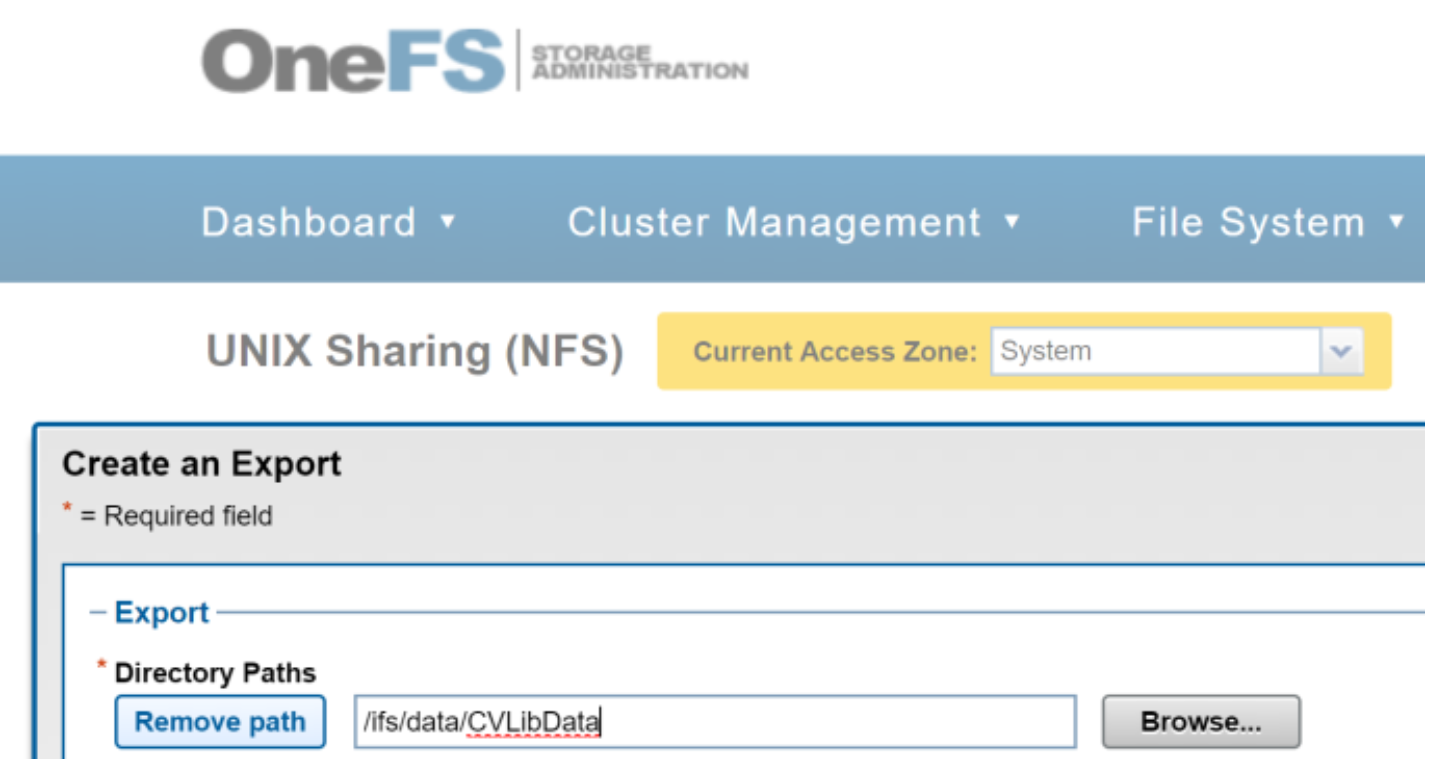
Figure 6. PowerScale NFS WebUI
Advanced
This section describes the advanced options of creating a Commvault specific share or export on the PowerScale cluster.
Create CIFS/SMB Share – CLI
For complete configuration procedures, see the PowerScale OneFS CLI Administration Guide.
The following CLI example creates the SMB share and backup directory at the same time.
PowerScale-1# isi smb shares create --name=CVLibData --path=/ifs/data/CVLibData --create-path --description="Share for Commvault backup data."
PowerScale-1# isi smb shares permission create --share=CVLibData --user=commvaultuser --permission=full --permission-type=allow
PowerScale-1# chown commvaultuser /ifs/data/CVLibData
Be sure to adjust the share/export and directory permissions so the user account used by the CommServe and MediaAgents has the appropriate access.
Create NFS export: CLI
For complete configuration procedures, see the PowerScale OneFS CLI Administration Guide.
The following CLI example creates the Commvault backup directory, the NFS export, and an NFS alias (optional).
PowerScale-1# mkdir /ifs/data/CVLibData
PowerScale-1# isi nfs exports create /ifs/data/CVLibData --read-write-clients=10.1.2.0/24 --description="Export for Commvault backup data"
PowerScale-1# isi nfs aliases create --name=/CVLibData --path=/ifs/data/CVLibData
PowerScale-1# chown commvaultuser /ifs/data/CVLibData
Be sure to adjust the share/export and directory permissions so the user account used by the CommServe and MediaAgents has the appropriate access.
Commvault configuration
The sections that follow provide configuration guidance and best practices for configuring the Commvault CommCell.
Basic
This section describes the basic best practice for configuring a single PowerScale Disk Library to be shared with multiple MediaAgents and the CommCell policy configurations.
PowerScale disk library and storage policy
To ensure that all cluster resources can be appropriately used for Commvault backup, restore, and Aux/DASH copy operations, create the PowerScale Disk Library with multiple mount paths and share it with multiple MediaAgents. Configure a new or existing storage policy to use the PowerScale Disk Library with the appropriate aging rules and other settings needed for the environment. Add the remaining MediaAgents as Data Paths with Round-Robin enabled.
Basic configuration steps:
- Create the PowerScale Disk Library: From the CommCell Console, in the CommCell Browser window expand Storage Resources > right-click Libraries > Add > Disk Library…,select Network Path and the first MediaAgent that will use the disk library, and then fill-in the remaining fields like Name, Connect As (the user configured with permissions to the PowerScale share and directory), Password, and Folder (specify a UNC path to the Commvault share on PowerScale using the DNS A record for the first node in the PowerScale cluster and include the first mount path directory, if created beforehand), click OK (see Figure 7).
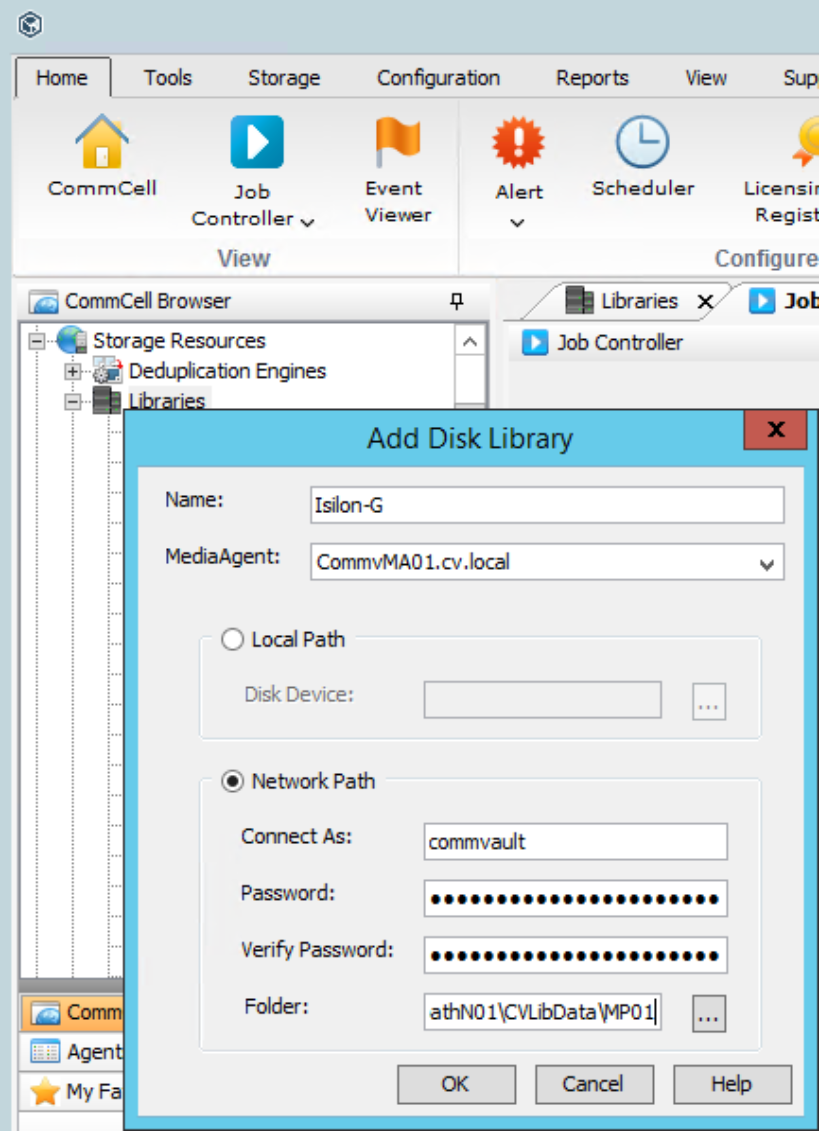
Figure 7. Create an PowerScale disk library: step 1
Add Mount Paths: For each of the remaining PowerScale nodes in the cluster, right-click the newly created PowerScale Disk Library > Add Mount Path, select Network Path and the next MediaAgent that will use the disk library (eventually looping back around to the first MediaAgent), and then fill in the remaining fields similar to Step # 1 above, except use the next node in the PowerScale cluster and the next mount path directory, if created beforehand (see Figure 8).
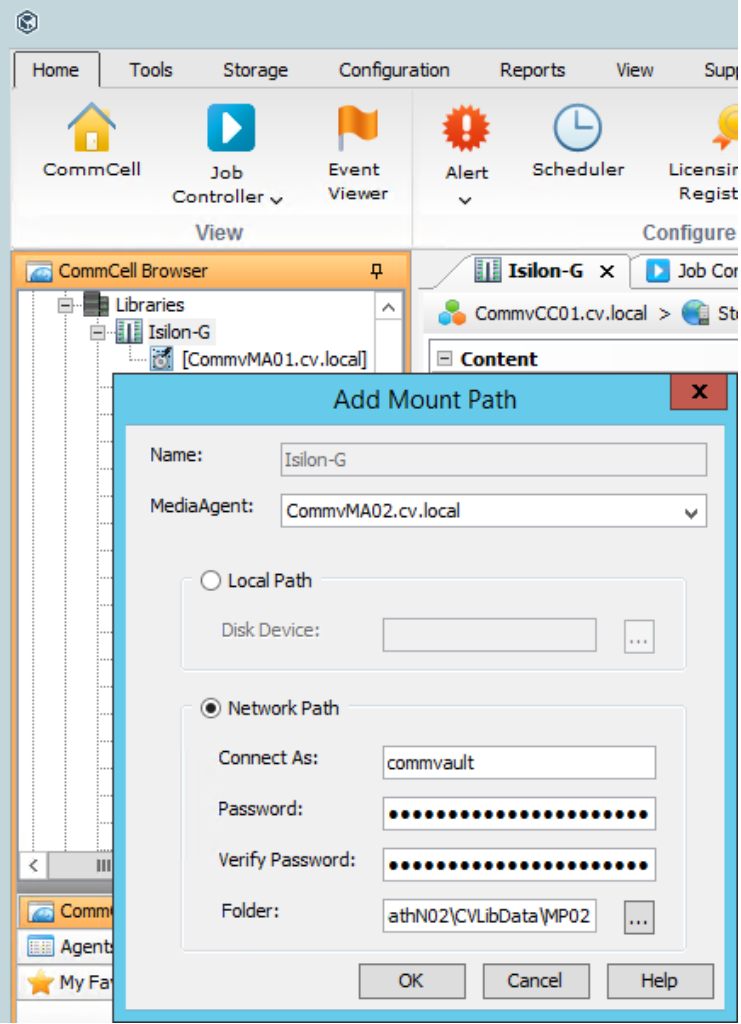
Figure 8. Add mount paths to the PowerScale disk library: step 2
Share Mount Paths with MediaAgents: For each mount path configured on the PowerScale Disk Library, right-click the mount path > Share Mount Path, click Share button > select each of the remaining MediaAgents that will use the disk library, ensure that Read/Write Access is selected, fill-in the password (same as Step # 1 & 2 above), click OK. (see Figure 9).
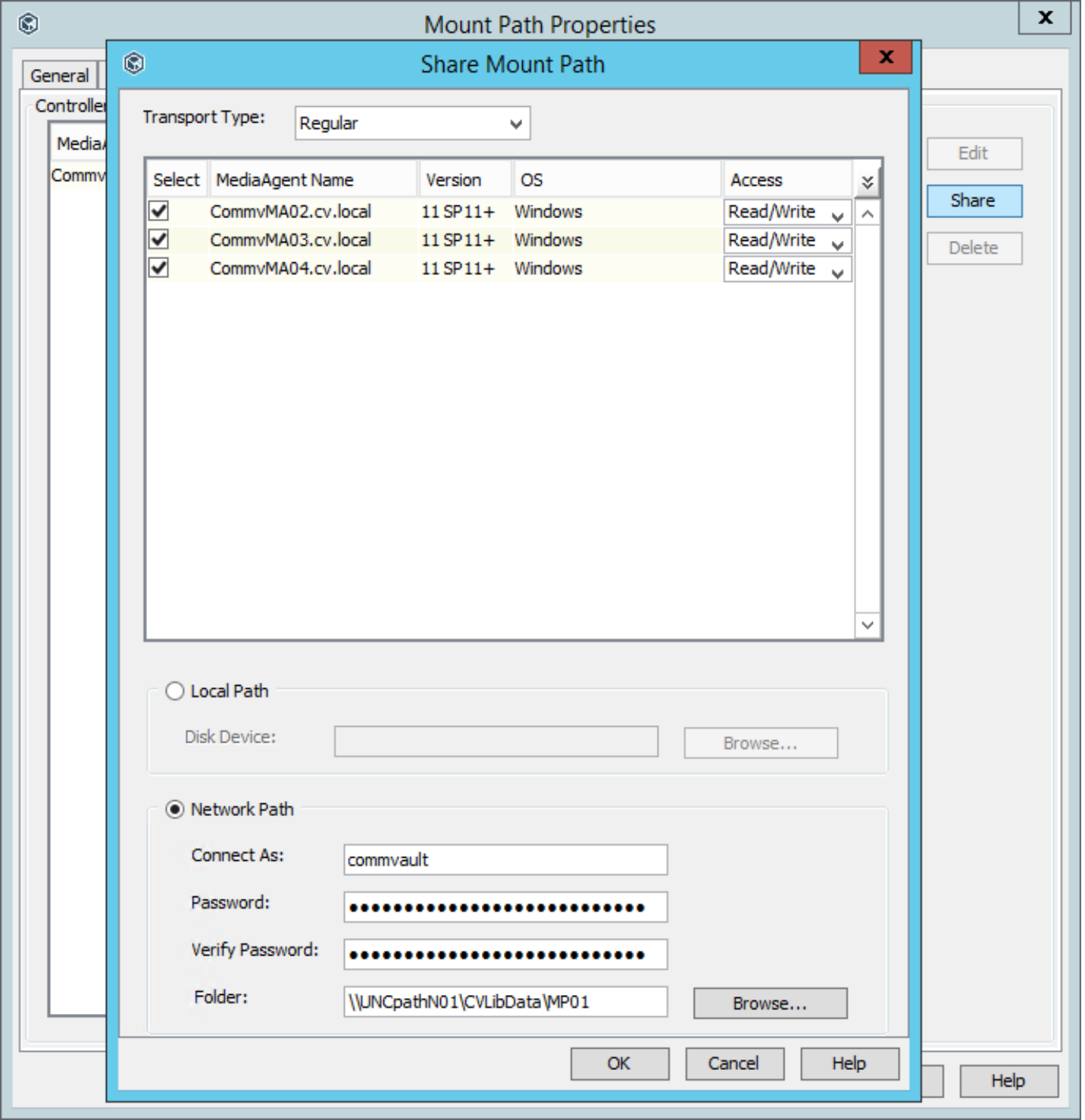
Figure 9. Share mount paths with MediaAgents: step 3
Spill and Fill Setting: Ensure that this option is selected to load balance backup data across all mount paths in the disk library, right-click the PowerScale Disk Library > Properties > Mount Paths tab, ensure that “Spill and fill mount paths (Load balance use of mount paths)” is selected (see Figure 10).
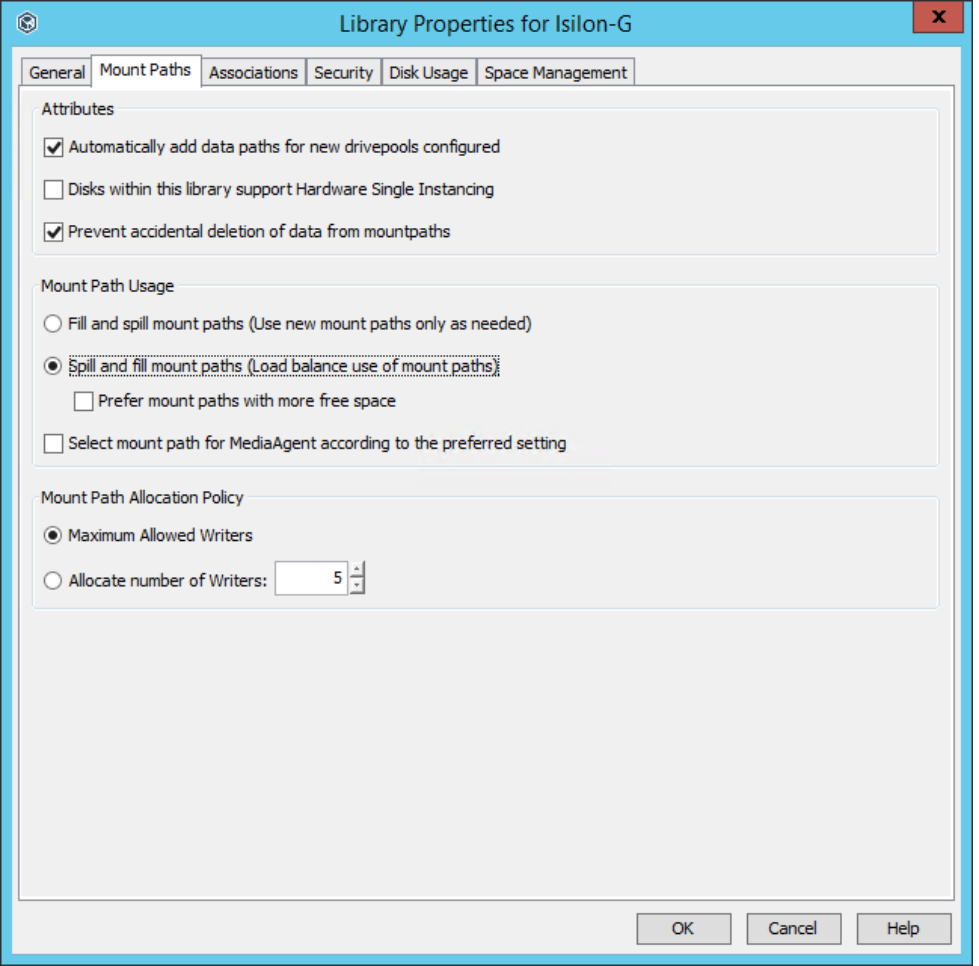
Figure 10. Spill and Fill setting on PowerScale disk library: step 4
Create a Store Policy and add Data Paths: Add each of the remaining MediaAgent (configured on the PowerScale Disk Library) as data paths on the storage policy, right-click the Primary copy of the storage policy configured to use the PowerScale Disk Library > Properties > Data Paths tab > Add button > hold Ctrl + click each of the remaining MediaAgents, click OK, and then on the Data Path Configuration tab > ensure that “Round-Robin between Data Paths” is selected (see Figure 11and Figure 12).
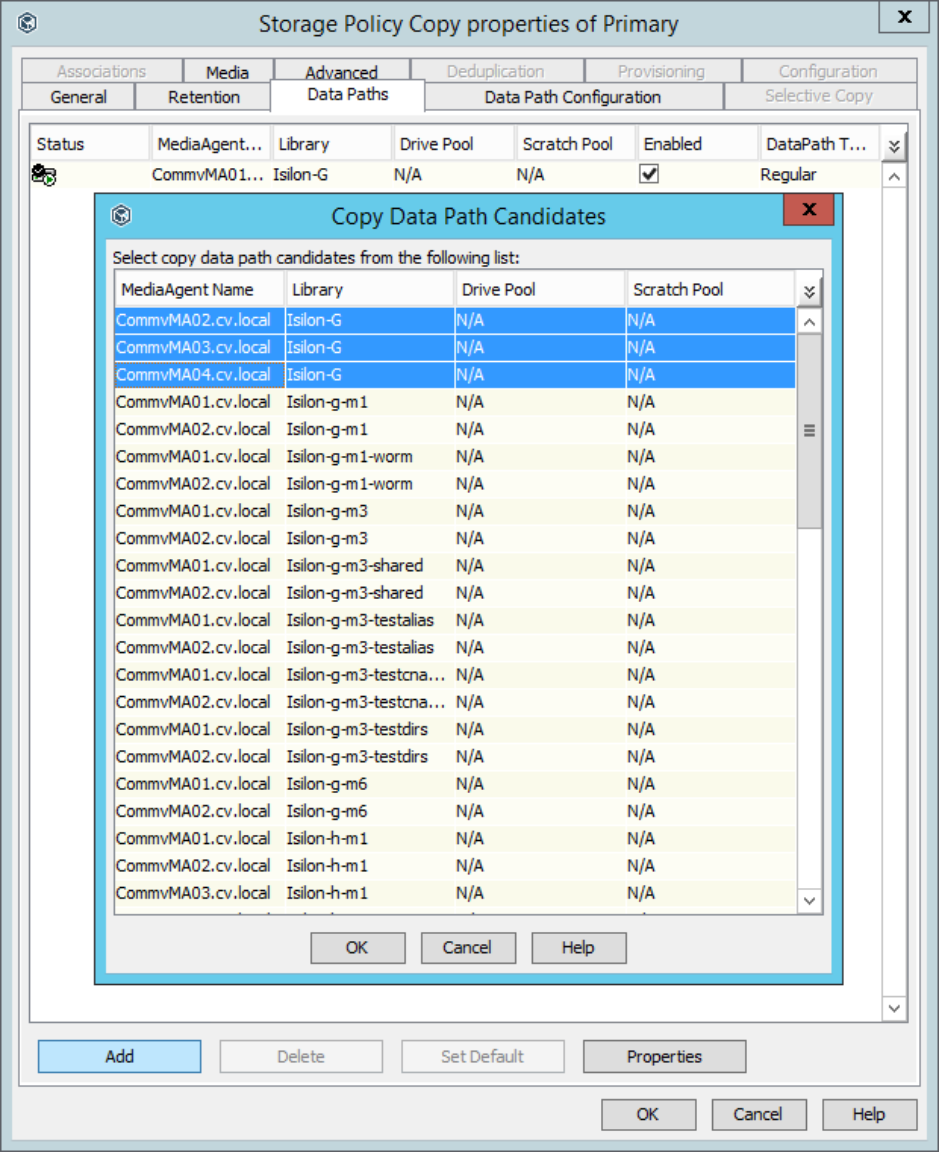
Figure 11. Add data paths to storage policy: step 5
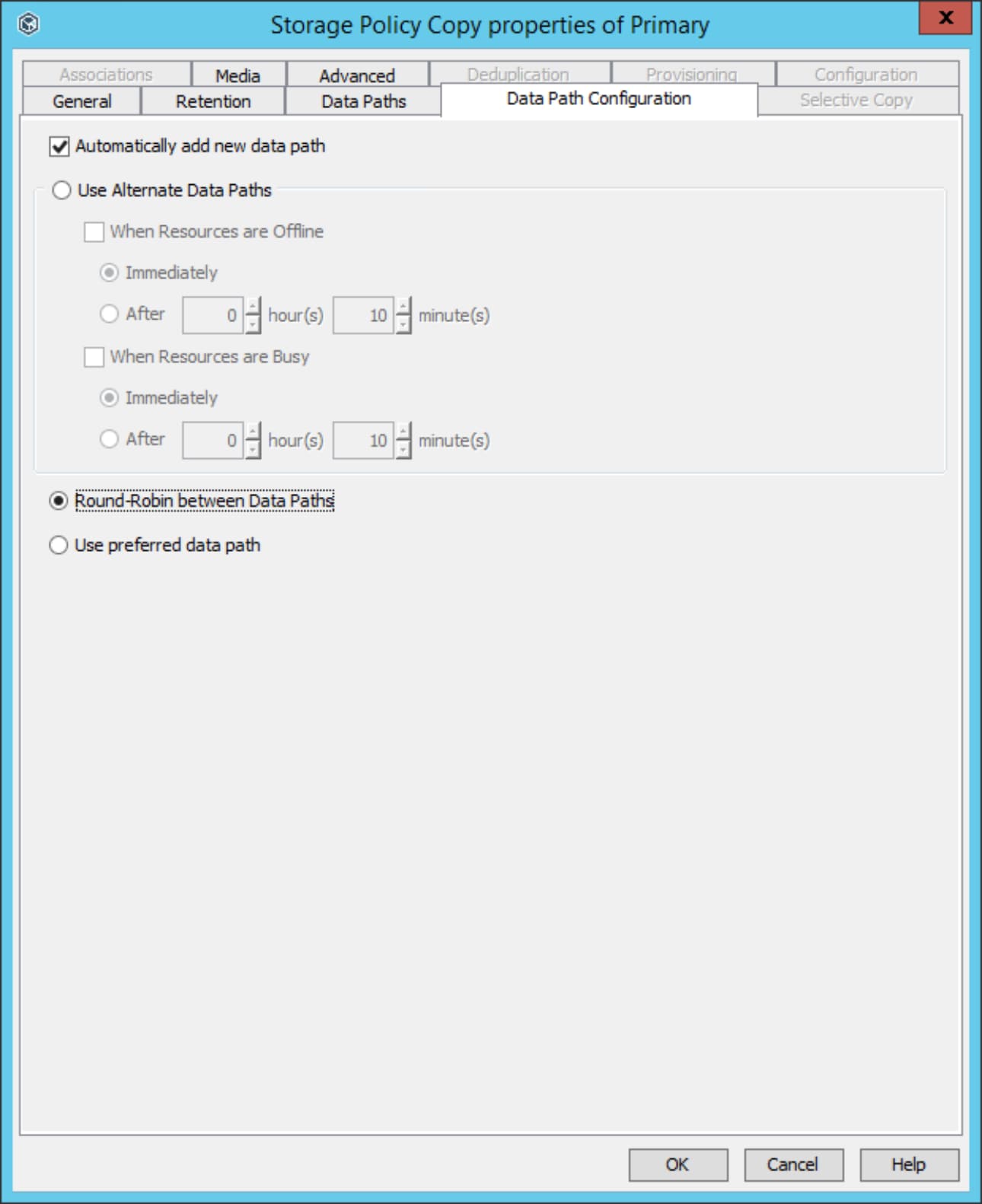
Figure 12. Round-robin data path configuration on storage policy copy: step 5
Storage Policy Stream Settings: Ensure that these two settings are selected, right-click the storage policy configured to use the PowerScale Disk Library > Properties > General tab > ensure that “Enable stream randomization for backup/archiver jobs” and “Distribute data evenly among multiple streams for offline read operations” are selected (Figure 13).
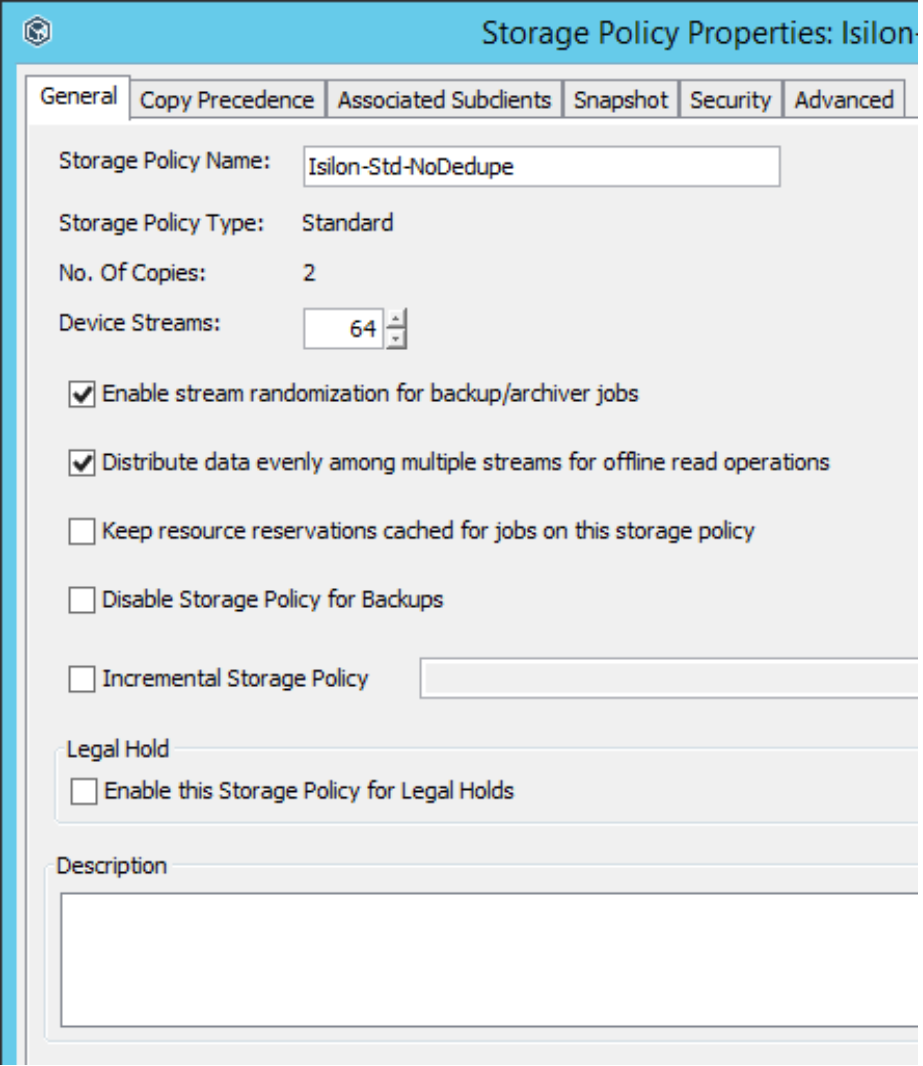
Figure 13. Stream settings on storage policy: step 6
Subclient and schedule policy
Finally, the Subclients should be configured to use the Storage Policy created above with a Full and Incremental schedule policy that is appropriate for the client.
Advanced
This section describes the advanced performance considerations.
Commvault backup performance
The backup process can be a resource-intensive operation with compression and deduplication processes. The amount of spare CPU, RAM, and hard drive performance on a client all contribute to its backup performance.
If a client requires the total backup time to be reduced, in addition to monitoring the CS and MA performance, the client performance should also be monitored during the time of the backups. Additional CPU and RAM can help with the compression and deduplication hashing algorithms and therefore reduce the backup time. Obviously, hard-drive performance affects how quickly the data can be read during the backup process and, therefore, the backup time, so ensure that other workload or maintenance operations are not hampering the backup. If resources cannot be easily increased, test if offloading the compression or deduplication process, or both, from the client to the MediaAgents helps. Consider that these adjustments will cause more network bandwidth to be consumed between the client and the MediaAgent.
For maximum backup and Aux/DASH Copy performance, schedule these different types of jobs to run at different times so they do not overlap; running the operations simultaneously can hinder the performance of either or both.
Commvault mount path writers
The number of writers per mount path can be modified to tune the amount of cluster resources used during backup operations versus other tasks such as restore operations. The number of writers per mount path can be defined on the disk library properties if all the PowerScale nodes are similar, or the number of writers can be defined in the properties of each mount path if the nodes are not similar (see Figure 14and Figure 15).
As a general starting point, set the number of writers per mount path equal to the CPU Cores or LWIO threads available per PowerScale cluster node. Then increase or decrease the writers to use more or fewer cluster resources for backup operations, while leaving some room for restore operations as well. Use InsightIQ to monitor cluster resources to determine if adjustments are needed for the environment.
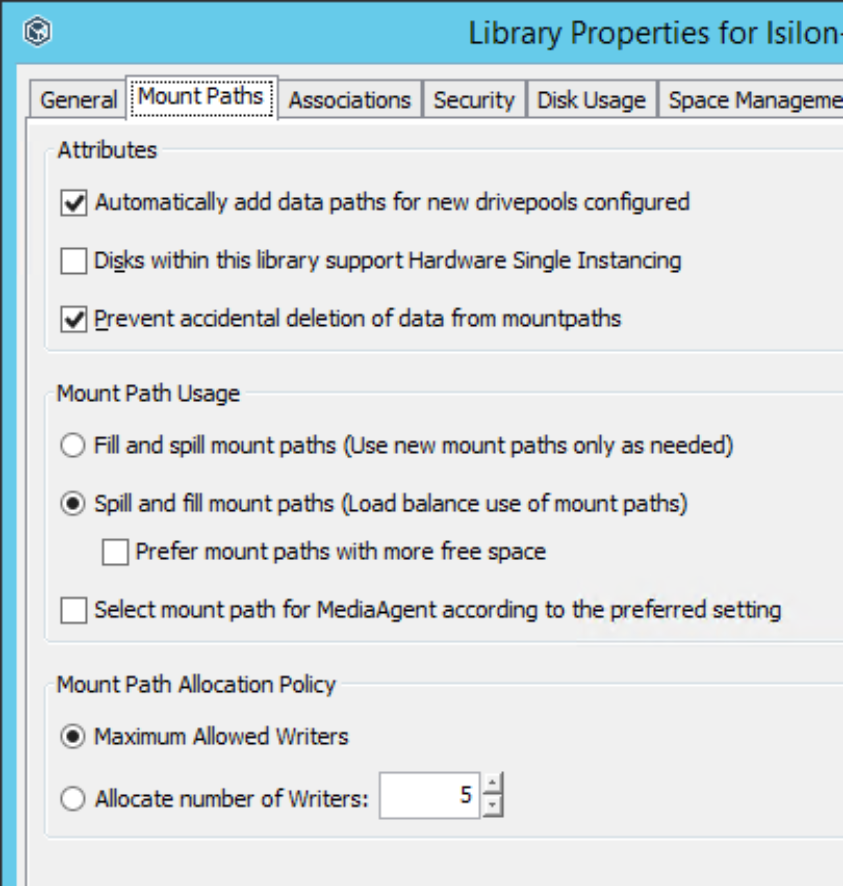
Figure 14. Writers per mount path in disk library properties
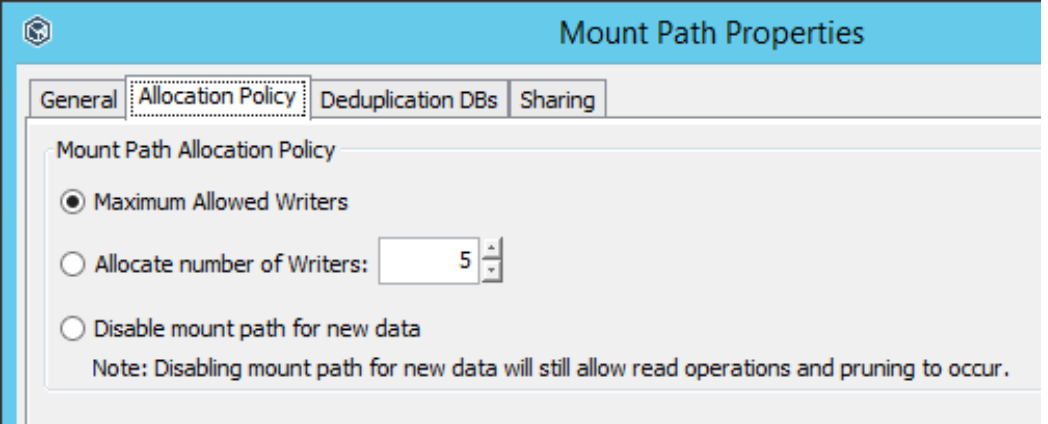
Figure 15. Properties of writers on each mount path
Commvault storage policy streams
The number of device streams on the storage policy can be modified to tune the total amount of cluster resources used during all operations (see Figure 16). This number should be equal to or greater than the total number of writers defined on the disk library, if specified. More device streams than writers will allow other tasks to be performed during backup operations when necessary, such as restore operations. Either increase the number of device streams or reduce the number of writers defined if cluster resource utilization is high during backup operations and resources are limited for other tasks.
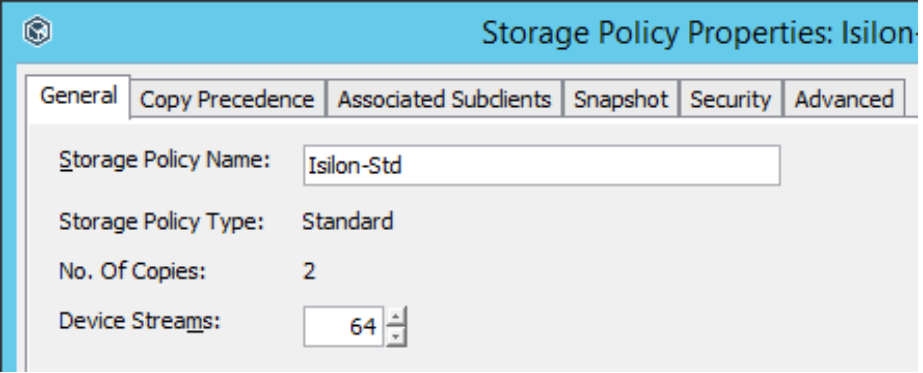
Figure 16. Device streams in storage policy properties
Commvault MediaAgents
The number of MediaAgents available to stream client data to the PowerScale cluster will affect overall backup performance. As a general starting point, deploy one MA for every two PowerScale cluster nodes. Use a minimum of two Mas for redundancy. Requirements will vary based on the CPU, RAM, drive, and networking resources available on the MAs; monitor server resources to determine if more server resources or MAs are needed for the environment.
Commvault data aging and space reclamation
The Commvault data aging process performs delete and truncate operations on the backup container files in disk libraries. When these files contain deduplicated data, the process will also attempt to perform “Drill Hole” operations using SMB sparse file calls. Any data aging that occurred before the Sparse File setting on PowerScale was enabled would have performed the delete and truncate operations on the backup container files, but not the “Drill Hole” operations. The aged data that did not get removed by the “Drill Hole” operations at the time will be deleted when the remaining sections of the backup container files are no longer referenced by other backups and are deleted. There is an option to remove the remaining aged data sooner by running a Data Verification job under the Deduplication Engine with the Reclaim Idle Space on Mountpaths option, though the job will consume resources on the Commvault servers and PowerScale storage to consolidate backup container files into new files without holes and reclaim the old files. This job is tunable using different reclamation levels. If it is determined that it should be run, it would only be needed one time after the Sparse File option under the PowerScale SMB settings is enabled.
To determine the amount of capacity that can be reclaimed from backup container files with holes, use the Data Verification job with the Quick Verification of Deduplication Database option. The log file results will show various levels of reclaimable capacity which corresponds to the reclamation levels under the Reclaim Idle Space on Mountpaths option. Most environments should not need to run a space reclamation job and can allow any remaining aged data to be removed through the normal data aging process.
Backup source configuration and best practices
An overview of the configuration steps for Commvault and PowerScale OneFS scale-out storage deployed as a backup source through 2-way and 3-way NDMP is provided in Figure 17. The sections that follow provide guidance on best practices or required settings for each step.
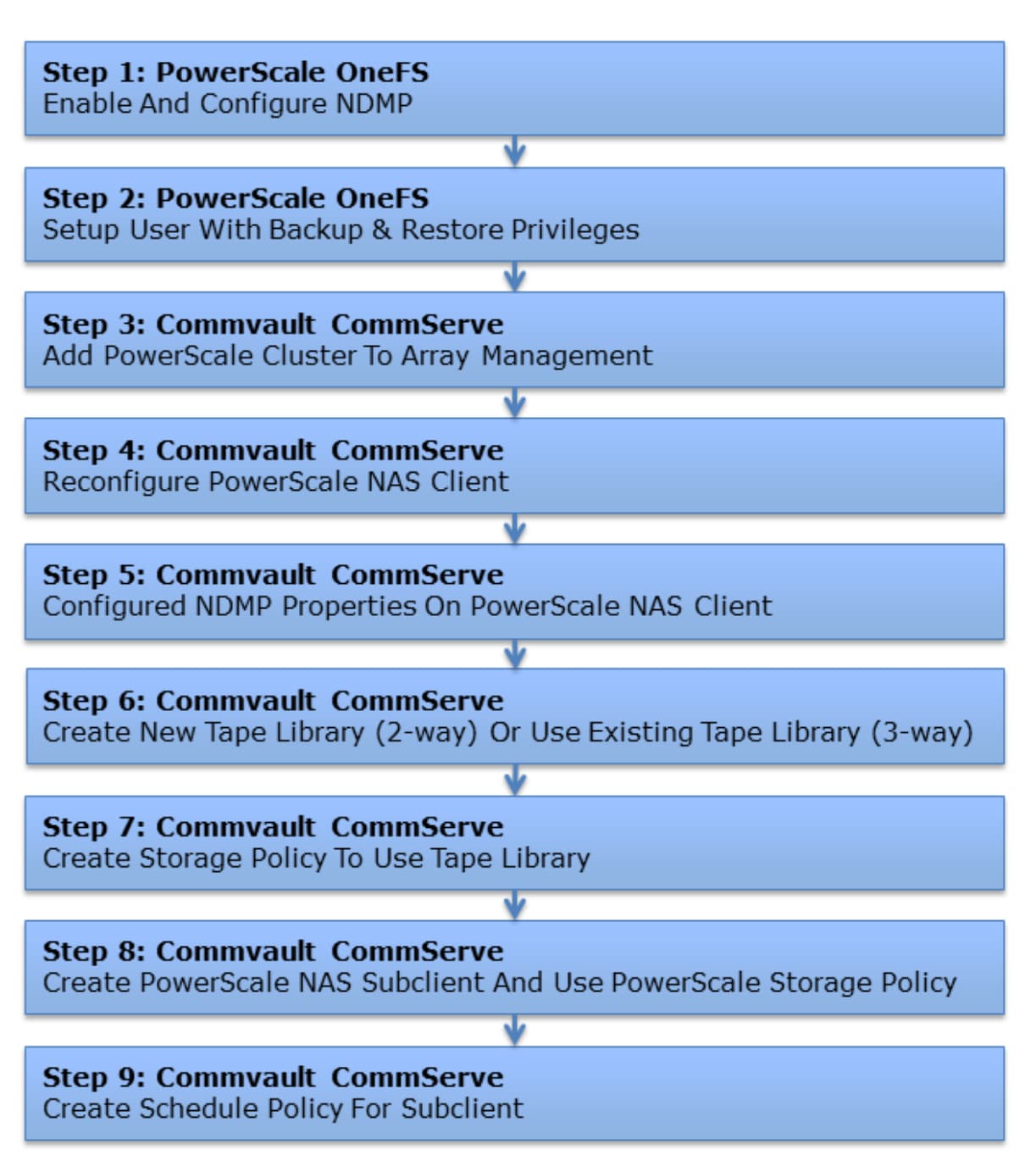
Figure 17. Commvault and PowerScale OneFS deployed as a backup source: configuration workflow
PowerScale storage configuration
The sections that follow provide configuration guidance and best practices for configuring the PowerScale cluster.
Basic
This section describes the basic requirements for configuring NDMP on the PowerScale cluster.
Enable and configure NDMP: WebUI
For complete configuration procedures, see the PowerScale OneFS Web Administration Guide.
Overview:
- Enable the NDMP service, set the DMA Vendor to Commvault, adjust the Port Number if needed, and add an NDMP Administrator (see Figure 18)
Set up a user account with Backup and Restore privileges (see Figure 19).
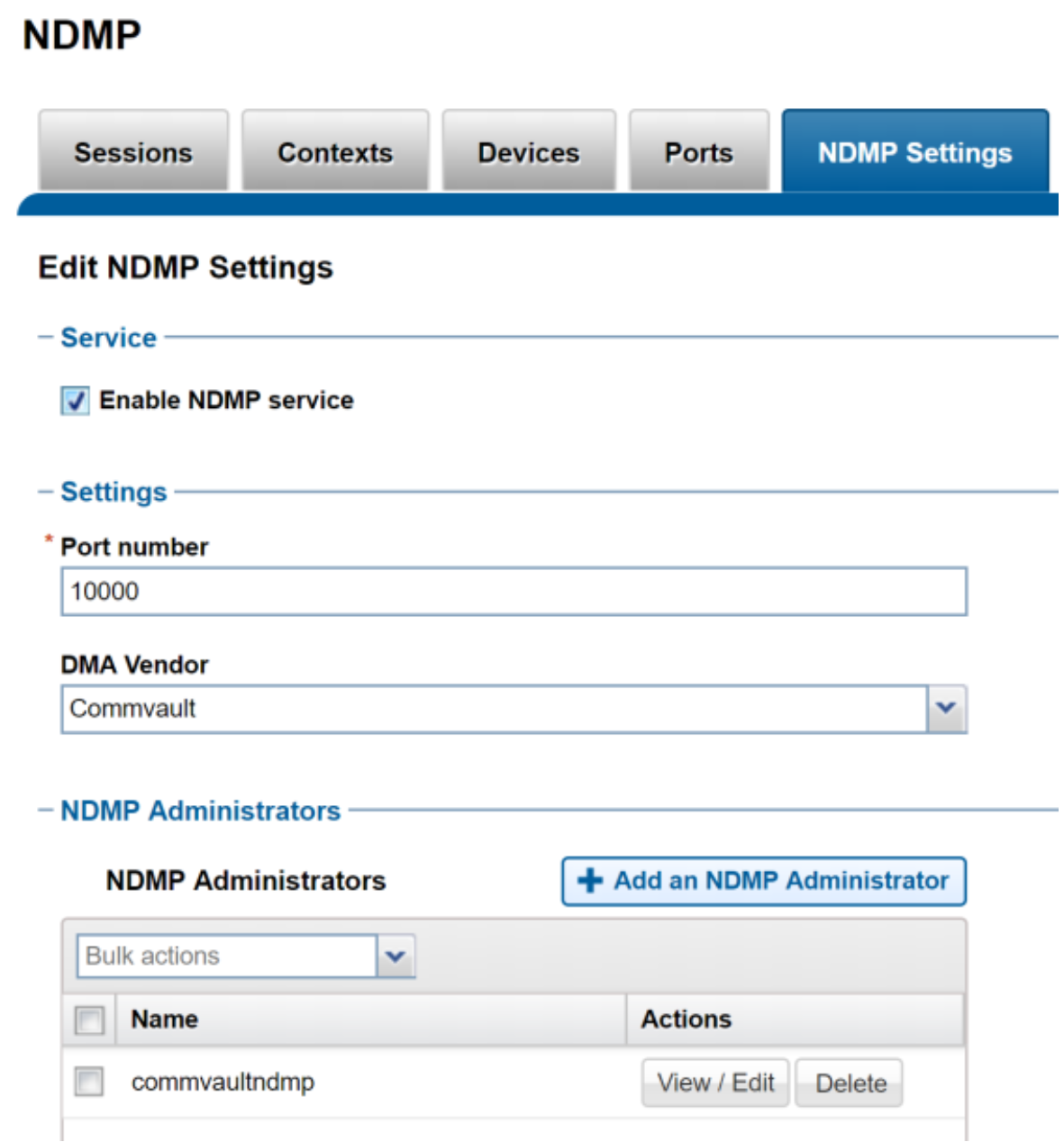
Figure 18. PowerScale NDMP WebUI
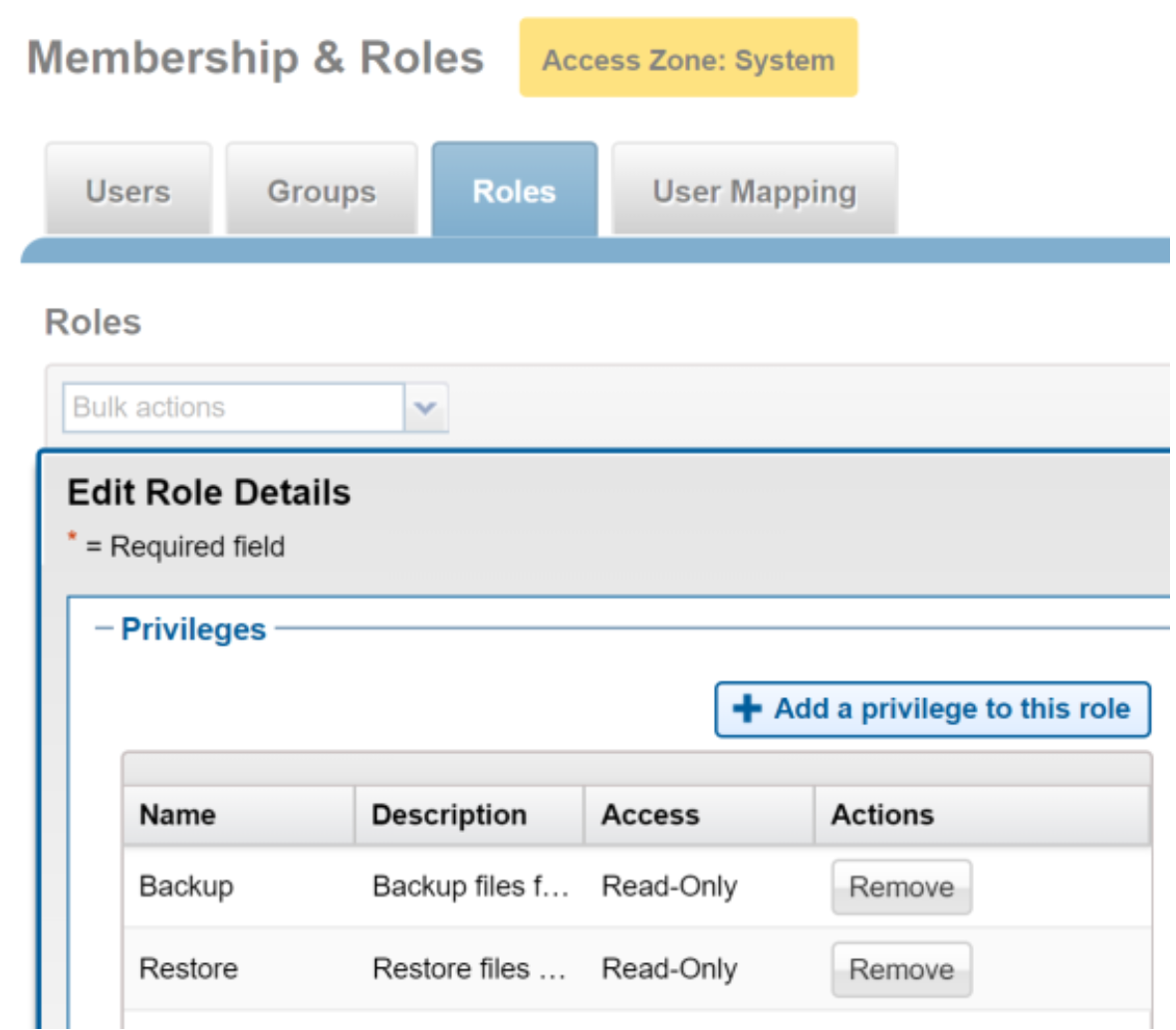
Figure 19. PowerScale roles and privileges WebUI
Advanced
This section includes a CLI example.
Enable and configure NDMP: CLI
For complete configuration procedures, see the PowerScale OneFS CLI Administration Guide.
The following CLI example creates the NDMP Administrator, enables the NDMP service with the default port 10000, and configures the DMA Vendor to Commvault.
PowerScale-1# isi ndmp users create --name=commvaultndmp --password=[ENTER PASSWORD]
PowerScale-1# isi ndmp users list
PowerScale-1# isi ndmp settings global modify --dma=commvault --service=true
PowerScale-1# isi ndmp settings global view
The following CLI example creates a user and role and adds the Backup and Restore privileges.
PowerScale-1# isi auth users create isicommvaultadmin --gecos=isicommvaultadmin --password=[ENTER PASSWORD] --password-expires=no --enabled=yes --shell="/sbin/nologin"
PowerScale-1# isi auth roles create CommvaultAdmins --description="Enable Commvault admins with the required privileges to manage the integrated features."
PowerScale-1# isi auth roles modify CommvaultAdmins --add-priv=ISI_PRIV_IFS_BACKUP, ISI_PRIV_IFS_RESTORE
PowerScale-1# isi auth roles list
PowerScale-1# isi auth roles view CommvaultAdmins
Commvault configuration
The sections that follow provide configuration guidance and best practices for configuring the Commvault CommCell.
Basic
This section describes the basic best practice for configuring PowerScale as a NAS client and the CommCell policy configurations.
Basic configuration steps
For configuration details, see the NDMP: Configuring NDMP backups section in
Appendix: Integrations: Configuration steps.
Advanced
This section describes the advanced performance considerations.
NDMP backup performance
For increased performance, when multiple PowerScale nodes are available to participate in the backup, determine if the directory structures can be split into multiple paths. In which case, define these paths under different Subclients under a single PowerScale NAS client. This NAS client should be configured to use the FQDN configured on the PowerScale IP address pool that contains these nodes. If needed, stagger the start time of the Subclients to allow the jobs to be evenly distributed across the available nodes, which helps ensure that DNS caching is not being used.
If more tape media is available than Subclients, define multiple data readers on some or all the Subclients that need additional performance. Also ensure that the device streams on the store policy are set high enough to cover all the tape media that will be used simultaneously.
This configuration will use multiple PowerScale nodes, with each node using the PowerScale Multi-Stream feature to simultaneously distribute the data to multiple tape media.
Integrations
PowerScale SnapshotIQ
- Providing more granular snapshots at the directory level versus the volume level
- Removing the need to pre-allocate and consume capacity specifically to hold snapshot data
- Allowing client self-service to snapshot data through OneFS integrated Windows support for using the Previous Versions tab in file properties
- Supporting thousands of snapshots per PowerScale cluster
Snapshots provide the lowest RPO and RTO for quick local recovery and are often the preferred recovery method. Snapshots are also an important mechanism to protect data against malicious or accidental deletion and virus or malware attacks.
For configuration details, see the Snapshots: PowerScale SnapshotIQ section in in
Offline replication of snapshots
Commvault extends the management of snapshots with PowerScale to include the ability to perform offline replication of snapshots. With this method, you can copy snapshots from one PowerScale cluster to another using the SyncIQ replication software module available in OneFS. Within Commvault, different retention rules can be applied to the replica/target snapshot and to the primary/source snapshot, and the replica snapshot can be used for restoring operations as well. This approach takes advantage of the many benefits of SyncIQ. Those benefits include sending only changed data (blocks), parallelized data transfer using as many or as few nodes as wanted on the source and target clusters, impact throttling, and bandwidth metering, with the single pane management available with Commvault.
For configuration details, see the Offline replication of snapshots: PowerScale SyncIQ section in
WORM retention
Storage enforcement of retention rules using WORM is an important feature for critical and/or regulated data. Commvault supports SmartLock on PowerScale Disk Libraries. The backup and archiver retention settings can be configured on storage policy copies; whichever setting is higher will be the retention that is applied.
For configuration details, see the WORM retention: PowerScale SmartLock section in
NDMP
The NDMP sections that follow provide information and guidance where backup to tape media is needed for the environment when PowerScale is the backup source. All these features can be used together, including the Restartable (BRE) and Multi-Stream backup features, which requires Commvault 11 SP25+ and OneFS 9.2.1.0+.
For configuration details for these features, refer to the NDMP section in
Snapshot-based Incremental (Faster Incremental) backups
The Snapshot-based Incremental or Faster Incremental backup feature in PowerScale enables OneFS to compare the snapshot from a prior successful backup to the snapshot taken for the current backup. This comparison quickly finds changes without the need for a lengthy tree walk of the targeted directory structure. This process can greatly improve backup times when the data change rate is low and can be used without activating the SnapshotIQ license on the PowerScale cluster.
Commvault has integrated with this feature, and it is also enabled by default on NDMP backups of an PowerScale cluster. This feature is often quite useful, though it can be disabled if the change rate is too high to realize the benefits.
Incremental Forever (level 10) backups
The Incremental Forever backup feature in PowerScale enables OneFS to continuously provide the incremental changes since the last successful full or incremental backup. This feature removes the requirement to perform a full backup after no more than nine incremental backups using Level 1 to 9, Level 0 performs a full backup. It maintains the benefits of smaller and faster incremental backups forever or for as long as is defined by your organization.
Commvault has integrated with this feature, and it is also enabled by default on NDMP backups of an PowerScale cluster.
Restartable (BRE) backups
The Restartable backup feature in PowerScale enables OneFS to take checkpoints throughout the backup process and restart a failed backup job from the last checkpoint automatically. This feature eliminates the time required to back up data that was previously successful up to the last checkpoint. It focuses resources on the failed portion of the backup, minimizing the time required to successfully finish a failed backup.
The Restartable feature is supported with the Multi-Stream feature with Commvault 11 SP25+ and OneFS 9.2.1.0+.
Commvault has integrated with this feature, and it is also enabled by default on NDMP backups of an PowerScale cluster.
Multi-Stream backups
The Multi-Stream backup feature in PowerScale is an innovative feature that is unique to PowerScale. It is an order of magnitude improvement in backup throughput, management, and scalability. The feature automatically splits a backup dataset into multiple segments or streams. Each backup steam is sent simultaneously to its own tape media using parallel tree walks with integrated dynamic load balancing and fault tolerance between streams.
This feature eliminates the need to manually split a directory structure across multiple backup jobs, which is error-prone, time intensive, and difficult to evenly distribute due to varying directory sizes and file counts. Often, one or more backup jobs will be much larger than the others due to this uneven distribution leading to longer backup times. In comparison, streams within a Multi-Stream backup are not bound by directory borders, spits can even occur between files in the same directory.
As mentioned above, the Restartable feature is supported in conjunction with the Multi-Stream feature with Commvault 11 SP25+ and OneFS 9.2.1.0+.
Commvault has integrated with this feature. It is also enabled by default on NDMP backups of an PowerScale cluster when both the device streams value under the storage policy and the data readers value under the Subclient are greater than one.
Conclusion
Conclusion
The increasing amount of data being generated today can have an exponential effect on the amount of space needed for backups. This data growth creates unprecedented challenges on storage systems not built with scale-out as a core component of their technology. Choosing the right storage solution is critical to providing peace of mind to the IT organizations that are already stretched thin on resources. The right storage solution provides ease of management, automated distribution, and seamless scalability to save valuable datacenter resources and turn the inevitable hardware refresh/migration into a simple push-button affair.
Using the basic deployment method, you can implement the Commvault and Dell PowerScale environment with the least amount of effort, provide good resiliency and performance, and have the information necessary to avoid common issues. The advanced deployment method provides additional information to customize, administer, and optimize backup performance. The integrations available with Commvault and PowerScale greatly enhance the solution with performance improvements, reduced backup times, ease of manageability, and enhanced data protection and compliance.
Appendix: Integrations: Configuration steps
Snapshots: PowerScale SnapshotIQ
Basic configuration steps:
- PowerScale: Create a role with the snapshot and SMB privileges with Read/Write access, Platform API privileges with Read-Only access, and add a user account that Commvault will use to manage the snapshots.
OneFS WebUI (example): Access > Membership & Roles > Roles tab > Create a Role button
Role Name: CommvaultAdmins
Description: Enable Commvault to create and manage snapshots.
Members: [add a user account that will be used in Commvault]
Privileges: [see list below]
(1) Add “Snapshot” with “read_write Access” selected
(2) Add “SMB” with “read_write Access” selected
(3) Add “Platform API” with “read_only Access” selected
Click Create Role button
OneFS CLI (example):
isi auth users create isicommvaultadmin --gecos=isicommvaultadmin --password=[ENTER PASSWORD] --password-expires=no --enabled=yes --shell="/sbin/nologin"
isi auth roles create CommvaultAdmins --description="Enable Commvault admins with the required privileges to manage the integrated features."
isi auth roles modify CommvaultAdmins --add-user=isicommvaultadmin --add-priv=ISI_PRIV_SNAPSHOT,ISI_PRIV_SMB,ISI_PRIV_LOGIN_PAPI
isi auth roles list
isi auth roles view CommvaultAdmins
Commvault: Add the PowerScale Cluster to Array Management with the user account that has PowerScale Snapshot privileges (created above)
CommCell Console > Storage tab > click Array Management > Add
General tab:
(1) Snap Vendor: Dell EMC Isilon
(2) Name: [FQDN of PowerScale cluster]
(3) Control Host: [FQDN of PowerScale cluster, should match NAS client above]
(4) Credentials: [click Change button, enter username and password with PowerScale snapshot privileges]
Array Controllers tab:
(1) Selected Array Controllers: [add 2 or more MediaAgents local to the PowerScale cluster to communicate the API commands]
Snapshot Configuration tab:
(1) Auto Update Array Host Aliases: [enable checkbox, unless manual entry of host aliases for the PowerScale cluster is needed in the below list]
(2) Array Host Aliases: [leave blank, unless manual entry of host aliases for the PowerScale cluster are needed]
(3) Access Zone: [leave blank if the snapshot is of an SMB share in the default System zone, otherwise specify the Access Zone name of the SMB share]
Click OK
Commvault: Reconfigure to enable and license the PowerScale cluster client
From the CommCell Browser > select Client Computers > View tab > click Refresh (to see the newly added PowerScale cluster)
Right-click [PowerScale cluster] under Client Computers > All Tasks > Reconfigure
View tab > Refresh (again to see the PowerScale cluster change from gray to color)
Commvault: Add the Network Share Backup on the PowerScale cluster client
From the CommCell Browser > Client Computers > right-click [PowerScale cluster] > All Tasks > Add Network Share Backup > General tab
Enable “Network Share” checkbox
Clear “Unix” checkbox
Client Name: [enter FQDN of PowerScale cluster]
Host Name: [enter FQDN of PowerScale cluster]
Click OK
Commvault: Enable IntelliSnap on the PowerScale cluster client
From the CommCell Browser > Client Computers > right-click [PowerScale cluster] > Properties > click Advanced button (near OK and Cancel buttons) > enable “Enable IntelliSnap” checkbox, click OK twice
Commvault: Create a Storage Policy to define snapshot retention of the PowerScale cluster client (Optional)
Note: This step is optional because the retention settings on an existing Storage Policy might meet the organization’s needs for snapshots as well. However, often retention settings will need to be different for snapshots at some time, so having a Storage Policy specifically for snapshots can be helpful.
From the CommCell Browser > Policies > right-click Storage Policies > New Storage Policy
Select Data Protection and Archiving > click Next
Storage Policy Name: [enter a name] > click Next
Use Existing Global Deduplication Policy (if asked): No > click Next
Library for Primary Copy: [select any destination, not used to store snapshot data] > click Next
MediaAgent: [select a local MA to the PowerScale cluster] > click Next
Number of Device Streams: [default is fine, not used for snapshots] > Aging Rules: [enter Days and Cycles or Infinite as needed] > click Next
Software Encryption: [leave checkbox clear, not used for snapshots] > click Next
Deduplication: [clear “Yes” checkbox, not used for snapshots] > click Next
Click Finish
Commvault: Create a Subclient
From the CommCell Browser > Client Computers > [PowerScale cluster] > Windows File System > right-click the defaultBackupSet > All Tasks > New Subclient
General tab:
(1) Subclient Name: [enter a name]
Content tab:
(1) Add Paths button > enter the UNC path with SMB share and directory to snapshot > click OK
(2) Impersonate User window:
(a) Enter the user account and password with PowerScale snapshot privileges (above)
(b) Note: This setting can be updated later using the “As User” button
Storage Device tab > Data Storage Policy tab:
(1) Storage Policy: [select an existing or the newly created Storage Policy above]
Backup Nodes tab > add Media Agents to the Selected Data Access Nodes listing
Optionally configure any other tab settings as needed.
Advanced button (near OK and Cancel buttons):
(1) IntelliSnap Operations tab:
(a) IntelliSnap: [enable checkbox]
(b) Available Snap Engines: Dell EMC Isilon Snap
(c) Optionally configure the Proxy settings or any other tab settings as needed
(2) Click OK
Click OK
Commvault: Run a Backup/Create a Snapshot Manually
Note: When the first backup is performed, a Primary Snap copy will be created under the storage policy being used by the Subclient. Once successful, snapshot can be seen:
Right-click [the new Subclient above] > List Snaps.
From the CommCell Browser > Client Computers > [PowerScale cluster] > Windows File System > defaultBackupSet > right-click [the new Subclient above] > Backup > Click OK
Offline replication of snapshots: PowerScale SyncIQ
The basic configuration steps to implement offline replication of snapshots using the PowerScale SyncIQ feature are detailed below.
- PowerScale: Create a SyncIQ policy
Note: Perform the snapshot configuration before proceeding with the below.
OneFS WebUI (example): Data Protection > SyncIQ > Policies tab > Create a SyncIQ Policy button
Settings:
(1) Policy Name: Commvault-Project1-Dir
(2) Description: Used by Commvault to replicate Project 1 directories.
(3) Enable this Policy: [selected]
(4) Action: Synchronize
(5) Run Job: Manually
Source Cluster:
(1) Source Root Directory: /ifs/data/project1
Target Cluster:
(1) Target Host: PowerScale2.cv.local
(2) Target Directory: /ifs/data/PowerScale1-replica/project1
Target Snapshots:
(1) Enable capture of snapshots on the target cluster: [selected]
(2) Snapshot Naming Pattern: SIQ_%{SrcCluster}_%{PolicyName}_%Y-%m-%d_%H-%M-%S [add the “-%S” to the end of the default pattern, if it does not exist]
(3) Snapshot Expiration: Snapshots do not expire (Commvault will control aging)
Optionally configure any other settings as needed (such as node to participate, and so on).
Click Create Policy
Note: Ensure that the DNS servers configured on the source and target clusters can resolve the hostname of each cluster.
OneFS CLI (example):
isi sync policies create --name="Commvault-Project1-Dir" --description="Used by Commvault to replicate Project 1 directories." --enabled=true --action=sync --source-root-path="/ifs/data/project1" --target-host="PowerScale2.cv.local" --target-path="/ifs/data/PowerScale1-replica/project1" --target-snapshot-pattern="SIQ_%{SrcCluster}_%{PolicyName}_%Y-%m-%d_%H-%M-%S" --target-snapshot-archive=true
(1) No schedule or target snapshot expirations are specified in the preceding command, so the policy runs manually and snapshots do not expire.
isi sync policies list
isi sync policies view Commvault-Project1-Dir
Note: Ensure that the DNS servers configured on the source and target clusters can resolve the hostname of each other.
PowerScale: Modify the existing User Account and Role used for snapshots to enable SyncIQ replication of the file system as well (CLI)
Note: The following two steps (i and ii) that create a user and role were already performed during the Snapshot configuration on the source cluster. Perform these steps only on the target cluster, and then continue to step b. When configuring the source cluster, skip to step b.
isi auth users create isicommvaultadmin --gecos=isicommvaultadmin --password=[ENTER PASSWORD] --password-expires=no --enabled=yes --shell="/sbin/nologin"
isi auth roles create CommvaultAdmins --description="Enable Commvault admins with the required privileges to manage the integrated features."
isi auth roles modify CommvaultAdmins --add-priv=ISI_PRIV_SYNCIQ
isi auth roles list
isi auth roles view CommvaultAdmins
Commvault (Optional): Automatically Correct SyncIQ policy
Note: This step is only needed if an error is encountered during the SyncIQ policy creation.
From the CommCell Browser > right-click [Commserve Server, top item] > Properties > Additional Settings tab > Add button
Name: nisilonAutoCorrectSyncIQPolicy
Category: iDataAgent
Type: Integer
Value: 1
Commvault: Add the target PowerScale Cluster to Array Management with a user account that has PowerScale SyncIQ privileges (created above)
CommCell Console > Storage tab > click Array Management > Add
General tab:
(1) Snap Vendor: Dell EMC Isilon
(2) Name: [FQDN of PowerScale cluster]
(3) Control Host: [FQDN of PowerScale cluster, should match NAS client]
(4) Credentials: [click Change button, enter username and password with PowerScale SyncIQ privileges]
Array Controllers tab:
(1) Selected Array Controllers: [add 2 or more MediaAgents local to the PowerScale cluster to communicate the API commands]
Snapshot Configuration tab (optional, if Commvault will directly take snapshots of the target PowerScale cluster as well, outside of the SyncIQ policy):
(1) Auto Update Array Host Aliases: [enable checkbox, unless manual entry of host aliases for the PowerScale cluster is needed in the below list]
(2) Array Host Aliases: [leave blank, unless manual entry of host aliases for the PowerScale cluster are needed]
(3) Access Zone: [leave blank if the snapshot is of an SMB share in the default System zone, otherwise specify the Access Zone name of the SMB share]
Click OK
Commvault: Create a Replica Copy
Note: A backup of the snapshot Subclient must be run at least once, at least one snapshot exists, for the Array Replication options to be visible.
From the CommCell Browser > Policies > Storage Policies > right-click [Storage Policy being used for PowerScale snapshots] > All Tasks > Create New Snapshot Copy
General Tab:
(1) Copy Name: [enter name]
(2) Library: [select the same library being used on the Primary storage policy]
(3) MediaAgent: [select a MediaAgent that is local to the source PowerScale cluster]
(4) Array Replication: Vault/Replica (automatically enables the Selective Copy checkbox and enables the Selective Copy and Configuration tabs)
Copy Policy tab:
(1) Clear “All Backups” (will prompt to perform this step if skipped)
(2) Backup On and After: [select a date, default is today’s date] (will prompt to perform this step if skipped)
(3) Enable “Specify Source for Array Replica Copy” checkbox: Primary Snap
Click OK
Commvault: Run an Offline Replication
From the CommCell Browser > Policies > Storage Policies > right-click [Storage Policy being used for PowerScale snapshots] > All Tasks > Run Auxiliary Copy
General Tab:
(1) Select A Copy: [select the new snapshot copy created above]
(2) Enable “Use Scalable Resource Allocation” checkbox (if not already selected)
Click OK
PowerScale SmartLock
The basic configuration steps to implement WORM retention using the PowerScale SmartLock feature are detailed below.
Basic configuration steps:
- PowerScale: Create an SMB share and directory with appropriate permissions and define a WORM domain for that directory.
Note: Before creating a SmartLock domain, create an SMB share and directory as detailed elsewhere. Adjust the share and directory permissions so that the user account used by Commvault has the appropriate access.
OneFS WebUI (example): File System > SmartLock > Create Domain button
Click Browse button to drill down to the path and click Select
Clear “Apply a default retention span” checkbox
Click Create Domain
OneFS CLI (example):
isi worm domains create --path=/ifs/data/CVLibDataWORM
isi worm domains list
isi worm domains view /ifs/data/CVLibDataWORM
Commvault: Create a Disk Library using the SmartLock directory
Note: Create a Disk Library as detailed elsewhere with the additional setting below.
From the CommCell Browser > Storage Resources > Libraries > right-click [newly created PowerScale Disk Library using the SmartLock directory] > Properties > General tab
Enable “Mark Archive files as Read-Only” checkbox
Click OK
Commvault: Configured the MediaAgents with the EnableIsilonSmartLock additional setting
From the CommCell Browser > Storage Resources > MediaAgents > right-click [MediaAgent] > Properties > Additional Settings tab > Add
Name: EnableIsilonSmartLock
Category: MediaAgent
Type: Integer
Value: 1
Repeat the above for each MediaAgent that is sharing the PowerScale SmartLock Disk Library.
Commvault: Create a Storage Policy to use the SmartLock Disk Library with retention rules
Note: Create a Storage Policy as detailed elsewhere to use the SmartLock Disk Library with retention rules. The retention can be adjusted for new data in the following area, existing files will not be modified.
From the CommCell Browser > Policies > Storage Policies > [SmartLock Storage Policy] > right-click Primary copy > Properties > Retention tab
Adjust the retention rules as needed
NDMP
The basic configuration steps to implement each of the NDMP feature integrations with PowerScale are detailed below.
Configuring NDMP backups
The basic configuration steps to setup NDMP backups with PowerScale are below.
Basic configuration steps:
- PowerScale: Create an NDMP user, enable the NDMP Service, and adjust the settings (CLI)
isi ndmp users create --name=commvaultndmp --password=[ENTER PASSWORD]
isi ndmp users list
isi ndmp settings global modify --dma=commvault --service=true
isi ndmp settings global view
PowerScale: Set up a user account and role to enable backup and restore of the file system (CLI)
isi auth users create isicommvaultadmin --gecos=isicommvaultadmin --password= [ENTER PASSWORD] --password-expires=no --enabled=yes --shell="/sbin/nologin"
isi auth roles create CommvaultAdmins --description="Enable Commvault admins with the required privileges to manage the integrated features."
isi auth roles modify CommvaultAdmins --add-priv=ISI_PRIV_IFS_BACKUP,ISI_PRIV_IFS_RESTORE
isi auth roles list
isi auth roles view CommvaultAdmins
Commvault: Add the PowerScale Cluster to Array Management with a user account that has PowerScale Backup and Restore privileges (created above)
CommCell Console > Storage tab > click Array Management > Add
General tab:
(1) Snap Vendor: Dell EMC Isilon
(2) Name: [FQDN of PowerScale cluster]
(3) Control Host: [FQDN of PowerScale cluster, should match NAS client above]
(4) Credentials: [click Change button, enter username and password with PowerScale Backup and Restore privileges, created above]
Array Controllers tab:
(1) Selected Array Controllers: [add 2 or more MediaAgents local to the PowerScale cluster to communicate the API commands]
Snapshot Configuration tab (optional, if Commvault will take snapshots of the PowerScale cluster as well):
(1) Auto Update Array Host Aliases: [enable checkbox, unless manual entry of host aliases for the PowerScale cluster is needed in the below list]
(2) Array Host Aliases: [leave blank, unless manual entry of host aliases for the PowerScale cluster is needed]
(3) Access Zone: [leave blank if the snapshot is of an SMB share in the default System zone, otherwise specify the Access Zone name of the SMB share]
Click OK
Note: This is needed to enable browsing of the PowerScale cluster to select a location to backup or restore.
Commvault: Reconfigure to enable and license the PowerScale cluster client
From the CommCell Browser > select Client Computers > View tab > click Refresh (to see the newly added PowerScale cluster)
Right-click [PowerScale cluster] under Client Computers > All Tasks > Reconfigure
View tab > Refresh (again to see the PowerScale cluster change from gray to color)
Commvault: Configure NDMP Properties on the PowerScale Cluster NAS Client
From the CommCell Browser > Client Computers > [PowerScale Cluster] > right-click NAS > Properties > click NDMP Properties (General tab)
NDMP Server Hostname: [will already be populated]
NDMP Login: [NDMP username previously create]
NDMP Password: [NDMP user password configured above, this field is enabled after Change Password is selected]
Listen Port: [must match the port number configured on the PowerScale cluster, the default is 10000]
Detect MediaAgent: [optional, if blank, the CommServe will communicate with the PowerScale directly or select a local MediaAgent to communicate]
Click Detect button
Vendor: [Detect button will populate]
Firmware Revision: [Detect button will populate]
Time Zone: [Detect button will populate]
Click OK
Commvault: Create Tape Library
For 2-way NDMP backups (Local Tape Media):
CommCell Console > Storage tab > click Expert Storage Configuration button
(1) Expert Storage Configuration window:
(a) Select MediaAgents window:
- Select the MAs that are local to the PowerScale cluster to send the NDMP communications
- Click “Add >>” button
- Click OK
(b) Click Start button (lower left in window) > Detect/Configure Devices …
(c) Detect Library window:
- Device Type: NDMP Devices (select the MA above)
- Click OK
(d) Select NDMP Servers to Detect window:
- Select the [PowerScale cluster] under Available NDMP Servers list. (Note: The PowerScale cluster added as a NAS above should be listed. If not, it can be added using the Update NDMP Host List button > click Add)
- Click “Add >>” button to move under Select NDMP Servers list
- Click OK
- Click Yes button (to the Confirm window), if appropriate
- Review the Log window details to confirm the PowerScale attached tape media were found and the operation is listed as “completed successfully”, and then click Close
1. If an Information window appears saying, “No new devices were detected”, Click OK and rerun the steps above to try again
2. If an Information window appears saying, “Right-click a particular device to continue its confirmation”, Click OK and continue below
(e) Right-click each PowerScale attached tape drive and/or Libraries found > Configure
i. Select Library and all drives (or Library Only, if appropriate) > Click OK
ii. Answer any prompted questions, such as “Does this library [LIBRARY NAME] have a barcode reader?” or “Should the media be automatically discovered?”, the Default Media Type, and so on
(f) Right-click each PowerScale attached tape drives and/or Libraries > Properties (Optional)
i. Make any necessary changes, like possibly append the PowerScale cluster hostname to the tape library Alias name to clarify the FC connectivity is from the PowerScale cluster
(g) Click Start button (lower left in window) > Exit
For 3-way NDMP Backups (Remote Tape Media):
This tape library is external the PowerScale cluster, see Commvault documentation for setup and configuration information.
Commvault: Create Storage Policy to use the Tape Library (created above)
From the CommCell Browser > Policies > right-click Storage Policies > New Storage Policy
Select Data Protection and Archiving > click Next
Storage Policy Name: [enter a name] > click Next
Use Existing Global Deduplication Policy? (if asked): [select the appropriate setting] > click Next
Library for Primary Copy: [select a tape library created above, additional tape libraries can be added later] > click Next
For Primary Copy:
(1) MediaAgent: [select the PowerScale cluster client name for 2-way NDMP backups or select a local MA to the PowerScale cluster for 3-way NDMP backups]
(2) Drive Pool: [select a drive pool] > click Next
Scratch Pool for Primary Copy: [select a scratch pool] > click Next
Enter the streams and retention criteria:
(1) Number of Device Streams: [equal to the number of drives available in the tape library]
(a) The PowerScale Multi-Stream backup feature integration will be used automatically if this value and the data readers value under the storage policy are both greater than one. See below for details.
(2) Aging Rules: [enter Days and Cycles or Infinite as needed] > click Next
Advanced settings for the primary copy:
(1) Hardware Compression: [configuration as needed]
(2) Encryption Settings: [configure as needed] > click Next
Click Finish
If additional PowerScale attached tape drives and/or Libraries need to be added:
From the CommCell Browser > Policies > Storage Policies > [newly created PowerScale NDMP storage policy created above] > right-click Primary > Properties
(1) Data Paths tab:
(a) Click Add > select any other PowerScale attached tape drives and/or Libraries > click OK
(2) Data Path Configuration tab:
(a) Select Round-Robin between Data Paths radio button
(3) Click OK
From the CommCell Browser > Policies > Storage Policies > right-click [newly created PowerScale NDMP storage policy created above] > Properties > General tab
(1) Change the value in Device Streams: [equal to the total number of drives available in the tape libraries configured on the storage policy as data paths]
Commvault: Create a Subclient
From the CommCell Browser > Client Computers > [PowerScale cluster] > NAS > right-click defaultBackupSet > All Tasks > New Subclient
General tab:
(1) Subclient Name: [enter name]
Content tab:
(1) Click the Browse button > select the path and click the Add button for each, once finished click the Close button, paths will be listed in the Contents of Subclient box
(a) For browsing to function, primary Step # 2 and 3 above must be complete regarding the new user account and adding the PowerScale cluster to Array Management.
(2) Alternatively, manually enter the full path into the lower Backup Content Path textbox and click Add for each, paths will be listed in the Contents of Subclient box
Advanced Options tab:
(1) Number of Data Readers: [number of tape drives this Subclient should use from those available under the storage policy created above]
(a) The PowerScale Multi-Stream backup feature integration will be used automatically if this value and the device streams value under the storage policy are both greater than one. See below for details.
Storage Device tab > Data Storage Policy tab:
(1) Storage Policy: [select the newly created storage policy above]
Optionally configure any other tab settings as needed.
Click OK
Backup Schedule window:
(1) Select an existing schedule, create a schedule, or do not schedule; click Cancel to manually run backups.
(a) The PowerScale Incremental Forever (Level 10) and Snapshot-based Incremental (Faster Incremental) Backup feature integrations will be used automatically when Incremental backups are run. Also, the Restartable (BRE) feature will be used automatically with the Multi-Stream feature with Commvault 11 SP25+ and OneFS 9.2.1.0+. See below for details.
Snapshot-based Incremental (Faster Incremental) backups
The basic configuration steps to adjust the Snapshot-based Incremental (Faster Incremental) Backup feature with PowerScale are below. This feature is enabled by default when PowerScale is the NAS client.
Basic configuration steps for a schedule policy:
- Commvault: Set or adjust the job Fast Incremental option
From the CommCell Browser > Policies > Schedule Policies > right-click [Schedule Policy] > Edit > select [Schedule Name] > Edit button > Advanced button (near OK and Cancel buttons) > NAS Options tab
Backup from Snapshot: Yes
Click OK to Advanced Backup Options
Click OK to Backup Task Options
Click OK to [Schedule Policy]
Basic configuration steps for a specific manual backup job:
- Commvault: Set or adjust the job Fast Incremental option
From the CommCell Browser > Client Computers > [PowerScale cluster] > NAS > defaultBackupSet > right-click [Subclient] > Backup > Advanced button (near OK and Cancel buttons) > NAS Options tab
Enable “Fast Incremental (Use Snapshot for Backup)” checkbox (default is enabled)
Click OK
Select the Backup Type and Schedule > click OK
To use the PowerScale feature, Commvault initiates a Level-based backup so the PowerScale cluster saves a snapshot from each level so Commvault can leverage snapshots for incremental and differential backups.
Incremental Forever (Level 10) backups
The basic configuration steps are below to confirm the Incremental Forever (Level 10) Backup feature with PowerScale. This feature is enabled by default when PowerScale is the NAS client.
Confirmation steps:
- Commvault: Run a Full Backup (Level 0) and then an Incremental Backup (Level 10)
Either manually on a Subclient or using a schedule policy.
PowerScale: Confirm the last backup job, the incremental backup, is listed as a Level 10 in the dumpdates file (CLI)
isi ndmp dumpdates list
To use the PowerScale feature, Commvault specifies incremental backups as Level 10.
Restartable (BRE) backups
The basic configuration steps to adjust the Restartable Backup feature with PowerScale are below. This feature is enabled by default when PowerScale is the NAS client and the backup uses either single-stream or multi-stream.
Basic configuration steps for the entire CommCell:
- Commvault: Set or adjust the job Restartable options
CommCell Console > Home tab > Control Panel > Job Management (under Data)
Job Restarts tab
Select [Job Type – like “File System and Indexing Based (Data Protection)”]
Enable “Restartable” checkbox
Max Restarts = [adjust the default as needed]
Restart Interval (Mins) = [adjust the default as needed]
Click OK
Basic configuration steps for a specific manual backup job:
- Note: This process will override the preceding Control Panel settings.
Commvault: Set or adjust the job Restartable options
From the CommCell Browser > Client Computers > [PowerScale cluster] > NAS > defaultBackupSet > right-click [Subclient] > Backup > Advanced button (near OK and Cancel buttons)
Job Retry tab
(1) Enable “Enable Number of Retries” checkbox: [enter a value]
Click OK
Select the Backup Type
Select Immediate or Schedule
Click OK
Multi-Stream backups
The basic configuration steps to configure the Multi-Stream backup feature with PowerScale are below. The number of Data Readers/Streams configured will be evenly distributed between the data paths, if multiple data paths are defined in a Subclient. This feature is enabled by default when PowerScale is the NAS client, and when both the device streams value under the storage policy and the data readers value under the Subclient are greater than one.
Basic configuration steps:
- Commvault: Set or adjust the number of Device Streams under the storage policy
From the CommCell Browser > Policies > Storage Policies > right-click [newly created PowerScale NDMP storage policy created above] > Properties > General tab
Device Streams: [equal to the total number of drives available in the tape libraries configured on the storage policy as data paths]
Commvault: Set or adjust the number of Data Readers under each NAS Subclient
From the CommCell Browser > Client Computers > [PowerScale cluster] > NAS > defaultBackupSet > right-click [Subclient] > Properties > Advanced Options tab
Number of Data Readers: [number of tape drives this Subclient should use from those available under the storage policy]
Click OK