Dell PowerScale: CloudPools and Google Cloud
Executive summary
Overview
Audience
Revisions
We value your feedback
CloudPools solution architectural overview
Introduction to CloudPools
The CloudPools feature of OneFS allows tiering cold or infrequently accessed data to lower-cost cloud storage. It is built on the PowerScale SmartPools file pool policy framework, which provides granular control of file placement on a PowerScale cluster.
CloudPools extends the PowerScale namespace to the public cloud, Google Cloud, as illustrated in Figure 1. It allows applications and users to seamlessly retain access to data through the same network path and protocols regardless of where the file data physically resides.
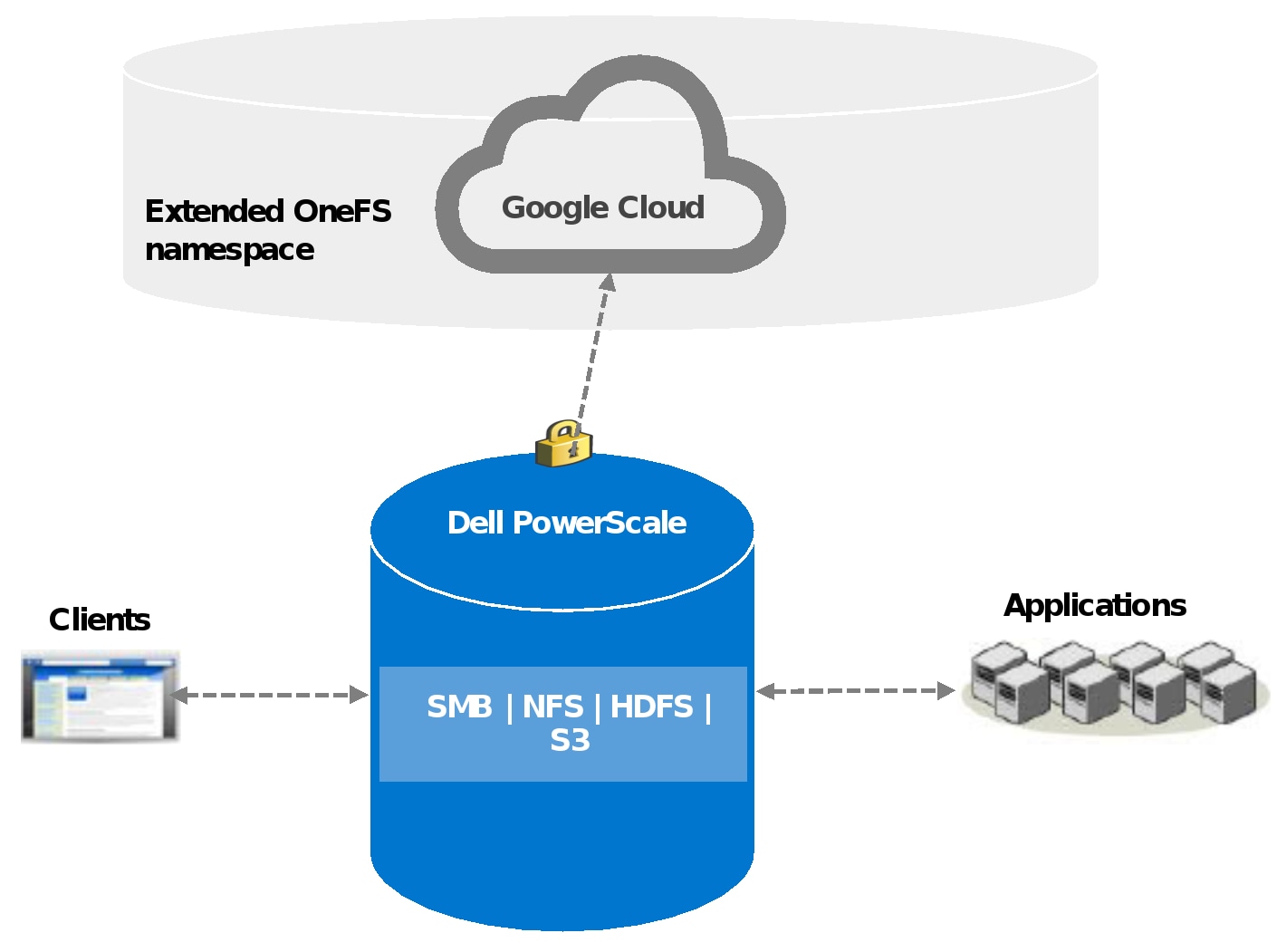
Figure 1. CloudPools solution overview
Note: A SmartPools license and a CloudPools license are required on each node of the PowerScale cluster. A minimum of Dell Isilon OneFS version 8.0.0 is required for CloudPools 1.0, and Dell Isilon OneFS version 8.2.0 for CloudPools 2.0.
Policies are defined on the PowerScale cluster and drive the tiering of data. Clients can access the archived data through various protocols including SMB, NFS, HDFS, and S3.
Key CloudPools concepts
This section describes the following key CloudPools concepts:
- SmartPools
- SmartLink files
- File pool policies
SmartPools
SmartPools is the OneFS data tiering framework of which CloudPools is an extension. SmartPools alone tiers data between different node types within a PowerScale cluster. CloudPools also adds to tier data outside of a PowerScale cluster.
SmartLink files
Although file data is moved to cloud storage, the files remain visible in OneFS. After file data has been archived to the cloud storage, the file is truncated to an 8 KB file. The 8 KB file is called a SmartLink file or stub file. Each SmartLink file contains a data cache and a map. The data cache is used to retain a portion of the file data locally, and the map points to all cloud objects.
Figure 2 shows the contents of a SmartLink file and the mapping to cloud objects.
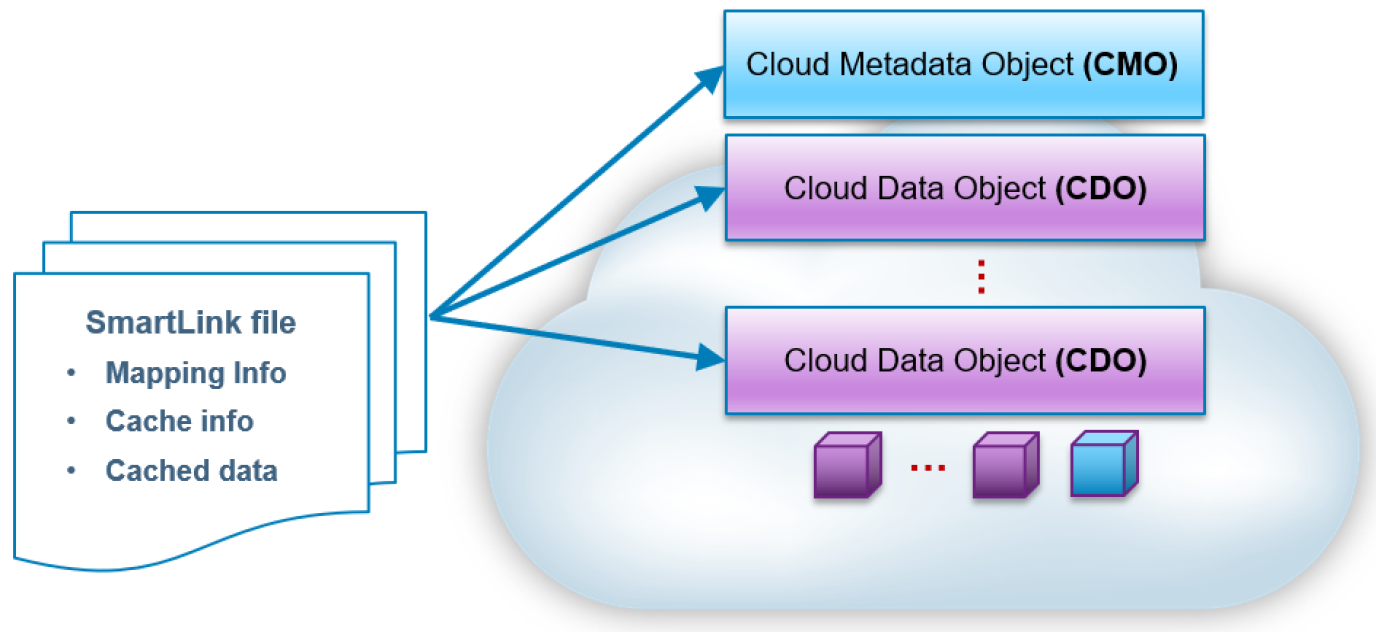
Figure 2. SmartLink file
File pool policies
Both CloudPools and SmartPools use the file pool policy engine to define which data on a cluster should live on which tier or be archived to a cloud storage target. The SmartPools and CloudPools job has a customizable schedule that runs once a day by default. If files match the criteria specified in a file pool policy, the content of those files is moved to cloud storage during the job execution. A SmartLink file is left behind on the PowerScale cluster that contains information about where to retrieve the data. In CloudPools 1.0, the SmartLink file is sometimes referred to as a stub, which is a unique construct that does not behave like a normal file. In CloudPools 2.0, the SmartLink file is an actual file that contains pointers to the CloudPools target where the data resides.
Key options for configuring a file pool policy include:
- Encryption
- Compression
- File matching criteria
- Local data cache
- Data retention
Encryption
CloudPools provides an option to encrypt data before it is sent to the cloud storage. It leverages the PowerScale key management module for data encryption and uses AES-256 as the encryption algorithm. The benefit of encryption is that only encrypted data is being sent over the network.
Compression
CloudPools provides an option to compress data before it is sent to the cloud storage. It implements block-level compression using the zlib compression library. CloudPools does not compress data that is already compressed.
File-matching criteria
When files match a file pool policy, CloudPools moves the file data to the cloud storage. File-matching criteria enable defining a logical group of files as a file pool for CloudPools. It defines which data should be archived to cloud storage.
File matching criteria include:
- File name
- Path
- File type
- File attribute
- Modified
- Accessed
- Metadata changed
- Created
- Size
Any number of file matching criteria can be added to refine a file pool policy for CloudPools.
Local data cache
Caching is used to support local reading and writing of SmartLink files. It reduces bandwidth costs by eliminating repeated fetching of file data for repeated reads and writes to optimize performance.
Note: The data cache is used for temporarily caching file data from the cloud storage on PowerScale disk storage for files that have been moved off cluster by CloudPools.
The local data cache is always the authoritative source for data. CloudPools looks for data in the local data cache first. If the file being accessed is not in the local data cache, CloudPools fetches the data from the cloud. CloudPools writes the updated file data in the local cache first and periodically sends the updated file data to the cloud.
CloudPools provides the following configurable data cache settings:
- Cache expiration: This option is used to specify the number of days until OneFS purges expired cache information in SmartLink files. The default value is one day.
- Writeback frequency: This option is used to specify the interval at which OneFS writes the data stored in the cache of SmartLink files to the cloud. The default value is nine hours.
- Cache read ahead: This option is used to specify the cache read ahead strategy for cloud objects (partial or full). The default value is partial.
- Accessibility: This option is used to specify how data is cached in SmartLink files when a user or application accesses a SmartLink file on the PowerScale cluster. Values are cached (default) and no cache.
Data retention
Data retention is a concept used to determine how long to keep cloud objects on the cloud storage. There are three different retention periods:
- Cloud data retention period: This option is used to specify the length of time cloud objects are retained after the files have been fully recalled or deleted. The default value is one week.
- Incremental backup retention period for NDMP incremental backup and SyncIQ: This option is used to specify the length of time that CloudPools retains cloud objects referenced by a SmartLink file. And SyncIQ replicates the SmartLink file or NDMP backs up the SmartLink file using an incremental NDMP backup. The default value is five years.
- Full backup retention period for NDMP only: This option is used to specify the length of time that OneFS retains cloud data referenced by a SmartLink file. And NDMP backs up the SmartLink file using a full NDMP backup. The default value is five years.
Note: If more than one period applies to a file, the longest period is applied.
Google Cloud
CloudPools operations
This section describes the workflow of CloudPools operations:
- Archive
- Recall
- Read
- Update
Archive
The archive operation is the CloudPools process of moving file data from the local PowerScale cluster to cloud storage. Files are archived either using the SmartPools Job or from the command line. The CloudPools archive process can be paused or resumed. For details, see Commands.
Figure 3 shows the workflow of the CloudPools archive.
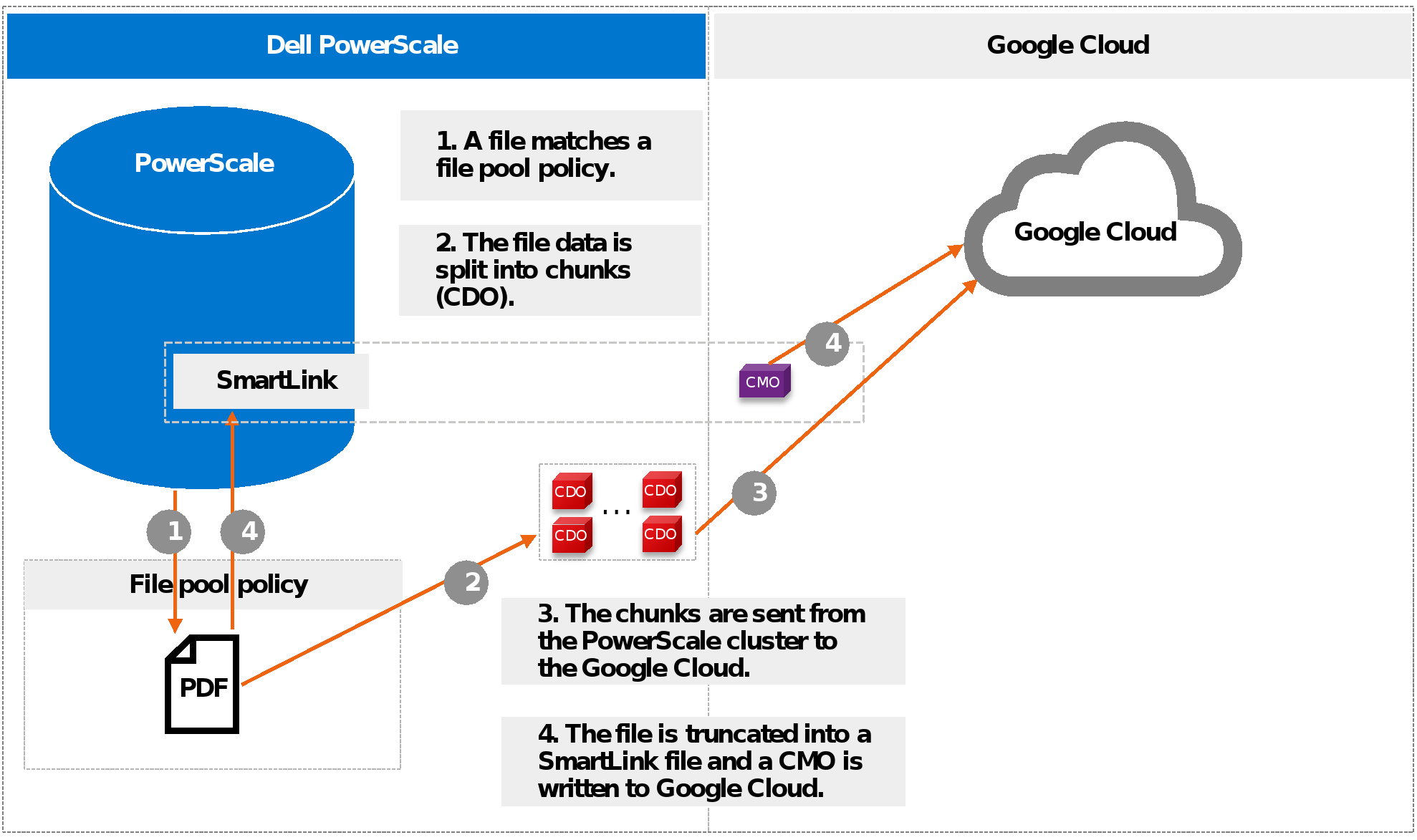
Figure 3. Archive workflow
More workflow details are as follows:
- The file pool policy (see File pool policies) in step 1 of Figure 3 specifies a cloud target and cloud-specific parameters. Policy examples include:
- When chunks are sent from the PowerScale cluster to Google Cloud in step 3, a checksum is applied for each chunk to ensure data integrity.
Recall
The recall operation is the CloudPools process of reversing the archive process. It replaces the SmartLink file by restoring the original file data on the PowerScale cluster and removing the cloud objects in Google Cloud. The recall process can only be performed using the command line. The CloudPools recall process can be paused or resumed. For detailed instructions, see Commands.
Figure 4 shows the workflow of CloudPools recall.
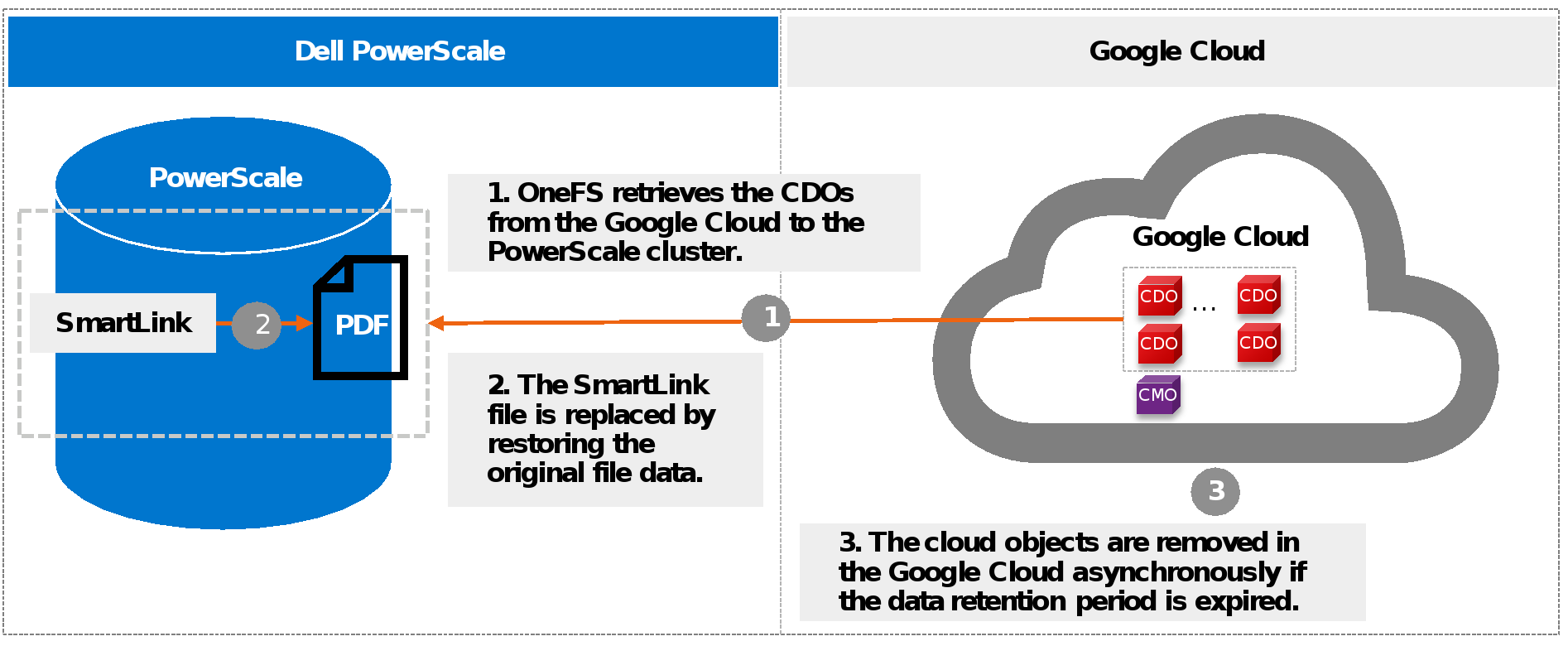
Figure 4. Recall workflow
Read
The read operation is the CloudPools process of client data access, known as inline access. When a client opens a file for read, the blocks will be added to the cache in the associated SmartLink file by default. The cache can be disabled by setting the accessibility. For more details, see File pool policies.
Figure 5 shows the workflow of CloudPools read by default.
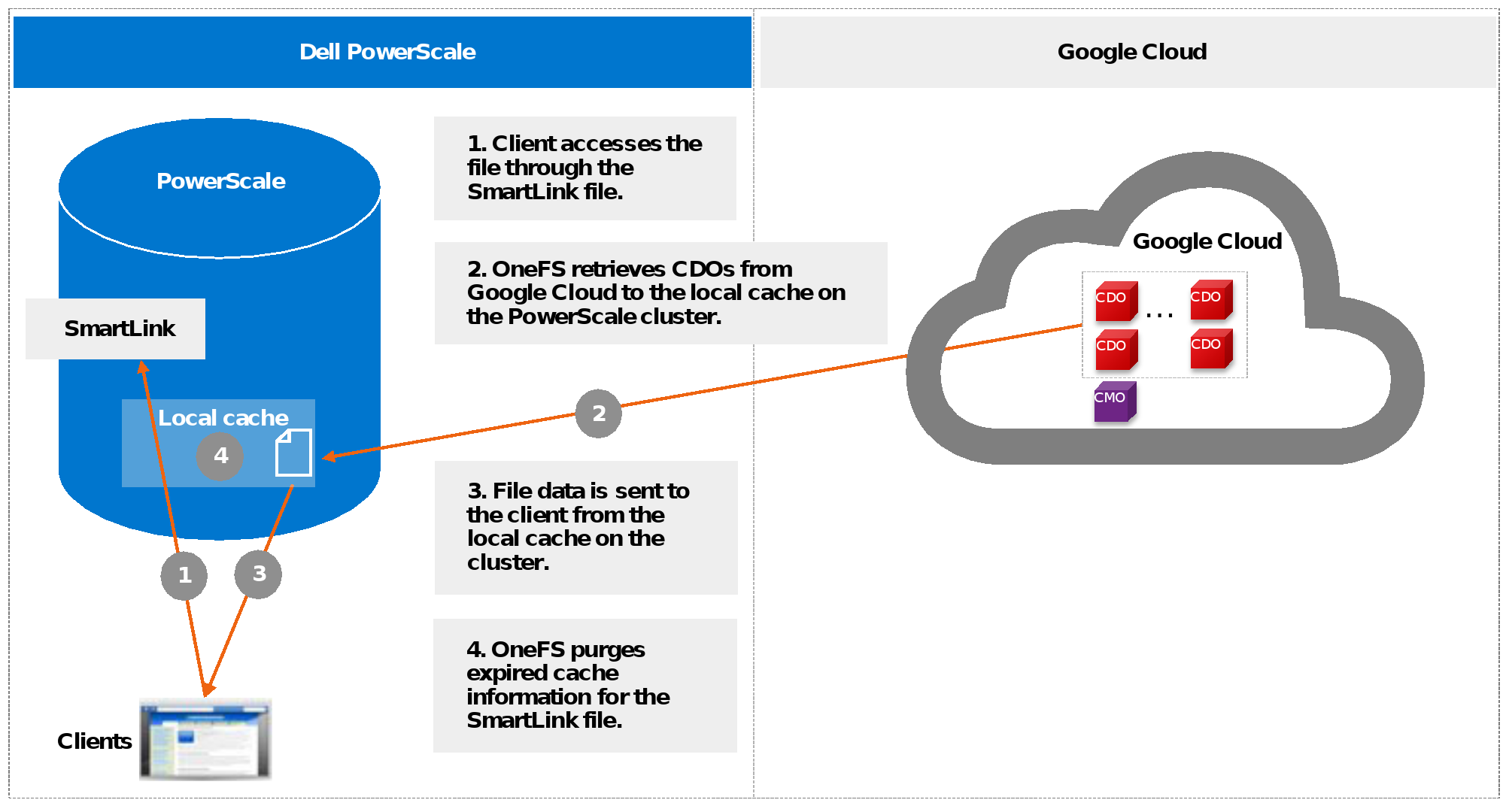
Figure 5. Read workflow
Starting from OneFS 9.1.0.0, cloud object cache is introduced to enhance CloudPools functions for communicating with cloud. In step 1, OneFS looks for data in the object cache first and OneFS retrieves data from the object cache if the data is already in the object cache. Cloud object cache reduces the number of requests to Google Cloud when reading a file.
Before OneFS 9.1.0.0, OneFS looks for data in the local data cache first in step 1. It moves to step 3 if the data is already in the local data cache.
Note: Cloud object cache is per node. Each node maintains its own object cache on the cluster.
Update
The update operation is the CloudPools process that occurs when clients update data. When clients change to a SmartLink file, CloudPools first writes the changes in the data local cache and then periodically sends the updated file data to Google Cloud. The space used by the cache is temporary and configurable. For more information, see File pool policies.
Figure 6 shows the workflow of the CloudPools update.
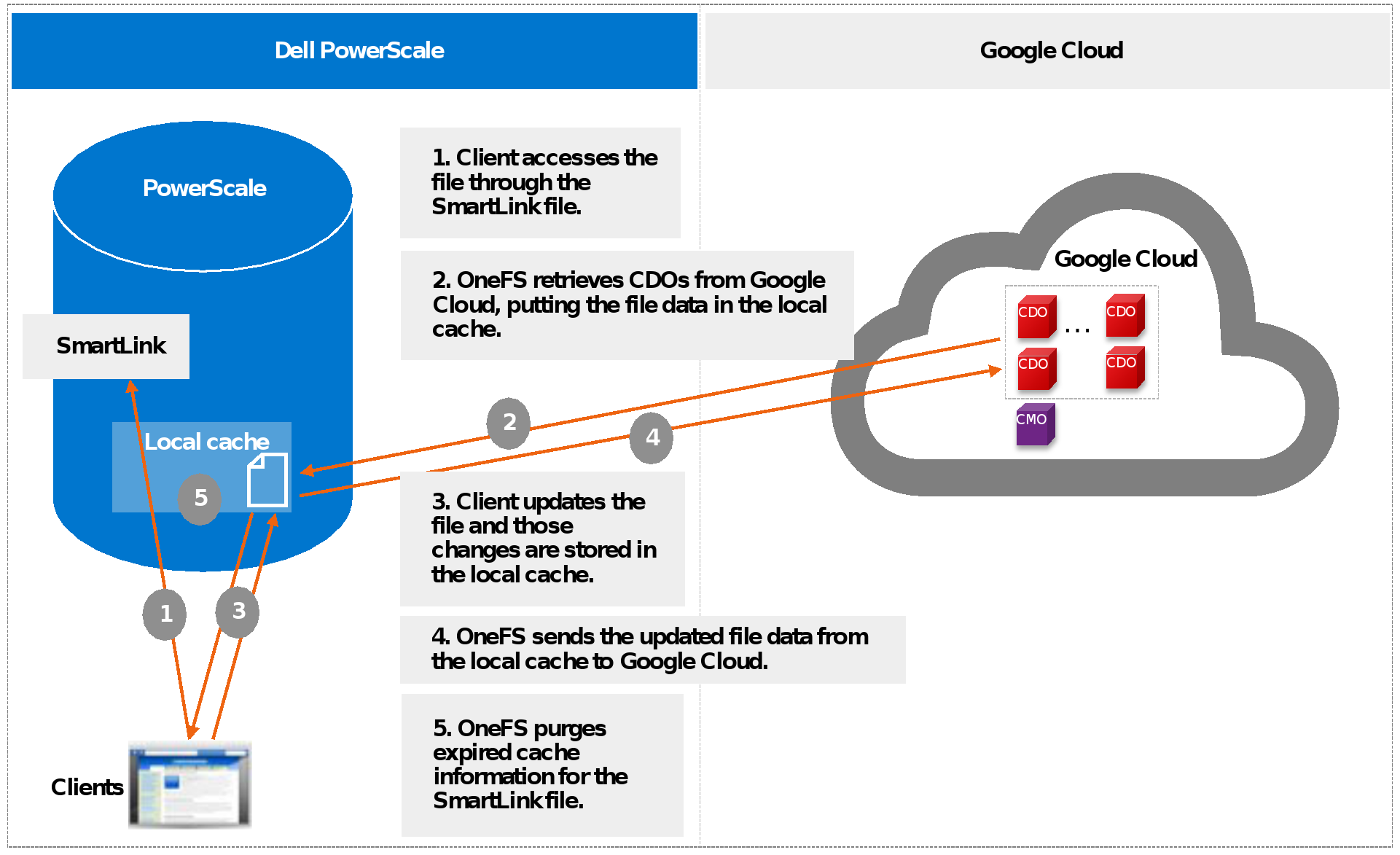
Figure 6. Update workflow
CloudPools 2.0
Introduction to CloudPools 2.0
AWS signature v4 authentication support
NDMP and SyncIQ support
Non-disruptive upgrade support
Snapshot efficiency
Before OneFS 8.2.0, CloudPools 1.0 supported archiving files with existing snapshots. However, CloudPools 1.0 had a limitation when archiving files that have existing snapshots: the copy-on-writes (CoW) process copied the entire contents of the file into the snapshot. Archiving files with existing snapshots therefore did not save space on the PowerScale cluster until the previously CoW-created snapshots expired. CloudPools 1.0 offered an option (in the WebUI, clear the option to Archive files with snapshots) to skip such files with snapshots. A user might have not chosen to archive files with snapshots if the previously CoW-created snapshots had long retentions. This case is to avoid creating another copy on cloud storage where the retention period meant it would persist on PowerScale storage anyway.
CloudPools 2.0 eliminates CoW on the primary data source PowerScale cluster when archiving files with snapshots to the cloud. The file data is only stored in the cloud storage, which saves space on the PowerScale cluster. For more information about data CoW for snapshots, see the white paper Data Protection with Dell PowerScale SnapshotIQ.
However, CloudPools 2.0 does not archive files on the target cluster in a SyncIQ relationship. In an environment with long snapshot retentions and an expectation that the same snapshots are maintained in both clusters. It is possible for storage usage on a target cluster to grow larger than the storage on the primary cluster, which has CloudPools enabled. For space efficiency, a user with requirements for long snapshot retentions on two clusters in a SyncIQ relationship might choose to use natively tiered PowerScale archive storage, rather than CloudPools.
SnapshotIQ can take read-only, point-in-time copies of any directory or subdirectory within OneFS. A file in one directory can be either a regular file or a SmartLink file before creating a snapshot. A regular file can be truncated to a SmartLink file after archiving its file data to the cloud. A SmartLink file can be converted to a regular file after recalling its file data to the PowerScale cluster. When a snapshot is taken, it preserves the exact state of a file system at that instant. A file in the snapshot directory (/ifs/.snapshot) is a SmartLink file if the same file in the source directory is a SmartLink file. A file in the snapshot directory is a regular file if the same file in the source directory is a regular file. The earlier version of data can be accessed later in the snapshot directory.
The following scenarios address CloudPools 2.0 and snapshots. HEAD is the current version of a SmartLink file in the source directory.
- The file is already a SmartLink file in the source directory before creating a snapshot.
- Scenario 1: Update HEAD
- Scenario 2: Update HEAD multiple times and a new snapshot is created between multiple updates
- Scenario 3: Read file data from a snapshot
- The file is still a regular file in the source directory before creating a snapshot. Then, the regular file is archived to the cloud after a snapshot creation.
- Scenario 4: Update HEAD
- Scenario 5: Read file data from a snapshot
Scenario 1
When updating HEAD (SmartLink files in snapshot), a new SmartLink is generated for HEAD when updating HEAD and write-back to the cloud. Cache for HEAD will be empty once its own cache expires. For the workflow of updating a SmartLink file, see Update. The original version SmartLink file is still used for the next snapshot of HEAD. This scenario does not cause the snapshot space to grow. Figure 7 shows the process of scenario 1 to update HEAD when SmartLink files are in the snapshot directory.
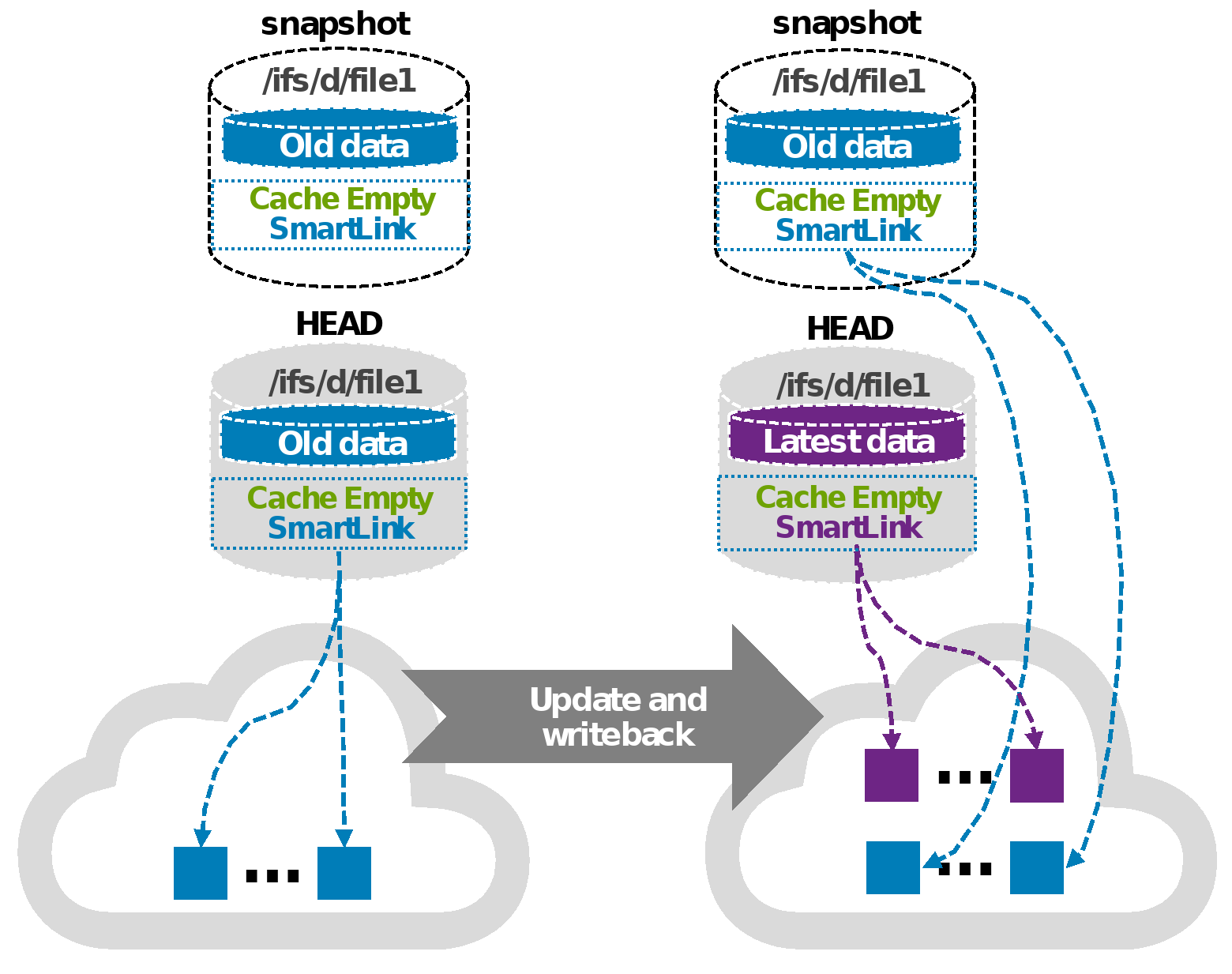
Figure 7. Scenario 1: Update HEAD when SmartLink files are in the snapshot directory
Scenario 2
This scenario describes updating HEAD multiple times, and a new snapshot is created between multiple updates (SmartLink files in snapshot). For example, a user updates HEAD (the first update) while a new (most recent) snapshot is created before the first update write-back is made to the cloud. Then, another user updates (the second update) HEAD again after the new (most recent) snapshot is created. Now there are two snapshots: one snapshot is the next snapshot of HEAD, the other is the most recent snapshot of HEAD.
When a snapshot is taken, it preserves the exact state of a file system at that instant. Data for the next snapshot of HEAD is the old data that is already archived to the cloud and its cache is empty. Data for the most recent snapshot is the new data and its cache is dirty before the new data write-back is made to the cloud. The new data contains old data with the first update. Data for HEAD is the latest data and its cache is dirty before the latest data write-back is made to the cloud. The latest data contains old data with the first update and the second update. A new version SmartLink is generated for the most recent snapshot after the new data write-back is made to the cloud (write-back in the snapshot). The new data contains old data with the first update. Also, a new version SmartLink is generated for HEAD after the latest data write-back is made to the cloud (write-back in HEAD). Cache for the most recent snapshot or HEAD becomes empty once its own cache expires. Now, all file data is only stored on the cloud and saves space on the PowerScale cluster. Users can read file data from its own SmartLink file at any time.
Figure 8 shows the process of scenario 2.
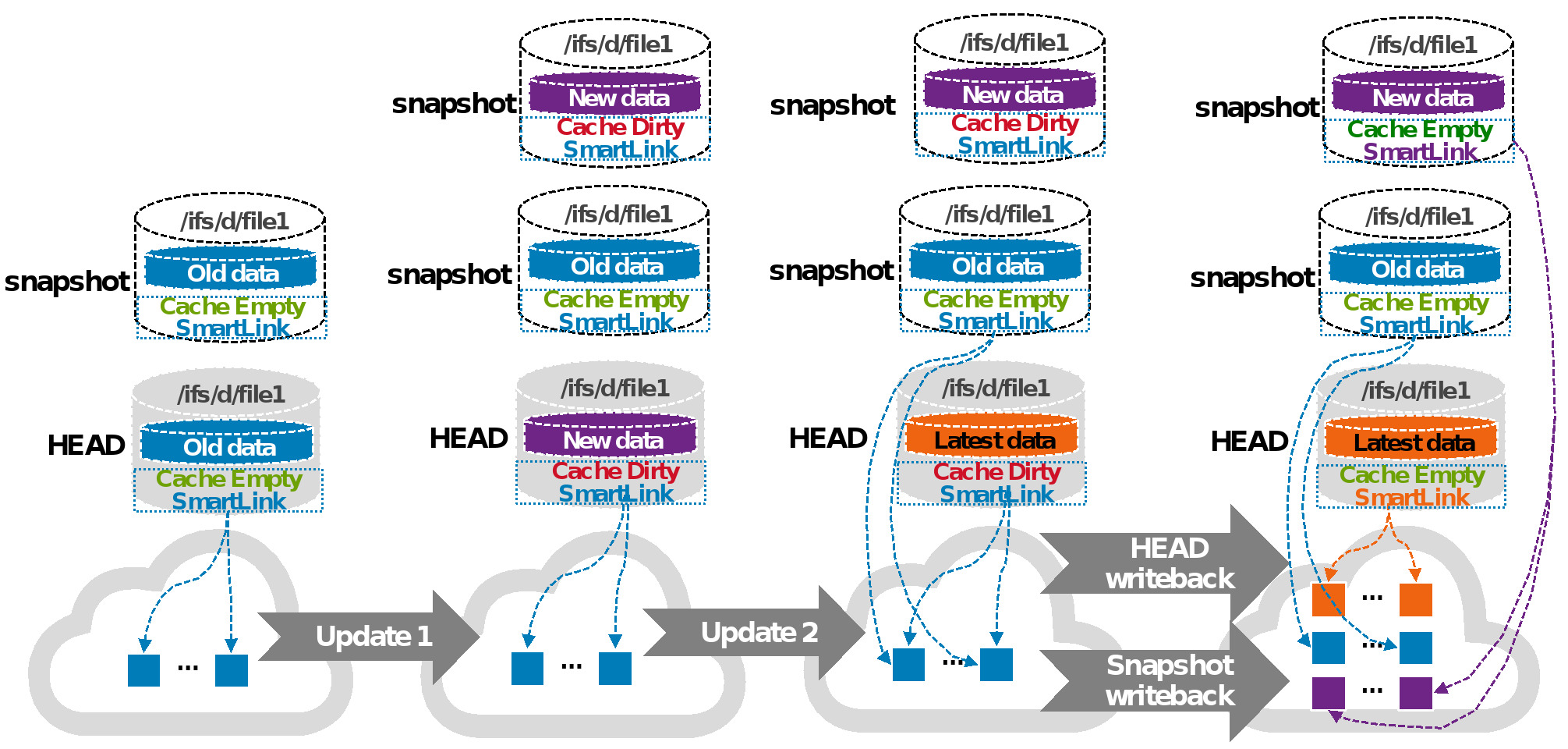
Figure 8. Scenario 2: Update HEAD multiple times and perform a write-back in the snapshot
Scenario 3
This scenario describes reading file data from a snapshot (SmartLink files in snapshot). The files in the next snapshot and HEAD use the same version of SmartLink file when not updating HEAD after the snapshot is created. This scenario is no different than reading the same file from HEAD or the next snapshot of HEAD. For the workflow of reading a SmartLink file, see Read. The same local data cache is used when reading the same file from HEAD and the next snapshot of HEAD simultaneously. This scenario does not cause the snapshot space to grow. The file in the snapshot directory uses its version of SmartLink file when updating HEAD and performing a write-back to the cloud like in scenario 1 or scenario 2. Users can read earlier versions of file data in the snapshot directory. The snapshot space could grow temporarily for cache data, and the grown space is released once its own cache expires.
Scenario 4
In this scenario, when updating HEAD (regular files in snapshot). A SmartLink file is used for HEAD, and a regular file is used for the same file in the next snapshot of HEAD. A new SmartLink file is generated for HEAD when updating HEAD and performing a write-back to the cloud. The cache for HEAD is empty once its own cache expires. Meanwhile, OneFS enables the Block Allocation Manager Cache Manager (BCM) on the regular file in the next snapshot of HEAD. BCM contains the metadata of mapping to cloud objects for the regular file in the next snapshot of HEAD. This scenario does not cause the snapshot space to grow.
Figure 9 shows scenario 4.
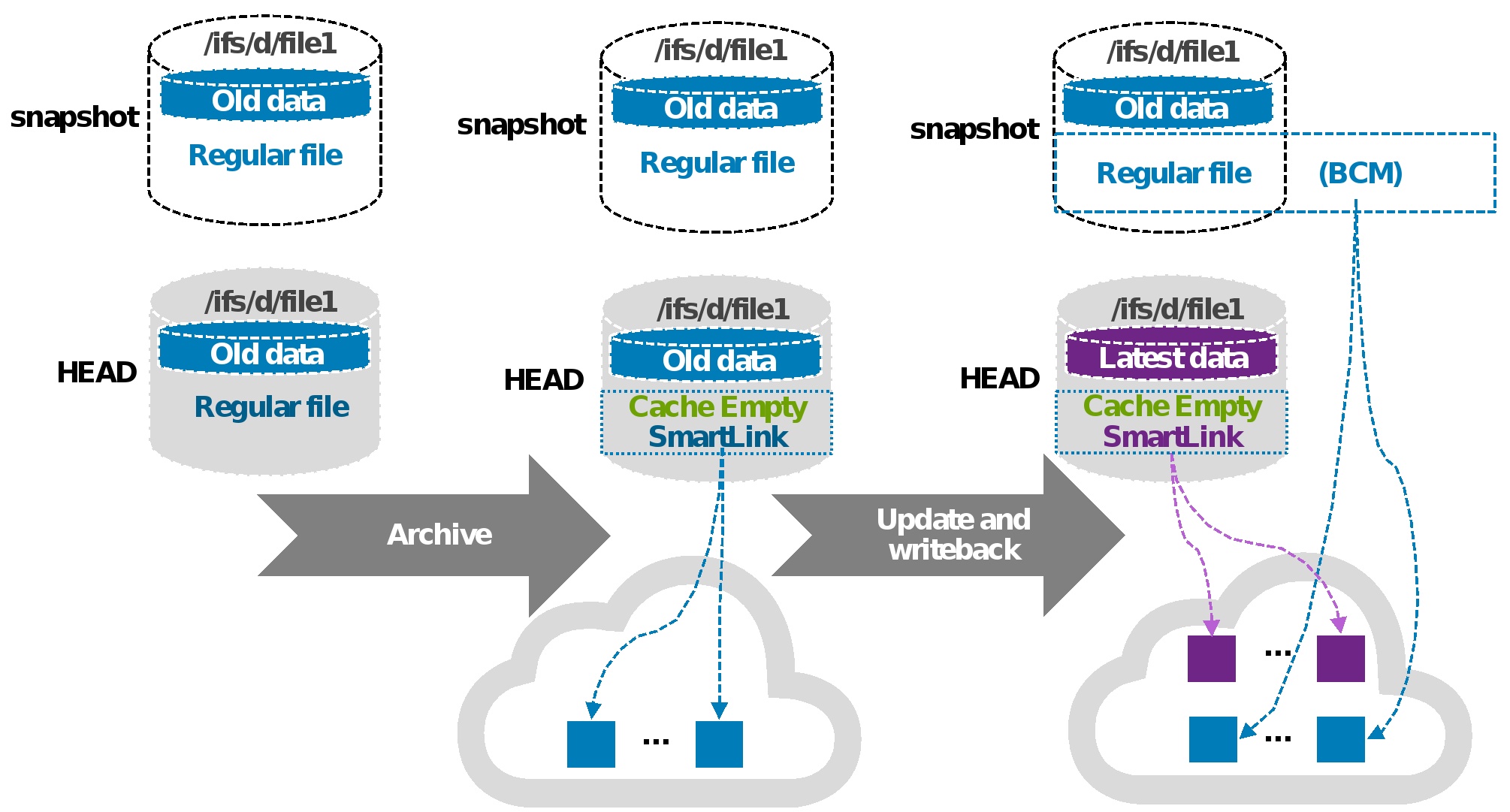
Figure 9. Scenario 4: Update HEAD when regular files are in the snapshot directory
Scenario 5
In this scenario, when reading file data from a snapshot (regular files in snapshot). File data is the same for HEAD (SmartLink file) and the same file (regular file) in the next snapshot of HEAD when not updating HEAD after the snapshot creation. File data is read from HEAD when reading the same file in the next snapshot of HEAD. This scenario does not cause the snapshot space to grow. The file in the next snapshot of HEAD is a regular file (enabled BCM). And the file has the earlier version of data when updating HEAD and performing a write-back to the cloud like in scenario 4. The earlier version of data is retrieved from the cloud by BCM. File data is stored on the PowerScale cluster when reading the earlier version of data from the regular file in the next snapshot of HEAD. The snapshot space grows, and the grown space is not released unless the snapshot is deleted.
Note: In OneFS 8.2.0, CloudPools 2.0 supports write-back in a snapshot. For details, see Scenario 3. However, CloudPools 2.0 does not support archiving and recalling files in the snapshot directory. Consider the case when there is already file data in a snapshot on a cluster running a OneFS release before version 8.2.0. That data takes up storage space on the PowerScale cluster, and then the cluster is upgraded to OneFS 8.2.0. Because CloudPools 2.0 does not support archiving files in snapshots to the cloud, the storage space for this snapshot cannot be released when the cluster is upgraded.
If SyncIQ or NDMP backs up the SmartLink files, the mapping file data should be retrieved from the cloud using the backup copy of the SmartLink file. If the backup retention has not expired, the CDOs of the mapping file data cannot be deleted even though the snapshot has been deleted. The reason is that the SmartLink file backup still references the CDOs of the mapping file data. When the backup retention period has expired and the CDOs of the mapping file data are no longer used, the CDOs of the mapping file data are deleted. For more information about data retention, see Data retention. If SyncIQ or NDMP does not back up SmartLink files, the CDOs of the mapping file data are deleted after the snapshot is deleted.
Users can revert a snapshot or access snapshot data through the snapshots directory (/ifs/.snapshot). The main methods for restoring data from a snapshot are as follows:
- Revert a snapshot through the SnapRevert job.
- Restore a file or directory using Microsoft Shadow Copy Client on Windows or cp command on Linux.
- Clone a file from a snapshot (CloudPools does not support cloning a file from a snapshot).
For details on restoring snapshot data, see the administration guide OneFS 8.2.0 Web Administration Guide. CloudPools does not support cloning a file from a snapshot. The other two methods for restoring data from a snapshot in a CloudPools environment are described as follows.
When using the SnapRevert job to restore data from a snapshot, it reverts a directory back to the state it was in when a snapshot was taken. For example, there is a /ifs/test directory including a regular.txt regular file, and a smartlink.txt SmartLink file that has its file data archived to the cloud. A snap01 snapshot is created on the /ifs/test directory, and updates are made on the two files. Next, the regular.txt file is archived to the cloud, and it is truncated to a SmartLink file. Then, the SmartLink file smartlink.txt is recalled and it is converted to a regular file. If the snapshot snap01 is restored, it overwrites the files in directory /ifs/test. The regular.txt file reverts to a regular file, and the smartlink.txt reverts to a SmartLink file. The directory /ifs/test is reverted to the state it was in when snap01 was taken.
When using Microsoft Shadow Copy Client on Windows or the cp command on Linux, the file data is retrieved from the cloud through SmartLink files in a snapshot. This copy operation will create new regular files. That means extra space is required for the new regular files restored from a snapshot.
Sparse files handling
Quota management
Anti-virus integration
In OneFS releases before version 8.2.0, SmartLink files were skipped for anti-virus scanning.
In OneFS 8.2.0, CloudPools 2.0 provides a configurable option for anti-virus scanning of SmartLink files. The file data is retrieved from the cloud and cached on the cluster for the scan only if the option is enabled. The scan will be slower than normal. As shown in Figure 10, the Scan Cloudpool Files option is configured and verified using the command line.
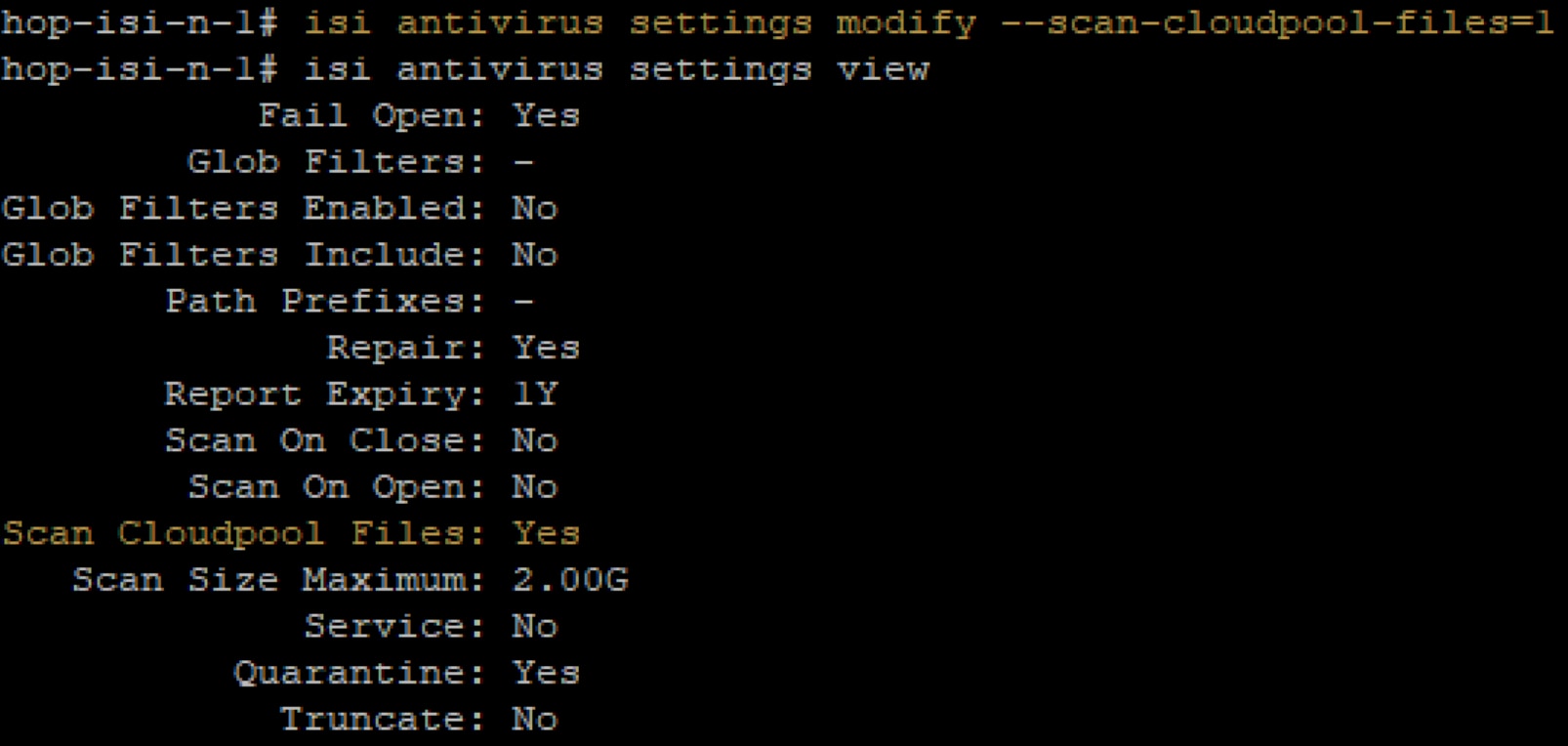
Figure 10. Enable scanning of Cloudpool files
Note: The Scan Cloudpool Files option is disabled by default, which means SmartLink files are skipped when scanning a directory that includes SmartLink files.
WORM integration
Best practices for PowerScale storage and Google Cloud
PowerScale configuration
Google Cloud configuration
Protecting SmartLink files
SmartLink files are the sole means to access file data stored in Google Cloud, so it is important to protect them from accidental deletion.
This section discusses using PowerScale SyncIQ and NDMP to back up SmartLink files.
Note: SmartLink files cannot be backed up using a copy command, such as secure copy (scp).
SyncIQ
SyncIQ is CloudPools-aware, but consider the guidance in Snapshot efficiency, especially where snapshot retention periods on the target cluster will be long.
SyncIQ policies support two types of data replication for CloudPools:
- Shallow copy: This option is used to replicate files as SmartLink files without file data from source PowerScale cluster to target PowerScale cluster.
- Deep copy: This option is used to replicate files as regular files or unarchived files from source PowerScale cluster to target PowerScale cluster.
For information about cross-version compatibility of CloudPools, see Non-disruptive upgrade support.
SyncIQ, SmartPools, and CloudPools licenses are required on both the source and target PowerScale cluster. It is highly recommended to set up a scheduled SyncIQ backup of the SmartLink files. For more information about PowerScale SyncIQ, see the white paper Dell PowerScale SyncIQ: Architecture, Configuration, and Considerations.
When SyncIQ replicates SmartLink files, it also replicates the local cache state and unsynchronized cache data from the source PowerScale cluster to the target PowerScale cluster. Figure 11 shows the SyncIQ replication when replicating a directory including SmartLink files and unarchived normal files. Both unidirectional and bi-directional replication are supported. Appendix 0 provides steps for failing over to a secondary PowerScale cluster and failing back to a primary PowerScale cluster.
Note: OneFS manages cloud access at the cluster level and does not support managing cloud access at the directory level. You must remove cloud access on the source cluster and add cloud access on the target cluster when failing over a SyncIQ directory containing SmartLink files to a target cluster. If there are multiple CloudPools storage accounts, removing/adding cloud access will impact all CloudPools storage accounts on the source or target cluster.
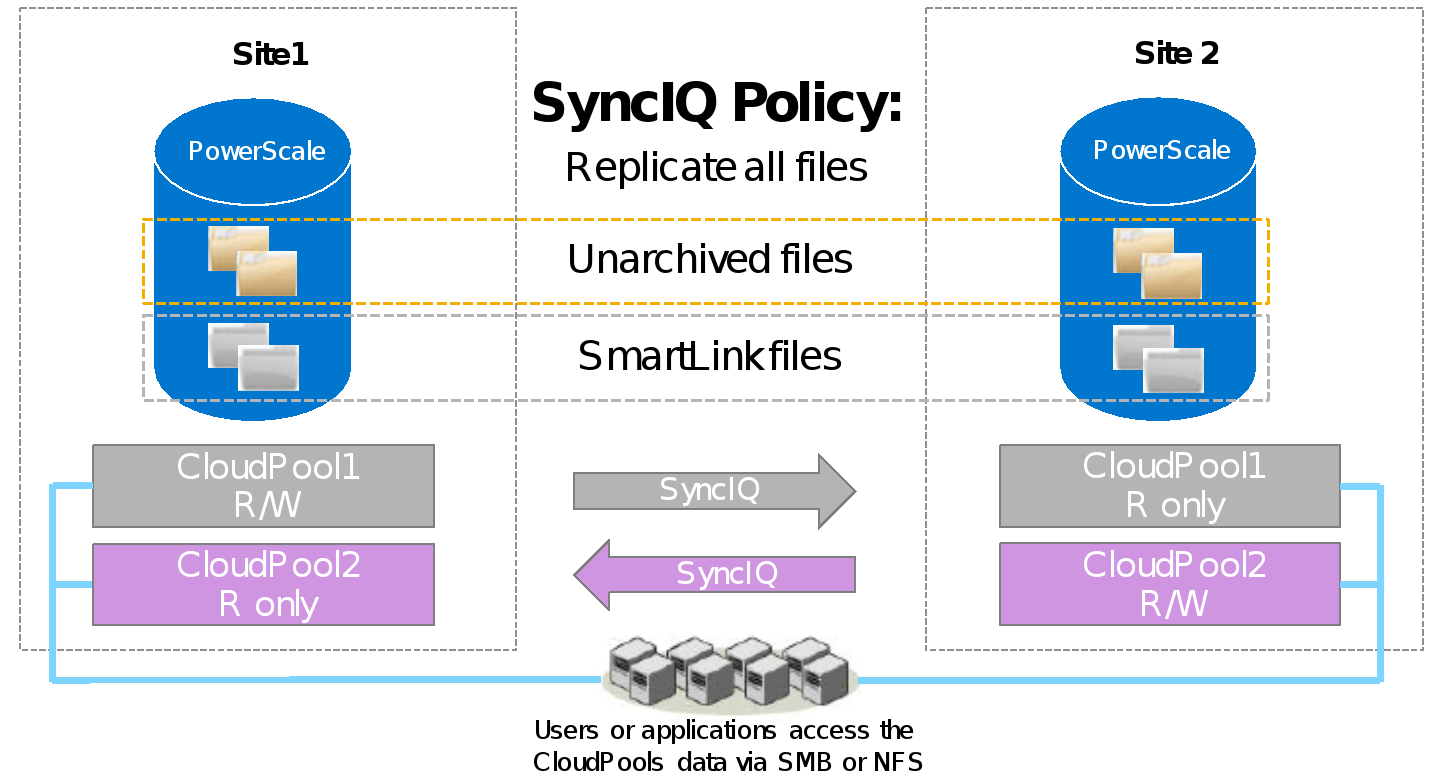
Figure 11. SyncIQ replication
Note: If encryption is enabled in a file pool policy for CloudPools, SyncIQ also replicates all the relevant encryption keys to the secondary PowerScale cluster along with the SmartLink files.
NDMP
NDMP is also CloudPools-aware and supports three backup and restore methods for CloudPools:
- DeepCopy: This option is used to back up files as regular files or unarchived files. Files can only be restored as regular files.
- ShallowCopy: This option is used to back up files as SmartLink files without file data. Files can only be restored as SmartLink files.
- ComboCopy: This option is used to back up files as SmartLink files with file data. Files can be restored as regular files or SmartLink files.
For information about cross-version compatibility of CloudPools, see Non-disruptive upgrade support.
It is possible to update the file data and send the updated data to the cloud storage. Multiple versions of SmartLink files can be backed up to tapes using NDMP, and multiple versions of CDOs are protected on Google Cloud under the data retention setting. You can restore a specific version of a SmartLink file from tapes to a PowerScale cluster and continue to access (read or update) the file like before.
Note: If encryption is enabled in the file pool policy for CloudPools, NDMP also backs up all the relevant encryption keys to tapes along with the SmartLink files.
Performance
Reporting
Introduction to reporting
CloudPools network stats
Query network stats by CloudPools account
Use the following command to check the CloudPools network stats by CloudPools account.
isi_test_cpool_stats -Q –-accounts <account_name>
Figure 12 shows an example of current CloudPools network stats by CloudPools account.

Figure 12. Network stats by CloudPools account
Query network stats by file pool policy
Use the following command to check the CloudPools network stats by file pool policy.
isi_test_cpool_stats -Q –-policies <policy_name>
Figure 13 shows an example of current CloudPools network stats by file pool policy.

Figure 13. Network stats by file pool policy
Note: The command output does not include the number of deletes by file pool policy.
Query history network stats
Use the following command to check the history CloudPools network stats.
isi_test_cpool_stats -q –s <number of seconds in the past to start stat query>
Use the s parameter to define the number of seconds in the past. For example, set it as 86,400 to query CloudPools network stats over the last day.
Figure 14 shows an example of CloudPools network stats over the last day.

Figure 14. Network stats last day
Use the following command to flush stats from memory to database and get the latest CloudPools history network stats.
isi_test_cpool_stats -f
Cloud statistics namespace with CloudPools
Commands and troubleshooting
Commands
This CloudPools operations and job monitoring commands discussed in this section include:
- CloudPools archive
- CloudPools recall
- CloudPools monitoring
CloudPools archive
Run the following command to archive files from a PowerScale cluster to the cloud on demand.
isi cloud archive <file name> --recursive [true | false] --policy <policy name>
Parameters:
- <file name>: File name to be archived
- --recursive: Whether the archive should apply recursively to nested directories
- --policy: Policy name to be used with archiving
Run either of the following two commands to check whether the file is a SmartLink file or not, as shown in Figure 15.
ls -loh <file name>
isi get -DD <file name> | grep -i smartlink

Figure 15. SmartLink file
CloudPools recall
Run the following command to recall files from the cloud to a PowerScale cluster on demand.
isi cloud recall <files> --recursive [true | false]
Parameters:
- <file name>: File name to be archived
- --recursive: Whether the archive should apply recursively to nested directories
CloudPools job monitoring
To check the CloudPools job status, use the following command.
isi cloud jobs list
To check the archive or recall file-list status for a specific CloudPools job, use the following command. As shown in Figure 16, the job id can be found using the command isi cloud jobs list.
isi cloud jobs files list <job id>
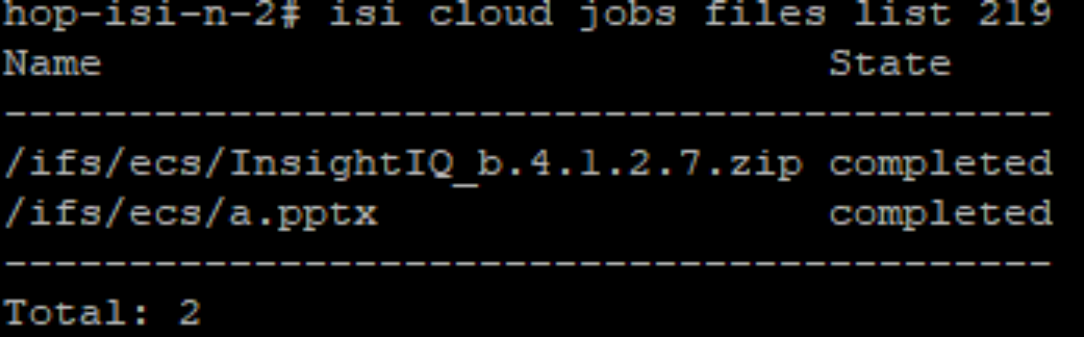
Figure 16. File list of specific CloudPools job
Note: The output of the prior command only shows the file name and state for specific CloudPools job.
To perform additional actions, run the following commands:
- Pause a CloudPools job:
isi cloud jobs pause <job id>
- Resume a paused CloudPools job:
isi cloud jobs resume <job id>
- Cancel a CloudPools job:
isi cloud jobs cancel <job id>
- Check the file list state of writing updated data to the cloud (job id is 1), which is an internal CloudPools job and always running:
isi cloud jobs files list 1
Note: The CloudPools system jobs should not be paused except temporarily for troubleshooting. No jobs should be left paused for an indefinite time.
Troubleshooting
Technical support and resources
Technical support and resources
Appendix A: Step-by-step configuration example
Introduction to configuration example
Google Cloud configuration
This section describes the Google Cloud configuration for CloudPools.
The Google Cloud configuration example is a general guide for use with CloudPools and does not cover all details of Google Cloud configuration for other use cases. Consult the Google Cloud documentation for more details on Google Cloud configuration.
- Ensure that your Google Cloud account is working properly.
- Log in to the Google Cloud console using your own username and password.
- In the Google Cloud console, create a project according to the instructions in Creating and Managing Projects on the Google Cloud website.
- In the Google Cloud console, go to the Create service account page. Select the project created in step 3 and then create a service account.
- Choose the Storage Object Admin IAM role to grant to the service account on Google Cloud Project.
- Go to Navigation menu > Storage > Settings, and then click Interoperability. The Request endpoint can be found if interoperability is enabled. If you do not have a key, you can click Create a key to generate Access key and Secret for your Google account. You need to gather the Request endpoint, Access key, and Secret for CloudPools, as shown in Figure 17.
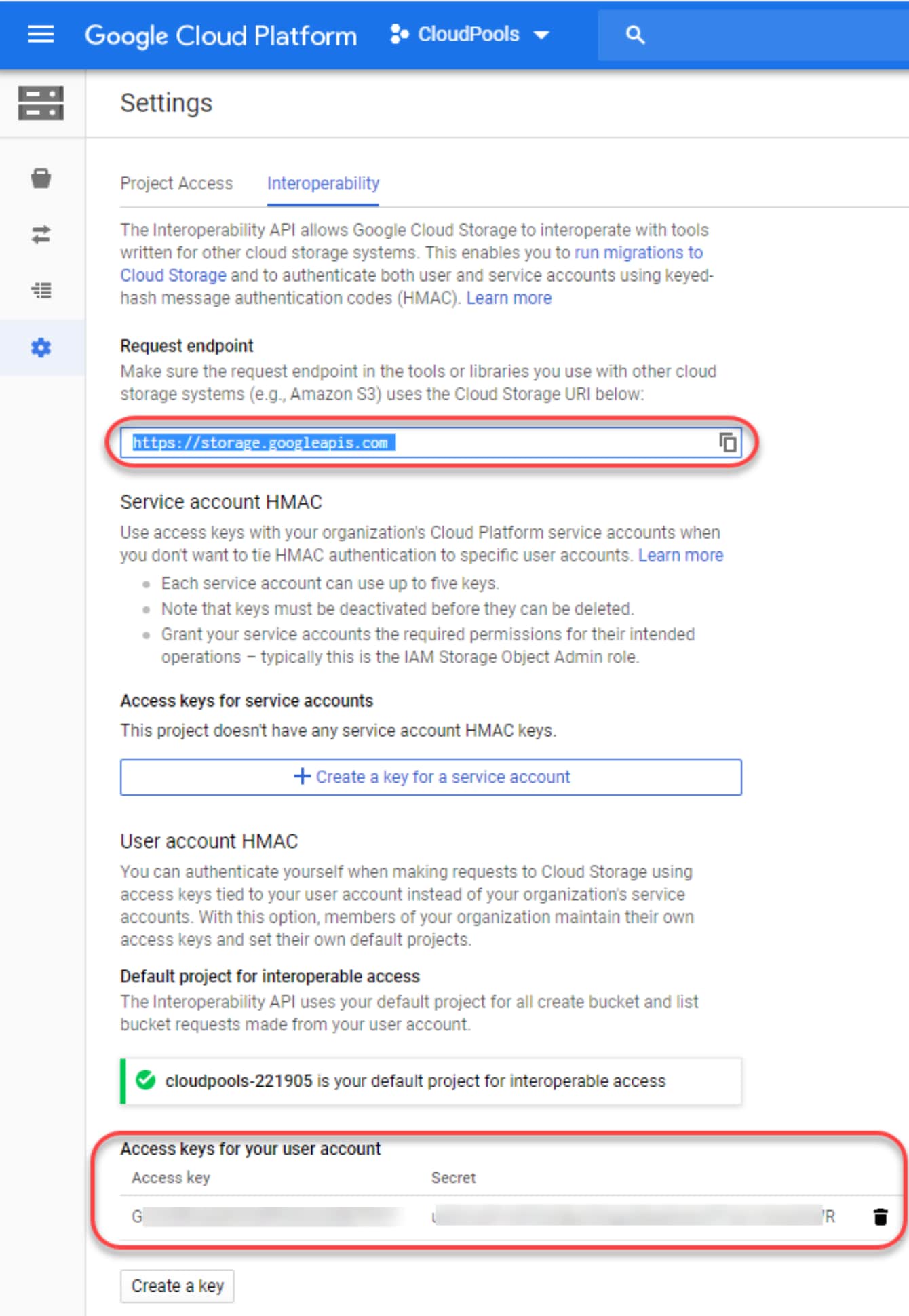
Figure 17. Google Cloud Storage Information
Now all Google Cloud information is gathered for CloudPools.
PowerScale configuration
This section describes the CloudPools configuration on a PowerScale cluster, which includes:
- License verification
- Cloud storage account creation
- CloudPools creation
- File pool policy creation
- Running SmartPools job for CloudPools
- SyncIQ policy creation
License verification
This section describes how to verify licensing on the PowerScale system.
- Log in to the OneFS WebUI and go to Cluster Management > Licensing as shown in Figure 18.
- Verify that the CloudPools and SmartPools license status is Activated.
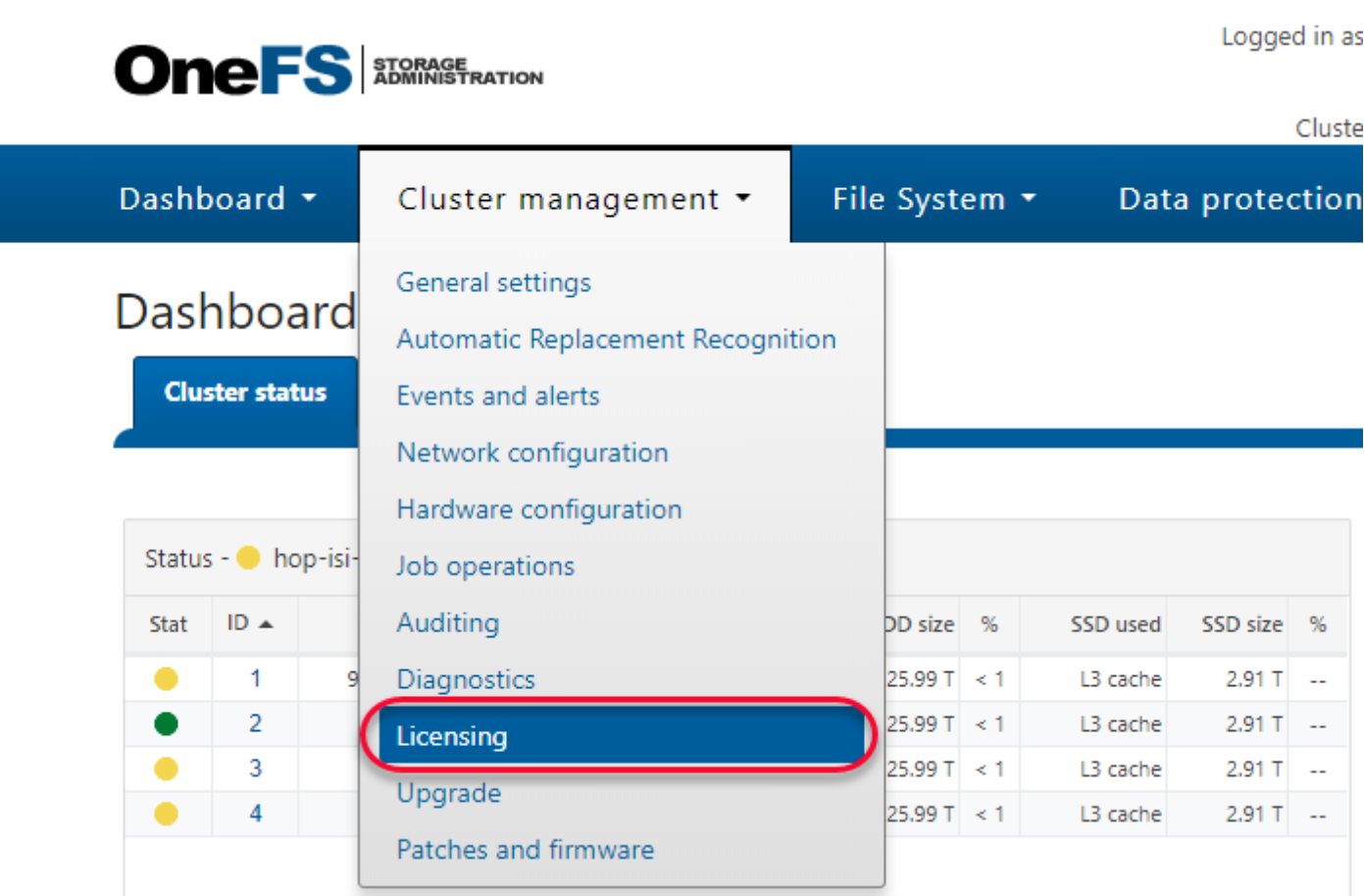
Figure 18. Verifying licenses
Cloud storage account
This section describes how to create a cloud storage account on the PowerScale cluster.
- Log in to the OneFS WebUI and go to File System > Storage Pools. Click CloudPools as shown in Figure 19.
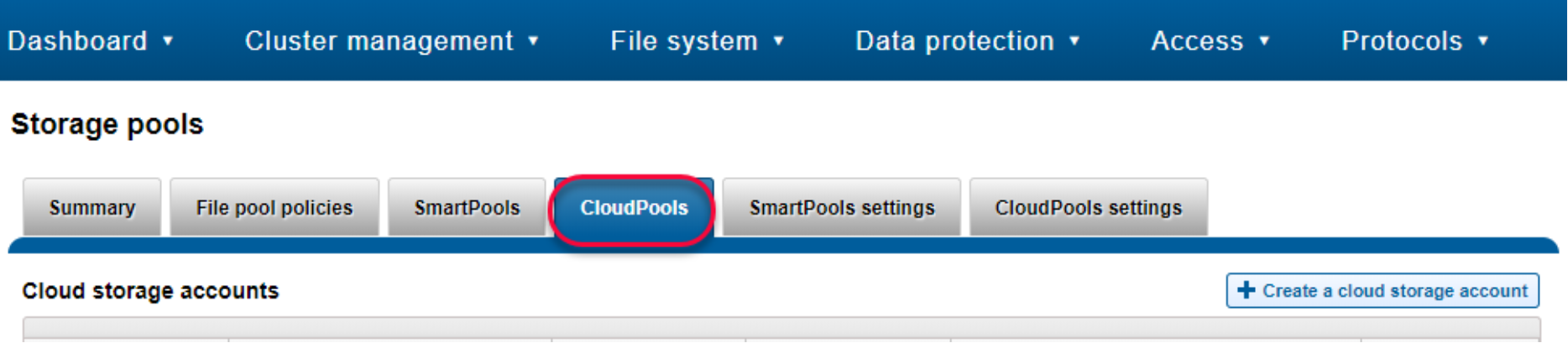
Figure 19. CloudPools
Click the + Create a Cloud Storage Account button from the Create a Cloud Storage Account page as shown in the Figure 20. Click the + Create a Cloud Storage Account button from the Create a Cloud Storage Account page as shown in Figure 20. The minimum information for CloudPools and Google Cloud Platform is as follows:
- Name or alias: Type a name to identify the cloud storage account.
- Type: Select Google Cloud Platform.
- URI: Type the URI to connect Google Cloud Platform.
- User name (interoperability access key): Type the access key gathered on the Google Cloud Platform console.
- Key (interoperability secret): Type the secret gathered on the Google Cloud Platform console.

Figure 20. Create a cloud storage account
- Click Connect account to create a cloud storage account. This operation results in two buckets being created in Google Cloud Platform. One bucket will start with a d as a container to store the CDOs, and the other will start with an m as a container to store the associated metadata.
CloudPool
This section describes how to create a CloudPool for Google Cloud Platform on the PowerScale cluster.
- Log in to the OneFS WebUI and go to File System > Storage Pools. Click CloudPools as shown in Figure 19.
- Click the + Create a CloudPool button from the Create a CloudPool page as shown in Figure 21. The minimum information is as follows:
- Name: Type a name to identify the CloudPool.
- Type: Select Google Cloud Platform.
- Account in CloudPool: Select the cloud storage account.
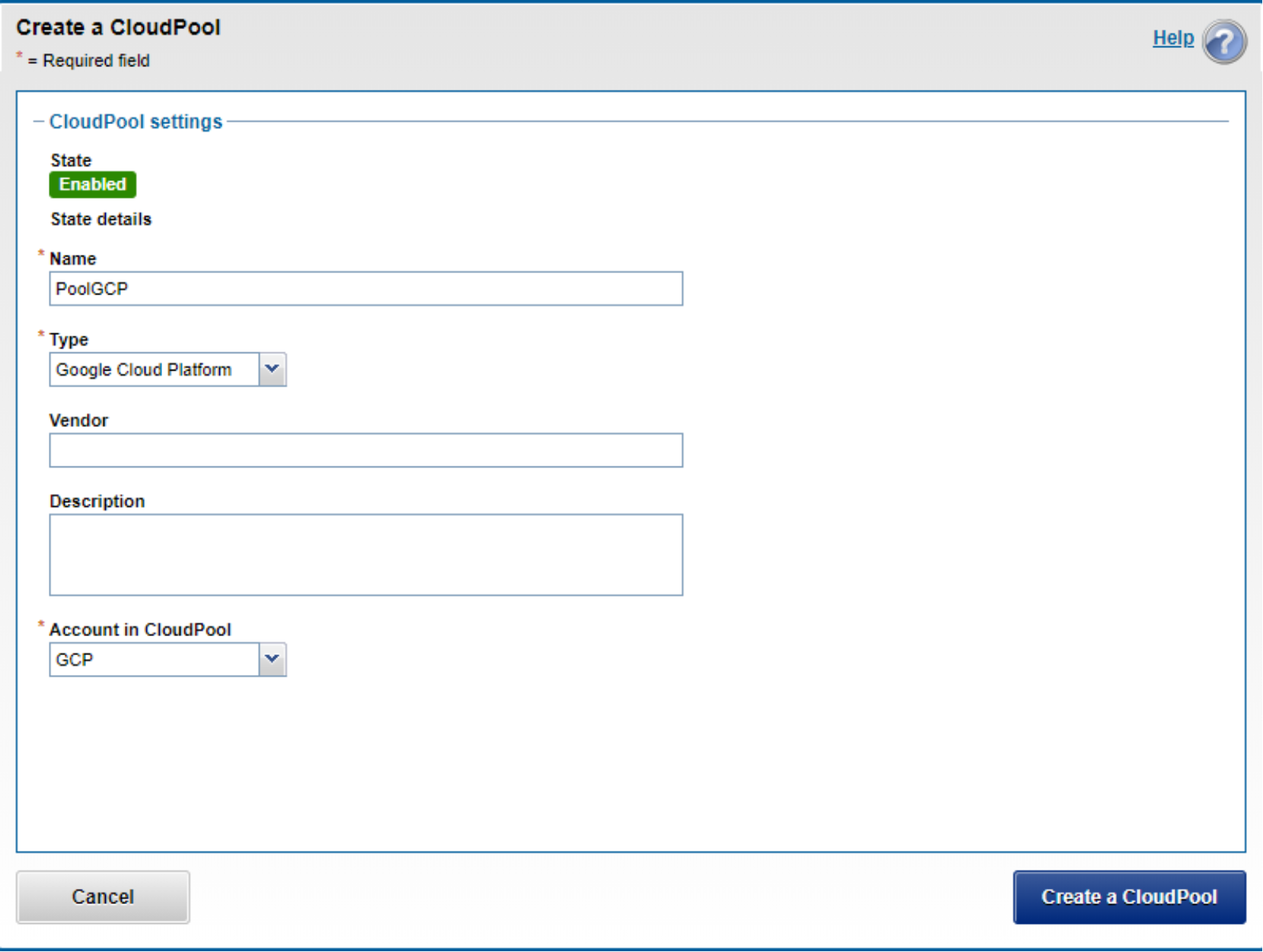
Figure 21. Create a CloudPool
File pool policy
This section describes how to create a file pool policy on the PowerScale cluster.
- Log in to the OneFS WebUI and go to File System > Storage Pools. Click File Pool Policies as shown in the Figure 22.Click File Pool Policies as shown in Figure 22.
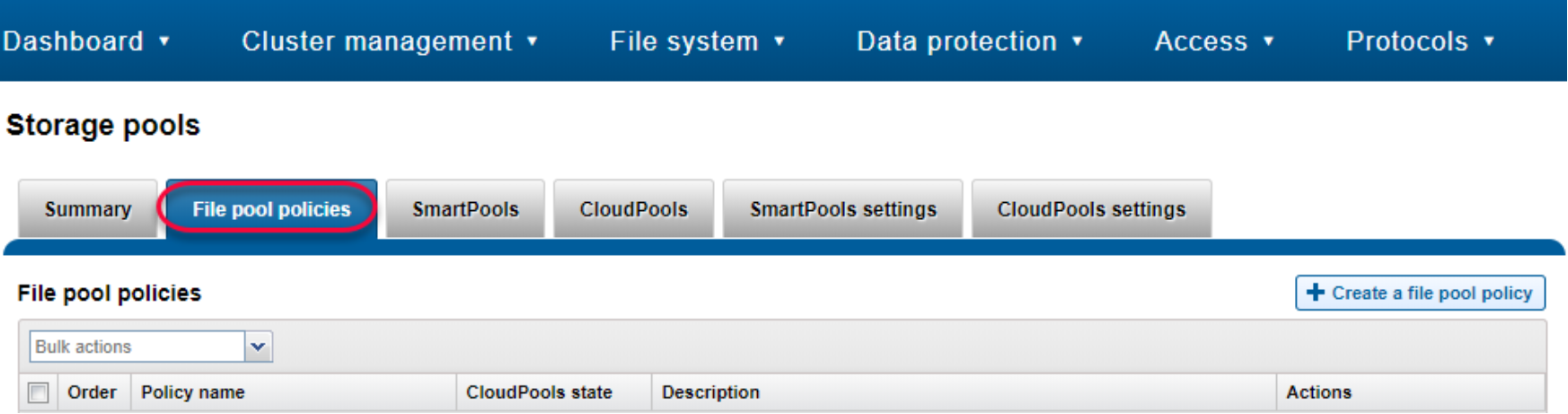
Figure 22. Create a file pool policy
- Click the + Create a File Pool Policy button, from the Create a file pool policy page as shown in Figure 23 and Figure 24. The minimum information is as follows:
- Policy Name: Type a name to identify the file pool policy.
- File Matching Criteria: Define a logical group of files for CloudPools. See file matching criteria.
- Move to cloud storage: Select the specific CloudPool as the CloudPool storage target.
- Data retention settings: Set the data retention as your own. See Data retention settings.
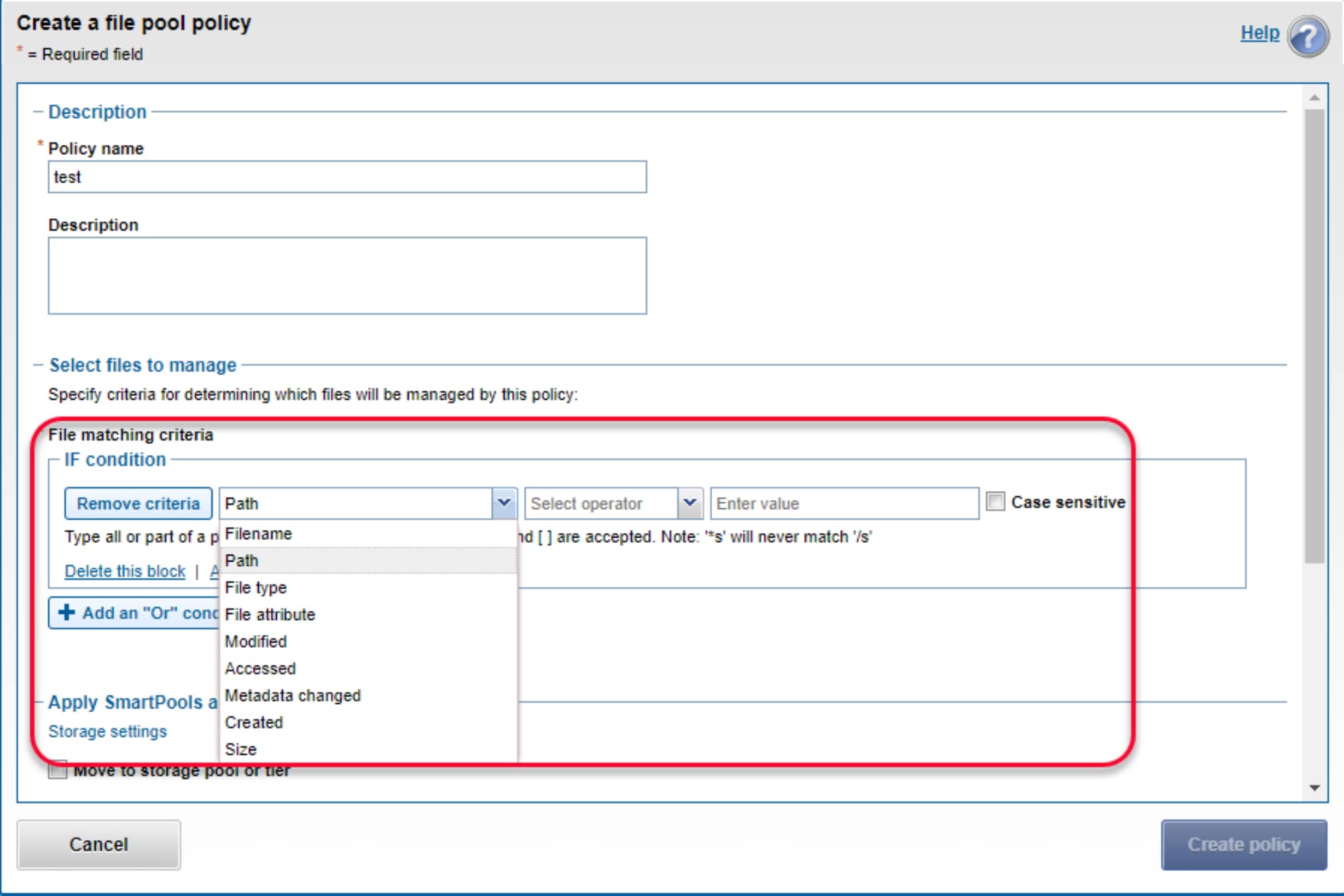
Figure 23. Create a file pool policy
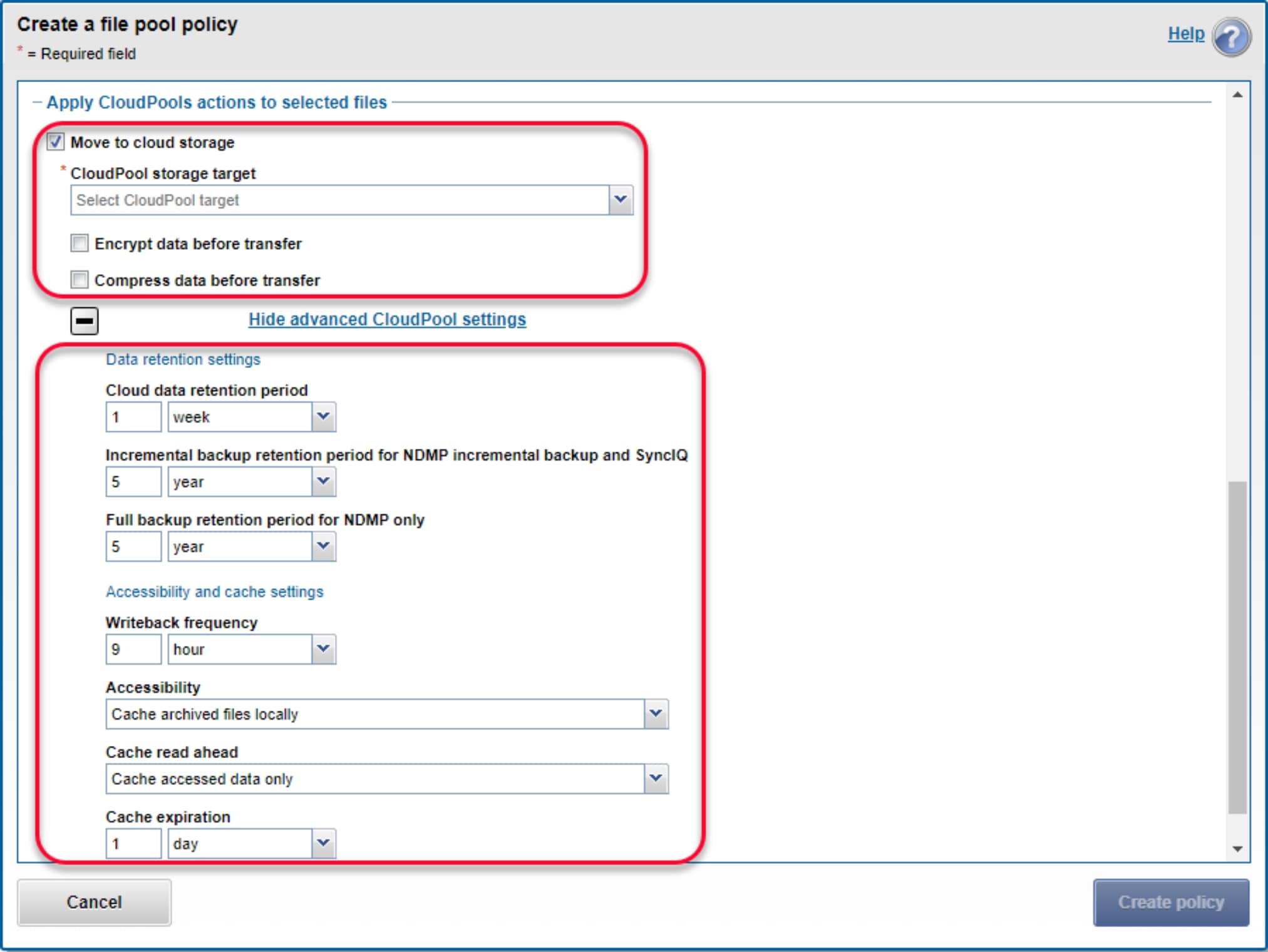
Figure 24. Create a file pool policy (continued)
- Click Create policy to create a file pool policy.
Run SmartPools job for CloudPools
This section describes how to run a SmartPools job for CloudPools on the PowerScale cluster.
- Log in to the OneFS WebUI and go to Cluster management > Job operations. Click Job types as shown in Figure 25.
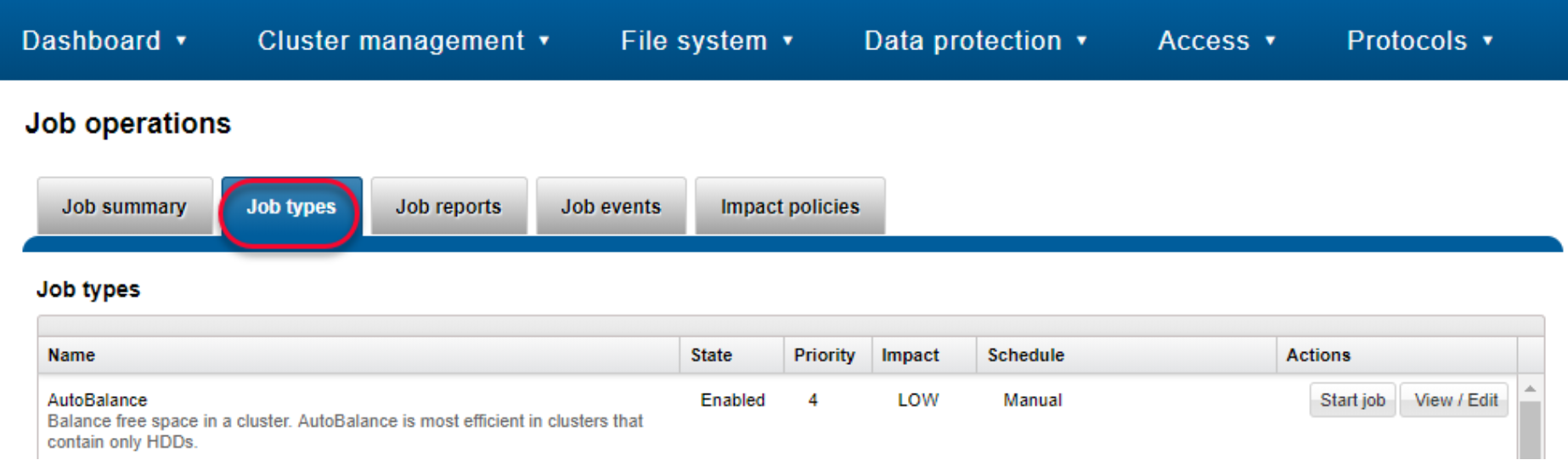
Figure 25. Job types
- Select the SmartPools item and click Edit as shown in the Figure 26.Select the SmartPools item and click Edit as shown in Figure 26.

Figure 26. SmartPools job
- From Edit job type details page as shown in Figure 27, you can:
- Enable or disable the job
- Set the priority of the job
- Set the impact policy
- Set the job schedule as manual or scheduled
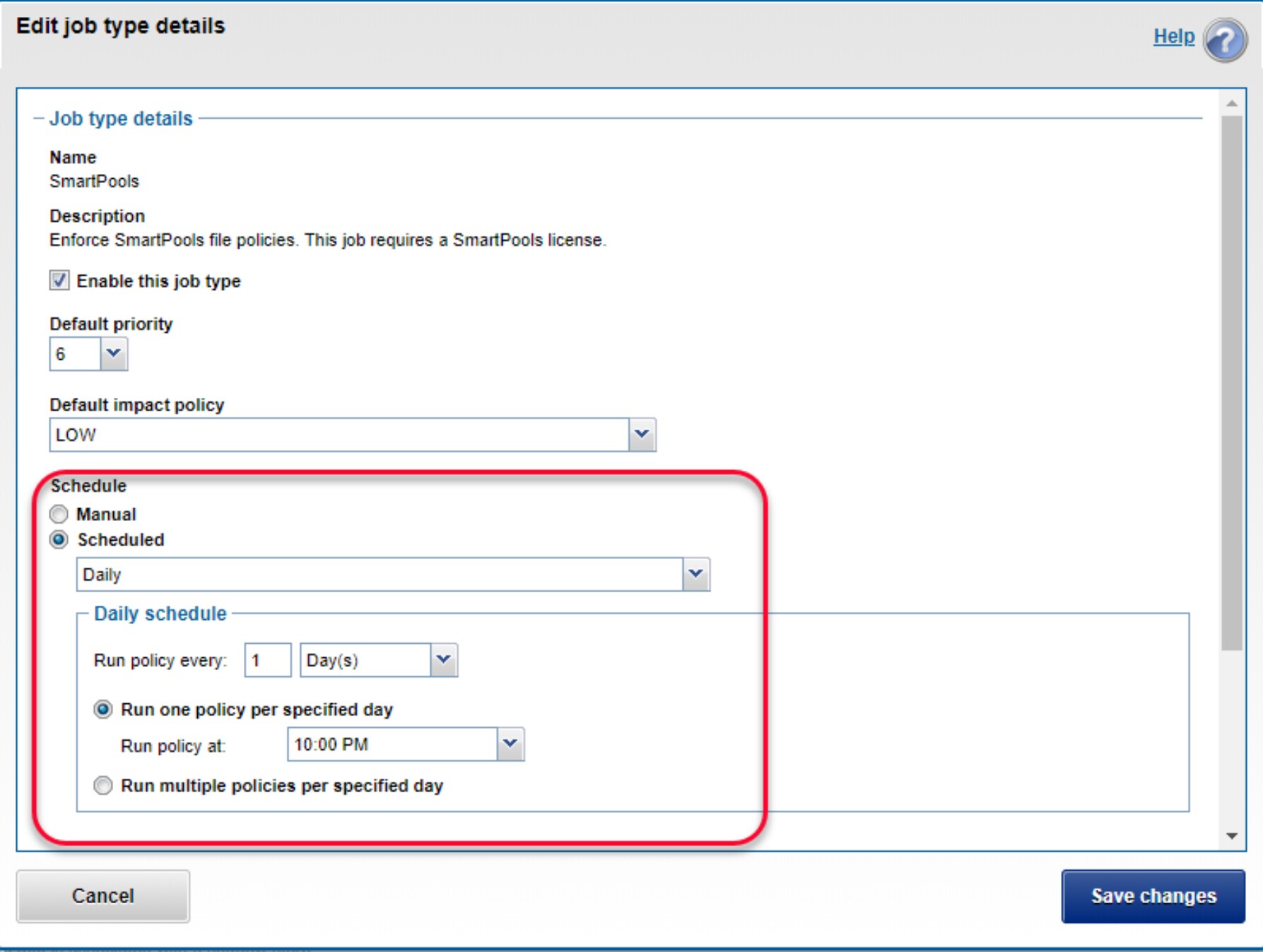
Figure 27. Edit job type details
- Click Start job as shown in Figure 26 to run the file pool policy to archive files from the PowerScale cluster to Google Cloud. If you want to start a specific file pool policy job manually, see Commands and troubleshooting.
SyncIQ policy
This section describes how to create a SyncIQ policy on the PowerScale cluster.
- Log in to OneFS WebUI and go to Cluster Management > Licensing as shown in Figure 18. Verify that the CloudPools, SmartPools, and SyncIQ license status are Activated.
- Go to Data Protection > SyncIQ > Policies and click the + Create a SyncIQ policy button as shown in Figure 28 and Figure 29. The minimum information is as follows:
- Policy name: Type a name to identify the policy name.
- Source root directory: Type the directory name from source PowerScale cluster you want to replicate to the target PowerScale cluster.
- Target host: Type the IP or name of the target PowerScale cluster.
- Target directory: Type the directory name from the target PowerScale cluster you want to store the data replicated from the source PowerScale cluster.
- Deep copy for CloudPools: Select the type you want to use.
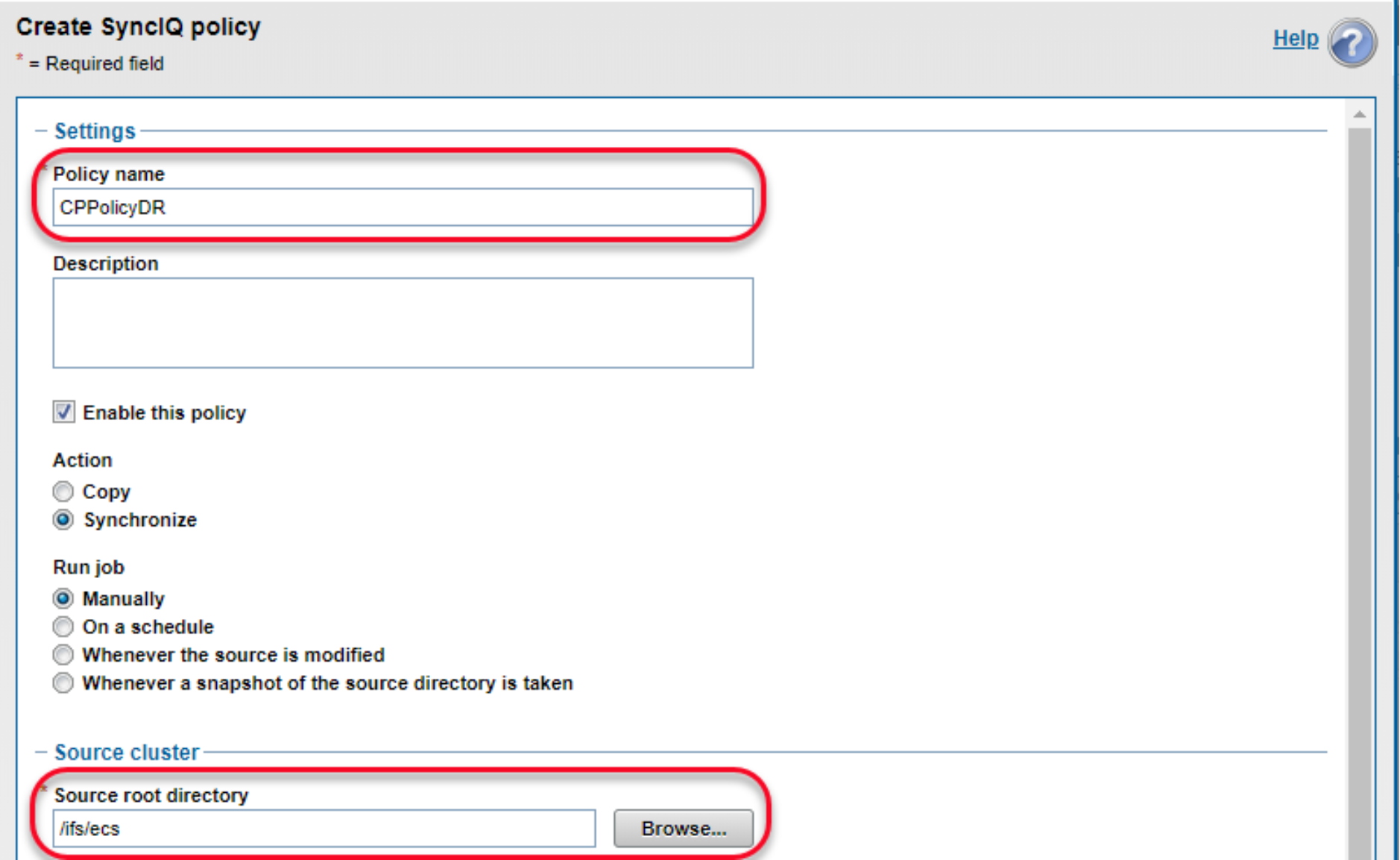
Figure 28. Create SyncIQ policy
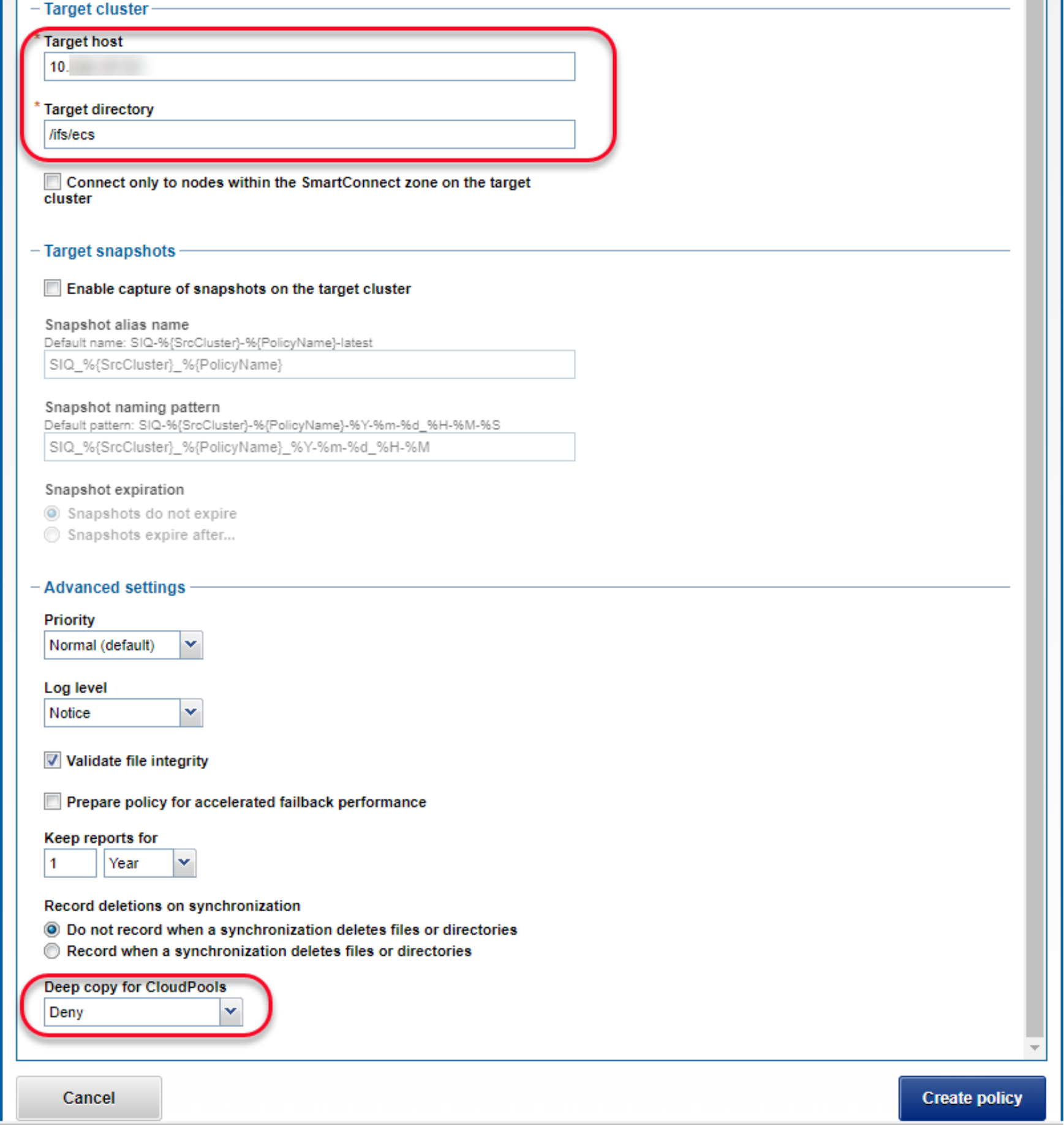
Figure 29. Create SyncIQ policy (continued)
- Click Create policy to create a SyncIQ policy.
SmartLink files protection
This section describes an example of how to protect SmartLink files and cloud data. Ensure that you have already configured SyncIQ on the PowerScale clusters, which includes:
- Fail over to the secondary PowerScale cluster
- Fail back to the primary PowerScale cluster
Fail over to the secondary PowerScale cluster
This section describes the steps required to fail over to the secondary PowerScale cluster.
- Log in to the secondary OneFS WebUI and go to Data Protection > SyncIQ. Click Local Targets on the policy that you want to fail over and select More > Allow Writes as shown in Figure 30. This operation will grant read/write access to the data on the primary PowerScale cluster being replicated to the secondary PowerScale cluster.
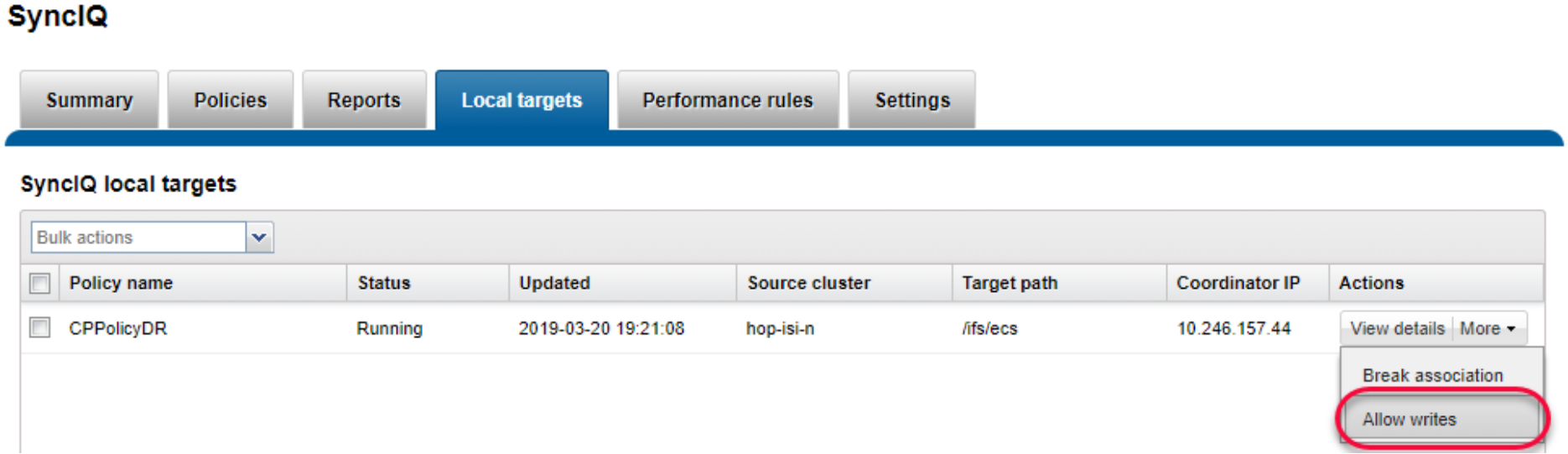
Figure 30. Allow writes on secondary cluster
Note: If the primary PowerScale cluster is still online, stop all writes to the replication policy’s directory.
- Check and change cloud access. Log in to the PowerScale clusters using SSH. To identify the CloudPools GUID, run the commands isi cloud access list and isi cloud access view <GUID>. Figure 31 shows the cloud access status on the secondary PowerScale cluster.

Figure 31. Identify CloudPools GUID to be transferred
- On the primary PowerScale cluster, remove the cloud write permission by running the command isi cloud access remove <GUID>, as shown in Figure 32. This operation disables the file pool policy, CloudPool, and cloud storage account on the primary PowerScale cluster.

Figure 32. Remove Cloud write access on the primary PowerScale cluster
- On the secondary PowerScale cluster, add the cloud write permission using the command isi cloud access add <GUID> as shown in Figure 33. This operation enables the file pool policy, CloudPool, and cloud storage account on the secondary PowerScale cluster.
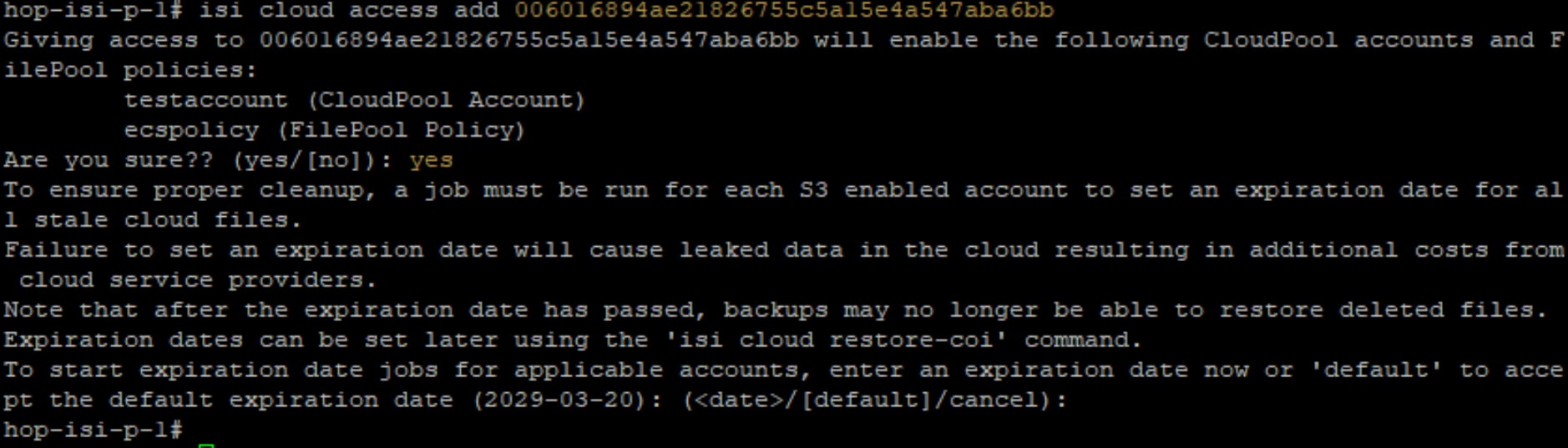
Figure 33. Add Cloud write access on the secondary PowerScale cluster
- Note: It is important to not allow write access to the CloudPools from more than one PowerScale cluster.
The SyncIQ failover is complete.
Fail back to primary PowerScale cluster
This section describes the steps required to fail back to the primary PowerScale cluster.
- Log in to the primary OneFS WebUI and go to Data Protection > SyncIQ. Click Policies on the policy that you want to failback and select More > Resync-prep as shown in Figure 34. This operation will create a SyncIQ replication mirror policy on the secondary PowerScale cluster.
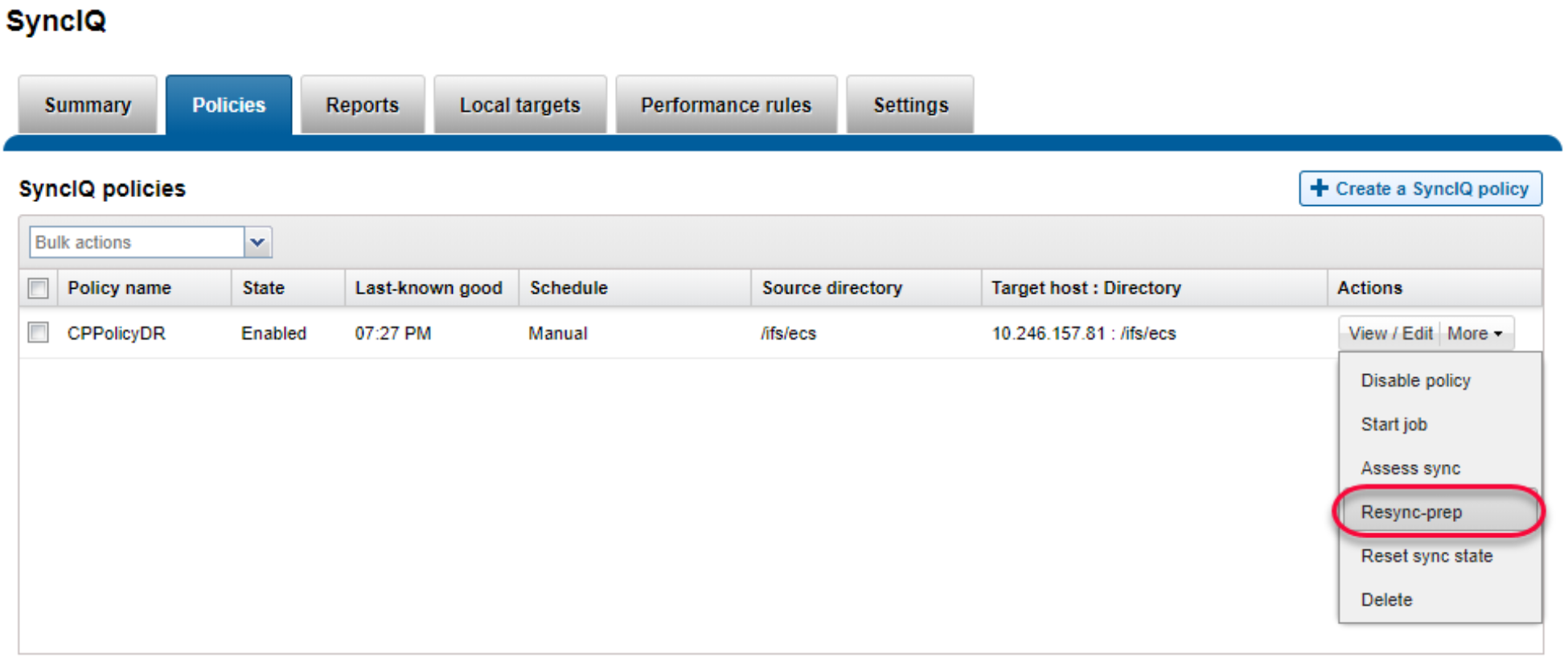
Figure 34. Resync-prep SyncIQ policy on primary PowerScale cluster
- Log in to the secondary OneFS WebUI and go to Data Protection > SyncIQ > Policies. On the replication mirror policy that you want to failover and select More > Start Job as shown in Figure 35. This operation will sync any changes that have been written to the secondary PowerScale cluster back to the primary PowerScale cluster.
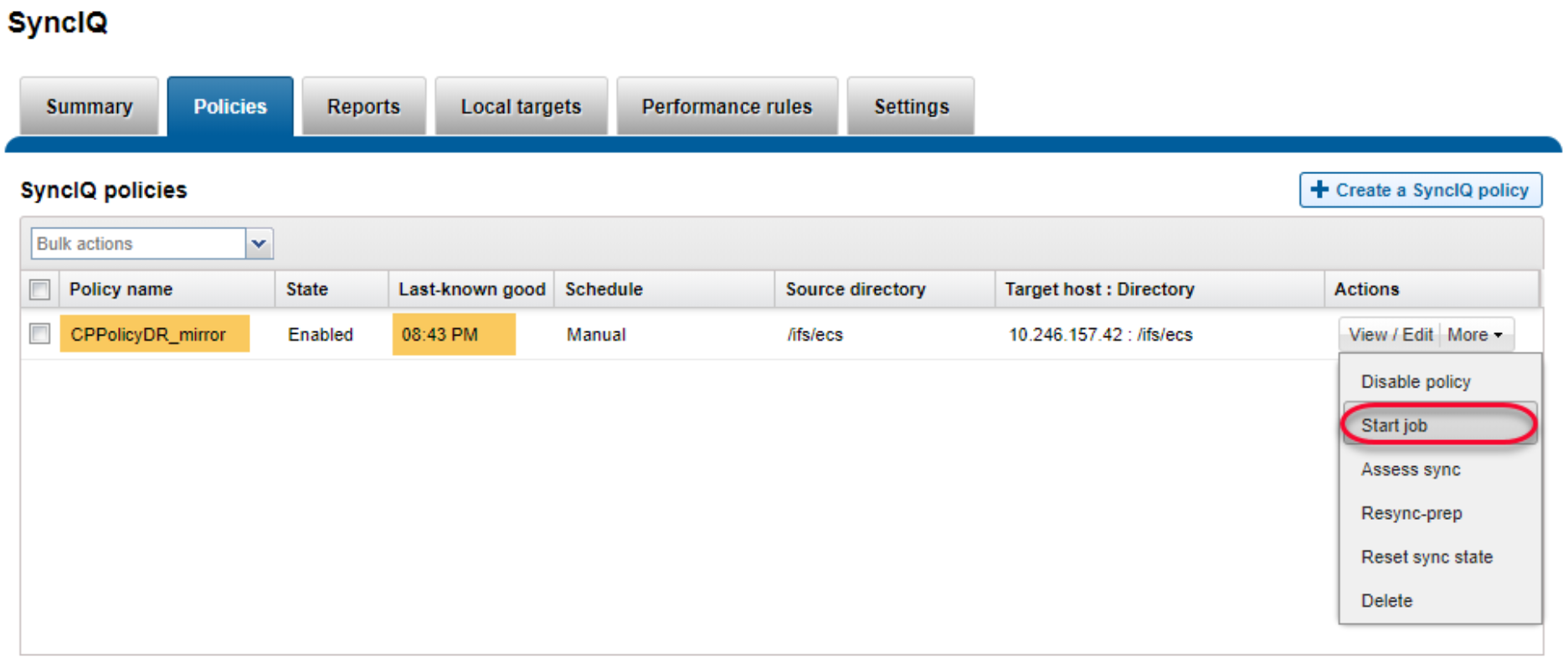
Figure 35. Sync data from secondary PowerScale cluster to primary PowerScale cluster
- Log in to the primary OneFS WebUI and go to Data Protection > SyncIQ. Click Local Targets on the policy that you want to failover and select More > Allow Writes as shown in Figure 36. This operation will grant read/write access to the replication directory back to the primary PowerScale cluster and change the secondary PowerScale cluster’s access to this directory as read-only.
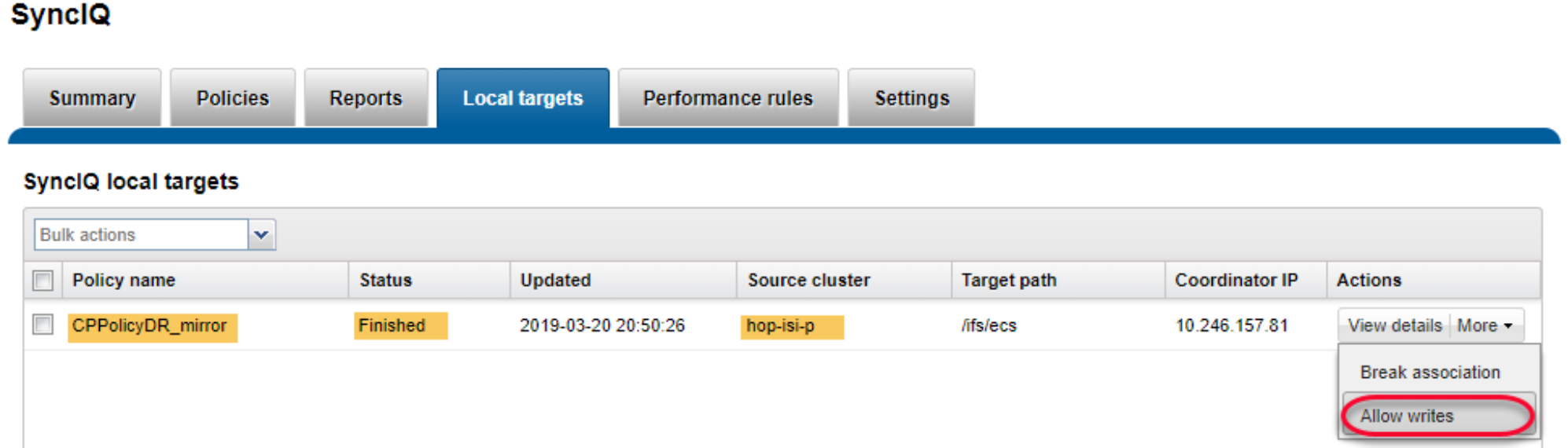
Figure 36. Allow writes on primary PowerScale cluster to SyncIQ replication directory
Note: If the secondary PowerScale cluster is still online, stop all writes to the replication policy’s directory. Perform a final replication from the secondary PowerScale cluster to the primary PowerScale cluster to ensure both sites are synchronized.
- Check and change cloud access. Log in to the PowerScale clusters using SSH. To identify the CloudPools GUID, run the commands isi cloud access list and isi cloud access view <GUID>. Figure 37 shows the cloud access status on the secondary PowerScale cluster.
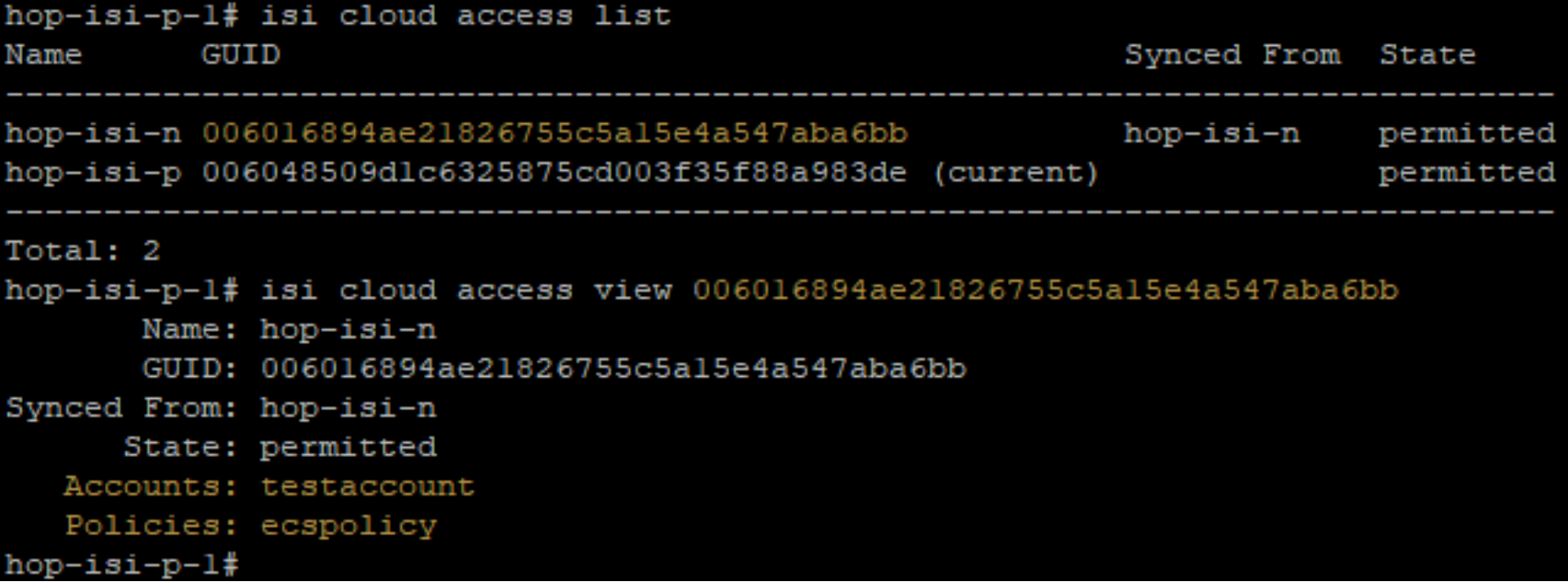
Figure 37. Identify GUID for CloudPools account and file pool policy
- On the secondary PowerScale cluster, remove the cloud write permission using the command isi cloud access remove <GUID> as shown in Figure 38. This operation disables the file pool policy, CloudPool, and a cloud storage account on the secondary PowerScale cluster.

Figure 38. Remove cloud write access on the secondary PowerScale cluster
- On the primary PowerScale cluster, add the cloud write permission using the command isi cloud access add <GUID> as shown in Figure 39. This operation enables the file pool policy, CloudPool, and cloud storage account on the primary PowerScale cluster.
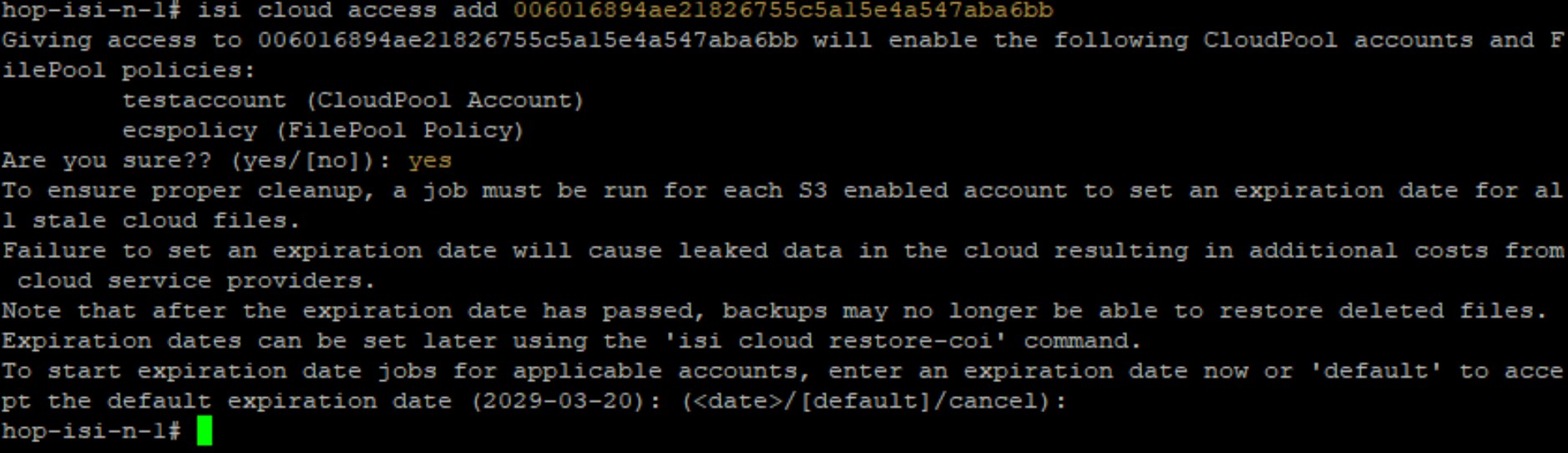
Figure 39. Give the primary PowerScale cluster cloud write access
Note: It is important to not allow write access to the CloudPools from more than one PowerScale cluster.
- Log in to the secondary OneFS WebUI and go to Data Protection > SyncIQ. Click Policies on the policy that you want to failback and select More > Resync-prep. This operation will disable the SyncIQ replication mirror policy on the secondary PowerScale cluster and place the secondary PowerScale cluster back into read-only mode. In addition, this operation will enable the SyncIQ replication policy on the primary PowerScale cluster.
The SyncIQ failback is complete.