Dell PowerScale: Common AntiVirus Agent Solution
Executive summary
Overview
Revisions
We value your feedback
Overview
Architecture
Figure 1 illustrates a high-level architecture of the CAVA anti-virus solution for PowerScale. Dell Common Event Enabler (CEE) sits between the PowerScale cluster and the anti-virus applications. When clients trigger the scanning workflow, Dell PowerScale OneFS generates a request to the CEE or CAVA agent through the HTTP protocol. Then, the anti-virus application fetches the scanning files from PowerScale through the hidden SMB share called CHECK$. These files are scanned by the anti-virus applications.
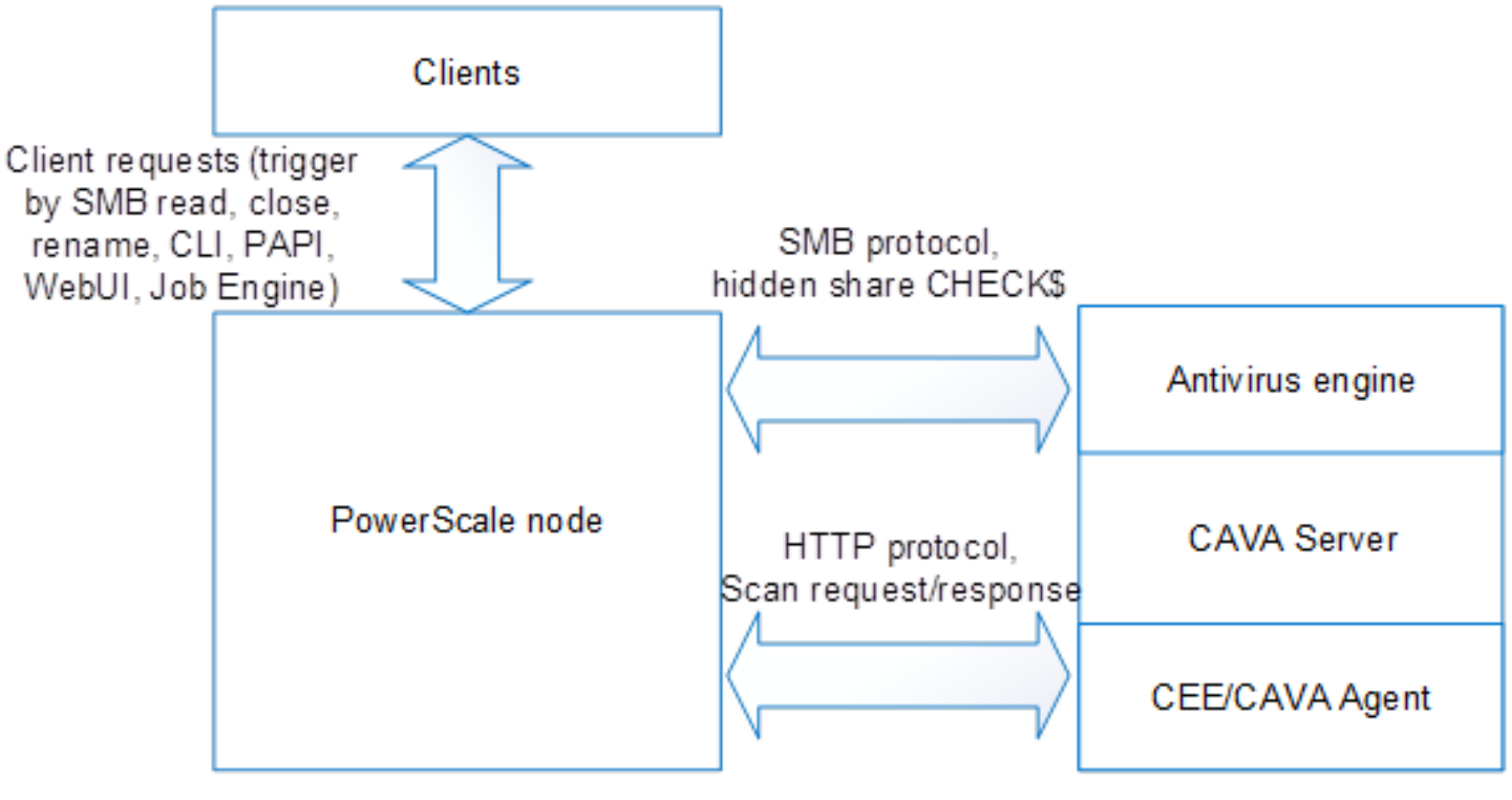
Figure 1. The overall architecture of the CAVA solution for PowerScale
The detailed architecture is explained separately by three scanning workflows from the OneFS perspective:
- On-demand scan (also known as on-access scan): This scan is triggered by the proper SMB operation, such as a read or close operation, and depends on your scan profile. There are two scan profiles in OneFS:
- Standard profile: Captures a close and rename operation from an SMB perspective, and triggers the scan operation on the corresponding file.
- Strict profile: Captures a read, close, and rename operation from an SMB perspective, and triggers the scan operation on the corresponding file.
- Scheduled scan: This scan is triggered by the job engine either manually or by schedule.
- Manual scan: This scan is triggered by the CLI command or the corresponding PAPI call to scan a single file.
Generally, the CAVA solution provides better performance, lower total cost of ownership (TCO), and much less CPU and memory usage from the PowerScale perspective, compared with an anti-virus solution based on ICAP.
Note: ICAP is still supported, which remains unchanged from the previous versions of OneFS.
On-demand scan
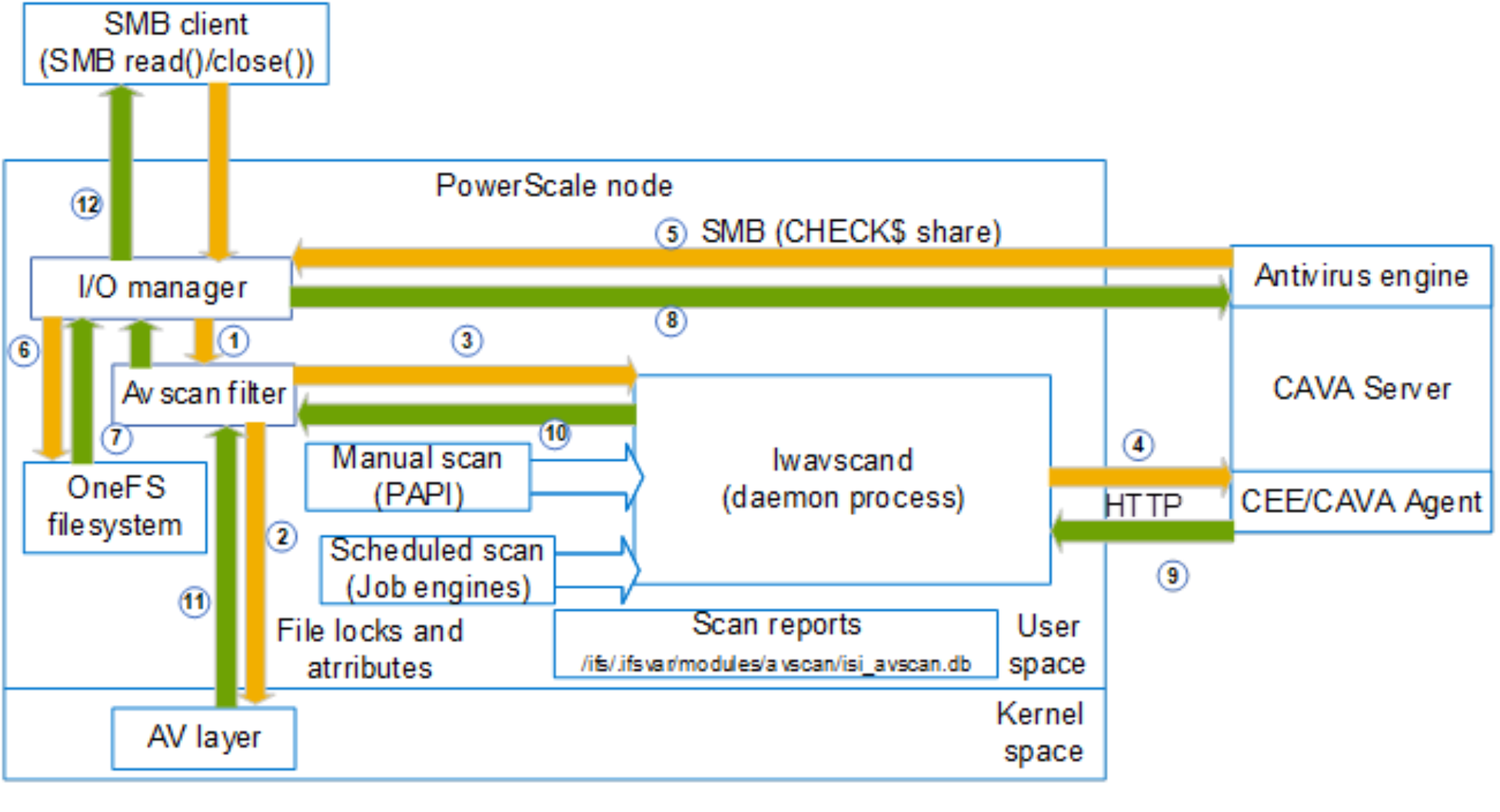
Figure 2. The workflow of the on-demand scan
Figure 2 shows the workflow of an on-demand scan. Depending on which scan profile is selected, the SMB requests with a read or close operation code are captured by the I/O manager in OneFS. It extracts the file path and name to provide to the Avscan filter, which can be configured on a multi-tenant access-zone basis. The Avscan filter will then filter according to the following aspects:
- File extension to include
- File extension to exclude
- File path to exclude
If the file matches all the criteria, an internal process lwavscand sends the HTTP scanning request to the CEE/CAVA agent. Simultaneously, OneFS sets the locks on this file. Then, the anti-virus application tries to fetch this file through the hidden SMB share CHECK$ from the file system on OneFS. CAVA supports only downloading a part of a file for scanning, which helps the performance. After the corresponding content is downloaded to the CAVA server, it runs the scan with the anti-virus engine, and CEE sends the scan results and response back to the process lwavscand. At this stage, some scanning attributes are written to this file and the lock is released. The scanning attributes are:
- Scan time
- Scan Result
- Anti-virus signature timestamp
- Scan current
The previous SMB workflow can then continue if the file is not infected. Otherwise, the file is denied access. If there are errors during the scan and the scan profile is strict, the setting Open on fail determines the next action.
Scheduled scan
Figure 3 shows the workflow of the scheduled scan in OneFS. The scheduled scan is triggered by the job engine. Similar to other jobs in OneFS, the impact and schedule configuration can be set accordingly. It also implements the filter, which is slightly different from the filter in the on-demand scan. The detailed filtering criteria are:
- File extension to include
- File extension to exclude
- File path to exclude
- File path to include (only in the scheduled scan)
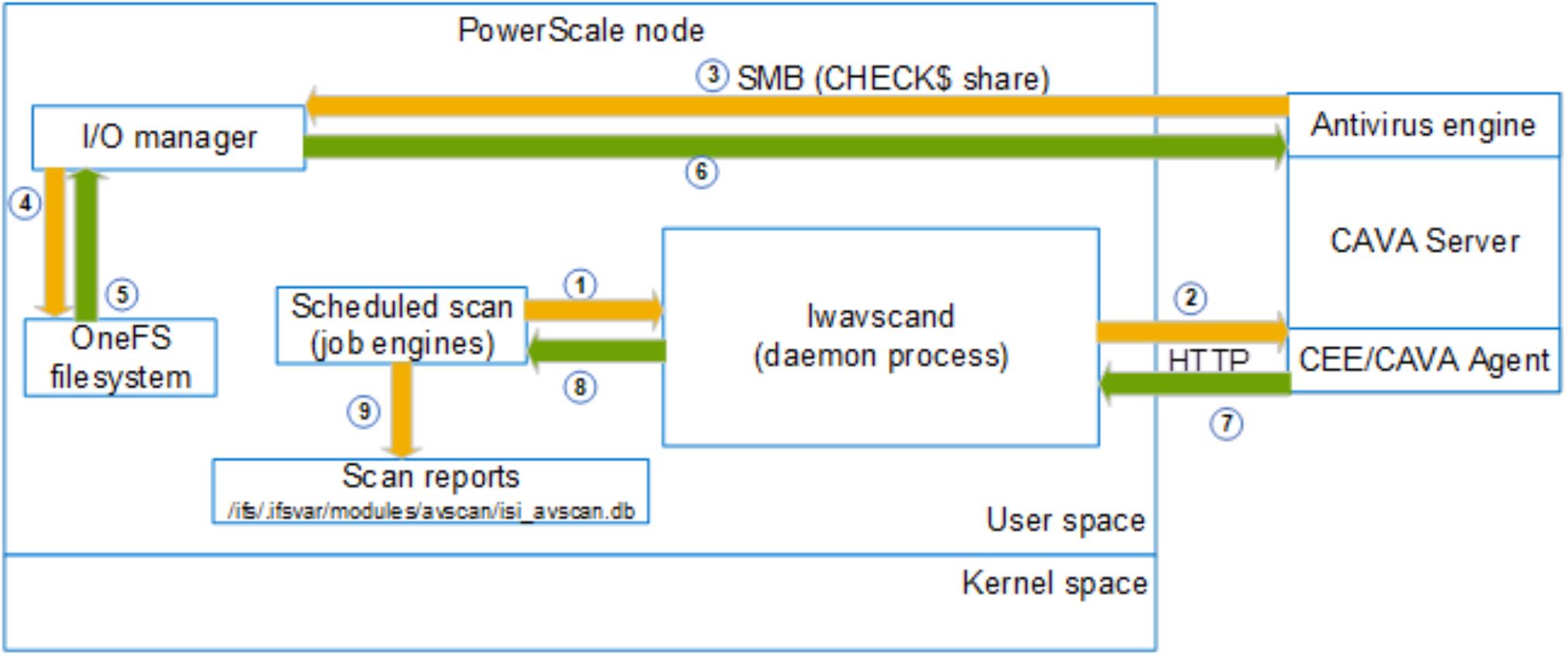
Figure 3. The workflow of the scheduled scan
If the file matches all the criteria, an internal process lwavscand sends the HTTP scanning request to the CEE/CAVA agent, and simultaneously, OneFS sets the locks on this file. The anti-virus application then attempts to fetch this file through the hidden SMB share CHECK$ from the file system on OneFS. CAVA supports only downloading a part of a file for scanning, which helps the performance. After the corresponding content is downloaded to the CAVA server, it runs the scan with the anti-virus engine, and CEE sends the scan results and response back to the process lwavscand. All the scanning attributes are recorded under /ifs/.ifsvar/modules/avscan/isi_avscan.db.
Manual scan
Figure 4 shows the workflow of a manual scan. The manual scan is triggered by the CLI, PAPI, or web interface. Unlike an on-demand scan or scheduled scan, it has no filters. The scanning files are directly assigned by the parameters. The daemon process lwavscand sends the HTTP scanning request to the CEE or CAVA agent, and simultaneously, OneFS sets the locks on this file. The anti-virus application then attempts to fetch this file through the hidden SMB share CHECK$ from the file system on OneFS. CAVA supports only downloading a part of the file for scanning, which helps the performance. After the corresponding content has been downloaded to the CAVA server, it runs the scan with the anti-virus engine, and CEE sends the scan results and responds to the process lwavscand. All the scanning attributes are recorded under /ifs/.ifsvar/modules/avscan/isi_avscan.db.
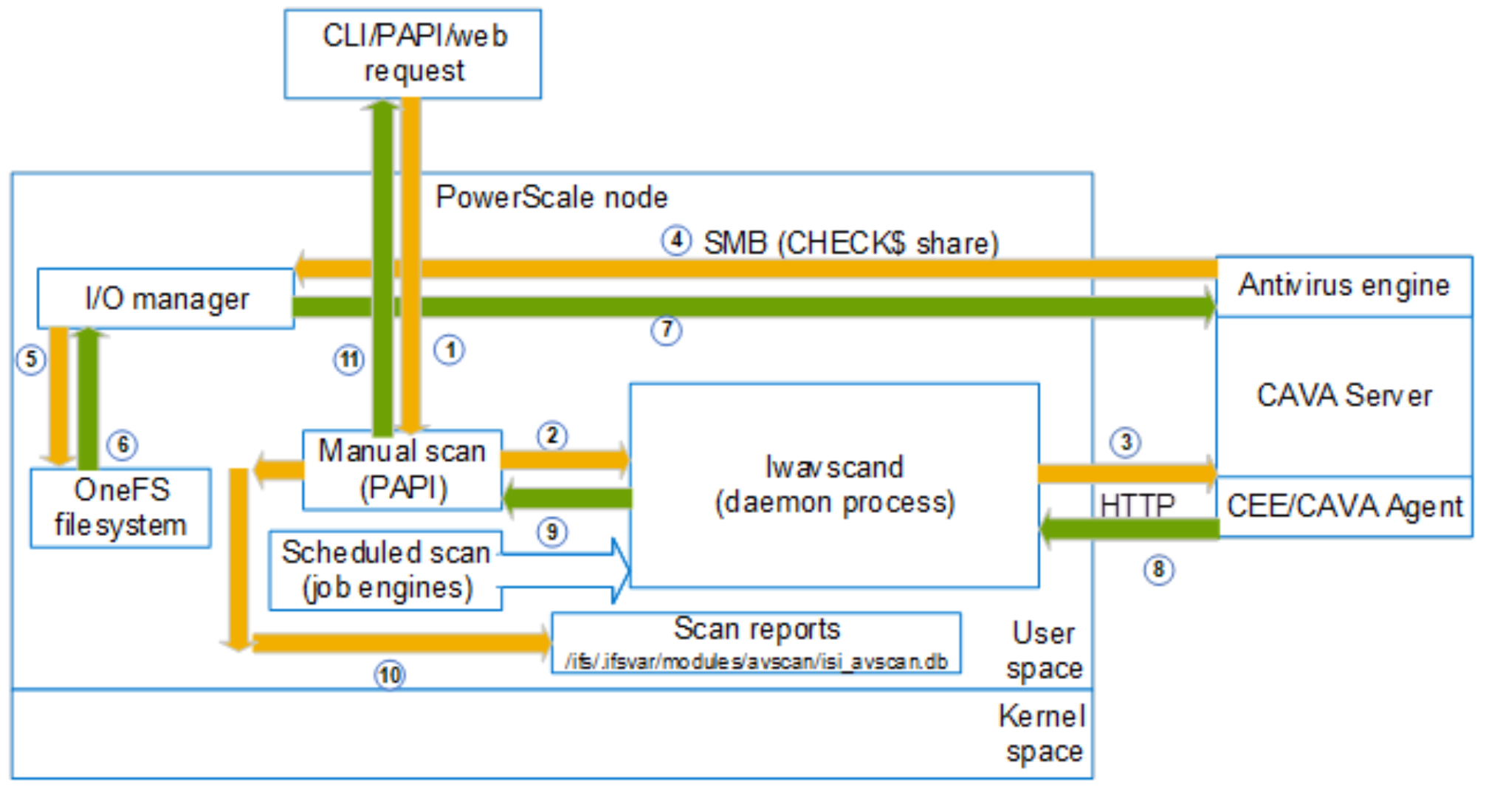
Figure 4. The workflow of manual scan
Load balancing
There are two types of connections between CAVA servers and PowerScale nodes:
- SMB connection to fetch files or contents for scanning through a hidden share (CHECK$).
- CEE connections for scan requests, scan responses, and other functions. These connections are HTTP.
For each type of connection, OneFS has a different implementation for load balancing. The following sections explain these two methodologies in detail.
SMB connection load balancing
OneFS uses a dedicated IP pool and multi-tenant access zone to isolate all CAVA SMB connections from other workloads. Within this IP pool, SmartConnect is enabled to ensure that all SMB connections are evenly spread across all the nodes.
CEE connection load balancing
The rules and conditions of how CEE connections are balanced are:
- Maximum connections per CAVA servers = 20
- Number of different CAVA servers to which a cluster node can connect = 4
- The nth cluster node starts from the nth CAVA server
The following example uses an environment with the following:
- 7 PowerScale cluster nodes
- 7 CAVA servers
The calculation is as follows:
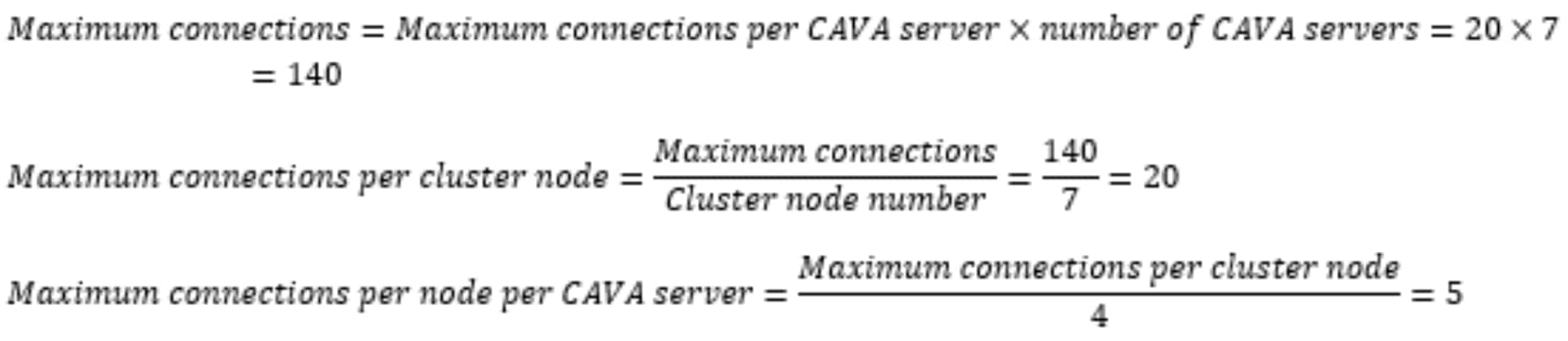
The layout for the connections is listed in Table 1.
Table 1. Connection layouts
|
|
First CAVA Server |
Second CAVA Server |
Third CAVA Server |
Fourth CAVA Server |
Fifth CAVA Server |
Sixth CAVA Server |
Seventh CAVA Server |
|
First node |
5 |
5 |
5 |
5 |
|
|
|
|
Second node |
|
5 |
5 |
5 |
5 |
|
|
|
Third node |
|
|
5 |
5 |
5 |
5 |
|
|
Fourth node |
|
|
|
5 |
5 |
5 |
5 |
|
Fifth node |
5 |
|
|
|
5 |
5 |
5 |
|
Sixth node |
5 |
5 |
|
|
|
5 |
5 |
|
Seventh node |
5 |
5 |
5 |
|
|
|
5 |
|
Total |
20 |
20 |
20 |
20 |
20 |
20 |
20 |
A more complicated example has an environment with the following:
- 7 PowerScale cluster nodes
- 5 CAVA servers
The calculation is as follows:
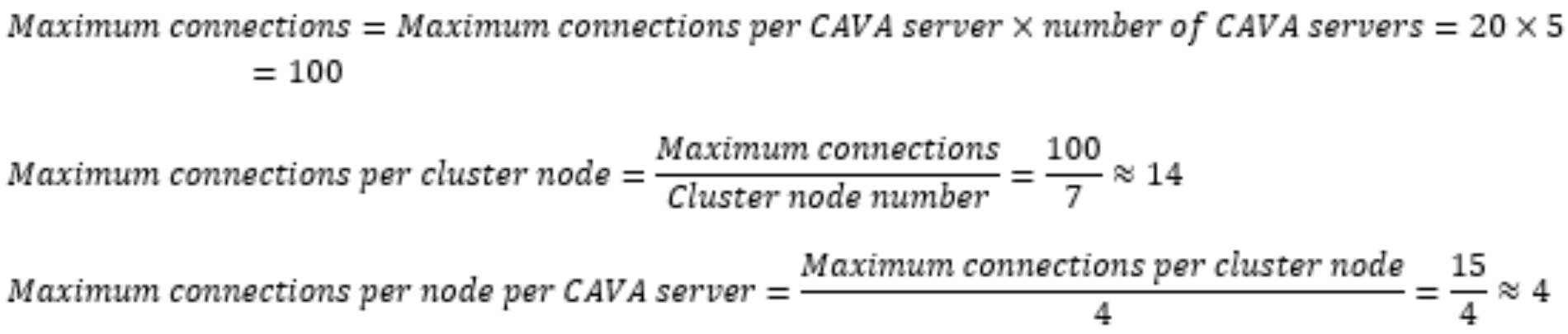
The layout for the connections is listed in Table 2.
Table 2. Connection layouts
|
|
First CAVA Server |
Second CAVA Server |
Third CAVA Server |
Fourth CAVA Server |
Fifth CAVA Server |
|
First node |
4 |
4 |
4 |
2 |
|
|
Second node |
|
4 |
4 |
4 |
2 |
|
Third node |
2 |
|
4 |
4 |
4 |
|
Fourth node |
4 |
2 |
|
4 |
4 |
|
Fifth node |
4 |
4 |
2 |
|
4 |
|
Sixth node |
4 |
4 |
4 |
2 |
|
|
Seventh node |
|
2 |
2 |
4 |
4 |
|
Total |
18 |
20 |
20 |
20 |
18 |
Supported vendors
Supportability
Deployment and configuration
Overview
Figure 5 shows the overall workflow of how CAVA works in OneFS. The anti-virus applications use the SMB protocol to fetch the file or a portion of a file for scanning in a PowerScale cluster. From the anti-virus perspective, the hidden SMB share CHECK$ must be present on the NAS in order to read the data to be scanned. This share allows access to all files on a PowerScale cluster under /ifs. SmartConnect and a dedicated multi-tenant access zone are introduced in this process to ensure that all the connections from the anti-virus application are fully distributed and load-balanced among all the configured nodes in the IP pool. A hidden role, AVVendor, is created by the CAVA anti-virus service to map the EMC CAVA service account into OneFS.
Figure 5 also shows the overall steps to configure CAVA in OneFS:
- Create CAVA servers in OneFS.
- Create an IP pool.
- Create a dedicated multi-tenant access zone for CAVA (AvVendor).
- Create Active Directory authentication provided in the multi-tenant access zone (AvVendor).
- Update role (AVVendor).
The following sections introduce these steps in detail.
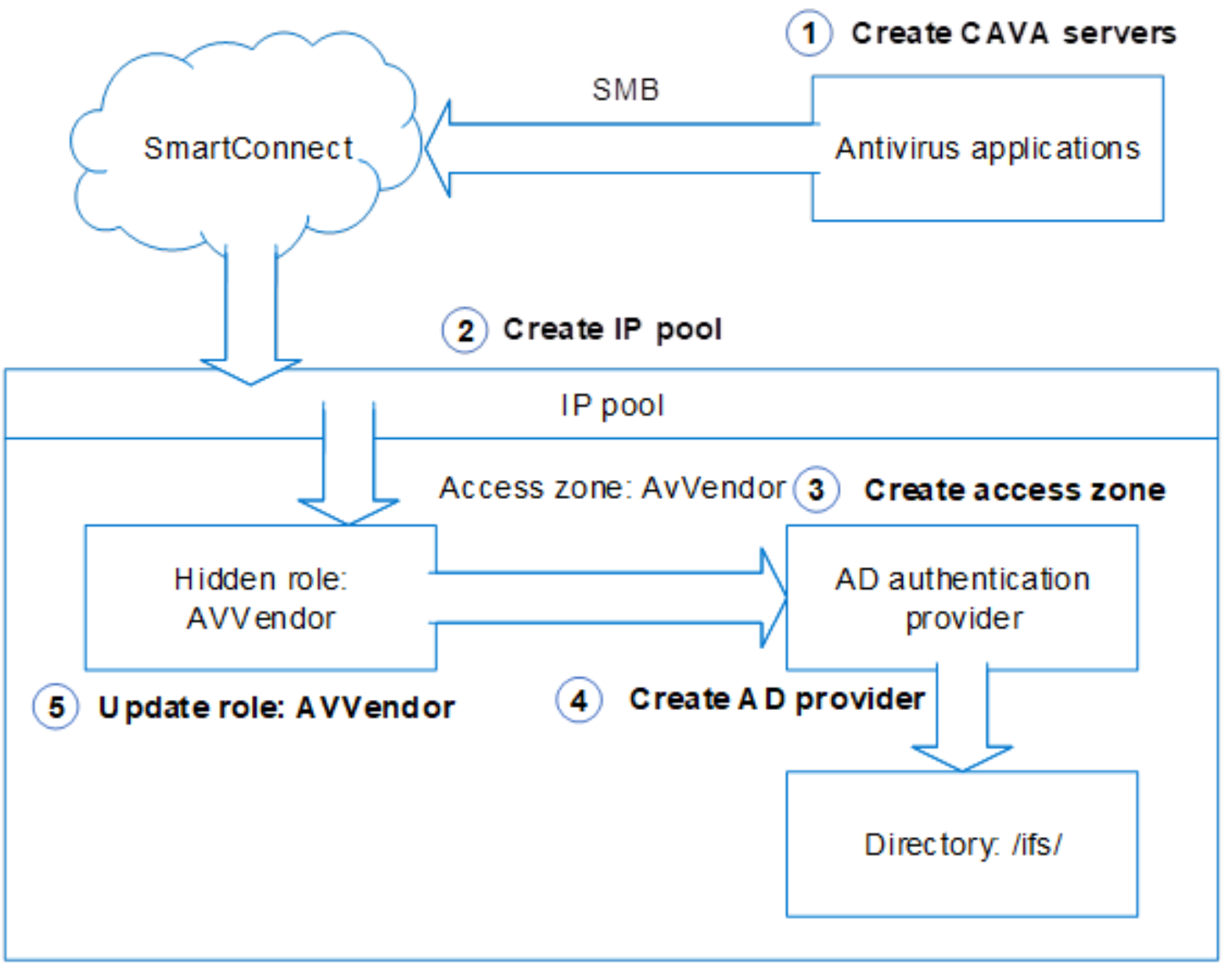
Figure 5. Workflow showing how CAVA works in OneFS
The prerequisites to configure CAVA service in OneFS are listed in Table 5.
Table 4. Prerequisites to configure CAVA service in OneFS
|
Prerequisites |
Description |
|
SMB service
|
The SMB service on OneFS should be enabled to ensure that anti-virus applications can fetch data from the PowerScale cluster for scanning. |
|
SmartConnect Service IP (SSIP) |
SSIP should be configured in the OneFS subnet level. SmartConnect is used by the CAVA service to ensure that all the scanning requests are well balanced among all the nodes in the IP pool. |
|
Anti-virus application and Dell Comment Event Enabler (CEE) |
See the document from the anti-virus software vendor and Using the Common Event Enabler on Windows Platforms. |
|
Active Directory access |
CAVA service in OneFS requires that the anti-virus application and PowerScale cluster be in the same domain. |
|
Dedicated IP addresses |
All the connections from anti-virus applications are served by a dedicated IP pool in PowerScale. These IP addresses are used to configure the IP ranges in this IP pool. We recommend using exclusive IP addresses which are only available to the anti-virus applications. |
Create a CAVA server in OneFS
Installing the anti-virus application and CEE is a prerequisite (as shown in Table 5). During the configuration of CEE, a domain user is created. This domain user is the service account for Windows service EMC CAVA and is used to access the hidden SMB share CHECK$ to get the files and content for scanning. In this example, the user is LORG\cavausr.
After the anti-virus servers are installed and configured, create the corresponding entries in the OneFS so that PowerScale is aware of them. To perform this action, use the following command:
# isi antivirus cava servers create --server-name=avsh01 --server-uri=10.7.a.b --enabled=1
Alternately, use the WebUI as shown in Figure 6.
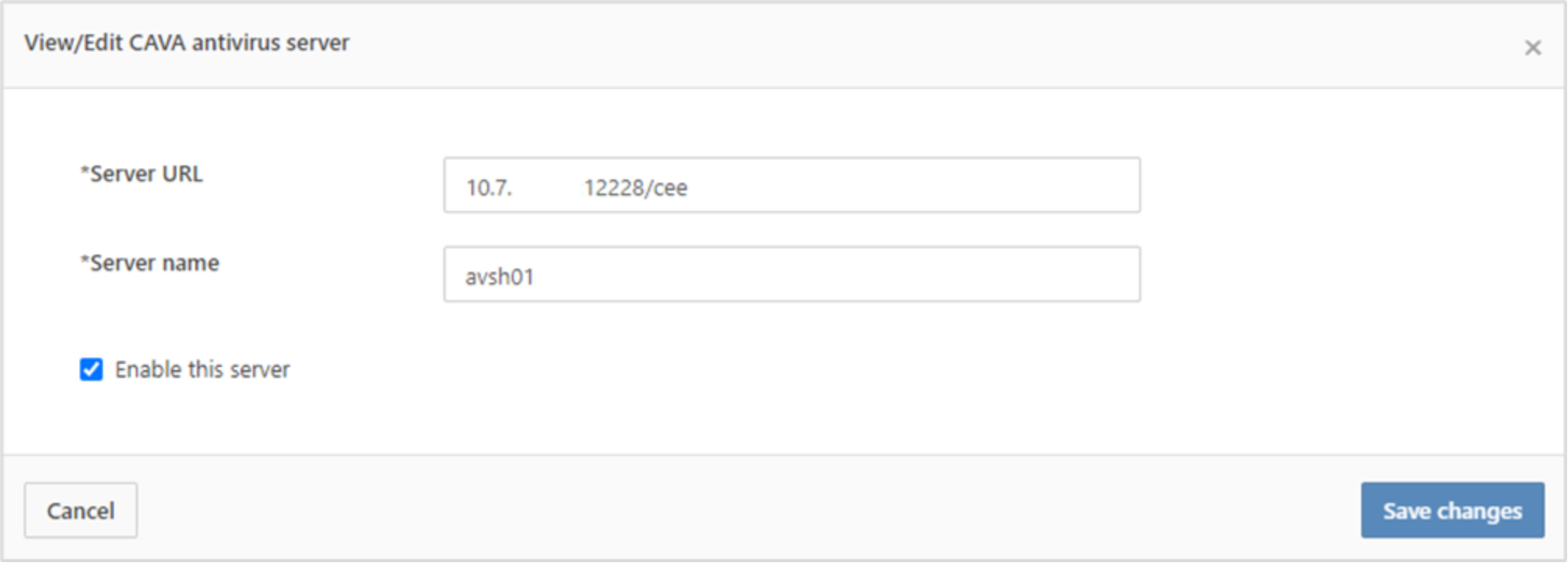
Figure 6. Add CAVA server
You can add multiple CAVA servers into a OneFS configuration for the proper number of the CAVA servers for a given PowerScale cluster. (For details, see the Sizing section.)
Create an IP Pool
Note: Before performing the following steps, ensure that the Service Enabled is set to No in the CAVA settings.
The purpose of creating an IP pool is to facilitate the connections from anti-virus applications. A dedicated IP pool must be used for CAVA antivirus. This pool of IPs needs to be accessible by the antivirus servers. Using high performance front end interfaces is recommended.
Note: Do not mix the IP range in this dedicated IP pool with others for a regular SMB client connection.
The load balancing for the anti-virus workload is achieved by the SmartConnect zone in this IP pool. Because this is a dedicated IP pool for CAVA servers, all the anti-virus scanning workloads should be evenly distributed within the pool. To perform this action, use the following CLI command:
# isi network pools create groupnet0.subnet0.pool1 --ranges=10.7.u.v-10.7.x.y --sc-dns-zone "cavacluster1.west.isilon.com" --ifaces=1:ext-1
In this example:
- The IP pool is groupnet0.subnet0.pool1
- The IP range is 10.7.u.v to 10.7.x.y
- The SmartConnect Zone name is cavacluster1.west.isilon.com. Make sure that the DNS delegation is created for it.
- The network interface is the ext-1 from node 1
After the IP pool is created, associate it with the CAVA by using the following command. After this command, this IP pool is only available to the CAVA servers, and simultaneously, the corresponding multi-tenant access zone of this IP pool is changed to AvVendor.
# isi antivirus cava settings modify --ip-pool="groupnet0.subnet0.pool1"
This action will make the IP Pool unavailable to all other users except antivirus servers. Do you want to continue? (yes/[no]): yes
"
IP Pool groupnet0.subnet0.pool1 added to CAVA antivirus.
Note: The access zone of IP Pool groupnet0.subnet0.pool1 has been changed to AvVendor.
This function is also available through the WebUI, as shown in Figure 7.
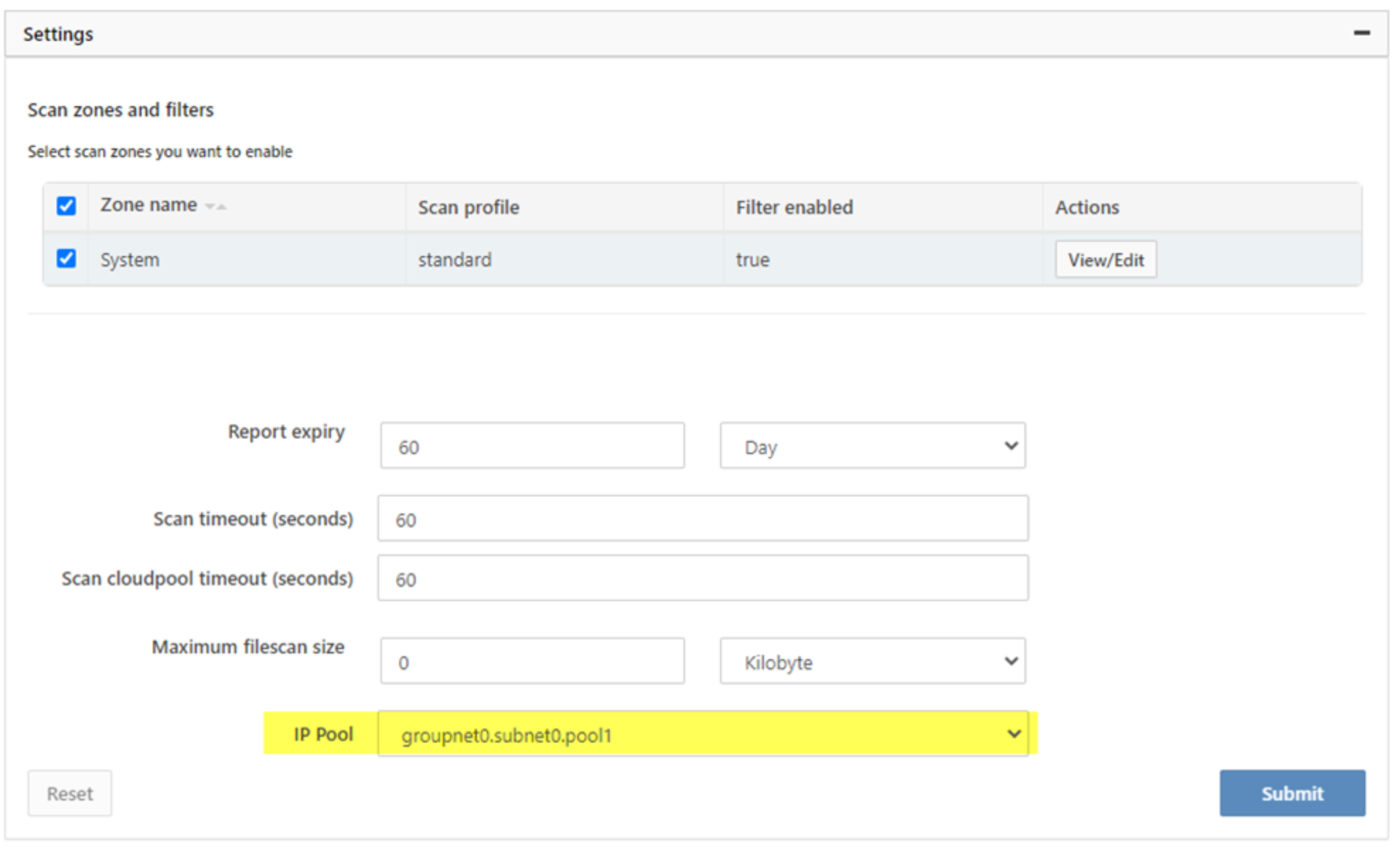
Figure 7. Associate IP pool with CAVA settings
Note: Be sure to create the DNS delegation for the zone name associated with the IP pool created in this step.
Create a dedicated multi-tenant access zone: AvVendor
Create an Active Directory authentication provider for AvVendor
Update role: AVVendor
Performance overview
Performance overview
Test environment
Scenario 1: Performance of scan on close
Test methodology
In this scenario, the client servers generate different sizes of files which are 10 KB, 100 KB, 1 MB, 10 MB, 100 MB, and 200 MB. From a PowerScale perspective, a standard scan profile is applied to ensure that the scan occurs when the file is closed. Regarding the detailed CAVA configuration on PowerScale, see the following profile:
vshen-p21evix-1# isi antivirus cava filters view System
Zone: System
Enabled: Yes
Open-on-fail: Yes
File Extensions: *
File Extension Action: include
Scan If No Extension: No
Exclude Paths: -
Scan-profile: standard
Scan-on-read: No
Scan-on-close: Yes
Scan-on-rename: Yes
Scan Cloudpool Files: No
Test results
Figure 8 shows how the number of files scanned per second changes along with the increase of the average file size. With the increased size of the files, the overall trend of the files scanned per second is decreased.
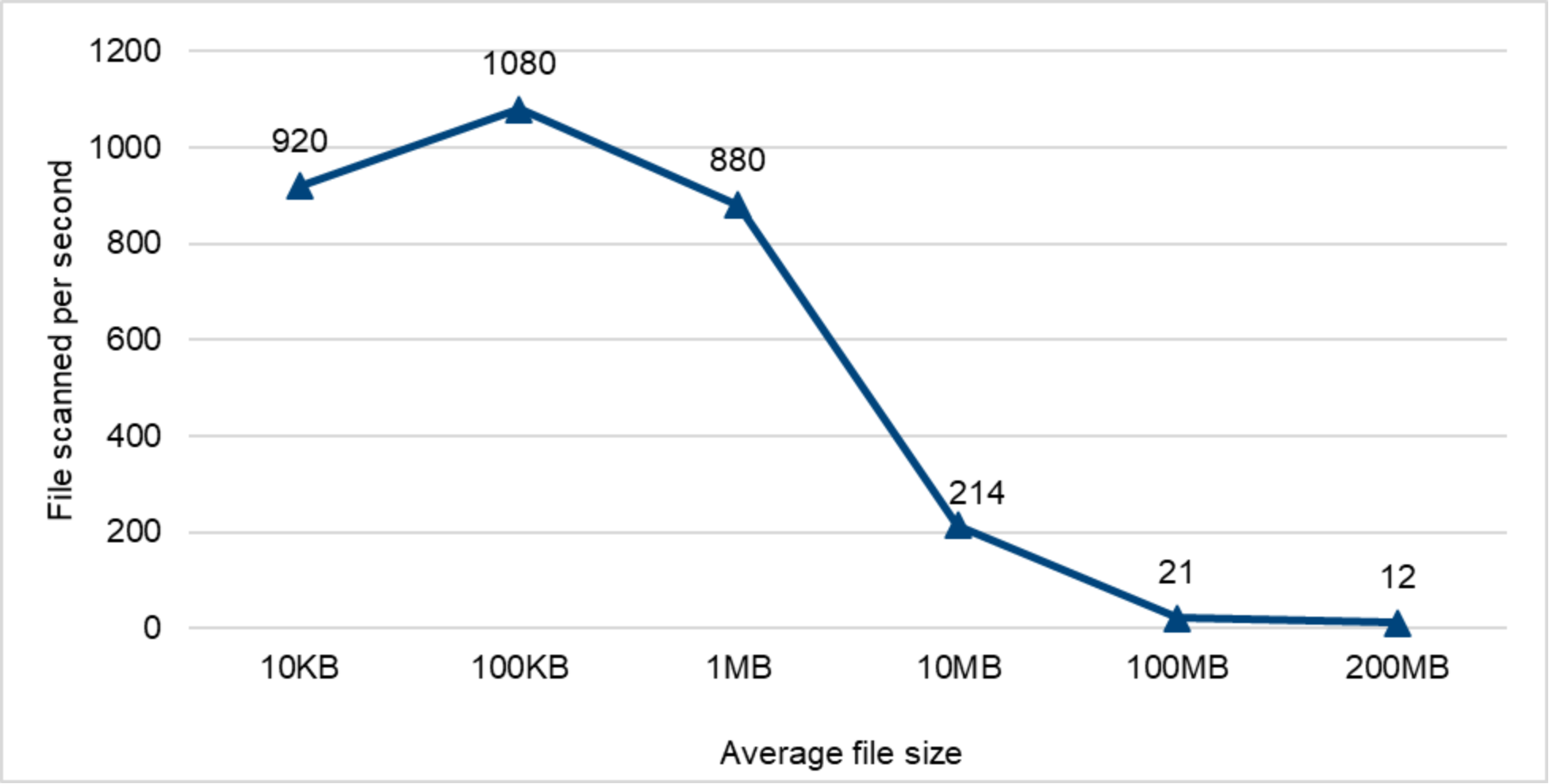
Figure 8. File scanned per second (scan-on-close)
Figure 9 shows the relationship between average file size and the scanning throughput. Theoretically, the results equal the files scanned per second times the average file size in each category. With the increase of file size, the scanning throughput increases. In this case, after it reaches 2 GB/sec, it goes flat.
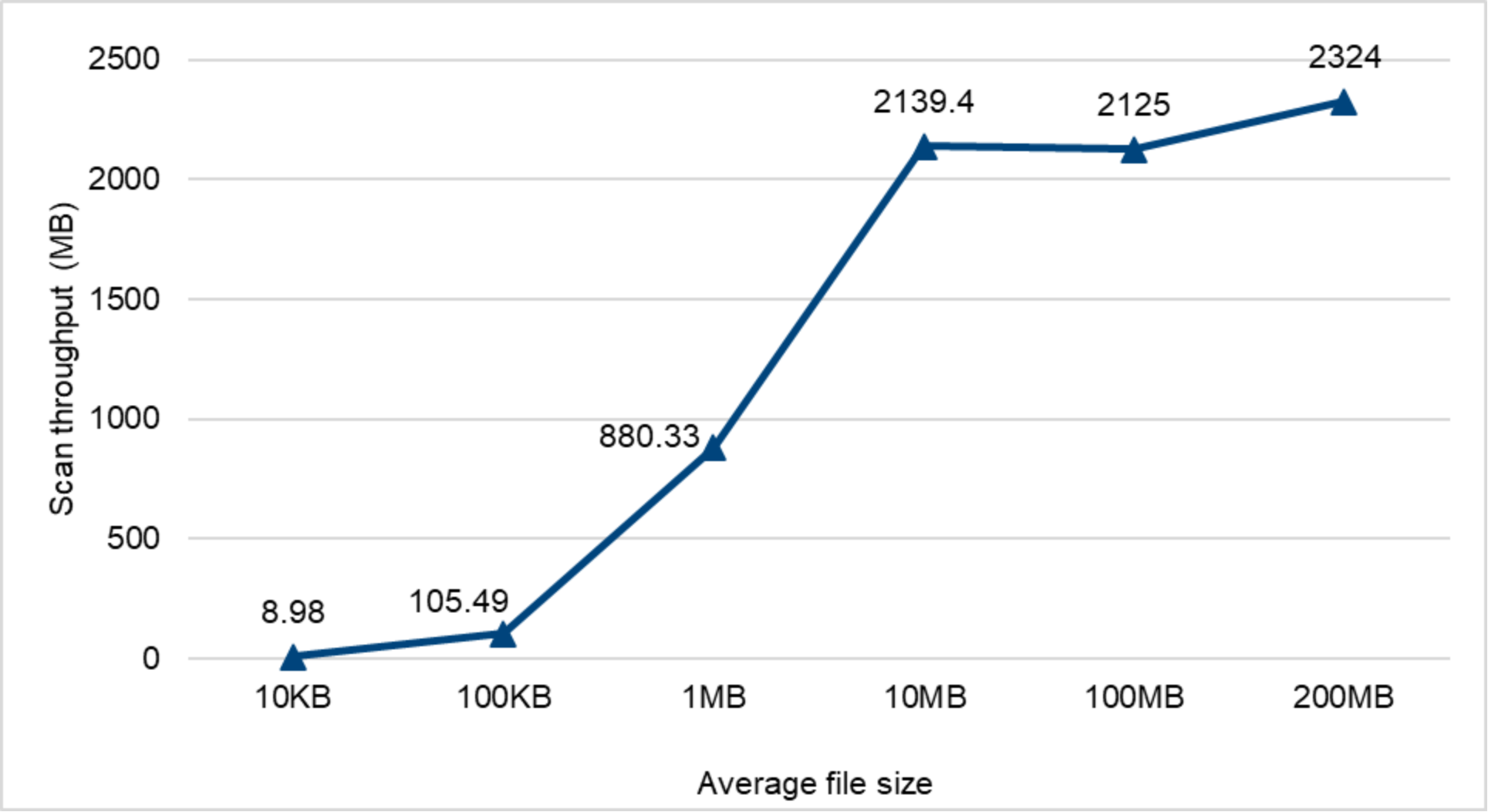
Figure 9. Scan throughput (scan-on-close)
The average CPU utilization on the PowerScale cluster is stable under 8% no matter the overall scan throughput or various average file sizes. For more details, see Figure 10.
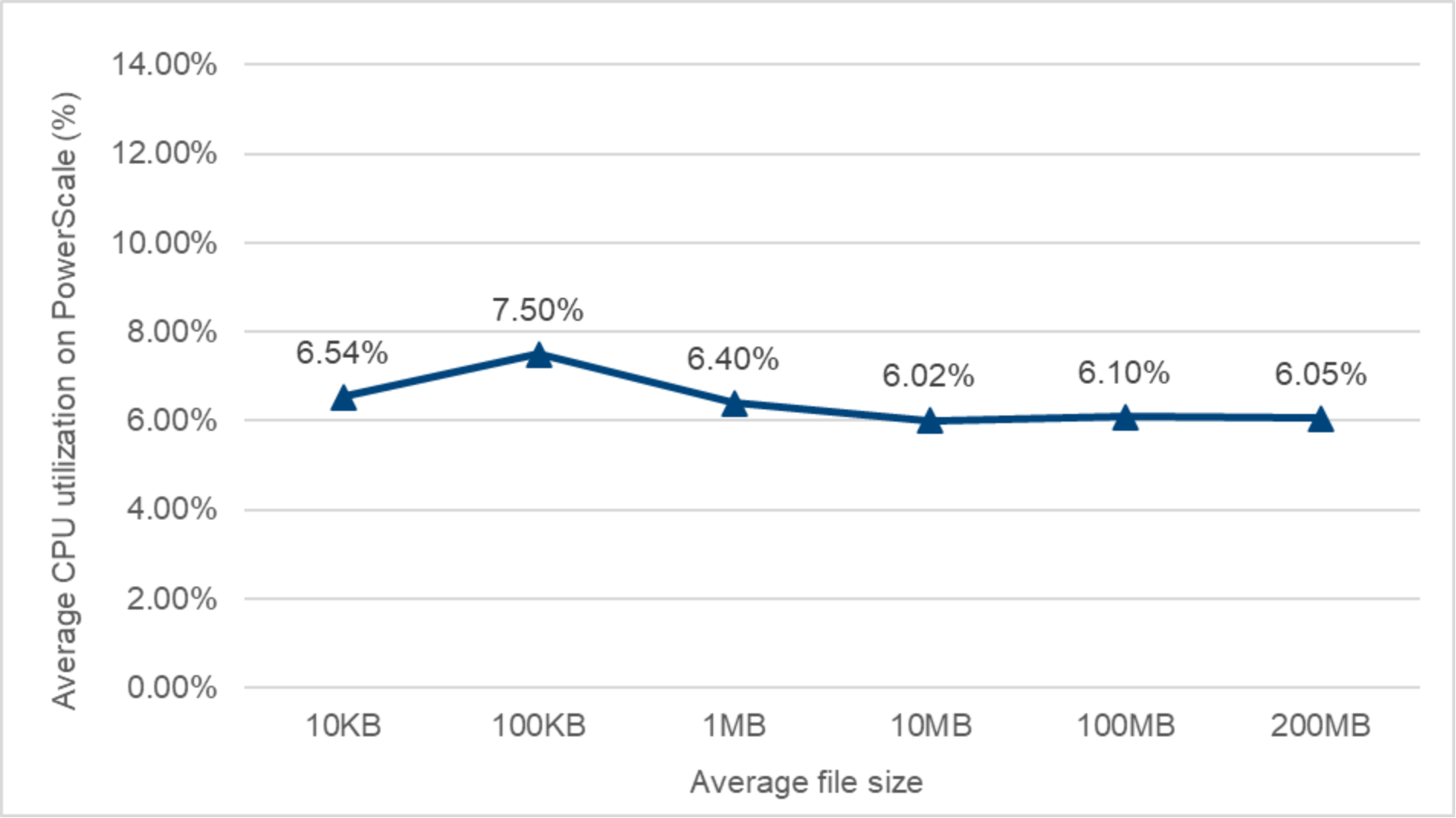
Figure 10. Average CPU utilization on PowerScale (scan-on-close)
Scenario 2: Performance of scan on read
Test methodology
In this scenario, the client servers generate read requests against the files which have been generated in Scenario 1. The CAVA strict profile is applied to ensure that scan-on-read is enabled. Regarding the detailed CAVA configuration on PowerScale, see the following profile:
vshen-p21evix-1# isi antivirus cava filters view System
Zone: System
Enabled: Yes
Open-on-fail: Yes
File Extensions: *
File Extension Action: include
Scan If No Extension: No
Exclude Paths: -
Scan-profile: strict
Scan-on-read: Yes
Scan-on-close: Yes
Scan-on-rename: Yes
Scan Cloudpool Files: No
Test results
Figure 11 illustrates how the number of files scanned per second changes along with the increase of the average file size. With the increased size of the files, the overall trend of the files scanned per second is decreased.
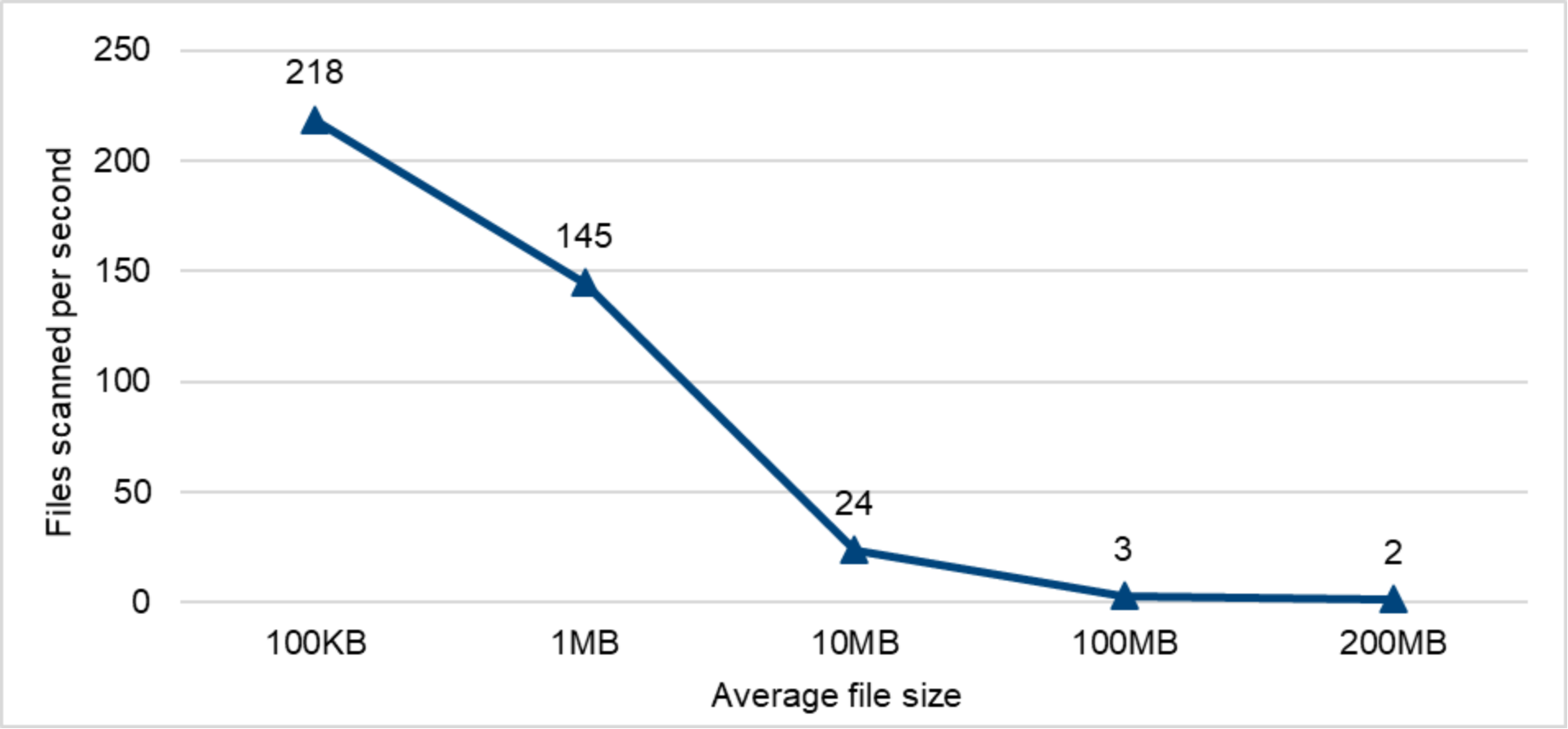
Figure 11. Files scanned per second (scan-on-read)
Figure 12 shows the relationship between the average file size and scanning throughput. Theoretically, the results equal the files scanned per second times the average file size in each category. With the increase of file size, the scanning throughput increases. In this case, after it reaches 300 MB/sec, it goes flat. Compared with the results in Scenario 1, it is obvious that the scan efficiency is much lower with scan on read. Scan-on-read can provide better protection against viruses, however, the scanning efficiency is lower than scan-on-close. We recommend carefully selecting the scan profile to match your business requirements and performance level.
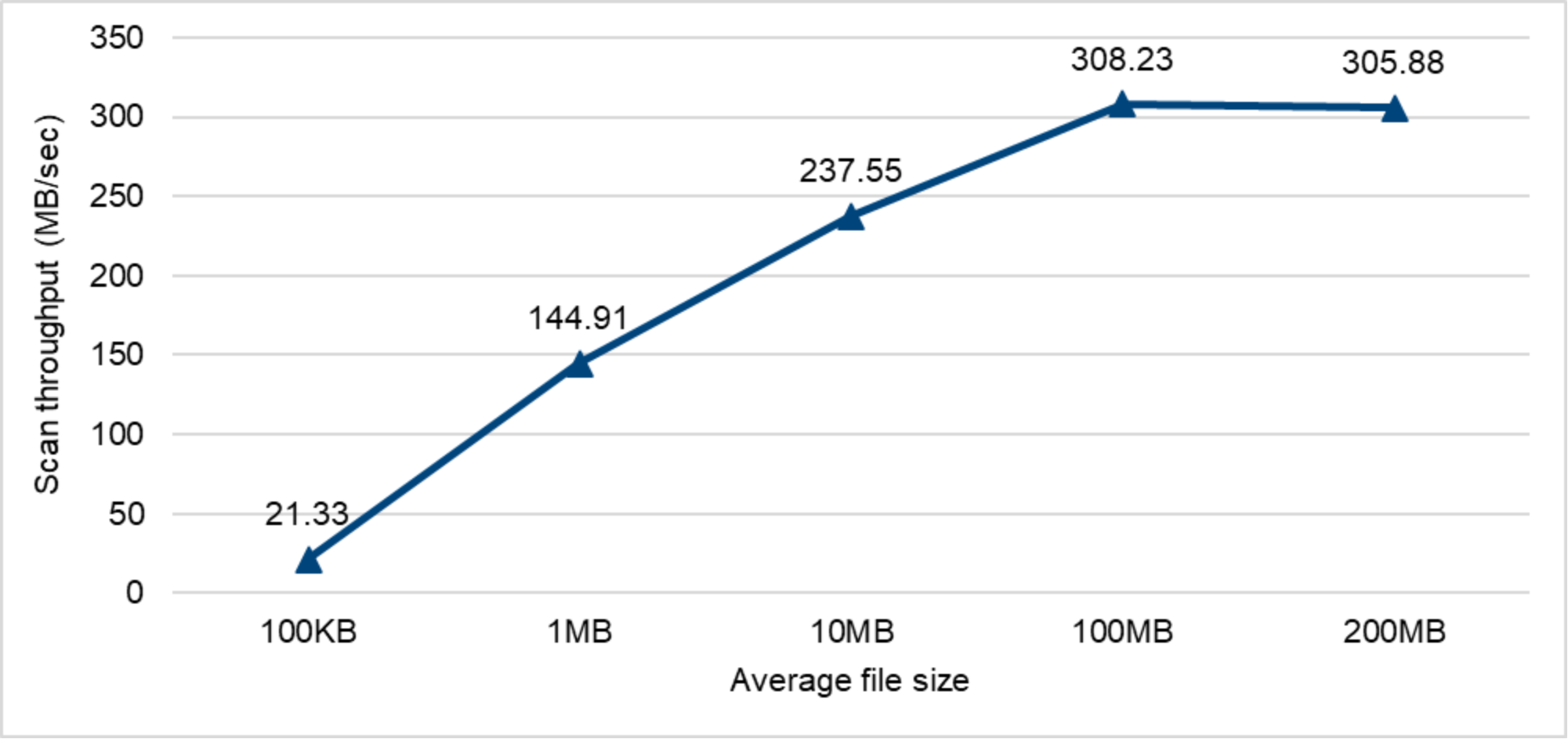
Figure 12. Scan throughput (scan-on-read)
The average CPU utilization on a PowerScale cluster is stable around 6% no matter the overall scan throughput or various average file size. For more details, see Figure 13.
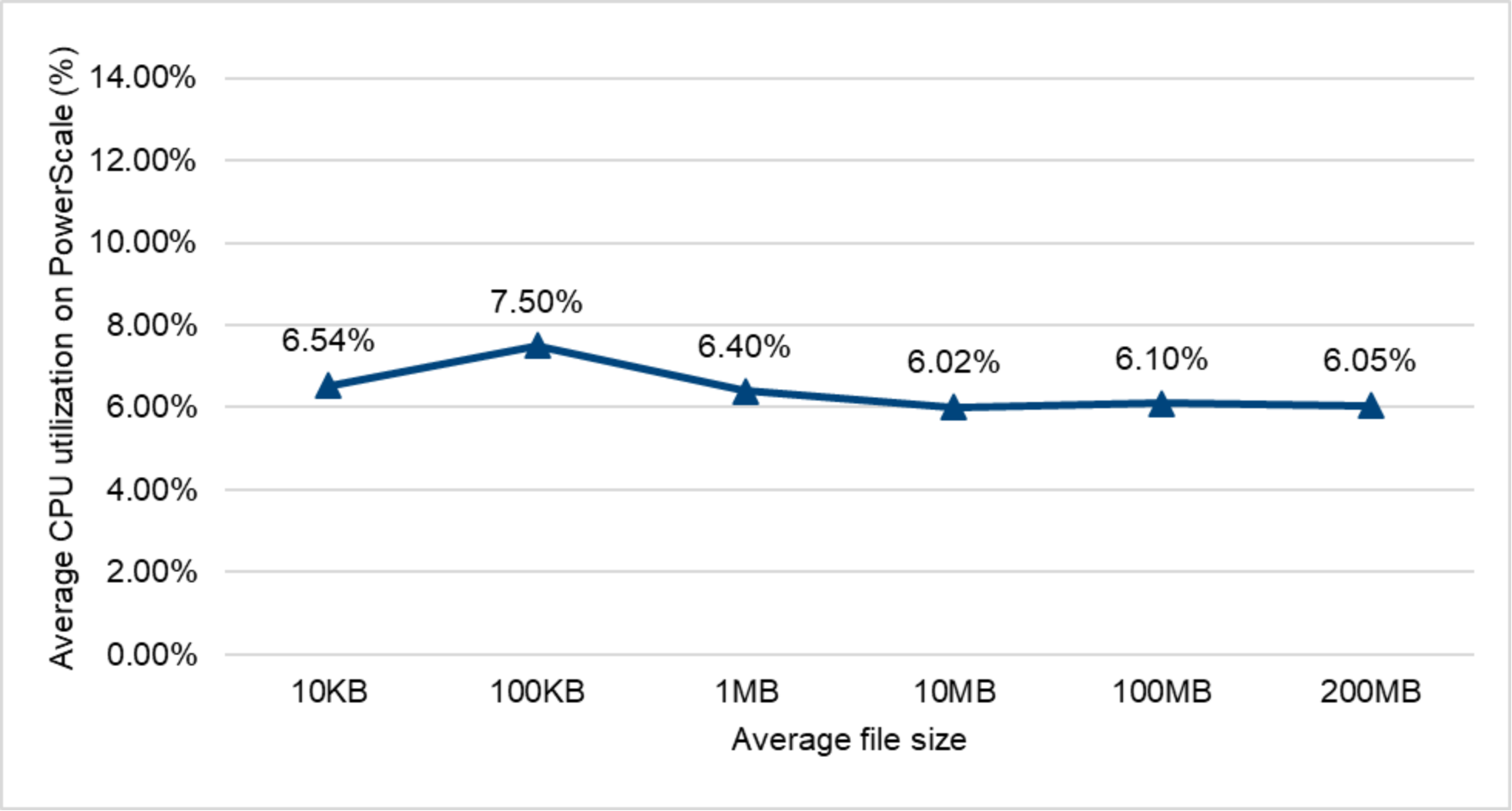
Figure 13. Average CPU utilization on PowerScale (scan-on-read)
Scenario 3: Performance impact on metadata read/write
Test methodology
In this scenario, we included the following subscenarios to better understand the performance impact from the CAVA workload:
- Baseline: There is no CAVA workload. The only workload running on the cluster is metadata intensive read and write.
- Path excluded: The path for the workload has been excluded from the CAVA configuration.
- Standard profile: Scan-on-close, scan-on-rename.
- Strict profile: Scan-on-close, scan-on-rename, scan-on-open.
Note: For comparison, all four subscenarios use the same requested operation rate that is configured in the workload benchmark tool.
Test results
Figure 14 shows the results of the achieved operations per second in the four subscenarios defined in the previous sections. The standard scanning profile, or if we exclude the workload path from the CAVA configuration, has almost no performance impact compared with the baseline result. The standard profile implements scan-on-close, which means that any file newly written or modified is submitted for virus scanning in the background after it is closed by the client. Scan-on-close is not synchronous in the host I/O path, and it slows down the incoming workload. In this case, the incoming workload proceeds unabated.
For the strict profile, the performance drops by 34%. This is because the strict profile adds scan-on-read. Any file not previously scanned, when opened for read by a client, is submitted for scanning at that time and it is synchronously in the host I/O path.
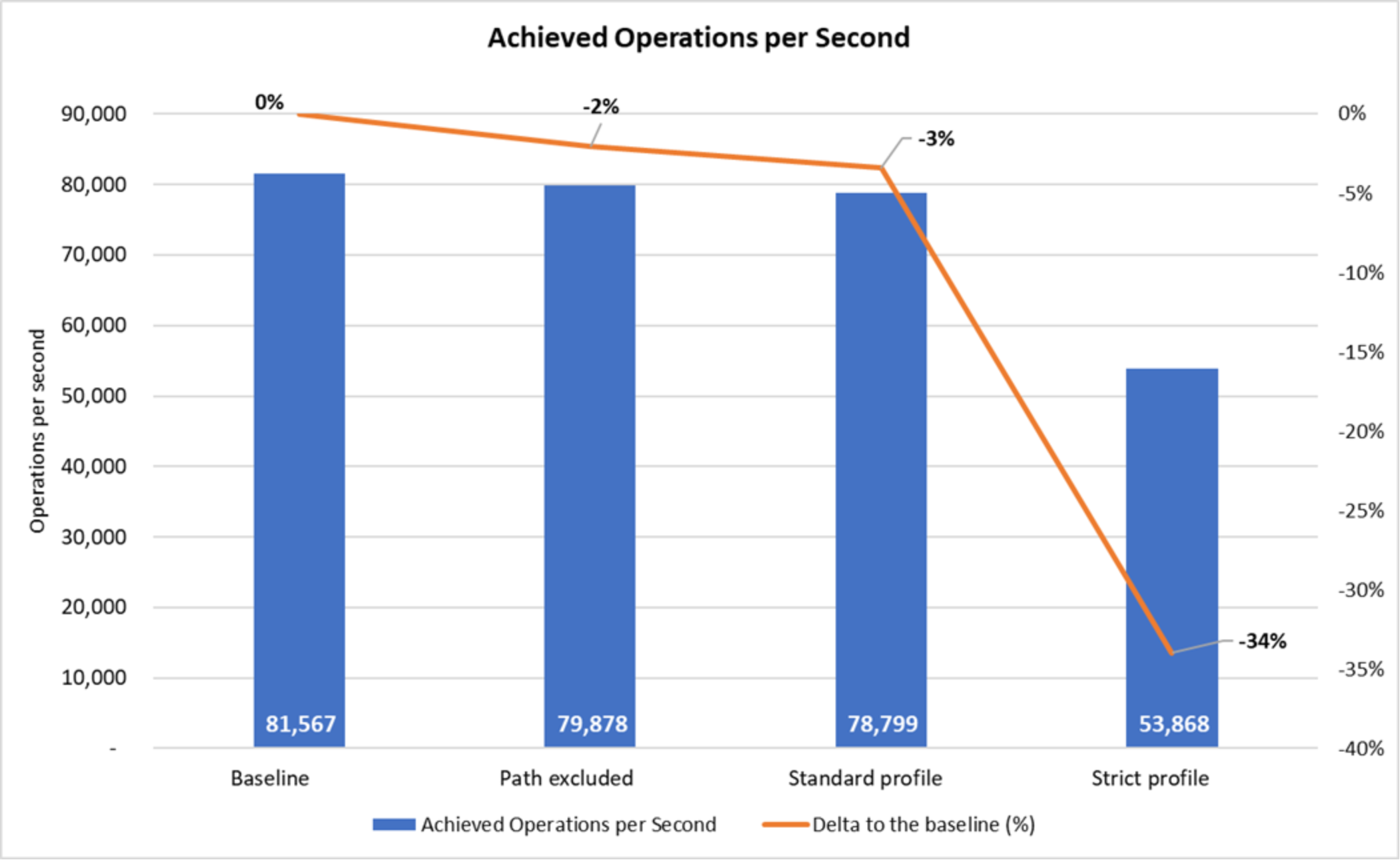
Figure 14. Achieved operations per second
Figure 15 shows the average latency in the four subscenarios defined in the previous sections. The standard scanning profile, or if we exclude the workload path from the CAVA configuration, has almost the same latency compared with the baseline. In the strict profile, the latency increases by 52%.
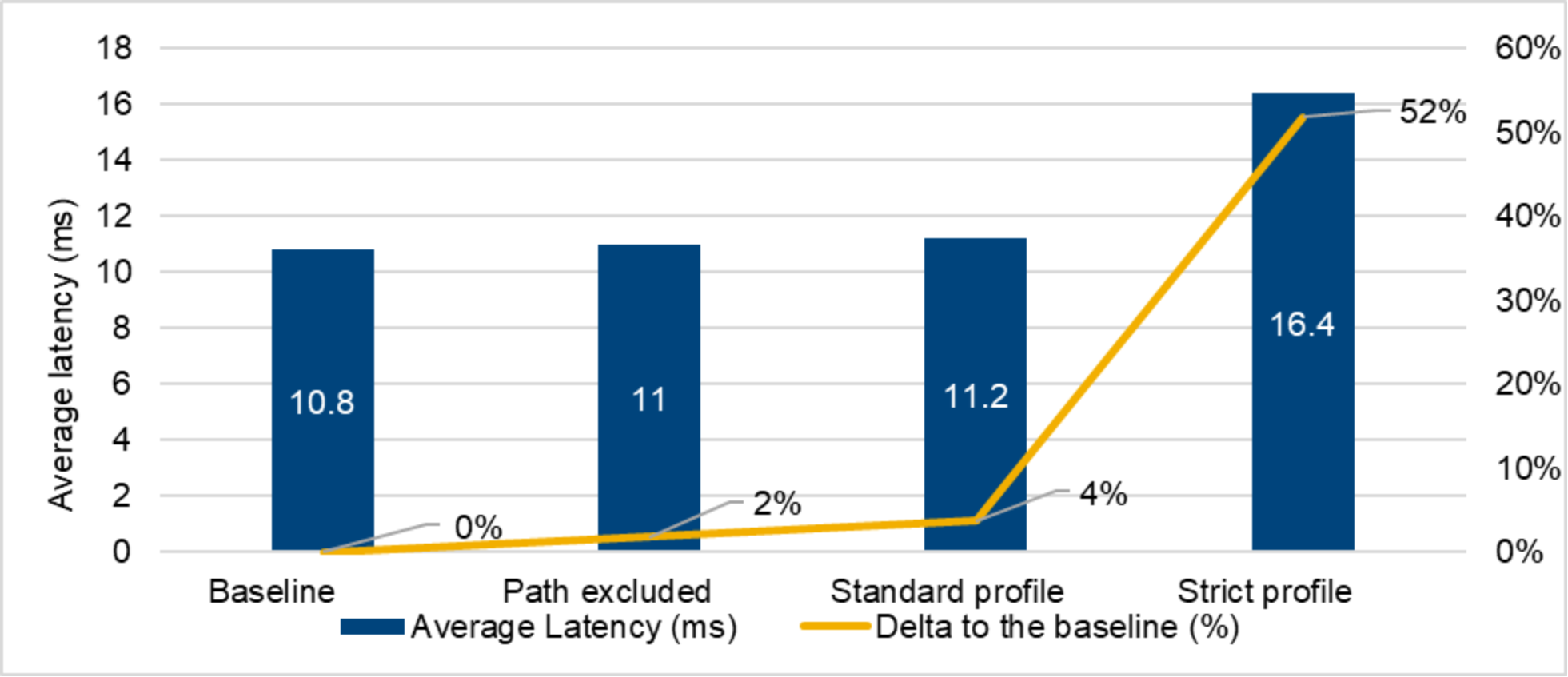
Figure 15. Average latency
Sizing
Overview
General best practices for sizing
Methodology 1
Methodology 1 only requires having the cluster node number as the known condition. The number of CAVA servers follows the following algorithm.

For example, in a 22 node PowerScale cluster, The number of CAVA servers is:

In this case, we need six CAVA servers.
Methodology 1 only provides an estimated calculation that is based on the total number of nodes as the known condition. This methodology suits both the on-demand scan and scheduled scan. For some scenarios where customers do not have details for the I/O pattern of their workflow, this methodology can be used for sizing.
Methodology 2
Methodology 2 is much more granular than Methodology 1 because it accounts for the various workloads. This methodology only applies to the on-demand scan due to the sizing and because expected performance can vary based on different job performance impact levels.
The assumption for this methodology is as follows:
Typical antivirus scan roundtrip time (RTT) for each CAVA connection = 40ms
The known condition for this methodology is as follows:
Define the total number of the requests per second which will trigger the on demand scan as R
Maximum connections per CAVA servers=20
The algorithm is as follows:



In the following example, the scan profile is standard, the SMB close requests are 1,000 operations per second, and the SMB rename requests are 200 operations per second. The number of CAVA servers required is as follows:
Minimum number of CAVA servers required=(1000+200)/500=1200/500=2.4≈3

General considerations
NANON considerations
CloudPools considerations
The CAVA configuration in OneFS supports scanning files in CloudPools. By default, scanning of CloudPools files is disabled to prevent the unexpected cost of file callback. To enable this setting, go to the scan zones settings in the CAVA configuration tab. Figure 16 shows the details.
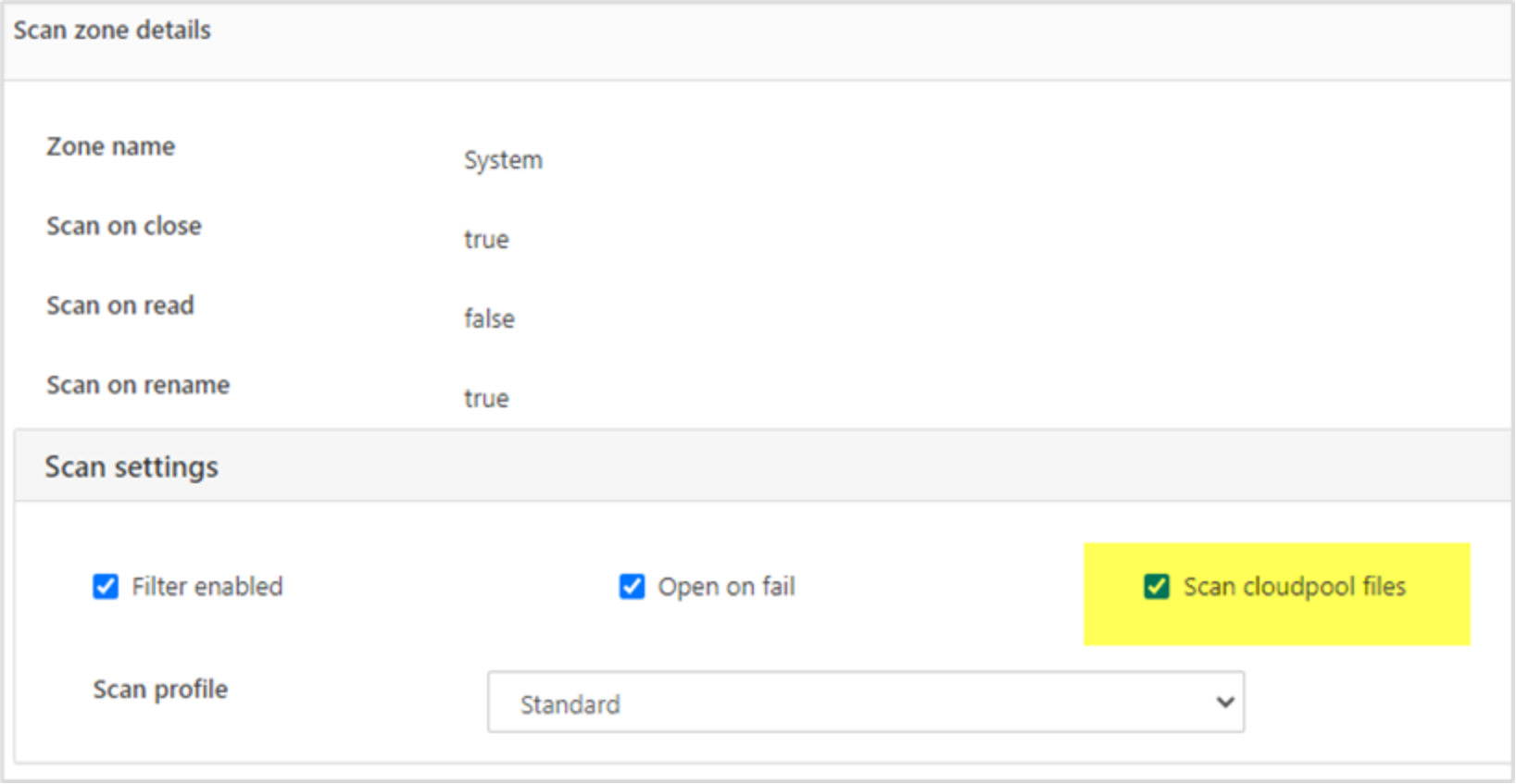
Figure 16. Enable scanning CloudPools files
OneFS has a separate, configurable scan timeout for CloudPools files, because scanning a CloudPools stub file may take more time than a regular on cluster file. To configure the timeout value for scanning CloudPools files, go to the settings section under the CAVA configuration tab. See Figure 17 for details.
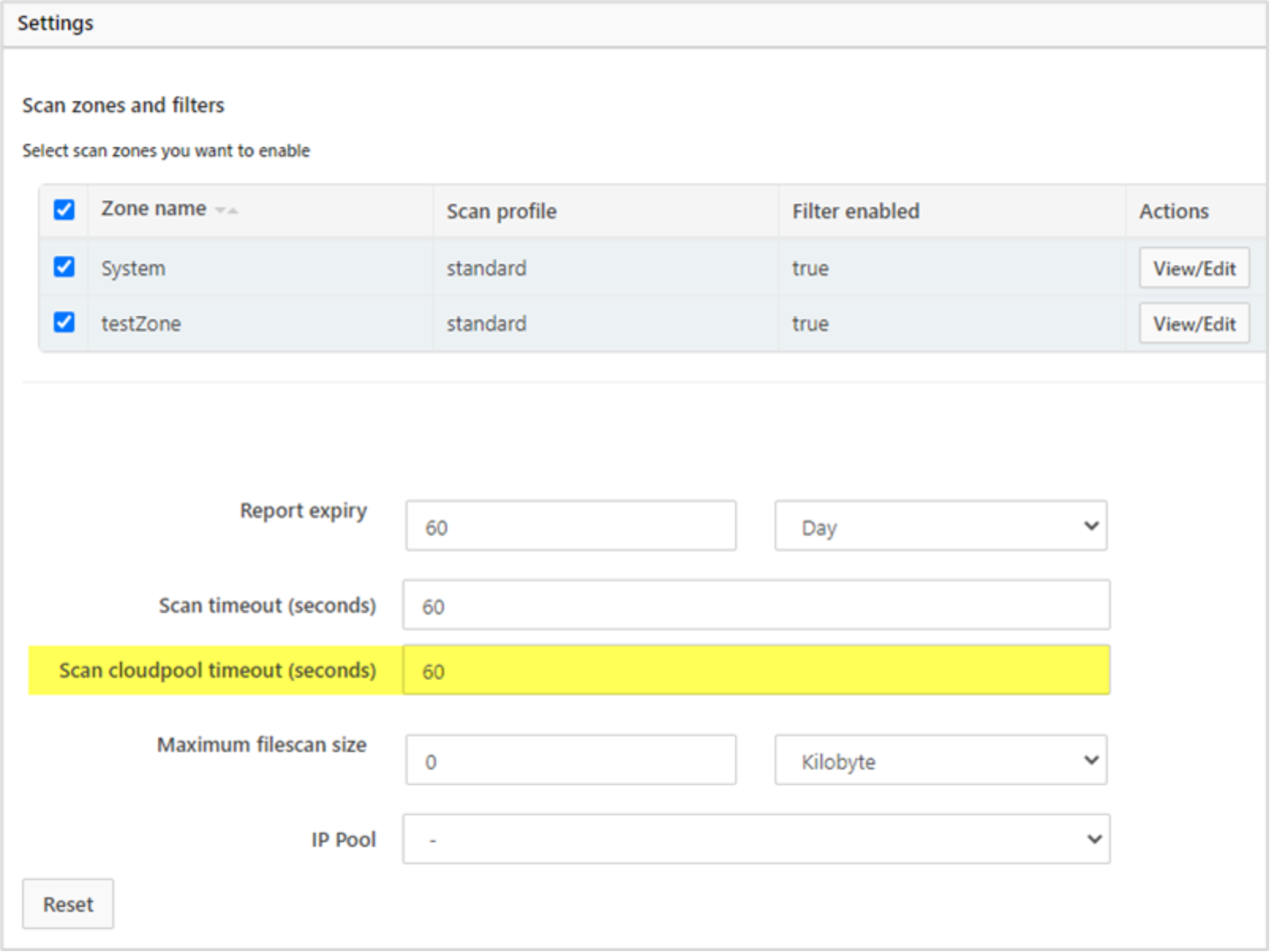
Figure 17. Configure timeout value for scanning CloudPools files
When the stub file is read in the kernel level, CloudPools fetches the file content and stores the data in the BCM cache. Because the anti-virus application is the first SMB client to read from the file, it triggers the file-block fetches.
For the scheduled scan, OneFS bypasses the BCM cache because it would continuously overflow the BCM cache, making it worthless. For the on-demand scan or manual scan, the BCM cache would not overflow as often, and the subsequent SMB client read would result in a cache hit.
SyncIQ considerations
Anti-virus vendor considerations
Troubleshooting
Troubleshooting
All CAVA Servers Offline
CEE or DTD Version shows as 0.0.0.0
This situation often means that the cluster cannot contact any CEE server at all. This could be due to a firewall blocking the TCP connection on port 12228 or it could be that the CAVA service is not running.
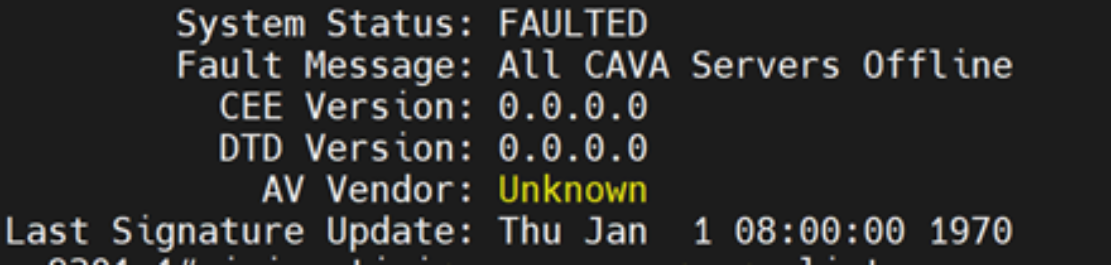
Figure 18. All CAVA servers offline
CAVA listens on TCP port 12228 for incoming requests from clients. Use the following methods to check the connectivity.
Use Telnet
From a cluster node that has an IP address in the network pool assigned previously, run the following telnet command to try to connect to the CAVA server:
telnet <CAVA_IP> 12228
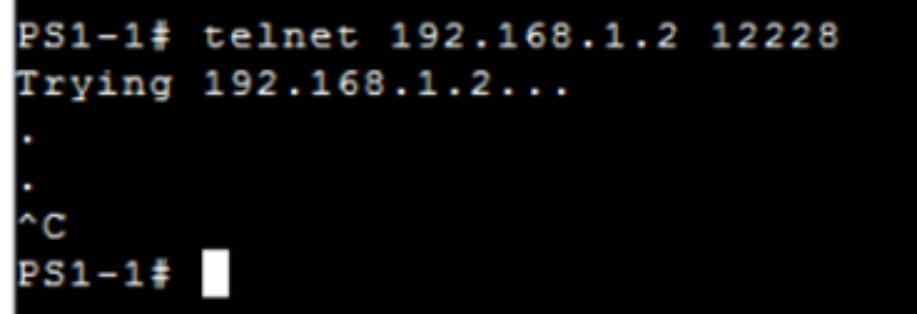
Figure 19. Use telnet to test connectivity
Enter any character such as the ‘.’ (period) and press enter. If there is no response, the port may be blocked by a firewall, or the CAVA service may not be running.
A listening CAVA server should respond in a manner similar to the following:
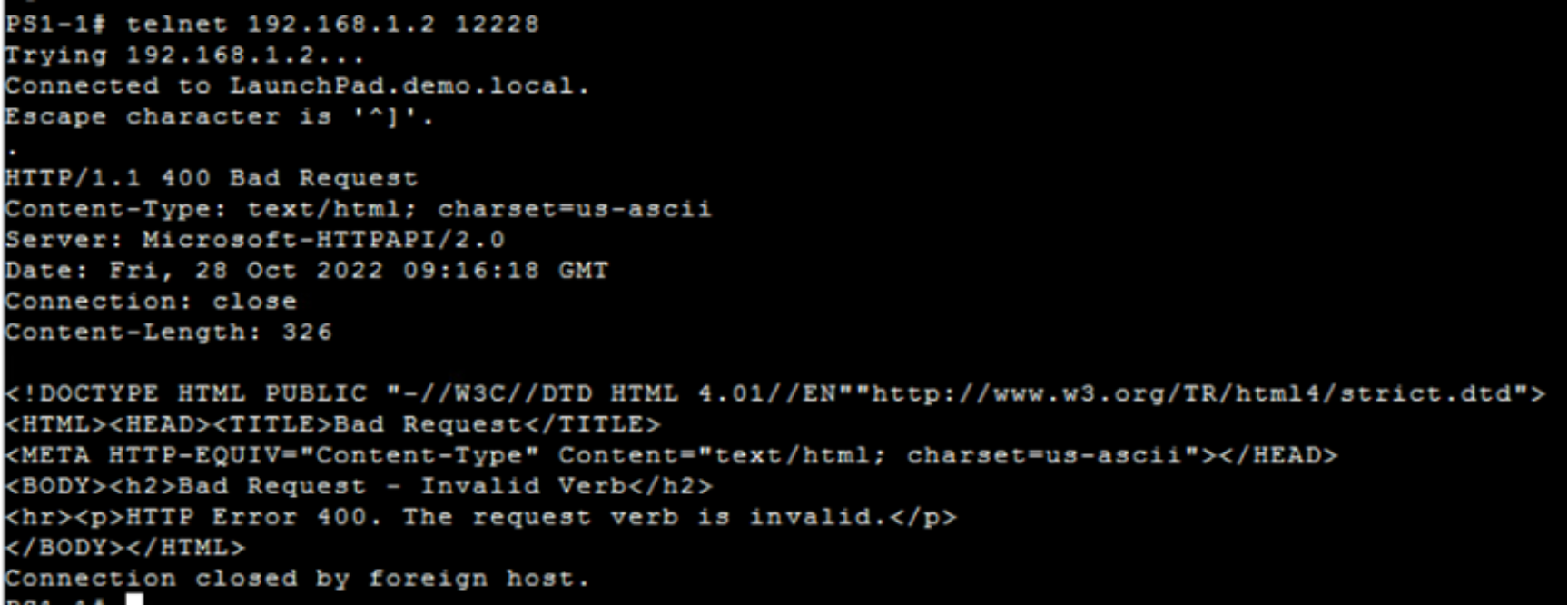
Figure 20. Normal response from CAVA server
Use Python
If telnet is not available and Python is available, the following short script can also test for an open port:
python -c "x='<CAVA_IP>'; from socket import *; import sys; s=socket(AF_INET,SOCK_STREAM); s.settimeout(2); s.connect((x,12228)); sys.stdout.write('CAVA port is open\n')"
An open port will print “CAVA port is open”:

Figure 21. Output for an open port
A closed port will return a socket.timeout error:

Figure 22. Output for a closed port
If port 12228 is unreachable, check firewall settings in the network between the cluster and the CAVA server. Use the traceroute command to see all the hops in the network path to the CAVA server.
CEE and DTD Version shows a correct value
In this case, the cluster can contact a CEE server and can receive the CEE and DTD versions from the CAVA server.
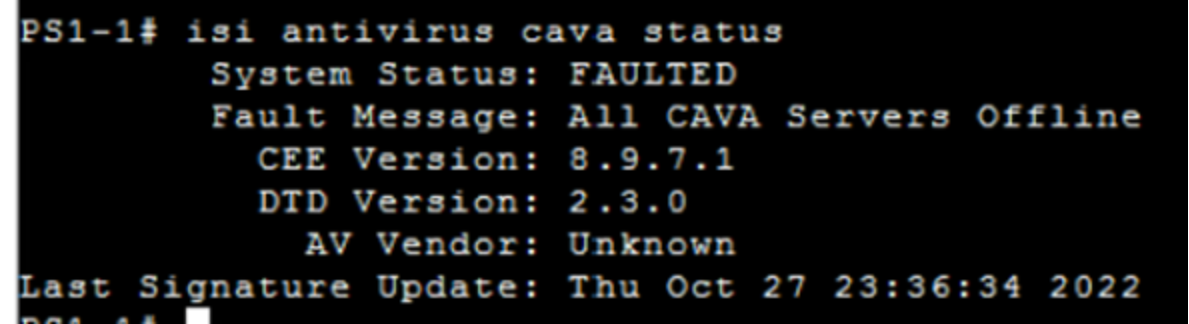
Figure 23. DTD and CEE versions show the correct versions
This validates that PowerScale can send heartbeat messages to CAVA and get responses back. This means that there are no firewall ports in the path and that the CAVA service is at least installed and responding to port 12228.
There are several issues that could be potential issues in this situation.
- CAVA service is using the Local System account.
- CAVA service user account does not have local administrator rights to the scan server.
- Service user account does not have the proper permissions on the PowerScale cluster.
CAVA service is using the Local System account
Double check that the service is using a user account and that the password is correct.
CAVA service user account does not have local administrator rights to the scan server
On the Windows server, verify that the user is in the local administrator group. On a Domain Controller, the user normally needs to be in the Domain Administrators group.
You can detect this case by looking into the Event viewer and seeing an entry similar to the following:
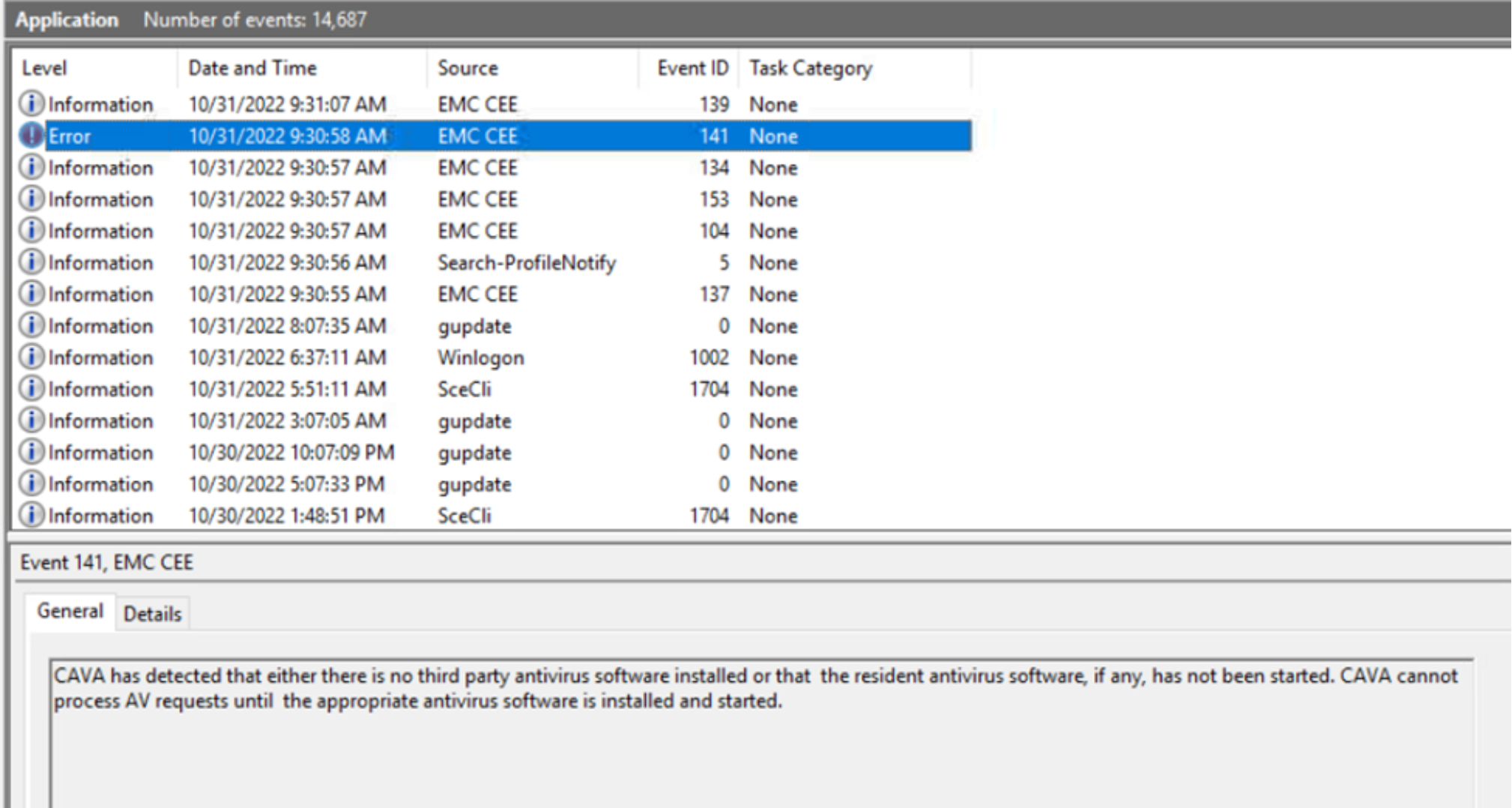
Figure 24. Missing local administrator rights
CAVA service user account does not have the proper permissions on the PowerScale cluster
Use the following CLI command to verify that the Service user account is in the AvVendor role:
# isi auth roles members list AvVendor –zone=AvVendor
Manual scans and copying files do not trigger an actual scan
Debug CAVA
To debug CAVA directly:
- Install DebugView from Sysinternals.
- CAVA needs to be configured to output debug messages. This requires adding some keys into the registry. Start by opening up the Registry Editor and navigating to: HKEY_LOCAL_MACHINE\SOFTWARE\EMC\CEE\Configuration. Modify the Debug and Verbose keys and set them to 0x3F.
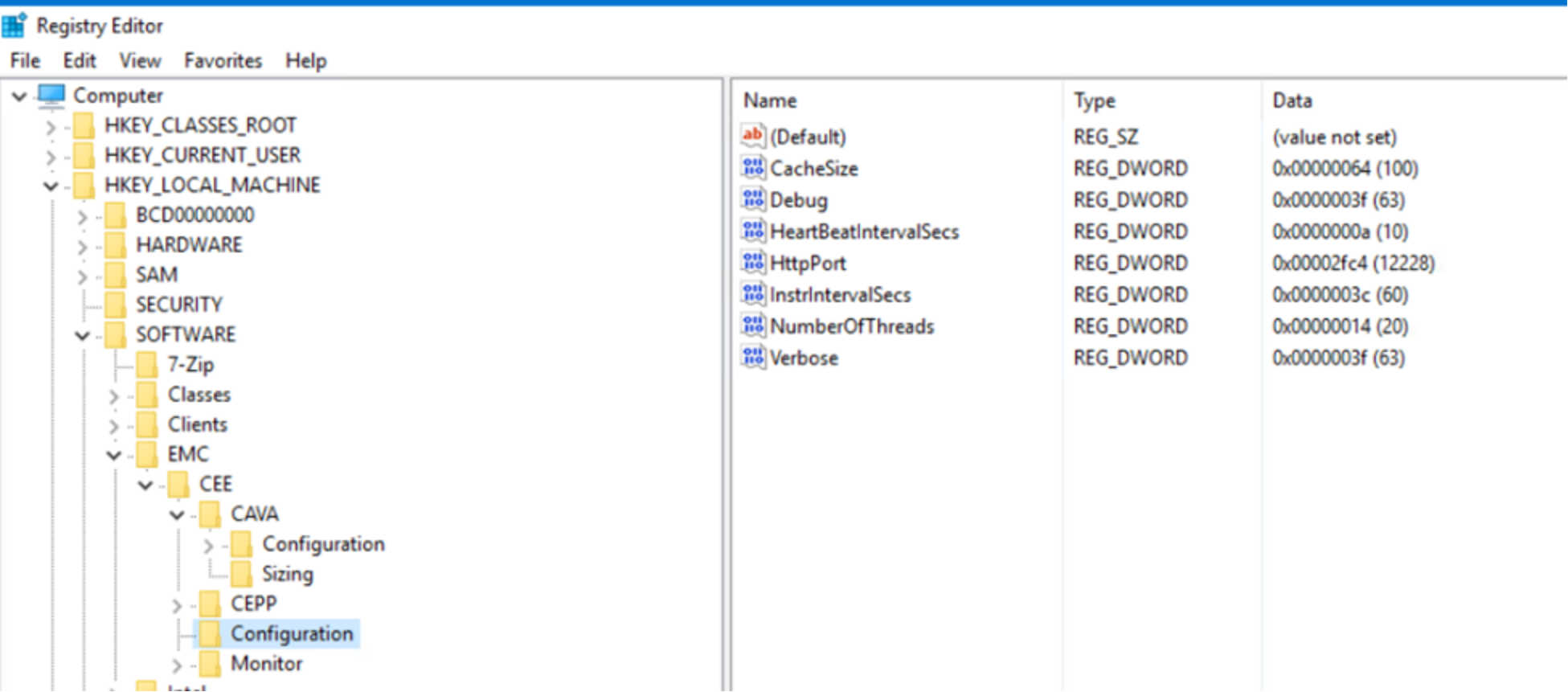
Figure 25. Enable debug and verbose log for the CAVA service
- Use the services.msc to restart both the CAVA service and the CEE Monitor service.
- DebugView will allow you to view debug messages coming from CAVA itself. DebugView does not need to be installed, it runs as a standalone executable. The program should be run with Administrator rights.
- Run the executable for DebugView that matches your OS. For most cases, you will want to use dbgview64.exe.
- Under the Capture menu item, make sure that the following items are checked:
- Capture Win32
- Capture Global Win32
- Capture Events
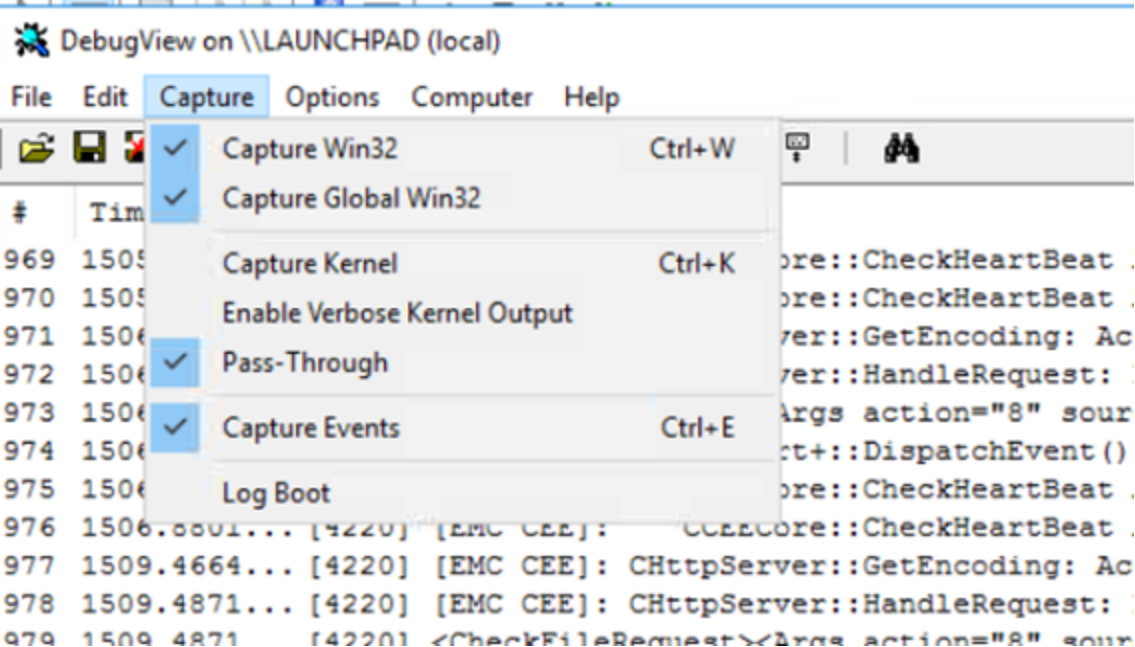
Figure 26. DebugView
- You should now see the events showing up in the capture window.
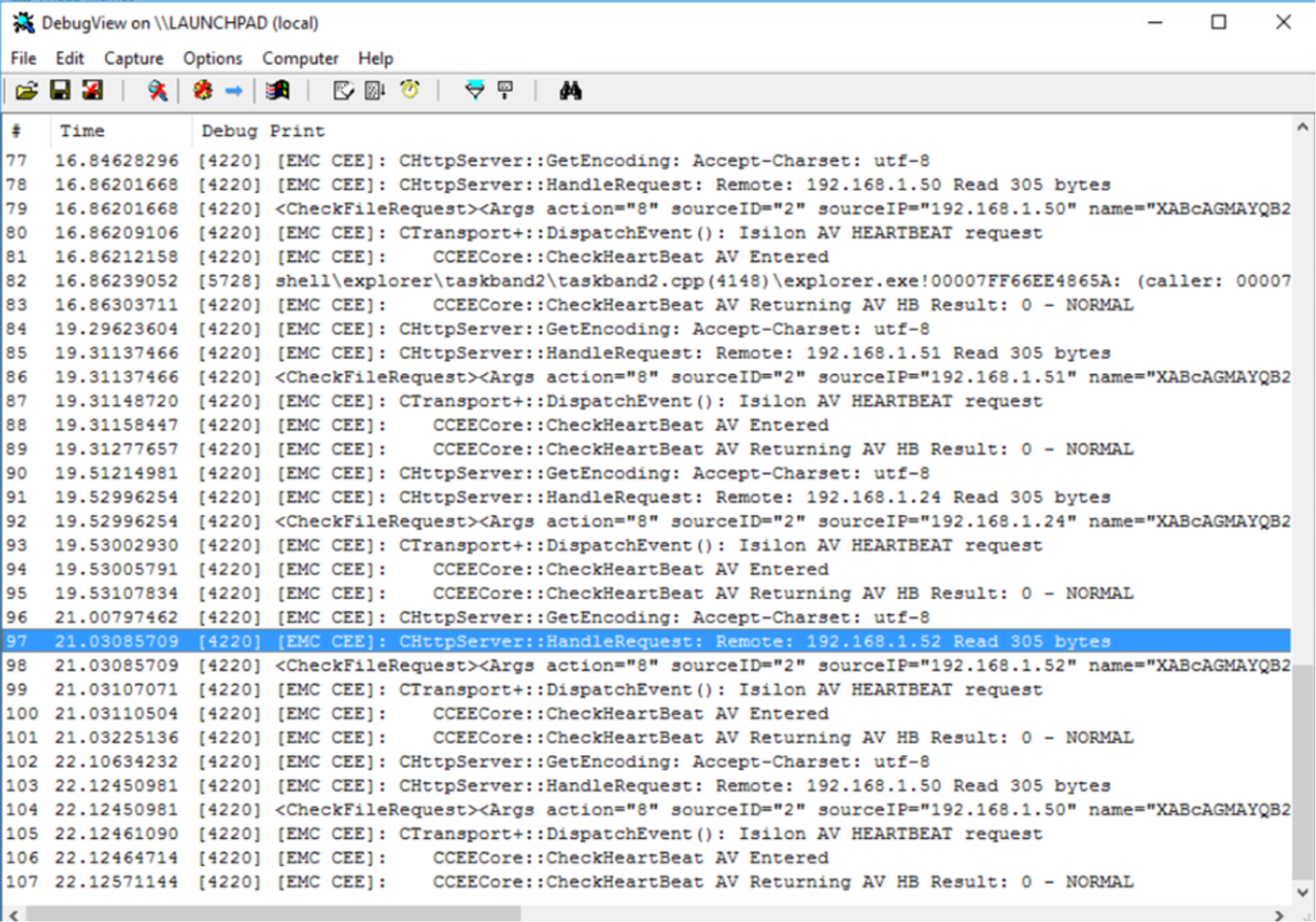
Figure 27. Captures in DebugView
A detailed explanation of how to read CEE debug logs is out of scope for this document. However, just retrying an operation that is failing, such as a scan request, and looking through the messages for any obvious errors can be very helpful in pinpointing where the AV scan process is failing.
Here are some tips for looking through the CAVA logs.
- Save the log to a text file to be able to look at the full log messages using File -> Save As
- You should see CheckHeartBeat return back NORMAL results
- Actual scan requests have a tag that starts with <Args action= "7"
- You can look at the CheckFileRequest message and decode the name fields. The fields are Base64 encoded. Simply copy the text string and use a Base64 decoder (https://www.base64decode.org/) and interpret the output as UTF-16LE. For example:
XABcAGMAYQB2AGEALgBwAHMAMQAuAGQAZQBtAG8ALgBsAG8AYwBhAGwAXABDAEgARQBDAEsAJABcAFQAaABpAHMASQBzAEEAUwBhAG0AcABsAGUARgBpAGwAZQAuAGUAeABlAA==
Decodes to:
\\cava.ps1.demo.local\CHECK$\ThisIsASampleFile.exe
To turn off debug, change the Debug and Verbose values in the registry back to 0 and restart the services.
Appendix A – Configure OneFS CAVA Service with Microsoft Windows Defender
Install Common Event Enabler (CEE)
To install CEE:
- In the Drivers & Downloads page of Common Event Enabler, select the most recent CEE version for Windows and click the download button:
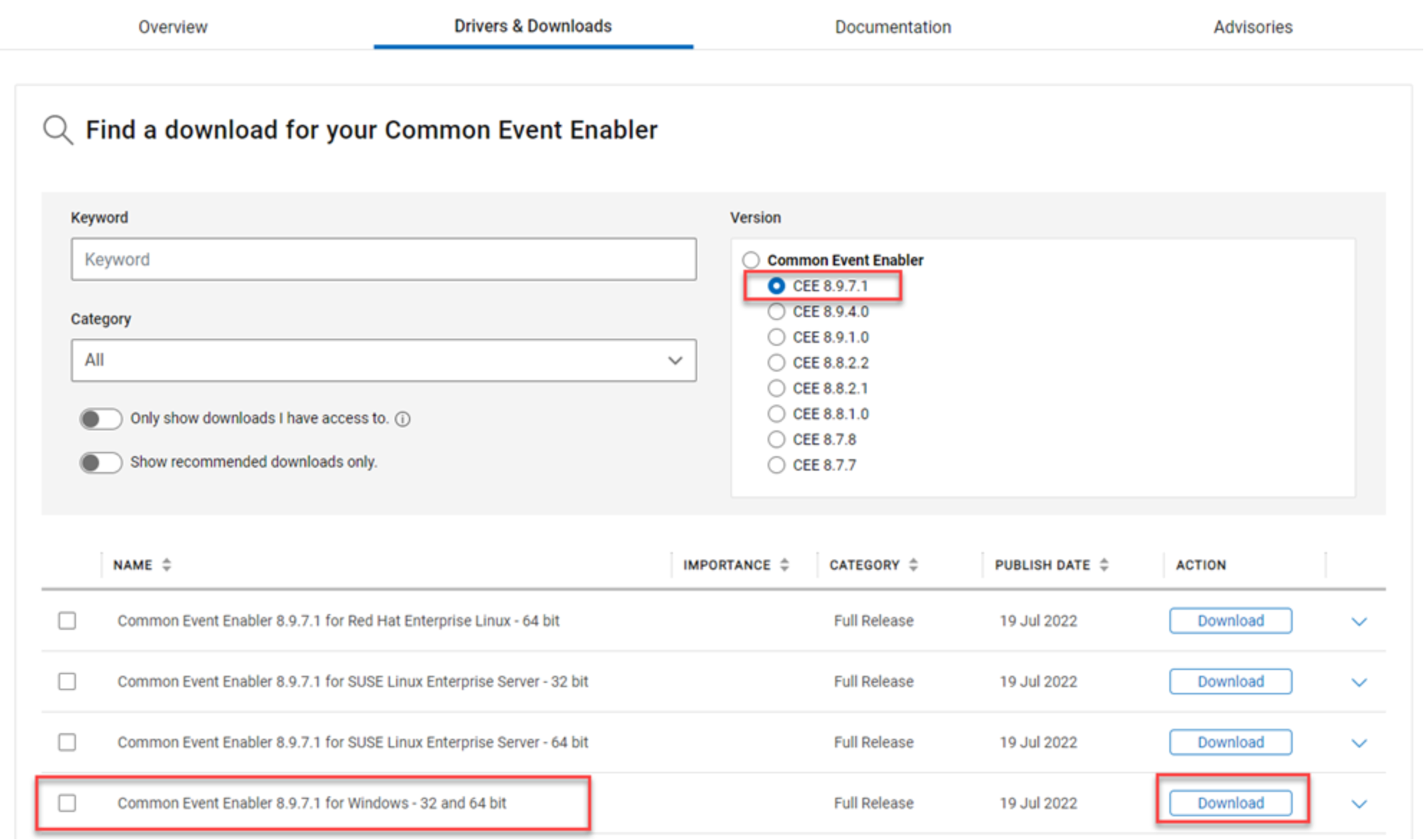
Figure 28. Download the Windows version of CEE
- After downloading, mount the DVD image by double-clicking the file – EMC_CEE_Pack_8_7_1.iso and it will automount as a DVD.
- Install the 64 bit or 32 bit version of CEE as required.
- Restart the server to complete the installation process.
- After restarting the server, open Event Viewer and navigate to Windows Logs -> Application. Verify that CEE is running by looking for the following four events:
Table 8. Events
|
Event source |
Event ID |
Event description |
|
CEE |
142 |
CAVA has detected that the resident Microsoft Antivirus is running. |
|
CEE |
134 |
The EMC CAVA service, version 8.9.7.1, was successfully started. |
|
CEE |
139 |
CAVA has detected that the Driver Agent is running. |
|
CEE Monitor |
0 |
Service started successfully. |
Configure a service account for the CAVA service
When CAVA performs a scan, it does so under the credentials of the service account of the CAVA service. By default, the service account is the Local System account. This account does not exist on the PowerScale cluster. Use the following steps to change the service account to either a user in the Domain or a local user on the PowerScale cluster being scanned.
- In the Windows machine on which CEE has been installed, run the following command:
services.msc
- Find the service - EMC CAVA, open the properties dialog, select the Log On tab at the top, and modify the service to use a specific account. This account that is specified is required to be a member of the Local Administrators group. This is required to allow CAVA to scan the system process list to find the AV engine process.
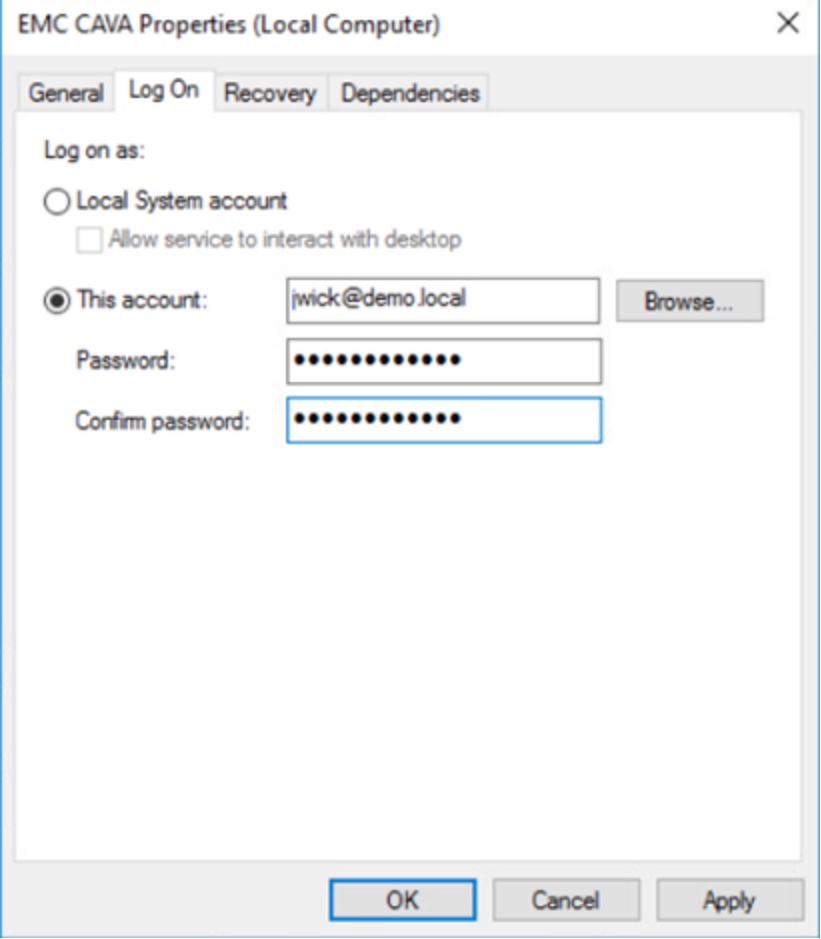
Figure 29. Change the service account
Note: It is not recommended to use a domain controller as a CAVA scan server. To gain the ability to scan the process list, you need to add a user to the Domain Admins group which gives them much higher privileges than required to perform an AV scan.
Verify that real-time protection is enabled in Windows Defender
In order for CAVA to perform an on demand scan, the Real-time protection option for Windows Defender must be enabled. You can reach this setting by selecting Windows Settings and then the Windows Defender configuration page:
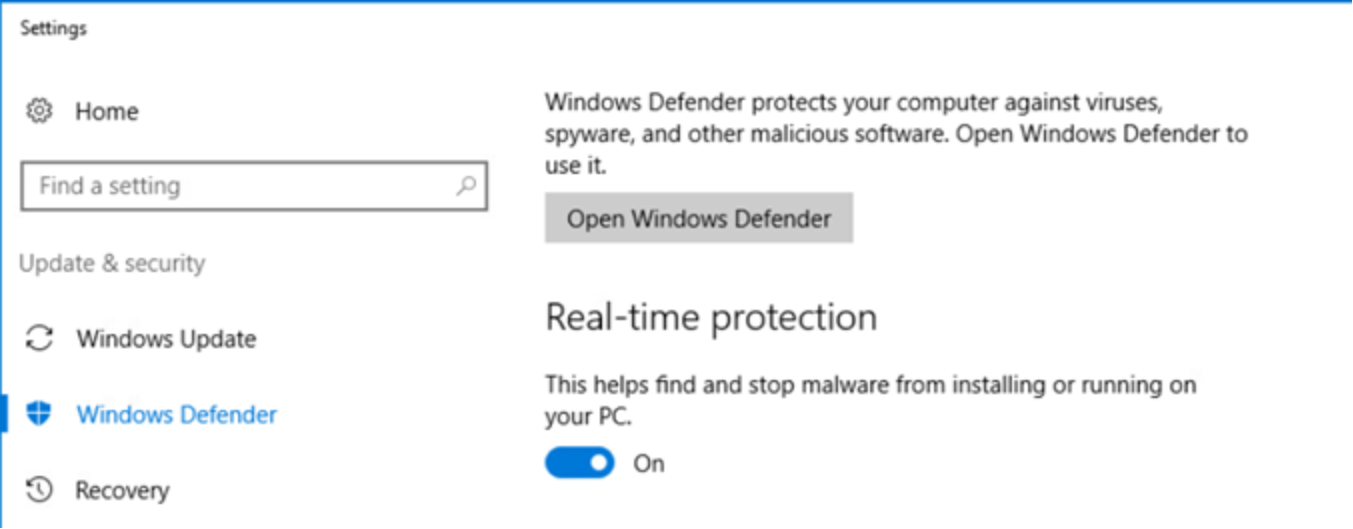
Figure 30. Enable real-time protection for Windows Defender
CAVA configuration in OneFS
Testing and verification
Testing to see if AV scanning is working can be done very simply by using the industry approved EICAR test file. This file is a simple text string that is a valid Windows executable and that all AV vendors will recognize as a virus for test purposes.
- Download the EICAR file and put it under /ifs.
- Initiate a manual scan of the file:
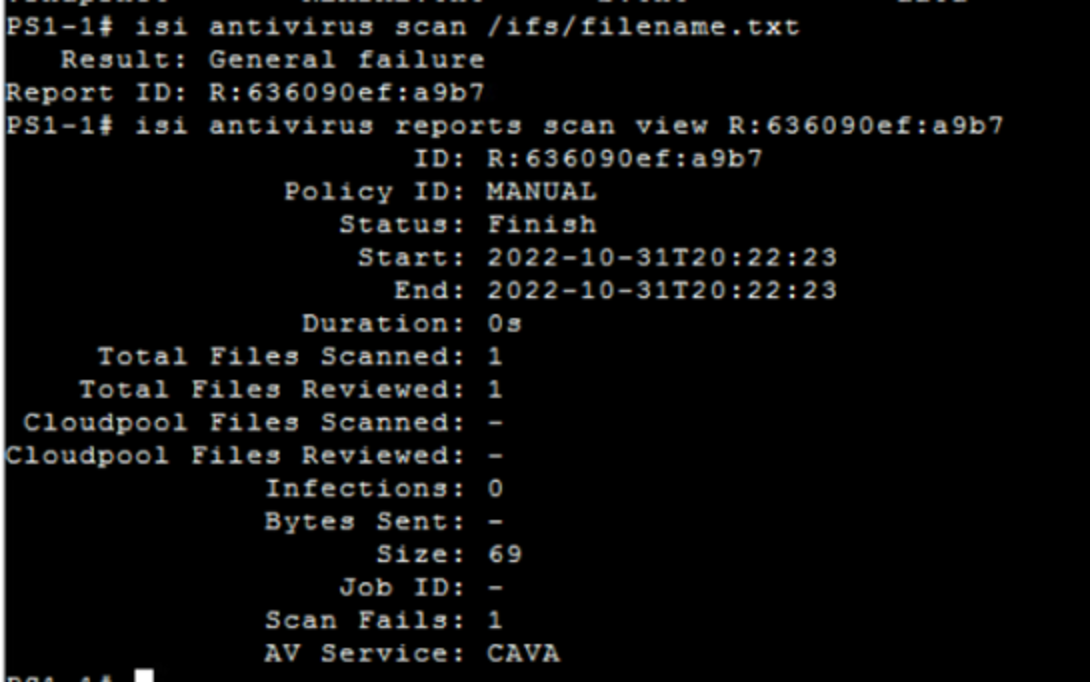
Figure 31. Manual scan
Open Event Viewer in Windows, then navigate to Applications and Services Logs, Microsoft, Windows, Windows Defender, and Operational. The following warning message indicates that the CAVA anti-virus software has detected this EICAR testing virus.
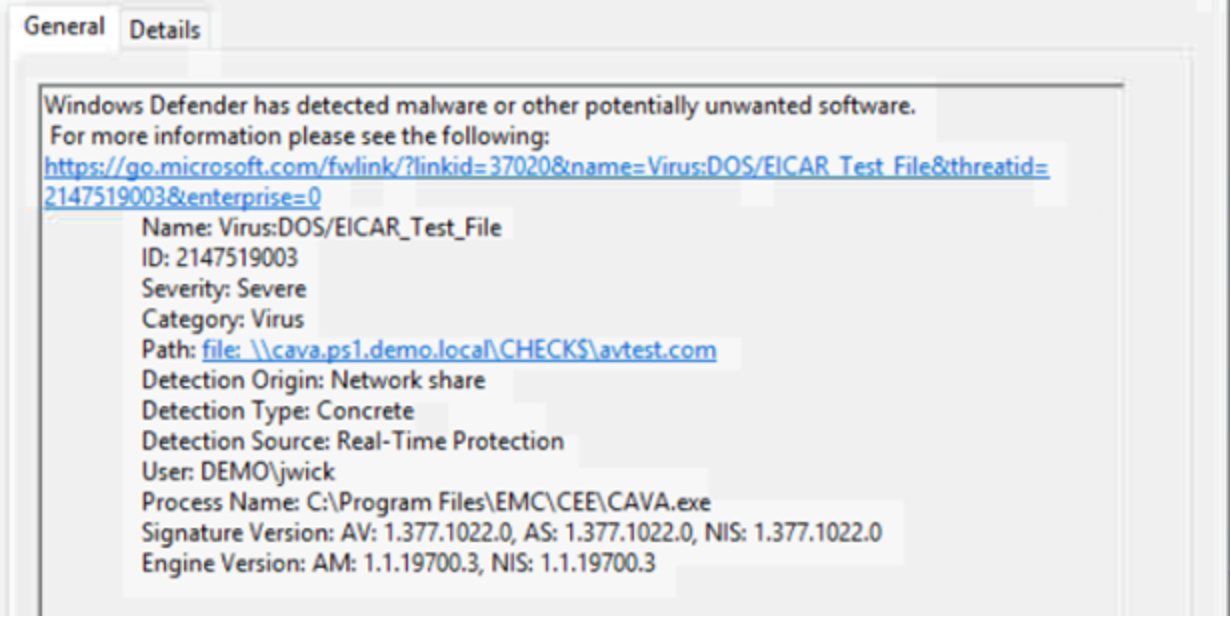
Figure 32. Malware is detected
Note: The path in the Event Viewer should always start with file:\\<fqdn_of_cluster>\CHECK$\.