Dell PowerScale for Microsoft Azure: Deployment Guide

Oct 19, 2026
Dell PowerScale for Microsoft Azure: Deployment Guide This document provides instructions to deploy OneFS clusters in Microsoft Azure with the Terraform module.

Executive summary

Overview

This deployment guide provides instructions for deploying PowerScale for Microsoft Azure with the Terraform module. It also guides post-deployment, including expanding a cluster and destroying a cluster. After you have deployed a cluster, see the PowerScale for Microsoft Azure Getting Started Guide on the Dell Technologies Support website for more details about OneFS.

Revisions

Date

Part number/
revision

Description

April 2024

H19984

Initial release

August 2024

H19984.1

Terraform Module GA

July 2025

H19984.2

Rebrand, address feedback

Introduction

About this guide

Azure and storage administrators can use this guide to automatically deploy the Azure infrastructure resources for deploying and configuring PowerScale for Microsoft Azure. To use this guide effectively, administrators should be familiar with the Azure cloud services, including virtual machine (VM), storage, and virtual networks/subnets. After you have deployed a cluster, see the PowerScale for Microsoft Azure Getting Started Guide on the Dell Technologies Support website for more details about OneFS.

The following conventions are adopted in this guide to represent the first and subsequent occurrences of frequently used terminology in a section:

Table 1.      Terminology

The first occurrence in the title and introductory paragraph

Usage thereafter

Dell Technologies PowerScale OneFS

OneFS

Dell Technologies PowerScale OneFS cluster

cluster

internal subnet for PowerScale for Microsoft Azure

internal subnet

external subnet for PowerScale for Microsoft Azure

external subnet

internal network security group for PowerScale for Microsoft Azure

internal NSG

external network security group for PowerScale for Microsoft Azure

external NSG

internal network interfaces for PowerScale for Microsoft Azure

internal network interfaces

external network interfaces for PowerScale for Microsoft Azure

external network interfaces

virtual machine/node for PowerScale for Microsoft Azure

VM/node

PowerScale for Microsoft Azure architecture

PowerScale for Microsoft Azure is a software-defined cloud file storage service that combines the power of the OneFS distributed file system with the flexibility and scalability of cloud infrastructure. It is a fully customer-managed service that is designed to meet the needs of enterprise-scale file workloads running on Azure. The architecture of PowerScale for Microsoft Azure is built on the OneFS distributed file system. This architecture uses multiple nodes to establish a single global namespace. Each node operates as an instance of the OneFS software, running on an Azure VM to deliver storage capacity and compute resources.

PowerScale for Microsoft Azure uses cloud-native technologies and leverages the elasticity of cloud infrastructure, so that you can easily scale the storage infrastructure as your business requirements grow. It can dynamically scale storage capacity and performance to meet changing demands by adding additional nodes without disruption, enabling the storage infrastructure to scale in a more cost-effective and efficient manner. To guarantee the durability and resiliency of data, PowerScale for Microsoft Azure distributes data across multiple nodes within the cluster. It also uses advanced data protection techniques, such as erasure coding, and provides features such as SyncIQ to ensure that data is replicated between sites. Even in the event of one or more node failures, the data remains accessible from the remaining cluster nodes.

Note: Refer to the PowerScale OneFS Administration Guide for the list of unsupported features.

Figure 1 shows the technical architecture of PowerScale for Microsoft Azure.

Note: The network bandwidth limit at the Azure VM level is shared between the cluster's internal network and the external network.

  • Internal network interfaces: Azure network interface cards associated with the internal subnet.
  • External network interfaces: Azure network interface cards associated with the external subnet.
  • Network security group: The network security group applies to the cluster network interfaces, which allow/deny specific traffic to PowerScale for Microsoft Azure.
  • Azure VMs: These VMs serve as nodes running the OneFS file system, backed by Azure managed disks. Each node within the cluster is strategically placed in an availability set and a proximity placement group. This configuration ensures that all nodes reside in separate fault domains, which enhances reliability and brings them physically closer together. See the Azure availability sets overview and Azure proximity placement groups documentation for more details.
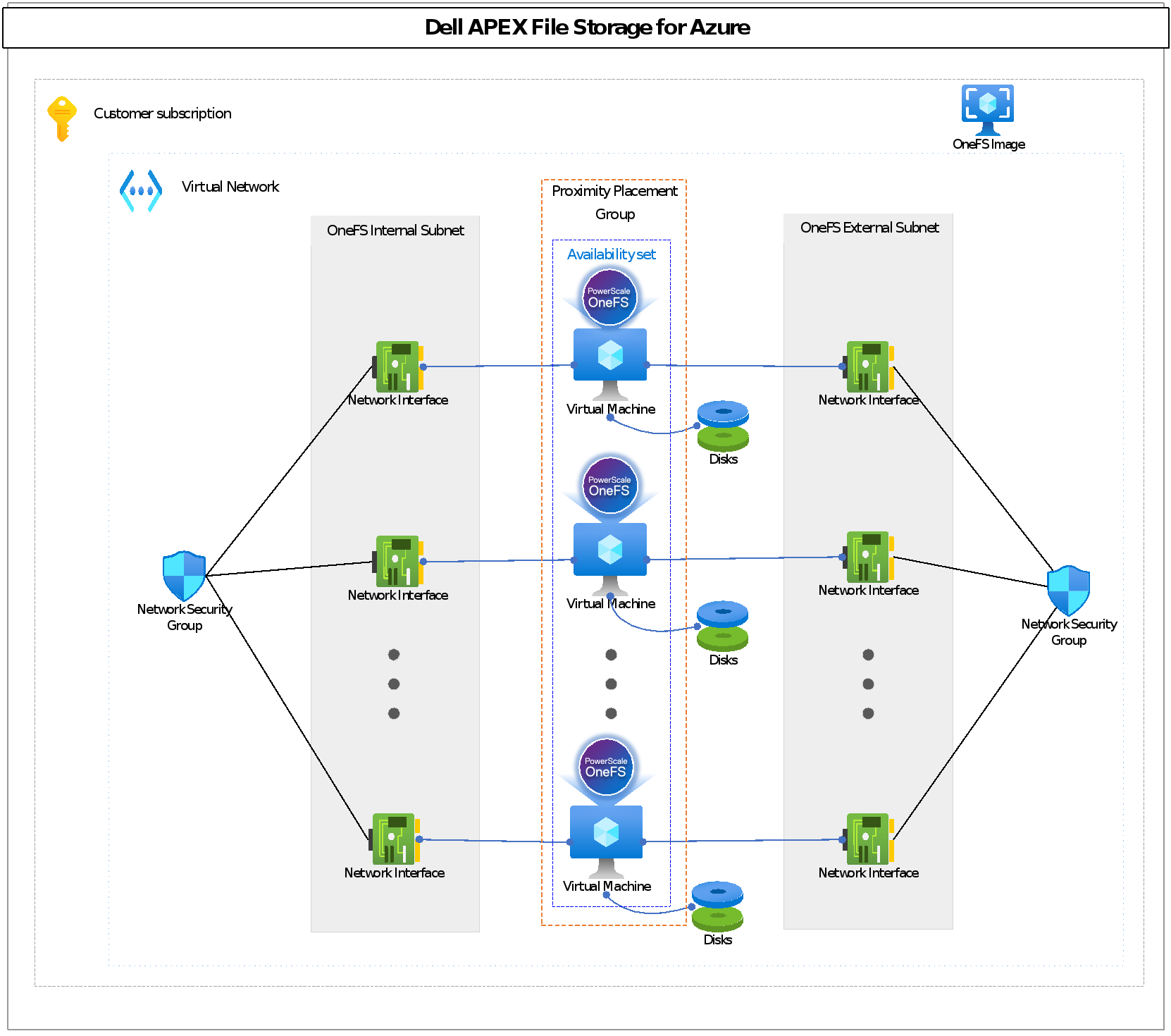
Diagram of the overall architecture. We have Azure VMS as OneFS virtual nodes. There are 2 nics associated with each node. Azure managed disks are also configured for each node.

Figure 1.   PowerScale for Microsoft Azure architecture

Overall, PowerScale for Microsoft Azure offers a powerful and flexible scale-out file storage solution that can help you improve data management, optimize costs, and achieve scalability and security in a cloud-based environment.

Terraform

Terraform is an open-source infrastructure as code (IaC) tool developed by HashiCorp. It allows users to define and provision infrastructure in a declarative configuration language. Terraform uses providers to interact with different infrastructure platforms, such as AWS, Azure, and Google Cloud. Each provider is responsible for translating the Terraform configuration into API calls for a specific platform.

Dell Technologies released an open-source Terraform module for the auto-deployment of Azure resources for PowerScale for Microsoft Azure. It is released and licensed under the MPL-2.0 license. Get the latest version from Terraform OneFS module for Azure.

The Terraform module provides the following features to help you manage PowerScale for Microsoft Azure:

  • Provision necessary Azure resources for a single OneFS cluster, including virtual machines, storage disks, placement groups, network interface cards, and so on.
  • Automatically form a cluster with all the Azure resources
  • Expand PowerScale on Azure by provisioning additional Azure resources, including virtual machines, storage disks, and network interface cards.
  • Destroy an instance of PowerScale on Azure.

Deployment overview

Deployment overview

See the section PowerScale for Microsoft Azure architecture for details about the architecture. PowerScale for Microsoft Azure deployment consists of four high-level steps:

  • Plan your deployment: PowerScale for Microsoft Azure has some specific support configurations, including cluster size, cluster capacity, Azure virtual machine instance type, and Azure disk type. You must know about the supported configuration before you start to deploy the cluster. For details, see the section Supported cluster configuration.
  • Prerequisites checklist: You must fulfill all the prerequisites before following this guide to deploy a cluster. For details, see the section Prerequisites.
  • Deploy Azure resources: After you have planned your deployment and fulfilled the prerequisites, you can use the Terraform module to deploy Azure resources. For details, see the section Deploy.
  • Set up the cluster: To add additional nodes to the cluster, connect to the first node of the cluster. For details, see the section Error! Reference source not found..

Plan your deployment

Supported cluster configuration

When setting up a new cluster, it is important to consider the type of storage configuration that is supported. Different configurations fulfill different requirements, depending on the intended use and the amount of data that needs to be stored. In general, a supported cluster configuration should be reliable, performant, and offer enough storage capacity to meet your needs.

For a single cluster of PowerScale for Microsoft Azure, all nodes in the cluster must use the same configuration, including Azure VM size, Azure managed disk type, and Azure managed disk size.

Table 2 shows the supported configuration for a OneFS cluster in Azure.

Table 2.      Supported configuration for a single cluster

Configuration items

Supported options

Cluster size

4 to 18 nodes

Azure VM size

All nodes in a cluster must use the same VM size. The supported VM sizes are:

Azure managed disk type

All nodes in a cluster must use the same disk type. The supported disk types are:

Note: Premium SSDs are only supported with Ddsv5-series and Edsv5-series.

Azure managed disk size

All nodes in a cluster must use the same disk size. The supported disk sizes are:

  • 0.5 TiB: P20 or E20
  •    1 TiB: P30 or E30
  •    2 TiB: P40, E40, or S40
  •    4 TiB: P50, E50, or S50
  •    8 TiB: P60, E60, or S60
  •  16 TiB: P70, E70, or S70

Disk count per node

All nodes in a cluster must use the same disk count. The supported disk counts are:

  • 5, 6, 10, 12, 15, 18, 20, 24, 25, or 30

Total raw capacity

Minimum: 10 TiB, maximum: 5760 TiB

Default protection level

The default protection level is +2n. We also support +2d:1n with additional capacity restrictions. See the section OneFS protection level.

Note: all criteria in this table must be met. Therefore, when using 16 TiB disk size, not all combinations of cluster size, disk count, and disk size are supported. For some combinations of cluster size, disk count, and disk size, the total cluster raw capacity may fall outside the maximum supported cluster raw capacity. For example, for an 18-node cluster, if each node contains 25 disks, and each disk size is P70 (16 TiB), the final total cluster raw capacity is 7200 TiB, which exceeds the maximum supported raw capacity. Therefore, this combination is not supported.

See Appendix A: supported cluster configuration details for all supported combinations.

File system journal

OneFS file system journal, which stores information about changes to the file system, is designed to enable fast consistent recoveries after system failures or crashes. The file system replays the journal entries after a node or cluster recovers from an outage.

Each Azure VM node contains local SSD storage, which is also known as a temporary disk. OneFS leverages one of the local SSDs as the journal storage for protecting uncommitted writes to the file system. When a node boots up, it checks its journal and selectively replays transactions to disk when the logic in the journaling system requires it.

OneFS protection level

The OneFS cluster is designed to withstand one or more simultaneous component failures while continuing to serve data. To achieve this, OneFS protects files with either erasure code-based protection, using Reed-Solomon error correction (N+M protection), or a mirroring system. Data protection is applied in software at the file level, enabling the system to focus on recovering only those files that are compromised by a failure, rather than having to check and repair an entire file set or volume. OneFS metadata and inodes are always protected by mirroring, rather than Reed-Solomon coding, and with at least the level of protection as the data they reference. For more technical details about OneFS protection levels, see OneFS Data Protection.

PowerScale for Microsoft Azure is set with a default protection level of +2n, capable of tolerating the failure of up to two drives or two nodes. We have chosen this +2n protection level for PowerScale for Microsoft Azure to ensure robust availability and reliability in the cloud environment. While the default setting prioritizes resilience, users have the option to adjust the protection level to +2d:1n for improved storage efficiency. However, it is essential to note that this configuration comes with certain capacity restrictions. The +2d:1n option can tolerate the failure of either two drives or one node.

For clarity on how different protection levels affect storage capacity, Table 3 outlines the maximum cluster raw capacity limits for using the +2d:1n protection level with various Azure managed disk sizes. If these capacity limits are exceeded, users must revert to the default +2n protection level when expanding the cluster to accommodate additional capacity needs. For example, if you have a 14-node cluster with +2d:1n protection level and each node has 15 disks using P50 Azure managed Prem SSD disks, the cluster raw capacity is 840 TiB. When you add more nodes into the cluster, the cluster raw capacity exceeds the limit of P50 using +2d:1n shown in Table 3. You must change to the default +2n protection level.

On deployment of a new cluster, the default protection scheme is set to +2n. All the files on the cluster inherit this level of protection. If the cluster only has a minimum number of nodes - 4, +2n protection means that the data on the cluster will remain protected even when two nodes of the cluster fail simultaneously. In the Azure environment, each of the OneFS virtual nodes within a cluster resides on different underlying physical hardware. Therefore, the chances of two nodes failing simultaneously are slim.

In the very unlikely event of two of the four nodes failing simultaneously, the cluster will only have two functional nodes and it loses quorum. Regardless of the cluster protection level, a cluster loses quorum when at least half the number of nodes in the cluster are unavailable. To protect the data, the cluster becomes un-responsive to client I/O. When at least one of the two failed nodes are back online in the cluster, the cluster will automatically become writeable. There will be data unavailability until at least one node is back online to bring back the quorum but there will not be data loss. If needed, some data will be re-built automatically. If there is a need for the cluster to remain available and writeable even if two nodes fail with +2n protection, increase the cluster size to five nodes.

Alternatively, deploying a new cluster that has only four nodes in it, one can change the protection level to +2d:1n, which will protect the data on the cluster against a one-node failure or a two-disk failure. If the protection scheme is set to +2d:1n, the cluster will remain writeable when one node in the cluster fails.

For comprehensive details about supported cluster configurations, see Appendix A: supported cluster configuration details. This includes information about various combinations of cluster node count, disk size, and disk count per node. The appendix also specifies whether the +2d:1n protection level is supported with specific configurations.

Table 3.      Cluster raw capacity restriction using +2d:1n

Azure managed disk type

Disk size (TiB)

Min cluster raw capacity (TiB) using +2n or +2d:1n

Max cluster raw capacity (TiB) using +2d:1n

Max cluster raw capacity (TiB) using +2n

P20

0.5

10

270

270

P30

1

20

540

540

P40

2

40

840

1080

P50

4

80

840

2160

P60

8

160

1440

4320

P70

16

320

1440

5760

E20

0.5

10

240

270

E30

1

20

240

540

E40

2

40

240

1080

E50

4

80

240

2160

E60

8

160

800

4320

E70

16

320

1600

5760

S40

2

40

280

1080

S50

4

80

280

2160

S60

8

160

800

4320

S70

16

320

1120

5760

The protection overhead varies with cluster size. Table 4 shows the protection overhead of PowerScale for Microsoft Azure with different cluster sizes. File system efficiency increases as the cluster size grows, meanwhile, the storage efficiency gap between +2n and +2d:1n also gets smaller as the cluster size grows. Therefore, if capacity is your primary requirement, opting for +2d:1n in a small cluster can yield a higher usable cluster capacity. Conversely, using +2n in a large cluster ensures storage efficiency while maintaining superior resilience. Usable cluster capacity refers to the amount of storage capacity available for storing data after accounting for protection overhead. For the min and max usable capacity using different protection levels, see Appendix B: Cluster raw capacity and usable capacity.

Table 4.      Protection overhead

Cluster size

Requested protection level +2n

Requested protection level +2d:1n

Data blocks + protection blocks

Protection overhead

Data blocks + protection blocks

Protection overhead

4 nodes

2+2

50%

6+2

25%

5 nodes

3+2

40%

8+2

20%

6 nodes

4+2

33%

10+2

17%

7 nodes

5+2

29%

12+2

14%

8 nodes

6+2

25%

14+2

13%

9 nodes

7+2

22%

16+2

11%

10 nodes

8+2

20%

16+2

11%

11 nodes

9+2

18%

16+2

11%

12 nodes

10+2

17%

16+2

11%

13 nodes

11+2

15%

16+2

11%

14 nodes

12+2

14%

16+2

11%

15 nodes

13+2

13%

16+2

11%

16 nodes

14+2

13%

16+2

11%

17 nodes

15+2

12%

16+2

11%

18 nodes

16+2

11%

16+2

11%

Note: The final effective capacity of a OneFS cluster depends on the characteristics of the data and on the file system features in use. For example, OneFS provides inline data reduction and small file efficiency features to help save storage capacity. Data capacity savings due to inline data reduction and small file efficiency greatly depend on the data and can vary considerably. This variance means that accurate rates of savings are not predictable without a comprehensive analysis of the dataset. The preceding usable cluster capacity estimation is for guidance only when implementing PowerScale for Microsoft Azure. For more details about storage efficiency, see the white paper Dell PowerScale OneFS: Data Reduction and Storage Efficiency.

Available Azure regions

PowerScale for Microsoft Azure is available in the following Azure regions:

  • South Africa North
  • East Asia
  • South East Asia
  • Australia Central
  • Australia East
  • Australia Southeast
  • Brazil South
  • Canada Central
  • Canada East
  • China East 2
  • China North 2
  • China North 3
  • North Europe
  • West Europe
  • France Central
  • Germany West Central
  • Central India
  • South India
  • Japan East
  • Japan West
  • Korea Central
  • Norway East
  • Poland Central
  • Qatar Central
  • Sweden Central
  • Switzerland North
  • UAE North
  • UK South
  • UK West
  • Central US
  • East US
  • East US 2
  • North Central US
  • South Central US
  • West Central US
  • West US
  • West US 2
  • West US 3

Planning cluster configuration details

After you have understood the supported cluster configurations and have analyzed your business requirements, you can start to plan your deployment details. Write down the configuration, including your OneFS cluster settings and Azure infrastructure information.

The following table contains an example. For this example, we will deploy a 4-node cluster with Azure Premier SSD disk type and D48ds_v5 instance type.

Table 5.      Cluster configuration example

Configuration items

Example used in this guide

Note

Cluster name

vonefs-azure


Azure VM instance type

D48ds_v5


Data disk type

Premium SSD


Cluster size (number of nodes)

4

If you are deploying a 4-node or 5-node cluster, and you need to expand the cluster size in the future, you must ensure that you are using a correct combination of disk count per node and single disk size, which allows you to expand to a maximum of 18 nodes. See Appendix A: supported cluster configuration details for all supported combinations.

Data disk counts per node

6

Single disk size

1TiB

Cluster raw capacity

24TiB

Ensure that your cluster raw capacity is within the supported range. See Supported cluster configuration for the capacity limitation.

Prerequisites

This section describes the prerequisites that you should fulfill before using the Terraform module to deploy PowerScale for Microsoft Azure.

Prerequisites on Azure

Azure subscription

PowerScale for Microsoft Azure requires an Azure subscription. Users are required to provide their subscription. When a subscription has been created and configured to the user’s company policies, a user account is required. Dell Technologies recommends that this user account be added at least to a Contributor role.

If users are unable to be added as a Contributor role, an administrator must create a role with the following permissions:

  • Microsoft.Compute/availabilitySets/delete
  • Microsoft.Compute/availabilitySets/read
  • Microsoft.Compute/availabilitySets/write
  • Microsoft.Compute/disks/delete
  • Microsoft.Compute/disks/read
  • Microsoft.Compute/disks/write
  • Microsoft.Compute/images/read
  • Microsoft.Compute/images/write
  • Microsoft.Compute/proximityPlacementGroups/delete
  • Microsoft.Compute/proximityPlacementGroups/read
  • Microsoft.Compute/proximityPlacementGroups/write
  • Microsoft.Compute/virtualMachines/delete
  • Microsoft.Compute/virtualMachines/read
  • Microsoft.Compute/virtualMachines/write
  • Microsoft.Network/networkInterfaces/delete
  • Microsoft.Network/networkInterfaces/read
  • Microsoft.Network/networkInterfaces/write
  • Microsoft.Network/networkSecurityGroups/delete
  • Microsoft.Network/networkSecurityGroups/read
  • Microsoft.Network/networkSecurityGroups/write
  • Microsoft.Network/virtualNetworks/read
  • Microsoft.Network/virtualNetworks/subnets/read
  • Microsoft.Resources/subscriptions/resourceGroups/read
  • Microsoft.Resources/subscriptions/resourceGroups/write

Azure Resource Group

Although PowerScale for Microsoft Azure can live in an existing resource group, it is recommended to create a resource group for management purposes. A resource group allows the cluster to be contained as a single resource and easily kept track of and disposed of when its use is no longer required.

To create a resource group, follow these steps:

  1. Select your subscription and enter the home page of the subscription in the UI.
  2. In the left panel, select resource groups.
  3. Click the Create button in the menu bar.
  4. Enter the subscription, resource group name, and Azure location for the new resource group, then click review and create, and finally create the resource group.

When you have created the resource group, you are ready to create Azure resources that the PowerScale for Microsoft Azure will use.

Azure Virtual Network and Subnets

PowerScale for Microsoft Azure requires two different Azure subnets which must be in the same Azure virtual network:

  • A dedicated internal subnet for the cluster's internal network. The subnet is only used by backend communication between nodes and cannot be shared with other instances or services.
  • An external subnet for the cluster’s external network.

To create an Azure virtual network and two subnets, follow these steps:

  1. In the portal, search for and select Virtual networks.
  1. On the Virtual networks page, select + Create.
  2. On the Basics tab of Create virtual network, enter and select the information for Subscription, Resource group, Name, and Region.
  3. In the IP Addresses tab, create one internal subset and one external subset.

Note: We recommend at least a /26 network mask for each Azure subnet.

  1. Select Save.
  2. Select Review + create at the bottom of the window. When validation passes, select Create.

Note: IPv6 is not currently supported.

Azure Network Security Groups

You should create two Azure Network Security Groups (NSG):

  • Internal NSG for internal network interface cards only
  • External NSG for external network interface cards

To create an Azure NSG, follow these steps:

  1. In the search box at the top of the Azure portal, enter network security group. Select Network security groups in the search results.
  1. Click + Create.
  2. In the Create network security group page, under the Basics tab, enter or select the values for Subscription, Resource group, Network security group name and Region.
  3. Select Review + create.
  4. After you see the Validation passed message, select Create.

Note: Configuration on ports in Azure NSG relies on the feature you will use. See the white paper Network port usage - PowerScale OneFS Security Configuration Guide for more details.

Azure Managed Identity

If you intend to use OneFS SmartConnect, dynamic network pool, or other network failover features, you must first configure Azure Managed Identity.

Important: In the current release, we only support single user-managed identity. System-managed identity, multiple user-managed identity, or any combination are not supported. Make sure you have disabled system-managed identity on each node before you start to follow the steps below.

  1. In the search box at the top of the Azure portal, enter identities. Select Managed Identities.
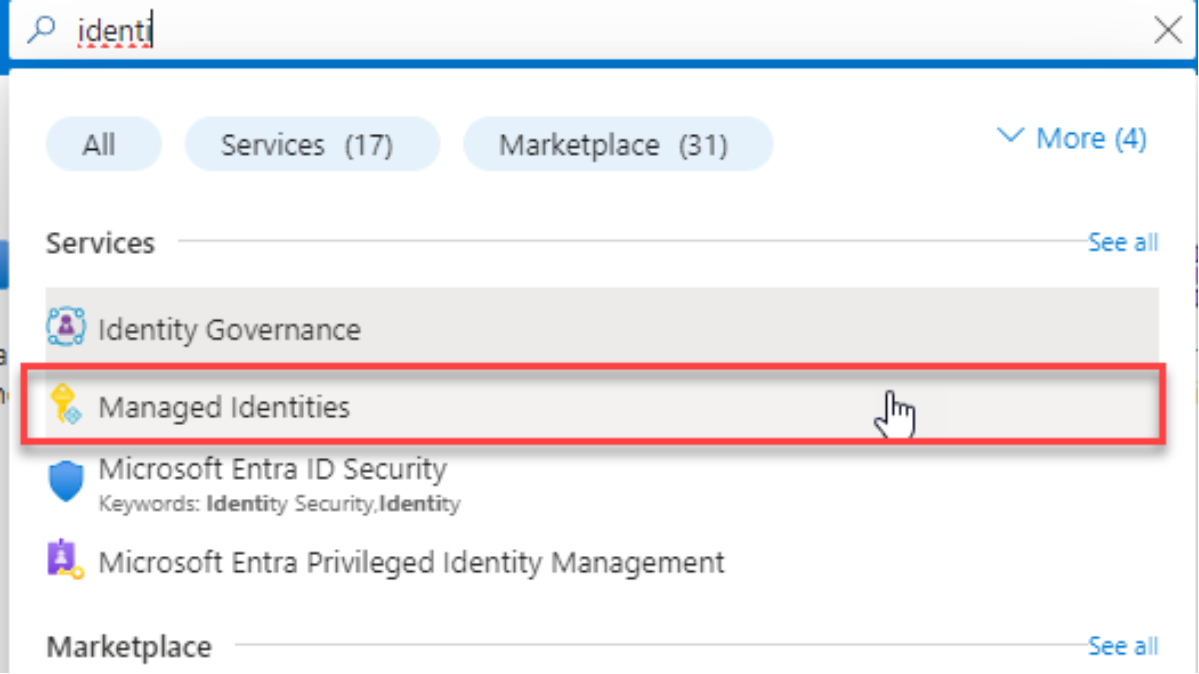
This an image of selecting managed identities in the drop down menu.

Figure 2.   Managed Identities

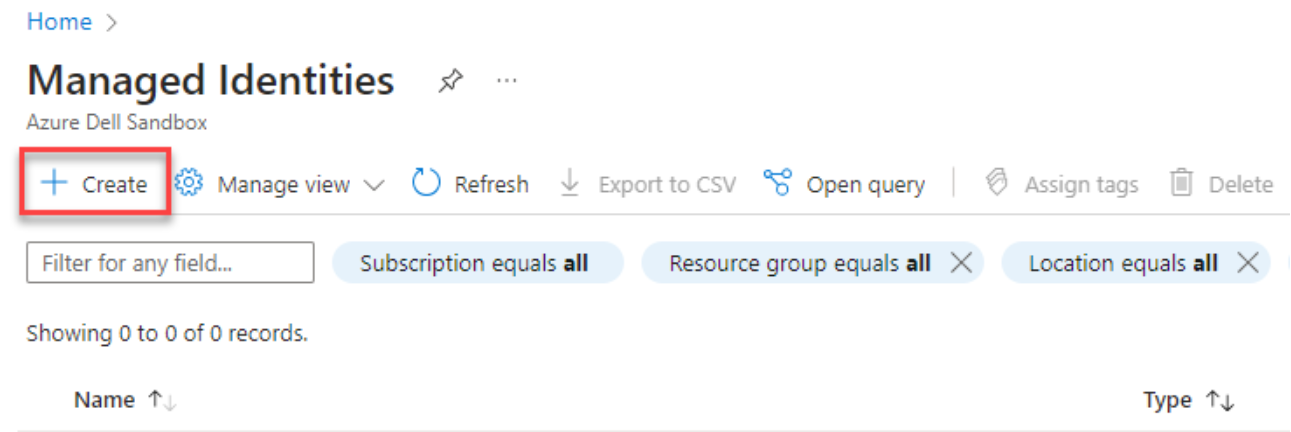
  1. Click Create.

This is an image of clicking the create button in the managed identities page.

Figure 3.   Create Managed Identities

  1. Choose your Subscription, Resource group, Region, and type Name.
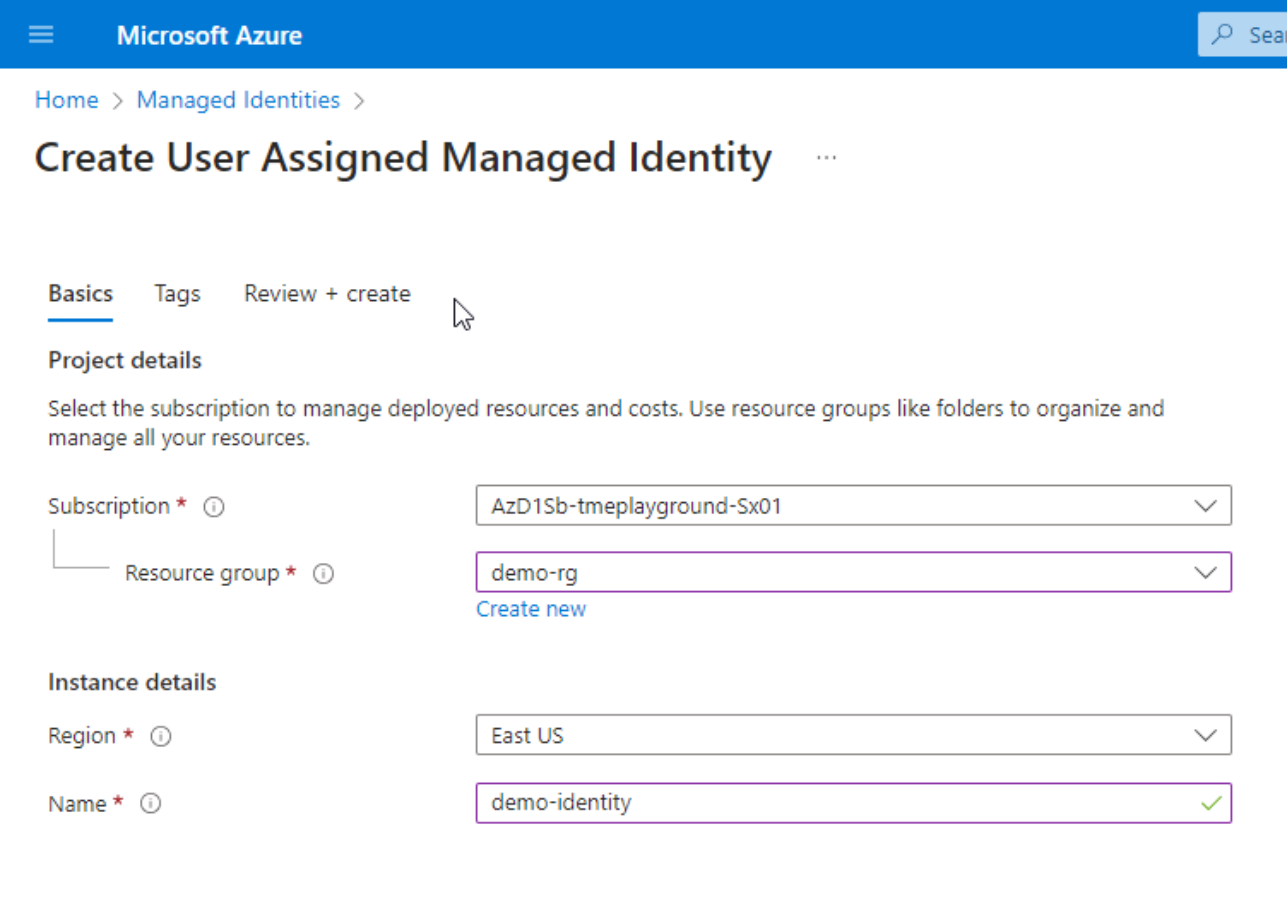
This is an image of creating a role under demo-rg, east us region and with the name demo-identity.

Figure 4.   Create User Assigned Managed Identity

  1. Click Review + create and then click Create.
  2. In your subscription, click Access Control(IAM) in the left navigation bar.
  3. Click Add, and choose Add custom role in the drop down menu.
  4. Create a role with the following permissions

Microsoft.Network/networkInterfaces/read

Microsoft.Network/networkInterfaces/write

Microsoft.Network/virtualNetworks/subnets/join/action

Microsoft.Network/networkSecurityGroups/join/action

Microsoft.Compute/virtualMachines/vmSizes/read

Microsoft.Compute/virtualMachines/read
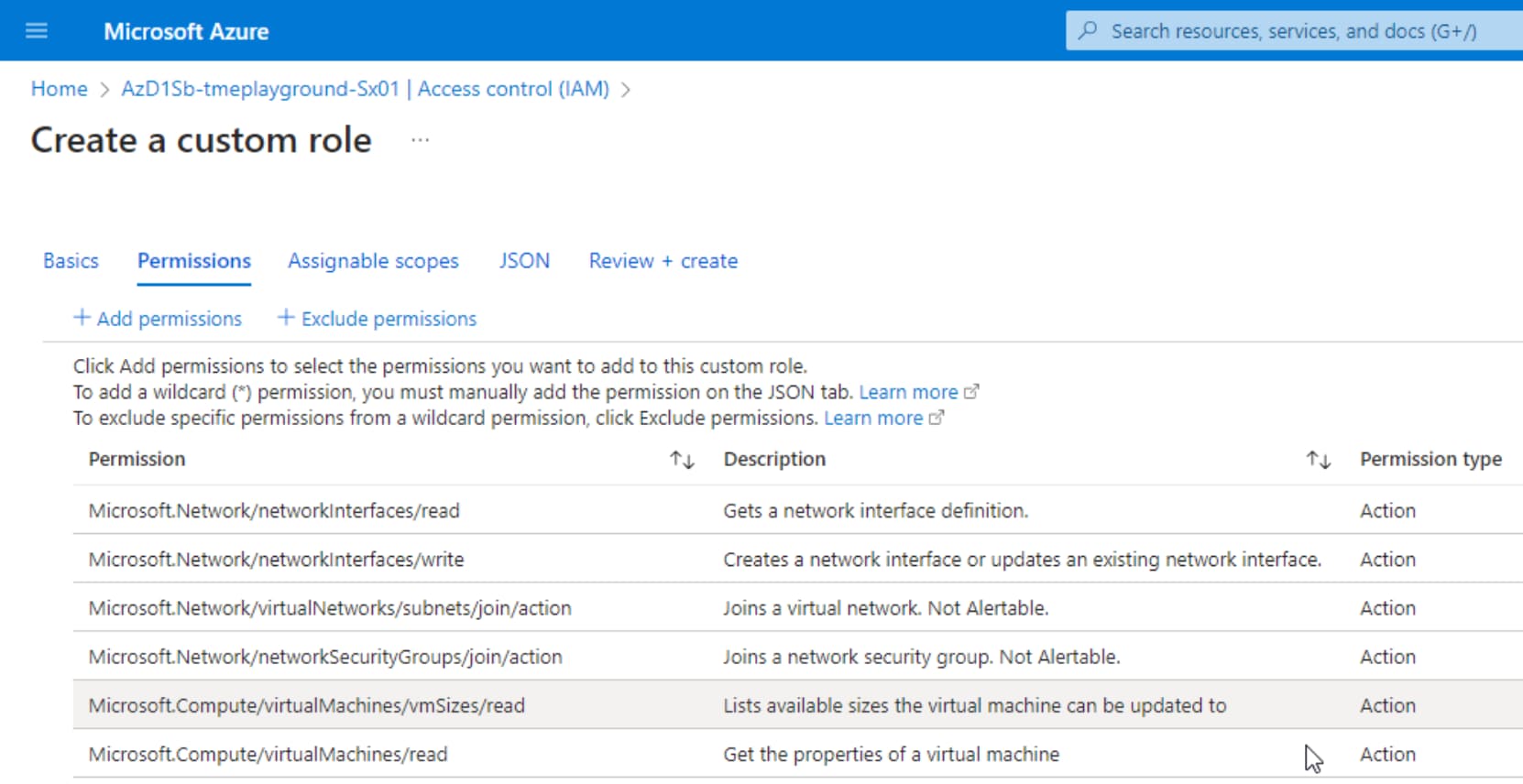
This is a screenshot of adding these permissions in to an Azure custom role.

Figure 5.   Create a custom role with permissions

  1. Click Review + create and then click Create.
  2. After the custom role is created, bind the role to the managed identity by clicking Add and choosing Add role assignment.
  3. In the Role tab, choose the custom role just created and click Next.
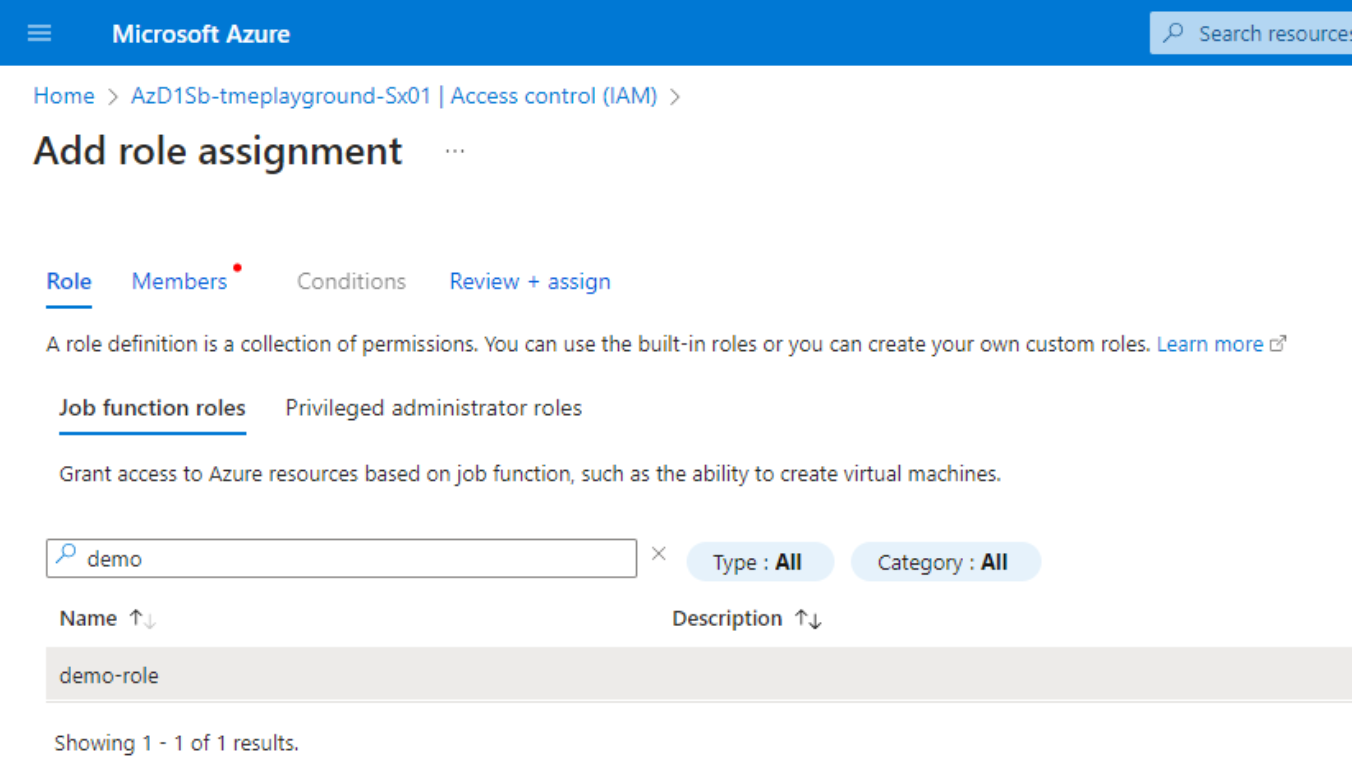
A screenshot of adding the role assignment role.

Figure 6.   Add role assignment - Role

  1. In the Members tab, choose Managed identity in the Assign access to field. In the pop-up Select managed identities window, choose the identity created in the previous step. Click Select then, click Review + assign. Click Assign.
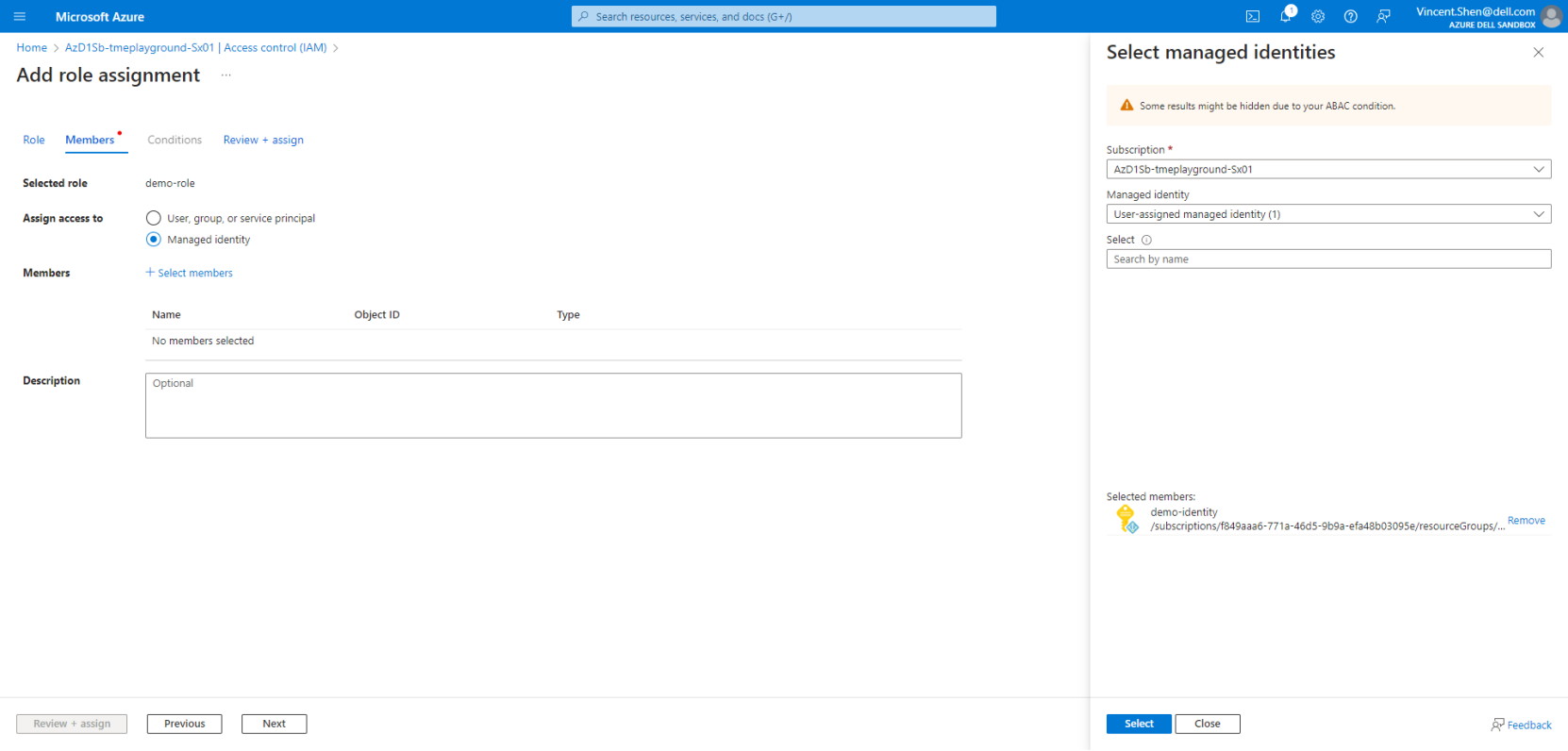
A screenshot showing add role assignment members.

Figure 7.   Add role assignment

Prerequisites for the host machine

Overview

A host machine is used to run the Terraform script for provisioning, scale-out, and destroying.

This can be any machine that has access to the Azure portal. Make sure the following components are installed on this machine:

Note: Administrator permission is required to install Azure CLI.

Deployment options.

PowerScale for Microsoft Azure supports two deployment options:

  • Deployment from an Azure non-Marketplace image
  • Deployment from an Azure Marketplace image

Deployment from an Azure non-Marketplace image

A OneFS image file and script files will be provided in this deployment option with the steps below. For the detailed deployment steps, refer to the chapter Deploy PowerScale for Microsoft Azure.

  1. Go to the Github repository to download the most recent version of the Terraform module for PowerScale for Microsoft Azure.
  1. Go to the Dell support site to download the OneFS image.

Note: PowerScale for Microsoft Azure supports the OneFS image from 9.8.0.0

Deployment from an Azure Marketplace image

If the end-user has already purchased PowerScale for Microsoft Azure, they can also directly use the image file in the Azure Marketplace. Follow the steps below:

  1. Go to the Azure Marketplace.
  2. Click PowerScale for Microsoft Azure – Customer Managed.
  3. Click the link Get started which is beside Want to deploy programmatically?
  4. Enable your Azure subscription for this offer.

Deploy PowerScale for Microsoft Azure

Overview

After you have fulfilled the Prerequisites, you can start to deploy PowerScale for Microsoft Azure.

Log in to the default Azure subscription by Azure CLI

Azure CLI Login

Use the following steps to log in to the Azure CLI:

  1. Open a Command Prompt and use the following command to log in to the Azure CLI:
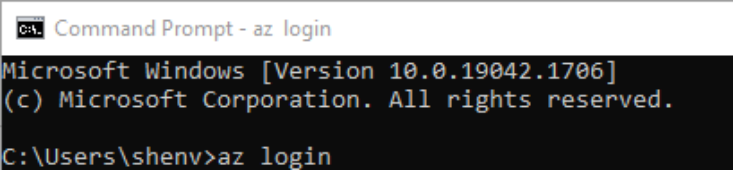
A screenshot of running "az login".

Figure 8.   Azure CLI login

  1. It will prompt a browser where you can pick your Azure account for login.
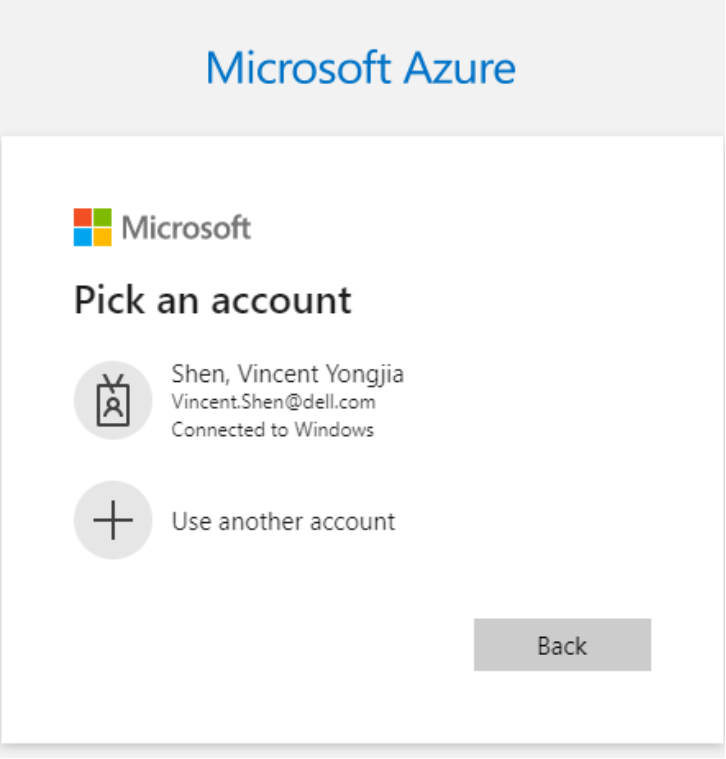
A image of picking an account for login

Figure 9.   Pick an account to log in

  1. After you successfully log in with your Azure account, your subscriptions will appear in the Azure CLI output:
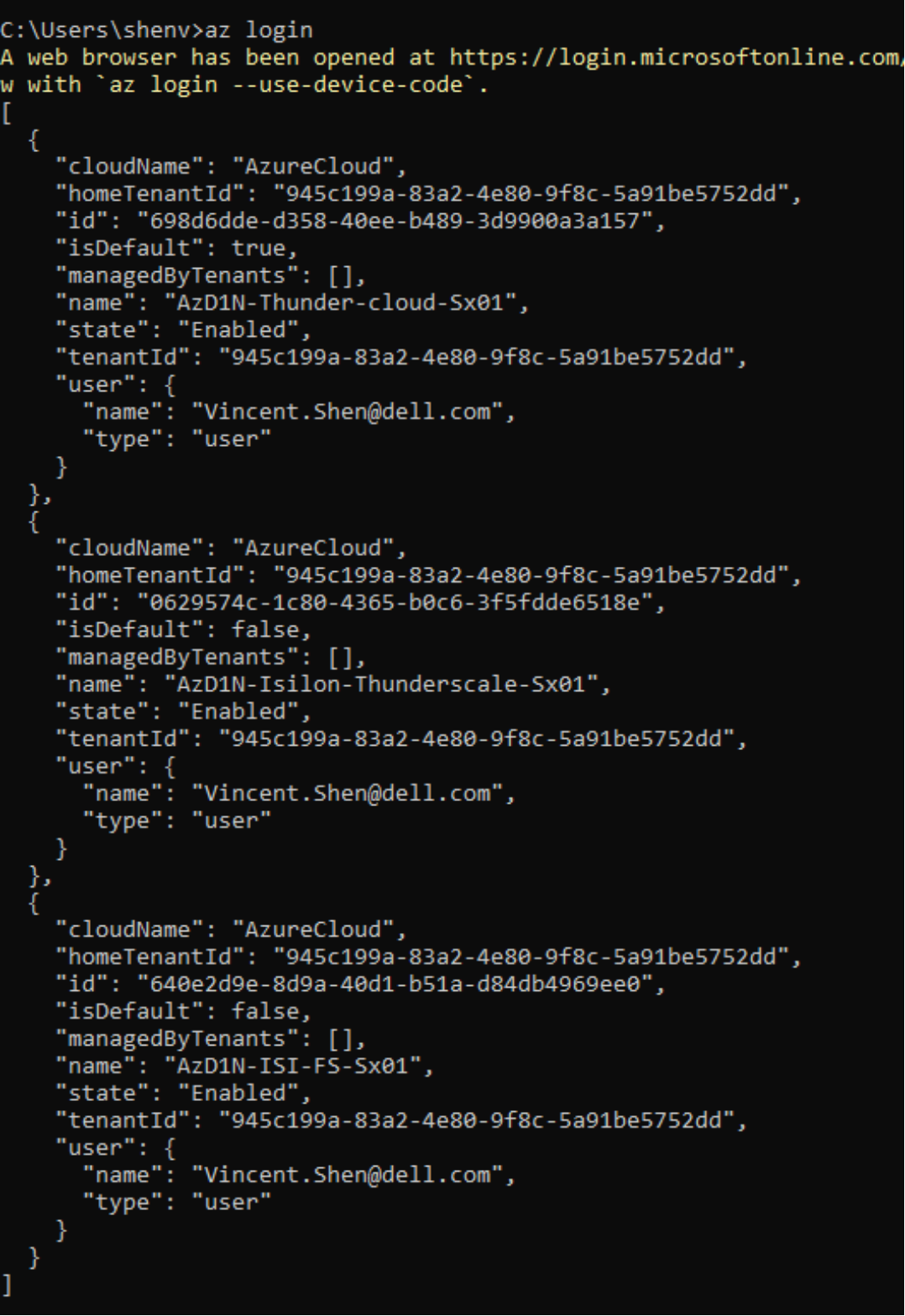
An image of output of "az login"

Figure 10.    Login output

Set a default Azure subscription

If you have multiple Azure subscriptions, ensure that the default subscription settings match where you want the deployment to occur. Use the following steps to set a default subscription:

  1. At a Command Prompt, use the following command to set the default Azure subscription. Replace the subscription ID in the parameter with the one you want to use. You can easily find the ID in the login output shown in Figure 10.

>az account set --subscription=<your default subscription ID>

  1. Use the following command to verify whether the target subscription has been set to default. You can find the field - isDefault is set to true.

>az account list
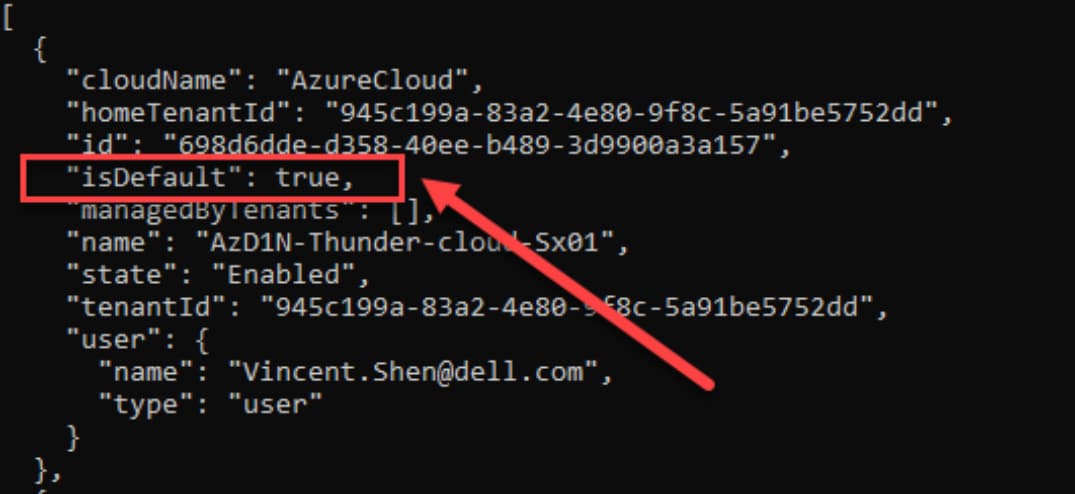
An image of output of the "az account list" command

Figure 11.    Set default Azure Subscription

Upload the image file to PowerScale for Microsoft Azure

Note: If users intend to use the image in the Azure marketplace, they don’t need to upload the VHD manually. Refer to the section Deployment options. for more details.

To upload the VHD to Azure, follow these steps:

  1. At a Command Prompt, go to the folder where the file OneFS-9.8.0.0_vhd.tgz is located.
  1. To extract the VHD file, use the command: tar -xvzf ./OneFS-9.8.0.0_vhd.tgz

Note: Dell recommends you use tar command to extract the VHD file. Using other tools may cause unexpected errors.

  1. To upload the VHD, refer to the Python script in Error! Reference source not found.. Use the following command to perform the conversion and replace the corresponding parameters with the location of the OneFS-9.8.0.0.vhd file and your Azure resource group name:

python make_img.py <Location of the OneFS-9.8.0.0.vhd> <Azure resource group name>

Note: Ensure that Python 3.8 or a newer version is available before continuing.

An image of using a python script to upload an image to an azure resource pool

Figure 12.    Convert vhd file to Azure image

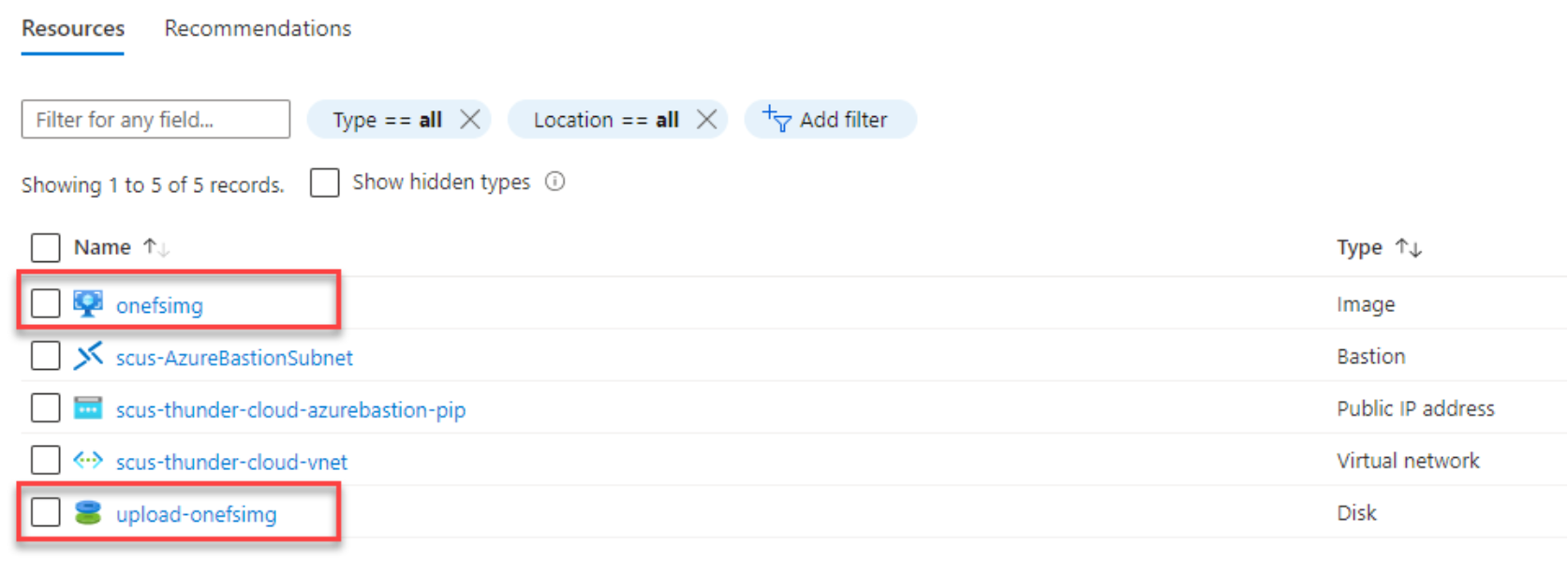
  1. Usually, it will take several minutes to complete the conversion process and to copy the image to the Azure blob store. When it is finished, the output is similar to what appears in Figure 13. At the same time, in the Azure resource group, you can find that the image and its disk have been created as shown in Figure 14.
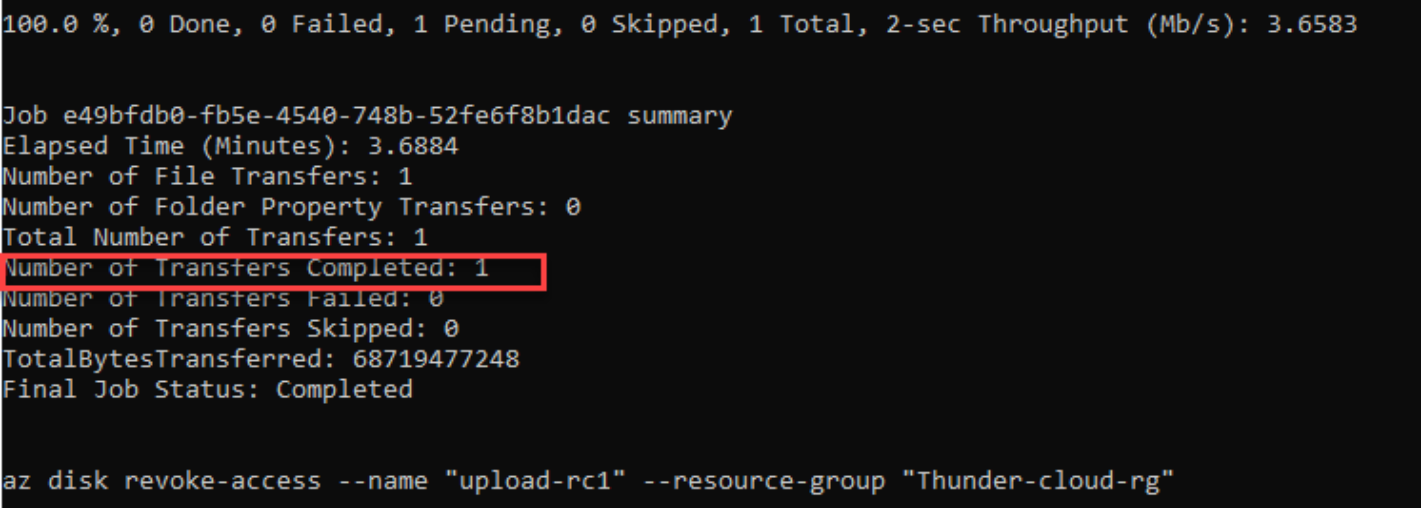
screenshot of image upload

Figure 13.    Conversion output

A screenshot of an image and its disk in the Azure resource group

Figure 14.    Image and disk

Deploy PowerScale for Microsoft Azure

Overview

Before following the steps in this section, make sure you have met all the Prerequisites and fulfilled all the preparation work in the previous sections.

Prepare main.tf

The main.tf file is the main configuration file in a Terraform project and it invokes the OneFS module for deployment. Refer to the example in the Github.

Note: Make sure you have set the correct source and version of the module in the main.tf file. For the other parameters, you can leave them as default. The value of these parameters will be set in terraform.tfvars, which will be explained in the next section.

Prepare terraform.tfvars

The terraform.tfvars file is used in Terraform to assign values to input variables that are declared in other configuration files, such as variables.tf. It externalizes variable definitions, allowing users to set specific values for variables without modifying the main configuration file directly. When running Terraform commands, such as terraform apply, the values from terraform.tfvars will be automatically used.

The following is an example of the terraform.tfvars file, which is used to create a 3-node cluster. For a detailed explanation of all the variables, refer to the section - Prepare vm.json

Deploy from a non-Marketplace image

If you intend to deploy the cluster from a non-Marketplace image, and the image is uploaded to your Azure resource group with the steps described in the section Upload the image file to PowerScale for Microsoft Azure, there is no need to modify the vm.json file.

Deploy from an Azure Marketplace image
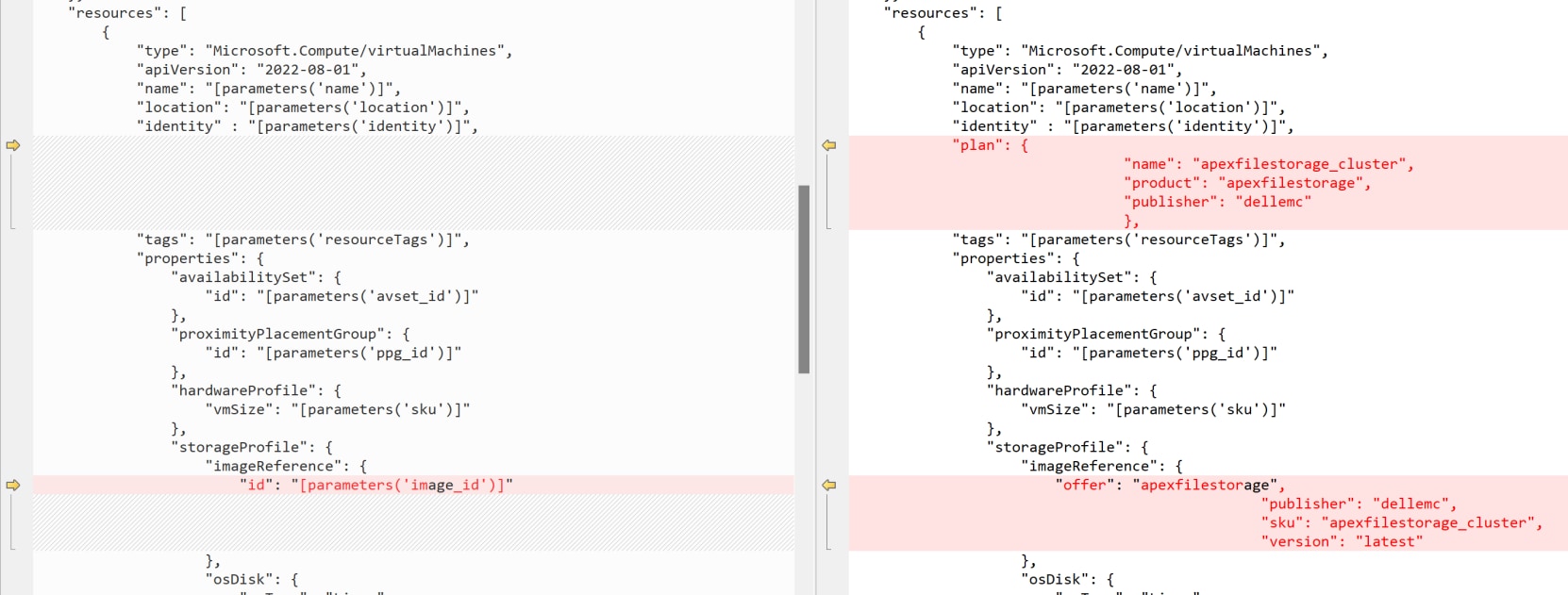
Note: Reach out to PowerScale.Azure@dell.com to get a modified version of vm.json to support your deployment from Azure Marketplace. The following section explains where the changes happens for different regions.

If you intend to deploy the cluster from an Azure Marketplace image for OneFS, the following parts should be updated in the file vm.json:

A screenshot of a computerAI-generated content may be incorrect.

Figure 15.    Example of the vm.json file using OneFS image from the US Marketplace offer

In the Azure Marketplace, we have 3 offers for different regions:

Change the vm.json file according to the region of the Azure Marketplace offers you want to use.

Table 6.      Azure template parameters for different regions

Terraform input variables.

# Subscription

subscription_id = "d9338087-1c11-49bd-9f55-904a2e52b491"

# Resource Group

resource_group = "playground"

# Cluster OS Information

cluster_name           = "c1"

image_id               = "/subscriptions/d9338087-1c11-49bd-9f55-904a2e52b491/resourceGroups/playground/providers/Microsoft.Compute/images/ga"

# Hashed Password (Default)

hashed_root_passphrase= "$5$a1b2c3d4e5f6f7$dtfoem8FDBRPZpIY.vdU9NRxbSmWswJerIF3oQabRx."

# Cluster Scale

node_size     = "Standard_D32ds_v5"

cluster_nodes = 4

max_num_nodes = 18

# Networking Information

smartconnect_zone        = "foo.bar"

network_id               = "/subscriptions/d9338087-1c11-49bd-9f55-904a2e52b491/resourceGroups/playground/providers/Microsoft.Network/virtualNetworks/vnet"

addr_range_offset        = 5

external_subnet_name     = "frontendSubnet"

internal_subnet_name     = "backendSubnet"

data_disk_type           = "Premium_LRS"

# Network Security Group

internal_nsg_name = "nsg"

internal_nsg_resource_group = "playground"

external_nsg_name = "nsg"

external_nsg_resource_group = "playground"

# Storage Configuration

os_disk_type        = "Premium_LRS"

data_disk_size      = 1024

data_disks_per_node = 3

# Disk Encryption Configuration

use_disk_encryption                = true

disk_encryption_set_name           = "tmeDiskEncryptionSet"

disk_encryption_set_resource_group = "playground"

identity_list = ["/subscriptions/698d6dde-d358-40ee-b489-3d9900a3a157/resourceGroups/Thunder-cloud-rg /Microsoft.ManagedIdentity/userAssignedIdentities/demo-identity"]

Prepare vm.json

Deploy from a non-Marketplace image

If you intend to deploy the cluster from a non-Marketplace image, and the image is uploaded to your Azure resource group with the steps described in the section Upload the image file to PowerScale for Microsoft Azure, there is no need to modify the vm.json file.

Deploy from an Azure Marketplace image

Note: Reach out to PowerScale.Azure@dell.com to get a modified version of vm.json to support your deployment from Azure Marketplace. The following section explains where the changes happens for different regions.

If you intend to deploy the cluster from an Azure Marketplace image for OneFS, the following parts should be updated in the file vm.json:

A screenshot of a computerAI-generated content may be incorrect.

Figure 16.    Example of the vm.json file using OneFS image from the US Marketplace offer

In the Azure Marketplace, we have 3 offers for different regions:

  • US
  • Canada
  • EISI (rest of the world)

Change the vm.json file according to the region of the Azure Marketplace offers you want to use.

Table 7.      Azure template parameters for different regions

Region

Parameter

Value

US

name

apexfilestorage_cluster

product

apexfilestorage

publisher

dellemc

offer

apexfilestorage

sku

apexfilestorage_cluster

Canada

name

apexfilestorage_cluster

product

apexfilestoragecanada

publisher

dell-canada-inc

offer

apexfilestoragecanada

sku

apexfilestorage_cluster

EISI

name

apexfilestorage_cluster

product

apexfilestorageeisi

publisher

dellemceisi123456

offer

apexfilestorageeisi

sku

apexfilestorage_cluster

Terraform input variables

Terraform lets you customize Terraform modules without altering the module's own source code. The Terraform module for PowerScale for Microsoft Azure supports the input variables listed in Table 8.

Table 8.      Supported input variables for PowerScale for Microsoft Azure

Variable Name


Description

resource_group

The Azure resource group which will host the Azure resources for PowerScale for Microsoft Azure. See the section Azure Resource Group.

network_id (required)

The URI of the Azure virtual network created in the section Azure Virtual Network and Subnets.

node_size

Azure virtual machine instance type. Possible values are described in the section Supported cluster configuration.

cluster_name (required)

The name for PowerScale for Microsoft Azure.

cluster_nodes

The number of nodes that will be deployed for PowerScale for Microsoft Azure.

internal_subnet_name (required)

Azure subnet for Internal/Backend network. See the section Azure Virtual Network and Subnets.

external_subnet_name (required)

Azure subnet for External/Frontend network. See the section Azure Virtual Network and Subnets.

addr_range_offset

The offset of the starting IP address. It applies to both internal and external networks for PowerScale for Microsoft Azure. In the following example, the CIDR for the internal subnet is 172.21.23.32/27, the CIDR for the external subnet is 172.21.23.0/27 and the add_range_offset is 5, which means the starting IP for the internal network is 172.21.23.37 and the starting IP for the external network is 172.21.23.5.

Notes:

  • Azure reserves the first five IP addresses in the subnet. In this case, it is 172.21.23.32 to 172.21.23.36 for the internal subnet and 172.21.23.0 to 172.21.23.4 for the external subnet.
  • If you configure SmartConnect, SSIPs will start from add_range_offset minus n (n is the number of SSIPs). Make sure you leave enough room for SSIPs and Azure-reserved IPs.
  • When you create a 2nd instance of PowerScale for Microsoft Azure, we recommend that you carefully review the parameter add_range_offset, leaving enough room for IPs where the 1st one can grow. Otherwise, you will see the IP overlap between the two instances.

max_num_nodes

The maximum number of nodes to which PowerScale for Microsoft Azure can scale-out.

hashed_root_passphrase

Hashed root password for PowerScale for Microsoft Azure

Note: password can also be set at runtime in clear text when you deploy the cluster if you choose not to set it in the terraform.tfvars file.

hashed_admin_passphrase

Hashed admin password for PowerScale for Microsoft Azure

image_id (required)

The URI of the image file of PowerScale for Microsoft Azure.

smartconnect_zone

OneFS SmartConnect zone fully qualified domain name (FQDN)

identity_list

Azure managed identity

Important: If you plan to enable the OneFS network failover features like SmartConnect, dynamic IP pools, and so on, you must follow the steps in the section Azure Managed Identity and specify the URI of the identity to this parameter.

Important: In the current release, we only support single user-managed identity. System-managed identity, multiple user-managed identity, or any combination are not supported. Make sure you have disabled system-managed identity on each node.

os_disk_type

Disk type for Operating System (OS). Possible values are:

  • Standard_LRS
  • StandardSSD_LRS
  • Premium_LRS

data_disk_type

Data disk type. Possible values are:

  • Standard_LRS
  • StandardSSD_LRS
  • Premium_LRS

data_disk_size

Data disk size in GiB.

Supported values for this parameters are: 512, 1024, 2048, 4096, 8192 and 16384.

data_disks_per_node

The number of data disks per node.

timezone

Timezone for PowerScale for Microsoft Azure

internal_nsg_name (required)

Azure Network Security Group (NSG) for internal/backend network.

internal_nsg_resource_group (required)

The Azure resource group for internal NSG

external_nsg_name (required)

Azure Network Security Group (NSG) for external/frontend network.

external_nsg_resource_group (required)

The Azure resource group for external NSG

use_disk_encryption

Type of disk encryption, possible values are:

  • true: use Customer-Managed Keys (CMK)
  • false: use Platform-Managed Keys (PMK)

Note: disk_encryption_set_resource_group and disk_encryption_set_names are only valid when use_disk_encryption is set to true.

disk_encryption_set_resource_group

The Azure resource group for the disk encryption set

disk_encryption_set_name

The name of the disk encryption set.

Parameter image_id and network_id

To get the value of the parameters image_id and network_id, navigate to the overview page of Azure image and virtual network:
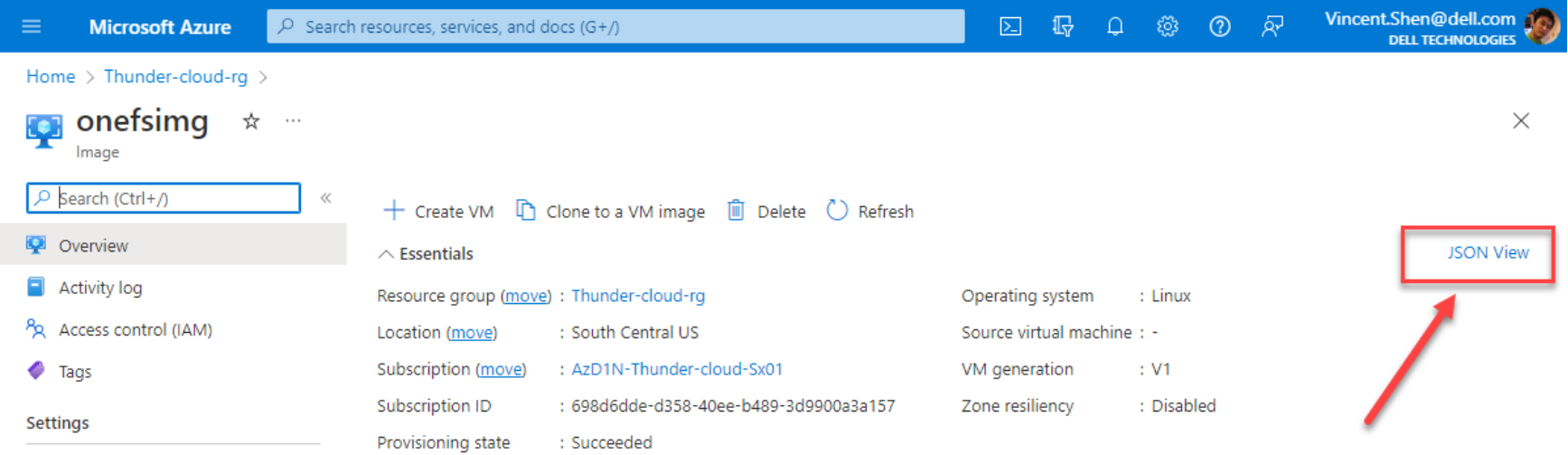
A screenshot of an Azure image overview page. In the screenshot, we click the link JSON View labeled on the right side.

Figure 17.    Overview page of image file for OneFS

Click the link JSON View, and click Copy to clipboard:
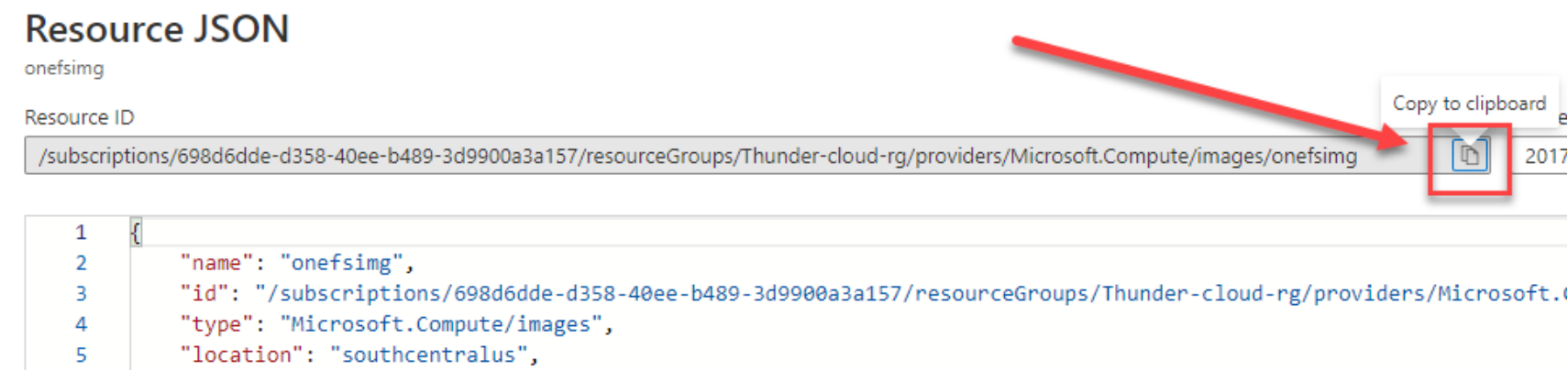
A screenshot of how to get the URI of an image. In the screenshot, we click copy to clipboard to copy the image URI.

Figure 18.    Copy URI of image file for OneFS

Hashed admin or root password

To use different passwords for the root and admin, an end-user can specify  hashed_root_passphrase and hashed_admin_passphrase respectively.

To generate the hashed password, use the following command:

openssl passwd -5 -salt `head -c 8 /dev/random | xxd -p` "<replace-password-here>"

In the above command, head -c 8 /dev/random | xxd -p is used to generate an 8 byte random string in its hexadecimal representation which is used as the salt for producing the hashed output.

Disk Encryption

By enabling disk encryption via setting the use_disk_encryption input parameter to true, it is possible to use an existing disk encryption set in Azure to encrypt both the OS disks and data disks created by Terraform.

Note that the name of the existing disk encryption set and the resource group it is located in will need to be added to the disk_encryption_set_name and disk_encryption_set_resource_group input parameters respectively.

Initialize Terraform

Initialize the Terraform configuration, where it configures the backend, installs all required providers and modules used in the Terraform script, and creates a lock file if it does not already exist. To do that:

  1. At a Command Prompt, change to the directory where the Terraform scripts are located.
  1. Run the command:

>terraform.exe init

  1. If everything goes fine, you will see the following message:
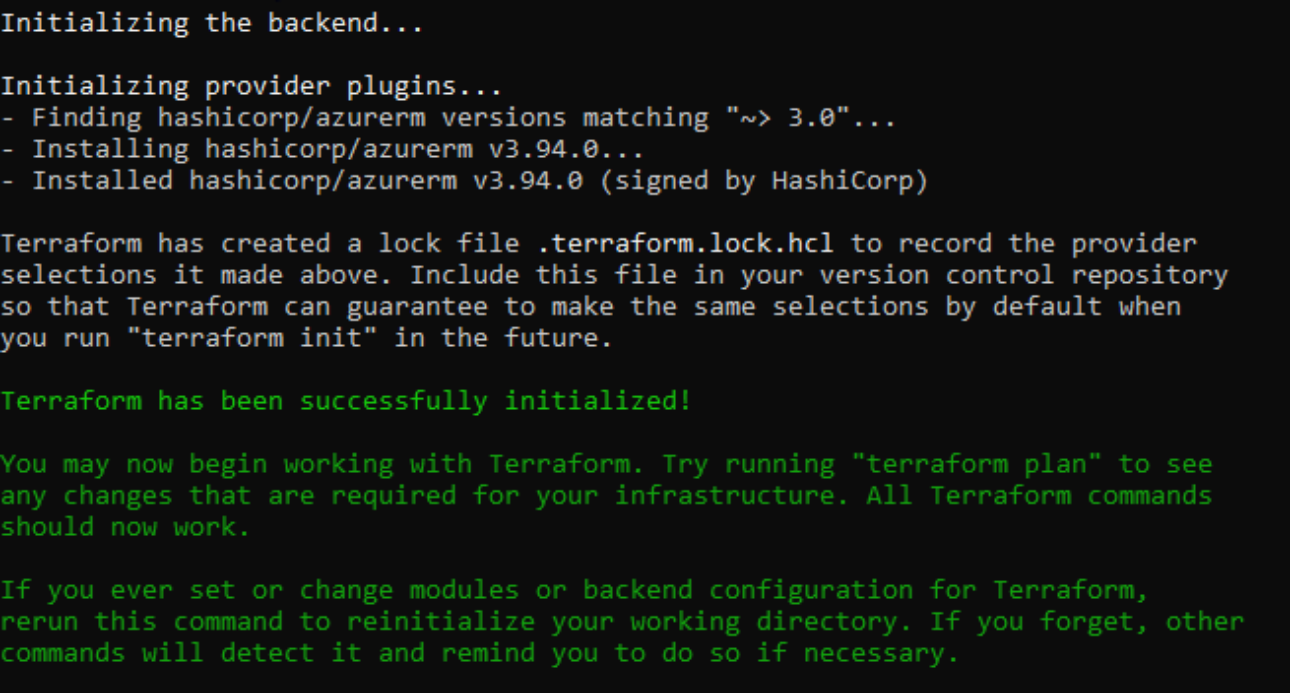
A screen showing terraform init success

Figure 19.    Successful message

  1. To validate your configuration, use the following command:

>terraform.exe validate

PowerScale for Microsoft Azure Deployment

To deploy an instance of PowerScale for Microsoft Azure, run the following commands:

Note: Before applying the Terraform code, run terraform plan for a quick dry run to validate all the changes.

  1. Apply the configurations by running the following command.

# terraform apply

  1. Enter yes after you have previewed and confirmed the changes.

Do you want to perform these actions?

  Terraform will perform the actions described above.

  Only 'yes' will be accepted to approve.

  Enter a value: yes

  1. When the deployment is complete, output similar to the following appears:
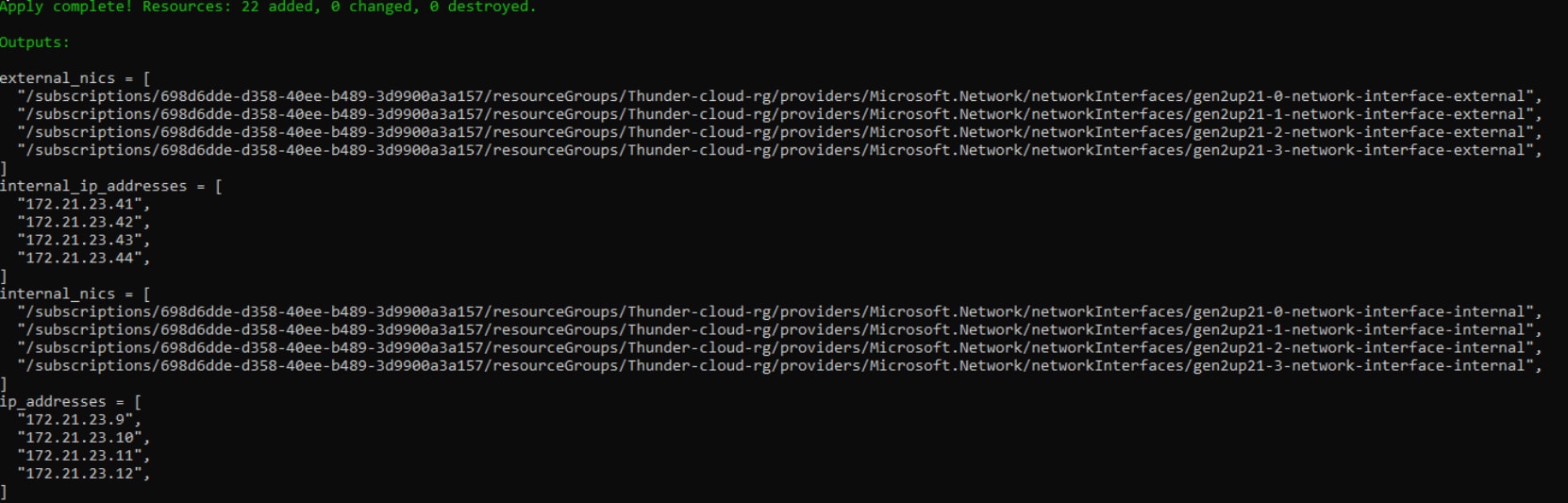
A screenshot of output of the terraform script to deploy APEX File Storage for Azure. the output includes internal/external nics and ips

Figure 20.    Terraform output after the success

Note: After the deployment completes, the nodes will not be immediately available, because they will undergo an automatic configuration process to form a cluster, which requires a few minutes.

  1. In this example, you can use the IPs from ip_addresses in Figure 20 to connect to your PowerScale for Microsoft Azure.
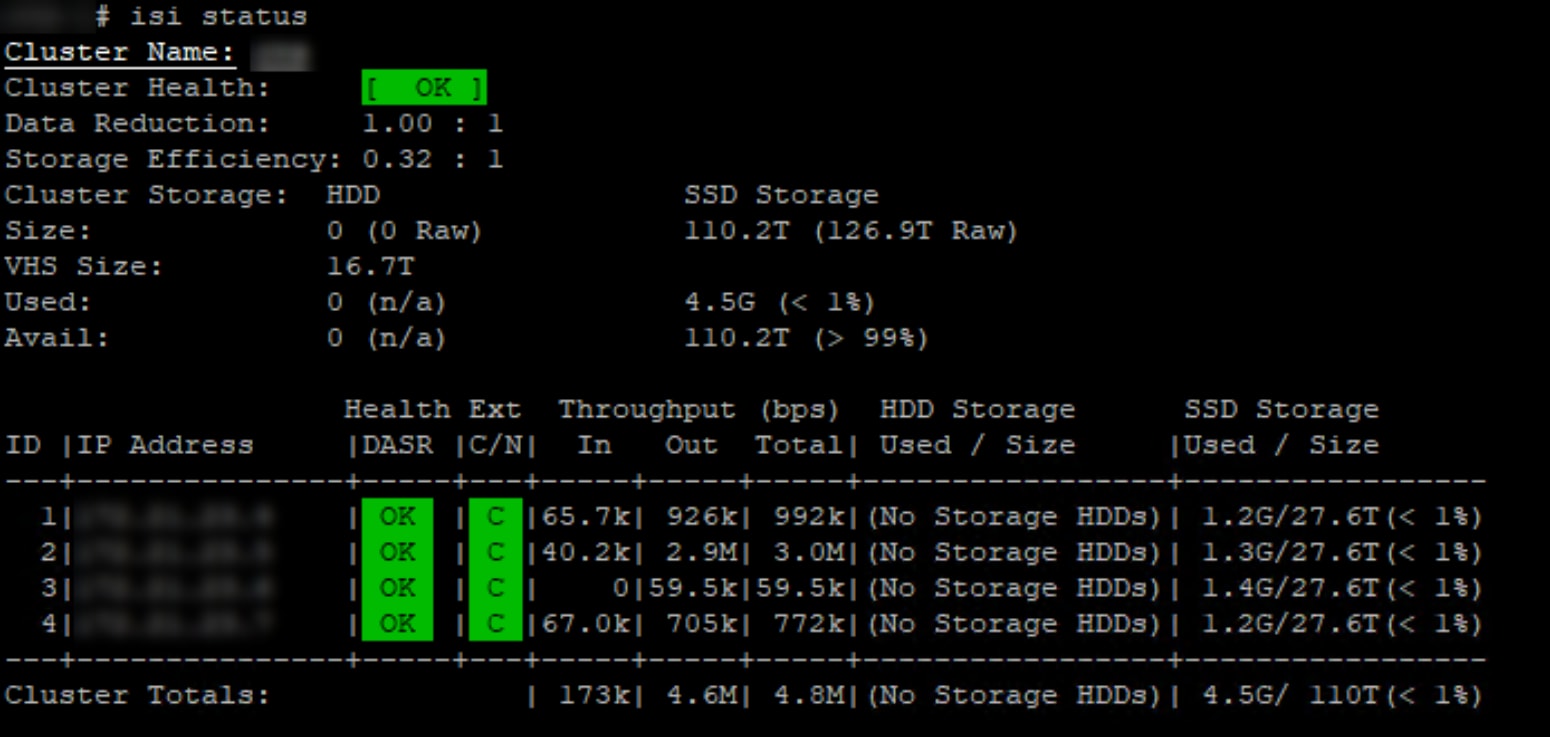
A screenshot of output of the CLI command "isi status" to check that the cluster is in good shape.

Figure 21.    Cluster status for PowerScale for Microsoft Azure

Licensing

For details on how to apply the license for PowerScale for Microsoft Azure, refer to PowerScale OneFS Web Administration Guide.

Dell Technologies connectivity services

Dell Technologies connectivity services, in some old OneFS versions, also known as SupportAssist, are designed to transmit logs, events, and telemetry to the Dell backend services. For details on configuration, refer to PowerScale OneFS Web Administration Guide.

Support Responsibilities and Involvement

Dell is responsible for supporting PowerScale OneFS only, and Microsoft Azure will be responsible for supporting the infrastructure.

The SWID is used to file a support ticket to Dell and is available in the OneFS web administration interface or the CLI.

In OneFS:

  • Click Cluster Management > Licensing
  • The OneFS license ID is the SWID for the cluster

From the command-line interface:

  • Open an SSH connection on any node in the cluster and log in using the "root" account.
  • Run the following command to get only the SWID: isi license list | grep -i "OneFS license"

Expand PowerScale for Microsoft Azure

Expand PowerScale for Microsoft Azure

You can scale out an existing cluster at any time to meet your business needs. This section shows how to add a node to an existing cluster.

  1. Edit the terraform.tfvars file to change the cluster_nodes field to one higher.

Note: You can increase the value of cluster_nodes by any number, but it should not exceed the value of max_num_nodes which is defined in the same file. The maximum value for max_num_nodes is 18. In some scenarios, there are valid configurations that have a maximum node count of less than 18. Refer to Appendix A: supported cluster configuration details for more details.

  1. Apply the changes and select ‘yes’ at the prompt:

> terraform.exe apply

  1. The Terraform script will highlight the changes that apply to the cluster:
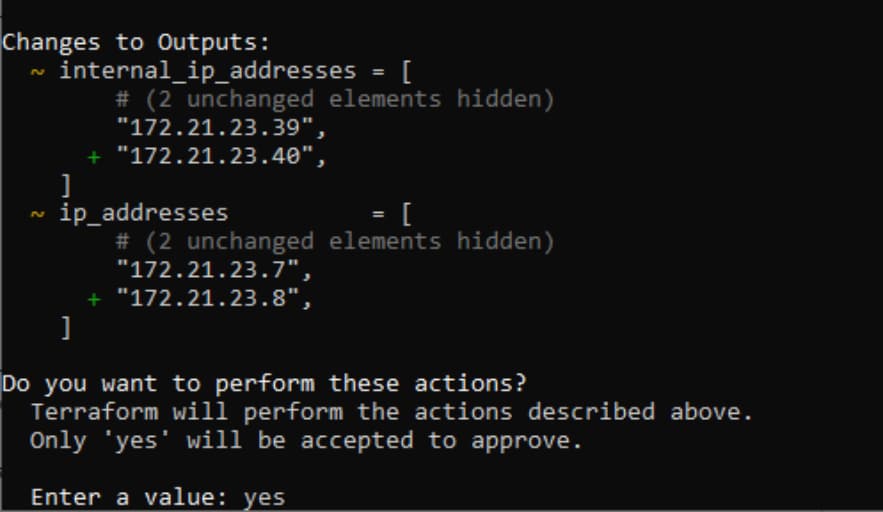
A screenshot of output of terraform script dry run. The end user is to type "yes" to continue.

Figure 22.    Changes to the cluster

  1. The new node will be available in a few minutes. After it has been successfully provisioned, you can check it in the Terraform output:
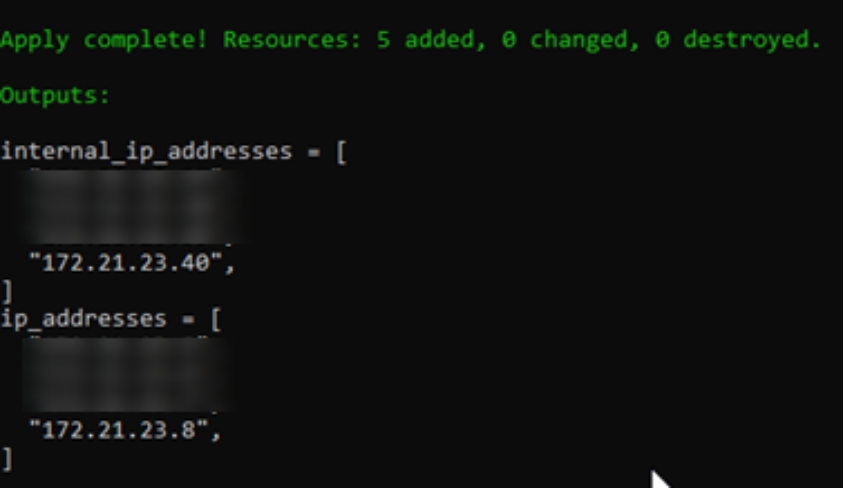
A screenshot of output of the terraform script to provision a node. Both internal IP and the external IP will be shown in the output.

Figure 23.    Terraform output

  1. To join the new node to the existing cluster, do the following:
    1. To log in to the serial console, access the new node’s management page in the Azure Portal and select Serial console from the Help portion of the management pane on the left-hand side.

A screenshot of using the Azure serial console to connect to a newly provisioned node to join a cluster.Among the options listed in the screen, choose option #2 to join an existing cluster.

Figure 24.    Azure serial console to join an existing cluster

Note: Only the Serial console will work. An SSH connection through Bastion will not.

  1. In the configuration wizard, select option 2 to Join an existing cluster.
  2. Type the cluster name to join. When it finishes, it prompts you to open the login window. Log in as root, then use the isi status command to verify the result.

Destroy an instance of PowerScale for Microsoft Azure

Destroy an instance of PowerScale for Microsoft Azure

To destroy an instance of PowerScale for Microsoft Azure provisioned by Terraform, follow these steps:

  1. Navigate to the Terraform folder where you do the provisioning. The folder should contain your Terraform variable definitions file (.tfvars) and the state file (.tfstate).
  1. Run the Terraform destroy command, similar to the following, to tear down all resources on Azure created by the Terraform script:

# terraform destroy

Configure SmartConnect

Configure SmartConnect

Important: Before starting to configure SmartConnect, make sure that you have followed the steps in the sections Azure Managed Identity and Prepare vm.json

Deploy from a non-Marketplace image

If you intend to deploy the cluster from a non-Marketplace image, and the image is uploaded to your Azure resource group with the steps described in the section Upload the image file to PowerScale for Microsoft Azure, there is no need to modify the vm.json file.

Deploy from an Azure Marketplace image

Note: Reach out to PowerScale.Azure@dell.com to get a modified version of vm.json to support your deployment from Azure Marketplace. The following section explains where the changes happens for different regions.

If you intend to deploy the cluster from an Azure Marketplace image for OneFS, the following parts should be updated in the file vm.json:

A screenshot of a computerAI-generated content may be incorrect.

Figure 25.    Example of the vm.json file using OneFS image from the US Marketplace offer

In the Azure Marketplace, we have 3 offers for different regions:

Change the vm.json file according to the region of the Azure Marketplace offers you want to use.

Table 9.      Azure template parameters for different regions

Terraform input variables to deploy an instance of PowerScale for Microsoft Azure.

Important: SmartConnect relies on the Azure endpoint https://management.azure.com to request IP assignment or removal. Make sure your firewall unblock it from each node.

To configure SmartConnect:

  1. SSH to any nodes using the frontend IP.
  1. Run the following command to make sure that the SmartConnect Service IP is shown in the output. In the example, the SSIP is 10.0.0.5.

isi network interfaces list
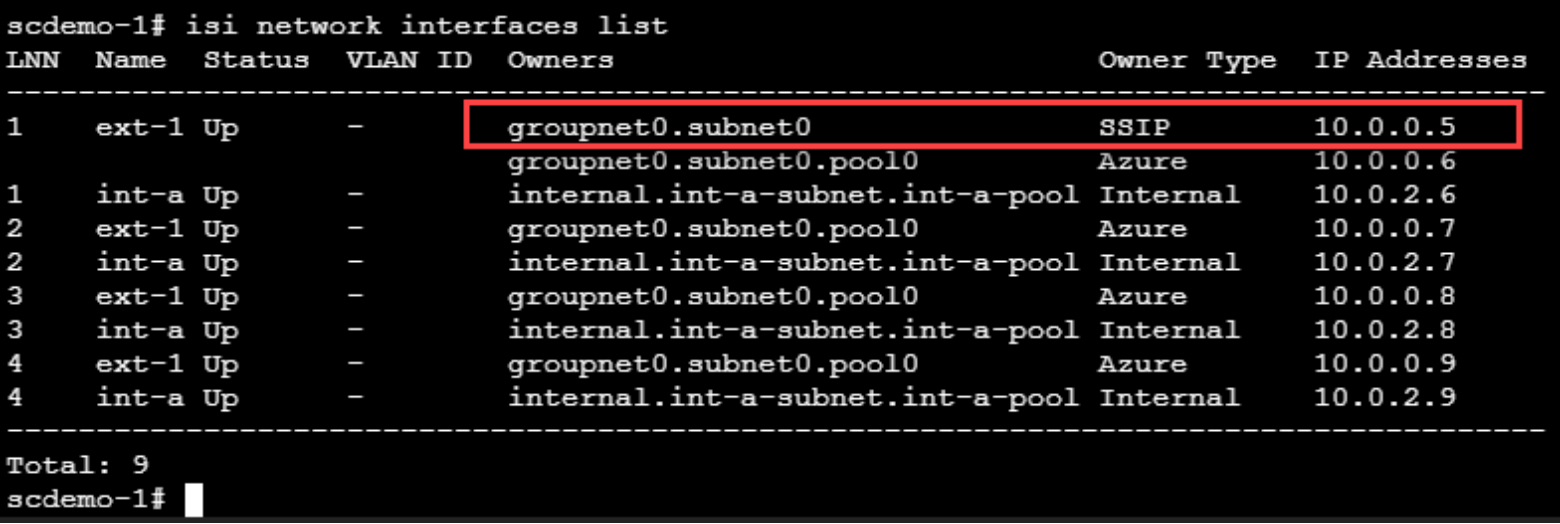
A screenshot of output from running the command 'isi network interfaces list'.In the output, check whether SSIP is well configured.

Figure 26.    SSIP in the list

  1. Run the following command to make sure that the SmartConnect zone FQDN is well configured. In this example, the SmartConnect zone name is demo.cell.com.

isi network pools view groupnet0.subnet0.pool0
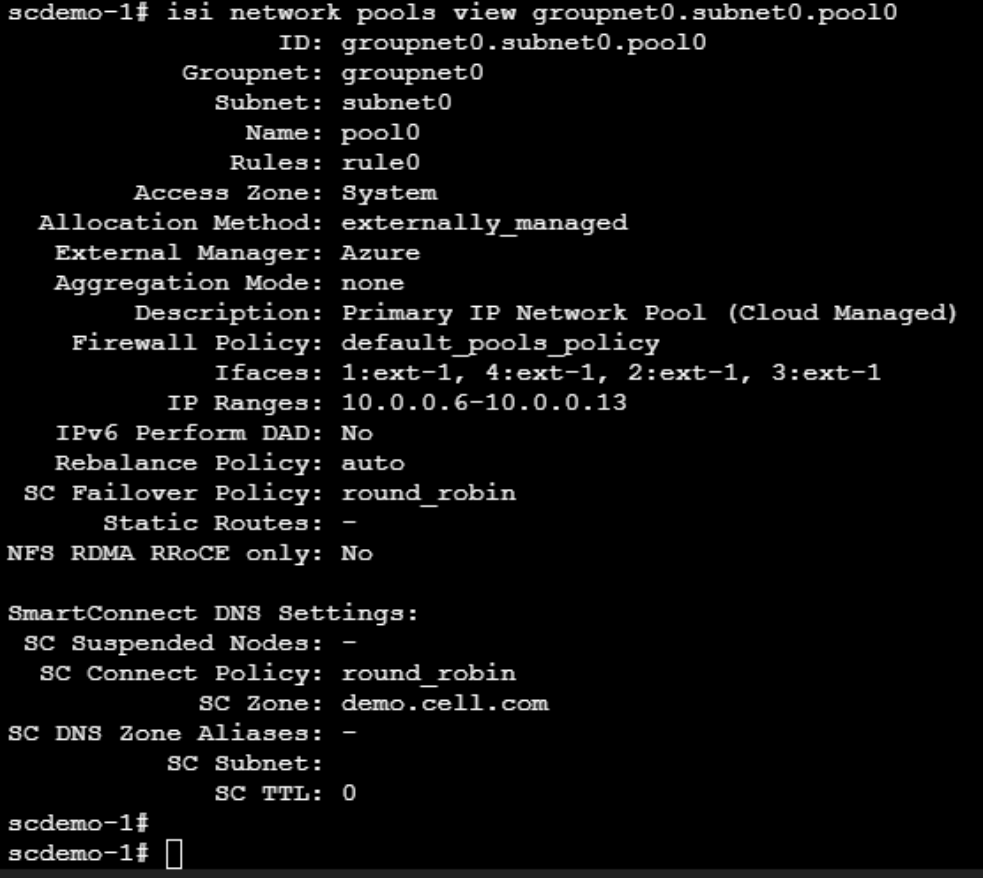
A screenshot of output from running the command 'isi network pools view groupnet0.subnet0.pool0'.In the output, check whether the SC zone name has been well configured.

Figure 27.    SmartConnect zone name

  1. The next step is to configure the DNS delegation, the steps vary depending on the DNS you use. The following steps assume that you are using Azure DNS and that Azure DNS private resolver will be created and configured for this purpose.

In the Azure Marketplace, to create an Azure DNS private resolver, click Create.
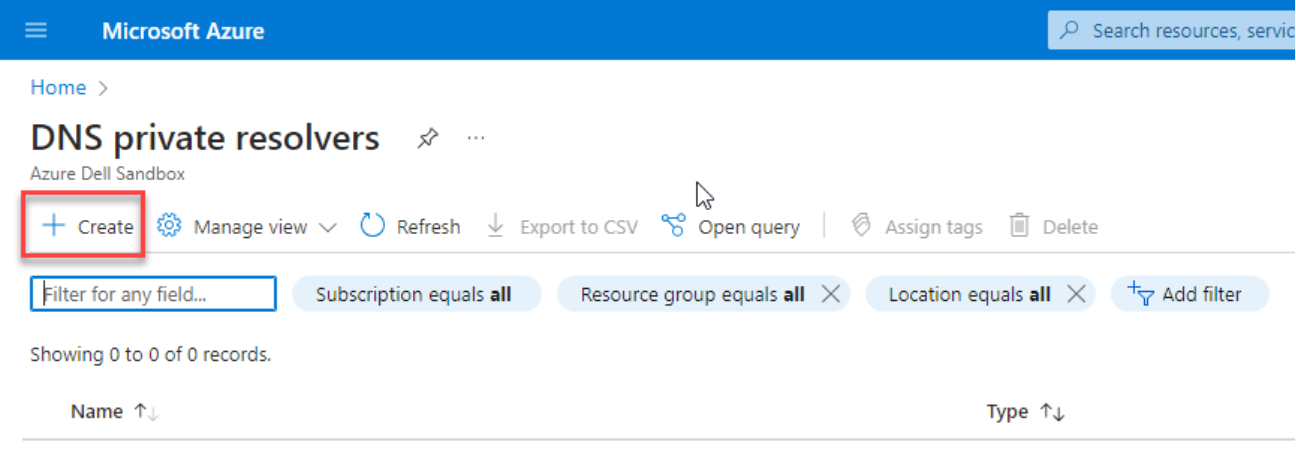
A screenshot of clicking the create button on the DNS private resolvers page.

Figure 28.    Create DNS private resolver

  1. In the Basics tab, fill in all the fields. Make sure that you choose the same region where your virtual network is.
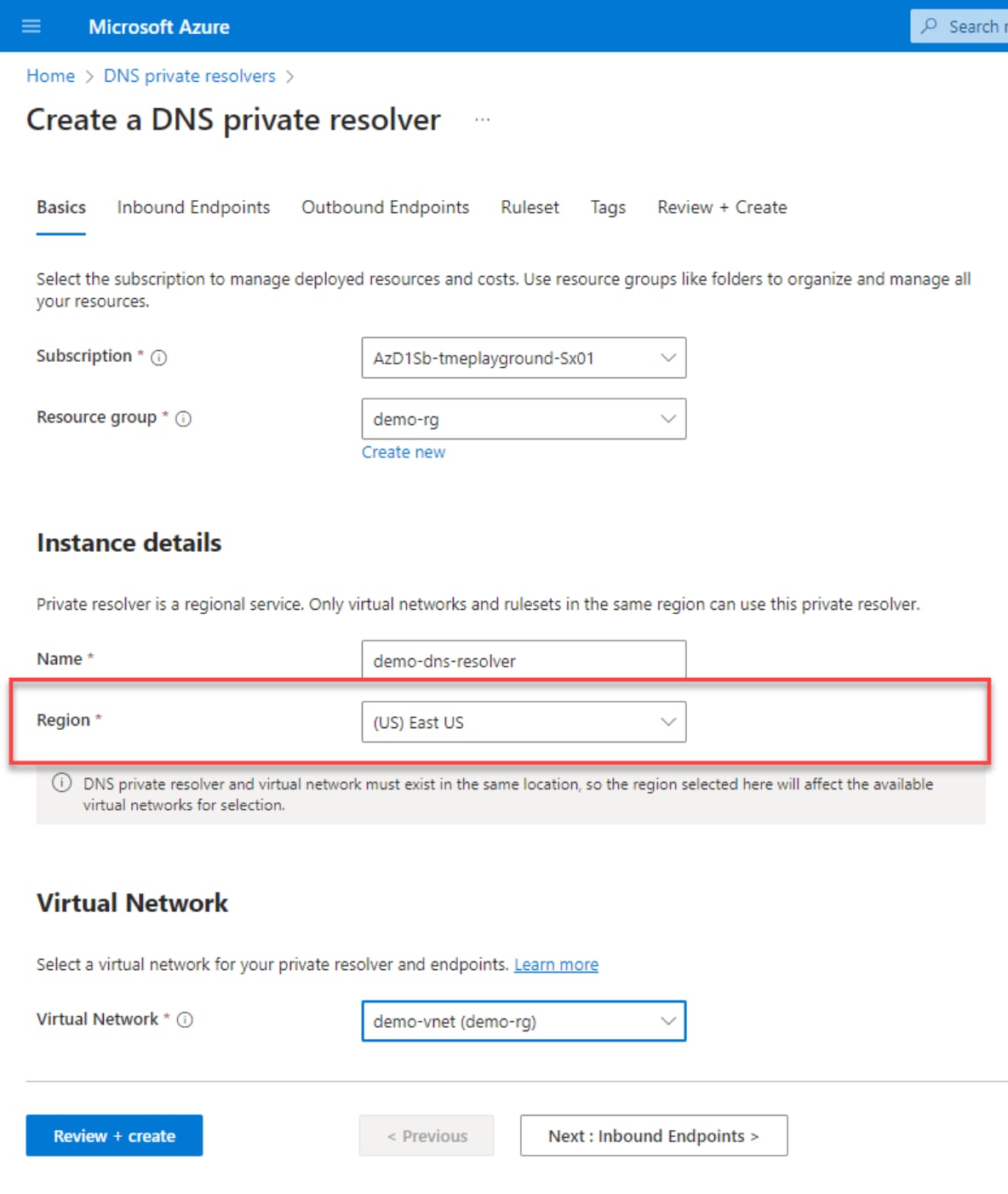
A screenshot of creating a DNS private resolver basics tab.In the region field, choose 'east US'.

Figure 29.    Create a DNS private resolver – Basics

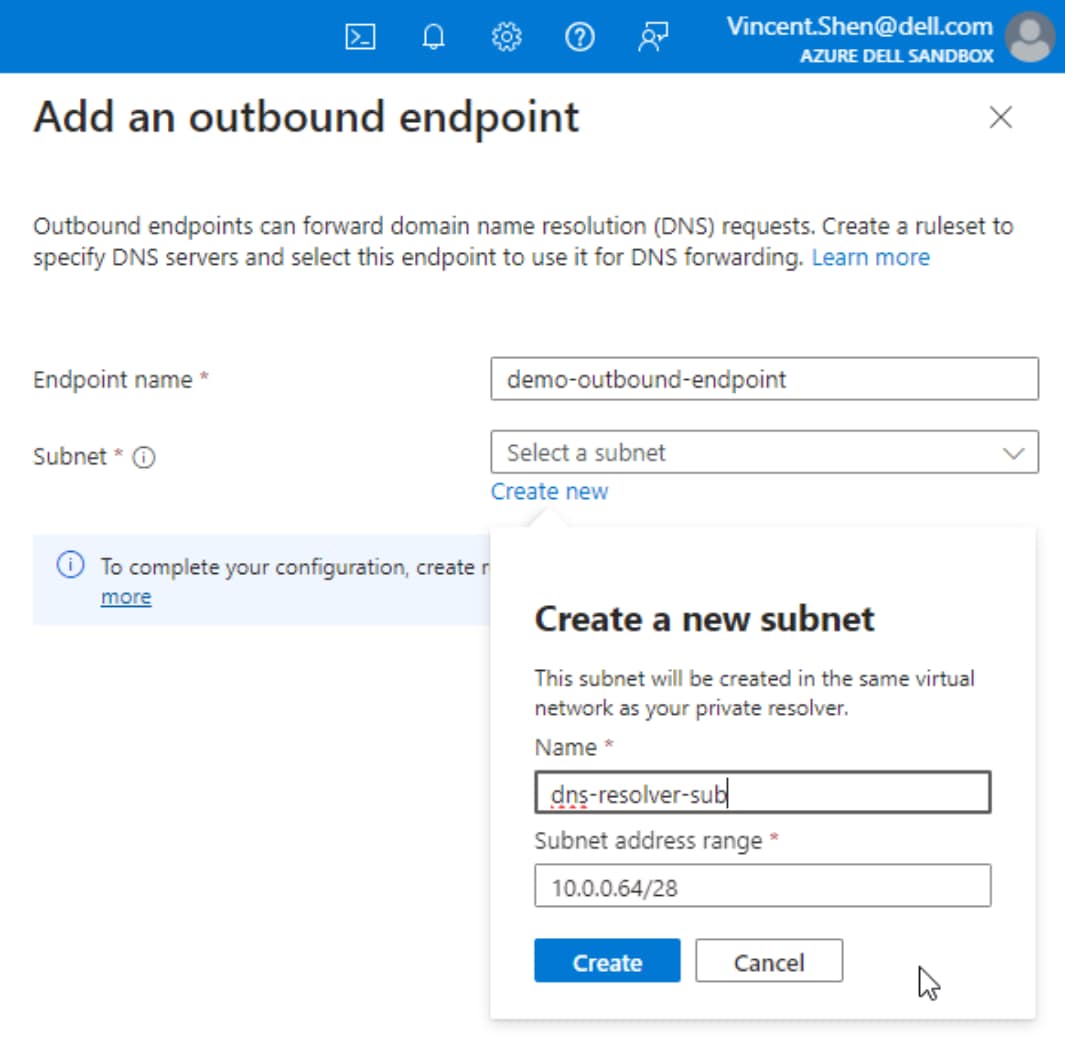
  1. In the Outbound Endpoints tab, select Add an endpoint, and in the pop-up window – Add an outbound endpoint, give it a Name. You can also create a subnet dedicated for this endpoint. To do this, click the link Create new and enter the Name and Subnet address range.
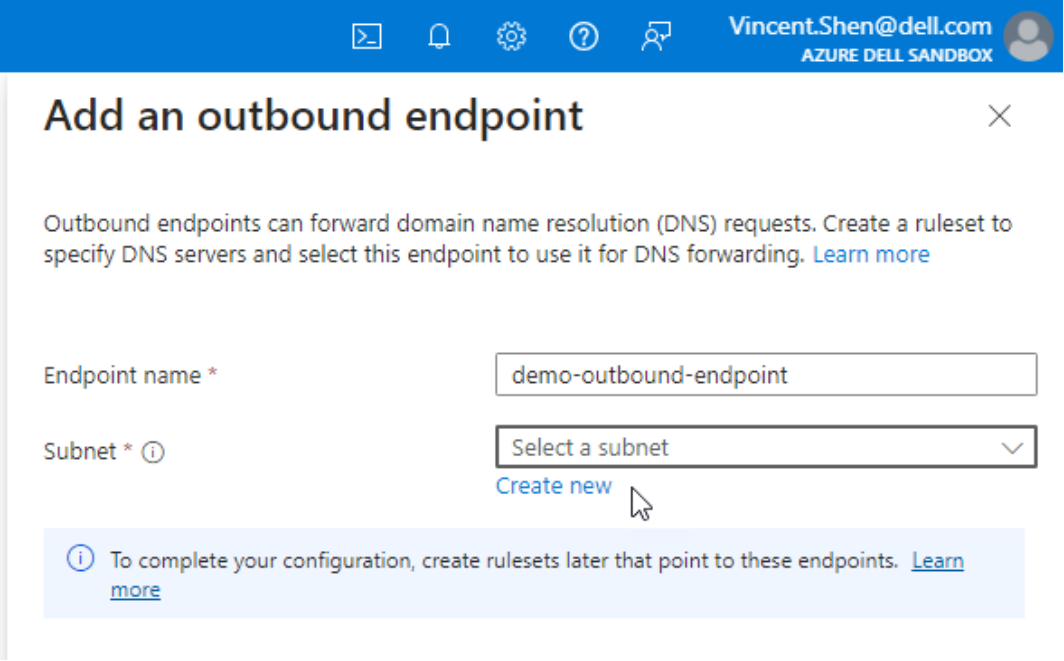
A screenshot of adding an outbound endpoint. The endpoint name is demo-outbound-endpoint.

Figure 30.    Add an outbound endpoint

A screenshot of creating a new subnet for Azure DNS resolver.  The name is dns-resolver-sub. Thesubnet address range is 10.0.0.64/28.

Figure 31.    Create a new subnet for outbound endpoint

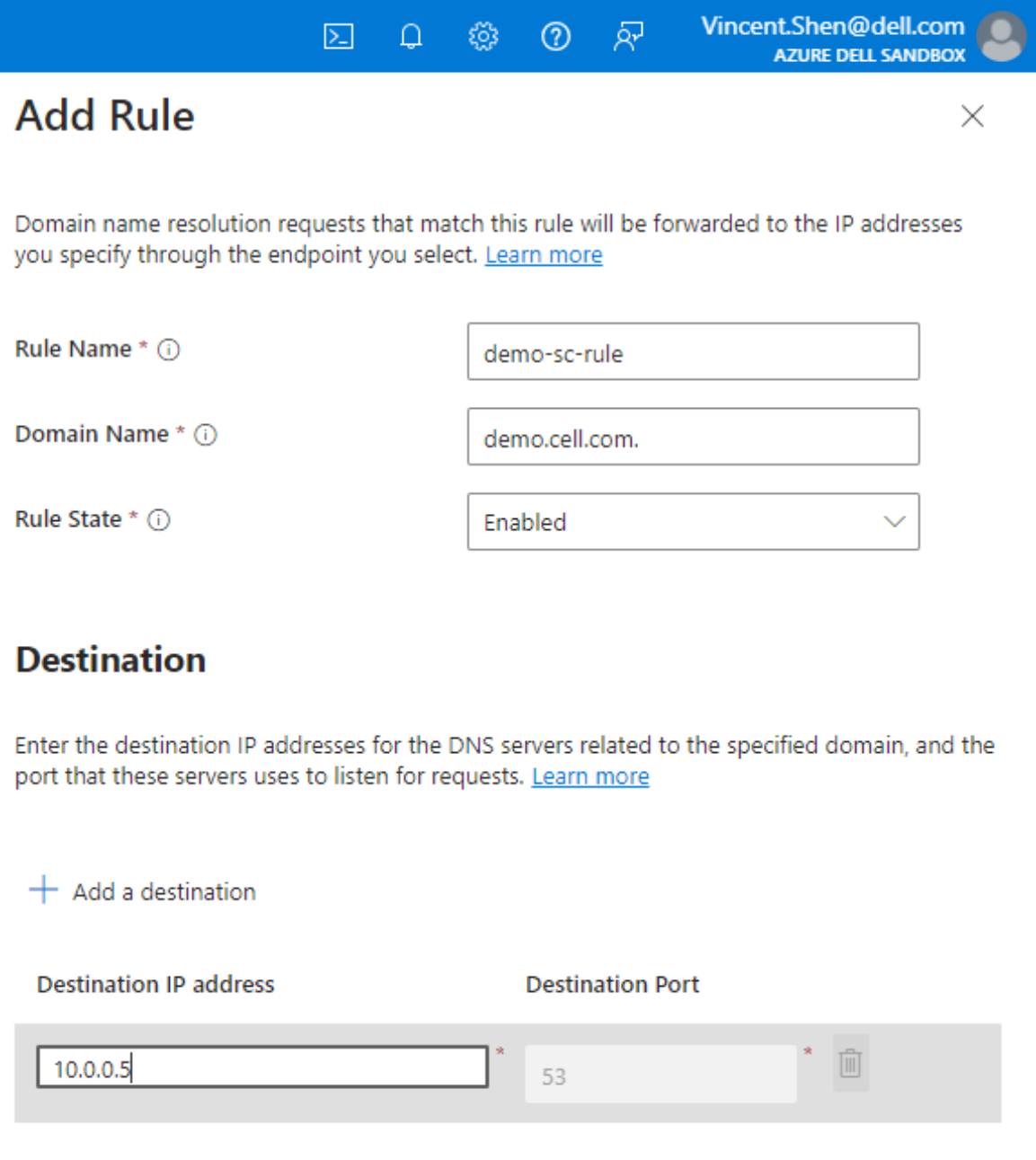
  1. In the Ruleset tab, type the ruleset name, and select the endpoint created in the previous steps. In the Rules sections, click Add. In the Add Rule window, type the Rule Name and Domain Name, which is your SmartConnect zone name. Choose the Rule State to Enabled. For the Destination IP address, type the SSIP which in this example is 10.0.0.5.
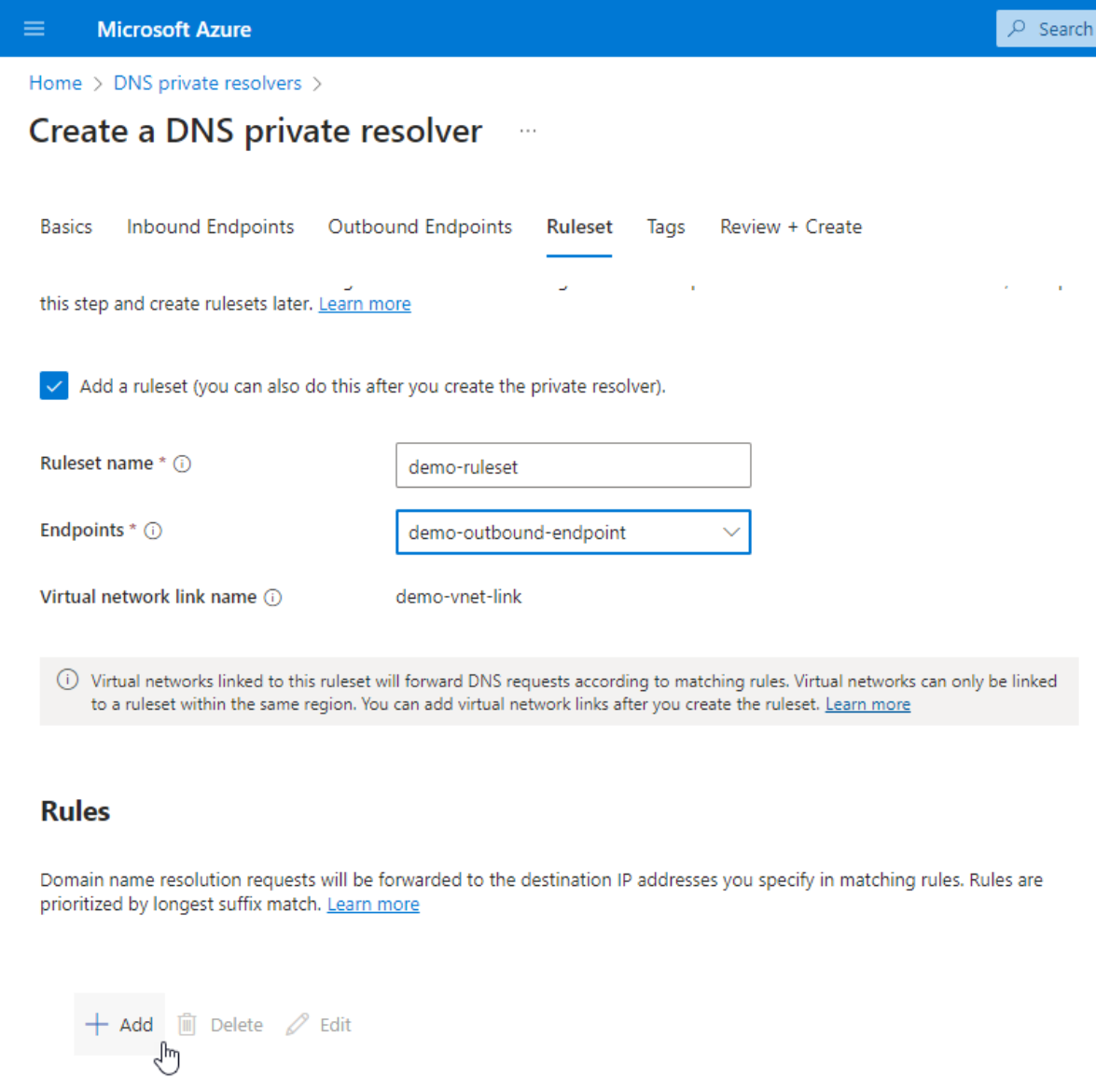
A screenshot of adding a ruleset.The ruleset name is demo-ruleset.The endpoint is demo-outbound-endpoint.

Figure 32.    Create ruleset

A screenshot of the add a rule page.The rule name is demo-sc-rule,the domain name is demo.cell.com.the rule state is enable, and the destination IP address is 10.0.0.5.

Figure 33.    Add rule

  1. Click Review + create and then Create to complete the configuration.

Appendix A: supported cluster configuration details

Appendix A: supported cluster configuration details

Based on the explanation in Table 3, Table 4, and chapter OneFS protection level. This appendix lists all supported cluster configurations for different disk types and sizes. It also indicates whether the +2d:1n OneFS protection level is supported in the specific configuration. Here are the quick reference links for the different disk sizes:

Cluster using P20 or E20

The following table shows the available combinations of cluster size and disk count, by using 0.5 TiB disk size with P20 or E20.

Table 10.  Supported configurations details – P20 or E20

Disk count per node

Node count

Cluster raw capacity (TiB)

Support +2d:1n using P20

Support +2d:1n using E20

5

4

10

Yes

Yes

5

5

12.5

Yes

Yes

5

6

15

Yes

Yes

5

7

17.5

Yes

Yes

5

8

20

Yes

Yes

5

9

22.5

Yes

Yes

5

10

25

Yes

Yes

5

11

27.5

Yes

Yes

5

12

30

Yes

Yes

5

13

32.5

Yes

Yes

5

14

35

Yes

Yes

5

15

37.5

Yes

Yes

5

16

40

Yes

Yes

5

17

42.5

Yes

Yes

5

18

45

Yes

Yes

6

4

12

Yes

Yes

6

5

15

Yes

Yes

6

6

18

Yes

Yes

6

7

21

Yes

Yes

6

8

24

Yes

Yes

6

9

27

Yes

Yes

6

10

30

Yes

Yes

6

11

33

Yes

Yes

6

12

36

Yes

Yes

6

13

39

Yes

Yes

6

14

42

Yes

Yes

6

15

45

Yes

Yes

6

16

48

Yes

Yes

6

17

51

Yes

Yes

6

18

54

Yes

Yes

10

4

20

Yes

Yes

10

5

25

Yes

Yes

10

6

30

Yes

Yes

10

7

35

Yes

Yes

10

8

40

Yes

Yes

10

9

45

Yes

Yes

10

10

50

Yes

Yes

10

11

55

Yes

Yes

10

12

60

Yes

Yes

10

13

65

Yes

Yes

10

14

70

Yes

Yes

10

15

75

Yes

Yes

10

16

80

Yes

Yes

10

17

85

Yes

Yes

10

18

90

Yes

Yes

12

4

24

Yes

Yes

12

5

30

Yes

Yes

12

6

36

Yes

Yes

12

7

42

Yes

Yes

12

8

48

Yes

Yes

12

9

54

Yes

Yes

12

10

60

Yes

Yes

12

11

66

Yes

Yes

12

12

72

Yes

Yes

12

13

78

Yes

Yes

12

14

84

Yes

Yes

12

15

90

Yes

Yes

12

16

96

Yes

Yes

12

17

102

Yes

Yes

12

18

108

Yes

Yes

15

4

30

Yes

Yes

15

5

37.5

Yes

Yes

15

6

45

Yes

Yes

15

7

52.5

Yes

Yes

15

8

60

Yes

Yes

15

9

67.5

Yes

Yes

15

10

75

Yes

Yes

15

11

82.5

Yes

Yes

15

12

90

Yes

Yes

15

13

97.5

Yes

Yes

15

14

105

Yes

Yes

15

15

112.5

Yes

Yes

15

16

120

Yes

Yes

15

17

127.5

Yes

Yes

15

18

135

Yes

Yes

18

4

36

Yes

Yes

18

5

45

Yes

Yes

18

6

54

Yes

Yes

18

7

63

Yes

Yes

18

8

72

Yes

Yes

18

9

81

Yes

Yes

18

10

90

Yes

Yes

18

11

99

Yes

Yes

18

12

108

Yes

Yes

18

13

117

Yes

Yes

18

14

126

Yes

Yes

18

15

135

Yes

Yes

18

16

144

Yes

Yes

18

17

153

Yes

Yes

18

18

162

Yes

Yes

20

4

40

Yes

Yes

20

5

50

Yes

Yes

20

6

60

Yes

Yes

20

7

70

Yes

Yes

20

8

80

Yes

Yes

20

9

90

Yes

Yes

20

10

100

Yes

Yes

20

11

110

Yes

Yes

20

12

120

Yes

Yes

20

13

130

Yes

Yes

20

14

140

Yes

Yes

20

15

150

Yes

Yes

20

16

160

Yes

Yes

20

17

170

Yes

Yes

20

18

180

Yes

Yes

24

4

48

Yes

Yes

24

5

60

Yes

Yes

24

6

72

Yes

Yes

24

7

84

Yes

Yes

24

8

96

Yes

Yes

24

9

108

Yes

Yes

24

10

120

Yes

Yes

24

11

132

Yes

Yes

24

12

144

Yes

Yes

24

13

156

Yes

Yes

24

14

168

Yes

Yes

24

15

180

Yes

Yes

24

16

192

Yes

Yes

24

17

204

Yes

Yes

24

18

216

Yes

Yes

25

4

50

Yes

Yes

25

5

62.5

Yes

Yes

25

6

75

Yes

Yes

25

7

87.5

Yes

Yes

25

8

100

Yes

Yes

25

9

112.5

Yes

Yes

25

10

125

Yes

Yes

25

11

137.5

Yes

Yes

25

12

150

Yes

Yes

25

13

162.5

Yes

Yes

25

14

175

Yes

Yes

25

15

187.5

Yes

Yes

25

16

200

Yes

Yes

25

17

212.5

Yes

Yes

25

18

225

Yes

Yes

30

4

60

Yes

Yes

30

5

75

Yes

Yes

30

6

90

Yes

Yes

30

7

105

Yes

Yes

30

8

120

Yes

Yes

30

9

135

Yes

Yes

30

10

150

Yes

Yes

30

11

165

Yes

Yes

30

12

180

Yes

Yes

30

13

195

Yes

Yes

30

14

210

Yes

Yes

30

15

225

Yes

Yes

30

16

240

Yes

Yes

30

17

255

Yes

No (See Table 3)

30

18

270

Yes

No

Cluster using P30 or E30

The following table shows the available combinations of cluster size and disk count, by using 1 TiB disk size with P30 or E30.

Table 11.  Supported configurations details – P30 or E30

Disk count per node

Node count

Cluster raw capacity (TiB)

Support +2d:1n using P30

Support +2d:1n using E30

5

4

20

Yes

Yes

5

5

25

Yes

Yes

5

6

30

Yes

Yes

5

7

35

Yes

Yes

5

8

40

Yes

Yes

5

9

45

Yes

Yes

5

10

50

Yes

Yes

5

11

55

Yes

Yes

5

12

60

Yes

Yes

5

13

65

Yes

Yes

5

14

70

Yes

Yes

5

15

75

Yes

Yes

5

16

80

Yes

Yes

5

17

85

Yes

Yes

5

18

90

Yes

Yes

6

4

24

Yes

Yes

6

5

30

Yes

Yes

6

6

36

Yes

Yes

6

7

42

Yes

Yes

6

8

48

Yes

Yes

6

9

54

Yes

Yes

6

10

60

Yes

Yes

6

11

66

Yes

Yes

6

12

72

Yes

Yes

6

13

78

Yes

Yes

6

14

84

Yes

Yes

6

15

90

Yes

Yes

6

16

96

Yes

Yes

6

17

102

Yes

Yes

6

18

108

Yes

Yes

10

4

40

Yes

Yes

10

5

50

Yes

Yes

10

6

60

Yes

Yes

10

7

70

Yes

Yes

10

8

80

Yes

Yes

10

9

90

Yes

Yes

10

10

100

Yes

Yes

10

11

110

Yes

Yes

10

12

120

Yes

Yes

10

13

130

Yes

Yes

10

14

140

Yes

Yes

10

15

150

Yes

Yes

10

16

160

Yes

Yes

10

17

170

Yes

Yes

10

18

180

Yes

Yes

12

4

48

Yes

Yes

12

5

60

Yes

Yes

12

6

72

Yes

Yes

12

7

84

Yes

Yes

12

8

96

Yes

Yes

12

9

108

Yes

Yes

12

10

120

Yes

Yes

12

11

132

Yes

Yes

12

12

144

Yes

Yes

12

13

156

Yes

Yes

12

14

168

Yes

Yes

12

15

180

Yes

Yes

12

16

192

Yes

Yes

12

17

204

Yes

Yes

12

18

216

Yes

Yes

15

4

60

Yes

Yes

15

5

75

Yes

Yes

15

6

90

Yes

Yes

15

7

105

Yes

Yes

15

8

120

Yes

Yes

15

9

135

Yes

Yes

15

10

150

Yes

Yes

15

11

165

Yes

Yes

15

12

180

Yes

Yes

15

13

195

Yes

Yes

15

14

210

Yes

Yes

15

15

225

Yes

Yes

15

16

240

Yes

Yes

15

17

255

Yes

No

15

18

270

Yes

No

18

4

72

Yes

Yes

18

5

90

Yes

Yes

18

6

108

Yes

Yes

18

7

126

Yes

Yes

18

8

144

Yes

Yes

18

9

162

Yes

Yes

18

10

180

Yes

Yes

18

11

198

Yes

Yes

18

12

216

Yes

Yes

18

13

234

Yes

Yes

18

14

252

Yes

No

18

15

270

Yes

No

18

16

288

Yes

No

18

17

306

Yes

No

18

18

324

Yes

No

20

4

80

Yes

Yes

20

5

100

Yes

Yes

20

6

120

Yes

Yes

20

7

140

Yes

Yes

20

8

160

Yes

Yes

20

9

180

Yes

Yes

20

10

200

Yes

Yes

20

11

220

Yes

Yes

20

12

240

Yes

Yes

20

13

260

Yes

No

20

14

280

Yes

No

20

15

300

Yes

No

20

16

320

Yes

No

20

17

340

Yes

No

20

18

360

Yes

No

24

4

96

Yes

Yes

24

5

120

Yes

Yes

24

6

144

Yes

Yes

24

7

168

Yes

Yes

24

8

192

Yes

Yes

24

9

216

Yes

Yes

24

10

240

Yes

Yes

24

11

264

Yes

No

24

12

288

Yes

No

24

13

312

Yes

No

24

14

336

Yes

No

24

15

360

Yes

No

24

16

384

Yes

No

24

17

408

Yes

No

24

18

432

Yes

No

25

4

100

Yes

Yes

25

5

125

Yes

Yes

25

6

150

Yes

Yes

25

7

175

Yes

Yes

25

8

200

Yes

Yes

25

9

225

Yes

Yes

25

10

250

Yes

No

25

11

275

Yes

No

25

12

300

Yes

No

25

13

325

Yes

No

25

14

350

Yes

No

25

15

375

Yes

No

25

16

400

Yes

No

25

17

425

Yes

No

25

18

450

Yes

No

30

4

120

Yes

Yes

30

5

150

Yes

Yes

30

6

180

Yes

Yes

30

7

210

Yes

Yes

30

8

240

Yes

Yes

30

9

270

Yes

No

30

10

300

Yes

No

30

11

330

Yes

No

30

12

360

Yes

No

30

13

390

Yes

No

30

14

420

Yes

No

30

15

450

Yes

No

30

16

480

Yes

No

30

17

510

Yes

No

30

18

540

Yes

No

Cluster using P40, E40, or S40

The following table shows the available combinations of cluster size and disk count, by using 2 TiB disk size with P40, E40, or S40.

Table 12.  Supported configurations details - P40, E40, or S40

Disk count per node

Node count

Cluster raw capacity (TiB)

Support +2d:1n using P40

Support +2d:1n using E40

Support +2d:1n using S40

5

4

80

Yes

Yes

Yes

5

4

40

Yes

Yes

Yes

5

5

50

Yes

Yes

Yes

5

6

60

Yes

Yes

Yes

5

7

70

Yes

Yes

Yes

5

8

80

Yes

Yes

Yes

5

9

90

Yes

Yes

Yes

5

10

100

Yes

Yes

Yes

5

11

110

Yes

Yes

Yes

5

12

120

Yes

Yes

Yes

5

13

130

Yes

Yes

Yes

5

14

140

Yes

Yes

Yes

5

15

150

Yes

Yes

Yes

5

16

160

Yes

Yes

Yes

5

17

170

Yes

Yes

Yes

5

18

180

Yes

Yes

Yes

6

4

48

Yes

Yes

Yes

6

5

60

Yes

Yes

Yes

6

6

72

Yes

Yes

Yes

6

7

84

Yes

Yes

Yes

6

8

96

Yes

Yes

Yes

6

9

108

Yes

Yes

Yes

6

10

120

Yes

Yes

Yes

6

11

132

Yes

Yes

Yes

6

12

144

Yes

Yes

Yes

6

13

156

Yes

Yes

Yes

6

14

168

Yes

Yes

Yes

6

15

180

Yes

Yes

Yes

6

16

192

Yes

Yes

Yes

6

17

204

Yes

Yes

Yes

6

18

216

Yes

Yes

Yes

10

4

80

Yes

Yes

Yes

10

5

100

Yes

Yes

Yes

10

6

120

Yes

Yes

Yes

10

7

140

Yes

Yes

Yes

10

8

160

Yes

Yes

Yes

10

9

180

Yes

Yes

Yes

10

10

200

Yes

Yes

Yes

10

11

220

Yes

Yes

Yes

10

12

240

Yes

Yes

Yes

10

13

260

Yes

No

Yes

10

14

280

Yes

No

Yes

10

15

300

Yes

No

No

10

16

320

Yes

No

No

10

17

340

Yes

No

No

10

18

360

Yes

No

No

12

4

96

Yes

Yes

Yes

12

5

120

Yes

Yes

Yes

12

6

144

Yes

Yes

Yes

12

7

168

Yes

Yes

Yes

12

8

192

Yes

Yes

Yes

12

9

216

Yes

Yes

Yes

12

10

240

Yes

Yes

Yes

12

11

264

Yes

No

Yes

12

12

288

Yes

No

No

12

13

312

Yes

No

No

12

14

336

Yes

No

No

12

15

360

Yes

No

No

12

16

384

Yes

No

No

12

17

408

Yes

No

No

12

18

432

Yes

No

No

15

4

120

Yes

Yes

Yes

15

5

150

Yes

Yes

Yes

15

6

180

Yes

Yes

Yes

15

7

210

Yes

Yes

Yes

15

8

240

Yes

Yes

Yes

15

9

270

Yes

No

Yes

15

10

300

Yes

No

No

15

11

330

Yes

No

No

15

12

360

Yes

No

No

15

13

390

Yes

No

No

15

14

420

Yes

No

No

15

15

450

Yes

No

No

15

16

480

Yes

No

No

15

17

510

Yes

No

No

15

18

540

Yes

No

No

18

4

144

Yes

Yes

Yes

18

5

180

Yes

Yes

Yes

18

6

216

Yes

Yes

Yes

18

7

252

Yes

No

Yes

18

8

288

Yes

No

No

18

9

324

Yes

No

No

18

10

360

Yes

No

No

18

11

396

Yes

No

No

18

12

432

Yes

No

No

18

13

468

Yes

No

No

18

14

504

Yes

No

No

18

15

540

Yes

No

No

18

16

576

Yes

No

No

18

17

612

Yes

No

No

18

18

648

Yes

No

No

20

4

160

Yes

Yes

Yes

20

5

200

Yes

Yes

Yes

20

6

240

Yes

Yes

Yes

20

7

280

Yes

No

Yes

20

8

320

Yes

No

No

20

9

360

Yes

No

No

20

10

400

Yes

No

No

20

11

440

Yes

No

No

20

12

480

Yes

No

No

20

13

520

Yes

No

No

20

14

560

Yes

No

No

20

15

600

Yes

No

No

20

16

640

Yes

No

No

20

17

680

Yes

No

No

20

18

720

Yes

No

No

24

4

192

Yes

Yes

Yes

24

5

240

Yes

Yes

Yes

24

6

288

Yes

No

No

24

7

336

Yes

No

No

24

8

384

Yes

No

No

24

9

432

Yes

No

No

24

10

480

Yes

No

No

24

11

528

Yes

No

No

24

12

576

Yes

No

No

24

13

624

Yes

No

No

24

14

672

Yes

No

No

24

15

720

Yes

No

No

24

16

768

Yes

No

No

24

17

816

Yes

No

No

24

18

864

No

No

No

25

4

200

Yes

Yes

Yes

25

5

250

Yes

No

Yes

25

6

300

Yes

No

No

25

7

350

Yes

No

No

25

8

400

Yes

No

No

25

9

450

Yes

No

No

25

10

500

Yes

No

No

25

11

550

Yes

No

No

25

12

600

Yes

No

No

25

13

650

Yes

No

No

25

14

700

Yes

No

No

25

15

750

Yes

No

No

25

16

800

Yes

No

No

25

17

850

No

No

No

25

18

900

No

No

No

30

4

240

Yes

Yes

Yes

30

5

300

Yes

No

No

30

6

360

Yes

No

No

30

7

420

Yes

No

No

30

8

480

Yes

No

No

30

9

540

Yes

No

No

30

10

600

Yes

No

No

30

11

660

Yes

No

No

30

12

720

Yes

No

No

30

13

780

Yes

No

No

30

14

840

Yes

No

No

30

15

900

No

No

No

30

16

960

No

No

No

30

17

1020

No

No

No

30

18

1080

No

No

No

Cluster using P50, E50, or S50

The following table shows the available combinations of cluster size and disk count, by using 4 TiB disk size with P50, E50, or S50.

Table 13.  Supported configurations details - P50, E50, or S50

Disk count per node

Node count

Cluster raw capacity (TiB)

Support +2d:1n using P50

Support +2d:1n using E50

Support +2d:1n using S50

5

4

80

Yes

Yes

Yes

5

5

100

Yes

Yes

Yes

5

6

120

Yes

Yes

Yes

5

7

140

Yes

Yes

Yes

5

8

160

Yes

Yes

Yes

5

9

180

Yes

Yes

Yes

5

10

200

Yes

Yes

Yes

5

11

220

Yes

Yes

Yes

5

12

240

Yes

Yes

Yes

5

13

260

Yes

No

Yes

5

14

280

Yes

No

Yes

5

15

300

Yes

No

No

5

16

320

Yes

No

No

5

17

340

Yes

No

No

5

18

360

Yes

No

No

6

4

96

Yes

Yes

Yes

6

5

120

Yes

Yes

Yes

6

6

144

Yes

Yes

Yes

6

7

168

Yes

Yes

Yes

6

8

192

Yes

Yes

Yes

6

9

216

Yes

Yes

Yes

6

10

240

Yes

Yes

Yes

6

11

264

Yes

No

Yes

6

12

288

Yes

No

No

6

13

312

Yes

No

No

6

14

336

Yes

No

No

6

15

360

Yes

No

No

6

16

384

Yes

No

No

6

17

408

Yes

No

No

6

18

432

Yes

No

No

10

4

160

Yes

Yes

Yes

10

5

200

Yes

Yes

Yes

10

6

240

Yes

Yes

Yes

10

7

280

Yes

No

Yes

10

8

320

Yes

No

No

10

9

360

Yes

No

No

10

10

400

Yes

No

No

10

11

440

Yes

No

No

10

12

480

Yes

No

No

10

13

520

Yes

No

No

10

14

560

Yes

No

No

10

15

600

Yes

No

No

10

16

640

Yes

No

No

10

17

680

Yes

No

No

10

18

720

Yes

No

No

12

4

192

Yes

Yes

Yes

12

5

240

Yes

Yes

Yes

12

6

288

Yes

No

No

12

7

336

Yes

No

No

12

8

384

Yes

No

No

12

9

432

Yes

No

No

12

10

480

Yes

No

No

12

11

528

Yes

No

No

12

12

576

Yes

No

No

12

13

624

Yes

No

No

12

14

672

Yes

No

No

12

15

720

Yes

No

No

12

16

768

Yes

No

No

12

17

816

Yes

No

No

12

18

864

No

No

No

15

4

240

Yes

Yes

Yes

15

5

300

Yes

No

No

15

6

360

Yes

No

No

15

7

420

Yes

No

No

15

8

480

Yes

No

No

15

9

540

Yes

No

No

15

10

600

Yes

No

No

15

11

660

Yes

No

No

15

12

720

Yes

No

No

15

13

780

Yes

No

No

15

14

840

Yes

No

No

15

15

900

No

No

No

15

16

960

No

No

No

15

17

1020

No

No

No

15

18

1080

No

No

No

18

4

288

Yes

No

No

18

5

360

Yes

No

No

18

6

432

Yes

No

No

18

7

504

Yes

No

No

18

8

576

Yes

No

No

18

9

648

Yes

No

No

18

10

720

Yes

No

No

18

11

792

Yes

No

No

18

12

864

No

No

No

18

13

936

No

No

No

18

14

1008

No

No

No

18

15

1080

No

No

No

18

16

1152

No

No

No

18

17

1224

No

No

No

18

18

1296

No

No

No

20

4

320

Yes

No

No

20

5

400

Yes

No

No

20

6

480

Yes

No

No

20

7

560

Yes

No

No

20

8

640

Yes

No

No

20

9

720

Yes

No

No

20

10

800

Yes

No

No

20

11

880

No

No

No

20

12

960

No

No

No

20

13

1040

No

No

No

20

14

1120

No

No

No

20

15

1200

No

No

No

20

16

1280

No

No

No

20

17

1360

No

No

No

20

18

1440

No

No

No

24

4

384

Yes

No

No

24

5

480

Yes

No

No

24

6

576

Yes

No

No

24

7

672

Yes

No

No

24

8

768

Yes

No

No

24

9

864

No

No

No

24

10

960

No

No

No

24

11

1056

No

No

No

24

12

1152

No

No

No

24

13

1248

No

No

No

24

14

1344

No

No

No

24

15

1440

No

No

No

24

16

1536

No

No

No

24

17

1632

No

No

No

24

18

1728

No

No

No

25

4

400

Yes

No

No

25

5

500

Yes

No

No

25

6

600

Yes

No

No

25

7

700

Yes

No

No

25

8

800

Yes

No

No

25

9

900

No

No

No

25

10

1000

No

No

No

25

11

1100

No

No

No

25

12

1200

No

No

No

25

13

1300

No

No

No

25

14

1400

No

No

No

25

15

1500

No

No

No

25

16

1600

No

No

No

25

17

1700

No

No

No

25

18

1800

No

No

No

30

4

480

Yes

No

No

30

5

600

Yes

No

No

30

6

720

Yes

No

No

30

7

840

Yes

No

No

30

8

960

No

No

No

30

9

1080

No

No

No

30

10

1200

No

No

No

30

11

1320

No

No

No

30

12

1440

No

No

No

30

13

1560

No

No

No

30

14

1680

No

No

No

30

15

1800

No

No

No

30

16

1920

No

No

No

30

17

2040

No

No

No

30

18

2160

No

No

No

Cluster using P60, E60, or S60

The following table shows the available combinations of cluster size and disk count, by using 8 TiB disk size with P60, E60, or S60.

Table 14.  Supported configurations details - P60, E60, or S60

Disk count per node

Node count

Cluster raw capacity (TiB)

Support +2d:1n using P60

Support +2d:1n using E60

Support +2d:1n using S60

5

4

160

Yes

Yes

Yes

5

5

200

Yes

Yes

Yes

5

6

240

Yes

Yes

Yes

5

7

280

Yes

Yes

Yes

5

8

320

Yes

Yes

Yes

5

9

360

Yes

Yes

Yes

5

10

400

Yes

Yes

Yes

5

11

440

Yes

Yes

Yes

5

12

480

Yes

Yes

Yes

5

13

520

Yes

Yes

Yes

5

14

560

Yes

Yes

Yes

5

15

600

Yes

Yes

Yes

5

16

640

Yes

Yes

Yes

5

17

680

Yes

Yes

Yes

5

18

720

Yes

Yes

Yes

6

4

192

Yes

Yes

Yes

6

5

240

Yes

Yes

Yes

6

6

288

Yes

Yes

Yes

6

7

336

Yes

Yes

Yes

6

8

384

Yes

Yes

Yes

6

9

432

Yes

Yes

Yes

6

10

480

Yes

Yes

Yes

6

11

528

Yes

Yes

Yes

6

12

576

Yes

Yes

Yes

6

13

624

Yes

Yes

Yes

6

14

672

Yes

Yes

Yes

6

15

720

Yes

Yes

Yes

6

16

768

Yes

Yes

Yes

6

17

816

Yes

No

No

6

18

864

Yes

No

No

10

4

320

Yes

Yes

Yes

10

5

400

Yes

Yes

Yes

10

6

480

Yes

Yes

Yes

10

7

560

Yes

Yes

Yes

10

8

640

Yes

Yes

Yes

10

9

720

Yes

Yes

Yes

10

10

800

Yes

Yes

Yes

10

11

880

Yes

No

No

10

12

960

Yes

No

No

10

13

1040

Yes

No

No

10

14

1120

Yes

No

No

10

15

1200

Yes

No

No

10

16

1280

Yes

No

No

10

17

1360

Yes

No

No

10

18

1440

Yes

No

No

12

4

384

Yes

Yes

Yes

12

5

480

Yes

Yes

Yes

12

6

576

Yes

Yes

Yes

12

7

672

Yes

Yes

Yes

12

8

768

Yes

Yes

Yes

12

9

864

Yes

No

No

12

10

960

Yes

No

No

12

11

1056

Yes

No

No

12

12

1152

Yes

No

No

12

13

1248

Yes

No

No

12

14

1344

Yes

No

No

12

15

1440

Yes

No

No

12

16

1536

No

No

No

12

17

1632

No

No

No

12

18

1728

No

No

No

15

4

480

Yes

Yes

Yes

15

5

600

Yes

Yes

Yes

15

6

720

Yes

Yes

Yes

15

7

840

Yes

No

No

15

8

960

Yes

No

No

15

9

1080

Yes

No

No

15

10

1200

Yes

No

No

15

11

1320

Yes

No

No

15

12

1440

Yes

No

No

15

13

1560

No

No

No

15

14

1680

No

No

No

15

15

1800

No

No

No

15

16

1920

No

No

No

15

17

2040

No

No

No

15

18

2160

No

No

No

18

4

576

Yes

Yes

Yes

18

5

720

Yes

Yes

Yes

18

6

864

Yes

No

No

18

7

1008

Yes

No

No

18

8

1152

Yes

No

No

18

9

1296

Yes

No

No

18

10

1440

Yes

No

No

18

11

1584

No

No

No

18

12

1728

No

No

No

18

13

1872

No

No

No

18

14

2016

No

No

No

18

15

2160

No

No

No

18

16

2304

No

No

No

18

17

2448

No

No

No

18

18

2592

No

No

No

20

4

640

Yes

Yes

Yes

20

5

800

Yes

Yes

Yes

20

6

960

Yes

No

No

20

7

1120

Yes

No

No

20

8

1280

Yes

No

No

20

9

1440

Yes

No

No

20

10

1600

No

No

No

20

11

1760

No

No

No

20

12

1920

No

No

No

20

13

2080

No

No

No

20

14

2240

No

No

No

20

15

2400

No

No

No

20

16

2560

No

No

No

20

17

2720

No

No

No

20

18

2880

No

No

No

24

4

768

Yes

Yes

Yes

24

5

960

Yes

No

No

24

6

1152

Yes

No

No

24

7

1344

Yes

No

No

24

8

1536

No

No

No

24

9

1728

No

No

No

24

10

1920

No

No

No

24

11

2112

No

No

No

24

12

2304

No

No

No

24

13

2496

No

No

No

24

14

2688

No

No

No

24

15

2880

No

No

No

24

16

3072

No

No

No

24

17

3264

No

No

No

24

18

3456

No

No

No

25

4

800

Yes

Yes

Yes

25

5

1000

Yes

No

No

25

6

1200

Yes

No

No

25

7

1400

Yes

No

No

25

8

1600

No

No

No

25

9

1800

No

No

No

25

10

2000

No

No

No

25

11

2200

No

No

No

25

12

2400

No

No

No

25

13

2600

No

No

No

25

14

2800

No

No

No

25

15

3000

No

No

No

25

16

3200

No

No

No

25

17

3400

No

No

No

25

18

3600

No

No

No

30

4

960

Yes

No

No

30

5

1200

Yes

No

No

30

6

1440

Yes

No

No

30

7

1680

No

No

No

30

8

1920

No

No

No

30

9

2160

No

No

No

30

10

2400

No

No

No

30

11

2640

No

No

No

30

12

2880

No

No

No

30

13

3120

No

No

No

30

14

3360

No

No

No

30

15

3600

No

No

No

30

16

3840

No

No

No

30

17

4080

No

No

No

30

18

4320

No

No

No

Cluster using P70, E70, or S70

The following table shows the available combinations of cluster size and disk count, by using 16 TiB disk size with P70, E70, or S70.

Table 15.  Supported configurations details - P70, E70, or S70

Disk count per node

Node count

Cluster raw capacity (TiB)

Support +2d:1n using P70

Support +2d:1n using E70

Support +2d:1n using S70

5

4

320

Yes

Yes

Yes

5

5

400

Yes

Yes

Yes

5

6

480

Yes

Yes

Yes

5

7

560

Yes

Yes

Yes

5

8

640

Yes

Yes

Yes

5

9

720

Yes

Yes

Yes

5

10

800

Yes

Yes

Yes

5

11

880

Yes

Yes

Yes

5

12

960

Yes

Yes

Yes

5

13

1040

Yes

Yes

Yes

5

14

1120

Yes

Yes

Yes

5

15

1200

Yes

Yes

No

5

16

1280

Yes

Yes

No

5

17

1360

Yes

Yes

No

5

18

1440

Yes

Yes

No

6

4

384

Yes

Yes

Yes

6

5

480

Yes

Yes

Yes

6

6

576

Yes

Yes

Yes

6

7

672

Yes

Yes

Yes

6

8

768

Yes

Yes

Yes

6

9

864

Yes

Yes

Yes

6

10

960

Yes

Yes

Yes

6

11

1056

Yes

Yes

Yes

6

12

1152

Yes

Yes

No

6

13

1248

Yes

Yes

No

6

14

1344

Yes

Yes

No

6

15

1440

Yes

Yes

No

6

16

1536

No

Yes

No

6

17

1632

No

No

No

6

18

1728

No

No

No

10

4

640

Yes

Yes

Yes

10

5

800

Yes

Yes

Yes

10

6

960

Yes

Yes

Yes

10

7

1120

Yes

Yes

Yes

10

8

1280

Yes

Yes

No

10

9

1440

Yes

Yes

No

10

10

1600

No

Yes

No

10

11

1760

No

No

No

10

12

1920

No

No

No

10

13

2080

No

No

No

10

14

2240

No

No

No

10

15

2400

No

No

No

10

16

2560

No

No

No

10

17

2720

No

No

No

10

18

2880

No

No

No

12

4

768

Yes

Yes

Yes

12

5

960

Yes

Yes

Yes

12

6

1152

Yes

Yes

No

12

7

1344

Yes

Yes

No

12

8

1536

No

Yes

No

12

9

1728

No

No

No

12

10

1920

No

No

No

12

11

2112

No

No

No

12

12

2304

No

No

No

12

13

2496

No

No

No

12

14

2688

No

No

No

12

15

2880

No

No

No

12

16

3072

No

No

No

12

17

3264

No

No

No

12

18

3456

No

No

No

15

4

960

Yes

Yes

Yes

15

5

1200

Yes

Yes

No

15

6

1440

Yes

Yes

No

15

7

1680

No

No

No

15

8

1920

No

No

No

15

9

2160

No

No

No

15

10

2400

No

No

No

15

11

2640

No

No

No

15

12

2880

No

No

No

15

13

3120

No

No

No

15

14

3360

No

No

No

15

15

3600

No

No

No

15

16

3840

No

No

No

15

17

4080

No

No

No

15

18

4320

No

No

No

18

4

1152

Yes

Yes

No

18

5

1440

Yes

Yes

No

18

6

1728

No

No

No

18

7

2016

No

No

No

18

8

2304

No

No

No

18

9

2592

No

No

No

18

10

2880

No

No

No

18

11

3168

No

No

No

18

12

3456

No

No

No

18

13

3744

No

No

No

18

14

4032

No

No

No

18

15

4320

No

No

No

18

16

4608

No

No

No

18

17

4896

No

No

No

18

18

5184

No

No

No

20

4

1280

Yes

Yes

No

20

5

1600

No

Yes

No

20

6

1920

No

No

No

20

7

2240

No

No

No

20

8

2560

No

No

No

20

9

2880

No

No

No

20

10

3200

No

No

No

20

11

3520

No

No

No

20

12

3840

No

No

No

20

13

4160

No

No

No

20

14

4480

No

No

No

20

15

4800

No

No

No

20

16

5120

No

No

No

20

17

5440

No

No

No

20

18

5760

No

No

No

24

4

1536

No

Yes

No

24

5

1920

No

No

No

24

6

2304

No

No

No

24

7

2688

No

No

No

24

8

3072

No

No

No

24

9

3456

No

No

No

24

10

3840

No

No

No

24

11

4224

No

No

No

24

12

4608

No

No

No

24

13

4992

No

No

No

24

14

5376

No

No

No

24

15

5760

No

No

No

25

4

1600

No

Yes

No

25

5

2000

No

No

No

25

6

2400

No

No

No

25

7

2800

No

No

No

25

8

3200

No

No

No

25

9

3600

No

No

No

25

10

4000

No

No

No

25

11

4400

No

No

No

25

12

4800

No

No

No

25

13

5200

No

No

No

25

14

5600

No

No

No

30

4

1920

No

No

No

30

5

2400

No

No

No

30

6

2880

No

No

No

30

7

3360

No

No

No

30

8

3840

No

No

No

30

9

4320

No

No

No

30

10

4800

No

No

No

30

11

5280

No

No

No

30

12

5760

No

No

No

Appendix B: Cluster raw capacity and usable capacity

Appendix B: Cluster raw capacity and usable capacity

The following tables show the cluster usable capacity when using different OneFS protection levels.

Table 16.  Raw capacity and usable capacity using +2n

Azure managed disk type

Disk size (TiB)

Min cluster capacity (TiB)

Max cluster capacity (TiB)

raw capacity

usable capacity

(+2n)

raw capacity

usable capacity

(+2n)

P20

0.5

10

5

270

240

P30

1

20

10

540

480

P40

2

40

20

1080

960

P50

4

80

40

2160

1920

P60

8

160

80

4320

3840

P70

16

320

160

5760

4992

E20

0.5

10

5

270

240

E30

1

20

10

540

480

E40

2

40

20

1080

960

E50

4

80

40

2160

1920

E60

8

160

80

4320

3840

E70

16

320

160

5760

4992

S40

2

40

20

1080

960

S50

4

80

40

2160

1920

S60

8

160

80

4320

3840

S70

16

320

160

5760

4992

Table 17.  Raw capacity and usable capacity using +2d:1n

Azure managed disk type

Disk size (TiB)

Min cluster capacity (TiB)

Max cluster capacity (TiB)

raw capacity

usable capacity

(+2d:1n)

raw capacity

usable capacity

(+2d:1n)

P20

0.5

10

8

270

240

P30

1

20

15

540

480

P40

2

40

30

840

747

P50

4

80

60

840

747

P60

8

160

120

1440

1280

P70

16

320

240

1440

1280

E20

0.5

10

8

240

213

E30

1

20

15

240

213

E40

2

40

30

240

213

E50

4

80

60

240

213

E60

8

160

120

800

711

E70

16

320

240

1600

1422

S40

2

40

30

280

249

S50

4

80

60

280

249

S60

8

160

120

800

711

S70

16

320

240

1120

996