
Dell PowerScale: Network Design Considerations

Oct 20, 2026
Dell PowerScale: Network Design Considerations This white paper explains design considerations of the Dell PowerScale external network to ensure maximum performance and an optimal user experience.

Executive summary

Introduction

This document provides design considerations for understanding, configuring, and troubleshooting Dell PowerScale scale-out NAS external networking. In a scale-out NAS environment, the overall network architecture must be configured to maximize the user experience. Many factors contribute to overall network performance. This document examines network architecture design and best practices, including factors such as latency, flow control, ICMP, MTU, jumbo frames, congestion, TCP/IP parameters, and IPv6.

.

Note to readers

The network design considerations described in this document are based on general network design and are provided as guidance to PowerScale administrators. All these considerations might not apply to each workload. It is important to understand each consideration and determine if it pertains to your specific environment.

Each network is unique, not only from a design perspective but also from a requirements and workloads perspective. Before making any changes based on the guidance in this document, discuss modifications with the Network Engineering team. Also, as a customary requirement for any major IT implementation, first test changes in a lab environment that closely mimics the workloads of the live network.

Revisions

Date

Description

July 2017

Initial release.

November 2017

Updated after additional feedback. Updated title. Updated the following sections with additional details:

  • Link Aggregation
  • Jumbo Frames
  • Latency
  • ICMP & MTU
  • New sections added:
  • MTU Framesize Overhead
  • Ethernet Frame
  • Network Troubleshooting

December 2017

  • Added link to Network Stack Tuning spreadsheet.
  • Added Multi-Chassis Link Aggregation.

January 2018

  • Removed switch-specific configuration steps with a note about contacting manufacturer .
  • Updated section title for Confirming Transmitted MTUs.
  • Added OneFS commands for checking and modifying MTU.
  • Updated Jumbo Frames section.

May 2018

Updated equation for Bandwidth Delay Product.

August 2018

Added the following sections:

  • SyncIQ Considerations
  • SmartConnect Considerations
  • Access Zones Best Practices

August 2018

Made minor updates based on feedback. Added “Source-Based Routing Considerations.”

September 2018

Updated links.

November 2018

Added section “Source-Based Routing & DNS.”

April 2019

Updated for OneFS 8.2: Added SmartConnect Multi-SSIP.

June 2019

Updated SmartConnect Multi-SSIP section based on feedback.

July 2019

Corrected errors.

August 2019

Updated Ethernet flow control section.

January 2020

Updated to include 25 GbE as front-end NIC option.

April 2020

Added “DNS and time-to-live” section and added “SmartConnect Zone Aliases as opposed to CNAMEs” section.

May 2020

Added “S3” section under “Protocols and SmartConnect allocation methods; updated “Isilon” branding to “PowerScale,” and added “IPMI” section.

June 2020

Added “QoS” and “Software-Defined Networking” sections. Updated the “NFSv4” section with Kerberos and updated the “IP Address quantification” section.

July 2020

Added “SmartConnect service name” section.

August 2020

Added “Isilon 6th generation 1 GbE interfaces” and “VLAN and interface MTU” sections.  Updated “IPMI” section.

September 2020

Updated “DNS delegation best practices” and “SmartConnect in isolated network environments” sections.

February 2021

Updated “IPMI” section.

May 2021

Added “IPv6 Router Advertisements” and “Duplicate Address Detection” sections.

November 2021

Minor update. Added “Flushing DNS and OneFS” section.

December 2021

Updated template.

April 2022

Added “Network Pools Status” section. Updated “Source-Based Routing considerations” section.

October 2022

Updated the “SMB” sub-section under “Protocols and SmartConnect allocation methods”.

January 2023

Updated for OneFS Release 9.5.0.0

September 2023

Updated SmartConnect section.

January 2024

Added a note

February 2024

Updated for OneFS Release 9.7.0.0

April 2024

Updated for OneFS Release 9.8.0.0

August 2024

Updated for OneFS Release 9.9.0.0

February 2025

Updated for OneFS Release 9.10.0.0 and network tuning

August 2026

Updated for OneFS 9.15

Network architecture design

Overview

The architecture design is the core foundation of a reliable and highly available network, considering capacity and bandwidth. Layered on top of the foundation are the many applications running on a campus network, with each requiring specific features and considerations.

For the following sections, an understanding of the differences between distribution and access switches is important. Typically, distribution switches perform L2/L3 connectivity, while access switches are strictly L2. The following figure provides the representation for each.
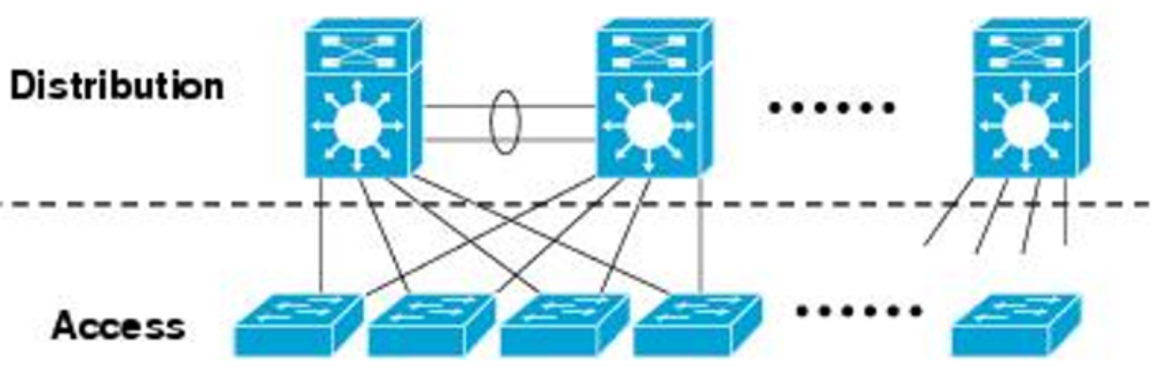
A figure illustrating the distribution and access switches.

Figure 1.   Distribution and access switches

General network architecture considerations

Designing a network is unique to the requirements of each enterprise data center. There is not a “one size fits all” design and not a single “good network design.” When approaching network design, use principles as a leading factor, coupled with the enterprise requirements. The requirements must include current and future application consumption, providing the guiding factor in major decisions.

Network design is based on many concepts. Note the following considerations and principles to guide the process:

  • Single points of failure: Ensure that the network design has layers of redundancy. Dependence on a single device or link relates to a loss of resources or outages. The enterprise requirements consider risk and budget, guiding the level of redundancy. Implement redundancy through backup paths and load sharing. If a primary link fails, traffic uses a backup path. Load sharing creates two or more paths to the same endpoint and shares the network load. When designing access to PowerScale nodes, assume links and hardware will fail, and ensure that access to the nodes will survive those failures.
  • Application and protocol traffic: Understanding the application data flow from clients to the PowerScale cluster across the network allows for resources to be allocated accordingly while minimizing latency and hops along this flow.
  • Available bandwidth: As traffic traverses the different layers of the network, the available bandwidth should not be significantly different. Compare this available bandwidth with the workflow requirements.
  • Minimizing latency: Ensuring that latency is minimal from the client endpoints to the PowerScale nodes maximizes performance and efficiency. Several steps can be taken to minimize latency. Consider latency throughout network design.
  • Prune VLANs: Limit VLANs to areas where they are applicable. Pruning unneeded VLANs is also good practice. Trunking unneeded VLANs further down the network imposes additional strain on endpoints and switches. Broadcasts are propagated across the VLAN and affect clients.
  • VLAN hopping: VLAN hopping has two methods, switch spoofing and double tagging. Switch spoofing is when a host imitates the behavior of a trunking switch, allowing access to other VLANs. Double tagging is a method where each packet contains two VLAN tags—the assigned or correct VLAN tag is empty, and the second tag is the VLAN where access is not permitted. Assigning the native VLAN to an ID that is not in use is recommended. Otherwise, tag the native VLAN to avoid VLAN hopping, allowing a device to access a VLAN it normally would not have access to. Also, only allow trunk ports between trusted devices and assign access VLANs on ports that are different from the default VLAN.

Triangle looped topology

This section provides best practices for Layer 2 access network design. Although many network architectures might meet enterprise requirements, this document takes a closer look at what is commonly referred to as the Triangle Looped Access Topology, which is the most widely implemented architecture in enterprise data centers.
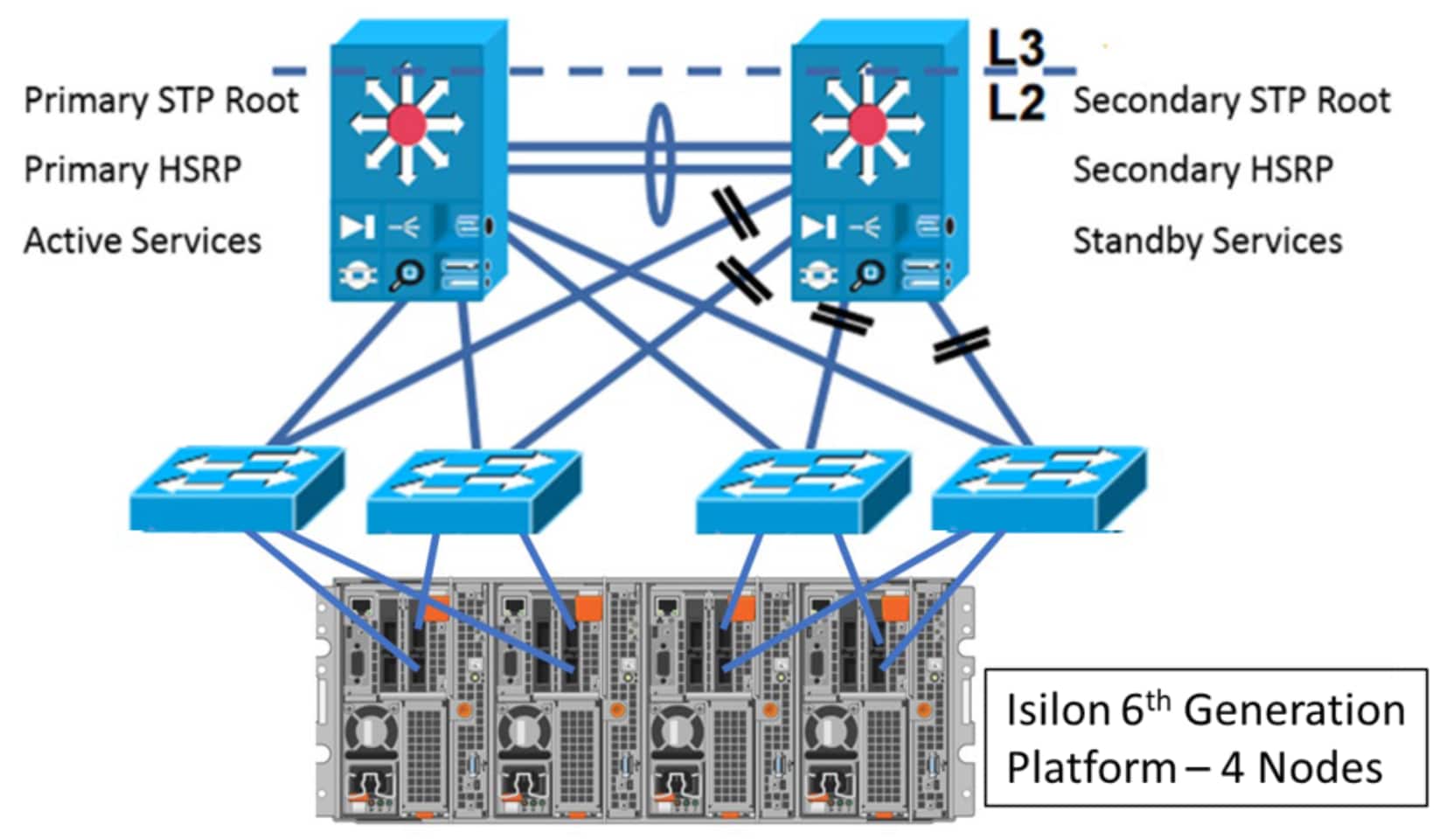
A figure illustrating the triangle looped topology.

Figure 2.   Triangle Looped Access Topology

The Looped Design Model extends VLANs between the aggregation switches, thus creating the looped topology. To prevent loops, Spanning Tree is implemented using Rapid PVST+ or MST. For each path, a redundant path also exists, which is blocked until the primary path is not available. Access layer uplinks may be used to load balance VLANs. A key point to consider with the Looped Access Topology is the utilization of the inter-switch link between the distribution switches. The utilization must be monitored closely because this link is used to reach active services.

The Looped Triangle Access Topology supports VLAN extension and L2 adjacency across the Access layer. By using STP and dual homing, the Looped Triangle is resilient. Stateful services are supported at the aggregation layer and quick convergence with 802.1W/S.

Using the Triangle Looped Topology allows for multiple access switches to interface with the external network of the PowerScale scale-out NAS environment. Each PowerScale node within a cluster is part of a distributed architecture, which allows each node to have similar properties regarding data availability and management.

Link aggregation

In the context of the IEEE 802.1AX standard, link aggregation provides methods to combine multiple Ethernet interfaces, forming a single link layer interface, specific to a switch or server. Therefore, link aggregation is implemented between a single switch and a PowerScale node, not across PowerScale nodes.

Implementing link aggregation is neither mandatory nor is it necessary, rather it is based on workload requirements. Implementing link aggregation is recommended if a transparent failover or switch port redundancy is required.

Link aggregation assumes all links are full duplex, point to point, and at the same data rate, providing graceful recovery from link failures. If a link fails, traffic is automatically sent to the next available link without disruption.

It is imperative to understand that link aggregation is not a substitute for a higher bandwidth link. Although link aggregation combines multiple interfaces, applying it to multiply bandwidth by the number of interfaces for a single session is incorrect. Link aggregation distributes traffic across links. However, a single session only uses a single physical link to ensure packets are delivered in order without duplication of frames.

As part of the IEEE 802.1AX standard, the Frame Distributor does not specify a distribution algorithm across aggregated links but enforces that frames must be sent in order without duplication. Frame order is maintained by ensuring that all frames of a given session are transmitted on a single link in the order that they are generated by the client. The mandate does not allow for additions or modifications to the MAC frame, buffering, or processing to re-order frames by the Frame Distributor or Collector.

Thus, the bandwidth for a single client is not increased, but the aggregate bandwidth of all clients increases in an active/active configuration. The aggregate bandwidth is realized when carrying multiple simultaneous sessions. It might not provide a linear multiple of each link’s data rate because each individual session uses a single link.

Another factor to consider depends on the workload--certain protocols might or might not benefit from link aggregation. Stateful protocols such as NFSv4 and SMBv2 benefit from link aggregation as a failover mechanism. On the contrary, SMBv3 Multichannel automatically detects multiple links, using each for maximum throughput and link resilience.

Table 1.      Link aggregation

Link aggregation advantages

Link aggregation limitations

Higher aggregate bandwidth for multiple sessions. A single session is confined to a single link.

Provides resiliency for interface and cabling failures but not for switch failures.

Link resiliency.

Bandwidth for a single session is not improved because a single link is used for each session.

Ease of management with a single IP address.

Depending on the workload, each protocol has varying limitations and advantages of link aggregation.

Load balancing.

OneFS supports round robin, failover, load-balance, and LACP link aggregation methods. In previous releases, FEC was also listed as an option. However, FEC was simply the naming convention for load-balance. In OneFS 8.2, load-balance replaces the FEC option.

Multi-chassis link aggregation

As discussed in the previous section, the IEEE 802.1AX standard does not define Link Aggregation between multiple switches and a PowerScale node. However, many vendors provide this functionality through proprietary features. Multiple switches are connected with an Inter-Switch link or other proprietary cable and communicate by a proprietary protocol forming a virtual switch. A virtual switch is perceived as a single switch to a PowerScale node, with links terminating on a single switch. The ability to have link aggregation split with multiple chassis provides network redundancy if a single chassis were to fail.

Each vendor has a proprietary implementation of Multi-Chassis Link Aggregation, but externally the virtual switch created is compliant with the IEEE 802.1AX standard.

Regarding bandwidth, the concepts discussed for single switch Link Aggregation still apply to Multi-Chassis Link Aggregation. Also, because the multiple switches form a single virtual switch, it is important to understand what happens if the switch hosting the control plane fails. Those effects vary by the vendor’s implementation but will affect the network redundancy gained through Multi-Chassis Link Aggregation.

Latency, bandwidth, and throughput

Introduction

Maximizing overall network performance depends on several factors. However, the three biggest factors contributing to end-to-end performance are latency, throughput, and bandwidth. This section focuses on these factors to maximize the PowerScale user experience.

Latency

Latency in a packet-switched network is defined as the time from when a source endpoint sends a packet to when it is received by the destination endpoint. Round-trip latency, sometimes referred to as round-trip delay, is the amount of time for a packet to be sent from the source endpoint to the destination endpoint and returned from the destination to the source endpoint.

Minimal latency in any transaction is imperative for several reasons. IP endpoints, switches, and routers operate optimally without network delays. Minimal latency between clients and a PowerScale node ensures performance is not affected. Latency increases between two endpoints might lead to several issues that heavily degrade performance, depending on the application.

To minimize latency, you must measure it accurately between the endpoints. For assessing PowerScale nodes, latency is measured from the clients to a specified node. The measurement could use the IP of a specific node or the SmartConnect hostname. After applying configuration changes that affect latency, verify that the latency has indeed decreased. When attempting to minimize latency, consider the following information:

  • Hops: Minimizing hops required between endpoints decreases latency. The implication is not to drag cables across a campus, but the goal is to confirm if any unnecessary hops could be avoided. Minimizing hops applies at the physical level with the number of switches between the endpoints but also applies logically to network protocols and algorithms.
  • ASICs: When thinking about network hops, consider the ASICs within a switch. If a packet enters through one ASIC and exits through the other, latency could increase. If possible, keep traffic as part of the same ASIC to minimize latency.
  • Network congestion: NFS v3, NFSv4, and SMB employ the TCP protocol. For reliability and throughput, TCP uses windowing to adapt to varying network congestion. At peak traffic, congestion control is triggered, dropping packets, and leading TCP to use smaller windows. In turn, throughput could decrease, and overall latency might increase. Minimizing network congestion ensures it does not affect latency. It is important to architect networks that are resilient to congestion.
  • Routing: Packets that pass through a router might induce additional latency. Depending on the router configuration, packets are checked for a match against defined rules, sometimes requiring packet header modification.
  • MTU mismatch: Depending on the MTU size configuration of each hop between two endpoints, an MTU mismatch might exist. Therefore, packets must be split to conform to upstream links, creating additional CPU overhead on routers and NICs, creating higher processing times, and leading to additional latency.
  • Firewalls: Firewalls provide protection by filtering through packets against set rules for additional steps. The filtering process consumes time and could create further latency. Processing times are heavily dependent upon the number of rules in place. It is good measure to ensure outdated rules are removed to minimize processing times.

Bandwidth and throughput

Understanding the difference between throughput and bandwidth are important for network troubleshooting. Although these terms are conflated at times, they are actually both unique. Bandwidth is the theoretical maximum speed a specific medium can deliver if all factors are perfect without any form of interference.

Throughput is the actual speed realized in a real-world scenario, given interference and other environmental factors such as configuration, contention, and congestion.

The difference between these terms is important when troubleshooting. If a PowerScale node supports 40 GbE, it does not necessarily mean the throughput is 40 Gb/s. The throughput between a client and a PowerScale node depends on all the factors between the two endpoints and can be measured with various tools.

During the design phase of a data center network, ensure that bandwidth is available throughout the hierarchy, eliminating bottlenecks and ensuring consistent bandwidth. The bandwidth from the access switches to the PowerScale nodes should be a ratio of what is available back to the distribution and core switches. For example, if a PowerScale cluster of 12 nodes has all 40 GbE connectivity to access switches, the link from the core to distribution to access should be able to handle the throughput from the access switches. Ideally, the link from the core to distribution to access should support roughly a bandwidth of 480 Gb (12 nodes * 40 GbE).

Bandwidth delay product

Bandwidth Delay Product (BDP) is calculated to find the amount of data a network link is capable of, in bytes, which can be transmitted on a network link at a given time. The keyword is transmitted, meaning the data is not yet acknowledged. BDP considers the bandwidth of the data link and the latency on that link, in terms of a round-trip delay.

The amount of data that can be transmitted across a link is vital to understanding Transmission Control Protocol (TCP) performance. Achieving maximum TCP throughput requires that data must be sent in quantities large enough before waiting for a confirmation message from the receiver, which acknowledges the successful receipt of data. The successful receipt of the data is part of the TCP connection flow. The following figure explains the steps of a TCP connection and where BDP is applicable:
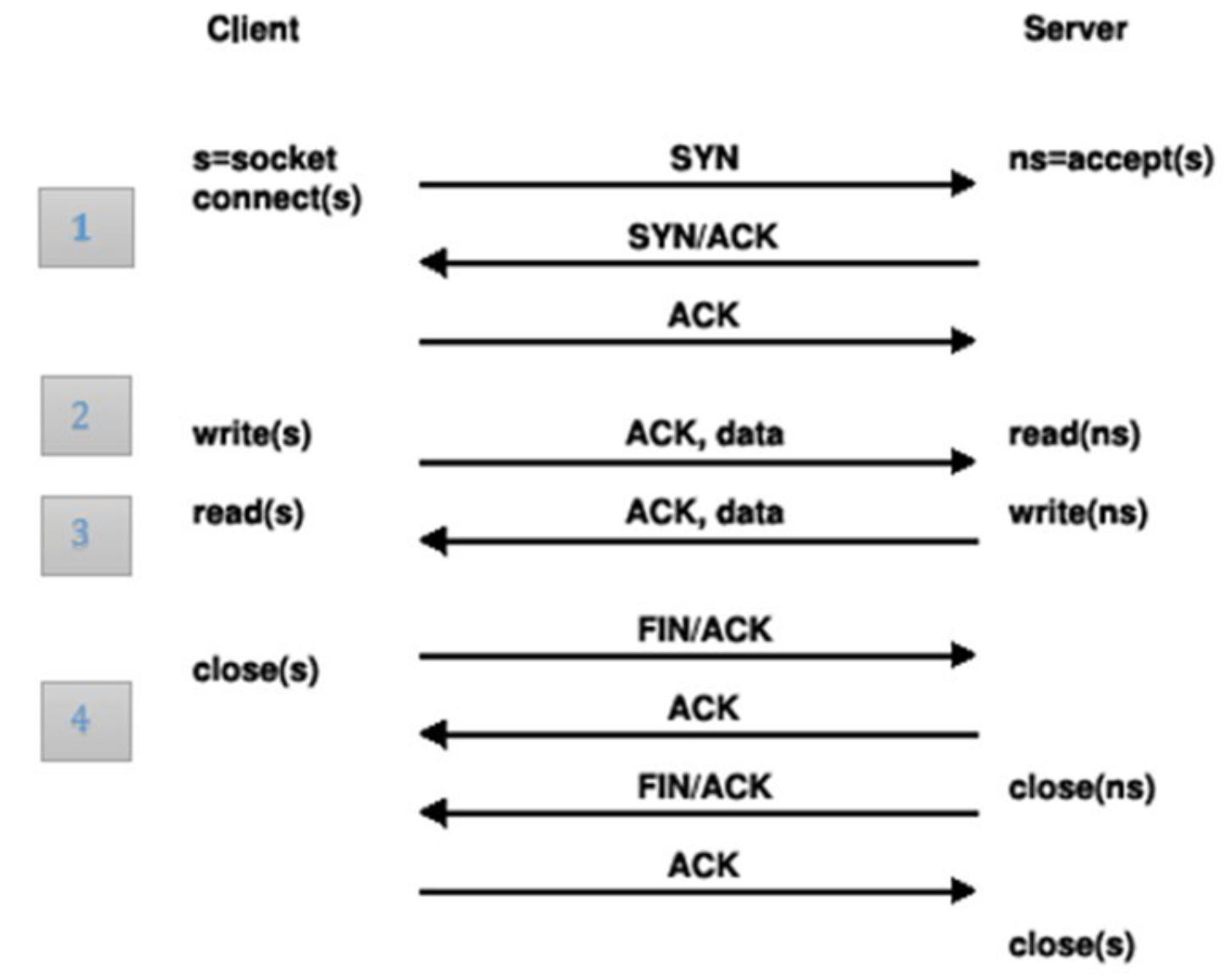
A figure illustrating the Transmission Control Protocol message flow

Figure 3.   Transmission Control Protocol message flow

In the preceding figure, four states are highlighted during a TCP connection. The following summarizes each state:

  1. TCP Handshake – Establishes the TCP connection through an SYN, SYN/ACK, ACK
  2. Data transmitted to the server. BDP is the maximum amount of data that can be sent at this step.
  3. Data acknowledged by Server
  4. TCP Connection Close Sequence – Socket closure is initiated by either side

Once the BDP rate is calculated, the TCP stack is tuned for the maximum throughput, which is discussed in the next section. The BDP is calculated by multiplying the bandwidth of the network link (bits/second) by the round-trip time (seconds).

For example, a link with a bandwidth of 1 gigabit per second and a 1-millisecond round-trip time is calculated as:

Bandwidth * RTT = 1 Gigabit per second * 1 millisecond =

1,000,000,000 bits per second * 0.001 seconds = 1,000,000 bits = 0.125 MB

Thus, 0.125 MB may be sent per TCP message to the server.

Ethernet flow control

Overview

Under certain conditions, packets sent from the source to the destination can overwhelm the destination endpoint. The destination is not able to process all packets at the rate that they are sent, leading to retransmits or dropped packets. Most scenarios have a fast source endpoint and a slower destination endpoint; this could be due to processing power or several source endpoints interacting with a single destination. Flow control is implemented to manage the rate of data transfer between these IP endpoints, providing an option for the destination to control the data rate, and ensuring the destination is capable of processing all the packets from the source.

The IEEEs 802.3x standard defines an Ethernet Flow Control mechanism at the Data Link Layer. It specifies a pause flow control mechanism through MAC Control frames in full-duplex link segments. For flow control to be successfully implemented, it must be configured throughout the network hops that the source and destination endpoints communicate through. Otherwise, the pause flow control frames are not recognized and are dropped.

By default, PowerScale OneFS listens for pause frames but does not transmit them, meaning it is only applicable when a PowerScale node is the source. In the default behavior, OneFS recognizes pause frames from the destination. However, pause frames may be enabled for transmit, depending on the NIC.

Most network devices today do not send pause frames, but certain devices still send them.

Checking for pause frames

If the network or cluster performance does not seem optimal, it is easy to check for pause frames on a PowerScale cluster.

If pause frames are reported, discuss these findings with the network engineering team before making any changes. As mentioned, changes must be implemented across the network, ensuring all devices recognize a pause frame. Contact the switch manufacturer’s support teams or account representative for specific steps and caveats for implementing flow control before proceeding.

4th and 5th generation Isilon nodes

On a 4th or 5th generation Isilon cluster, check for pause frames received by running the following command from the shell:

isi_for_array -a <cluster name> sysctl dev | grep pause

Check for any values greater than zero. In the example in the following figure, the cluster has not received any pause frames. If values greater than zero are printed consistently, consider flow control.
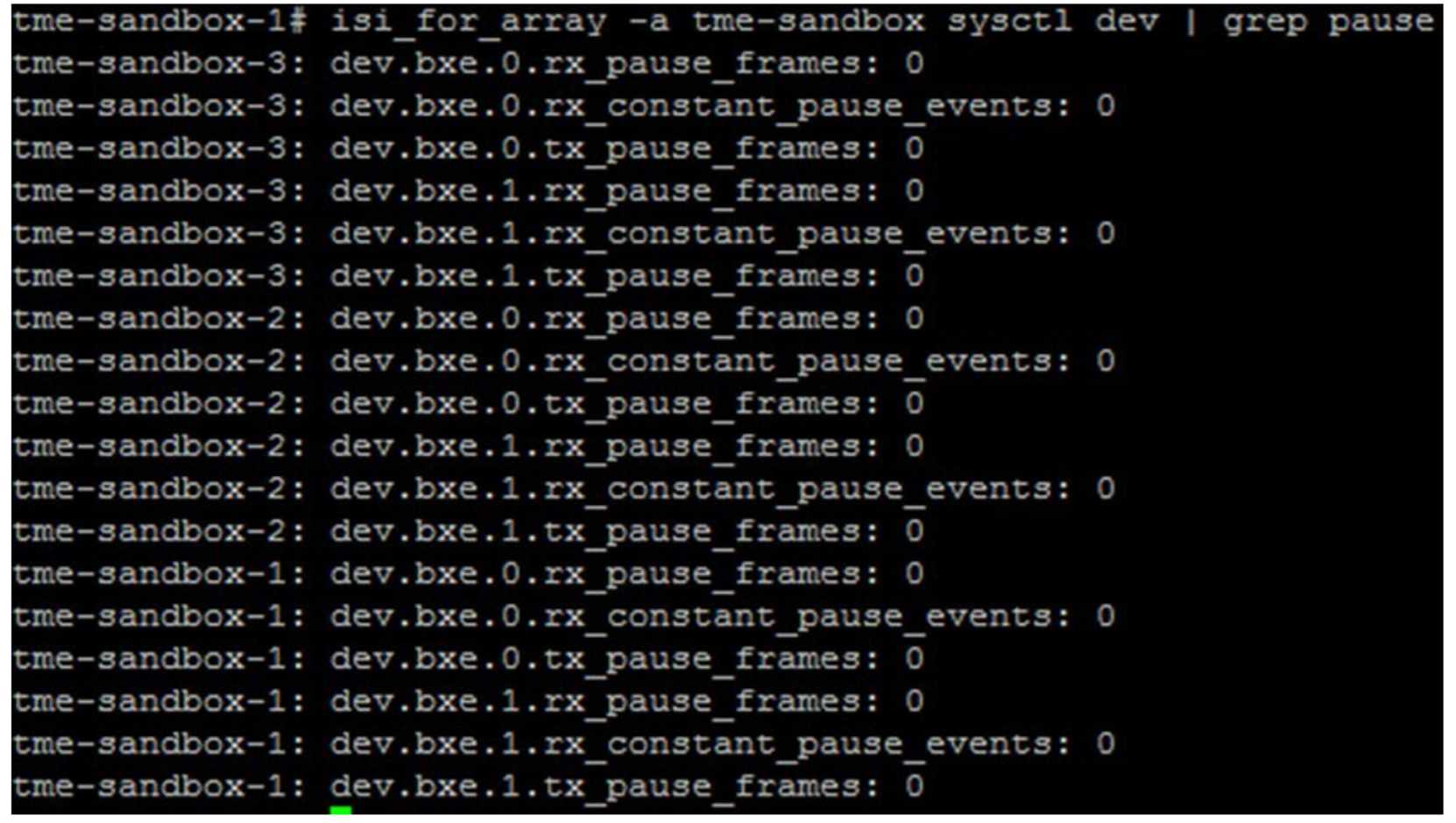
A figure illustrating the CLI output of checking for pause frames.

Figure 4.   Checking for pause frames

6th generation Isilon nodes

For 6th generation Isilon nodes with ix NICs, check for pause frames with the following commands:

infPerf-1# sysctl -d dev.ix.0.mac_stats.xon_txd dev.ix.0.mac_stats.xon_txd: Link XON Transmitted <<<Pause frame sent infPerf-1# sysctl -d dev.ix.0.mac_stats.xon_recvd dev.ix.0.mac_stats.xon_recvd: Link XON Received <<<Pause frame received infPerf-1# sysctl -d dev.ix.0.mac_stats.xoff_txd dev.ix.0.mac_stats.xoff_txd: Link XOFF Transmitted <<<Resume frame sent infPerf-1# sysctl -d dev.ix.0.mac_stats.xoff_recvd dev.ix.0.mac_stats.xoff_recvd: Link XOFF Received <<<Resume frame received

SyncIQ considerations

Introduction

PowerScale SyncIQ provides asynchronous data replication for disaster recovery and business continuity, allowing failover and failback between clusters. It is configurable for either complete cluster replication or only for specific directories. Within a PowerScale cluster, all nodes can participate in replication. After an initial SyncIQ replication, only changed data blocks are copied minimizing network bandwidth and resource utilization on clusters.

This section provides considerations for SyncIQ pertaining to external network connectivity. For more information about SyncIQ, see the PowerScale SyncIQ: Architecture, Configuration, and Considerations white paper.

SyncIQ disaster recovery with SmartConnect

Dedicated static SmartConnect zones are required for SyncIQ replication traffic. As with any static SmartConnect zone, the dedicated replication zone requires one IP address for each active logical interface—for example, in the case of two active physical interfaces, 10gige-1 and 10gige-2, requiring two IP addresses. However, if these are combined with link aggregation, interface 10gige-agg-1 only requires one IP address. Source-restrict all SyncIQ jobs to use the dedicated static SmartConnect zone on the source cluster and repeat the same on the target cluster.

By restricting SyncIQ replication jobs to a dedicated static SmartConnect zone, replication traffic may be assigned to specific nodes, reducing the impact of SyncIQ jobs on user or client I/O. The replication traffic is directed without reconfiguring or modifying the interfaces participating in the SmartConnect zone.

For example, consider a data ingest cluster for a sports TV network. The cluster must ingest large amounts of data recorded in 4K video format. The data must be active immediately, and the cluster must store the data for extended periods of time. The sports TV network administrators want to keep data ingestion and data archiving separate, to maximize performance. The sports TV network purchased two types of nodes: H500s for ingesting data, and A200s for the long-term archive. Due to the extensive size of the dataset, SyncIQ jobs replicating the data to the disaster recovery site, have a significant amount of work to do on each pass. The front-end interfaces are saturated on the H500 nodes for either ingesting data or performing immediate data retrieval. The CPUs of those nodes must not be affected by the SyncIQ jobs. By using a separate static SmartConnect pool, the network administrators can force all SyncIQ traffic to leave only the A200 nodes and provide maximum throughput on the H500 nodes.

Replication traffic over dedicated WAN links

Depending on the network topology and configuration, in certain cases PowerScale SyncIQ data may be sent across a dedicated WAN link separated from client traffic. Under these circumstances, the recommended option is using a different subnet on the PowerScale cluster for replication traffic, separated from the subnet for user data access.

Quality of Service (QoS)

Quality of Service (QoS)

As more applications compete for a shared link with limited throughput, ensuring Quality of Service (QoS) for application success is critical. Each application has varying QoS requirements to deliver not only service availability, but also an optimal client experience. Associating each application to an appropriate QoS marking, provides traffic policing, allowing packets to be prioritized as required across a shared medium, all while delivering an ideal client experience.

QoS can be implemented using different methods. However, the most common is through a Differentiated Services Code Point (DSCP), which specifies a value in the packet header that maps to a traffic effort level.

The OneFS 9.9.0.0 release introduced an option for DSCP marking to provide QoS. The OneFS DSCP configuration is cluster-wide across all the nodes and is based on the class of network traffic. Once configured, OneFS inserts the DSCP marking in the Traffic Class or Type of Service fields of the header for IPv6 or IPv4 packets, respectively.

OneFS QoS classes

OneFS splits network traffic into classes with source ports and destination ports, associating a DSCP value with the class. The table below displays the default OneFS QoS classes. Administrators may customize the DSCP values, source ports, and destination ports per site requirements. By default, the destination ports are not defined.

Table 2.      OneFS default QoS classes

Class

Traffic

Default DSCP Value

Source Ports

Destination Ports

Transactional

File Access and Sharing Protocols:

NFS, FTP, HTTPS data, HDFS, S3, RoCE

Security and Authentication Protocols:

Kerberos, LDAP, LSASS, DCE/RPC

RPC and Inter-Process Communication Protocols:

rpc.bind, mountd, statd, lockd, quotd, mgmntd

Naming Services Protocols: NetBIOS, Microsoft-DS

18

20, 21, 80, 88, 111, 135 137, 138, 139, 300, 302, 304, 305, 306, 389, 443, 445, 585, 636, 989, 990, 2049, 3268, 3269, 8020, 8082, 8440, 8441, 8443, 9020, 9021

Not defined by default, but administrator may configure.

Network Management

WebUI, SSH, SMTP, syslog, DNS, NTP, SNMP, Perf collector, CEE, alerts

16

22, 25, 53, 123, 161, 162, 514, 6514, 6567, 8080, 9443, 12228

Not defined by default, but administrator may configure.

Bulk Data

SmartSync, SyncIQ, NDMP

10

2097, 2098, 3148, 3149, 5667, 5668, 7722, 8470, 10000

Not defined by default, but administrator may configure.

Catch-All

All other traffic that does not match any of the above

0

all

Not defined by default, but administrator may configure.

The OneFS firewall matches outgoing network traffic on the front-end ports to a QoS class. The traffic is matched using the source ports and/or destination ports from the top to the bottom in the table above. If no match is found, the Catch-All class is applied. QoS is only applicable on the front-end network ports and has no impact on the back-end networking. The firewall assigns the DSCP value based on the QoS class.

Note: To provide QoS, the OneFS firewall filters through outgoing packets and may have a performance impact. Although the impact should be minimal, you should test in a lab environment to confirm workloads are not impacted before configuring on a production cluster.

Configuration

The QoS feature requires OneFS Release 9.9.0.0. It is disabled by default for new clusters and existing clusters upgrading to OneFS Release 9.9.0.0. The QoS feature can be configured through the CLI, WebUI, and API.

Pre-requisites

For clusters that are upgrading to OneFS Release 9.9.0.0, the release must be committed before proceeding with the configuration.

CLI

Before enabling DSCP, verify the current DSCP settings and update as required. To see the firewall DSCP rules from the CLI, use the isi network firewall dscp list command, as displayed below.
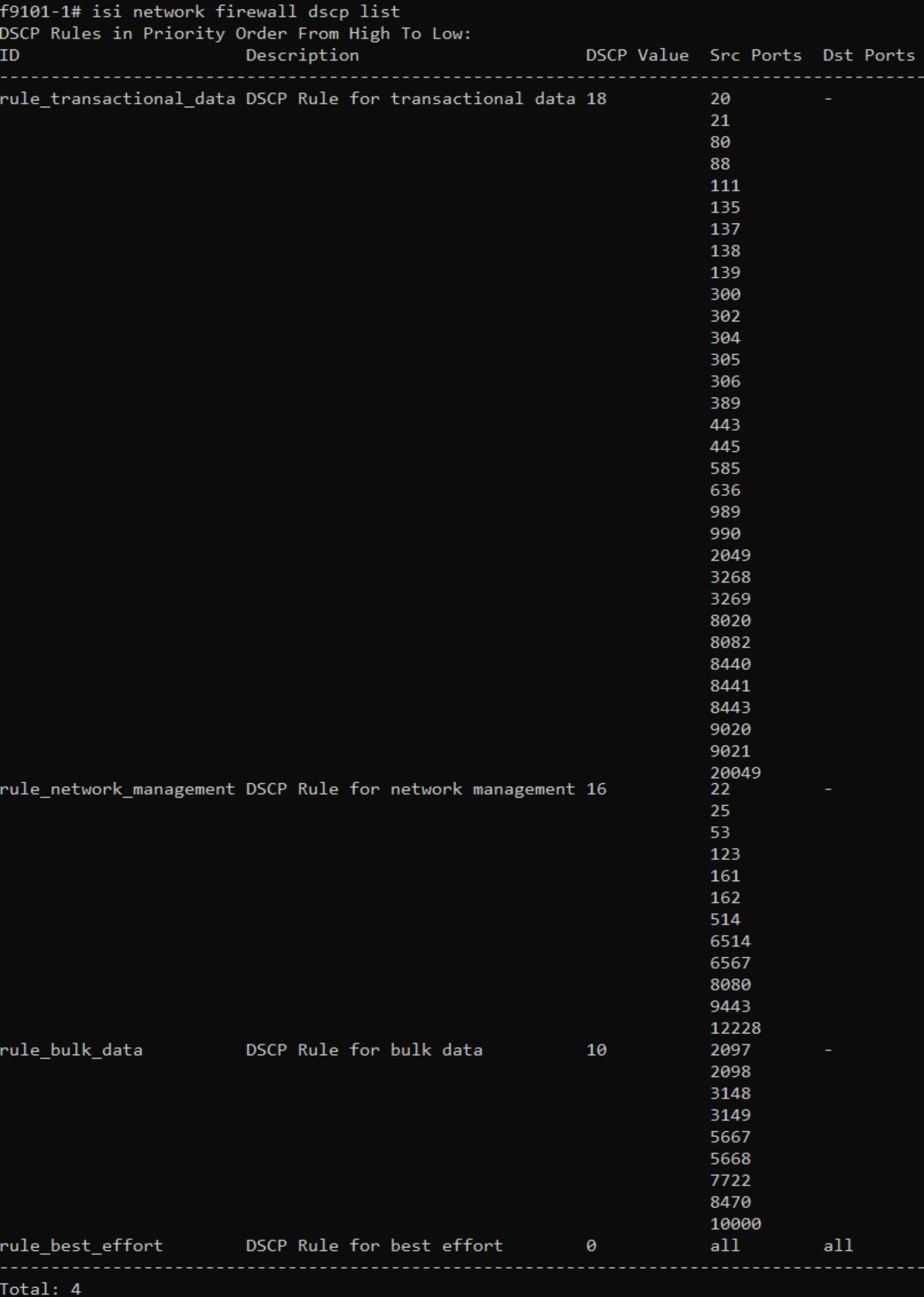
A figure illustrating the CLI isi network firewall dscp list command.

Figure 5.   isi network firewall dscp list

To modify a rule’s associated DSCP value, source ports, or destination ports, use the isi network firewall dscp modify <rule_name> command. A --live option is available to have the changes take effect immediately and only applies to active rules. If the --live option is used when DSCP is inactive, the command is rejected.

To reset all of the DSCP settings to the default and disable DSCP, use the isi network firewall reset-dscp-setting command.

Once the DSCP settings are configured to the site requirements, to enable DSCP through the CLI, perform the following:

  1. The QoS feature uses the OneFS host-based firewall to implement DSCP settings and must be enabled before proceeding. To check if the firewall or DSCP features are enabled, use the isi network firewall settings view command, as displayed below.

A figure illustrating the CLI isi network firewall settings view command.

Figure 6.   isi network firewall settings view

For more information on the host-based firewall and enabling the feature, see OneFS host-based firewall.

  1. Once the firewall is enabled, enable DSCP with the following command:                       isi network firewall settings modify --dscp-enabled true

Note: Although the DSCP feature may be enabled before the firewall is enabled, it only activates after the firewall is also enabled.

  1. Confirm if DSCP is enabled by rerunning the isi network firewall settings view command.

WebUI

Before enabling DSCP, verify the current DSCP settings and update them as required. To see the firewall DSCP rules in the WebUI, navigate to Cluster Management > Firewall Configuration and select the DSCP Setting tab, as displayed below.
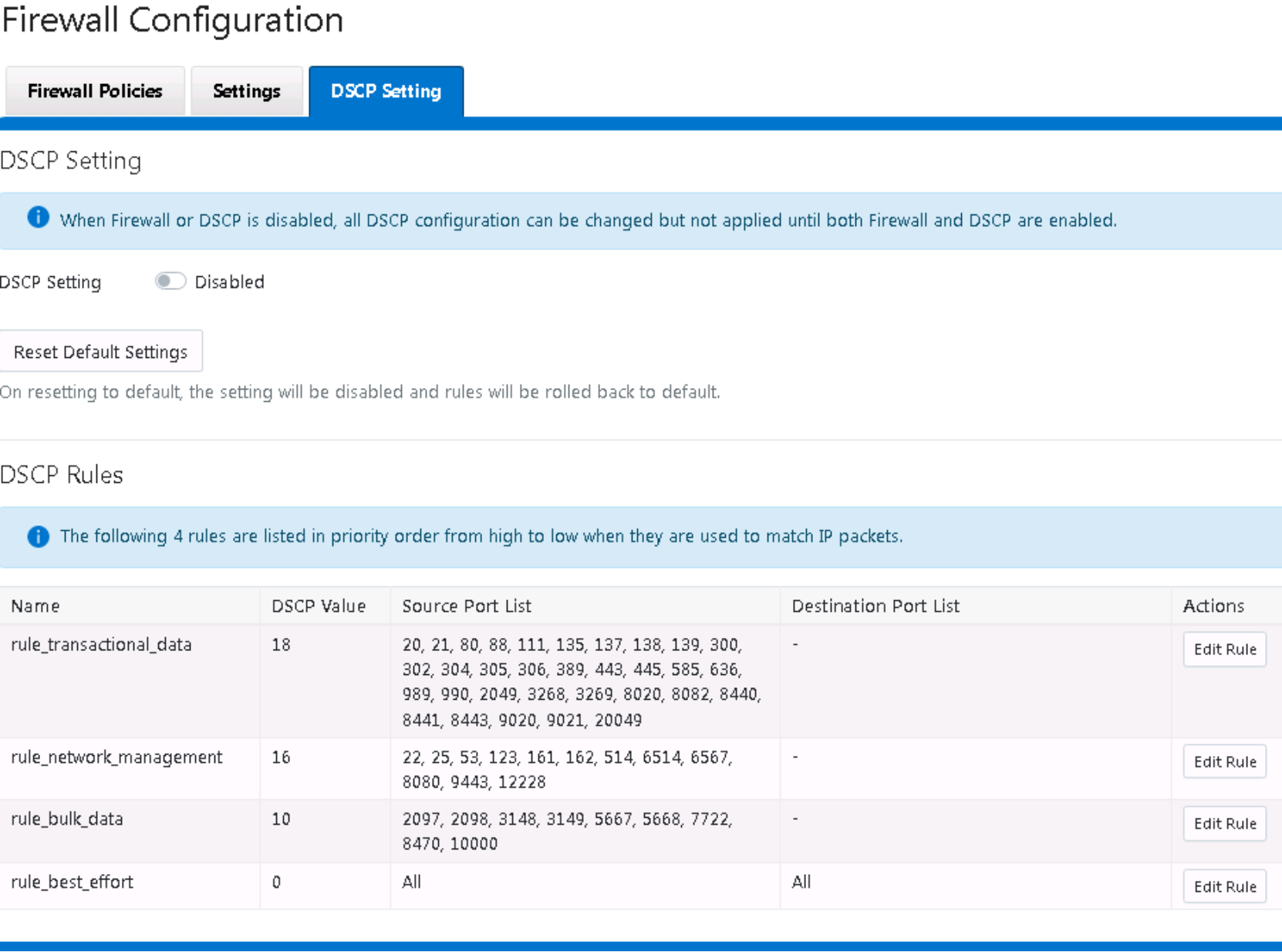
A figure illustrating the WebUI DSCP Setting.

Figure 7.   WebUI DSCP Settings

To modify a rule’s associated DSCP value, source ports, or destination ports, click the Edit Rule button under the “Action” column of the “DSCP Rules” table, displaying the “Edit DSCP Rule” window, as displayed below.

Note: If the DSCP setting is already enabled, any changes to the DSCP rules are only applied after the DSCP service is disabled and enabled. The CLI offers a --live option that allows changes to be applied without disabling DSCP. For more information, see the CLI section above.
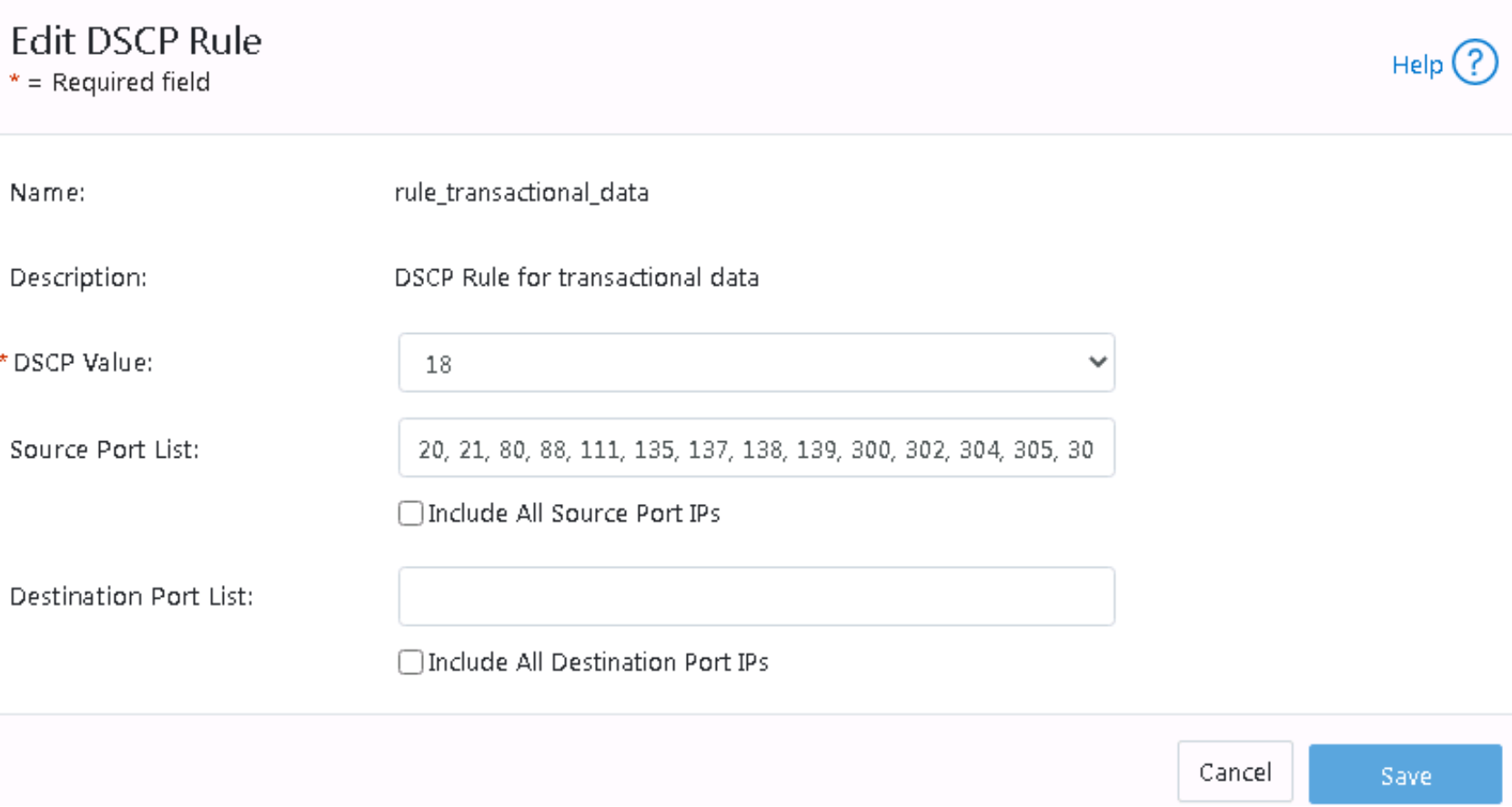
A figure illustrating the WebUI edit DSCP rule option.

Figure 8.   Edit DSCP Rule window

To reset all of the DSCP settings to the default and disable DSCP, click the gray “Reset Default Settings” button, as displayed below.
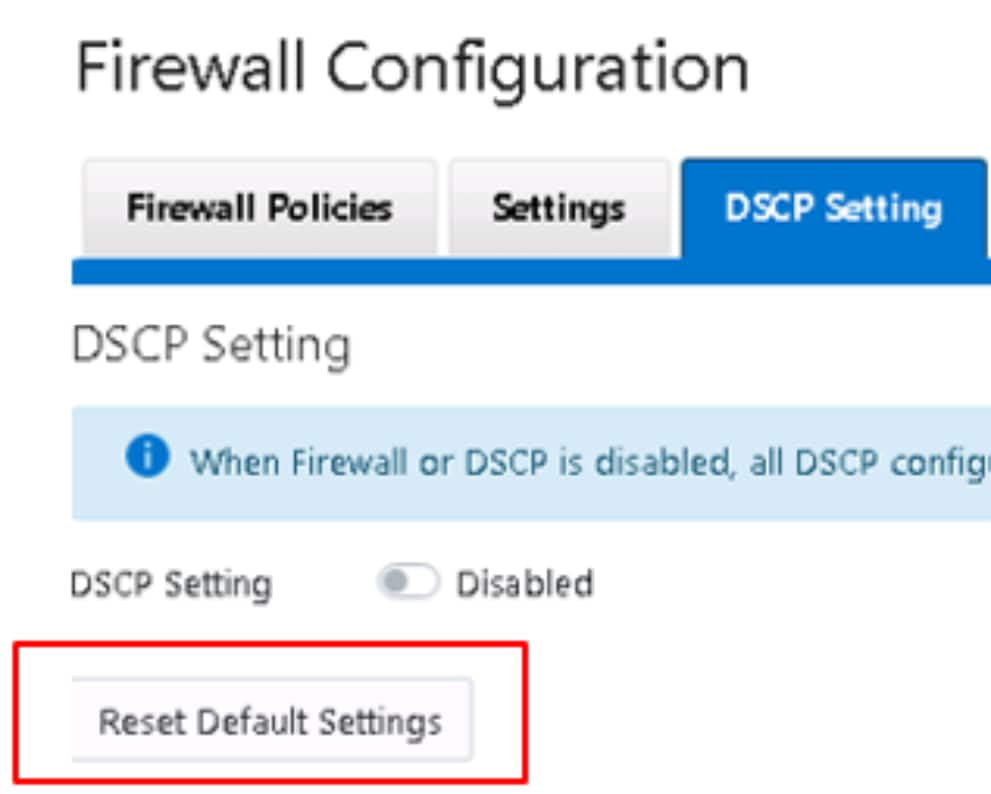
A figure illustrating the WebUI Reset DSCP default Setting.

Figure 9.   Reset DSCP settings

Once the DSCP settings are configured to the site requirements you can enable DSCP through the WebUI by performing the following:

  1. The QoS feature uses the OneFS host-based firewall to implement DSCP and must be enabled before proceeding. To check if the firewall is enabled, navigate to Cluster Management > Firewall Configuration and select the Settings tab, as displayed below.
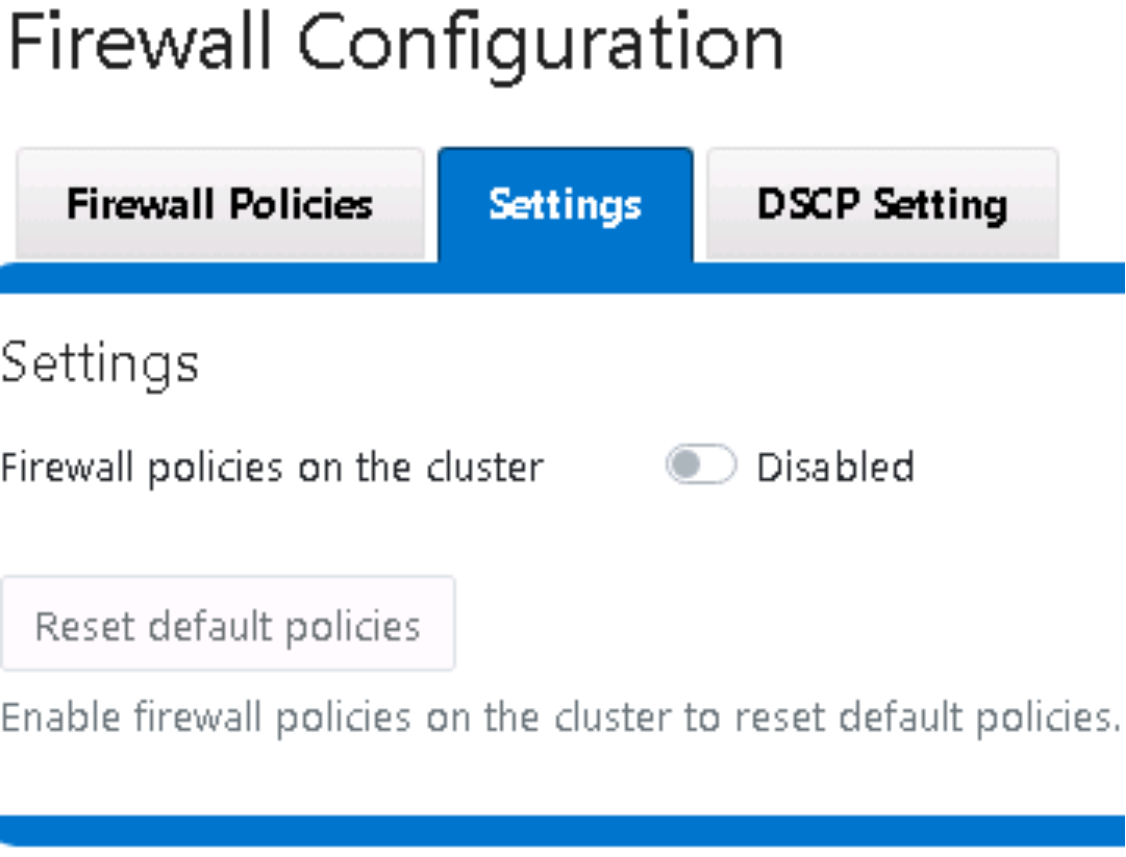
A figure illustrating the WebUI Firewall Setting.

Figure 10.                   WebUI Firewall Settings

For more information on the host-based firewall and enabling the feature, see OneFS host-based firewall.

  1. Once the firewall is enabled, navigate to Cluster Management > Firewall Configuration and select the DSCP Setting tab. Next, use the DSCP Setting toggle to enable the feature, as displayed below.
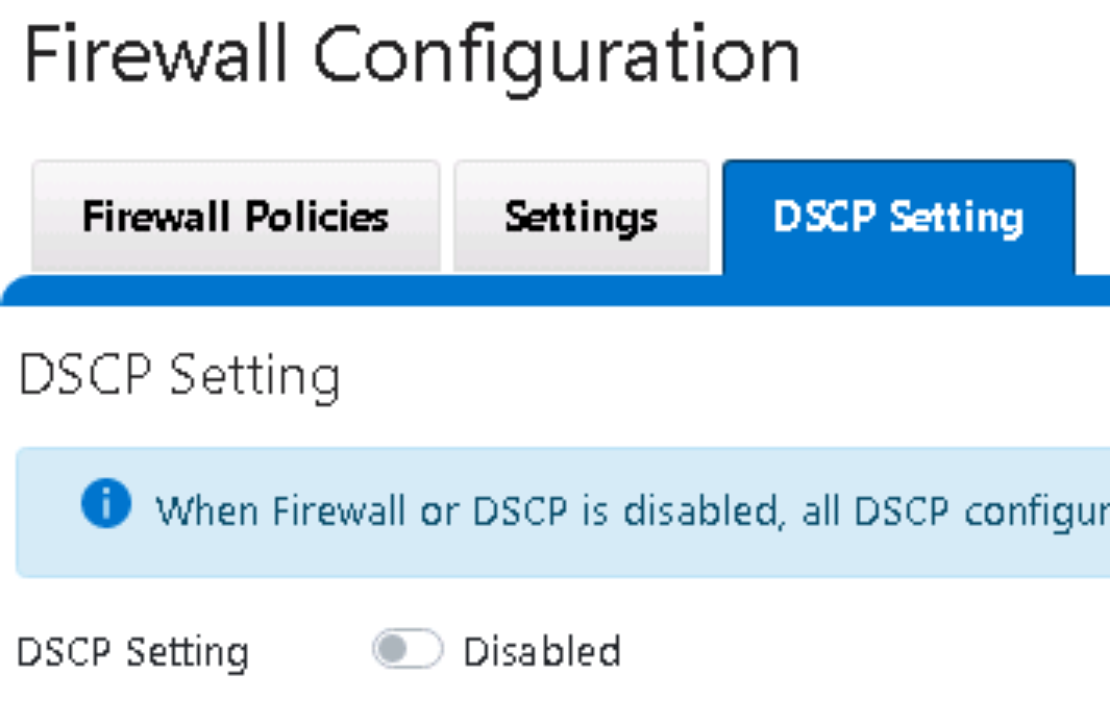
A figure illustrating the WebUI DSCP Setting.

Figure 11.    DSCP Setting toggle

Note: Although the DSCP feature may be enabled before the firewall is enabled, it only activates after the firewall is also enabled.

API

The process for configuring QoS from the API is similar to the CLI and WebUI The applicable REST endpoints for the firewall configuration are the following:

  • GET/PUT platform/network/firewall/settings
  • POST platform/network/firewall/reset-dscp-setting?live=true
  • GET platform/network/firewall/dscp
  • PUT platform/network/firewall/dscp/<rule_name>?live=true

Troubleshooting

For more information on troubleshooting the QoS feature, the applicable logs include the following:

  • /var/log/isi_firewall_d.log: Firewall daemon logs
  • /var/log/isi_papi_d.log: PAPI handlers log.
  • isi_gconfig -t firewall: Displays all firewall configuration information.
  • ipfw show: Displays the ipfw table in the FreeBSD kernel.

OneFS releases prior to 9.9.0.0

PowerScale OneFS releases prior to 9.9.0.0 do not provide an option for tagging packets with a specified DSCP marking. As a best practice, configure the first hop ports on switches connected to PowerScale nodes to insert DSCP values. Note that OneFS does retain headers for packets that already have a specified DSCP value.
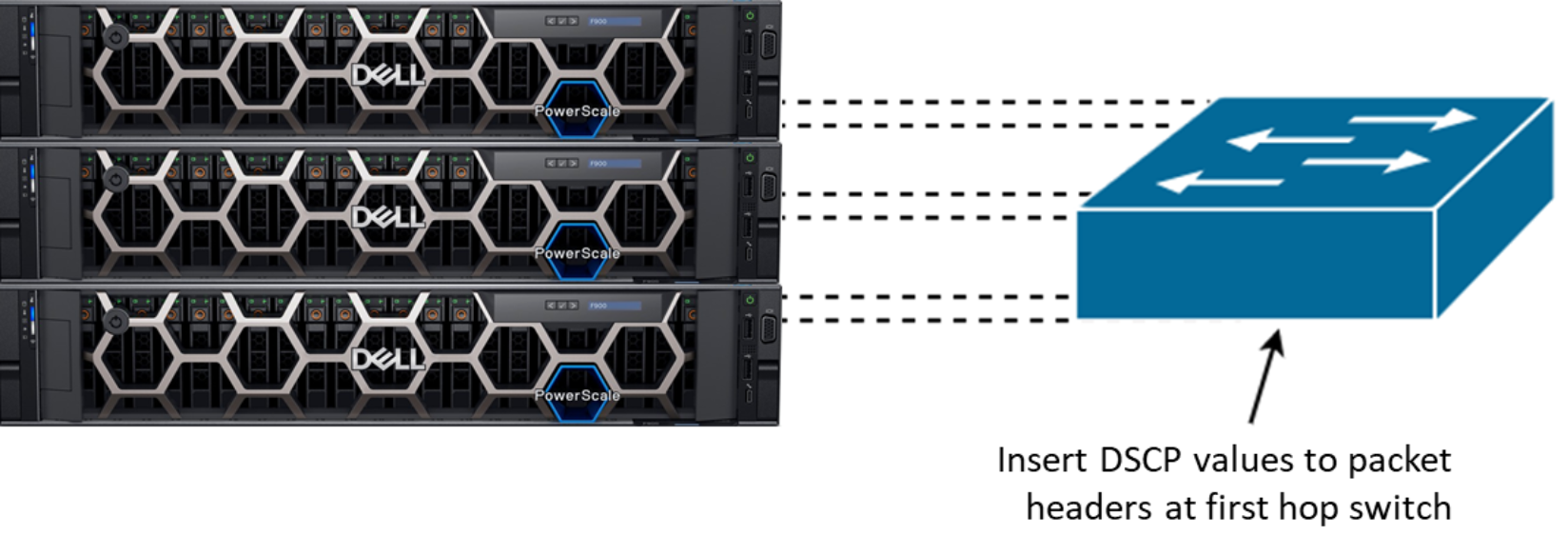
A figure illustrating QoS and OneFS – Inserting DSCP values

Figure 12.    QoS – Inserting DSCP values for OneFS releases prior to 9.9.0.0

Software-Defined Networking

Software-Defined Networking

Software-Defined Networking (SDN) provides automated policy-based management of network architecture. The management and administration are centralized by separating the control and data planes. SDN architectures include a controller functioning as a central point of management and automation. The controller is responsible for relaying information downstream to firewalls, routers, switches, and access points. On the contrary, the controller sends information upstream to applications and orchestration frameworks, all while presenting the SDN architecture as a single device.

Datacenters that have an SDN architecture and a PowerScale cluster must have traditional access switches connected to PowerScale nodes, presenting a traditional network architecture to OneFS.
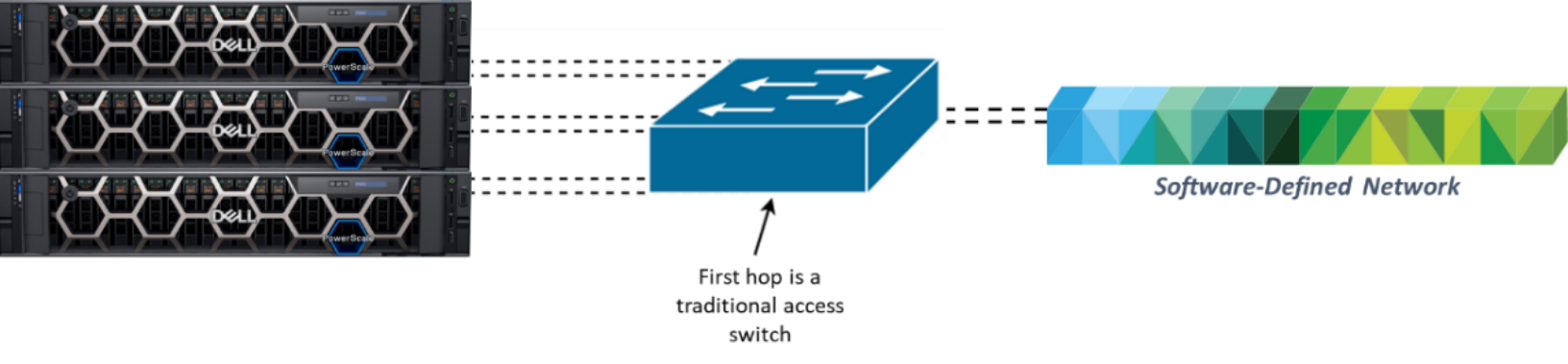
A figure illustrating the PowerScale and Software-Defined Networking.

Figure 13.    PowerScale and Software-Defined Networking

The SDN implementation of each vendor is unique and is critical to understanding the scalability and limitations of a specific architecture. Some of the SDN implementations are based on open standards like OpenFlow, while other vendors use a mix of proprietary and open standards, and others use a completely proprietary implementation. Reviewing the limits of a specific implementation is essential to understanding how to maximize performance. If a PowerScale cluster is configured for use with SDN through a traditional access switch, consider the following information and recommendations:

  • OneFS does not support VRFs and VXLANs. An intermediary solution is required for implementing VLAN to VXLAN mapping.
  • Understand the control plane scalability of each SDN implementation and if it would affect OneFS.
  • The MTU implementation for each vendor varies. Ensure consistent MTUs across all network hops.
  • Each switch vendor provides a different set of SDN capabilities. Mapping differences is key to developing a data center architecture to include a PowerScale cluster while maximizing network performance.
  • Not only is each vendor's capability unique when it comes to SDN, but the scalability of each solution and cost varies significantly. The intersection of scalability and cost determines the architecture limits.
  • Because each SDN implementation varies, consider the impacts on the automation and policy-driven configuration. These impacts are one of the significant advantages of SDN. Also, consider the automation interactions with Isilon PAPI.

PowerScale OneFS ports

PowerScale OneFS ports

PowerScale OneFS uses several TCP and UDP ports, which are documented in the Security Configuration Guide.

SmartConnect considerations

Introduction

This section provides considerations for using the PowerScale SmartConnect load-balancing service. The general IP routing principles are the same with or without SmartConnect.

SmartConnect acts as a DNS delegation server to return IP addresses for SmartConnect zones, generally for load-balancing connections to the cluster. The IP traffic involved is a four-way transaction shown in the following figure:

A figure illustrating the SmartConnect DNS delegation steps

Figure 14.    SmartConnect DNS delegation steps

In the preceding figure, the arrows indicate the following steps:

  1. Blue arrow (step 1): The client makes a DNS request for sc-zone.domain.com by sending a DNS request packet to the site DNS server.
  1. Green arrow (step 2): The site DNS server has a delegation record for sc-zone.domain.com and sends a DNS request to the defined nameserver address in the delegation record, the SmartConnect service (SmartConnect Service IP Address).
  2. Orange arrow (step 3): The cluster node hosting the SmartConnect Service IP (SSIP) for this zone receives the request, calculates the IP address to assign based on the configured connection policy for the pool in question (such as round robin), and sends a DNS response packet to the site DNS server.
  3. Red arrow (step 4): The site DNS server sends the response back to the client.

SmartConnect network hierarchy

As you define SmartConnect subnets and pools, it is important to understand the SmartConnect hierarchy, as displayed in the following figure:
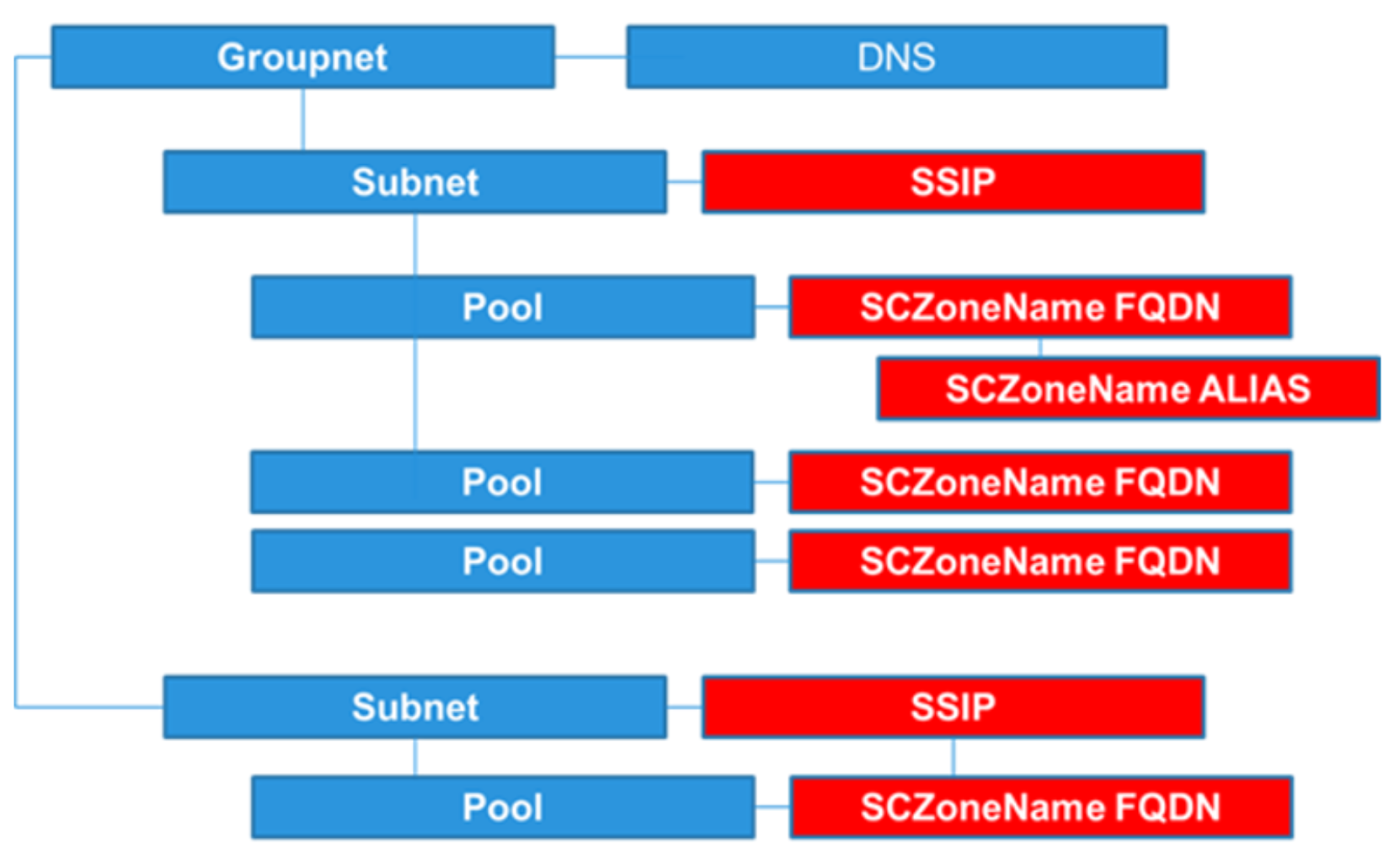
A figure illustrating the SmartConnect network hierarchy

Figure 15.    SmartConnect network hierarchy – OneFS releases prior to 8.2

Throughout the network design phase, for releases prior to OneFS 8.2, consider that a single SSIP is defined per subnet. However, under each subnet, pools are defined, and each pool has a unique SmartConnect zone name. Recognize that multiple pools lead to multiple SmartConnect zones using a single SSIP. As shown in the preceding figure, a DNS provider is defined per groupnet, which is a feature in OneFS 8.0 and later releases. In releases earlier than 8.0, a DNS per groupnet was not supported.

OneFS 8.2 introduces support for multiple SSIPs per subnet, as displayed in the following figure:
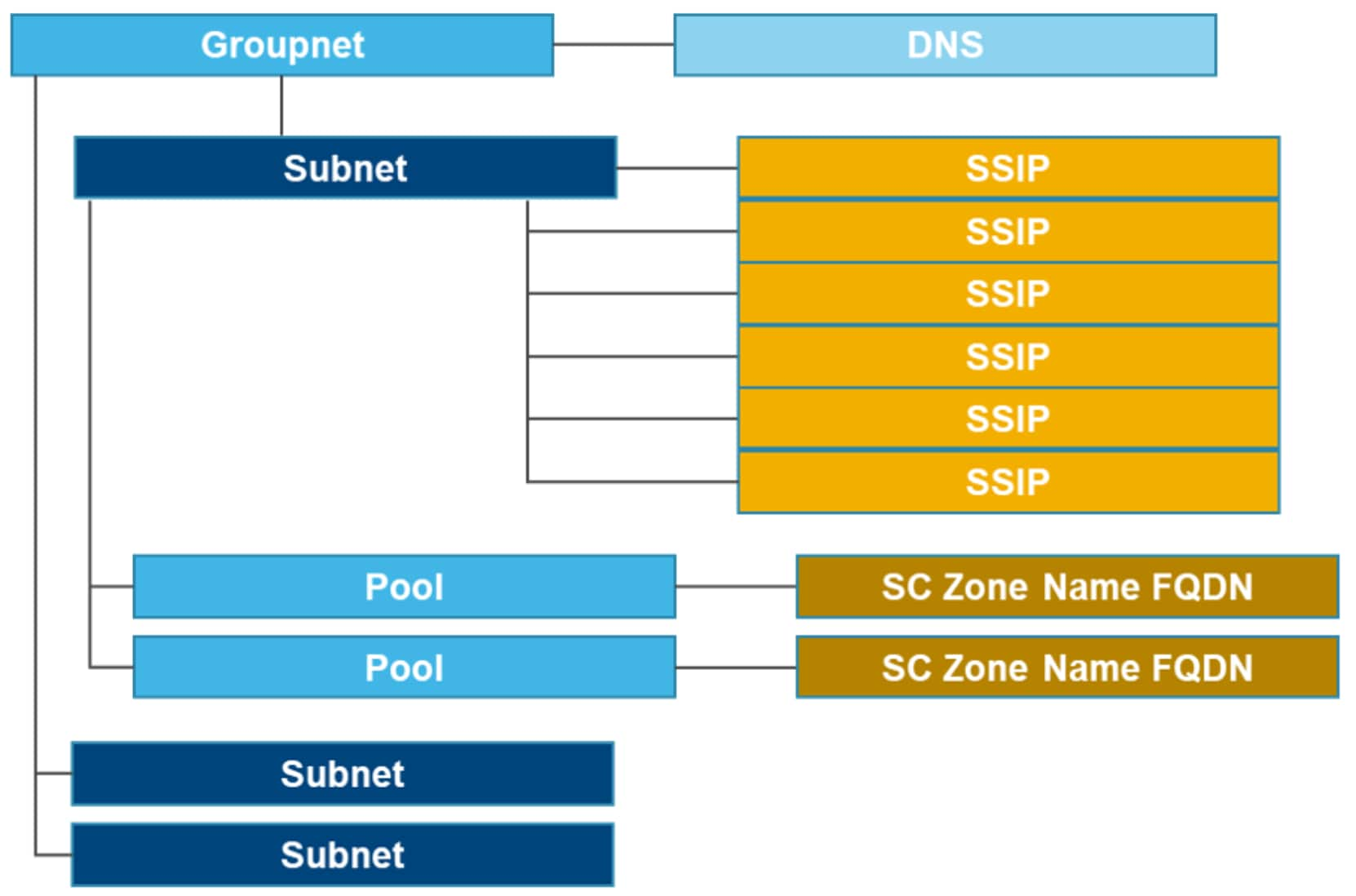
A figure illustrating the SmartConnect network hierarchy – OneFS release 8.2

Figure 16.    SmartConnect network hierarchy – OneFS release 8.2

For more information about SmartConnect Multi-SSIP, see SmartConnect Multi-SSIP.

Load balancing

SmartConnect load balances incoming network connections across SmartConnect zones composed of nodes, network interfaces, and pools. The load-balancing policies are Round Robin, Connection Count, CPU Utilization, and Network Throughput. The most common load-balancing policies are Round Robin and Connection Count, but these policies might not apply to all workloads. It is important to understand whether the front-end connections are being evenly distributed, either in count or by bandwidth. Front-end connection distribution can be monitored with InsightIQ or the WebUI. Because each workload is unique, understand how each load-balancing policy functions, and test the policy in a lab environment before a production roll-out.

The following table lists suggested policies based on the workflow, but these are general suggestions, and might not always be applicable.

Start with Round Robin for a new implementation or if the workload is not clearly defined. As the workload is further defined and based on the Round Robin experience, another policy can be tested in a lab environment.

Table 3.      Suggested SmartConnect load-balancing policies

Load-balancing policy

General or Other

Few clients with extensive usage

Many persistent NFS & SMB connections

Many transitory connections (HTTP, FTP)

NFS automounts or UNC paths

Round Robin

Yes

Yes

Yes

Yes

Yes

Connection Count*

Yes

Yes


Yes

Yes

CPU Utilization*


Network Throughput*


* Metrics are gathered every 5 seconds for CPU Utilization and every 10 seconds for Connection Count and Network Throughput. In cases where many connections are created simultaneously, these metrics might not be accurate, creating an imbalance across nodes.

Note: In contrast to “CPU” and “Throughput” methods where it is not possible to estimate the additional load that a new connection will create with complete accuracy, the “Connection Count” policy is able to accurately account for new connections. Therefore, it does not need to poll to correctly track additional connections. However, it is unaware of client disconnects that occur between poll intervals. Depending on the number and distribution of disconnects, this may cause a temporary connection imbalance across nodes.

As discussed previously, the preceding policies mapping to workloads are general guidelines. Each environment is unique with distinct requirements. Confirm the best load-balancing policy in a lab environment that closely mimics the production environment.

Static or dynamic IP address allocation

After a groupnet and subnet are defined in OneFS, the next step is configuring an IP address pool and assigning interfaces to participate in this pool.

After the IP address pool is defined, under the SmartConnect Advanced section, you can select an Allocation Method. By default, this option is unavailable and shown as Static if a SmartConnect Advanced license is not installed. If a SmartConnect Advanced license is installed, the default Allocation Method is still Static, but you may also select Dynamic.

The static allocation method assigns a single persistent IP address to each interface selected in the pool, leaving additional IP addresses in the pool unassigned if the number of IP addresses is greater than interfaces. The lowest IP address of the pool is assigned to the lowest Logical Node Number (LNN) from the selected interfaces, subsequently for the second-lowest IP address and LNN. If a node or interface becomes unavailable, this IP address does not move to another node or interface. Also, when the node or interface becomes unavailable, it is removed from the SmartConnect zone, and new connections will not be assigned to the node. Once the node is available again, SmartConnect adds it back into the zone and assigns new connections.

On the contrary, the dynamic allocation method splits all available IP addresses in the pool across all selected interfaces. Under the dynamic allocation method, OneFS attempts to assign the IP addresses evenly if possible. However, if the interface-to-IP-address ratio is not an integer value, a single interface might have more IP addresses than another.

Dynamic failover

Combined with the dynamic allocation method, dynamic failover provides high availability by transparently migrating IP addresses to another node when an interface is not available. If a node becomes unavailable, all the IP addresses it was hosting are reallocated across the new set of available nodes in accordance with the configured failover load-balancing policy. The default IP address failover policy is round robin, which evenly distributes IP addresses from the unavailable node across available nodes. Because the IP address remains consistent, irrespective of which node it resides on, failover to the client is transparent, so high availability is seamless.

The other available IP address failover policies are the same as the initial client connection balancing policies, that is, connection count, throughput, or CPU usage. In most scenarios, round robin is not only the best option but also the most common. However, the other failover policies are available for specific workflows. As mentioned previously, with the initial load-balancing policy, test the IP failover policies in a lab environment to find the best option for a specific workflow.

Dynamic failover examples

The following examples illustrate how IP addresses move during a dynamic failover. These examples illustrate the concepts of how the IP address quantity affects user experience during a failover; use these guidelines when determining IP address quantity.
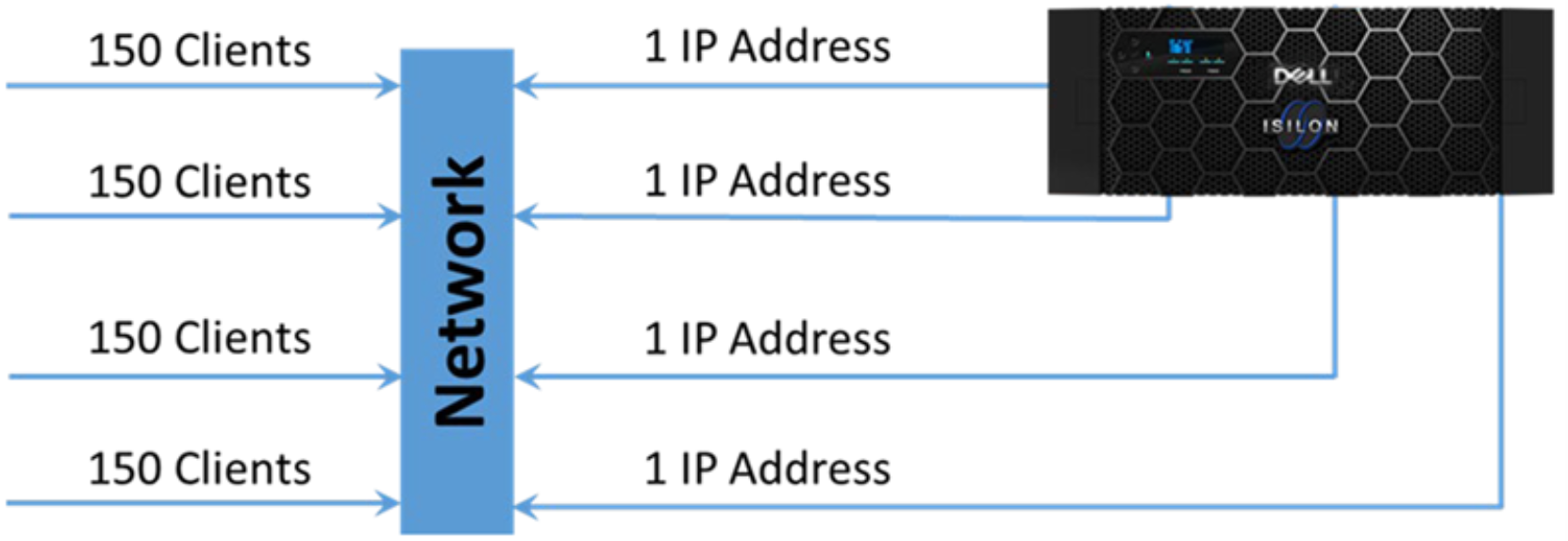
A figure illustrating the Dynamic allocation: Four-node cluster with one IP address per node

Figure 17.    Dynamic allocation: Four-node cluster with one IP address per node

In this scenario, 150 clients are actively connected to each node over NFS using a connection policy of round robin. Most NFSv3 mounted clients perform a nslookup only the first time that they mount, never performing another nslookup to check for an updated IP address. If the IP address changes, the NFSv3 clients have a stale mount and retain that IP address.

Suppose that one of the nodes fails, as shown in the following figure:
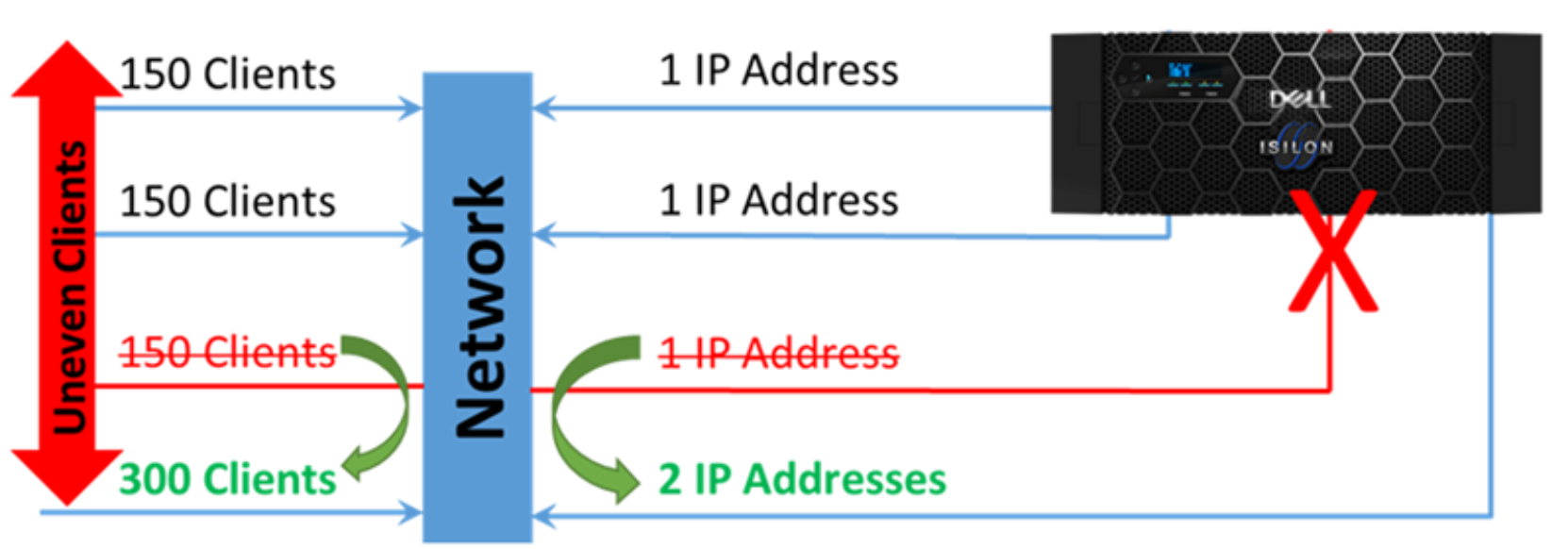
A figure illustrating the Dynamic allocation: Four-node cluster with one IP address per node, one node offline

Figure 18.    Dynamic Allocation: Four-node cluster with one IP address per node, one node offline

A SmartConnect zone with dynamic allocation for IP addresses immediately hot-moves the one IP address on the failed node to one of the other three nodes in the cluster. It sends out several gratuitous address resolution protocol (ARP) requests to the connected switch, so that client I/O continues uninterrupted.

Although all four IP addresses are still online, two of them—and 300 clients—are now connected to one node. In practice, SmartConnect can fail only one IP to one other place, and one IP address and 150 clients are already connected to each of the other nodes. The failover process means that a failed node has just doubled the load on one of the three remaining nodes while not disrupting the other two nodes. This process results in declining client performance, but not equally. The goal of any scale-out NAS solution must be consistency. To double the I/O on one node and not on another is inconsistent.

Dynamic allocation with 3 IP addresses per node

Dynamic SmartConnect zones require a greater number of IP addresses than the number of nodes at a minimum to handle failover behavior. In the following example, the formula used to calculate the number of IP addresses required is N*(N-1), where N is the number of nodes. The formula is used for illustration purposes only to demonstrate how IP addresses, and in turn, clients, move from one node to another, and how this could potentially lead to an imbalance across nodes. Every workflow and cluster are unique, and this formula is not applicable to every scenario.

This example considers the same four-node cluster as the previous example, but now following the rule of N*(N-1). In this case, 4*(4-1) = 12, equaling three IPs per node, as shown in the following figure:
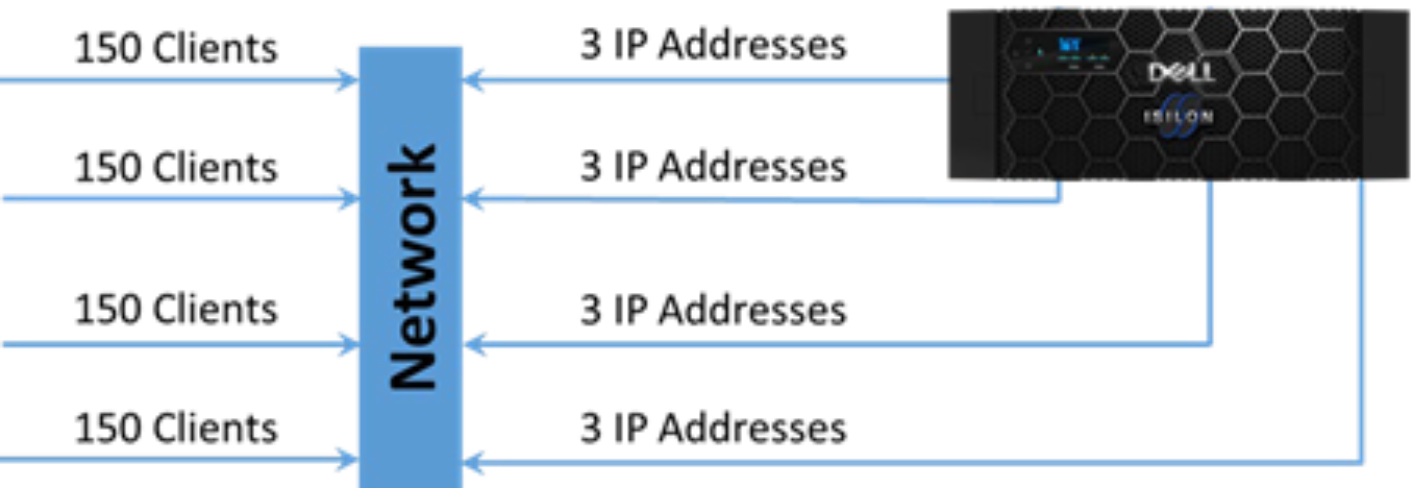
A figure illustrating the Four-node cluster with 3 IP addresses per node

Figure 19.    Dynamic allocation: 4 node cluster with 3 IP addresses per node

When the same failure event as the previous example occurs, the three IP addresses are spread over all the other nodes in that SmartConnect zone. This failover results in each remaining node having 200 clients and four IP addresses. Although performance might degrade to a certain degree, it might not be as drastic as the failure in the first scenario, and the experience is consistent for all users, as shown in the following figure:
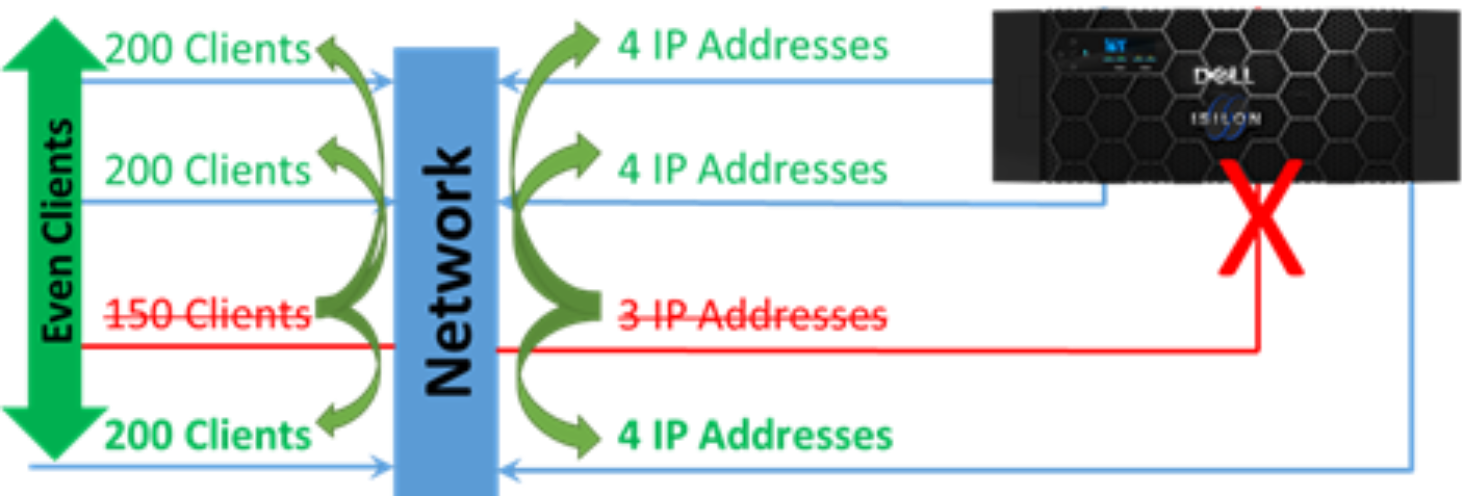
A figure illustrating the Four-node cluster with 2 IP addresses per node, one node offline

Figure 20.    Dynamic allocation: Four-node cluster with two IP addresses per node, one node offline

Protocols and SmartConnect allocation methods

A common concern during a PowerScale configuration is choosing between static and dynamic allocation methods. The requirement for dynamic failover depends heavily on the protocol in use, workflow, and overall high-availability design requirements. Stateful versus stateless protocols, combined with the allocation method, affect the reconnection experience. Certain workflows require only downtime, or the overarching IT requirements dictate IP address persistence. This section provides guidance on the reconnection behavior based on the protocol. The reconnection sequence takes place during a hardware fault, network fault, OneFS Non-Disruptive upgrade, or other scenarios with downtime.

Client access protocols are either stateful or stateless. Stateful protocols are defined by the client/server relationship having a session state for each open file. Session state information for each file is not shared among PowerScale nodes.

For stateful protocols, failing over IP addresses to other nodes is dependent on the current state of the client’s I/O status and the specific application workflow. Stateless protocols are generally accepting of failover without session state information being maintained, except for file level write locks. However, this is dependent on the current I/O status and the specific application workflow. As a best practice, test the specific application workflow in a lab environment to find the best option.

Note: For static zones, ensure SmartConnect is configured with a time-to-live of zero. For dynamic zones, a time-to-live of zero is less critical since the IP address will always be available. However, a larger the time-to-live value creates a greater impact on load balancing, resulting in a more unbalanced load across nodes. For more information, see DNS and time-to-live.

Server Message Block

The IP allocation method for Server Message Block (SMB) is based on the workflow requirements. In certain workflows, SMB is preferred with dynamic allocation of IP addresses, because IP address consistency is required. Aside from a workflow requirement, it could also be an IT administrative dependence. It is also essential to note that SMB3 Continuously Available (CA) only functions with static IPs.

SMB works well with dynamic allocation of IP addresses, but it is essential to understand the protocol limitations. SMB preserves complex state information per session on the server side. During a dynamic failover to a new node, the existing SMB connection ends with the existing node, and a new SMB connection is established to the new node. Depending on the client’s current I/O status, the SMB connection for the client is reset momentarily to update the new node with the correct state information.

In this event, consider how a brief state reset impacts the workflow. For example, if the SMB workflow is primarily reads or is heavier on the read side, the impact of a dynamic failover described above will not be noticed because the client can quickly re-open the file and seamlessly continue reading. For write-intensive applications, the interrupt must be handled within the application time-out setting. A SMB protocol reset to a new connection may be several seconds, but if the application time-out tolerance is set to one second, an event will occur. Even if a time-out event does occur for an application, it may redrive the write operation, and the SMB reset will still appear seamless to the application.

The OneFS SMB drain support further improves its non-disruptive upgrade capabilities by allowing the safe disconnection of SMB clients during the upgrade process. Microsoft Windows Continuous Availability (CA) offers this feature natively. However, it may not always be a viable option because of the requirements for client SMB3 support. The OneFS SMB drain feature ensures that, in non-CA scenarios, an SMB client can flush its cache before being disconnected and with SmartConnect enables the safe migration of SMB clients to non-rebooting cluster nodes. Once the drain service is enabled, OneFS drains SMB connections through the following sequence:

  1. Locks and leases held by current SMB clients are broken. However, if the break requires an ack from the client, OneFS waits for the client ack.
  2. New SMB lock and lease requests are denied.
  3. The client is disconnected once all locks are broken.
  4. The client detects the TCP reset from the disconnection and attempts to reconnect.
  5. SmartConnect redirects the connection to a node which is not draining, where the client can reconnect and continue working.

Note: Clients running Microsoft Windows 10 or later complete the sequence in less than two seconds. Clients with DNS caches, such as macOS clients, may attempt to reconnect to the draining node.

Before a major implementation, test the workflow in a lab environment to understand the limitations, the best practices for a specific workflow, and the application timeout setting.

OneFS 9.7.0.0 introduces SMB3 multi-channel Flexnet Awareness with a new SmartConnect IP address library, lwsmartconnect. The new library is now Network Pool aware with an affinity to the clients associated with the current Network Pool, in other words, it maps the current IP address to available IPs on the node. It also removes back-end IPs and down interfaces from the library.

NFS

The NFSv2 and NFSv3 protocols are stateless, and in almost all cases, perform best with dynamic allocation of IP addresses. The client does not rely on writes unless commits have been acknowledged by the server, enabling NFS to failover dynamically from one node to another.

The NFSv4 protocol introduces stateful client connections. OneFS retains open and lock session-state information in a cluster-coherent way for NFSv4. For dynamic connections, the client reconnects upon failing over to a node, but the client state is recreated. The client reclaims all opens and locks it had prior  to failing over.

For static connections, no open or lock session-state information is stored in OneFS for failover. The client will use pure local advisory locking, which can be beneficial for unusual workflows, or management connections.

As a best practice, test the workflow in a lab environment to understand limitations and the best practices  for a specific workflow.

HDFS

The requirements for HDFS pools have been updated with the introduction of new OneFS features and as HDFS environments have evolved. During the design phases of HDFS pools, several factors must be considered. The use of static versus dynamic pools are affected by:

  • Use of OneFS racks if needed
  • Node Pools: Is the cluster a single heterogeneous node type or do different node pools exist
  • Availability of IP addresses

These factors, coupled with the workflow requirements, determine the pool implementation. See the HDFS Pool Usage and Assignments section in the Dell Isilon Best Practices Guide for Hadoop Data Storage for additional details and considerations with HDFS pool implementations.

S3

OneFS 9.0 introduces support for Amazon’s Simple Storage Service (S3) protocol. The S3 protocol is stateless. For most workflows, S3 performs optimally with dynamic allocation of IP addresses, ensuring seamless client failover to an available node in an event where the associated node becomes unavailable.

Suggested zones by protocol

The following table lists the suggested IP allocation strategies for SmartConnect Advanced by the protocol. As noted, these are suggested, and the actual zone type depends on the workflow requirements, as previously discussed.

Table 4.      Suggested protocols and zone types

Protocol

Protocol category

Suggested zone type

NFSv2 (not supported in OneFS 7.2 and higher)

Stateless

Dynamic

NFSv3

Stateless

Dynamic

NFSv4

Stateful

Dynamic or Static. See NFS.

SMBv1

Stateful

Dynamic or Static. See Server Message Block.

SMBv2 / SMBv2.1

Stateful

SMBv3 Multi-Channel

Stateful

FTP

Stateful

Static

SFTP / SSH

Stateful

Static

HDFS

Stateful – Protocol is tolerant of failures

See Dell EMC Isilon Best Practices Guide for Hadoop Data Storage Hadoop Data Storage.

S3

Stateless

Dynamic

HTTP / HTTPS

Stateless

Static

SyncIQ

Stateful

Static required

IP address quantification

This section provides guidance for determining the number of IP addresses required for a new cluster implementation. The following guidance does not apply to all clusters and is provided as a reference for the process and considerations during a new cluster implementation.

During the process of implementing a new cluster and building the network topology, consider the following information and recommendations:

  • Calculate the number of IP addresses that are needed based on future cluster size, not the initial cluster size.
  • Do not share a subnet with other application servers. If more IP addresses are required, and the range is full, readdressing an entire cluster and then moving it into a new VLAN is disruptive. These complications are prevented with proper planning.
  • Static IP pools require one IP address for each logical interface that will be in the pool. Each node provides two interfaces for external networking. If Link Aggregation is not configured, this would require 2*N IP addresses for a static pool.
  • For PowerScale clusters running a release before OneFS 8.2, use one IP address for each SmartConnect Service IP (SSIP).
  • For optimal load-balancing, during a node failure, IP pools with the dynamic allocation method require the number of IP addresses at a minimum of the node count and a maximum of the client count. For example, a 12-node SmartConnect zone and 50 clients would have a minimum of 12 and a maximum of 50 IP addresses. In many larger configurations, defining an IP address per client is not feasible, and in those cases, the optimal number of IP addresses is workflow-dependent and based on lab testing. In the previous examples, N*(N-1) is used to calculate the number of IP addresses, where N is the number of nodes that will participate in the pool. For larger clusters, this formula might not be feasible due to the sheer number of IP addresses. Determining the number of IP addresses within a dynamic allocation pool varies depending on the workflow, node count, and the estimated number of clients that would be in a failover event.
  • If more than a single access zone is configured with IP pools using the dynamic allocation method, examine if all the pools are required. Reducing the number of IP pools will also reduce the number of IP addresses required.
  • If a cluster has multiple access zones or IP pools, a lower number of IP addresses might be required. If so, consider reducing the total number of IP addresses. Generally, as more access zones and IP address pools are configured, fewer IP addresses are required.

In previous OneFS releases, a greater IP address quantity was recommended, considering the typical cluster size and the workload a single node could handle during a failover. As nodes become unavailable, all the traffic hosted on that node is moved to another node with typically the same resources, which could lead to a degraded end-user experience. Because PowerScale nodes are now in the 7th generation, this is no longer a concern. Each node does have limitations, which must be considered when determining the number of IP addresses and failover events creating additional overhead. Also, as OneFS releases have progressed, so has the typical cluster size, making it difficult to maintain the N*(N-1) formula with larger clusters.

From a load-balancing perspective, for dynamic pools, it is ideal for all the interfaces to have the same number of IP addresses whenever possible. In addition to keeping in mind the preceding points, consider the workflow and failover requirements set by IT administrators.

SmartConnect service name

The SmartConnect service name field is displayed when you create or modify a subnet, as shown in the following figure. Click Cluster Management > Network Configuration to display the Create subnet dialog box, and then add a subnet under a specified groupnet. Alternatively, from the command-line interface, the SmartConnect service name field is displayed when you add or modify a subnet to a specified groupnet with the --sc-service-name option.
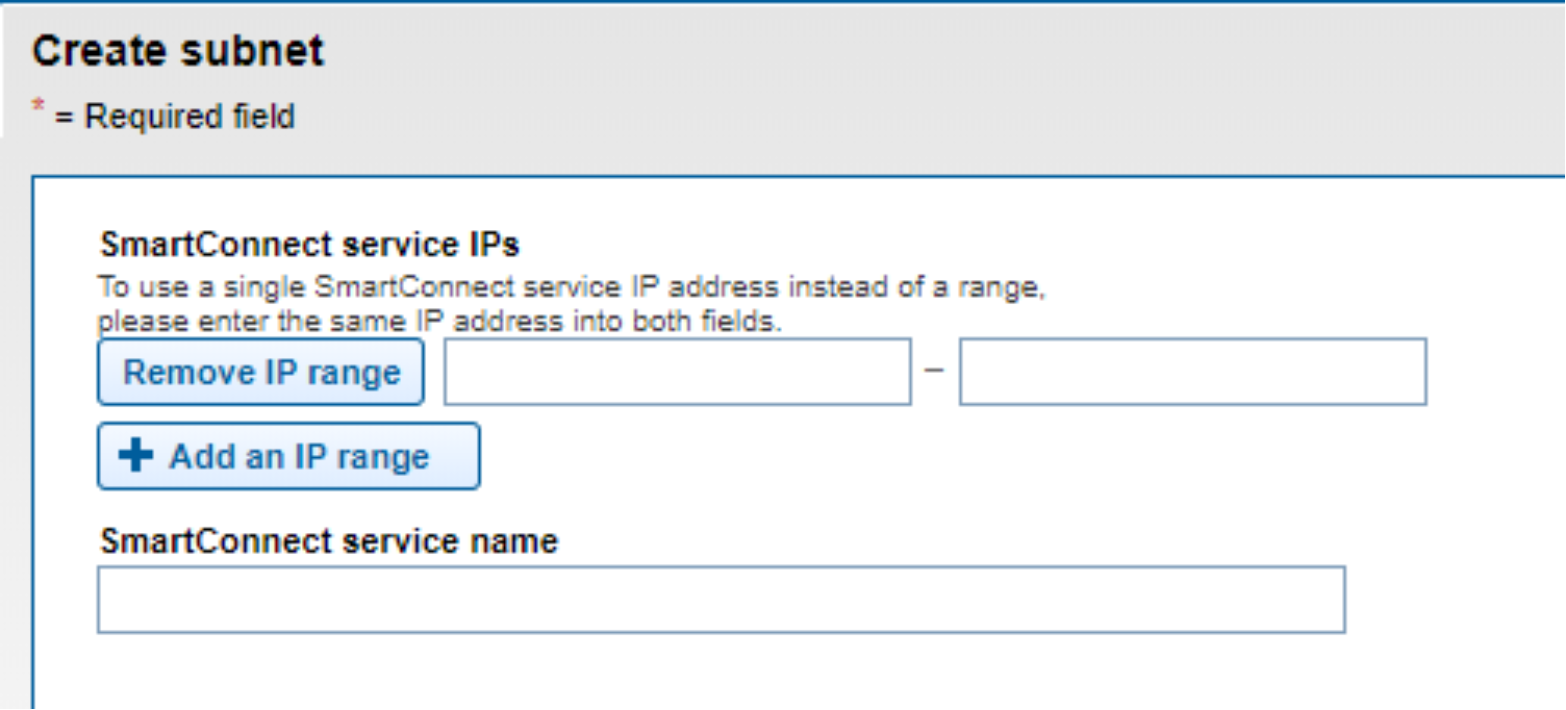
A figure illustrating the WebUI SmartConnect service name

Figure 21.    SmartConnect service name

The SmartConnect service name field is an optional field to answer nameserver (NS), Start of Authority (SOA), and other DNS queries. It specifies the domain name corresponding to the SmartConnect Service IP (SSIP) address, serving as the glue record in the DNS delegation tying the NS and the IP address. The DNS delegation to SmartConnect consists of two DNS records, as listed in the following table:

Table 5.      SmartConnect service name DNS records

DNS record

DNS field

DNS value

OneFS field

NS

Domain

cluster.company.com

SmartConnect Zone Name on the network pool (sc-dns-zone in the CLI)

Value

ns.cluster.company.com

SmartConnect Service Name on the subnet (sc-service-name in the CLI)

Description

This entry informs the DNS server the nameserver for the PowerScale cluster is this record at ns.cluster.company.com

A/AAAA

Domain

ns.cluster.company.com

SmartConnect Service Name on the subnet (sc-service-name in the CLI)

Value

1.2.3.4

SmartConnect Service IP address on the subnet (sc-service-addr in the CLI)

Description

This entry informs the DNS server the nameserver for the PowerScale cluster can be contacted at the 1.2.3.4 IP address specified as the A/AAAA Value.

Note: If a value is not provided for this field, SmartConnect reuses the domain name from the nameserver and Start of Authority queries as the nameserver hostname. If the sc-service-name on the cluster is different than the record in the DNS Delegation, DNS resolution failures can occur; thus, ensure that these records are synchronized.

SmartConnect node suspension

OneFS SmartConnect provides an option to administratively remove a node from a SmartConnect zone during a planned outage. Planned outages could be hardware replacement or maintenance activity.

Once a node is suspended, SmartConnect prevents new client connections to the node. If the node is configured for dynamic allocation of IP addresses, IP addresses are not assigned to this node in a suspended state. Suspending a node ensures that client access remains consistent. After the node is suspended, client connections can be monitored and allowed to gradually drop-off before a reboot or power down.

A node is suspended from the OneFS CLI or web interface. From the OneFS CLI, the command is:

isi network pools --sc-suspend-node <groupnet.subnet.pool> <node ID>

Alternatively, from the web interface, click Suspend Nodes under Pool, as shown in the following figure:
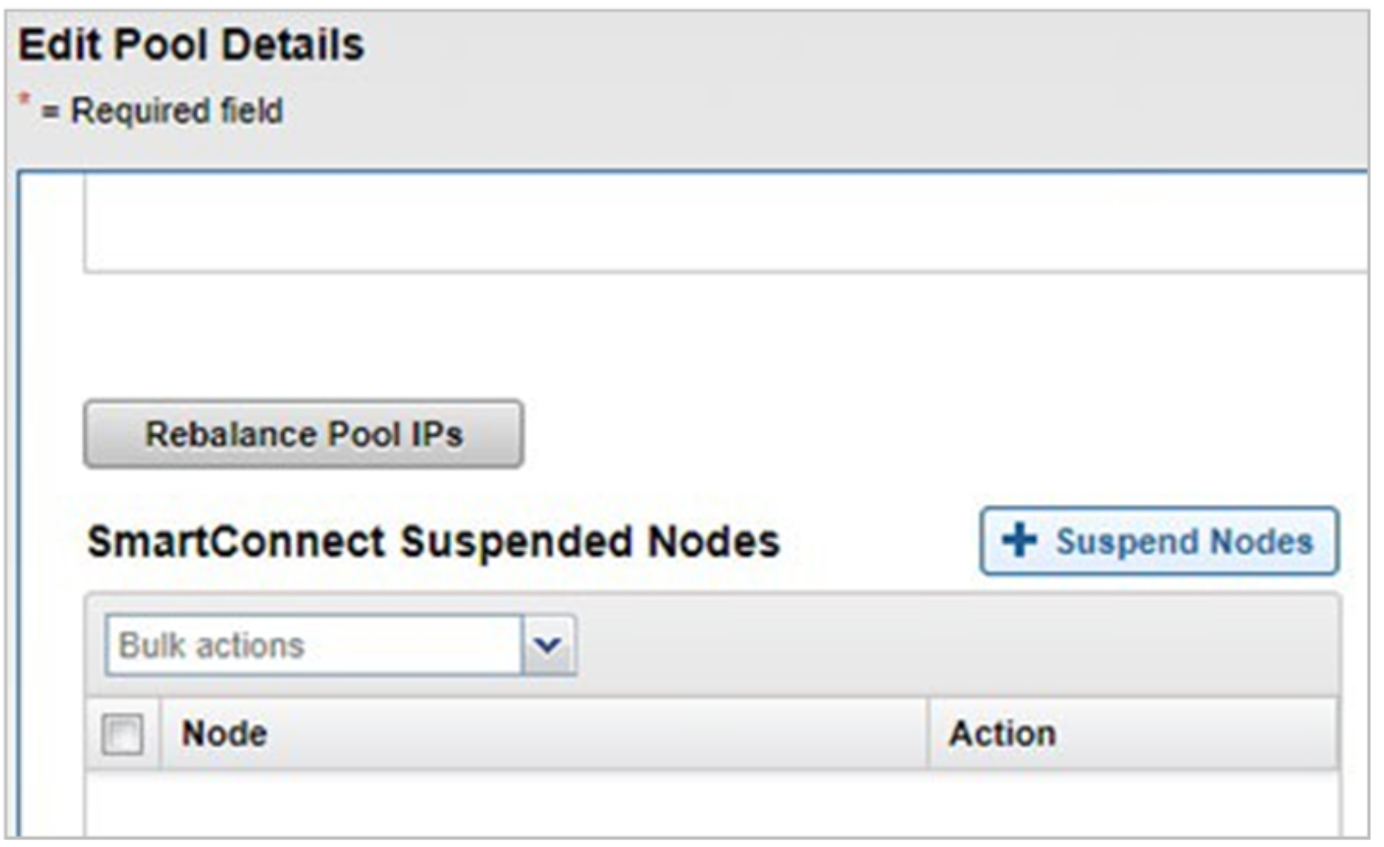
A figure illustrating the WebUI SmartConnect node suspension

Figure 22.    SmartConnect node suspension

After a node is suspended, new connections are not created. Prior to rebooting or shutting the node down, confirm all client connections have dropped by monitoring the web interface under the Client Connections tab on the Cluster Overview page. Also, clients might have to be manually booted from the node if they have static SMB connections with applications that maintain connections.

SmartConnect and Reverse DNS

Usually, we recommend that PowerScale SmartConnect Service IP addresses and SmartConnect zone names do not have reverse DNS entries, also known as pointer (PTR) records.

In certain environments where PTR records are required, many PTR entries might be created because PowerScale SmartConnect pools could have hundreds of IP addresses. In scenarios where PTR records are required, each time an additional IP address is added to a SmartConnect pool, DNS changes are necessary to keep the environment consistent.

Creating reverse DNS entries for the SmartConnect Service IP’s Host [address, or A] record is acceptable if the SmartConnect Service IP is referenced only with an A record in one DNS domain.

DNS delegation best practices

This section describes DNS delegation best practices for PowerScale clusters.

Delegate to address (A) records, not to IP addresses

The SmartConnect service IP address on a PowerScale cluster, in most cases, should be registered in DNS as an address (A) record, also referred to as a host entry. For example, the following SSIP (A) record would designate the SSIP record with a corresponding IP address:

cls01-ssip.foobar.com. IN A 192.168.255.10

In this case, the (A) record maps the URL, cls01-ssip.foobar.com, to a corresponding IP address of 192.168.255.10. Delegating a SmartConnect zone to an (A) record simplifies failover and failback in business continuity, maintenance, and disaster recovery scenarios. In such cases, the change requirement remains minimal because only a single DNS record, the (A) record, would require an update.

All other SmartConnect zone delegations that are configured against the SSIP can be left alone as per the example:

cls01-smb.foobar.com. IN NS cls01-ssip.foobar.com

cls01-nfs.foobar.com. IN NS cls01-ssip.foobar.com

cls01-hdfs.foobar.com. IN NS cls01-ssip.foobar.com

SmartConnect zone aliases as opposed to CNAMEs

A Canonical Name (CNAME) record is a DNS resource mapping one domain to another domain. CNAMEs are not recommended with OneFS because it is not possible to discover which CNAME points to a given SmartConnect zone name.

During a disaster recovery scenario, CNAMEs complicate and extend the failover process because many CNAMEs must be updated. Further, Active Directory Kerberos does not function with CNAMEs. Zone aliases are the recommended alternative.

OneFS provides an option for creating SmartConnect zone aliases. As a best practice, a SmartConnect zone alias should be created in place of CNAMEs. To create a SmartConnect zone alias, use the following command:

isi networks modify pool <subnet:pool> --add-zone-aliases=<zone alias name>

Once the SmartConnect zone alias is provisioned, a matching delegation record must be created in the site DNS, pointing to a SmartConnect Service IP (SSIP).

One name server record for each SmartConnect zone name or alias

One delegation for each SmartConnect zone name or each SmartConnect zone alias on a cluster is recommended. This method permits the failover of only a portion of the cluster's workflow—one SmartConnect zone—without affecting any other zones.

For example, an administrator might have the following delegations in place:

cls01-smb.foobar.com. IN NS cls01-ssip.foobar.com

cls01-nfs.foobar.com. IN NS cls01-ssip.foobar.com

cls01-hdfs.foobar.com. IN NS cls01-ssip.foobar.com

With this approach, the administrator has the flexibility of failing over or moving one or multiple delegations. Consider the following example:

cls01-smb.foobar.com. IN NS cls01-ssip.foobar.com

cls01-nfs.foobar.com. IN NS cls01-ssip.foobar.com

cls01-hdfs.foobar.com. IN NS cls99-ssip.foobar.com

We recommend that you do not create a single delegation for each cluster and then create the SmartConnect zones as sub-records of that delegation. Consider the following example:

smb.cls01.foobar.com

nfs.cls01.foobar.com

hdfs.cls01.foobar.com

This approach enables PowerScale administrators to change, create, or modify their SmartConnect zones and zone names as needed without involving a DNS team.

However, the disadvantage of this approach is that it causes failover operations to involve the entire cluster and affects the entire workflow, not just the affected SmartConnect zone, *.cls01.foobar.com.

Multiple DNS resolvers in a groupnet

Complex data center integrations and authentication realms might require multiple DNS resolvers within a logical group. If possible, separate these into multiple groupnets to create a hierarchy aligning with the site environment.

Depending on the existing hierarchy, separating DNS instances in multiple groupnets might not be an option, requiring multiple resolvers and name servers to reside in a single groupnet. For these implementations, using DNS hosts that are capable of DNS forwarding to forward to the corresponding DNS resolvers is recommended.

OneFS allows up to three DNS instances in a single groupnet. Proceed with caution when adding more than a single DNS instance to a groupnet. Determining how clients are routed to a specific DNS instance affects the client's performance and overall session latency.

The multiple DNSs in a single groupnet are managed in OneFS through the isi network groupnets [create or modify] command and the following options:

  • --dns-options: The dns-options configuration specifies how OneFS selects between the multiple DNS instances. In the current release, the only option is to rotate between the instances, providing a DNS selection process of round robin.
  • --dns-search: The dns-search configuration specifies up to three DNS suffixes in a single groupnet. OneFS searches these DNS suffixes to resolve queries.
  • --dns-servers: The dns-servers configuration specifies up to three IP addresses for multiple DNS instances in a single groupnet.

For round robin options of the DNS instances or searching through more than a single DNS suffix, it is crucial to consider the varying impacts on client experience. If the DNS for a specific session is not consistent, the overall session latency might increase, depending on the assigned DNS. If the latency is inconsistent, workflow success is difficult to predict, resulting in users reporting random experiences. If a groupnet contains two DNS instances, this results in a low chance of having the appropriate DNS assigned to a session. If three DNS instances are specified for a groupnet, the resolution success rate drops further.

SmartConnect DNS, subnet, and pool design

This section provides a starting point for planning SmartConnect DNS, subnet, and SmartConnect pool layouts that meet the needs of most new cluster implementations with a SmartConnect Advanced License.

Note: SmartConnect Service IP Addresses (SSIPs) are only supported for use by a DNS server. Although SSIPs may be used in other configurations, the design intent was for a DNS server. Thus, other implementations with SSIPs are not supported.

SmartConnect zone naming

For clarity and simple recognition, name SmartConnect zones according to relevant details. For example, use some or all of the following variables when composing names:

  • Cluster Name: Active Directory (AD) uses the cluster name as the AD machine account name. For example, when a cluster named isi01 joins Active Directory, isi01 is the cluster’s machine account name. Using the cluster/machine account name in all DNS entries simplifies cluster administration and troubleshooting.
  • IP Allocation Strategy: Each SmartConnect zone has an IP allocation strategy set to static or dynamic. The allocation strategy is allocated in the zone name, for example, by using d for dynamic and s for static.
  • SmartConnect Pool ID: Each SmartConnect pool has a unique name or number that identifies it. By default, the first pool called on a cluster is pool0, the second is pool1, and so on. Use these identifiers as part of the zone name.
  • SSIP: Use the SSIP in the zone name to indicate a SmartConnect Service IP zone.

These variables together form a SmartConnect zone name. For example: isi01-s0.domain.com

The name includes the cluster name (isi01), the allocation strategy of the zone (s for static), and the number of the pool (pool0).

For example, a cluster with three pools:

  • pool0: Static for client I/O for stateful protocols
  • pool1: Dynamic for client I/O for stateless protocols
  • pool2: Static for Backup and Replication

Based on the SmartConnect zone, pool, and the cluster information, here is a sample DNS layout for the cluster named isi01:

  • isi01-ssip.domain.com in [A] to 10.x.y.z
  • isi01-s0.domain.com in [NS] to isi01-ssip.domain.com
  • isi01-d1.domain.com in [NS] to isi01-ssip.domain.com
  • isi01-s2.domain.com in [NS] to isi01-ssip.domain.com

SmartConnect with multiple node pools or types

From a client or application perspective, the goals for all scale-out NAS deployments are consistency and availability. Consistency, in this context, implies that every time a client connects, whether that client is an application server or a user opening their home directory, the same level of performance is provided. Dell Technologies offers several different PowerScale node types with varied performance profiles.

Many factors determine performance in network-attached storage. In a PowerScale cluster, key components are the front-end performance, which consists of the network card, CPU, and memory in the node that is serving the relevant data protocol, and the back-end performance, which, in this case, is the disk tier or pool where the data resides. In the context of SmartConnect configuration, creating a connection pool that spans different node performance levels is not recommended. For example, a pool with Isilon F800 nodes and A200 nodes would provide significantly varying protocol performance. It is imperative to understand how the nodes within a connection pool affect client experience.

SmartConnect in isolated network environments

SmartConnect is, effectively, a limited implementation of a custom DNS server: It answers only for the SmartConnect zone names or aliases configured on it. To use SmartConnect in an isolated network environment where no DNS infrastructure is available (such as a DMZ), configure the client systems using the SmartConnect service IP address as the primary DNS server. Configuring the client systems this way ensures that:

  • Requests to connect to PowerScale clusters with SmartConnect zone names will succeed.
  • The isolated network benefits from SmartConnect features, such as load-balancing and rerouting traffic to prevent unavailable nodes, will work as expected in a typical, non-isolated deployment.

It is essential to recognize that PowerScale OneFS is not a full DNS server. Hence, it will only answer for SmartConnect zones.

Use SmartConnect zones and aliases in place of name server zones. As an example, do not create name server zones on a bind host. Alternatively, create SmartConnect zones and aliases.

The following commands show how to simulate and test a configuration that uses the SmartConnect service IP address as the primary DNS server:

C:\>nslookup

Default Server: 10.123.17.60

Address: 10.123.17.60

> isi01-s0.domain.com

Server: [10.123.17.60]

Address: 10.123.17.60

Name: isi01-s0.domain.com

Address: 10.123.17.64

> isi01-s0.domain.com

Server: [10.123.17.60]

Address: 10.123.17.60

Name: isi01-s0.domain.com

Address: 10.123.17.63

DNS and time-to-live

The OneFS SmartConnect DNS server is designed to respond to delegated queries from a site DNS server for SmartConnect zones defined on the cluster. For load-balancing to be effective, it is critically important that the site DNS servers do not cache the results.

On the cluster side, the SmartConnect time-to-live (TTL) is configurable. The default is zero and should not be changed for normal use cases. To configure the TTL for a SmartConnect pool, use the following command:

isi network pools modify <pool id> --sc-ttl=0

For load-balancing to operate optimally, it is also important that the site DNS honors the TTL returned by the OneFS SmartConnect DNS server. If the site DNS “clamps the TTL,” it is possible for the site DNS server to erroneously return the same cached value if multiple client requests are received within the same “clamp window.”

Microsoft Windows DNS

Windows Server DNS 2003, 2008, 2012, 2016, and 2019, clamp the minimum TTL to one second. If many client requests are expected within a one-second timeframe, consider a different DNS server.

BIND DNS

Newer versions of BIND have introduced features that affect the SmartConnect ability to load balance. Depending on the BIND DNS version, consider the following information:

  • BIND 9.12 introduced serve-stale functionality, which allows DNS resource records with an expired TTL to be returned if the DNS server is failing to resolve. Under normal operation, this feature does not cache records. However, during a SmartConnect error, if DNS records are still in the cache, this might affect load balancing.
  • BIND 9.10.3/9.11 introduced new options to prevent DDOS attacks. The options include max-clients-per-query and clients-per-query, which bundle identical queries from clients and only send a single query to a recursive name server. The clients-per-query option is the baseline for when to start bundling, and max-clients-per-query is the cap on how many clients to bundle. For more details on these options, see https://www.isc.org/blogs/tldr-resolver-ddos-mitigation/.
  • BIND 9.11 added options for fetches-per-server and fetches-per-zone. Fetches-absdsper-server is a self-tuning option that limits the n
  • Number of outgoing requests to individual name servers. Fetches- per-zone limits the number of outstanding requests per zone. For more details on BIND 9.11, see https://bind.isc.org/doc/arm/9.11/Bv9ARM.html.

Note: In an event where these limits are engaged, multiple clients receive the same IP address, negating the SmartConnect ability to load balance connections. As a best practice, test these limits in a lab environment and understand how each of these features affects a specific workflow.

Flushing DNS and OneFS

After DNS records are updated or DNS issues are corrected, it is essential to ensure OneFS and the site DNS server have the updated DNS records. As a best practice, run a DNS flush on OneFS and the DNS server.

The OneFS command isi network dnscache flush flushes the DNS cache on OneFS. Follow this command by flushing the cache on the site DNS server.

Where the SmartConnect Service IP runs (pre OneFS 8.2)

The SmartConnect Service IP (SSIP) service is updated for OneFS 8.2; this section is specific to releases prior to OneFS 8.2. For more information about the SSIP in OneFS 8.2, see SmartConnect Multi-SSIP.

The PowerScale clustered compute and storage platform has no single point of failure. However, the SmartConnect DNS service must be active on only one node at any time, per subnet. The SmartConnect Service IP resides on the node with the lowest node ID that has an interface in the given subnet, not necessarily on the node with the lowest Logical Node Number (LNN) in the cluster.

To illustrate how this works, suppose that an existing four-node cluster is refreshed with four new nodes. Assume that the cluster has only one configured subnet, all the nodes are on the network, and that there are sufficient IP addresses to handle the refresh. The first step in the cluster refresh is to add the new nodes with the existing nodes, temporarily creating an eight-node cluster. Next, the original four nodes are SmartFailed. The cluster is then composed of the four new nodes with the original dataset.

As the administrators perform the refresh, they check the current configuration using the isi config command, with the status advanced command, as shown in the following example:

isi config

>status advanced

The SmartConnect service continues to run throughout the process as the existing nodes are refreshed. The following example illustrates where the SmartConnect service runs at each step in the refresh process.

Once the four new nodes are added to the cluster, based on the existing naming convention, they are automatically named clustername-5, clustername-6, clustername-7, and clustername-8. The following table shows the Node IDs and LNNs:

Table 6.      8-node cluster configuration, before SmartFail

Logical Node Number (LNN)

NodeID

Node name

New or original node

1

1

clustername-1

Original

2

2

clustername-2

Original

3

3

clustername-3

Original

4

4

clustername-4

Original

5

5

clustername-5

New

6

6

clustername-6

New

7

7

clustername-7

New

8

8

clustername-8

New

Note: The SmartConnect service always runs on the node with the lowest node ID; here, NodeID 1 is mapping to LNN 1.

Next, the original nodes are removed using SmartFail. The updated Node IDs and LNNs are displayed in the following table:

Table 7.      4-node cluster configuration, after SmartFail

Logical Node Number (LNN)

NodeID

Node name

New or original node

1

5

clustername-5

New

2

6

clustername-6

New

3

7

clustername-7

New

4

8

clustername-8

New

Note: The SmartConnect service always runs on the node with the lowest node ID; here, NodeID 5 is mapping to LNN 1.

Keeping the naming convention consistent, the administrators rename the new nodes, formerly clustername- 5, clustername-6, clustername-7, and clustername-8, to clustername-1, clustername-2, clustername-3, and clustername-4, respectively. The updated Node IDs and LNNs remain the same, but map to a different Node Name, as displayed in the following table:

Table 8.      4-node cluster configuration—after rename

Logical Node Number (LNN)

NodeID

Node name

New or original node

1

5

clustername-1

New

2

6

clustername-2

New

3

7

clustername-3

New

4

8

clustername-4

New

Note: The SmartConnect service always runs on the node with the lowest node ID; here, NodeID 5 is mapping to LNN 1.

If LNN 1 is offline for maintenance, the SmartConnect service migrates to LNN 2, because LNN 2 has the next lowest NodeID number, 6.

SmartConnect Multi-SSIP

PowerScale OneFS 8.2 introduces support for more than one SSIP per subnet. In previous releases, only a single SSIP per subnet was supported and resided on the lowest available NodeID, as explained in Where the SmartConnect Service IP runs (pre OneFS 8.2).

The dependence on a single SSIP caused problems during node maintenance, reboots, or interface flaps. The complications are further magnified, considering the lowest available NodeID is usually the node that is rebooted or is scheduled for maintenance first.

The addition of more than a single SSIP provides fault tolerance and a failover mechanism, ensuring the SmartConnect service continues to load balance clients according to the selected policy. In previous releases of OneFS, once the node hosting the SSIP was out of service, or if the interface was flapping, client connections would fail momentarily as the SSIP migrated to a different node.

The number of SSIPs available per subnet depends on the SmartConnect license. SmartConnect Basic allows two SSIPs per subnet while SmartConnect Advanced allows six SSIPs per subnet, as displayed in the following table:

Table 9.      SmartConnect SSIPs by license

SmartConnect license

Basic

Advanced

SSIPs per subnet

2

6

SmartConnect Multi-SSIP is not an additional layer of load balancing for client connections. Additional SSIPs provide redundancy and reduce failure points in the client connection sequence. Reverting to the original figure explaining the SmartConnect connection sequence, additional connections are added at step 2, as illustrated in the following figure:
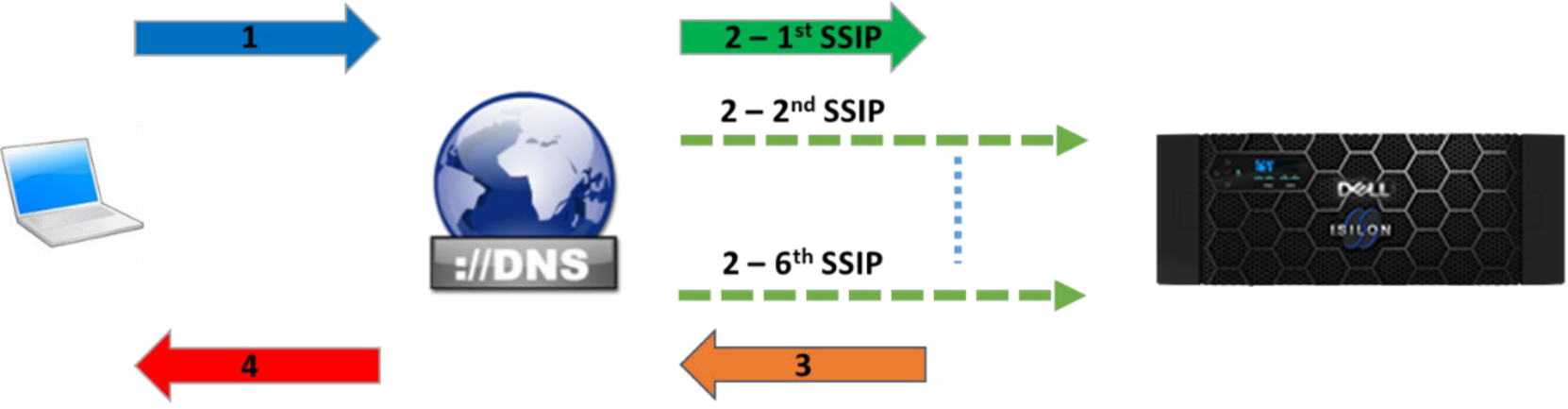
A figure illustrating the SmartConnect Multi-SSIP sequence

Figure 23.    SmartConnect Multi-SSIP sequence

At step 2, the site DNS server sends a DNS request to the SSIP and awaits a response in step 3 for a node’s IP address based on the client connection policy. If for any reason, the response in step 3 is not received within the timeout window, the connection times out. The DNS server tries the 2nd SSIP and awaits a response in step 3. After another timeout window, the DNS server continues cycling through subsequent SSIPs, up to the sixth SSIP with SmartConnect Advanced, if a response is not received after a request is sent to each SSIP.

Although the additional SSIPs are in place for failover, the SSIPs configured are active and respond to DNS server requests. The Multi-SSIP configuration is active/passive, where each node hosting an SSIP is independent and ready to respond to DNS server requests, irrespective of the previous SSIP failing. Therefore, SmartConnect continues to function correctly if the DNS server contacted the other SSIPs, providing SSIP fault tolerance. However, as each node hosts an SSIP independent of the other SSIP hosting nodes, it is unaware of the status of the load-balancing policy and starts the load-balancing policy back to the first option. For example, if the SmartConnect load-balancing policy is round robin for a 50-node subnet, assume that the first SSIP has distributed IP addresses for the first ten nodes. If the second SSIP is contacted by the DNS server, it starts distributing node IP addresses at the first option again, in this case, node one, rather than node eleven. The node hosting the SSIP is unaware of the node IP address distributed by the previous SSIP.

Note: As a best practice, do not configure the site DNS server to load balance the SSIPs. Each additional SSIP is only a failover mechanism, providing fault tolerance and SSIP failover. Allow OneFS to perform load balancing through the selected SmartConnect policy, ensuring effective load balancing.

Configuring OneFS for SmartConnect Multi-SSIP

Multi-SSIP is configured from the user interface or the CLI, by specifying a range of IP addresses. The range of IP addresses is applied to between two and six SSIPs per subnet, depending on the SmartConnect license.

To configure Multi-SSIP from the user interface, click Cluster Management > Network Configuration. Next, either select an existing subnet and click Edit, or if under a groupnet, click More > Add subnet and scroll to the SmartConnect service IPs section, as displayed in the following figure:
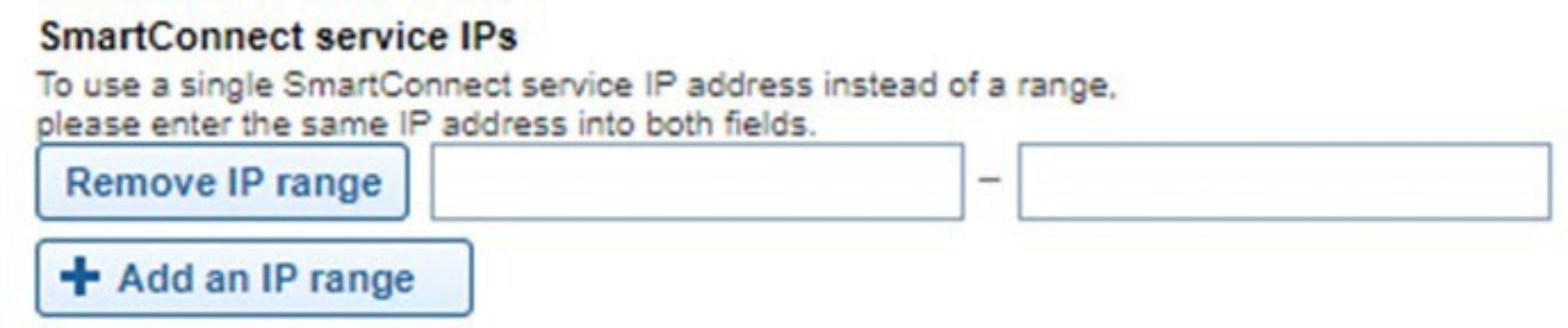
A figure illustrating the SmartConnect multi-SSIP user interface configuration

Figure 24.    SmartConnect Multi-SSIP user interface configuration

To configure Multi-SSIP from the CLI, use the --sc-service-addrs option with an IP address range, as displayed in the following command:

isi network subnets modify subnet0 --sc-service- addrs=192.168.25.10-192.168.25.11

Also, the IP address range may be cleared, or additional ranges may be added, using the following commands:
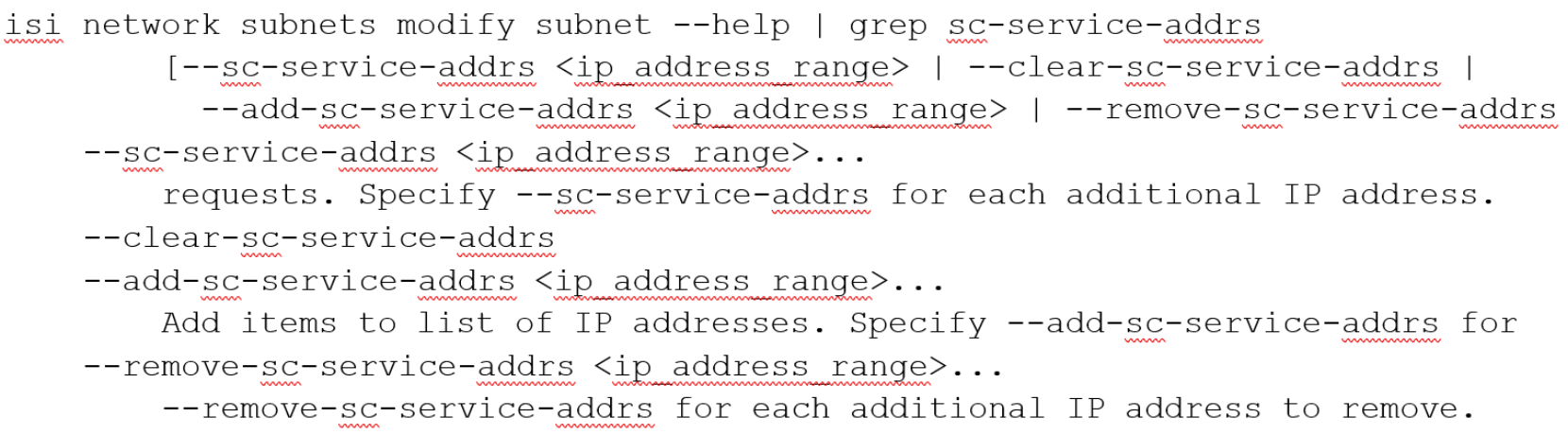
Configuring a DNS server for SmartConnect Multi-SSIP

Multi-SSIP is a feature for SSIP failover, providing SSIP fault tolerance. Configure DNS servers for SSIP failover, ensuring the next SSIP is only contacted if the first SSIP connection times out. If the SSIPs are not configured in a failover sequence, the SSIP load-balancing policy resets each time a new SSIP is contacted. The SSIPs do not track the current distribution status of the other SSIPs because they function independently, negating the function of the selected load-balancing policy.

Configuring IP addresses as failover-only addresses is not supported on all DNS servers. To support Multi-SSIP as a failover only option, a DNS server with support for failover addresses is recommended. If a DNS server does not support failover addresses, Multi-SSIP still provides advantages over a single SSIP. However, increasing the number of SSIPs might affect the ability of SmartConnect to load balance.

Note: If the DNS server does not support failover addresses, test Multi-SSIP in a lab environment mimicking the production environment to confirm the impact on SmartConnect load balancing for a specific workflow. Only after confirming workflow impacts in a lab environment should a production cluster be updated.

DNS servers supporting failover IP addresses

If the site DNS server supports failover IP addresses, proceed with the configuration in this section.

As explained earlier in DNS delegation best practices, the first SSIP should be created in DNS as an address (A) record, also referred to as a host entry. The additional SSIPs should be configured as DNS A record failover IP addresses. The first IP address should point to the first SSIP, followed by each configured SSIP IP addresses for failover. The additional SSIPs provide redundancy in an active/passive pattern.

DNS servers without failover IP address support

If the site DNS server does not support failover IP addresses, proceed with the configuration in this section.

Note: Prior to configuring a DNS server that does not support failover IP addresses, consider the load-balancing status in SmartConnect is independently managed by each SSIP, as explained in SmartConnect Multi-SSIP. The total impact on load-balancing behavior depends on whether the site DNS server has recursion enabled, how many SSIPs are configured, the load-balancing policy, and the workflow. To confirm the impacts in a specific environment test in a lab environment mimicking the production environment, prior to updating a production cluster.

To configure a DNS server for Multi-SSIP that does not support failover IP addresses, create an NS record, and matching A/AAAA record for each SSIP. Most DNS servers us a Round Trip Time (RTT) to decide which nameserver to use. As an example, for OneFS and a BIND DNS server, consider the following configuration:

OneFS configuration:

isi network subnets modify groupnet0.subnet0 --sc-service-name=cluster- ns1.company.com --sc-service-addrs=1.2.3.4-1.2.3.6

isi network pools modify groupnet0.subnet0.pool0 --sc-connect-policy round_robin

--sc-dns-zone cluster.company.com

BIND configuration:

cluster-ns1 IN A 1.2.3.4

cluster-ns2 IN A 1.2.3.5

cluster-ns3 IN A 1.2.3.6

$ORIGIN cluster.company.com.

@ IN NS cluster-ns1.company.com.

@ IN NS cluster-ns2.company.com.

@ IN NS cluster-ns3.company.com.

This configuration may be adapted to Windows DNS servers or other DNS servers. The issue with Windows DNS server is the forced 1 second TTL, which affects single SSIP configurations also, as noted in Other SmartConnect considerations.

Also, in an environment where the site DNS server does not support failover IP addresses, consider the following information and recommendations:

  • If the site DNS server has recursion enabled, consider that the nameservers might be contacted in a round robin fashion. To confirm this behavior, check for a frequently changing nameserver through logging in OneFS. If the SmartConnect zone is configured for round robin, try repeatedly querying the zone. If the DNS server returns an IP the same number of times as SSIPs configured, it is contacting nameservers in a round robin configuration.
  • If a site DNS server is not sticky in terms of how it chooses name servers, load balancing will decrease as the number of SSIPs in a subnet increase. For example, consider the difference between the site DNS server returning the same IP two times in a row when two SSIPs are configured, and the site DNS server returning the same IP six times in a row when six SSIPs are configured.
  • A load balancing problem might be exacerbated in environments with multiple SSIPs and a site DNS server that is not preferential to a certain SSIP, if the SmartConnect load balancing policy is not round robin. This situation could result in more clients than expected landing on the lightest weighted node.
  • If the workload consists of high throughput, usage, or demanding clients, using Multi-SSIP makes the preceding considerations significantly more noticeable. On the contrary, if the workload consists of many smaller client connections, the impact of Multi-SSIP on load-balancing might go unnoticed especially with round robin policies given that SmartConnect eventually distributes each node’s IP address almost an equal number of times.

SSIP node assignment

Within a subnet, up to six SSIPs are available, depending on the SmartConnect license. Prior to OneFS 8.2, the single SSIP was assigned to the lowest Node ID in the specified subnet. Hosting the SSIP on the lowest Node ID created issues because often the lowest Node ID is providing other services and could be the first to reboot in a rolling upgrade.

Multi-SSIP introduces an enhancement to assigning SSIPs. Attaching an SSIP to a node is no longer dependent on the Node ID. OneFS 8.2 creates a file containing SSIP information, the SSIP Resource File. To host an SSIP, a node must hold a lock on this file. All the nodes that are ready to host an SSIP, attempt to lock the SSIP Resource File. The first nodes to get the lock host the SSIP. The new process ensures the node assignment is based on a lock to nodes within the subnet, avoiding the issues from previous releases. Once the node is offline, or the interface goes down, the SSIP becomes available for lock again, and the next quickest node to capture the lock hosts the SSIP, as illustrated in the following figure. OneFS ensures that SSIPs are as evenly distributed as possible within a subnet, using a feature to limit a single node from hosting multiple SSIPs. In certain scenarios, a node may host more than a single SSIP, depending on the number of nodes and SSIPs in the subnet.
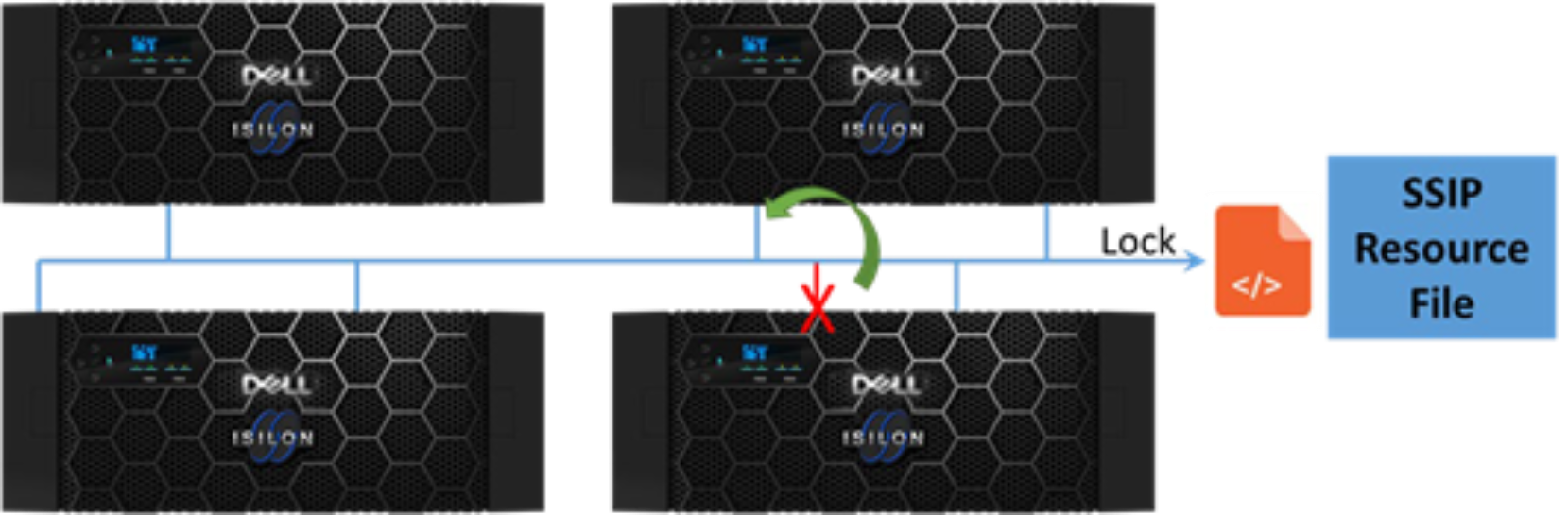
A figure illustrating the SmartConnect SSIP resource file

Figure 25.    SSIP Resource File

OneFS 8.2 also introduces a new method for handling configuration and group changes. In releases prior to OneFS 8.2, SmartConnect unconditionally stopped and unconfigured the SSIP during a configuration or group change, and then evaluated where it should run, which was frequently the same node. In OneFS 8.2, the SSIP remains in place through configuration and group changes. After the changes, the SSIP moves only if necessary, minimizing failover impacts.

To confirm which of the nodes are hosting SSIPs, use the following commands:

isi_for_array ifconfig | grep <SSIP>

isi_for_array ifconfig | grep “zone 0”

Network pools status

OneFS Release 9.4.0.0 introduces a new CLI command for troubleshooting SmartConnect: isi network pools status. The new command lists SmartConnect DNS resolvable status for each node. If a node is not resolvable, OneFS states possible reasons, providing administrators a starting point to troubleshoot. The new command uses the following format:

isi network pools status --id=[Subnet ID] –-show-all

The subnet ID is the ID listed under isi network pools list for the specified pool.

The isi network pools status command lists a summary of the pool and then a status for each node, as displayed in Figure 25.
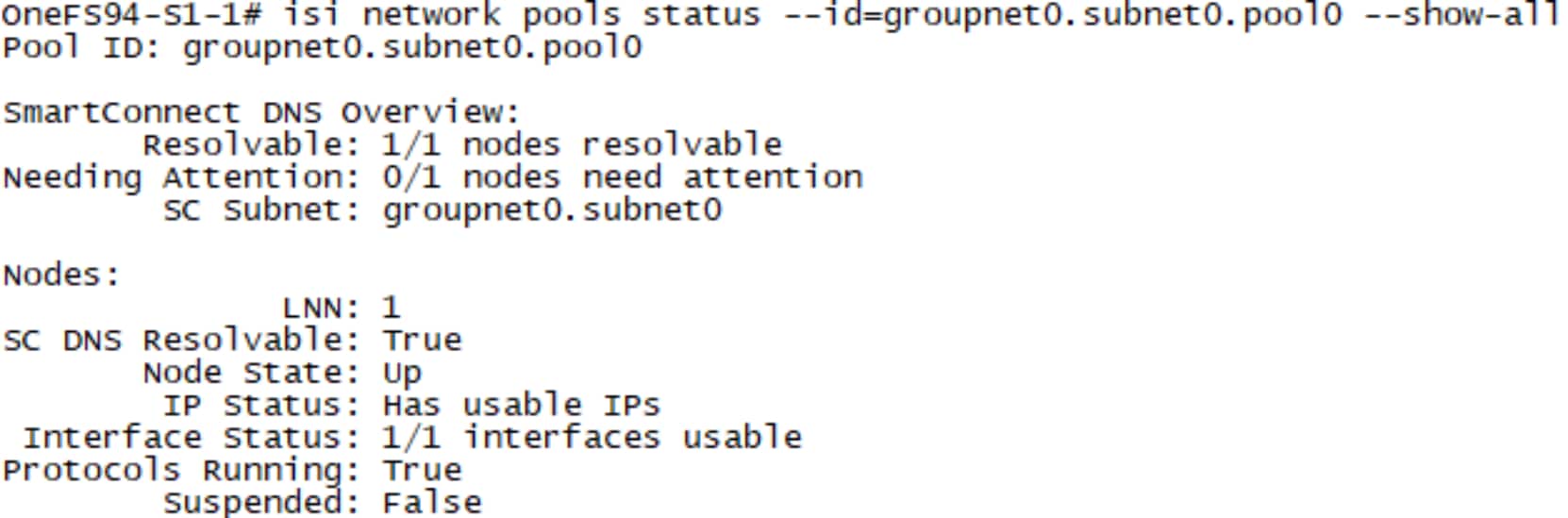
A figure illustrating the CLI output of isi network pools status

Figure 26.    Network pools status

The status for each node lists if it is SmartConnect DNS resolvable, state, IP status, interface status, protocols, and the suspended states. The possible states for each field are listed in Table 10.

Table 10.  Network pools status fields possible values

Field

Possible Values

Node State

Up, Draining, Smartfailing, Shutting Down, Down

IP Status

Has usable IPs, Does not have usable IPs, Does not have any configured IPs

Protocols Running

True, False

Suspended

True, False

Other SmartConnect considerations

During SmartConnect configuration, consider the following points:

  • Disable client DNS caching, when possible. To handle client requests properly, SmartConnect requires that clients use the latest DNS entries. If clients cache SmartConnect DNS information, they could connect to incorrect SmartConnect zone names. In this event, SmartConnect might not appear to be functioning correctly.
  • If traffic is traversing firewalls, ensure that the appropriate ports are open. For example, if UDP port 53 is opened, also ensure TCP port 53 is opened.
  • Certain clients perform DNS caching and might not connect to the node with the lowest load if they make multiple connections within the lifetime of the cached address. For example, this issue occurs on macOS X for certain client configurations.
  • The site DNS servers must be able to communicate with the node that is currently hosting the SmartConnect service.
  • Site DNS servers might not exist in the regular local subnets, or in any of the subnets that clients occupy. To enable the SmartConnect lookup process, ensure that the DNS servers use a consistent route to the cluster and back. If the site DNS server sends a lookup request that arrives through one local subnet on the cluster, but the configured cluster routing causes the response to be sent through a different subnet, it is likely that the packet will be dropped, and the lookup will fail. The solutions and considerations for SmartConnect are similar to the client scenarios. Also, the DNS server might benefit from a static route to the subnet that contains the SSIP address or addresses.
  • SmartConnect makes it possible for different nodes to have different default routes, but this is fundamentally determined by connectivity. SmartConnect enables administrators to define multiple gateways, with one gateway per subnet. Each gateway is assigned a priority when it is defined. On any node, SmartConnect attempts to use the highest priority gateway—the gateway that has the lowest number—that has an available functioning interface in a subnet that contains the gateway address.
  • OneFS release 9.2 enhances the isi network interfaces list command, providing an option to specify the type as SSIP, using the isi network interfaces list --type SSIP command.

OneFS release 9.2 introduces support for Duplicate Address Detection (DAD). For more information, see Duplicate Address Detection.

Ethernet, MTU, and IP overhead

Introduction

A Maximum Transmission Unit (MTU) is the largest packet size or frame that can be sent along a link. The MTU is specified in octets and is used by TCP to determine the maximum size of a packet per transmission. A large MTU provides less overhead because packet headers and acknowledgments are not consuming space and bandwidth. However, this could lead to retransmissions or drops if a hop does not support it. On the contrary, a small MTU is not as efficient as overhead increases with packet headers and acknowledgments.

Generally speaking, the MTU across the Internet is 1,500 bytes. As such, most devices limit packet size to roughly 1,472 bytes, allowing for additional overhead and remaining under the 1,500-byte limit. Additional overhead might be added as the packet goes through different hops. The IEEE 802.3 standard also specifies 1,500 bytes as the standard payload.

Ethernet packet

An Ethernet frame carries a payload of data and is carried by an Ethernet packet. The frame could be IPv4 or IPv6 and TCP or UDP. The IEEE 802.3 standard defines the structure of each packet. As a packet traverses different layers, the structure is modified accordingly. In the following figure, the structure is displayed as it would traverse the wire, or Layer 1. Dissecting how a packet is structured on the wire lends to an understanding of how the packet overhead is affected and all the other components required to send a payload.
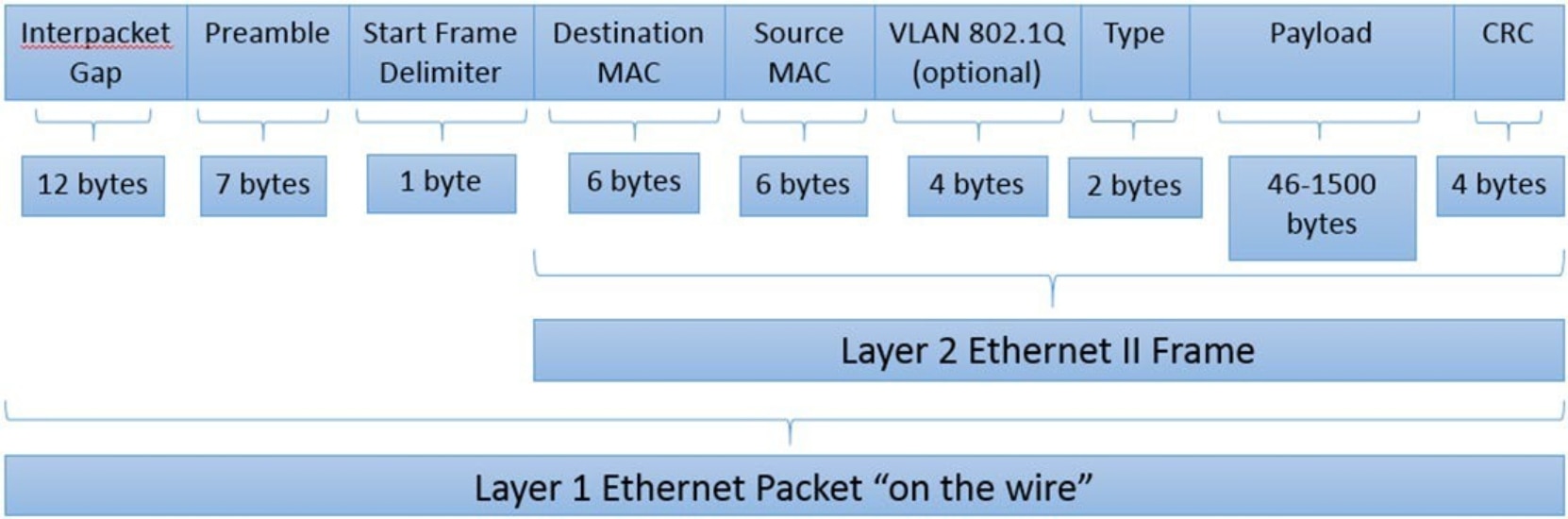
A figure illustrating an Ethernet packet.

Figure 27.    Ethernet packet

An Ethernet packet on the wire at Layer 1 is composed of the following fields:

  • Interpacket Gap: Serves as a gap between each frame, similar to a spacer. The Interpacket gap is only part of Layer 1. The field originates from a time when hubs were common, and collisions were more commonplace.
  • Preamble: Composed of alternating 1 and 0 bits for receiver clock synchronization. The Preamble is only part of Layer 1.
  • Start Frame Delimiter: Identifies the start of an Ethernet frame.
  • Destination MAC: Contains the MAC address of the destination station for which the data is intended.
  • Source MAC: Contains the MAC address of the sending station.
  • VLAN 802.1Q: Optional field used if a VLAN is identified.
  • Type: Also known as the EtherType field, this defines the type of protocol that is encapsulated in the payload. In the preceding example, it is an Ethernet II Frame, the most widely accepted type.
  • Payload: Spans from 46 to 1,500 bytes and contains user data. If it is smaller than 46 bytes, blank values are entered to bring this up to 46 bytes, which is the minimum value. The Payload consists of protocol data for TCP, UDP, or RTP and IPv4 or IPv6. The next section explains the Payload field in greater depth.
  • CRC: Cyclic Redundancy Check is part of the Frame Check Sequence (FCS) to detect errors within the frame. The CRC code should result in a zero if the data does not contain any errors.

Ethernet payload

The Ethernet payload varies based on the type of data it is carrying. It is a combination of either TCP, UDP, or RTP header combined with an IPv4 or IPv6 header, and most importantly the actual payload which contains the data that is being sent. The fields within the payload are displayed in the following figure:
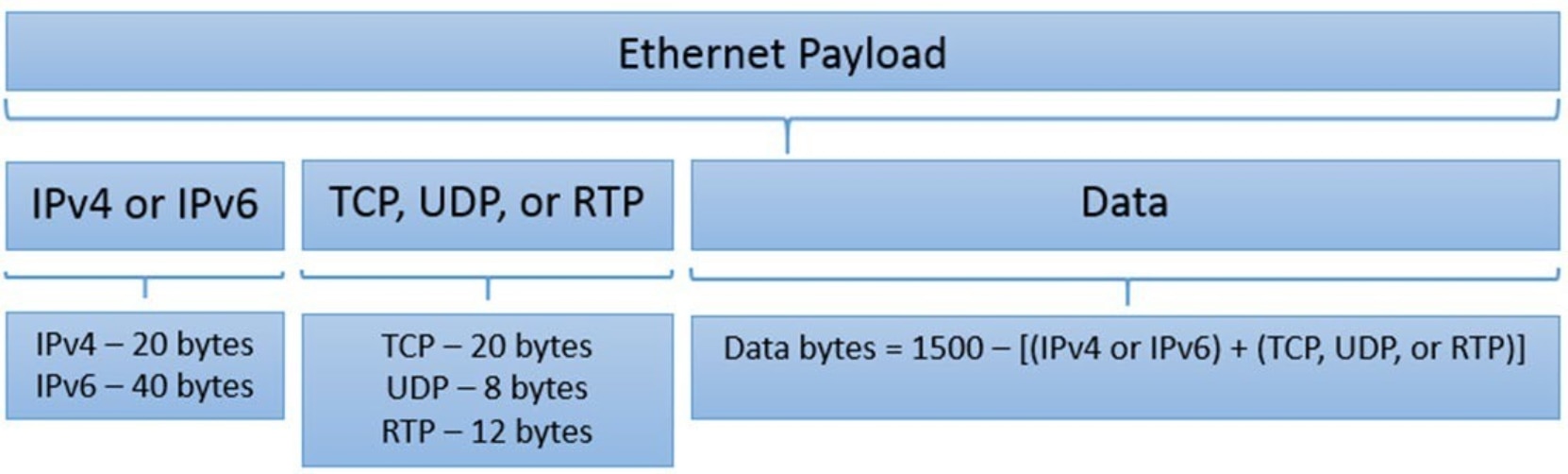
A figure illustrating Ethernet payload options.

Figure 28.    Ethernet payload options

As shown in the figure, the amount of actual data sent within an Ethernet Frame is dependent upon the number of bytes consumed by the other fields. Other options are available which are not listed here. For example, Linux hosts automatically add a timestamp to the TCP stack, adding 12 bytes.

Jumbo frames

Jumbo frames are Ethernet frames where the MTU is greater than the standard 1,500 bytes and a maximum of 9,000 bytes. The larger MTU provides greater efficiency because less overhead and fewer acknowledgments are sent across devices, drastically reducing interrupt load on endpoints. Jumbo frames are recommended for most workloads because the amount of data sent per message is far greater, reducing processing times and maximizing efficiency. While the general assumption is that jumbo frames provide performance advantages for all workloads, measure results in a lab environment simulating a specific workload to ensure performance enhancements.

For jumbo frames to take advantage of the greater efficiencies, they must be enabled end-to-end on all hops between endpoints. Otherwise, the MTU could be lowered through PMTUD or packets could be fragmented. The fragmentation and reassembly affect the CPU performance of each hop, which affects the overall latency.

For example, if a client is set to an MTU of 1,500 bytes while other hops are set to 9,000 bytes, transmission along the path will most likely set to 1,500 bytes using PMTUD, unless other options are configured.

Jumbo frames use the same Ethernet packet structure described in the previous section. However, the difference is the size of the data within the payload. The byte consumption of the other components within the frame remains the same, while each packet contains more data with the same overhead. A jumbo frame Ethernet payload is displayed in the following figure:
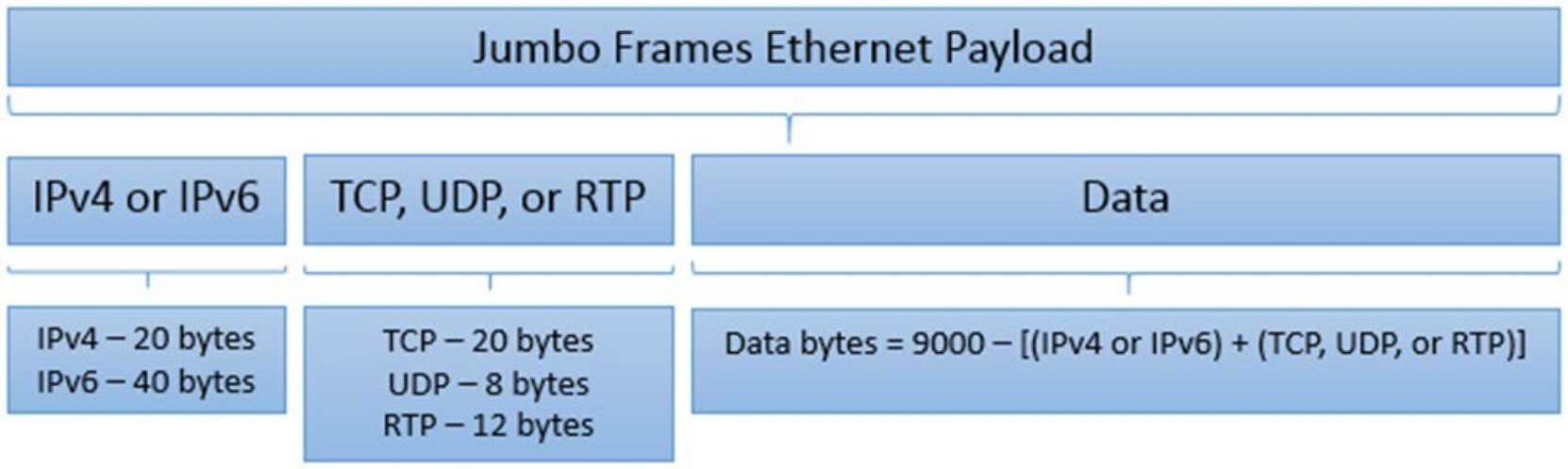
A figure illustrating Jumbo frames Ethernet payload .

Figure 29.    Jumbo frames Ethernet payload

IP packet overhead

PowerScale nodes use 10, 25, and 40 GbE NICs for front-end networking. To maximize throughput on these high-bandwidth links, jumbo frames are recommended for greater throughput. Standard 1,500 byte and jumbo 9,000-byte packets are formed with the same packet structure at Layer 1, with the only difference pertaining to the actual data payload. Although the overhead is identical for standard and jumbo packets, the ratio of the data to the overhead varies significantly.

For every payload sent to Layer 1 on the wire, the following fields are required:

Interpacket Gap / Preamble / Start Frame Delimiter / Destination MAC / Source MAC / Type / CRC In bytes, this translates to:

12 + 7 + 1 + 6 + 6 + 2 + 4 = 38 bytes

Hence, regardless of the payload fields, every payload requires an additional 38 bytes to be sent. This does not consider the optional VLAN tag, which requires an additional 4 bytes. The following sections provide examples of packet overhead based on the payload fields.

Example 1: Standard 1,500-byte payload – IPv4/TCP

IPv4 and TCP headers consume the following bytes:

20 bytes (IPv4) + 20 bytes (TCP)= 40 bytes

If the payload headers consume 40 bytes, the data field for a standard 1,500-byte payload consumes:

1500 – 40 = 1460 bytes

Therefore, a standard 1,500-byte packet with IPv4 and TCP headers results in a data to Ethernet frame percentage as follows:

(Data Bytes) / (Total Ethernet Frame Bytes) = (1500 – 40) / (1500 + 38) = 1460/1538 = .949 => 94.9%

Example 2: Jumbo 9,000-byte payload – IPv4/TCP

A 9,000-byte payload that contains IPv4 and TCP headers consumes the following bytes:

20 bytes (IPv4) + 20 bytes (TCP)= 40 bytes

If the payload headers consume 40 bytes, the data can field consumes:

9000 – 40 = 8960 bytes

Therefore, a 9,000-byte packet with IPv4 and TCP headers results in a data to Ethernet frame percentage as follows:

Data Bytes) / (Total Ethernet Frame Bytes) = (9000 – 40) / (9000 + 38) = 8960/9038 = .991 => 99.1%

Example 3: Standard 1,500-byte payload – IPv4/TCP/Linux timestamp

Linux automatically inserts the timestamp within the payload. A standard 1,500-byte payload that contains IPv4, TCP, and timestamp headers consumes the following bytes:

20 bytes (IPv4) + 20 bytes (TCP) + 12 bytes (timestamp) = 52 bytes

If the payload headers consume 40 bytes, the data field consumes:

1500 – 52 = 1448 bytes

Therefore, a standard 1,500-byte packet with IPv4 and TCP headers results in a data to Ethernet frame percentage as follows:

(Data Bytes) / (Total Ethernet Frame Bytes) = (1500 – 52) / (1500 + 38) = 1448/1538 = .941 => 94.1%

Example 4: Jumbo 9,000-byte payload – IPv4/TCP/Linux timestamp

Linux automatically inserts the timestamp within the payload. A 9,000-byte payload that contains IPv4, TCP, and timestamp headers consumes the following bytes:

20 bytes (IPv4) + 20 bytes (TCP) + 12 bytes (timestamp) = 52 bytes

If the payload headers consume 40 bytes, the data field consumes:

9000 – 52 = 8948 bytes

Therefore, a 9,000-byte packet with IPv4 and TCP headers results in a data to Ethernet frame percentage as follows:

(Data Bytes) / (Total Ethernet Frame Bytes) = (9000 – 52) / (9000 + 38) = 8948/9038 = .990 => 99.0%

Data payload to Ethernet frame efficiency

Based on the preceding calculations, the following table provides additional examples of the amount of data that is sent per Ethernet frame for standard and jumbo frames.

Table 11.  Data payload to Ethernet frame percentage

Packet type

Data to Ethernet frame percentage

Standard frame

Jumbo frame

IPv4 / TCP

94.93%

99.14%

IPv4 / TCP / Linux Timestamp

94.15%

99.00%

IPv4 / TCP / Linux Timestamp / VLAN

93.90%

98.96%

IPv6 / TCP

93.63%

98.92%

IPv6 / TCP / Linux Timestamp

92.85%

98.78%

IPv6 / TCP / Linux Timestamp / VLAN

92.59%

98.74%

IPv4 / UDP

95.71%

99.27%

IPv4 / UDP / Linux Timestamp

94.93%

99.14%

IPv4 / UDP / Linux Timestamp / VLAN

94.67%

99.09%

IPv6 / UDP

94.41%

99.05%

IPv6 / UDP / Linux Timestamp

93.63%

98.92%

IPv6 / UDP / Linux Timestamp / VLAN

93.37%

98.87%

Note: NFS v2 is UDP. NFS v3 and v4 are TCP. SMB is TCP.

As shown in the preceding table, jumbo frames deliver between 98 and 99 percent efficiency depending on the packet type. The efficiencies are only maximized when all hops from the client endpoint to a PowerScale node support jumbo frames. Otherwise, packets might be fragmented, leading to additional processing overhead on devices or PMTUD finding the lowest MTU along the path. Therefore, jumbo frames are recommended for optimal performance. However, each workload environment is unique. Measure performance enhancements in a lab before updating a production network.

ICMP and MTU with OneFS

Network devices employ Internet Control Message Protocol (ICMP) to gather communications-related information. ICMP is capable of sending error messages but also delivers operational information. Ping and TraceRoute both send ICMP messages to provide connectivity information including latency and network hops.

Most devices have a default MTU that is configurable and remains at the defined value. PowerScale OneFS determines the MTU specific to each transaction. After the initial TCP handshake, the PowerScale node sends an ICMP message for Path MTU Discovery (PMTUD), RFC 1191, gathering the maximum supported MTU. If for any reason ICMP is disabled, or PMTUD is not supported, this causes OneFS to default the MTU to 536 bytes, which typically leads to performance degradation.

OneFS MTU commands

To check the current configured MTU, enter the following command:

isi networks subnets list –v

To modify the MTU, use the isi command with the following context:

isi network subnets modify groupnet0.subnet1 --mtu=1500 --gateway=198.162.100.10

--gateway-priority=1

VLAN and interface MTU

VLAN-specific MTUs ensure a consistent MTU across all network device hops in a session. OneFS allows multiple VLANs on a single interface, providing support for multiple workloads. The interfaces support multiple VLANs and the associated MTUs for those VLANs. A VLAN’s MTU must be less than or equal to the parent interface’s MTU. If the parent interface is not explicitly configured, it will inherit the MTU of the VLAN with the greatest MTU.

Confirming transmitted MTU

Manually checking a permitted MTU ensures a configured MTU is transmitted. The ping command is used to confirm if an MTU can be transmitted. Start with the largest MTU and work down to find the limit.

For example, to check if an MTU of 8900 bytes is transmitted to an endpoint, from the OneFS CLI, use the following command: ping –s 8900 –D <IP Address>. The -s specifies the packet size, and the -D specifies not to fragment the packet.

If the ping is successful, the MTU is transmitted across. If the ping is unsuccessful, gradually lower the MTU until it is successfully transmitted. Verify that the MTU can be transmitted from both endpoints.

OneFS is based on FreeBSD. FreeBSD also has options for gradually increasing the MTU by performing a “sweeping ping” using the –g option. For more information about ping options in FreeBSD, access the FreeBSD manual at the following link: https://www.freebsd.org/cgi/man.cgi?ping(8).

Access zones best practices

Introduction

When access zones are configured, a root-based path must be defined to segment data into the appropriate access zone and enable the data to be compartmentalized. Access zones carve out access to a PowerScale cluster creating boundaries for multitenancy or multiprotocol. They permit or deny access to areas of the cluster. At the access zone level, authentication providers are also provisioned.

System zone

When a PowerScale cluster is first configured, the System zone is created by default. The System zone should only be used for management as a best practice. In certain special cases, some protocols require the system zone, but generally speaking, all protocol traffic should be moved to an access zone. If nothing else, NFS and SMB should have protocol-specific access zones.

Moving client traffic to access zones ensures that the System zone is only used for management and accessed by administrators. Access zones provide greater security because administration and file access are limited to a subset of the cluster, rather than the entire cluster.

Root-based path

SmartConnect zones map to access zones, which map to a root-based path. When an access zone is defined, a root-based path must be defined. Best practice is to use the cluster name, a numerical access zone number, and a directory. For example, Access Zone 1 maps to /ifs/clustername/az1/<data directories>, Access Zone 2 maps to /ifs/clustername/az2/<data directories>. A root-based path with this delineation provides data separation and multitenancy, maintains the Unified Permission model, and makes SyncIQ failover and failbacks easier.

Generally, the best practice is to remove all data access from the default System zone. Otherwise, this leads to complications in the future as the cluster grows and additional teams or workflows are added. Further, as previously mentioned, create a subdirectory under the access zone, rather than using the root of the zone, to make migration and disaster recovery simpler. It is preferred not to have an overlap of root-based paths unless it is required for a specific workflow. Overlap is supported in 8.0 and newer releases through the CLI.

In the following figure, as Cluster 1 fails over to Cluster 2, the directory structure remains consistent, easily identifying where the files originated from. This delineation also ensures clients have the same directory structure after a failover. Once the IP address is updated in DNS, the failover is transparent to clients. As more clusters are brought together with SyncIQ, this makes it easier to manage data, understanding where it originated from and provides seamless disaster recovery.
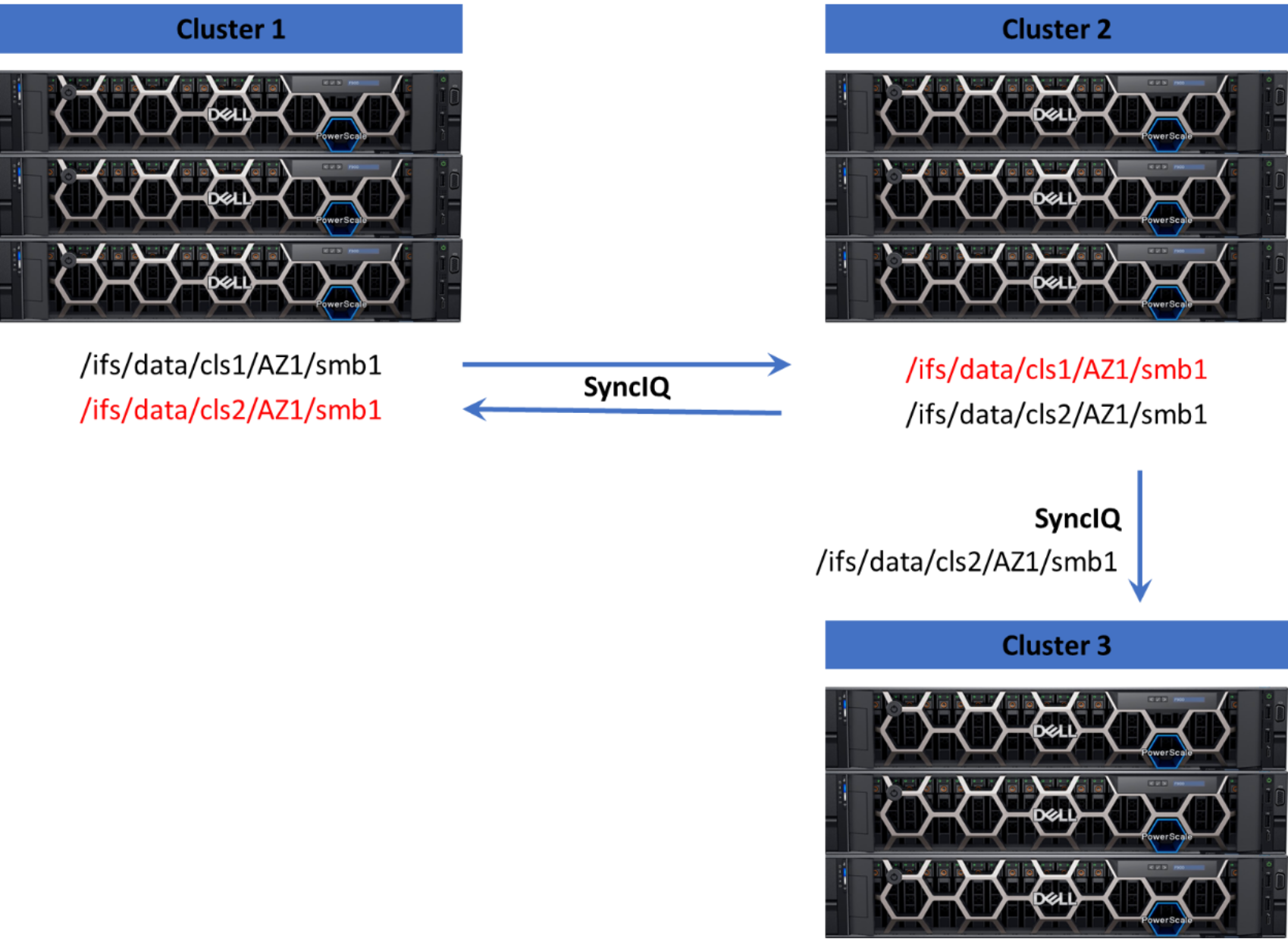
A figure illustrating the Importance of root-based path best practices

Figure 30.    Importance of root-based path best practices

Root-based paths may also be based on protocol. As an example, protocols are matched with a root-based path in the following table:

Table 12.  Protocol-specific access zones

Protocol

Root-based path

NFS Access

/ifs/cls1/AZ1/nfs

SMB Access

/ifs/cls1/AZ2/smb

NFS / SMB / HDFS

/ifs/cls1/AZ3/mp

Source-Based Routing considerations

Overview

Source-Based Routing (SBR) is a mechanism to dynamically create per-subnet default routes. The router used as this gateway is derived from the subnet configuration.

Note: The naming convention of Source-Based Routing (SBR) suggests it routes packets based on a source IP address. However, SBR creates per-subnet default routes.

SBR utilizes gateways that are defined for each subnet. For example, consider a cluster with subnets A, B, and C, as illustrated in the following figure:
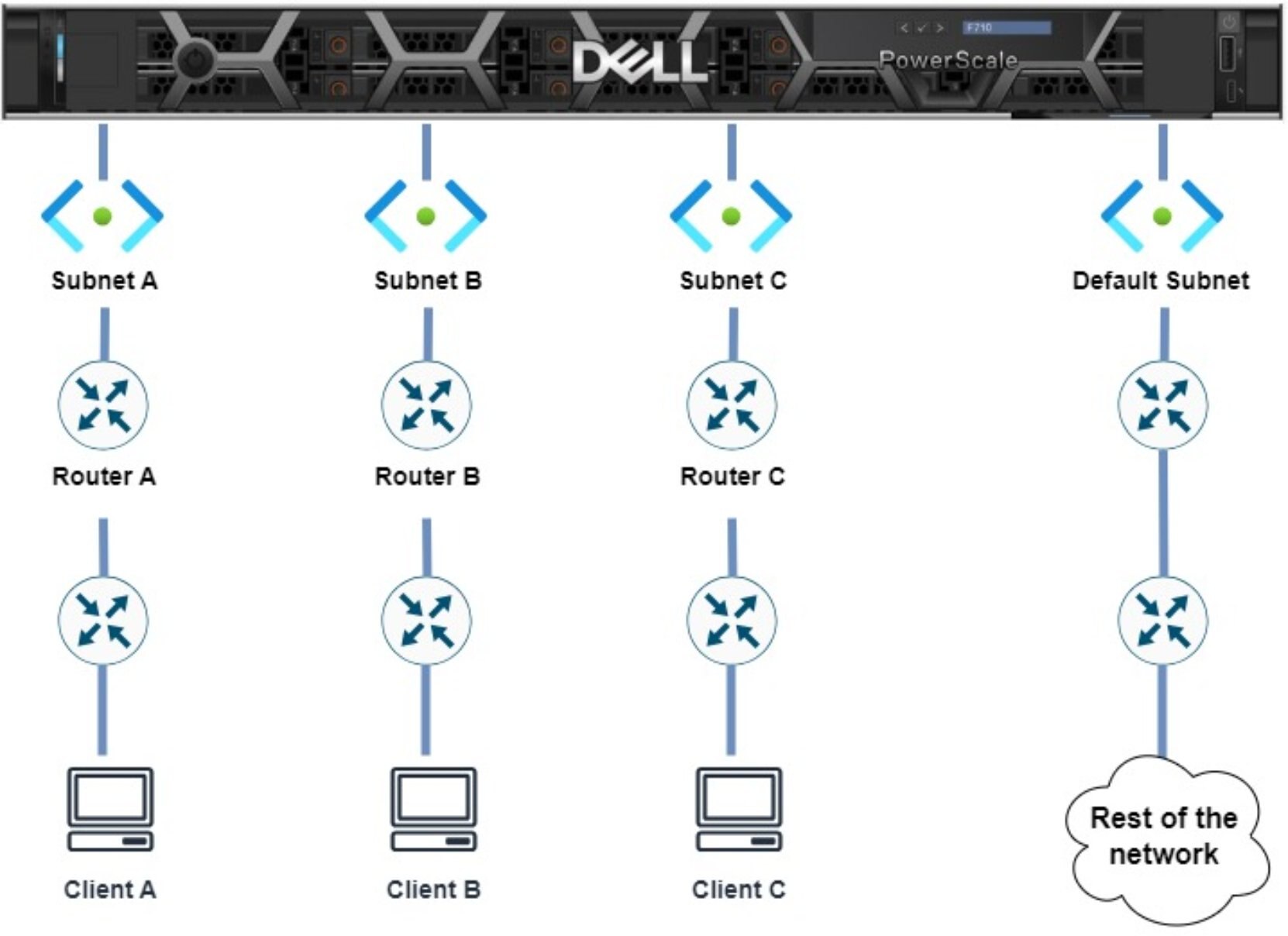
A figure illustrating Source-Based Routing (SBR)

Figure 31.    Source-Based Routing

In the preceding example, each gateway has a defined priority. If SBR is not configured, the highest priority gateway—that is, the gateway with the lowest value—which is reachable, is used as the default route. Once SBR is enabled, firewall rules are added when traffic arrives from a subnet that is not reachable using the default gateway. These rules are added through ipfw. In the preceding example, the following ipfw rules are provisioned:

If src-ip is in subnetA and dst-ip is not in (subnetA,B,C) set next-hop to gatewayA

If src-ip is in subnetB and dst-ip is not in (subnetA,B,C) set next-hop to gatewayB

If src-ip is in subnetC and dst-ip is not in (subnetA,B,C) set next-hop to gatewayC

The process of adding ipfw rules is stateless and essentially translates to per-subnet default routes. SBR is entirely dependent on the source IP address that is sending traffic to the cluster. If a session is initiated from the source subnet, the ipfw rule is created. The session must be initiated from the source subnet, otherwise the ipfw rule is not created. If the cluster has not received traffic that originated from a subnet that is not reachable using the default gateway, OneFS will transmit traffic it originates through the default gateway.

Given how SBR creates per-subnet default routes, consider:

  • A subnet setting of 0.0.0.0 is not supported and is severely problematic because OneFS does not support RIP, RARP, or CDP.
  • The default gateway is the path for all traffic intended for clients that are not on the local subnet and not covered by a routing table entry. Utilizing SBR does not negate the requirement for a default gateway because SBR in effect overrides the default gateway, but not static routes.
  • Static routes are an option when the cluster originates the traffic, and the route is not accessible using the default gateway. It is important to note that static routes are prioritized over source-based routing rules, as static routes are ipfw rules with higher priority than the source-based routing rules.
  • In environments where SBR is used with a DNS service presented on a remote subnet and multiple SSIPs are present, every DNS server request to a different SSIP changes the route back to the DNS service. Further, the DNS service is often also on the same subnet as other services such as authentication provision, which is likely to disrupt cluster operations. Consider providing SSIPs on a single subnet to support all SmartConnect zones within a single groupnet or defining a static route to the DNS server subnet[s].

Configuration

Prior to OneFS Release 9.8.0.0, SBR was disabled by default. OneFS Release 9.8.0.0 enables SBR by default for all new (Greenfield) PowerScale deployments. Existing (Brownfield) OneFS clusters upgrading to OneFS Release 9.8.0.0, maintain the existing SBR setting. IPv6 support is also added to SBR in OneFS Release 9.8.0.0, whereas previous releases only supported IPv4.

SBR may be configured through the WebUI or CLI. To configure SBR from the WebUI, navigate to Cluster Management > Network Configuration and select the “Settings” tab. Next, toggle the “Enable source based routing” checkbox to disable or enable SBR, as displayed in the following figure.
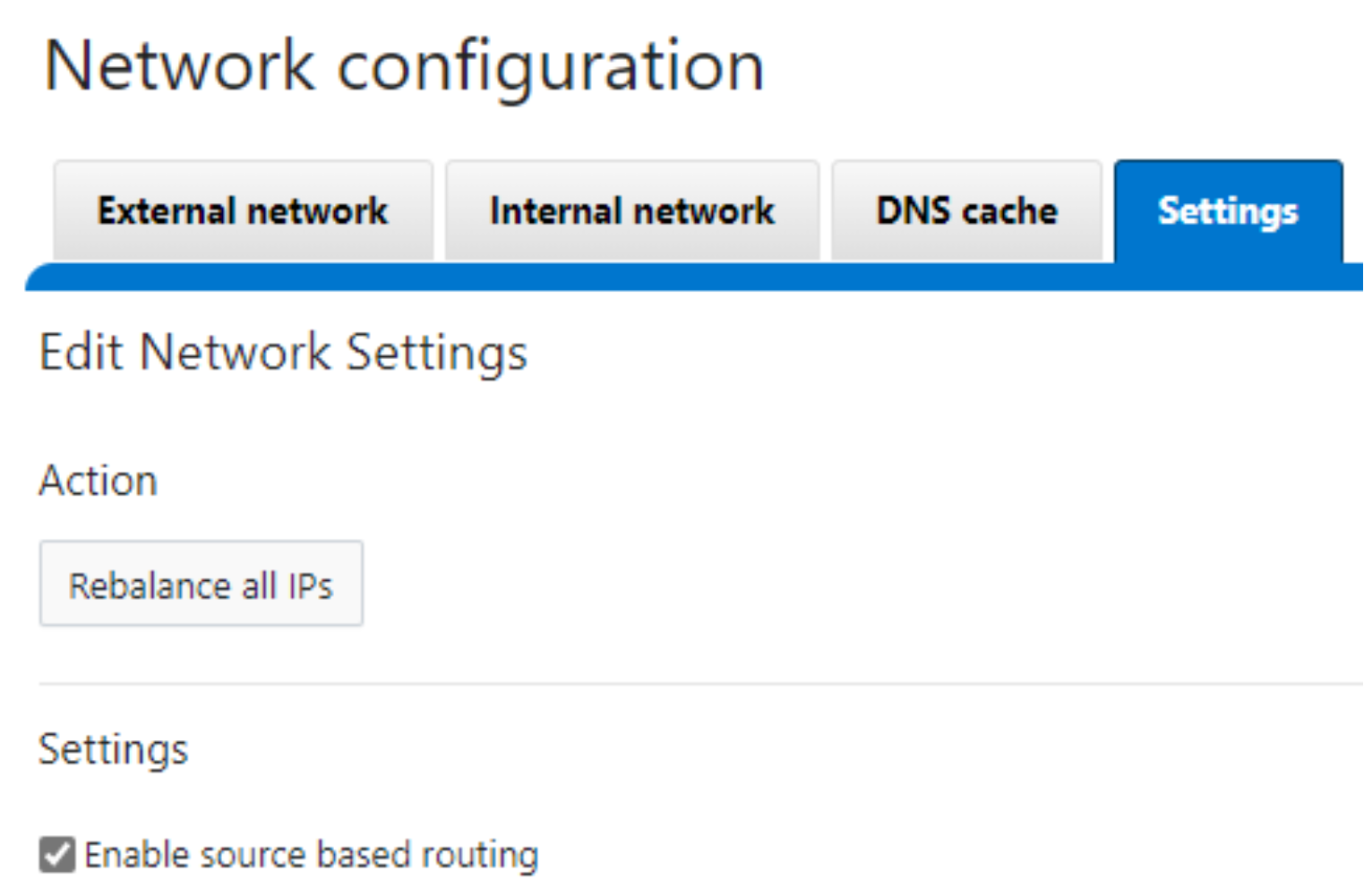
A figure illustrating how to configure source based routing in the WebUI.

Figure 32.    Source based routing in the WebUI

To check if SBR is enabled from the CLI, use the isi network external view command, as displayed in the following figure.
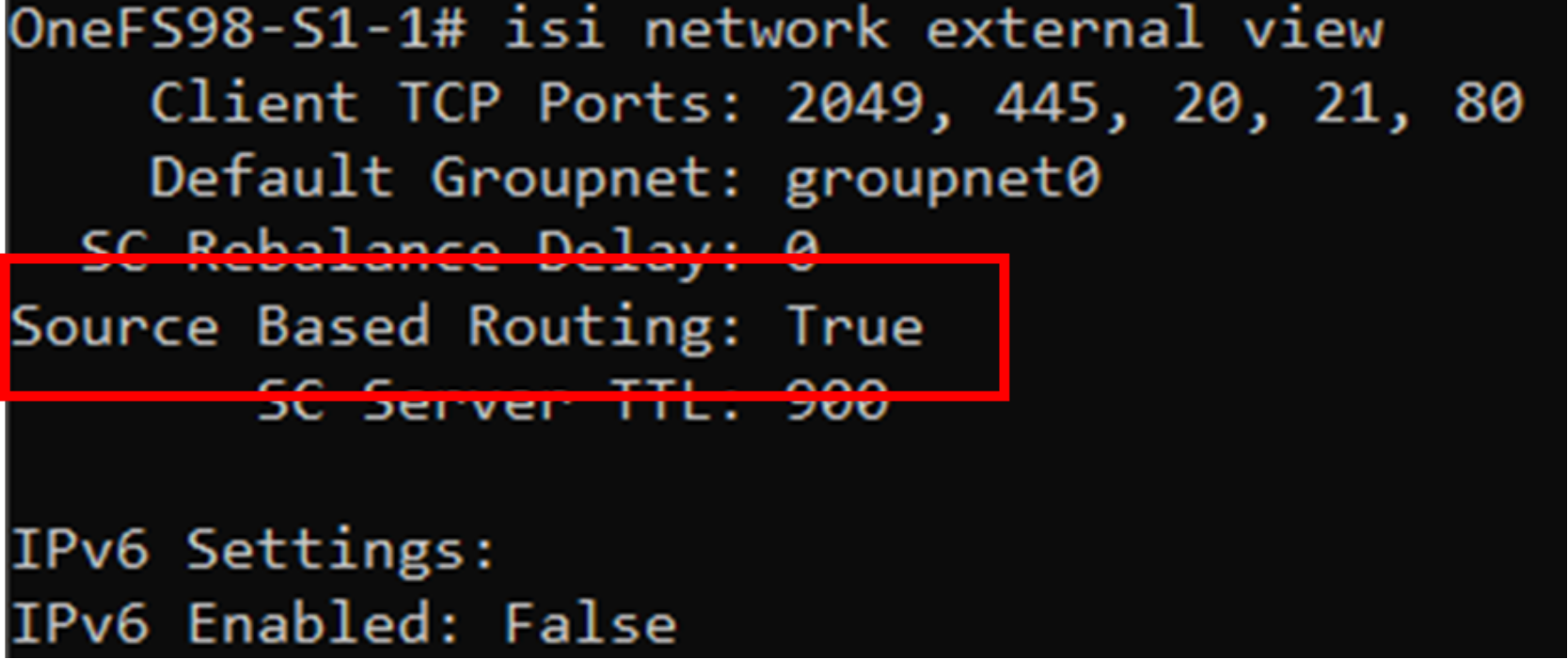
A figure illustrating how to check source based routing status in the CLI.

Figure 33.    Checking SBR status from the CLI

To configure SBR from the CLI use the following command:                    isi network external modify --sbr=[true/false]

Source-Based Routing and DNS

As discussed earlier in this paper, it is important to understand the path a specific session traverses throughout the network hierarchy. Having SBR configured on a cluster also affects how the cluster creates sessions with other hosts, such as a DNS server.

In certain environments, PowerScale clusters with SBR enabled and multiple SmartConnect SIP (SSIP) addresses, have experienced excessive latency with DNS responses. As mentioned previously in this paper, keeping latency minimal is imperative through any transaction and the delayed DNS responses could affect DNS-dependent workflows. The prior section explained how SBR dynamically assigns a gateway. In this instance, the route to the DNS server is changed as the session originated on a different interface based on the SSIP being addressed.

To prevent the additional latency with DNS responses when SBR is enabled with multiple SSIP addresses, consider the following recommendations:

  • If a single access zone is configured to have multiple SmartConnect zones and multiple subnets with SBR enabled, use a single SSIP.
  • If a cluster is using a single DNS server, use a single SSIP.
  • If multiple access zones are required within a single groupnet, use a single SSIP.

Isilon 6th generation 1 GbE interfaces

Isilon 6th generation 1 GbE interfaces

The Isilon Gen 6 platform provides a single 1 GbE interface per node. The original intent of the interface was to provide SSH access to the cluster. However, against best practice, many cluster configurations use these interfaces for data access, either intentionally or unintentionally.

The 1 GbE interface was not designed for data transfer because the chipset does not support TCP Segmentation Offload (TSO) and Large Receive Offload (LRO), increasing the chances of dropped packets, port flapping, and other performance issues. TSO and LRO are available on the 10 GbE and 40 GbE ports, which are optimized for data traffic.

Note: The 1 GbE interfaces on Isilon Gen 6 nodes should not be used for data transfer under any circumstances. During the initial cluster configuration, if possible, do not configure the 1 GbE interface. If the interface must be enabled, it should only be used for WebUI and SSH access.

As a best practice, the 1 GbE interfaces should not be configured. During the initial cluster configuration, only configure the 10 GbE and 40 GbE interfaces. If the 1 GbE interface must be used for the initial cluster configuration, after the cluster is configured, remove the 1 GbE interfaces from all IP pools.

If the 1 GbE interfaces must be configured:

  • Configure the interfaces on a separate dedicated VLAN or subnet.
  • The 1 GbE interfaces should not share an IP pool with the 10 GbE and 40 GbE interfaces.
  • Configure a Gateway Priority for the 1 GbE interfaces subnet. Set the priority to the highest value of all the cluster’s subnets, ensuring the 1 GbE interfaces only carry traffic under scenarios where all the other cluster interfaces are unavailable.
  • Consider disabling SMB3 Multi-Channel (MC). During the client connection process, SMB3 MC provides all IP addresses across subnets, including the 1 GbE interfaces.

Clusters using the 1 GbE interfaces for anything other than WebUI and SSH access experience overall performance degradation. Protocol performance suffers if traffic is routed through the 1 GbE interface. SyncIQ reports random failures because it might communicate through the 1 GbE interfaces, even if a policy is configured not to use those interfaces. Performance degradation might also affect authentication, SRS, CEE, anti-virus, and CloudPools.

Another factor to consider for leaving the 1 GbE interface unconfigured is that starting with OneFS release 8.0, the bge driver for the 1 GbE interface increments InputDiscards for unwanted packets, such as multicast and spanning-tree packets. The InputDiscards show as errors under the netstat -in command, complicating the cluster network monitoring.

Intelligent Platform Management Interface

Overview

OneFS 9.0 introduces support for the Intelligent Platform Module Interface (IPMI) on 6th generation Isilon nodes and PowerScale nodes. IPMI provides a dedicated management channel for lights-out management, external to OneFS. The supported IPMI features are power control and Serial over LAN (SoL).

Once IPMI is configured through OneFS, it can be accessed through the IPMItool, which is part of most Linux distributions, or other proprietary IPMI tools. On Gen 6 Isilon nodes, the 1 GbE interface becomes dual personality, continuing to support management, but now also supports IPMI. For PowerScale nodes, the 1 GbE iDRAC port provides support for IPMI.
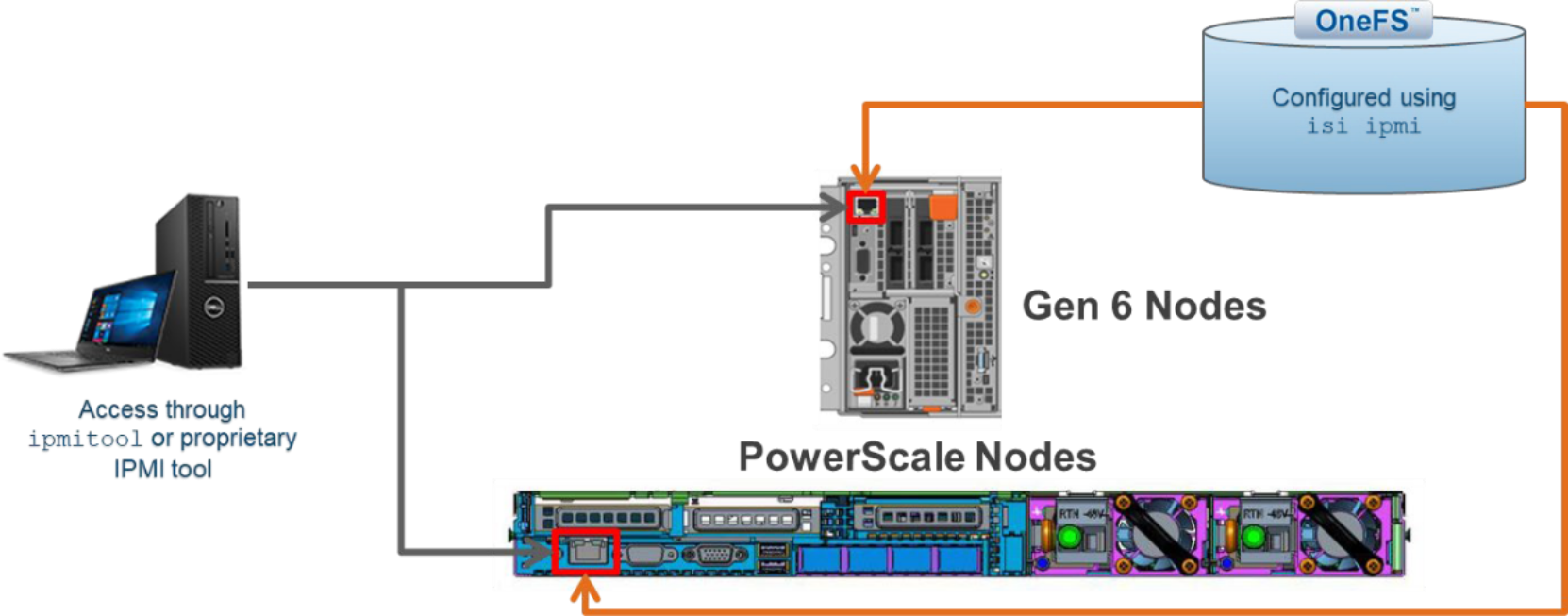
A figure illustrating the IPMI access for Gen 6 and PowerScale nodes

Figure 34.    IPMI access for Gen 6 and PowerScale nodes

Before configuring IPMI, consider the following information:

  • Configuring the SoL feature on PowerScale nodes does require a node reboot to access and configure the serial communication settings.
  • IPMI SoL is an alternative to physical serial cable access, but it is not a replacement for traditional SSH access to the cluster. Also, SoL is not available for initial cluster configuration because IPMI is disabled from the factory and must be enabled after initial cluster configuration.
  • Gen 6 Isilon nodes require a Node Firmware Package at a minimum of v10.3.2.
  • Configuring IPMI does require the ISI_PRIV_IPMI RBAC level, which is part of the Configuration privilege level.
  • The IPMI IP address space cannot be on the same subnet as any of the cluster's front-end networks.
  • On Gen 6 nodes, during an active SoL session, the physical serial port is disabled. Once the active SoL session is deactivated, the physical serial port becomes active again. Only a single SoL session is supported per node. On PowerScale nodes, the physical serial interface is disabled after the BIOS update explained in Configure serial devices.
  • A power reset may be issued through SoL, using only the IPMI password for access.
  • IPMI does not support VLAN tagging.
  • As a security best practice, isolate IPMI traffic to a management only VLAN.
  • At the initial login of the SoL session, the user is prompted for the OneFS CLI username and password. If the user logs out of the SoL session without logging out of the CLI, the CLI session remains active, allowing the next SoL session to enter the OneFS CLI without authenticating. As a security best practice, log out of the OneFS CLI session prior to logging out of the SoL session.
  • Rebooting a node through SoL provides the full output of the entire OneFS shutdown and bootup sequence.

For releases prior to OneFS 9.0, IPMI is available for Gen 6 nodes as a manual configuration on each node. It is not officially supported, but it is also not prohibited, and it generally works. For OneFS 9.0, this process is an automated cluster configuration for all nodes within a cluster. If IPMI was configured on a release prior to OneFS 9.0, upgrading to 9.0 does not affect any existing IPMI configuration.

Configuring IPMI

From the OneFS CLI, to configure IPMI, perform the following steps:

  1. Enable IPMI and configure the IPMI IP addresses with static or DHCP allocation:

isi ipmi settings modify --enabled=True --allocation type=[dhcp/static]

If IPMI is configured with static IP addresses, specify the IP range:

isi ipmi network modify --gateway=[Gateway IP] --prefixlen= --ranges=[IP Range]

Note: Assigning a specific IP address to a certain node might not be possible because IP addresses are assigned on a first-come basis. To confirm a specific node’s IP address, run the following command: isi impi nodes list

  1. Enable the selected IPMI features:

isi ipmi features modify Power-Control --enabled=True isi ipmi features modify SOL --enabled=True

Note: For PowerScale nodes, SoL requires additional configuration. See IPMI SoL on PowerScale nodes, after completing all steps in this section.

  1. Confirm the enabled IPMI features:

isi ipmi features list

  1. Configure a single IPMI username and password for all nodes. The IPMI authentication is not part of any of the other OneFS authentication providers. It is only for IPMI access. Usernames up to 16 characters are supported. Passwords must be more than 16 characters and less than 21 characters. Configure an IPMI username and password:

isi ipmi user modify --username=[Username] --set-password

  1. Confirm a username is configured:

isi ipmi user view

IPMI SoL on PowerScale nodes

IPMI Serial over LAN (SoL) is enabled through the OneFS CLI, as explained in Configuring IPMI. Once enabled, PowerScale nodes (F200/F600) require additional steps for activating SoL on each node in a cluster.

Configure serial devices

In order for IPMI SoL to function, the physical serial devices must be configured to support SoL on each node in the cluster.

Note: On PowerScale nodes, the physical serial port is no longer active after the BIOS configuration updates provided in this section.

The serial communication settings should be configured per the values specified in the following table. For PowerScale nodes that do not have iDRAC configured, the serial communication settings are accessed during node boot up by selecting F2, entering the System BIOS, and selecting Serial Communication. For PowerScale nodes with iDRAC configured, the serial communication settings are found under iDRAC > Configuration > BIOS Settings. Update the serial communication settings per the following table and repeat for each node in the cluster.

Table 13.  IPMI Sol configuration for PowerScale nodes

Field

Value

Serial Communication

On with console redirection to COM1

Serial Port Address

Serial Device 1 = COM2; Serial Device 2 = COM1

External Serial Connector

Serial Device 2

Failsafe Baud Rate

115200

Remote Terminal Type

VT100/VT200

Redirection After Boot

Enabled

iDRAC SoL permission

After the serial communication settings are configured, the IPMI username created in Configuring IPMI requires SoL permission through iDRAC. From the iDRAC Settings window, select the Users tab. Edit the IPMI username to have Serial over LAN enabled, as displayed in the following figures:
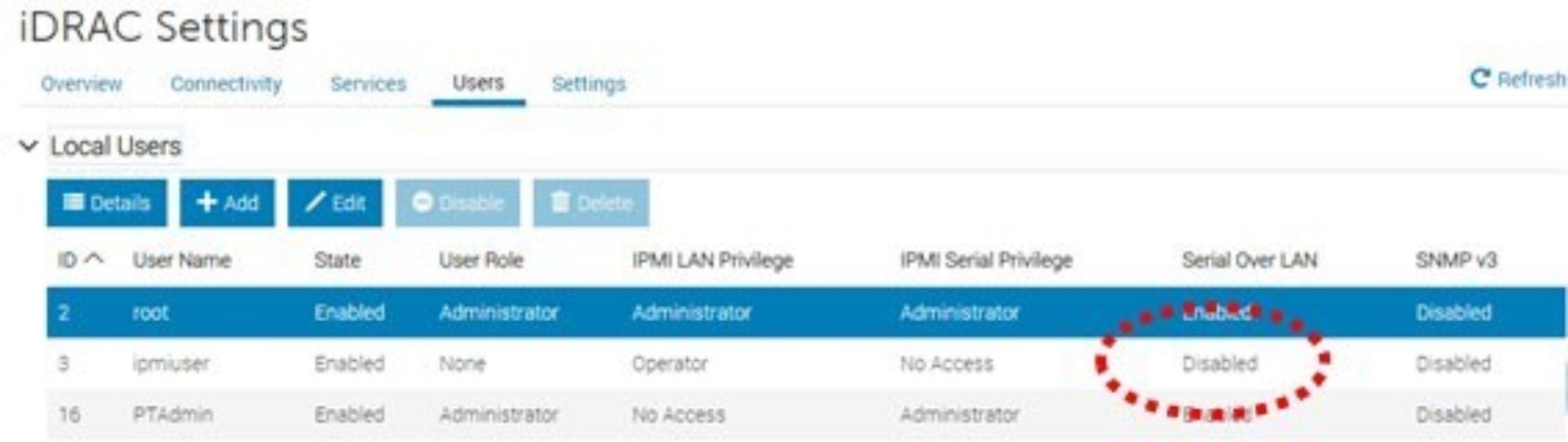
A figure illustrating the GUI for iDRAC

Figure 35.    iDRAC settings

A figure illustrating the GUI for iDRAC IPMI settings

Figure 36.    IPMI user settings in iDRAC

The iDRAC settings must be updated on each PowerScale node in a cluster. Continue updating the iDRAC setting of each PowerScale node by accessing https://<node_IPMI_IP_address>:443.

Accessing IPMI

Once IPMI is configured, it can be accessed through third-party proprietary tools, or most commonly through the ipmitool command in Linux. The ipmitool command is included in most Linux distributions.

To manage an Isilon or PowerScale node through IPMI, from a Linux endpoint, use the following syntax:

ipmitool -I lanplus -H [Node IP] -U [Username] -L OPERATOR -P [password] power [status, on, off, cycle, reset]

ipmitool -I lanplus -H [Node IP] -U [Username] -L OPERATOR -P [password] sol [info, activate, deactivate]

To exit an active SoL session, enter the following characters (including the period):

~.

To check if a node has an active SoL connection, run the following command:

ipmitool channel info 1

Troubleshooting IPMI

The IPMI log file is stored at:

/var/log/isi_ipmi_mgmt_d.log

OneFS host-based firewall

OneFS host-based firewall

PowerScale OneFS Release 9.5.0.0 introduces a host-based firewall for cluster security. A perimeter-based firewall is recommended as a best practice in addition to the OneFS host-based firewall. The perimeter-based firewall continues to protect the private network from a public network. A host-based firewall takes security a step further to protect the host from any threats within the private network.

Introduction

Firewall rules specific to a PowerScale cluster can be configured according to security requirements. The OneFS host-based firewall only applies to the front-end network, because the back-end network is on a separate dedicated network without other devices.

Architecture

The OneFS host-based firewall is composed of firewall rules and policies. A firewall rule is used to specify a matching criterion for IP packets and an associated action. The matching criteria for a rule can be the following:

  • Protocol: The protocol can be TCP, UDP, ICMP, ICMP6, or ALL.
  • Source ports: The source port numbers of the incoming IP packet.
  • Destination ports: The destination port numbers of the incoming IP packet.
  • Source network address: The IP address of the incoming IP packet.

The associated actions for the matching criteria of a rule are the following:

  • Deny: A deny action simply drops the packets at the NIC before they enter the PowerScale cluster.
  • Reject: A reject action drops the packets similarly to the deny action, but also sends an ICMP error code to the sender.
  • Allow: An allow action permits the packet to enter the PowerScale node.

A firewall policy can contain multiple firewall rules. The rules are matched by index in ascending order. While each firewall rule has an associated action, the policy has a user-defined default action, if none of the firewall rules apply. The firewall policy default action may be deny, reject, or allow an IP packet from any to any. A firewall policy is assigned to a network pool and subnet, as shown in the following figure.

A figure illustrating the firewall policy and rules.

Figure 37.    Firewall policy and rules

By default, OneFS has a Default Pools Policy (default_pools_policy) and a Default Subnets Policy (default_subnets_policy), as shown in the following figure. The Default Pools Policy enforces the port numbers and protocols required for OneFS services, as listed in the Security Configuration Guide, found under the respective OneFS software release at OneFS Info Hubs.

The Default Subnets Policy (default_subnets_policy) applies to SSIPs and provides rules for the following:

  • DNS Port 53
  • ICMP
  • ICMP6

Important: Network Pools do not inherit firewall policies or rules from the firewall policy associated with their respective subnets

Network pools and network subnets always belong to a single firewall policy. This can either be a custom policy, or a default policy. If a subnet or pool is removed from a policy, it is automatically added to the default policy.
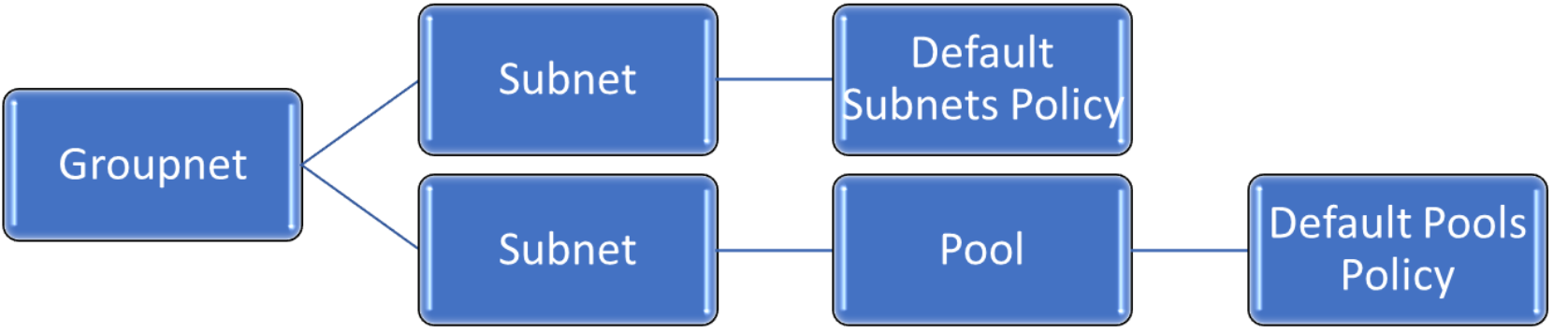
Figure 38.    Default firewall policies

An administrator can modify both the Default Pools Policy and the Default Subnets Policy. The default policies are only used when the pool or subnet does not have a custom policy assigned, because each subnet or pool must have a policy assigned. OneFS also provides an option to revert the default policies to factory defaults, with the isi network firewall reset global policy command.

Configuration

The OneFS host-based firewall is disabled by default for brownfield and greenfield clusters running OneFS Release 9.5.0.0. An administrator with the ISI_PRIV_FIREWALL privilege can enable the feature. By default, the ISI_PRIV_FIREWALL privilege is assigned to SystemAdmin with write permission and to AuditAdmin with read permission.

Note: As a best practice, rather than creating a new firewall policy from scratch, it is recommended to use the default policies as a baseline of threat protection for OneFS services. An option to clone policies is available. When the default policy is cloned, administrators can add additional rules specific to the environment. Also note that changes made to a firewall policy take place immediately. To avoid accidental misconfigurations, it is advised always to make changes by cloning a firewall policy, editing the cloned policy, then reconfiguring pools to the new policy.

Both the CLI and WebUI support the configuration for the OneFS host-based firewall. See the appropriate following section for the configuration steps.

CLI

You can configure the OneFS host-based firewall in the CLI by using the isi network firewall commands. List the current firewall settings by using the isi network firewall settings view command.

Note: Enabling the firewall automatically applies the default firewall policies. As explained in the Architecture section, the default firewall policies enforce the port numbers and protocols required for OneFS services, as listed in the Security Configuration Guide, found under the respective OneFS software release at OneFS Info Hubs. Before enabling the firewall, ensure that the default port numbers and protocols do not conflict with any custom port or protocol configuration.

Enable the OneFS host-based firewall with the isi network firewall settings modify --enabled true command. To create a firewall policy and rules, do the following:

  1. Before creating custom firewall rules, clone the default firewall policy with the isi network firewall policies clone command. If necessary, you can create a new firewall policy with the isi network firewall policies create command, although the default policy provides a baseline of threat protection.
  1. When the firewall policy is cloned or created, you can add rules to the policy with the isi network firewall rules create command.
  2. Apply a firewall policy to pools and subnets using the isi network firewall policies modify command and the add-pools or add-subnets options.

To prevent accidentally modifying active firewall policies and rules, the CLI requires a --live parameter to be specified when modifying an in-use firewall policy or rule. (Providing the --live parameter when modifying an inactive firewall policy or rule is considered an error.)

WebUI

The WebUI configuration for the host-based firewall is located under Cluster Management > Firewall Configuration, as shown here.
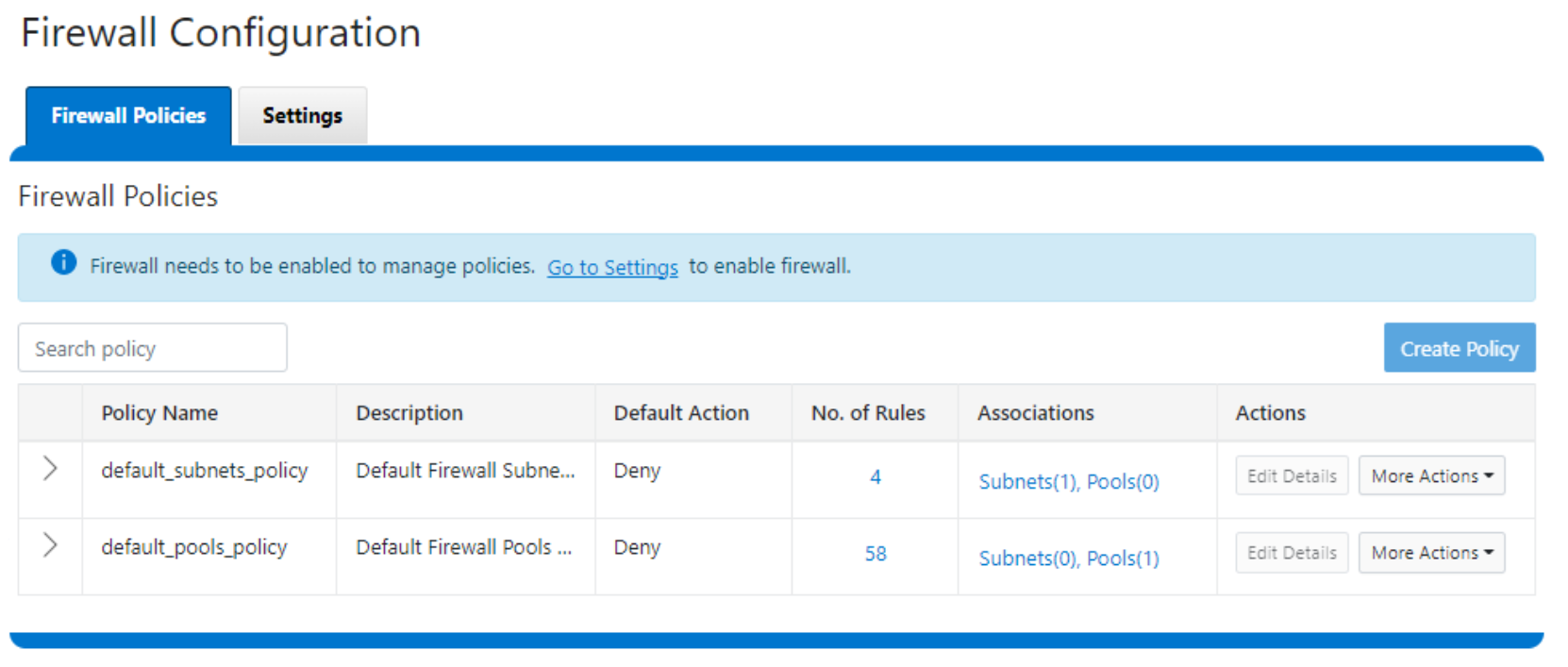
A figure illustrating the WebUI firewall configuration

Figure 39.    WebUI firewall configuration

If the firewall is not yet configured, a banner directs the user to the “Settings” tab.

Note: Enabling the firewall automatically applies the default firewall policies. As explained in the Architecture section, the default firewall policies enforce the port numbers and protocols required for OneFS services, as listed in the Security Configuration Guide, found under the respective OneFS software release at OneFS Info Hubs. Before enabling the firewall, ensure that the default port numbers and protocols do not conflict with any custom port or protocol configuration.

To enable the firewall, navigate to the Settings tab and enable the “Firewall policies on the cluster” toggle as shown in the following figure.
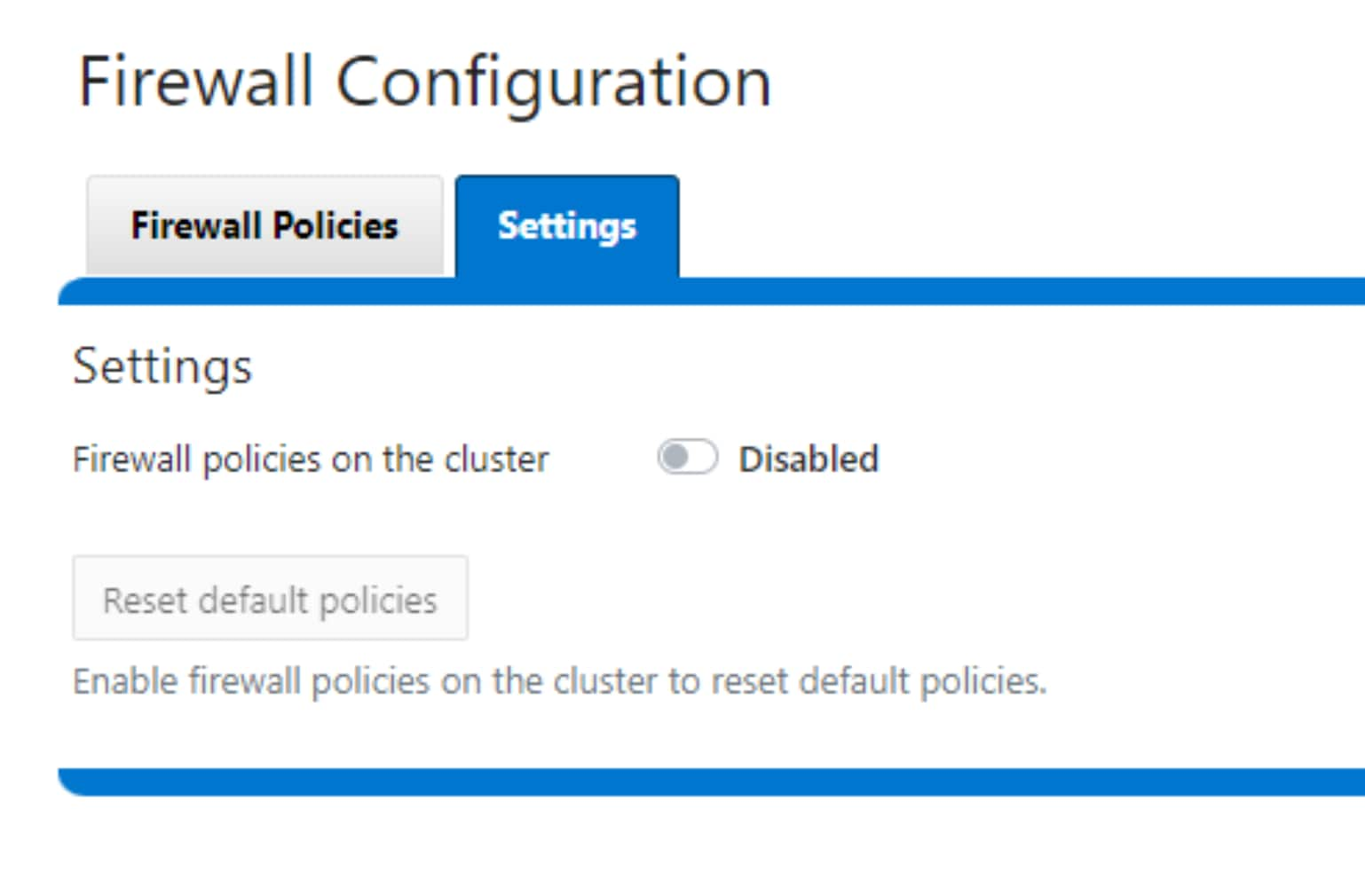
A figure illustrating the WebUI firewall configuration and enabling

Figure 40.    Enabling firewall

To create a firewall policy and rules, do the following:

  1. Before creating custom firewall rules, clone the default firewall policy by selecting the Firewall Policies tab under Cluster Management > Firewall Configuration. Next, under More Actions, select Clone Policy for the associated policy. From the Clone Policy window, specify a policy name and description as shown here.
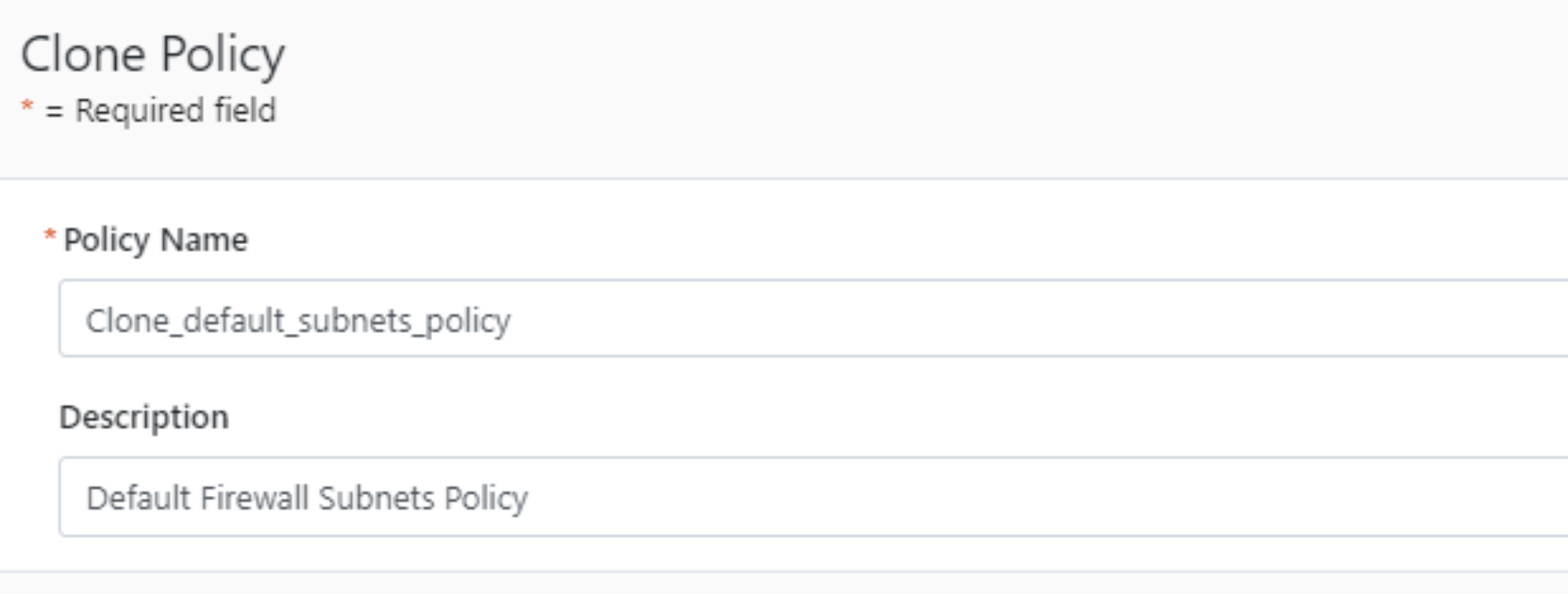
A figure illustrating the WebUI firewall clone policy

Figure 41.    Clone Policy window

  1. When the firewall policy is cloned or created, you can add rules to the policy by clicking the down arrow for the new policy and clicking Add Rule. From the Add Rule window, specify the firewall rule as shown here.
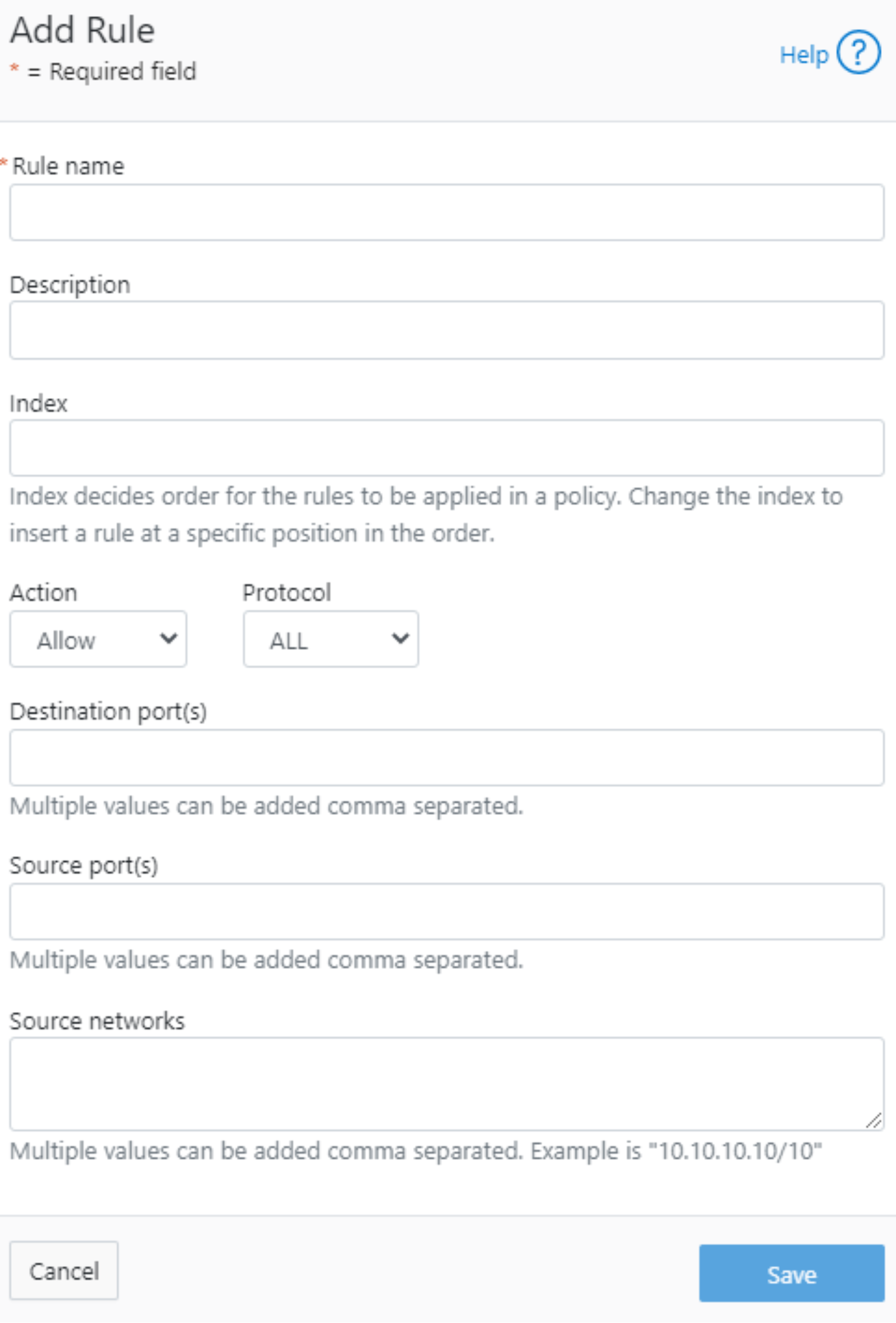
A figure illustrating the WebUI firewall add rule window

Figure 42.    Add Rule window

  1. When a firewall policy is ready to be implemented, navigate to Cluster Management > Network Configuration. Select the appropriate pool, click Edit, and select the appropriate policy from the Firewall policy drop-down, as shown here. Click Save Changes to save the selection.
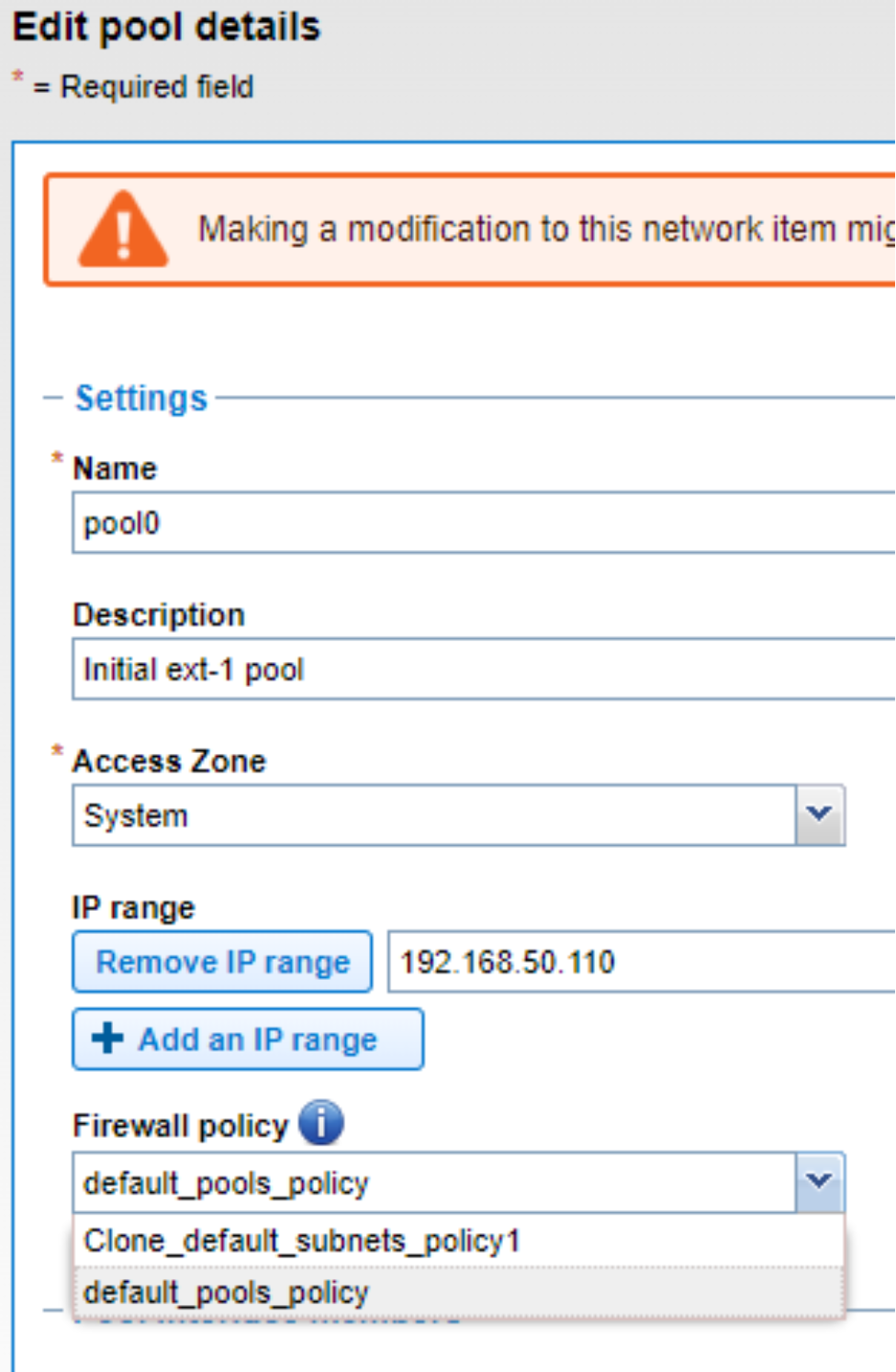
A figure illustrating the WebUI firewall configuration to pool assignment

Figure 43.    Firewall policy to pool assignment

Troubleshooting and logs

To troubleshoot the firewall feature, more information is available in the following logs:

  • /var/log/isi_firewall_d.log – Contains information about the firewall daemon
  • /var/log/isi_papi_d.log – Contains information for all PAPI handlers, but also includes firewall handlers.
  • isi_gconfig -t firewall – This command displays the firewall configuration.

STIG security profile

If a OneFS cluster has the firewall disabled and the STIG security profile is applied, the firewall is enabled automatically. If the firewall is already enabled when the STIG security profile is applied, the firewall continues to be enabled.

For more information about the STIG security profile, see the Dell PowerScale OneFS: Security Considerations white paper.

IPv6

ICMP6 is a critical component of IPv6 because it allows the Neighbor Discovery Protocol (NDP). The default global firewall policies include an ICMP6 rule by default. If a custom policy is created with a cluster that has IPv6 subnets and pools, the ICMP6 rule must be added to the policy. The best practice is to clone the global policy and customize rules, accordingly allowing for a baseline of necessary rules. For more information about IPv6, see the

IPv6 section.

FTP

The File Transfer Protocol (FTP) service in OneFS can run in active or passive mode. By default, the OneFS FTP service runs in passive mode, which conflicts with how the host-based firewall runs. Before enabling the firewall, enable active mode for the FTP service, with the isi ftp setting modify --active-mode true command. Depending on the FTP client types, converting to active mode might be required.

User configurable ports

The default firewall global policies have the default ports for each OneFS service. OneFS allows for the SSH, HTTP, S3, and NDMP port numbers to be updated. If any of the default port settings have been changed to accommodate specific environmental requirements, the port settings must also be updated in the global policies.

Note: As port numbers of critical services are changed, understand that the service is blocked when the rule is updated. For example, consider if the port number for SSH is changed through an active SSH session. Be sure to practice caution with the --live parameter in the CLI, because changes may impact an active management session.

Source-Based Routing

The Source-Based Routing (SBR) and firewall features in OneFS can be enabled or disabled independently. Although both features are part of the ipfw table, they use different partitions of the ipfw table, allowing each feature to be independent. For more information about SBR, see the Source-Based Routing considerations section.

IPv6

Introduction

Although Internet Protocol version 4 (IPv4) is the most common version of IP today, Internet Protocol version 6 (IPv6) is the newest version and ultimately replaces IPv4. IPv4 addresses were allocated to specific geographic regions in 2011. IPv6 uses 128-bit addresses supporting 340 undecillion addresses. For those unfamiliar with an undecillion, this translates to 340 times 10 to the 36th-power possible IP addresses.

Why IPv6?

IPv6 brings innovation and takes connectivity to a new level with enhanced user experiences.

Security

IPv6 supports IPSEC inherently with encryption and integrity checks. Also, the Secure Neighbor Discovery (SEND) protocol provides cryptographic confirmation of host identity, minimizing hostname-based attacks like Address Resolution Protocol (ARP) poisoning, leading to devices placing more trust in connections.

Efficiency

IPv6’s large address space means many devices no longer require NAT translation, as required with IPv4, making routers far more efficient. Overall data transmission is faster and simplified because the need for checking packet integrity is eliminated.

Multicast

IPv6 supports multicast rather than broadcast, allowing media streams to be sent to multiple destinations simultaneously leading to bandwidth savings.

Quality of Service

Quality of Service (QoS) implementation is simplified in IPv6 with a new packet header. The IPv6 header contains a new field, Flow Label, which identifies packets belonging to the same flow. The Flow Label associates packets from a specific host and head to a particular destination.

IPv6 addressing

IPv6’s address structure is defined by the IETF as part of RFC 3513 and provides many of the previously discussed advantages over IPv4. At first glance, it is evident an IPv6 address looks nothing like an IPv4 address. IPv4 addresses are composed of four numerical octets, ranging from 0 to 255, separated by periods, forming a 32-bit address. IPv6 addresses are 128 bits and consisting of a series of eight segments, separated by a colon. Each segment is a 4-character hexadecimal number, ranging from 0000 to FFFF, representing 16 bits each, totaling to the 128 bits.
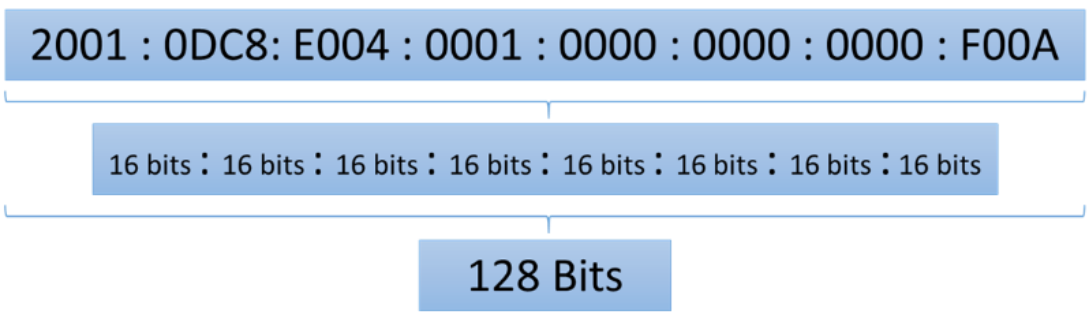
A figure illustrating an IPv6 address

Figure 44.    IPv6 address

For display purposes, an IPv6 address may be presented without leading zeros. For example, an IPv6 address of 2001 : 0DC8: E004 : 0001 : 0000 : 0000 : 0000 : F00A could be displayed as 2001 : DC8: E004 : 1 : 0 : 0 : 0 : F00A.

The address may be further reduced by removing consecutive fields of zeros and replacing with a double- colon. The double-colon can only be used once in an address. The address becomes 2001 : DC8 : E004 : 1 :: F00A.

IPv6 offers the following address types:

  • Unicast: one-to-one – Single Address to Single Interface
  • Anycast: one-to-nearest – Assigned to a group of interfaces, with packets being delivered only to a single (nearest) interface
  • Multicast: one-to-many – Assigned to a group of interfaces and is typically delivered across multiple hosts.

An IPv6 Unicast address is composed of the Global Routing Prefix, Subnet ID, and the Interface Identifier. The Global Routing Prefix is the network ID or prefix of the address for routing. The Subnet ID is similar to the netmask in IPv4 but is not part of the IP address in IPv6. Finally, the Interface ID is a unique identifier for a particular interface. For Ethernet networks, the Ethernet MAC address (48 bits) may be used for the Interface Identifier, by inserting 16 additional bits, forming what is referred to as an EUI-64 address.

A figure illustrating an IPv6 address unicast format

Figure 45.    IPv6 Unicast address format

IPv6 header

An IPv6 header is simplified in comparison to IPv4, minimizing complexity and making the header easier to process for all devices. Efficiency was one of the focus points with IPv6 from the onset, which is brought to light with the faster processing of IPv6 headers. The following figure displays the format of an IPv6 header:

A figure illustrating an IPv6 address header.

Figure 46.    IPv6 header

The following table defines the fields of an IPv6 header:

Table 14.  IPv6 header fields

Field

Description

Length

Version

Specifies if the packet is IPv4 or IPv6

4 Bits

Traffic Class

Similar to an IPv4 Type of Service field and includes support for Differentiated Services Code Point (DSCP) providing congestion control

8 Bits

Flow Label

Provides the ability to track certain traffic flows at the network layer for QoS management

20 Bits

Payload Length

Similar to the IPv4 Length field – Provides length of the data portion

16 Bits

Next Header

Similar to the IPv4 Protocol field – Provides what to expect after the basic header, including options for a TCP or UDP header

8 Bits

Hop Limit

Similar to the IPv4 Time to Live field – Provides the maximum number of hops

8 Bits

IPv6 to IPv4 translation

Connecting IPv6 and IPv4 remains a challenge with the slow migration to IPv6 and support for legacy devices requiring IPv4. The three top options available to facilitate IPv4 and IPv6 communication are dual-stack networks, tunneling, and translation.

For Service Providers to deliver IPv6, they use translation technologies. The two major translation technologies are the Network Address Translation IPv6 to IPv4 (NAT64) and Stateless IP/ICMP Translation (SIIT). NAT64 is similar to the IPv4 Network Address Translation but is specific to IPv6. SIIT is capable of replacing IPv4 and IPv6 as part of the translation.

OneFS release 9.5.0.0 IPv6

In OneFS release 9.5.0.0 and later IPv6 is disabled by default for new clusters, unless IPv6 is configured during the initial cluster configuration wizard. For existing clusters that upgrade to OneFS release 9.5.0.0, the current IPv6 configuration remains intact. In OneFS release 9.5.0.0 and later, once IPv6 is enabled on a new cluster, the IPv6 sub-options must also be enabled manually. IPv6 options are configured using the isi network external commands.

Router Advertisements

PowerScale OneFS release 9.2.0.0 introduces support for IPv6 Router Advertisements (RAs). OneFS uses the RAs to update IPv6 routes. Although RAs might provide information about how to configure an IPv6 IP address using SLAAC or DHCPv6, OneFS does not use this functionality.

Note: OneFS only updates IPv6 routes if RAs are available on the front-end external network.

Greenfield OneFS release 9.2.0.0 clusters have the RAs feature enabled by default. For brownfield OneFS release 9.2.0.0 clusters, the RAs feature is disabled by default, preventing any existing configuration impacts. To enable the RAs feature on a brownfield OneFS release 9.2 cluster, run the following command:

isi network external modify --ipv6-auto-config-enabled=true

To confirm if the RAs feature is enabled, check for the ACCEPT_ROUTER_ADVERT NIC flag on the isi network interfaces list –-v command, as shown here:
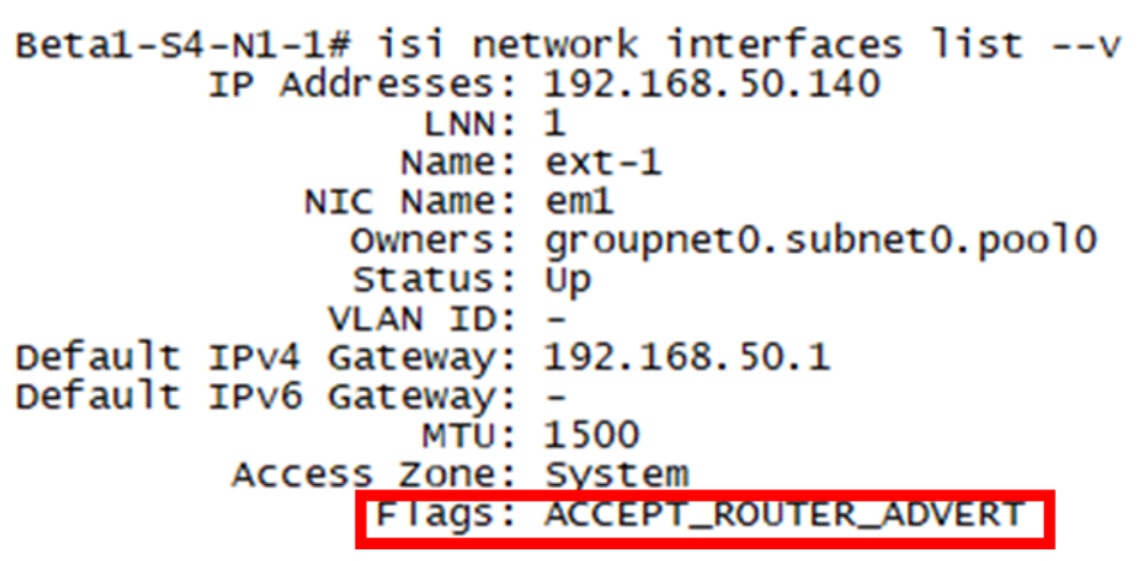
A figure illustrating the CLI output for isi network interfaces list.

Figure 47.    ACCEPT_ROUTER_ADVERT flag

Duplicate Address Detection

IPv6 uses Duplicate Address Detection (DAD) to detect conflicting IP addresses. PowerScale OneFS release 9.2.0.0 introduces support for Duplicate Address Detection (DAD). The DAD feature is disabled by default. To enable the DAD feature, use the isi_sysctl_cluster net.inet6.ip6.dad_count= command, where the dad_count value is the number of seconds. In OneFS release 9.5.0.0 and later, the isi_sysctl_cluster command is replaced by isi network external and the DAD option is specified with –-ipv6-dad-timeout.

A value greater than zero for this command enables the DAD feature. It specifies the number of seconds OneFS checks for duplicate IP addresses when an IP address is initially configured. Setting the value to zero disables the DAD feature.

Note: The dynamic IP allocation method is not recommended with the DAD feature because it could lead to a DU event. The DU event occurs due to a potential race case in how dynamic IPs move between nodes leading to a false positive duplicated address. If this occurs, the IP will be unavailable until it moves again or is manually removed from the interface using ifconfig.

OneFS detects duplicate IP addresses on the front-end network through detection states. After an IP address is configured, OneFS sets the IP address to a tentative state. OneFS cannot listen on the IP address during the tentative state as it checks for a duplicate. If a duplicate is found, a duplicated flag is set on the IP address. If no duplicate IP addresses are found, the tentative flag is cleared, and OneFS starts listening on the IP address. The tentative and duplicated flags are displayed under the ifconfig command. Also, check the /var/log/messages kernel logs mentioning DAD complete.

The DAD feature also applies to SmartConnect SSIP addresses. If a duplicate SSIP address is detected, OneFS logs and removes the IP address. To confirm, check the /var/log/isi_smartconnect log file and search for duplicate address detection. Confirm SmartConnect has removed the SSIP by using the isi network interfaces list --type SSIP command.

Note: Dynamic IP and SSIP failover windows are increased by the number of seconds specified in the preceding sysctl command. OneFS allows the DAD process to complete before listening on an IP address.

Network troubleshooting

Introduction

This section provides steps for assessing and troubleshooting network issues with generally available utilities.

netstat

Short for network statistics, netstat is a utility that is built into most Windows and Linux clients. It provides an array of statistics on current ports, routing, IP stats for transport layer protocols, and serves as a forensic tool to link processes with network performance while digging deeper into the current network status. The netstat utility bundles several actions into a single command, with different options available. Because netstat is multiplatform, the syntax is similar across platforms with slight variations.

Standard netstat

In its standard form without any arguments, netstat provides an overview of the current network status broken out by each connection or socket. Each column displays the following information:

  • Proto: Protocol of the active connection. The protocol could be TCP or UDP and has a 4 or 6 associated, specifying if it is IPv4 or IPv6, respectively.
  • Recv-Q and Send-Q: Value of the receiving and sending queue in bytes. Nonzero values specify the number of bytes in the queue that are awaiting to be processed. The preferred value is zero. If several connections have nonzero values, this implies something is causing processing to be delayed.
  • Local Address and Foreign Address: Lists the hosts and ports the sockets are connected with. Some of these are local connections to the host itself.
  • State: Displays the current state of the TCP connection, based on the TCP protocol. Because UDP is a stateless protocol, the State column will be blank for UDP connections. The most common TCP states include:
  • Listen: Waiting for an external device to establish a connection.
  • Established: Ready for communication on this connection.
  • Close Wait: The remote machine has closed the connection, but the local device has not closed the connection yet.
  • Time Wait: The local machine is waiting for a period of time after sending an ACK to close a connection.

For more information about the states of a TCP connection, see RFC 793.
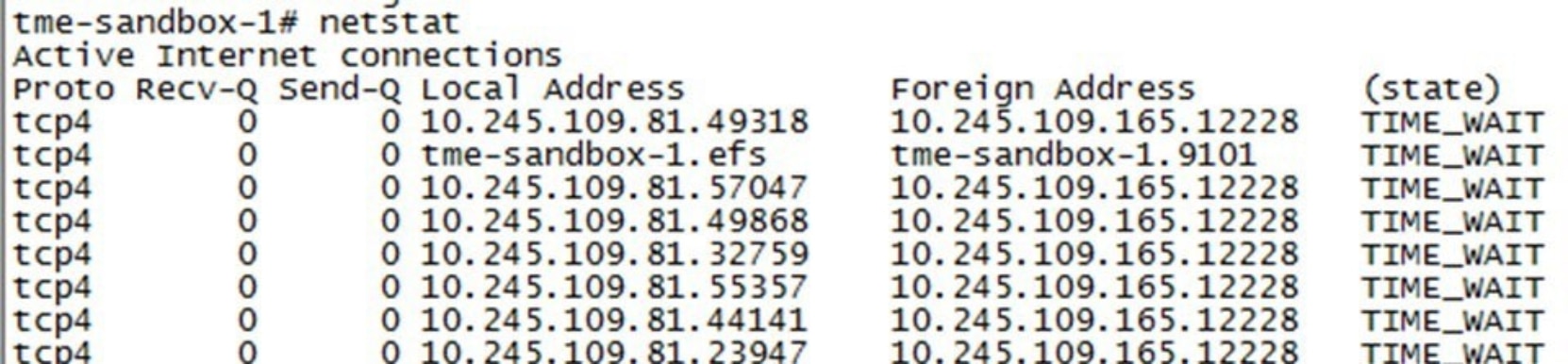
A figure illustrating the CLI output of netstat.

Figure 48.    netstat

The netstat utility reveals a lot of information about the status of network connections, and it also provides information for a more thorough forensic analysis. Based on the output from netstat, some of the scenarios can be generalized. For example:

  • Recv-Q has a value greater than zero but is in a Close Wait state. This indicates that these sockets should be torn down but are hanging. If several sockets are in this state, the application might be having difficulty tearing down the connection, warranting additional investigation.
  • Connections that have localhost as the Local and Foreign address denote an internal process using the TCP stack to communicate. These connections are not concerning and are standard practice.

netstat -s -p tcp

The netstat utility offers several options, but the -s provides statistics by protocol and -p displays the net to media tables. These options reveal current health, and tcp limits it to the TCP protocol. The following figure shows a sample output of this command with the areas to examine highlighted in red.
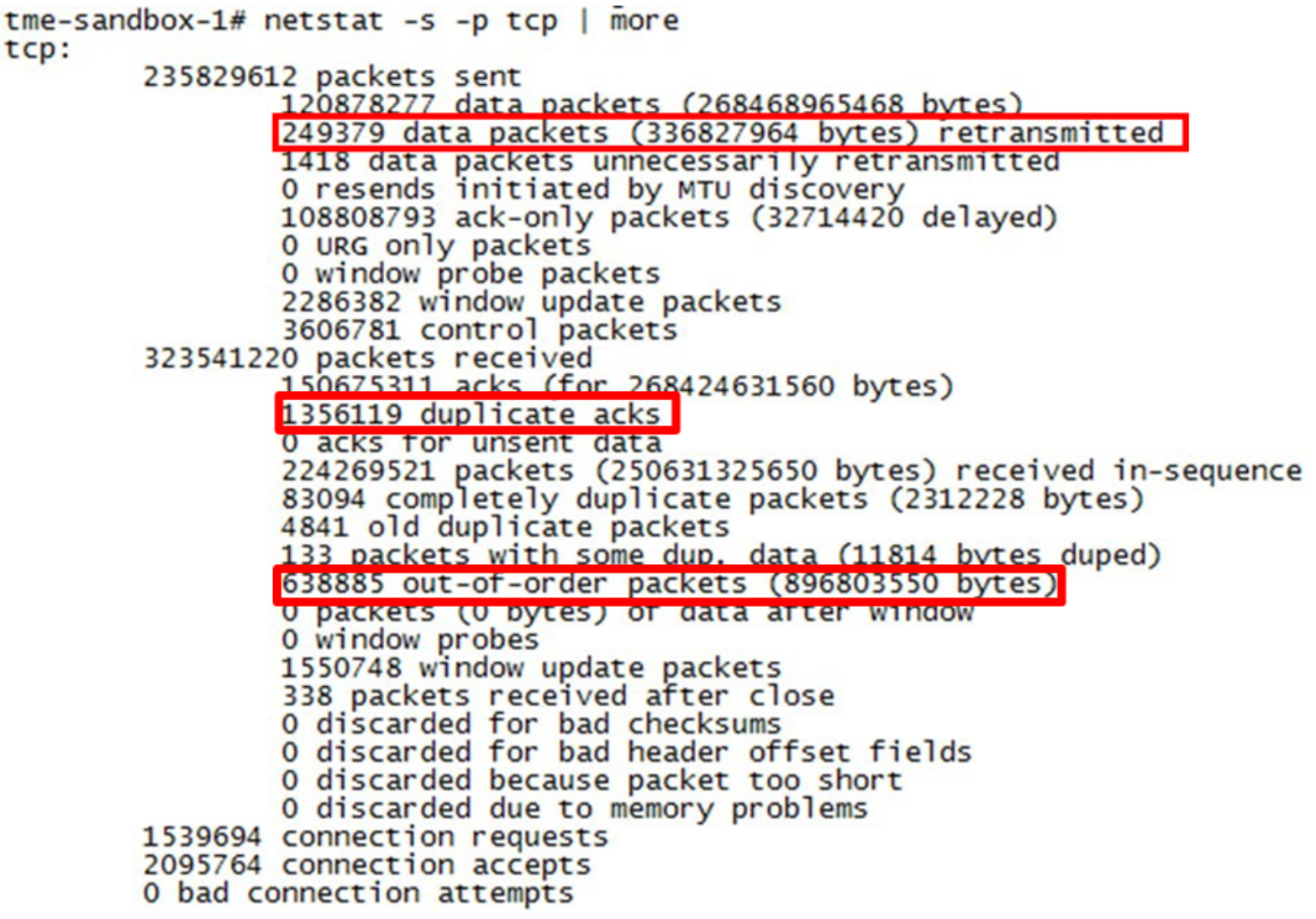
A figure illustrating the CLI output of netstat-s -p tcp

Figure 49.    netstat -s -p tcp

The fields highlighted in red in the preceding figure must be reviewed as a ratio of the total packets that are transmitted and received as a percentage. Also, these statistics should be monitored for sudden increments. As a guideline, under 1 percent is not concerning, but this also depends on the workload. The fields highlighted in the preceding figure provide the following information:

  • Retransmitted packets: Packets that are retransmitted consume network bandwidth and could be the reason for further investigation. However, examining the percentage is critical. In this case, 249379 out of 235829612 were retransmitted, which is 0.105 percent.
  • Duplicate acknowledgements: High latency between endpoints might lead to duplicate acknowledgments, but the ratio must be examined. In this case, it is 0.419 percent. This number varies depending on the workload.
  • Out-of-order packets: Out-of-order packets are placed in order by TCP before being presented to the application layer. This activity affects the CPU and overall stack performance because of the additional effort involved in analyzing the packets. Performance is most affected when packets arrive out of order with a significant time gap or when several packets are out of order. The ratio, in this case, is 0.197 percent, which is negligible.

netstat -i

Another option for netstat is the –i option, which is the interface display, listing cumulative statistics for total packets transferred, errors, MTU, and collisions by the interface. Because netstat –i lists all available interfaces, the back-end, and front-end interfaces are displayed. The following figure shows a sample output of netstat –i with the –h option, making it easier to interpret:
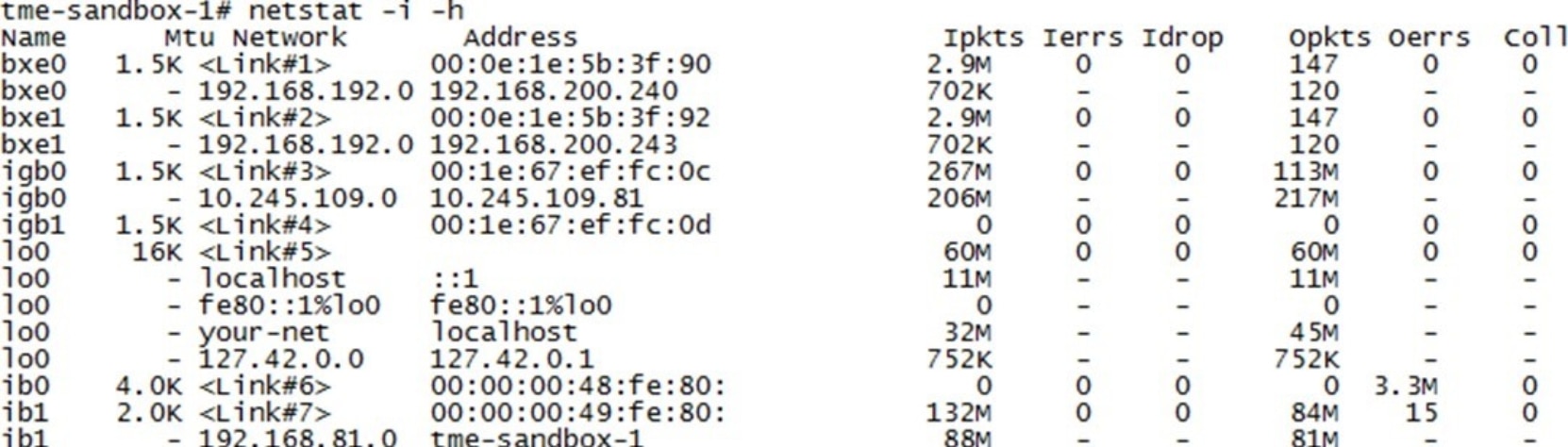
A figure illustrating the CLI output of netstat -i

Figure 50.    netstat -i

From the output shown in the preceding figure, netstat –i lists the following columns:

  • Name: Network Interface Card (NIC) name. Loopback interfaces are listed as lo0, and ib specifies InfiniBand.
  • MTU: Lists the MTU specified for the interface.
  • Network: Specifies the network associated with the interface.
  • Address: MAC address of the interface.
  • Ipkts: Input packets are the total number of packets received by this interface.
  • Ierrs: Input errors are the number of errors reported by the interface when processing the Ipkts. These errors include malformed packets, buffer space limitation, checksum errors, errors generated by media, and resource limitation errors. Media errors are errors specific to the physical layer, such as the NIC, connection, cabling, or switch port. Resource limitation errors are generated at peak traffic when interface resources are exceeded by usage.
  • Idrop: Input drops are the number of packets that were received, but not processed and therefore dropped on the wire. Dropped packets typically occur during heavy load.
  • Opkts: Output packets are the total number of packets transmitted by this interface
  • Oerrs: Output errors are the number of errors reported by the interface when processing the Opkts. Examples of errors include the output queue reaching limits or an issue with the host.
  • Coll: Collisions are the number of packet collisions that are reported. Collisions typically occur during a duplex mismatch or during high network utilization.

In general, errors and dropped packets require closer examination. However, as noted in the previous netstat section, the percentage of errors and percentage of dropped packets are the main factors. For further analysis, consider:

  • Ierrs should typically be less than 1 percent of the total Ipkts. If greater than 1 percent, check netstat –m for buffer issues and consider increasing the receive buffers. Before implementing changes on a production system, test buffer changes in a lab environment. See PowerScale network stack tuning for additional details.
  • Oerrs should typically be less than 1 percent of the total Opkts. If greater than 1 percent, it could be a result of network saturation, otherwise consider increasing the send queue size.
  • The ratio of Coll to Opkts should typically be less than 10 percent. If greater than 10 percent, it could be a result of high network utilization.

netstat -m

The netstat –m option displays the status of network memory requests as mbuf clusters. netstat –m is a powerful option for a complete forensic analysis when one of the other netstat commands previously mentioned raises concern. If mbufs are exhausted, the node cannot accept any additional network traffic.
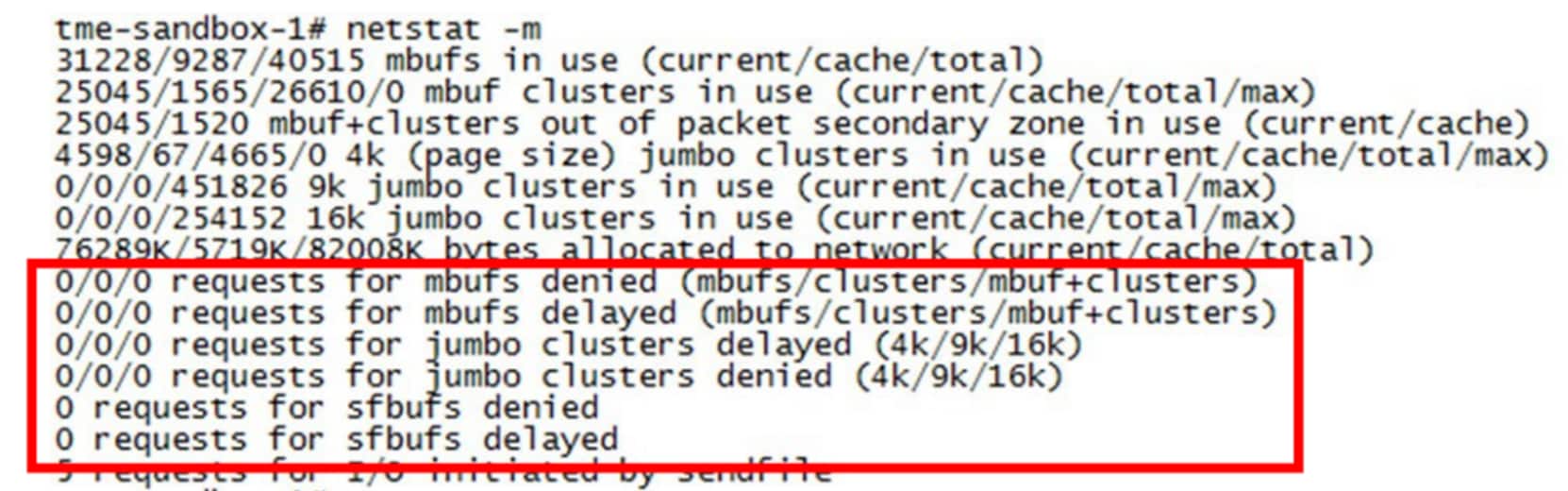
A figure illustrating the CLI output of netstat -m

Figure 51.    netstat -m

The netstat –m output provides information in regard to available and used mbufs. The area highlighted in red confirms if any memory requests have been denied. In the preceding example, a quick glance at this area reveals that no requests have been denied.

For more information about netstat options, see the FreeBSD manual netstat page at https://www.freebsd.org/cgi/man.cgi?query=netstat&manpath=SuSE+Linux/i386+11.3.

InsightIQ external network errors

PowerScale InsightIQ reports external network errors under the Performance Reporting tab when Network Performance Report is selected. A sample of this output is displayed in the following figure:
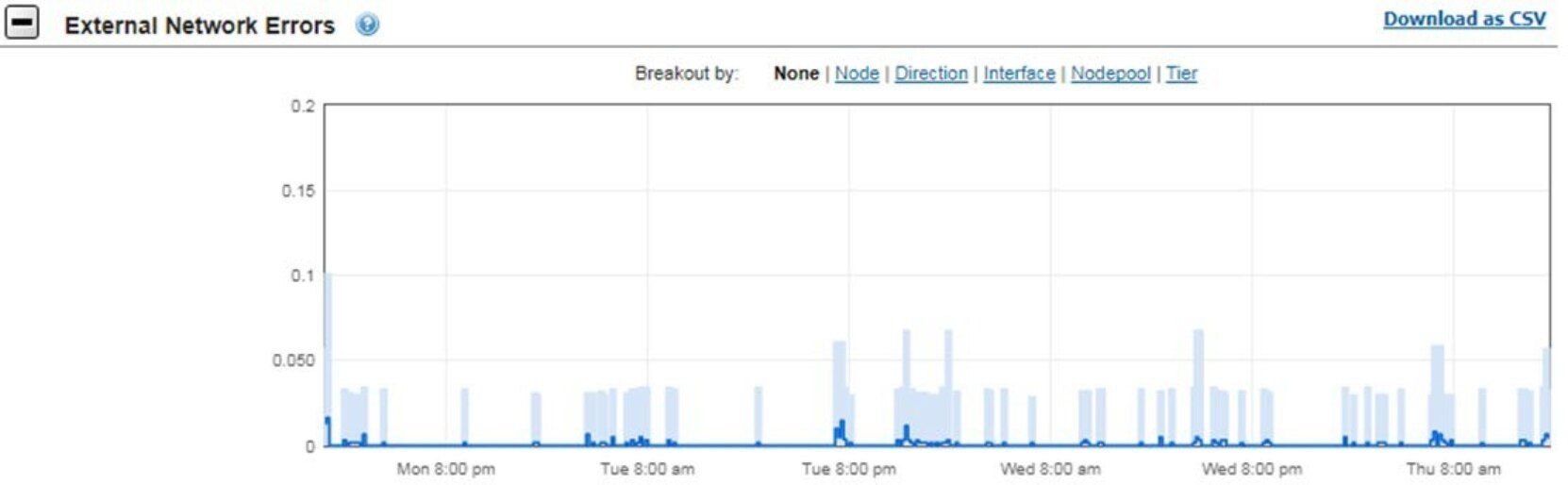
A figure illustrating the InsightIQ network errors.

Figure 52.    InsightIQ network errors

InsightIQ gathers network errors using the output from netstat –i on external interfaces only. The total of the Ierrs and Oerrs is combined and displayed in the graph. See the previous section for interpreting the output from netstat –i.

To find the exact interface errors, sort the graph by Node, Direction, and Interface, as shown in the following figures:
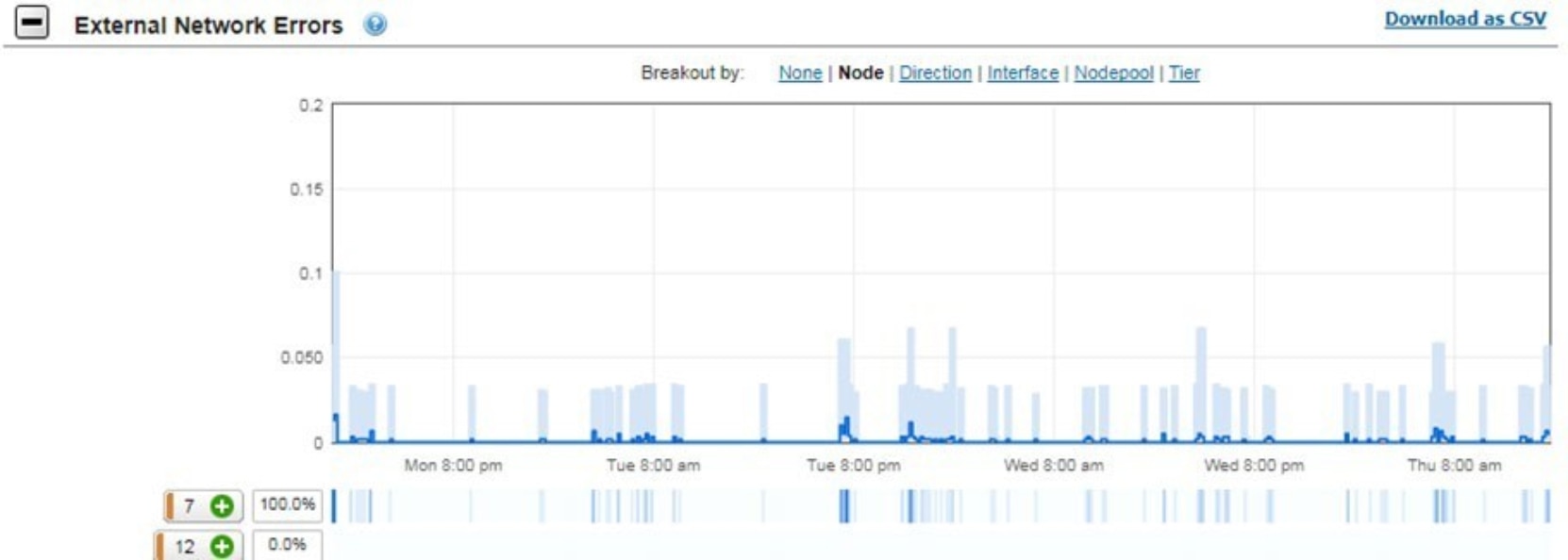
A figure illustrating the InsightIQ network errors by node.

Figure 53.    InsightIQ external network errors by node
A figure illustrating the InsightIQ network errors by direction.

Figure 54.    InsightIQ external network errors by direction
A figure illustrating the InsightIQ network errors by interface.

Figure 55.    InsightIQ external network errors by interface

DNS

DNS or Domain Name Service resolves hostnames to IP addresses. Most enterprises have a local DNS to resolve hostnames managed by them, and then a public Internet DNS resolves external hostnames.

Troubleshooting DNS is performed with the utilities, nslookup or dig. Both provide similar information; however, dig is more detailed. In this section, the usage of dig is explored.
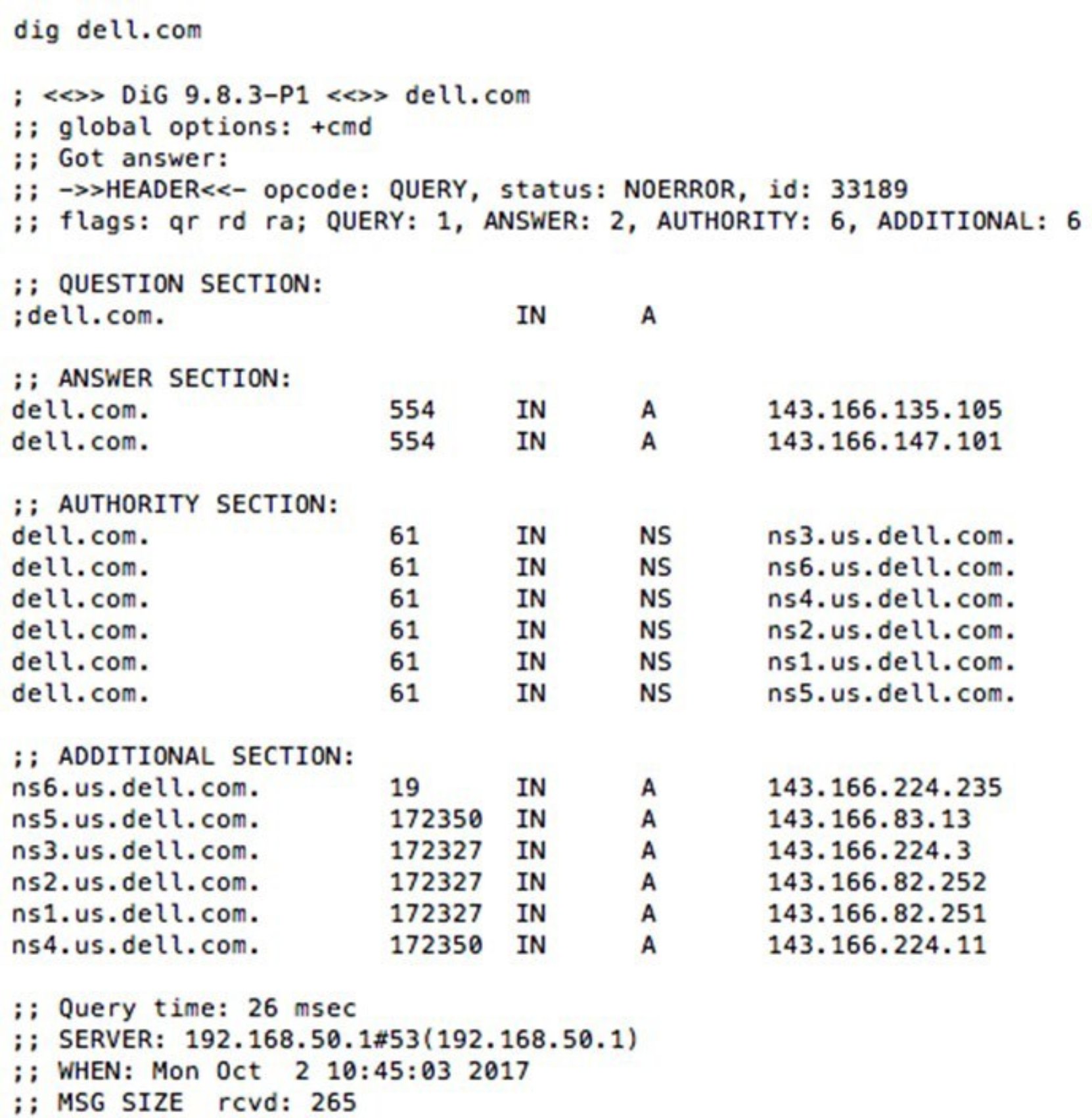
A figure illustrating the CLI output of dig dell.com

Figure 56.    dig dell.com

The dig command displays results in the following sections:

  • Header: The Header provides the version of dig, options that the dig command used, and the flags that are displayed.
  • Question Section: The Question Section displays the original input provided to the command. In the preceding example, dell.com was queried. The default is to query the DNS A record. Other options are available for querying MX and NS records.
  • Answer Section: The Answer Section is the output received by dig from the DNS server queried.
  • Authority Section: The Authority Section lists the available Name Servers of dell.com. They have the authority to respond to this query.
  • Additional Section: The Additional Section resolves the hostnames from the Authority Section to IP addresses.
  • Stats Section: The footer at the end of the query is referred to as the Stats Section. It displays the query time, when the query was run, the server that responded, and the message size.

The dig command supports an array of options. The most common options include a reverse look-up using dig –x [IP address] to find a host name. The other is to specify a DNS server to query using dig @[dns server] [hostname].

For the complete list of dig options, see the FreeBSD manual page.

Appendix A: Supported network optics and transceivers

Appendix B: Technical support and resources

Technical support

Dell.com/support is focused on meeting customer needs with proven services and support.

The Dell Technologies Info Hub provides expertise that helps to ensure customer success on Dell storage platforms.

Related resources

Related resources include:
