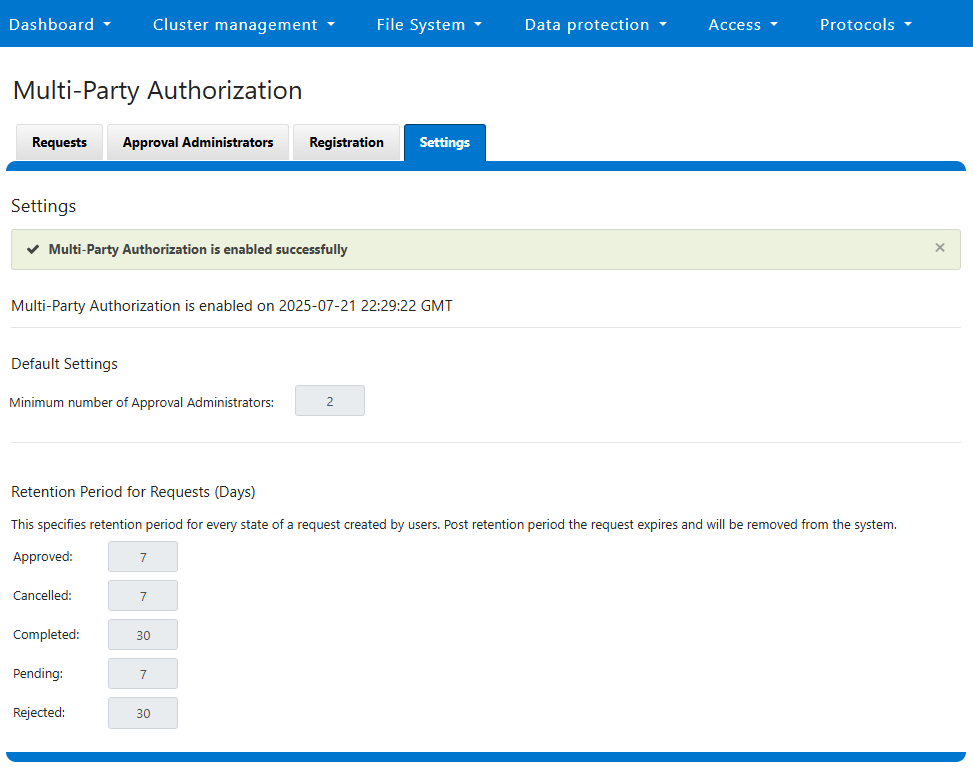
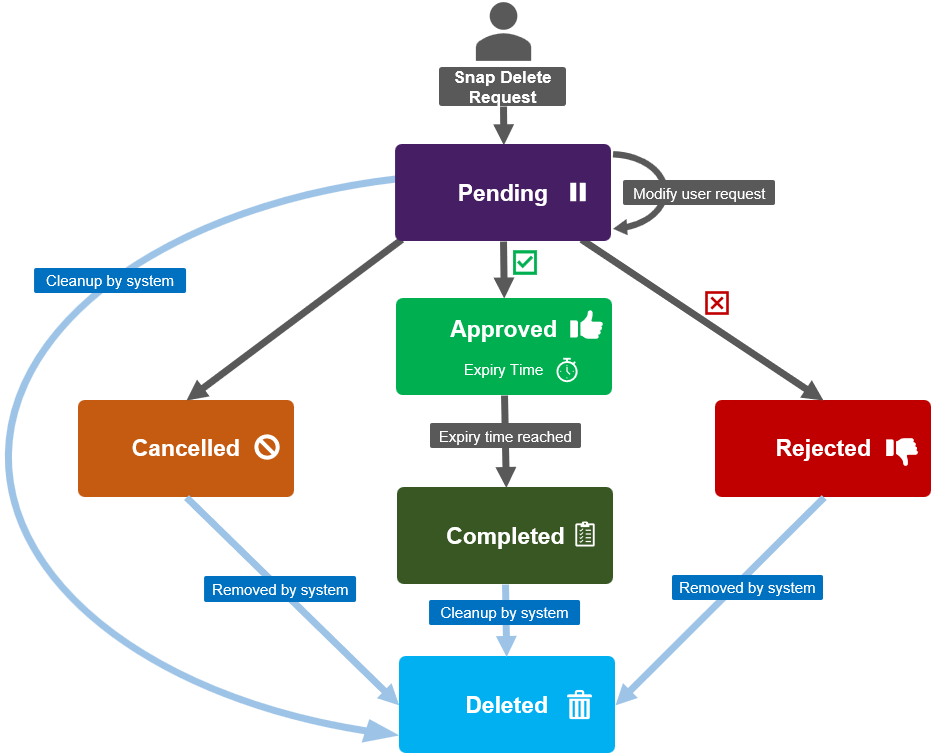
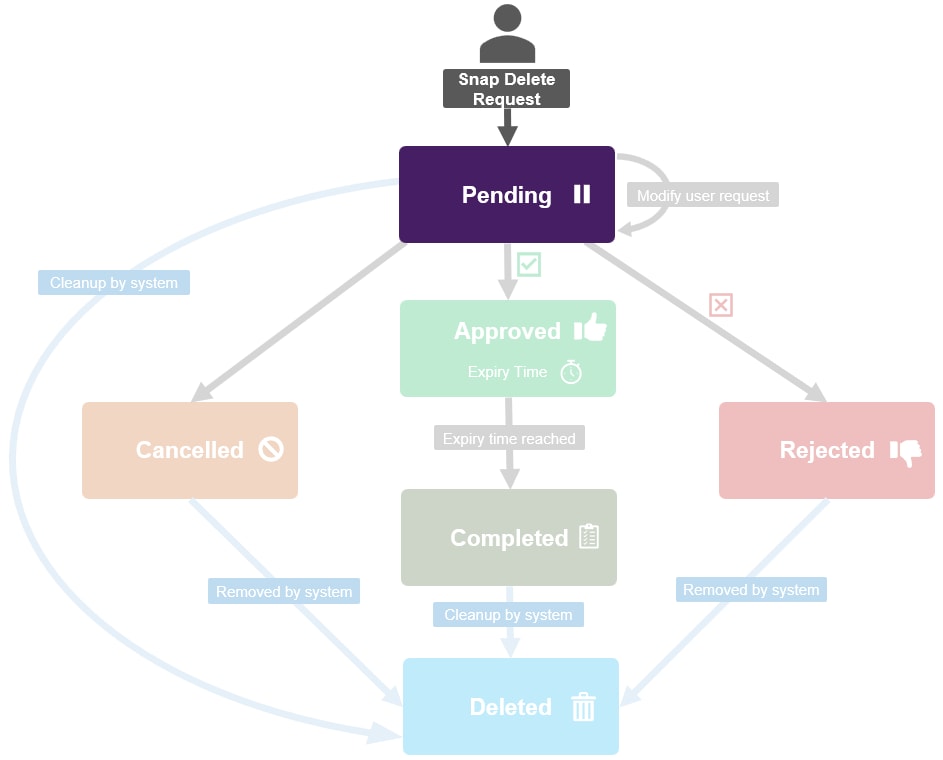
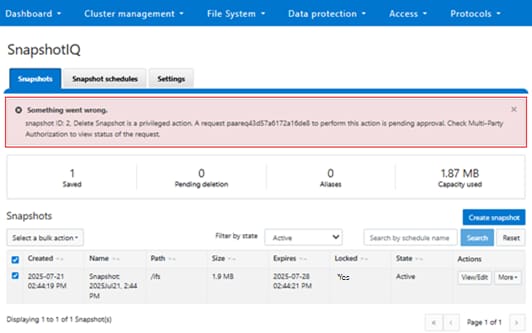
The scale and demands of unstructured data continue to grow at a relentless rate, making the need for optimized file-based data storage, and its simplified management, more crucial than ever.
OneFS secure snapshots help customers maximize the long-term value of their critical business data and drive down storage management cost and complexity. This simple, scalable solution offers fast, space-efficient, consistent copies of large datasets on Dell PowerScale NAS storage.
This white paper presents information for managing secure snapshots in a Dell PowerScale cluster. This document does not intend to provide a comprehensive background to the OneFS architecture.
The target audience for this white paper is anyone configuring and managing secure snapshots within a OneFS-powered clustered storage environment. It is assumed that the reader has an understanding and working knowledge of the OneFS components, architecture, commands, and features.
More information about OneFS commands and feature configuration is available in the OneFS Administration Guide.
Revisions
Revision history. The table outlines the document revision history, including date, part number, and description of each release.
Date
Part number/ revision
Description
December 2025
H04625
Initial release for OneFS 9.12.0
April 2026
H04625.1
Updated for OneFS 9.14.0
August 2026
H04625.2
Updated for OneFS 9.15.0
November 2026
H04625.3
Updated for OneFS 9.16.0
We value your feedback
Dell Technologies and the authors of this document welcome your feedback on this document. Contact the Dell Technologies team by email.
Author
Nick Trimbee
NOTE:For links to other documentation for this topic, see the PowerScale Info Hub.
Overview
Introduction
Secure snapshots, available on OneFS 9.12 and later, provide point-in-time immutability of data, protecting them from being altered or deleted - either accidentally or by a malicious actor.
In addition to the snapshots themselves, Secure Snapshots functionality also includes protection of the snapshot schedules. Since these schedules are responsible for creating future snapshots, tampering with them could also lead to unforeseen and undesirable consequences, such as schedule modification which overwhelms the cluster with snapshots, or ceases to generate snapshots altogether
Architecture
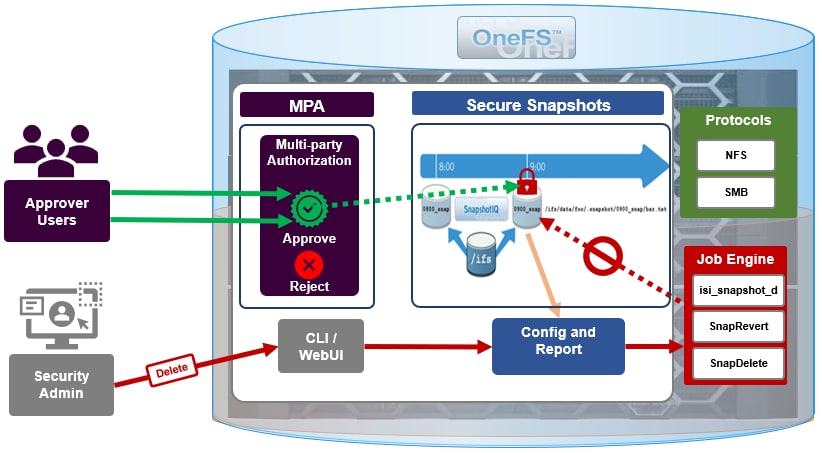
Secure snapshots are predicated upon OneFS Multi-Party Authorization (MPA), which prevents a user from executing configuration changes on snapshots and snapshot schedules without additional approval.
PowerScale OneFS Secure Snapshots architecture
Secure Snapshots in conjunction with MPA protect a subset of snapshot operations, or ‘privileged actions’. These include:
Deleting a snapshot prior to its expiry date
Shortening the expiry date of a snapshot
Renaming a snapshot using reserved name
Modifying a snapshot schedule
These following highlighted snapshot operations are privileged and require secondary approval when MPA is enabled:
Snapshot operations and their MPA privilege status. The table highlights privileged snapshot operations, which require secondary approval when MPA is enabled.
Snapshot Operation
MPA Required?
Deletion of a snapshot without an expiry date
No
Deletion of a snapshot with an expiry date once that expiry date has passed
No
Deletion of a snapshot that has an expiry date before that expiry date has passed
Yes
Modifying a snapshot schedule
Yes
Adding an expiry date to a snapshot
Yes
Extending the expiry date of a snapshot
No
Reducing the expiry date of a snapshot
Yes
Renaming a snapshot using reserved name used by other OneFS services/daemons
Yes
Adding a lock to a snapshot
No
Removing a lock from a snapshot
No
Secure Snapshots with expiration dates cannot be deleted, or their snapshot schedules modified, without these actions going through MPA first.
NOTE:Feature-generated snapshots, such as those from FSA, MetadataIQ, SyncIQ, etc, and scheduled snapshots will still be automatically deleted by OneFS and without any need for MPA approval.
When attempting snapshot deletion or schedule modification, information about the request is also sent to MPA so that the approver can see which exact changes are involved, so they can make an informed allow or deny decision.
OneFS 9.12 also checks whether user-generated snapshots have overlapping names with snapshots that could be potentially created by demons on the cluster.
Secure snapshots prerequisite
There are three principal prerequisites for deploying Secure Snapshots, which are as follows:
Secure Snapshots can only be enabled once the cluster has been committed to OneFS 9.12 or later.
SnapshotIQ needs to be licensed, plus an account with the ‘ISI_PRIV_SNAPSHOT’ privilege is required for configuration.
Multi-Party authorization (MPA) must be active on the cluster and configured for two or more approvers.
The user that wants to change or delete the snapshot and approver must not be the same user.
NOTE:The user wishing to modify or delete a secure snapshot and the approver must be two different users.
Configuring secure snapshots
Overview
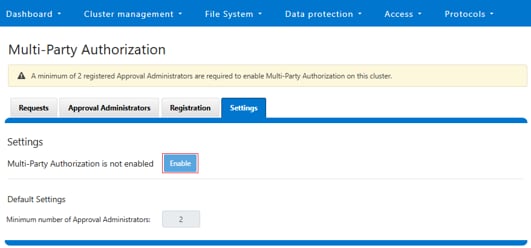
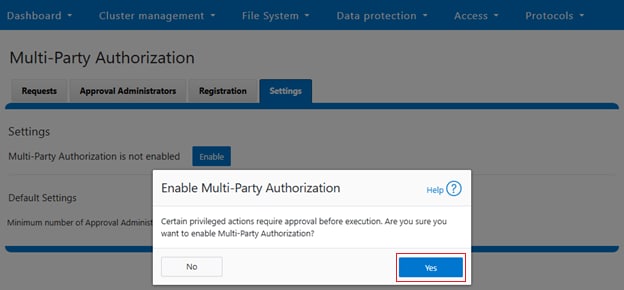
On a cluster running OneFS 9.12 or later release, and with SnapshotIQ licensed, the next step in configuring Secure Snapshots is to enable Multi-Party Authorization (MPA).
Enabling MPA
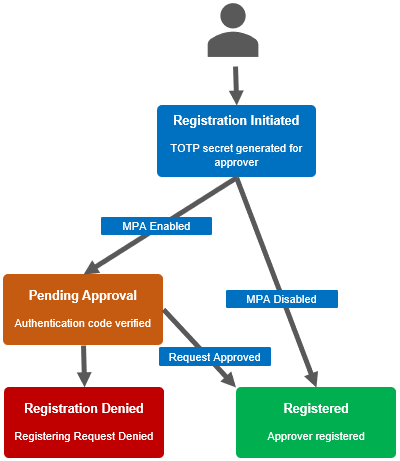
The MPA enablement and approver registration workflow is as follows:
MPA approver registration and enablement workflow
First, create users and grant approval privilege.
Approver registration be configured from the CLI with the following set of commands.
First, configure two approver users – in this case ‘mpa-approver1’ and ‘mpa-approver2’:
Next, add the approver users to MPA and complete their registration. This involves initiating registration, using the secret or embedded URL in conjunction with a third party code generator to create a time-based one-time password or TOTP.
Here, the ‘mpa-approver1’ user is registered first:
# isi mpa initiate-registration
   Initiated registration successfully: (Online utility can be used to   convert URL to QR code for use with authenticator)
   account:  Dell Technologies
   algorithm:  SHA1
   digits:  6
   issuer:  mpa-approver1
   period:  30
   secret:  5KHIHISJZPB7UTPRNEBLSIMI5L4R6K6UI
   url:  otpath://totp/Dell%Technologies:mpa-approver1?secret=5KHIHISJZPB7UTPRNEBLSIMI5L4R6K6UI&issuer=Dell%20Technologies&algorithm=SHA1&digits=6&period=30
The user secret or URL returned can be used to set up a TOTP in Google Authenticator, or another similar application.
This secure one-time registration can be performed as follows:
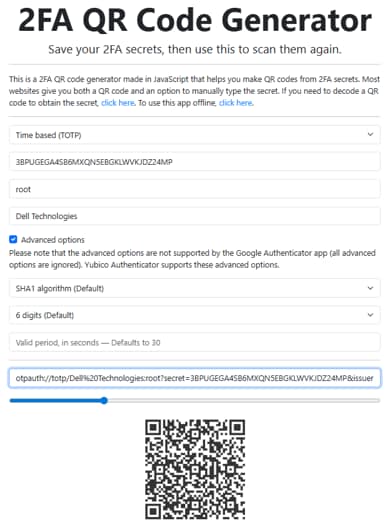
First, initiate the OneFS registration process to obtain a URI, which can then be generated into a QR code by a 3rd party app. For example:
2FA generator translating a registration URL into a QR code
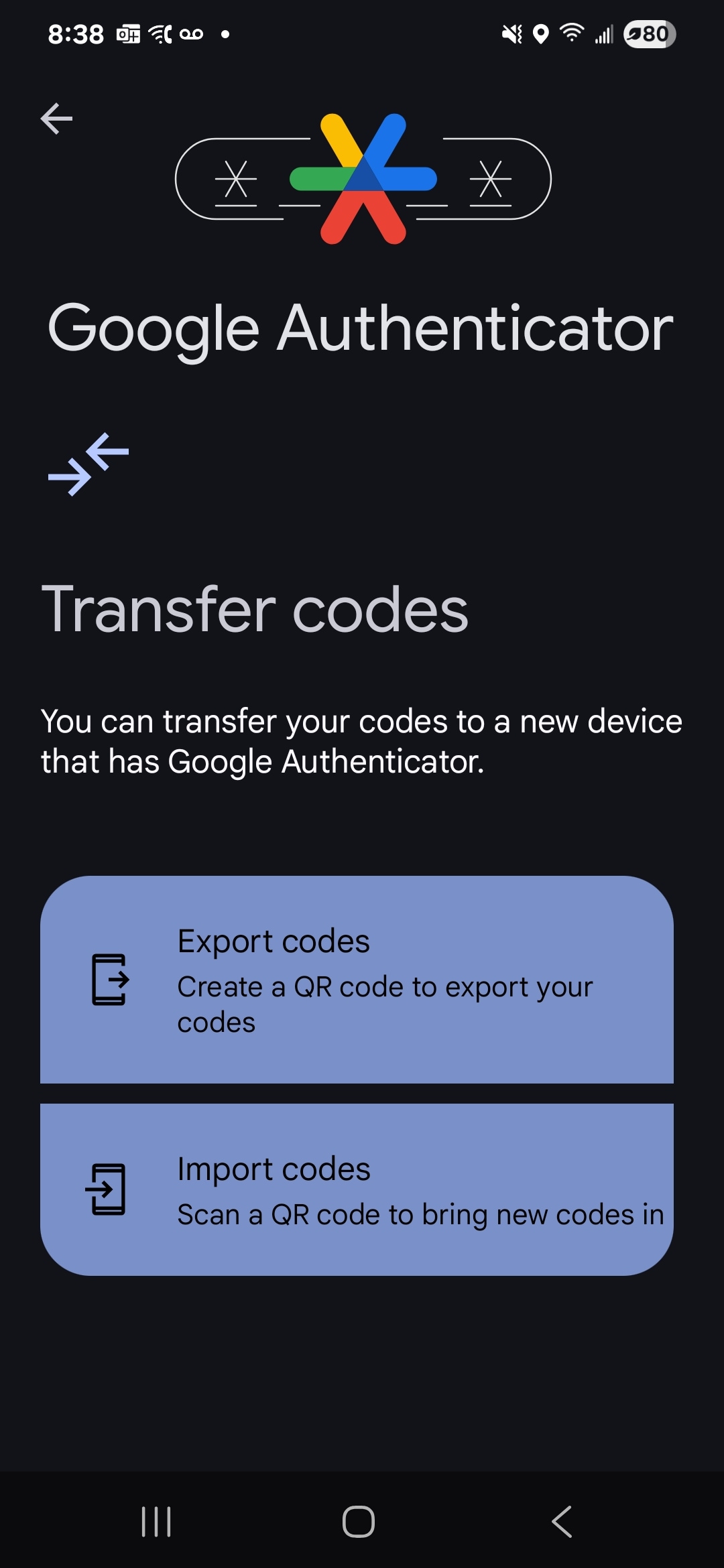
Next, convert the QR code (or URI) into a time-based one-time password code via Google Authenticator, Microsoft Authenticator, or another TOTP app:
Google Authenticator converting QR code into a TOTP
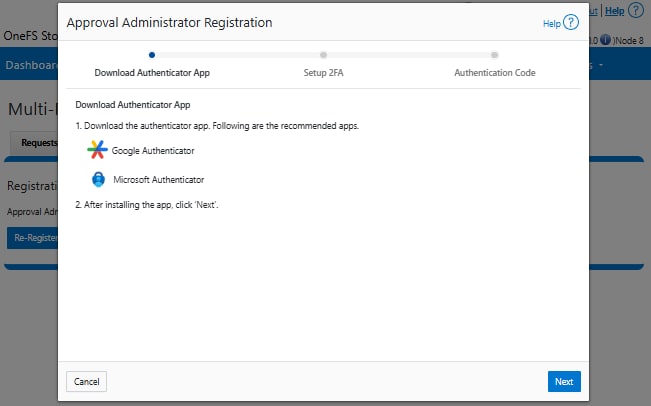
Finally, complete the OneFS approver registration wizard:
Alternatively, this can be performed from the WebUI, under WebUI under Access > Multi-Party Authorization > Registration:
This process should then be repeated for the second (ie. ‘mpa-approver2’) role, either via the WebUI Approval Administrator Registration wizard, or from the CLI.
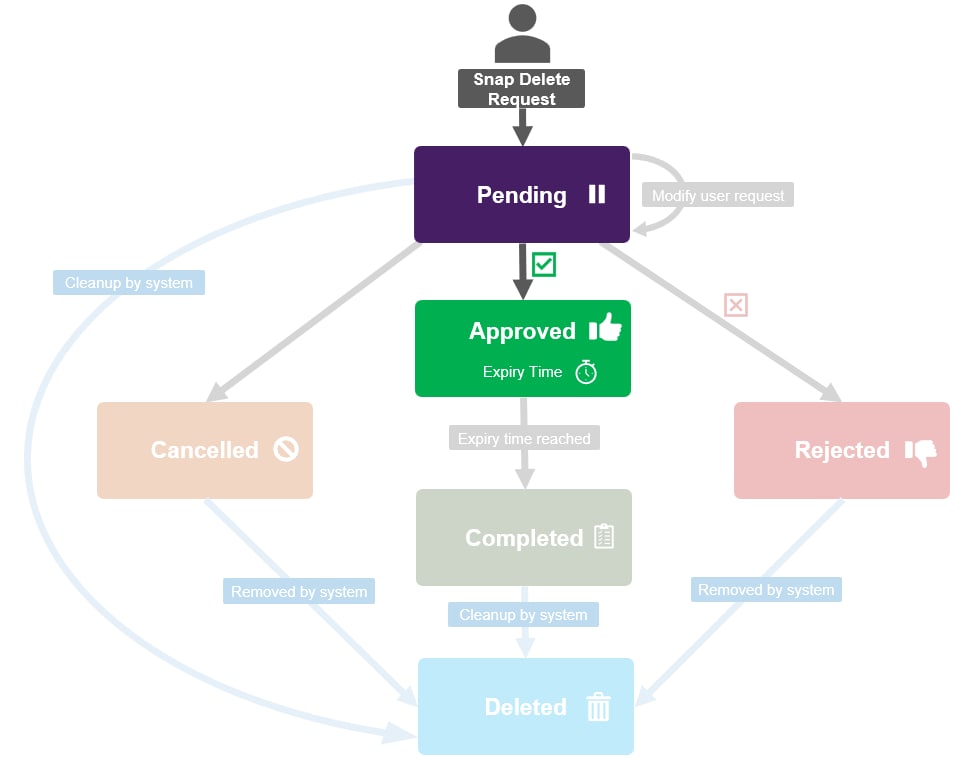
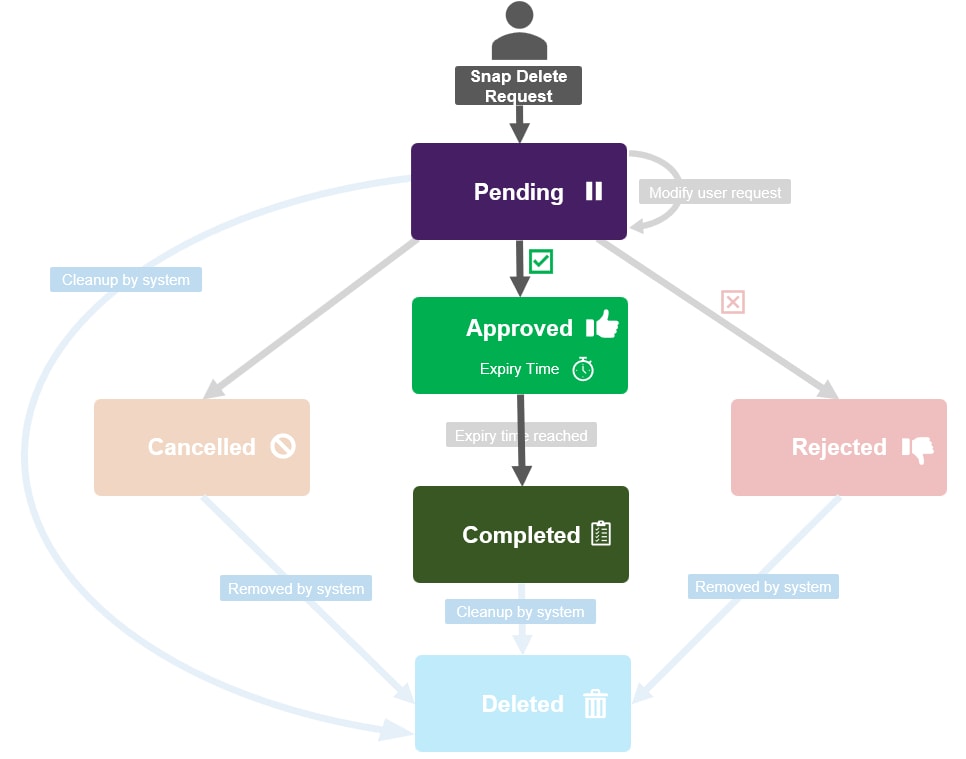
Once MPA is activated, any secure snapshot deletion or other privileged action requests are blocked pending approval.
Secure snapshots privileged command execution in pending state
As such, an attempt to delete a secure snapshot generates a warning, and the action is suspended until approved by an authorized user. For example:
Warning displayed when attempting to delete a secure snapshot
Similarly, from the CLI:
# isi snapshot list
ID   Name                                         Path
-----------------------------------------------------------------
40    Snapshot:2025July21.2:44PM      	        /ifs/data
42    SIQ-8b30297763c5db7307e2d84504839c25-new    /ifs/data/zone1
# isi snapshot delete 40
Are you sure? (yes/[no]): yes
Delete Snapshot is a privileged action . A request paareqa99439a172d09999 to perform this action is pending approval. Check Multi-Party Authorization to view the status of the request.
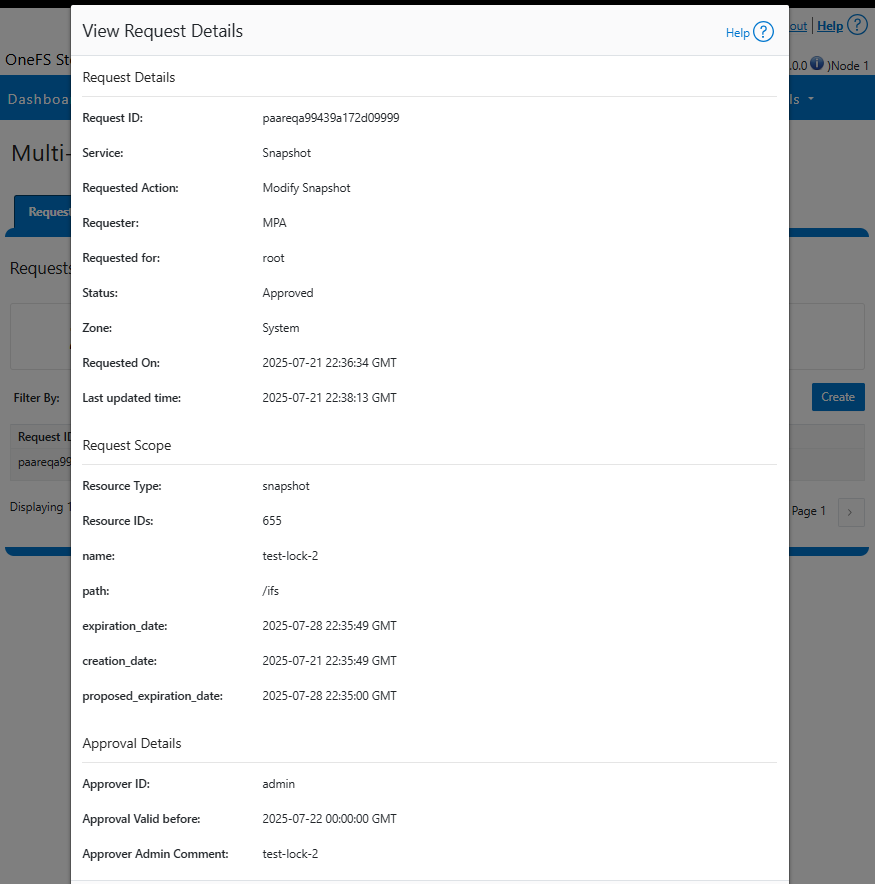
Details of the requested snapshot privileged action can be viewed as follows:
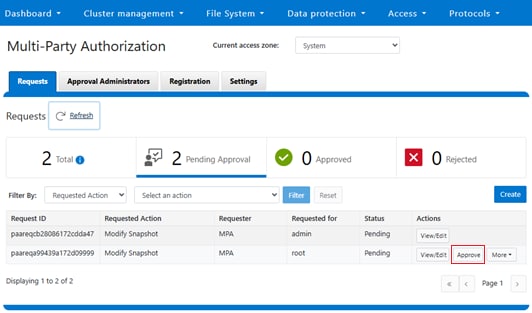
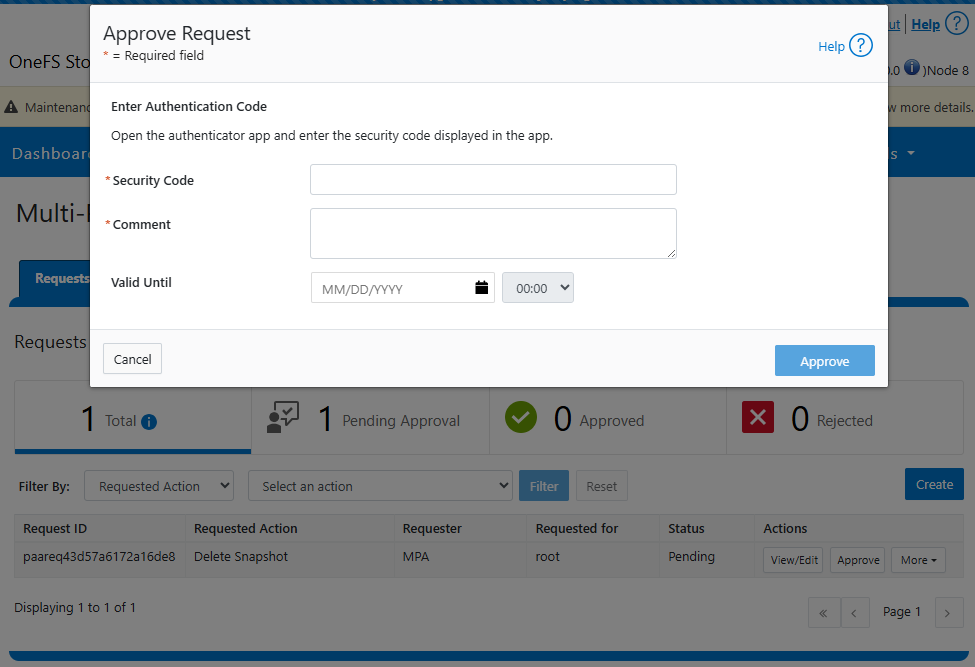
Once approval has been granted, the privileged snapshot operation can complete as expected.
Secure snapshots privileged command execution in completed state
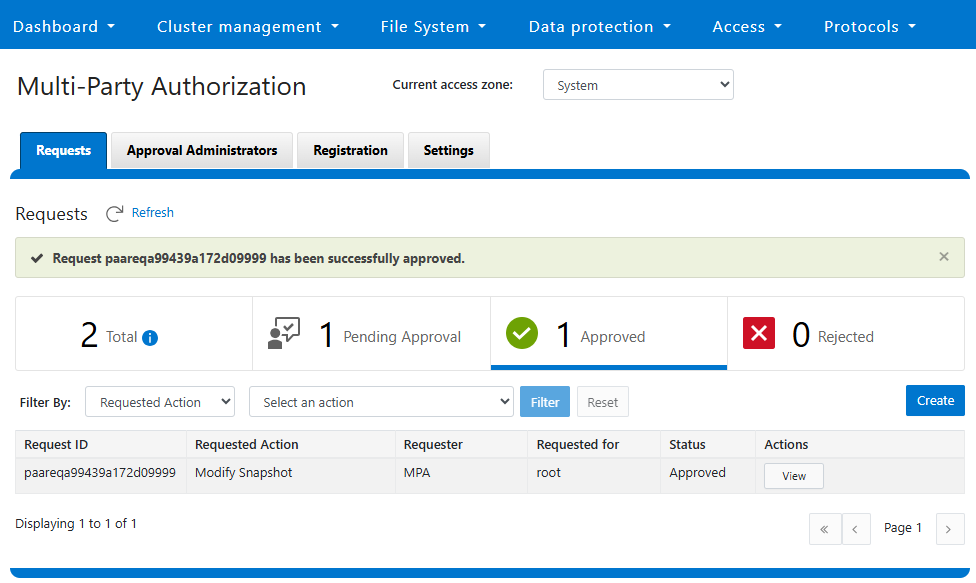
The WebUI reports a successful approval status as follows:
Banner confirming successful approval of a snapshot modification request
Similarly, from the CLI:
# isi mpa requests approve --approved=true –id= paareqa99439a172d09999–comment=approved
totp_code:
Request paareqa99439a172d09999has been approved successfully.
# isi snapshot delete 40
Are you sure? (yes/[no]): yes
# isi snapshot list
ID   Name                                          Path
-----------------------------------------------------------------------------
42    SIQ-8b30297763c5db7307e2d84504839c25-new      /ifs/data/zone1
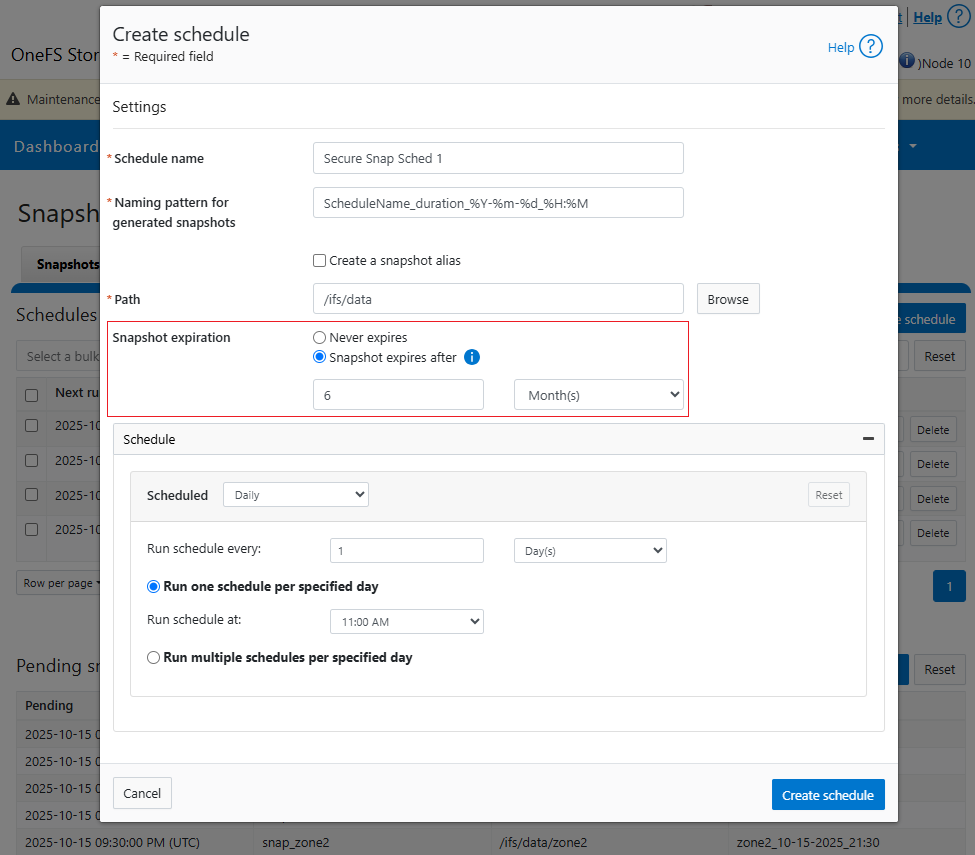
NOTE:A snapshot schedule will only generate secure snapshots if it is configured to create snapshots with expiration dates.
For example:
Expiration options when creating a snapshot schedule
Secure snapshots and snapshot locks
The new Secure Snapshots feature in OneFS 9.12 is designed to complement, rather than replace, the existing SnapshotIQ locking mechanism, which is managed via the ‘isi snapshot locks’ CLI command set.
Comparison of Secure Snapshots and Snapshot Locks. The table compares Secure Snapshots and Snapshot Locks.
Feature
Availability
Authorization
Description
Secure snapshots
OneFS 9.12 and later
Multiple approvers
One or more additional approvers must authorize snapshot privileged action.
SnapshotIQ locks
OneFS 7.0 and later
Single approver
A single administrator can configure and manage snapshot locks.
Secure Snapshots operate independently and do not interfere with the creation, removal, or general operation of the regular SnapshotIQ snapshot locks.
While SnapshotIQ locks help prevent snapshots from being accidentally or unintentionally deleted, unlike Secure Snapshots, they do not offer the additional anti-tamper protection of Multi-Party Authorization (MPA).
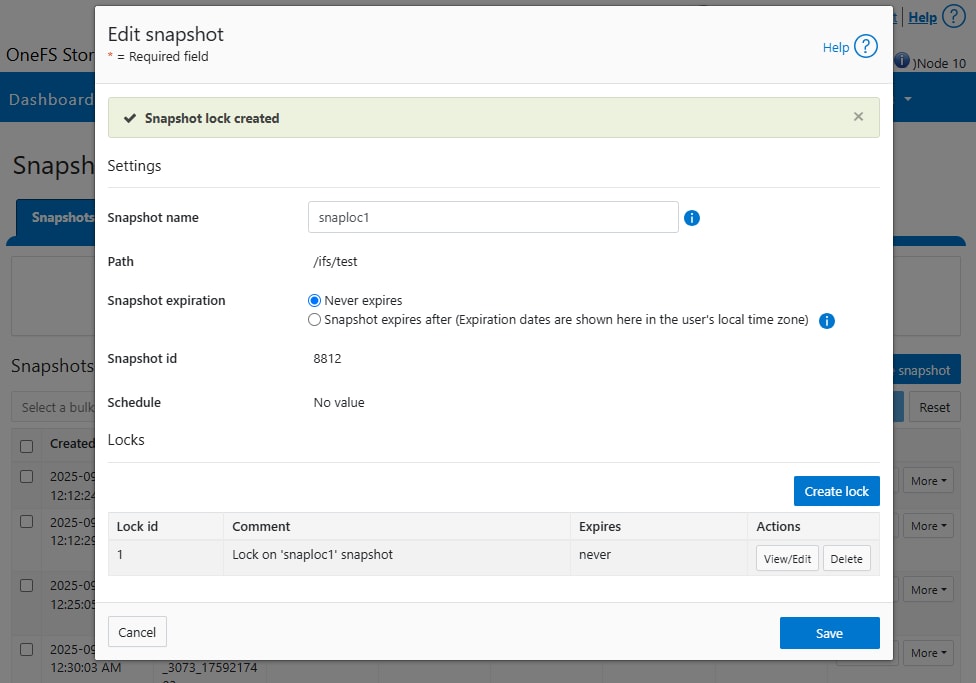
SnapshotIQ locks function as follows. For example, a manual snapshot, ‘snaploc1’ is taken of /ifs/test:
Attempts to delete the snapshot fails because the lock prevents its removal:
# isi snapshot snapshots delete snaploc1
Are you sure? (yes/[no]): yes
Snapshot "snaploc1" can't be deleted because it is locked
The CLI command ‘isi snapshot locks delete <lock_ID>’ can be used to clear existing snapshot locks, if desired. For example, to remove the only lock (ID=1) from snapshot ‘snaploc1’:
# isi snapshot locks list snaploc1
ID
----
1
----
Total: 1
# isi snapshot locks delete snaploc1 1
Are you sure you want to delete snapshot lock 1 from snaploc1? (yes/[no]): yes
# isi snap locks view snaploc1 1
No such lock
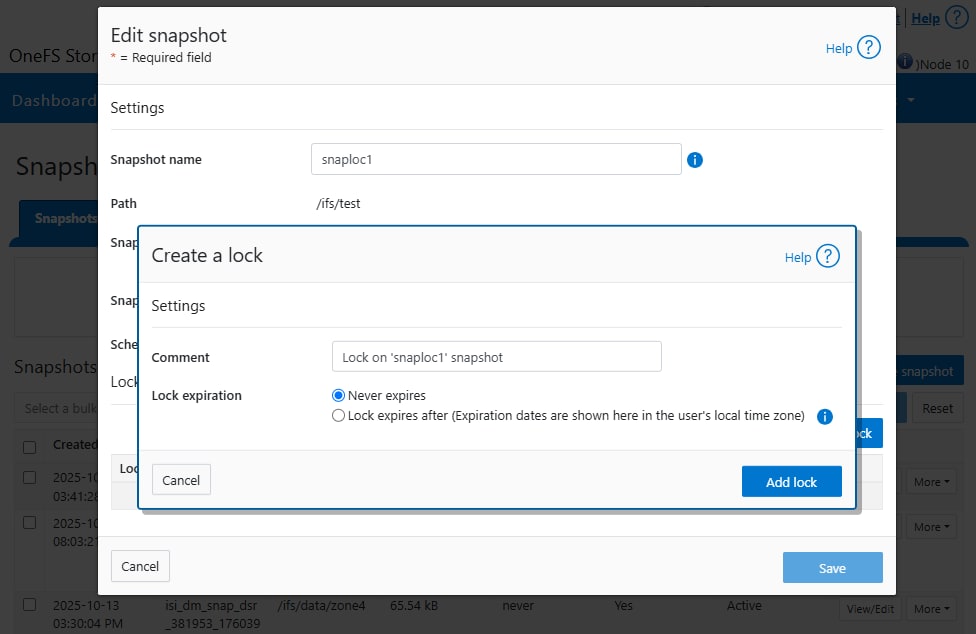
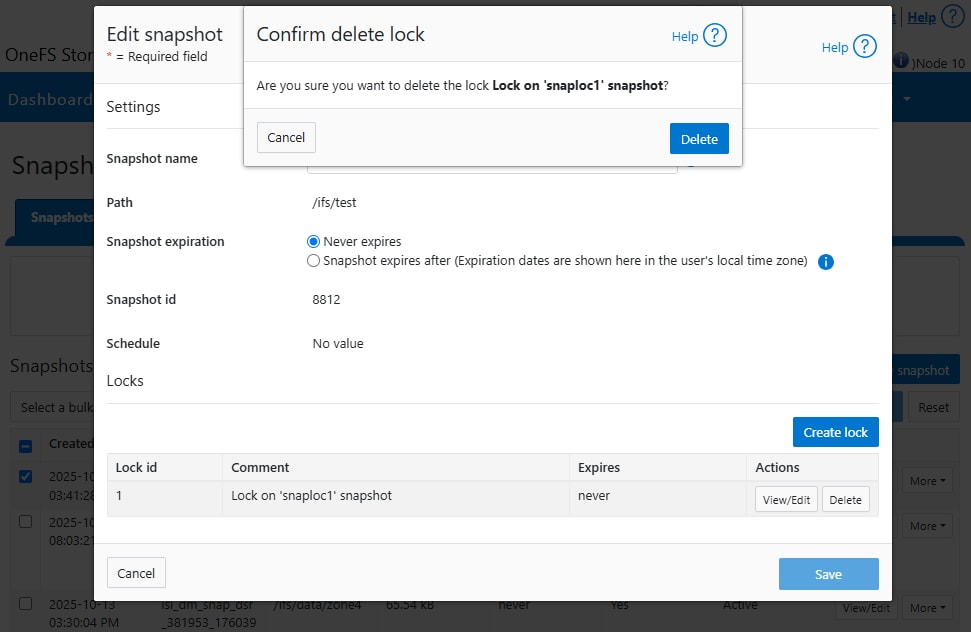
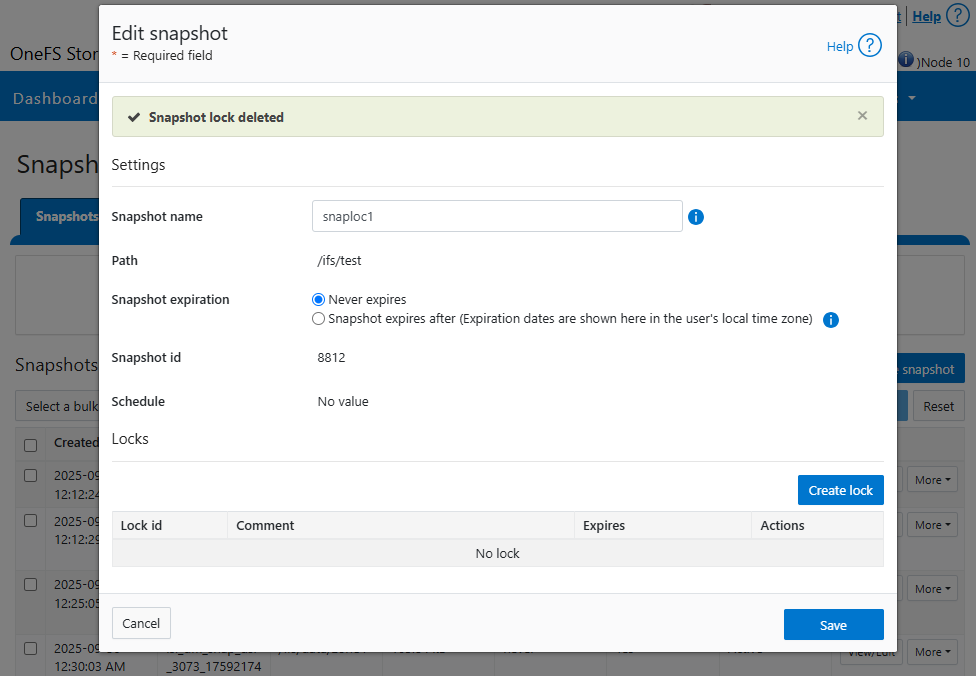
Similarly, snapshot locks can be deleted via the WebUI:
A snapshot can have up to a maximum of sixteen SnapshotIQ locks on it at any time. Also, lock numbers are continually incremented and not recycled upon deletion.
Like snapshot expiry configuration, snapshot locks can also have an expiry time configured too, although this is not protected by Multi-Party Authorization.
For example, to set a lock on snapshot ‘snaploc1’ that expires at 12pm on April 1st, 2026:
# isi snap lock create snaploc1 --expires '2026-04-01T12:00:00'
# isi snap lock list snaploc1
ID
----
36
----
Total: 1
Licensing requirements
Overview
While the secure snapshots feature does not have its own specific license, its use is governed by the OneFS SnapshotIQ data service. In addition to a general OneFS license, SnapshotIQ must be licensed across all the nodes in order to use secure snapshots on a PowerScale cluster running OneFS 9.12 or later. Also, the ‘ISI_PRIV_SNAPSHOT’ role-based administration privilege is required on any cluster administration account that will create and manage secure snapshots. For example:
Recommended practices, considerations, and caveats for Secure Snapshots on OneFS 9.12 and later include:
For enhanced security, it is recommended to enable Secure Snapshots in conjunction with Root Lockdown Mode (RLM).
Secure Snapshots are not supported in Compliance Mode.
When upgrading a cluster from an earlier release, the Secure Snapshots privileged actions and the underlying Multi-Party Authorization (MPA) approval system becomes available after committing the upgrade to OneFS 9.12 or later.
As part of the upgrade process, a pre-check is performed to ensure that no existing role named ‘ApprovalAdmin’ (case-insensitive) is present. If such a role exists, administrators will be prompted to rename it to avoid conflicts with the newly introduced system role.
An authorized user can view or update a Secure Snapshots privileged action request while it is in a ‘pending’ state, but only an MPA approver user can move the request to an ‘approved’ or ‘rejected’ state.
Once Secure Snapshots and MPA functionality is activated, it cannot be disabled in OneFS 9.12.
Secure snapshots in OneFS 9.12 can only be created via a snapshot schedule with a configured expiry time. The ad-hoc securing of individual snapshots is not supported at this time.
Secure snapshots currently uses the OneFS system clock for its expiration time. Use of the OneFS compliance clock will be supported in a future version.
With secure snapshots enabled, only the following privileged functions will require MPA approvals:
Deleting a snapshot prior to its expiry date
Shortening the expiry date of a snapshot
Renaming a snapshot using reserved name
Modifying a snapshot schedule
Feature-generated snapshots (i.e. from FSA, MetadataIQ, SyncIQ, SmartSync, etc.) and user scheduled snapshots will still be automatically deleted by OneFS, per their respective schedule, without any need for MPA approvals.
Conclusion
Overview
OneFS Multi-Party Authorization, on top of the industry’s leading scale-out NAS architecture, deliver on the promise for the evolving needs of surveillance, scientific, media, backup applications, and other workloads. OneFS meets these needs without sacrificing the ease of management, performance, scalability, and protection that OneFS affords.
Dell PowerScale clusters provide a scalable, multi-protocol solution, which is further evidence of the Dell commitment to developing the next generation of data management products and solutions for the enterprise.
Technical support and resources
The Dell Technologies Info Hub provides expertise to ensure customer success with Dell storage and data protection products.
Dell.com/support is focused on meeting customer needs with proven services and support.