Dell PowerScale OneFS: Security Considerations
Executive summary
Overview
In the age of Digital Transformation, organizations must adapt to modern data requirements and implement new features for the transformation life cycle. Throughout this process, protecting data is vital as it is an organization’s most valuable asset. This document describes how to maintain an aggressive security posture for a PowerScale OneFS cluster and meet industry security requirements.
Note to readers
Take caution before making changes to a production cluster. Ensure that you understand the concepts explained in this paper in their entirety before implementing new features. As with any significant infrastructure update, testing changes in a lab environment is the best practice. After you confirm the updates in a lab environment, you can start with a gradual roll-out to a production cluster.
Revisions
|
Date |
Part number/ |
Description |
|
August 2022 |
H19273 |
Initial release |
|
November 2022 |
H19273.1 |
Minor update |
|
January 2023 |
H19273.2 |
Updated for OneFS 9.5.0.0 |
|
March 2023 |
H19273.3 |
Minor update to “Enabling PowerScale Secure Boot” for A300, A2000, A3000, H700, and H7000 nodes. |
|
April 2023 |
H19273.4 |
Minor update to external key manager requirements for network connectivity from nodes to KMIP server. |
|
August 2023 |
H19273.5 |
Minor update to "Enabling FIPS compliance mode" section. |
|
September 2023 |
H19273.6 |
Minor update to “External Key Manager” section. |
|
October 2023 |
H19273.7 |
Minor update to “External Key Manager” section. |
|
February 2024 |
H19273.8 |
Updated for OneFS 9.7.0.0 |
|
April 2024 |
H19273.9 |
Updated Security Baseline Checklist |
|
September 2024 |
H19273.10 |
Deleted erroneous statement |
|
December 2024 |
H19273.11 |
Updated for OneFS 9.10.0.0 |
|
April 2025 |
H19273.12 |
Updated for OneFS 9.11.0.0 |
|
August 2025 |
H19273.13 |
Updated for OneFS 9.12.0.0 |
|
December 2025 |
H19273.14 |
Updated for OneFS 9.13.0.0 |
|
April 2026 |
H19273.15 |
Updated for OneFS 9.14.0.0 |
|
August 2026 |
H19273.16 |
Updated for OneFS 9.15.0.0 |
We value your feedback
Dell Technologies and the authors of this document welcome your feedback on this document. Contact the Dell Technologies team by email.
Note: For links to other documentation for this topic, see PowerScale Info Hub.
PowerScale security considerations
Overview
In the modern data center, data no longer resides in a specific location. The storage of data spans across multiple locations and cloud environments. Security best practices ensure that the data is protected. Data is an organization’s most valuable asset, as described by the term “data capital” in the MIT Technology Review.
Defending data presents a unique challenge for organizations in the current security environment, where vulnerabilities are constantly evolving. Also, as new threats develop, administrators must maintain security posture through a continuous security process. The security process evolves as threats change and must constantly adapt to new environments. This document provides requirements for OneFS to meet industry-specific security regulations and other security design considerations.
PowerScale Data at Rest Encryption
Overview
Data at Rest Encryption (DARE) is a requirement for federal and industry regulations ensuring that data is encrypted when it is stored. Dell PowerScale OneFS provides DARE through self-encrypting drives (SEDs) and a key management system. The data on SEDs is encrypted, and the data may not be accessed if the SED is stolen or removed from the cluster.
Data at rest is inactive data that is physically stored on persistent storage. Encrypting data at rest with cryptography ensures that the data is protected from theft if drives or nodes are removed from a PowerScale cluster. Compared to data in motion, which must be reassembled as it traverses network hops, data at rest is of interest to malicious parties because the data is a complete structure. The files have names and require less effort to understand when compared to smaller packetized components of a file.
However, extracting data from a drive in a PowerScale cluster is not a straightforward process even without encryption because OneFS stripes data across nodes. Each data stripe is composed of data bits. Reassembling a data stripe requires all the data bits and the parity bit.
PowerScale implements DARE by using self-encrypting drives (SEDs) and AES 256-bit encryption keys. The algorithm and key strength meet the National Institute of Standards and Technology (NIST) standard and FIPS compliance. The OneFS management and system requirements of a DARE cluster are no different from standard clusters.
Note: We recommend that a PowerScale DARE cluster be composed of only self-encrypting drive (SED) nodes. However, a cluster composed of SED nodes and non-SED nodes is supported during a transition to an all-SED cluster. When a cluster contains an SED node, only SED nodes can be added to the cluster. While a cluster contains both SED and non-SED nodes, there is no guarantee that any particular piece of data on the cluster will, or will not, be encrypted. If a non-SED node must be removed from a cluster that contains a mix of SED and non-SED nodes, it should be replaced with an SED node to continue the evolution of the cluster from non-SED to SED. Adding non-SED nodes to an all-SED node cluster is not supported. Mixing SED and non-SED drives in the same node is not supported.
Self-encrypting drives
An SED is a type of hard drive that provides full-disk encryption through onboard drive hardware. Extra hardware external to the drive is not required to encrypt the data on the drive. As data is written to the drive, it is automatically encrypted, and data read from the drive is decrypted. A chipset in the drive controls the encryption and decryption processes. An onboard chipset allows for a transparent encryption process. System performance is not affected, providing enhanced security and eliminating dependencies on system software.
Controlling access by the drive’s onboard chipset provides security if there is theft or a software vulnerability because the data remains accessible only through the drive’s chipset. At initial setup, an SED creates a unique and random key for encrypting data during writes and decrypting data during reads. This data encryption key (DEK) ensures that the data on the drive is always encrypted. Each time data is written to the drive or read from the drive, the DEK is required to encrypt and decrypt the data, as shown in the following figure. If the DEK is not available, data on the SED is not accessible, making all data on the drive useless.
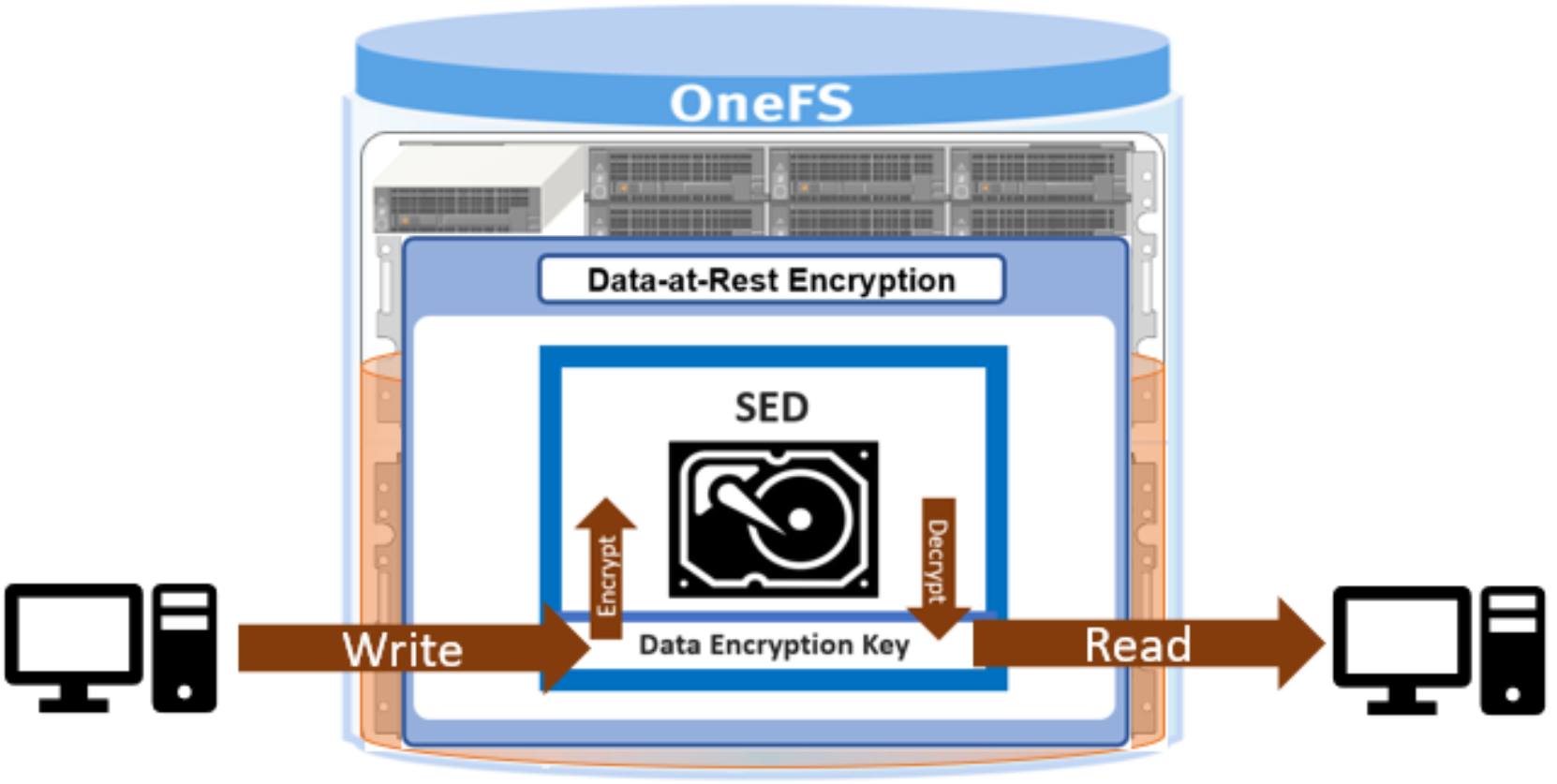
Figure 1. SED data encryption key
OneFS encryption
PowerScale OneFS provides DARE using SEDs, ensuring that data is encrypted during writes and decrypted during reads. Data stored on the SEDs are encrypted and decrypted with a 256-bit data AES encryption key, referred to as the data encryption key (DEK). OneFS takes the standard SED encryption further by wrapping the DEK for each SED in an authentication key (AK). Further preventing unauthorized access, the AKs for each drive are placed in a key manager (KM) that is stored securely in an encrypted database, the key manager database (KMDB). The KMDB is encrypted with a 256-bit universal key (UK), as shown in the following figure.
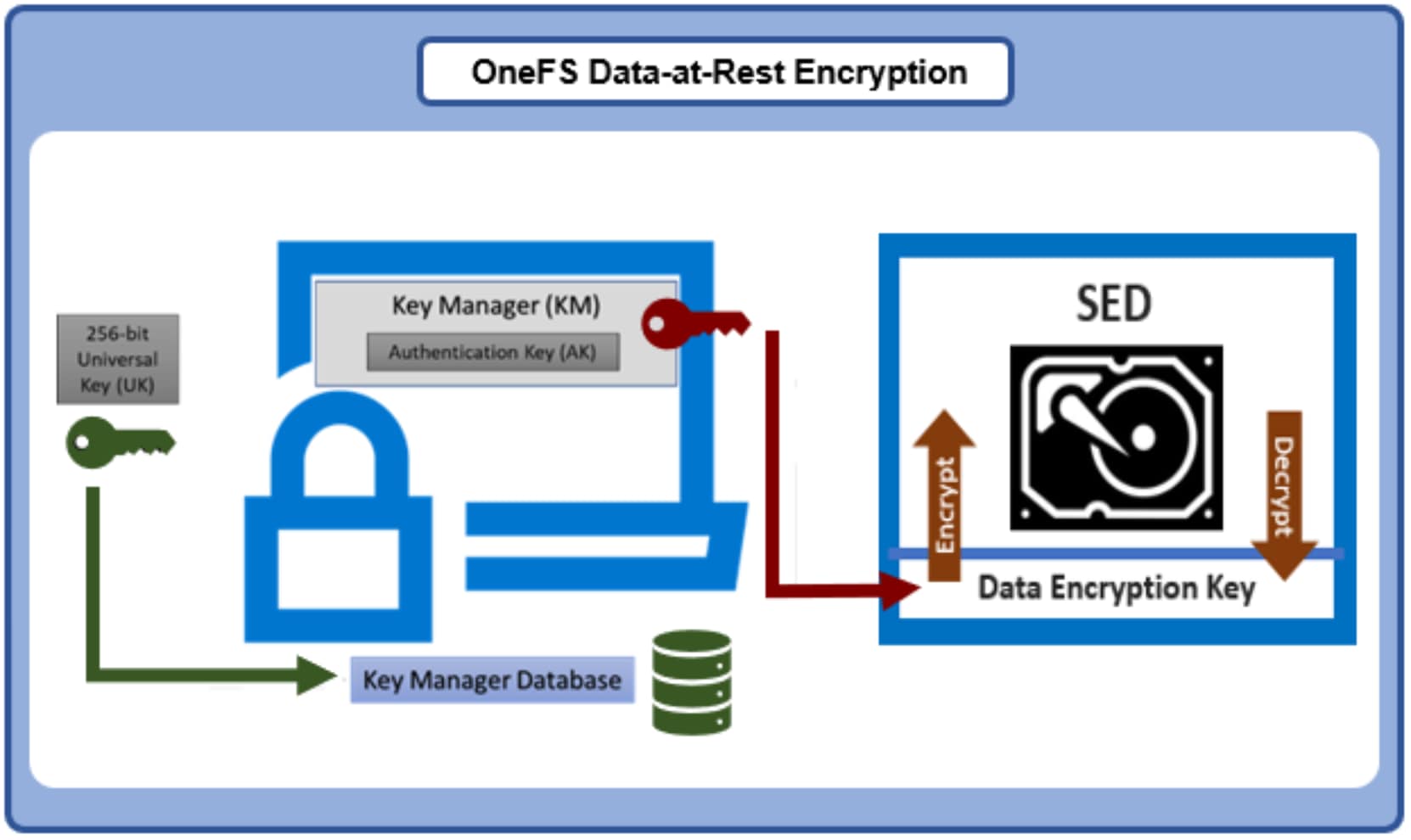
Figure 2. PowerScale universal key
PowerScale OneFS 9.2.0.0 and later releases support an external key manager by using a key management interoperability protocol (KMIP)-compliant key manager server. The UK is stored in a KMIP-compliant server. PowerScale OneFS releases before OneFS 9.2 retain the UK internally on the node.
Further protecting the KMDB, OneFS provides a feature to rekey the UK. The UK may be rekeyed on a specified schedule or as requested. The feature supports UKs that are stored on a KMIP server or internally stored UKs.
The AK is unique to each SED and ensures that OneFS never knows the DEK. If there is a drive theft from a PowerScale node, the data on the SED is useless because the UK, AK, and the DEK, are required to unlock the drive. If an SED is removed from a node, OneFS automatically deletes the AK. Conversely, when a new SED is added to a node, OneFS automatically assigns a new AK.
Older (Gen 5) Isilon nodes store the KMDB on both compact flash drives in each node. For PowerScale A- and H-series chassis-based nodes, the KMDB is stored in the node’s NVRAM, and a copy is placed in the buddy node’s NVRAM. PowerScale all-flash F-series nodes store the KMDB in the trusted platform module (TPM). Using the KM and AKs ensures that the DEKs never leave the SED boundary, as required for FIPS compliance.
Note: The key manager uses a FIPS-validated crypto when the STIG hardening profile is applied to the cluster. For information about enabling the STIG hardening profile, see the STIG security profile section.
The KM and KMDB are entirely secure and cannot be compromised because they are not accessible by any CLI command or script. The KMDB only stores the local drives' AKs in Gen 5 nodes, and buddy node drives in PowerScale H-series and A-series nodes. On PowerScale F-series nodes, the KMDB only stores the AKs of local drives. The KM also uses its encryption not to store the AKs in plain text.
SED node join rule override
OneFS 9.15 introduces a cluster SED node join rule override capability to address scenarios where strict enforcement of SED compliance levels conflicts with node expansion requirements. Previously, cluster join rules prevented nodes with lower FIPS compliance levels (e.g., QLC non-FIPS SEDs or ISE nodes) from joining clusters with higher SED compliance levels, requiring Dell Support-mediated workarounds. This new capability provides an ‘isi devices node add <serial> --allow_encryption_downgrade’ CLI command option for authenticated administrators to override these restrictions when explicitly authorized, enabling controlled cluster expansion while maintaining security boundaries. For example:
# isi devices node add DK10001 --allow_encryption_downgrade
You are about to add node SN:DK10001 to the cluster. Are you sure? (yes/[no]): yes
Adding a node with a lower encryption level may result in a reduced overall encryption level in the cluster and may reduce compliance.
Are you really sure? (yes/[no]): yes
The above override option requires two-step explicit consent to acknowledge potential reduction in overall cluster encryption compliance. All override operations are logged in /var/log/isi_join_d.log and /var/log/messages to provide a complete audit trail, ensuring accountability and traceability for compliance reporting. This enhancement balances operational flexibility with security governance, allowing customers to manage heterogeneous drive deployments within a controlled, auditable framework.
External key manager
PowerScale OneFS 9.2 and later releases support an external key manager by storing the 256-bit universal key (UK) in a key management interoperability protocol (KMIP)-compliant key manager server. The configuration steps in this section apply to brownfield and greenfield clusters with SEDs. Although the configuration in this section explains how to migrate keys to an external key manager, OneFS also supports a reverse migration.
Requirements
To store the UK on a KMIP server, PowerScale requires the following:
- OneFS 9.2 (or later) cluster with SEDs
- KMIP-compliant server:
- KMIP 1.2 or later
- KMIP storage array 1.0 or later with SEDS profile
- KMIP server host/port information
- X.509 PKI for TLS mutual authentication
- Certificate authority bundle
- Client certificate and private key
- Administrator privilege: ISI_PRIV_KEY_MANAGER
- Network connectivity from each node in the cluster to the KMIP server using an interface in a statically assigned network pool; for SED drives to be unlocked, each node in the cluster contacts the KMIP server at bootup to obtain the UK from the KMIP server, or the node bootup fails
- Not All Nodes On Network (NANON) and Not all Nodes On All Networks (NANOAN) clusters are not supported
Note: When configuring the external key manager, make sure that each PowerScale node in the cluster can communicate with the KMIP server using an interface in a statically assigned network pool to unlock the drives during the node boot process. If the KMIP server is unavailable or if network connectivity is not available, the node’s drives remain in a locked state.
KMIP and PowerScale tested compatibility
PowerScale OneFS has tested and confirmed KMIP compatibility as listed in the table below.
Table 1. PowerScale OneFS tested KMIP compatibility
|
KMIP Vendor |
OneFS Version Tested |
|
Thales KeySecure |
OneFS 9.3.0.0 |
|
Thales e-Security keyAuthority |
OneFS 9.3.0.0 |
|
IBM Secure Key Lifecycle Manager (SKLM) |
OneFS 9.1.0.0 |
|
Thales CipherTrust Data Security Platform |
OneFS 9.7.0.0 |
Note: The OneFS version tested does not imply the KMIP vendor is not compatible with a more recent OneFS release, it is provided as a data point.
Note: PowerScale OneFS uses the Dell Key Trust Platform as the client for establishing connectivity to the KMIP server. Other KMIP platforms compatible with the Dell Key Trust Platform should also be compatible with OneFS. Also, PowerScale OneFS should be compatible with KMIP platforms that meet the previously outlined requirements.
Configuration
After you meet the previous requirements, to configure the external key manager, perform the following steps:
- Create server and client certificate bundles. The bundles must be X.509 public key infrastructure (PKI) certificates. The certificate formats supported are pem or PKCS #12 format.
For the server certificate bundle, the order of the bundles begins with the server certificate and ends with the root. This order includes any intermediates in between, excluding the KMIP server certificate. Each certificate must certify the one preceding it. For example, a certificate bundle could be in the following format:
- Intermediate certificate 3
- Intermediate certificate 2
- Intermediate certificate 1
- Root certificate
The client certificate bundle consists of the X.509 certificate followed by the private key. Optionally, the private key may also be encrypted, and password protected in the client certificate bundle. If the private key is encrypted, make a note of the password for use in later steps.
- Transfer the KMIP server and client certificate bundles to the cluster. Make a note of the file names and location.
- In the OneFS web interface, select ‘Access > Key Management’ as shown in the following figure, or ‘Security > Key Management’ in OneFS 9.15 and later releases. Alternatively, in the OneFS CLI, run the following command:
isi keymanager kmip servers create
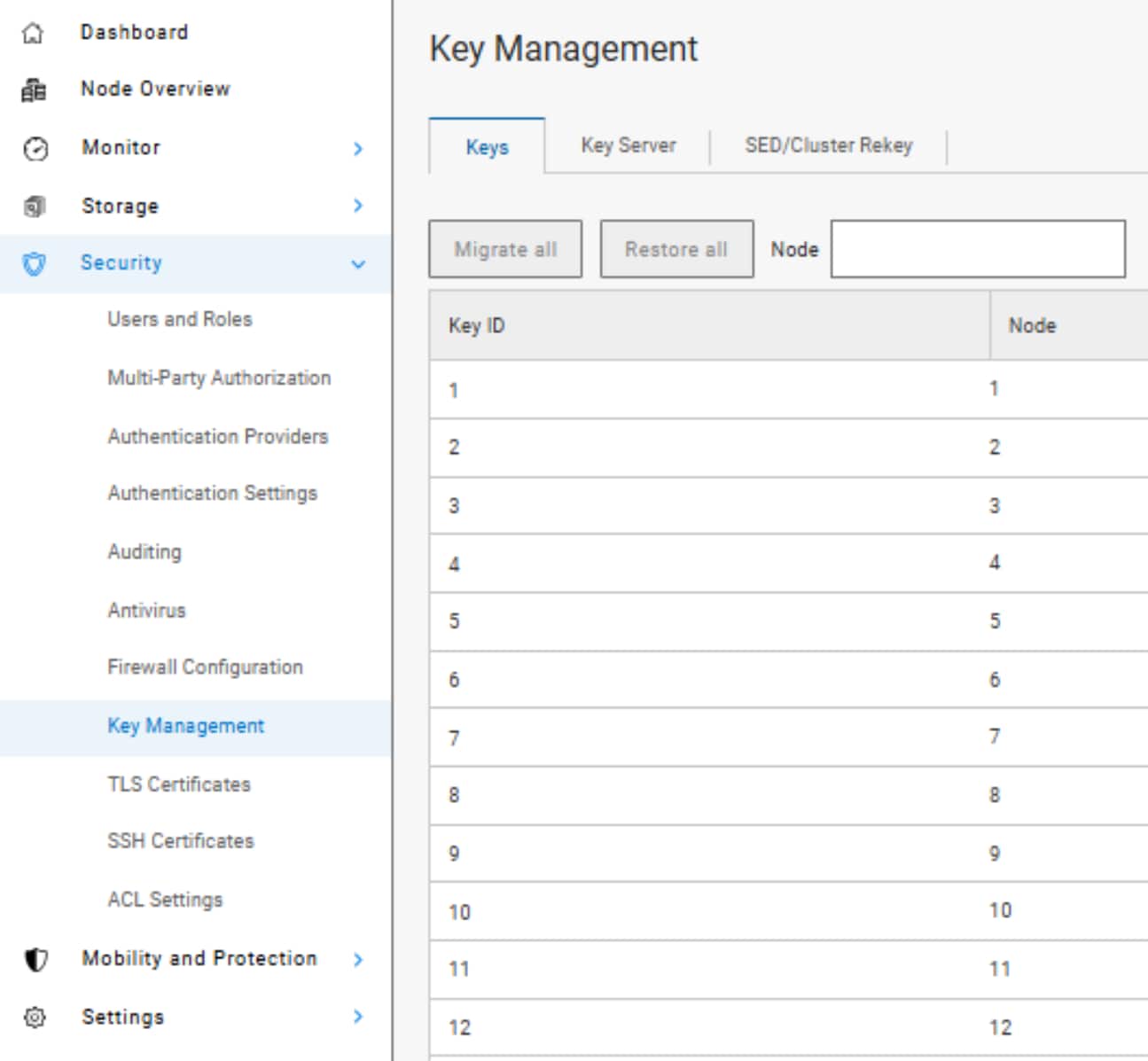
Figure 3. Key Management
- On the Key Management page, click the Key Server tab, select the Enable Key Management checkbox, and perform the following:
- Enter the KMIP Server Host and Server Port information.
- Specify the filename and location of the Server Certificate and Client Certificate bundle transferred to the cluster in step 2.
- If the client certificate bundle has an encrypted password, specify this password in the Client Certificate Password field, and click Submit, as shown in the following figure.
Alternatively, in the CLI, use the --host, --id, --ca-cert-path, --client-cert-path, and --set-client-cert-password options.
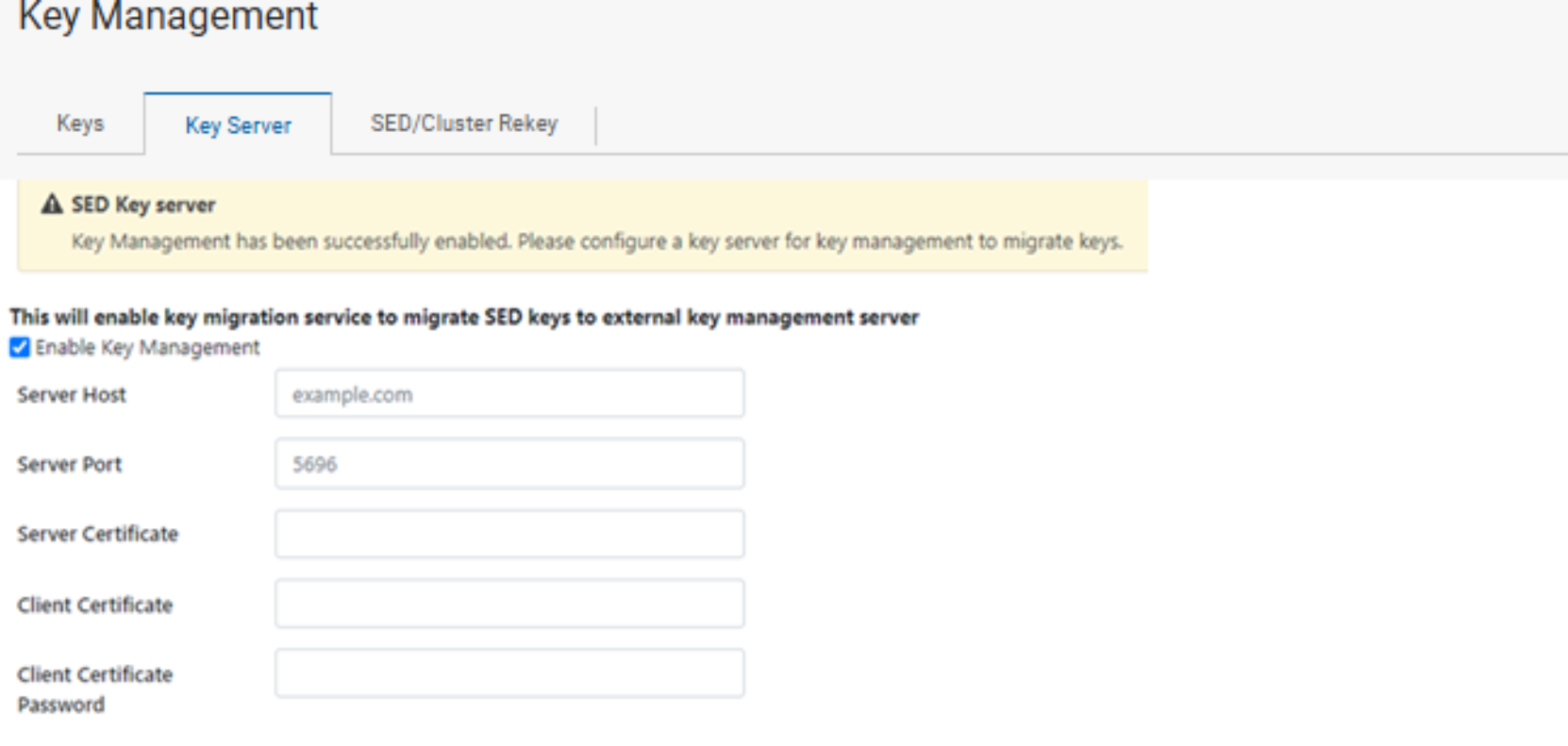
Figure 4. Key management server information
- OneFS contacts the KMIP server and confirms the connection or displays any errors, as shown in the following figure. If the connection is unsuccessful, check the certificate bundle requirements listed in step 1.

Figure 5. Key Management confirmation
- After you add the KMIP server, you can migrate the keys.
- Click the Keys tab to display all current universal keys on the cluster.
- Click Migrate all to migrate the keys to the KMIP server.
- In the Migrate all window, click Migrate to start the migration as shown in the following figure.
Alternatively, in the CLI, run the isi keymanager sed migrate server command.
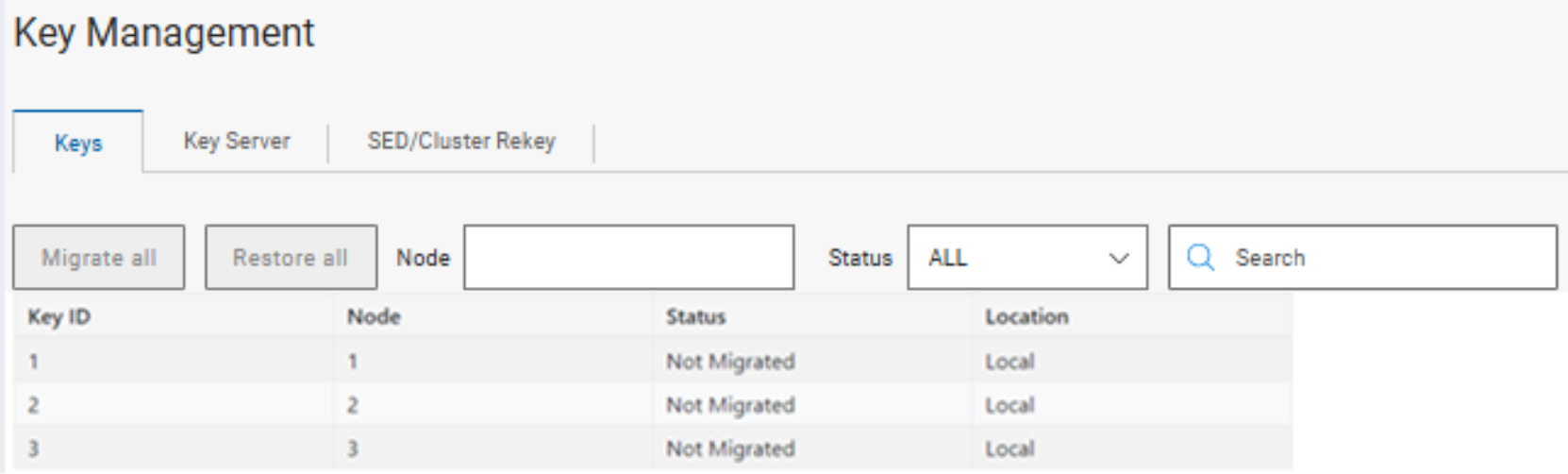
Figure 6. Universal key migration
- Depending on the cluster and network utilization, the key migration process may take several minutes or more to complete. A Migration in process message is displayed during this time, as shown in the following figure. Alternatively, in the CLI, run the isi keymanager sed status command.
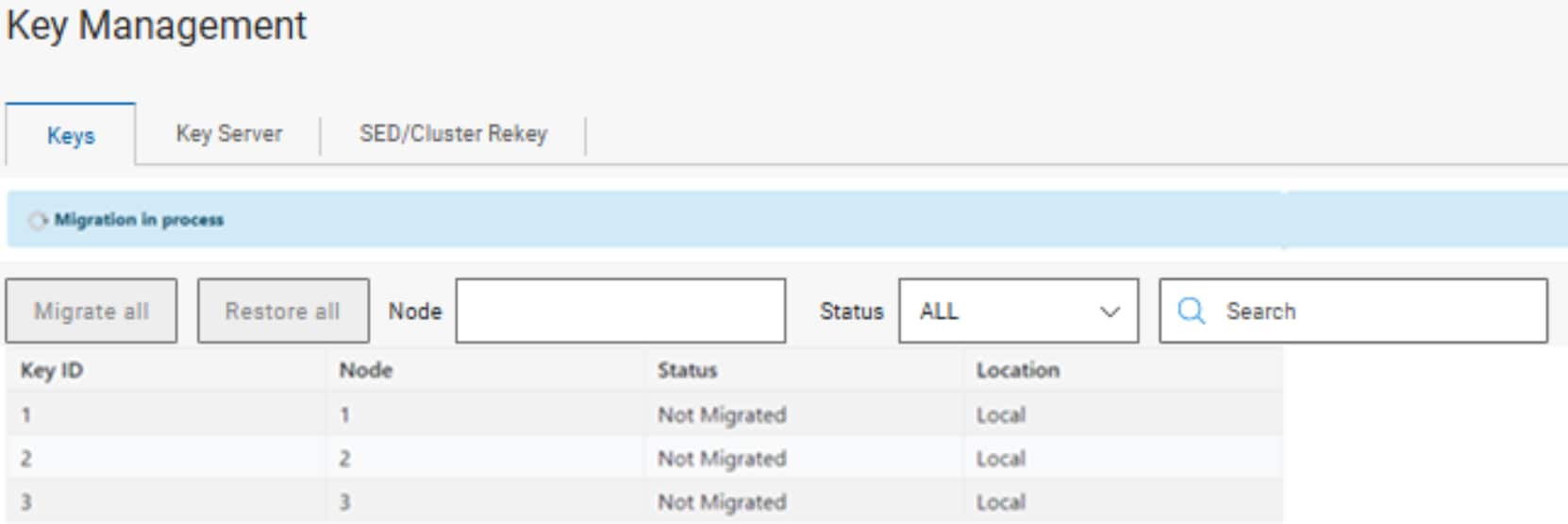
Figure 7. Migration in process
- After you complete the process, a Migration Successful message is displayed, and the Status for each Key ID is Migrated, as shown in the following figure. Alternatively, in the CLI, run the isi keymanager sed status command.
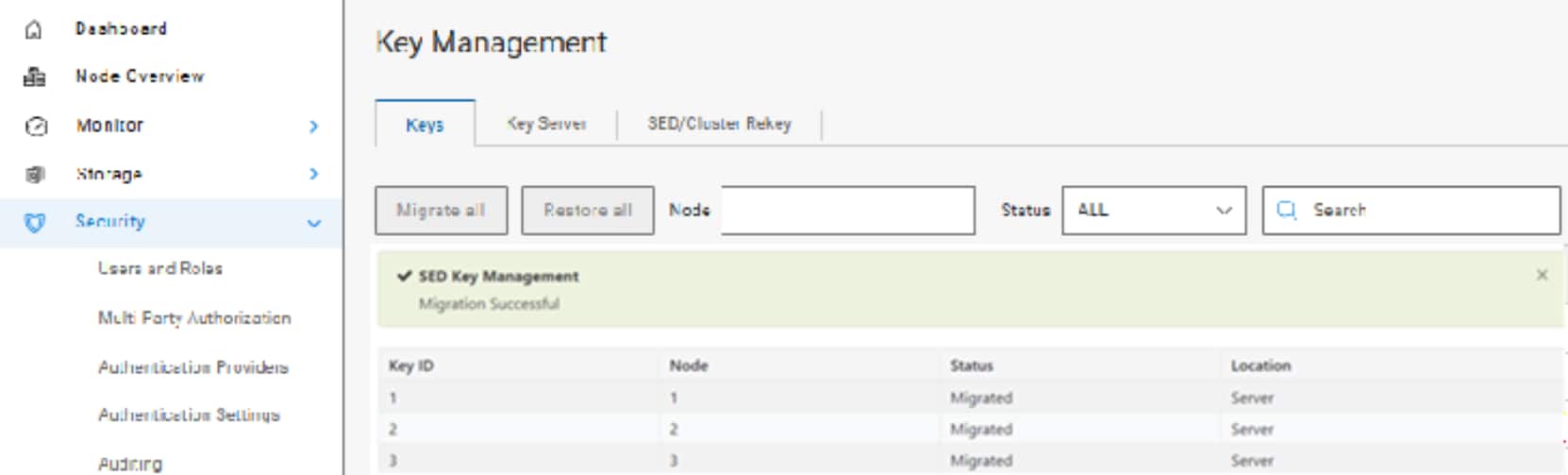
Figure 8. Migration successful
SEDs universal key rekey
As previously described, a 256-bit universal key (UK) encrypts the Key Manager Database (KMDB) for SEDs. The UK may be stored locally on a node or using a KMIP server. PowerScale OneFS 9.5.0.0 provides an option to rekey the UK, irrespective of where it is stored. The rekey process generates a new UK and re-encrypts the KMDB, and the old UK is then deleted.
Considerations
The UK may be rekeyed on a specified schedule or as requested. Before configuring an UK rekey, consider the following information:
- If a migration to a KMIP server is in progress, the rekey process starts after the migration is complete.
- The rekey feature is only available after the OneFS 9.5.0.0 or later release is committed.
- During the rekey process, the old UK is only deleted after a successful re-encryption with the new UK. If for any reason the process fails, the old UK is available and remains as the current UK. The rekey daemon retries the rekey every 15 minutes if the process fails.
Configuration
Before starting a rekey process, ensure that you understand the preceding considerations. A rekey may be requested immediately or may be scheduled with a cadence. The rekey operation is available through the CLI and the WebUI. In the WebUI, under ‘Security > Key Management’, or ‘Access > Key Management’ in OneFS 9.14 and earlier releases, select the SED/Cluster Rekey tab.
This section explains the SED UK rekey process. For the cluster rekey of other services, see Cluster services rekey.
To start a rekey of the UK immediately, from the CLI run the isi keymanager sed rekey start command. Alternatively, from the WebUI, under the SED/Cluster Rekey tab, select Rekey Now next to SED Keys, as shown in the following figure.
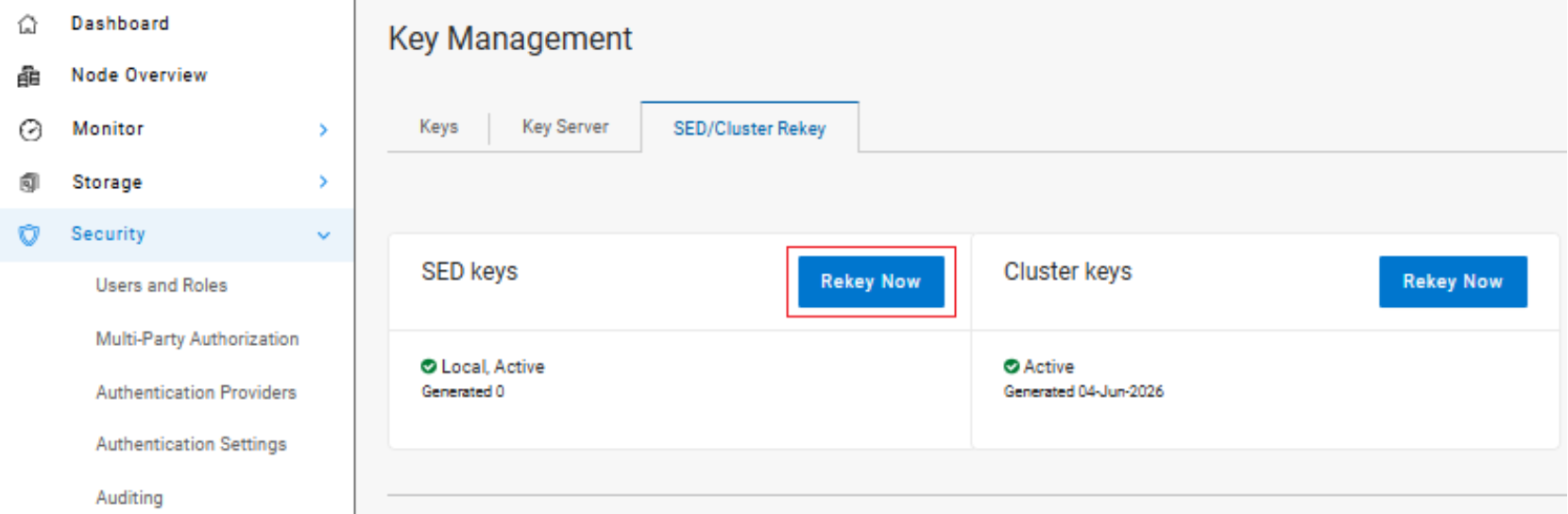
Figure 9. WebUI SED rekey
To schedule a rekey of the UK from the CLI, run the isi keymanager sed rekey modify command with the --key rotation= option. Specify the frequency of the key rotation as an integer using Y for years, M for months, W for weeks, D for days, H for hours, m for minutes, and s for seconds. For example, to have the rekey operation scheduled for every 3 months, run the following command: isi keymanager sed rekey modify --key rotation=3M.
Alternatively, from the WebUI, under the SED/Cluster Rekey tab, select Automatic rekey for SED keys and specify the rekey frequency, as shown in the following figure. Then click Save.
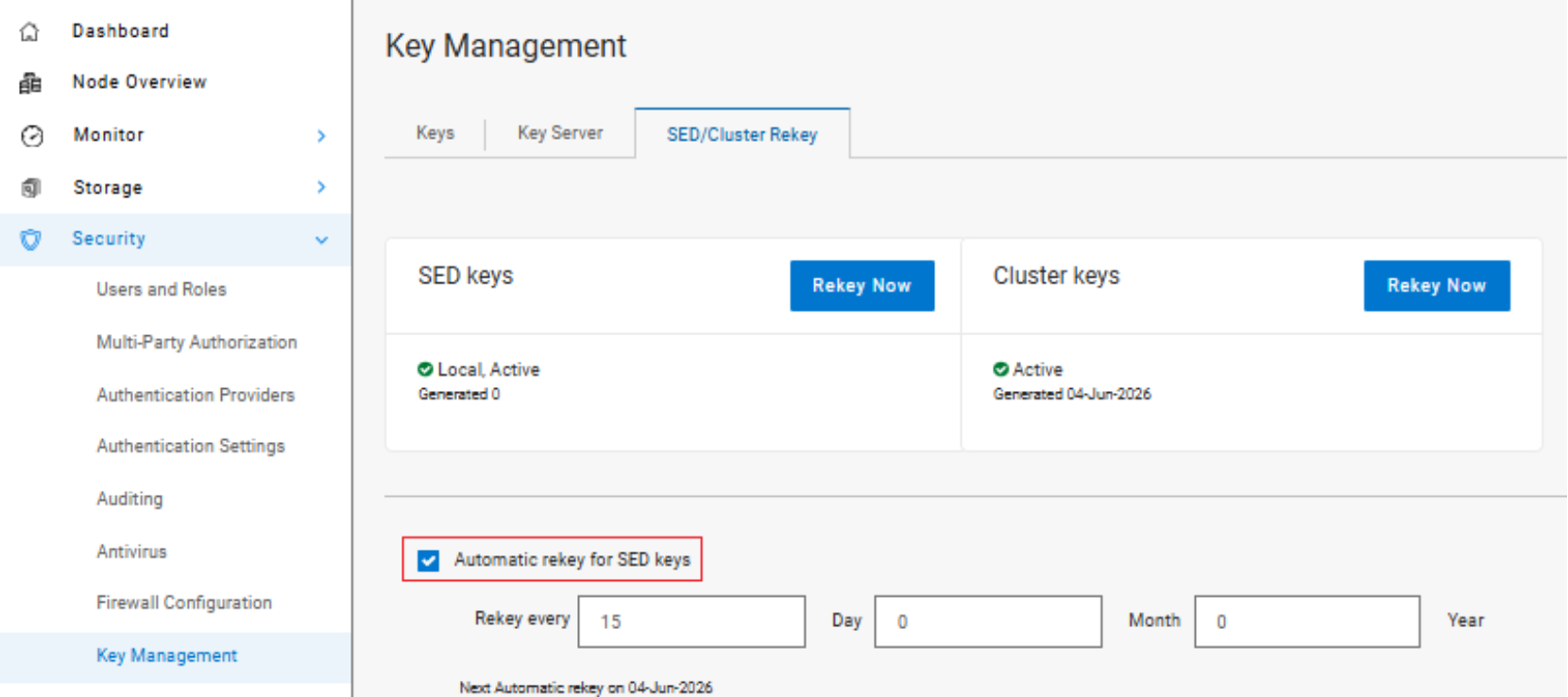
Figure 10. Automatic rekey for SED keys
Status and troubleshooting
To see the current rekey status in the CLI, run the isi keymanager sed status command, as shown in the following figure.

Figure 11. Key manager SED status
If any errors occur during the rekey process, a CELOG event is generated with a KeyManagerSedsRekeyFailed event. The rekey process is logged in /var/log/isi_km_d.log.
SEDs cryptographic erasure
During the decommissioning of a PowerScale node or during a drive replacement, a common concern with SEDs is confirming they are cryptographically erased.
SmartFail
You can cryptographically erase an SED by running SmartFail on a PowerScale node or drive. During the SmartFail process, OneFS issues a command to reset the DEK and delete the AK, cryptographically erasing the drive.
If an SED is SmartFailed and in the Replace state, it has been cryptographically erased. However, if a drive failure occurs and is in the Erase state, the data is not cryptographically erased. The data is inaccessible even in the Erase state.
During the SmartFail process, to ensure that the data on an SED is unreadable, OneFS completes at least one of the following actions:
- In a successful SmartFail condition, OneFS cryptographically erases data by changing the DEK and blocks read/write access to existing data by deleting the AK in OneFS.
- In a partially successful SmartFail condition, the drive fails to respond to SCSI commands. OneFS cannot cryptographically erase the data. However, read/write access to existing data is blocked by deleting the AK in OneFS.
The explanation of each SmartFail state is summarized in the following table.
Table 2. SED SmartFail states
|
SmartFail state |
DEK erased and reset |
AK erased and reset |
Cryptographic erasure |
Data inaccessible |
|
Replace |
✔ |
✔ |
✔ |
✔ |
|
Erase |
|
✔ |
|
✔ |
Confirming an SED is in the Replace state
As explained previously, OneFS attempts to place each SED in the Replace state. This section explains how to confirm the SED is in the Replace state.
After a node completes the SmartFail process
When a node completes the SmartFail process, it reboots to the configuration wizard. You can exit the wizard and check the /var/log/isi_sed log.
The log contains a release_ownership message for each drive as it goes through the SmartFail process, confirming it is in a Replace state, as shown in the following snippet:
2019-01-15T22:45:56Z <1.6> H400-SED-4 isi_sed[63658]: Command: release_ownership, drive bays: 1
2019-01-15T22:46:39Z <1.6> H400-SED-4 isi_sed[63658]: Bay 1: Dev da1, HITACHI H5SMM328 CLAR800, SN 71V0G6SX, WWN 5000cca09c00d57f: release_ownership: Success
Check by drive
Alternatively, to check an individual drive for its status, run the isi_sed command.
Caution: Practice extreme caution when using the isi_sed command. If you use it with incorrect syntax, it can destroy data and impact cluster operation. Do not use any of the command's other options without explicit instructions from PowerScale Technical Support. Before you run any commands in this section, double-check the command syntax for errors.
To query an SED for its status:
- View the device names of the drives in the cluster by running the following command:
isi_drivenum
Drive device names are displayed in the format /dev/da#, where # is a number. Make a note of the da# for the next step.
- Using the da# from the previous step, query the state of an SED drive by running following command:
# /usr/bin/isi_hwtools/isi_sed drive <da#>
Note: This command may take 30 seconds or longer to complete.
- Check the Drive State and Drive Status columns:
- If both columns display UNOWNED and if the line below the table states Fresh unowned drive, this means the drive has been reset to the factory-fresh state. Also, the AK is deleted from the IKM.
- If both columns display a status of AUTH FAILED, the AK has been deleted for the IKM, but the drive was not reset to a factory-fresh state. The data on the drive is no longer accessible without the AK. To cryptographically erase the drive, see the next section, Cryptographic erasure after the SmartFail Erase state.
Cryptographic erasure after the SmartFail Erase state
After you attempt the SmartFail process, if a drive is in the Erase state and cryptographic erasure is required, manually revert the SED drive to the Unowned state. This state is the factory-fresh state. The SED physical security ID (PSID) is required for reverting an SED to the Unowned state. For enhanced security, the PSID is only accessible by removing the drive and examining the drive label.
The PSID, or Physical SID of the drive, is a 32-character password assigned by the drive manufacturer during production. A host system cannot change the password. The PSID is on the drive label in a readable format, and depending on the drive manufacturer, it may also be available in a barcode format.
If the revert command is issued to an SED and its matching PSID is entered at the prompt, the SED prepares for reinitialization by deleting its DEK and drive-access password. The SED ownership state resets to unowned. After the state resets, the drive is in a factory-fresh state, and any previous data is permanently cryptographically erased.
Note: The PSID can only be used for reverting the drive; it does not grant access to any encrypted data present on the drive.
PowerScale cluster cryptographic erasure
If an entire PowerScale cluster requires cryptographic erasure, either reimage or reformat the cluster. Once complete, all SEDs are cryptographically erased.
Note: The format process on SEDs requires significantly more time than on nonencrypted drives because encryption seed data is written to all sectors on the drive. If the format process is interrupted, due to power loss or drive removal, the node automatically destroys the AK.
PowerScale node cryptographic erasure
If an entire PowerScale node requires cryptographic erasure rather than individual SEDs, you can complete this action by performing a SmartFail on the node. In this process, all drives are released from the node, ensuring they are cryptographically erased.
Common SED concerns
This section covers common questions and concerns about SEDs.
- Data recovery from a defective or inaccessible SED drive: If data from an SED cannot be read due to a malfunction, accidental release, or mishandling, the data on the drive is permanently lost. The data on the drive remains encrypted, and the DEK is not accessible by any means. Recovery techniques that work on traditional drives are useless on SEDs due to the encryption.
- SED performance: SEDs do not have a performance penalty when compared to non-SED drives. The onboard hardware encryption ensures that the encryption does not impact performance.
- SED formatting: SEDs take more time to format when compared to a non-SED drive. The extra time is required to format an SED because each drive is fully overwritten with random data as part of the encryption initialization process.
To confirm the format process is still running, depending on the OneFS version, the formatting process is either displayed by dots or by percentage. OneFS displays a completed message once the format is complete.
Note: If an SED format process is interrupted for any reason, all SEDs in a node are unusable. The only recourse is to manually revert each drive using the PSID, as described in Cryptographic erasure after the SmartFail Erase state.
FIPS 140-3 certification
The Federal Information Processing Standard (FIPS) Publication 140-3 is a National Institute of Standards and Technology (NIST) and Canadian Communications Security Establishment (CSE) standard for approving cryptographic modules. A FIPS 140-3 certification is granted after the model is tested and validated by the United States and Canadian government agencies.
A FIPS certification is not only required by federal agencies and departments, but now has a global presence as a best practice of security certification. For organizations that store sensitive data, a FIPS certification may be required based on government regulations or industry standards. As companies opt for drives with a FIPS certification, they are ensured that the drives meet stringent regulatory requirements. A FIPS 140 certification is provided through the Cryptographic Module Validation Program (CMVP). The CMVP ensures that products conform to the FIPS 140 security requirement.
OneFS 9.15 added CPU jitter as a single source of entropy for cryptographic random number generation. Having a single validated source of entropy is required by NIST SP 800-90 and FIPS 140-3. The CPU jitter entropy source is enabled by default.
The health of the entropy source can be viewed with the following CLI commands:
# isi healthcheck evaluations run jitterentropy_health
# isi healthcheck evaluations list
# cat <matching-evaluation-from-list>
For more information about FIPS, see FIPS PUB 140-3 Security Requirements for Cryptographic Modules. For more information about CMVP, see the page NIST CMVP.
PowerScale SED certificates
The SEDs in a PowerScale node are validated to ensure that they have been tested by the CMVP and conform to the FIPS 140 requirements, and a FIPS 140 certificate for the SED specifies both the drive name and type.
The FIPS certificate for each SED is available for download directly from the NIST CVMP website. For a link to the appropriate NIST page based on a node’s specific SEDs, send an email containing the node serial numbers to powerscale.fips.confirmation@dell.com.
To access a PowerScale node serial numbers, from the OneFS CLI, use the isi_for_array -s isi_hw_status -i command. The serial numbers are listed by each node in the SerNo field.
The email response includes a link directly to the NIST CVMP certificate page of the SED module. Under the Related Files section, click the Consolidated Certificate link to download the FIPS 140certificate.
Note: An email response may take up to five business days, depending on the current queue. If a FIPS certificate is required by a specific date, submit the request email as soon as possible.
FIPS Hierarchy & Nomenclature
OneFS 9.10 introduced the current FIPS 140-3 level. Additionally, the FIPS drive encryption levels undergo a clarification and renaming. To this end, OneFS now supports three levels of self-encrypting drives, each now designated with a ‘SED-‘ prefix - in addition to the standard ISE (instant secure erase) drives.
Table 3. OneFS SED FIPS Levels
|
Level |
Description |
|
ISE |
Instant secure erase (encrypts but does not secure) |
|
SED-1 |
Previously called SED Non-FIPS |
|
SED-2 |
Previously called FIPS 140-2 |
|
SED-3 |
New FIPS 140-3 level in OneFS 9.10 |
These OneFS 9.10 designations include SED level 1, previously known as SED non-FIPS, SED level 2, which was formerly FIPS 140 dash 2, and SED level 3, which denotes FIPS 140-3 compliance.
Note: Confirmation of a node’s SED level status can be verified via the ‘isi status’ CLI command output.
PowerScale PCI DSS compliance
Overview
This section provides guidelines for meeting PCI DSS version 4.0 compliance with the Dell PowerScale scale-out NAS platform. Across several verticals, OneFS provides storage for sensitive data. If the data is related to the Payment Card Industry (PCI), it must meet PCI DSS compliance, protecting sensitive cardholder data. The Payment Card Industry Data Security Standard (PCI DSS) provides a baseline of security measures and processes to protect sensitive financial data. The security processes and requirements span the entire IT infrastructure.
This document focuses specifically on the PCI DSS requirements for PowerScale OneFS, allowing administrators to achieve PCI DSS compliance. Throughout this document, the PCI DSS requirements are addressed regarding OneFS, as illustrated in the following figure.
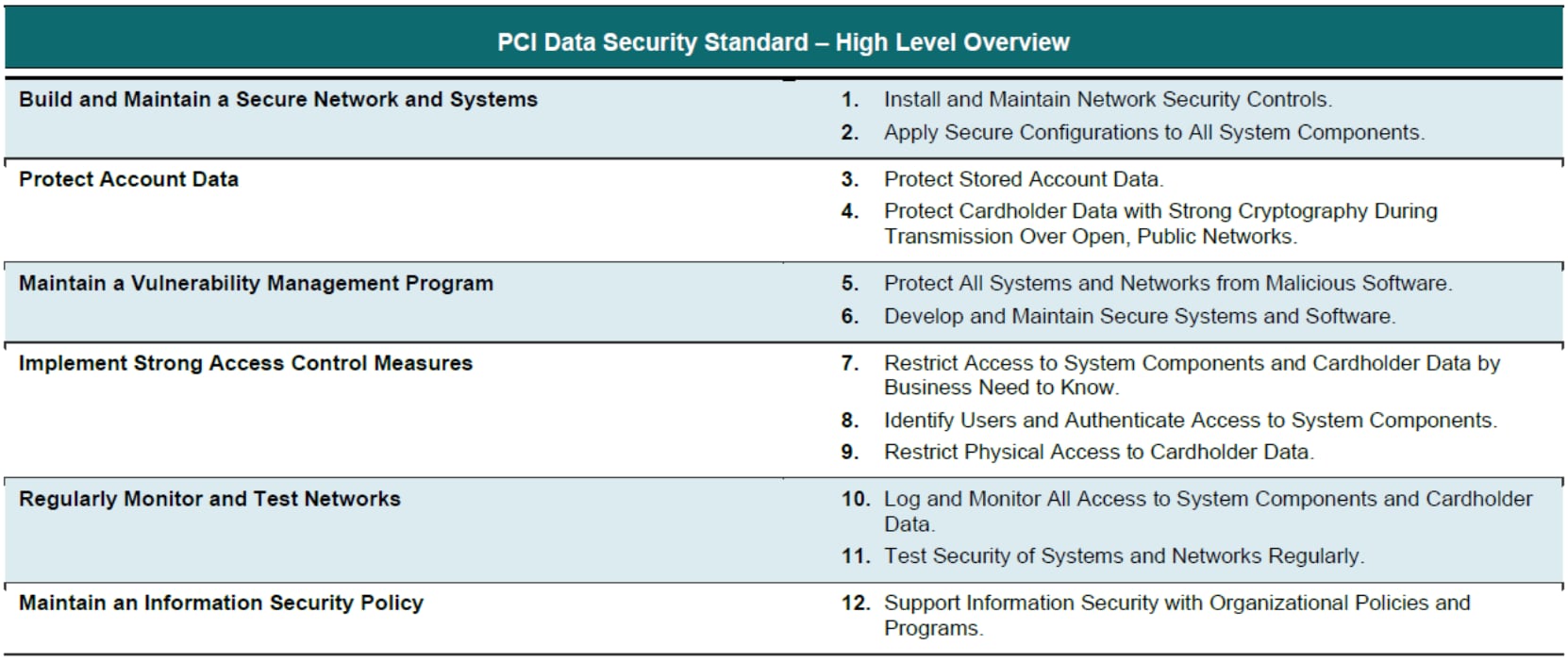
Figure 12. PCI DSS high-level overview
For more information about the PCI DSS specification, see the PCI DSS Requirements and Security Assessment Procedures.
The PCI DSS standard does not provide a certification of compliance to a product. Rather, the PCI DSS standard provides the security measures for configuring a product to meet compliance. Once a product is configured per the PCI DSS standard, an IT environment is assessed for PCI DSS compliance. This paper explains how a PowerScale cluster is configured to meet PCI DSS compliance.
In addition to the configuration steps provided in this section and white paper, the Security Configuration Guide for the relevant OneFS release should be reviewed for additional security configuration and hardening considerations. The Security Configuration Guide is available for each OneFS release at PowerScale Info Hubs.
Build and maintain a secure network and systems
The first pair of requirements focuses on creating a secure network and systems. The network must be protected and isolated from outside access. The reference to “systems” means all the components within the IT environment.
Requirement 1: Install and maintain network security controls
In previous releases of PCI-DSS this requirement focused specifically on firewalls. As corporate networks have evolved further into multiple environments that span locations and into multiple clouds, it is important to consider the security infrastructure. Traditionally, security was limited to firewalls but now requires a broader scope that provides the integrity, safeguards, and measures of a network to prevent unauthorized access. Network security controls (NSCs) include firewalls, routers, and other network security technologies that enforce policies between network segments.
NSCs are critical to the protection of an organization because they are responsible for limiting external traffic from accessing the internal network. In the network hierarchy, a PowerScale cluster must be located securely behind a firewall and/or other NSCs. All the nodes within a PowerScale cluster shall only have external network access through the NSCs, ensuring all traffic interacting with OneFS is filtered and approved. The configuration of this requirement is outside the scope of the PowerScale cluster.
Requirement 2: Apply secure configurations to all system components
As a best practice for any enterprise system, this requirement enforces those systems run secure configurations, rather than the default configuration a vendor applies from the factory. The secure configuration includes custom passwords and settings, rather than the default vendor configured settings. Unauthorized malicious parties gain system access by first trying system defaults and publicly known settings.
OneFS allows administrators to define login settings at the initial system deployment or to update a production cluster. For configuration steps, see the OneFS CLI Administration Guide for the relevant OneFS release at PowerScale Info Hubs.
Note: As a best practice, before deploying a production PowerScale cluster, design the system access hierarchy containing the wanted profiles. This minimizes complications in the future, as security profiles do not require modifications.
In addition to updating passwords, additional login security measures should also be considered. OneFS provides Role Based Access Control (RBAC), limiting system access based on an administrative role. Utilizing RBAC minimizes the administrators who have full system access to a PowerScale cluster, allowing each administrator to manage a subset of the cluster only. In addition to RBACs, configure multifactor authentication. Furthermore, consider the other security configurations in this paper. For more information about RBAC and multifactor authentication, see the OneFS Security Configuration Guide for the relevant OneFS release at PowerScale Info Hubs and the PowerScale OneFS Authentication, Identity Management, and Authorization white paper.
Note: As a best practice, before deploying a production PowerScale cluster, test a security configuration on the PowerScale simulator in a lab environment. As recommended in the PCI DSS standard, update all system login access information before placing a system on the network.
Once the login and hierarchy requirements are configured, this requirement also considers insecure services and protocols, recommending that only necessary services and protocols should be enabled. Before deploying a PowerScale cluster, consider the data protocols and services that are required for an environment. If the plan does not include the use of certain protocols, consider disabling them. For more information about disabling protocols, see the OneFS Security Configuration Guide for the relevant OneFS release at PowerScale Info Hubs.
Protect cardholder data
The second pair of requirements focuses on protecting cardholder data when it is stored and throughout the transmission.
Requirement 3: Protect stored account data
Account data is protected by using encryption, truncation, hashing, and masking. The goal of these requirements ensures that if unauthorized access to cardholder data takes place, the data is of no use and not readable without the proper cryptographic keys.
Requirement 3.5.1 specifies that the cardholder Primary Account Number (PAN) must be unreadable anywhere it is stored. The data is unreadable through the use of security processes, including:
- One-way hashes based on strong cryptography, (hash must be of the entire PAN)
- Truncation (hashing cannot be used to replace the truncated segment of PAN)
- Index tokens and pads (pads must be securely stored)
- Strong cryptography with associated key-management processes and procedures
The security processes must be part of the workflow ensuring only the PAN is unreadable when it is stored on PowerScale nodes, as shown in the following figure.
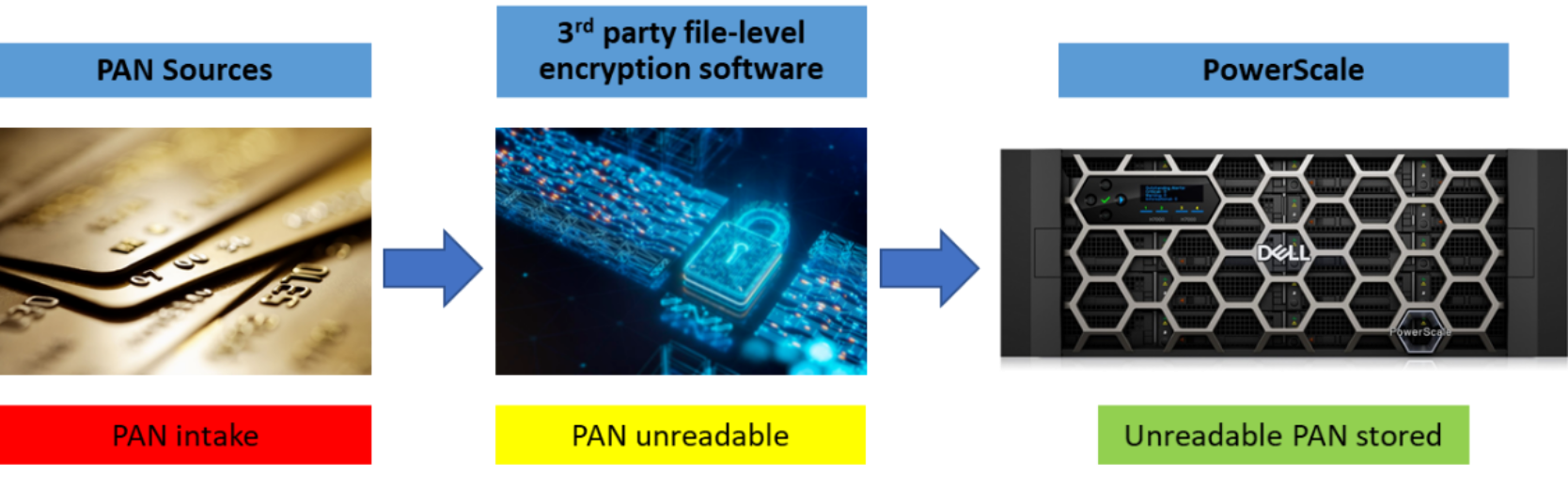
Figure 13. File-level encryption workflow
PowerScale OneFS meets the other requirements for storing cardholder data by using self-encrypting drives (SEDs), providing a solution for the security of data through Data-at-rest encryption (DARE). Data written to a SED is encrypted when it is stored. SEDs require a key each time the drive is accessed by OneFS. Further, as Requirement 3.5 states, to secure the keys of each SED, OneFS uses an encryption key management system, wrapping encryption keys with key encrypting keys, and an external key manager. For more information about SEDs and DARE, see PowerScale Data at Rest Encryption.
The other requirements in this section are enforced through policies, procedures, and processes external to the PowerScale cluster.
Requirement 4: Protect cardholder data with strong cryptography during transmission over open, public networks
This requirement is specific to data transmission across open, public networks such as the Internet and cellular or satellite communication.
OneFS support encryption for SyncIQ, ensuring data replication traffic between two clusters is secure. SyncIQ encryption offers over-the-wire, end-to-end encryption for data replication, protecting and securing in-flight data. For more information about SyncIQ encryption, see the Dell PowerScale SyncIQ: Architecture, Configuration, and Considerations white paper.
NFS is encrypted using Kerberos and SMBv3 provides encryption. For more information, see the Dell PowerScale: Integrating OneFS with Kerberos Environment for Protocols and PowerScale: Solution Design and Considerations for SMB Environments white papers.
Maintain a vulnerability management program
The third pair of requirements focuses on securing systems and applications while protecting against malicious software.
Requirement 5: Protect all systems and networks from malicious software malware
Protecting the network and all devices against all forms of malware is important. If an IT environment is not protected, system vulnerabilities may be exposed. Anti-virus software is recommended for all systems to protect against threats, paired with additional anti-malware solutions as required.
PowerScale OneFS provides two options for anti-virus protection. The first solution supports the Internet Content Adaptation Protocol (ICAP) standard, ensuring that all anti-virus software with the ICAP standard is supported. For more information about configuring ICAP servers and an anti-virus overview in OneFS, see the OneFS Web Administration Guide for the relevant OneFS release at PowerScale Info Hubs.
In addition to ICAP, the other anti-virus option is the Common Anti-Virus Agent (CAVA) solution. CAVA provides better performance than the ICAP option, using a Microsoft Windows server and third-party anti-virus software through the Dell Common Event Enabler (CEE), as shown in the following figure.
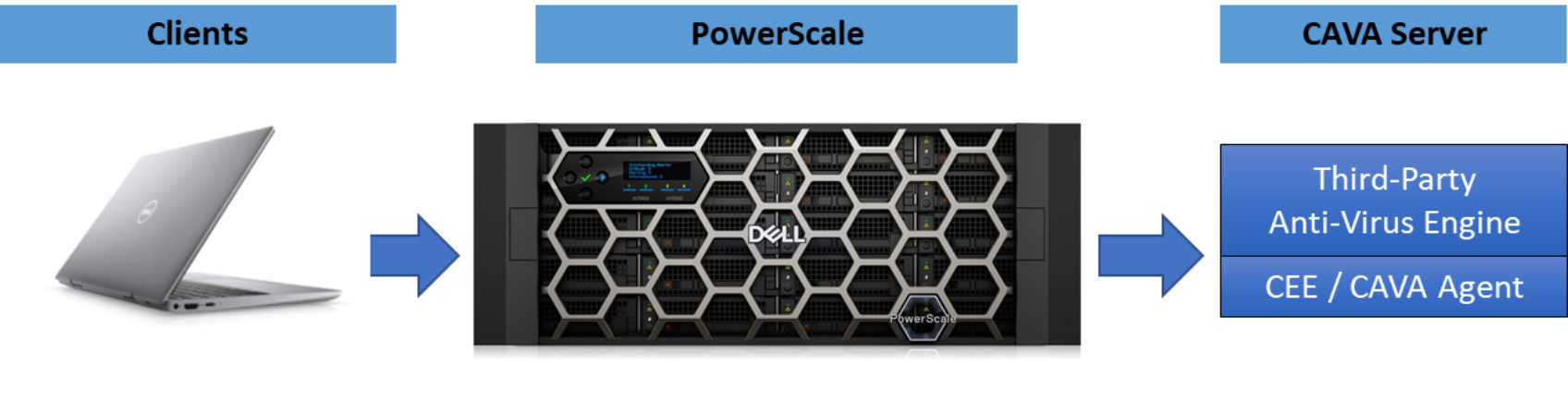
Figure 14. PowerScale and CAVA Server
Both ICAP and CAVA offer on-access scanning, anti-virus policy scanning, and individual file scanning.
The other requirements in this section mention behavior analysis and protection from phishing attacks. For cluster monitoring, Dell CloudIQ is recommended. Further, Superna provides various security-focused applications, including cyber protection and Ransomware defender, for PowerScale clusters, as described in Superna security applications.
For cluster auditing, see the File System Auditing with Dell PowerScale and Dell Common Event Enabler white paper. The PowerScale OneFS SDK allows administrators to provision a custom application to configure, manage, and monitor cluster activity.
Requirement 6: Develop and maintain secure systems and software
Security vulnerabilities in any system are an open door for allowing access to unauthorized individuals. Shielding systems from security vulnerabilities is usually a process of updating to a current software release or installing a security patch depending on the vendor. Ensure that all systems are continuously monitored for security vulnerabilities and apply updates to resolve any open vulnerabilities.
PowerScale provides patches for any open security vulnerabilities. For more information about the PowerScale OneFS software release frequency, see the PowerScale Software Release and Patching Strategy white paper. Additionally, monitor security advisories for PowerScale on Dell Support at Security Advisories and Notices.
The configuration of the other requirements in this section is outside the scope of the PowerScale cluster.
Implement strong access control measures
The fourth set of requirements focuses on ensuring access to payment card data is based on strict security measures.
Requirement 7: Restrict access to system components and cardholder data by business need to know
This requirement ensures that only authorized individuals access system components and payment card data. Enforcing this requirement is achieved through systems and processes that ensure access to payment card data is based on a “Need to know” basis, where the least amount of data is divulged to perform a job.
Once the roles and access controls are defined, they are implemented on a PowerScale cluster through OneFS Role Based Access Control (RBAC). RBAC ensures that an administrator only grants specific functions and access based on a specific role. For more information about the OneFS RBAC feature, see the Dell PowerScale OneFS: Authentication, Identity Management, and Authorization white paper.
The other requirements in this section are enforced through policies, procedures, and processes external to the PowerScale cluster.
Requirement 8: Identify users and authenticate access to system components
Requirement 8 ensures that every individual with access to a system has a specific identification and is authenticated through a secure process. The identification and authentication processes provide accountability for all actions within a system.
Administrators define user identification and authentication within a PowerScale cluster. Local authentication is available, allowing each ID to be locally created. On the contrary, external authentication is available through Active Directory or an LDAP provider. For more information about defining user identification and options, see the Dell PowerScale OneFS: Authentication, Identity Management, and Authorization white paper.
This section includes requirements defining lockout duration, idle sessions, cryptography, password complexity, and password expiration. The OneFS Security Configuration Guide for the relevant OneFS release at PowerScale Info Hubs explains how to implement these requirements.
PowerScale OneFS can audit system configuration events, through APIs, allowing events to be tracked and recorded. For more information about auditing in OneFS, see the Dell PowerScale: File System Auditing with Dell Common Event Enabler white paper. Configuring audit in OneFS is also explained in the OneFS CLI Administration Guide.
OneFS also supports multifactor authentication for SSH. For more information about multifactor authentication, see the Dell PowerScale OneFS: Authentication, Identity Management, and Authorization white paper.
The other requirements in this section are enforced through policies, procedures, and processes external to the PowerScale cluster.
Requirement 9: Restrict physical access to cardholder data
Physical access to cardholder data or systems that host cardholder data should be restricted to ensure that systems or hard copies of data may not be removed.
PowerScale nodes can be installed in locked racks and placed in a secure data center, protecting physical access to the nodes. SEDs further enhance physical security in the event any drives are removed from a node. The data on the SEDs are not readable by any other PowerScale cluster or other systems, as the drive keys are wrapped in encryption keys on the node itself. For more information about SEDs and Data at Rest Encryption, see PowerScale Data at Rest Encryption.
OneFS supports encryption for SyncIQ, ensuring data replication traffic between two clusters is secured. SyncIQ encryption offers over-the-wire end-to-end encryption for data replication, protecting and securing in-flight data. For more information about SyncIQ encryption, see the Dell PowerScale SyncIQ: Architecture, Configuration, and Considerations white paper.
The other requirements in this section are enforced through policies, procedures, and processes external to the PowerScale cluster.
Regularly monitor and test networks
The following two requirements ensure regular monitoring of all the systems, processes, and networks.
Requirement 10: Track and monitor all access to network resources and cardholder data
If data is stolen or compromised, it is important to have a history of user activities through logging, ensuring a trail of user activity is always available. Not only is logging useful after an event, but it is essential for early detection and minimizing future impacts.
OneFS provides auditing support for third-party software through the Dell Common Event Enabler (CEE). Auditing events are configured in OneFS and sent to a CEE server, allowing third-party software to gather events through the CEE server.
Auditing support in OneFS includes options for system configuration change or protocol-specific auditing. Auditing configuration is simple, as once the option is enabled, auditing events are forwarded through APIs, including writes, deletes, and modifications. Auditing is configurable specific to a Multi-tenant Access Zone or an entire cluster. For more information about auditing, see the File System Auditing with Dell PowerScale and Dell Common Event Enabler white paper.
Requirement 10.4 specifies the use of time-synchronization technology. OneFS supports the Network Time Protocol (NTP). See the OneFS CLI Administration Guide for the relevant OneFS release at PowerScale Info Hubs.
The other requirements in this section are enforced through policies, procedures, and processes external to the PowerScale cluster.
Requirement 11: Regularly test security systems and processes
As with any IT environment, tools, and practices, ensuring security systems and processes are effective is an ongoing process. Schedule security tests frequently, ensuring that all systems are ready. Also, consider that new software and devices introduce new threats to any IT environment. The threats are not only dependent on new software but could appear through a new version of the software if vulnerabilities were not discovered during the initial release.
PowerScale provides patches for any open security vulnerabilities. For more information about the PowerScale OneFS software release frequency, see the PowerScale Software Release and Patching Strategy white paper.
The other requirements in this section are enforced through policies, procedures, and processes external to the PowerScale cluster.
Maintain an information security policy
This section details a requirement for enforcing policies.
Requirement 12: Maintain a policy that addresses information security for all personnel
Security policies in a data center provide continuous enforcement of security processes and methods. It also provides a template for personnel to align with a security practice.
The requirements in this section are enforced through policies, procedures, and processes external to the PowerScale cluster.
PowerScale Secure Boot
Overview
The Unified Extensible Firmware Interface (UEFI) Forum is an alliance of technology companies to standardize, secure, and modernize the boot process across devices by developing a UEFI specification. A software stack is composed of hardware, firmware, and the operating system. The UEFI specification links the firmware with the operating system, through the EFI system partition.
As part of the UEFI 2.3.1 specification, Secure Boot was introduced to ensure device security in the preboot environment by allowing only authorized EFI binaries to be loaded during the process. In the boot sequence, a device could be susceptible to a malware attack during the firmware startup and the loading of the operating system. UEFI Secure Boot reduces the attack vectors by ensuring that the Operating System boot loaders are signed with a digital signature.
Dell PowerScale Secure Boot takes the UEFI framework a step further, including the OneFS kernel and modules. The UEFI infrastructure is responsible for the EFI signature validation and binary loading within UEFI Secure Boot. Further, FreeBSD’s veriexec function is used to perform signature validation for the boot loader and kernel.
The PowerScale Secure Boot feature is enabled on each node individually and provides a level of defense against potential malware attacks. The PowerScale Secure Boot feature runs during the nodes’ bootup process only, using public-key cryptography to verify the signed code, to ensure that only trusted code is loaded on the node.
Configuration
You must configure PowerScale Secure Boot on each individual node in a PowerScale cluster. Be sure to understand the requirements and considerations described in this section before configuring PowerScale Secure Boot.
Supported platforms and prerequisites
The PowerScale Secure Boot feature requires a supported node platform, OneFS version, and NFP version, as shown in the following table.
Table 4. PowerScale Secure Boot supported platforms
|
Platform |
NFP version |
OneFS version |
|
Dell Isilon A2000 |
11.4 or later |
9.3.0.0 or later |
|
Dell PowerScale A300, A3000, B100, F200, F210, F600, F710, F900, H700, H7000, P100 |
11.4 or later |
9.3.0.0 or later |
Note: You must upgrade to OneFS 9.3.0.0 or later before upgrading to Node Firmware package 11.4.
Considerations
Before configuring the PowerScale Secure Boot feature, consider the following information:
- Isilon and PowerScale nodes are not shipped with PowerScale Secure Boot enabled. However, the feature may be enabled as required by site requirements.
- Enabling the PowerScale Secure Boot feature is performed individually on each node by using IPMI or the BIOS.
- A PowerScale cluster composed of PowerScale Secure Boot enabled nodes, and PowerScale Secure Boot disabled nodes, is supported.
- A license is not required for PowerScale Secure Boot, because the feature is natively supported.
- The PowerScale Secure Boot feature can be enabled or disabled at any point. Enabling PowerScale Secure Boot does not impact disabling the feature in the future.
- Plan a maintenance window to enable or disable the PowerScale Secure Boot feature. A node reboot is required during the process.
- As a best practice, configure a BIOS UI admin password to restrict access. For more information about configuring the BIOS admin password, see the Security Configuration Guide for the specified release at PowerScale Info Hubs.
- The PowerScale Secure Boot feature does not affect cluster performance. The feature is only run at bootup.
- After the PowerScale Secure Boot feature is enabled, reimaging the node through PXE is not supported. However, reimaging through a USB drive is supported. If a node must be reimaged through PXE, disable PowerScale Secure Boot, reimage, and enable PowerScale Secure Boot.
Enabling PowerScale Secure Boot
Before enabling the PowerScale Secure Boot feature, review this paper in its entirety. The PowerScale Secure Boot feature is enabled on each node individually. Repeat the process for each node where the PowerScale Secure Boot feature is required. The process for enabling the Secure Boot feature depends on the node platform.
A300, A310, A3000, A3100, H700, H710, H7000 and H7100 nodes
To enable the PowerScale Secure Boot feature on an A300, A310, A3000, A3100, H700, H710, H7000 or H7100 node, perform the following steps:
- Upgrade the cluster to OneFS 9.3.0.0 or later (if not already completed), and ensure that the release is committed successfully.
- Upgrade the node where the PowerScale Secure Boot feature is to be enabled to Node Firmware Package 11.4 (if not already completed).
- Log in to the OneFS command-line interface of the node where the PowerScale Secure Boot feature is to be enabled, as a user with IPMI permissions.
- To enable the PowerScale Secure Boot feature, run the following commands:
ipmitool raw 0x30 0x12 0x08 0x13 0x01 0x53 0x55 0x42 0x54
ipmitool raw 0x30 0x11 0x04 0x00 0x08 0x13 0x01
The expected output is 0x00 0x08 0x13 0x01 0x53 0x55 0x42 0x54.
ipmitool raw 0x30 0x12 0x0C 0x13 0x01 0x01
ipmitool raw 0x30 0x11 0x01 0x00 0x0C 0x13 0x01
The expected output is 0x13 0x01 0x01.
- Reboot the node to apply the PowerScale Secure Boot feature.
- To confirm whether the PowerScale Secure Boot feature is enabled, run the following command:
sysctl security.mac.veriexec.state
The output should state that the veriexec state is loaded and active:
security.mac.veriexec.state: loaded active enforce locked
- Repeat steps 2 through 6 for each node in the cluster that supports the PowerScale Secure Boot feature.
B100, F200, F210, F600, F710, F900, F910, P100, and PA110 nodes
To enable the PowerScale Secure Boot feature on a B100, F200, F210, F600, F710, F900, F910, P100, or PA110 node, perform the following steps:
- Ensure that the cluster is running OneFS 9.3.0.0 or later. If an upgrade is required, implement the upgrade and ensure that the release is committed successfully.
- Ensure that the node where the PowerScale Secure Boot feature is to be enabled has Node Firmware Package 11.4 or later.
- Reboot the node and press the F2 key at the BIOS POST screen, as shown in the following figure.
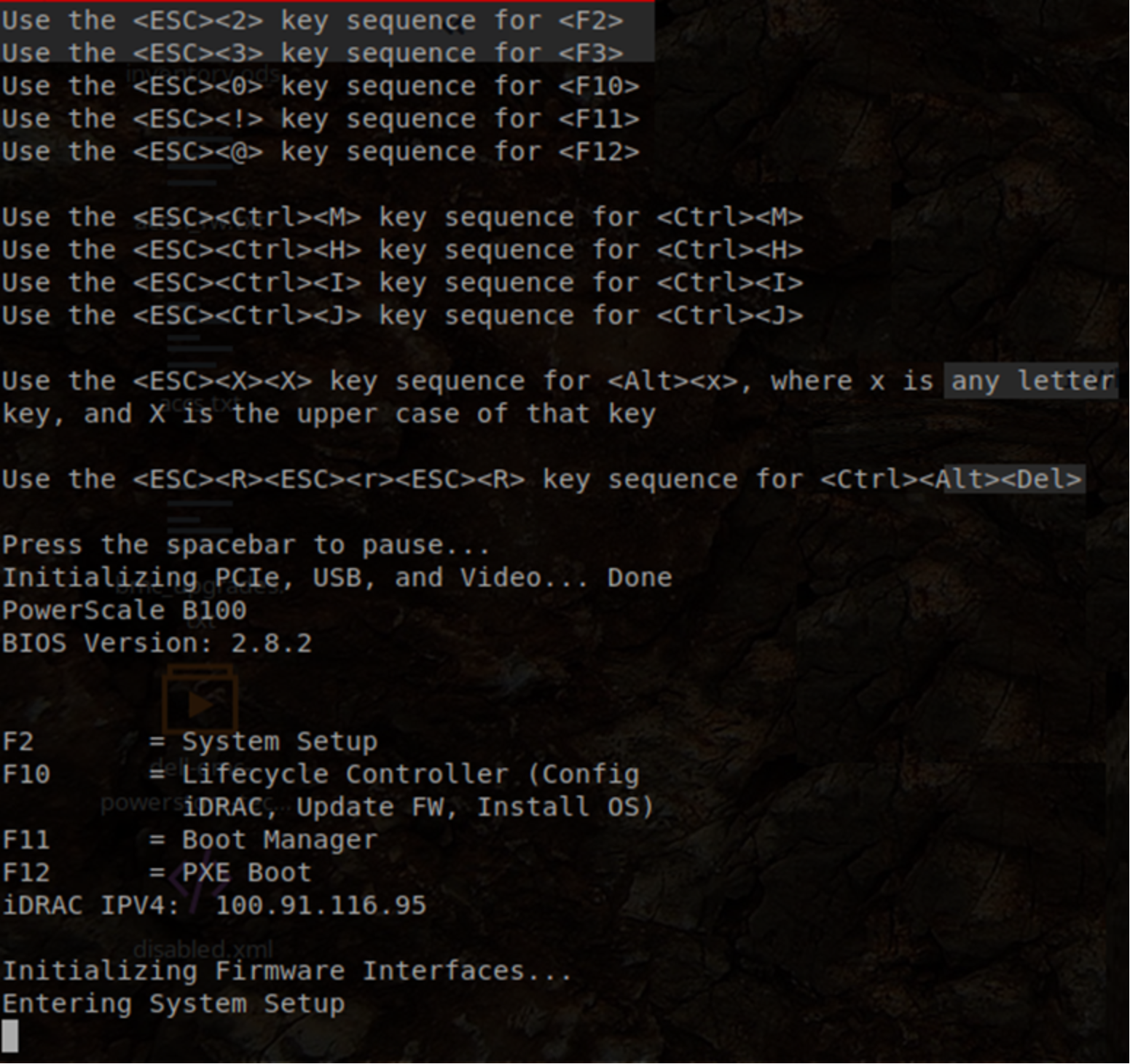
Figure 15. BIOS POST screen
- Select the System BIOS option from the System Setup screen, as shown in the following figure.
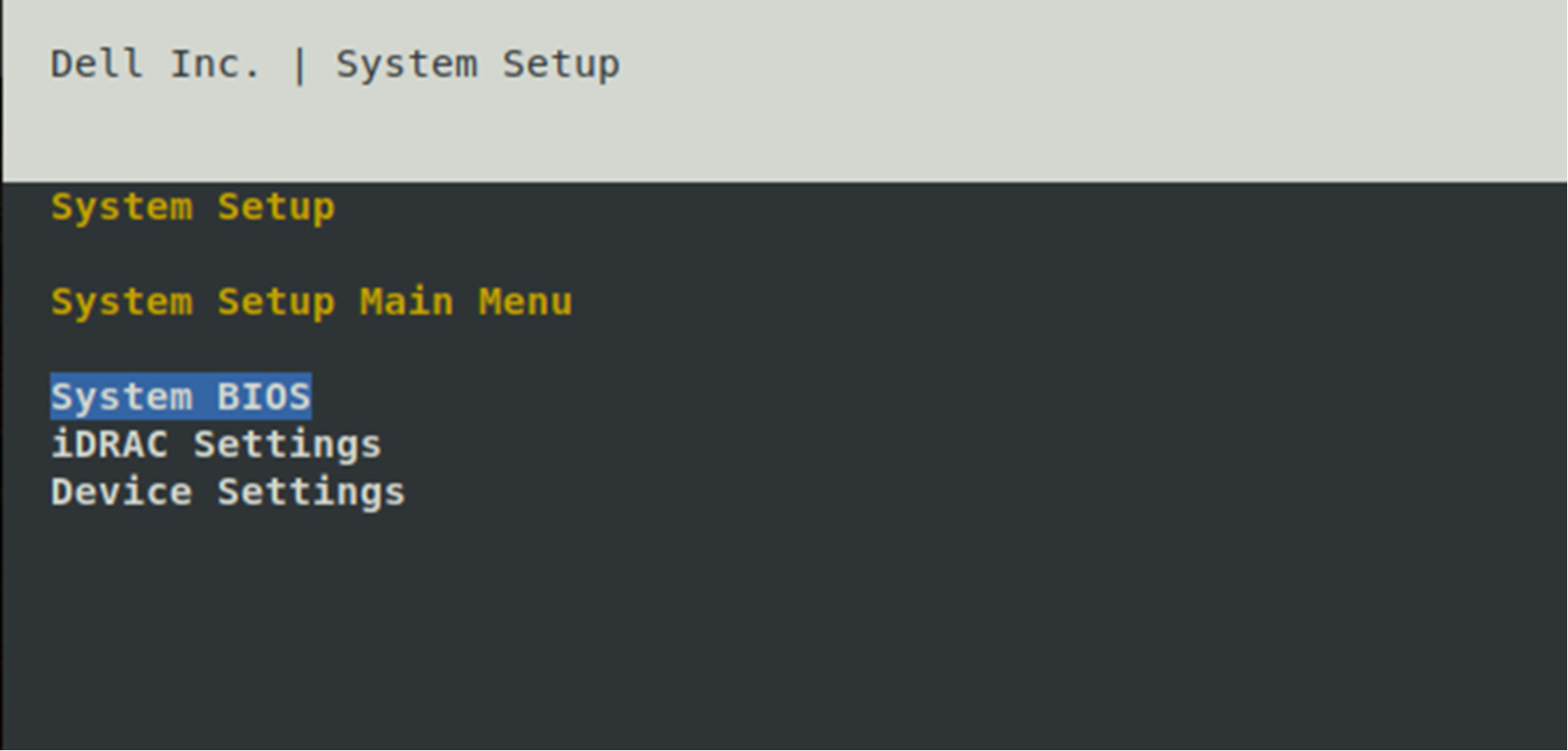
Figure 16. System Setup
- Select the System Security option from the System BIOS screen, as shown in the following figure.
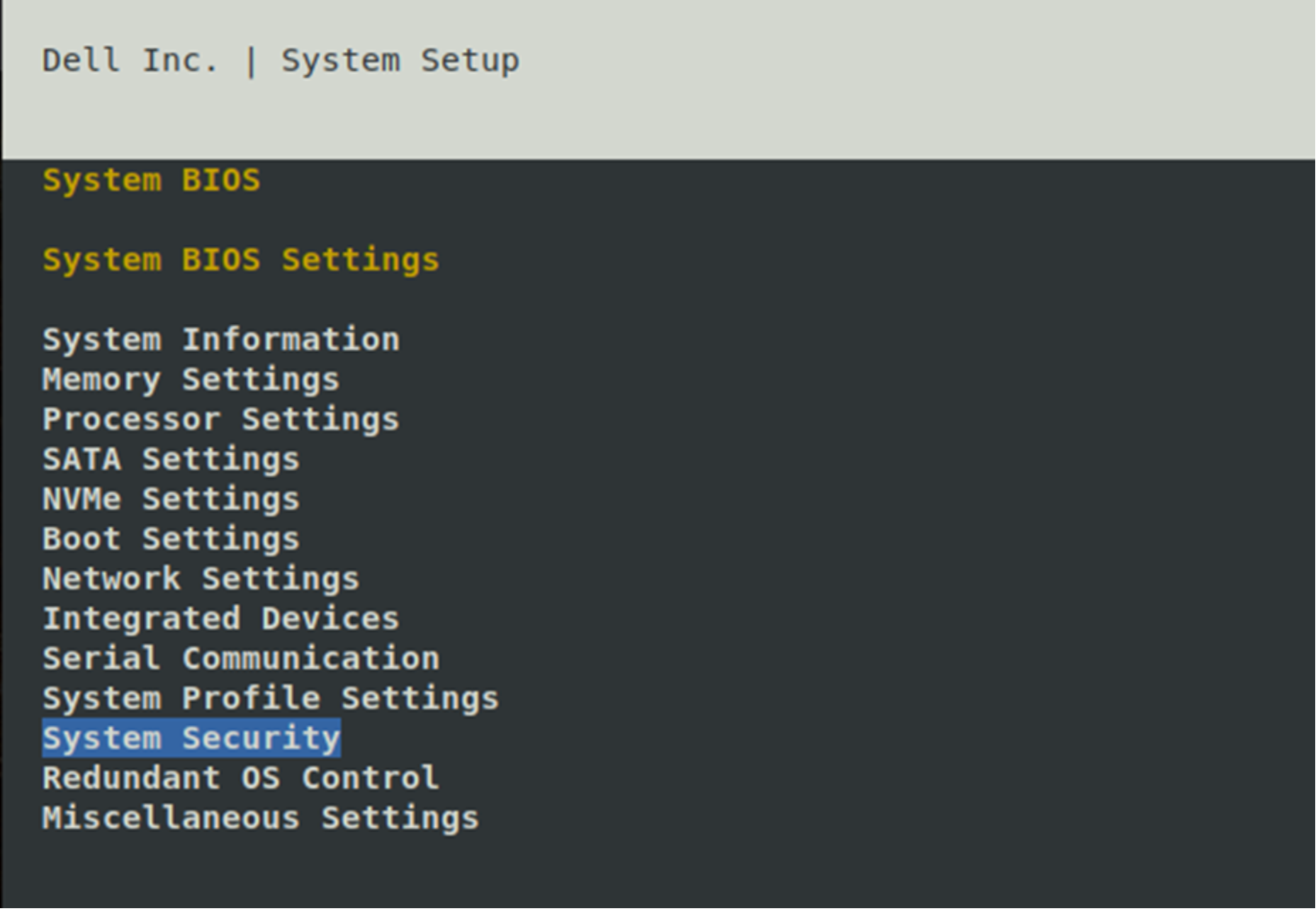
Figure 17. System Security
- Scroll down to the Secure Boot option under System Security and switch it to Enabled, as shown in the following figure.
Figure 18. Secure Boot
- Press the ESC key one screen at a time until the initial System Setup screen appears, then press the ESC key again. Finally, when a prompt appears to exit and reboot, select the Yes option, as shown in the following figure.
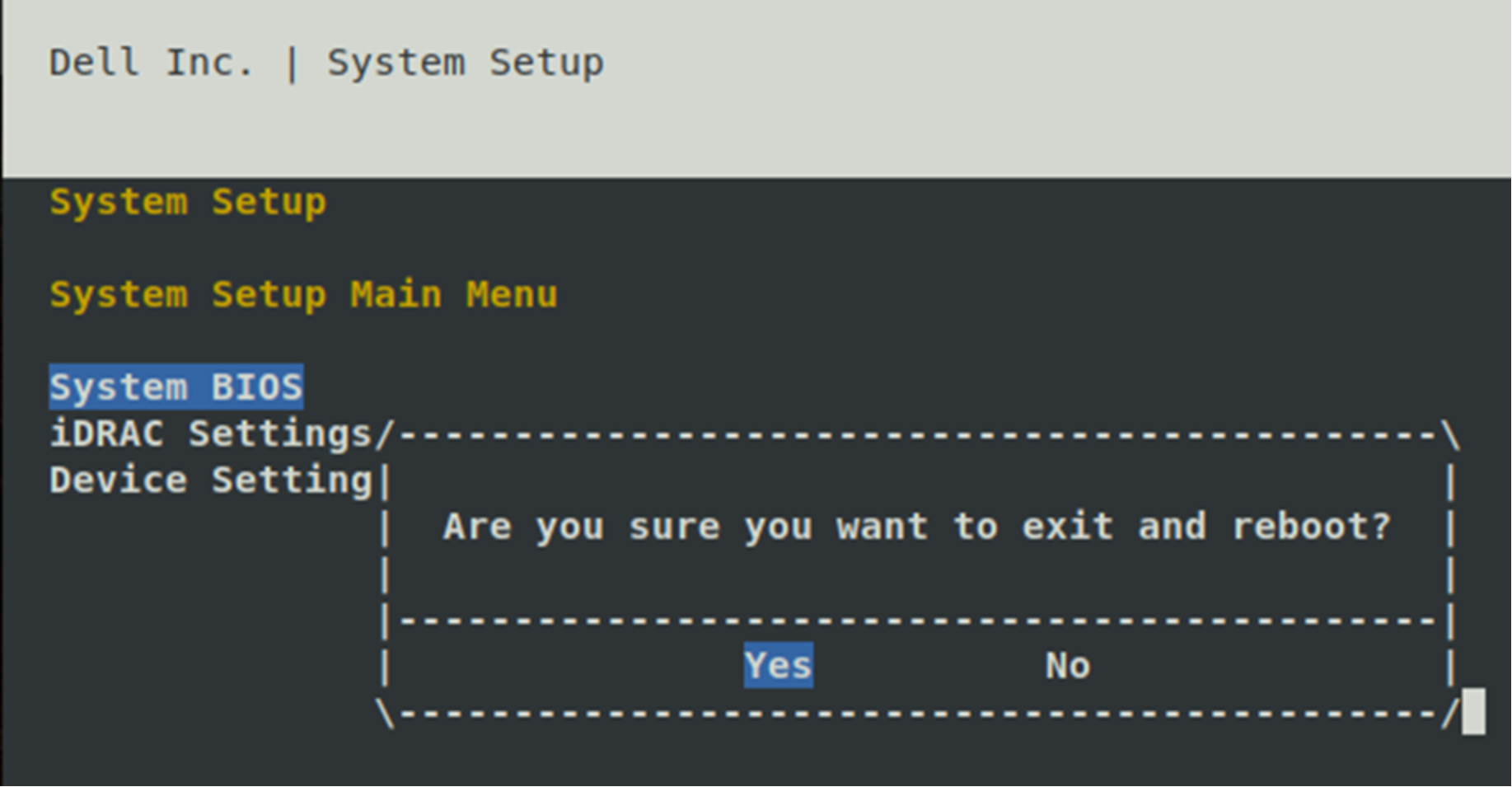
Figure 19. Exit and reboot
During the reboot process, a message appears confirming that the Secure Boot feature is enabled:
UEFI0074: The Secure Boot policy has been modified since the last time the system was started
- To confirm whether the PowerScale Secure Boot feature is enabled, run the following command:
sysctl security.mac.veriexec.state
The output should state that the veriexec state is loaded and active:
security.mac.veriexec.state: loaded active enforce locked
- Repeat Steps 2 through 8 for each node in the cluster that supports the PowerScale Secure Boot feature.
Disabling PowerScale Secure Boot
After the PowerScale Secure Boot feature is enabled, disabling it requires accessing the node's BIOS UI during the bootup sequence.
Note: Disabling the Secure Boot feature is only supported through the BIOS UI by design. This ensures that only those who have physical and administrator access to the node can perform this action.
Similar to the process of enabling the feature, disabling also requires repeating the process on each Secure Boot enabled node. The process for disabling the Secure Boot feature is the same for all node platforms.
To disable the PowerScale Secure Boot feature:
- Access the BIOS of the node where the PowerScale Secure Boot must be disabled. Press the F2 or DEL key during the boot sequence to enter the BIOS setup menu.
- Browse to the Security tab from the BIOS setup menu, and select the Secure Boot menu option as shown in the following figure.
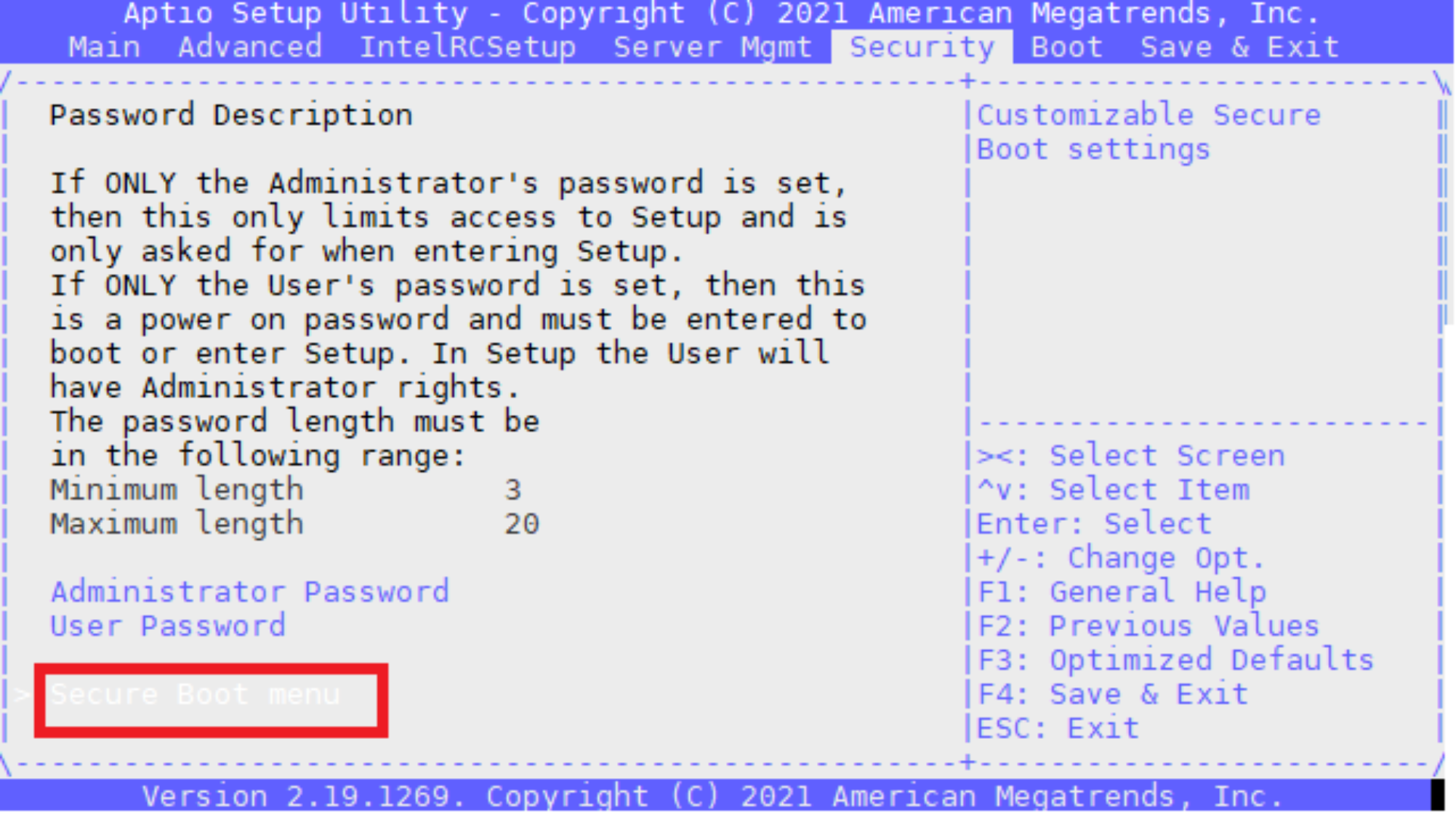
Figure 20. BIOS Security tab
- From the Secure Boot menu, select the Secure Boot option, as shown in the following figure.
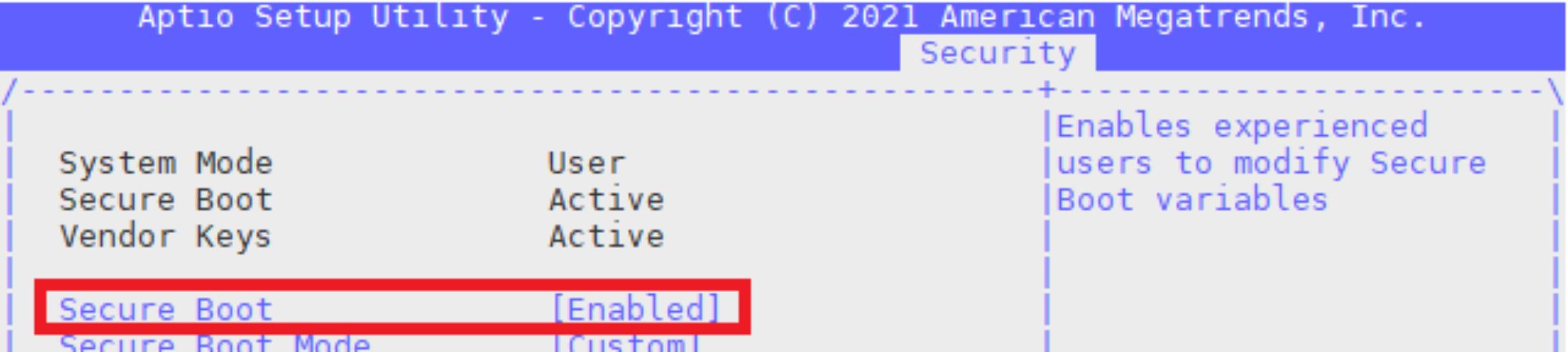
Figure 21. Secure Boot
- For Secure Boot, select Disabled to disable the PowerScale Secure Boot feature.
- Press the ESC key to return to the main menu.
- Browse to the Save & Exit tab, and select the Save & Exit option from the Save Changes and Exit tab, as highlighted in the following figure.
Secure Boot is now disabled, and the node will continue to boot after exiting the BIOS.
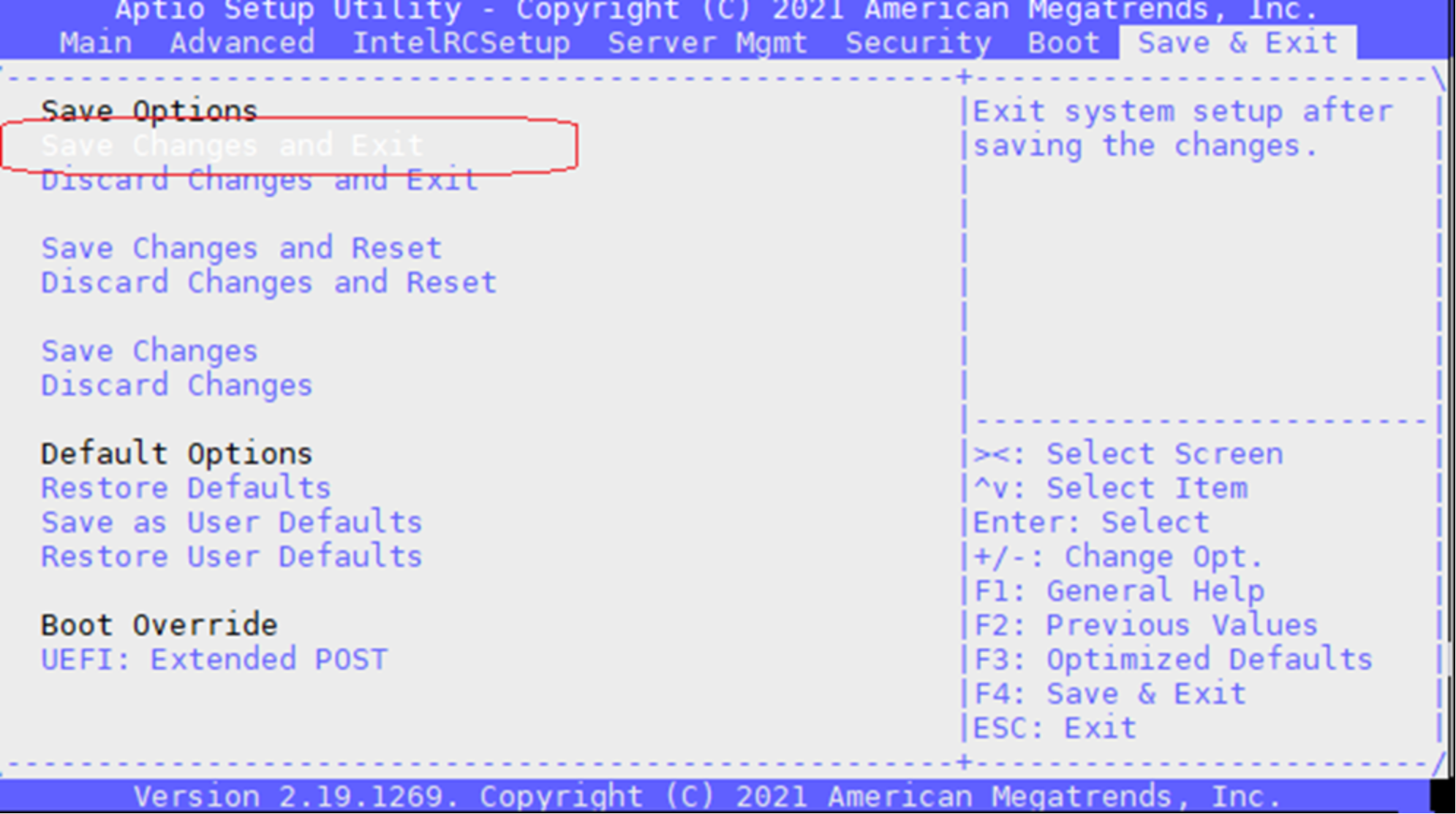
Figure 22. BIOS Save & Exit tab
PowerScale OneFS STIG security profile
Introduction
The PowerScale OneFS hardening engine automatically enforces security-based configurations. The hardening engine is a profile-based application. The STIG security profile is modeled on security controls provided in the United States Federal Department of Defense (DoD) Security Requirements Guides (SRGs) and Security Technical Implementation Guides (STIGs).
The hardening feature was developed specifically to assist U.S. federal agencies in complying with DoD SRG and STIG requirements that were applicable at the time of tool development. Each application of STIG and SRG security controls is unique to the specific implementation of an information system. Agencies apply the security controls that are deemed applicable to the platform and implementation. STIGs contain technical guidance measures to protect information systems and software that may otherwise be vulnerable to exploitation. The STIG security profile enforces standard and common security principles by applying security controls that reduce security vulnerabilities and attack surfaces.
A PowerScale cluster with the STIG security profile applied enforces a subset of the Defense Information Systems Agency’s (DISA) security controls. Other measures to meet the DISA STIG requirements are applied through the other data center infrastructure and administrative protocols. Organizations are encouraged to assess compliance against the requirements that are deemed applicable.
For OneFS 9.5.0.0, the PowerScale scheduled verification by the Department of Defense Information Network (DISA) for inclusion on the DoD Approved Product List began in March 2023. For more information, see the DISA schedule: APL Testing Schedule (disa.mil)
Note: The OneFS hardening engine is separate and unrelated to OneFS SmartLock compliance mode. For more information about SmartLock, see the Dell PowerScale: SmartLock Best Practices paper.
Assessment areas
The OneFS STIG security profile accounts for controls from several STIGs and SRGs Security profiles. They are preconfigured profiles that may not be edited.
OneFS 9.5.0.0 and later
For OneFS 9.5.0.0 and later, the STIG and SRG evaluation was performed in 2022, and the STIG security profile addresses those findings. The following table lists the referenced STIG or SRG for each security profile assessment area.
Table 5. STIG security profile assessment areas—OneFS 9.5.0.0 and later
|
Security profile assessment area |
Referenced STIG or SRG |
|
Operating system |
General Purpose Operating System SRG Version 2, Release 4 |
|
Apache Webserver |
Apache 2.4 UNIS Server STIG – Version 2, Release 4 |
|
Webserver |
Web Server SRG – Version 2, Release 3 |
|
Network Device Management |
Network Device Management SRG - Version 4, Release 1 Network Infrastructure Policy STIG Version 10, Release 3 |
Process
OneFS runs through a battery of steps when the security profile is applied. These steps remain in the background and are not displayed throughout the process. This section examines a subset of the OneFS process that follows initiation of the hardening command.
The security profile is applied through the CLI and API. After the hardening command is run, the hardening engine is launched, and the engine applies the security profile. The hardening engine is also responsible for hardening new nodes as they are added to a cluster.
OneFS 9.4.0.0 and earlier
For OneFS 9.4.0.0 and earlier, the node hardening state information is stored in /etc/ifs/hardening_info.txt. It contains the date, OneFS build, policy file path, and the cluster hostname, as shown in the following figure.
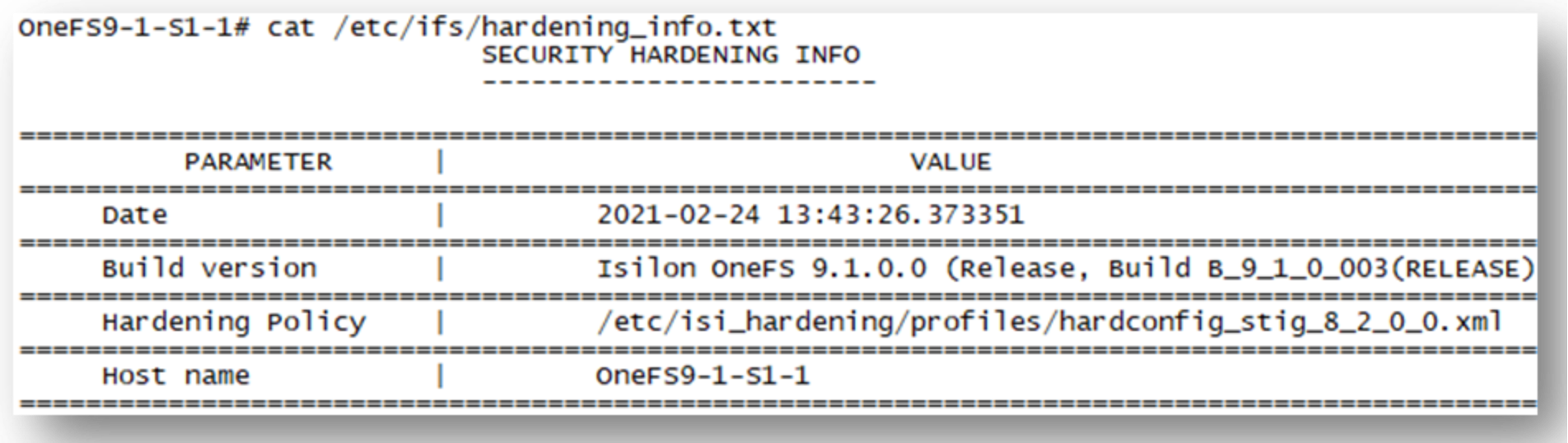
Figure 23. Example of hardening_info.txt
OneFS 9.5.0.0 and later
For OneFS 9.5.0.0 and later, you can find the cluster hardening state information by running the isi hardening reports create command followed by the isi hardening reports list command. The Applied field displays either Yes or No, and the Status field displays either Compliant or Not Compliant.

Figure 24. Example of hardening report
Further, after you create a hardening report, you can run the isi hardening reports view STIG command to list the status of all STIG configuration parameters. Using the --verbose option, you can obtain verbose output.
Configuration
Applying the STIG security profile on a PowerScale cluster is a straightforward process. However, before enabling STIG, you must understand the implications and the context of the STIG security profile. After the profile is applied, existing administrative workflows might be affected.
Prerequisites and considerations
Before applying the STIG security profile, review this paper in its entirety. Consider the effect on both user and administrative workflows. Implement workarounds to affected workflows, and update processes accordingly. Before applying the STIG security profile, consider the following information:
- Applying a STIG profile requires an active “Security hardening” license. Before proceeding, ensure that this license is active.
- Run isi status and confirm that all nodes are in an OK state. Also, open a proactive support ticket to check cluster health.
- For OneFS 9.5.0.0 and later, a password hash update is required for any system login with UID 0. PowerScale OneFS STIG security profile describes the required configuration changes.
- Check to see if the cluster is in the expected state by generating a STIG security profile report.
- For OneFS 9.4.0.0 and earlier:
To generate the report, run the isi hardening apply --profile=STIG --report=true command. Confirm that the cluster is in the “expected state,” as shown in the following example:
PowerScale# isi hardening apply --profile=STIG --report=true
Report Generation for Apply Started
This will take several minutes
This cluster is in expected state
- OneFS 9.5.0.0 and later:
To generate the report, run the isi hardening reports command shown in the following example:
PowerScale# isi hardening reports create
.Hardening operation complete.
PowerScale# isi hardening reports list
Name Applied Status Creation Date Report Age
----------------------------------------------------------
STIG No Not Compliant Mon Dec 5 16:41:01 2022 15s
----------------------------------------------------------
Total: 1
Confirm that Applied is No and Status is Not Compliant. For more details, view the full report by running the following command:
PowerScale# isi hardening reports view --profile=STIG
- For releases earlier than OneFS 9.3.0.0, after the STIG profile is applied, logging in as root through SSH, SCP, and SFTP is not possible. Only the serial console and the web interface permit the root login. OneFS 9.3.0.0 and later releases do not disable root access.
- Use Role Based Access Control (RBAC) to delegate roles to users and groups and control administrative access. For more information, see Management.
- The STIG security profile status and progress are updated through the available logs. For more information, see Troubleshooting and reports.
- The STIG security profile status may also be monitored through the OneFS API with a user that has ISI_PRIV_LOGIN_PAPI and the ISI_PRIV_HARDENING privilege.
- In OneFS Release 9.5.0.0 and later, the STIG security profile enables the OneFS host-based firewall. The firewall enforces the port numbers and protocols required for OneFS services. For details, see the Security Configuration Guide for the respective OneFS software release at OneFS Info Hubs.
Ensure that the default OneFS port numbers and protocols do not conflict with any custom port or protocol configuration. For more information about the OneFS host-based firewall, see the PowerScale Network Design Considerations white paper. - Do not perform administrative actions until after the STIG security profile application is complete throughout the cluster.
- After the STIG security profile is applied to a cluster, certain STIG rules do not apply. For example, when a new user is added to the cluster, some values are system defaults rather than STIG defaults. After configuration changes are complete, reapply the STIG security profile for STIG defaults. Run a new hardening report to confirm if any parameters are no longer STIG compliant. As a best practice, run the report frequently and after administrative commands.
- As of OneFS 9.5.0.0 and later, the STIG security profile disables non-TLS communications. This results in incompatibility with the following OneFS features:
- Dell Common Event Enabler (CEE)
- Internet Content Adaptation Protocol (ICAP) and Common AntiVirus Agent (CAVA)
- SMB w/o encryption
- NFS w/o krb5p
- HDFS
- S3 using HTTP
- Network Information Service (NIS)
- SFTP
- As of OneFS 9.5.0.0 and later, the STIG security profile has not been tested with the following OneFS features:
- SmartSync
- SWIFT
- Dell SupportAssist
- FTP/FTPS
- CloudPools using any protocol
- SmartLock Compliance Mode
- iDRAC/IPMI interfaces
Applying the STIG security profile
The STIG security profile is applied to a PowerScale cluster through the hardening engine in OneFS. When a security profile is applied to a cluster, OneFS configures the cluster based on the security profile. After a security profile is applied, it can also be removed to an unhardened state in the future, if required. For OneFS 9.4.0.0 and earlier, the removal process returns the cluster to the original state before applying the security profile. For OneFS 9.5.0.0 and later, removing the STIG security profile returns a PowerScale cluster to its system defaults, rather than the configuration at the time the STIG security profile is applied.
Note: Before proceeding with the application of the STIG security profile, review this white paper in its entirety to ensure an understanding of all the implications of applying the STIG security profile. Further, complete all prerequisites listed in Prerequisites and considerations. As recommended for any significant IT infrastructure update, before updating a production cluster, test the update on a lab PowerScale cluster that mimics the production environment, workflow, and workload. Consider updating the production cluster only after a successful lab implementation.
After a security profile is applied to a cluster, it may be reapplied at any point without removing the profile. The reapplication updates any configuration changes that have occurred since the last profile was applied. Reapplying the STIG security profile is the same process as for the initial profile application.
To apply the STIG security profile on a PowerScale cluster:
- Log in to the CLI as a user in a role that has the ISI_PRIV_HARDENING permission or a user in a group in a role that has the ISI_PRIV_HARDENING permission.
- For OneFS 9.5.0.0 and later, update the password hash.
For OneFS 9.4.0.0 and earlier, proceed to the next step.
For OneFS Release 9.5.0.0 and later, a password hash update is required for any system login with UID 0. Typically, UID 0 applies only to the root account.
Note: Updating the password hash also implicitly disables NTLM support for SMB access that is used when shares are accessed through an IP address.
To update the password hash, run the following commands:
isi auth file modify System --password-hash-type=SHA512
isi auth local modify System --password-hash-type=SHA512
After updating the password hash, update any UID 0 login password. The password value may be the same, but the update applies the new hash. For example, to update the root password, run the following command:
isi auth users change-password root
- To apply the STIG security profile, run the following command:
isi hardening apply --profile=STIG
After the command runs, OneFS first performs a series of checks before applying the STIG security profile. If OneFS does not find any issues with the current configuration, then the STIG security profile is applied.
For OneFS Release 9.4.0.0 and earlier, OneFS displays the issues found and then displays the following prompt:
Do you want to resolve the issue(s)?[Y/N]:
- Y: If you enter Y, OneFS fixes the issues and then proceeds with applying the STIG security profile.
- N: If you enter N, OneFS exits the isi hardening apply command without making any changes. The administrator may manually resolve the issues. When the issues are resolved, proceed with the isi hardening apply --profile=STIG command again.
- Confirm if the STIG security profile is applied.
The process varies based on the OneFS release.
- For OneFS 9.4.0.0 and earlier, run the isi hardening status command with a user that has the ISI_PRIV_HARDENING privilege and either ISI_PRIV_LOGIN_SSH or ISI_PRIV_LOGIN_console. Confirm that the status is Hardened, as shown in the following example:
PowerScale# isi hardening status
Cluster Name: PowerScale
Hardening Status: Hardened
Profile : STIG
Following is the nodewise status:
PowerScale : Enabled
Alternatively, the hardening status may also be checked in the PowerScale API by a user who has the ISI_PRIV_HARDENING privilege and ISI_PRIV_LOGIN_PAPI.
- For OneFS 9.5.0.0 and later, generate a report by running the isi hardening reports list command, as shown in the following example:
PowerScale# isi hardening reports list
Name Applied Status Creation Date Report Age
--------------------------------------------------------
STIG Yes Compliant Mon Dec 5 16:41:01 2022 15s
--------------------------------------------------------
Total: 1
Confirm that Applied is Yes and Status is Compliant. For more details, view the full report by running the following command:
PowerScale# isi hardening reports view --profile=STIG
Alternatively, the hardening status may also be checked in the PowerScale API by a user who has the ISI_PRIV_HARDENING privilege and ISI_PRIV_LOGIN_PAPI.
- For OneFS 9.5.0.0 and later, update the SSH key exchange, ciphers, algorithms, and tags.
For information, see Appendix A: SSH key exchange, ciphers, algorithms, and tags.
For releases before OneFS 9.3.0.0, after the STIG profile is applied, logging in as root through SSH, SCP, and SFTP is not possible. Only the serial console and the web interface permit the root login. OneFS 9.3.0.0 and later releases do not disable root access.
Removing the STIG security profile
After applying the STIG profile to a PowerScale cluster, it may be returned to its original state. The process varies by OneFS release, as described in this section.
Note: Before returning a STIG security profile to its original state, consider the troubleshooting options discussed in Troubleshooting and reports. Ensure that reverting the security profile is the best option and test it in a lab environment before impacting a production cluster.
OneFS 9.4.0.0 and earlier
To revert the STIG security profile for OneFS 9.4.0.0 and earlier:
- Log in to the CLI as admin through a session without a configured timeout. Alternatively, log in to the command-line interface as a user in a role that has the ISI_PRIV_HARDENING permission or a user in a group in a role that has the ISI_PRIV_HARDENING permission
- Run the following command:
isi hardening revert
In response, OneFS first runs through a series of checks before reverting the STIG security profile. If OneFS does not find any issues with the current configuration, then the STIG profile is reverted.
If issues are found during the initial checks, OneFS displays the issues and then displays the following prompt:
Do you want to resolve the issue(s)?[Y/N]:
- Y: If you enter Y, OneFS fixes the issues and then proceeds with reverting the STIG security profile.
- N: If you enter N, OneFS exits the isi hardening revert command without making any changes. The administrator may manually resolve the issues. When the issues are resolved, proceed with the isi hardening revert command again.
- Check to see if the STIG security profile is reverted by running the isi hardening status command with a user that has the ISI_PRIV_HARDENING privilege and either ISI_PRIV_LOGIN_SSH or ISI_PRIV_LOGIN_Console. Confirm that the status is Not Hardened, as shown in the following example:
PowerScale# isi hardening status
Cluster Name: PowerScale
Hardening Status: Not Hardened
Alternatively, the hardening status may also be checked in the PowerScale API by a user who has the ISI_PRIV_HARDENING privilege and ISI_PRIV_LOGIN_PAPI.
OneFS 9.5.0.0 and later
For OneFS 9.5.0.0 and later, the hardening engine attempts to apply the appropriate non-hardened OneFS defaults where possible. The hardening engine does not return the cluster to its "original state" when the STIG security profile was applied; instead, OneFS defaults are applied.
Note: After removing the STIG security profile, before exiting the SSH session, SSH access must be updated. Otherwise, SSH access may not be available at the next login. Perform all the following steps in a single SSH session without exiting.
To remove the STIG security profile in OneFS 9.5.0.0 and later:
- Log in to the CLI as a user in a role that has the ISI_PRIV_HARDENING permission or a user in a group in a role that has the ISI_PRIV_HARDENING permission
- Run the following command:
isi hardening profile defaults STIG
If issues are found during the initial checks, OneFS displays the issues and then displays the following prompt:
Do you want to resolve the issue(s)?[Y/N]:
- Y: If you enter Y, OneFS fixes the issues and then proceeds with removing the STIG security profile.
- N: If you enter N, OneFS exits the isi hardening profile defaults STIG command without making any changes. The administrator may manually resolve the issues. When the issues are resolved, proceed with the isi hardening profile defaults STIG command again.
- Check to see if the STIG security profile is removed by running isi hardening reports list command, as shown in the following example:
Name Applied Status Creation Date Report Age
------------------------------------------------------
STIG No Not Compliant Mon Dec 5 16:41:01 2022 15s
--------------------------------------------------------
Total: 1
Confirm that Applied is No and Status is Not Compliant. For more details, view the full report by running the following command:
PowerScale# isi hardening reports view STIG
Alternatively, the hardening status may also be checked in the PowerScale API by a user who has the ISI_PRIV_HARDENING privilege and ISI_PRIV_LOGIN_PAPI.
- After removing the STIG security profile and before exiting the SSH session, run the steps in Appendix B: Disabling SSO MFA and restoring SSH access.
Troubleshooting and reports
Throughout the STIG security profile process, you can monitor the cluster progress. For OneFS 9.5.0.0 and later, view the current STIG hardening status by running the isi hardening reports create and the isi hardening report view STIG commands. Further, the OneFS audit log retains STIG hardening updates if configuration auditing is enabled. In addition to reviewing the audit log, you can view any of the following logs to monitor the process.
Table 6. STIG security profile logs
|
Log file name and location |
Log contents |
|
/etc/ifs/hardening_info.txt |
Overall hardening status of the current node |
|
/var/log/hardening_engine.log |
Status of processing the STIG security profile |
|
/var/log/isi_hardening_d.log |
Status of the hardening daemon |
|
/var/log/hardening.log |
Hardening log file (applies only to OneFS 9.5.0.0 and later) |
|
/ifs/.ifsvar/CHE/log/hardening_engine.log |
Status of the hardening stages |
|
/ifs/.ifsvar/CHE/cluster_info.txt |
Cluster-wide status of a security profile (shown as enabled or disabled) |
|
/ifs/.ifsvar/CHE/node_info.txt |
Node status of a security profile (shown as enabled or disabled) |
|
/ifs/.ifsvar/CHE/output.txt |
CLI output when the STIG security profile is applied; lists any issues displayed on the CLI during the STIG security profile application |
With the OneFS API, a user who has the ISI_PRIV_HARDENING privilege and ISI_PRIV_LOGIN can also monitor the STIG security profile status.
OneFS upgrades
On PowerScale clusters running OneFS 9.4.0.0 and earlier with the STIG security profile, the STIG security profile must be reverted before you can upgrade to OneFS 9.5.0.0 or later. After you upgrade the OneFS Release 9.5.0.0 or later and commit the upgrade, the STIG security profile may be reapplied.
Definition
A STIG security profile requires OneFS configuration changes across several parameters. This section describes the security profile updates by area, which varies by OneFS release. Newer OneFS releases contain some of the STIG security profile parameters by default.
For OneFS 9.5.0.0 and later, the hardening report shows the OneFS configuration changes. To list all configuration changes:
- Log in to the CLI as a user in a role that has the ISI_PRIV_HARDENING permission or a user in a group in a role that has the ISI_PRIV_HARDENING permission
- Generate a report by running the isi hardening reports create command.
- View all OneFS configuration changes by running the isi hardening reports view STIG command.
The remainder of this section lists the configuration changes for OneFS 9.4.0.0 and earlier.
Network services
Applying the STIG security profile updates the network services to ensure that modules and services are secured, as shown in the following table.
Note: The table lists the updates for OneFS 9.4.0.0 and earlier. For OneFS 9.5.0.0 and later, generate a report by running the isi hardening reports create command. To view all OneFS configuration changes, run the isi hardening reports view STIG command.
Table 7. Network services
|
Component |
OneFS release |
|||||
|
8.2.2 |
9.0.x |
9.1.x |
9.2.x |
9.3.x |
9.4.x |
|
|
Apache |
|
|||||
|
Disable mod_status and mod_info |
✔ |
✔ |
✔ |
✔ |
✔ |
✔ |
|
Require binding to configured external IP addresses |
✔ |
✔ |
✔ |
✔ |
✔ |
✔ |
|
Prevent infinite request body size |
✔ |
✔ |
✔ |
✔ |
✔ |
✔ |
|
Limit request header fields to 100 |
✔ |
✔ |
✔ |
✔ |
✔ |
✔ |
|
Limit request header size to 32 KB |
✔ |
✔ |
✔ |
✔ |
✔ |
✔ |
|
Limit the size of the request line to 32 KB |
✔ |
✔ |
✔ |
✔ |
✔ |
✔ |
|
Restrict proxying |
✔ |
✔ |
✔ |
✔ |
✔ |
✔ |
|
SSL engine enables fips_mode, which limits the crypto to crypto approved and verified in the FIPS 140 CMVP for the product During the hardening process, the HTTP services will be restarted, invalidating any WebUI or API sessions that are established. |
✔ |
✔ |
✔ |
✔ |
✔ |
✔ |
|
Disable and ignore ICMP and ICMPv6 redirects |
✔ |
✔ |
✔ |
✔ |
N/A |
N/A |
A checkmark (✔) indicates that applying the STIG security profile updates the component for the specified release. “N/A,” for not applicable, indicates that the component is not updated or applicable for the specified release.
After the STIG security profile is applied, future changes to network pools or IPs will cause sshd and httpd to restart. For sshd, existing sessions continue. For WebUI and API access, active sessions are invalidated. Also, the sessions are affected due to the processes being bound only to front-end IPs.
Remote access
As part of the STIG security profile, remote access to the cluster is secured to prevent unauthorized access and protection. The following table lists the remote access updates.
Note: The table lists the updates for OneFS 9.4.0.0 and earlier. For OneFS 9.5.0.0 and later, generate a report by running the isi hardening reports create command. View all OneFS configuration changes by running the isi hardening reports view STIG command.
Table 8. Remote access
|
Component |
OneFS Release |
|||||
|
8.2.2 |
9.0.x |
9.1.x |
9.2.x |
9.3.x |
9.4.x |
|
|
SSH |
||||||
|
Deny root login |
✔ |
✔ |
✔ |
✔ |
N/A |
N/A |
|
Require protocol v2 |
✔ |
✔ |
✔ |
✔ |
N/A |
N/A |
|
Restrict login attempts to 3 |
✔ |
✔ |
✔ |
✔ |
✔ |
D |
|
Display login banner: For more information, see the Login banner section. |
✔ |
✔ |
✔ |
✔ |
✔ |
✔ |
|
Listen only on IPs on external interfaces |
✔ |
✔ |
N/A |
N/A |
N/A |
N/A |
|
Enforce a session timeout |
✔ |
✔ |
✔ |
✔ |
✔ |
✔ |
|
Require FIPS 140 compatible cryptography |
✔ |
✔ |
✔ |
✔ |
✔ |
✔ |
|
Disable vsftpd |
N/A |
N/A |
N/A |
N/A |
N/A |
✔ |
A checkmark (✔) indicates that applying the STIG security profile updates the component for the specified release. “N/A,” for not applicable, indicates that the component is not updated or applicable for the specified release. “D,” for default, indicates that the component is already set by default in the base OneFS release irrespective of applying a STIG security profile.
Note: Hardening enables FIPS mode, which in turn means every component that uses OpenSSL will use FIPS-approved cryptography.
Physical access
For OneFS 9.4.0.0 and earlier, the STIG security profile updates the console access by disabling the system reboot keyboard combination and requiring authentication for a single user and debugging.
For OneFS 9.5.0.0 and later, generate a report by running the isi hardening reports create command. To view all OneFS configuration changes, run the isi hardening reports view STIG command.
Identity and authorization
The STIG security profile requires significant updates to the identity and authorization implementation, ensuring that only authorized users have cluster access. The following table lists the identity and authorization updates.
Note: The table lists the updates for OneFS 9.4.0.0 and earlier. For OneFS 9.5.0.0 and later, generate a report by running the isi hardening reports create command. View all OneFS configuration changes by running the isi hardening reports view STIG command.
Table 9. Identity and authorization
|
Component |
OneFS release |
|||||
|
8.2.2 |
9.0.x |
9.1.x |
9.2.x |
9.3.x |
9.4.x |
|
|
Increase password complexity requirements for the system authentication provider by requiring: Minimum length of 14 characters No repetition of the last five passwords in history Must contain uppercase, lowercase, number, and symbol characters |
✔ |
✔ |
✔ |
✔ |
✔ |
✔ |
|
Delete ftp user to prevent anonymous FTP |
✔ |
✔ |
✔ |
✔ |
N/A |
N/A |
|
Delete news user and group |
✔ |
✔ |
✔ |
✔ |
N/A |
N/A |
|
Change the UID of the disabled toor user |
✔ |
✔ |
✔ |
✔ |
N/A |
N/A |
|
Change www user home directories |
✔ |
✔ |
✔ |
✔ |
N/A |
N/A |
|
Delete any tcpwrapper host equivalents that may have been added to the system |
✔ |
✔ |
✔ |
✔ |
N/A |
N/A |
A checkmark (✔) indicates that applying the STIG security profile updates the component for the specified release. “N/A,” for not applicable, indicates that the component is not updated or applicable for the specified release.
File system access control
The STIG security profile updates the cluster’s access control and aligns the file system to strict policy control. The file system access control updates include restricting access to the components listed in the following table.
Note: The table lists the updates for OneFS 9.4.0.0 and earlier. For OneFS 9.5.0.0 and later, generate a report by running the isi hardening reports create command. To view all OneFS configuration changes, run the isi hardening reports view STIG command.
Table 10. File system access control restricted access
|
Component |
OneFS release |
|||||
|
8.2.2 |
9.0.x |
9.1.x |
9.2.x |
9.3.x |
9.4.x |
|
|
Log file access for non-root users |
||||||
|
Access to system logs |
✔ |
✔ |
✔ |
D |
D |
D |
|
Access to logging configuration |
✔ |
✔ |
✔ |
D |
D |
D |
|
Configuration file access for non-root users |
||||||
|
Access under /etc |
✔ |
✔ |
✔ |
D |
D |
D |
|
Access to sysctl configuration |
✔ |
✔ |
✔ |
D |
D |
D |
|
Access to NTP configuration |
✔ |
✔ |
✔ |
D |
D |
D |
|
Access to /etc/master.passwd |
✔ |
✔ |
✔ |
D |
D |
D |
|
Access to shell initialization files |
✔ |
✔ |
✔ |
D |
D |
D |
|
Access to cron configuration |
✔ |
✔ |
✔ |
✔ |
D |
D |
|
Access to at configuration |
✔ |
✔ |
✔ |
✔ |
D |
D |
|
Access to inetd configuration |
✔ |
✔ |
D |
D |
D |
D |
|
Access to snmp configuration |
✔ |
✔ |
✔ |
D |
D |
D |
|
Access to webserver files |
✔ |
✔ |
✔ |
✔ |
✔ |
✔ |
|
Access under /root |
✔ |
✔ |
✔ |
D |
D |
D |
|
Access under /admin |
✔ |
✔ |
ü |
D |
D |
D |
|
Access under /compadmin |
✔ |
✔ |
✔ |
D |
D |
D |
|
Access to system directories for non-root users |
||||||
|
Access under /usr/bin |
✔ |
✔ |
✔ |
D |
D |
D |
|
Access under /usr/sbin |
✔ |
✔ |
✔ |
D |
D |
D |
|
Access under /boot |
✔ |
✔ |
✔ |
D |
D |
D |
|
Impose strict umask for root and administrator file operations |
✔ |
✔ |
✔ |
D |
D |
D |
A checkmark (✔) indicates that applying the STIG security profile updates the component for the specified release. A “D,” for default, indicates that the component is already set by default in the base OneFS release irrespective of applying a STIG security profile.
Local attack surface reduction
The following table lists the components that are updated by the local attack surface reduction.
Note: The table lists the updates for OneFS 9.4.0.0 and earlier. For OneFS 9.5.0.0 and later, generate a report by running the isi hardening reports create command. To view all OneFS configuration changes, run the isi hardening reports view STIG command.
Table 11. Local attack surface reduction
|
Component |
OneFS release |
|||||
|
8.2.2 |
9.0.x |
9.1.x |
9.2.x |
9.3.x |
9.4.x |
|
|
Disable core dumps and minidumps |
✔ |
✔ |
✔ |
✔ |
✔ |
✔ |
|
Remove debugging tools such as nc and tcpdump |
✔ |
✔ |
✔ |
N/A |
N/A |
N/A |
|
Restrict access to traceroute |
✔ |
✔ |
✔ |
N/A |
N/A |
N/A |
|
Restrict cron and at usage to root user |
✔ |
✔ |
✔ |
✔ |
N/A |
N/A |
|
Disable ldd |
✔ |
✔ |
✔ |
N/A |
N/A |
N/A |
|
Disable kernel debugger – keyboard shortcut and on kernel panic |
N/A |
N/A |
N/A |
N/A |
N/A |
✔ |
A checkmark (✔) indicates that applying the STIG security profile updates the component for the specified release. “N/A,” for not applicable, indicates that the component is not updated or applicable for the specified release.
FIPS compliance
The STIG security profile applies FIPS 140-3 compliance for select services. For more information about Data-at-rest encryption, see PowerScale Data at Rest Encryption.
For OneFS 9.4.0.0 and earlier, the STIG security profile limits crypto to crypto approved and verified in the FIPS 140-2 CMVP for the product for HTTP, SSH, NTP, and key management.
For OneFS 9.5.0.0 and later, see PowerScale OneFS FIPS compliance mode.
Auditing and logging
The STIG security profile enhances system auditing and logging, as shown in the following table.
Note: The table lists the updates for OneFS 9.4.0.0 and earlier. For OneFS 9.5.0.0 and later, generate a report by running the isi hardening reports create command. To view all OneFS configuration changes, run the isi hardening reports view STIG command.
Table 12. Auditing and logging
|
Component |
OneFS release |
|||||
|
8.2.2 |
9.0.x |
9.1.x |
9.2.x |
9.3.x |
9.4.x |
|
|
Display login banner acknowledging consent to monitoring For more information, see Login banner. |
✔ |
✔ |
✔ |
✔
|
✔ |
✔ |
|
Record shell sessions to facilitate enhanced auditing requirements |
✔ |
✔ |
✔ |
✔ |
✔ |
✔ |
|
Enable audit logging |
✔ |
✔ |
✔ |
✔ |
✔ |
✔ |
|
Disable Secure Remote Service (SRS) |
N/A |
N/A |
N/A |
N/A |
N/A |
✔ |
|
Enable protocol auditing for file access |
N/A |
N/A |
N/A |
N/A |
N/A |
✔ |
|
Enable configuration auditing using PAPI |
N/A |
N/A |
N/A |
N/A |
N/A |
✔ |
A checkmark (✔) indicates that applying the STIG security profile updates the component for the specified release. “N/A,” for not applicable, indicates that the component is not updated or applicable for the specified release.
Management
For releases before OneFS 9.3.0.0, after the STIG security profile is applied, the concern from an administration perspective is how to manage a PowerScale cluster without root access through SSH. OneFS 9.3.0.0 and later releases do not disable root access. Further magnifying this complexity are scenarios where a cluster has been active previously before the STIG security profile was applied. In these cases, the administration of the cluster had a greater dependence on root access through SSH. The admin user may be used for some actions. As a best practice, use Role Based Access Control (RBAC) to delegate roles to users and groups, and control administrative access. The admin user can add administrative privileges to other users or create custom roles. For more information about RBACs, see the Dell PowerScale OneFS: Authentication, Identity Management, and Authorization white paper and the CLI Administration Guide for the specified release at OneFS Info Hubs.
If the API is not used for cluster administration, we recommend that you set up a role that has ISI_PRIV_LOGIN_SSH and ISI_PRIV_HARDENING privileges. Both privileges are configured for the admin user. STIG requirements prohibit shared accounts using RBAC with per-user accounts. The minimum required privileges per account are recommended.
In OneFS 9.5.0.0 and later, group authenticators are not allowed on PowerScale clusters with the STIG security profile. Group authenticators are accounts used by multiple people. For example, a group authenticator could be the admin account.
Login banner
After the STIG security profile is applied, the login banner is updated. When a node is accessed through SSH or the web interface, the following banner is displayed:
You are accessing a US Government (USG) Information System (IS) that is provided for USG-authorized use only.
By using this IS (which includes any device attached to this IS), you consent to the following conditions:
-The USG routinely intercepts and monitors communications on this IS for purposes including, but not limited to, penetration testing, COMSEC monitoring, network operations and defense, personnel misconduct (PM), law enforcement (LE), and counterintelligence (CI) investigations.
-At any time, the USG may inspect and seize data stored on this IS.
-Communications using, or data stored on, this IS are not private, are subject to routine monitoring, interception, and search, and may be disclosed or used for any USG-authorized purpose.
-This IS includes security measures (e.g., authentication and access controls) to protect USG interests--not for your personal benefit or privacy.
-Notwithstanding the above, using this IS does not constitute consent to PM, LE or CI investigative searching or monitoring of the content of privileged communications, or work product, related to personal representation or services by attorneys, psychotherapists, or clergy, and their assistants. Such communications and work product are private and confidential. See User Agreement for details.
If a banner is configured prior the applying the STIG security profile, the existing banner is appended with the preceding text.
PowerScale OneFS FIPS compliance mode
Overview
OneFS 9.4.0.0 and later releases support FIPS compliance mode. The information in this section is specific to the FIPS compliance mode in OneFS 9.5.0.0 and later releases.
The Federal Information Processing Standards (FIPS) are developed by the National Institute of Standards and Technology (NIST) for systems to achieve security requirements. The OneFS FIPS compliance mode allows organizations to configure a PowerScale cluster for FIPS 140 compliance.
Note: If a PowerScale cluster has the STIG Hardening profile applied, then the cluster is already FIPS compliant for supported protocols.
The FIPS compliance mode uses the Dell OpenSSL Cryptographic Library approved and verified in the FIPS Cryptographic Algorithm Validation Program.
Note: In OneFS 9.15, OpenSSL is upgraded to 3.5.7 from 3.0.13, and the FIPS module to 3.1.2 (CMVP cert #4985) from 3.0.9. This provides the foundation for post-quantum cryptography (PQC) in future releases. OpenSSL 3.5 is supported through April 2030, whereas OpenSSL 3.0 reaches end-of-support in September 2026.
OneFS FIPS compliance mode is specific to the OneFS operating system that achieves FIPS compliance in supported protocols. SED FIPS compliance is achieved through Data at Rest Encryption. For more information about PowerScale Data at Rest Encryption, see PowerScale Data at Rest Encryption.
Configuration
Before configuring OneFS for FIPS compliance mode, ensure that you understand the feature impacts.
Prerequisites
Before enabling FIPS compliance mode, please change the password hash types for the file and local providers to SHA512, and change the passwords for any accounts local to the cluster who require access after FIPS mode enablement. Also:
- Confirm that FIPS compliance mode is not active by running the isi security settings view command.
Note: The output of this command states only if the FIPS mode is enabled but does not confirm if any FIPS parameters have been changed since the mode was enabled. An administrator may re-enable FIPS mode, without disabling FIPS mode, to return all parameters to the FIPS configuration. Conversely, an administrator may re-disable FIPS mode, without ever enabling FIPS mode, to apply OneFS system defaults if a FIPS parameter was changed manually.
- Run isi status and confirm that all nodes are in an OK state. Also, open a proactive support ticket to check cluster health.
Also consider the following information:
- The FIPS compliance mode status and progress are updated through the available logs. For more information, see Troubleshooting.
- The FIPS compliance mode status may also be monitored with the OneFS API by a user who has ISI_PRIV_LOGIN_PAPI and the ISI_PRIV_CLUSTER privilege.
- Do not perform administrative actions until after the FIPS compliance mode is complete.
Enabling FIPS compliance mode
FIPS compliance mode is enabled on PowerScale cluster through the isi security settings CLI option or through the security/settings API endpoint. After FIPS compliance mode is applied, it can also be reverted in the future, if required. The reverting process returns the cluster to the original state, before enabling the FIPS compliance mode.
Note: Before proceeding with enabling FIPS compliance mode, review this section in its entirety to understand all the implications of enabling FIPS. Further, complete all prerequisites previously described. As recommended with any significant IT infrastructure update, before updating a production cluster, test the update on a lab PowerScale cluster that mimics the production environment, workflow, and workload. Consider updating the production cluster only after a successful lab implementation.
To enable FIPS compliance mode on a PowerScale cluster:
- Log in to the command-line interface as a user in a role that has the ISI_PRIV_CLUSTER, and either ISI_PRIV_LOGIN_SSH or ISI_PRIV_LOGIN_CONSOLE permissions.
- Update the password hash for any system login with UID 0.
A password hash update is required for FIPS compliance. Typically, UID 0 applies only to the root account.
Note: Updating the password hash also implicitly disables the NTLM support for SMB access that is used when shares are accessed through IP. Additionally, Linux-variants, even when active directory joined, will default to using NTLM authentication. Ensure all clients are migrated to Kerberos authentication or other FIPS-compliant authentication method before running these commands.
To update the password hash, run the following commands:
isi auth file modify System --password-hash-type=SHA512
isi auth local modify System --password-hash-type=SHA512
After updating the password hash, update any UID 0 login password. The password value may be the same, but the update applies the new hash. For example, to update the root password, run the following command:
isi auth users change-password root
- To enable FIPS compliance mode, run the following command:
isi security settings modify --fips-mode-enabled=true
- Check to see if the FIPS compliance mode is enabled by running the isi security settings view command. Confirm that the status is Yes, as shown in the following example:
PowerScale# isi security settings view
FIPS Mode Enabled: Yes
USB Ports Disabled: No
Restricted shell Enabled: No
Alternatively, the FIPS compliance mode may also be checked in the PowerScale API by a user who has the ISI_PRIV_CLUSTER privilege and ISI_PRIV_LOGIN_PAPI.
- For OneFS 9.5.0.0 and later, update the SSH key exchange, ciphers, algorithms, and tags.
For information, see Appendix A: SSH key exchange, ciphers, algorithms, and tags.
Disabling FIPS compliance mode
After the FIPS compliance mode is enabled on a PowerScale cluster, it may also be disabled.
Note: Before proceeding with disabling FIPS compliance, consider the troubleshooting options outlined in Troubleshooting. Further, FIPS mode can be re-enabled, without disabling FIPS mode, to return all parameters to the FIPS configuration.
Note: After disabling FIPS compliance mode, before exiting the SSH session, SSH access must be updated. Otherwise, SSH access may not be available at the next login. Complete all the following steps in a single SSH session without exiting.
To disable FIPS compliance mode:
- Log in to the command-line interface as a user in a role that has the ISI_PRIV_CLUSTER and either ISI_PRIV_LOGIN_SSH or ISI_PRIV_LOGIN_CONSOLE privileges.
- To disable FIPS compliance mode, run the following command:
isi security settings modify --fips-mode-enabled=false
- Check to see if the FIPS compliance mode is disabled by running the isi security settings view command. Confirm the status is No, as shown in the following example:
PowerScale# isi security settings view
FIPS Mode Enabled: No
USB Ports Disabled: No
Restricted shell Enabled: No
Alternatively, the FIPS compliance mode may also be checked in the PowerScale API by a user who has the ISI_PRIV_ CLUSTER privilege and ISI_PRIV_LOGIN_PAPI.
- After disabling FIPS compliance and before exiting the SSH session, run the steps in Appendix B: Disabling SSO MFA and restoring SSH access.
Troubleshooting
The OneFS audit log retains FIPS mode updates if configuration auditing is enabled. In addition to the audit log, you can view the FIPS compliance mode logs in /ifs/.ifsvar/security_config.log, which logs security configuration changes.
A user who has the ISI_PRIV_ CLUSTER privilege and ISI_PRIV_LOGIN_PAPI can also check the FIPS compliance mode status by using the OneFS API.
Upgrades
PowerScale clusters running OneFS 9.4.0.0 with FIPS mode enabled may upgrade to OneFS 9.5.0.0 or later. After upgrading to OneFS Release 9.5.0.0 or later and committing the upgrade, re-enable FIPS mode. Disabling FIPS mode before upgrading is not required.
Definition
FIPS compliance mode requires OneFS configuration changes across several parameters. For more information, see the FIPS 140-3 security policy at https://csrc.nist.gov/CSRC/media/projects/cryptographic-module-validation-program/documents/security-policies/140sp4108.pdf.
PowerScale zero trust architecture
Overview
In an environment of ever-changing security threats, protecting hardware, software, and firmware is paramount. A zero trust architecture assumes that all hosts are not trusted and must be verified, ensuring that only authorized hosts are granted access. Dell PowerScale OneFS may be configured for a zero trust architecture to secure all access to the cluster.
A zero trust architecture requires all devices to be validated and authenticated. The concept applies to all devices and hosts, ensuring that none is trusted until proven otherwise. Essentially, the model follows a “never trust, always verify” policy for all devices, regardless of location.
Past security models assumed that if a device resides in the same data center or enterprise network, the device is trusted. A perimeter protected the enterprise network, and if a host could penetrate the perimeter, it would have open access to all the devices in the enterprise network. Due to the increasing complexity of today’s enterprise topology, this concept has become obsolete. The typical enterprise network now reaches past the data center and across segments, multiple locations, remote employees, and multiple clouds. The clouds are a combination of public, private, and hosted clouds. In this modern enterprise network, the perimeter is no longer clearly defined, and limiting movement by attackers to other devices is crucial.
Although Forrester Research first defined the zero trust architecture in 2010, the architecture has recently received more attention, with the ever-changing security environment leading to a focus on cybersecurity. The zero trust architecture serves as a general model and must be refined for a specific implementation. For example, in September 2019, the National Institute of Standards and Technology (NIST) introduced a Zero Trust Architecture. As a result, the White House has also published an Executive Order on Improving the Nation’s Cybersecurity, including zero trust initiatives.
PowerScale OneFS zero trust
This section focuses on applying the zero trust architecture to a Dell PowerScale cluster. PowerScale OneFS combines the three layers of storage architecture—file system, volume manager, and data protection—into a scale-out NAS cluster. A PowerScale cluster consists of multiple nodes, which are rack-mountable enterprise appliances containing memory, CPU, networking, Ethernet or low-latency InfiniBand interconnects, and storage media. As such, each node in the distributed cluster has compute and storage or capacity capabilities.
This data model is used to apply zero trust on a PowerScale cluster to interpret and refine the original framework. Data is the primary and permanent asset from a data-model perspective and a data-center perspective. Applications are developed to meet new requirements and replace existing applications, but data remains the permanent asset. Data is an organization’s single most valuable asset, described by the term data capital, as stated in the MIT Technology Review. Given the significance and value of an organization's data, the PowerScale zero trust implementation is based on a data capital principle of prioritizing data over other assets.
Each section of this paper may not apply to every organization. The implementation in this paper is provided as a model. Administrators are encouraged to use and reference the model to meet their organization's workflow and specific IT requirements.
The PowerScale zero trust architecture is based on the NIST Cybersecurity Framework (CSF) and the data model. The NIST CSF is a set of best practices for organizations to secure their data with the five principles of identify, protect, detect, respond, and recover. The data model is applied given the data capital principle. Combining the framework from the NIST CSF and the data model provides the basis for the PowerScale zero trust architecture in five key stages, as shown in the following figure.
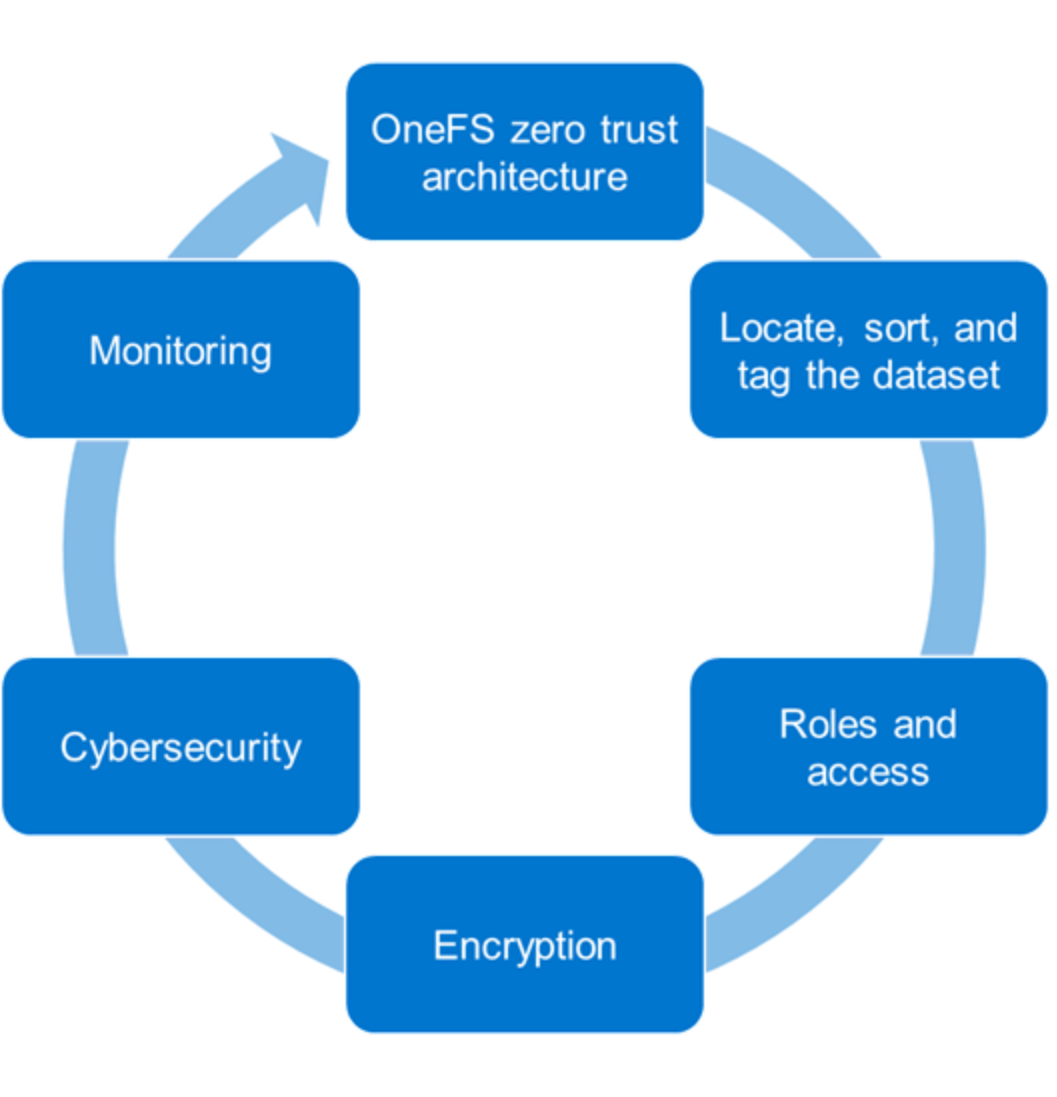
Figure 25. PowerScale OneFS zero trust architecture
In the first step in applying the zero trust architecture based on the NIST CSF and the data model, you must locate, sort, and tag the dataset. Next, you can specify roles and limit access. Then, you encrypt the data and apply cybersecurity, which is a critical component in today’s environment. Finally, use monitoring to provide ongoing insights into cluster health.
Besides the configuration steps provided in this section, review this white paper in its entirety and review the OneFS Security Configuration Guide at OneFS Info Hubs with the relevant release for more security configuration and hardening considerations.
Locate, sort, and tag the dataset
The first step to securing a PowerScale cluster is to understand the dataset. Although this step seems obvious, the importance of completing this process impacts the ability to secure data effectively. Understanding the data includes locating, sorting, and tagging the data. Locating the data is a cumbersome and tedious process to complete manually. We recommend using Superna Eyeglass Search & Recover to understand your unstructured data and provide insights through a single pane of glass.
Eyeglass Search & Recover allows customers to maximize data value by locating it. You can locate data through a complete content index that provides a current data index with changes, as shown in the following figure. Also, the index includes OneFS snapshots with version history, file recovery, and full content searching. For more information about Eyeglass Search & Recover, see Eyeglass Search & Recover Product Overview.
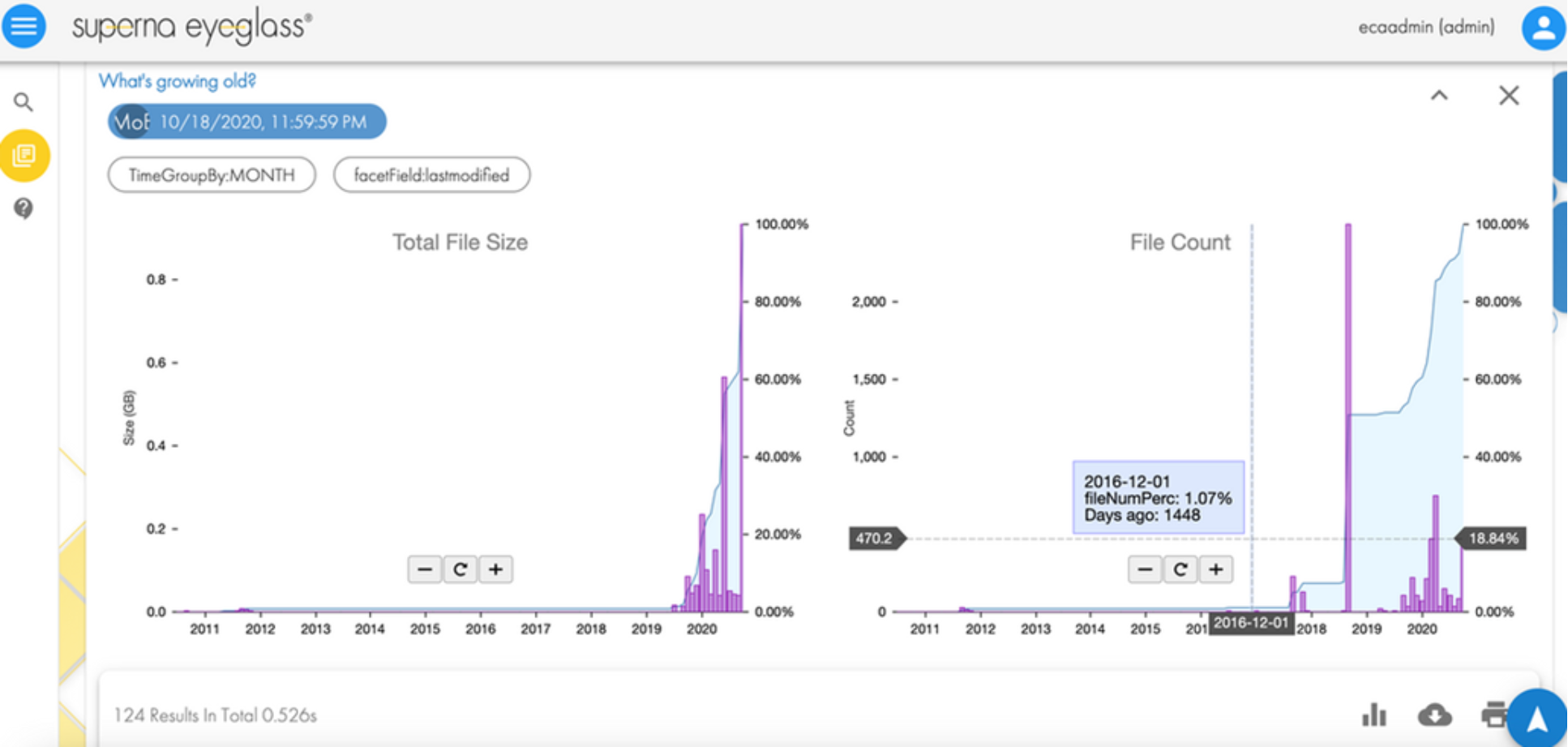
Figure 26. Superna Eyeglass Search & Recover
Roles and access
After you locate, identify, and index the data, the next step in applying the zero trust architecture is to associate roles to the indexed data. Rather than allowing all administrators and users to access all data, the role-specific administrators and users have access to a subset of the data necessary for their responsibilities.
Role Based Access Control
OneFS provides Role Based Access Control (RBAC), limiting system access based on an administrative role. You can use RBAC to minimize the administrators who have full system access to a PowerScale cluster, allowing each administrator to manage a subset of the cluster and data only, as shown in the following figure. While defining the roles and access, consider that administrators only require minimal access specific to their roles. You may grant other permissions in the future as required. Conversely, from a user perspective, each user only requires access to the subset of data where they practice, and you can provide other permissions in the future as required. Furthermore, you can disable root access altogether.
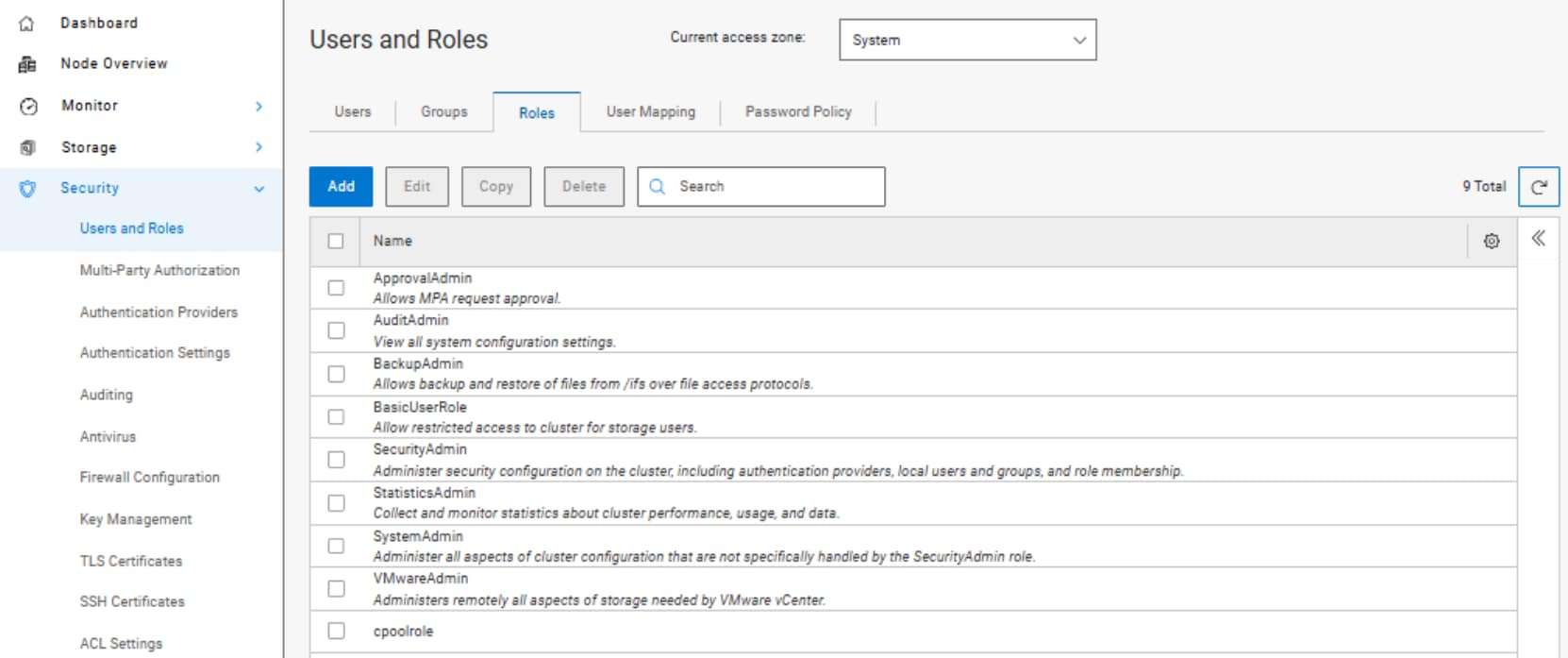
Figure 27. Membership and roles
For more information about RBAC, see the document PowerScale OneFS Authentication, Identity Management, and Authorization. For disabling root access, see the OneFS Security Configuration Guide at OneFS Info Hubs for the relevant release.
Note: As a best practice, before deploying a production PowerScale cluster, test a security configuration on the PowerScale simulator in a lab environment. Then, update all system login access information before placing a system on the network. Ensure that only necessary services and protocols are enabled. Before deploying a PowerScale cluster, consider the data protocols and services required for an environment. If the plan does not include the use of specific protocols, consider disabling those. See the document OneFS Security Configuration Guide at OneFS Info Hubs for the relevant release, for information about disabling protocols.
Cluster access hierarchy and system defaults
As a best practice for any enterprise system, enforce that system access requires custom passwords and settings rather than the default vendor-configured settings. Unauthorized malicious parties gain system access by first trying system defaults and publicly known settings. OneFS allows administrators to define login settings at the initial system deployment or to update a production cluster. For configuration steps, see the OneFS CLI Administration Guide at OneFS Info Hubs for the relevant release.
Note: As a best practice, before deploying a production PowerScale cluster, design the system access hierarchy containing the profiles that you want. This action minimizes complications in the future, as security profiles do not require modifications.
Authenticate cluster access and use multifactor authentication
Ensure that every individual with access to the cluster has a specific identification and is authenticated through a secure process. The identification and authentication processes provide accountability for all actions within a system. Administrators define user identification and authentication within a PowerScale cluster.
Local authentication is available, allowing you to locally create each ID, which is not recommended for an aggressive security posture. On the contrary, external authentication is available through Active Directory or an LDAP provider. See the document PowerScale OneFS Authentication, Identity Management, and Authorization and the OneFS CLI Administration Guide at OneFS Info Hubs for the relevant release for more information about defining user identification and options.
Also consider requirements defining lockout duration, idle sessions, cryptography, password complexity, and password expiration. Implementing these requirements in OneFS is explained in the OneFS Security Configuration Guide at OneFS Info Hubs for the relevant release.
As you update access requirements, configure cluster auditing. Auditing can detect many potential sources of data loss, including fraudulent activities, inappropriate entitlements, unauthorized access attempts, and a range of other anomalies that are risk indicators. Also, PowerScale OneFS can audit system configuration and protocol events through APIs, allowing events to be tracked and recorded. For more information about auditing in OneFS, see the document File System Auditing with Dell PowerScale and Dell Common Event Enabler. Configuring auditing in OneFS is also explained in the OneFS CLI Administration Guide at OneFS Info Hubs for the relevant release.
As a best practice to strengthen authentication, require multifactor authentication for SSH. For more information about multifactor authentication, see the PowerScale OneFS Authentication, Identity Management, and Authorization white paper. For more information, on disabling the WebUI, see Disabling nonessential HTTP components.
Root Lockdown Mode
Root Lockdown Mode (RLM) disables and prevents access to the powerful ‘root’ account, which has explicit permission to bypass security controls. RLM is available in OneFS 9.12 and later and is managed through the OneFS Configurable Hardening Engine (CHE). If MPA is enabled, changing RLM state requires Multi-Party Approval (MPA), described below.
While RLM can be both applied and disabled at will, transitioning between RLM activation states does require a full cluster reboot. RLM uses the Configurable Hardening Engine (CHE) to apply the required settings, and the Hardening Report can be consulted for information on which nodes need to be rebooted. Additionally, RLM leverages existing Compliance Mode protections for the root account, and only new nodes in Compliance Mode can join a cluster that has RLM fully enabled. These new nodes can only be joined to a cluster in RLM once they have already rebooted into Compliance Mode through the wizard. Upon joining the RLM cluster, the new node will need to be manually rebooted again to pick up all the pertinent RLM configuration.
Multi-party Authorization
OneFS 9.12 and later releases include Multi-Party Authorization (MPA), an administrative approval mechanism that requires two or more trusted parties to sign off on a requested change for the privileged actions within a PowerScale cluster. As such, MPA helps to mitigate the risk of data loss or system configuration damage for certain critical actions by vastly reducing the likelihood of accidental or malicious execution of impactful data related operations. For many enterprises, Multi-Party Authorization is required in order to meet industry specific data protection regulations, in addition to internal security mandates and best practices.
Multi-Party Authorization is disabled by default in OneFS 9.12. However, once enabled and configured, all the predefined privileged actions described in the following table will require additional approval from one or more authorizing users - even though the original requesting user will have had the basic rights to execute that action prior to MPA enablement, and in previous OneFS releases.
Table 13. Multi-party authorization components
|
Component |
Action |
Description |
|
MPA |
register_approval_admin |
Registering approval admin will be a privilege action after MPA is enabled. |
|
MPA |
upload_trust_anchor |
Upload a trust anchor certificate after MPA is enabled. |
|
Privileged CLI |
cli_mpa_check |
Multi-Party Authorization check to execute specific CLI command. For example, once root lockdown mode is enabled, elevate to root will use this. |
|
Hardening |
apply_hardening |
Applying a Hardening Profile, such as root-lockdown, STIG. |
|
Hardening |
disable_hardening |
Disabling a Hardening Profile, such as root-lockdown, STIG. |
|
S3 |
reduce_immutable_bucket_retention |
Reduction in bucket retention for an immutable bucket. |
|
S3 |
modify_server_access_logging_config |
Changing configuration of access logging for a bucket. |
|
Secure snapshots
|
delete_snapshot |
Delete a given snapshot. |
|
modify_snapshot |
Modify a given snapshot. |
|
|
delete_snapshot_schedule |
Delete a given snapshot schedule. |
|
|
modify_snapshot_schedule |
Modify a given snapshot schedule. |
The recommended practice is to enable MPA in conjunction with Root Lockdown Mode (RLM). This requires the ‘compadmin’ user to be enabled, as well as valid Hardening and SmartLock cluster licenses to be active.
Common Access Card and Personal Identity Verification Support
OneFS 9.12 introduces support for common access cards (CAC) and personal identity verification (PIV) smart cards. These are very widely used within the US government and provide physical multi-factor authentication (MFA) for SSH access to a PowerScale cluster. As such, users can connect to the OneFS CLI using the same security badge that grants them access into their office. In addition to Federal mandates, CAC/PIV integration is a requirement for many security conscious organizations across the public and private sectors. SSH access can be controlled via a certificate authority, which can be managed off-cluster. OneFS 9.12 and later also include Online Certificate Status Protocol (OCSP) support, which is part of the X.5O9 protocol and provides a simple method for revoking existing certificates.
OneFS Encryption
For the next step in deploying the zero trust architecture, use encryption to protect the data from theft and man-in-the-middle attacks.
Data at Rest Encryption
Data at rest is inactive data that is physically stored on persistent storage. Encrypting data at rest with cryptography ensures that the data is protected from theft if someone removes drives or nodes from a PowerScale cluster.
PowerScale OneFS provides Data at Rest Encryption (D@RE) using SEDs, ensuring that data is encrypted during writes and decrypted during reads. Data stored on the SEDs are encrypted and decrypted with a 256-bit data AES encryption key, referred to as the data encryption key (DEK). OneFS takes the standard SED encryption further by wrapping the DEK for each SED in an authentication key (AK). Further preventing unauthorized access, the AKs for each drive are placed in a key manager (KM) that is stored securely in an encrypted database, the key manager database (KMDB). The KMDB is encrypted with a 256-bit universal key (UK). Finally, the 256-bit universal key is stored external to the PowerScale cluster using a key management interoperability protocol (KMIP)-compliant key manager server, as shown in the following figure.
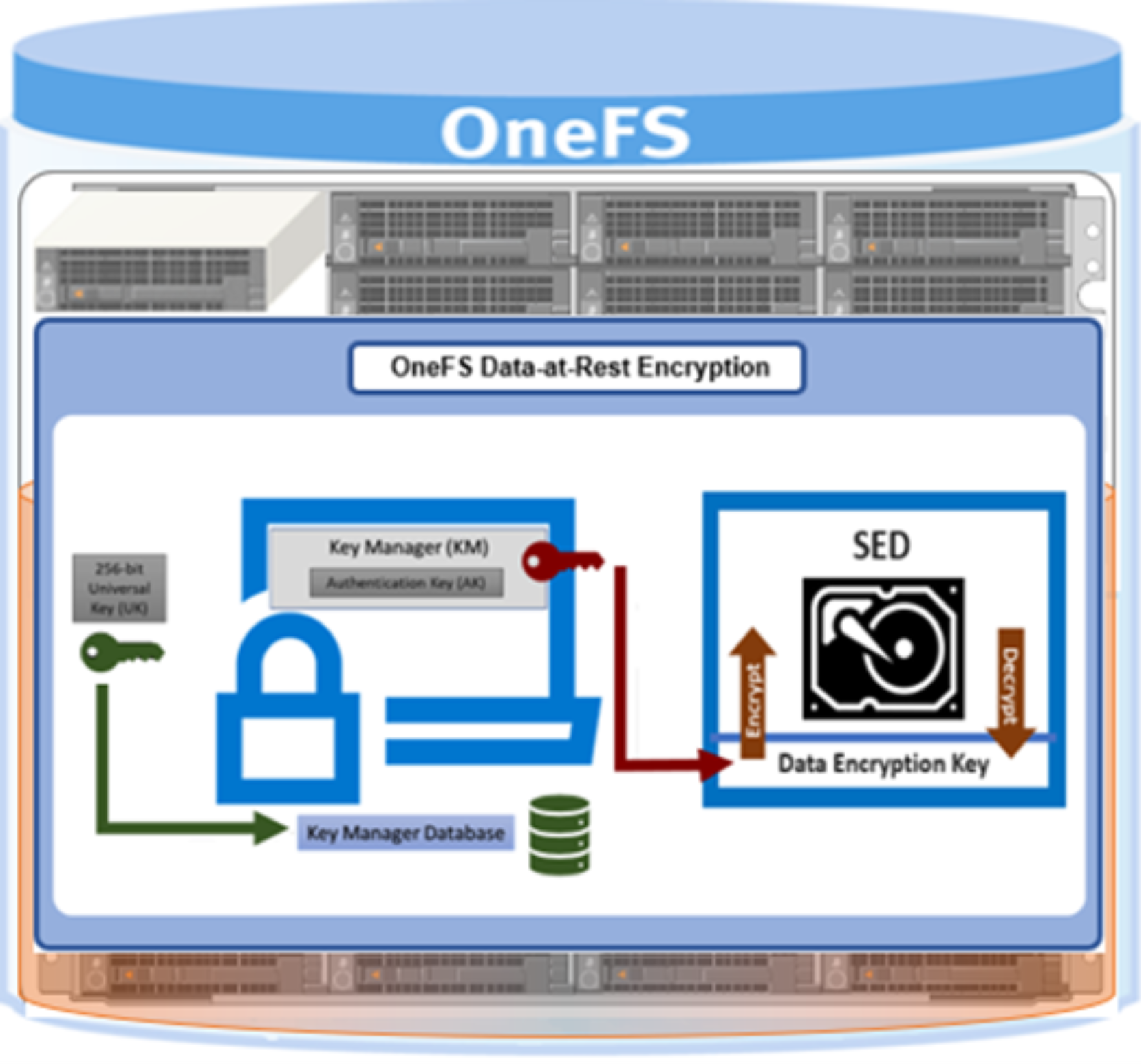
Figure 28. PowerScale universal key
For more information about DARE and configuring the feature, see PowerScale Data at Rest Encryption.
Data in flight encryption
Data in flight is active data that is in the transmission process. Encrypting the transmission process secures the data from man-in-the-middle attacks. While client access is encrypted with protocols that support encryption, this step also applies to data replication.
PowerScale OneFS supports the SMB3 and NFS v4.1 protocols, allowing users to encrypt data in flight. OneFS supports encryption of all SMB shares as a global rule, or it can be configured for a single SMB share. SMB encryption secures data access with over the wire encryption between a client and the PowerScale cluster. SMB encryption can be used by clients that support SMB3 encryption, including Windows Server 2012, 2012 R2, 2016, Windows Client 8, and Windows 10. Configuring SMB encryption does not require additional infrastructure. For more information about SMB encryption and configuring the feature, see the document PowerScale: Solution Design and Considerations for SMB Environments. Further, configure OneFS to reject the older clients that lack SMB encryption support access.
Although SMB supports encryption natively, NFS requires additional Kerberos authentication to encrypt data in flight. OneFS 9.3.0.0 and later versions support NFS v4.1, allowing Kerberos support to encrypt traffic between the client and the PowerScale cluster. See the document PowerScale OneFS NFS Design Considerations and Best Practices for more information about NFS and configuring the feature.
Once the protocol access is encrypted, the next step is encrypting data replication. OneFS supports over-the-wire, end-to-end encryption for SyncIQ data replication, protecting and securing in-flight data between clusters. A global setting enforces encryption on all incoming and outgoing SyncIQ policies. For more information about SyncIQ encryption and configuring the feature, see the document PowerScale SyncIQ: Architecture, Configuration, and Considerations.
Cybersecurity
Protection from cyber threats must be part of any security model. Besides the zero trust model explained in this paper, cyber protection is another key component. Superna Eyeglass Ransomware Defender for PowerScale provides cyber resiliency. It protects a PowerScale cluster by detecting attack events in real time and recovering from cyberattacks. Using innovative air-gap technology, Ransomware Defender creates a dataset copy in a cyber vault outside of the production environment. Further, event triggers create an automated response with real-time access auditing, as shown in the following figure. As a result, failover and failbacks are automated, and data is recovered quickly. See the document PowerScale Cyber Protection Suite Reference Architecture | Dell Technologies Info Hub for more information.
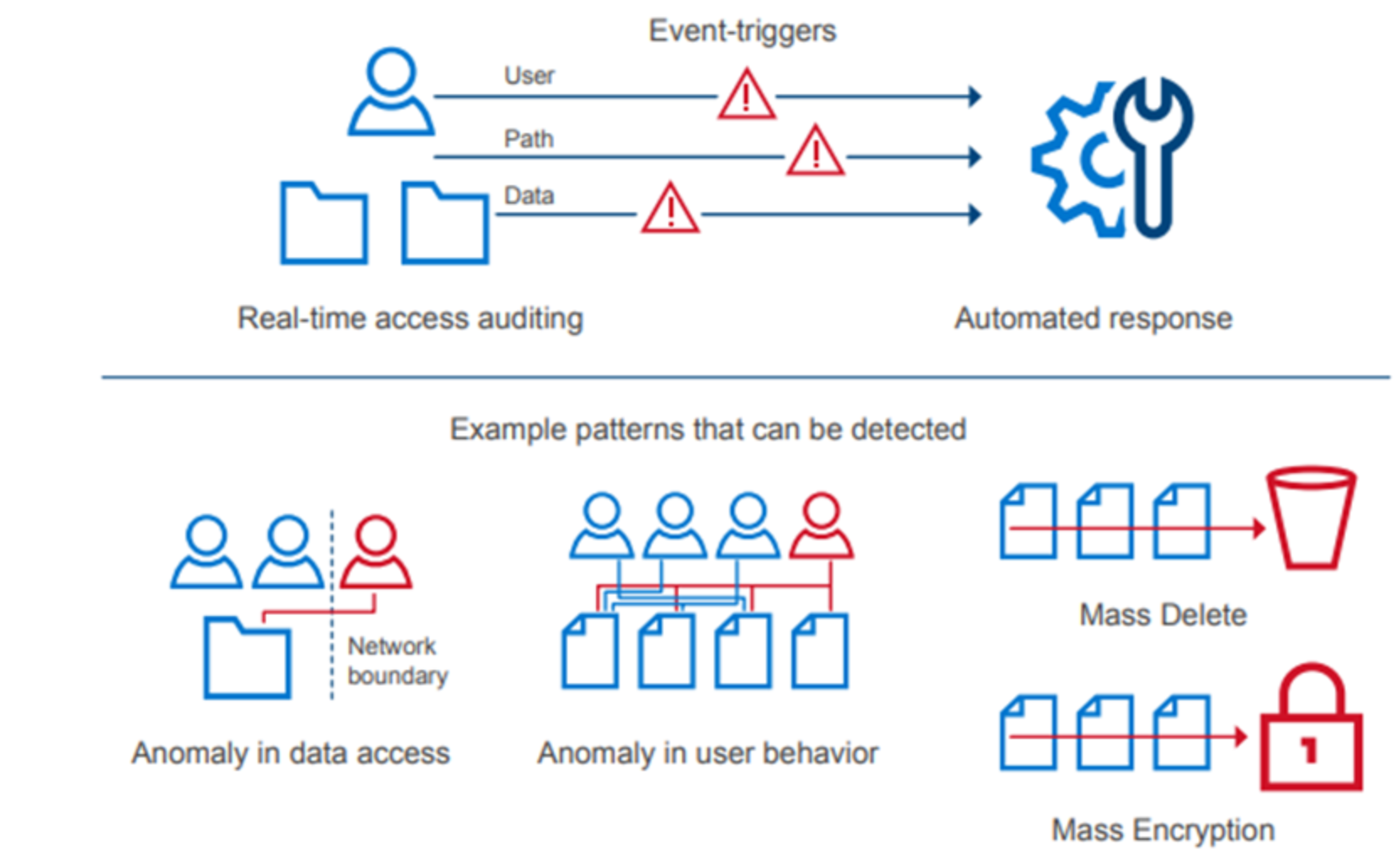
Figure 29. Cyber protection and recovery
Monitoring
The final step in applying a zero trust architecture is to monitor the cluster constantly through several tools. InsightIQ and Ransomware Defender provide insights into the cluster performance and their other functions.
Dell also offers CloudIQ, ensuring proactive cybersecurity assessments protect infrastructure. CloudIQ combines proactive monitoring, machine learning, and predictive analytics, allowing administrators to take quick action. As a result, IT administrative operations are simplified for on-premises infrastructure and data protection in the cloud. Also, CloudIQ monitors PowerScale and supports a broad range of Dell products providing easy management through a single pane of glass. CloudIQ cybersecurity insights follow a three-step process: reduce risk, manage policy, and improve productivity. The closed-loop cybersecurity process is shown in the following figure. For more information about CloudIQ, see Dell CloudIQ - AIOps for Intelligent IT Infrastructure Insights.
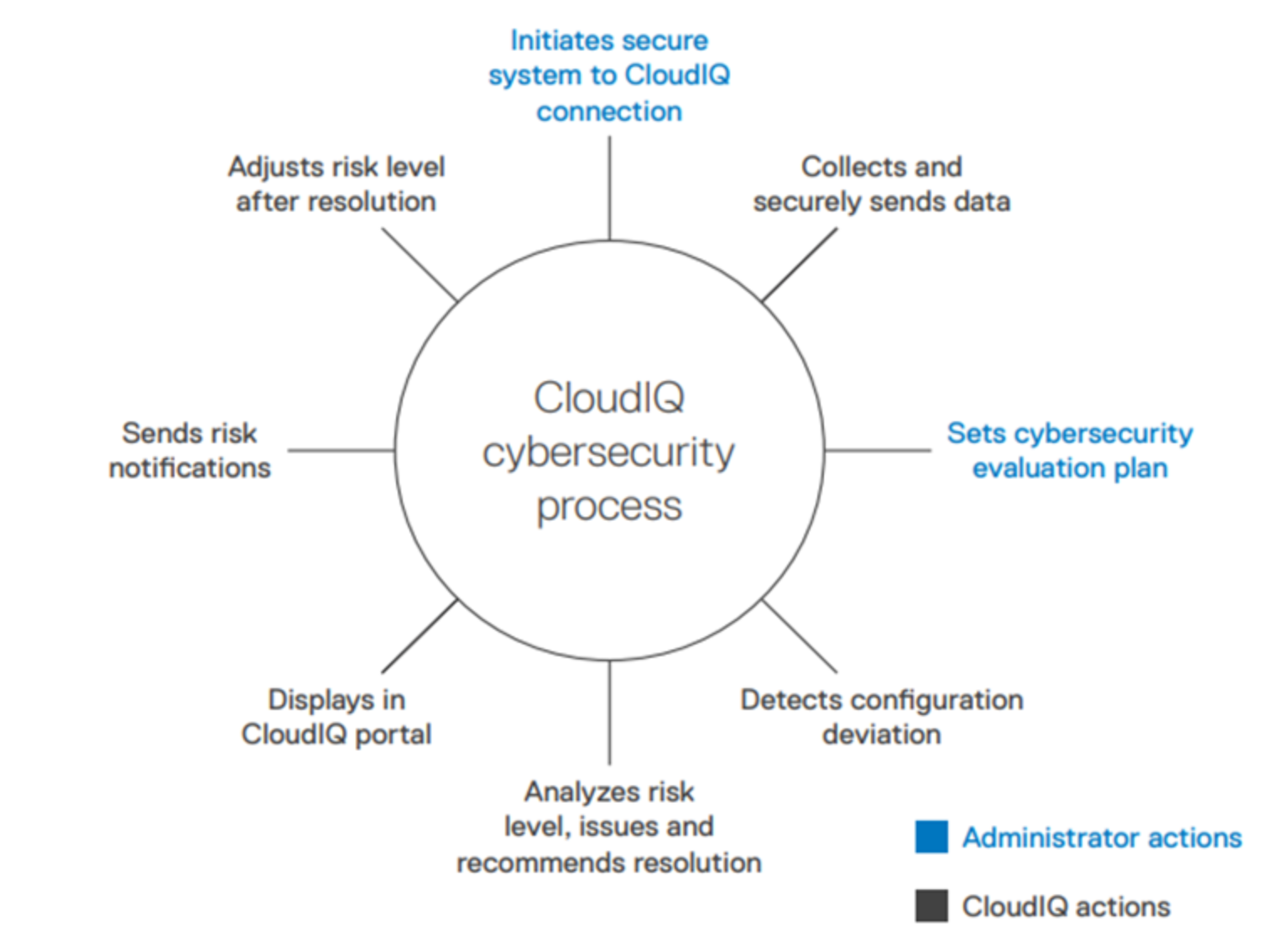
Figure 30. CloudIQ cybersecurity process
Further, consider using the PowerScale OneFS SDK to create custom applications specific to an environment or IT administration requirements. The SDK uses the OneFS API to configure, manage, and monitor cluster functionality. Also, the SDK can perform operations on files and directories on the cluster. Combined, these applications provide greater visibility into a PowerScale cluster.
For more information on InsightIQ, see PowerScale InsightIQ - Info Hub | Dell US.
Conclusion
The configuration steps in this section provide a framework for implementing a zero trust architecture on a PowerScale cluster. However, it is essential to understand that this is a model based on the NIST CST and data model. The exact implementation of the zero trust architecture depends on the data center, workflow, and IT administration requirements. Ensure that the zero trust architecture is adapted to your organization’s specific requirements.
Superna security applications
Superna provides various security-focused applications for PowerScale clusters. When combined with the other concepts listed in this paper, consider implementing the Superna applications to strengthen the security posture further. Superna’s security applications for PowerScale include:
- Ransomware Defender: Provides real-time event processing through user behavior analytics. The events are used to detect and stop a ransomware attack before it occurs.
- Easy Auditor: Offers a flat rate license model and ease of use features that simplify auditing and securing PBs of data.
- Performance Auditor: Provides real-time file I/O view of PowerScale nodes to simplify root cause of performance impacts, assessing changes needed to optimize performance and debugging user, network, and application performance.
- Airgap: Deployed in two configurations depending on the scale of clusters and security features:
- Basic Airgap Configuration that deploys the Ransomware Defender agent on one of the primary clusters being protected
- Enterprise Airgap Configuration that deploys the Ransomware Defender agent on the cyber vault cluster. This solution comes with greater scalability and additional security features.
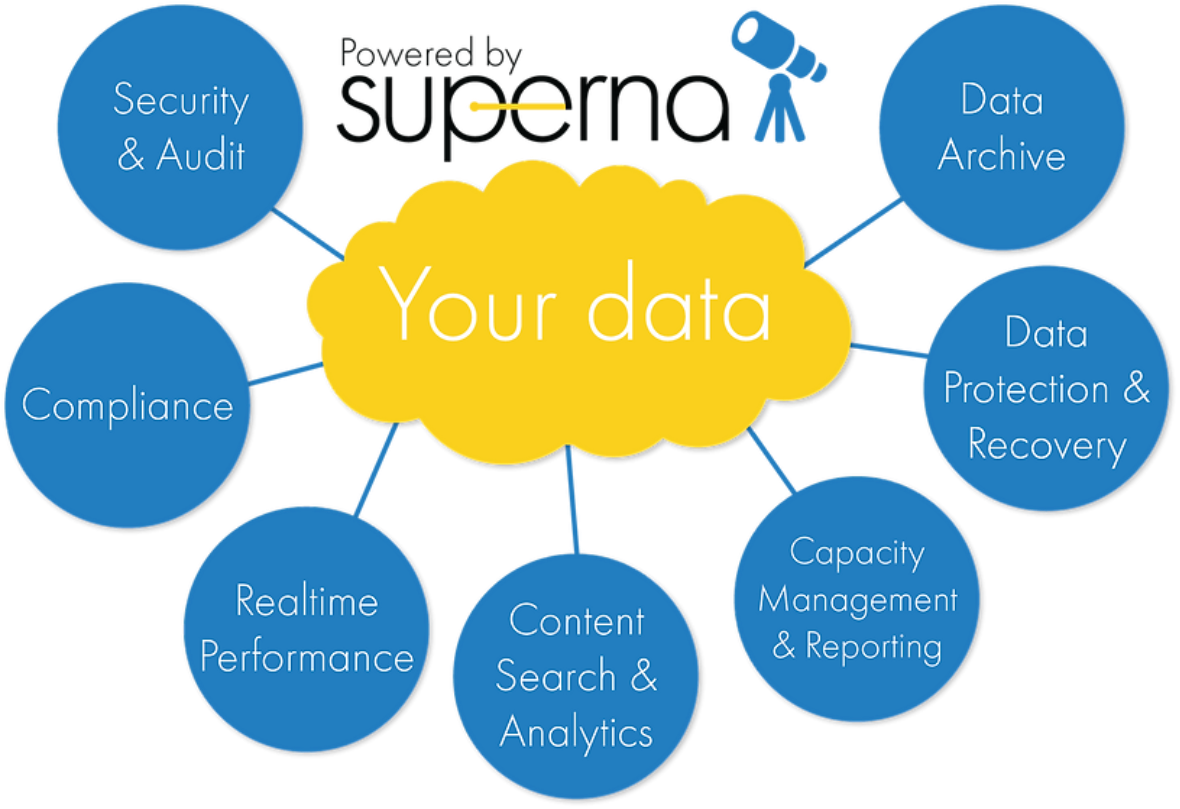
Figure 31. Superna applications
For more information about Superna products, see https://www.supernaeyeglass.com/.
Disabling nonessential HTTP components
OneFS 9.4.0.0 and later releases include an option to disable nonessential HTTP components selectively. Disabling the services allows other essential services on the cluster to continue to run. The following nonessential services may be disabled:
- PowerScaleUI (WebUI)
- Platform-API-External
- Rest Access to Namespace (RAN)
- RemoteService
Each of these services may be disabled independently. The services may be disabled through the CLI or API with the ISI_PRIV_HTTP privilege. To manage the nonessential services from the CLI, run the isi http services view and isi http services modify commands to view and modify the services. The following table lists the impacts of disabling each of the services.
Table 14. HTTP services impacts
|
Service |
Impacts |
|
PowerScaleUI |
The WebUI is entirely disabled. When a user attempts to access the WebUI, it displays Service Unavailable. Please contact Administrator. When the PowerScaleUI service is disabled and then enabled, the Platform-API-External service is also enabled, if it was disabled. However, disabling the PowerScaleUI service does not disable the Platform-API-External service. |
|
Platform-API-External |
API requests external to the cluster are not accepted, and the WebUI is disabled because the WebUI uses the Platform-API-External service. Disabling the Platform-API-External service does not impact the Platform-API-Internal service of the cluster. The Platform-API-Internal services continue to function, even if the Platform-API-External service is disabled. When the Platform-API-External service is disabled and then enabled, the WebUI remains disabled until the PowerScaleUI service is enabled. |
|
RAN |
If RAN is disabled, the WebUI components for File System Explorer and File Browser are disabled. In the WebUI, going to ‘Storage > File System Explorer’, or ‘File System > File System Explorer’ in OneFS 9.14 and earlier releases, displays the following message: Browse is disabled as RAN service is not running. Contact your administrator to enable the service. The same message is also displayed if you attempt to access any WebUI component that requires directory selection. |
|
RemoteService |
If RemoteService is disabled, the WebUI components for Remote Support and InProduct Activation are disabled. In the WebUI, going to ‘Cluster Management > General Settings and selecting the Remote Support tab displays the following message: The service required for the feature is disabled. Contact your administrator to enable the service. In the WebUI, going to Cluster Management > Licensing and scrolling to the License Activation section displays the following message: The service required for the feature is disabled. Contact your administrator to enable the service. |
Cluster services rekey
PowerScale OneFS 9.5.0.0 supports the rekey of cluster domains. For the rekey of SEDs, see PowerScale Data at Rest Encryption. This section is specific to the other cluster domains.
View the available domains by running the isi keymanager cluster status command, as shown in the following figure.
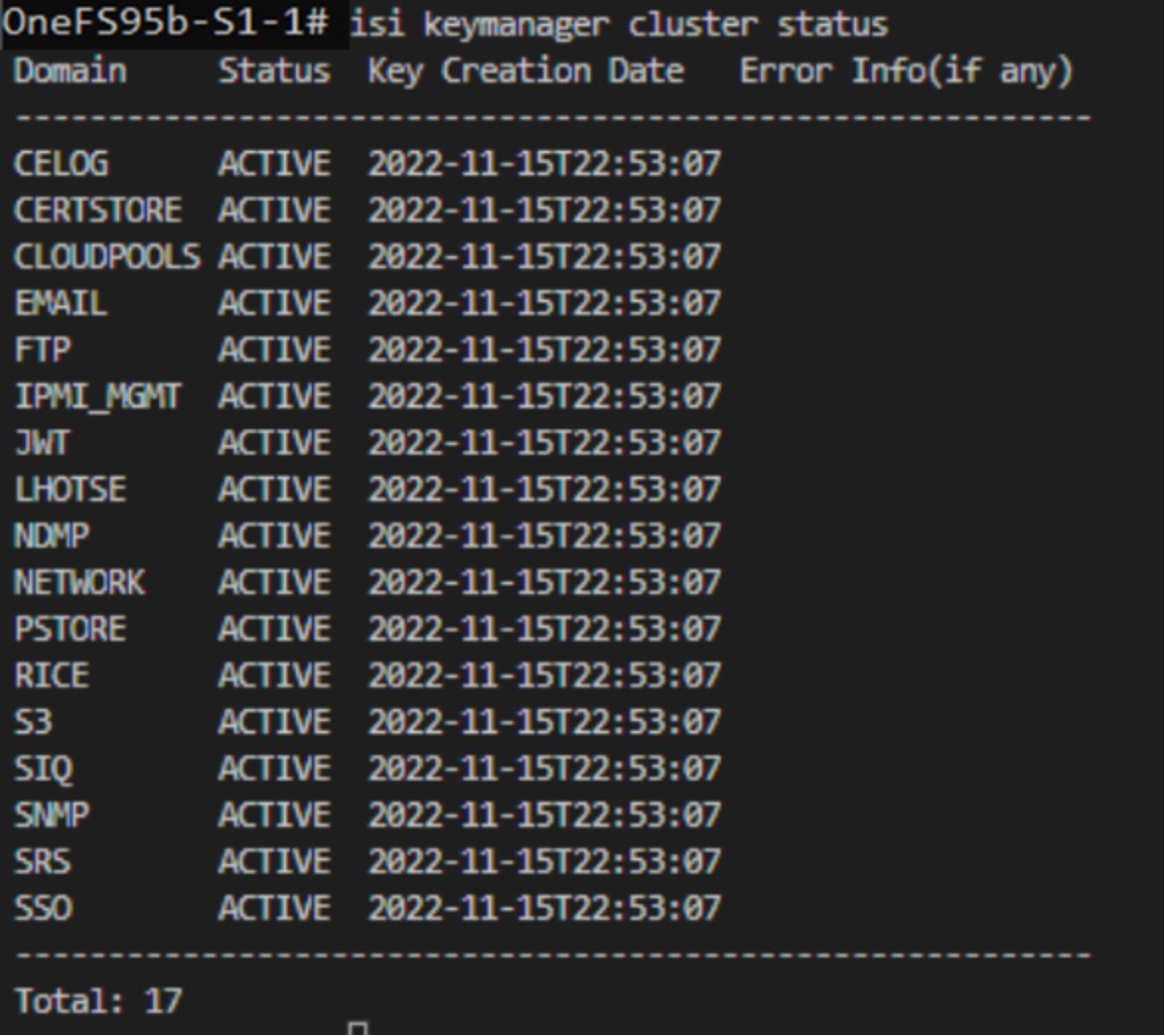
Figure 32. Key manager cluster status
The rekey process generates a new key and re-encrypts the entries for the domain. The old key is then deleted.
Considerations
The domain keys may be rekeyed on a specified schedule or as requested. Before configuring rekey, consider the following information:
- The rekey feature is only available after the OneFS 9.5.0.0 or later release is committed.
- During the rekey process, the old UK is only deleted after a successful re-encryption with the new UK. If for any reason the process fails, the old UK is available and remains as the current UK. The rekey daemon retries the rekey every 15 minutes if the process fails.
Configuration
Before starting a rekey process, ensure that you understand the preceding considerations. A rekey may be requested immediately or may be scheduled with a cadence. The rekey operation is available through the CLI and the WebUI. In the WebUI, go to ‘Security > Key Management’, or ‘Access > Key Management’ in OneFS 9.14 and earlier releases, and select the SED/Cluster Rekey tab. This section explains the cluster rekey process; for SEDs, see PowerScale Data at Rest Encryption.
To start a rekey of the cluster domains immediately, from the CLI run the isi keymanager cluster rekey start command. Alternatively, from the WebUI, under the SED/Cluster Rekey tab, select Rekey Now, next to Cluster Keys, as shown in the following figure.
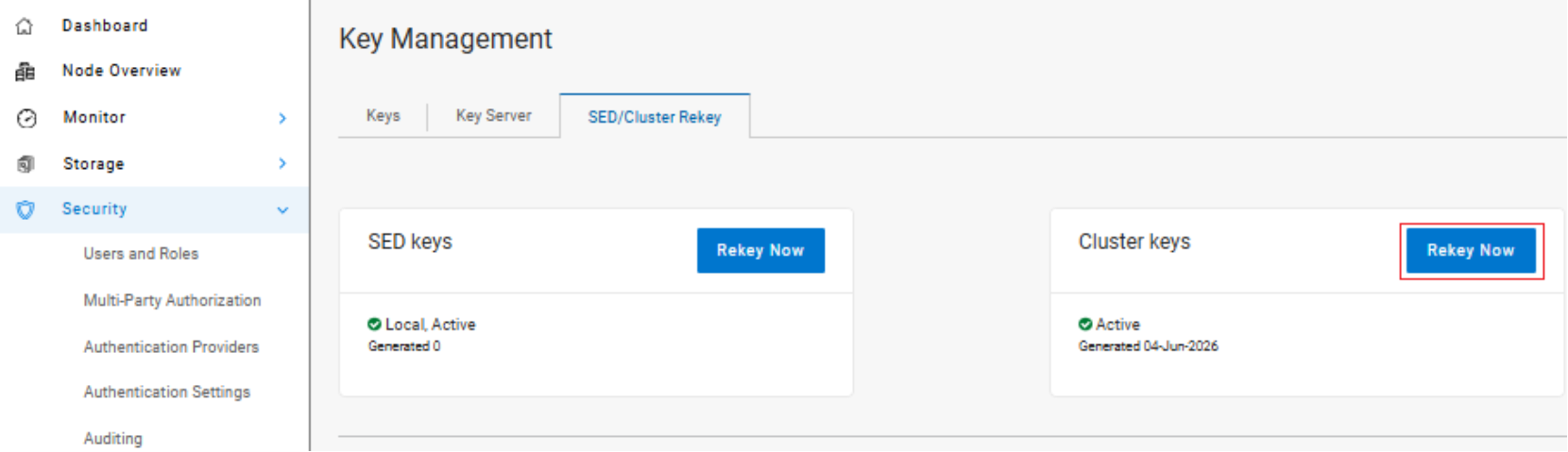
To schedule rekey of the cluster, from the CLI run the isi keymanager cluster rekey modify command with the --key rotation= option. Specify the frequency of the key rotation as an integer, sing Y for years, M for months, W for weeks, D for days, H for hours, m for minutes, and s for seconds. For example, to have the rekey operation scheduled for every 3 months, run the following command: isi keymanager cluster rekey modify --key rotation=3M.
Alternatively, from the WebUI, under the SED/Cluster Rekey tab, select the Automatic rekey for Cluster keys checkbox and specify the rekey frequency, as shown in the following figure. Then click Save.
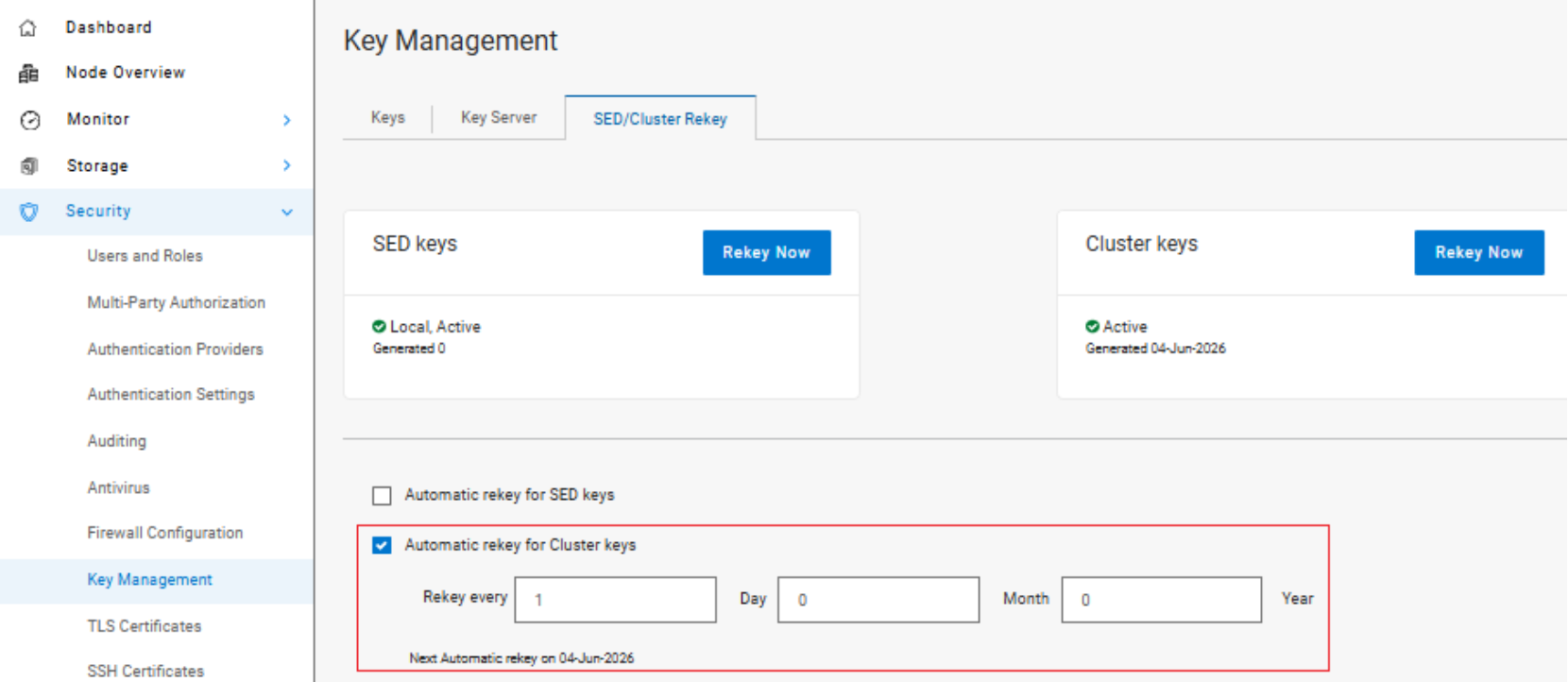
Figure 33. Automatic rekey for Cluster keys
Status and troubleshooting
To see the current rekey status in the CLI, run the isi keymanager cluster status command, as shown in the following figure.

Figure 34. Key manager cluster status
If any errors occur during the rekey process, a CELOG event is generated with a KeyManagerRekeyFailed event. The rekey process is logged in /var/log/isi_km_d.log.
PowerScale security baseline checklist
The concepts in this paper provide steps for configuring OneFS for an aggressive security posture. Not all the concepts in this paper apply to each organization. However, adapting these concepts to IT administration requirements is critical. To ensure an aggressive security posture for a PowerScale cluster, use the checklist in the following table as a baseline for security.
The following table serves as a security baseline and must be adapted to specific organizational requirements. Review this paper in its entirety to ensure a thorough understanding of PowerScale security considerations. Cluster security is not a single event. It is an ongoing process. Monitor this paper and the following checklist for updates. Consider implementing an organizational security review quarterly.
The items listed in the following checklist are not in order of importance or hierarchy.
Table 15. PowerScale security baseline checklist
|
Security feature |
Configuration |
References and notes |
Complete (Y/N) |
Notes |
|
Data at Rest Encryption |
Implement external key manager with SEDs |
|
|
|
|
Data in flight encryption |
Encrypt protocol communication and data replication |
PowerScale: Solution Design and Considerations for SMB Environments PowerScale OneFS NFS Design Considerations and Best Practices PowerScale SyncIQ: Architecture, Configuration, and Considerations |
|
|
|
Role Based Access Control (RBAC) |
Assign the lowest possible access required for each role |
Dell PowerScale OneFS: Authentication, Identity Management, and Authorization |
|
|
|
Multifactor authentication |
|
|
||
|
Cybersecurity |
PowerScale Cyber Protection Suite Reference Architecture | Dell Technologies Info Hub |
|
|
|
|
Monitoring |
Monitor cluster activity |
Dell CloudIQ - AIOps for Intelligent IT Infrastructure Insights |
|
|
|
Cluster configuration backup and recovery |
Ensure quarterly cluster backups |
Backing Up and Restoring PowerScale Cluster Configurations in OneFS 9.7 | Dell Technologies Info Hub |
|
|
|
Secure Boot |
Configure PowerScale Secure Boot |
|
|
|
|
Auditing |
Configure auditing |
File System Auditing with Dell PowerScale and Dell Common Event Enabler |
|
|
|
Custom applications |
Create a custom application for cluster monitoring |
|
|
|
|
SED and cluster Universal Key rekey |
Set a frequency to automatically rekey the Universal Key for SEDs and the cluster |
|
|
|
|
Perform a quarterly security review |
Review all organizational security requirements and current implementation Check this paper and checklist for updates Monitor security advisories for PowerScale: https://www.dell.com/support/security/en-us |
|
|
|
|
General cluster security best practices |
See the best practices section of the Security Configuration Guide for the relevant release at OneFS Info Hubs |
|
|
|
|
Login, authentication, and privileges best practices |
|
|
||
|
SNMP security best practices |
|
|
||
|
SSH security best practices |
|
|
||
|
Data-access protocols best practices |
|
|
||
|
Web interface security best practices |
|
|
||
|
Anti-virus |
|
|
||
Appendix A: SSH key exchange, ciphers, algorithms, and tags
SSH key exchange, ciphers, algorithms, and tags
This section applies only to OneFS 9.5.0.0 and later versions.
After the STIG security profile is applied or FIPS compliance mode is enabled, SSH must be configured to update the key exchange, ciphers, algorithms, and tags. After successfully applying the STIG security profile or enabling FIPS compliance, perform the following steps:
- Update the SSH key exchange algorithms:
isi ssh settings modify --kex-algorithms 'diffie-hellman-group16-sha512,diffie-hellman-group16-sha512,ecdh-sha2-nistp384'
- Update the SSH ciphers:
isi ssh settings modify --ciphers 'aes256-ctr,aes256-gcm@openssh.com'
- Update the SSH key algorithms and accepted key types:
isi ssh settings modify --host-key-algorithms 'ecdsa-sha2-nistp384'
isi_for_array 'yes | /usr/local/bin/ssh-keygen -t ecdsa -f /etc/ssh/ssh_host_ecdsa_key -b 384 -N ""'
isi ssh settings modify --pubkey-accepted-key-types 'ssh-rsa'
- Update the SSH tags:
isi ssh settings modify --macs 'hmac-sha2-256,hmac-sha2-512,hmac-sha2-512-etm@openssh.com,hmac-sha2-256-etm@openssh.com'
Appendix B: Disabling SSO MFA and restoring SSH access
Disabling SSO MFA and restoring SSH access
This section applies only to OneFS 9.5.0.0 and later versions.
After removing the STIG security profile or disabling FIPS compliance mode, SSO MFA remains enabled and the SSH access must be restored.
Note: Run the following steps before exiting the SSH session after removing the STIG security profile or disabling FIPS compliance. Otherwise, SSH access may not be available at the next login.
After successfully removing the STIG security profile or disabling FIPS compliance, perform the following steps:
- Disable SSO MFA by running the following command on the CLI as root:
isi_gconfig -t jwt-config authentication_mode=0
SSO MFA remains enabled after removing the STIG security profile or disabling FIPS compliance. This may prevent accounts without the ISI_PRIV_LOGIN_PAPI_BYPASS_MFA privilege from accessing the WebUI or PAPI.
- Update the SSH settings:
isi ssh settings modify --host-key-algorithms='+ssh-dss,ssh-dss-cert-v01@openssh.com'
After removing the STIG security profile or disabling FIPS compliance mode, ensure this step is complete before exiting the SSH session. Otherwise, SSH access may not be available at the next login.
References
Dell Technologies documentation
The following Dell Technologies documentation provides other information related to this document. Access to these documents depends on your login credentials. If you do not have access to a document, contact your Dell Technologies representative.
- PowerScale Info Hub
- PowerScale OneFS Documentation - PowerScale Info Hubs
- Cyber Protection and Recovery for Dell PowerScale
- Dell CloudIQ - AIOps for Intelligent IT Infrastructure Insights
- Dell Isilon: Using Transparent Data Encryption with Isilon HDFS
- Dell PowerScale OneFS Best Practices
- Dell PowerScale OneFS STIG Security Profile
- Dell PowerScale OneFS: Authentication, Identity Management, and Authorization
- Dell PowerScale OneFS: Technical Overview
- Dell PowerScale: SmartLock Best Practices
- FIPS PUB 140-3 Security Requirements for Cryptographic Modules
- File System Auditing with Dell PowerScale and Dell Common Event Enabler
- High Availability and Data Protection with Dell PowerScale Scale-Out NAS
- NIST CMVP webpage
- PCI DSS Requirements and Security Assessment Procedures
- PowerScale CloudPools and ECS Solution Guide
- PowerScale Network Design Considerations
- PowerScale OneFS SDK
- PowerScale Software Release and Patching Strategy
- PowerScale SyncIQ: Architecture, Configuration, and Considerations
- PowerScale: AntiVirus Solutions
- PowerScale: Solution Design and Considerations for SMB Environments