Dell PowerScale: SmartLock Best Practices
Executive summary
Overview
Dell PowerScale SmartLock software is a reliable and secure data protection and retention capability that protects critical data from unauthorized alteration. Protecting financial data or business records from accidental deletion or alteration while meeting regulatory and governance requirements are key business imperatives for most organizations today. This document describes how SmartLock helps organizations meet these requirements with a software-based approach to write once, read many (WORM) data protection.
Audience
This white paper is intended for system engineers, storage administrators, security managers, and IT managers.
Revisions
|
Date |
Part number/ |
Description |
|
February 2021 |
H18649 |
Initial release |
|
May 2023 |
H18649.1 |
Updated integration with other OneFS features; editorial updates |
|
July 2023 |
H18649.2 |
Document template update |
|
August 2026 |
H18649.3 |
Updated for OneFS 9.15 |
We value your feedback
Dell Technologies and the authors of this document welcome your feedback on this document. Contact the Dell Technologies team by email.
Note: For links to other documentation for this topic, see the PowerScale Info Hub.
Introduction
Introduction
Dell PowerScale SmartLock is a licensed software module available with Dell PowerScale OneFS versions 6.5.5 and later. It is used to protect critical data from unauthorized alteration. SmartLock allows you to commit files to a write once, read many (WORM) state, which prevents users from erasing or rewriting those files.
The most valuable outputs of modern companies and organizations are electronic: data and digital work products created on computers and stored on disk. For example, the manufacturing of physical goods is based on an electronic design, and a finished movie usually consists of one big file. An architectural design might only ever exist on disk, and an electronic health record or medical image dictates the medical treatment. These product designs, movies, building plans, x-rays, and other digital elements must be protected. Often, company policy or regulatory oversight determines how this data is protected and for how long.
Adherence to retention rules is most easily and reliably met using automation. Automated retention systems set the retention time of data based on user requirements and hold the protected data unchanged for the required time.
Retention systems can be implemented in either hardware or software. Hardware implementations are dedicated retention systems rather than general-purpose storage. This hardware typically carries a price premium and requires staff to be trained on managing the additional storage infrastructure. Software implementations vary widely in manageability, flexibility, and granularity, and some software requires large capacities of storage to be dedicated to retention for long-term or permanent storage.
SmartLock provides an automated data retention solution is simple to implement and manage. It is also reliable, flexible enough to support multiple use cases without requiring investment in dedicated hardware, and scalable to meet the needs of today and the foreseeable future.
Cluster modes
Cluster modes
The operation following modes are available for a PowerScale cluster, with or without SmartLock:
- Standard or Normal mode: This mode is the default cluster operational mode if the SmartLock license is not purchased or activated. This mode is not a SmartLock mode.
- SmartLock Enterprise mode: If the SmartLock license is activated, this cluster becomes the SmartLock Enterprise mode cluster. An Enterprise mode cluster permits implementation of Enterprise SmartLock directories and committing data to a WORM state for a specified data retention period.
- SmartLock Compliance mode: If the SmartLock license is activated, the cluster can optionally be put into Compliance mode. In this mode, it is possible to protect data in compliance with the regulations defined by U.S. Securities and Exchange Commission rule 17a-4(f) by creating SmartLock compliance directories.
Note: The mode of operation is cluster-wide.
System clock and compliance clock
In the context of SmartLock, there are two types of clocks: system clock and compliance clock.
The system clock is the standard clock that is common to both Enterprise and Compliance modes. The compliance clock is exclusive to Compliance mode. The compliance clock updates the time in a protected system B-tree entry. Unlike the system clock, the compliance clock cannot be manually modified by the root or compadmin user. This action could lead to the files being released from a WORM state earlier than intended.
To set the WORM compliance clock, use the following command:
# isi worm cdate set
To view the WORM compliance clock, use the following command:
# isi worm cdate view
Enterprise mode
Enterprise mode permits storing data in enterprise directories in a nonrewritable, nonerasable format, protecting data from deletion or modification.
You can create enterprise directories in both Enterprise and Compliance modes. If a file in an Enterprise directory is committed to a WORM state, it is protected from accidental deletion or modification until the retention period has expired.
In Enterprise mode, you may also create regular directories. Regular directories are not subjected to retention requirements.
A cluster operating in SmartLock Enterprise mode provides advanced security capabilities while retaining superuser root access and full administrative control. In most situations, Enterprise mode offers security capabilities that are more than adequate for most users.
You can designate any empty directory under the OneFS file system as a SmartLock directory. Starting in OneFS 8.0, a directory does not have to be empty before you designate it as an Enterprise SmartLock directory through the DomainMark job. You can perform this process using the command line only. For example, you can designate a nonempty directory as an Enterprise SmartLock directory with the following command:
# isi job jobs start DomainMark --root <path> --dm-type Worm
Also, you can delete the WORM domain using the following command, and remove the SmartLock directory using the rm command.
# isi job start DomainMark --delete --root /ifs/syncdir/wormdir --dm-type Worm
You can mix SmartLock and normal directories on the same cluster. Once a directory is designated as a SmartLock directory, it is ready to protect files that are placed there. SmartLock protects any subdirectories in a SmartLock directory automatically, and they inherit all settings of the parent directory.
Note: In OneFS 8.0, a directory must be empty if it will be designated as a Compliance SmartLock directory.
Compliance mode
SmartLock Compliance mode is designed only for users who are required to preserve critical electronic records to comply with the United States Securities and Exchange Commission’s (SEC) rule 17a-4(f). This rule relates to the electronic storage of broker-dealer records. The level of security required by rule 17a-4(f) is so stringent that not even administrators should be allowed to modify or delete WORM compliance data.
In Compliance mode, compliance directories are created for WORM data that must be protected in compliance with SEC rule 17a-4(f). The compliance clock governs the compliance directories. As mentioned previously, you cannot modify the compliance clock.
Table 1 shows what type of directories and files (data) can be created in each of the cluster modes.
Table 1. Directory types in Enterprise mode and Compliance mode
|
Enterprise mode |
Compliance mode |
|
|
Regular (non-SmartLock) directories |
Yes |
Yes |
|
Enterprise directories (governed by system clock) |
Yes |
Yes |
|
Compliance directories (governed by compliance clock) |
No |
Yes |
Note: Both SmartLock cluster modes (Enterprise and Compliance) also support the creation of standard or regular directories and files that are not subjected to retention requirements.
Compliance mode disables root (superuser) access to the cluster in all circumstances. Superusers (UserID 0) are unable to log in, including in single-user mode. Instead of allowing root user access, clusters operating in Compliance mode have a compadmin administrator account. This account allows administrators to run some commands with root privileges through sudo. The /usr/local/etc/sudoers file specifies these commands. Also, all commands that are not Role Based Access Control (RBAC) commands must use sudo. To see which RBAC commands are in the current version of OneFS, run isi -h and look for commands without an asterisk next to them. You can use these commands through compadmin without sudo.
Operations that cannot be performed in Compliance mode are as follows:
- You cannot use the root account after a PowerScale cluster is in Compliance mode.
- You may not modify files that are owned by root using a combination of sudo and compadmin after the PowerScale cluster is in Compliance mode.
- A SmartLock directory cannot contain another SmartLock root directory. This consideration is applicable for both Enterprise SmartLock directories and Compliance SmartLock directories.
- You cannot set a directory as a compliance or enterprise SmartLock directory if it already has files or directories under it (except for a DomainMark job). You can only set an empty directory to a compliance SmartLock directory.
- Hard links cannot cross SmartLock directory boundaries.
- You may write to directory that has not finished converting to a SmartLock directory, but you cannot commit the files until the SmartLock directory is ready.
- In Compliance mode, if there is an existing enterprise SmartLock directory and the SmartLock directory is empty, you can upgrade it to a compliance SmartLock directory. However, the change is allowed in one direction only. You cannot revert a compliance SmartLock directory to an enterprise SmartLock directory.
- If the compliance clock has not been set on the cluster, you are not able to upgrade a directory to a SmartLock Compliance directory.
Table 2 summarizes the differences between features for enterprise and compliance SmartLock directories:
Table 2. SmartLock directory feature comparison
|
Feature |
Enterprise directories |
Compliance directories |
|
Customizable file-retention dates |
Yes |
Yes |
|
Protection from modification after commit |
Yes |
Yes |
|
SEC 17a-4(f)-compliant file retention |
No |
Yes |
|
Privileged delete |
On | Off | Disabled |
Disabled |
|
Tamper-proof compliance clock |
No |
Yes |
|
Superuser (root) account |
Yes |
Not available |
|
Sudo-based cluster admin account (compadmin) |
No |
Yes |
Note: In Enterprise mode, the privileged delete capability remains available and configurable. It is Off by default, and you can turn it On for enterprise directories. You may also permanently disable this capability for enterprise directories to protect data from deletion or modification. In Compliance mode, it is disabled by default for compliance directories.
Table 3 summarizes the difference between the SmartLock modes.
Table 3. SmartLock mode comparison
|
Enterprise mode |
Compliance mode |
|
Governed by a single system clock. |
Governed by two clocks: system clock and compliance clock. |
|
Data written to enterprise SmartLock directories is committed to WORM state only for the specified retention period. The WORM state file can have the privileged delete capability within retention period when the privileged delete feature is enabled. |
Data written to compliance SmartLock directories, when committed, can never be altered. |
|
Superuser access (root access) is maintained with full administrative control. |
Superuser access is disabled. |
SmartLock configuration
Automated data retention
SmartLock software delivers secure, powerful data retention in a simple, general-purpose NAS architecture that scales to petabytes. SmartLock is flexible and does not require application integration, specialized hardware, or a dedicated minimum storage capacity.
Because it is integrated with the OneFS file system, SmartLock is designed to work seamlessly with OneFS core capabilities and other key storage functions. These functions include snapshots, replication, provisioning, backup and restore, deduplication, and virtual environments. Integration with OneFS also means your retention environment can grow easily, with one file system to manage, from terabytes to over 80 petabytes in the same cluster.
SmartLock is implemented at the directory-level in the file system. With one cluster, you can store both general data and data with retention requirements, regardless of your capacity requirements or growth patterns. As capacity requirements increase, the entire cluster grows as a whole—you are not required to provision general data capacity separately from retained data capacity.
The benefits of scale-out architecture for data retention
Most software-based retention solutions that work with traditional NAS systems require you to dedicate, at a minimum, an entire storage volume for data retention. Typically, this requirement includes a minimum capacity investment to get started and an incremental capacity investment every time you want to grow. Volume-based approaches also have maximum size limitations, forcing you to split data across multiple management points as you grow, increasing complexity and administration overhead.
OneFS combines traditional volume management, a file system, and RAID data protection into a flexible and powerful software layer that is space efficient and simple to manage and scale. Because OneFS does not rely on underlying RAID structures like volume groups, data management with OneFS is flexible and granular. This design means you can implement automatic data retention with any amount of data—from one file to billions of files.
After you create a directory and mark it as a SmartLock directory, files committed in this directory are immutable until their retention time expires. You cannot delete, move, or change these files. The administrator sets retention dates on files, and can extend them but not shorten them. When a file retention policy expires, it becomes a normal file that can be deleted as required, allowing you to reclaim that storage capacity for general-purpose or retained data.
Committing files and setting retention dates
For files that you place in a SmartLock directory, you can change or move them until they are committed. This design allows time for administrative changes and appends before the file becomes immutable. You can commit files to a SmartLock directory locally or over a network (by NFS or SMB/CIFS).
You can commit a file with write bits into the WORM state manually using one of the following two commands by removing write permissions:
# chmod a-w <file>
# chmod 444 <file>
To commit the file by SMB, in the Properties window of a file, check Read-only as shown in Figure 1.
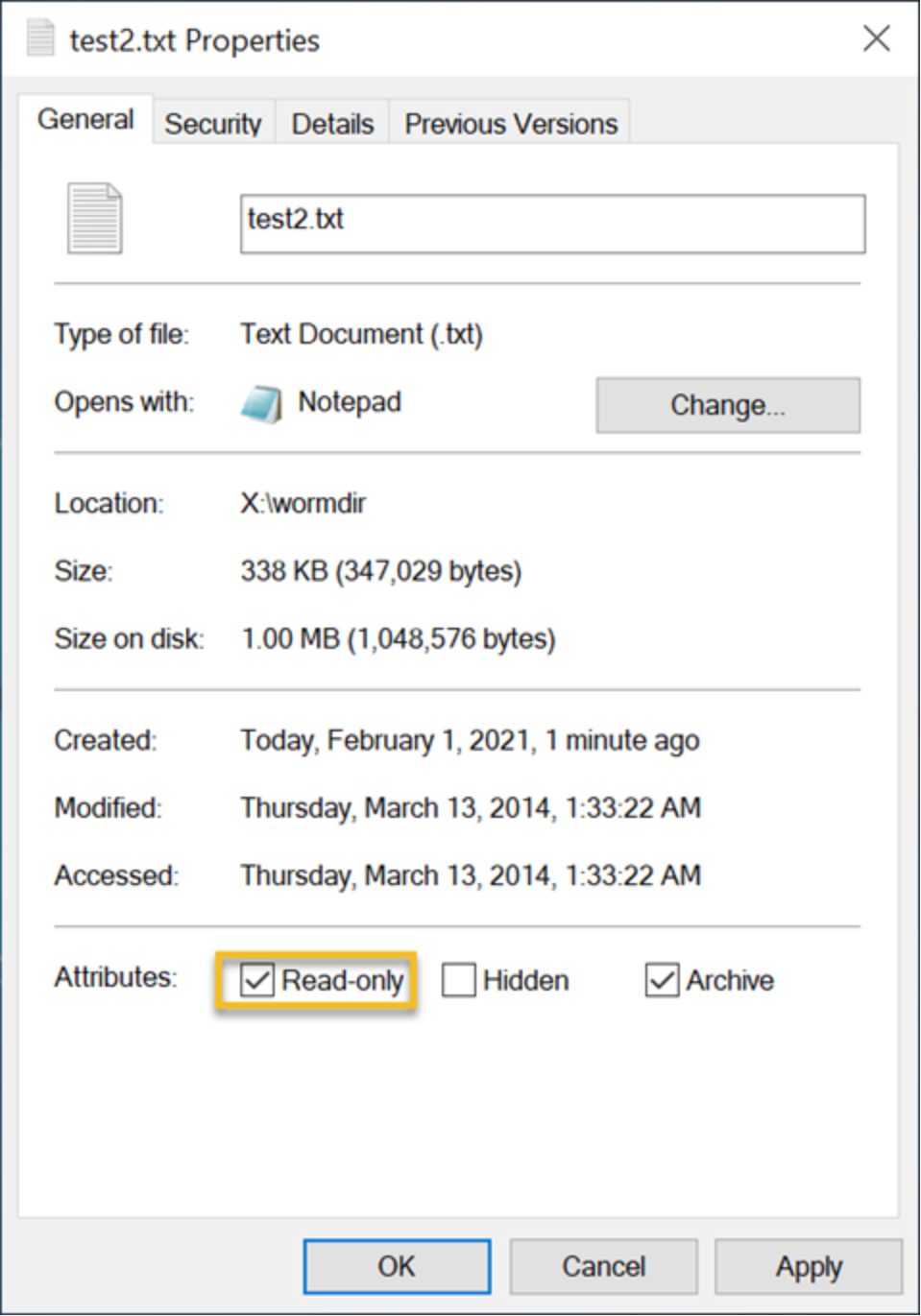
Figure 1. Commit a file by SMB
Also, users can run the chmod command to commit a file into the WORM state from the OneFS command-line interface (CLI) without removing the write permissions of end users. This option alleviates the need for storage administrators to reenable the permissions for users to modify the files after the files have been released from WORM retention. To commit the file into the WORM state, add the readonly flag using the following command:
# chflags dos-readonly <file>
Note: When using the cp -p command to copy a file with a readonly flag from the OneFS CLI to WORM domains, the target file enters a WORM state immediately. You can remove readonly flags from source files before copying them using the cp -p command to WORM domains so that the target file will be uncommitted.
File retention times can be set in two ways: on a per-file basis, or using the directory default setting. If you set the retention date on the file basis and the directory default setting simultaneously, the file’s retention date overrides the directory default retention date. If you must have a specific file committed for a specific amount of time, you set that file’s retention date individually. For example, you can commit a file to be retained for seven days using the following command:
# touch -at `date -v+7d -j +”%y%m%d%H%M.%S”` <file_name>
Note: For an existing WORM state file, the administrator sets the retention date on a file basis, and they can extend it but not shorten it.
If data that is committed to a SmartLock directory must be retained for the same length of time, you can set the directory default setting to the required period. In this scenario, any file committed to that directory without a unique retention date takes that directory default.
Even after the retention date has expired, you cannot alter files that are protected with SmartLock while they remain in a SmartLock directory. You must copy these files to a non-SmartLock directory, and the target files become normal files for modification.
Note: In an enterprise SmartLock directory, the WORM state file can have the privileged delete capability within the retention period when the privileged delete is enabled.
In some situations, such as legal-discovery actions, you must guarantee that data remains protected until that specific situation is resolved. In these cases, a directory-level override of retention dates is available (the Override Retention Date). This override automatically extends the retention date of any file to or beyond the expected resolution time. This functionality only extends retention times, and files with retention times that are already beyond the scope of the override are not affected.
In Table 4, the Directory Default Retention Offset is one year for both example 1 and example 2. In example 1, any file that is committed to that directory and does not have a specific expiry date automatically gets a one-year expiry date from the date it is committed. This setting means that the SmartLock protection of a file that is committed on January 1, 2026 lasts until January 1, 2027, based on the one-year default setting. In examples 2 and 3, a specific retention date of February 1, 2026 is specified for a file. In these cases, the specific file-retention date takes precedence over any Directory Default Retention Offset period.
In example 4, the company receives a one-year litigation hold on all data that pertains to a case that is under investigation on December 31, 2025. The Override Retention Date setting at the directory level is used, and all data in that SmartLock directory is automatically protected through a minimum of December 31, 2026.
Table 4. File-retention and litigation-hold examples
|
|
Example 1: No file-retention date set |
Example 2: File-retention date > directory offset |
Example 3: Directory offset > file-retention date |
Example 4: Litigation hold added |
|
File-retention date |
None |
February 1, 2026 |
February 1, 2026 |
February 1, 2026 |
|
Directory-offset retention date |
1 year |
1 year |
2 years |
1 year |
|
File-committed date |
January 1, 2025 |
January 1, 2025 |
January 1, 2025 |
January 1, 2025 (1-year litigation holds added on December 31, 2025) |
|
Expiration date |
January 1, 2026 |
February 1, 2026 |
February 1, 2026 |
December 31, 2026 |
Privileged delete
General users and applications cannot change the data or metadata of SmartLock-committed files, move them, or delete them. If a general user or application must change SmartLock-protected data, they must first copy it to a non-SmartLock directory and make their changes to the copy. No one except for a privileged user can alter the SmartLock-protected original file.
Before OneFS 8.0, a privileged user was defined as someone who has root access to the system and can delete SmartLock-protected files. Users could only perform privileged deletes locally, not over the network, which added a layer of control for privileged functions. The privileged user existed only in the Enterprise version of SmartLock. Starting with OneFS 8.0, a non-root user can perform a privileged delete through the RBAC role ISI_PRIV_IFS_WORM_DELETE.
WORM exclusion
Starting with OneFS 8.2.0, you can exclude a directory inside an enterprise or compliance WORM domain from WORM retention policies and protection. Any content that is created later in the excluded directory is not SmartLock protected. You can create a WORM exclusion domain on a directory using the following command:
# isi worm domain modify <domain id> --exclude <excluded_dir>
Pending delete flag
The pending delete flag was introduced with OneFS 8.2.0. You can set this flag on a compliance-mode WORM domain to delete the domain and the directories and files in it. This flag is useful if you have created a WORM domain that is not needed, incorrectly named a SmartLock directory, or created a SmartLock directory in the wrong location. You can set the pending delete flag using the following command:
# isi worm domain modify <domain id> --set-pending-delete
Note: You cannot set the pending delete flag on an enterprise-mode WORM domain.
Also, marking a domain for deletion is irreversible. When you mark a domain for deletion, the following occurs:
- No new files may be created, hard linked, or renamed into the domain.
- Existing files may not be committed or have their retention dates extended.
- SyncIQ fails to sync to and from the domain.
Compliance store delete
The ComplianceStoreDelete job was introduced with OneFS 8.2.0. This job automatically tracks and removes expired files from the compliance store if they were put there as a result of SyncIQ conflict resolution. The job runs automatically once per month or when it is started manually.
SmartLock best practices
The administrative restrictions of Compliance mode have the potential to affect both compliance data and enterprise data. To help you make an informed decision concerning SmartLock, we recommend the following best practices:
- Implement Compliance mode only if your organization is legally obligated to do so under SEC rule 17a-4(f). Since the Compliance mode installation or upgrade requires careful planning and preparation, we recommend performing this task with the assistance of Dell Support.
- Consider using Enterprise mode with its advanced security capabilities. These functions can protect directories and files from deletion in a WORM state, and disable the privileged delete function. Enterprise mode offers security requirements that are more than adequate for most users and most situations. Moreover, the superuser account remains available in Enterprise mode. It is more administrator-friendly compared to Compliance mode.
If you use the following best practices, they must be performed before you put an existing cluster in Compliance mode:
- Test and validate all workflows using a proof-of-concept Compliance mode cluster. Use the PowerScale OneFS Simulator as a virtual machine (VM) test host, if available.
- Verify that the cluster time is correct before putting the PowerScale cluster in Compliance mode.
- Do not use run-as-root on SMB shares. If you have previously configured SMB shares to run-as-root, change the settings for those shares to specify access permissions to Full-Control, Read-Write, or Read before putting the PowerScale cluster in Compliance mode.
- Use RBAC for cluster access to perform file management and administrative operations. Enable RBAC, grant appropriate privileges, and connect through the RBAC-enabled account to the CLI. The compadmin represents a regular data user in the context of the CLI.
- For data migrations from a non-Compliance-mode cluster to a cluster that will change to Compliance mode, verify that current ownership and access permissions are valid and appropriate on both clusters.
- Review the permissions and ownership of any files that exclusively permit the root account to manage or write data to them. After you upgrade to Compliance mode, if the OneFS configuration limits the relevant POSIX access permissions to specific directories or files, writing data or changing ownership of these objects is blocked.
- If any root-owned workflow or datafiles exist, perform all ownership or permission changes before upgrading to Compliance mode. Do not change the ownership of any system files. The Compliance mode conversion process automates all required ownership changes to system files. Do not change the ownership of any files outside of /ifs because no user data should reside outside of /ifs. As a best practice, change the ownership of files under /ifs that are owned by root to the compadmin account before upgrading to Compliance mode.
- In Compliance mode, the default POSIX permissions permit the compadmin account to write data. However, do not modify the following directories unless the default permissions for these directories have been changed: /ifs/.ifsvar and /ifs/.snapshot.
- Verify the available disaster recovery options on Compliance mode clusters in relation to SyncIQ. For more details, see the section SyncIQ.
Note: NDMP backups of SmartLock Compliance data are not considered to be compliant with the SEC regulation 17a-4(f).
Integration with other OneFS features
Because it is integrated with the OneFS file system, SmartLock seamlessly integrates with OneFS core capabilities and add-on software. These features include snapshots, replication, archiving, backup and restore, virtual environments, and other key functions described in this section.
SnapshotIQ
Unlike traditional NAS environments, which have many restrictions, Dell PowerScale SnapshotIQ provides an unlimited number of snapshots in a single pool of PowerScale storage. It also supports up to 1,024 snapshots in any single directory. Unique snapshot policies that are set at the cluster, directory, and subdirectory level give you the control to protect exactly what you want.
SnapshotIQ can take snapshots of data in a SmartLock directory. Such files in snapshots can be treated as normal data, or can be copied into a SmartLock directory and committed for retention.
CloudPools
Dell PowerScale CloudPools allows tiering cold or infrequently accessed data to lower-cost cloud storage. It is built on the Dell PowerScale SmartPools file-pool-policy framework, which provides granular control of file placement on a PowerScale cluster. CloudPools allows applications and users to seamlessly retain access to data through the same network path and protocols, regardless of where the file data physically resides.
Before OneFS 8.2.0, SmartLink files were not allowed in Enterprise or Compliance modes. OneFS 8.2.0 and later versions support CloudPools 2.0 and SmartLock integration as follows:
- Compliance mode: SmartLink files are not allowed in Compliance mode.
- Enterprise mode: SmartLink files are allowed in Enterprise mode.
- Enterprise mode can be enabled on a directory with SmartLink files.
- SmartLink files can be moved into an Enterprise mode directory, which prevents modifying or deleting the SmartLink files.
- SmartLink files can be recalled from the cloud to the PowerScale cluster once they are committed.
Note: The recalled file is protected from deletion or modification in the SmartLock Enterprise domain.
NDMP
You can back up PowerScale clusters using most major archiving and data-backup products through NDMP. You can perform data backup in parallel across multiple nodes to maximize performance. SmartLock retention settings are retained through the backup and restore processes so you are not required to recommit files after a restore.
SyncIQ
Data on PowerScale clusters can be replicated using Dell PowerScale SyncIQ. SyncIQ delivers fast replication of millions of files and terabytes of data over the WAN and LAN. SyncIQ also enables replication jobs to be parallelized and evenly distributed across all sending and receiving nodes in the PowerScale clusters. You can use SyncIQ to replicate SmartLock-protected or normal data for business continuity, disaster recovery, disk-to-disk backup, and restore functions.
SyncIQ replicates the data asynchronously from the primary PowerScale cluster to one or more clusters, and it creates multiple copies of data. You can use the copy if there is a failure on the primary PowerScale cluster. The process of activating a secondary copy for read/write purposes is called a failover. A failover is performed when the primary PowerScale cluster becomes unavailable or is taken down for maintenance. When the original primary cluster is back online, SyncIQ can establish a reverse sync. If required, the original primary can be made the read/write copy. This process is called a failback.
Table 5 describes the compatibility of SyncIQ between different types of SmartLock directories on the source and target of SyncIQ.
Table 5. SmartLock and SyncIQ source-to-target compatibility
|
Source directory type |
Target directory type |
SyncIQ source-to-target failover allowed |
SyncIQ failback allowed |
|
Non-WORM |
Non-WORM |
Yes |
Yes |
|
Enterprise SmartLock |
Yes |
Yes, unless files are committed to a WORM state on the target cluster. However, retention is not enforced. |
|
|
Compliance SmartLock |
No |
No |
|
|
Enterprise SmartLock |
Non-WORM |
Yes, replication type is allowed, but retention is not enforced. |
Yes, but files do not have WORM status. |
|
Enterprise SmartLock |
Yes |
Yes, any newly committed WORM files are included. |
|
|
Compliance SmartLock |
No |
No |
|
|
Compliance SmartLock |
Non-WORM |
No |
No |
|
Enterprise SmartLock |
No |
No |
|
|
Compliance SmartLock |
Yes |
Yes, any newly committed WORM files are included. |
For SmartLock and SyncIQ integration, considerations and best practices include:
- Configure with Network Time Protocol (NTP) peer mode on the source and target cluster so that all node clocks are synchronized for the SyncIQ and SmartLock environment.
- Use the same OneFS version and patches on both the source and target cluster. Starting with OneFS 8.2.0, SmartLock uses a new structure.
- If you are replicating a SmartLock directory to another SmartLock directory, you must create the target SmartLock directory before running the replication policy.
- SmartLock Compliance mode clusters do not support the SyncIQ preshared key (PSK).
- SmartLock Enterprise mode clusters do support the SyncIQ PSK.
- Create a separate SyncIQ policy for each SmartLock directory.
- Ensure that the source and target directories of the replication policy are root paths of SmartLock compliance directories of the source and target cluster.
- If you replicate SmartLock directories to another PowerScale cluster with SyncIQ, the WORM state of files is replicated. However, SmartLock directory configuration settings are not transferred to the target directory.
- Files that are committed on the source but have not been sent are not committed on the target and might be in an inconsistent state.
- A SyncIQ job cannot synchronize to a target SmartLock domain that has the autocommit, min retention, default retention, or max retention settings set on the target cluster in the initial synchronization. Before the initial synchronization, you must clear those WORM settings for the target SmartLock domain on the target cluster. We recommend clearing those WORM settings for the target SmartLock domain on the target cluster, even though you can set those WORM settings for the target SmartLock domain on the target cluster for incremental synchronization. Consider the case that the retention date of a WORM file has expired, and the WORM file is deleted on the target cluster after SyncIQ failover. However, the retention date of a WORM file is not expired on the source cluster. During SyncIQ failback, SyncIQ overwrites committed files as necessary in WORM domains to ensure that the source and target datasets are synchronized.
- Set the same WORM settings for the target SmartLock domain on the target cluster as the source SmartLock domain after failover. Also, clear the WORM settings for the source SmartLock domain on the source cluster.
- Reset the WORM settings for the source SmartLock domain on the source cluster after failback. Also, clear the WORM settings for the target SmartLock domain on the target cluster.
- Ensure all metadata related to the retention date and commit status persists on the target.
Use cases
Use cases
Organizations use automated retention systems to protect critical data from accidental, premature, or malicious alteration or deletion. This section takes a closer look at some of the use cases, some of which apply across multiple workflows or are specific to certain industries.
Complying with corporate governance
Frequently, companies put governance requirements in place to comply with industry-standard practices, government regulations such as ISO or Sarbanes-Oxley, or to create specific security or information-management standards.
These regulations often require retaining data for specific timelines. Retention timeline requirements can vary widely by department, function, or even by datatype. Without an automated data-retention system, adhering to such guidelines would be difficult, resource-intensive, and risky.
SmartLock can match retention requirements based on several parameters including datatype, location, and owner, making corporate governance requirements easy to meet over time, regardless of how they change.
Manufacturing: retaining reference and current design data
Most manufacturing design processes draw on current work, historic designs, and a library of reference data. Of these, historic designs—representing past and currently manufactured products that are the company’s current revenue stream—are frequently the company’s most critical asset. Historic designs are not only a reference for current development, they also constitute the company’s intellectual property portfolio. They are the foundations of patent creation and protection and liability defense.
Keeping all necessary data together is beneficial for applications and end-user access. Mixing it in the same cluster also reduces the overhead of purchasing, provisioning, and maintaining a separate storage solution.
Because SmartLock is integrated with OneFS and its SmartPools automated-tiering capability, you can store current work, historic designs, and reference data all on the same cluster. As shown in Figure 2, you can place each datatype on the most appropriate storage type to ensure proper performance and access. You can also have a different protection configuration for each datatype to balance the cost of storage with data criticality.

Figure 2. Automated data retention for manufacturing design data
Feature films: locking down final content in a production environment
A modern feature film with many special effects or one that is in 3D can easily require over a petabyte of storage while work is in progress. A finished feature film is in the multiple terabytes and can be stored as one or many files (all of which are large) depending on the creator’s distribution requirements.
Most production facilities work on multiple projects at a time. Some, like sequels, reference previous films, drawing on the same creative work. When they are complete, movie files need to remain unchanged for long periods of time or, as some producers say, forever. If the company does not want to purchase and maintain a separate facility, they must accommodate the finished films in their production storage environment. Production environments tend to operate at great speed and with many users having significant system access.
With SmartLock, finished films can be protected in a general-purpose storage environment, keeping the film company’s greatest assets intact regardless of current production activity.
Gaming: limiting complex fraud in casinos
The gaming industry attracts a lot of attention from potential thieves due to its concentration of cash and high-volume transactions. Theft attempts are especially high in casinos, offering a physical location as a tempting target. To address this threat, many firms have installed extensive video surveillance systems to monitor gaming activities.
Industry studies show that casino employees are involved in an astounding percentage of casino theft. The more sophisticated attempts have included wiping of surveillance data, which is crucial in prosecuting casino-based theft. To protect this data, many casinos are beginning to invest in automated data-retention technologies.
The integration of SmartLock with OneFS enables a casino to begin with a few terabytes of surveillance data and grow that cluster to 80 petabytes before requiring a second cluster. A casino can also choose how long it retains data without worrying about running out of room. If that casino is attached to a resort or hotel, you can combine the surveillance system for the entire property into one cluster. You can also choose to have a retention set only on the casino floor data.
Conclusion
Conclusion
Data-retention requirements concerning data immutability and longevity are rapidly growing due to several factors. These aspects include increased corporate oversight and regulatory compliance requirements, and evolving data-protection requirements.
Dell PowerScale SmartLock is an automated retention system that removes the risk and complexity associated with retaining data for specific time periods. SmartLock is designed to provide enterprises with a highly flexible and easy-to-use system to protect their data against accidental, malicious, or premature alteration or deletion.
Because it is integrated with the PowerScale OneFS file system, SmartLock also works seamlessly with other key storage functions including data backup, archiving, and disaster recovery. Integration with OneFS also means your retention environment can grow seamlessly, with one file system to manage, from terabytes to over 80 petabytes in the same cluster. Also, customers can use SyncIQ failover and failback with SmartLock enterprise and compliance directories to perform disaster recovery.
References
Dell Technologies documentation
The following Dell Technologies documentation provides other information related to this document. Access to these documents depends on your login credentials. If you do not have access to a document, contact your Dell Technologies representative.