Dell PowerStore: Data Efficiencies
Executive summary
Executive summary
Overview
Audience
Revisions
We value your feedback
Overview
Overview
Introduction
PowerStore overview
Terminology
Theory of operation
Theory of operation
Introduction
PowerStore 1000 to 9200
Write path background information
Before the data efficiency techniques of PowerStore 1000, 1200, 3000, 3200, 5000, 5200, 7000, 9000, and 9200 are discussed, the system design and data path must be reviewed to explain how these PowerStore systems provide inline data efficiencies. Data path components in PowerStore 1000 to 9200 models shows a high-level diagram of the components within these systems that are part of the data path. In this figure, node A and node B are shown side-by-side for demonstration purposes. Within the system, DRAM memory is used as a caching layer as data enters and exits the system. All data passes through and interacts with DRAM memory. How the data interacts with DRAM memory depends on the I/O type, primarily whether it is a read or a write. How a read and write I/O passes through DRAM memory is explained later in this section.
Another major component of the data path are the data drives. The drives, which are outlined in orange in the figure below, provide the physical capacity to the system to store data. If additional enclosures are attached to the system, they similarly add to the usable capacity of the system. Within PowerStore, any data drives in a PowerStore 1000 to 9200 system contribute to a single, large, usable capacity. Drives used for the NVMe NVRAM cache, or SCM drives dedicated for metadata tiering, are excluded from the usable capacity of the system. This space is shared for all resources within the system.
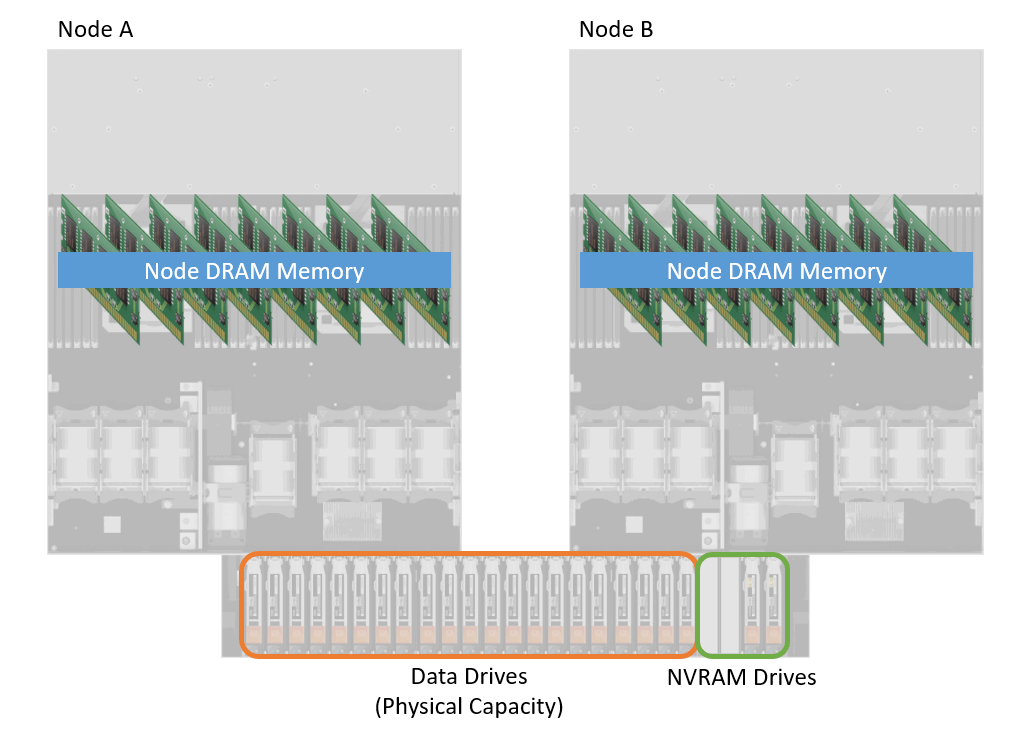
PowerStore 1000 to 9200 model systems include NVRAM drives, which are part of the PowerStore system's data path. These drives are circled in green in the lower right of the figure above. The NVRAM drives are hard drives located in the far-right slots of the base enclosure of the appliance. Depending on the system model, these two or four NVRAM drives are used as an additional write I/O cache location for protection purposes within the system. As writes enter the system, a copy of each write is placed in DRAM memory and the NVRAM drives before the host is acknowledged that the write has been saved within the system. After the host is acknowledged, data is passed through the deduplication and compression logic before being saved to the data drives of the system.
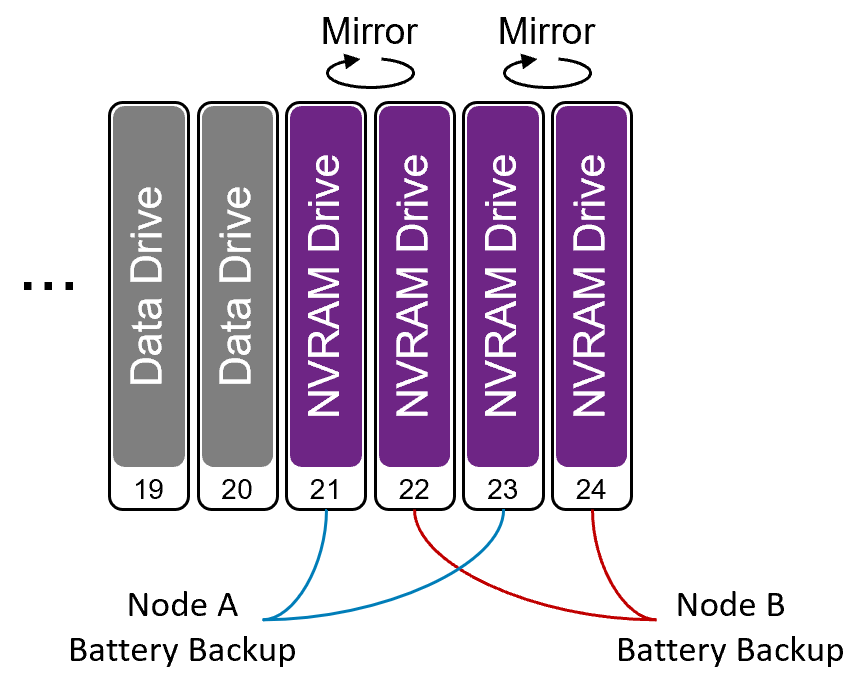
NVRAM drives in PowerStore shows more information about the NVRAM drives. As mentioned previously, each appliance contains either two or four NVRAM drives. If the system only contains two NVRAM drives, they are populated in drive slots 23 and 24. If four NVRAM drives are present, slots 21 through 24 are occupied. NVRAM drives are deployed in mirrored pairs to guard against a single drive failure. Drives 21 and 22 are configured in a mirrored pair, as well as drives 23 and 24. During an NVRAM drive failure, write caching continues to be enabled, and the mirrored pair is reestablished when the faulted drive is replaced.
The appliance also provides battery backup to the NVRAM drives using internal batteries within each node. Slots 21 and 23 are connected to Node A's internal battery device, while Node B provides power to slots 22 and 24. Battery backup is required as NVRAM drives contain both volatile and nonvolatile media. The volatile media provides fast access speeds and is used as a backup location for write caching within the system while the appliance is under normal operation. If power to the appliance is interrupted or the system is powered off, the volatile write cache is destaged to the nonvolatile media within the NVRAM drive. When the write cache information is safely stored, power is removed from the drives and the system completes its shutdown operation. The NVRAM design and operations replace the need to protect the contents of DRAM write cache.
Writes
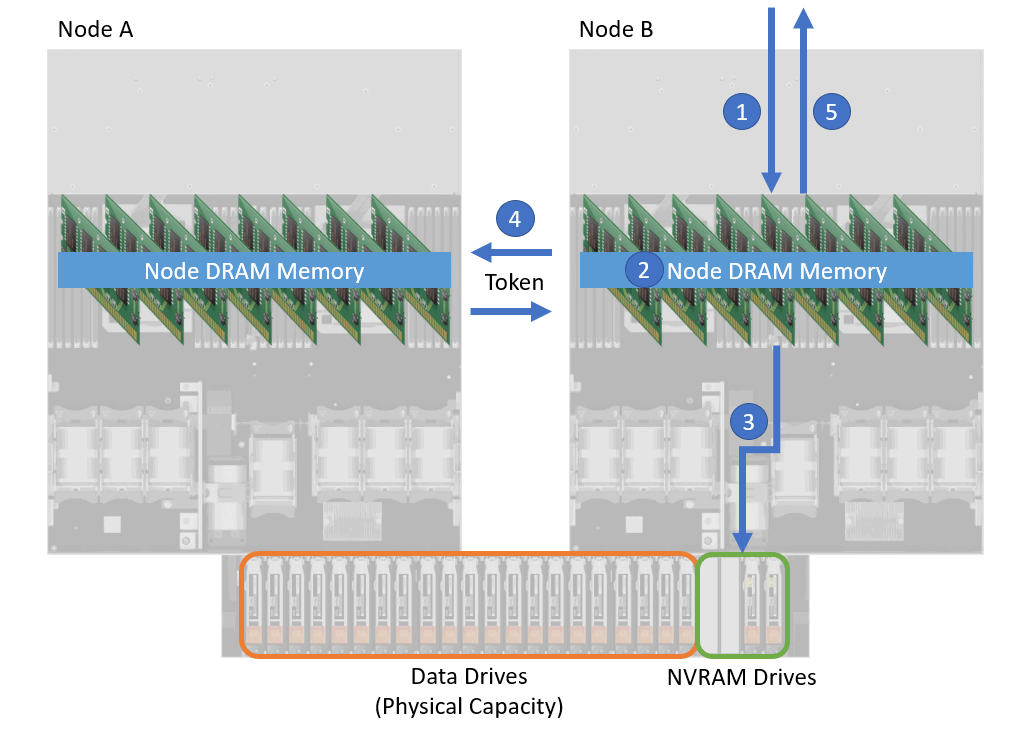
All writes entering a PowerStore 1000, 1200, 3000, 3200, 5000, 5200, 7000, 9000, and 9200 appliance follow the same data path, regardless of the resource type. A write I/O entering PowerStore 1000 to 9200 model system displays a high-level diagram of a write I/O entering the system. The following figure also shows the steps that are taken to store the information within the system before acknowledging the host.
Step 1 depicts an I/O entering Node B. The I/O is determined to be a write, and the information is stored within write cache in the node's DRAM memory (Step 2). A copy of the write is also written to the NVRAM drives, shown as Step 3 in the figure below. As mentioned previously, the appliance NVRAM drives are used as an additional write cache location within the system for redundancy purposes. Each NVRAM drive is also dual ported, meaning that each node has access to the drives through physical internal connections and the information that is contained in them. If required, the peer node can access the data as needed.
Step 4 occurs for each write I/O that enters the system. Information is passed between the nodes to update the peer that a new write has been received and that it has the newest copy of the data for the resource. This token includes information about the I/O such as what resource was updated, the address within the resource that was updated, and the location where the I/O was saved to within the write cache. If the information is requested through the peer node, the node can access the data within the NVRAM drives by its own internal channels.
The last step (Step 5) in completing the I/O is to acknowledge the host. After the information is safely stored within the appliance and all previous actions are complete, the host is acknowledged. The data is passed through the deduplication and compression algorithms at a later time.
PowerStore 500
Writes
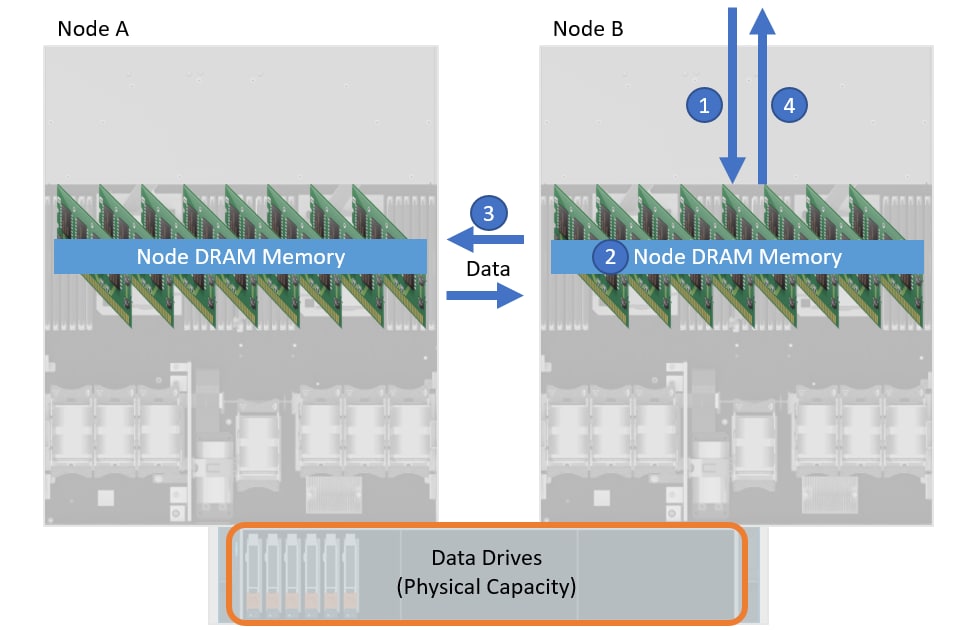
Unlike the PowerStore 1000, 1200, 3000, 3200, 5000, 5200, 7000, 9000, 9200 appliances, the PowerStore 500 does not support NVMe NVRAM drives. Instead, the system uses node DRAM memory as a write caching layer to temporarily store data before it is passed through the deduplication and compression process. A write I/O entering PowerStore 500 model system is a high-level diagram of a write I/O entering a PowerStore 500 system and the steps that are taken before acknowledging the host.
Step 1 depicts a write request entering Node B. The information is stored within the node's DRAM memory, as shown in Step 2. The information is then mirrored to the peer node's DRAM memory, as depicted by Step 3. A full copy of the data and information about the request is passed through the internal connections between the nodes in the system. After the data is mirrored to the peer node, the host is acknowledged that the write has been persisted on the system, as shown in Step 4. The data is passed through the deduplication and compression algorithms at a later time.
Within a PowerStore 500 appliance, Battery Backup Units (BBUs) are used to protect the contents of the appliance's volatile DRAM memory. If power is interrupted to the system, the BBUs ensure the cached contents within DRAM memory are safely persisted to a nonvolatile M.2 SATA device contained within the node. When all data is protected, the system finishes its graceful power down procedure. When power is resumed, cached data is restored to DRAM memory during the boot process, thus preserving the previous cache contents. Normal operations continue and data is passed through deduplication and compression algorithms at a later time.
PowerStore Gen 3
Writes
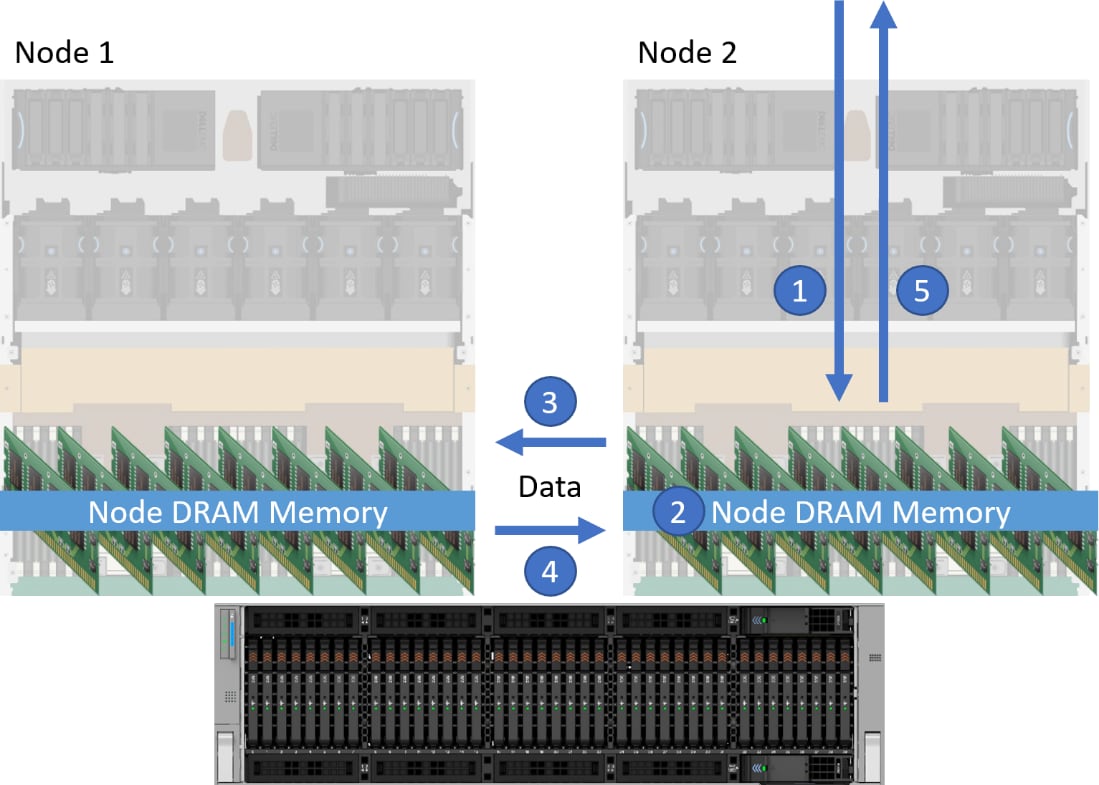
All writes entering a PowerStore Gen 3 appliance follow the same data path, regardless of the resource type or which model the write is entering. The following paragraphs describe the steps that are taken to store the information within the system before acknowledging the host/client.
Step 1 in the following figure depicts a write request entering Node 2. The information is stored within write cache in the node's DRAM memory (Step 2). A full copy of the write is also mirrored to the peer node's DRAM memory (Step 3). This mirroring is accomplished using the RDMA cards, which provide high-speed, low-latency data transfer between nodes without CPU involvement. The peer node is also notified about the information, including what resource it is intended for. After the data is mirrored to the peer node, the peer node acknowledges the write (Step 4). The last step (Step 5) in completing the I/O is to acknowledge the host that the write has been persisted on the system. Once the data is stored in both nodes' DRAM memory, the host is acknowledged. The data is passed through the deduplication and compression algorithms at a later time.
PowerStore deduplication and compression
Deduplication and compression within a PowerStore appliance occur as data is copied from the appliance’s DRAM memory-based write cache to the data drives within the system. This is true for PowerStore Gen 1, Gen 2, and Gen 3 models. During this process, data is stored within the back-end storage in full stripe writes, which are created with the data remaining after it is passed through the deduplication and compression process.
All writes to the system pass through deduplication and compression logic to ensure the data is stored as efficiently as possible. These software features are part of PowerStore data path operations and cannot be disabled by the user. Workloads are also dynamically prioritized. Deduplication operations may be deferred to a period with a less extreme I/O demand. If this occurs, compression remains enabled and continues to achieve space savings. Once deduplication is resumed, blocks that were skipped are passed through the deduplication algorithm to determine if deduplication can occur. Used space is recovered if deduplication can be achieved.
When data is passed through the deduplication and compression logic, it first passes through common pattern detection, reviewing the data for all zeros or ones. If one of these patterns is matched, deduplication occurs and the metadata within the resource is updated to state what data pattern was found in that location. The metadata for a resource tells the system how it can re-create or locate data for an address within a storage resource. For example, if a block of zeros were deduplicated starting at a particular address within the resource, the metadata would have information to provide zeros as a response for that address if it is requested.
If a pattern was not found, the data is passed through the deduplication algorithm. This algorithm first creates a fingerprint for each block of data within the resource using a hashing algorithm. PowerStore Gen 1 and Gen 2 models use a 4 KB block size while PowerStore Gen 3 models use an 8 KB block size. Once created, the fingerprint is compared to other fingerprints which represent data within the PowerStore single deduplication domain within the appliance. The deduplication domain allows data for any resource within the appliance to deduplicate. If a match is found, the physical storage is single-instanced. If a match is not found, the data is sent for compression.
PowerStore Gen 3 models include unaligned deduplication, which extends the deduplication capability beyond standard page boundaries. Unaligned deduplication scans sequential data blocks to find duplicate data that may span across two consecutive blocks of data. This approach helps improve data reduction savings for datasets with unaligned sequential data patterns that would not be detected by standard page-aligned deduplication.
The data reduction process in PowerStore Gen 3 models operates in a specific order. Page-aligned deduplication is always attempted first and is preferred over unaligned deduplication. If page-aligned deduplication is not achieved and multiple consecutive blocks have been written, unaligned deduplication is then run. If neither deduplication method is successful, compression is applied. Unaligned deduplication cannot be disabled by the user, and like all deduplication and compression algorithms in PowerStore, it is always enabled.
If deduplication is not possible, compression is attempted. PowerStore will only compress a block if space savings are achieved. The resulting block, either in compressed or full form, is placed into a full stripe write to be written to the drives. In PowerStoreOS 4.0 and later, the compression algorithm allows multiple blocks of data to be compressed together. This change potentially allows for higher savings in blocks that otherwise would not see it. This feature is available for all PowerStore models.
In PowerStore, the fingerprint cache consumes a fixed region of space within system memory but can expand into the data drives to store fingerprints as needed. This allows the system to retain all fingerprints created on the appliance. The entire fingerprint cache is also mirrored within the data drives, protecting it against unforeseen issues.
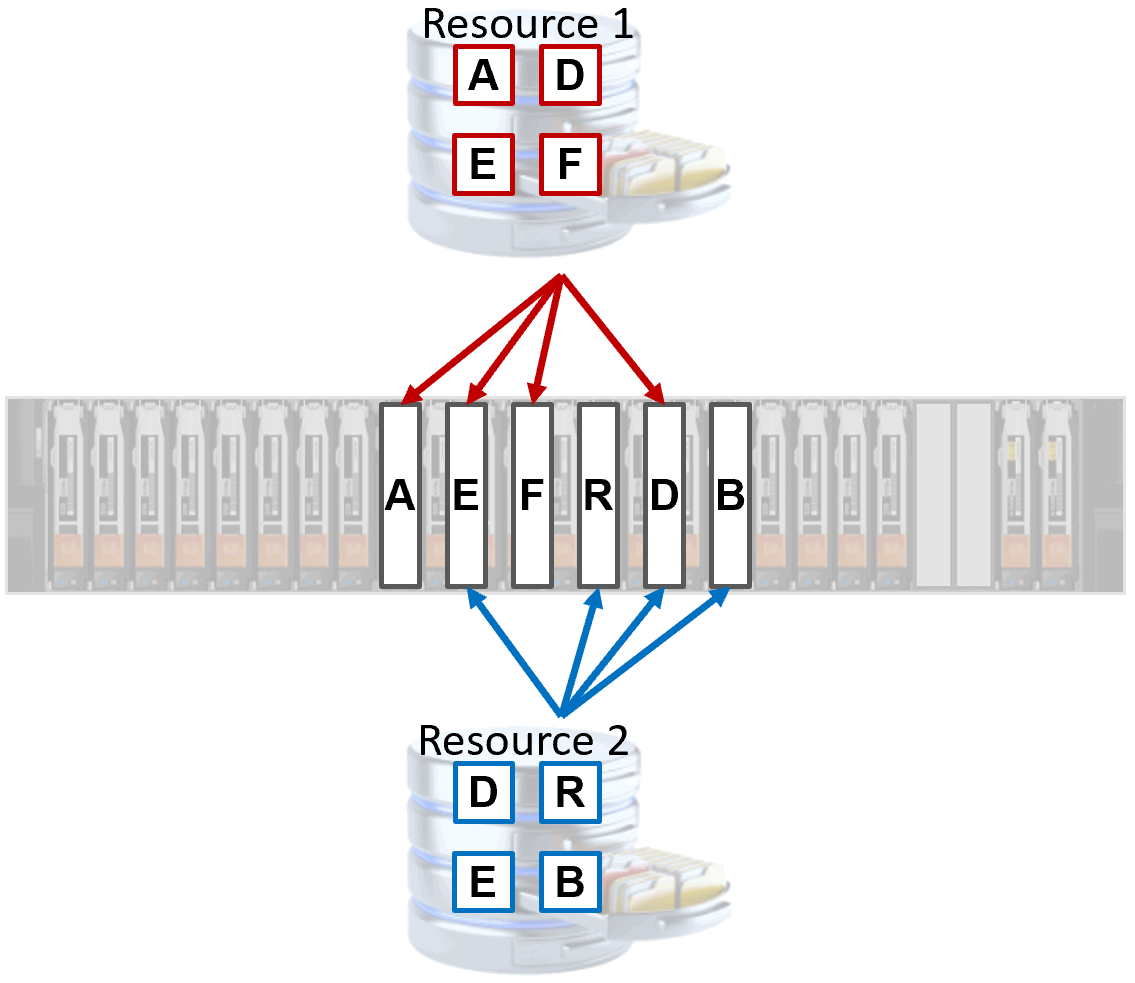
Deduplication example in PowerStore shows an example of the result of the deduplication and compression logic within the PowerStore system. In this example, Resource 1 and Resource 2 have written four blocks of data each, and they are stored within the system. Deduplication within the PowerStore system allows blocks from different resources to deduplicate, reducing the amount of space consumed by duplicate data within the system. In this example, Block A is unique to Resource 1, and it is only referenced by Resource 1. Block E is present in both resources, and has deduplicated within the system, thus saving space. Further savings can be achieved if the data is compressible, as the resources can both reference a compressed block.
PowerStore is included in the Dell Technologies Data Reduction Guarantee. More information about the program can be found in the Dell Technologies Data Reduction Guarantee Terms And Conditions. In PowerStoreOS 4.2 and later, a link to the Data Reduction Guarantee can be found in under Support Contracts.
Reads
Overwrites
Efficiency reporting
Efficiency reporting
Overview
By using multiple space-savings techniques, PowerStore attempts to use the least amount of disk space to store user data. For reporting purposes, space-savings information is available at the cluster, appliance, and resource level, and includes multiple space-saving metrics. Depending on the object being viewed, these metrics may include an overall efficiency value, and thin, snapshot, and data reduction savings values. At the appliance level, savings information is aggregated for any resources on the appliance. Likewise, at the cluster level, space savings information is aggregated from each of the appliances within the cluster.
The overall efficiency value is a computed ratio of the total provisioned space to the physical used space. The total provisioned space not only includes the provisioned size for each of the resources within the system or cluster, such as the size of the volumes, file systems, and all thin clones, but also any snapshots. The physical used space is the total used space on the drives to store the data after thin, deduplication, and compression savings are achieved. The used space is not the total amount of space that is consumed from a host or client perspective before space savings is applied. The overall efficiency value is available for the entire cluster and each appliance within the cluster.
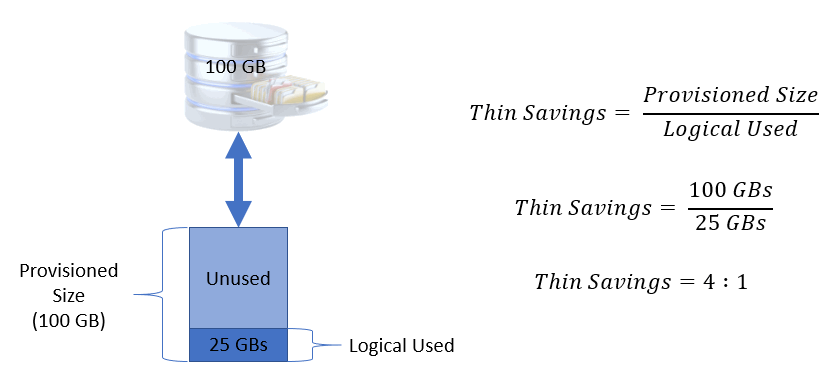
All resources within PowerStore are thinly provisioned, which means the system does not reserve the total provisioned size of a resource from the storage, but rather allocates space as needed. The thin savings achieved for a cluster, appliance, or resource is the ratio of the total provisioned size to the logical space used. The logical space that is used in this instance is the total space that is consumed from a host or client perspective without the effects of deduplication or compression. As shown in Thin savings example, if a 100 GB volume has 25 GB of written data, the savings due to the resource being thin is 4:1.
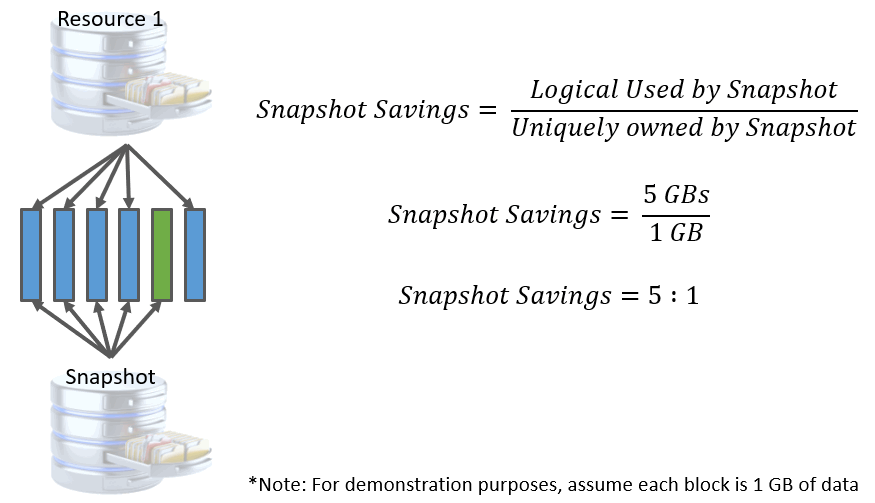
Snapshot savings, which are displayed as snap savings within PowerStore Manager, is the ratio of logical used space for the snapshots to data that is uniquely owned by the snapshots. The logical used space is the amount of space consumed by data which is in common between the snapshot and the parent resource when the snapshot was created. For example, a volume has 5 GB of data consumed and a snapshot is then taken. The logical used space by the snapshot in this instance is 5 GB, which is shared with the parent resource. If 1 GB of data is overwritten in the volume, the amount of data that is uniquely owned by the snapshot is now 1 GB. In this example, also shown in Snapshot savings example, the snap savings is 5 GB/1 GB or 5:1.
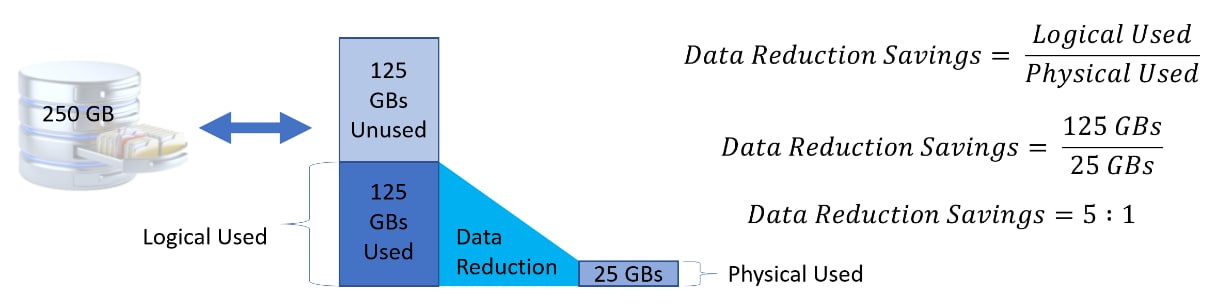
Another space efficiency metric is the Data Reduction Ratio (DRR). This ratio is a comparison between the amount of space a dataset would have consumed if no space savings were achieved (logical used), compared to the amount of physical space occupied after passing the data through deduplication and compression (physical used). If 125 GB of data only needs 25 GB of physical storage after deduplication and compression, then the data reduction savings is 5:1. This example is shown in Data reduction savings example. In PowerStoreOS releases prior to version 4.0, the data reduction ratio is only displayed for the cluster and appliance levels.
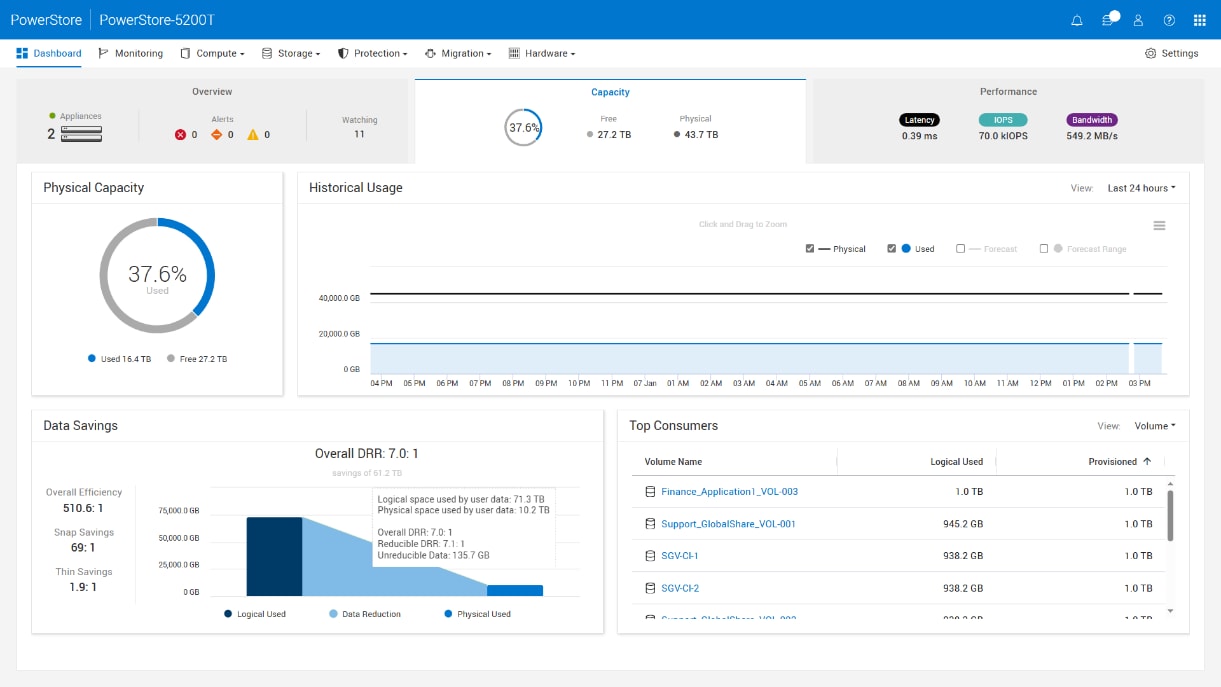
Additional space savings metrics are also available starting in the PowerStoreOS 4.0 release. Users can view the Overall Data Reduction Ratio (Overall DRR), Reducible Data Reduction Ratio (Reducible DRR), and the amount of Unreducible Data. These metrics are available for the cluster and each individual appliance within a cluster, along with volumes, volume groups, storage containers, virtual machines, file systems, and NAS servers. For volumes, volume groups, file systems, and NAS servers, these metrics are reported for the family, such as Family Overall DRR or Family Reducible DRR.
Note: Data efficiency metrics for file systems and NAS servers were introduced in the PowerStoreOS 4.1 release.
Following are the definitions for the metrics:
- Overall DRR
- Ratio of space which would have been taken if deduplication and compression are not applied to the physical space occupied after deduplication and compression. The Overall DRR value is the same value as the Data Reduction Ratio from releases prior to version 4.0.
- Reducible DRR
- The Data Reduction Ratio for the reducible data within the cluster, appliance, or resource. This metric ignores any Unreducible Data in the calculation.
- Unreducible Data
- The amount of data written within the cluster, appliance, or resource that could not be reduced by PowerStore’s deduplication and compression logic.
In PowerStore, the Physical Capacity, Historical Usage, and Data Savings metrics can be viewed for the cluster, and the cluster top resource consumers from the tab. The cluster metrics are aggregated from the metrics of its appliances and resources, such as volume groups, volumes, file systems, and virtual machines. An example of the Capacity tab for the cluster is shown in PowerStore Manager: Dashboard > Capacity tab. Under the Data Savings title, the Overall Efficiency, Snap Savings, and Thin Savings for the cluster can be viewed. A graphic exists showing the relationship between the Logical Used and Physical Used space, along with the Data Reduction savings that were achieved. In PowerStoreOS 4.0, hovering over the Data Reduction graphic allows the user to see the Overall DRR, Reducible DRR, and Unreducible Data values for the cluster.
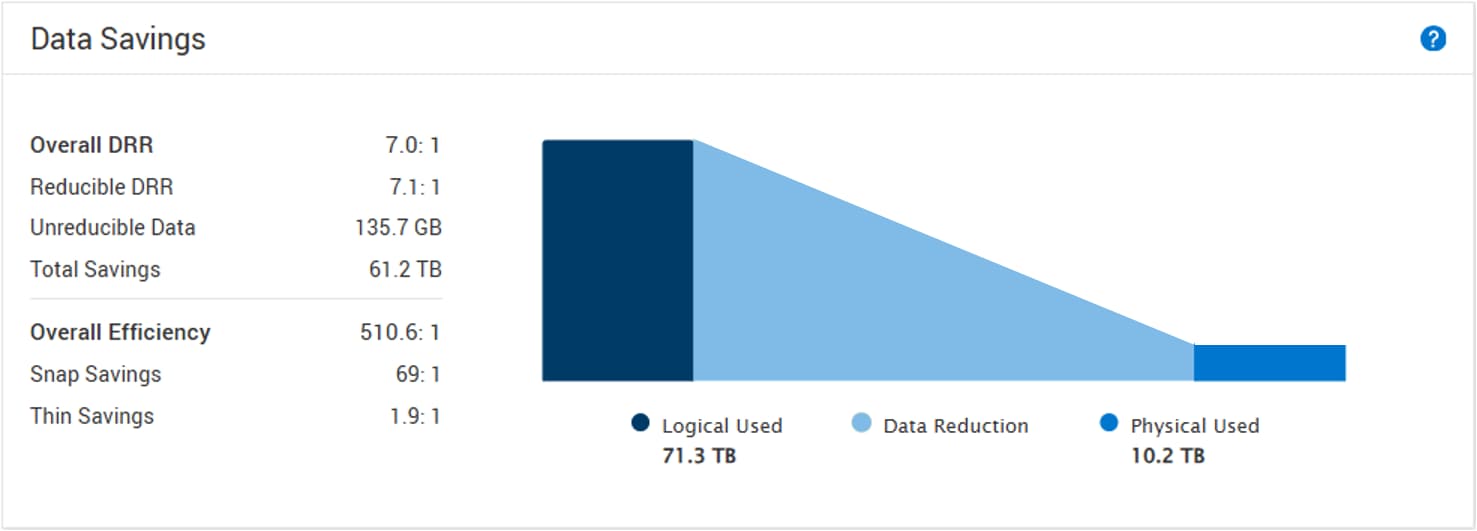
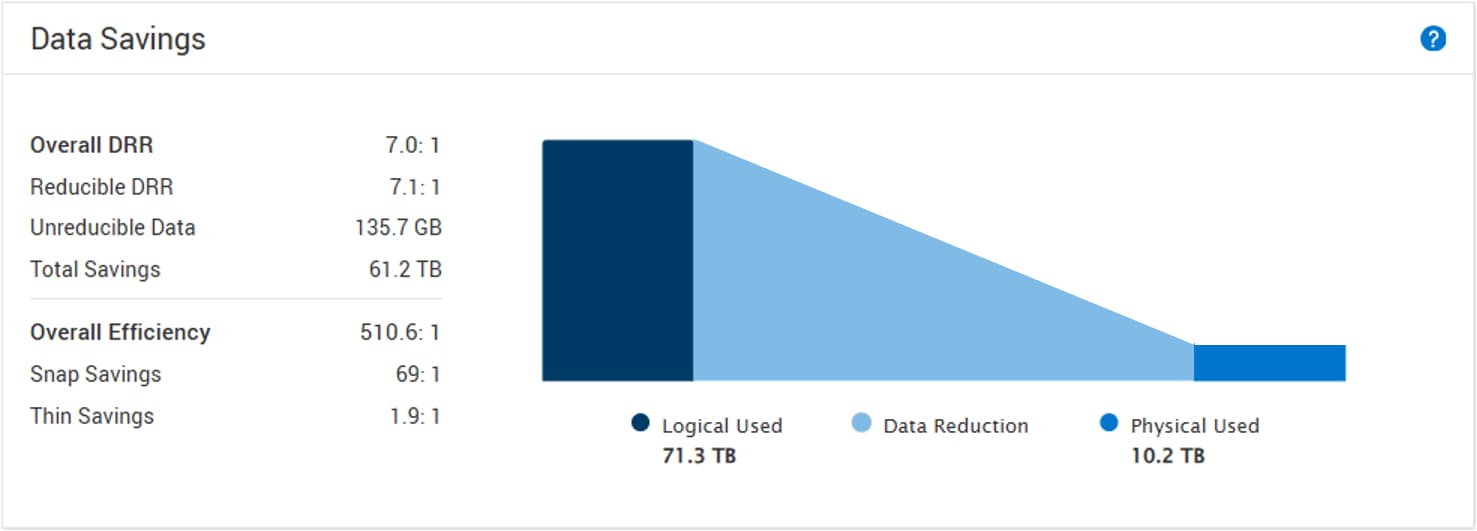
In PowerStoreOS version 4.2 and later, the layout of the information provided within the Data Savings box on the Capacity tab for the cluster has been updated. All information previously found within the previous codes is available in a table format, as shown in Data Savings Chart (PowerStoreOS 4.2 and later) below. Users no longer need to hover over the chart to view savings information. Data Savings also includes a ? icon, which links to PowerStore Manager online help.
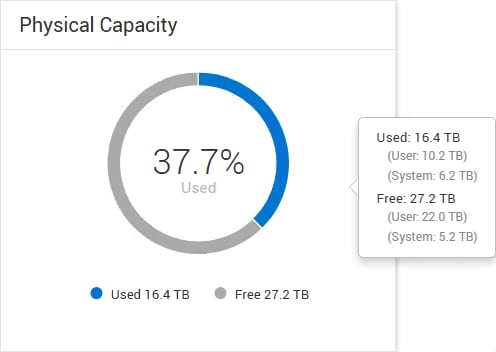
When hovering over the Physical Capacity chart, the user is provided with more information about the Used and Free capacity within the system. For each metric, User and System space is also reported. For Used, the User and System space metrics state how much capacity is currently in use for User data and by the System. The System value includes the amount of space used by system metadata. For Free, the User and System values report how much free space exists.
When a resource is deleted, capacity that was used by user data is freed back to user space and any metadata space is freed to system space. When additional capacity is required for new user data or metadata, the system uses the free capacity within the system. If there is no free system space to create additional metadata, user space will be reduced to satisfy the need. This information is available within the Physical Capacity chart for the cluster and each individual appliance. An example is shown in PowerStore Manager: Dashboard > Capacity tab > Physical Capacity.
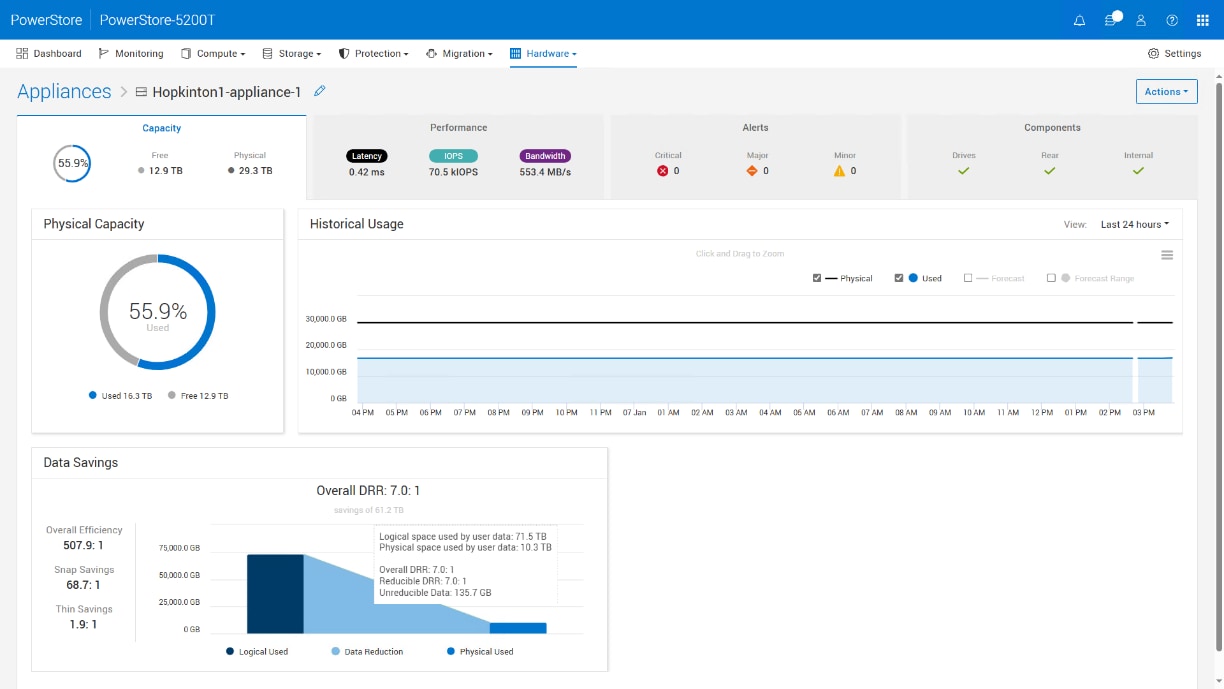
The capacity metrics for an appliance can be viewed from the Hardware > Appliances > [appliance] > Capacity tab. On this screen, as shown in PowerStore Manager: Hardware > Appliances > [appliance] > Capacity tab, the Physical Capacity, Historical Usage, and Data Savings information for the appliance can be viewed. Within the Data Savings block, the Overall Efficiency, Snap Savings, and Thin Savings for the appliance can be viewed. As mentioned previously, this information is aggregated, along with information for other appliances within the same cluster, to create the cluster metrics. Lastly, the Data Reduction savings ratio is presented within the graphic displaying the comparison between Logical Used and Physical Used space for the appliance. In PowerStoreOS 4.0, hovering over the Data Reduction graphic allows the user to see the Overall DRR, Reducible DRR, and Unreducible Data values for the appliance. If the cluster contains a single appliance, the capacity information on this page matches what is displayed on the Dashboard > Capacity tab.
In PowerStoreOS version 4.2 and later, the layout of the information provided within the Data Savings box on the Capacity tab for the appliance has been updated. All information previously found within the previous codes is available in a table format, as shown in Data Savings Chart (PowerStoreOS 4.2 and later) below. Users no longer need to hover over the chart to view savings information. Data Savings also includes a ? icon, which links to PowerStore Manager online help.
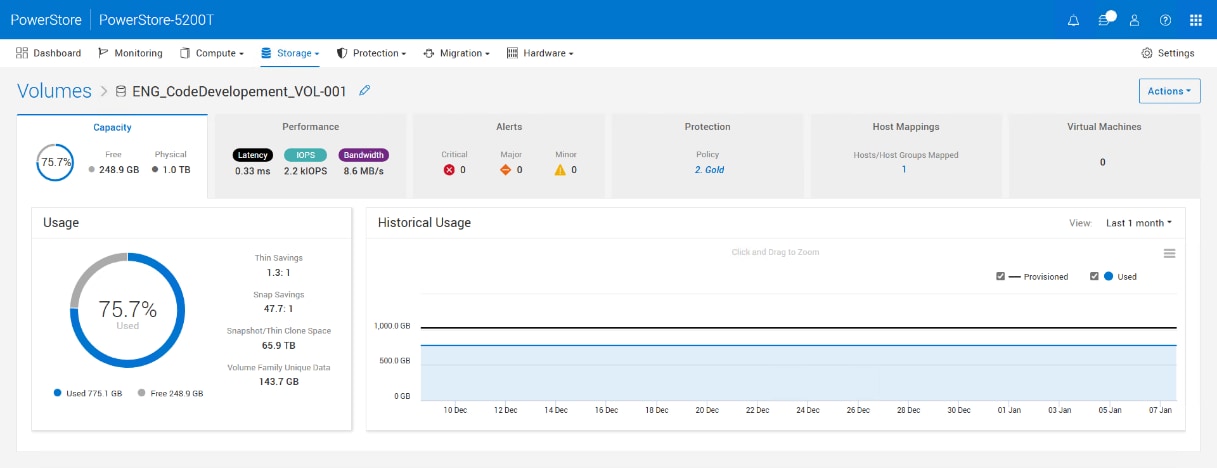
Thin Savings and Snap Savings can be viewed for volumes and file systems within a PowerStore system. This information can be found on the Capacity tab within the properties of the resource. Within the Usage box, the Used and Free space are displayed, along with the Thin Savings and Snap Savings. The amount of Snapshot/Thin Clone Space being consumed, and the amount of Family Unique Data can be viewed on this page. The Historical Usage of the resource is also displayed on the Capacity tab, which shows the Provisioned size and Used space for the resource. An example of this page for a volume is found in PowerStore Manager: Volume Properties > Capacity tab. Usage information for file systems is also available on the Capacity tab. The information includes Thin Savings, Snap Savings, Snapshot/Thin Clone space, and File System Family Unique Data. The Historical Usage chart is also available for file systems.
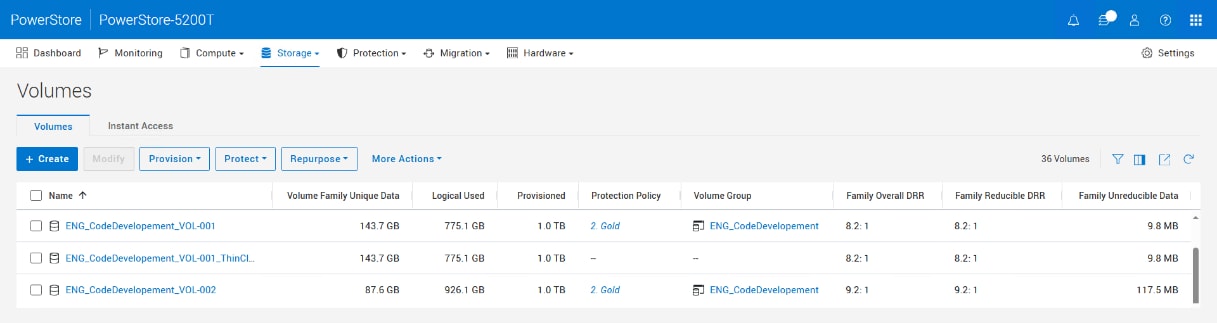
The Overall DRR, Reducible DRR, and Unreducible Data metrics can be viewed for volumes, volume groups, storage containers, virtual machines, file systems, and NAS servers. PowerStoreOS version 4.0 and later also allows a user to add columns for these metrics to the table view. This allows a user to easily compare the data across the resources within the cluster. PowerStore Manager: Storage > Storage Containers page shows the Family Overall DRR, Family Reducible DRR, and Family Unreducible Data columns on the Volumes page.
Note: Family Overall, Reducible, and Unreducible Data metrics for file systems and NAS servers were introduced in the PowerStoreOS 4.1 release. Columns to view these metrics within PowerStore Manager were also added in the 4.1 release.
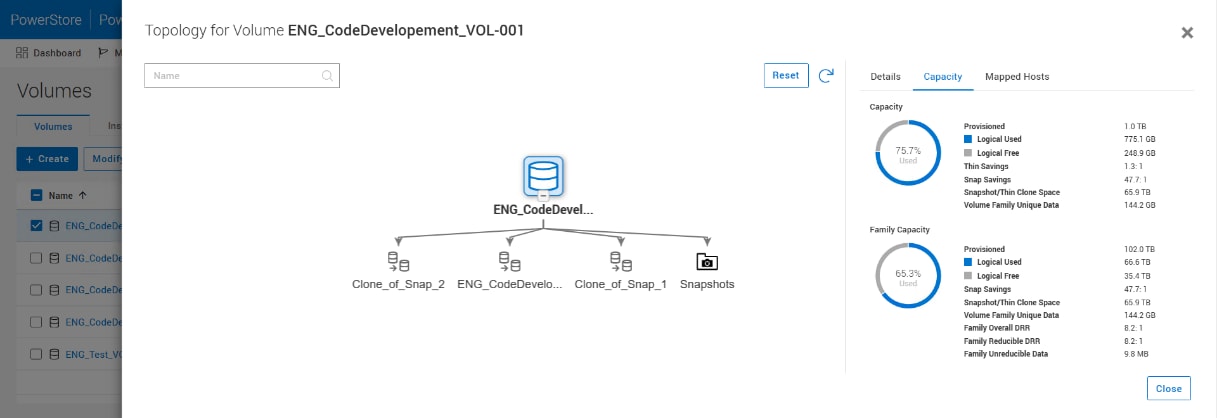
Capacity and data efficiency information can also be viewed within the topology views for volumes, volume groups, and file systems. To view this page, select the checkbox for a resource then . PowerStore Manager: Volume > More Actions > View Topology > Capacity tab is an example of this page for a volume with the Capacity tab selected.
Note: View Topology was added for file systems in the PowerStoreOS 4.1 release.