Dell PowerStore: Microsoft SQL Server Best Practices

Oct 19, 2026
Dell PowerStore: Microsoft SQL Server Best Practices This paper provides best practices for using Dell PowerStore in a Microsoft SQL Server environment.

Executive summary

Overview

This paper provides best practices for using Dell PowerStore in a Microsoft SQL Server environment. SQL Server is a robust product that can be used in various solutions. The relative priorities of critical design goals such as performance, manageability, and flexibility depend on the environment. This paper provides considerations and recommendations to help meet design goals. For general best practices for using PowerStore systems, see the Dell PowerStore: Best Practices Guide.

These guidelines are intended to cover most use cases. They are recommended by Dell Technologies, but they are not strictly required. For questions about the applicability of these guidelines in your environment, contact your Dell Technologies representative to discuss the appropriateness of the recommendations.

Audience

This document is intended for IT administrators, storage architects, partners, and Dell Technologies employees. This audience also includes any individuals who may evaluate, acquire, manage, operate, or design a Dell networked storage environment using PowerStore systems.

Revisions

Date

Part number/
revision

Description

April 2020


Initial release: PowerStoreOS 1.0

July 2020


Updated AppsON host configuration and sizing guidance

February 2021


Legal disclaimer update

April 2021


PowerStoreOS 2.0

May 2021


Clarification on PowerStore X and T

October 2021


Updated NVMe terminology

October 2021


Updated template

July 2022

H18250.7

PowerStoreOS 3.0

March 2023

H18250.8

SQL Server 2022 updates

May 2023

H18250.9

PowerStoreOS 3.5 updates:

  • Secure snapshots
  • Native PowerProtect DD series appliance integration

June 2024

H18250.10

PowerStoreOS 4.0 updates

Removed references to PowerStore X/AppsOn

Introduction

PowerStore and SQL Server

Dell PowerStore is a robust and flexible storage option that is well suited to SQL Server. The capabilities of the PowerStore platform provide some unique benefits and exciting architecture options for SQL Server workloads.

PowerStore product overview

PowerStore achieves new levels of operational simplicity and agility. It uses a container-based microservices architecture, advanced storage technologies, and integrated machine learning to unlock the power of your data. PowerStore is a versatile platform with a performance-centric design that delivers multidimensional scale, always-on data reduction, and support for next-generation media.

PowerStore brings the simplicity of public cloud to on-premises infrastructure, streamlining operations with an integrated machine-learning engine and seamless automation. It also offers predictive analytics to easily monitor, analyze, and troubleshoot the environment. PowerStore is highly adaptable, providing the flexibility to host specialized workloads directly on the appliance and modernize infrastructure without disruption. It also offers investment protection through flexible payment solutions and data-in-place upgrades.

Microsoft SQL Server product overview

Microsoft SQL Server is the industry-leading data platform. A product which once started as a database engine on Microsoft Windows has evolved into an entire data platform. This platform enables cloud, hybrid, and on-premises deployments in several different environments including Windows, Linux, containers, and Kubernetes. Besides the wide number of environments that SQL Server can be deployed in, the use cases have expanded. These uses now range from typical online transactional processing (OLTP) to various analytics options such as data warehousing, artificial intelligence (AI), machine learning (ML), and big data. The adaptable and flexible nature of SQL Server makes PowerStore a perfect fit for SQL Server.

Terminology

The following terms are used with PowerStore.

Table 1.      Terminology

Term

Definition

Appliance

Term used for solution containing a base enclosure and any attached expansion enclosures. The size of an appliance could be only the base enclosure or the base enclosure plus expansion enclosures.

Base enclosure

Used to reference the enclosure containing both nodes (node A and node B) and the NVMe drive slots.

Cluster

Multiple PowerStore appliances in a single grouping. Clusters can consist of one appliance or more. Clusters are expandable by adding more appliances. A cluster supports up to four appliances.

Expansion enclosure

Enclosures that can be attached to a base enclosure to provide 25 additional SAS-based drive slots.

Node

The component within the base enclosure that contains processors and memory. Each appliance consists of two nodes.

PowerStore Manager

The web-based user interface (UI) for storage management.

Storage volumes (volumes)

PowerStore volumes using block storage. These volumes are displayed in the Block area of the PowerStore dashboard.

Virtual Volumes (vVols)

VMware vSphere Virtual Volumes (vVols). These volumes are displayed in storage containers within PowerStore Manager.

Watchlist

Configurable list of volumes or hosts that are available on the dashboard for quick reference and monitoring.

Scale-up and scale-out architecture

Introduction

Scale-up and scale-out are common architecture models used when accommodating a growing data footprint. Microsoft SQL Server has supported both scale-up and scale-out architecture models for several years. Dell PowerStore aligns with SQL Server by also providing both scale-up and scale-out architecture options. When designing data architectures, there are tradeoffs in design, functionality, and scalability that must be considered. The PowerStore storage configuration will depend on SQL Server architecture.

SQL Server scale-up

When you scale up an instance of SQL Server, you can increase the amount of memory, compute, and storage by upgrading to a higher software version or increasing the hardware capabilities. You get the same or more functionality and retain the same logical data design and therefore the data architecture is unaffected. This approach is common because it is low impact. 

SQL Server scale-out

Scale-out architectures on SQL Server enable a data footprint to scale past what can be achieved by a single instance. The trade-off is that these architectures require considerably more planning and consideration and often require applications to be designed accordingly. Concepts such as data placement, load balancing, and data sharding may need to be addressed, and the impact on features such as replication or availability groups.

PowerStore scale-up

PowerStore models can scale up with several different upgrade paths. You can add drives or drive expansion shelves to an appliance, add storage network paths, upgrade to next-generation hardware as it becomes available, or upgrade to more powerful models within the same family. Like SQL Server scale-up, this approach is also low impact. PowerStore redundancy features and the Lifecycle Extension with ProSupport Plus program offered by Dell Technologies ensure a frictionless upgrade experience.

PowerStore scale-out

PowerStore can also scale out by adding nodes to the PowerStore cluster. PowerStore can add up to four appliances in a cluster to provide extra capacity and performance. Like scale-up or scale-out architecture decisions for SQL Server, there are similar considerations for PowerStore. See the Dell PowerStore: Clustering and High Availability white paper for complete details.

Sizing

Introduction

There are several best practices for provisioning compute and storage to SQL Server. The size of power and flexibility of SQL Server allow it to be used in several different deployment scenarios. This section covers some considerations for optimizing SQL Server for PowerStore.

SQL Server design considerations

The I/O storage system is a critical component of any SQL Server environment. Sizing and configuring a storage system without understanding the I/O requirements can have unfavorable results. Analyzing performance in an existing environment using a tool like Live Optics can help define the I/O requirements. For best results, capture performance statistics for at least a 24-hour period that includes the system peak workload.

Database design

When creating SQL Server databases, the default is to have one database file, one filegroup, and one log file. If at any point the database will have high performance requirements, it is recommended to use at least two datafiles per file group. SQL Server will write data evenly across all files in the filegroup and therefore the underlying files. Using multiple files allows the database workload to be spread across multiple volumes or vVols. Even if they are placed on the same volume in the beginning, it is advantageous to create this configuration from the start. More files can be added later, but the data must be restriped to achieve balanced access through re-indexing or some other technique. This reason is because SQL Server uses a proportional fill strategy when writing to datafiles such that it will write more data to files that have a greater amount of free space.

More filegroups can be created and may be beneficial to use some SQL Server features. However, the number of filegroups has no performance benefit.

SQL Server log files are accessed sequentially and do not use proportional fill. Therefore, there is no performance benefit to creating extra log files.

OLTP workloads

While every environment is unique, an online transaction processing (OLTP) workload typically consists of small, random reads and writes. A storage system that services this type of workload is primarily sized based on capacity and the number of IOPS required. PowerStore models allow the flexibility to be configured for block-optimized or unified (block and file) workloads to meet unique OLTP requirements.

Analytic workloads

An online analytic processing (OLAP), decision support system (DSS), or big data workload is typically dominated by large, sequential reads. A storage system that services this type of workload is primarily sized based on throughput. When designing for throughput, the performance of the entire path between the server and the drives in PowerStore needs consideration. For high-throughput requirements to be met, multiple HBAs may also be used in the server, the array, or both.

Mixed workloads

The most common scenario is a mixed workload environment. Typically, SQL Server I/O patterns do not strictly fall into an OLTP or analytics pattern. This factor is what can make SQL Server workloads challenging because no two workloads behave the same. In addition, the same SQL Server host or instance may be servicing multiple applications or transaction workloads. Mixed workload can also imply that multiple applications (in addition to SQL Server) are residing on the same host or accessing the same storage. The combined workload of these applications invalidates any typical application I/O usage pattern. For these reasons, it is important to gather performance metrics for best sizing results.

RAID configurations and storage pools

Since the inception of storage devices that used multiple drives for a single volume, the topic of RAID configuration and storage pools has been highly debated. Designing and maintaining the proper design could be time consuming and the wrong decisions could have a negative impact on performance. In addition, reconfiguring the storage layout often required considerable planning.

PowerStoreOS uses the capabilities of flash-based storage for maximum performance and capacity, eliminating the need for administrators to configure RAID or storage pools. Most existing SQL Server publications that discuss RAID levels and configuration were written based on older technology and apply to spinning drives. Therefore, these concepts do not apply to PowerStore. Dell Technologies recommends following the guidance in this paper and associated publications for best performance and availability. For further questions, contact a Dell Technologies representative.

Validating the I/O path

Before deploying workloads on PowerStore, it is a good idea to validate the I/O path between the server and the array. Running a large block sequential read test using small files should saturate the path between the server and the array. This test verifies that all paths are fully functional and can be used for I/O traffic. Run this test on an isolated server and PowerStore. Running this test in a production environment could cause significant performance issues for active workloads. To validate the I/O path, run a large block sequential read test using the following guidelines:

  • Create one volume per node.
  • Format the volumes using a 64 KB allocation unit.
  • Use a block size of 512 KB for the test.
  • Configure the test for 32 outstanding I/Os.
  • Use multiple threads; eight is the recommended starting point.

If the displayed throughput matches the expected throughput for the number of HBA ports in the server, the paths between the server and PowerStore are set up correctly.

MPIO

A best practice for SQL Server hosts is to provide multiple paths to the storage for resiliency and performance. This practice protects against possible data loss or downtime, should a physical component fail. In scenarios where multiple paths to the storage are used, MPIO must be enabled and configured. See the Dell Technologies E-Lab Host Connectivity Guides for recommendations.

Physical host management and monitoring

Introduction

PowerStore offers multiple features for managing and monitoring storage volumes with physical (bare metal) SQL Server hosts. The following sections describe how PowerStore enterprise features enable and augment SQL Server storage management and observability.

PowerStore presents storage to external hosts through either block or file interfaces. Block storage is commonly used for SQL Server workloads due to the various speeds and protocols that are offered which make it ideal for performance. Fibre Channel, iSCSI, and NVMe-oF are available for SQL Server high-bandwidth storage workloads such as analytics that can generate a large amount of large block I/O. Instructions and best practices for configuring hosts can be found in the Dell Technologies E-Lab Host Connectivity Guides.

Before you create objects or deploy workloads on PowerStore, we recommend reviewing the following guides for best practices and tuning recommendations. We recommend applying these changes before deploying workloads because some changes require a reboot of the PowerStore appliance nodes. For resiliency, ensure that external hosts are connected through multiple paths, or multipath, to the PowerStore appliance.

Follow recommendations for configuring external hosts in the Dell PowerStore: Best Practices Guide. In addition, when running SQL Server on virtual machines with VMware ESXi hosts, review the guidance in the Dell PowerStore Virtualization Infrastructure Guide and Dell PowerStore: VMware vSphere Best Practices white paper.

Boot from SAN

PowerStore supports boot-from-SAN for environments that want to further virtualize storage resources. In addition to the storage virtualization benefits, Boot-from-SAN can also be used to protect the operating-system configuration and allow for quick recovery. This configuration can be beneficial in environments where the recovery time objective (RTO) is strict.

Hosts and host groups

Physical SQL Server hosts are connected to PowerStore by adding a host object in PowerStore. The host object contains the storage initiators on the host to enable storage presentation.

Host groups allow multiple hosts with the same storage connectivity to be grouped together. Once a host group is created, volumes can be connected to the host group to simplify host mapping. Also, performance metrics can be viewed at the host group level, which provides another level of insight into storage performance. This is useful with SQL Server Failover Cluster Instances where the SQL workload may move across several physical hosts.

Volumes

PowerStore storage volumes are created and mapped to the host for each disk or mount point that is presented to SQL Server.

There is a balance between manageability and performance that is unique to each environment. Generally, fewer volumes are easier to manage while more volumes enable better performance and optimize for features such as storage replication, Metro Volume, filegroup backups, and piecemeal restores.

When creating a new database, if there is a possibility your SQL Server workload will require performance from multiple volumes, create the database with multiple data files. It is much easier to simply relocate a data file in the future than to add additional database data files and rebalance the data.

There are many types of files that are part of a SQL Server instance. These types of data often have different performance and snapshot requirements. For performance-sensitive applications, Dell Technologies recommends creating at least five volumes for an instance of SQL Server as shown in the following table.

Table 2.      Volume provisioning recommendations

File type

Number of volumes per instance

Typical performance requirements

Typical snapshot requirements

User DB data

1+

Lower performance may be acceptable

Frequent snapshots, same volume group as log volumes

User DB transaction log

1+

High performance required

Frequent snapshots, same volume group as data volumes

Data root directory (includes system DBs)

1

Lower performance may be acceptable

Infrequent snapshots, independent schedule

Tempdb data and transaction log

1

High performance required

No snapshots

Native SQL Server backup

1

Lower performance may be acceptable

Snapshots optional, independent schedule

Memory-optimized filegroup (if used)

1+

High performance required

Frequent snapshots, same schedule as log volume

Associate databases that span multiple volumes within a volume group. This helps ensure that other features such as snapshots, replication, and thin clones will be configured properly and maintain data consistency.

Allocation unit size

When formatting volumes, choose a 64 KB allocation unit size. This aligns with the 64 KB database extent size, which is the allocation unit that is used by SQL Server. The allocation unit size should be the same when formatting volumes on Windows or Linux platforms.

Volume mapping and clustering

After creating a volume, host mapping presents storage from the PowerStore array to a host or a cluster of hosts that are defined in a host group. Follow general best practices as outlined in the PowerStore Host Configuration Guide when mapping storage volumes.

Clustered SQL Server instances require special consideration because correct host mapping is critical to cluster failover. SQL Server Failover Cluster Instances (FCI) rely on Windows Server Failover Clustering (WSFC). Dell Technologies recommends using host groups to uniformly present storage to all the initiators for reduced management complexity. This allows a volume or set of volumes to be mapped to multiple hosts at a time and maintain the same Logical Unit Number (LUN) across all hosts. If volumes in the failover cluster do not have the same LUN number across Windows hosts in the cluster, failover does not work properly. Once the cluster configuration is complete, test the cluster failover to ensure that all failover components, including storage, are functioning as intended. PowerStore Metro Volume is the enabling feature for WSFC configurations.

Metro Volume

PowerStore Metro Volume allows a single block volume to be synchronized and active on two PowerStore appliances. This can provide additional storage resiliency for a single host or support SQL Server FCI configurations in the same or separate sites.

The most common SQL Server use case for Metro Volume is in stretch cluster or metro cluster architectures utilizing separate storage appliances. The following Microsoft example contains the high-level architecture for these scenarios with a SQL Server FCI using separate storage appliances: SQL Server Multi-Subnet Clustering – SQL Server Always On | Microsoft Learn. In this architecture, the “data replication mechanism between the sites” can be implemented with PowerStore Metro Volume.

For complete details on PowerStore Metro Volume, including WSFC configuration see the Dell PowerStore: Metro Volume white paper.

Volume groups

Block volumes can be combined into a volume group. A volume group identifies volumes that should be treated as a set. This is important for applications such as SQL Server where a single database is comprised of multiple files which are commonly stored on multiple volumes. When a database spans multiple block volumes, Dell Technologies recommends placing all block volumes for a SQL Server database into a volume group.

Depending on the use case, volumes for multiple databases might be combined into a single volume group as well. For example, a SQL Server application that consists of multiple interdependent databases that need to be consistent. A single volume group of interdependent databases could contain system databases as well.

Understanding volume group features will help you understand the best way to organize SQL Server database volume into volume groups.

Write-order consistency

SQL Server volume groups should always use the write-order consistency option. This ensures that writes across multiple volume are applied in a consistent order. This will assist SQL Server crash recovery in the event of a failure by ensuring that database and transaction log entries are maintained in order.

Provisioning

Volume groups can identify all SQL Server database related volumes so they can be provisioned as a set. This makes it easier for administrators who may not be familiar with the SQL Server architecture to ensure all related volumes are provisioned together.

Policy-based management

When volume groups are created for SQL Server volumes, policy-based management features such as QoS, snapshots, replication, remote snapshots, and Metro Volume should all be applied at the volume group level. This ensures that the policy is being applied to the entire database and related volumes. All files and volumes for a single SQL Server database need to be protected and managed consistently.

Note: Applying performance or protection policies to an individual database volume of a multi-volume database should be avoided.

Volume statistics assist in troubleshooting individual volume issues. However, from a SQL Server perspective the overall database performance is typically the first concern. Volume groups are an excellent way to see performance statistics for an entire database. Volume groups also provide another perspective in addition to the volume and the host level statistics.

Disk-format wait time

With trim/unmap enabled (default setting in Windows Server), significant wait time (just under two minutes) occurs when formatting a PowerStore volume that is more than 1 TB. The larger the volume is, the longer the format wait time is, which is a common situation with external storage. This case applies to volumes formatted as NTFS or ReFS.

To avoid a long format wait time when mapping and formatting a large volume, temporarily disable trim/unmap. This setting is disabled using the fsutil command from a command prompt with administrator privileges.

Figure 1 shows the commands to query the state and to disable trim/unmap for NTFS and ReFS volumes on a host. A DisableDeleteNotify value of 1 means that trim/unmap is disabled, and long format wait times are avoided when performing a quick format.

Changing the state of DisableDeleteNotify does not require a host reboot to take effect.
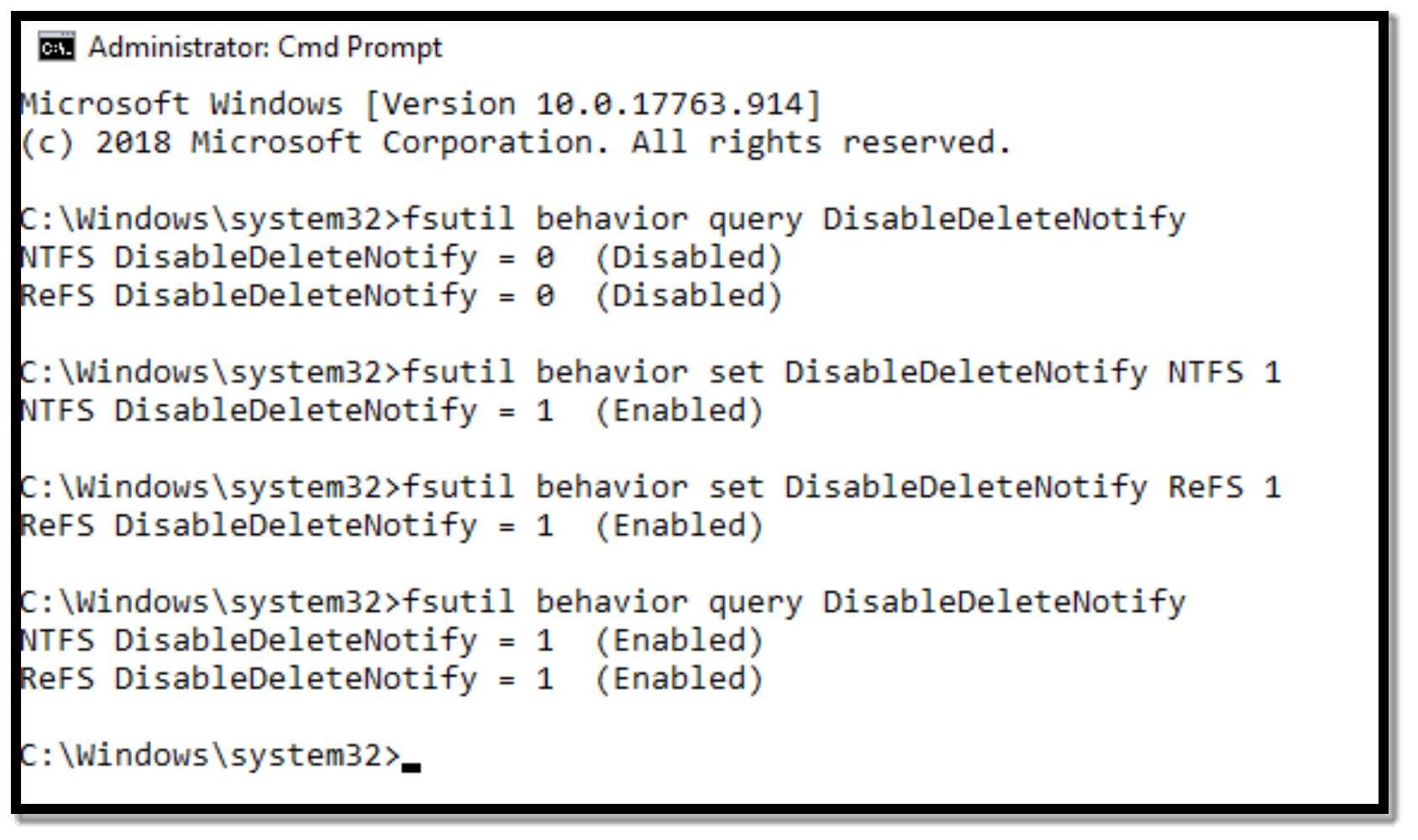
A demonstration of the fsutil command line utility used in a Windows command prompt window. the fsutil utility is being used to query and set the DisableDeleteNotify setting to disable and enable trim/unmap

Figure 1.   Use the fsutil command to query or change the state of trim/unmap

Once the volume is formatted, reenable trim/unmap so the host can take advantage of deleted space reclamation for NTFS volumes.

For more background information about trim/unmap with PowerStore, see the Dell PowerStore: Microsoft Hyper-V Best Practices white paper.

Thin clones

Thin clone uses a pointer-based technology to create a read/write copy of a volume, volume group, or file system. For data in a snapshot to be accessed by SQL Server, a thin clone must be created. Because the thin clone volume shares data blocks with the parent, the physical used space of the child volume is just the delta changes from after it was created. Thin clones are advantageous in a SQL Server environment because a SQL Server database can be duplicated for testing purposes, all while consuming less storage. For example, if a SQL Server admin must clone a multi-terabyte database server for a developer to run tests, the database can be isolated, tested, and only consume blocks that changed.

Within the PowerStore architecture, thin clones have several advantages for storage administrators.

  • The thin clone can have a different data protection policy from the parent volume.
  • The parent volume can be deleted, and the thin clones become their own resource.
  • Clone databases for testing monthly patches or development.
  • It is treated as a regular storage resource and therefore supports many data services such as protection policies, snapshot rules, or replication.
  • Can be refreshed quickly to bring latest production changes to lower environment.
  • Can be restored quickly to a baseline after testing.

When cloning databases for SQL Server, ensure all data and log volumes for the database are on the same volume or are part of the same volume group. For best practices for creating snapshots of SQL Server databases, see Data protection and disaster recovery. For more information, see the Dell PowerStore: Snapshots and Thin Clones white paper.

Data encryption

Many SQL Server applications have data encryption requirements, specifically on data at rest. Data at Rest Encryption (D@RE) can be used as an encryption solution for SQL Server without requiring any database or application changes. This also avoids any potential performance impact to the database server or the applications and has no performance impact on the array.

D@RE is enabled by default on the PowerStore array, so no configuration steps are necessary to protect the drives.

Data reduction

PowerStore includes zero detection, compression, and deduplication integrated in the core product as part of the data reduction feature. While the amount of reduction varies depending on the dataset, the overall savings are similar to or better than SQL Server database compression. Because data reduction is always enabled on the array, SQL Server database compression and backup compression can typically be disabled, saving CPU resources on SQL Server.

For more information about the PowerStore data reduction benefits, see the Dell PowerStore: Data Efficiencies white paper.

Scripting and automation

Scripting and automation are often used to improve quality of repetitive tasks and increase speed of deployment. The PowerStore platform supports several different tools for administrators who want to automate management tasks or implement Infrastructure as Code (IaC).

REST API

The PowerStore REST API provides a complete interface for automation or building custom applications for the PowerStore platform. Navigating to https://<PowerStore Mgmt IP>/swaggerui in a browser provides an interactive API reference for discovering available commands and viewing sample usage.

PowerStore CLI

The PowerStore CLI or PSTCLI is a command-line interface that is provided for managing PowerStore systems. The PSTCLI provides a convenient way to manage PowerStore without the complexity of using a programming interface. For more information, see the Dell PowerStore CLI User Guide.

Ansible

Ansible is a popular tool for automating IT infrastructure. Because Ansible is widely supported by various hardware and software platforms, it is ideal for deployment automation and IaC scenarios. The Ansible modules for PowerStore and complete documentation can be found at GitHub.com/Dell/Ansible-PowerStore.

SQL Server deployment platforms

SQL Server is now available and supported on several different platforms. PowerStore presents several flexible options for various SQL Server deployments.

Windows

When deploying SQL Server on Windows on PowerStore, storage volumes, virtual volumes (vVols) and file support through SMB are available. When using SMB storage for SQL Server, ensure the Sync Writes Enabled and Oplocks Enabled are turned on for the file system. See the Windows Host Connectivity Guide for instructions about configuring host access on Windows.

SQL Server on Windows deployment

SQL Server on Windows is deployed with an executable (exe) file which can be found on the Microsoft SQL Server website. Deployment is done by downloading the SQL Server exe file for the intended version and running the executable. The SQL Server deployment wizard will walk through several available options. Storage layout can either be customized during the install or after install once the SQL Server instance is running. When performing large enterprise deployments, there is an unattended install option available to automate the installation.

Linux

When deploying SQL Server on Linux on PowerStore, be sure to follow Microsoft Installation guidance for deploying SQL Server on Linux for supported Linux versions, minimum requirements, and general recommendations. Currently, Red Hat Enterprise Linux, SUSE, and Ubuntu Linux distributions are supported. The partnership of Dell Technologies, Microsoft, and RedHat provides a platform with full end-to-end enterprise support. Therefore, Red Hat Enterprise Linux (RHEL) has quickly become a platform of choice for deploying SQL Server on Linux.

SQL Server on Linux deployment

Once the Linux host is presented to the array, storage volumes can be presented to the host. Because Linux is a relatively new platform for SQL Server, an example is provided here for configuring a Red Hat Enterprise Linux host to consume PowerStore block volumes. This example uses multipath, which is a best practice for resiliency. For complete instructions about how to configure Linux hosts and multipath, see the Linux Host Connectivity Guide.

After the storage volumes have been provisioned to the host, run the following command to make the volumes visible to the host:

#/usr/bin/rescan-scsi-bus.sh –a

Identify the volume name in the mapper folder by listing the multipath WWNs and searching for the volume WWN from PowerStore. The volume WWN is visible in the PowerStore volumes list under Storage > Volumes. For example, if the WWN for the new volume is 68ccf0980018e6c92364df1970e08d33, the following command will identify the multipath device to use: 

# multipath -ll | grep 68ccf0980018e6c92364df1970e08d33

The volume will need to be formatted before use. See the Microsoft SQL Server documentation for supported file systems. Currently, XFS and EXT4 are supported. In this example, XFS is being used. For XFS, the mkfs.xfs command is used to format the volume passing the correct multipath device as the parameter.

# mkfs.xfs /dev/mapper/mpathdb

Create a mount point for the XFS file system that will serve as the parent directory for the SQL Server data files:

# mkdir /var/opt/mssql/data5

To ensure the file system mounts automatically after a system reboot, add a mount entry in the /etc/fstab file. The mount entry consists of six fields contained on a single line separated by a space: device, mount point, file system type, options, backup operation, and file system check order. When mounting a file system used for SQL Server, it is a Microsoft best practice to include the noatime mount option, which prevents the system from updating file access times and therefore improves system performance. The fields backup operation and file system check order will be left at the default of 0 and can be changed as needed. Based on our example, the new entry in the /etc/fstab file would look like this:

/dev/mapper/mpathdb /var/opt/mssql/data5 xfs defaults,noatime 0 0

Once the entry for the new mount is created, running the mount command will read the file and refresh the mounted devices. Even if the mount was manually created, it is a good idea to run the mount command after updating /etc/fstab to ensure there are no errors. If there are errors in the file, it could prevent Linux from booting properly.

# mount -a

Finally, before SQL Server can access the new file system, permissions need to be set. In a production environment, follow the security best practices for your organization when assigning permissions and ownerships to mount points. This example uses the same default permissions and ownership from the SQL Server installation by copying the permissions from the /var/opt/mssql/data folder and applying them to the new mount point:

# chmod --reference /var/opt/mssql/data /var/opt/mssql/data5

At this point, the new volume is ready for SQL Server to use. See Linux Host Connectivity Guide for further instructions on configuring storage volume access on Linux.

Containers

Running SQL Server inside Docker containers is a deployment option that was introduced with SQL Server 2017. By default, the database storage is inside the container and is ephemeral in nature. If databases need to be persisted beyond the lifetime of the container, external storage must be presented. External storage is presented to a container through a bind mount which is a local file system folder or mount from the operating system that is presented to the container at startup. Follow the preceding storage guidance for either Windows or Linux to create file system folders or mount points to present as a volume bind mounts to containers.

SQL Server container deployment

Deploying SQL Server inside Docker containers is simple. Here is an example of running SQL Server inside a container followed by a brief explanation of the parameters:

# sudo docker run -e "ACCEPT_EULA=Y" -e "SA_PASSWORD=********" -p 1401:1433  -v /root/sql1/tpcc_data:/var/opt/mssql/data2 -v /root/sql1/tpcc_log:/var/opt/mssql/log2 --name sql1 -d mcr.microsoft.com/mssql/server:2022-latest

Table 3.      Docker run parameters

Parameter

Description

-e

Sets environment variables, in this case options for licensing and the SA password are set

-p

Publishes the SQL Server port 1433 inside the container as 1401 on the host

-v

Bind mount for a volume. In this example, three are specified. The format is local mount:container mount

--name

Name of the container, otherwise it will be assigned a random identifier

-d

Container image to run. If it does not exist, it will try to locate it from any configured repositories and download it

Kubernetes

Due to the clustered architecture of Kubernetes, there are special storage considerations when running SQL Server instances or SQL Server Big Data Clusters on Kubernetes. Kubernetes has created its own method of dealing with persistent storage in a Kubernetes cluster using persistent volumes.

Dell Container Storage Modules (CSM) for PowerStore enable integration and automation of PowerStore storage resources to Kubernetes. PowerStore storage integrates with Kubernetes through the PowerStore CSI driver. The PowerStore CSI driver and CSI drivers for other Dell Technologies products can be found on GitHub.

Whenever possible, perform storage operations through Kubernetes. In some cases, modifying CSI volumes directly on the PowerStore appliance can cause CSI operations to fail or volumes to be orphaned. For example, CSI volumes added to a volume group need to be removed from the volume group before the CSI driver can delete them.

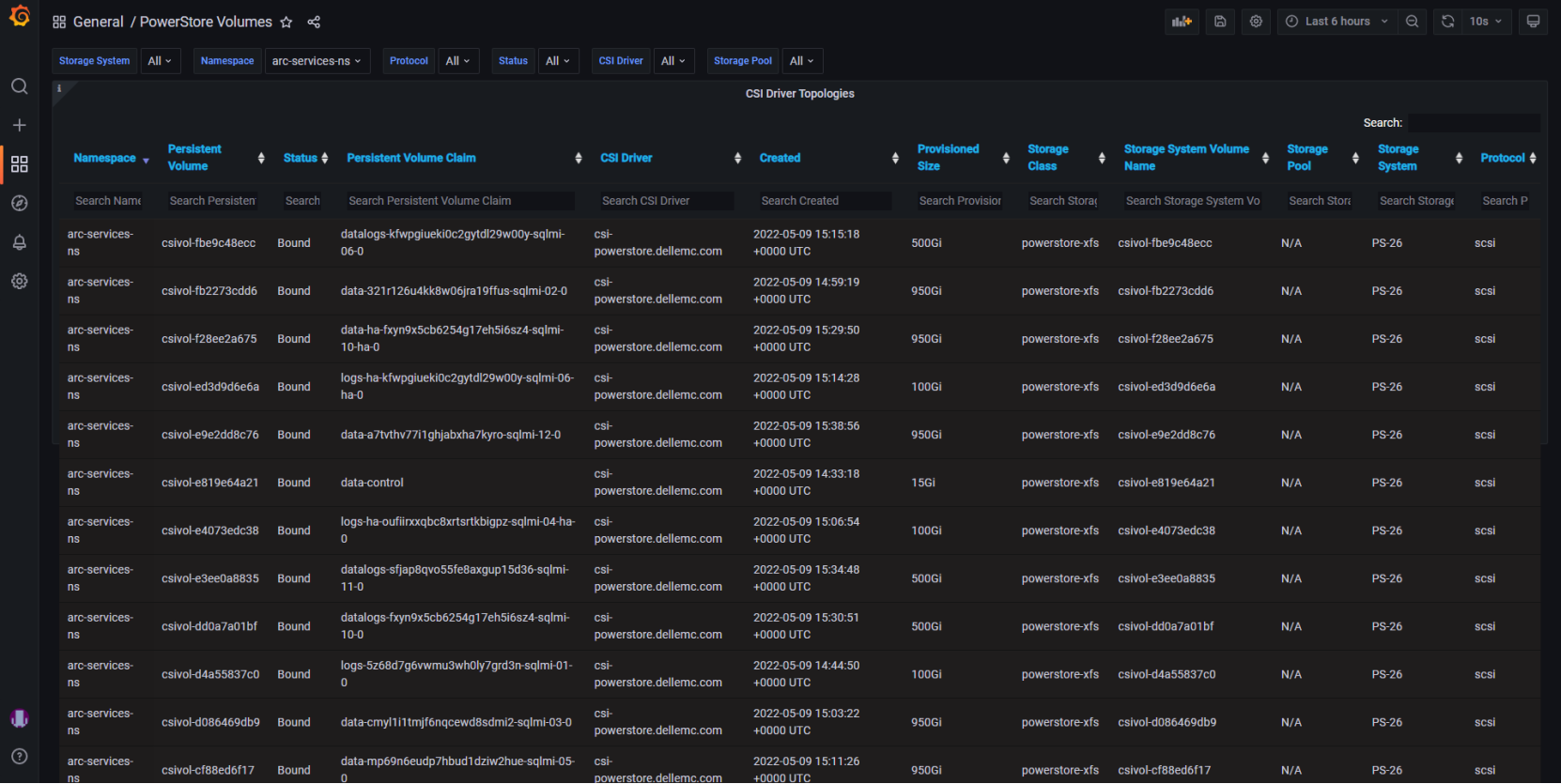
In addition to the CSI driver support for PowerStore, there are PowerStore CSM modules available for observability and replication. The PowerStore CSM Observability module provides storage performance metrics to Kubernetes that are stored in Prometheus and can be viewed with tools such as Grafana. This allows full end-to-end visibility of storage metrics without the involvement of the storage administrator.


A screenshot of Grafana displaying PowerStore volume topology in table form. PowerStore volumes connected to K8s via CSI are displayed in Grafana using Dell CSM modules for access to performance metrics.

Figure 2.   PowerStore volume topology in Grafana
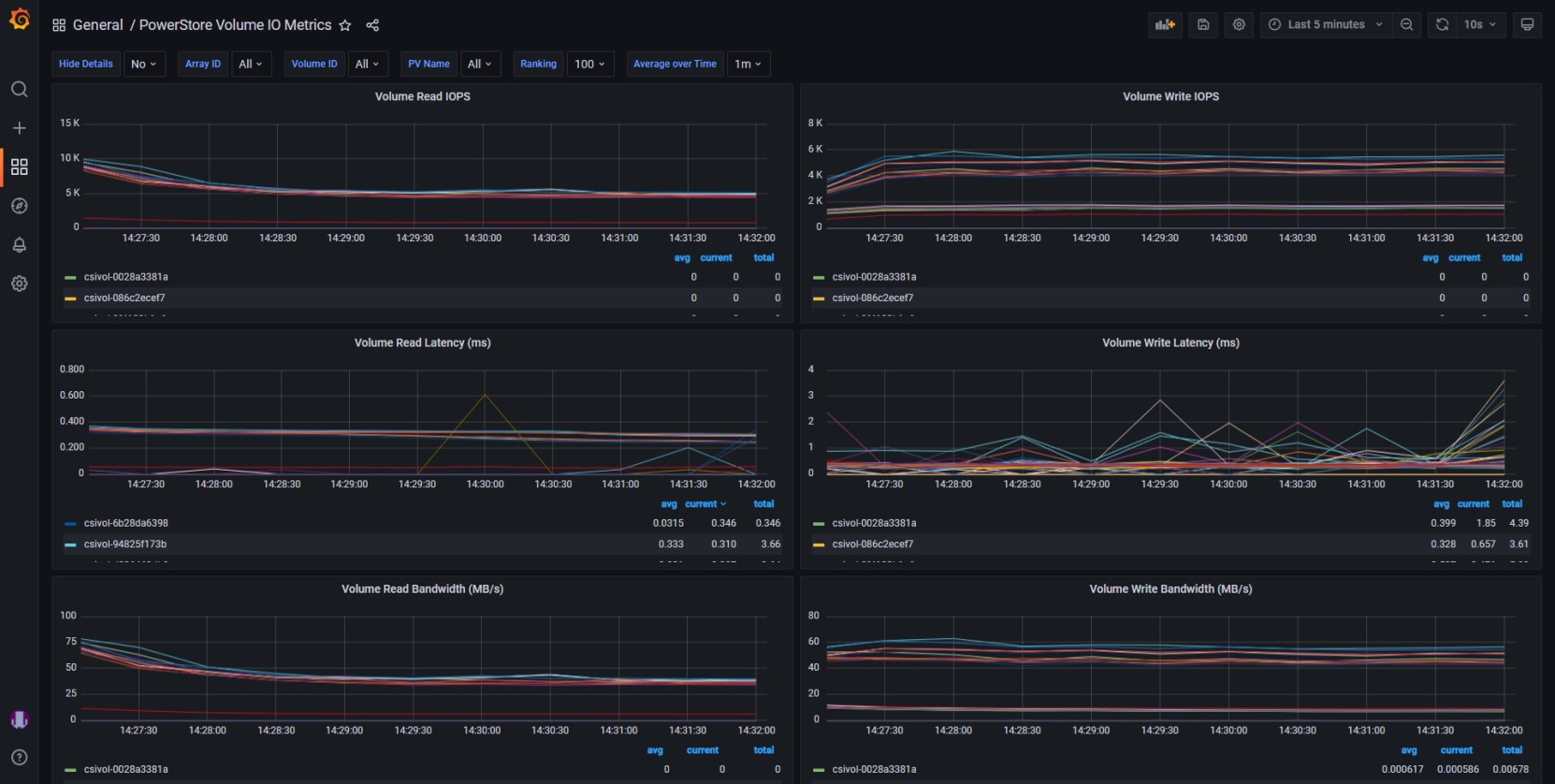
A screenshot of Grafana displaying PowerStore IO metrics in graph form. PowerStore volumes connected to K8s via CSI are displayed in Grafana using Dell CSM modules for access to performance metrics.

Figure 3.   PowerStore volume performance metrics in Grafana
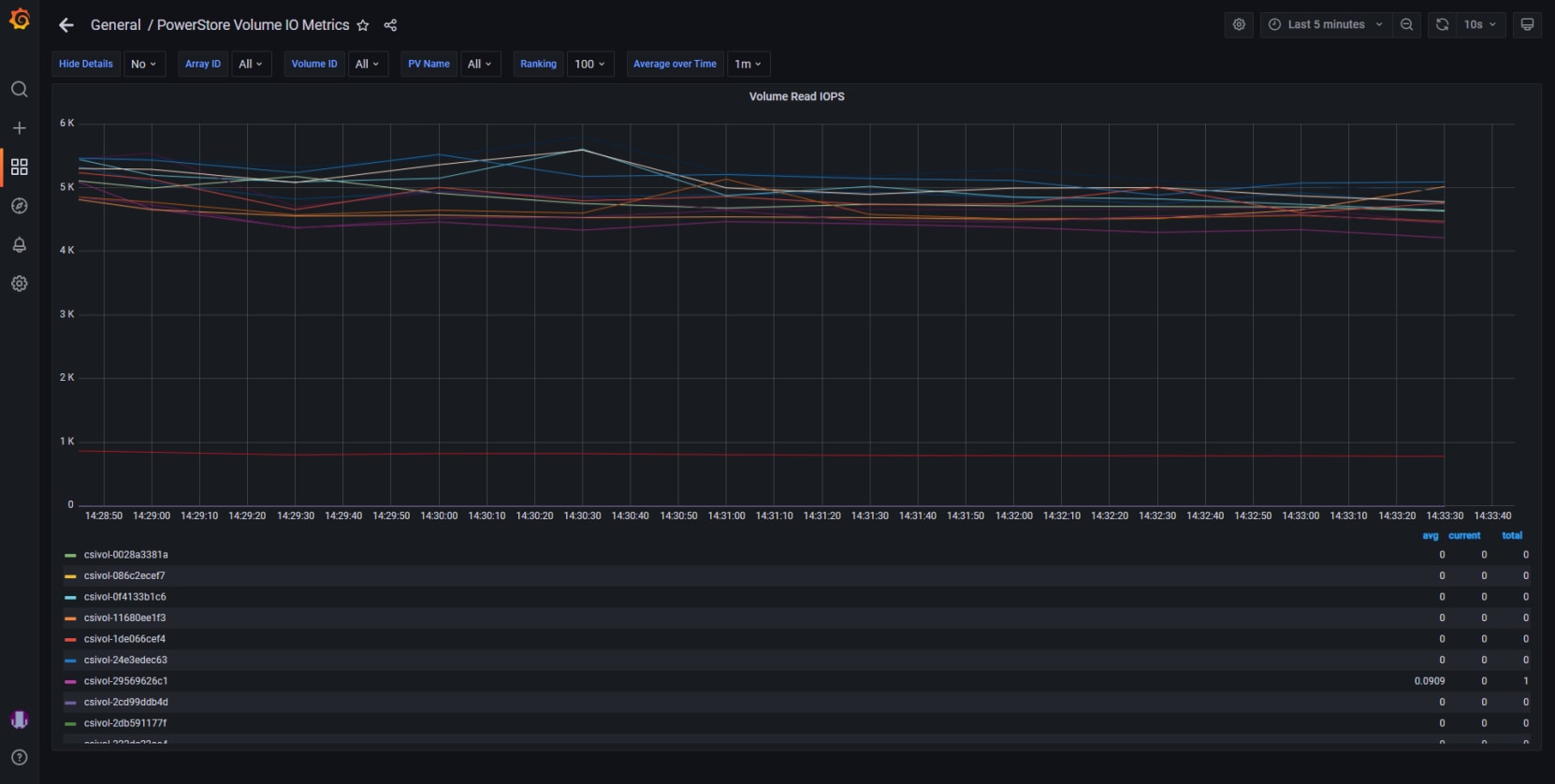
A screenshot of Grafana displaying PowerStore IOPS by volume in graph form. Another example of PowerStore performance data in a Grafana graph.

Figure 4.   PowerStore read IOPS by volume in Grafana

The PowerStore CSM Replication module allows control of array-based replication features from the K8s control plane. Volume can be replicated and failover and reprotect operations can be performed.

The capabilities of the Kubernetes CSI specification are constantly evolving to support new enterprise storage features. Use the latest Dell Technologies PowerStore CSI driver and keep up to date on new releases. The latest documentation for Dell Technologies CSM modules for all Dell storage products can be found at https://dell.github.io/csm-docs/docs/.

SQL Server Kubernetes deployment

PowerStore storage for SQL Server running on Kubernetes is deployed and managed almost entirely through Kubernetes. The PowerStore CSI driver translates Kubernetes storage provisioning commands into PowerStore storage provisioning commands that are orchestrated on the storage appliance. Because common storage provisioning tasks such as creating, deleting, and expanding volumes are done through Kubernetes, the DBA or Kubernetes administrator can provision storage without knowing the details of PowerStore or requiring direct access. This ability enables self-service of common storage provisioning tasks.

Once the PowerStore CSI driver is deployed, one or more Kubernetes storage classes will be created. These storage classes describe the details of the CSI driver, encapsulate the connectivity and protocol options of the storage, and contain defaults for common storage provisioning values. Here is an example of powerstore-xfs storage class definition:

allowVolumeExpansion: true

apiVersion: storage.k8s.io/v1

kind: StorageClass

metadata:

  annotations:

    meta.helm.sh/release-name: powerstore

    meta.helm.sh/release-namespace: csi-powerstore

  creationTimestamp: "2023-10-07T13:33:14Z"

  labels:

    app.kubernetes.io/managed-by: Helm

  name: powerstore-xfs

  resourceVersion: "221004"

  selfLink: /apis/storage.k8s.io/v1/storageclasses/powerstore-xfs

  uid: cd013881-522e-4e16-bbd0-1f3c31315c94

parameters:

  FsType: xfs

provisioner: csi-powerstore.dellemc.com

reclaimPolicy: Delete

volumeBindingMode: Immediate

Kubernetes storage is provisioned as Persistent Volumes and Persistent Volume Claims. More information about Persistent Volumes and Persistent Volume Claims can be found at Kubernetes.io. For example, to create three volumes for a SQL Server pod running on Kubernetes, the definitions are stored in a YAML file:

# cat pvc.yaml

kind: PersistentVolumeClaim

apiVersion: v1

metadata:

  name: mssql-data

  annotations:

    volume.beta.kubernetes.io/storage-class: powerstore-xfs

spec:

  accessModes:

  - ReadWriteOnce

  resources:

    requests:

      storage: 8Gi

---

kind: PersistentVolumeClaim

apiVersion: v1

metadata:

  name: mssql-data2

  annotations:

    volume.beta.kubernetes.io/storage-class: powerstore-xfs

spec:

  accessModes:

  - ReadWriteOnce

  resources:

    requests:

      storage: 5Gi

---

kind: PersistentVolumeClaim

apiVersion: v1

metadata:

  name: mssql-log2

  annotations:

    volume.beta.kubernetes.io/storage-class: powerstore-xfs

spec:

  accessModes:

  - ReadWriteOnce

  resources:

    requests:

      storage: 2Gi

To create the persistent volume claims, the preceding YAML file is used as input. Running the following command will create the volumes on PowerStore and create a volume alias that can be used when creating the SQL Server pod.

#kubectl create -f pvc.yaml

Next, to deploy SQL Server a definition file is also used. The persistentVolumeClaim attributes in the definition file refer to the Persistent Volume Claims created in the previous step.

#cat sql.yaml

apiVersion: apps/v1

kind: Deployment

metadata:

  name: mssql-deployment

spec:

  replicas: 1

  selector:

     matchLabels:

       app: mssql

  template:

    metadata:

      labels:

        app: mssql

    spec:

      terminationGracePeriodSeconds: 30

      hostname: mssqlinst

      securityContext:

        fsGroup: 10001

      containers:

      - name: mssql

        image: mcr.microsoft.com/mssql/server:2022-latest

        ports:

        - containerPort: 1433

        env:

        - name: MSSQL_PID

          value: "Developer"

        - name: ACCEPT_EULA

          value: "Y"

        - name: SA_PASSWORD

          valueFrom:

            secretKeyRef:

              name: mssql

              key: SA_PASSWORD

        volumeMounts:

        - name: mssqldb

          mountPath: /var/opt/mssql

        - name: mssqldata

          mountPath: /var/opt/mssql/data2

        - name: mssqllog

          mountPath: /var/opt/mssql/log2

      volumes:

      - name: mssqldb

        persistentVolumeClaim:

          claimName: mssql-data

      - name: mssqldata

        persistentVolumeClaim:

          claimName: mssql-data2

      - name: mssqllog

        persistentVolumeClaim:

          claimName: mssql-log2

---

apiVersion: v1

kind: Service

metadata:

  name: mssql-deployment

spec:

  selector:

    app: mssql

  ports:

    - protocol: TCP

      port: 1433

      targetPort: 1433

  type: NodePort

To deploy SQL Server inside a Kubernetes pod, first a secret is created to store the password:

#kubectl create secret generic mssql --from-literal=SA_PASSWORD="*******"

Next, using the preceding YAML file as input, kubectl create will deploy the SQL Server instance on Kubernetes:

# kubectl create -f sql.yaml

Azure Arc-enabled SQL Managed Instance

Arc-enabled SQL Managed Instance (MI) is the Arc-enabled data service that deploys SQL Server, using Azure, to an on-premises Kubernetes cluster. Because Arc-enabled SQL MI deploys an availability group, shared (read/write many) storage is required in addition to block volumes. PowerStore with combined block and file is uniquely suited to run these workloads on a single appliance. Dell Technologies and Microsoft performed a joint performance and scalability study on running Arc-enabled SQL MI on PowerStore. For complete details, see the paper Dell PowerStore with Azure Arc-Enabled Data Services. Dell Technologies has completed rigorous testing with PowerStore and Azure Arc through the Azure Arc-enabled data services validation program and is a validated partner for Azure Arc-enabled data services running on PowerStore and several other Dell Technologies solutions.

Performance

Overview

Storage performance is critical for SQL Server workloads. PowerStore makes it simple and intuitive to observe and manage storage performance. Performance metrics and graphs are available in the PowerStore dashboard and for almost every data path component available in PowerStore manager.

Performance graphs for monitoring metrics such as latency, IOPS, bandwidth, and I/O size are available in the PowerStore Manager. These performance charts can be printed and exported into various formats. Note that when viewing PowerStore performance charts, the granularity on PowerStore I/O size is 1K and I/O size is rounded up to the nearest 1K. Because SQL Server can produce I/O smaller than 1K, this may appear as a discrepancy, but smaller sizes are rounded up to 1K in the performance chart. In these cases, IOPS and bandwidth can be used to calculate a more exact I/O size (I/O size = bandwidth/IOPS).

The following sections explain key features that are useful for observing and managing SQL Server storage performance.

Observability

When configuring hosts and volumes in PowerStore Manager, performance metrics for these are intuitive and easy to find. These individual metrics are a component of PowerStore appliance metrics. Overall appliance performance can also be viewed to determine overall system utilization and observe possible limits. Overall appliance and individual node performance can be viewed in the Hardware section on the Performance tab. Scrolling down in the view will reveal performance by node.
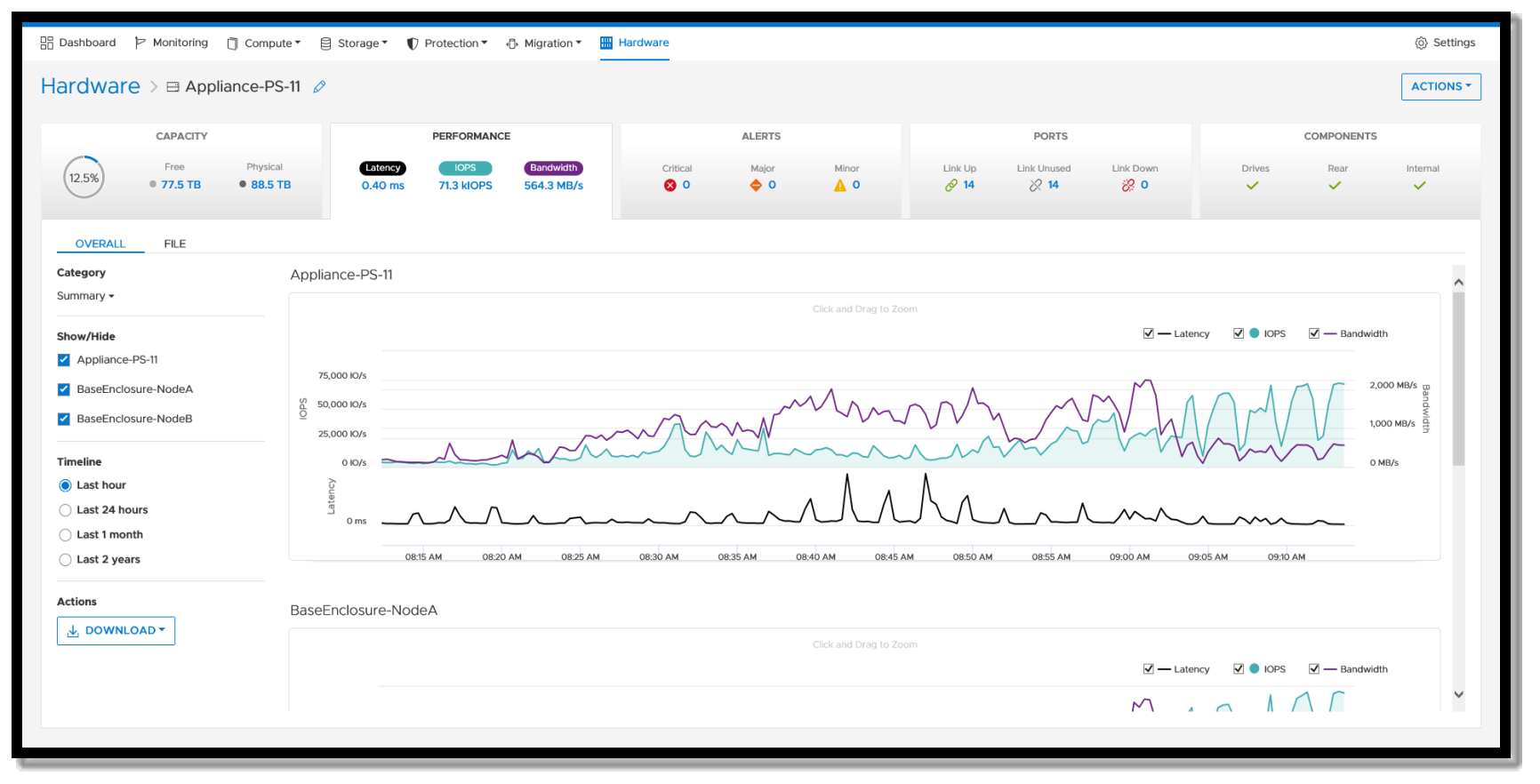
A screenshot showing where PowerStore appliance performance graphs can be found in PowerStore Manager. They are under the hardware menu, appliance, on the performance tab.

Figure 5.   PowerStore hardware performance

The Ports tab in the Hardware section will list all network ports for the system. In addition to the port properties, there is a link to network performance on the port properties page. The port properties will indicate the current port speed. This can be compared with the port performance to determine available bandwidth on the port.

Watch list

High-priority SQL Server workloads can be added to the PowerStore Manager dashboard watchlist. This allows IOPS, bandwidth, and latency to be displayed when PowerStore Manager is started. Additionally, these statistics can be viewed at the host group, host, volume group, or volume level making it convenient to quickly see important metrics in one view.

Performance of critical volumes can be added to a Watchlist for enhanced visibility. To do this, select the volumes and under the More Actions menu, select Add to Watchlist.
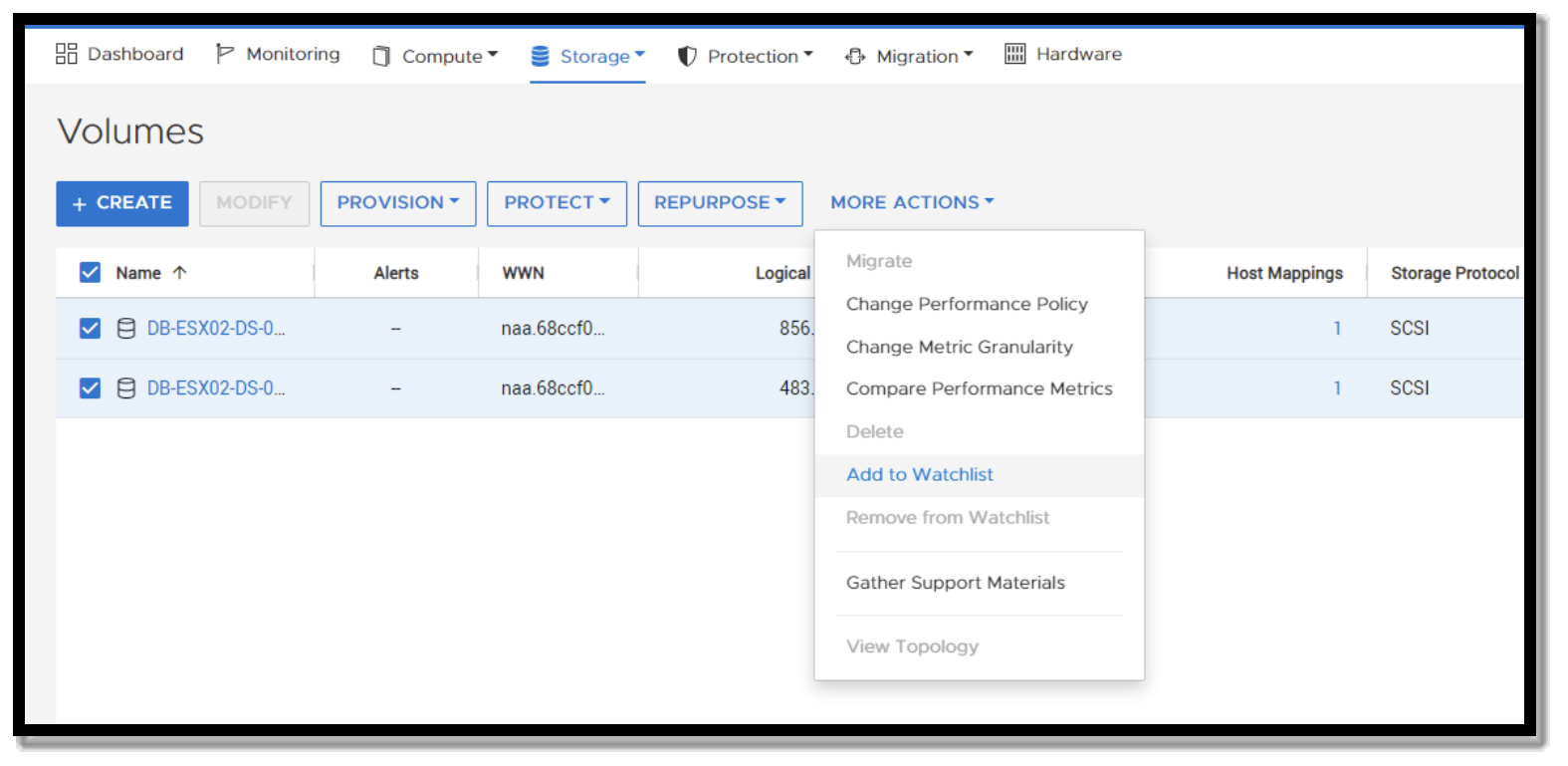
A screenshot showing how to add volumes to a watchlist in PowerStore manager. Under Storage, Volumes, select one or more volumes, right click and choose "Add to Watchlist"

Figure 6.   Adding volumes to the Watchlist

Once the volumes are added to the Watchlist, they will appear on the main PowerStore Dashboard. This provides some basic performance data as well as the ability to navigate directly to them by clicking the volume name.
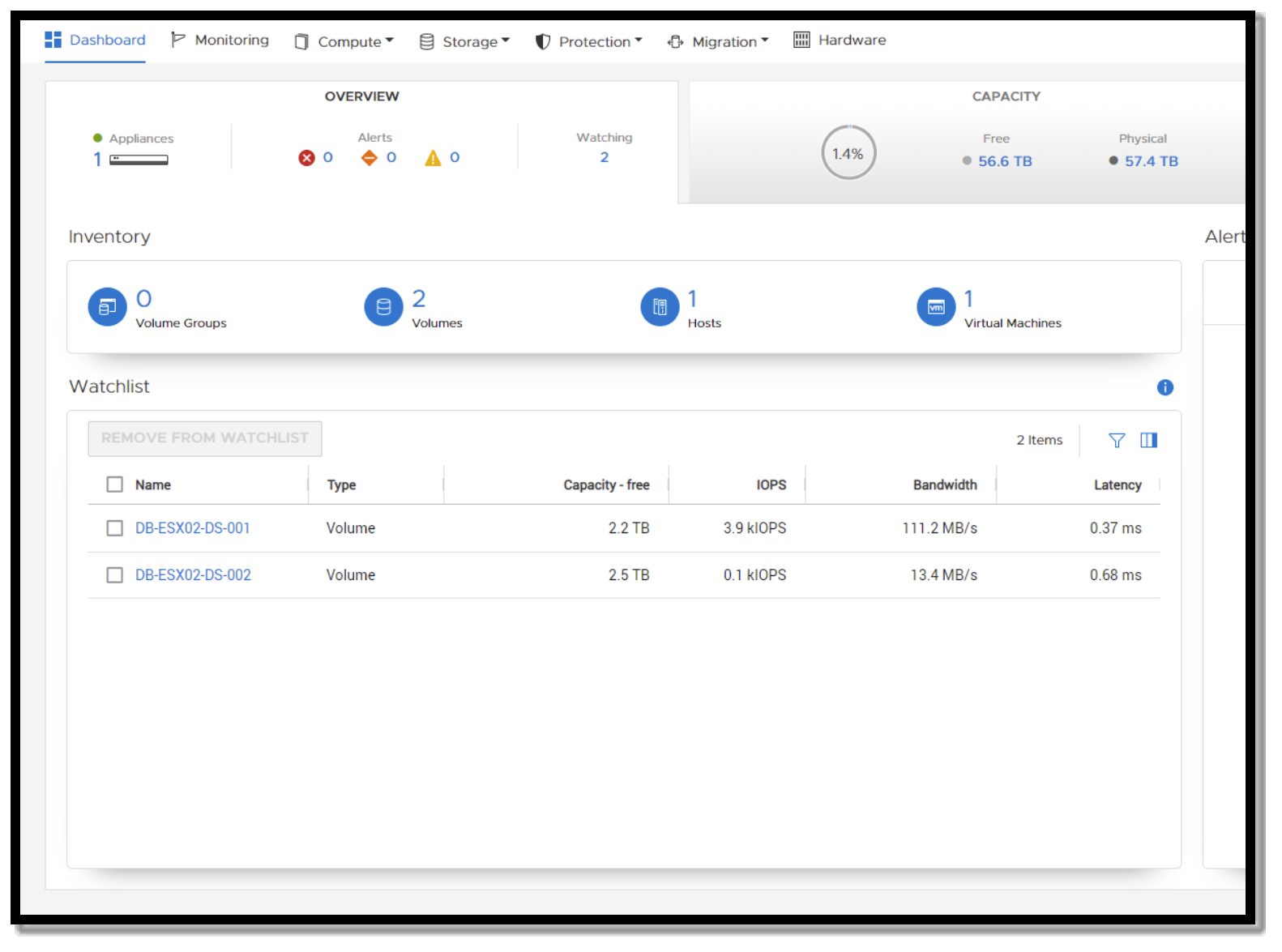
A screenshot showing volumes after they have been added to the watchlist. They appear on the overview tab of the PowerStore Manager dashboard

Figure 7.   Adding volumes to watchlist

You can also add hosts to the Watchlist in the same manner. If you add a host that already has volumes on the list, those volumes will be combined under the host.
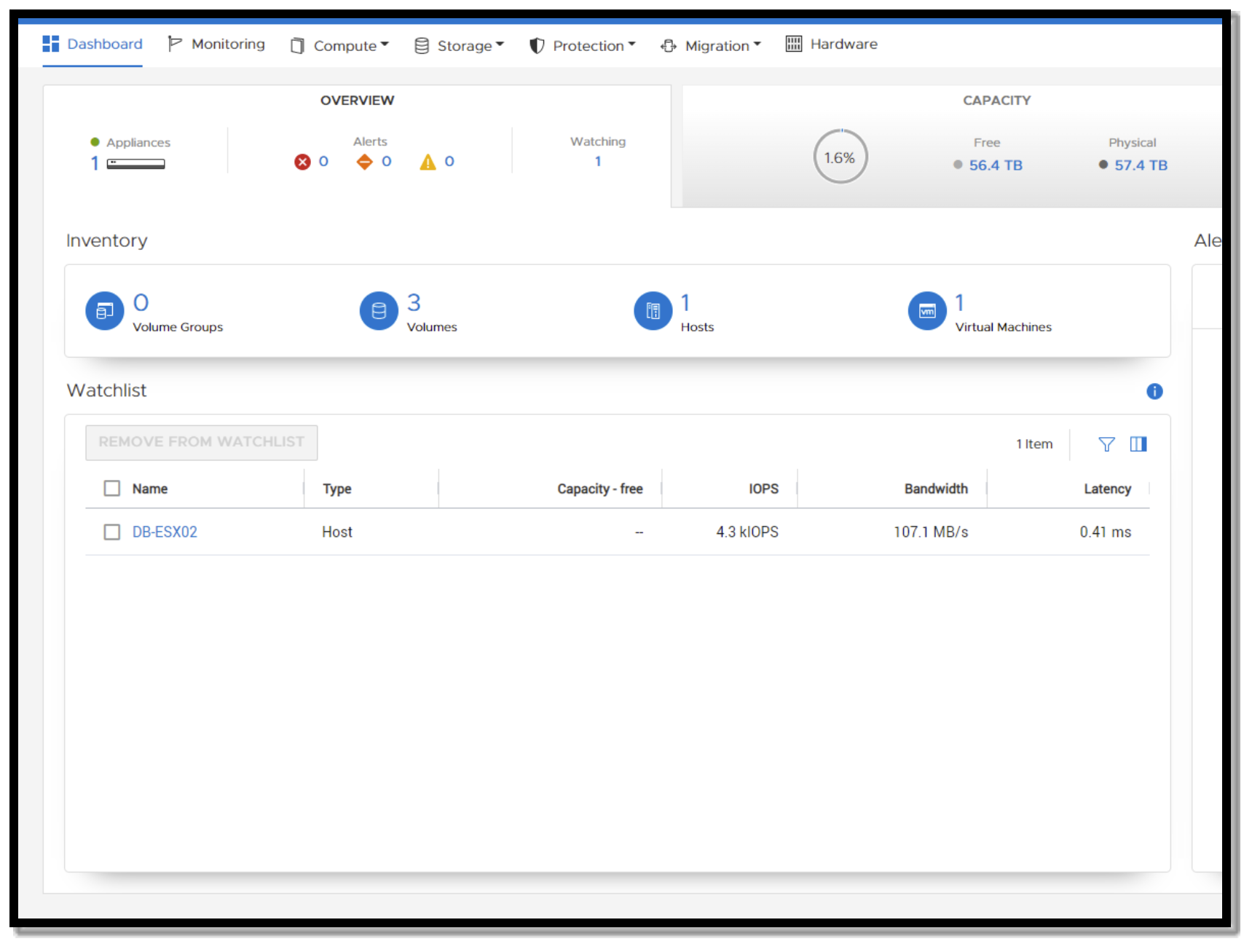
A screenshot showing hosts after they have been added to the watchlist. They appear on the overview tab of the PowerStore Manager dashboard

Figure 8.   Adding hosts to watchlist

Compare IO performance

Compare IO performance is extremely useful when evaluating SQL Server databases that span multiple volumes. For example, all data volumes for a SQL Server database can be selected in the comparison view to quickly evaluate whether IO is balanced across the volumes.

The Compare IO Performance feature can be found in the Volumes section of PowerStore Manager. Select multiple volumes and click on “More Actions” to display the Compare IO Performance option.
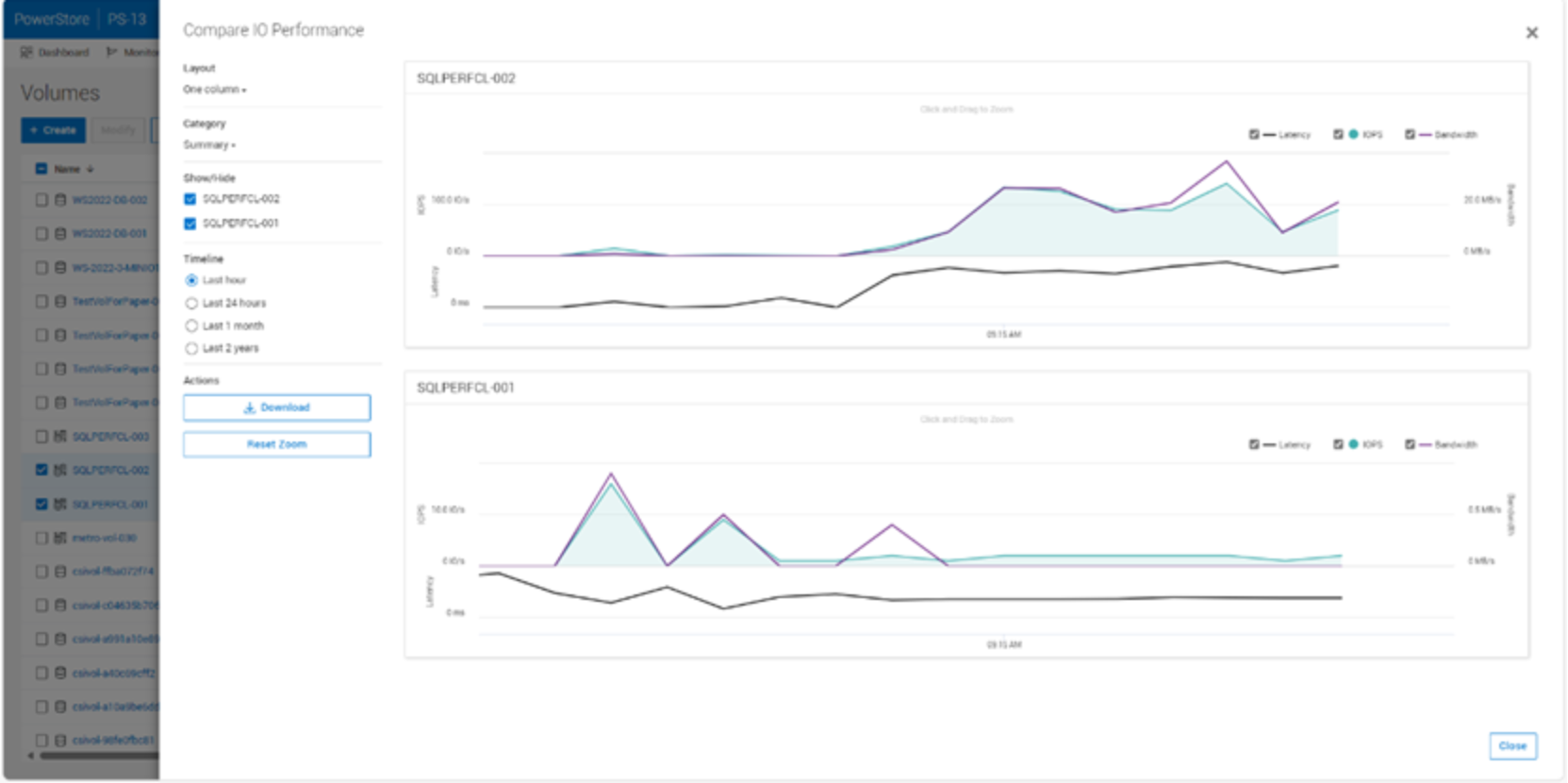
Figure 9.   Comparing IO performance

In this example there are two data volumes for a single SQL Server database. The database should be designed to distribute IO evenly, however, differences in the charts quickly indicate that there is an issue.
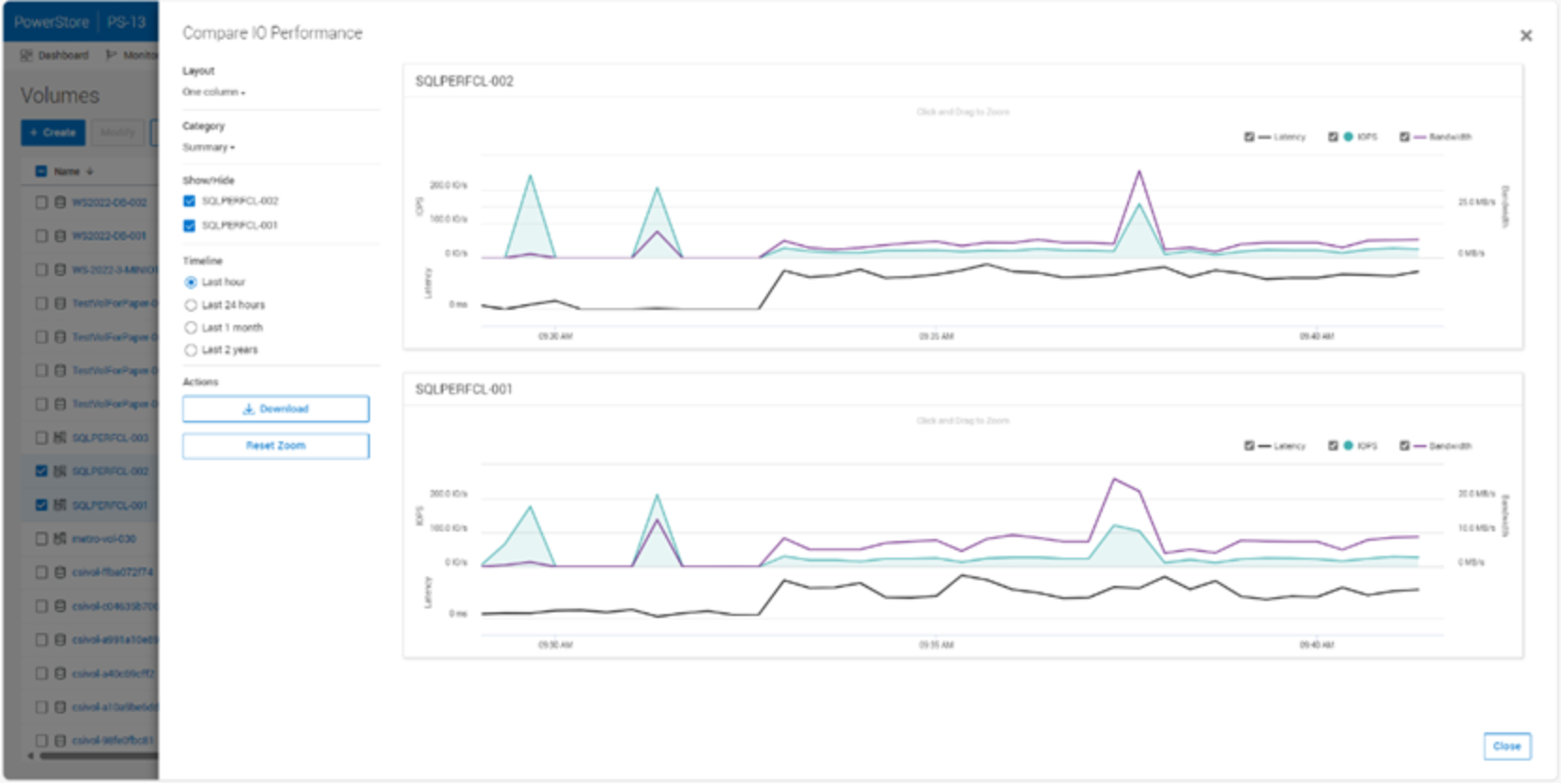
Figure 10.    Comparing IO performance

After addressing the design issue in the SQL Server database, the IO workload is evenly balanced.

Managing performance

Intelligent load balancing

PowerStore will perform dynamic load balancing of volumes and vVols to intelligently balance IO utilization across both nodes in a PowerStore appliance. PowerStore monitors performance on each node and based on utilization will rebalance volumes and vVols non-disruptively to maximize performance. Intelligent load balancing runs automatically to rebalance workloads to maximize performance and requires no user intervention. This is beneficial for workloads like SQL Server where the workload may change over time or when new workloads are onboarded to a PowerStore appliance.

PowerStore utilizes an internal set of performance rules to determine when and if volumes and vVols will be relocated. Once a volume is relocated, system performance is reassessed, and the cycle will repeat as necessary.

Node Affinity

PowerStore performs best when the system performance is balanced across both nodes in the appliance. The “ownership” of a volume by a node is known as Node Affinity. The Node Affinity is set when the volumes are mapped to a host. By default, volume Node Affinity alternates between the two nodes in the appliance when mapping volumes to a host to balance the workload. Usually, this process sufficiently balances the load across both nodes in the appliances. Intelligent load balancing will perform dynamic rebalancing automatically over time once certain performance thresholds are met. Because every SQL Server workload is unique, and storage access patterns depend on database layout across one or more files, Node Affinity adjustments might be necessary to maximize overall system performance.

Volume Node Affinity is shown in the Volumes or Virtual Volumes list under Storage. By default, this column is not displayed. To add it to the view, click the Columns selection icon next to the filter icon. Scroll down the list and select Node Affinity.
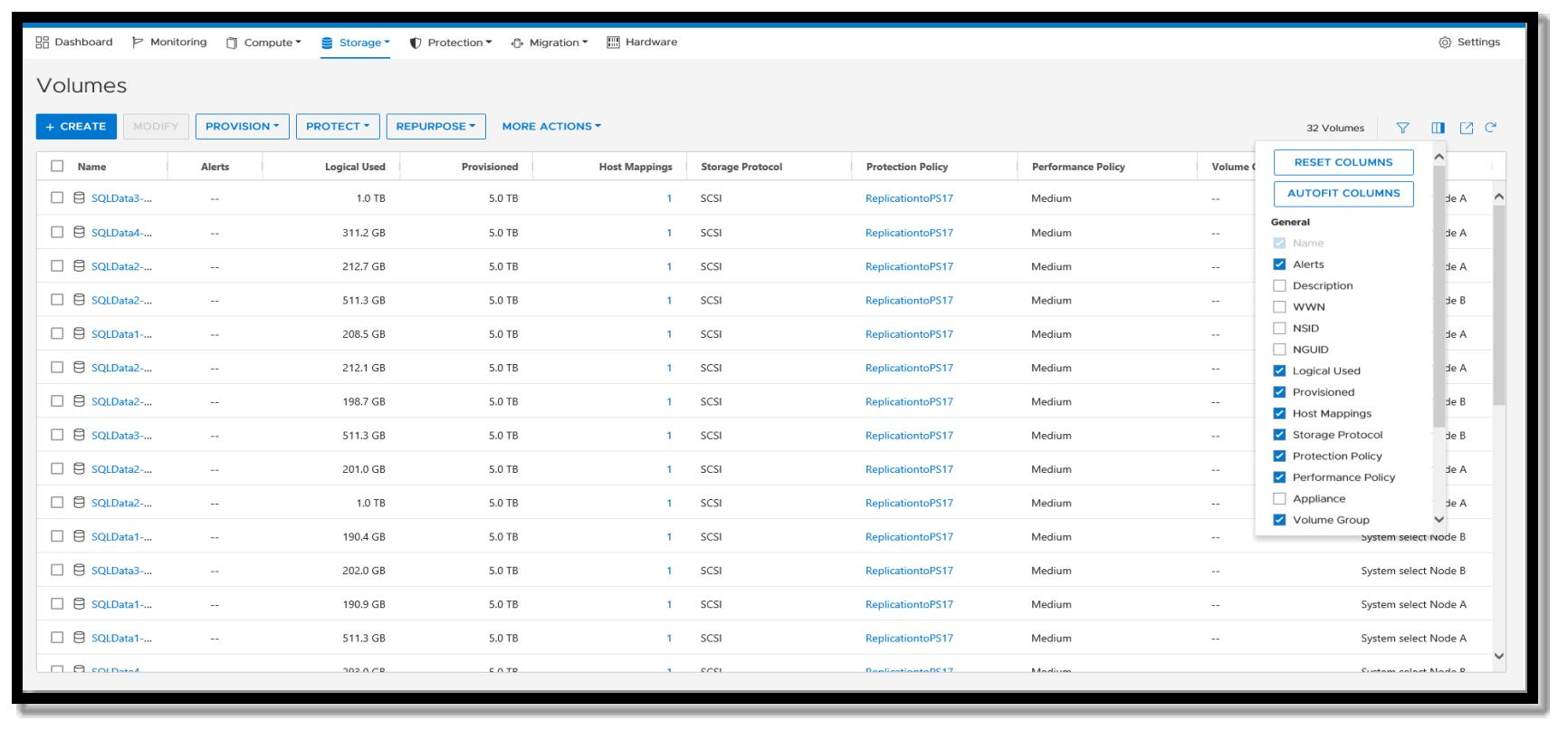
A screenshot showing how to display volume node affinity in PowerStore manager. On the upper right of volumes display there is an icon with rectangular boxes. Selecting that icon presents a menu allowing the node affinity column to be added to the display.

Figure 11.    Selecting additional columns in the Volumes list
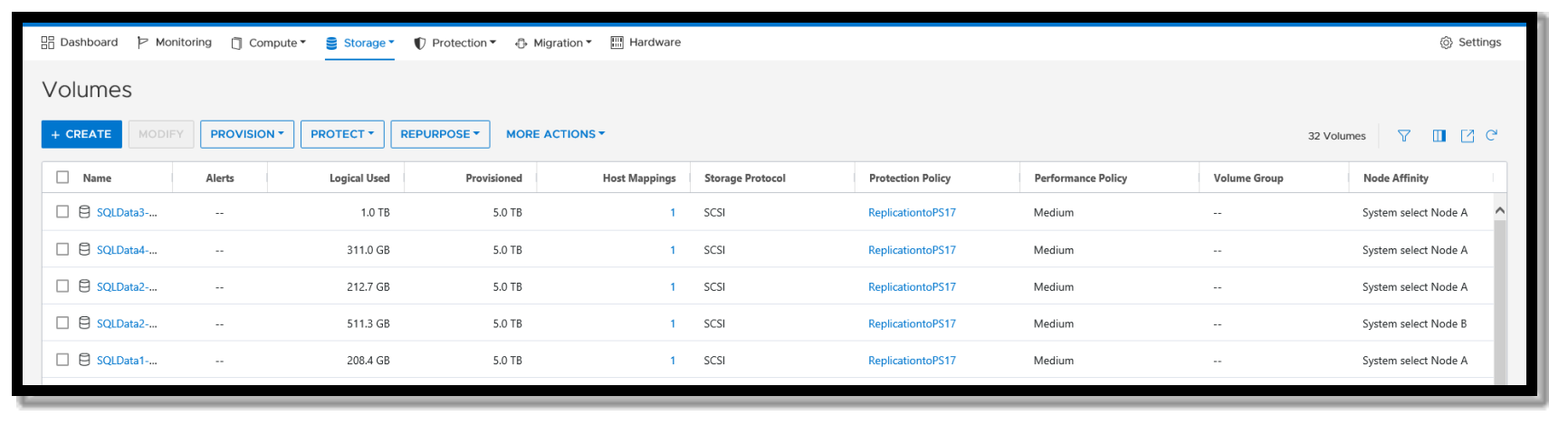
A screenshot showing volumes with the volume node affinity column added in PowerStore manager. For each volume the node affinity is displayed in the last column on the right.

Figure 12.    Volumes list with Node Affinity added

Changing Node Affinity

System select node A and System select Node B are the system-assigned values. Node Affinity can be set using the PowerStore CLI (CLI) or PowerStore REST API. This example uses the CLI.

The following command displays the details of a volume named SQLData2-007:

pstcli -destination <PowerStore Manager URL/IP> -u <id> -p <password> /volume -name "SQLData2-007" show

The following command sets the Node Affinity for volume SQLData2-007 to Preferred_Node_A. Valid values are Preferred_Node_A, Preferred_Node_B, and System_Select_At_Attach.

pstcli - destination <PowerStore Manager URL/IP> -u <id> -p <password> /volume -name "SQLData2-007" set -node_affinity “Preferred_Node_A”

Note: When Node Affinity is set to Preferred_Node_A or Preferred_Node_B, it is no longer managed by PowerStore unless it is set to System_Select_At_Attach. Setting Node Affinity to System_Select_At_Attach returns it to a system managed state.

Performance policies

Multi-tenant scenarios where multiple SQL Server databases, instances, or other applications share a PowerStore appliance are typical. There are several PowerStore features that can assist in managing multi-tenant scenarios.

Selecting a performance policy sets a relative priority (high, medium, or low) for the volume, volume group, or vVol using a share-based system such that when resources are constrained, the resource with the higher performance policy receives priority. If there is no PowerStore resource constraint, the volumes perform equally.

Leaving all volumes at the default of medium provides equal performance to all volumes. The volumes all perform at the highest level until a PowerStore volume is set to a different performance policy.

Quality of service (QoS)

Setting performance limits on volumes or volume groups can control one demanding application, sometimes referred to as “noisy neighbor” from monopolizing storage resources and degrading performance for other workloads. PowerStore allows QoS policies to be created and applied to volumes or volume groups. These policies allow absolute limits to be set for IOPS and bandwidth, or density-based limits per provisioned GB of storage. QoS rules also allow a burst percentage to be specified for situations where exceeding the limit for a short time is acceptable.

Virtualization

Best practices

When running SQL Server inside virtual machines (VMs), it is recommended to start with the VMware document Architecting Microsoft SQL Server on VMware vSphere for performance and scalability. This guide provides guidance for configuring SQL Server, the operating system, and virtual machines for best performance on VMware.

For more tuning recommendations and best practices regarding VMware vSphere, VMware ESXi, and PowerStore, see the Dell PowerStore: Virtualization Integration white paper and the Dell PowerStore Virtualization Infrastructure Guide at Dell.com/powerstoredocs.

VMware vVols vs VMDKs

Snapshots are a great way to protect SQL Server virtual machines and are encouraged whenever possible to provide an additional recovery point to SQL Server backups. However, taking snapshots on VMDK disks can result in a decrease in performance and sometimes lengthy maintenance procedures to maintain snapshot copies, coalesce, and delete.

vVol snapshots are offloaded to PowerStore, using hardware snapshot capabilities. This process removes the traditional issues of VMDK snapshot performance and maintenance. There is no performance penalty for vVols that contain snapshots. In addition, there are no lengthy maintenance procedures.

Also, Dell Technologies has tested the performance of VMware vVols and VMDKs. In our SQL Server workload testing, the performance has been proven to be equal on volumes without snapshots. On volumes that contain snapshots, the performance on vVols is superior. Therefore, vVols are recommended when running SQL Server workloads to provide superior snapshot performance.

A complete discussion of vVols vs VMDK disks is in the VMware article Understanding Virtual Volumes.

Metro Volume

PowerStore Metro Volume allows synchronous replication of VMFS datastores in a vSphere Metro Storage Cluster (vMSC). This enables vSphere stretched cluster capabilities within or across sites. It can also be used to accelerate VM migrations. One of the challenges with migrating SQL Server virtual machines can be the time it takes to perform a storage migration due to data size. Metro Volume can be used to accelerate migrations between sites, in addition to high availability and fault tolerance. For complete details on PowerStore Metro Volume, see the Dell PowerStore: Metro Volume white paper.

Reducing SQL Server I/O

Reducing SQL Server I/O

Optimizing SQL Server workloads will improve the performance and scale of the storage layer and ultimately the related applications. The following sections include common techniques to reduce SQL Server storage I/O.

Memory

Allocating the proper amount of memory to SQL Server can increase performance and avoid unnecessary I/O. SQL Server performs all I/O through the buffer pool (cache) and uses a large portion of its memory allocation for the buffer pool. Ideally, when SQL Server performs I/O, the data is already in the buffer pool and it does not need to go to disk. This type of I/O is referred to as logical I/O and is the most desirable because it results in the best performance. If the SQL Server data does not need to reside in the buffer pool, it needs to access disk resulting in physical I/O. Proper memory allocation is critical to SQL Server performance and can improve storage performance as well. Often, SQL Server and storage performance can be further improved by adding additional memory to the SQL Server instance. Generally, allocating more memory is better, but there is a point of diminishing returns that is unique to each environment.

Buffer pool extension

Starting with SQL Server 2014, the buffer pool can be extended to a file on the file system to provide additional space to cache data or index pages. Using this feature can provide significant performance benefits without adding memory to the database server in some cases. With more pages cached on the server, the I/O load on the array is reduced. When placing the buffer pool extension on the array, create a separate volume for the buffer pool extension and do not configure snapshots for the buffer pool extension volume. SQL Server repopulates the buffer pool data when the instance is restarted. Therefore, data recovery does not apply.

Persistent memory (PMEM)

PMEM can be used to accelerate challenging I/O workloads and make I/O patterns more efficient. Virtualized environments running Hyper-V or VMware can also take advantage of PMEM making it a wise investment. For more information, see Configure persistent memory (PMEM) for SQL Server on Windows and the Dell NVDIMM-N Persistent Memory User Guide.

Instant File Initialization

By default, SQL Server writes zeros to the data file during the allocation process. The process of zeroing out the datafile consumes I/O and acquires locks as the SQL Server datapages are written. This activity can occur for minutes or even hours depending on the file size. While this result may seem minor, writing zeros to these files can occur at disruptive periods when time and performance are critical. Example scenarios include database auto growth, expanding a full datafile, replication, or restoring a database as part of a disaster-recovery event. When Instant File Initialization is enabled, SQL Server will skip the process of zeroing out its datafiles when allocating space. Dell Technologies recommends enabling Instant File Initialization.

Resource Governor

The Resource Governor allows database administrators to limit the IO, CPU and memory resources a SQL query can consume. For example, the Resource Governor can be used to reduce the impact of a user running an I/O intensive report by limiting the maximum number of IOPS that user can perform. While a query throttled by the Resource Governor takes more time to complete, overall database performance is better.

Database design considerations

Reducing SQL Server I/O requires a holistic approach. Many of the items in this section require involvement from the entire team responsible for SQL Server applications. This team could include the business owner, architect, developer, database administrator, and system administrator. Decisions at the design level have a multiplied downstream impact as data is written and read multiple times and duplicated in various types of database copies. These include databases that are copied for other uses such as testing and reporting, replicated databases, replicated storage, and backups. One of the most challenging aspects of SQL Server is that the I/O pattern and the amount of I/O that is generated can vary greatly depending on the application, even if those applications have databases of the same size. This is because the design of both the database and the data access code control SQL Server I/O.

Database tuning can be one of the most cost-effective ways to reduce I/O and improve scalability. At a high level, consider the following areas when tuning a database to reduce I/O.

Database design

The foundation of the entire database and the schema for how data will be stored and ultimately accessed is determined by the database design. The database design should support both usability and efficient data access. This includes efficient table design and datatypes as well as indexes, partitioning, and other features that can improve efficiency. It is common for database design to only be focused on usability while performance and scale are overlooked.

Query design

How a query is written can greatly affect the amount of I/O SQL Server must perform when running the query. Queries should return only the required amount of data in the most efficient manner possible. Tune the queries responsible for consuming a relatively large number of resources as well as possible for best performance and scale.

Application design

Consider how applications are using the data and the way it is requested. Sometimes code and component reuse can result in the same data being unnecessarily retrieved repeatedly. All data access should be purposeful.

Maintenance

SQL Server uses a cost-based optimizer to generate query plans for data access. These plans are based on the statistics regarding how data is distributed in the tables. If the statistics are inaccurate, bad query plans may result and unnecessary I/O will be performed. Proper database maintenance includes ensuring that statistics are up to date. Frequent data modifications can also lead to fragmentation within SQL Server datafiles, producing unnecessary I/O. Fragmentation can be addressed through index reorganization or rebuilds as part of regular database maintenance. The database maintenance process itself can also have a large I/O impact. Typically, every table and index does not need to be rebuilt or reorganized every time maintenance is run. In addition, table partitioning strategies can also be leveraged to make the maintenance process more selective. Consider implementing intelligent maintenance scripts that use usage statistics to perform maintenance on an as-needed basis. For mission-critical databases, maintenance activities need to be considered as part of the overall design. If maintenance is not considered as part of the overall process, issues can arise, such as unmanageable sizes and feature incompatibilities that limit available options and strategies.

SQL Server Trace Flag 1800

A VMware article was published about performance gains on VMware vCloud on AWS and VMware vSAN by enabling the SQL Server Trace Flag 1800 (see https://blogs.vmware.com/apps/2021/12/enhancing-performance-vmc-on-aws-sql-server-trace-flag-1800.html.) This trace flag changes the size of log file I/O from 512b to 4K to achieve advertised gains of up to 300% in the referenced configurations. Therefore, it may seem that other platforms may recognize a similar benefit. Based on internal workload testing on PowerStore, enabling this trace flag resulted in minimal or no gain. PowerStoreOS virtualizes the underlying disk to maximize performance for various I/O block sizes. Therefore, while it may be used, it is not considered a best practice to enable this.

Data protection and disaster recovery

Introduction

PowerStore has integrated snapshot and replication capabilities to protect data, and is all policy driven for ease of administration. To protect against accidental or malicious deletion of snapshots, Secure snapshots can be used. Enabling secure snapshots prevents snapshots from being deleted while the retention period is in effect. Additionally, file-level retention (FLR) can be used to meet requirements for write once, read many (WORM) requirements and blockchain-based features such as SQL Server Ledger.

Snapshots and recoveries

To automate and simplify protecting data, PowerStore uses protection policies. These protection policies help to protect data, set retention policies, and help guarantee recovery point objectives for an organization. Protection policies are a set of snapshot and replication rules that are applied to a volume, volume group for block storage. Protection policies for file include snapshots at the file system level and replication at the NAS server level.

In addition, protection policies can be applied to volume groups. By applying a protection policy to a volume group, it allows snapshots, replication, and recovery of the entire group. This allows the protection of a database that spans multiple volumes. To ensure successful recovery of SQL Server databases, ensure all database files, including the transaction log file, are in the same volume group and the write-order consistency option is enabled on the volume group.

Secure snapshots are also available on a protection policy to prevent deletion of snapshots while the retention period is in effect. Snapshots that are taken with secure snapshots enabled on the protection policy are marked as secure and will not be deleted before the retention expiration time. Use secure snapshots to prevent data loss from malicious or unintentional deletion.

Snapshots and application backup and restore

Using array-based snapshots is an effective way to protect virtual machine data and establish a recovery point objective (RPO). In the PowerStore architecture, the snapshot schedule is created using protection policies. Each protection policy can define snapshot rules to establish a schedule and retention, and replication rules to specify a destination array and RPO.
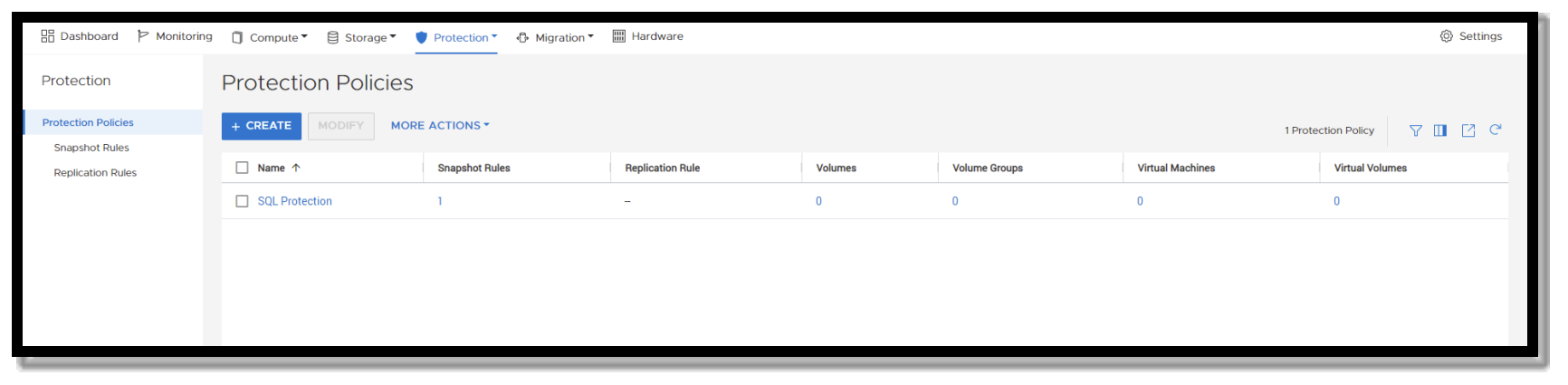
A screenshot showing how to display protection policies in PowerStore manager. in the Protection menu at the top, you click on Protection and choose Protection Policies. A table is then displayed of all Protection Policies.

Figure 13.    Protection policies screen in PowerStore Manager

PowerStore has three data recovery mechanisms that all behave differently depending on the usage scenario.

  • Thin Clone: This takes an existing snapshot from a parent volume or volume group and creates a child volume or volume group from that point in time.
  • Refresh: Using the refresh operation, snapshot data can replace existing data in the volume group. The existing data is removed, and snapshot data from the new source is copied to it in-place. A parent volume or volume group can refresh a child, and a child can refresh a parent.
  • Restore: The restore operation replaces the contents of a parent storage resource with data from an associated snapshot. Restoring resets the data in the parent storage resource to the point in time the snapshot was taken.

Caution: Use of the refresh and restore operations on active database volumes may cause unexpected results and behaviors. All host access to the volume must be ceased before attempting these operations by either shutting down the SQL Server instance or taking the SQL Server databases offline.
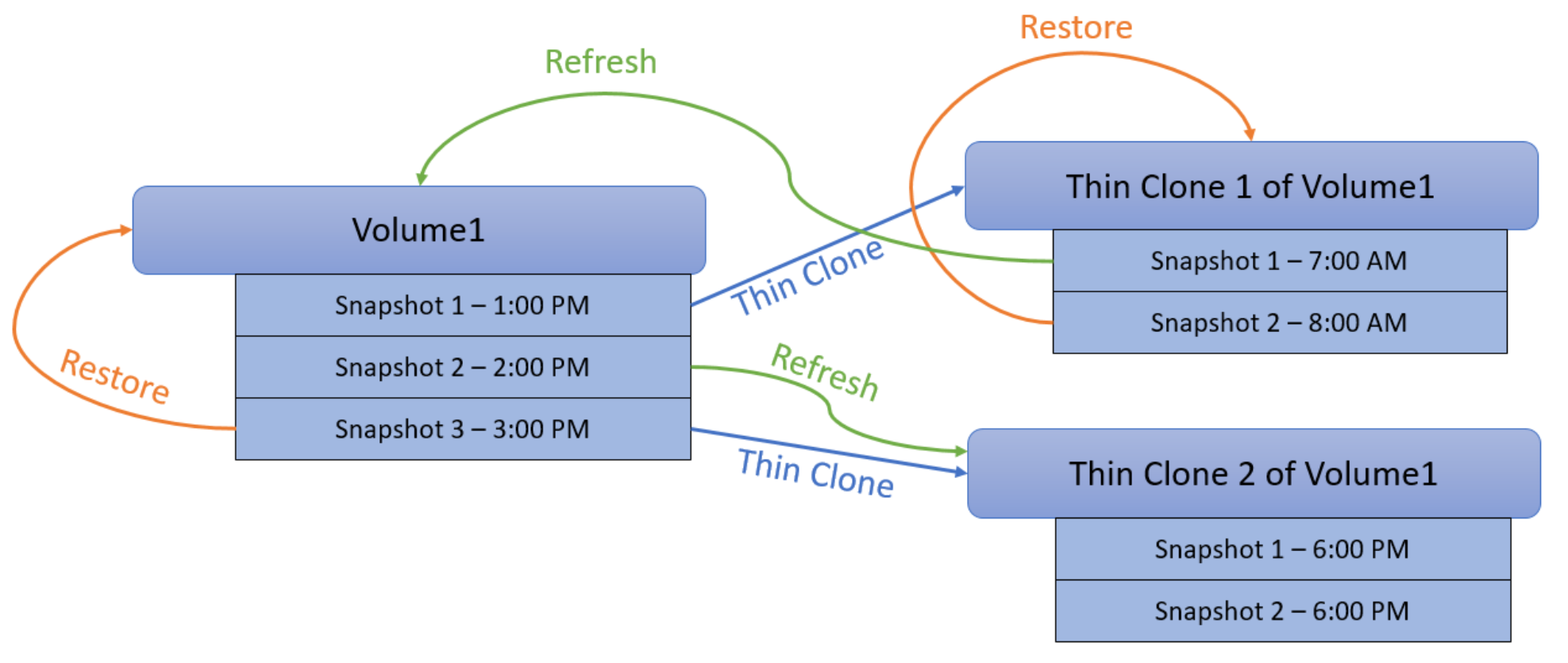
A complex diagram showing the lifecycle of volume snapshots taken at various times and how it is possible to restore a volume or thin clone from a prior snapshot of itself or refresh it from another related volume or thin clone.

Figure 14.    PowerStore snapshot and recovery anatomy

In addition to using snapshots to protect databases, if SQL Server hosts are leveraging boot-from-SAN, the boot volume can be added to the same volume group as the database volumes and the entire host can be protected.

Crash consistency and application consistency

When taking array-based snapshots of SQL Server, remember that snapshots that are taken without application coordination are considered crash consistent. Crash consistency is the storage term for data that has a snapshot taken in-flight without application awareness. While most modern applications can recover crash-consistent data, recovery can yield varying levels of success. For example, during recovery of a Microsoft Windows virtual machine, as the operating system boots, it behaves like it experienced unexpected power loss and potentially invokes check disk (chkdsk) on startup. SQL Server also contains a recovery system that uses transaction log entries to recover the database to a consistent state. Transactions that have been committed to the log are applied and those that were in-flight are rolled back.

Native PowerProtect DD series appliance integration

Beginning with PowerStoreOS 3.5, crash-consistent backups of volumes and volume groups can be taken directly to a PowerProtect DD series appliance. Using PowerStore snapshot technology, a snapshot of the volume or volume group is created and then copied to a PowerProtect DD appliance. These backups can be initiated from PowerStore Manager or PowerProtect Data Manager. This backup method can be used to augment application-consistent data protection workflows and offers several interesting advantages:

  • Near-instant backups, regardless of the database size. PowerStore snapshot technology is a metadata operation that creates a recovery point, typically in less than a second. On large databases, this can expedite backup and recovery workflows by hours.
  • Efficient, low impact, off-array protection. Reading directly from snapshots and writing directly to PowerProtect DD series appliances is a more efficient backup approach than writing backups to disk and then writing them to a backup appliance.
  • Backup recovery directly to a PowerStore snapshot. Once a remote backup is retrieved from PowerProtect, it is written as a PowerStore snapshot. This immediately provides all the efficiency and flexibility of PowerStore snapshots such as Thin Clone, Restore, and Refresh operations.
  • No backup software or backup host requirement. Backup and recovery are coordinated directly from PowerStore.

SQL Server application-consistent backup

Dell AppSync enables taking application-consistent snapshots. With the use of products such as AppSync, coordination between the array and the application can help to ensure that the data is quiesced, the caches are flushed, and the data is preserved in a known-good state. Application-consistent snapshots offer a higher probability of recovery success.

The SQL Server 2022 T-SQL snapshot backup feature can also be used to add application consistency to PowerStore remote backups. The following section describes this new feature in SQL Server 2022.

T-SQL snapshot backup overview

SQL Server 2022 introduced Transact-SQL (T-SQL) snapshot backup, which allows array-based snapshots to be used for all common backup and restore scenarios. This includes point-in-time restores using differential backups and transaction log backups. This feature was implemented as extensions to existing T-SQL commands. Also, it works across all SQL Server platforms and does not require any additional components, such as Microsoft Volume Shadow Copy Service (VSS) provider. The Dell Technologies blog post SQL Server 2022 – Time to Rethink your Backup and Recovery Strategy covers some additional history and information about this new SQL Server 2022 feature.

The T-SQL snapshot backup feature allows PowerStore snapshots to be used as a primary option for all backup and recovery workflows, including disaster recovery, repurposing, and reseeding Always-On Availability Groups. This allows backup and recovery operations to be run in seconds, regardless of the database size.

The following workflow examples detail the process for performing T-SQL snapshot backup and restore on Windows. For Linux operating systems, the workflow is the same: simply substitute Windows disk commands with the appropriate Linux commands for mounting and unmounting file systems. For detail about the appropriate method for supported Linux distributions, see the Linux Host Connectivity Guide.

T-SQL snapshot backup and restore for Windows

Backup workflow

  1. Issue the following ALTER DATABASE command to prepare the database for snapshot, where SnapTest is your database name: ALTER DATABASE SnapTest SET SUSPEND FOR SNAPSHOT_BACKUP=ON
  2. Create the snapshot on PowerStore. This can be done using PowerStore Manager or PSTCLI. In this example, PSTCLI is used to take a snapshot named SQLBackupFull-1 of a PowerStore Volume Group SQLDemo that contains database data and log volumes: pstcli -d xxx.xxx.xxx.xxx -u username -p password volume_group -name SQLDemo snapshot -name SQLBackupFull-1
  3. Issue a BACKUP DATABASE command using the option WITH METADATA_ONLY. This creates an entry in the backup metadata file for this backup. The MEDIANAME and MEDIADESCRIPTION fields are used to store information about the location of the snapshot: BACKUP DATABASE SnapTest TO DISK = 'c:\temp\SnapTest_SQLBackupFull.bkm' WITH METADATA_ONLY,NOFORMAT,MEDIANAME='Dell PowerStore PS-13',MEDIADESCRIPTION='volume group: SQLDemo',NAME='SnapTest backup',DESCRIPTION='desc'

Note: Although the BACKUP DATABASE command is used here, it functions much differently. It only writes a small amount of metadata used to restore the database. This metadata file and the related PowerStore snapshot are required for a database recovery. Without the correct metadata file, the database files can be attached as a method of recovery but point-in-time recovery using differential or T-LOG backups will not be possible. Descriptive fields are therefore used in the examples to document how the backup metadata file and its PowerStore snapshot are related and where to find them.

Restore workflow when replacing existing database

  1. Drop the existing database.
  2. Use Windows Disk Management or PowerShell to take offline the disks that are used by the existing database. The following command will take a Windows disk offline with the drive letter “E”: Set-Disk (Get-Partition -DriveLetter E | Get-Disk | Select number -ExpandProperty number) -isOffline $true
  3. Restore the PowerStore snapshot, either by using PowerStore Manager to select the proper volume group and performing Restore from Snapshot or the PSTCLI.
  4. Use Windows Disk Management or PowerShell to bring the disks online. The following command will bring online all offline disks: Get-Disk | Where-Object IsOffline -Eq $True | Select Number | Set-Disk -isOffline $False
  5. Issue the RESTORE DATABASE WITH METADATA_ONLY command to begin the recovery process. The following examples recover the database named SnapTest using a backup metadata file: s:\sql\SnapTest_PowerStore_PS13_SQLBackup.bkm.
    1. When performing a simple recovery, use the RECOVERY option to immediately bring the database online: RESTORE DATABASE SnapTest FROM DISK = 's:\sql\SnapTest_PowerStore_PS13_SQLBackup.bkm' WITH FILE=1,METADATA_ONLY,RECOVERY

Note: WITH FILE=1 is used to reference a file in a backup set. T-SQL snapshot backup is a good use for backup sets because the backup metadata files are small.

  1. When performing a point-in-time recovery and applying differential and/or transaction log backups, use the NORECOVERY option: RESTORE DATABASE SnapTest FROM DISK = 's:\sql\SnapTest_PowerStore_PS13_SQLBackup.bkm' WITH FILE=1,METADATA_ONLY,NORECOVERY
  2. For point-in-time recoveries, apply differential or transaction log backups per the standard recovery process.

Restore workflow when restoring as a copy

  1. Create a copy of the database volumes from a PowerStore snapshot. Use PowerStore Manager to select the proper PowerStore Volume Group and choose Create Thin Clone using Snapshot or the PSTCLI.
  2. Map the newly create volume or volumes to the host.
  3. Bring the disks online with Windows Disk Management or PowerShell and assign new driver letters or mount points.
  4. Issue the RESTORE DATABASE WITH METADATA_ONLY command to begin the recovery process. The following examples recover the database named SnapTest using a backup metadata file s:\sql\SnapTest_PowerStore_PS13_SQLBackup.bkm and specify that the database files should reside on drive letters “P,” “Q,” and “R.”
    1. When performing a simple recovery, use the RECOVERY option to immediately bring the database online: RESTORE DATABASE SnapTest FROM DISK = 's:\sql\SnapTest_PowerStore_PS13_SQLBackup.bkm' WITH FILE=1, MOVE 'SnapTest1' to 'p:\sql\SnapTest1.mdf',MOVE 'SnapTest2' to 'q:\sql\SnapTest2.mdf',MOVE 'SnapTest_log' to 'r:\sql\SnapTest_log.ldf', METADATA_ONLY,RECOVERY
    2. When performing a point-in-time recovery and applying differential and/or transaction log backups, use the NORECOVERY option: RESTORE DATABASE SnapTest FROM DISK = 's:\sql\SnapTest_PowerStore_PS13_SQLBackup.bkm' WITH FILE=1, MOVE 'SnapTest1' to 'p:\sql\SnapTest1.mdf',MOVE 'SnapTest2' to 'q:\sql\SnapTest2.mdf',MOVE 'SnapTest_log' to 'r:\sql\SnapTest_log.ldf',METADATA_ONLY,NORECOVERY
    3. For point-in-time recoveries, apply differential or transaction log backups using the standard recovery process.

T-SQL snapshot backup and restore for Kubernetes

The T-SQL snapshot backup and restore process is streamlined on Kubernetes. All snapshot and volume orchestration is handled by K8s and the Dell PowerStore CSI driver. All operations can therefore be performed through the K8s control plane. This eliminates the need for interaction with PowerStore or the host operating system.

The following examples illustrate key points or differences for T-SQL snapshot backup. See the section Kubernetes SQL Server Deployment for complete examples of SQL Server deployment with PowerStore.

Backup workflow

  1. Issue the following ALTER DATABASE command to prepare the database for the snapshot where SnapTest is your database name: ALTER DATABASE SnapTest SET SUSPEND FOR SNAPSHOT_BACKUP=ON
  1. Create the snapshot on PowerStore. To do this, create one or more K8s Volume Snapshots. The following is an example of the YAML used to create a Volume Snapshot (mssql-data-snap) of a Persistent Volume Claim (mssql-data). Perform one of these for each Persistent Volume Claim that contains database data or log files.

apiVersion: snapshot.storage.k8s.io/v1

kind: VolumeSnapshot

metadata:

  name: mssql-data-snap

spec:

  volumeSnapshotClassName: powerstore-snapshot

  source:

    persistentVolumeClaimName: mssql-data

Note: It is currently possible to snapshot a volume group with the PowerStore CSI driver, but not recover the volume group. Recovery of a volume group is done at the volume level. Therefore, this example operates at the volume level, not the volume group level for workflow consistency.

  1. Optionally, you can view volume snapshots with the kubectl get volumesnapshot command to verify that they were created successfully. The new snapshots will also be visible in PowerStore Manager. 
  2. Issue a BACKUP DATABASE command using the option WITH METADATA_ONLY. This will create an entry in the backup metadata file for this backup. The MEDIANAME and MEDIADESCRIPTION fields are used to store information about the location of the snapshot: BACKUP DATABASE SnapTest TO DISK = '/var/opt/mssql/backup/SnapTest_SQLBackupFull.bkm' WITH METADATA_ONLY,NOFORMAT,MEDIANAME='Dell PowerStore PS-13',MEDIADESCRIPTION='K8s volume snapshots',NAME='PowerStore PS-13',DESCRIPTION='PVCs: mssql-data mssql-data2 mssql-log'

Restoring SQL Server databases on K8s

Due to the nature of how storage volumes work in Kubernetes, the concept of removing or altering storage volumes from running containers (in this case a SQL Server Instance) is not supported. Therefore, it is recommended to run a single database per containerized instance of SQL Server. This allows for the entire container/SQL Server instance to be dropped and re-created to accommodate storage addition and removal. The following examples assume a single database per SQL Server instance.

For more information about K8s Persistent Volumes, refer to the Kubernetes documentation about Persistent Volumes.

Restore workflow

  1. If the database exists, drop the existing database by deleting the pod definition for the SQL Server instance and the Persistent Volume Claims (PVC) that contain database data and log files. A suggested way to do this is to contain all objects in a K8s deployment, then delete the deployment.
  1. Create new PVCs and the SQL Server pod. The new PVCs will reference a snapshot as the dataSource. In the following example, the PVC mssql-data-copy is being created based on the data source mssql-data-snap. Create a PVC for each volume required.

Note: To avoid an error, make sure that the storage size matches the size of the source volume.

kind: PersistentVolumeClaim

apiVersion: v1

metadata:

  name: mssql-data-copy

  labels:

    volume-group: db

spec:

  accessModes:

  - ReadWriteOnce

  resources:

    requests:

      storage: 5500Gi

  storageClassName: powerstore-xfs-retain

  dataSource:

    name: mssql-data-snap

    kind: VolumeSnapshot

    apiGroup: snapshot.storage.k8s.io

  1. Connect to the new instance and issue the RESTORE DATABASE WITH METADATA_ONLY command to begin the recovery process. The following examples recover the database named SnapTest using a backup metadata file /var/opt/mssql/backup/SnapTest_SQLBackupFull.bkm and specify the location of the data and log files. These locations must match the mount paths in the SQL Server instance deployment definition.
    1. When performing a simple recovery, use the RECOVERY option to immediately bring the database online:

RESTORE DATABASE SnapTest FROM DISK = /var/opt/mssql/backup/SnapTest_SQLBackupFull.bkm' WITH FILE=1, MOVE 'SnapTest1' to '/var/opt/mssql/data1/snaptest1.mdf',MOVE 'SnapTest2' to '/var/opt/mssql/data2/snaptest2.ndf',MOVE 'SnapTest_log' to '/var/opt/mssql/log/snaptest.log', METADATA_ONLY,RECOVERY

  1. When performing a point-in-time recovery and applying differential and/or transaction log backups, use the NORECOVERY option:

RESTORE DATABASE SnapTest FROM DISK = ' /var/opt/mssql/backup/SnapTest_SQLBackupFull.bkm' WITH FILE=1, , MOVE 'SnapTest1' to '/var/opt/mssql/data1/snaptest1.mdf',MOVE 'SnapTest2' to '/var/opt/mssql/data2/snaptest2.ndf',MOVE 'SnapTest_log' to '/var/opt/mssql/log/snaptest.log', METADATA_ONLY,NORECOVERY

  1. For point-in-time recoveries, apply differential or transaction log backups according to the standard recovery process.

Replication and remote recovery

PowerStore offers synchronous and asynchronous replication to transfer data to another PowerStore array. When the secondary array is at a different location, this can help to protect data from localized geographical disasters. Replication RPOs and options are set within protection policies.

PowerStore replication can augment SQL Server replication by providing another mechanism for data mobility. Maintaining backup copies for attaching databases and seeding availability groups are some use cases. Depending on the network architecture, there may be advantages to moving data across the storage network compared to the SQL Server host network.

Integrated copy data management

AppSync is software that enables integrated Copy Data Management (iCDM) with the Dell primary storage systems, including PowerStore. AppSync, integrated with PowerStore snapshots, simplifies, and automates the process of generating, consuming, and managing copies of production data. This solution addresses copy management use cases in a consolidated SQL database environment for database recovery and database repurposing. AppSync automatically discovers application databases, learns the database structure, and maps it through the virtualization layer to the underlying PowerStore storage. Orchestration of all the activities required from copy creation and validation through mounting the snapshots at the target host and launching or recovering the application. This solution supports and simplifies Microsoft SQL Server workflows that include refreshing, expiring, and restoring the production database. Additional information about AppSync can be found in the AppSync Integration with Microsoft SQL Server white paper and AppSync Performance and Scalability Guidelines white paper.

SQL Server Ledger

With SQL Server 2022, Microsoft introduced a feature called Ledger that allows database tables to be examined for tampering. This functionality is based on blockchain technology and creates a ledger table of data hash values that are stored in a blockchain. This ledger digest and its verification can then be stored on a WORM storage device. This allows organizations to comply with data storage requirements such as SEC rule 17a-4(f) which address unauthorized data tampering and/or data deletion.

The PowerStore File-level retention (FLR) feature allows a WORM storage device to be created by creating a PowerStore file system and then setting the file-level retention. There are two levels of file-level retention with this feature, Enterprise (FLR-E) and Compliance (FLR-C). Essentially FLR-E prevents data changes from users and storage administrators to individual files, but the storage administrator can delete the entire file system. FLR-C prevents all deletion, including deletion of the file system.

To create a PowerStore file system to be used as a WORM device, enable FLR, select Enterprise or Compliance, and then leave the default and maximum retention period set to Unlimited.
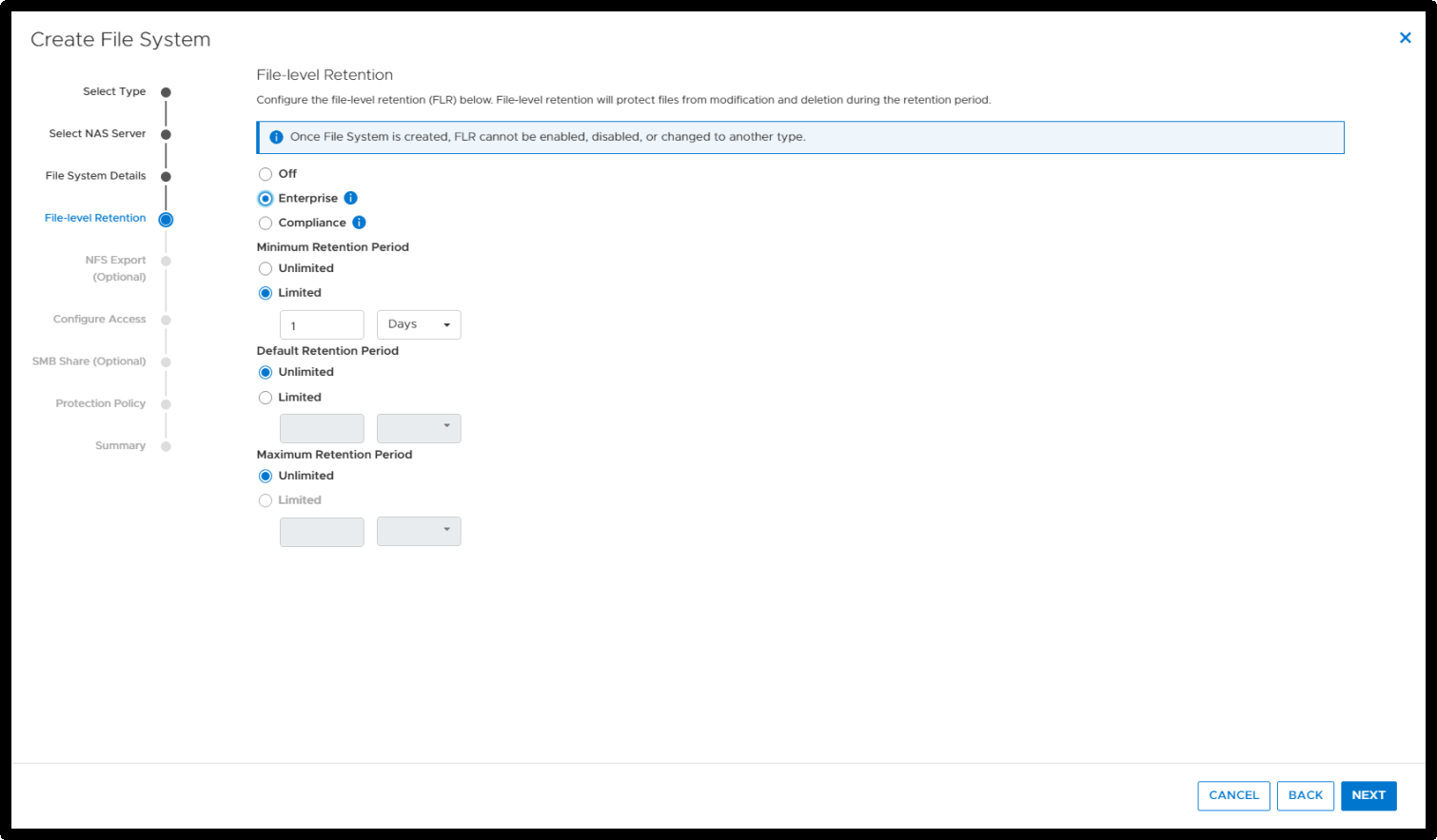
A screenshot of the create file system workflow and options in PowerStore Manager. File level retention options are being set to configure a WORM storage device on PowerStore.

Figure 15.    FLR configuration for WORM storage

Once the file system is in place, digests for Ledger tables can then be created and stored on the PowerStore file system with File-level retention enabled.

Complete details about PowerStore and Ledger can be found in the blog post PowerStore and SQL Server Ledger – Your Data Has Never Been More Secure!. Additional information on how to configure digest storage for on-premises WORM storage in general is in the following Microsoft article: https://techcommunity.microsoft.com/t5/sql-server-blog/ledger-automatic-digest-upload-for-sql-server-without-azure/ba-p/3630992.

References