Dell PowerStore: Migration Technologies
Executive summary
Overview
Audience
Revisions
We value your feedback
Introduction
Introduction to PowerStore
Terminology
Native import of external storage
Introduction
Migration support
Native import benefits
Connectivity prerequisites
PowerStore supports two types of back-end connectivity for the data transfer from the source system to PowerStore.
iSCSI back-end connectivity
PowerStore uses the replication tagged ports for the import traffic over iSCSI. One storage network can be leveraged for replication and import. Import requires the storage network to have both the ‘Replication’ and ‘Storage (iSCSI)’ purposes. The associated ports of the storage network must also have current usage matching the purposes. By looking at the Current Usages column, we can see which ports will be used for replication and import, as shown in the following figure.
In PowerStoreOS 4.0, an enhancement to storage networks allows users to create multiple storage networks with defined purposes. These purposes include Storage (iSCSI), Storage (NVMe/TCP), and Replication. This feature allows storage networks for host connectivity, and dedicated networks for replication. When configuring a network for replication, PowerProtect DD integration, and import, consult the Import, Protecting Your Data, and Best Practices guides for specific guidance.

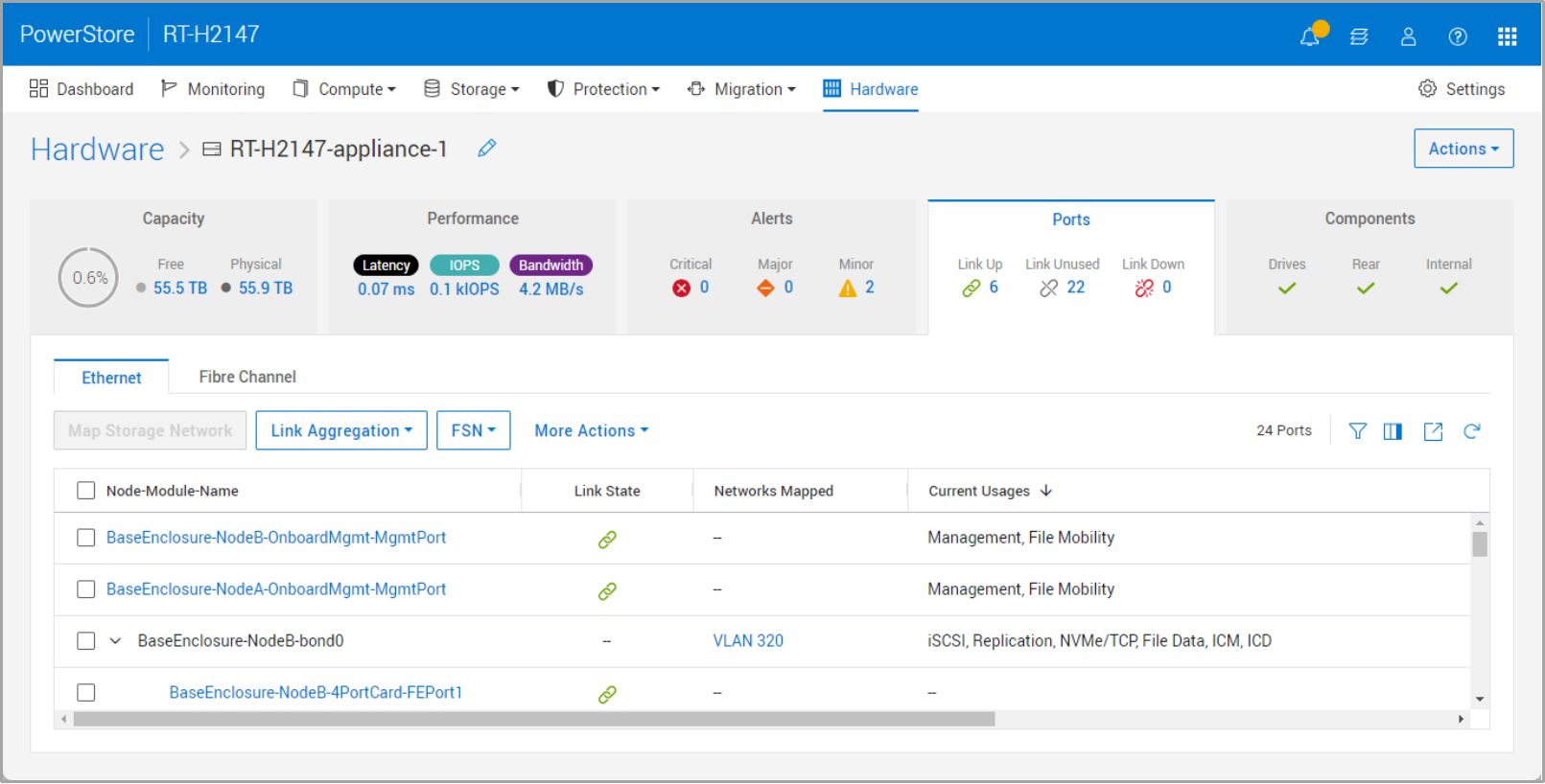
Figure 1. Hardware > Appliance > Ports > Current Usages Column
Fibre Channel (FC) back-end connectivity
With PowerStoreOS 3.0 and higher, every Fibre Channel (FC) port now has SCSI Mode (See Figure 2) and Import Capable (See Figure 3) attributes.
• SCSI Modes:
– Dual: A port in dual mode can be used as both initiator (for front-end traffic) and target (for import traffic). See Figure 2 for an example.
– Target: A port as target can be used for front-end traffic only.

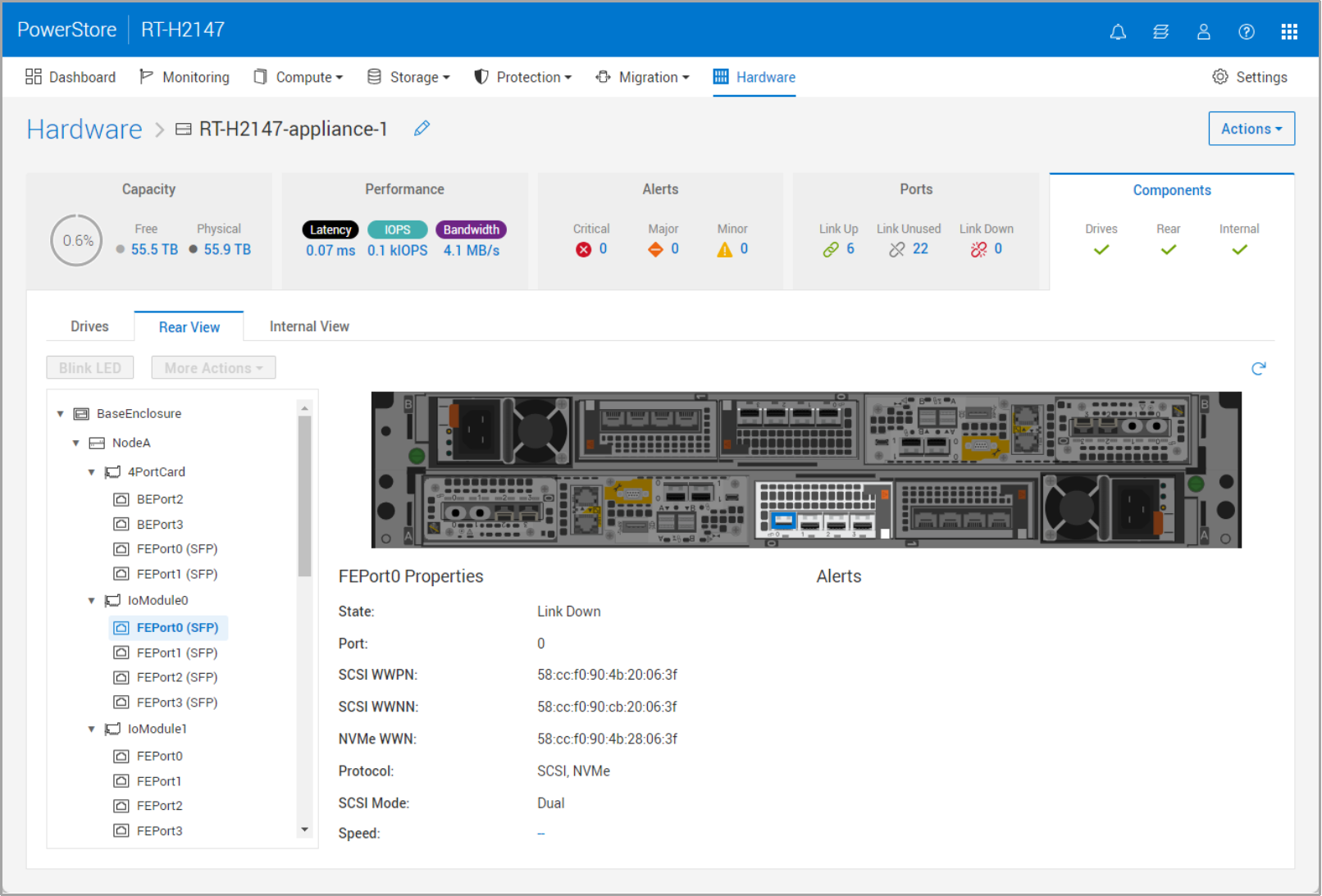
Figure 2. Hardware > Appliance > Components > Rear View
• Import capable:
– Yes: This port can be used to import data. A PowerStore system has two ports per node, for a total of four ports that can be used for importing data over FC, as shown in the following figure.
– No: This port does not support import data
• The dual mode is only supported on the Fibre Channel (FC) IO Module 0 Port 0 and Port 1. The FC IO Module must reside in Slot 0.
– These ports can have both front-end and back-end (import) traffic.
– There is no support for direct connect.
– If you plan to use FC as the back-end connectivity for the import, ensure that the zoning between the source storage system and these two ports, IO Module 0 Port 0 and Port 1, is established before starting the import.

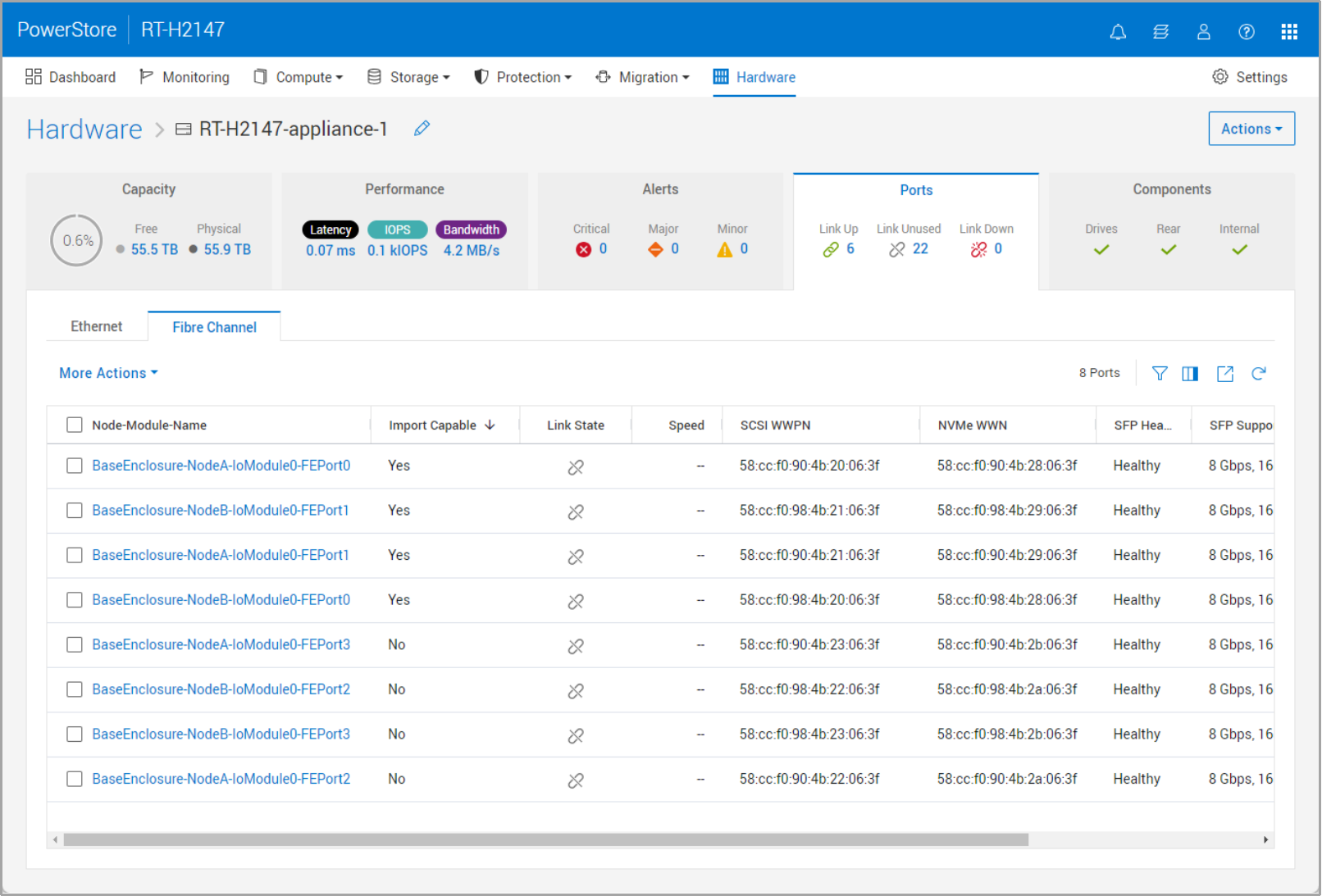
Figure 3. Hardware > [Appliance] > Ports > Import Capable Ports
Non-disruptive block import
The non-disruptive block import requires installing a host plug-in for a seamless import to PowerStore. The host plug-in enables the orchestrator to communicate with the host multipath software to perform import operations. The combination of native functionality with the host plug-in automates many manual operations that take place during migration. For example, the system automatically completes mapping the hosts, creating the storage resources, and checking the validation.
Non-disruptive import requirements
The following requirements must be met before migrating to PowerStore:
- The source system must be in a good state and not running a software upgrade.
- The software or operating environment (OE) version for the source system must be supported.
- See the document Importing External Storage to PowerStore Guide on Dell.com/powerstoredocs.
- A software upgrade may be required before starting the import.
- Front-end connectivity:
- Connectivity between the client and source system, and the client and PowerStore, can be either iSCSI or Fibre Channel (FC)
- For FC, zoning may be required.
- Back-end connectivity:
- iSCSI and Fibre Channel (FC) are supported for the data transfer between the source storage system and PowerStore. If the backend import connection is FC, the frontend host connection must also be FC. If the backend import connection is iSCSI, the frontend host connection can be either FC or iSCSI.
- Before PowerStoreOS 3.0, only iSCSI was available for the data transfer between the source storage system and PowerStore.
- PowerStoreOS 3.0 and higher added Fibre Channel (FC) support for the data transfer between the source and PowerStore system. MPIO and host plug-in:
- Multipath IO (MPIO) software—either EqualLogic Multipath I/O (EQL MPIO) or native MPIO—must be configured on the source LUNs, volumes, or consistency group. Once the MPIO is set, a host plug-in must be installed (or upgraded if using EQL MPIO). A reboot might be required. We recommend performing the installation along with any required software upgrade of the client operating system.
Non-disruptive terminology
The following table provides definitions for some of the terms that are used in the non-disruptive import section.
Table 2. Non-disruptive block import terminology
|
Term |
Definition |
|
Cutover |
Final step in setting the destination system as the primary with no option to cancel (rollback) to the source system |
|
Cancel |
Action of stopping the import, removing any progress that has been completed, and rolling back to the primary storage system |
|
Path flip |
Action of changing the active paths from the client to the source system to the PowerStore system |
Non-disruptive import workflow
This section describes a high-level overview of the import workflow.
Step 1: Setup
Perform the following actions before importing storage resources:
- Configure zoning for the front-end connectivity between the client and the PowerStore system (if required).
- Configure the back-end connectivity:
- If using iSCSI, add iSCSI connectivity between the source system and PowerStore system (if not present).
- If using Fibre Channel (FC), configure connectivity and zoning between the source system and the PowerStore system.
- Install the host plug-in in each of the clients that requires access to the data during the import. This ensures that the import is non-disruptive. A reboot might be required as part of the installation of the host plug-in. PowerStore supports three types of host operating systems for the host plug-in: Linux, Microsoft Windows, and VMware. Refer to the PowerStore simple support matrix for the latest details.
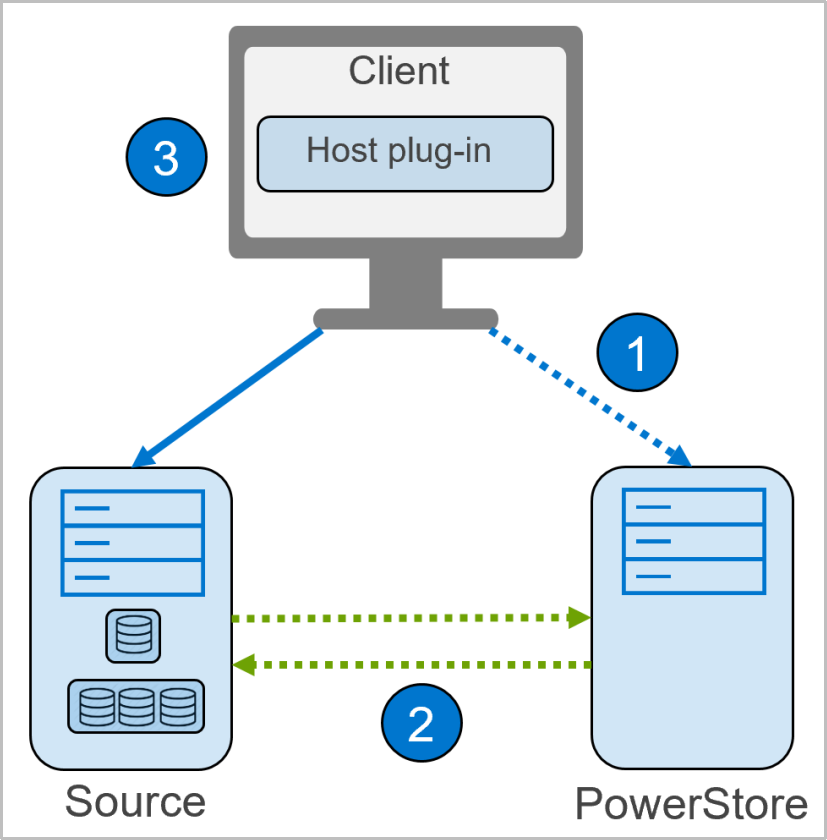
Figure 4. Non-disruptive setup
Step 2: Import
Perform the following actions to run the import process:
- Add the source system to PowerStore Manager.
- To create an import session, select the added source system and click the Import Storage button, which steps through the following:
- Overview: Provides details of the two import types.
- Select Volumes: Enables selecting the source resources, either as volumes or volume groups, to be imported.
- Add to Volume Group (Optional): Enables grouping the source resources into an existing volume group or to a new volume group.
- Map Hosts: Allows selection of the Add hosts (with the Host Plugin configured) for non-disruptive import option to enable adding the clients in which the user has already configured the host plug-in.
- Verify Host Mapping: Validates the host mapping between the selected source resources and the added hosts.
- Set Import Schedule: Sets when the import begins, either immediately or at a set date and time. This step includes the option to set an automatic cutover.
- Assign Protection Policy (Optional): Assigns the existing protection policy in PowerStore to the source resource after the import completes.
- Review: Shows a summary of the selected options, gives the option to review the source array assigned policies, and shows the Import button to start or schedule the import.
- Click the Import button, and the system performs the following actions:
- An import session is created.
- The system requests to the host plug-in a path flip, making the paths from the client to the source system inactive. The system also activates the paths from the client to the PowerStore system.
- A background copy of the data from the source system to the PowerStore system starts. Any new writes from the clients are made to PowerStore and forwarded to the source system to ensure rollback.
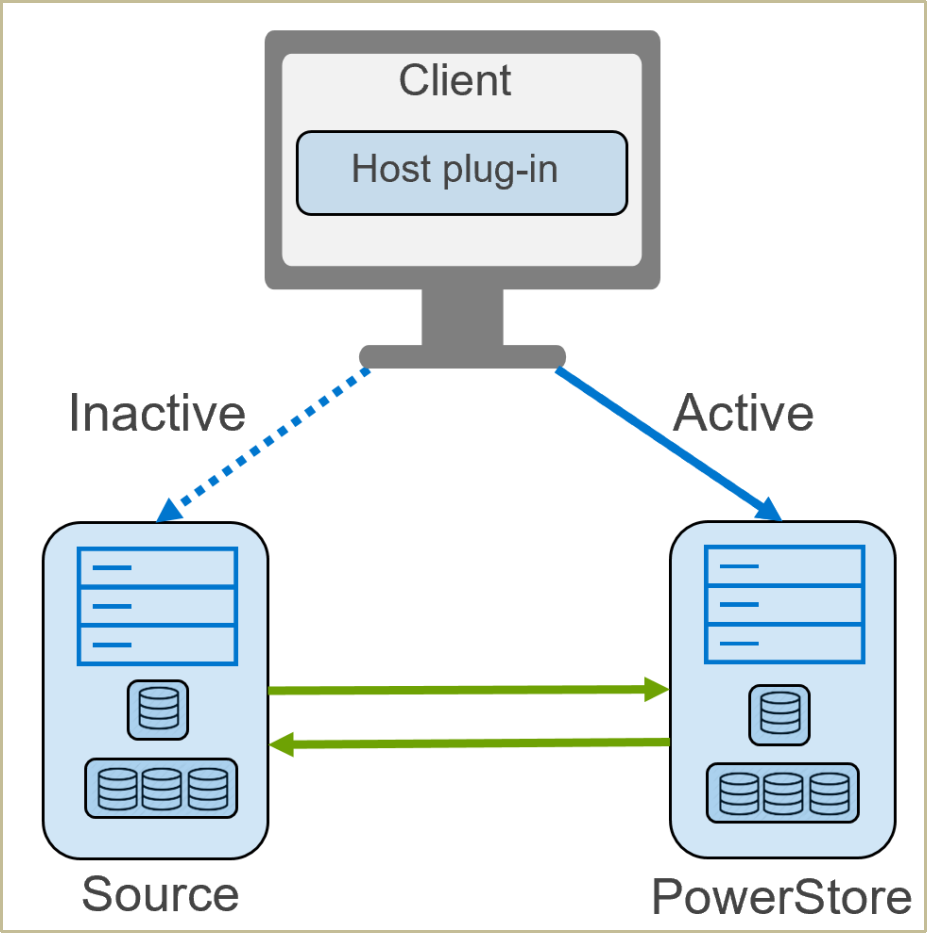
Figure 5. Non-disruptive import
Step 3: Cutover
A cutover is allowed when the import session is in a Ready to Cutover state (the source system and PowerStore are synchronized), which completes the following steps:
- The paths from the client to the source system are removed.
- The background copy and the forwarding of writes stops.
- Once the systems cut over, there is no rollback.
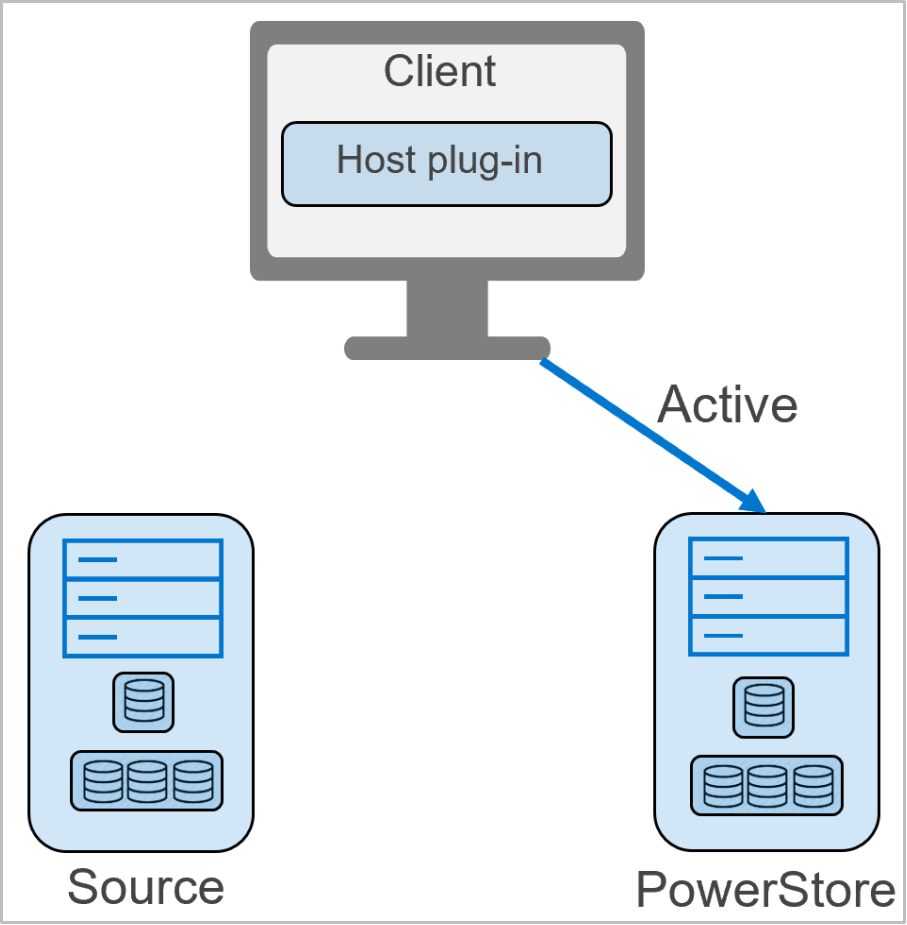
Figure 6. Non-disruptive cutover
Host plug-ins
There are different operating systems on which the host plug-in can be installed. For details about installing the host plug-in and the full list of supported operating systems and versions, see the document Importing External Storage to PowerStore Guide at Dell.com/powerstoredocs. The host plug-in installation files are available on Dell Support.
Agentless block import
PowerStoreOS 1.0.3 added support for agentless block import. The agentless import does not require installing a host plug-in. The orchestrator communicates with the source storage system to coordinate and manage the host mappings. This import type requires a disruptive window as part of the path flip to PowerStore.
Agentless import requirements
The following requirements must be met before migrating to PowerStore:
- The source system must be in a good state and not running a software upgrade.
- The software or operating environment (OE) version for the source system must be supported.
- See the document Importing External Storage to PowerStore Guide on Dell.com/powerstoredocs.
- A software upgrade may be required before starting the import.
- The following front-end connectivity is required:
- Connectivity between the client and source system, and the client and PowerStore can be either iSCSI or Fibre Channel (FC).
- For FC, zoning may be required.
- The following back-end connectivity is required:
- iSCSI and Fibre Channel (FC) are supported for the data transfer between the source storage system and PowerStore. If the backend connection is FC, the frontend connection must also be FC. If the backend connection is iSCSI, the frontend connection can be either FC or iSCSI.
- Before PowerStoreOS 3.0, only iSCSI was available for the data transfer between the source storage system and PowerStore.
- PowerStoreOS 3.0 and higher added Fibre Channel (FC) support for the data transfer between the source and PowerStore system.
- MPIO and host plug-in:
- A host plug-in is not required.
Agentless import terminology
The following table provides definitions for some of the terms that are used in the agentless block import section.
Table 3. Agentless block import terminology
|
Term |
Definition |
|
Cutover |
Final step in setting the destination system as the primary with no option to cancel (rollback) to the source system |
|
Cancel |
Action of stopping the import, removing any progress that has been completed, and rolling back to the primary storage system |
|
Path flip |
Action of changing the active paths from the client to the source system to the PowerStore system |
Agentless import workflow
This section describes a high-level overview of the agentless import workflow.
Step 1: Setup
Perform the following actions before importing storage resources:
- Configure zoning for the front-end connectivity between the client and PowerStore (if required).
- Add iSCSI connectivity between the source system and PowerStore (if not present). This action enables PowerStore to automatically map itself as an iSCSI host in the source system.
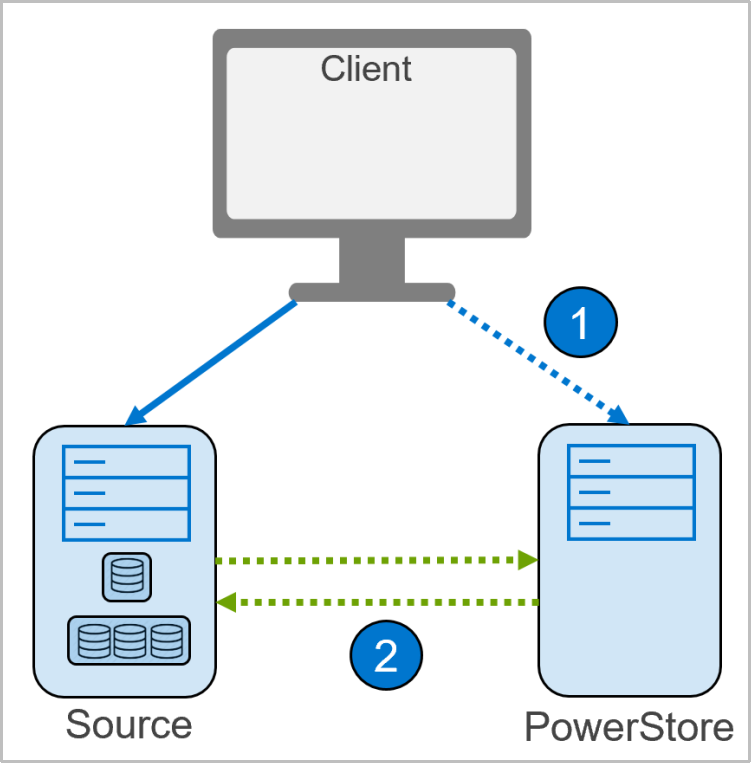
Figure 7. Agentless setup
Step 2: Import
Complete the following steps to perform the import:
- Add the host clients that are accessing the source data to PowerStore Manager from Compute > Hosts & Host Groups.
- Add the source system to PowerStore Manager from Migration > Import External Storage.
- To create an import session, select the added source system and click the Import Storage button which steps through the following:
- Overview: Provides details of the two types of imports available.
- Select Volumes: Allows selection of the source storage resources to import: LUNs, volumes, or consistency groups.
- Add to Volume Group (Optional): Enables grouping the source resources into an existing volume group or to a new volume group.
- Map Hosts: Selecting Map hosts on PowerStore for agentless import enables mapping the clients in which the data is being accessed from.
- Set Import Schedule: Sets when the import begins, either immediately or at a set date and time. This step includes the option to set an automatic cutover.
- Assign Protection Policy (Optional): Assigns the existing protection policy in PowerStore to the source resource after the import completes.
- Review: Shows a summary of the selected options, gives the option to review the source array assigned policies, and shows the Begin Import button to start or schedule the import.
- When you click the Begin import button, the system takes the following actions:
- An import session is created. The state changes from In Progress to Ready to Enable Destination Volume with the source volume as read/write.
- Unmount the source volume on the hosts. The import operation is disruptive to the host I/O access.
- Select More Actions > Enable Destination Volume.
i Confirm that the host application has been stopped or taken offline.
ii Either allow the system to remove the mapping between the hosts and the source resource or perform this step manually.
iii The source volumes go into a read-only state, and hosts are unmapped from the source system.
iv Click the Enable Destination Volume button.
- When the import session is in a Ready to Start Copy state, select the Start Copy option.
i Rescan the host to discover the destination volume and mount the destination volume on the host, making the volume a read/write state. Now the host I/O access is restored.
ii A background copy of the data from the source system to the PowerStore system starts.
iii The import session state changes to Copy In Progress.
iv Any new writes are made to PowerStore and forwarded to the source system to ensure rollback.
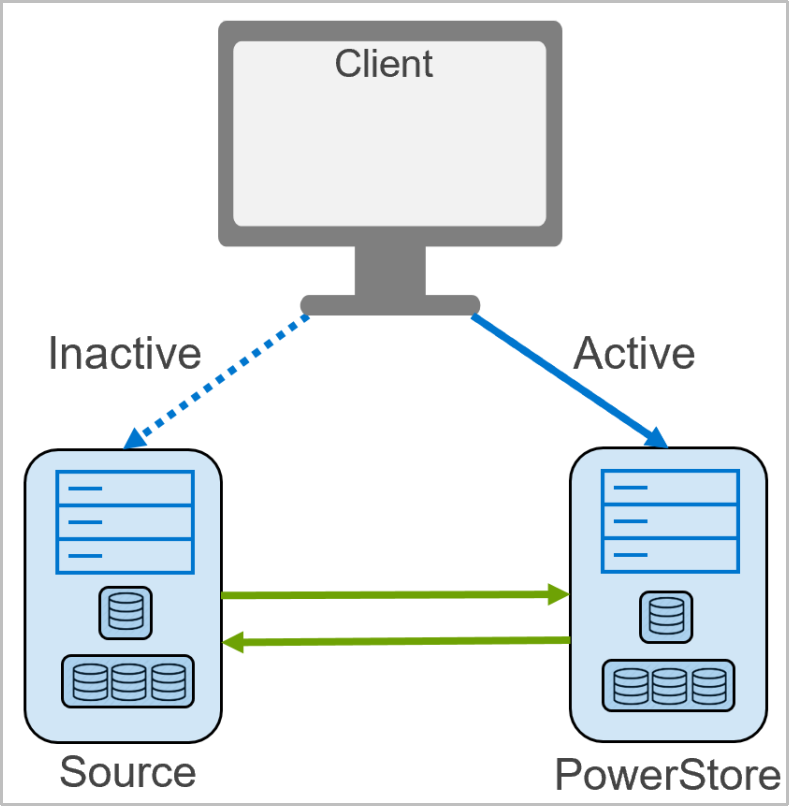
Figure 8. Agentless import
Step 3: Cutover
A cutover is allowed when the import session is in a Ready to Cutover state (the source system and PowerStore are synchronized).
- The paths from the client to the source system are removed.
- The background copy and the forwarding of writes stops.
- When the import session is cut over, there is no rollback.
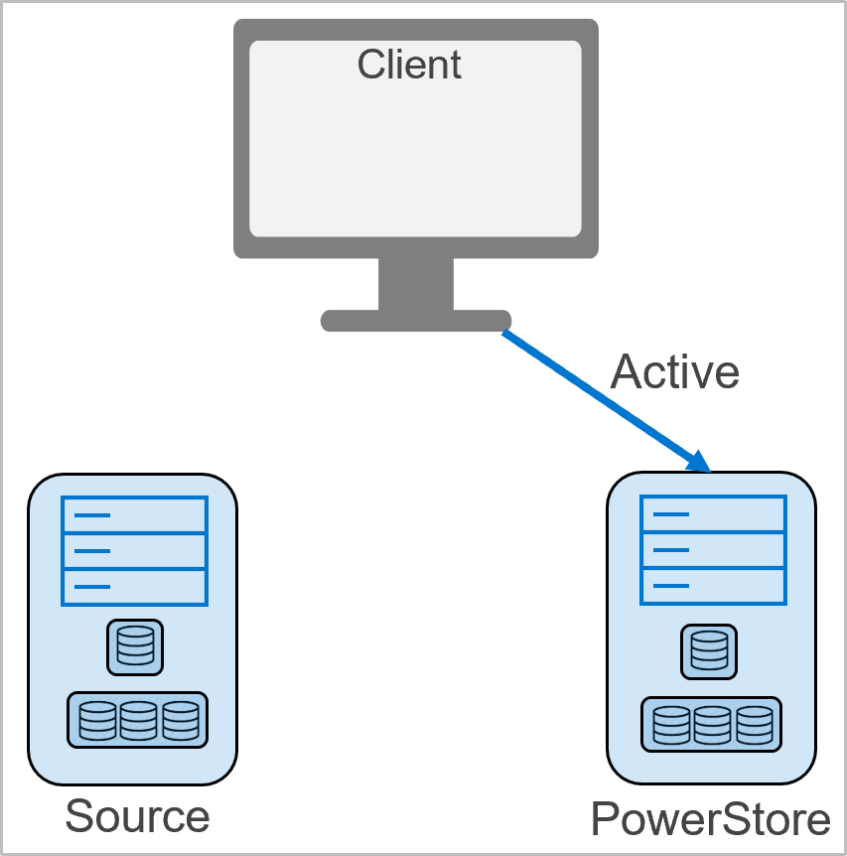
Figure 9. Agentless cutover
Universal agentless block import
PowerStoreOS 4.0 added support for Universal storage systems to be imported via the agentless block import method, which does not require a host plug-in to be installed. The Universal system can either be a legacy Dell or third-party storage system. See the PowerStore Simple Support Matrix document for supported types of universal source systems. This import type requires a disruptive window as part of the host path flip to PowerStore. Minor manual configuration is required on the universal source storage system because there is no control path connection to the source system from PowerStore. The user will need to manually map and mask block resources from the source storage system to PowerStore. Resource names will also need to be defined during the import process since PowerStore only sees the WWN and resource size.
Agentless import requirements
The following requirements must be met before migrating to PowerStore:
- The universal source system must be in a good state and not running a software upgrade.
- The software or operating environment (OE) version for the universal source system must be supported.
- See the document Importing External Storage to PowerStore Guide on Dell.com/powerstoredocs.
- User needs to create a new host entry for the PowerStore on the source universal system. This is because universal import does not utilize a control path connection to the source system.
- Utilize either WWPNs for FC or iSCSI initiators for iSCSI.
- Add the volumes to this host entry that will be imported to PowerStore.
- Add initiators from all nodes and appliances of the PowerStore cluster to the host entry
- The host entry on the source system for PowerStore should have an OS type of Linux or an equivalent
- The volumes should be visible to all the initiators on the host, some array types offer an attribute that alters visibility of volumes to single path or multi-path
- The following front-end connectivity is required:
- Connectivity between the client and source system, and the client and PowerStore can be either iSCSI or Fibre Channel (FC). If the backend connection is FC, the frontend connection must also be FC. If the backend connection is iSCSI, the frontend connection can be either FC or iSCSI.
- For FC, zoning may be required.
- The following back-end connectivity is required:
- PowerStoreOS 4.0 supports either iSCSI or Fibre Channel (FC) for the data transfer between the universal source storage system and PowerStore.
- If the backend connection is FC, the frontend connection must also be FC. If the backend connection is iSCSI, the frontend connection can be either FC or iSCSI.
Agentless import workflow
This section describes a high-level overview of the agentless import workflow.
Step 1: Setup
Perform the following actions before importing storage resources:
- Configure FC or iSCSI front-end host connectivity to PowerStore
- Create a host entry for PowerStore on the universal source system and provide access to the volumes you wish to import to it
- Configure FC or iSCSI backend connectivity between universal source storage system and PowerStore
Step 2: Import
Complete the following steps to perform the import:
- Add the Universal source system to PowerStore and fetch the volumes (via iSCSI or FC)
- Create the import session by selecting the universal source system and clicking the Import Volume button which steps through the following:
- Select and name volume(s)
- Select the named volume(s) for import
- Add to volume group (optional)
- Map volumes to a PowerStore host
- Set schedule and choose the cutover method
- Assign protection policy (optional)
- Review and begin import
- When you click the Begin import button, the system takes the following actions:
- An import session is created. The state changes from In Progress to Ready to Enable Destination Volume with the source volume as read/write. The destination volume(s) are in a write disabled state but have been created on the PowerStore.
- Before you Enable Destination Volume, take the host application offline and unmount the source volume on the hosts. The user should also remove the mapping between the host and source system manually. The import operation is disruptive to the host I/O access.
- Select More Actions > Enable Destination Volume.
i Confirm that the host application has been stopped or taken offline.
ii The source volumes go into a read-only state.
iii Click the Enable Destination Volume button.
iv When the import session is in a Ready to Start Copy state
v Rescan the host to discover the destination volume and mount the destination volume on the host. The volume is now in a read/write state. Now the host I/O access is restored and the application can be brought online.
vi Select More Actions > “Start Copy”
vii A background copy of the data from the source system to the PowerStore system starts.
viii The import session state changes to Copy In Progress.
ix Any new writes are made to PowerStore and forwarded to the source system to ensure rollback.
Figure 10. Agentless import
Step 3: Cutover
A cutover is allowed when the import session is in a Ready to Cutover state (the universal source system and PowerStore are synchronized).
- The cutover operation finalizes the import process.
- If automatic cutover wasn’t selected, the user needs to select “Cutover” to complete the import operation.
- The background copy between the universal source system and PowerStore stops and forwarding of writes also stops
- When the cutover is complete, no rollback is possible
- The user should then remove the volume mappings to the PowerStore from the universal source system
Figure 11. Agentless cutover
File import
PowerStoreOS 3.0 and later added support for native VNX file import. File import supports NFS and SMB file systems. Multiprotocol file systems are not supported. PowerStoreOS 4.0 and later added support for native Dell Unity file import.
Requirements
The following requirements must be met before migrating to PowerStore:
- The source system must be in a good state and not running a software upgrade.
- The software or operating environment (OE) version for the source system must be supported.
- A software upgrade may be required before starting the import. See the document Importing External Storage to PowerStore Guide on Dell.com/powerstoredocs.
File import terminology
The following table provides definitions for some of the terms that are used in the non-disruptive import section.
Table 4. Agentless file import terminology
|
Term |
Definition |
|
Cutover |
Action of setting the destination PowerStore system as the primary |
|
Cancel |
Action of stopping the import, removing any progress that has been completed, and rolling back to the primary storage system. |
|
Commit |
Final step in setting the destination system as the primary with no option to cancel (rollback) to the source system |
VNX File import workflow
This section describes a high-level overview of the VNX file import workflow.
Perform the following actions before importing storage resources:
Step 1: Prepare VNX
- From the source VNX:
- Add a migration network interface for IMT:
- Create migration interface.
- Interface must be named nas_migration_<name>.
- Attach the interface to migration VDM.
nas_server –vdm vdm_fro2 –attach nas_migration_vdmfro2
- When importing a CIFS server:
- Interface must have a different DNS subdomain than CIFS server.
- Add the interface to CIFS server:
server_cifs vdm_fro2 –add compname=vnx2compnamefro,domain=windows.emc-fr,interface=nas_migration_vdmfro2,dns=migration.windows.emc-fr
- Update parameters essential for CIFS import
- acl.mappingErrorAction
• Defines the rules for unknown mapping between SID, UID, and GID on ACL settings.
- acl.extacl
• This parameter is a bit list which enables special capabilities around ACL management.
• Allows migrating of UNIX ownership necessary for preserving Quota.
- smb1.disabled
• This parameter must be set to 0 to ensure smb1 is enabled
- Review mandatory parameter values:
server_param server_3 –f cifs –info acl.mappingErrorAction
Server_param server_3 –f cifs –info acl.extacl
Server_param server_3 –f cifs –info smb1.disabled
Set new values
server_param server_3 –f cifs –modify acl.mappingErrorAction –value 11
server_param server_3 –f cifs –modify acl.extacl –value 28
server_param server_3 –f cifs –modify smb1.disabled –value 0
- Ensure local groups are enabled, and set two options:
- Set local Administrator password using Computer Management.
- Create a local admin user using Computer Management.
- Must be added to Administrators group
- Ensure time is synchronized with destination:
- Within 5 seconds
- Recommend using NTP
- Ensure correct version of code:
- VNX version 8.1.21.266 and newer
- Ensure that all interfaces used by the VDM are attached to the VDM. Use the following command to attach interfaces to the source VDM:
nas_server –vdm <vdm name> –attach <interface name>
Step 2: Prepare PowerStore
- Verify NTP settings:
- Ensure same NTP as VNX
- Native File Import requires a File Mobility Network on PowerStore:
- A public routable network based on the 1 GbE management ports
- Provides control plane communication between PowerStore SDNAS and source VNX
- File Mobility Network is not used for the import data traffic
- Also used for file asynchronous replication
- PowerStore establishes SSH connection with VNX over the File Mobility Network
- Configure File Mobility Network
- Configured under Settings > Network IPs > FILE MOBILITY
- Uses the existing Management Network configuration
- Requires new IPs on the existing Management Network range
- Supports IPv4 and IPv6
- Requires three IPs:
- Cluster IP Address
- Node A IP Address
- Node B IP Address
- User must manually MAP NETWORK after configuring IPs
Step 3: Add Remote System
- Add the source system to PowerStore Manager from Migration > Import External Storage.
- Type: VNX
- Capability: UNIFIED or FILE
- SPA or SPB IP Address or FQDN
- Data Connection Type: iSCSI or Fibre Channel
- Username and password
- File Connection Address (control station)
- File admin username and password
- As the remote system is added:
- Source system information is validated
- Source VDMs are discovered
i File systems
ii Network interfaces
iii Configuration settings
- Prechecks identify import capability per VDM
- The procedure can be repeated on demand for an existing connection.
- Discover: Discovers resources on source array that can be imported
- Verify and Update: Verifies connectivity to source and attempts to reconnect
- Add File Import Interface:
- Created under Migration > Import External Storage > File Import Interface
- Used for data migration from source migration interface
- Can optionally be created during Import NAS Server wizard
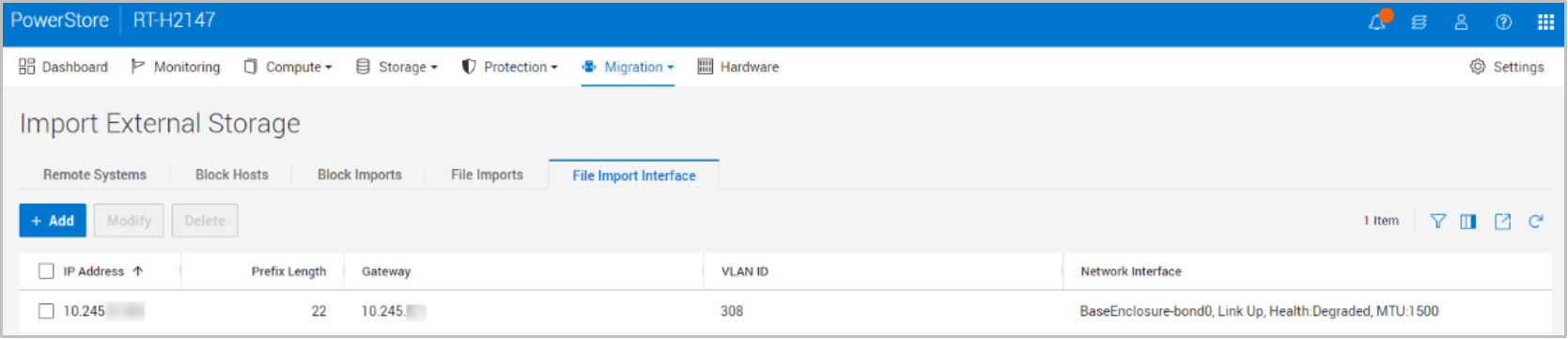
Figure 12. Migration > Import External Storage > File Import Interface
Step 4: Create Import Session
Complete the following steps to perform the file import:
- To create an import session, select the added source system and click the Import NAS Server button, which steps through the following:
- Select NAS Servers: Allows selection of the source file resources to import: Virtual Data Mover (VDM) and its NFS and SMB file systems.
- Select Product Interface: Set the file interface to be used for production host access.
- Configure Import:
i Set the import session name and description.
ii Set when the import begins, either immediately or at a set date and time.
iii Set the file import interface to be used for the import traffic. The file import interface can be added in this step.
- Assign Protection Policy (Optional): Assigns the existing protection policy in PowerStore to the source resource after the import completes.
- Review: Shows a summary of the selected options and shows the Begin Import button to start or schedule the import.
Step 5: Cutover Import Session
When you click the Begin import button, the system takes the following actions:
- An import session is created, with an initial copy step in which:
- Host is accessing the data from the source system.
- PowerStore automatically creates the destination NAS Server.
- Cold data is transferred to PowerStore as part of the background copy. Cold data is data that has not been updated in the last 60 minutes.
- The import session state changes to In Progress.
- The import session state changes from In Progress to Ready to Cutover with the source volume as read/write.
A cutover is allowed when the import session is in a Ready to Cutover state (the source system and PowerStore are synchronized).
- Select More Actions > Cutover.
- Confirm that the host still has access to the file systems.
- Click the Cutover button.
- Hosts start accessing the data from PowerStore.
- The background copy and the forwarding of writes continues.
- Any reads for data already copied to PowerStore through the background copy are serviced from PowerStore.
- For any reads of data still in the source system, PowerStore recalls the data from the source, copies it to PowerStore and services the request to the host.
Step 6: Commit Import Session
- After all the data is transferred, the import session goes into a Ready to Commit state.
- Select the import session, and click the Commit action.
- The background copy and the forwarding of writes stops.
- When the import session is committed, there is no rollback.
- The source system is cleaned up.
Unity File import workflow
This section describes a high-level overview of the Unity file import workflow.
Perform the following actions before importing storage resources:
Step 1: Prepare storage systems for file import
Unity
- Unity OE 5.0.3 and later code – Check the PowerStore Simple Support Matrix for specifics as this can change.
- Ensure a new or unused production IP interface is created on the NAS_SERVER’s that will be used for migration purposes only
- Ensure that SSH is enabled
- If importing SMB NAS servers, the user needs to login to Unity and run a service command to update the parameter acl_extacl to 28 (default is 0)
- This parameter is a bit list which enables special capabilities around ACL management.
- Allows migrating of UNIX ownership necessary for preserving Quota.
- Ensure time is synchronized with PowerStore destination:
- Within 5 seconds
- Recommend using NTP
- iSCSI IP(s) configured
PowerStore
- PowerStoreOS 4.0 and later– Check the PowerStore Simple Support Matrix for specifics as this can change.
- Verify NTP settings:
- Within 5 seconds of Unity
- Recommend using same NTP as Unity
- Native File Import requires a File Mobility Network on PowerStore:
- A public routable network based on the 1 GbE management ports
- Provides control plane communication between PowerStore SDNAS and source Unity
- File Mobility Network is not used for the import data traffic
- PowerStore establishes SSH connection with Unity over the File Mobility Network
- Configure File Mobility Network
- Configured under Settings > Network IPs > FILE MOBILITY
- Uses the existing Management Network configuration
- Requires new IPs on the existing Management Network range
- Supports IPv4 and IPv6
- Requires three IPs:
- Cluster IP Address
- Node A IP Address
- Node B IP Address
- User must manually MAP NETWORK after configuring IPs
- Add the source Unity system to PowerStore Manager as a remote system from Migration > Import External Storage.
- Type: Unity
- Capability: Unified
- Management IP Address or FQDN
- Data Connection Type: iSCSI IP
- iSCSI IP (multiple can be inputted if separated by a comma)
- Management Username and password
- Session CHAP Mode
- Service username and password
- As the remote Unity system is added:
- Source system information is validated
- Source NAS servers are discovered
– File systems
– Network interfaces
– Configuration settings
- The procedure can be repeated on demand for an existing connection.
- Discover: Discovers resources on source array that can be imported
- Verify and Update: Verifies connectivity to source and attempts to reconnect
- Add File Import Interface:
- Created under Migration > Import External Storage > File Import Interface
- Used for data migration from source migration interface
- Can optionally be created during Import NAS Server wizard

Figure 13. Migration > Import External Storage > File Import Interface
To create an import session, select the added Unity source system and click the Import NAS Server button, which steps through the following:
- Select NAS Server: This will automatically import all associated file systems
- Select the migration interface: This is the new or unused IP interface on the NAS_SERVER that will be used for migration purposes only
- Select the production interface: This is the production Unity NAS_SERVER IP(s) that will be moved over to PowerStore with this import process
- Assign the PowerStore network interface to this production interface
- Configure import details:
- Set the import session name and description.
- Set when the import begins, either immediately or at a set date and time.
- Set the file import interface to be used for the import traffic. The file import interface can be added in this step.
- Assign Protection Policy (Optional): Assigns the existing protection policy in PowerStore to the source resource after the import completes.
- Review: Shows a summary of the selected options and shows the Begin Import button to start or schedule the import.
Step 3: Cutover Import Session
When you click the Begin import button, the system takes the following actions:
- An import session is created, with an initial copy step in which:
- Host is accessing the data from the source Unity system.
- PowerStore automatically creates the destination NAS Server and file systems.
- Cold data is transferred to PowerStore as part of the background copy. Cold data is data that has not been updated in the last 60 minutes.
- The import session state changes to In Progress.
- The import session state changes from In Progress to Ready to Cutover with the source volume as read/write.
- A cutover is allowed when the import session is in a Ready to Cutover state (the source Unity system and PowerStore are synchronized).
- Select More Actions > Cutover.
- Confirm that the host still has access to the file systems.
- Click the Cutover button.
- Hosts start accessing the data from PowerStore.
- The background copy and the forwarding of writes continues.
- Any reads for data already copied to PowerStore through the background copy are serviced from PowerStore.
- For any reads of data still in the source system, PowerStore recalls the data from the source, copies it to PowerStore and services the request to the host.
Step 4: Commit Import Session
- After all the data is transferred, the import session goes into a Ready to Commit state.
- Select the import session, and click the Commit action.
- The background copy and the forwarding of writes stops.
- When the import session is committed, there is no rollback.
- The source system is cleaned up.
Management
You can manage the Import External Storage action from the PowerStore Manager UI, REST API, and PowerStore CLI (pstcli).
In PowerStore Manager, click Migration > Import External Storage (see the following figure).


Figure 14. Import External Storage
To add the source storage system as a remote system, click Add Remote System as shown in the following figure.
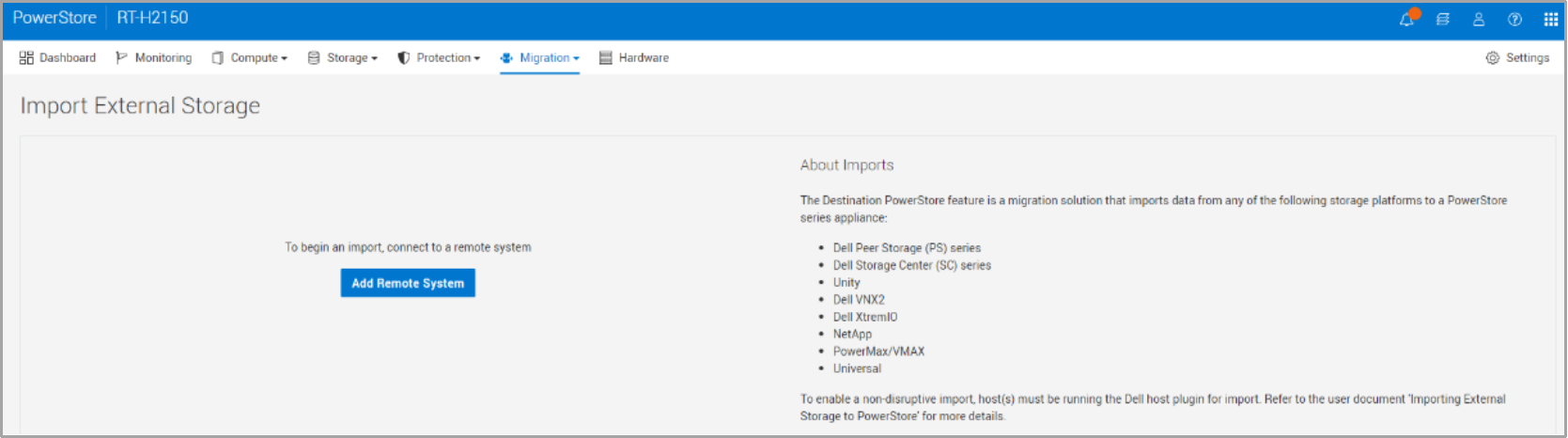
Figure 15. Import External Storage page
When adding the source array, Figure 16 shows an example of some of the fields that need to be entered.
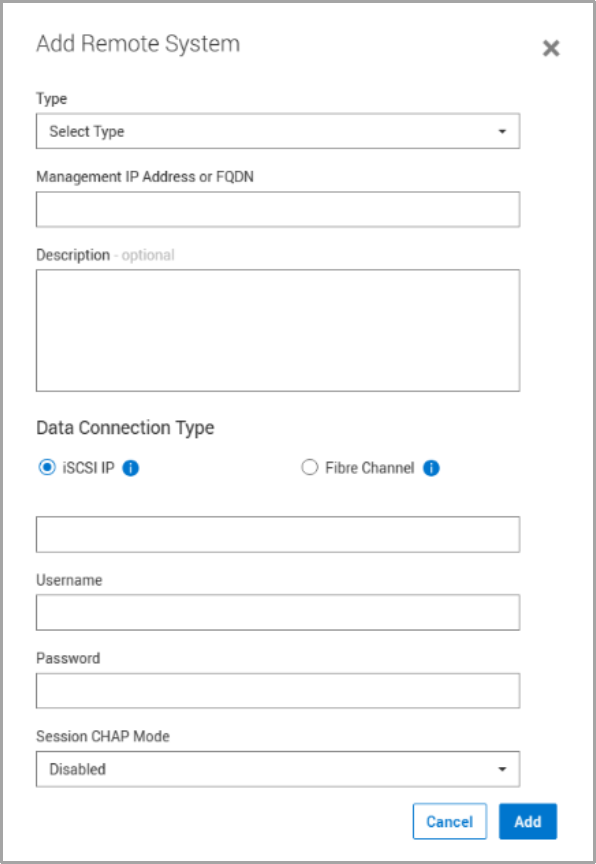
Figure 16. Add Remote System
The required and optional parameters for adding a source array vary depending on the source system, as shown in the following table.
Table 5. Parameters per source system
|
Source system type |
Parameters |
|
Universal |
Name |
|
Management IP Address or FQDN |
|
|
Description (Optional) |
|
|
Data Connection Type
|
|
|
Discovery CHAP Mode (optional, if using iSCSI) |
|
|
Session CHAP Mode (optional, if using iSCSI) |
|
|
PS Series |
Group management IP address |
|
Description (optional) |
|
|
Data Connection Type
|
|
|
Management credentials (username and password) |
|
|
Discovery CHAP mode (optional) |
|
|
Session CHAP mode (optional) |
|
|
SC Series |
Management IP address |
|
Description (optional) |
|
|
Data Connection Type
|
|
|
Management credentials (username and password) |
|
|
Session CHAP mode (optional) |
|
|
Dell Unity |
Capability
|
|
Management IP address (Dell Unisphere IP address) |
|
|
Description (optional) |
|
|
Data Connection Type
|
|
|
Management credentials (username and password) |
|
|
Session CHAP mode (optional) |
|
|
Service Account Username (Unified) |
|
|
Service Account Password (Unified) |
|
|
VNX2 |
Capability
|
|
Block and Unified parameters |
|
|
SPA or SPB IP address or FQDN |
|
|
Description (optional) |
|
|
Data Connection Type
|
|
|
Management credentials (username and password) |
|
|
Session CHAP mode (optional) |
|
|
File and Unified parameters |
|
|
File Connection Address (Control Station IP Address) |
|
|
Description (Optional) |
|
|
File Admin Username |
|
|
File Admin Password |
|
|
XtremIO |
Cluster Name |
|
Management IP address or FQDN |
|
|
Description (Optional) |
|
|
Data Connection Type
|
|
|
Management credentials (username and password) |
|
|
Discovery CHAP mode (optional) |
|
|
Session CHAP mode (optional) |
|
|
NetApp |
SVM Name (NetApp Storage Virtual Machine) |
|
Management IP address or FQDN |
|
|
Description (Optional) |
|
|
Data Connection Type
|
|
|
Management credentials (username and password) |
|
|
Session CHAP mode (optional) |
|
|
PowerMax VMAX |
Name |
|
Management IP address or FQDN |
|
|
Port |
|
|
Description (Optional) |
|
|
Data Connection Type
|
|
|
Management credentials (username and password) |
The following pages are under Import External Storage as shown in the following figure:
- Remote Systems
- List of all the remote systems for block and file imports
- Block Hosts
- Applies to non-disruptive imports
- Hosts with the host plug-in installed
- Block Imports
- Lists of import sessions for block resources
- File Imports
- Lists of import sessions for file resources
- File Import Interface
- Interfaces to be used by file import
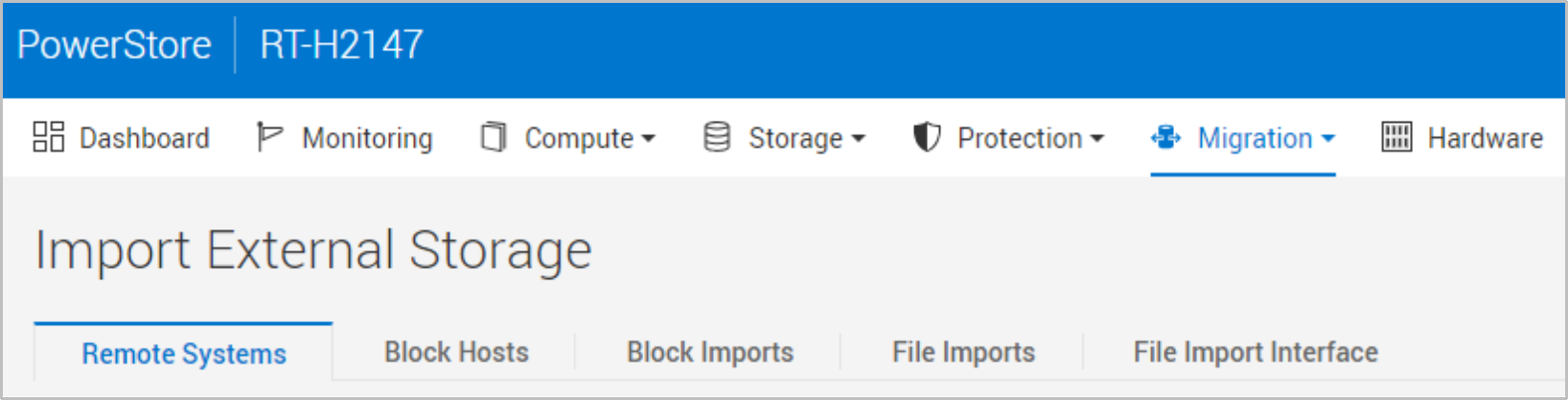
Figure 17. Import External Storage tabs
When you add the source system, you can import storage resources by selecting the source system and clicking Import Volume or Import NAS Server, depending on the resource to be imported (see Figure 18).
Import Volume
The following steps show the workflow of importing block resources. Once a source system is selected, click Import Volume.
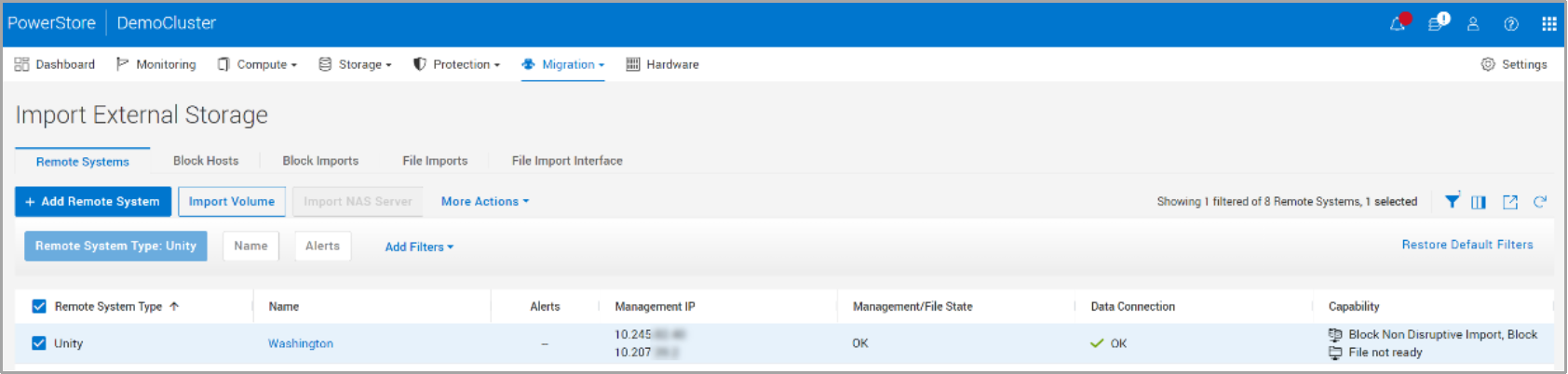
Figure 18. Import Volume
The following figure shows the Import Volumes from Source Array wizard.
In the Overview step, review the description for the two types of imports and click Next.
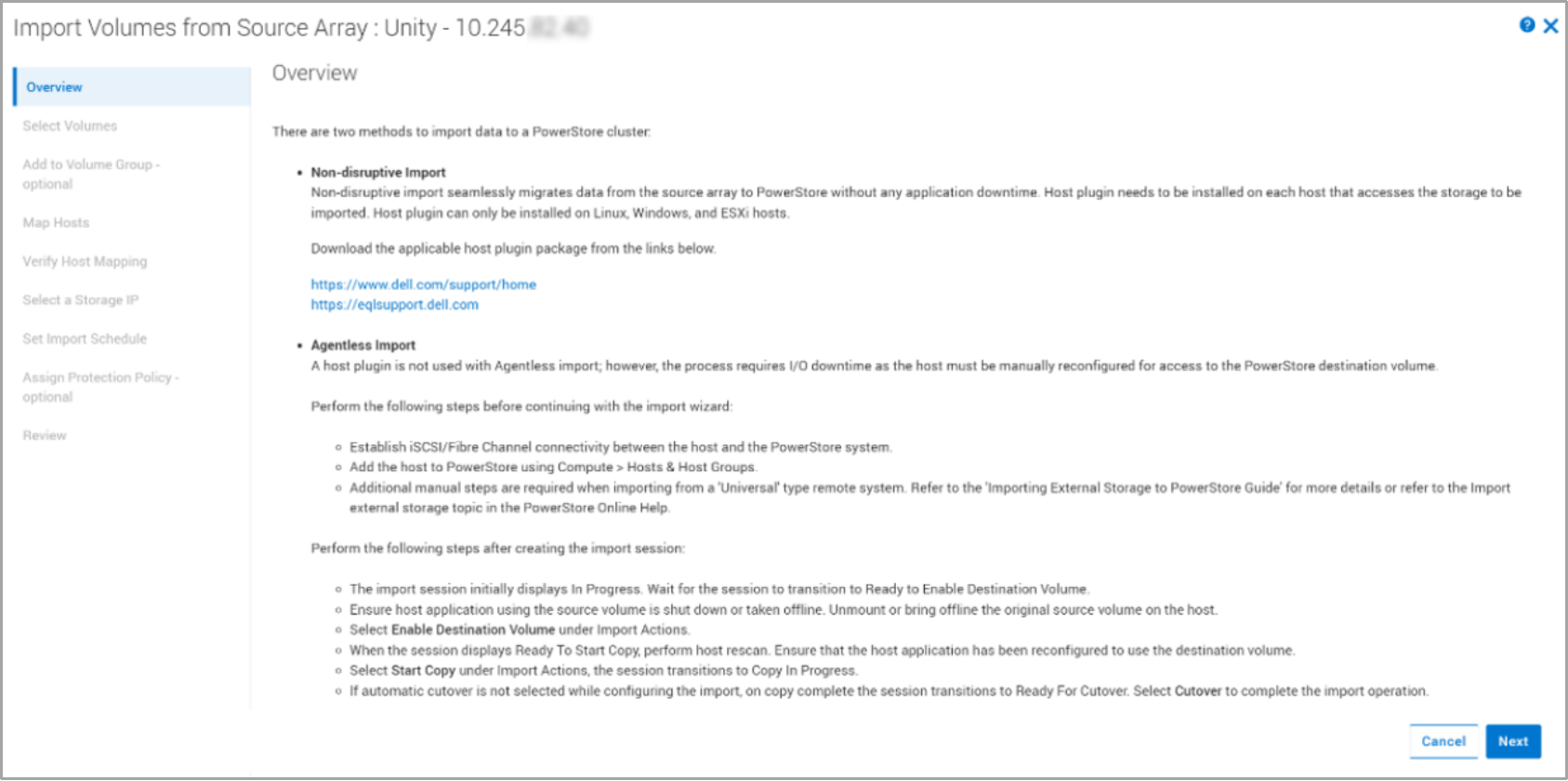
Figure 19. Overview step
In the Select Volumes step, select the source resources to import.
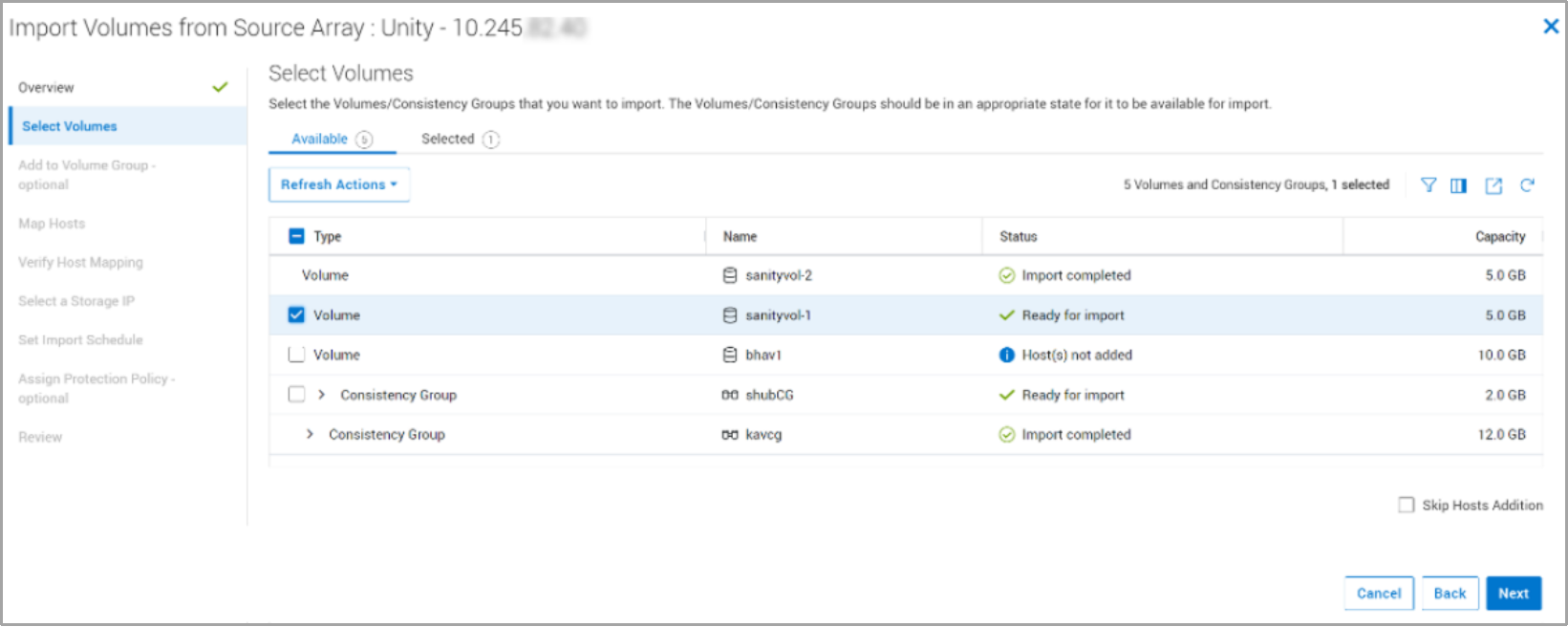
Figure 20. Select Volumes step
In the same step, as shown in the following figure, you can refresh the status of hosts (for non-disruptive import) and the volumes to reflect any recent changes. These changes could include the addition of new volumes in the source or the change in the mapping to the hosts.
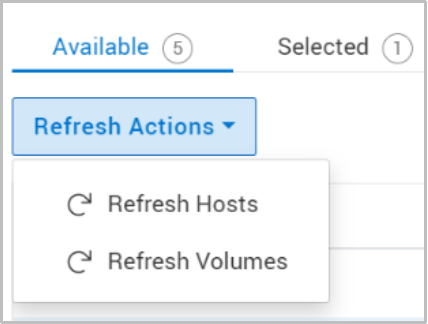
Figure 21. Refresh Actions under the Select Volumes step
In the Add to Volume Group (Optional) step, you can add the selected source resources into a PowerStore volume group as shown in the following figure.
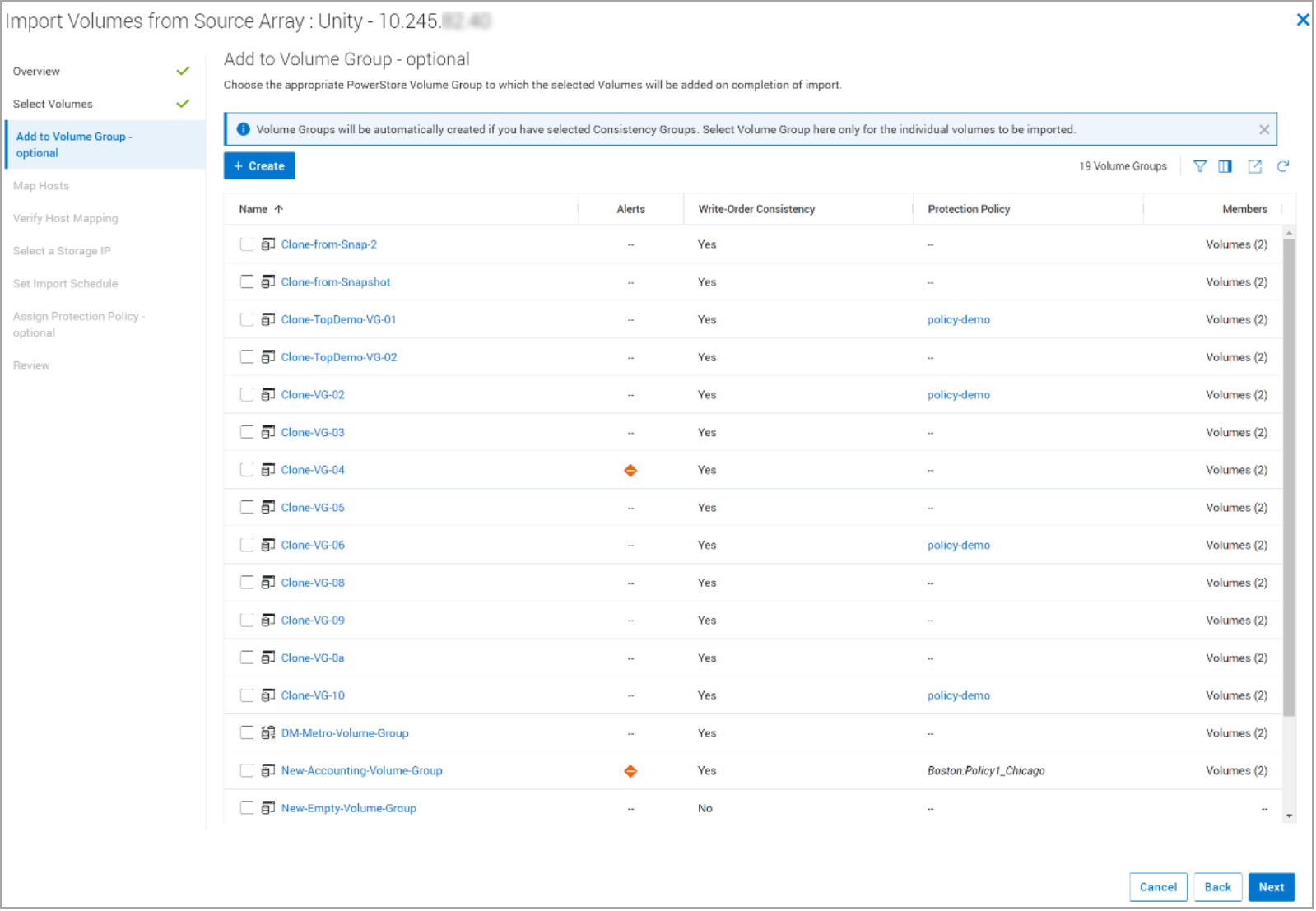
Figure 22. Add to Volume Group (Optional) step
In the Map Hosts step, use the Add hosts (with Host Plugin configured) for non-disruptive import option to add the clients in which the host plug-in has been installed and configured.
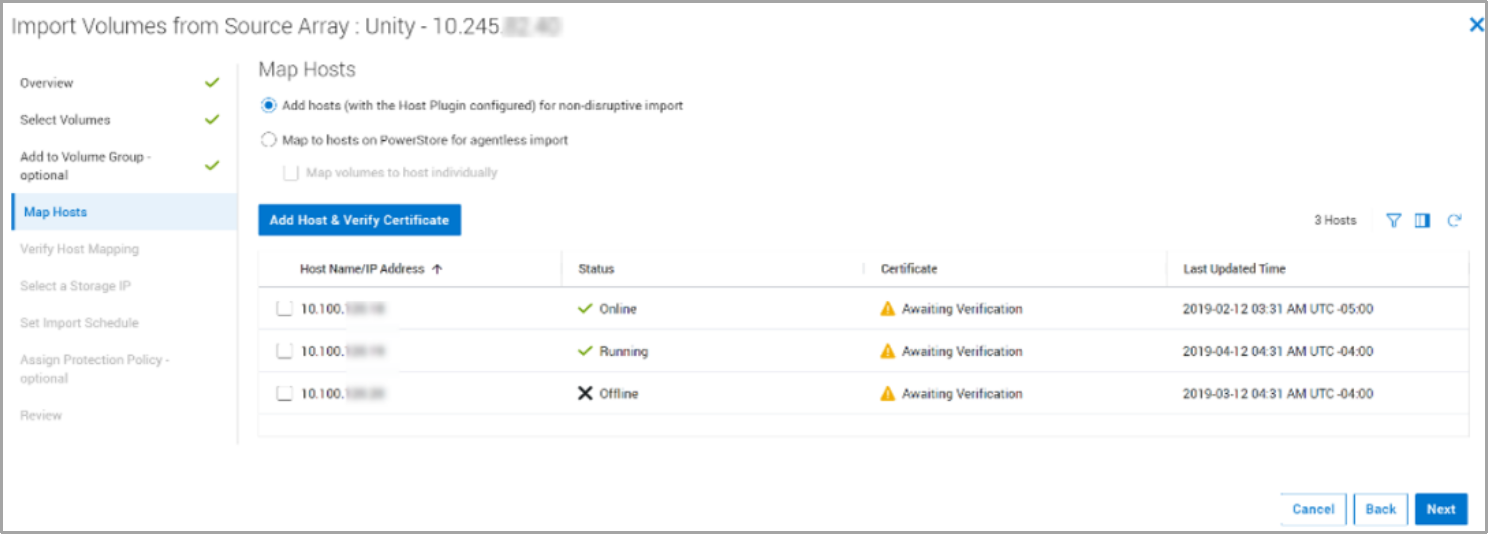
Figure 23. Map Hosts step: Non-disruptive import
When adding the clients as host, you must provide the client IP address, the port that was configured to be used for the import, and the operating system (OS) type.
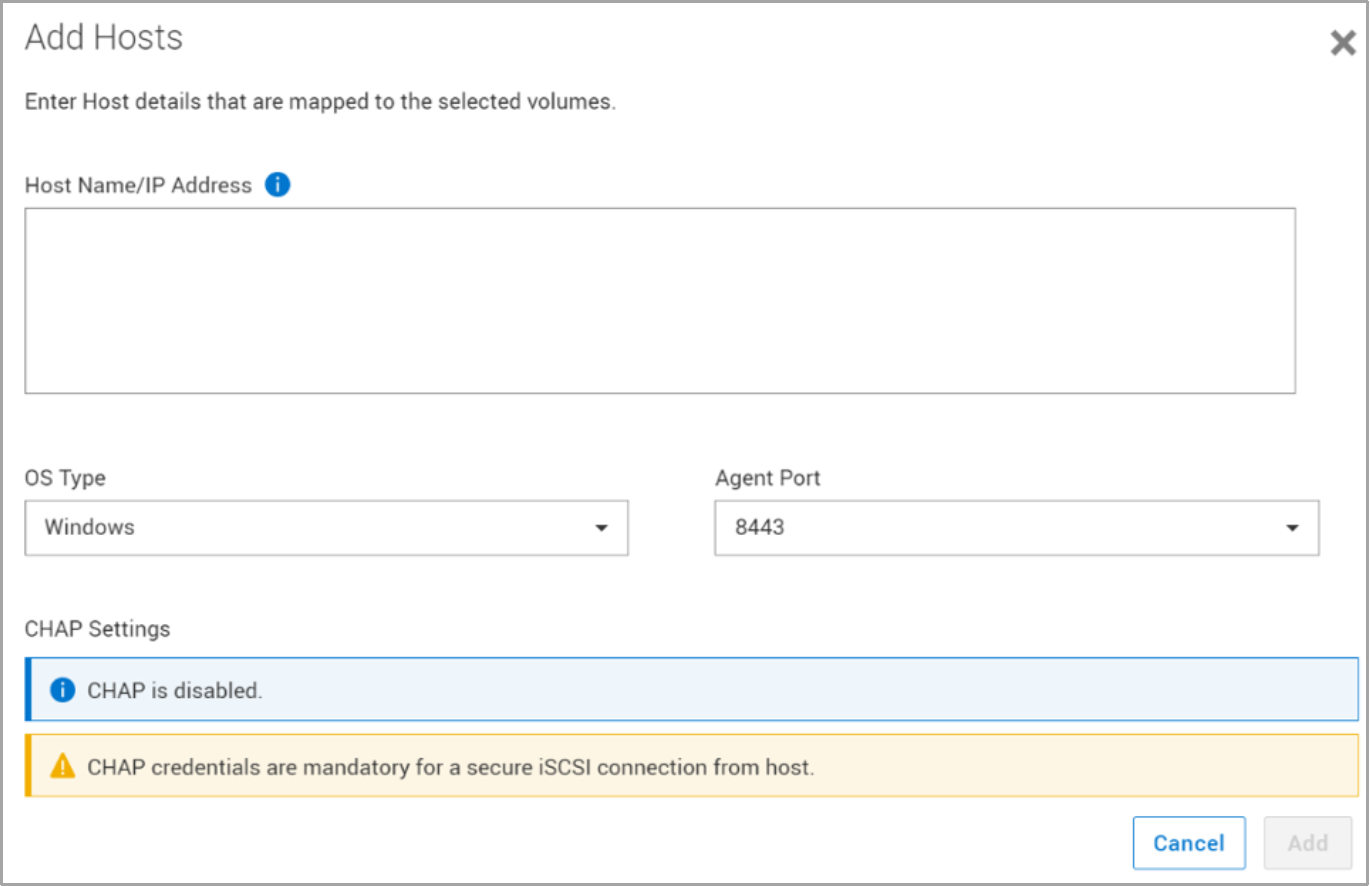
Figure 24. Add Hosts side panel
When the hosts are added, the system verifies the mapping of the hosts to the selected source resources, as shown in the following figure.
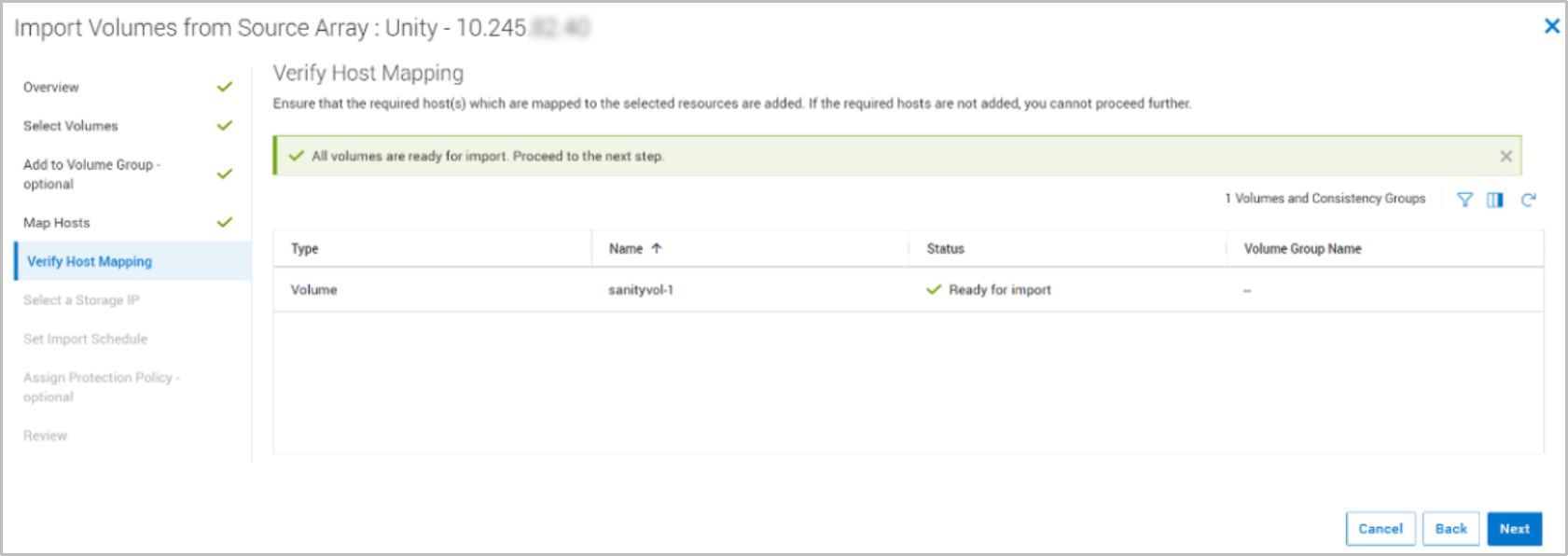
Figure 25. Verify Host Mapping step
In the Map Hosts step, with the Map to hosts on PowerStore for agentless import option you can map the resources to be imported to hosts already added to the PowerStore.
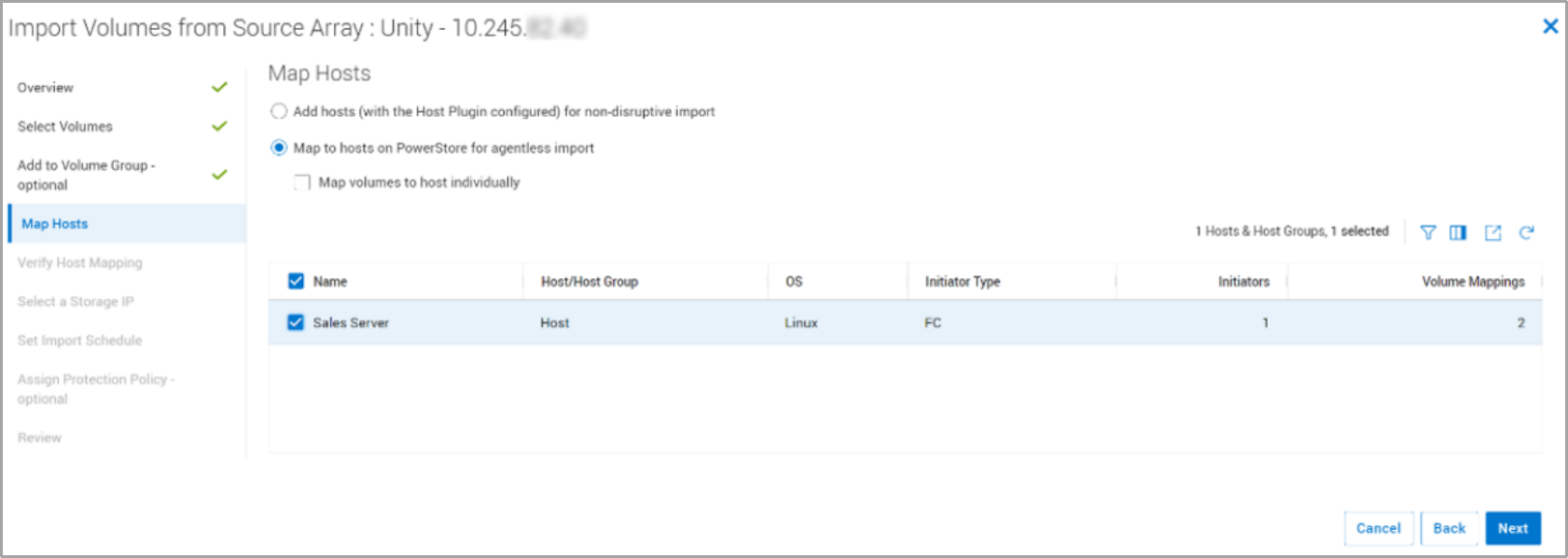
Figure 26. Map Hosts step – Agentless import
In the Set Import Schedule step (Figure 27), you can choose to start the import immediately or at a specific date and time, or you can choose automatic cutover.
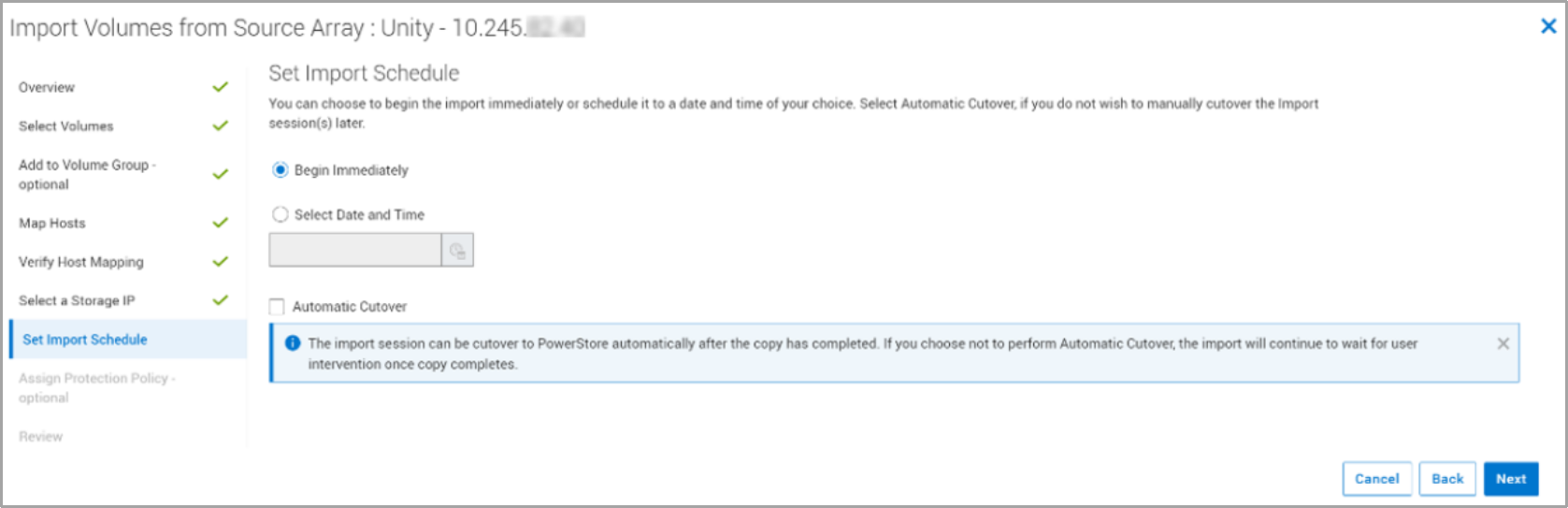
Figure 27. Set Import Schedule step
In the Assign Protection Policy step (Figure 28), you can apply a protection policy to the storage resource once it is in PowerStore.
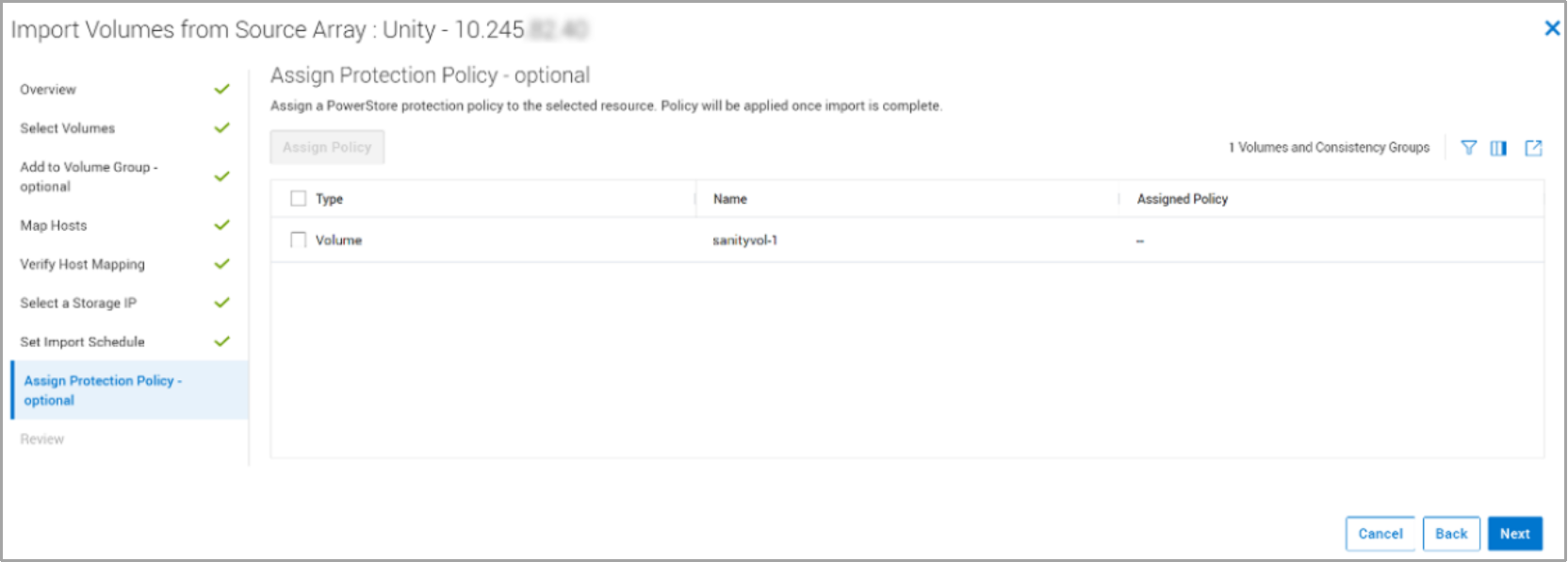
Figure 28. Assign Protection Policy step
The Review step shows a summary of all the options that are selected and provides the option to view the assigned policies in the source system.
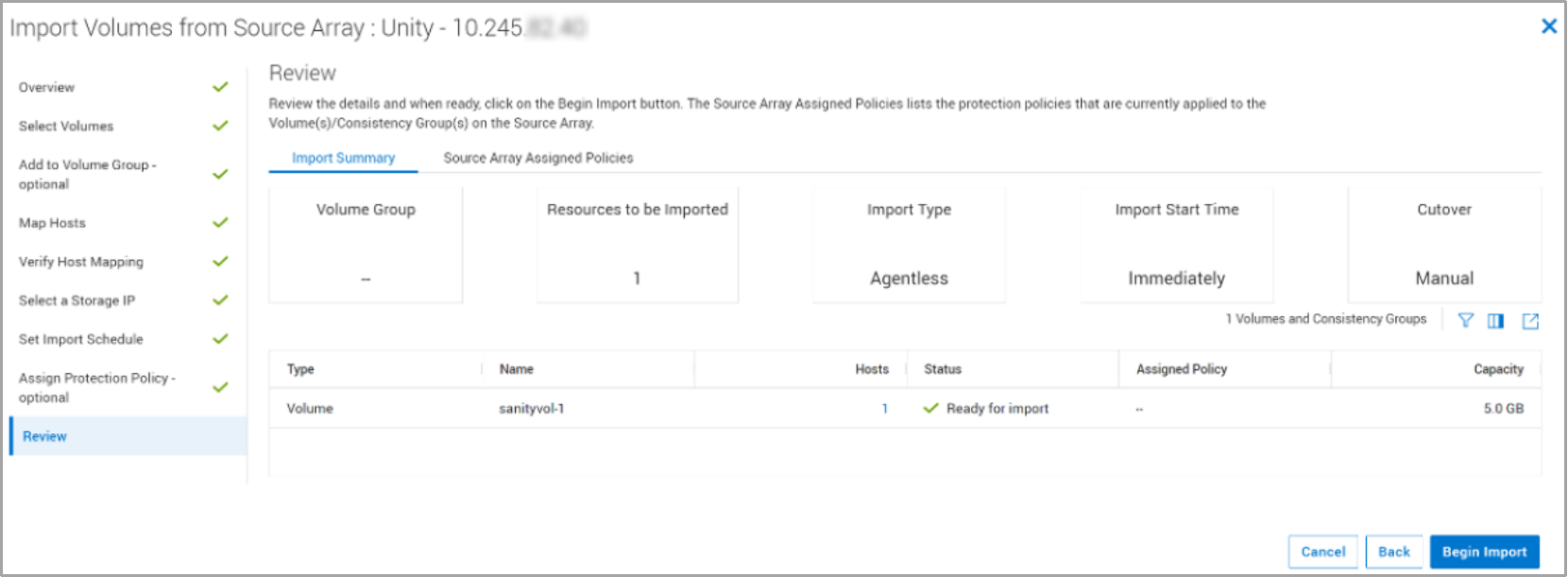
Figure 29. Review step
The Source Array Assigned Policies tab shows the source system’s protection policies applied on the resources that are to be imported. The protection policies shown would not be imported but the user can export them as a CSV or XLSX file for reference as shown below.
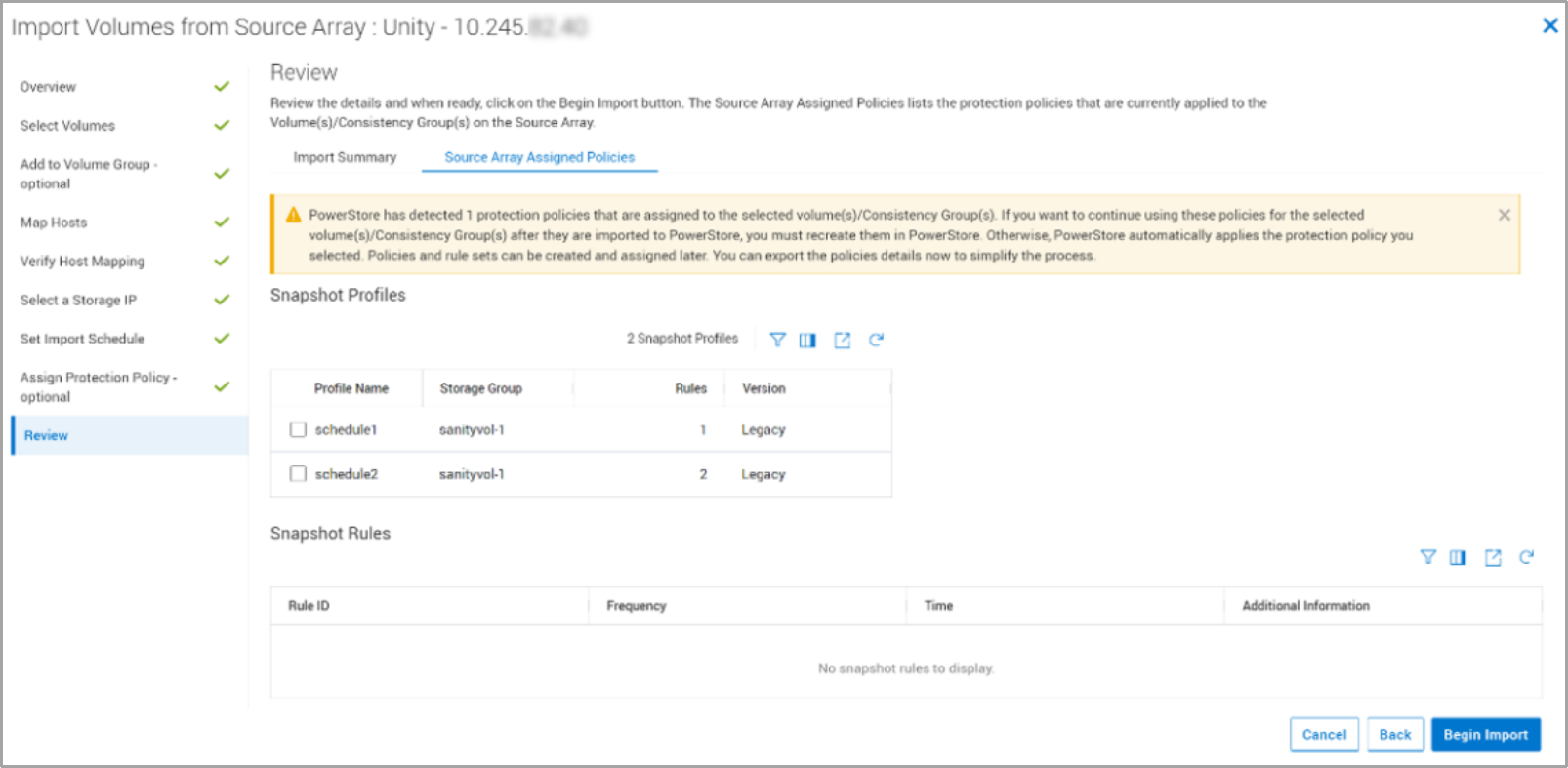
Figure 30. Source Array Assigned Policies tab
When a storage resource is set to be imported, click the Begin Import, as shown in Figure 30, to create an import session. The import session enables managing and monitoring the life cycle of the import.
The following table shows the actions that are allowed in an import session. Actions are enabled depending on their current state.
Table 6. Import actions
|
Action |
Description |
|
Cancel |
|
|
Cutover |
Note: After a cutover has been completed, it cannot be canceled and it is not possible to revert to the source resource. |
|
Pause |
|
|
Resume
|
|
|
Cleanup |
|
|
Actions applicable to agentless import |
|
|
Enable Destination Volume |
Note: Before you select this action, ensure the host application accessing the source volume or volumes is shut down. Also, ensure the host mappings are removed from the volume or volumes in the source system.
For each import session that is in the Ready To Enable Destination Volume state, select the import session, and select Import Actions > Enable Destination Volume to progress each import session to the Ready to Start Copy state. |
|
Start Copy |
Note: Ensure the host application is reconfigured to access and use the destination volume or volumes in PowerStore.
For each import session that is in the Ready to Start Copy state, select the import session, and select Import Actions > Start Copy to progress each import session to the Copy In Progress state |
When an import session is in the state Copy In Progress, click the State column to view more details about the import session.
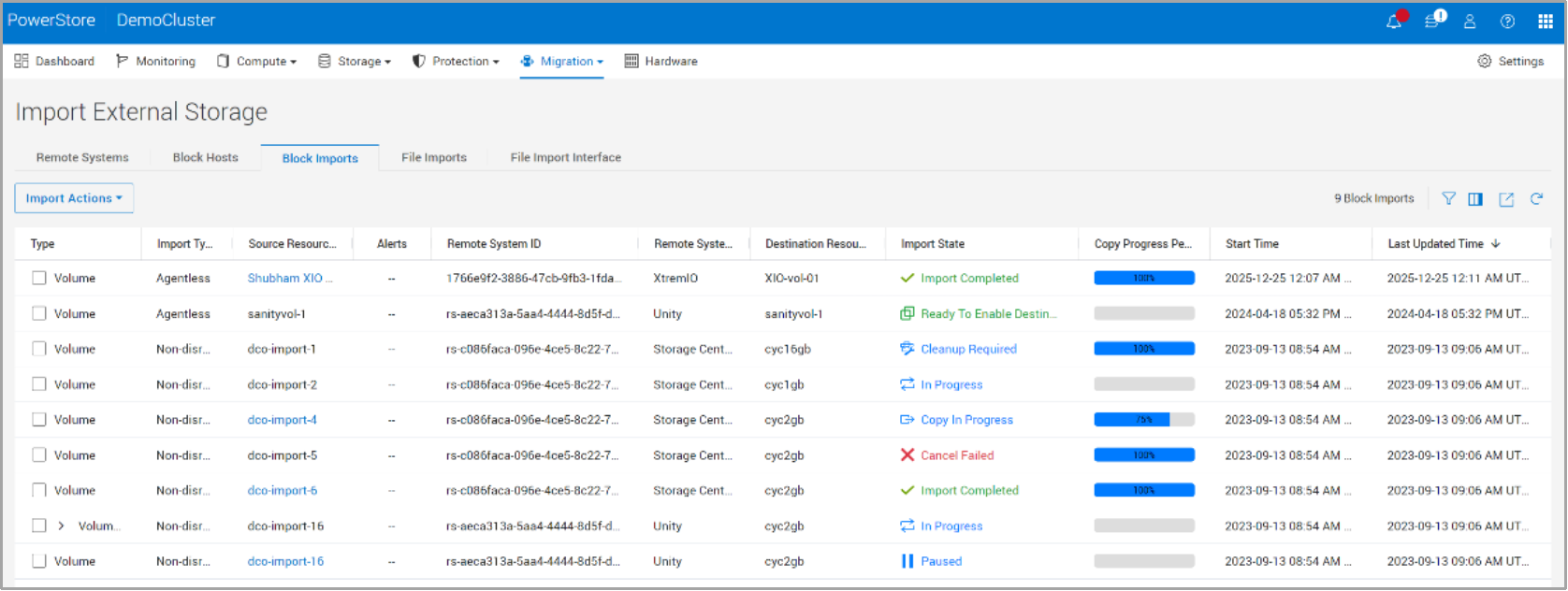
Figure 31. Copy in Progress import session
Click Copy In Progress in the Import State column to see the details, as shown in the following figure. The details window shows the import progress and lists the percentages of the completed data and remaining data to be imported.
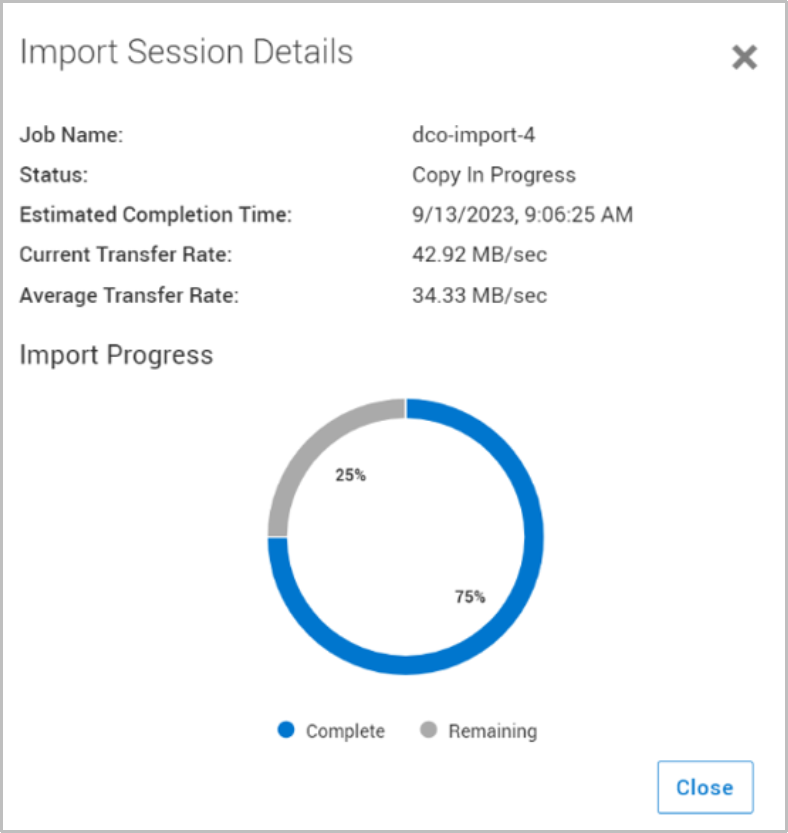
Figure 32. Import Session Details window
The following figure shows the actions available for an import session in the Copy In Progress state.
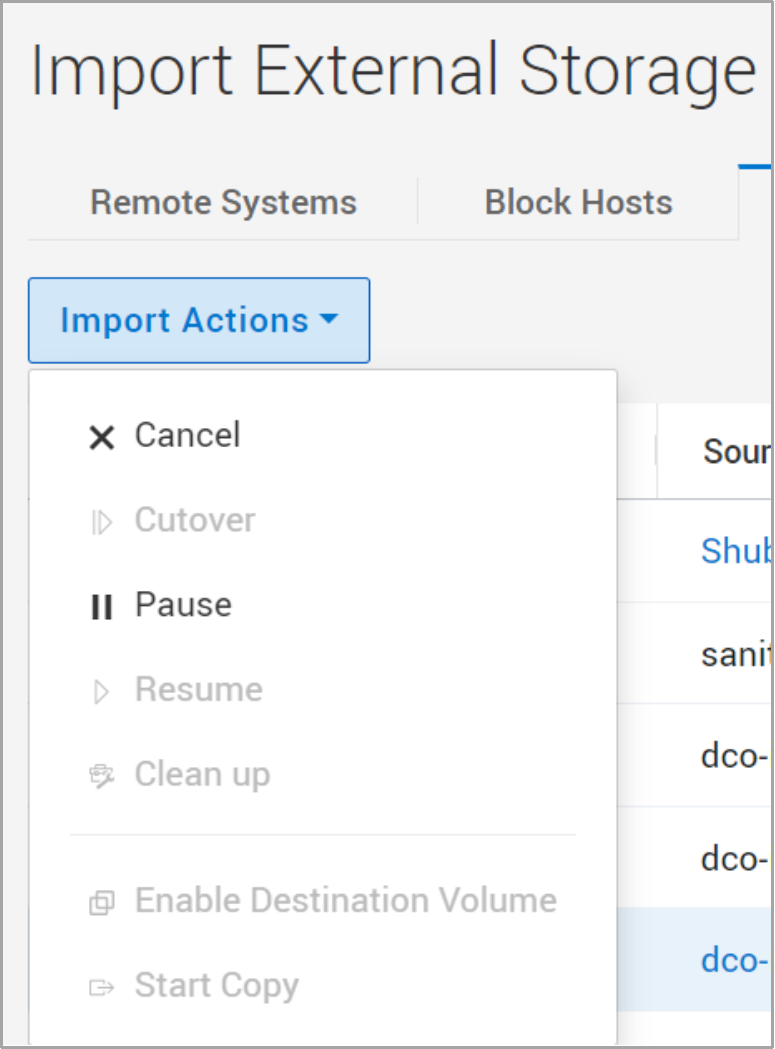
Figure 33. Import Actions menu
Import NAS Server
The following steps show the workflow of importing file resources. Once a source system is selected, select the Import NAS Server button.
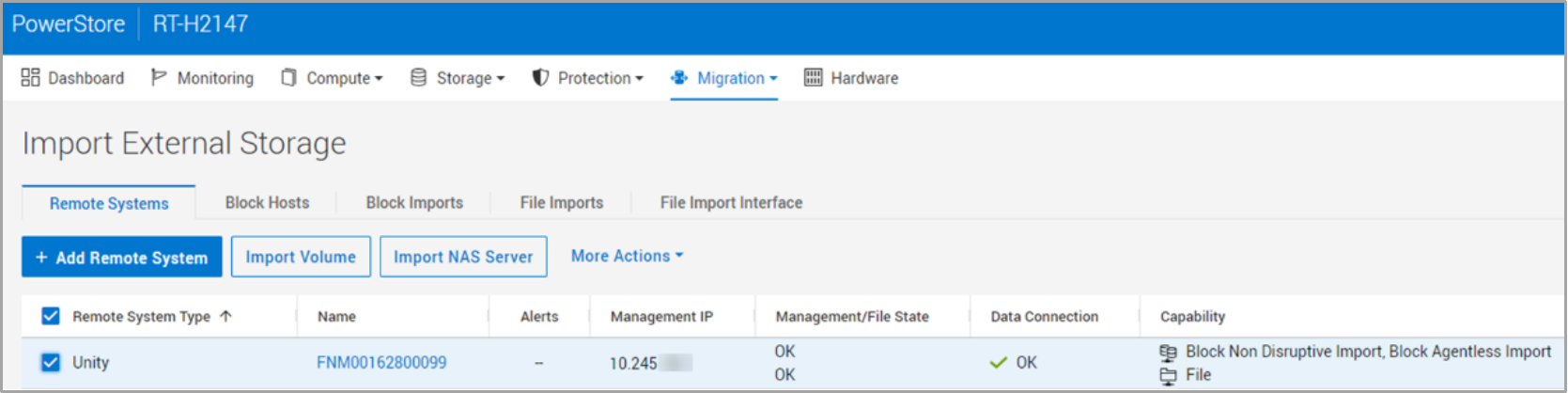
Figure 34. Import NAS Server
Figure 35 shows the Import NAS Servers from Source Array wizard.
In the Select NAS Servers step, select the source resource to import and click Next.
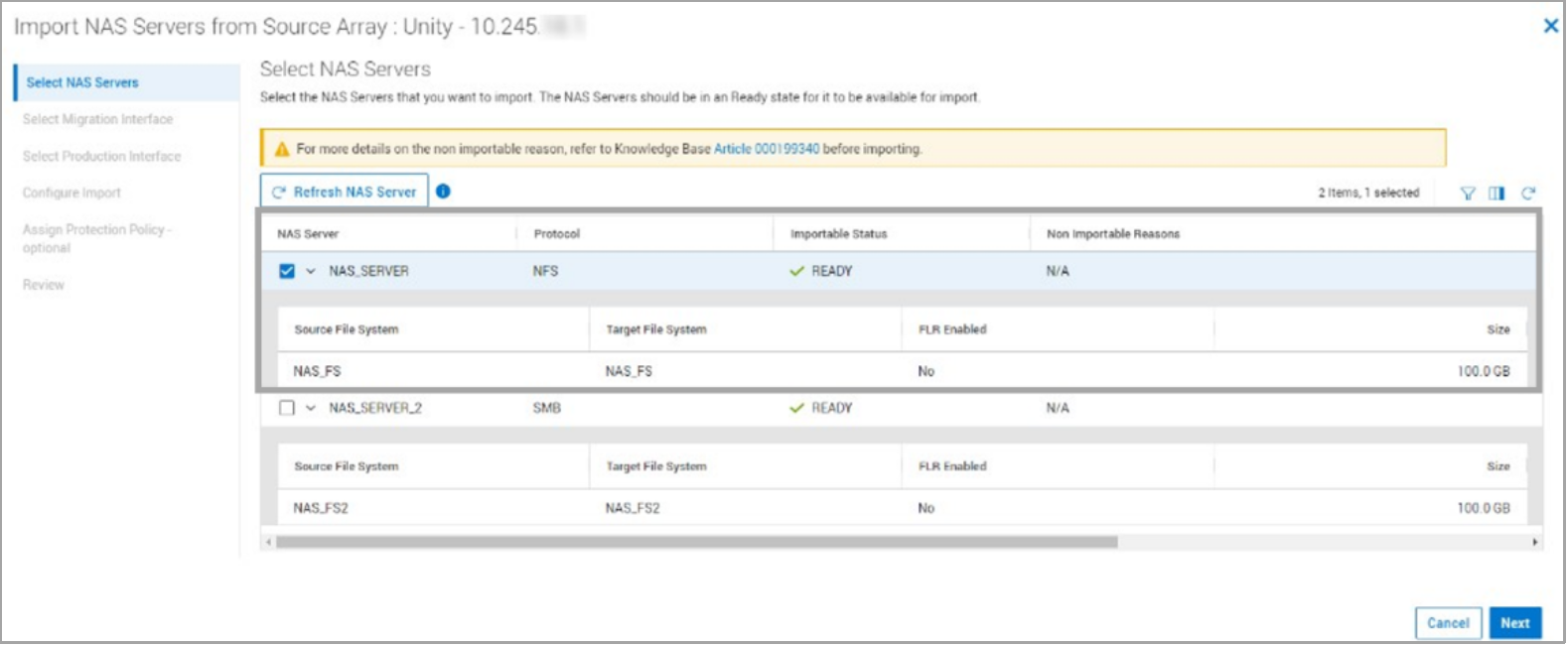
Figure 35. Select NAS Servers step
In the Select Migration Interface step, select the file migration interface and click Next.
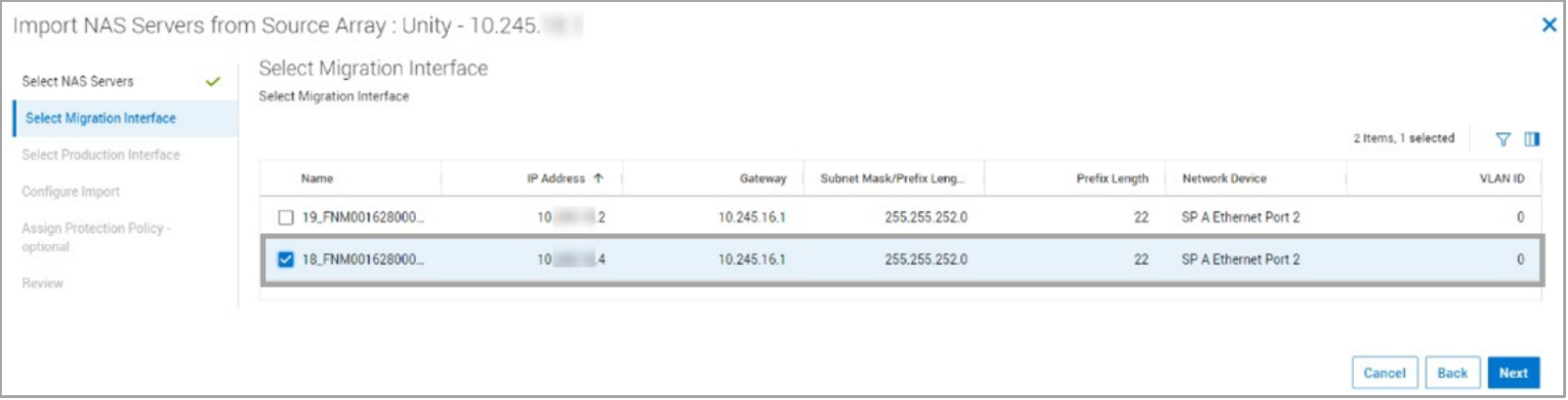
Figure 36. Select Migration Interface step
In the Select Production Interface step, select the file production interface and click Assign Network Interface.
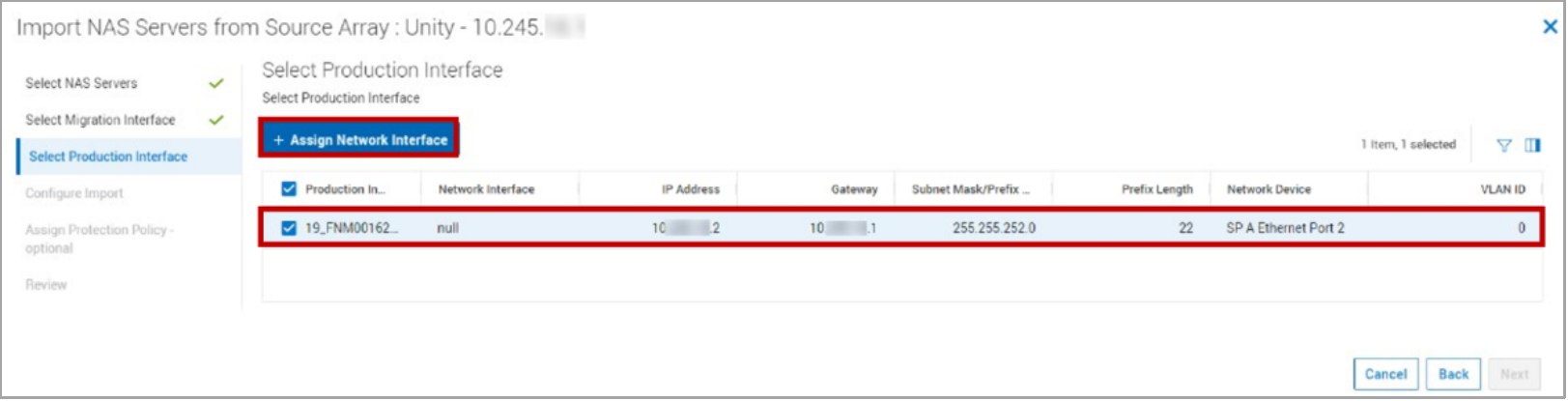
Figure 37. Select Production Interface step
The Assign Network Interface slide out will pop up and choose the desired network interface, click Apply and click Next.
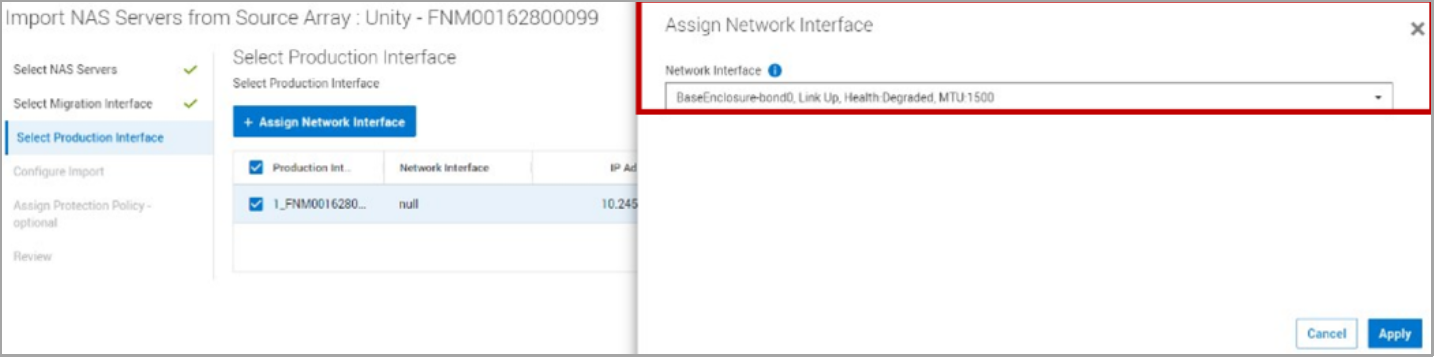
Figure 38. Assign Network Interface step
In the Configure Import step, you provide a name and description for the file import session, set when the file import will begin, and specify the interface that will be used for the import traffic.
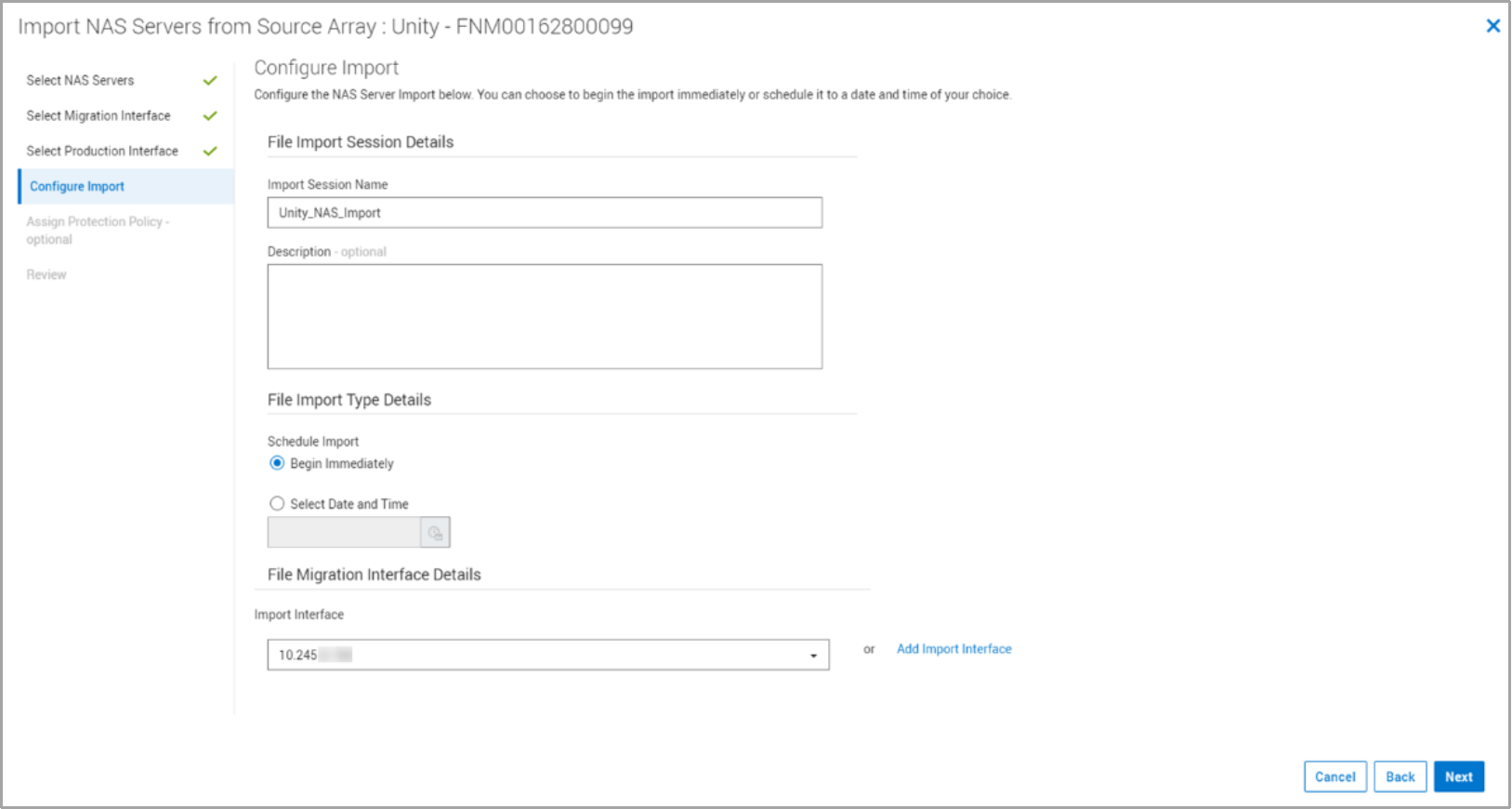
Figure 39. Configure Import step
In the Assign Protection Policy step, you can apply a protection policy to the storage resource once it is in PowerStore.
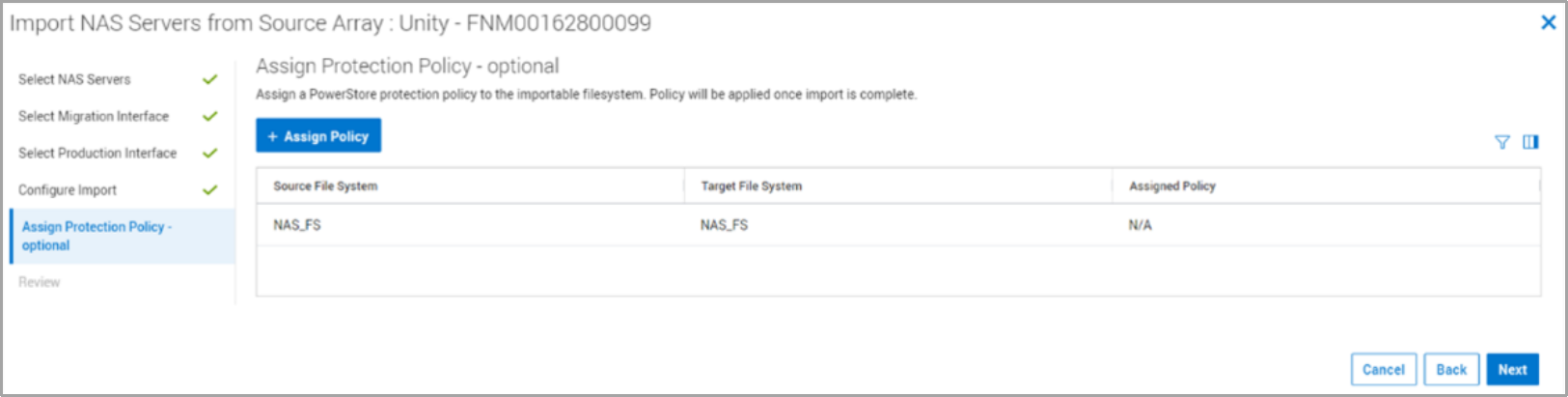
Figure 40. Assign Protection Policy (Optional) step
The Review step shows a summary of all the options that are selected.
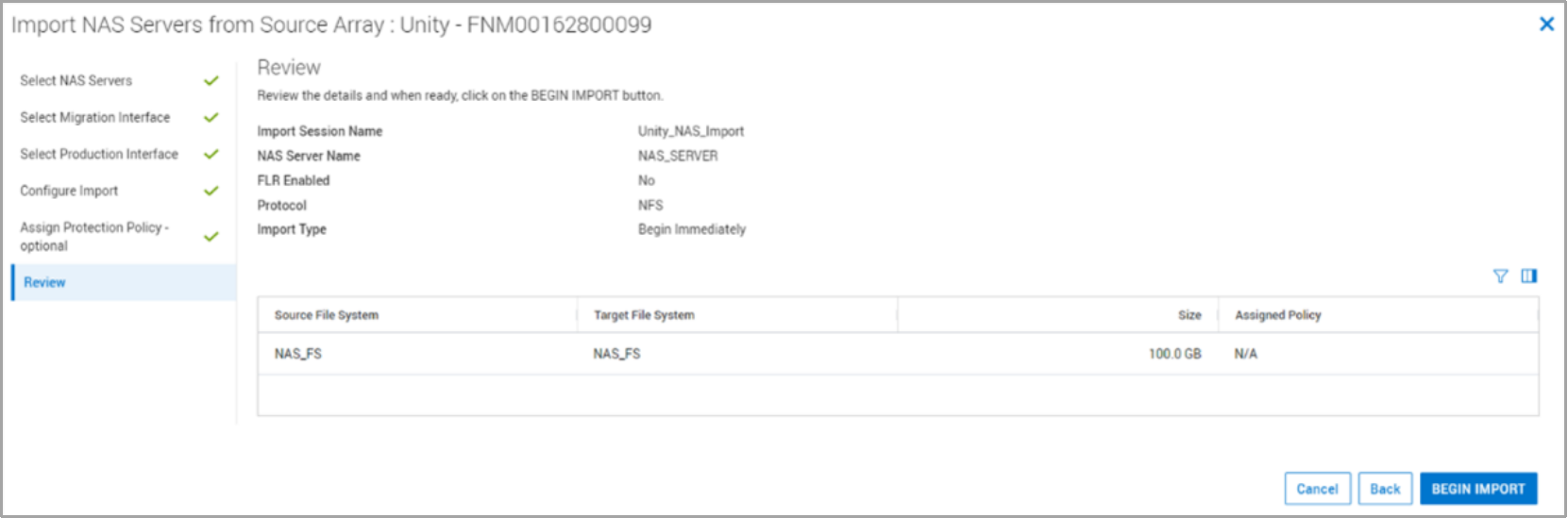
Figure 41. Review step
Click Begin Import, which displays File Imports, where you can manage and monitor the life cycle of the file import.
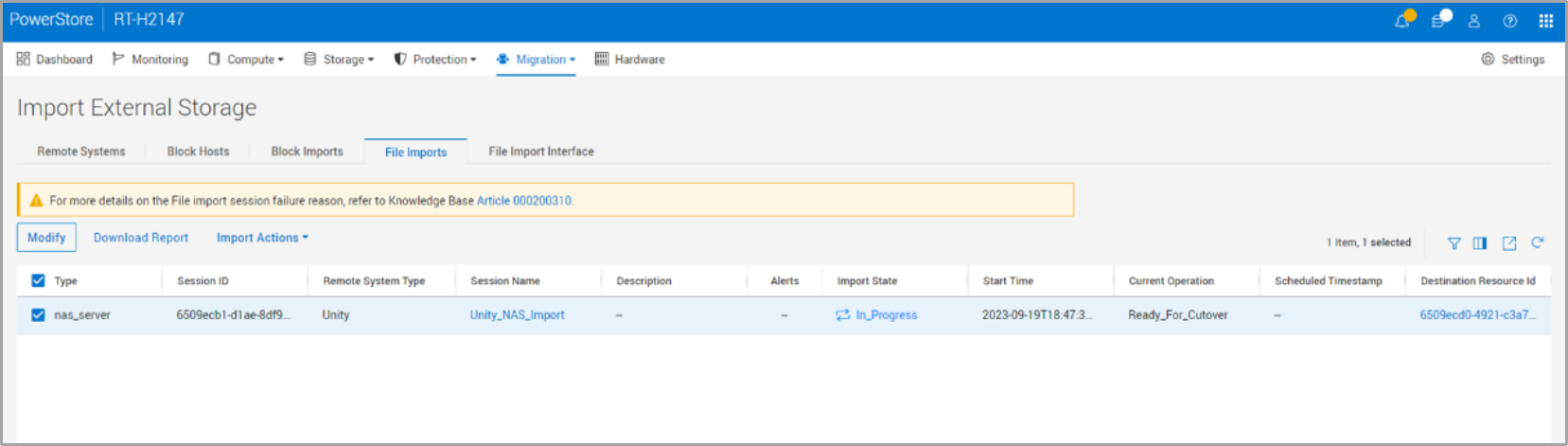
Figure 42. File Import sessions
The following table shows the actions that are allowed in an import session. Actions are enabled depending on their current state.
Table 7. File Import actions
|
Action |
Description |
|
Cancel |
|
|
Cutover |
Note: Before you select this action, ensure the host application has access to the source file systems.
|
|
Pause |
|
|
Resume
|
|
|
Commit |
Note: After a commit has been completed, it cannot be canceled, and it is not possible to revert to the source resource. |
The following figure shows the actions available for an import session in the Ready to Cutover state.
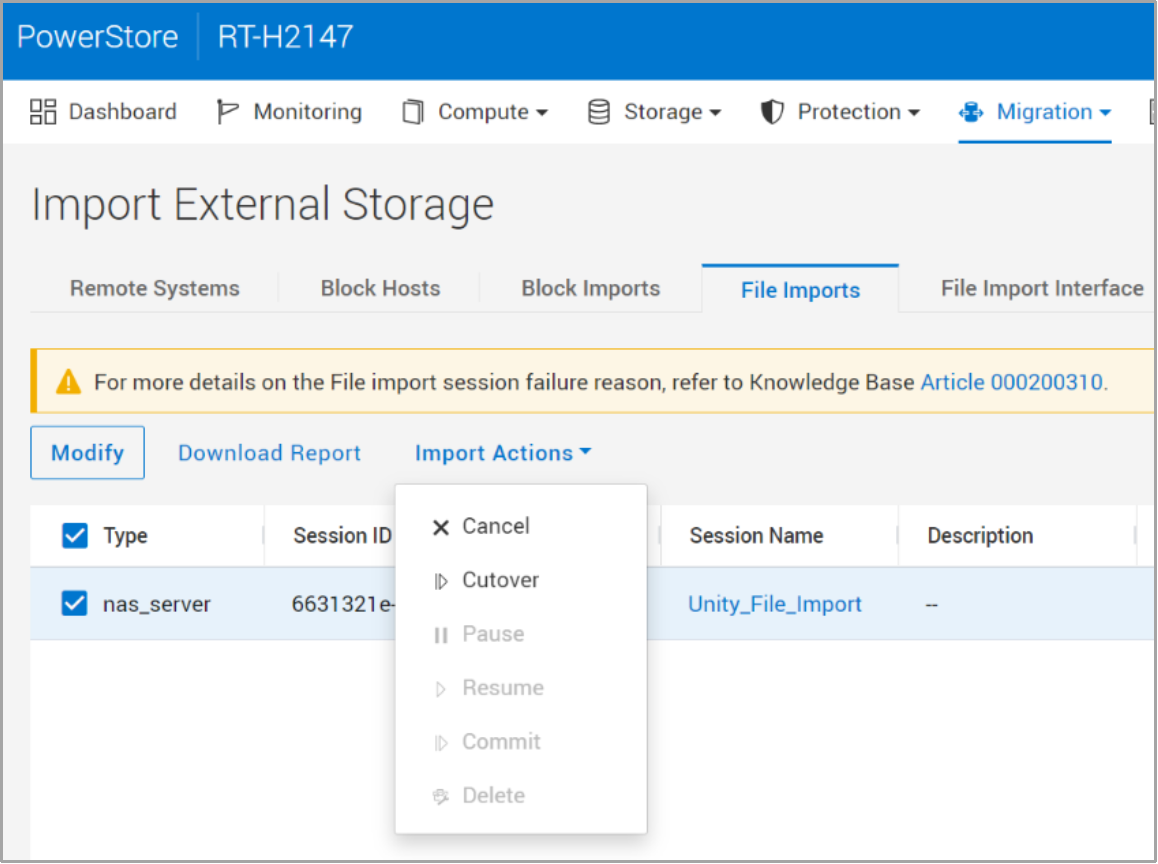
Figure 43. File Import actions
As previously stated, you can also manage an import session from the REST API and the PowerStore CLI (pstcli). The following figure shows the different REST API queries that you can use for managing an import session from the REST API. For more details, see the document Dell PowerStore REST API Guide on Dell.com/powerstoredocs.
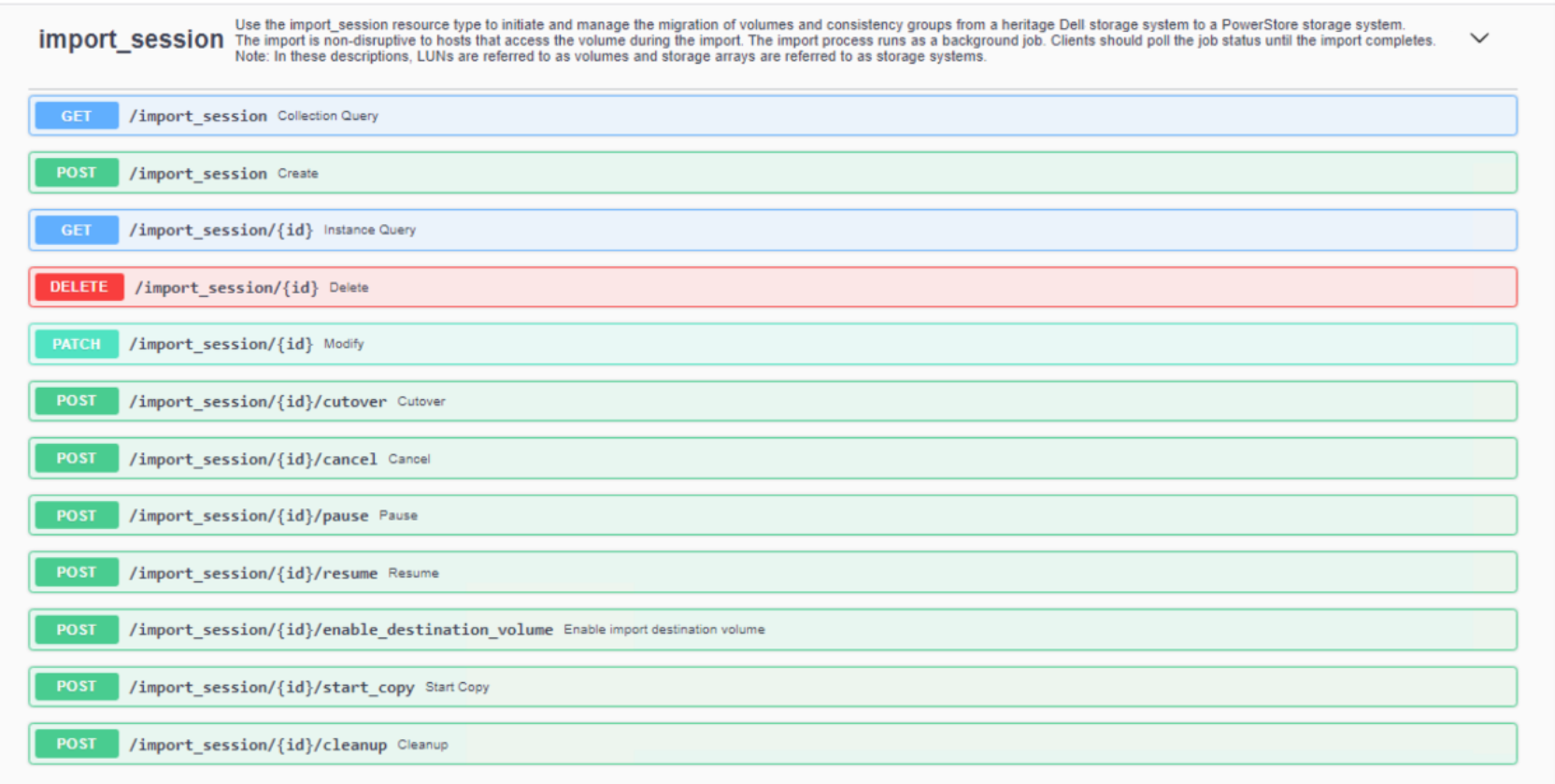
Figure 44. REST API import session queries
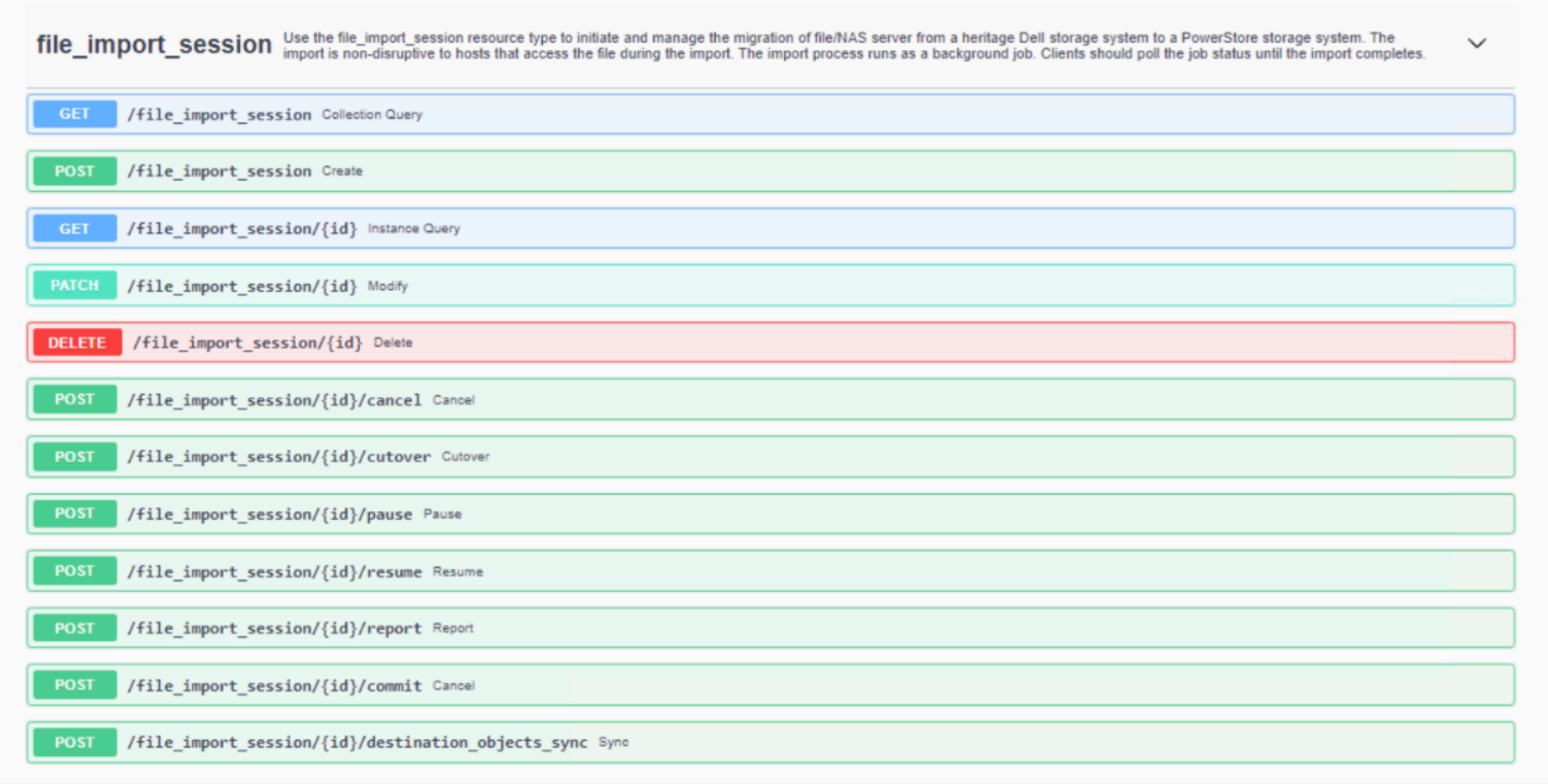
Figure 45. REST API file import session queries
Imports can be managed with the PowerStoreCLI (pstcli) migration commands. For more details about the PowerStore CLI, see the document Dell PowerStore CLI Guide on Dell.com/powerstoredocs. For a list of specific migration pstcli commands run pstcli -d localhost -u admin -p password help Migration
Interoperability
Limitations
Best practices
Migrating block data
Introduction
Metro node
Host-based LVM migration
Migrating file data
Introduction
EMCOPY
Robocopy
Rsync
Dell Select Datadobi DobiMigrate
Datadobi, a Dell Select partner, offers the migration software DobiMigrate to perform file system migrations to the PowerStore platform. DobiMigrate is compatible with many different source storage systems, including Dell storage systems and a set of third-party storage arrays. For more details, see the DobiMigrate support matrix.
DobiMigrate is run on a hypervisor supporting OVA deployment (such as VMware ESXi) or installed on a Red Hat Enterprise Linux or CentOS Linux host through an RPM. It supports NFS, SMB, and basic multiprotocol migration, with host machines known as proxies running DobiMigrate software to handle the data transfer of the migration. Management of migration sessions using DobiMigrate is performed through an intuitive UI that provides status and reporting options through each step of the migration operation.
The following figure shows a configuration diagram from the Datadobi document NAS and Object Migration Software for Modern Data Centers.
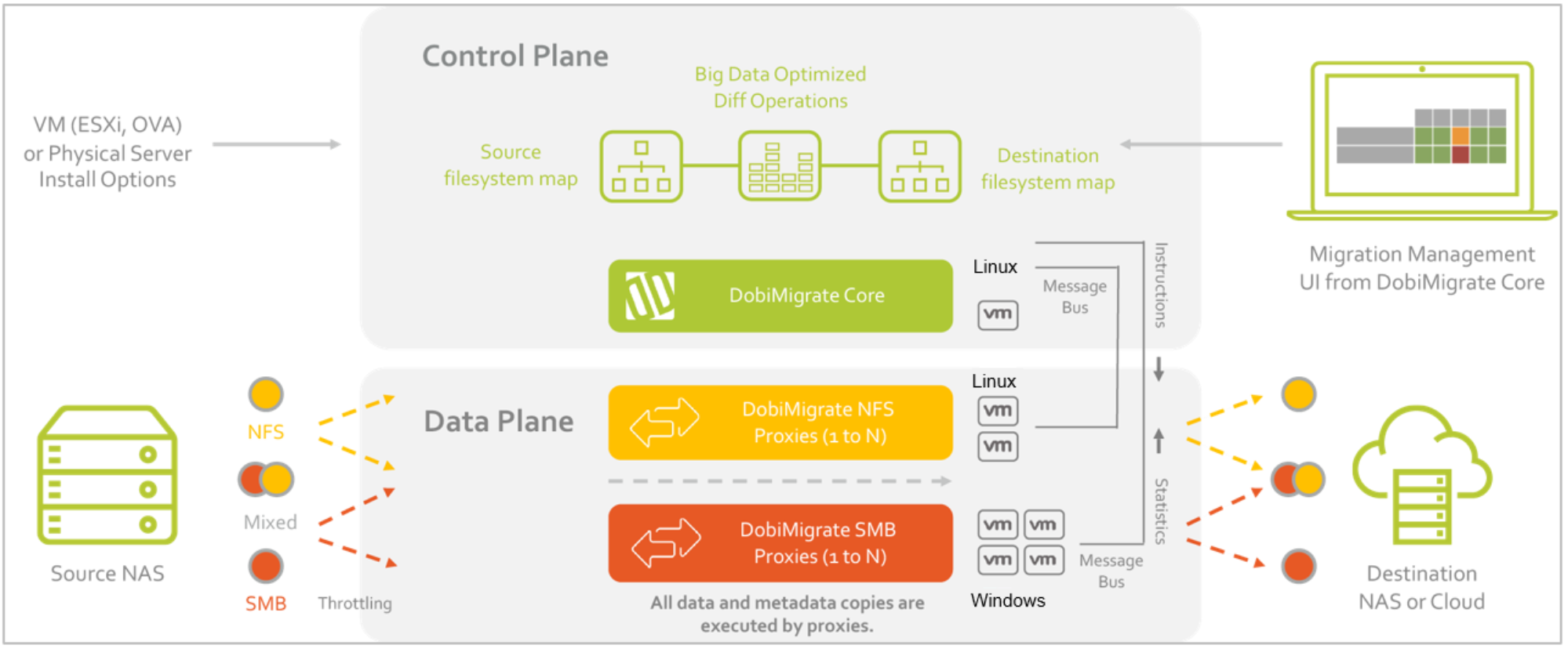
Figure 46. DobiMigrate configuration
More information about Datadobi DobiMigrate can be found on the Datadobi site. For information about Datadobi and its integration points with Dell storage, go to Dell Support.
Migrating virtualized environments
Introduction
RecoverPoint for VMs
VMware vSphere vMotion
VMware vSphere Storage vMotion is an included feature with VMware vCenter Server. It provides the capability to migrate VM compute power to a different ESXi server, or its backing storage to a different datastore. This functionality can be used to migrate VM storage to a datastore hosted by a PowerStore T model or PowerStore X model.
Migration using Storage vMotion is a simple operation in vCenter Server. To ensure that a VMware datastore has been presented from PowerStore to the vCenter environment, select a VM and migrate the VM storage to that datastore. This action starts a migration session (see Figure 47). The migration is performed with the VM remaining online during the data transfer, and there is a short cutover to complete the operation.
vMotion migration can also be used to move compute workloads to a PowerStore X model. The migration of compute is a simple operation that can be followed using the same migrate action available for each VM in the vCenter. It offers the option to select either Change compute resource only or Change both compute resource and storage.
VMware vSphere vMotion and Storage vMotion are packaged with VMware vCenter Server, which requires a license for use.
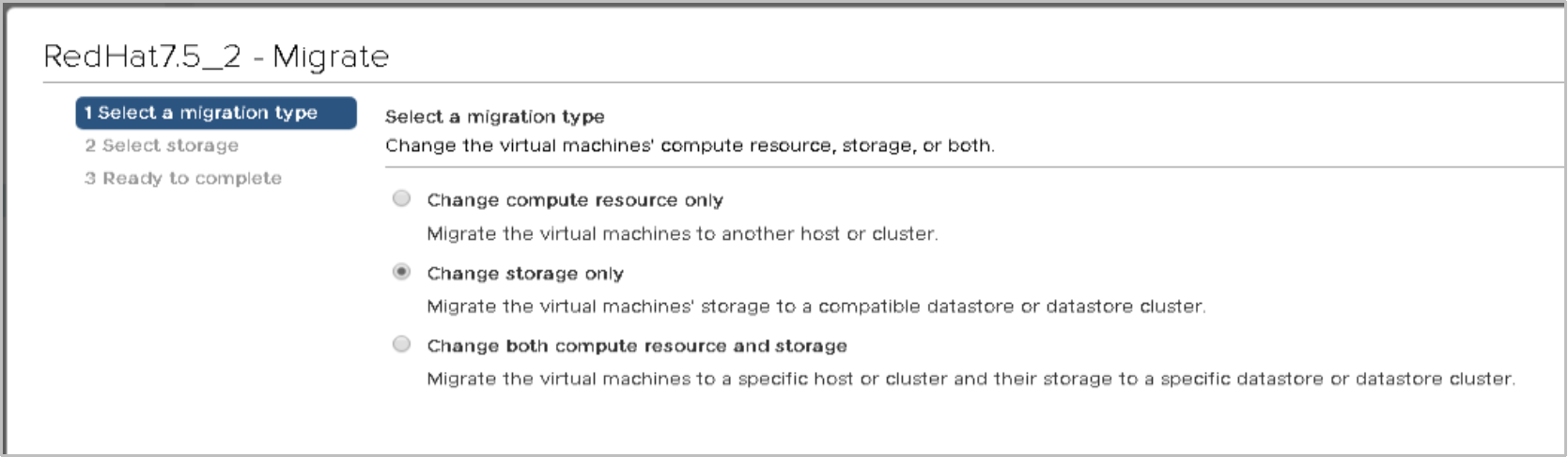
Figure 47. vMotion migration types