Dell PowerStore: Replication Technologies
Executive summary
Executive summary
Overview
Audience
Revisions
We value your feedback
Introduction
Introduction
Business continuity planning
PowerStore overview
Terminology
Replication methods
Synchronous replication
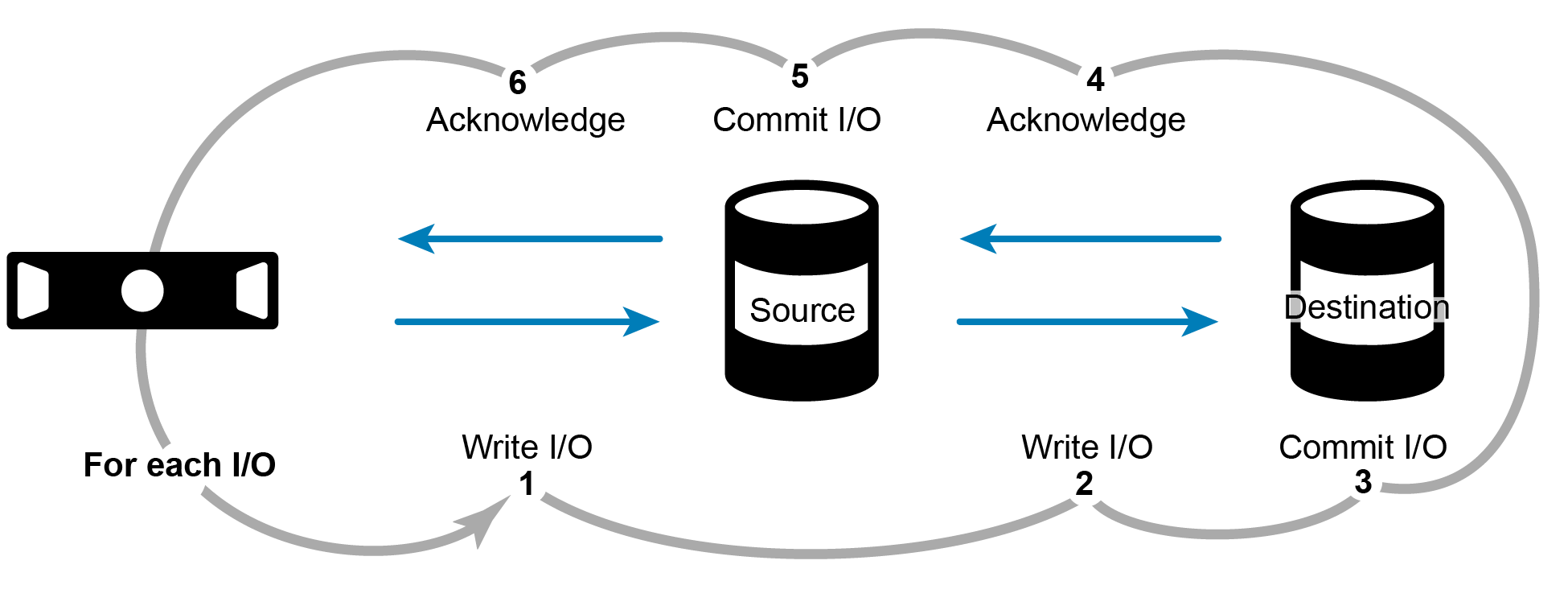
Synchronous replication, introduced with PowerStoreOS 4.0, guarantees data consistency (zero data loss) between the replication source and destination volumes, volume groups, and NAS servers during normal operation. This data consistency is achieved by ensuring write I/O commitments at the replication source and destination before a successful write acknowledgment is sent back to the host and the requesting application. In PowerStoreOS 4.3 file metro replication was introduced, which uses a witness for automatic failover. In a metro volume configuration, synchronous replication provides a blend of data consistency and high availability with uniform storage presentation. Traditional synchronous replication requires a triggered failover to enable the DR storage resource.
With synchronous replication, any source of latency that impacts the source or destination resource, or the replication link in-between, adversely impacts applications in terms of latency (slowness) and availability. This applies to any kind of synchronous replication including Metro Volumes which is built on top of synchronous replication. For this reason, appropriate performance sizing is paramount for the source and destination storage, as well as the replication bandwidth and any other upstream infrastructure on which the storage depends.
The figure below demonstrates the write I/O sequence of synchronous replication:
- The application or server sends a write request to the source resource.
- The write I/O is mirrored to the destination resource.
- The mirrored write I/O is committed to the destination resource.
- The write commit at the destination resource is acknowledged back to the source resource.
- The write I/O is committed to the source resource.
- The write acknowledgment is sent to the application or server.
This process is repeated for each write I/O requested by the application or server.
Note: PowerStore supports synchronous replication as part of the Metro Volume feature. For more information, see the Dell PowerStore: Metro Volume white paper.
Asynchronous replication
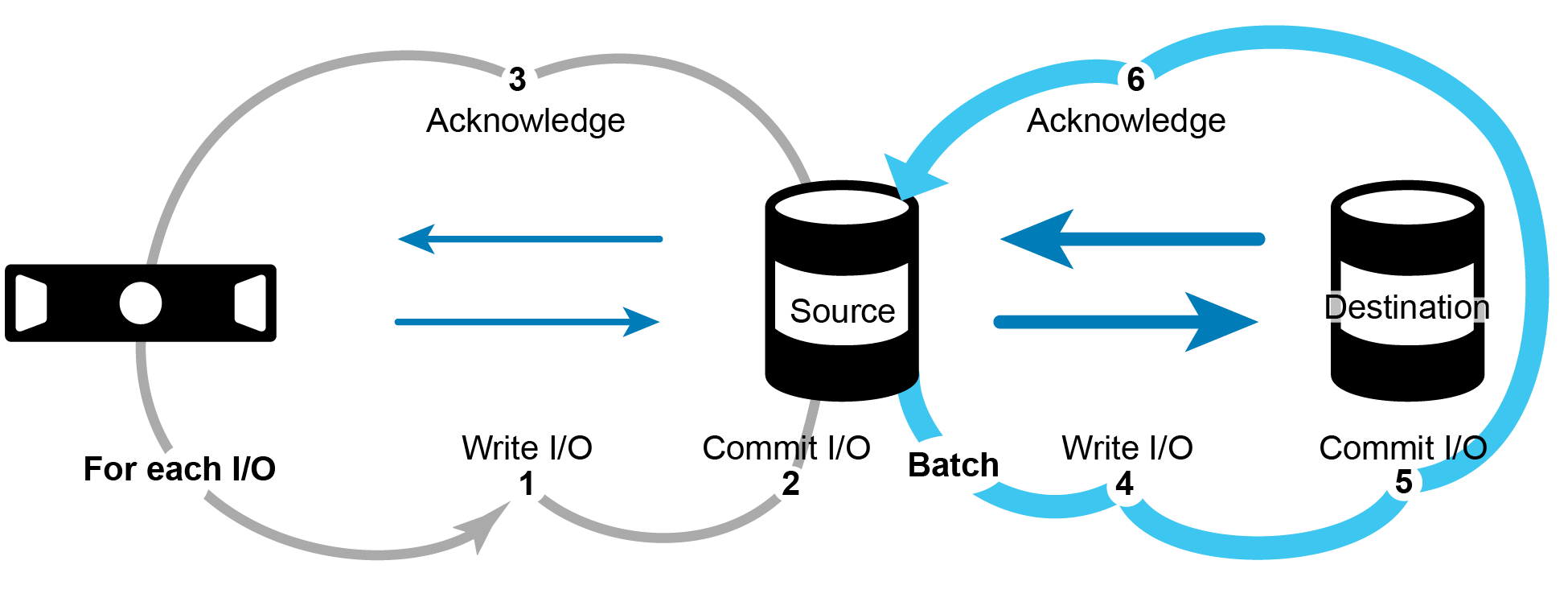
Asynchronous replication protects data by replicating from the source resource to destination resource in a unidirectional way. The manner and frequency with which the data is replicated differs from synchronous replication. With asynchronous replication, instead of committing a write at both replication source and destination simultaneously, the write is committed only at the source and an acknowledgment is immediately sent to the host and application. The accumulated committed writes at the source are replicated to the destination in one batch at scheduled intervals and committed to the destination.
PowerStore replication rules combine to form a protection policy (applied granularly per volume, volume group, or NAS server) that dictates the asynchronous replication intervals and RPO. A PowerStore protection policy can include a replication rule, one or more snapshot rules, and a remote backup rule for local and remote protection of storage resources.
Starting with PowerStoreOS 3.5, secure snapshots are available for volumes and volume groups. When the secure snapshot setting is enabled, the snapshot is protected from deletion until the retention period expires. If both the source and destination systems are running PowerStoreOS 3.5 or later, snapshots and snapshot rules that have secure snapshots enabled are replicated as secure to the destination system. However, if the destination system is running a version prior to PowerStoreOS 3.5, snapshots and snapshot rules are replicated as regular snapshots and rules without the secure option. In a failover scenario, where the primary system is running a code earlier than the PowerStoreOS 3.5 release, the system takes regular snapshots instead. If secure snapshots are used, having both systems running PowerStoreOS 3.5 or later is recommended for compatibility purposes. In PowerStoreOS 4.1, secure snapshots were introduced for file systems and have the same protection properties as block secure snapshots, however, file snapshots are not replicated.
Resources can adhere to their own independent replication schedule, or they can share a replication schedule with other resources that leverage the same protection policy. Because asynchronously replicated transactions are not required to wait for write committals at the replica destination, the replication link and/or destination storage will not contribute to application or transaction latency at the source.
The figure below demonstrates the write I/O pattern sequence for asynchronous replication:
- The application or server sends a write request to the source resource.
- The write I/O is committed to the source resource.
- The write acknowledgment is sent to the application or server.
Steps 1 through 3 are repeated for each write I/O requested by the application or server.
- Periodically, a batch of write I/Os that have already been committed to the source resource are transferred to the destination resource.
- This update can be started manually or automatically based on the RPO within the Replication Rule.
- The write I/Os are committed to the destination resource.
- A batch acknowledgment is sent to the source.
PowerStore replication overview
Remote system configuration
Remote system configuration
Introduction
PowerStore Replication over TCP
Example configuration
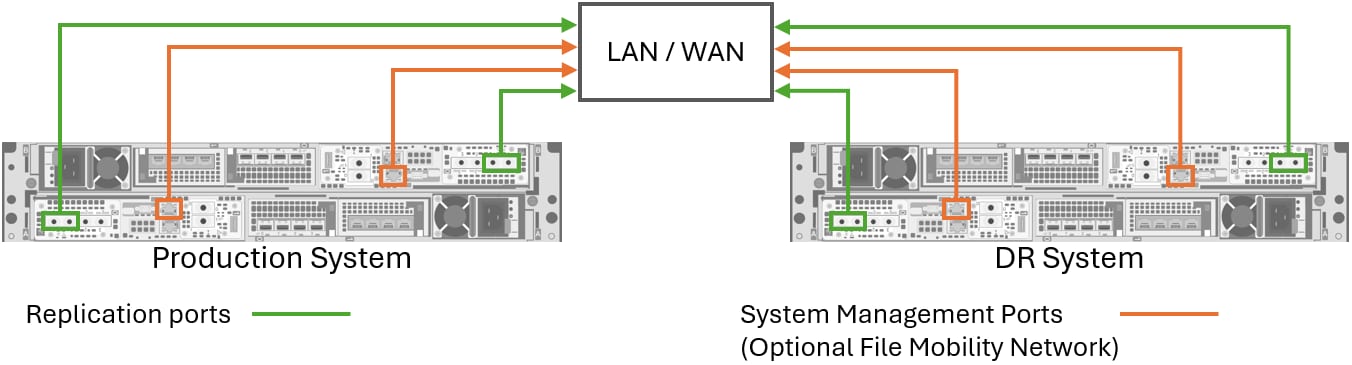
The figure below shows an example of a replication configuration using TCP between two single-appliance PowerStore clusters. It shows cabling for a pair of PowerStore appliances using a bond created on the 4-port card (Port 0 and Port 1) for replication traffic. The source of the replication session is the Production System, and the destination is the DR System. While this example depicts dedicated production and disaster recovery systems, replication can occur in either direction.
For a successful replication connection, all replication ports on a source system must be able to communicate with all replication ports on the destination system, and conversely. In this example, a PowerStore bond and all management ports are connected to the same L2/L3 network. The communication could be either on a local network or in a routed network. For replication, all supported Ethernet ports that can be used for a storage network can be used for replication.
Port and network configuration
Before a remote system connection can be created, replication ports must be configured on both PowerStore clusters. In software versions prior to PowerStoreOS 4.0, ports tagged for replication are used to transport data to a destination system for remote replication. By default, each appliance tags the bond0 port group on the 4-port card (port 0 & port 1) for replication traffic. In this configuration, the system uses the same ports for host access to storage resources, replication data traffic, and intra-cluster communication between appliances. Tagged ports for remote replication are the same for both nodes of a PowerStore appliance and can be modified at any time. Tagging replication ports in PowerStore Manager is not related to VLAN tagging on the network infrastructure. The replication is performed over Ethernet ports available on the system.
In PowerStoreOS 4.0 and later, the replication network configuration is enhanced to increase flexibility, scalability, and resiliency. Different port and network pairs can be used to define one or multiple network groups for a remote system pair. Each remote system pair has its own replication network group configuration for the replication data traffic. Details on creating replication enabled storage networks are covered in the section Replication data network configuration (PowerStoreOS 4.0 and later).
In PowerStoreOS 4.4 and later no bonds (link aggregations) are created by default when deploying a PowerStore appliance in a new cluster. A bond must be created before configuring the replication network if a bond will be used for replication traffic.
Note: For information about creating and tagging replication networks, consult the Dell PowerStore Protecting Your Data document for your specific code version on Dell.com/powerstoredocs.
When planning replication between two PowerStore clusters, also consider the following:
- Only storage networks that are configured with an iSCSI purpose (PowerStoreOS < 4.0) or replication purpose (PowerStoreOS 4.0 and later) can be used for replication.
- With PowerStoreOS releases before 4.0, only one interface or the system bond can be tagged for replication. If the system bond interfaces are connected to different switches, replication can continue even if one switch is down.
- PowerStoreOS 4.0 and later uses network groups for remote system pairing of replication data networks. A remote system pair configuration can leverage multiple replication network groups to distribute the replication traffic.
- When replication is configured on an interface that is also used for host, migration, or file I/O, the available bandwidth is shared and performance may be impacted. Consider dedicating ports to specific uses.
- If host traffic and replication traffic are using the same physical network but different PowerStore ports, configure host multipathing to use ports not tagged for replication.
- In a configuration with multiple IP networks, the IP address ranges must not overlap with existing IP address ranges configured on the system.
- Depending on workload and data change rate on replicated resources, a higher port speed might be required to steadily meet the RPO target for asynchronous replication. It is even more important when metro volumes or synchronous replication are set up for continuous replication.
Replication data network configuration (PowerStoreOS 4.0 and later)
This section outlines the process of creating a replication enabled storage network to use for data replication in PowerStoreOS 4.0 and later. A replication connection between PowerStore clusters relies on a TCP connection over one or more replication networks. These networks consist of network ports and an IP configuration. To create a storage network for replication, the Replication purpose must be enabled on the network. In the example below, a new network is being created and dedicated to replication by only enabling the Replication purpose on the network. The purpose can be set when a new storage network is created or when modifying an existing storage network in tab.
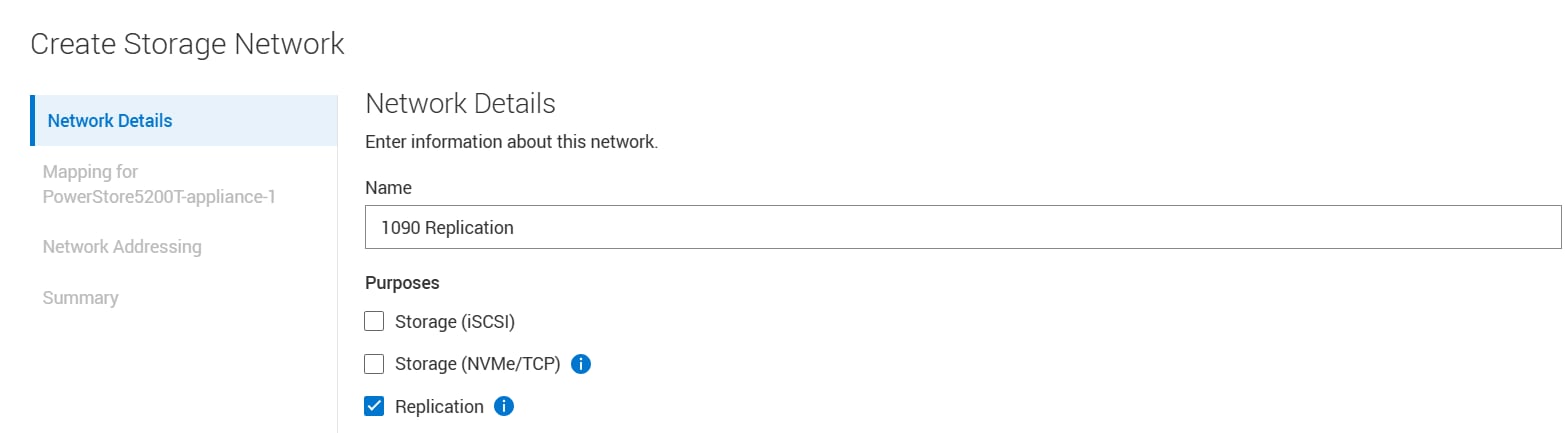
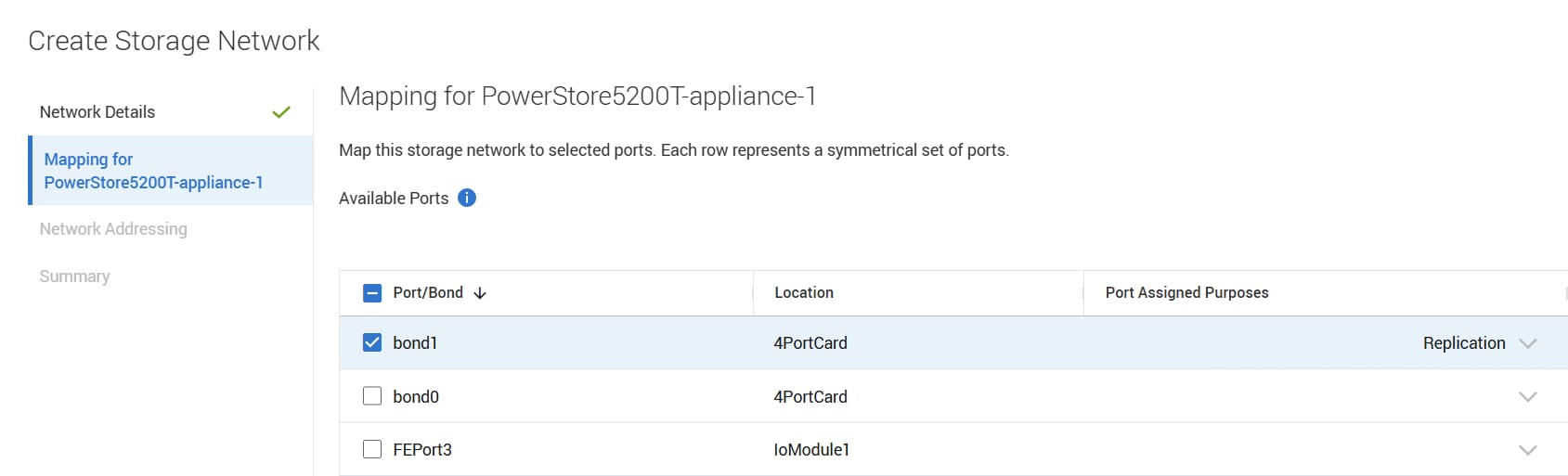
On the mapping step, the user selects which port to map the network. When selecting a port, the purposes configured on the network are automatically assigned to the port during the mapping process. The Port Assigned Purposes column (following figure) shows what purposes are enabled on the port for the network. If multiple purposes are enabled on the network, the user can customize which purpose to use on which physical port. This is used to dedicate ports to specific purposes for the same network, such as separating host and replication I/O across different ports if required.
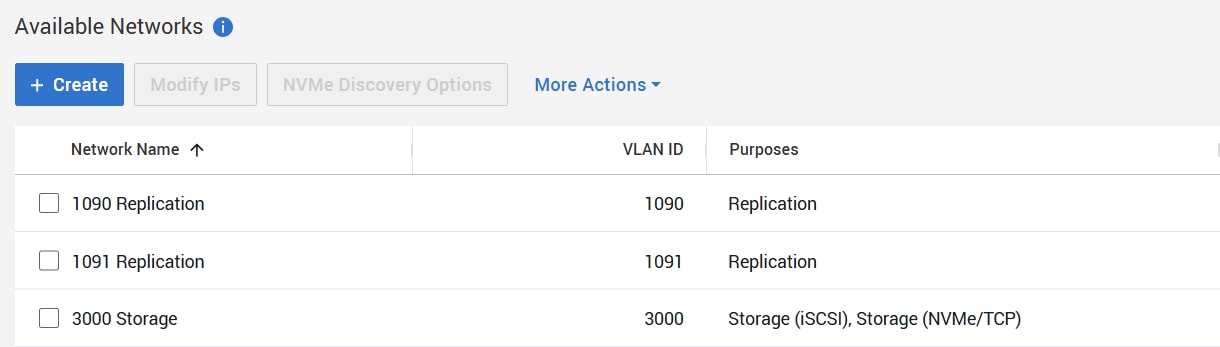
After the network IP information has been entered and the configuration wizard finishes, the storage network overview shows the network name, VLAN ID, and the configured purpose for the individual storage networks in the column Purposes.
The current usages of a port are determined by the storage network(s) to which it is mapped. This information can be found in the PowerStore Manager ports view . In PowerStoreOS 4.1 and later, the ports view is located under .
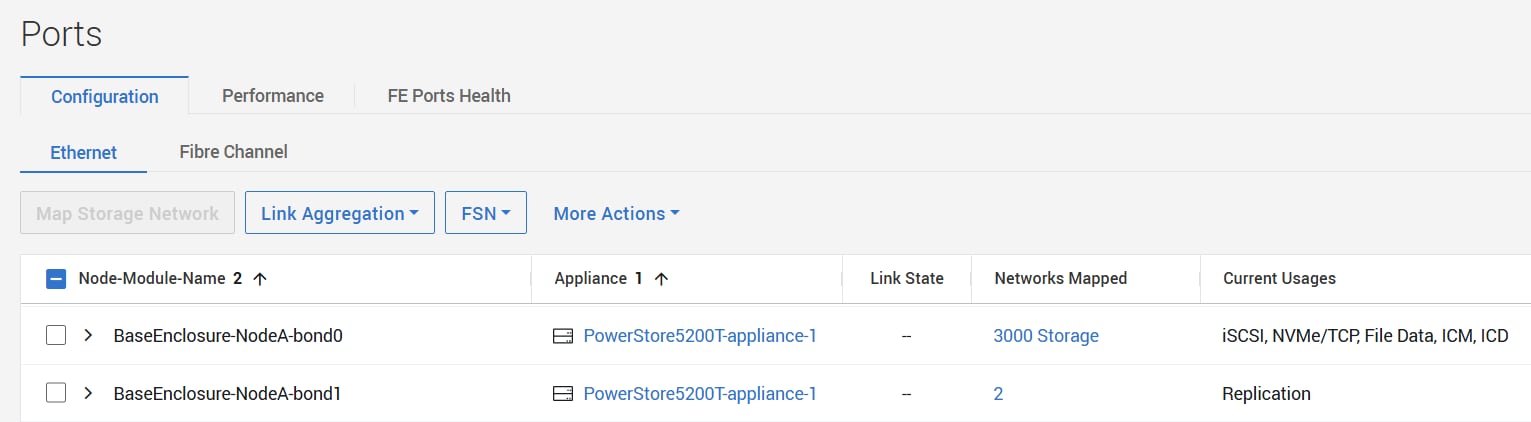
The Current Usages column in the Ports view shows the usages of the individual ports. In the figure above, port BaseEnclosure-Node-A-bond0 has the 3000 Storage network mapped. The port is used for iSCSI, NVMe/TCP, File Data, ICM, and ICD. The number “2” in the Networks Mapped column indicates two mapped networks for port BaseEnclosure-Node-A-bond1, and when selected, a slide out that shows all configured IP networks for that port.
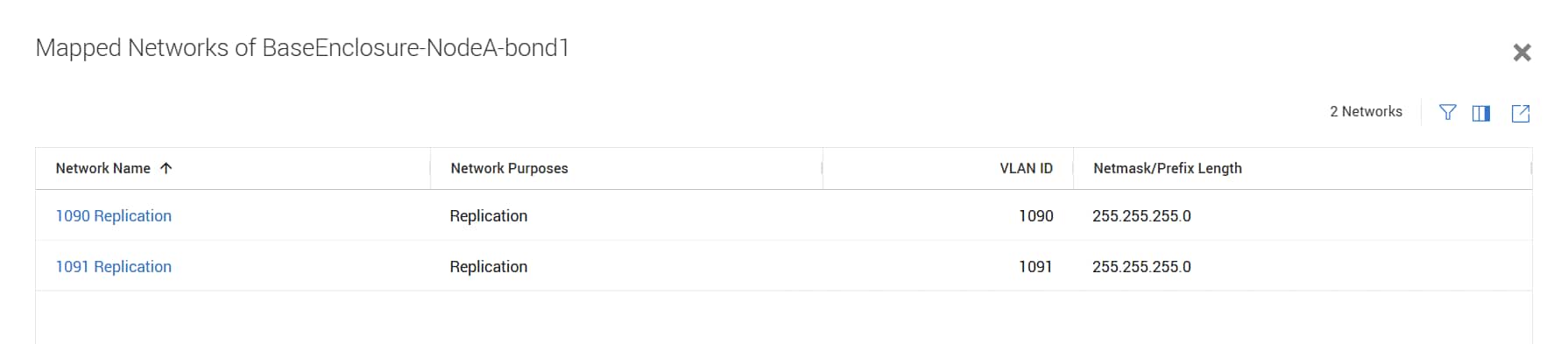
All network port configurations for a PowerStore appliance are symmetric for both nodes. When changing the configuration on one node port of the appliance, it immediately affects the same port on the other node. Only ports with Replication usage can be used for a replication network group in a remote system pair configuration.
PowerStore Replication over Fibre Channel
Example configuration
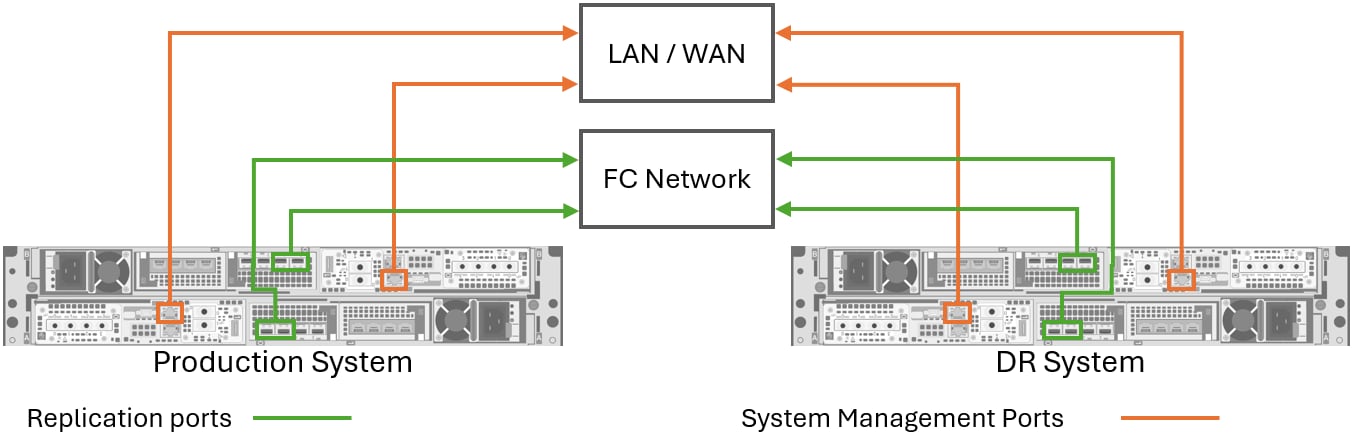
The figure below shows an example of a replication configuration using fibre channel as the data connectivity type between two PowerStore clusters. In this example all management ports are connected to the same L2/L3 network. Communication between the management ports can either be on a local network or on a routed network.
For fibre channel connectivity, only specific FC ports can be used for replication. In this example, the first two ports from the first fibre channel I/O module on each node are used for replication. These ports are cabled to a highly redundant fibre channel network. Zoning is then performed before the remote system connection is established. The following section provides more information about which ports are available to use for fibre channel replication and the zoning requirements between the systems within the cluster.
Port and network configuration
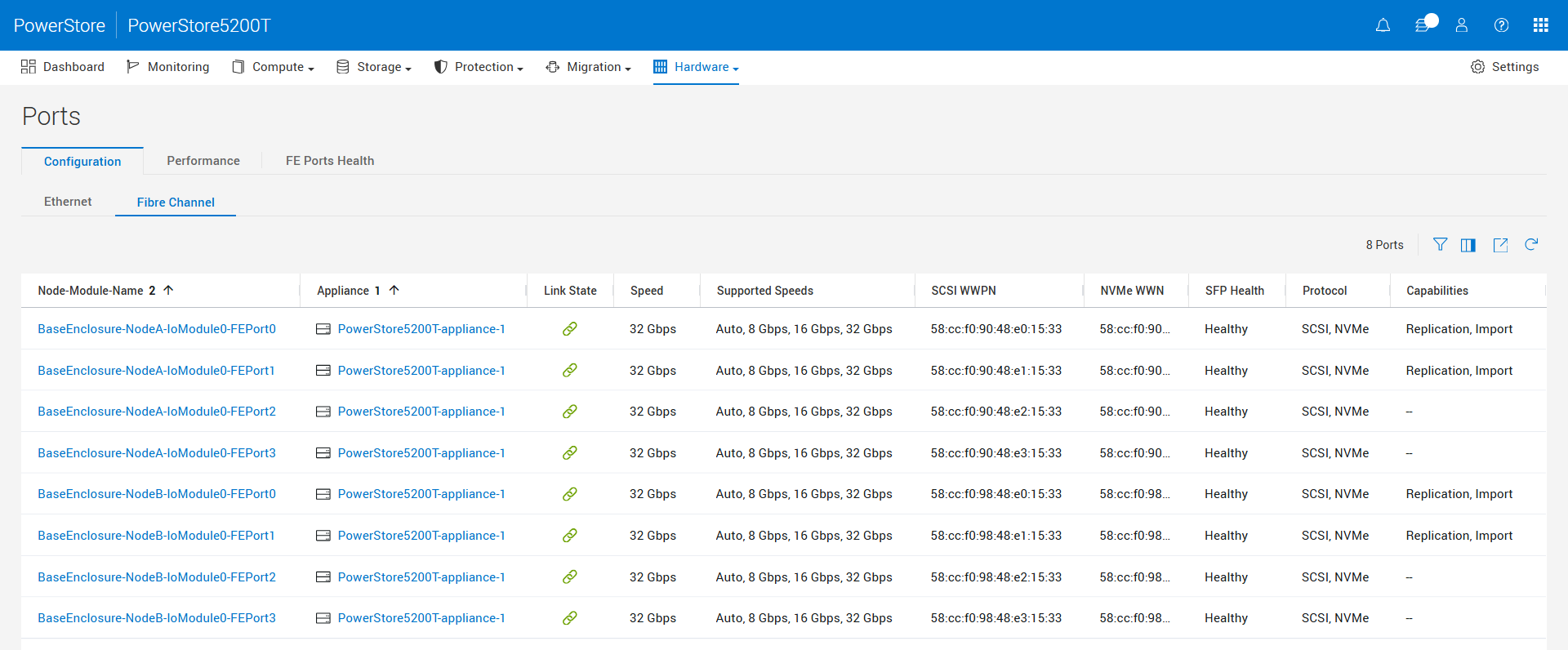
Before a remote system connection can be created, fibre channel connectivity between PowerStore clusters must be established. This includes the physical cabling of the environment, along with zoning all required connections. The first step in configuring FC replication is determining which ports to use. PowerStore has specific ports enabled in the dual SCSI mode, which allows them to be both target ports and initiators of a connection. These ports can be used for host connectivity or be utilized for replication or data import. Generally, the first two ports of each fibre channel I/O module within an appliance are available to use for replication and import.
To confirm which ports are available for replication, in PowerStore Manager navigate to the tab, which lists all fibre channel ports on all appliances within the cluster. The Capabilities column states Replication, Import for ports enabled in the dual SCSI mode, as shown in Replication data network configuration (PowerStoreOS 4.0 and later). The SCSI mode can also be seen within the properties of the appliance on the Rear View tab after selecting a port. On the Fibre Channel page the SCSI WWPN for each fibre channel port is also specified, which is used for zoning.
When planning replication over fibre channel between two PowerStore clusters, also consider the following when planning a highly redundant fibre channel environment:
- Use two or more fibre channel ports per node when configuring replication over FC.
- Multiple fibre channel switches should be used to ensure high availability. PowerStore fibre channel replication does not support direct connect cabling of replication ports together between clusters.
- When zoning replication ports, each fibre channel port should be zoned to a single port per node per appliance on the remote cluster. Each zone should also include only a single source port and single destination port.
- When configuring replication between clusters, all appliances in the first cluster should be zoned to all appliances within the second cluster. This ensures that any resources in the first cluster can be replicated to any appliance in the second cluster. &<note&>File resources can only be replicated between appliances deployed in Unified mode. Also, replication rules created for NAS server replication can be customized to control where a resource replicates.&</note&>
- When replication is configured on a port that is also used for host or migration I/O, the available bandwidth is shared and performance may be impacted. Consider dedicating ports to specific uses when possible.
Note: For more information about PowerStore best practices, consult the Dell PowerStore: Best Practices Guide.
The following section provides more information about the fibre channel replication configuration.
Fibre channel network configuration
Before a remote system connection can be created, fibre channel connectivity between clusters must be established. With FC, this includes cabling the physical ports used for replication and zoning them to ports on the peer cluster. The following diagram shows a basic fibre channel configuration between two single appliance clusters. In this example, Port 0 from each node is cabled to Switch 1, and Port 1 from each node is cabled to Switch 2. Port 0 and Port 1 represent the ports previously selected by the user depending on the I/O module configuration of each cluster.
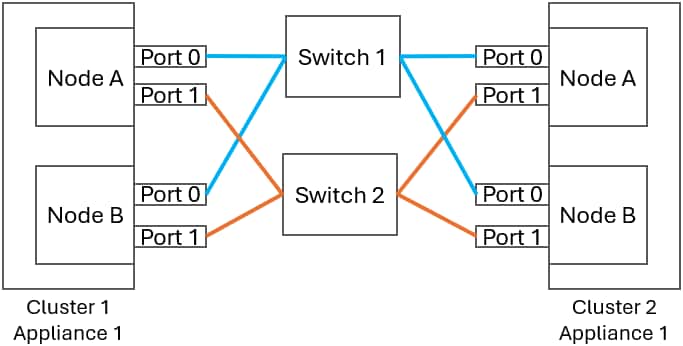
PowerStore includes multiple configuration compliancy checks to ensure a highly available configuration. If pathing is missing when the remote system connection is created, an alert is raised and information about the missing paths is provided. With fibre channel replication, it is expected that each fibre channel port be zoned to one port per node on the remote cluster. In the example above, Port 0 of Node A on Cluster 1 is zoned to Cluster 2 Port 0 on Node A and Node B. This same zoning applies to Port 1 on Node A of Cluster 1. This port will be zoned to Port 1 on both nodes of Cluster 2. This configuration is repeated for the remaining ports in the configuration, ensuring each port from each cluster is zoned to one port from each node of the remote appliance.
Fibre channel replication is also supported in multi-appliance cluster configurations. When multiple appliances exist, connectivity between each appliance in one cluster needs to be established to each appliance within the second cluster. Using the figure above as an example, if Cluster 2 includes an additional appliance, Appliance 1 in Cluster 1 would have connectivity to Cluster 2 Appliance 1 and Appliance 2. This allows Cluster 1 Appliance 1 to replicate to either appliance in the remote cluster.
After cabling and zoning are complete, the remote system connection can be created.
Remote systems configuration
Configuring a remote system
The next step in configuring remote replication is to create a remote system pair with another PowerStore cluster. Configuring a remote system pair is only required once for a pair of PowerStore clusters. For replication management, a private replication connection using the management ports is automatically configured. To set up a replication connection, select to start adding remote systems (see the following figure).
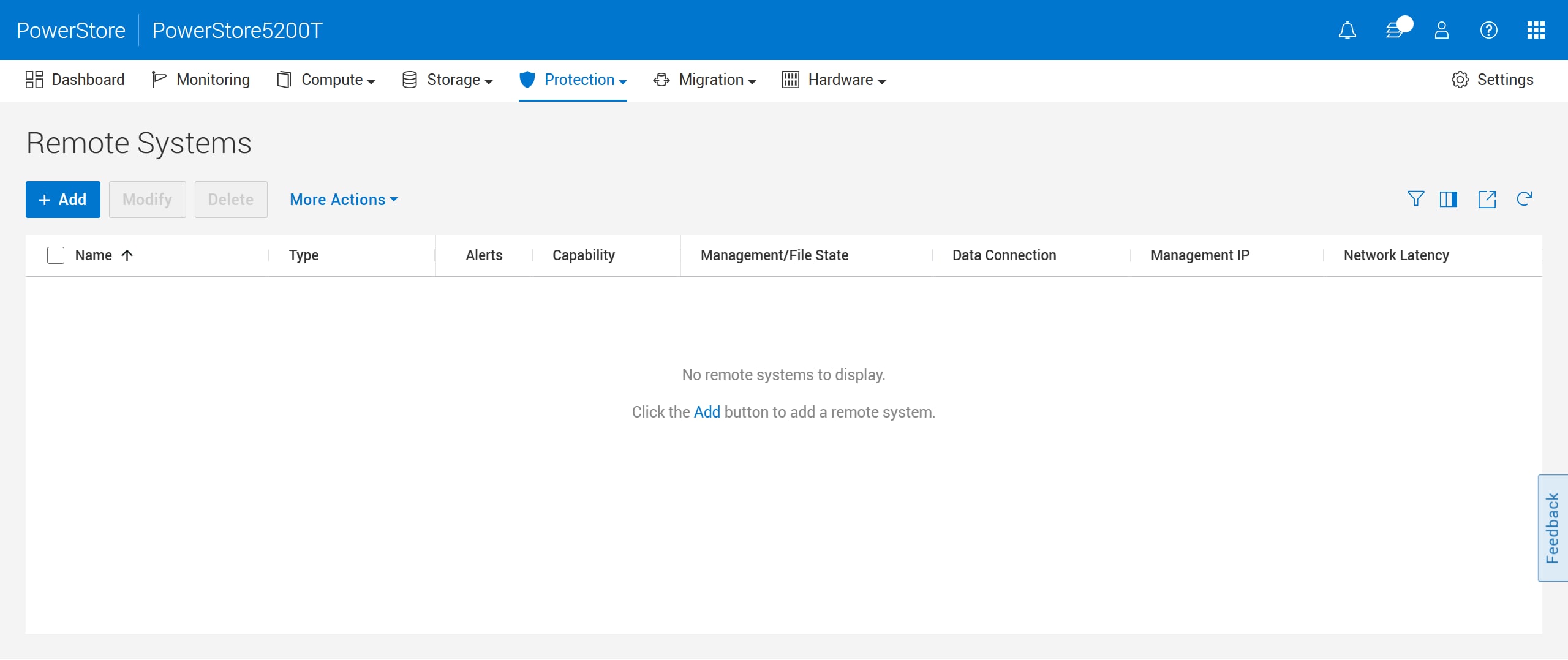
To define a new remote system, click Add as shown in the figure above. The Add Remote System window is then displayed (the following figure).
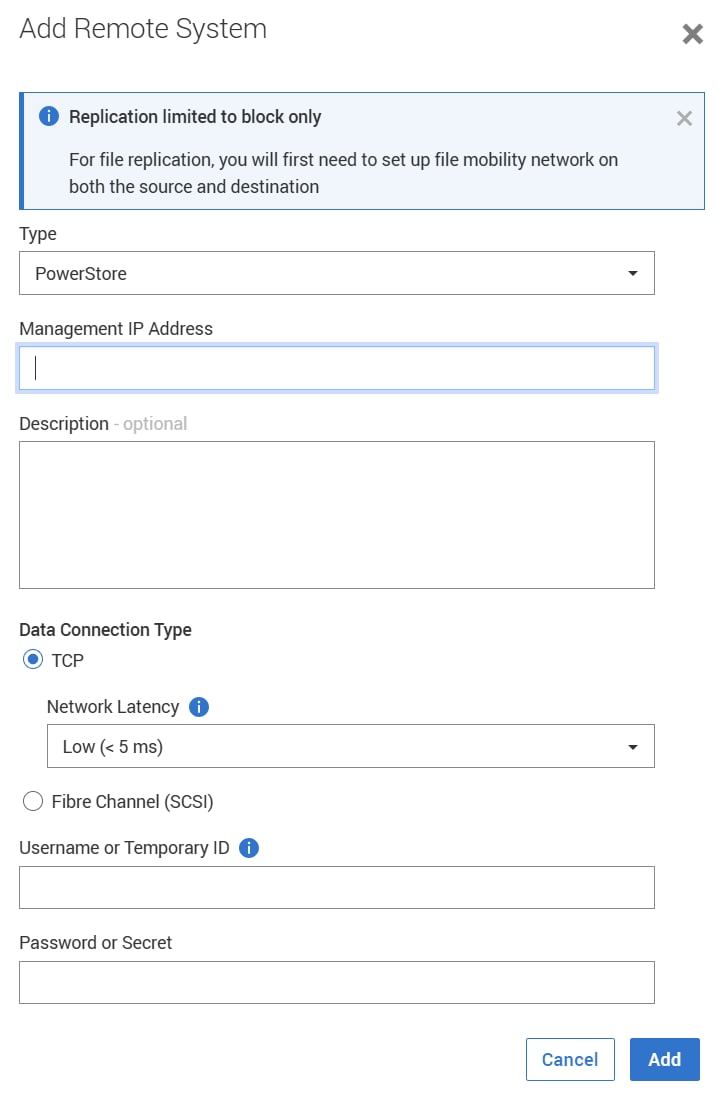
When configuring a remote connection to another PowerStore cluster for replication, the window requires the following information:
- Management Cluster IP Address
- Data Connection Type, either TCP or Fibre Channel (SCSI)
- A Network Latency setting if TCP is selected
- Username and Password or Temporary ID and Secret of the remote system
Note: In PowerStoreOS 4.1 and later, a Temporary ID and Secret can be used in place of the Username and Password. This topic is discussed later in this section
Replication traffic over a TCP connection can be tuned for higher efficiency depending on the expected network latency by configuring the Network Latency setting for a remote system connection. When network latency between the remote systems is unknown, use the ping utility to determine the latency. The Network Latency setting can be configured when creating a remote system connection, as shown in Add Remote System, or modified on an existing connection at any time. Note that metro and synchronous replication require a low latency network (<5ms).
It is important to know that PowerStore leverages a proprietary TCP-based protocol for replication data traffic which improves replication performance between systems with network impairment, such as high latency or packet loss. Each latency category within the available Network Latency options uses a different network port number. For replication across network borders, adjusting network ACL or network firewall rules might be required to allow replication traffic. The following table shows an overview of different network latency settings and the network port that is used on PowerStore.
| PowerStoreOS versions | Network latency between remote systems | Port # | |
|
PowerStoreOS 3.0 and later |
Low (default) | < 5 milliseconds | 13333 |
| Low Medium | >= 5 and < 20 milliseconds | 13334 | |
| Medium | >= 20 and < 60 milliseconds | 13335 | |
| Medium High | >= 60 and < 120 milliseconds | 13336 | |
| High | >= 120 milliseconds | 13337 | |
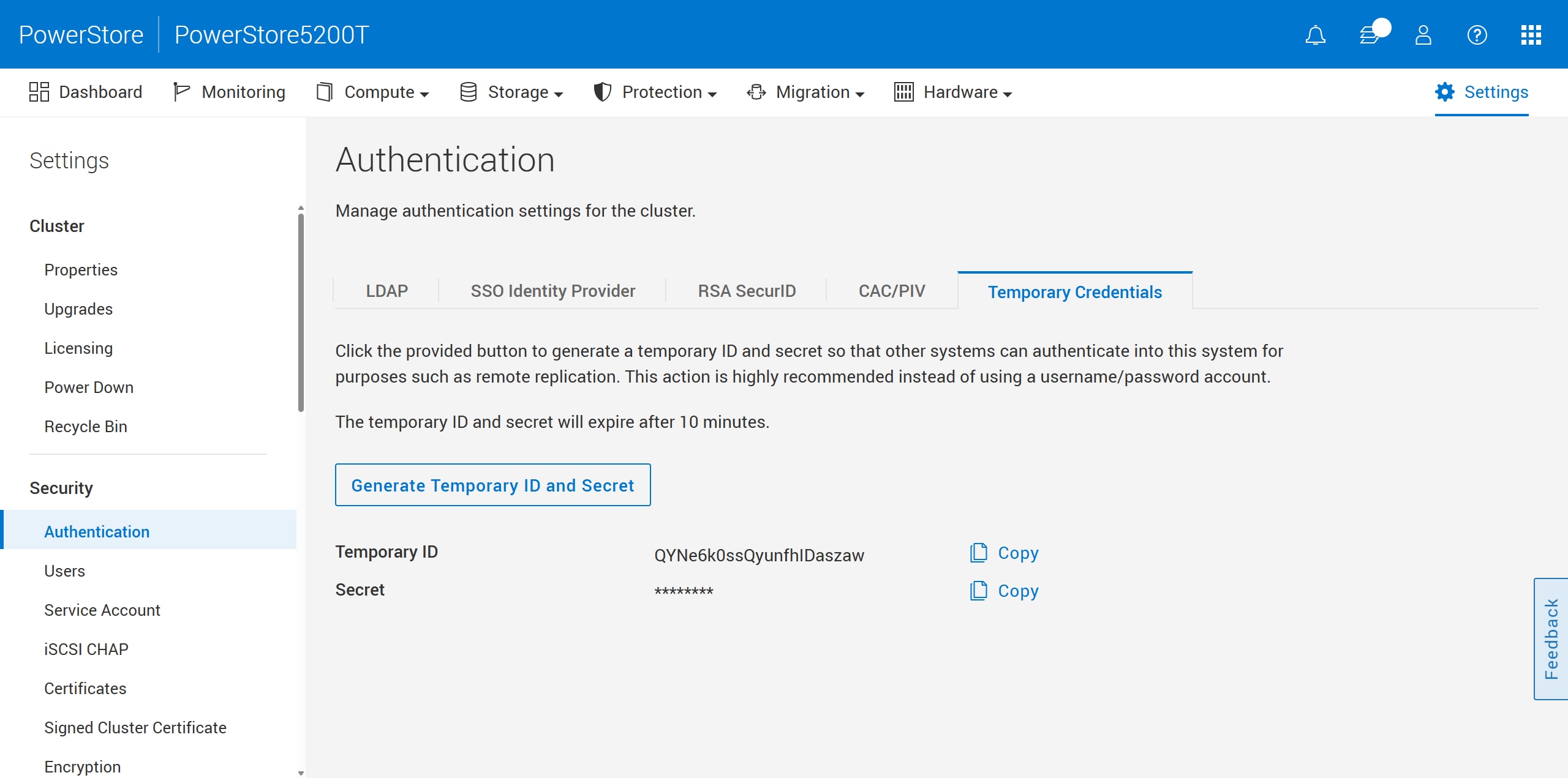
In PowerStoreOS 4.1 and later, temporary credentials can be used in place of a username and password to establish connectivity between PowerStore clusters. Temporary credentials can be used for operations such as connecting a remote PowerStore cluster for replication purposes, registering the VASA Provider from a VMware vCenter, or when CAC/PIV is enabled, and no local user account is available. Temporary credentials can be generated using PowerStore Manager or REST API. In PowerStore Manager, go to to generate a Temporary ID and Secret on the PowerStore cluster. These credentials expire after 10 minutes.
When configuring a remote system for the purpose of replication, it is recommended to use Temporary Credentials in place of an administrator's username and password. In this process, Temporary Credentials are generated on the remote cluster and entered on the cluster the connectivity is being established from. The figure below shows an example of the Temporary Credentials page.
The credentials used to configure a remote system connection are not stored on the system and are only used for the relationship setup. After the relationship is configured, PowerStore uses SSL certificate-based authentication. When the required fields are entered, click Add. Because the management connection for the remote systems pair uses SSL encryption, it is required to confirm the remote SSL certificate. After the configuration task is finished, the new remote system is listed on both sides.
After successful initialization, the remote system connection is automatically created on the peer system and can be used in both directions for bidirectional replication. The verify and update operation is used to update the replication connection information about the system on which it is issued. This operation is performed on the replication connection, as opposed to an individual replication session. Verify and update can be used to test a replication connection to a remote system or update the replication information if changes to the system have been made. Verify and update should be issued to check and reestablish (when required) the replication connection to a remote system after an outage. Running verify and update is a common use case when the storage network IP address pool has been changed by a network administrator, or zoning changes for replication ports have been made in the environment.
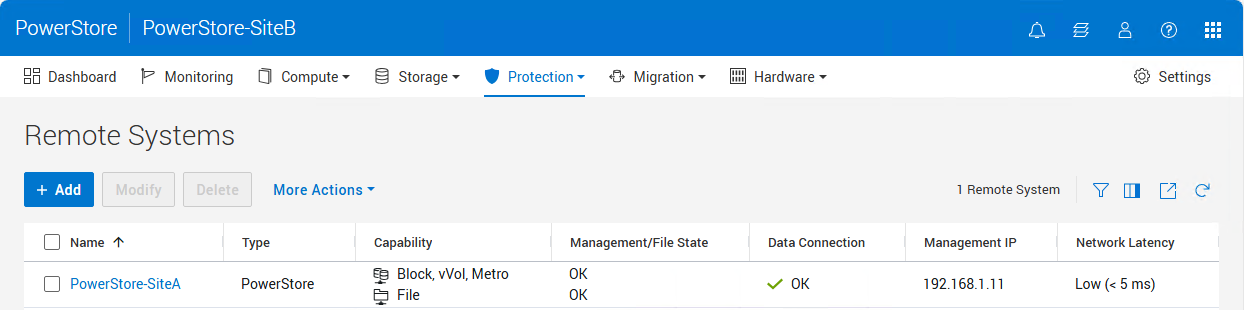
After a remote system is set up, select More Actions > Verify and Update. This action verifies that the selected replication connection still exists with the remote system, and it updates the connection details if any changes are made. The figure below shows the Remote Systems Overview page. The Capability column indicates the supported types of replications for the remote system pair. The Management/File State and Data Connection columns indicate the link status. Note that the data connection type, either TCP or fibre channel, can be determined by reviewing the properties of the connection.
Manage Network Groups (TCP connections only)
PowerStoreOS 4.0 and later is no longer limited to the single storage network which is tagged as the replication network. One or more replication networks can be configured in a network replication group on a remote system pair granularity. The replication network pair is automatically established by the remote system pairing when both PowerStore systems use the same IP network port for replication. When multiple network ports have the replication purpose, a manual configuration is required. After selecting a remote system pair (the following figure), the replication network configuration is in the overview, in the More Actions pull down.
Note: After an NDU from a release prior to 4.0 to 4.0 or later, a post upgrade service automatically migrates the replication purpose-tagged storage network to the new network groups feature for replication.
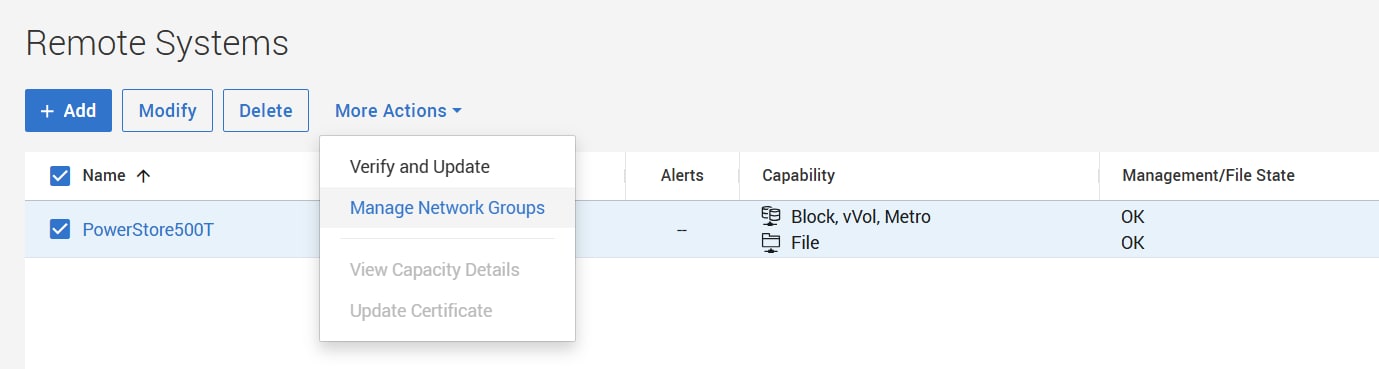
There must be at least one network group configured for a remote system connection. The Manage Network Groups window allows the user to modify existing network groups, as well as to create and delete a network group.
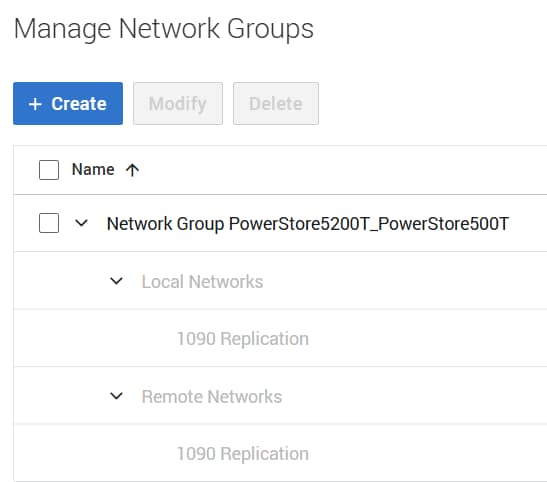
When a new replication network group is created, the wizard shows the available local and remote networks that can be selected for replication, as shown in the figure below. Remote networks are fetched during the remote system pairing and are synchronized when verifying and updating a remote system pair configuration ().
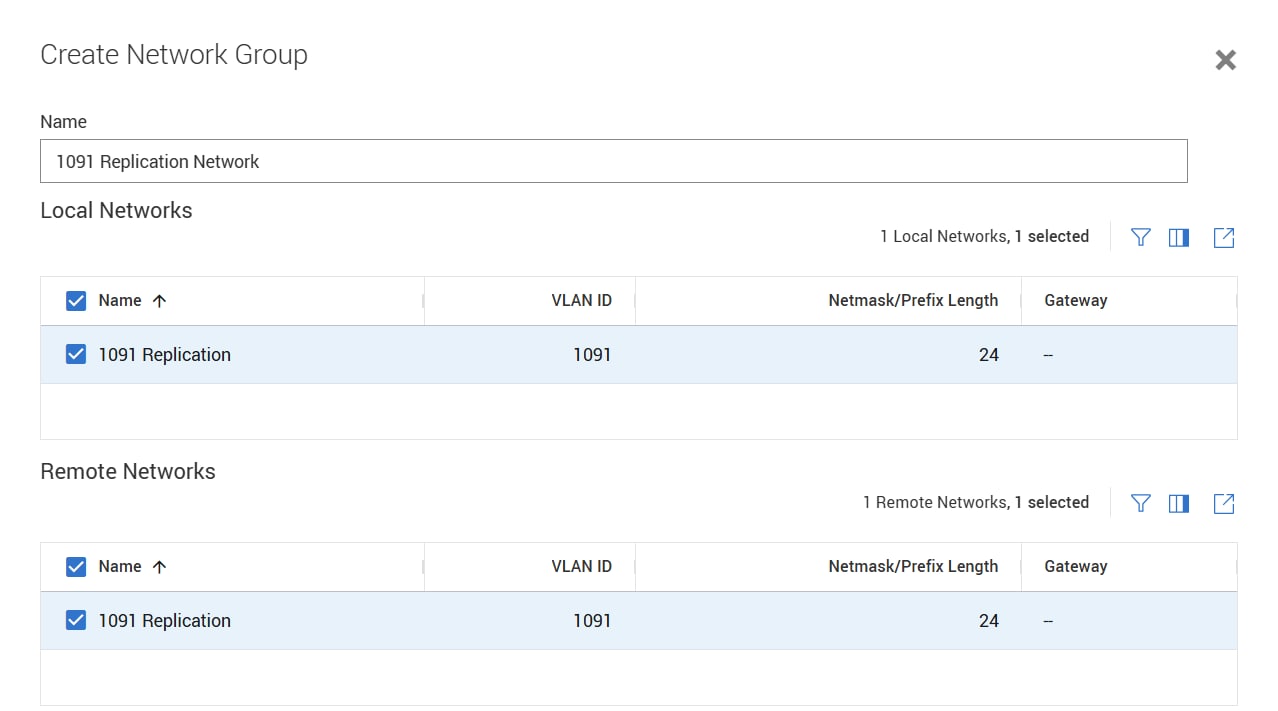
PowerStore has no limitation on which IP ports and networks are used for the replication network groups, as long as Layer 2 (switched) or Layer 3 (routed) communication is possible between systems in a remote system pair configuration. The networks shown in the dialog only rely on the configured purpose and resulting replication port usage. That flexibility allows for multiple different replication networks for the remote system pair and enables additional advanced configuration to control the network used for replication traffic. Bear in mind that replication networks' performance for a metro or synchronous replication configuration have a direct influence on host I/O performance.
Use case examples:
- A remote system pair can leverage multiple groups of different IP networks on a potentially different physical network infrastructure for a dual fabric architecture used for replication.
- Even though you may plan to use the same IP networks to host frontend access and replication, it is possible to set up distinct physical ports for the individual workloads.
- Different remote system pairs can use individual non-overlapping ports and networks for replication.
File mobility network
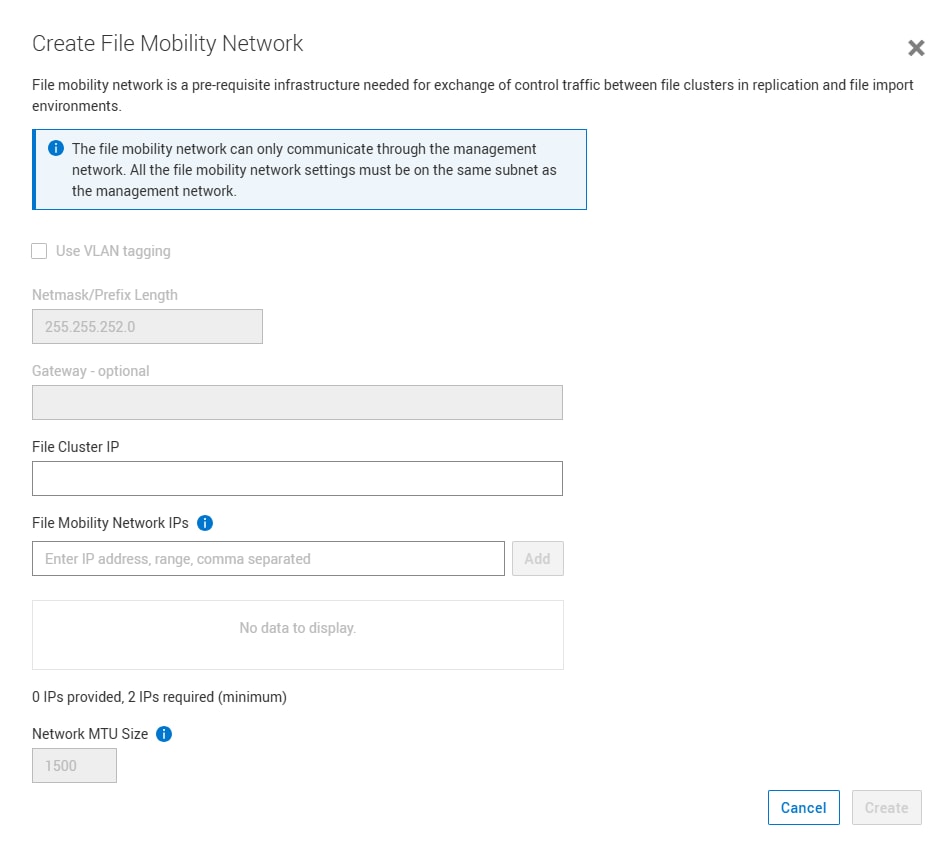
File replication requires an additional file mobility network configuration for file related control path traffic between the clusters. The file mobility network resides in the same subnet as the PowerStore cluster management network and requires three additional IP addresses in that range for each PowerStore cluster. While PowerStoreOS 3.0 does not support any changes when file replication is configured, PowerStoreOS 3.2 supports deleting and changing the file mobility network in a paused state without needing to delete the existing replication sessions. Even though deleting the file mobility network is supported, it is required when replication sessions are activated again.
In PowerStoreOS 4.4 and later, all appliances within a PowerStore cluster can be deployed in Unified mode. This allows file resources to be created on any appliance within the cluster. A file mobility network must be created and mapped on each appliance within the cluster that will participate in file replication. While not required, it is suggested to create and map a file mobility network on each Unified appliance within the cluster. For more information about clustering, see the Dell PowerStore: Clustering and High Availability white paper.
The configuration for the file mobility network (the following figure) can be found on the File Mobility tab at . When the initial network configuration is finished, map the file mobility network to the PowerStore management ports of the appliance. For the Reconfigure or Delete tasks (PowerStore 3.2 and later), a dialog is displayed to confirm that no active file migrations or replication sessions are in place.
Native replication for block and file
Native replication for block and file
Introduction
Licensing
Theory of operation
Replication session
Assigning a protection policy with a replication rule to a storage resource creates the replication session. The replication session operates the scheduling and replication from the source resources to the target storage resources. When a replication session is created in PowerStore, a storage resource of the same size and type is created on the destination cluster. PowerStore creates an individual RPO schedule or a mirror for each storage resource in that replication session. When the replication session is set up, existing scheduled or manual user snapshots of block storage resources are also replicated in chronological order to the destination during initial synchronizations. Snapshots created while an asynchronous replication is set up are replicated in the next RPO cycle. Snapshots of file storage sources in a replication session are not replicated to the destination.
Asynchronous replication synchronizations are triggered by a user-defined RPO or at any time manually by the user. The following characteristics define asynchronous replication:
- All writes to a storage resource are saved to the source storage resource and acknowledged to the host before being replicated to the destination storage resource. Changes are retrieved using a snapshot-differential operation and are replicated later.
- A user-defined RPO defines the maximum time between scheduled synchronizations.
- Between synchronizations, new data is only saved on the source storage resource. The RPO is the maximum amount of data measured in time that the user is willing to lose in a disaster or failure scenario. The RPO determines how often synchronizations occur at a minimum.
- Manual replication between RPOs operates the same as scheduled asynchronous replication.
When a replication session is created, and before the mirror or incremental cycles begin, a full synchronization of the source and destination storage resource is automatically initiated if required. If replication is configured when a new storage resource is created, the synchronization is quick because no user data needs to be copied to the destination storage resource. If a protection policy with replication is added to an existing storage resource, a full synchronization is initiated from the source to the destination storage resource if required. Writes occurring during the initial-synchronization period are not copied to the destination storage resource but remain in the snapshot differential for the next synchronization cycle.
If a volume or volume group was previously replicated asynchronously or synchronously and still exists on the destination appliance as a replication destination, it may be re-used as a replication target if replication is reestablished on the original source resource. Common base snapshots can be utilized to avoid a full synchronization of the source and destination’s data if they exist. A common base snapshot is a snapshot that is created on the source resource and replicated to the destination. These snapshots are considered identical as they are created at the same point in time and contain the same data. If a user is removing a replication configuration on a volume or volume group, such as removing the replication configuration to change the replication rule or remote system data connection type (TCP to FC or FC to TCP), it is highly suggested to create a snapshot on the resource and replicate it before making any changes. This provides the best chance to avoid a full synchronization of the data after reconfiguring replication.
As file snapshots are not replicated, a common base snapshot does not exist for file resources when replication is not configured. While asynchronous replication uses common base snapshots for replication purposes, they are deleted when replication is ended. The action of removing a protection policy with a replication rule from a NAS server or removing a replication rule from a protection policy assigned to a NAS server will cause a full synchronization of the data if replication is re-established. If replication is reconfigured, the destination resource will be reused, and all data on the destination will be overwritten.
RPO based asynchronous replication
When the initial synchronization is completed, a common base is established between the source storage resource and the destination. Host-write operations that occur after the initial synchronization are acknowledged with the host, and no data is replicated to the destination until the next synchronization cycle. On any recurring cycle, a new snapshot is created and all changes between the current and previous snapshots are replicated to the destination. A new common base is then established. If another replication update is still running, either manually triggered or by the RPO event scheduler, the replication is skipped.
Asynchronous replication in PowerStore uses snapshots to maintain the common base images explained previously. The following steps and Asynchronous replication theory show how snapshots are used with asynchronous and manually triggered replication.
- When a replication session is created on a storage resource, a read-only internal RPO1 snapshot on the source system is created. On the destination system, a storage resource with same characteristics is created with an associated shadow read/write snapshot.
- Data is replicated from the source RPO1 snapshot to the newly created destination shadow read/write snapshot. This replication is the initial synchronization of the source and destination storage resources and is a full copy of all the data.
- When the remote read/write shadow snapshot is synchronized with the local RPO1 snapshot, an RPO1 snapshot is triggered on the destination. The RPO1 snapshots that are on the source and destination storage resources contain the same information and represent the point when the synchronization started. Snapshot RPO1 on each system is now a common base for the replication session. The remote storage resource is refreshed from the RPO1 snapshot, and the initial synchronization is completed.
- Over time, the host application writes new data to the source storage resource.
- The next update is either started manually or by the RPO with asynchronous replication. During the update, a new RPO2 snapshot is triggered to reflect the current, point-in-time view of the source storage resource. All changes that were made since the last update of the destination are copied to the destination shadow read/write snapshot.
- After the incremental copy is complete, an RPO2 snapshot on the destination is created. This snapshot defines the new common base, and the remote storage resource is refreshed from that base.
- Because the old, common-base RPO1 snapshots on the source and destination are not relevant for upcoming replication cycles, the RPO1 snapshots are deleted. Only the RPO2 snapshots and shadow read/write snapshots remain.
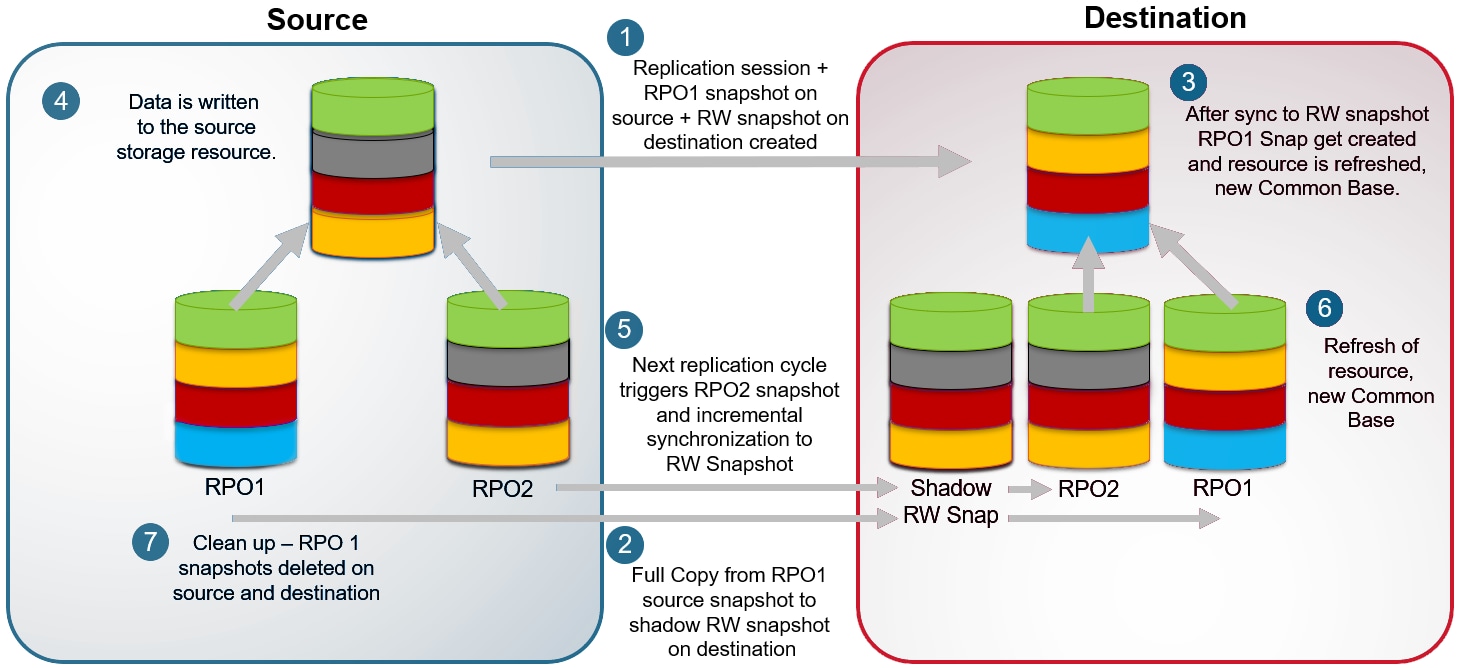
Each time the replication interval is reached or a manual update is started, the common base image updates with the latest RPO snapshots.
Snapshots that are used for asynchronous replication operate the same as user snapshots and are based on redirect-on-write technology. Although user snapshots and replication snapshots share the same technology, replication snapshots have restrictions. Although replication snapshots can be viewed in the PowerStore REST API and PowerStore CLI, user operations such as restore operations are not allowed. Snapshots that are allocated for replication purposes do not count toward user-snapshot maximums.
Synchronous replication (RPO=0)
For synchronous replication, the initial replication is similar up to the point where the common base is created. While asynchronous replication continues its replication based on the set RPO, additional steps are required to have the source and destination be in a continuous synchronized state.
After the empty destination resource and an internal writeable Shadow Snapshot is set up on the destination, the internal Shadow Snapshot gets all replicated data before being pushed to the destination resource. When destination and Shadow Snapshots are set up, the initial synchronization starts. The following steps describe Synchronous replication in PowerStoreOS 4.0 and later below.
- For volumes and volume groups, when a user snapshot exists on the source, all existing user snapshots are replicated in chronological order to an internal snapshot on the destination and applied to the destination resource. Only the first snapshot requires a full synchronization. For each possible subsequent snapshot, only the delta from the previously replicated snapshot is being replicated.
- An internal RPO snapshot is then created on the source and replicated to the destination. For volumes, this occurs after all snapshots are replicated, and when no snapshot of a previous replication pre-exists. Without a pre-existing snapshot, this replication of the internal RPO snapshot requires a full synchronization, otherwise only the delta from the previous snapshot is replicated.
- When the RPO snapshot is fully replicated, a common base (CB) is created.
- When the common base is created, a mirror starts mirroring all host writes for the resource to the internal shadow snapshot on the destination. All outstanding writes since the common base was created are kept in an internal temporary snapshot. The data from that temporary snapshot is synchronized along with the mirrored host I/O to the internal shadow snapshot on the destination. When all outstanding data is synchronized, the temporary snapshot is deleted.
- For the ongoing synchronous replication, the mirror continues to replicate all host writes immediately to the internal Shadow Snapshot on the destination, which updates the destination volume.
- When the replication session is in an “Operating Normally” state, a recovery snapshot is created every 30 minutes on both sides.
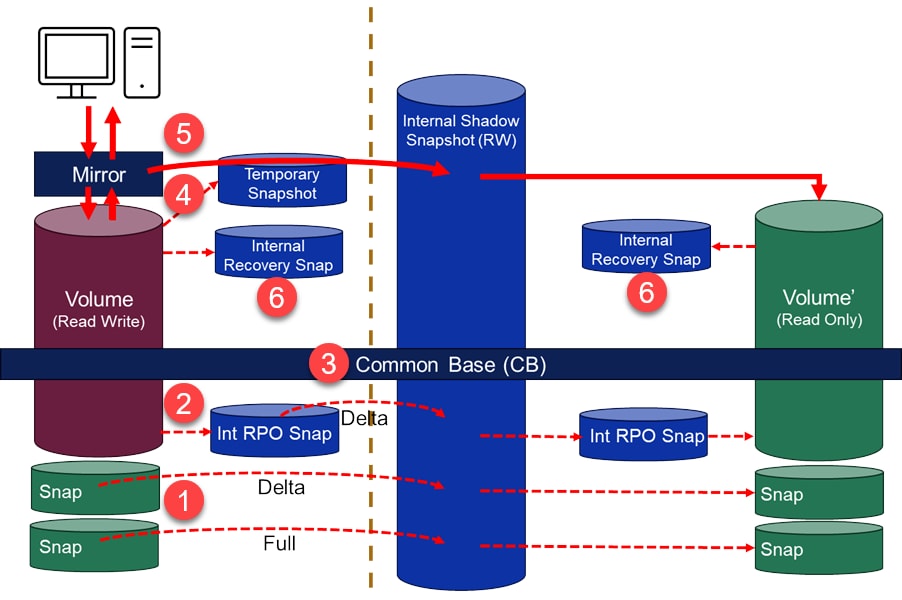
Because asynchronous replication and synchronous replication for block are using a common base, it is possible to change between replication types without a new full synchronization. Changing replication type for a NAS server (File replication) is not supported and requires a full synchronization after the change. Removing the current replication configuration from a file resource requires a full synchronization of the data if replication is reconfigured regardless of what is being changed.
In PowerStore, native synchronous replication is supported on the following storage resources:
- Volumes
- Thin clones
- Volume groups
- NAS servers with underlying file systems
When replication is configured on a volume in PowerStore Manager, a single replication session is created, and the destination storage resource is created with the same size and type as the source storage resource. When configuring a replication session on a volume thin clone, the destination storage resource is a regular volume and not a thin clone. While asynchronous replication is configured, the volumes and thin-clone size can be extended, and the changes are reflected on the destination storage resource after the next synchronization cycle. For synchronously replicated storage resources, it is required to pause the replication session first. All changes are replicated after the session resumes.
Volume Groups
On PowerStore, a volume group is a storage resource that contains one or more volumes within an appliance. Volume groups help organize storage resources allocated for a particular host, hosts, or host groups. Volume groups are treated as a single entity when they are replicated. When replication is configured in PowerStore Manager for a volume group, the destination storage resource and its contents are created automatically. While a volume group is part of an asynchronous replication session, volumes within the volume group can be expanded. All changes to volumes within a volume group are reflected on the destination image after the next completed synchronization. Synchronous replicated volume group attributes and volume group members can be changed when the replication session is paused. Changes will be synchronized after the session is resumed. When replication is paused or resumed on a volume group, the replication operation affects the entire group.
There are two general operation models when using volume groups:
- Simplify management when using volume groups, when mapping hosts, and when working with protection rules.
- Ensure write-order consistency across multiple volumes even when replication is configured. For instance, when an application and database are using different volumes but need consistency.
Note: Select the write-order consistency option for the volume group to have a consistent replica at the volume group level.
The decision to enable write-order consistency on the volume group is based on some considerations:
- Only asynchronous replication supports volume groups without the write-order consistency option enabled.
- Individual volumes in a volume group without the write-order consistency option enabled can have different protection policies applied.
- Individual volumes in a volume group with the write-order consistency option enable cannot be assigned a policy with synchronous replication enabled.
- When write-order-consistency is enabled, snapshots can only be created and restored for the whole volume group, not an individual volume.
File replication
File system and NAS server replication sessions are created by assigning a protection policy with a replication rule to a NAS server. Once applied to a NAS server, the NAS server and all underlying file systems are replicated to the destination system. An individual replication session is created for the NAS server and each file system associated with the NAS server. File replication can only be applied, managed, and removed at the NAS server level. It is not possible to modify the replication state at the individual file system level. Any file systems created or deleted from the NAS server automatically have a replication session created or deleted as applicable. While user operations and management for file replication are handled at the NAS server level, each file system has its own replication session. This is a key distinction between how a NAS server and file systems replicate compared to a volume group and its member volumes.
Creating a protection policy with replication rules
To create a replication session in PowerStore Manager, first set up a protection policy with an underlying replication rule. A protection policy is a collection of different local or remote protection rules that are assigned to resources on the PowerStore cluster. Protection policies can contain between zero and four rules for scheduled snapshots. The policies also contain a single replication rule for remote replication to a system that is defined in remote systems. Select , as shown in the following figure.
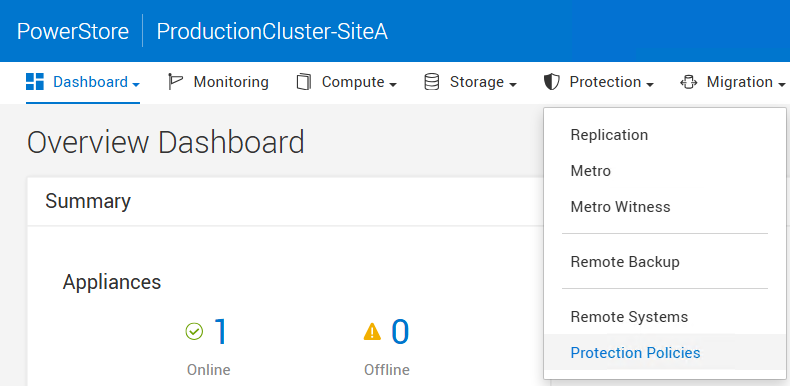
In the window (figure below), you can create and manage protection policies and rules. In the window, click to create a new protection policy.
In the Protection Policies window (Protection Policies list), protection policies and rules are created and managed. In the Protection Policies window, click Create to create a new protection policy.
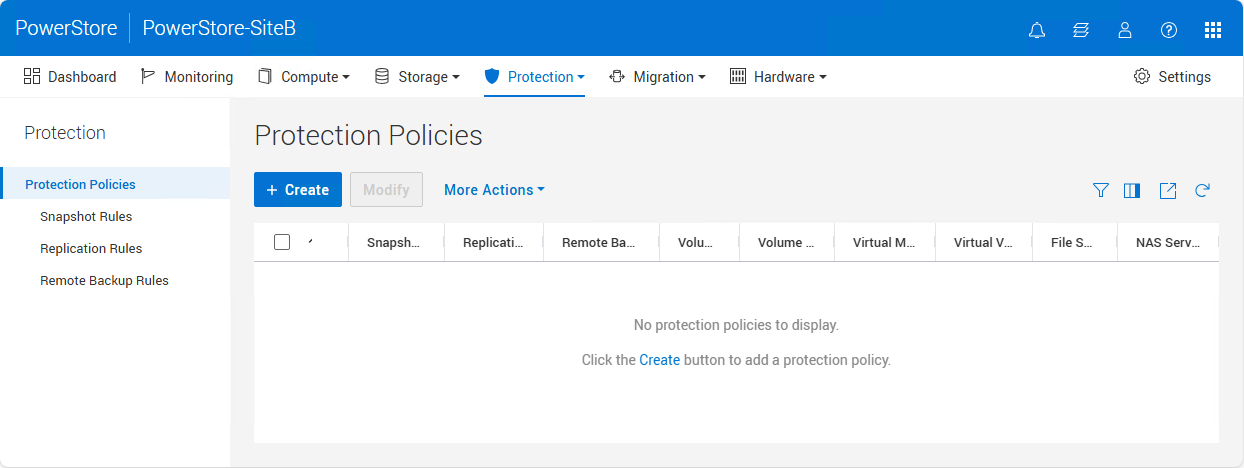
Because the protection policy is only the top-level object, which is assigned to a storage resource, only a policy Name is required. Further down in the window, you can select an existing replication rule, or click Create to create a rule in the Replication Rules area. The following figure shows an example of the Create Replication Rule window.
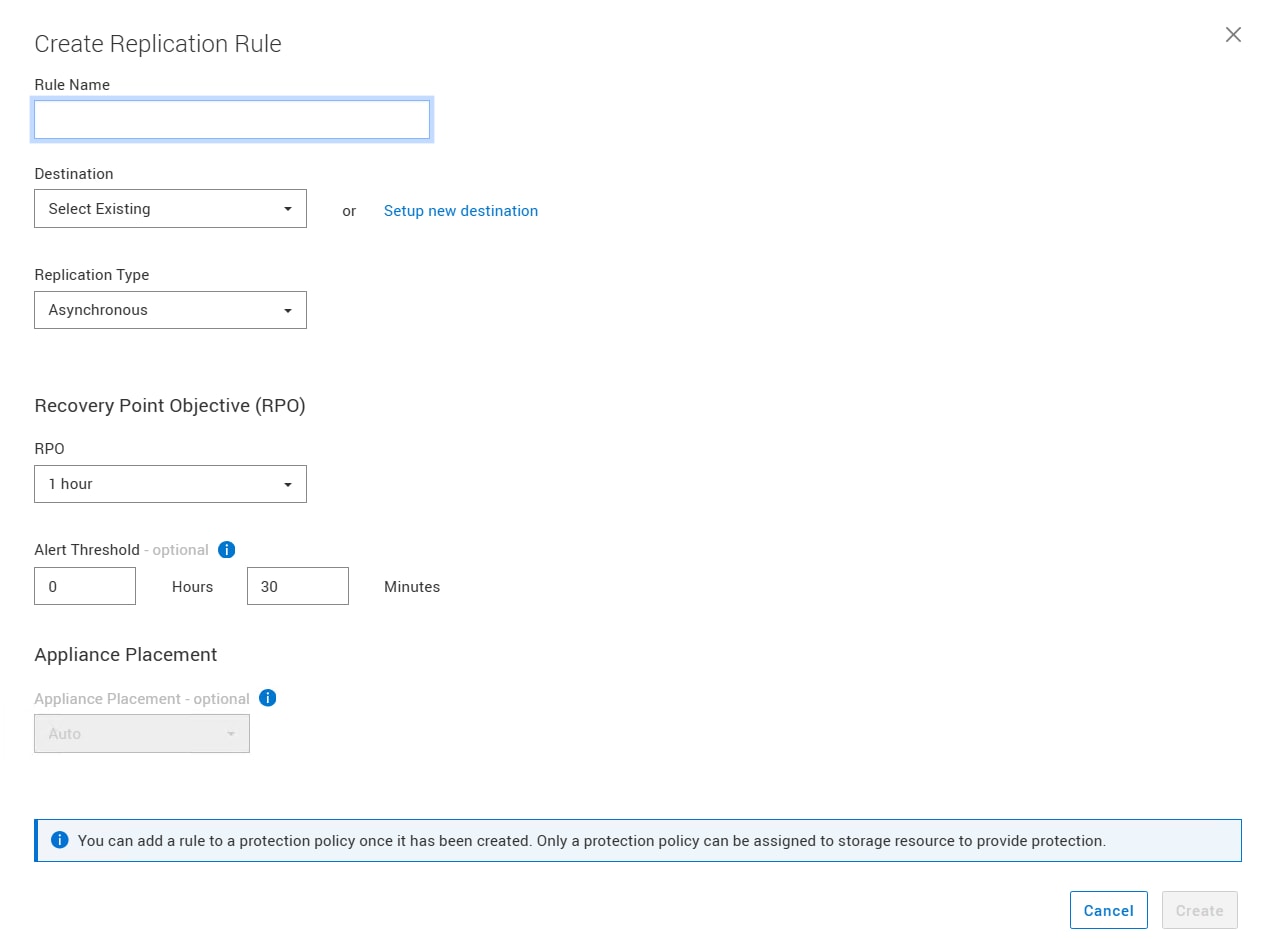
In PowerStoreOS 4.4 and later, the Appliance Placement option is available within a replication rule for file resources. When replicating to a cluster that contains multiple appliances deployed in Unified mode, the option can be left at the default of Auto, or a specific destination appliance can be specified. If Auto is selected, the cluster will choose which destination appliance to replicate to. Protection policies containing a replication rule with the appliance placement set to a choice other than Auto can only be assigned to NAS servers.
When the protection policy is created, you can use the protection policy to protect storage resources with the configured parameters.
Assign protection policy
The last step to establish a replication session is to assign the protection policy to a new or existing storage resource. This resource can include a volume, volume group, thin clone, or NAS server. A protection policy assigned directly to a file system will not implement any replication rules if they exist. To enact file system replication, the protection policy with the replication rule must be applied at the NAS server level. The following steps show assigning a protection policy to a volume. The required steps to assign a protection policy to a volume group, thin clone, or NAS server are the same. These steps can be applied either when creating or by modifying an existing storage resource.
Some limitations apply when creating the replication sessions. The replication session creates a storage resource with the same attributes on the destination as the source. Therefore, the name of the storage resource must not be in use on the destination. For example, it is not possible to create a replication session for a volume with the name Volume when a volume with the same name exists on the destination. A resource with the same name will exist if the resource was previously replicated and the destination resource still exists. Depending on the resource type, it may be reused if replication is reconfigured. See the Replication session section for more information.
For volume groups configured with write-order consistency, all volumes inherit the protection policy as defined for the volume group. It is not possible to have individual policies set on different volumes. When a policy with replication is used for a volume group with write-order-consistency, only one replication session for the volume group is created. For volume groups without write-order consistency, members can have different protection policies that result in individual replication sessions. Setting a protection policy for a whole group when write-order consistency is configured is only possible when no individual volume has a protection policy assigned. Because the replication configuration can differ between write-order consistent and non-write-order consistent volume groups, there are also restrictions on changing this volume group attribute if the group or any members are protected.
New storage resource with policy for replication
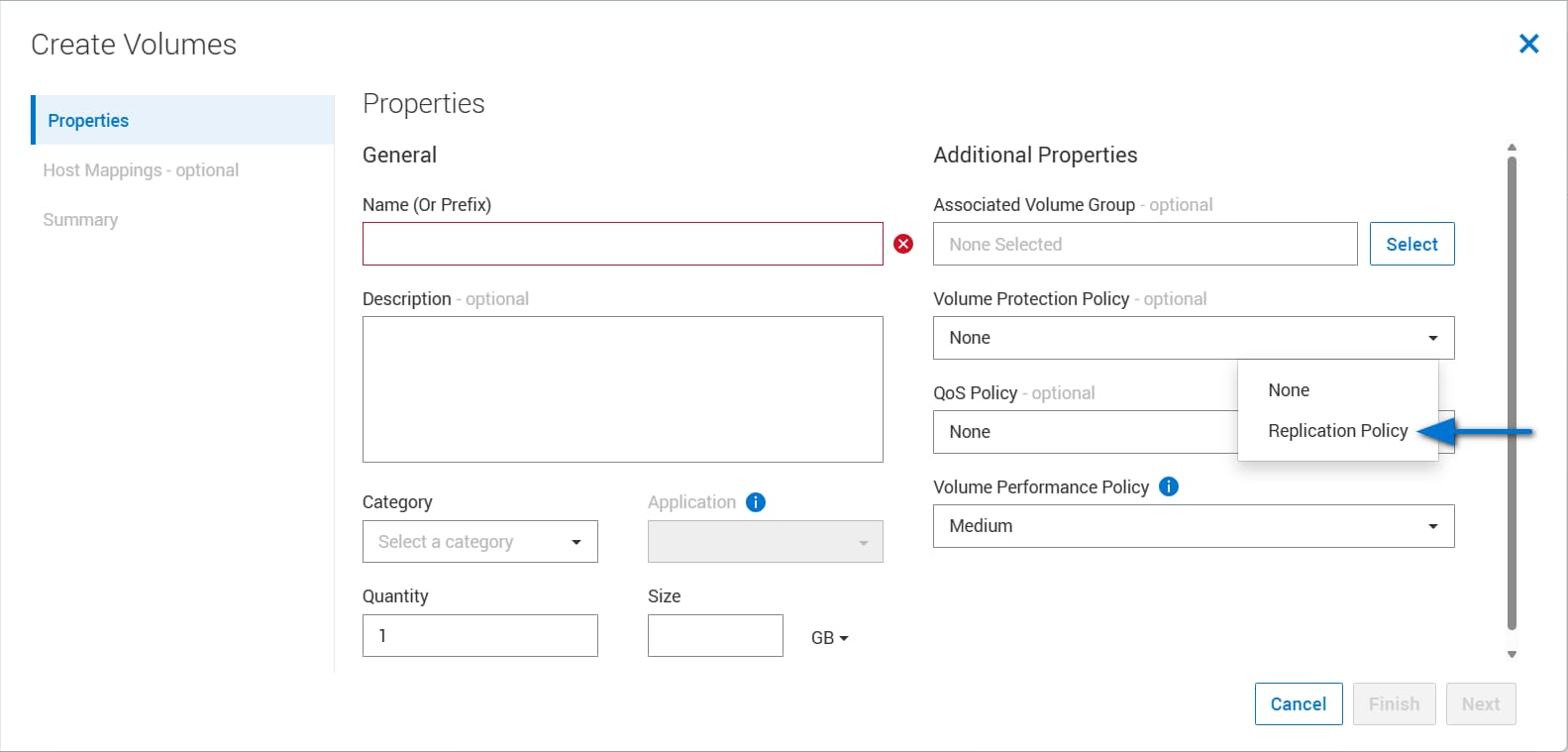
A protection policy containing a replication rule can be assigned at the time of resource creation. The point at which the protection policy is selected during the creation wizard directly depends on the resource being created. The following figure shows the Create Volumes Properties step. To assign a protection policy at creation, simply select a policy from the Volume Protection Policy menu. Adding a protection policy is optional when creating a new resource.
When a Volume Group with a protection policy and underlying replication rule is created, an empty Volume Group is created on the source and destination system before members are added. The members do not replicate until the next manual or RPO scheduled synchronization.
Protect existing storage resources
The following steps show how to assign a protection policy to an existing volume. The steps are similar for existing volume groups, thin clones, and NAS servers.
- Select the appropriate protection policy and click Apply to apply it to the previously selected storage resources. After the policy is applied, the initial synchronization starts immediately.
Figure 26. Assign protection policy to existing storage resource 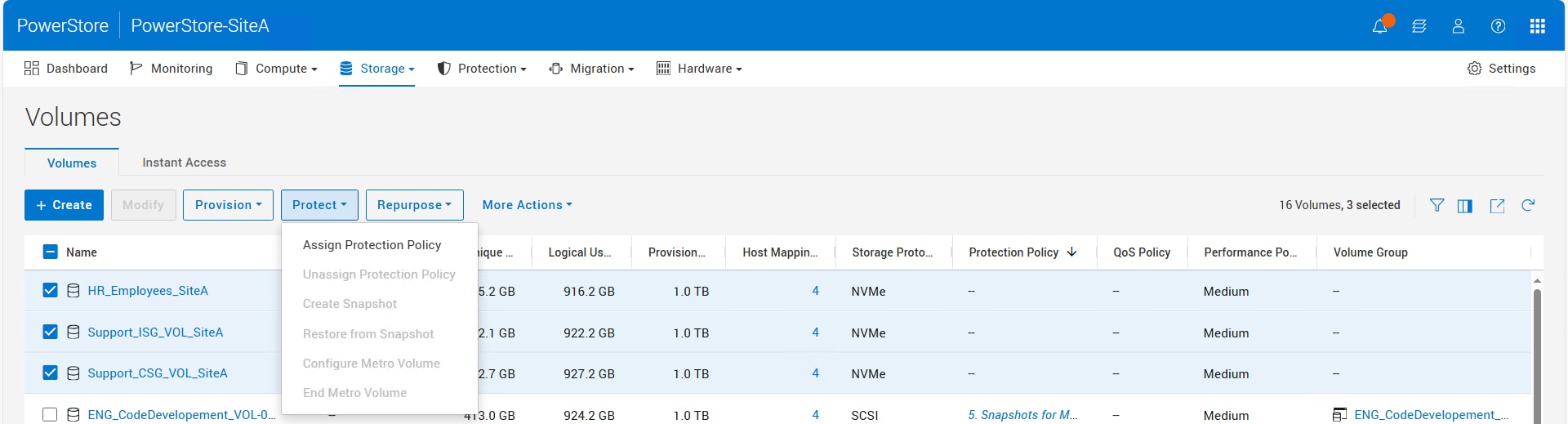
Viewing the replication sessions
All replication sessions on the system can be viewed from the Replication page. To view this page in PowerStore Manager, select . The figure below shows an example of the replication sessions overview with multiple replication sessions that are created on the system. The information provided within this page can be customized using the Show/Hide Table Columns option.
Only one session can be selected at a time. The state of the selected session determines which buttons above the table are available. When no session is selected, the buttons are unavailable. The following figure shows the Replication page on the source system.
The Replication page for the source resource shows the following buttons:
- Pause Replication to pause the replication session
- Synchronize to initiate a manual replication between regular RPO cycles
- Planned Failover to manually initiate a failover during a planned maintenance window
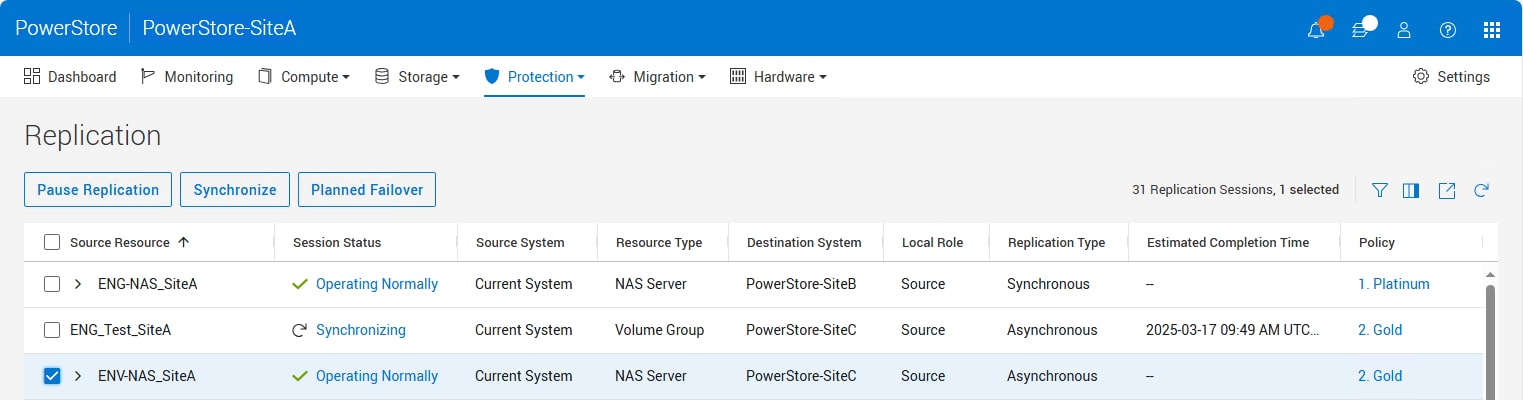
For file replication, the NAS server replication session is shown at the top level. Expand the session by clicking the down arrow to the left of the session. Once the session is expanded, all underlying file system replication sessions for that NAS server are shown (following figure). The replication sessions for the file systems are disabled because file system replication sessions do not support individual management. All operations are performed at the NAS server level and are applied to every underlying file system replication session.
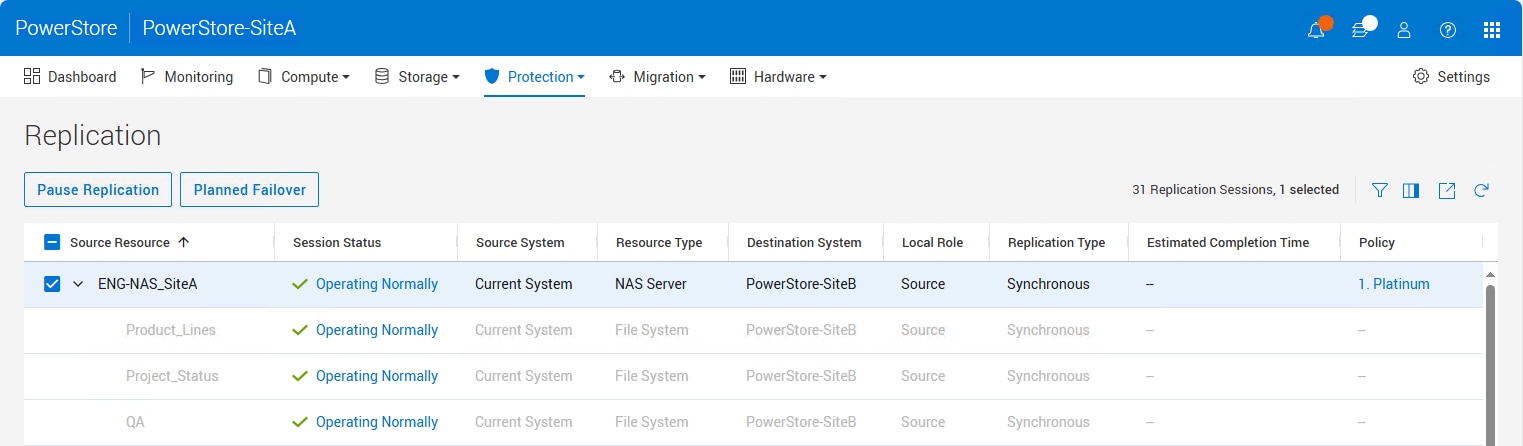
The Replication window for the destination resource shows different active buttons when a session is selected (following figure):
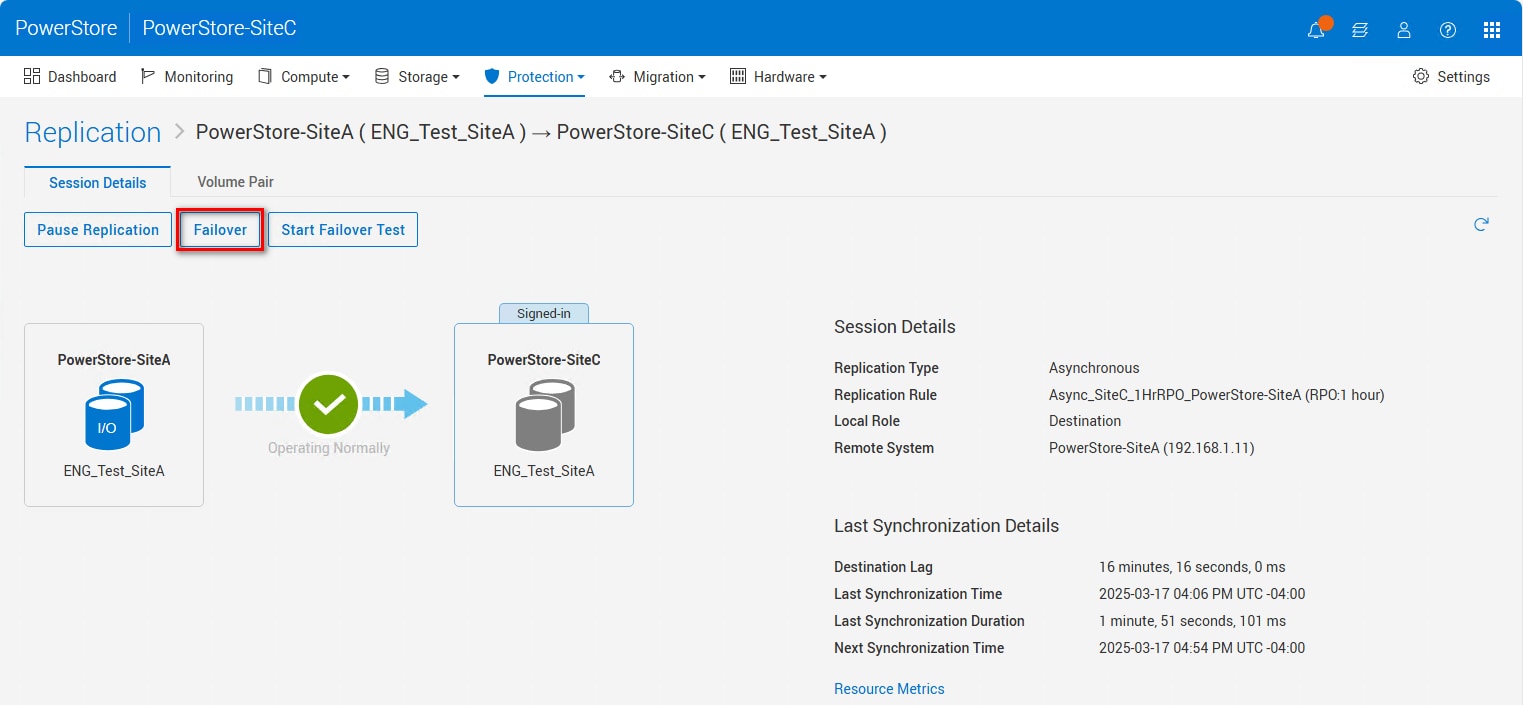
- Pause to pause the replication
- Failover to start an unplanned failover
-
Failover Test to initiate a failover test for block storage resources.
The operation Failover Test is not supported for file resources and will not be shown when a NAS server is selected on the destination system.
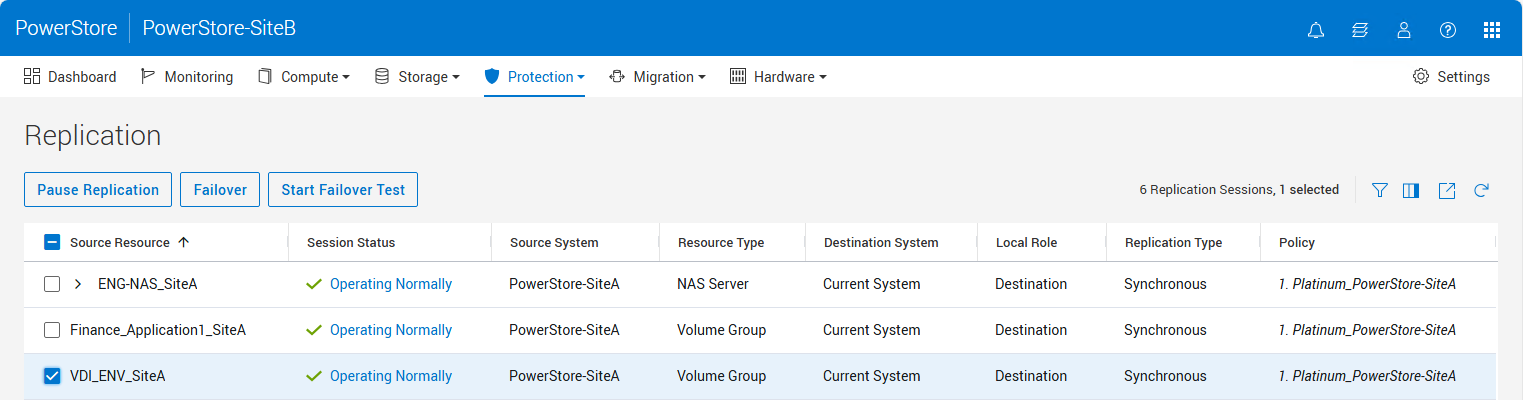
When Failover is selected, a message is displayed to warn the user that there is no final synchronization before the failover occurs. A planned failover must be run on the source if a final synchronization is needed.
For a more detailed view of the replication state, select the Session Status for the Source Resource. This window displays details about the session, as shown in the following figure. The local storage resource is either labelled as Current System or Signed-In depending on the PowerStoreOS version.
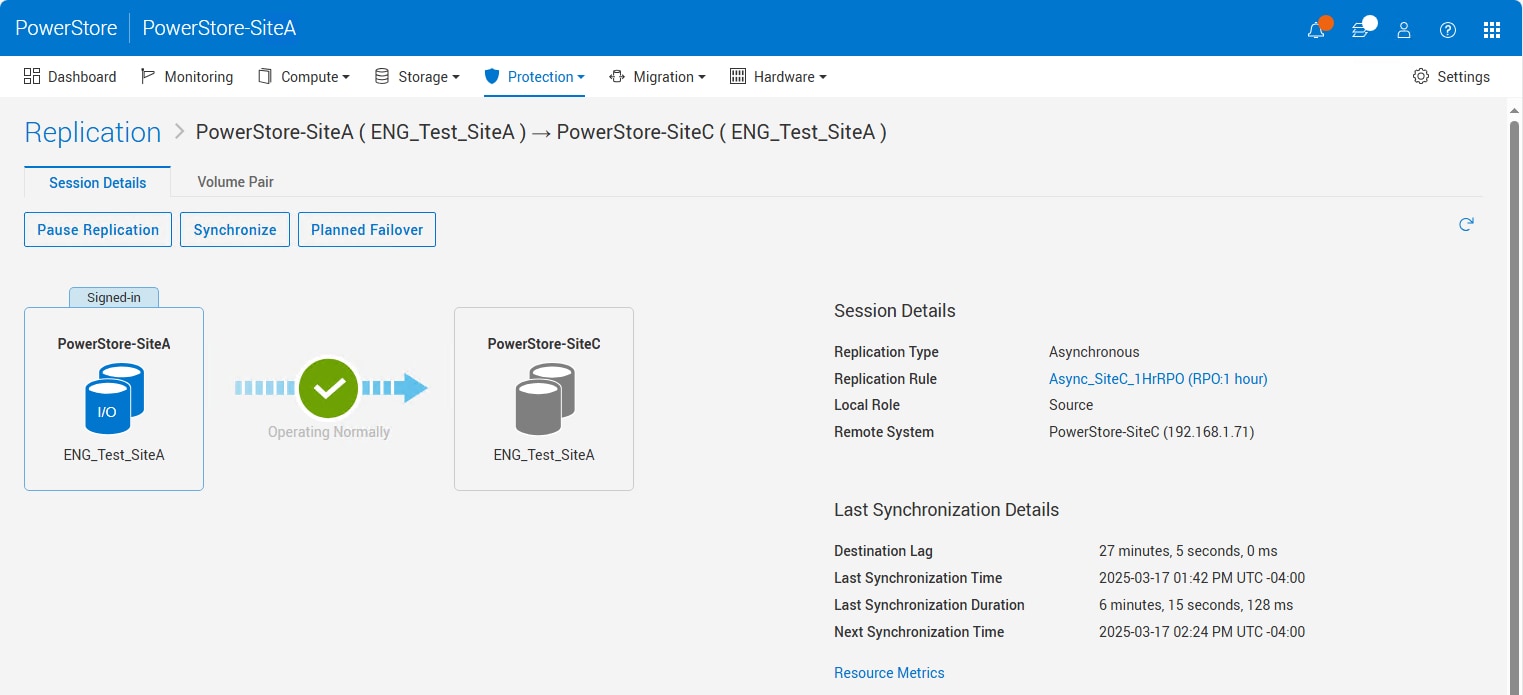
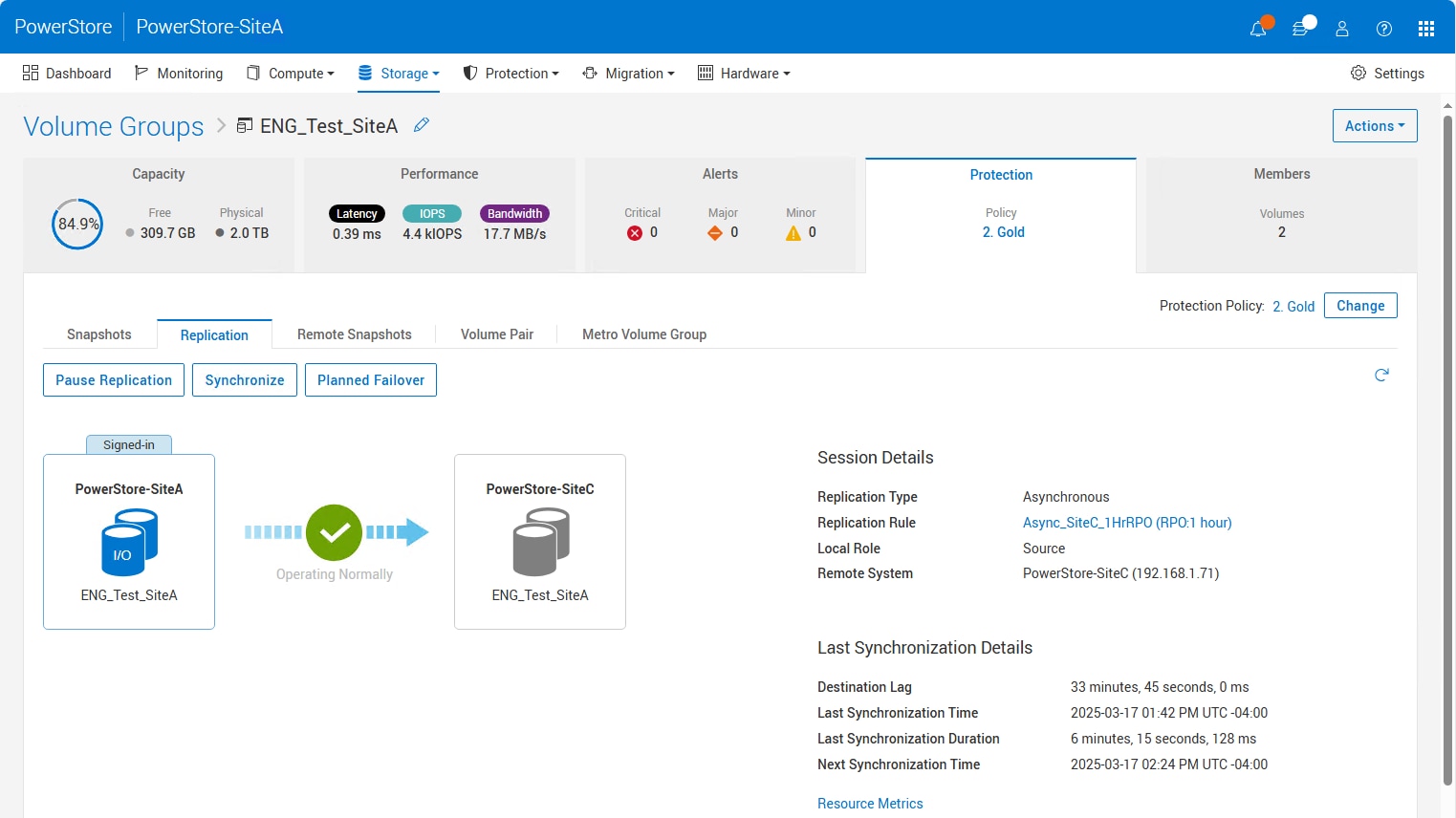
When working in the properties of a storage resource, it is also possible to see and control the corresponding replication session. To see the replication info, select tab. An example of this screen is shown in the following figure.
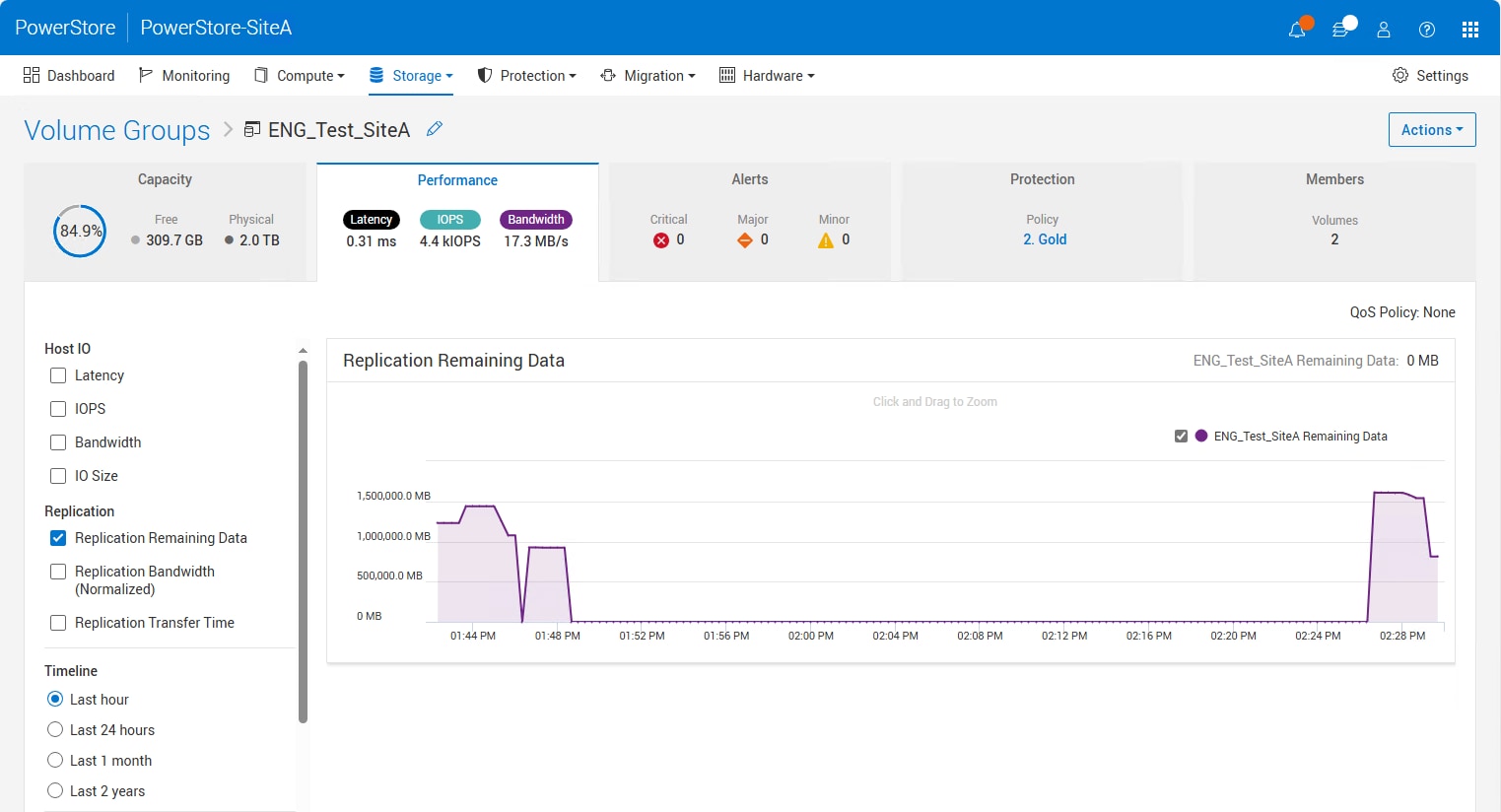
Besides the replication status, replication performance statistics are also available on the Performance tab (following figure) of the Storage Resource for volumes, volume groups, thin clones, NAS servers, and file systems. The following data is included:
- Replication Remaining Data
- Replication Bandwidth (Normalized)
- Replication Transfer Time
Replication operations
Pause and resume
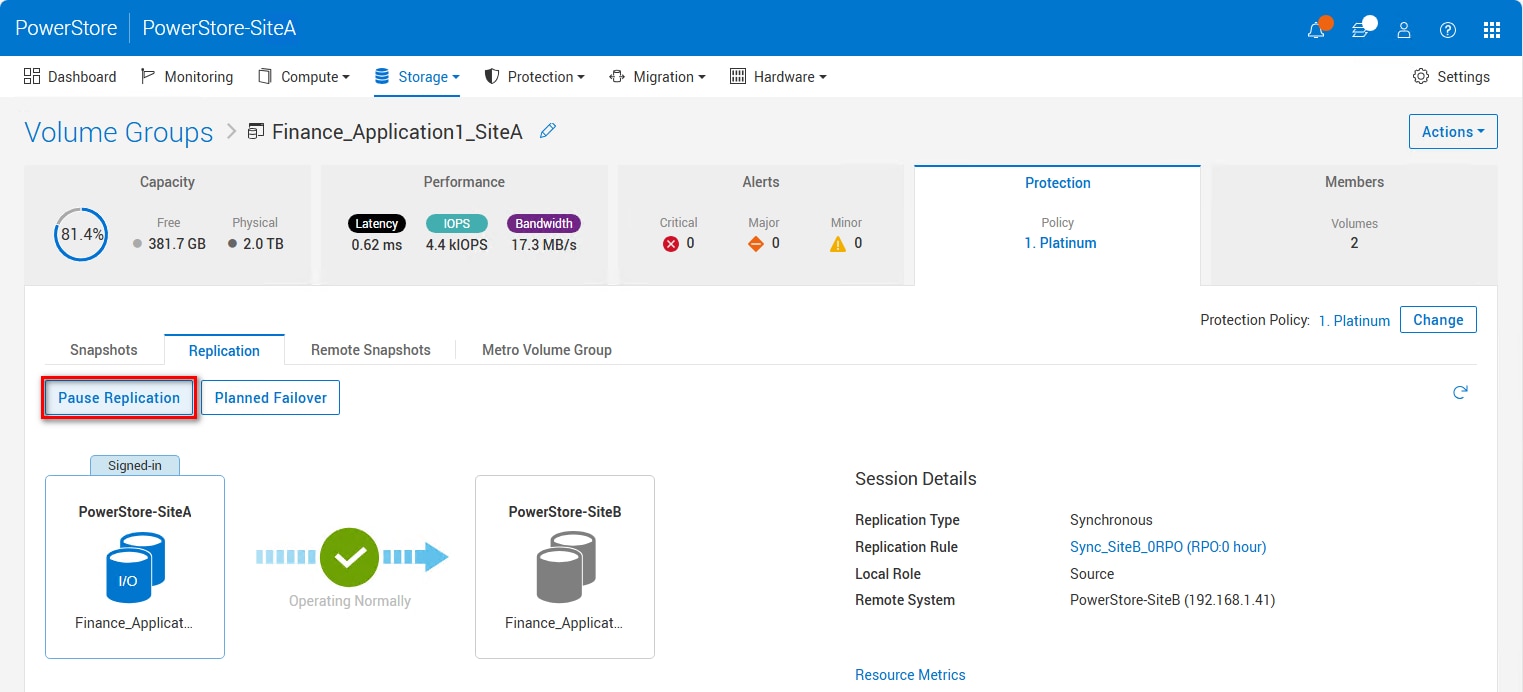
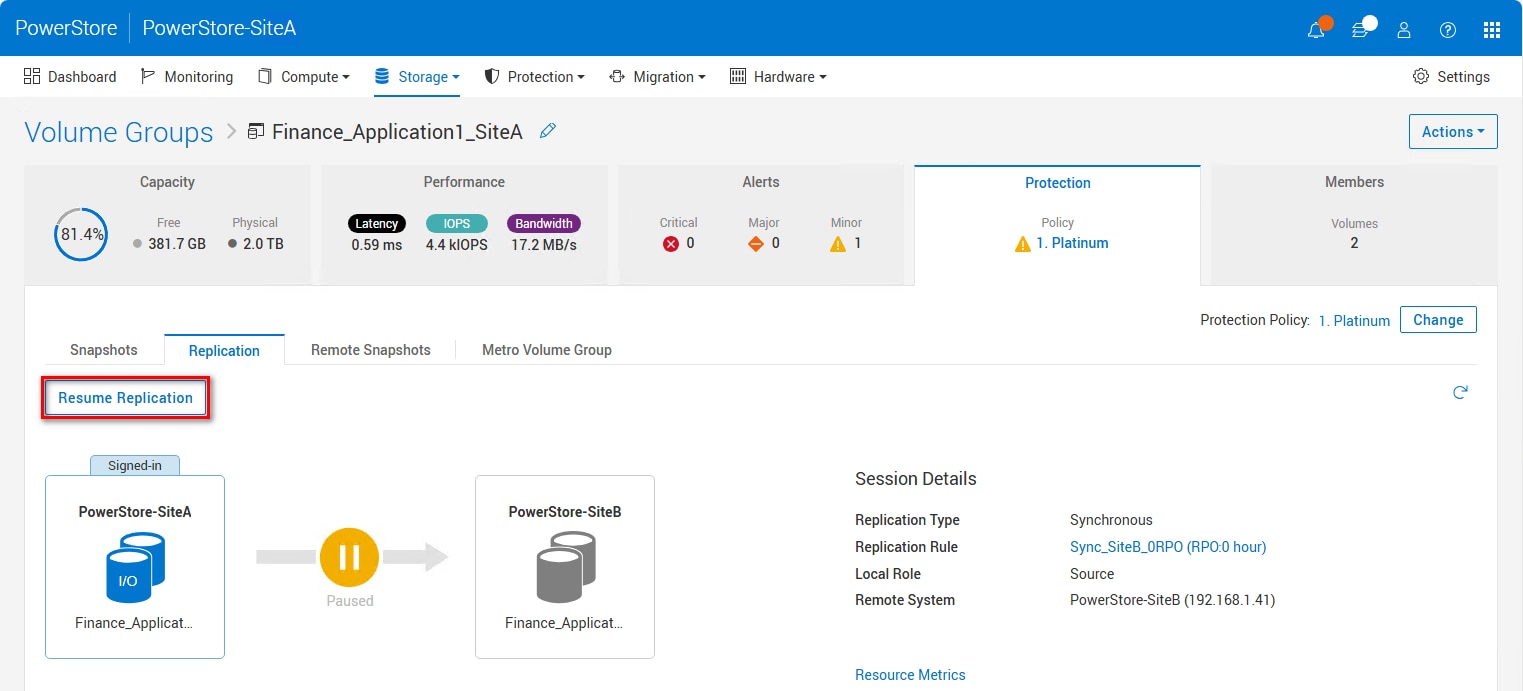
The Pause and Resume functions can stop and start replication for a particular replication session (see the figures below). In PowerStore Manager, the pause operation is issued from the source or destination system. If the session is paused while an initial sync or an incremental synchronization is in progress, all incremental changes on the destination are kept. All I/O is kept in a snapshot diff when the replication session is paused. When the session is resumed, replication resumes and the synchronizations to the destination storage resource continue from where they were paused. When a replication session is paused, it also pauses the scheduled RPO synchronizations. The resume operation can be issued on the source or destination system and does not change the replication direction.
Synchronize now
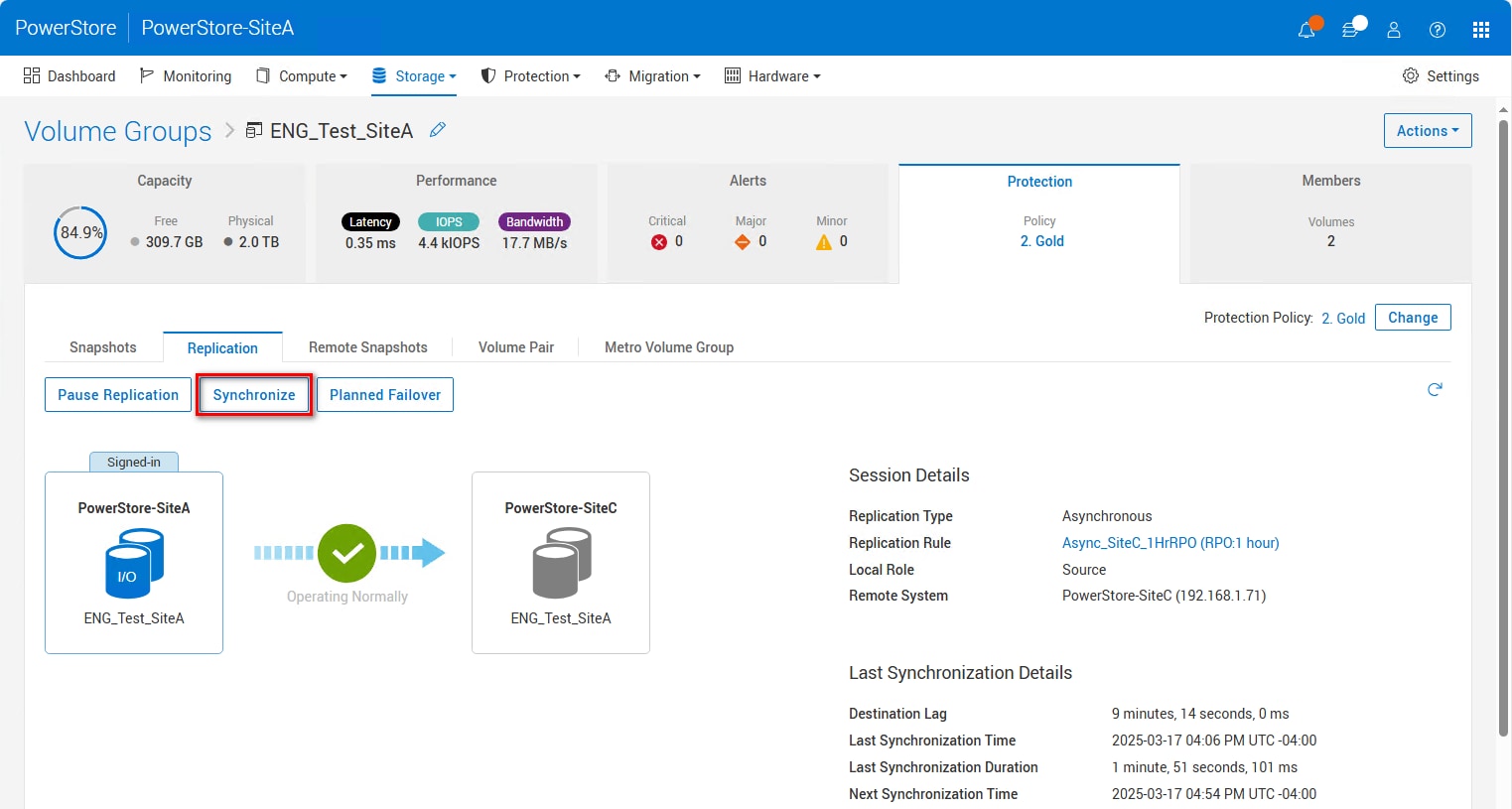
With asynchronous replication, updates to a destination storage resource occur at a set interval that is based on the defined RPO. When replication is established and an update is not occurring, a Synchronize operation can be issued to synchronize the latest changes to the destination resource (see the figure below). After the sync operation is selected, all data that has changed since the last update is copied to the destination storage resource.
Planned failover
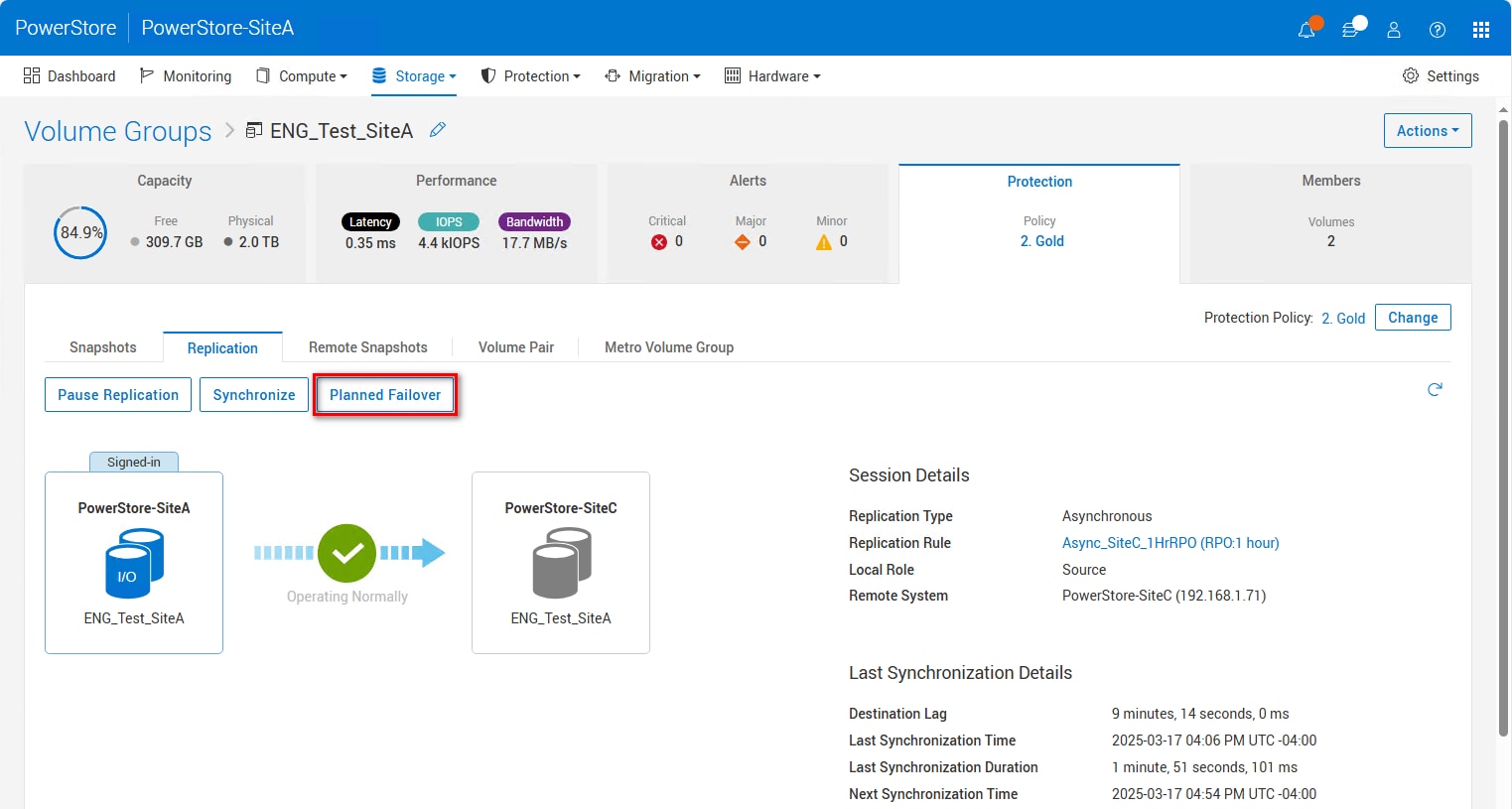
A Planned Failover operation allows for replicating the latest acknowledged host data on source resource while also performing a controlled failover (figure below). When initiating the operation, the following dialog also allows optionally selecting Reprotect after failover. When a planned failover starts, the replication session fails over after completing a synchronization between the resources. The synchronization before failover ensures that all data is replicated since the last RPO triggered or manual synchronization. The planned failover option is available on the source storage resource when the replication session is “Operating Normally” or a synchronization is in progress. It also causes a short period of data unavailability during the failover operation.
Before the Planned Failover operation is issued, it is suggested to issue a manual sync first. This action reduces the amount of data to copy during the planned failover. Quiesce I/O to the source volume before performing a planned failover. After the planned failover is completed, the destination storage resource is available for production I/O, and the original source no longer allows read/write I/O. If host access is configured on the destination resource, hosts can access the data. If reprotect after failover is not selected when initiating the failover, replication does not resume in either direction.
Unplanned failover
The unplanned failover option is only available on the destination of the replication session. This failover type fails over to the latest available common base image that exists at the target without any synchronization occurring beforehand. An unplanned failover assumes that a disaster has occurred on the production system, and the destination image is made read/write. When Failover is selected on a destination resource of a replication session (see the figure below), read/write access is removed from the original source if the source is available to receive management commands. The replication session also pauses and does not automatically switch the direction for replication. The replication session is left in this state until the user issues another replication operation. If I/O occurs to the original destination resource while in this state, the data must be replicated back to the original source when the source becomes available. For file resources, Failover is not supported on the destination resource if the source system and production NAS server are still online. If the source is still functioning, issue a Planned Failover from the source.
PowerStore allows initiating an unplanned failover operation during a disaster scenario or when the replication is in a Paused, Failing Over, or Failed Over state. Any changes made on the source system while the session is in these states might not be replicated to the destination. Because no final synchronization is performed, an unplanned failover can result in data inconsistency or data loss. It should only be initiated when the source system is not available. Use a planned failover whenever possible (see Planned failover).
Reprotect
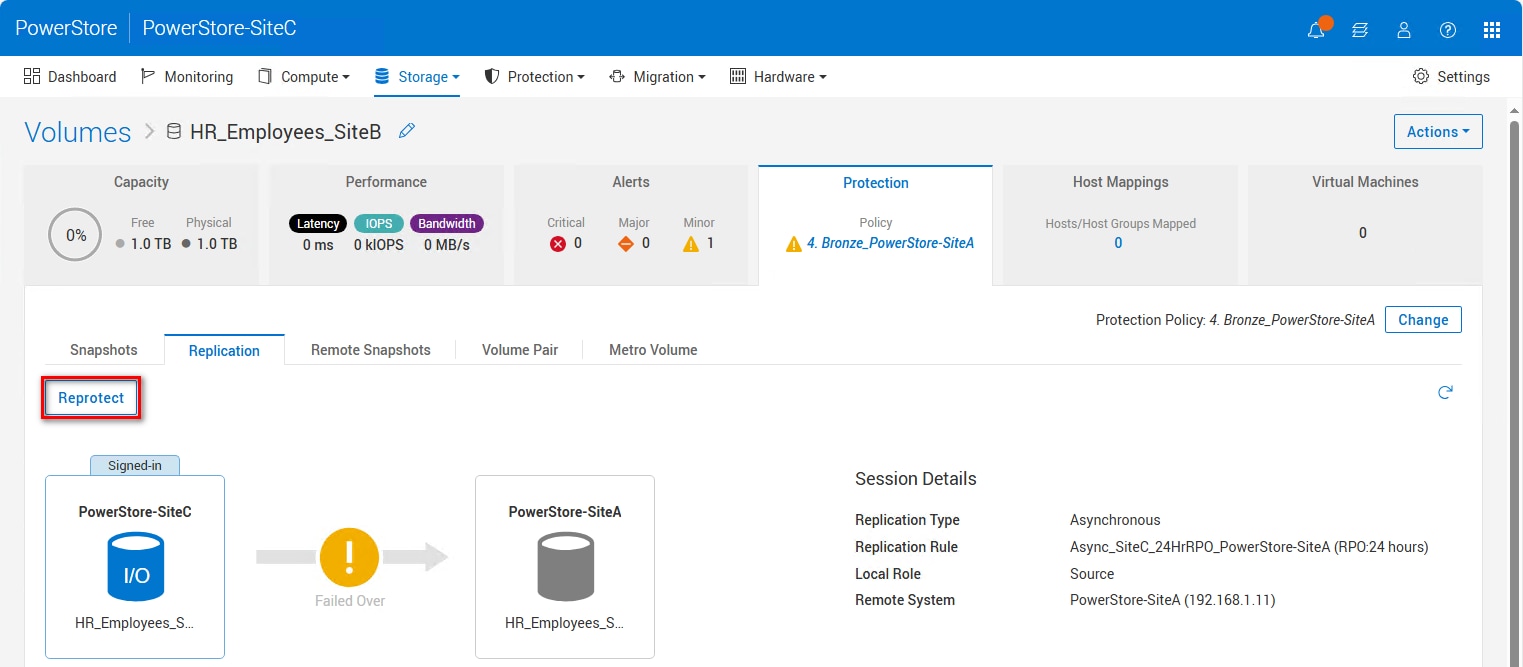
After the Planned Failover or Failover option is used, the Reprotect option (figure below) becomes available on the new source system. It is also triggered after a planned failover with the reprotect operation is initiated. The reprotect operation starts the replication session and synchronization to the original source system. Because there might not be synchronized changes after an unplanned failover on the destination, it is recommended to take a snapshot on the remote system before initiating the reprotect operation.
Unassign protection policy with replication
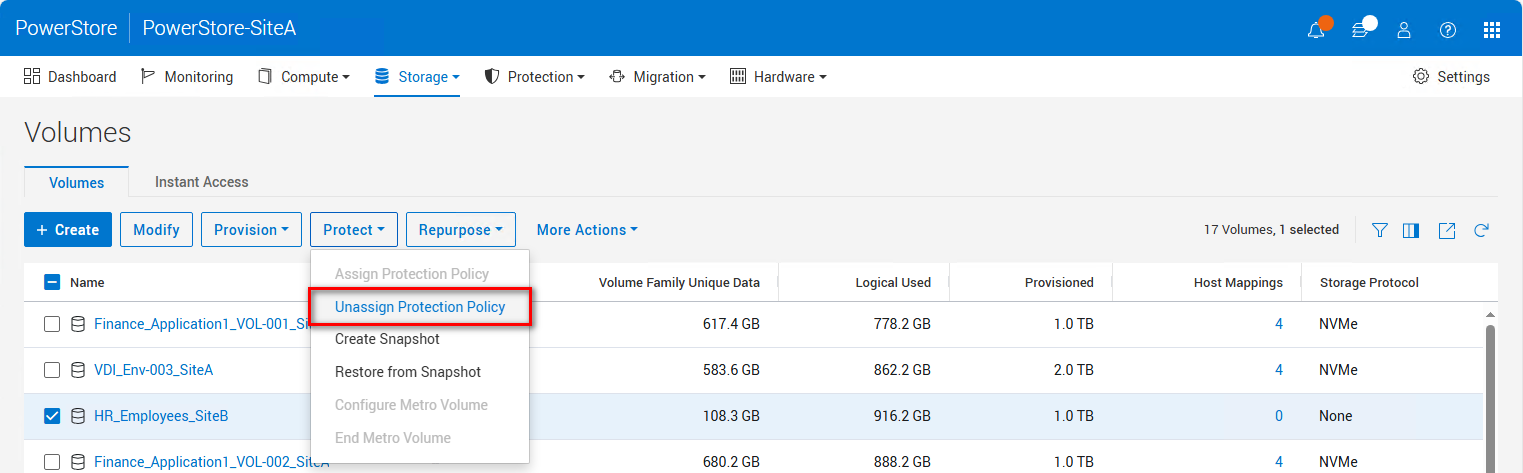
A replication session can be deleted on the source system by unassigning the protection policy from the replicated storage resources or by removing the replication rule from a protection policy. The figure below shows the option to Unassign Protection Policy. When there are no configuration issues and an unassign operation is issued on the source system, the replication session is deleted from the source and destination systems. The destination storage resource is not automatically deleted when the replication session is deleted.
Failover Test
This function allows testing the DR functionality and is only supported on volumes, volume groups, and thin clones. PowerStore provides the Failover Test to enable R/W access to the DR site while production is still ongoing on the primary system.
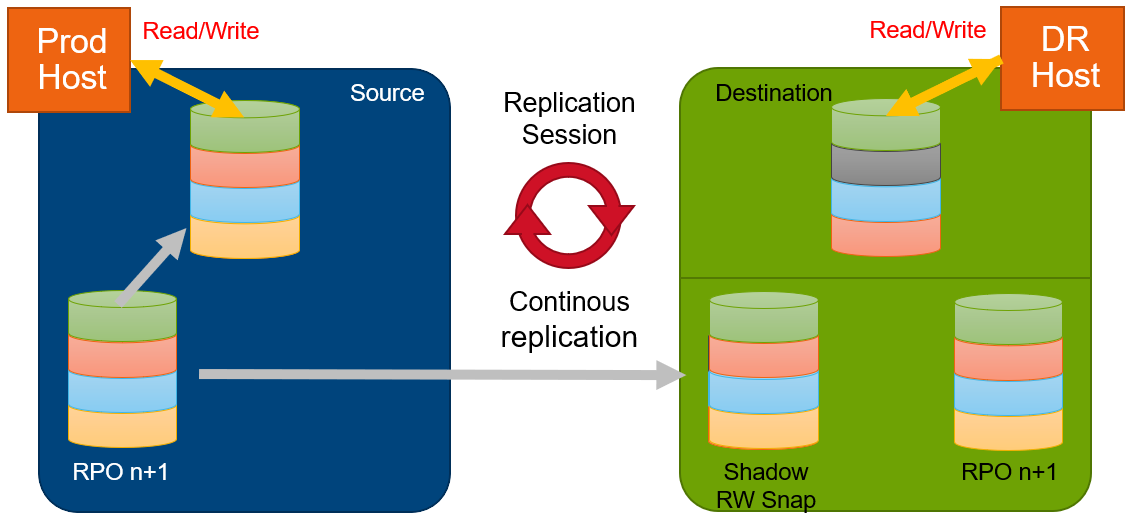
It is possible to start a failover test only on the replication destination (the following figure) for each storage resource participating in a replication session.
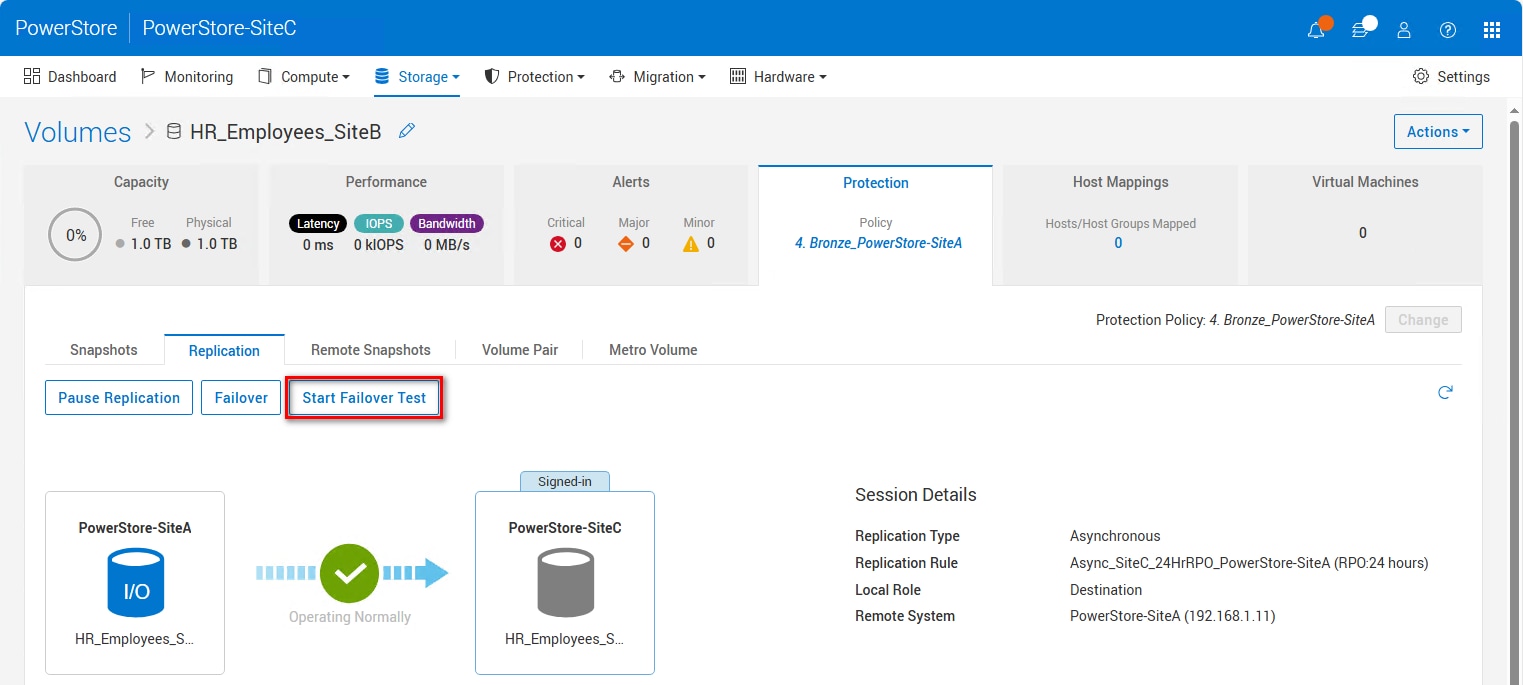
After Start Failover Test is selected to initiate a failover test, a snapshot must be selected, which will be used as the source of data for the DR test. You can select either the last successful synchronized RPO snapshot or any other existing manual or scheduled snapshot on the destination system for DR test.
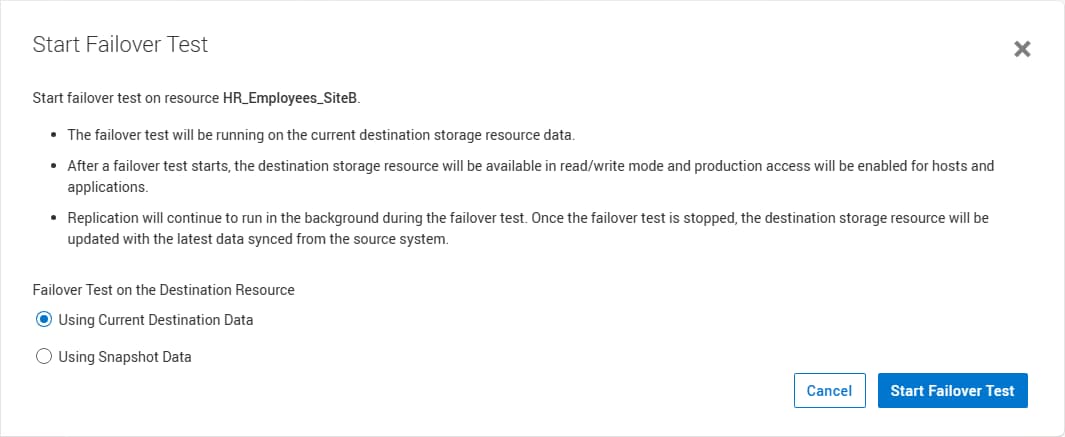
When the failover test starts, the storage resource changes to read/write for the mapped host. While the failover test is active, test data writes are stored in the mapped volume and replication continues in the background using a read/write snapshot. All updates from the replication source are baselined and stored in a replication snapshot. PowerStore has no limit on the duration of the DR Test.
The following section describes the options to stop a DR failover test:
- Stop the DR test, discard changes during the test and update the DR volume with the last replicated data
- Stop the DR test, take a snapshot of changed data, and update the DR volume with the last replicated data
- Fail over to the DR volume and continue production with the test data
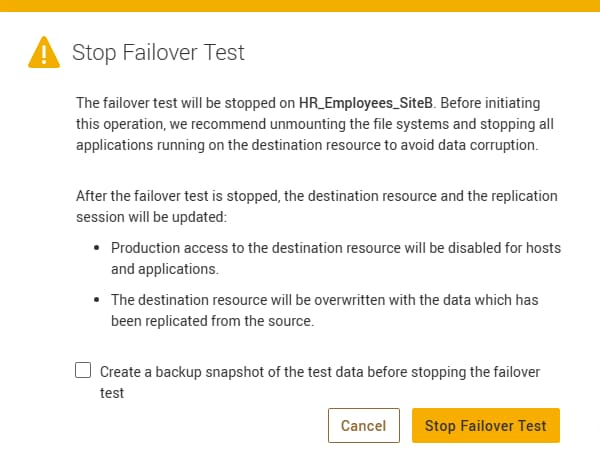
When stopping a failover test, the access changes back to read-only for the DR Host. PowerStore Manager provides an optional step to keep test data in a snapshot for later use before the DR host volume is updated with the last successful synchronized snapshot data (the following figure). A snapshot of test data might be useful when test data should be used or analyzed later. Otherwise, the DR host volume is immediately updated with the last successful synchronized snapshot data.
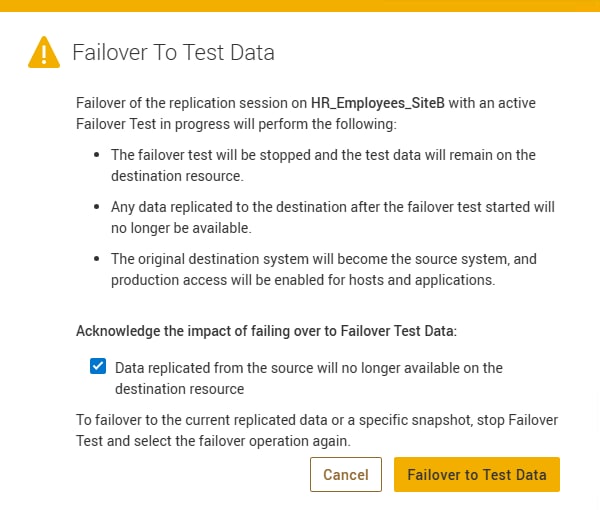
If there is a real DR issue while the failover test is running, there is no further update of the destination volume from the source, and the test data is used for DR production. For this scenario, the operator must confirm the following dialog.
Clone Destination NAS Server
PowerStore supports cloning a destination NAS server. This feature is designed to enable DR testing without any impact to the ongoing replication session or the production NAS server. It allows customers to confirm that an application can be brought online and write to a share hosted on the destination system.
On the destination system, the user selects the destination NAS server and selects Repurpose > Clone NAS Server. A new name is provided, and then the user selects the file systems that they want to create with the cloned NAS server. Any shares that exist on the selected file systems will also be cloned. When all information is provided, click Create.
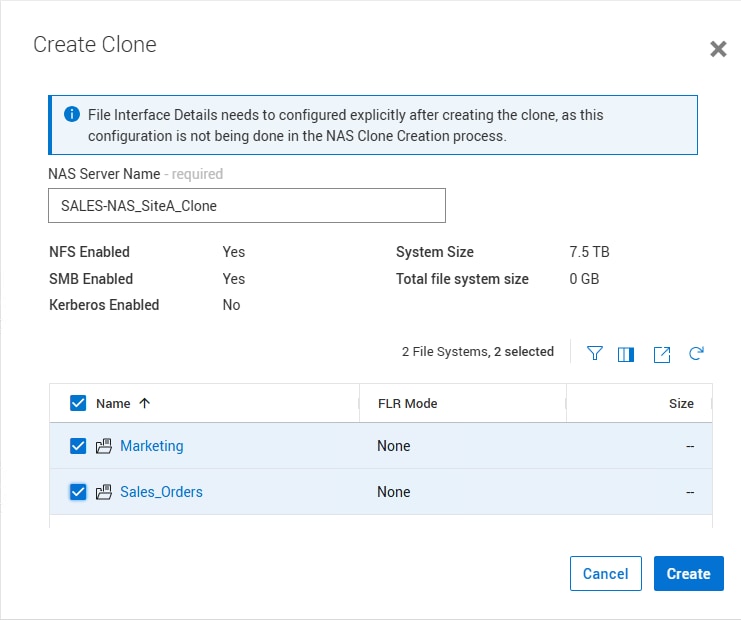
The cloned NAS server is created without a file interface to ensure that there is no conflict with the production NAS server. In order to access the cloned file systems, a new file interface must be added to the cloned NAS server on the Network page of the NAS server. The cloned NAS server is not domain joined automatically. If the cloned NAS server must be domain joined, a unique name needs to be specified before the join operation. After it is cloned, the new NAS server is a stand-alone resource and functions independently from the parent DR NAS server. The NAS server clone operation is not limited to DR testing, and source or even nonreplicated NAS servers support cloning. In PowerStoreOS 4.4, NAS server clones can be refreshed from the source NAS server. This operation updates the clone with the latest information from the source NAS server and its file systems. For more details, see the Dell PowerStore: Snapshots and Thin Clones white paper.
Modify destination
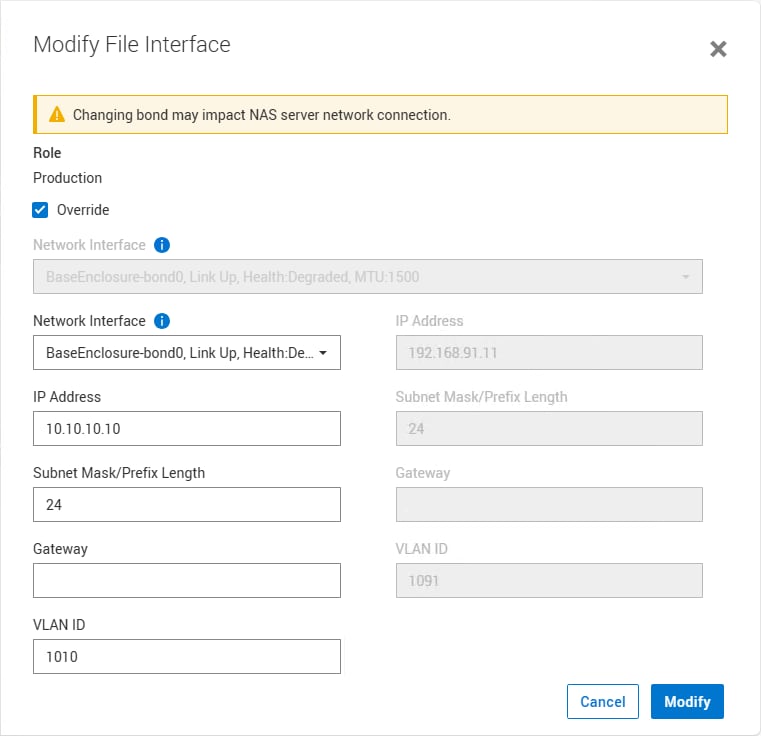
When replicating a NAS server, the destination NAS server may require different configuration settings than the source NAS server. PowerStore supports the ability to modify the destination NAS server and make these configuration changes before failing over. Therefore, if a failover needs to occur, the destination NAS server will be fully functional when it is promoted to a production instance. The following NAS server configuration options are available for modification on the destination:
- File interface
- DNS, NIS, and LDAP settings
- Virus check configuration
- Event publishing settings
To modify the destination NAS server, go to the NAS Servers page on the destination PowerStore system, click the NAS server's name, and modify the settings. For example, to support a different IP address on the destination NAS server, select the interface on the Network page and click Modify. Then select Override and enter the new destination IP address.
Supported replication configurations
PowerStore native replication features allow supported storage resources to be replicated remotely between systems. This section outlines the supported configurations for native asynchronous replication and synchronous replication. For more information about which systems are supported for asynchronous replication, see Appendix A: Replication support across platforms. For details about metro volume, see the Dell PowerStore: Metro Volume white paper.
PowerStore native replication is supported in many different topologies. Deployment models vary depending on the configuration requirements. At a system level, the following configurations are supported:
- One-directional: A single-source system replicating to a single-destination system
- Bi-directional: A two-system topology in which each system acts as a replication destination for the peer production resources
- One-to-many: A system topology in which a single system replicates multiple resources, each to a different remote system (also known as “fan out”)
- Many-to-one: A system topology in which multiple systems replicate their respective resources to a single system (also known as “fan in”)
The following figure shows these supported topologies. The figure uses volumes to represent the storage resources. Replication allows for many different deployment models to meet the needs of an organization.
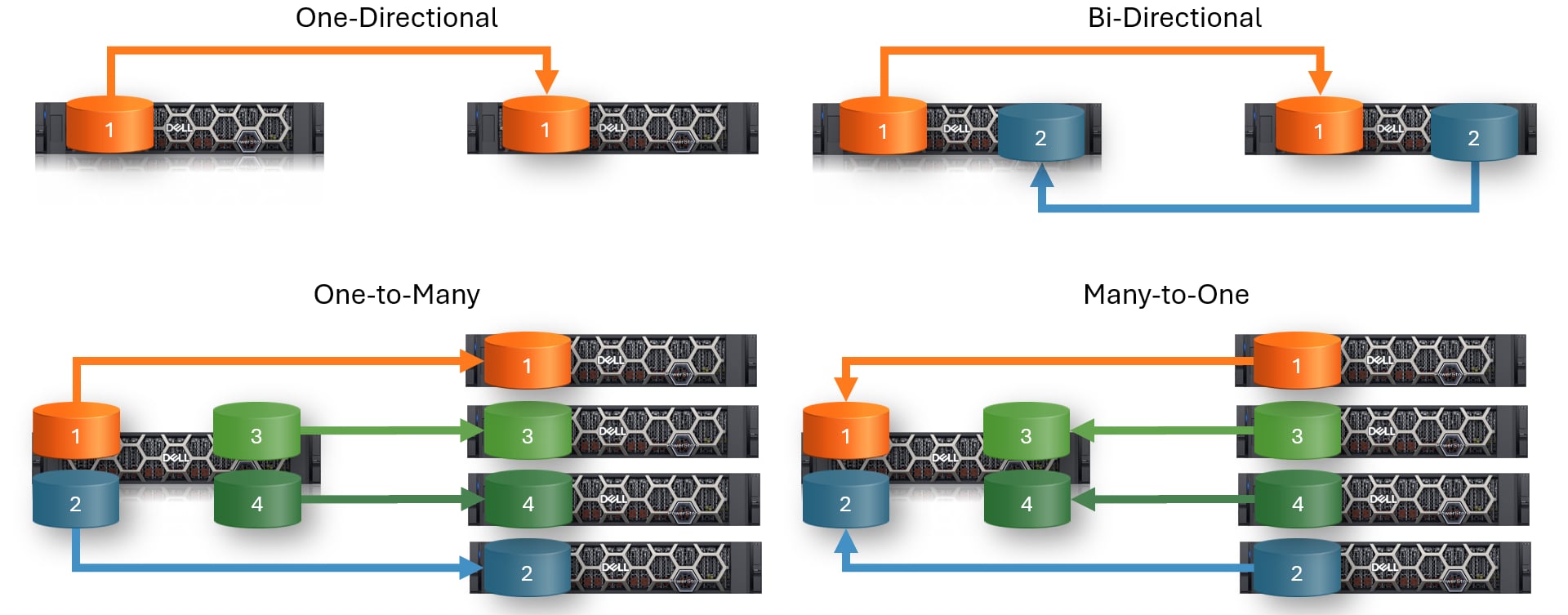
The bi-directional replication topology is typically used when production I/O must be spread across multiple systems or locations. The systems may exist within a single data center or in different, remote locations. With this replication topology, production I/O from each system is replicated to the peer system. During an outage, one of the systems can be promoted as the primary production system, and all production I/O can be sent to it. Once the outage is addressed, the replication configuration can be changed back to its original configuration. This replication topology ensures that both systems are always in use by production I/O.
The one-to-many replication topology is deployed when production exists on a single system, but replication must occur to multiple remote systems. This replication topology can be used to replicate data from a production system to a remote location to provide local data access to a remote team. At the remote location, thin clones can be used to provide host access to the local organization or test team.
The many-to-one replication topology is deployed when multiple production systems exist and are replicating to a single system to consolidate the data. This topology is useful when multiple production data sites exist, and data must be replicated from these sites to a single DR data center. One example of this configuration is a remote office branch office (ROBO) location.
For the one-to-many and many-to-one replication topology examples that are shown in the figure above, one-directional replication is depicted. One-directional replication is not a requirement when configuring the one-to-many and many-to-one replication topologies. Each individual replication connection can be used for bi-directional replication between systems. This ability allows for more replication options than what is depicted in the figure.
Upgrades
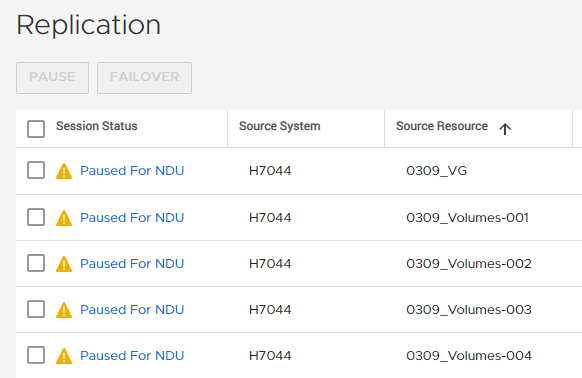
Depending on the type and state of replication, a replication session can continue when upgrading the PowerStore system (NDU). During PowerStoreOS upgrades, asynchronous replication sessions are temporarily paused and display the status Paused for NDU (see the following figure). The replication resumes after the upgrade has successfully finished.
When a synchronous replication session was active when the NDU was initiated, it will keep running. Paused synchronous replication sessions remain paused and can resume after the NDU is finished.
Metro Volume
Metro Volume
File metro replication with automatic failover
File metro replication with automatic failover
Overview
Starting with PowerStoreOS 4.3, file metro replication with automatic failover is available. This feature includes synchronous file replication along with a metro witness. The metro witness enables the ability to automatically fail over to the destination system without any user interaction in case of a failure. Since synchronous replication is used as the underlying replication technology, there is no data loss in the event of a failover. The failover operation of file metro sessions is designed to complete quickly to avoid client timeouts for typical configurations.
File metro replication operates in an active/standby configuration on each NAS server across sites. During normal operation, data is accessible on the source site. Replication runs in one direction from source to destination. In the event of a failure on the source system, failing over to the destination restores access to the data. If multiple NAS servers are used, the two sites can be active/active where both sites are actively servicing data from different NAS servers. NAS servers can fail over in either direction, depending on where the failure occurs.
The PowerStore metro witness is required for file metro since the information that it provides is needed to make the proper automatic failover decisions. In failure scenarios, PowerStore queries the witness for the latest status. PowerStore then uses this information to determine whether it should initiate the failover operation. The witness should be deployed on a VM at a third site, be registered with both PowerStore clusters, and be able to communicate with both clusters using REST API. A single witness can be used for both file metro and metro volume replication, initiate failovers bi-directionally, and be used to monitor multiple PowerStore cluster pairs. For more information about metro witness support, see the Dell PowerStore Simple Support Matrix on Dell.com/powerstoredocs.
Both the source and destination systems must be running PowerStoreOS 4.3 or later to use the file metro feature. The file metro feature becomes available for existing resources after the Enable Auto Failover option is run on the NAS server. Newly created NAS servers do not require Enable Auto Failover to be run.
Existing file synchronous replication sessions remain synchronous after upgrading to PowerStoreOS 4.3 or later. These sessions can continue to use synchronous or can be converted to use file metro. On these sessions, the “Auto Failover State” shows “Manual Enable Required”. To convert to file metro, navigate to the Replication page, select the session, and click the “Enable Auto Failover” button. This conversion occurs online and should be done on the source system while the session is in the “Operating Normally” state. This conversion completes quickly and will automatically pause and resume the replication session. Once converted, the “Auto Failover State” changes to “Enabled for Witness Interaction”.
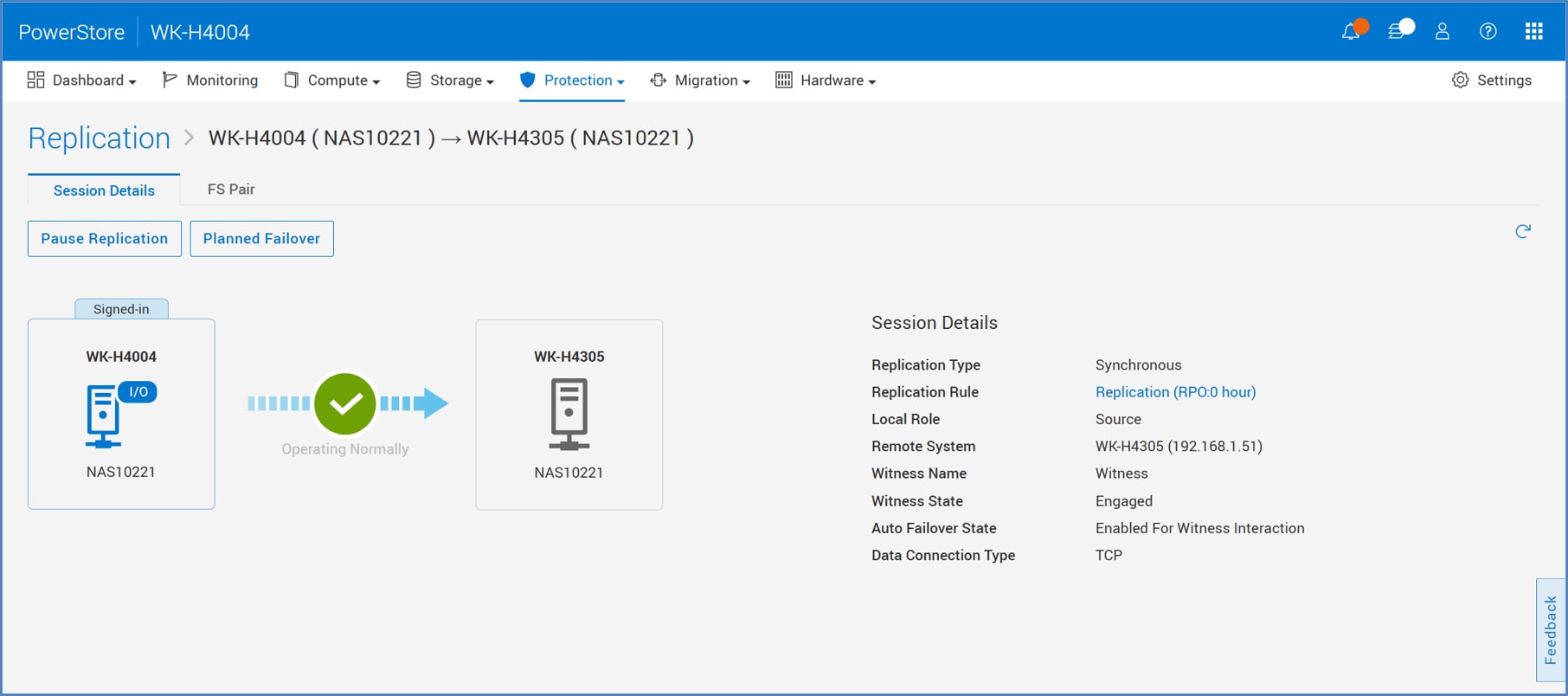
As part of this new feature, new columns have been added to PowerStore Manager. The Auto Failover State, Witness Name, and Witness State are displayed on the replication session properties and as columns on the Replication page. These columns show:
- Auto Failover State indicates whether replication session has met the requirements for file metro. Note that this status does not indicate whether the session is actively monitored (see Witness State). The options are:
- Not Applicable: Displayed on all non-file synchronous replication sessions
- Upgrade Required: Displayed if the PowerStoreOS version on the remote PowerStore does not support file metro
- Manual Enable Required: Displayed on synchronous replication sessions that were created prior to PowerStoreOS 4.3 which can be converted to metro sessions by clicking the “Enable Auto Failover” button
- Enabled for Witness Interaction: Indicates that the replication session can support file metro
- Witness Name displays the name of the witness
- “--”: Indicates the witness is not configured
- If configured, the witness name is displayed
- Witness State displays the connection state of the witness
- “--”: Indicates the witness is not configured
- Disengaged: Indicates the witness is configured but is disconnected
- Engaged: Indicates the witness is properly connected, failures are being monitored, and automatic failovers will occur
The following figure shows the new fields on the properties page of a replication session.
The following figure shows a synchronous replication session that was created on an older release and upgraded to PowerStoreOS 4.3 or later. The synchronous replication session’s Auto Failover State shows Manual Enable Required. The administrator can select the replication session and click the Enable Auto Failover button to enable file metro support on this existing session.
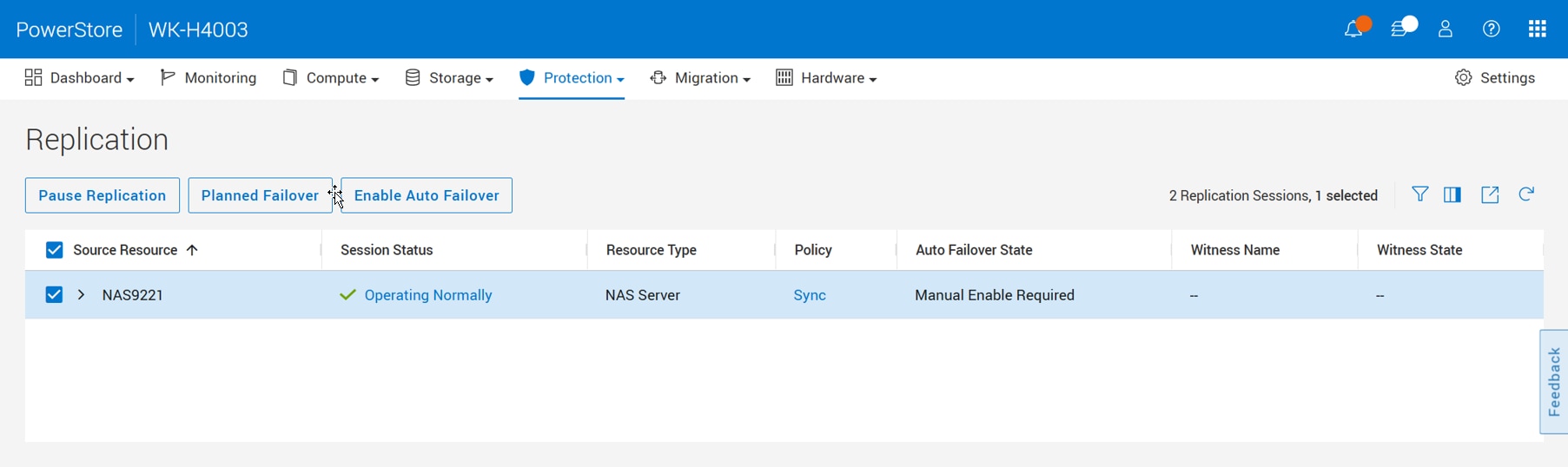
To configure file metro, assign a protection policy that includes a synchronous replication rule to a NAS server. Then, install the metro witness software on a host and register the witness onto both PowerStore clusters. On the Replication page, confirm that the Witness State shows Engaged. This indicates file metro has been successfully configured and is now monitored for failures.
Failure Scenarios
The figure below shows the various failure scenarios and the expected outcome depending on what component has failed. Each component is reported as either healthy (a) or failed (Ð). In scenarios with multiple failures occurring in quick succession, the order of the failure is listed. These scenarios cover failures on any component within the file metro solution including:
- Source or destination appliances
- Link between the two appliances
- Link between the witness to both systems
- The witness itself
The potential outcomes are:
- Source Online indicates a result the source remains online and accessible, so no failover is necessary
- Failover and Destination Online indicates a result that avoided DU due to file metro automatic failover
- NAS Server Offline indicates a result where the witness could not declare an explicit winner due to isolation
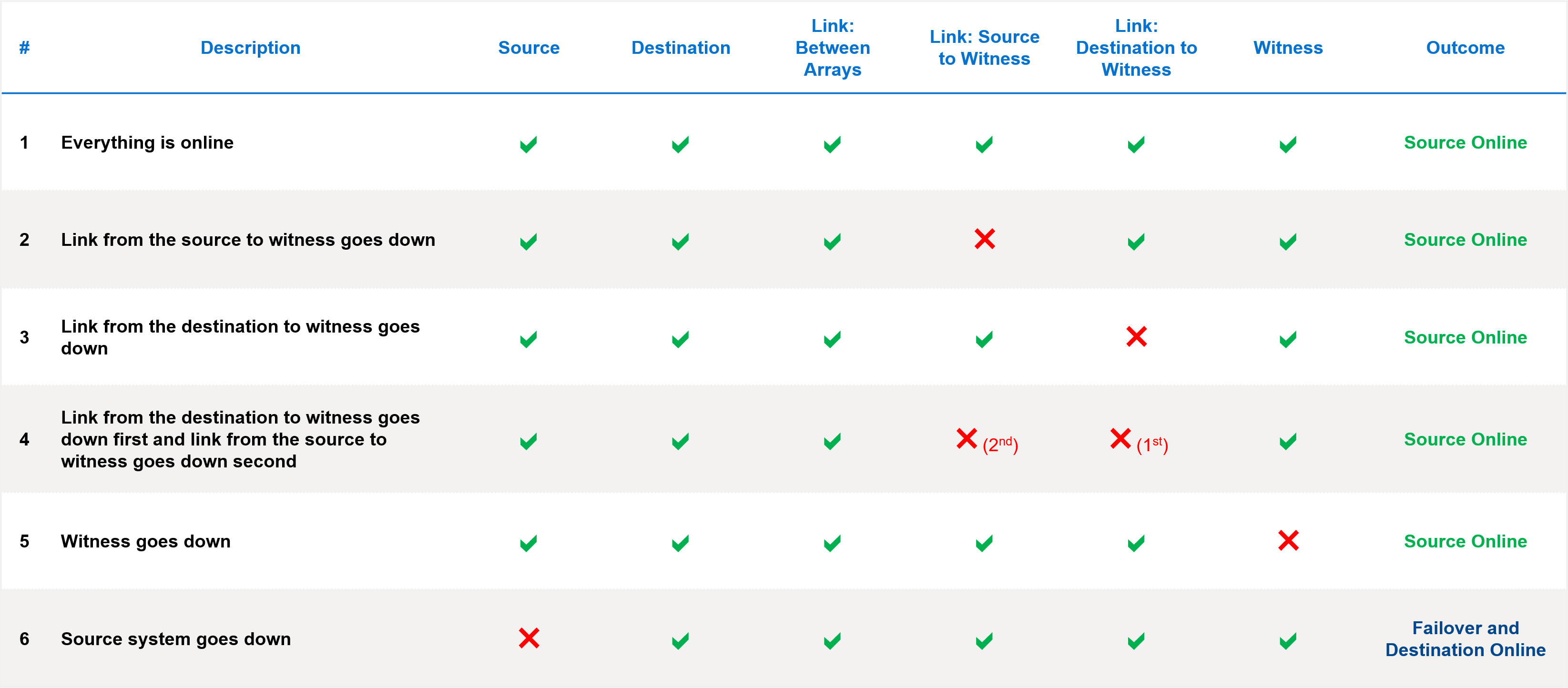
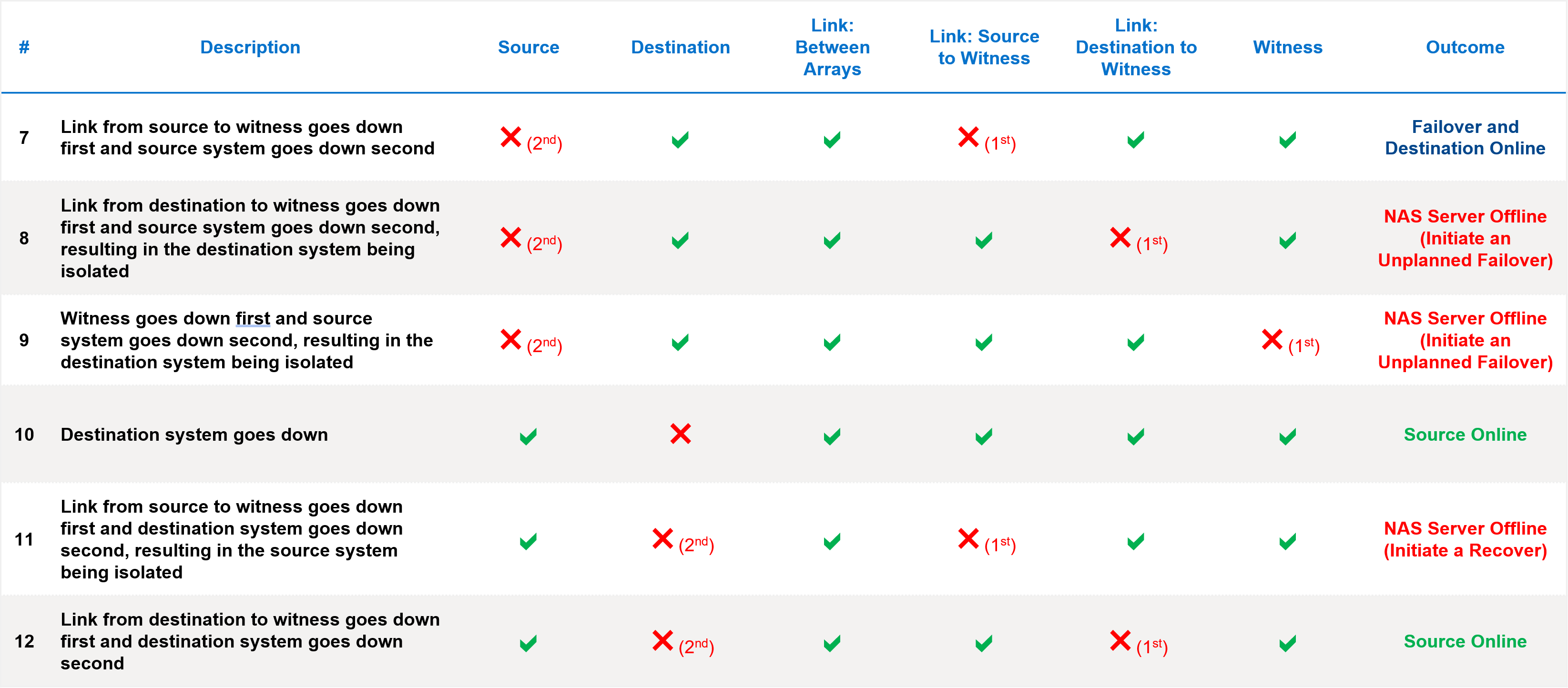
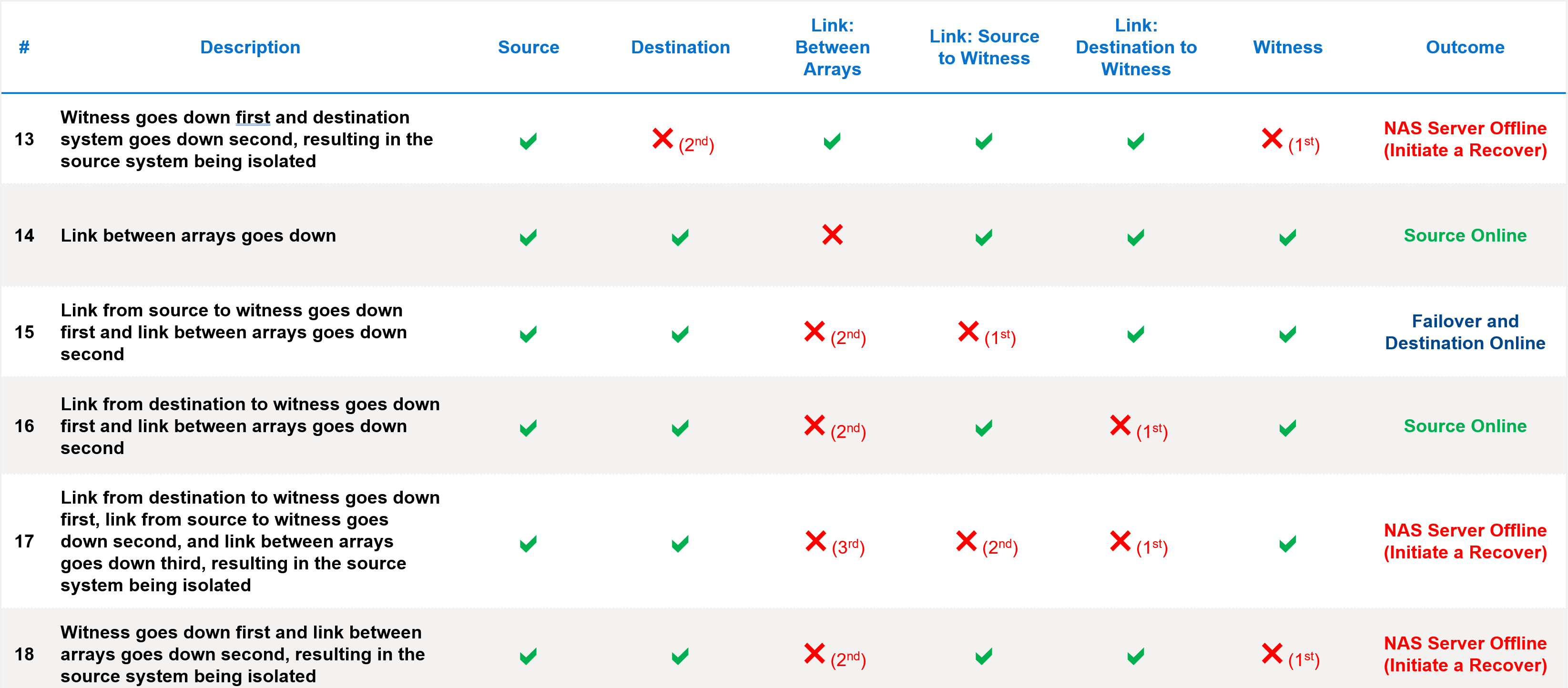
- Scenarios 1-5 result in the source remaining online
- Scenario 6, where the source system goes down, results in an automatic failover and the destination system being brought online
- Without file metro automatic failure, this would result in DU
- Scenario 7 has multiple failures where the link from source to witness goes down first and source system goes down second
- This results in an automatic failover and the destination system being brought online
- Without file metro automatic failure, this would result in DU
- Scenarios 8, 9, and 11 include multiple failures happening in quick succession, resulting in either the source or destination being isolated
- This causes the NAS server to go offline, and manual intervention is required to recover the NAS server
- Scenarios 10 and 12 result in the source remaining online
- Scenarios 13, 17, and 18 include multiple failures happening in quick succession, resulting in either the source or destination being isolated
- This causes the NAS server to go offline, and manual intervention is required to recover the NAS server
- Scenarios 14 and 16 result in the source remaining online
- Scenario 15 has multiple failures where the link from source to witness goes down first and link between arrays goes down second
- This results in an automatic failover and the destination system being brought online
- Without file metro automatic failure, this would result in DU
Failover Scenarios
Failover operations can be performed either manually or automatically. In situations where the source system is available, a planned failover that's initiated from the source should be used. An unplanned failover that's initiated from the destination should only be used in situations where the source is not accessible. The automatic failover operation uses the unplanned failover operation.
The failover operation only fails over replication sessions that are in the “Operating Normally” state. Replication sessions could be in other states in situations such as the replication link going down, sessions being paused, and so on. If an unplanned manual failover is initiated while file system replication sessions are not in sync, a warning is displayed which indicates proceeding with the failover operation could result in data loss on the unreplicated changes. In this situation, the administrator can either wait for the file system sessions to be in sync and retry or use the force failover option to override this and accept the potential data loss.
If an automatic failover occurs while file system replication sessions are not in sync, the affected file system sessions are skipped by the failover process. Only healthy NAS server and file system replication sessions are failed over. This ensures there is no data loss on the unreplicated changes. If any of the skipped sessions become fully synchronized, they can be failed over later. If a NAS server replication session is not in a healthy state, the entire NAS server is skipped for failover.
After a failover occurs, the original destination system becomes active for data access. The following figure shows a replication session that has been automatically failed over. Since this is using the standard unplanned failover operation, it looks and behaves the same regardless of whether it was initiated automatically or manually.
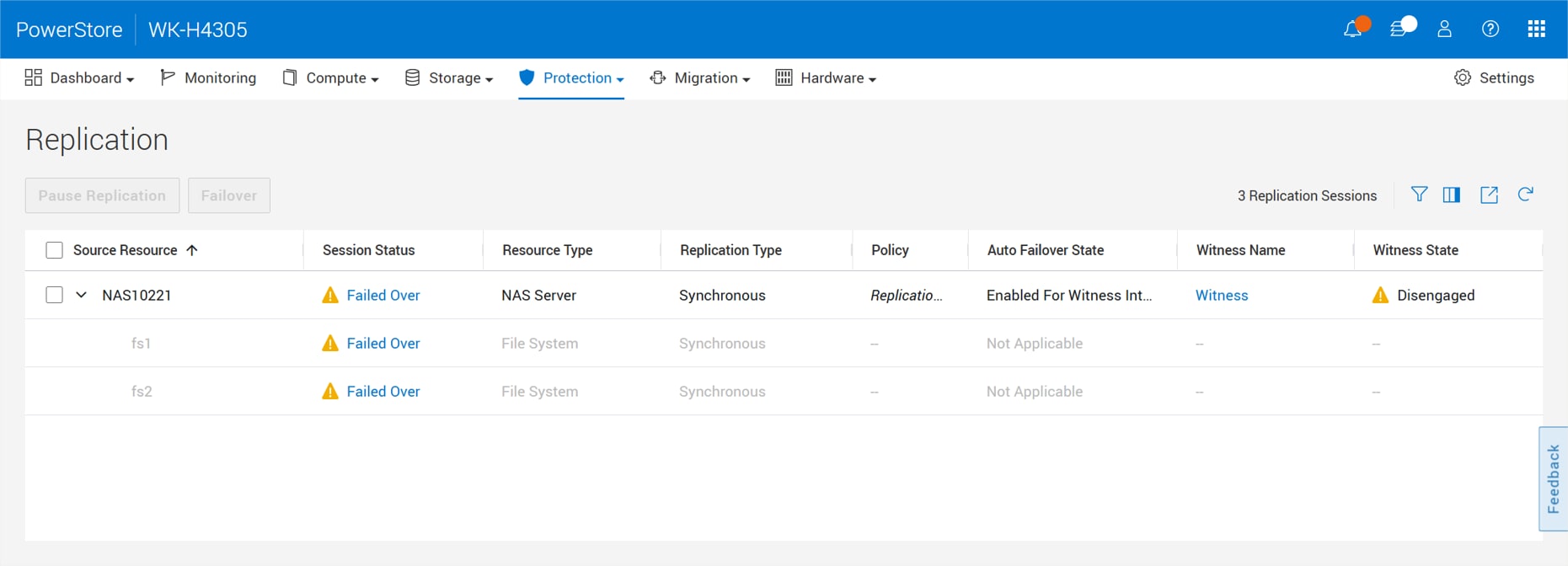
If the original source system is brought back online, the file metro replication session can be reprotected. The reprotect operation leverages internal snapshots as a common base to avoid a full copy. Once reprotect is issued, replication is restarted in the reverse direction and automatic failover is re-enabled. If the user wants to failback the session, issue a failover and reprotect operation to reenable data access on the original source and restart replication in the original direction.
In certain situations, the witness may not be able to declare an explicit winner. For example, a double fault scenario where both the witness and replication link goes down simultaneously. In this situation, both sites go offline, and manual intervention is required. To recover from this, a new NAS server operation called Recover is added and is available in PowerStore Manager, PowerStore CLI, and REST API. If the source is online, run the Recover operation on the source system to bring the NAS server online in read/write mode and reestablish replication. If the source is offline, run an unplanned failover on the destination system to bring the NAS server online at the destination site.
Automatic failover is designed to be initiated during failures which result in the loss of a complete appliance, such as a power outage, flood, fire, and so on. Other failure scenarios or partial failures such as loss of network connectivity or running out of space do not initiate an automatic failover. With file replication, schedule and user created snapshots are not replicated from source to destination.