Dell PowerStore: Virtualization Integration
Executive summary
Overview
Audience
Revisions
We value your feedback
Introduction
Overview
PowerStore virtualization integration
Terminology
vCenter connection
Overview
Certificate verification
Starting with PowerStoreOS 4.0, administrators have the option to verify the vCenter SSL certificate. This enables the administrator the ability to confirm that the certificate matches the one that is displayed in vCenter before allowing communication. It improves security by ensuring that PowerStore is communicating with the intended vCenter. This option is available during initial configuration and on already configured systems through the GUI, PSTCLI, and REST API.
The following figure shows the vCenter Server registration page with the Verify SSL server certificate checkbox.
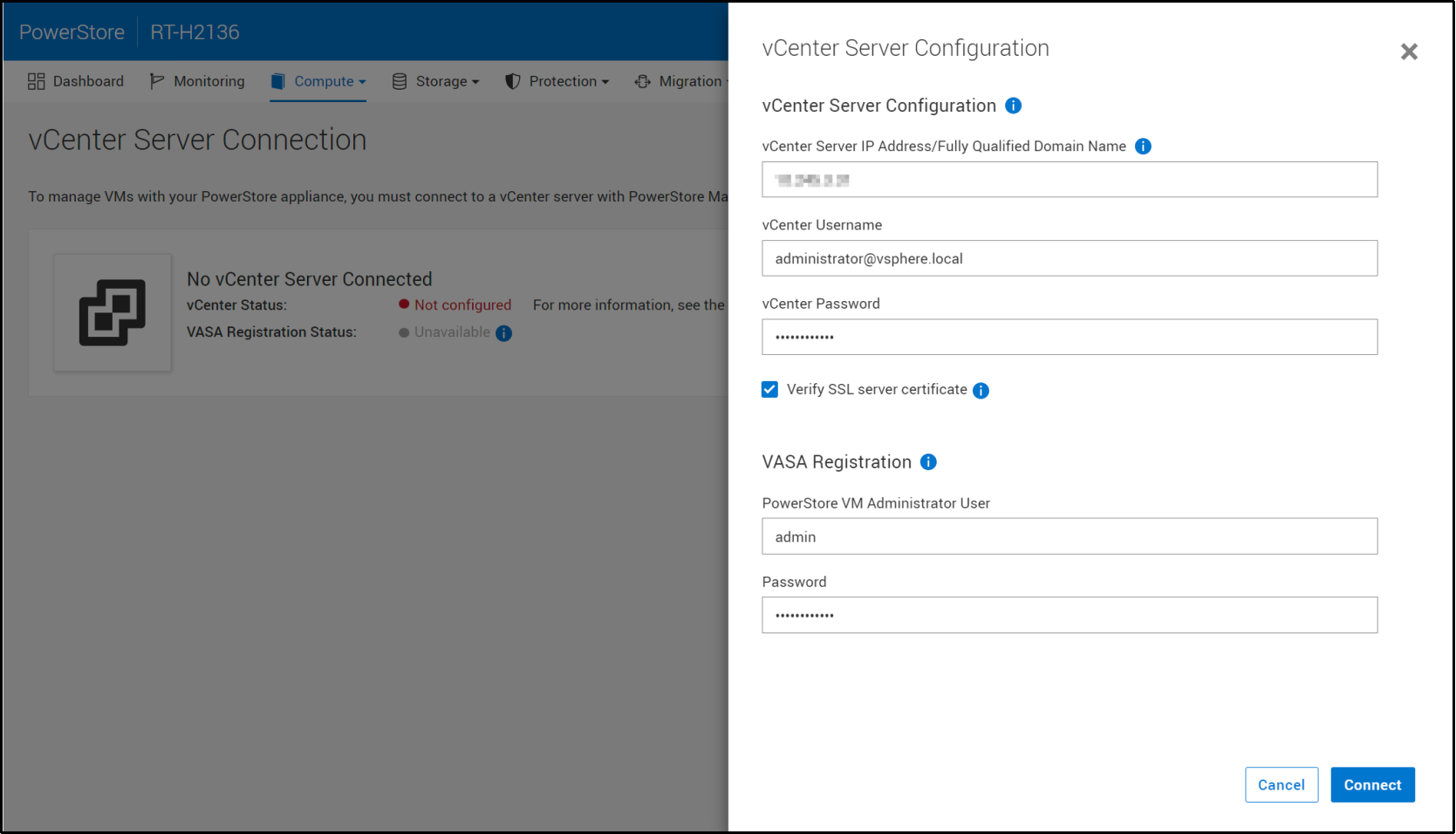
Figure 1. Registering a vCenter server
Certificate verification is enabled by default and is highly recommended. When it is enabled, the vCenter certificate is retrieved and displayed, as shown in Figure 2. The administrator can review the certificate and confirm that it matches the certificate in vCenter. If the administrator confirms that the certificate matches, PowerStore stores a copy of the certificate, marks it as trusted, and allows communication. If the administrator notes that the certificate does not match, the system leaves the certificate untrusted, disallows communication, and the registration process is canceled.
The system also reviews the certificate’s details to ensure that they are valid. It checks to ensure that the Fully Qualified Domain Name (FQDN) or IP address matches, that the certificate’s start date has passed, that the expiration date has at least 30 days left, and so on. If any of these system checks fail, the connection is blocked due to an invalid certificate.

Figure 2. vCenter certificate verification
If certificate verification is disabled, the registration process proceeds without validating the certificate’s details and does not display the certificate to the administrator.
With certificate verification enabled, the vCenter certificate that is stored on PowerStore is used to compare to the one reported by the vCenter. However, normal operations such as certificate renewals can cause the vCenter certificate to change. If this happens, an alert is generated to inform the administrator that there is a certificate mismatch. If this is expected, the administrator can update the configuration to verify the new certificate.
If a PowerStore system with an already connected vCenter is upgraded to PowerStoreOS 4.0, certificate verification remains disabled. An alert is generated to inform the administrator that the connection is not secure. The administrator can update the configuration and enable certificate verification to clear the alert. If certificate verification is not desired (not recommended), you can enable/disable certificate verification or unregister/re-register the vCenter without certificate verification to clear the alert.
A vCenter registered with certificate verification enabled can be disconnected from PowerStore. When the vCenter is disconnected, the stored certificate is removed and is no longer trusted. Communication with this vCenter is no longer allowed. If desired, an administrator can connect PowerStore to the same vCenter again later using the same workflow as a new vCenter connection.
vCenter connected
After a successful vCenter server connection is made, the IP address or hostname of the connected vCenter is displayed and the status changes to Connected. Starting with PowerStoreOS 2.0, the VASA registration status is displayed on this page. If the VASA provider was not connected during vCenter registration or becomes disconnected, this state is reflected in the status. Buttons to Launch vSphere, Update Connection, and Disconnect also become available, as shown in the following figure:
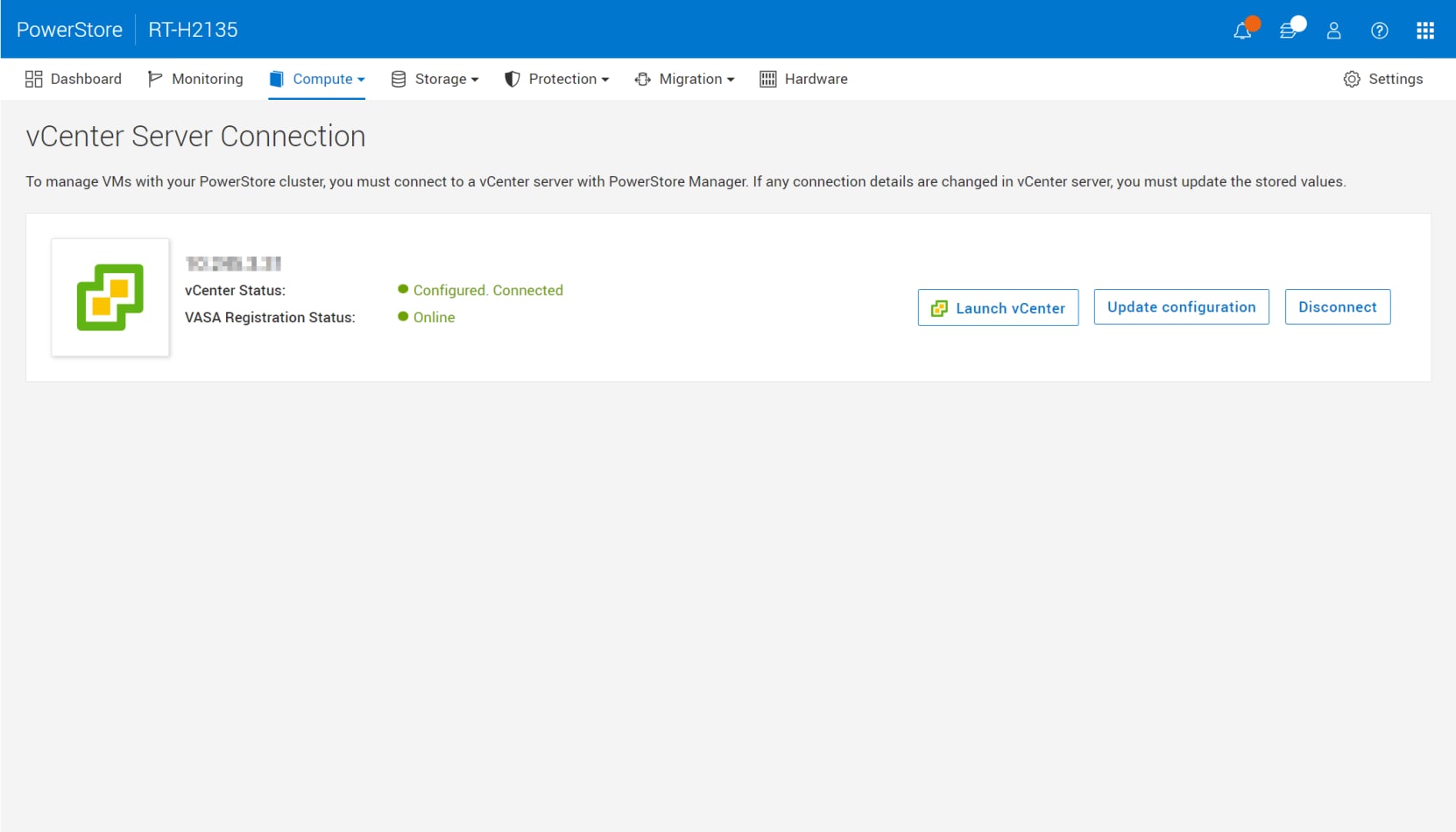
Figure 3. vCenter connected
Clicking Launch vSphere opens a new tab to the connected vCenter. This feature allows the administrator to browse the vCenter easily.
Use the Update Configuration button to update the connection with new information if the vCenter IP address, hostname, or credentials change. Each PowerStore cluster can only be registered to a single vCenter instance at a time. Do not use the update button to connect the PowerStore cluster to a separate vCenter instance. The vCenter connection can be disconnected and then connected to the new vCenter instance.
Starting with PowerStoreOS 2.0, you can use the Update Configuration button to manage the VASA registration status. For example, if the VASA provider is accidentally deleted in vSphere, the VASA registration status changes to Not configured. In this scenario, you can use the Update Configuration button to re-register the VASA provider directly from PowerStore Manager. If the VASA registration status is Online, the administrator is not prompted for the PowerStore credentials. The following figure shows the dialog box for updating the vCenter Server Configuration:
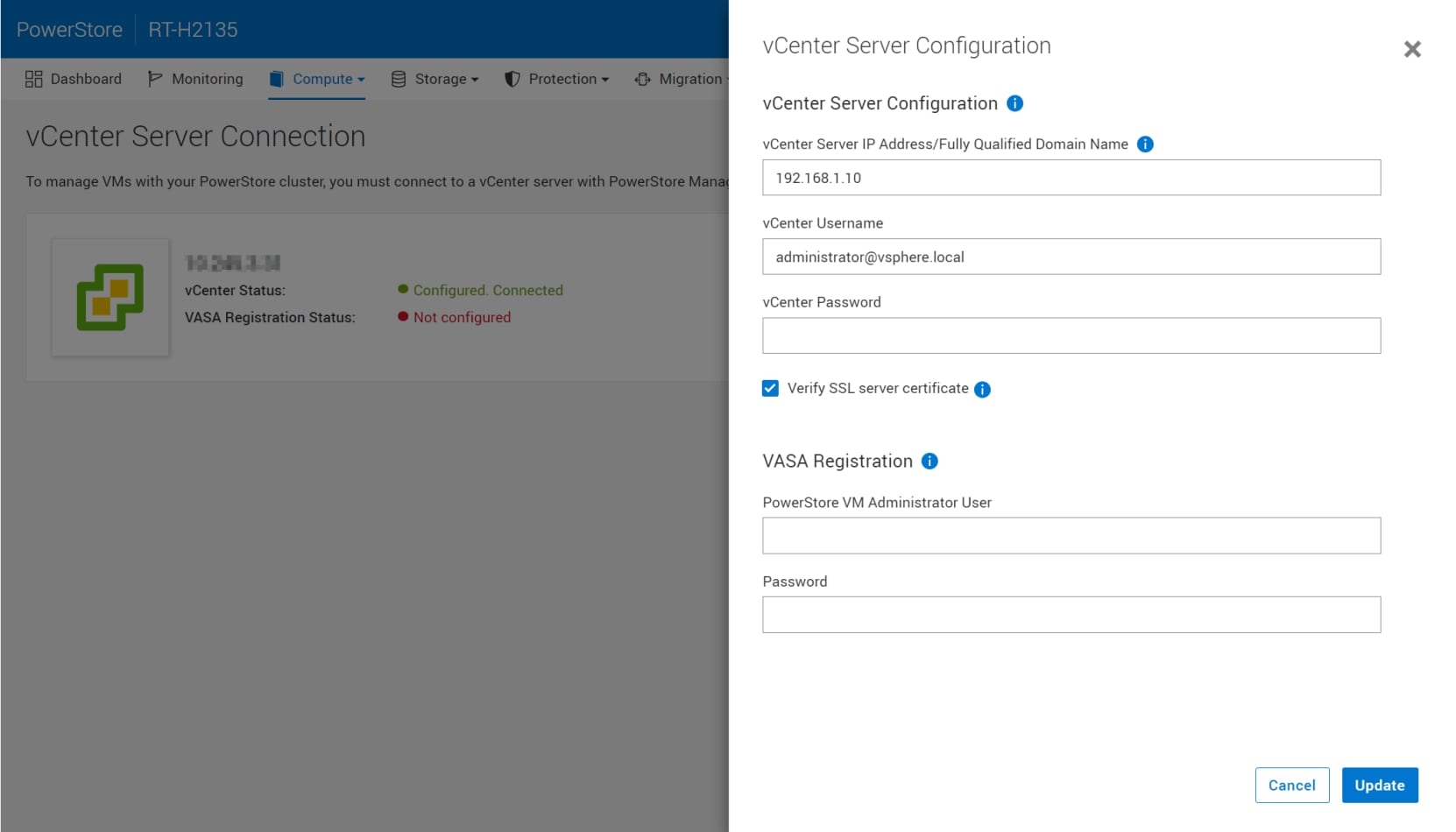
Figure 4. Updating the configuration
Use the Disconnect button to remove a vCenter connection. Starting with PowerStoreOS 2.0, the administrator has the option to remove the VASA provider registration when disconnecting a vCenter server. The following figure shows the confirmation dialog box that is displayed when you disconnect the vCenter server:
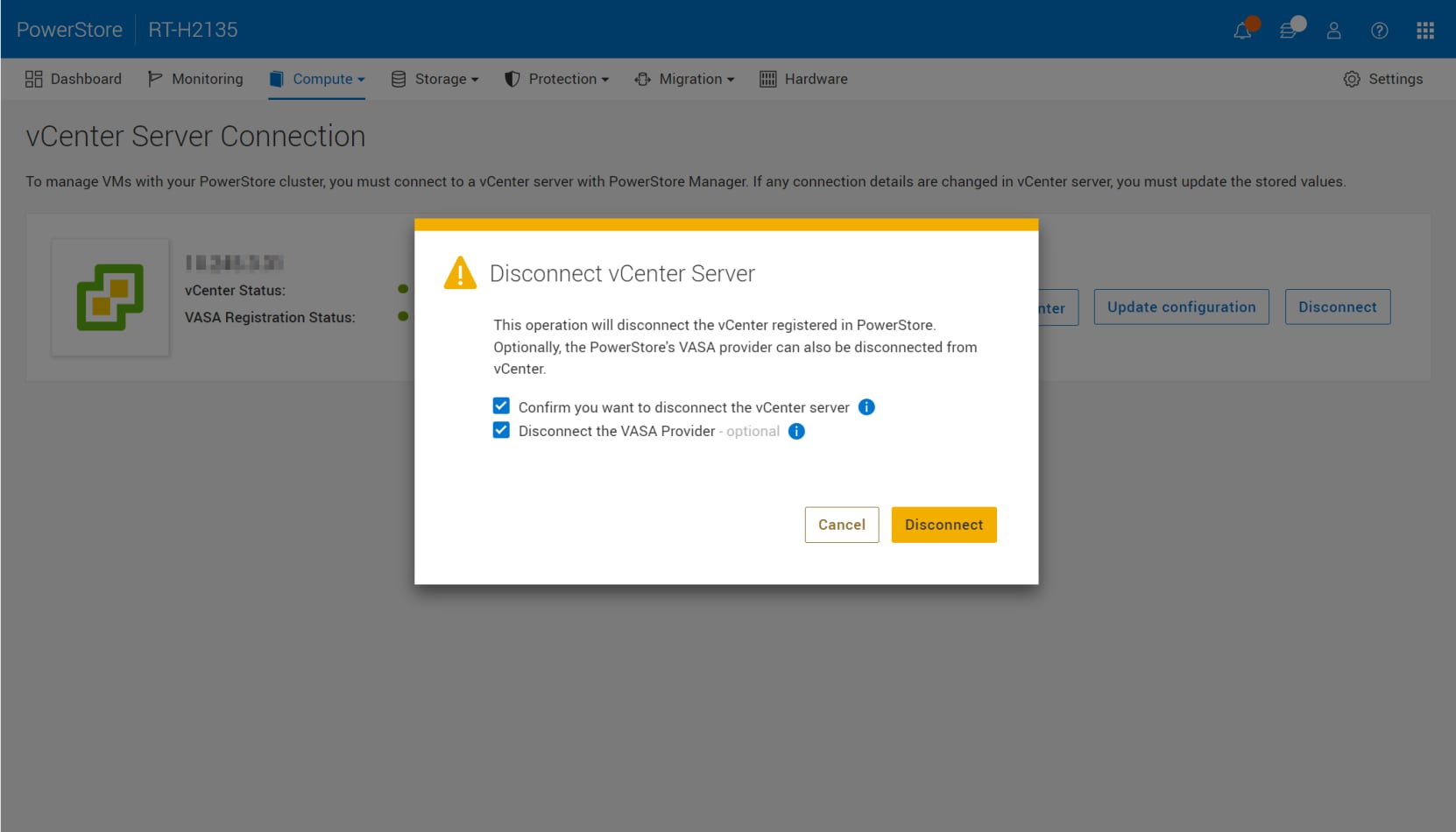
Figure 5. Disconnect vCenter Server confirmation dialog box
ESXi hosts
Overview
ESXi hosts can be registered in PowerStore Manager to enable access to storage resources. Starting with PowerStoreOS 2.0, enhancements are added to display additional details and improve visibility for ESXi hosts. These enhancements include:
- vSphere hostname:
- The vSphere Host Name column displays the hostname that is displayed in the vSphere Web Client.
- The vSphere Host Name column enables administrators to easily identify the host, even if it is registered with different names in PowerStore Manager and vSphere.
- This column is on multiple pages within PowerStore Manager (Hosts & Host Groups, Virtual Machines, Virtual Volumes, and so on).
- ESXi version:
- The ESXi Version column is also displayed in PowerStore Manager on the Hosts & Host Groups page.
The following figure shows the enhanced Hosts & Host Groups page.
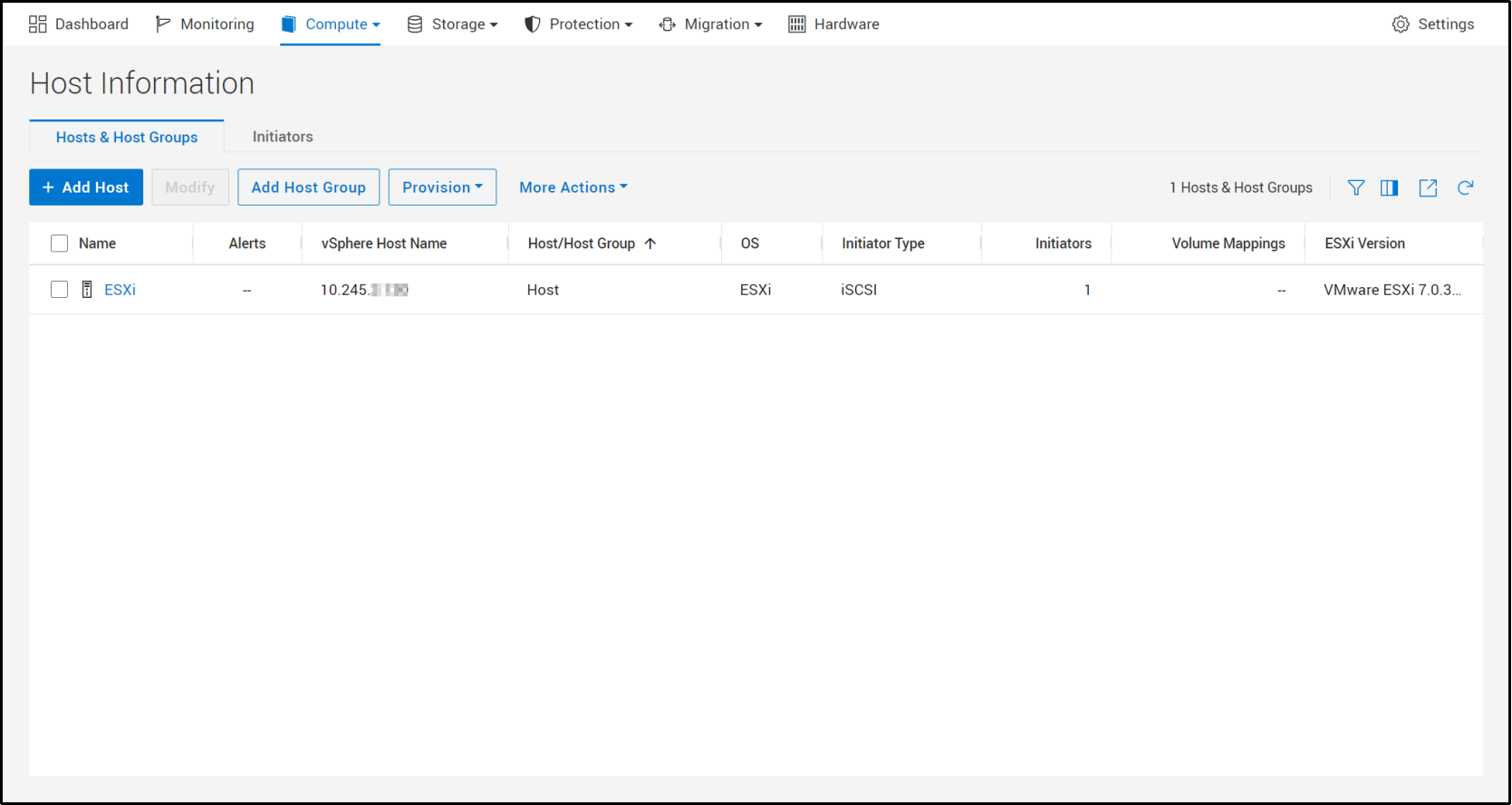
Figure 6. vSphere Host Name and ESXi version visibility
vSphere Virtual Volumes
Overview
VASA provider
vSphere APIs for Storage Awareness (VASA) are VMware-defined and vendor-neutral APIs that enable vSphere to determine the capabilities of a storage system. The API requests basic storage information from PowerStore and uses it for monitoring and reporting storage details to the user in vSphere.
PowerStore includes a native VASA 3.0 and VASA 4.0 provider, which enables the vVols storage framework. The VASA provider must be registered in vSphere in order to use vVols.
Starting with PowerStoreOS 2.0, the storage provider can be optionally registered during the initial configuration process. After initial configuration is completed, this registration can be done as part of the vCenter server connection process in PowerStore Manager or manually registered in vSphere.
- To register the VASA provider directly from PowerStore Manager, go to to Compute > vCenter Server Connection.
- To register the VASA provider in vSphere, go to vCenter > Storage Providers > Configure. Click Add and provide the following information, as shown in the following figure.
- Name: <name>
- URL: https://<Cluster_IP>:8443/version.xml
- Username: User with administrator or VM administrator privileges
- Password: <password>
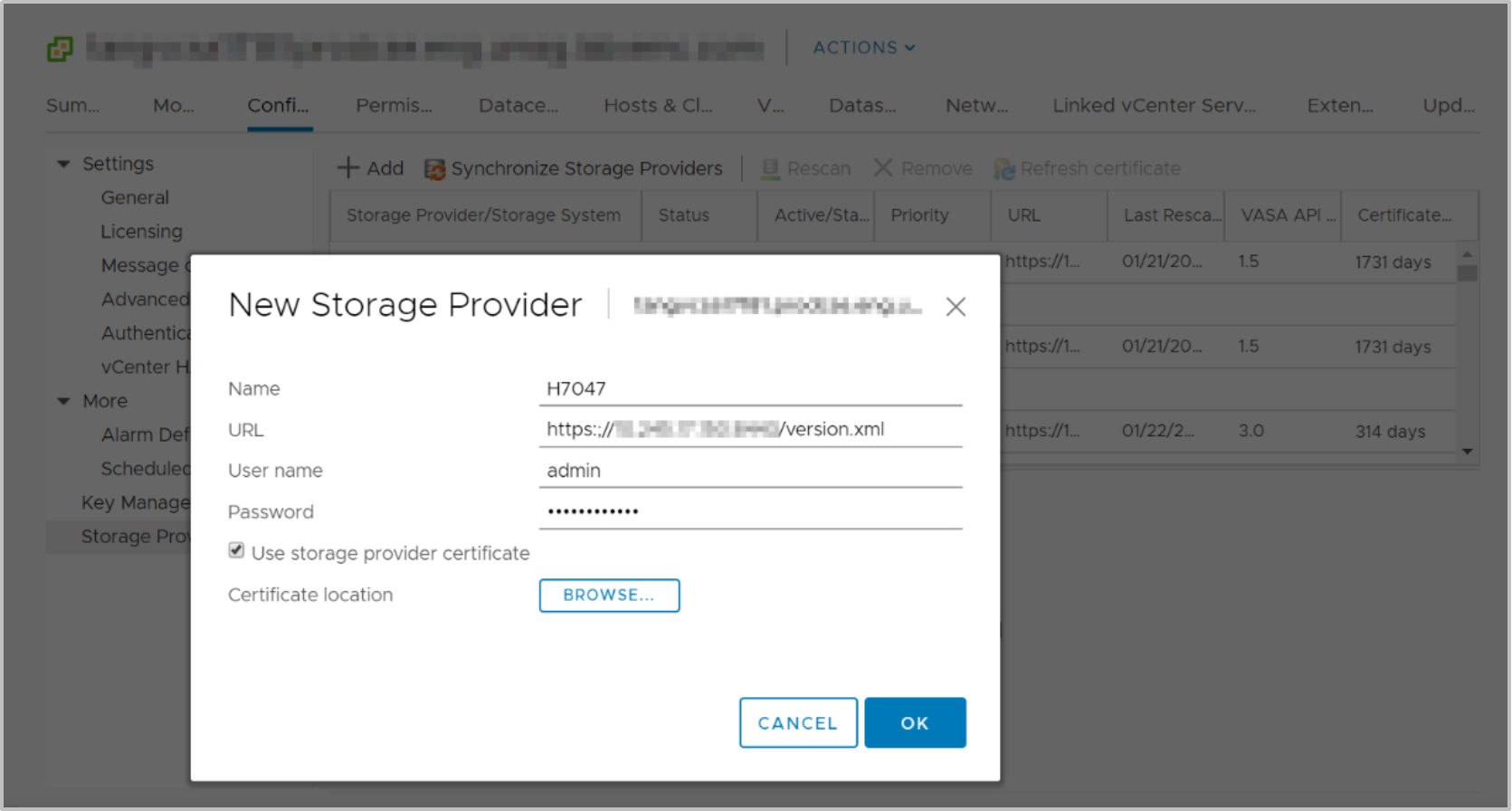
Figure 7. New Storage Provider page
After a storage provider is successfully registered, additional details about the provider are displayed, as shown in the following figure:
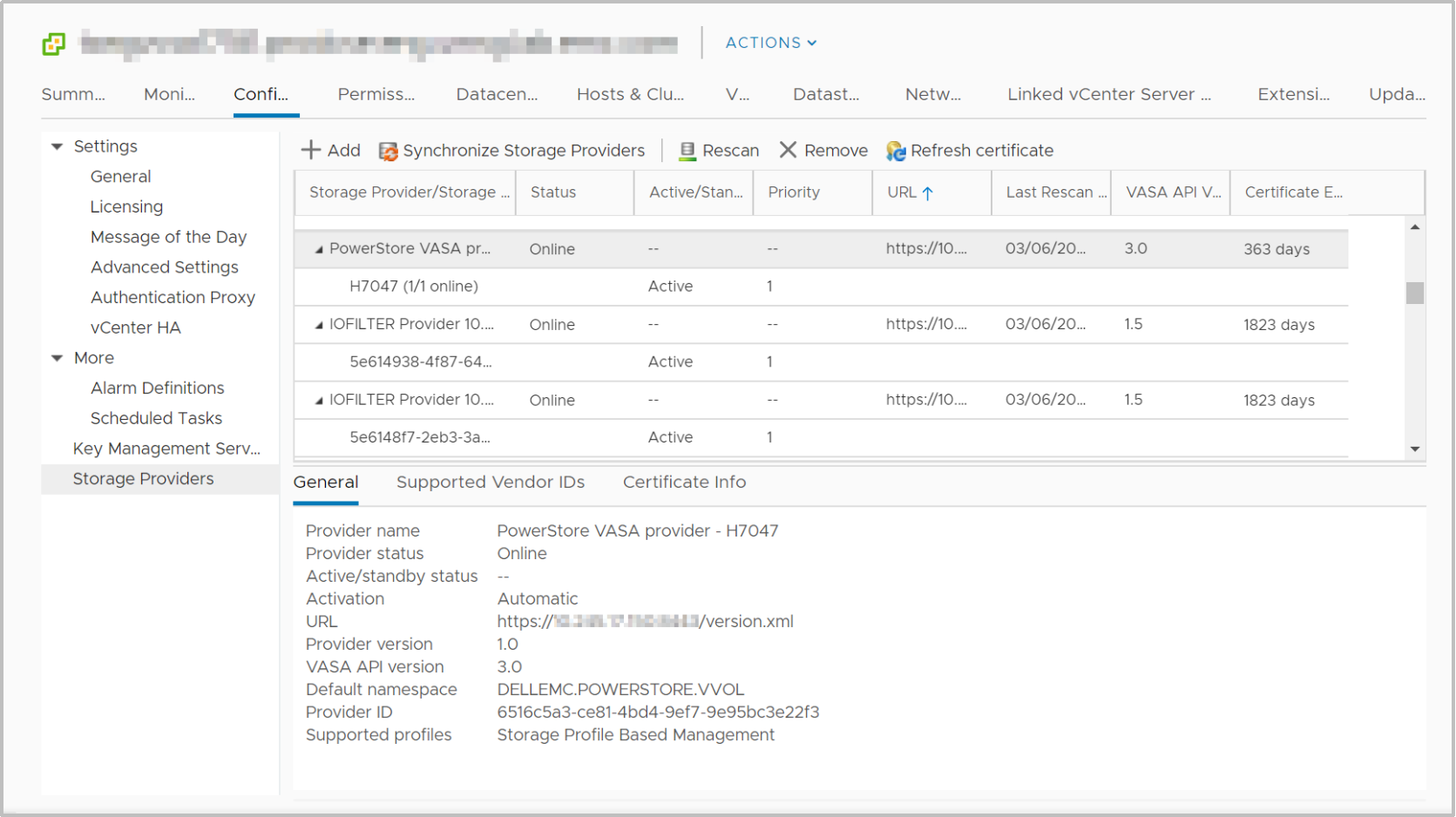
Figure 8. Registered storage provider
VASA certificates
Starting with PowerStoreOS 3.5, you can implement a third-party certificate for the PowerStore VASA provider. You can replace the system’s self-signed certificate with the third-party certificate, or you can retain the system’s self-signed certificate and also add a third-party certificate. Implementing a third-party certificate for the PowerStore VASA provider allows for support of multiple standalone vCenter instances to leverage a single PowerStore VASA provider.
- To view or implement a third-party certificate for VASA directly from PowerStore Manager, go to Settings and select VASA Certificate under the Security section, as shown in the following figure.
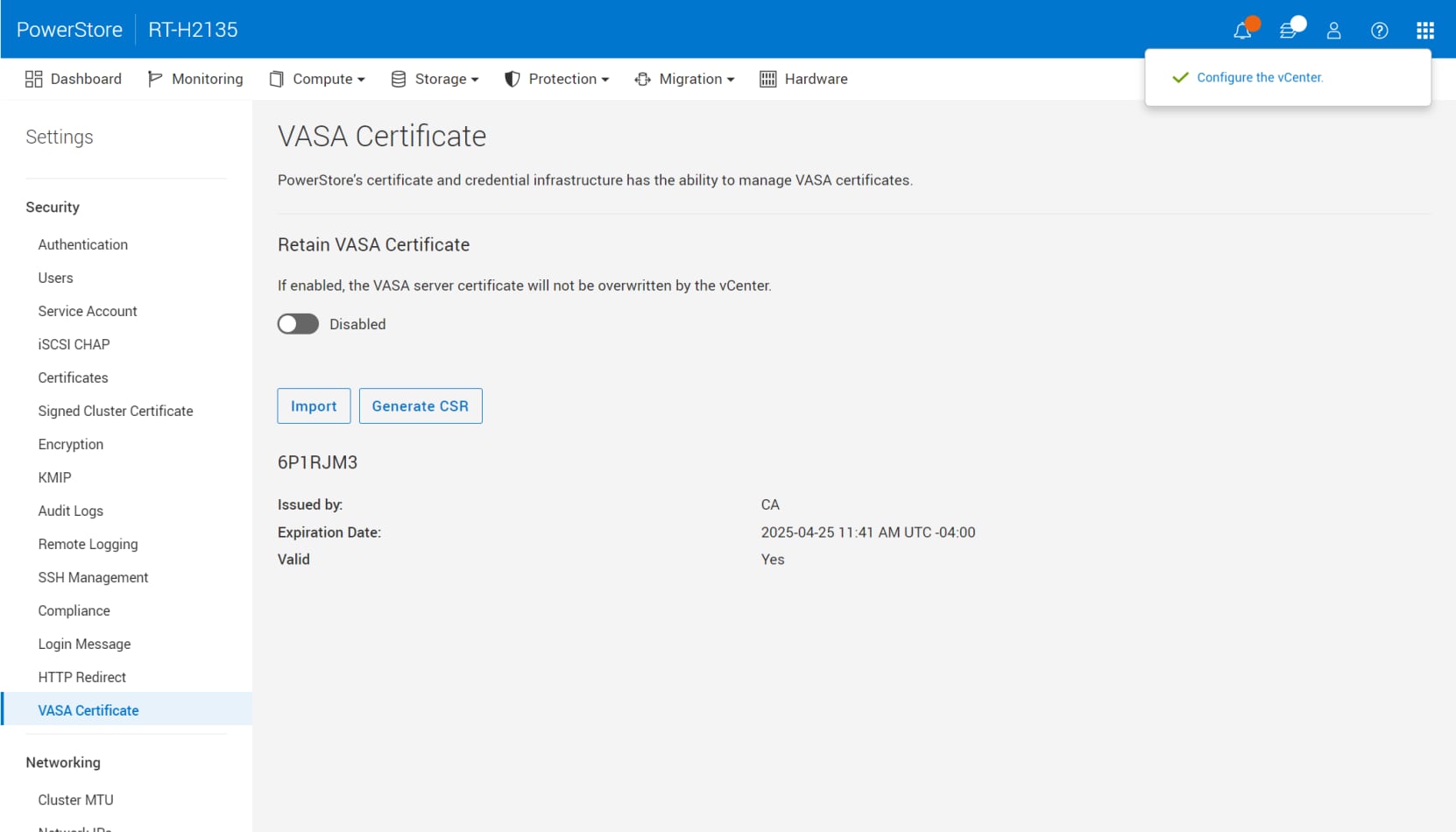
Figure 9. Import third-party VASA certificate
Under VASA Certificate, you have the option to retain the current VASA certificate, whether it is a self-signed PowerStore certificate, a third-party signed certificate, or a vCenter certificate. If enabled, the retain option prevents the VASA server certificate on the PowerStore system from being overwritten by the vCenter server.
To implement a third-party certificate for VASA, follow these steps:
- In PowerStore Manager, go to Settings > VASA Certificate.
- Click Generate CSR and provide the following information to generate a Certificate Signing Request (CSR):
- Common Name
- IP Address
- Organization
- Organizational Unit
- Locality
- State
- Country / Region
- Have the CSR request shown in Figure 10 signed by a third-party Certificate Authority.
- Click Import to import the signed certificate into PowerStore Manager.
Note: Ensure that the vCenter server trusts the CA of the certificate being imported; otherwise, VASA functionality, including the management of a vVol VM, will be unavailable.
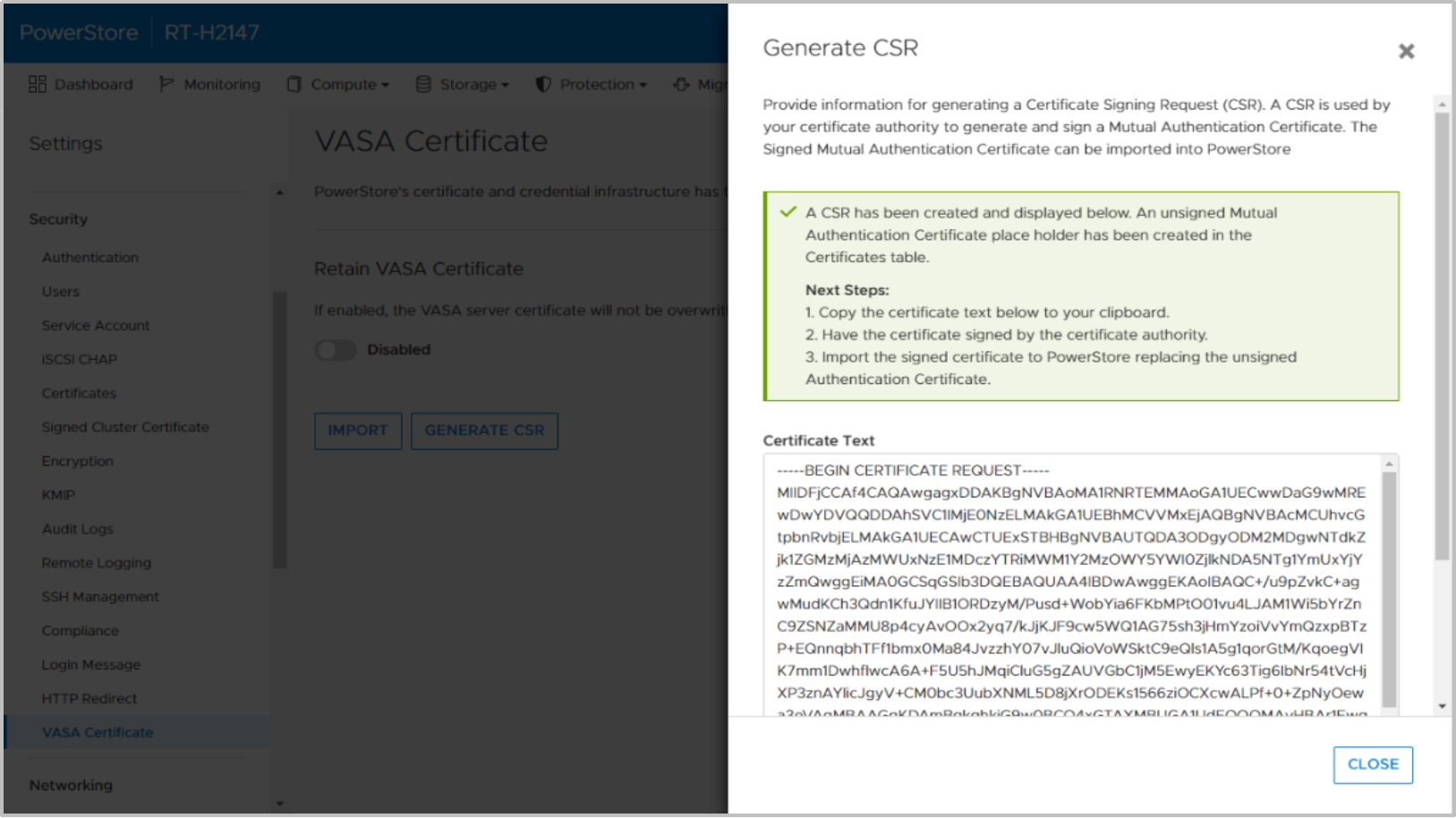
Figure 10. Generate CSR request for VASA
Storage containers
A storage container is used to present vVol storage from PowerStore to vSphere. vSphere mounts the storage container as a vVol datastore and makes it available for VM storage. PowerStore includes a default storage container that is named PowerStore <Cluster_Name>, as shown in the following figure:
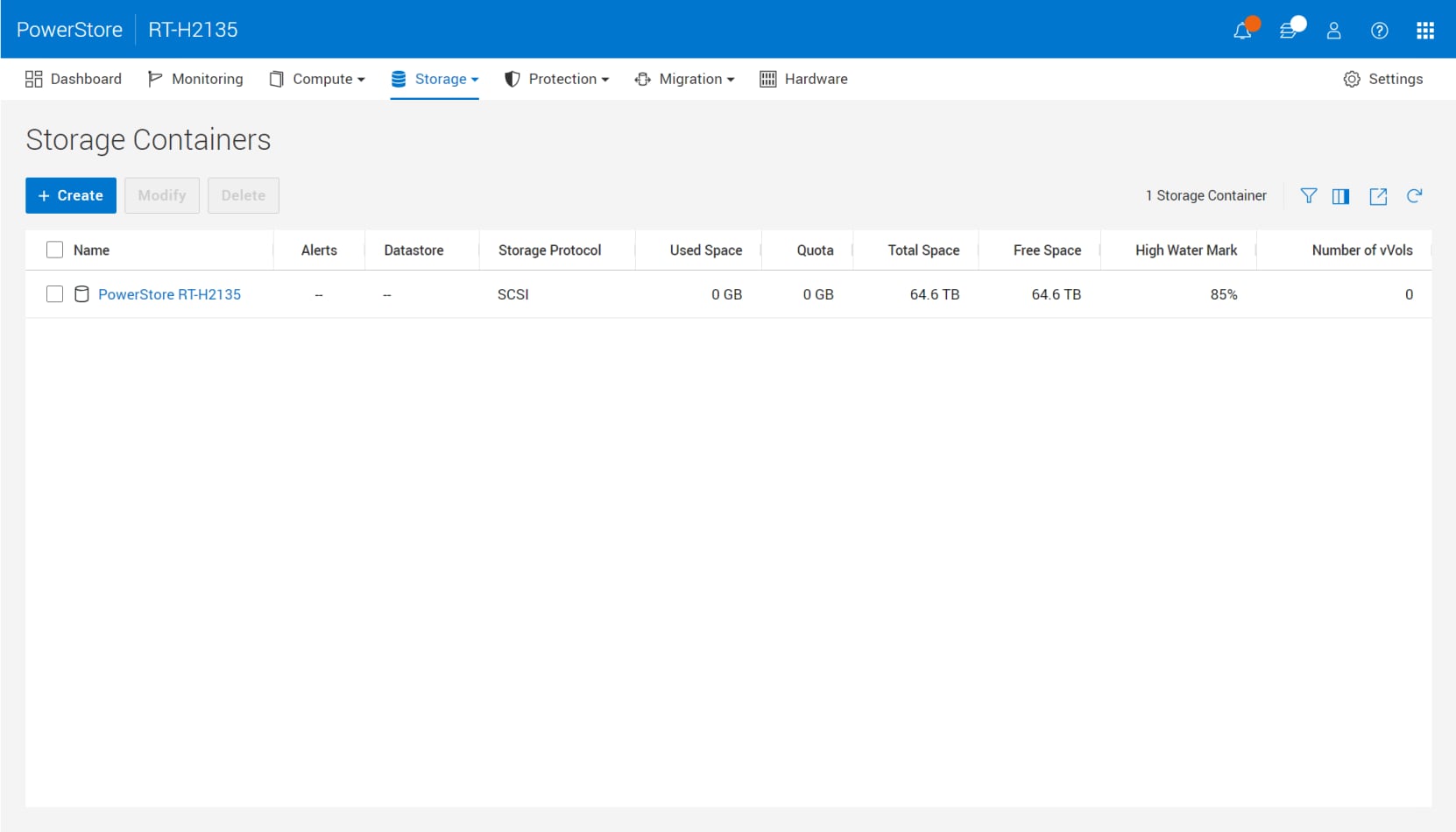
Figure 11. Default storage container
PowerStore can expose its storage containers to ESXi hosts, enabling VM provisioning on external compute with PowerStore vVol storage. This functionality can be enabled as follows:
- Register the PowerStore VASA provider (see VASA provider).
- Establish iSCSI, Fibre Channel, NVMe/FC, or NVMe/TCP (PowerStoreOS 3.6 and later) connectivity between the ESXi host and PowerStore.
- Register the host as ESXi, and select its initiators in PowerStore Manager.
- Initiate a rescan in vSphere.
- Add the storage container as a vVol datastore in vSphere.
After Step 4, two protocol endpoints are automatically created on the ESXi host. These protocol endpoints are identified with LUN IDs 254 and 255 on the Storage Devices page, as shown in the following figure:
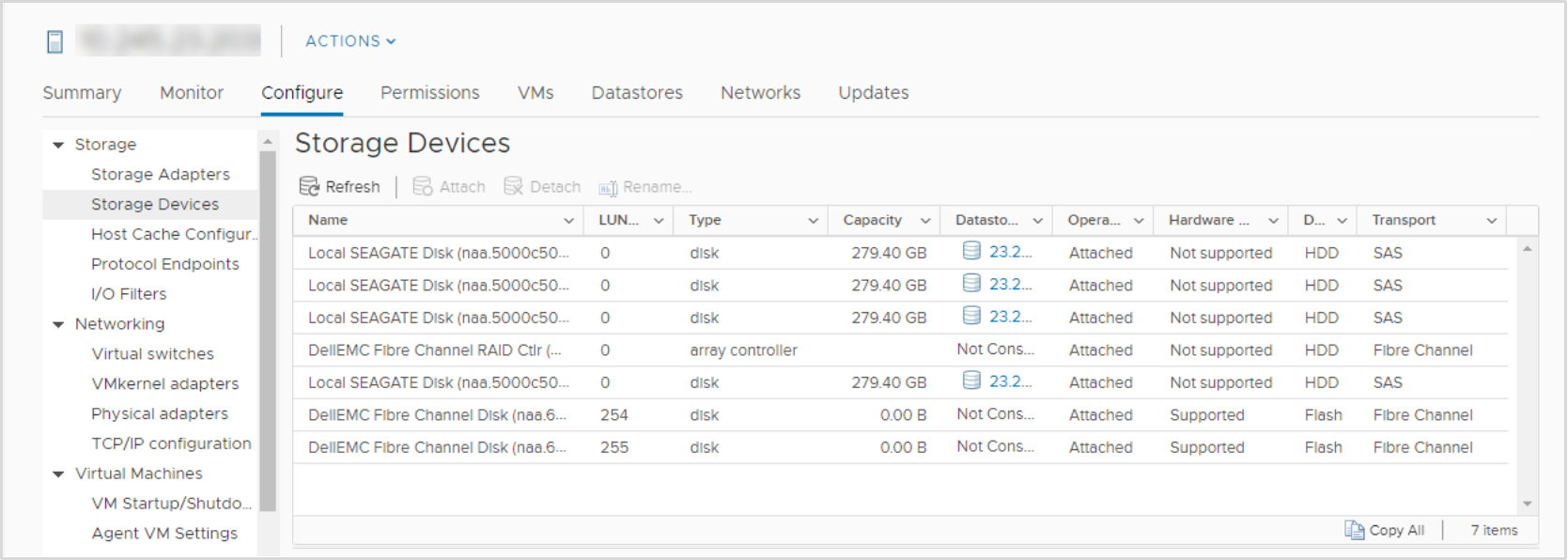
Figure 12. Protocol endpoints with LUN IDs 254 and 255
All registered ESXi hosts are automatically granted access to all the storage containers on PowerStore. These ESXi hosts can mount the datastore in vSphere after host connectivity is established and no further mapping is needed. The following figure shows the vVol datastore mounted in vSphere.
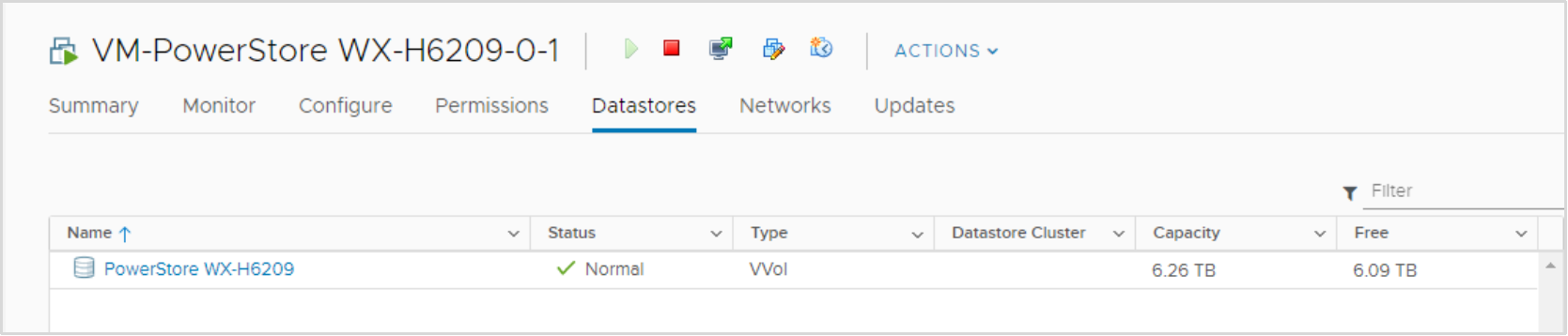
Figure 13. PowerStore vVol datastore
In addition to the default storage container, additional storage containers can also be created. These additional storage containers can be mounted as new vVol datastores in vSphere.
By default, a storage container exposes all the free capacity available on the cluster. Storage containers can be configured with a quota to expose less or more storage to vSphere. When configuring a quota on an existing storage container, a high-water mark can also be configured. When the utilization of the storage container exceeds the high-water mark, the system generates a notification. If the utilization falls below the high-water mark, the notification clears automatically. By default, the high-water mark is set to 85% and this setting is user configurable. The following figure shows setting a quota of 5 TB and a high-water mark of 85%:
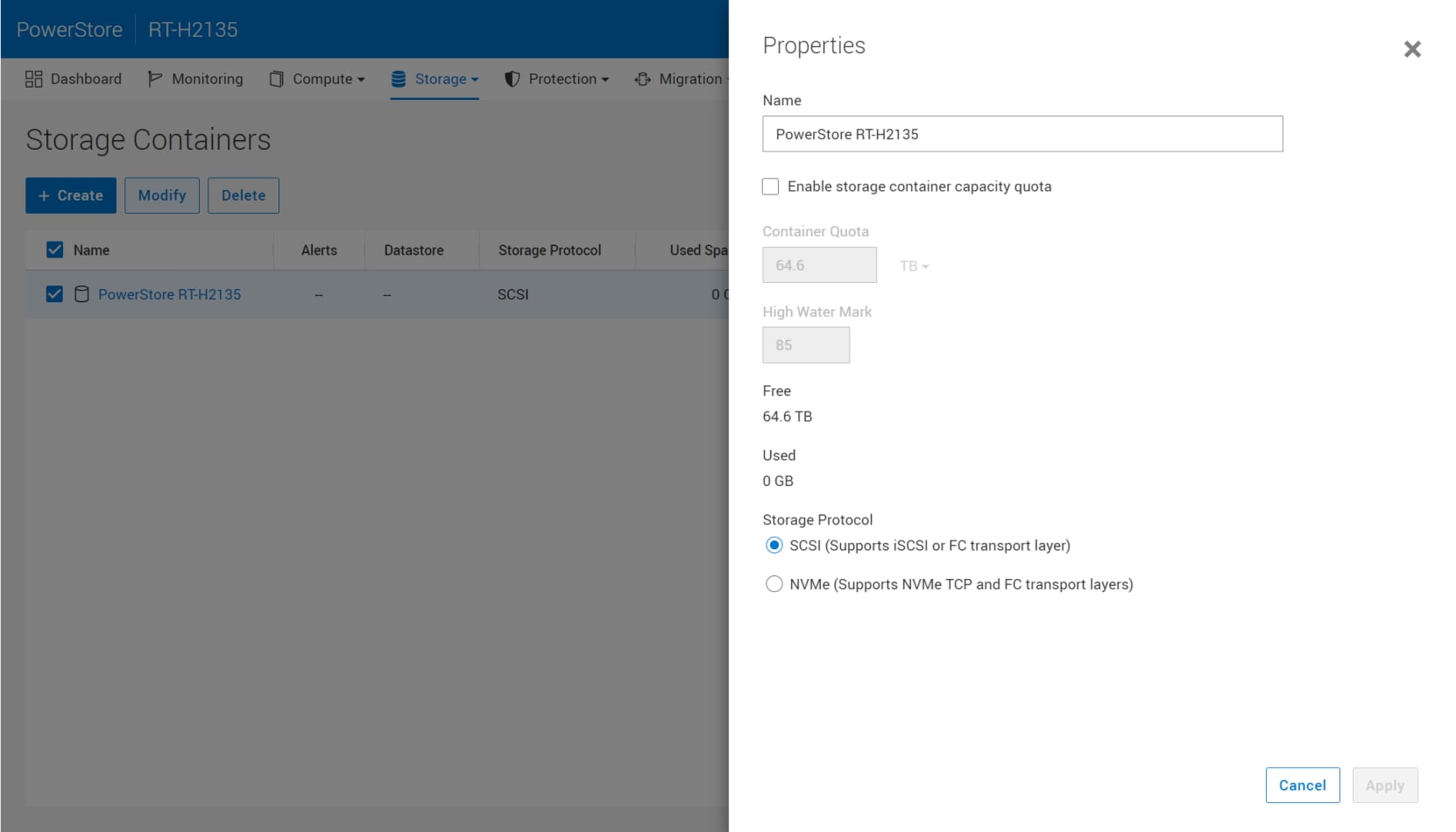
Figure 14. Storage container quota settings
If a quota is set on an existing storage container, the size is not immediately updated in vSphere. To force a refresh, right-click the datastore and click Refresh Capacity Information. Alternatively, the capacity refreshes automatically every 15 minutes. The following figure shows the updated capacity on the vVol datastore after the quota is applied:
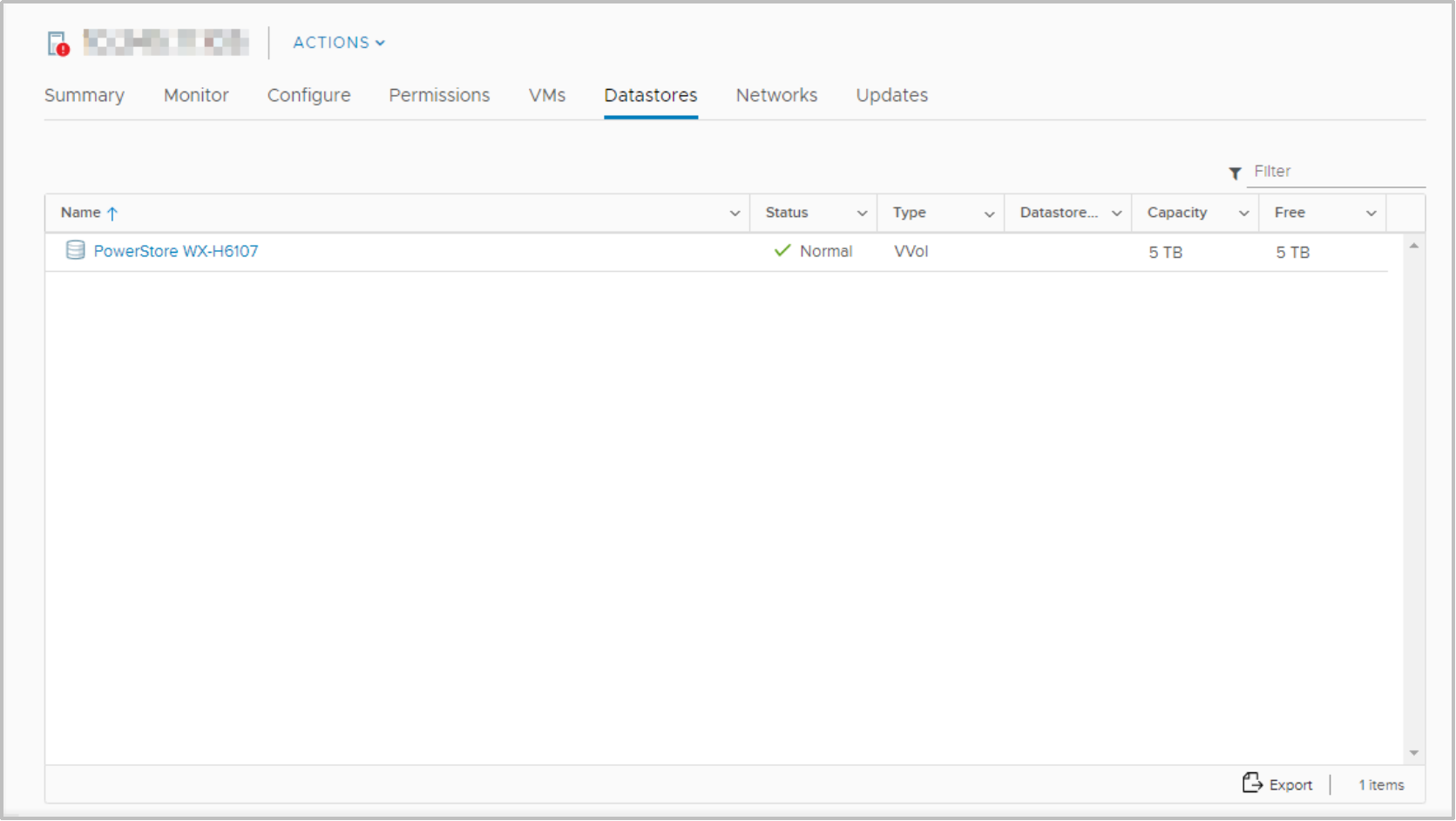
Figure 15. vVol datastore capacity with quota
With a multi-appliance cluster, the cluster creates a single storage container that exposes all storage from all appliances within the cluster. When a VM is provisioned on the storage container, resource balancer determines which appliance within the cluster its vVols are stored on. You can determine which appliance a vVol resides on by looking at the Virtual Volumes card within the VM or storage container properties page. vVols can also be migrated between appliances on-demand.
Storage container protocol
With the introduction of PowerStoreOS 3.0, PowerStore supports the creation of either SCSI or NVMe storage containers. SCSI storage containers support host access through SCSI protocols, which include iSCSI or Fibre Channel. NVMe storage containers support host access through the NVMe TCP and FC protocols. PowerStoreOS 3.6 and later supports NVMe storage container host access through the NVMe/TCP protocol for vVols. NVMe/TCP vVols requirements include VMware 8.0 Update 1 and PowerStoreOS 3.6 or later. Users utilizing NVMe vVols with their ESXi host must choose either NVMe/FC or NVMe/TCP. Using both at the same time is not supported.
Note that ESXi hosts use unique and separate identification (host NQN and host ID pairs) to access vVol and non-vVol namespaces over NVMe. Due to this, it is required to create separate host entries of type "NVMe-vVol" to access vVols and "NVMe" to access non-vVol (VMFS) datastores. An ESXi host in PowerStore cannot use both NVMe vVol and VMFS datastores with a single host entry.
With support for NVMe storage containers, PowerStore systems running PowerStoreOS 3.0 and later leverage VASA version 4.0 for all NVMe storage containers. Any storage container using the SCSI protocol continues to use VASA version 3.0.
When creating a storage container on a system running PowerStoreOS 3.6 or later, you can select either SCSI (Supports iSCSI or FC transport layer) or NVMe (Supports NVMe TCP or FC transport layer). This selection specifies the protocol type for that storage container, and any hosts which mount the storage container as a vVol datastore must have appropriate connectivity and support.
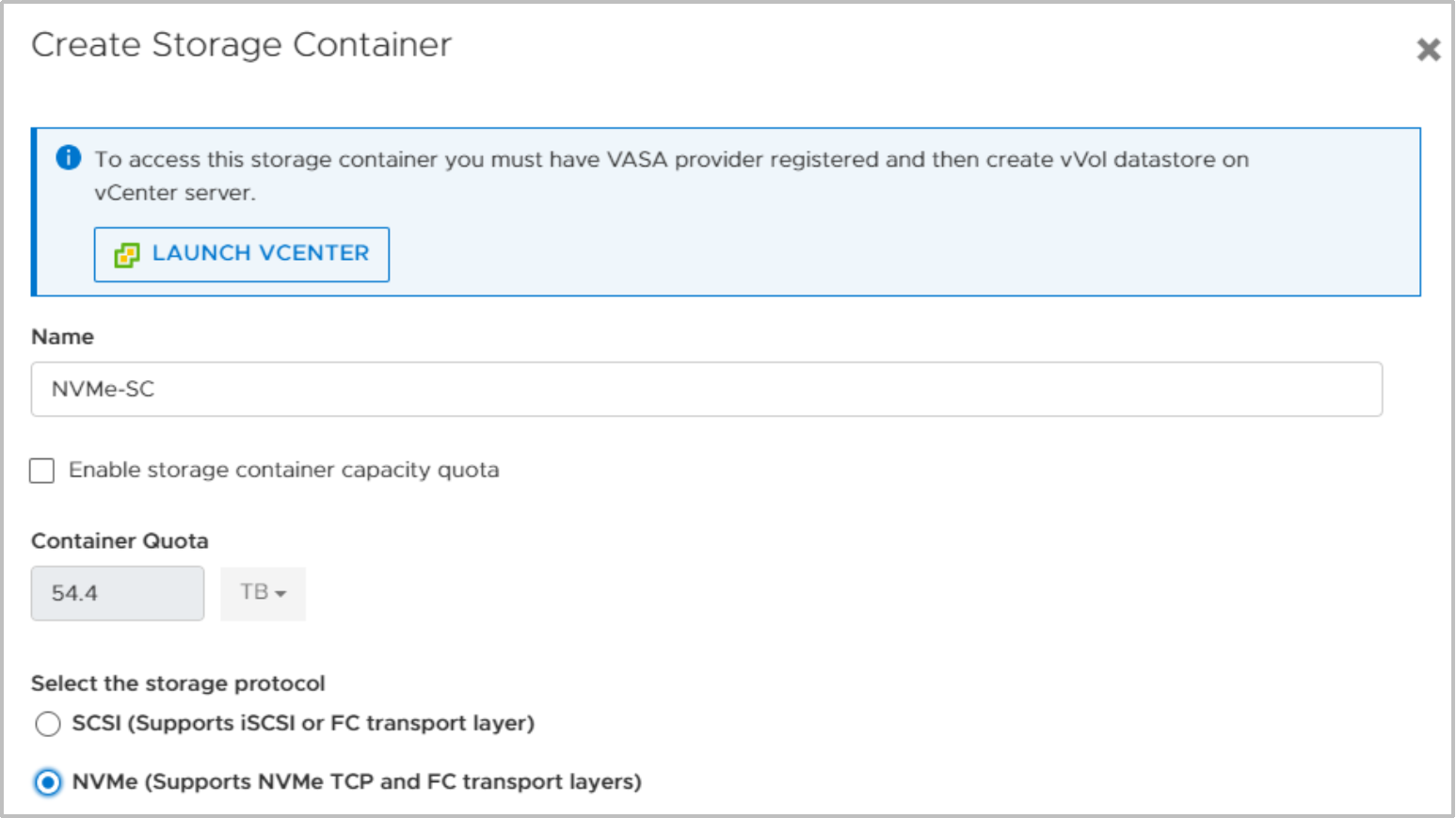
Figure 16. Storage container protocol selection
On the Storage Containers page in PowerStore Manager, a new column introduced in PowerStoreOS 3.0, Storage Protocol, is displayed by default. This column details the supported storage protocol for a given storage container. A storage container can either by SCSI or NVMe; there is no support for both protocols on the same storage container. This new feature has no impact on existing storage containers, which are all classified as SCSI.
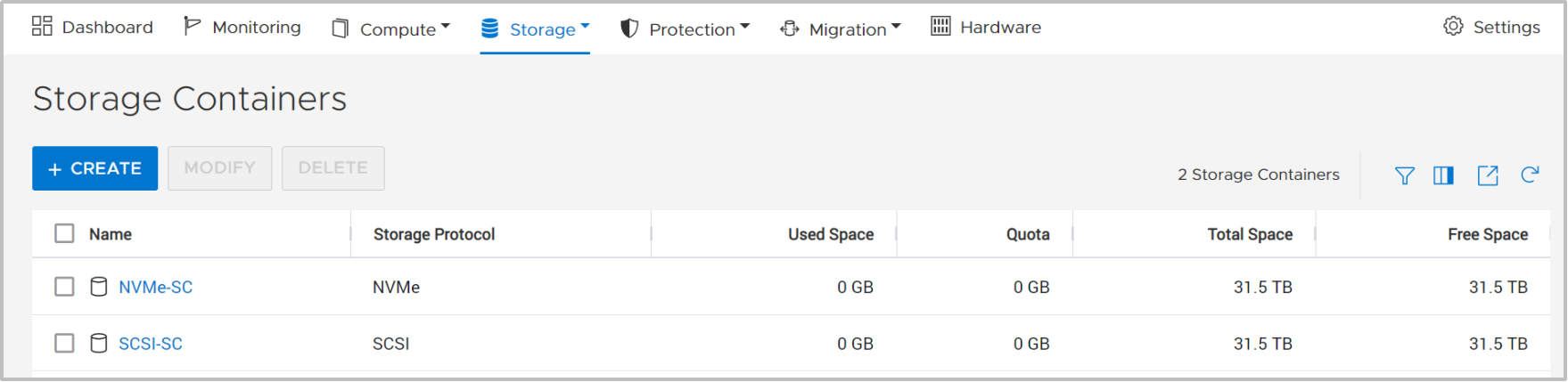
Figure 17. Storage container storage protocol column
Storage containers can convert their storage protocol between the two types, although this operation is disruptive. You must remove or unbound all vVols on the storage container. This process requires stopping all virtual machines on the associated vVol datastore, or use vSphere Storage vMotion to move all virtual machines and vVols to a different storage resource temporarily. Then, from the Storage Containers page in PowerStore Manager, select the storage container and click MODIFY. Complete the process by selecting the new protocol and clicking APPLY. Currently, virtual machines can be restarted or moved back onto the vVol datastore through vSphere Storage vMotion.
Storage Policy Based Management
vVols use Storage Policy Based Management (SPBM) to ensure VMs have the appropriate storage capabilities through their entire life cycle. VM storage policies can be optionally created after the storage provider is registered. These policies are used to determine the required storage capabilities when a VM is being provisioned.
To create a storage policy, go to the Policies and Profiles > VM Storage Polices page in vSphere. Click CREATE, and then select Enable rules for “Dell EMC PowerStore” storage.
The QoS Priority rule determines the relative performance prioritization for the VM if the system experiences resource contention. You can select HIGH, MEDIUM, or LOW as the QoS Priority.
The Snapshot Schedule rule allows PowerStore to take snapshots of virtual machines at a given frequency. The Snapshot Schedule rule when creating a VM Storage Policy automatically displays all snapshot rules created on PowerStore. If you want to assign a Snapshot Schedule rule, you must create the snapshot rules on PowerStore before you create the VM Storage Policy in vSphere. The following figure shows the available PowerStore rules when you create a storage policy:
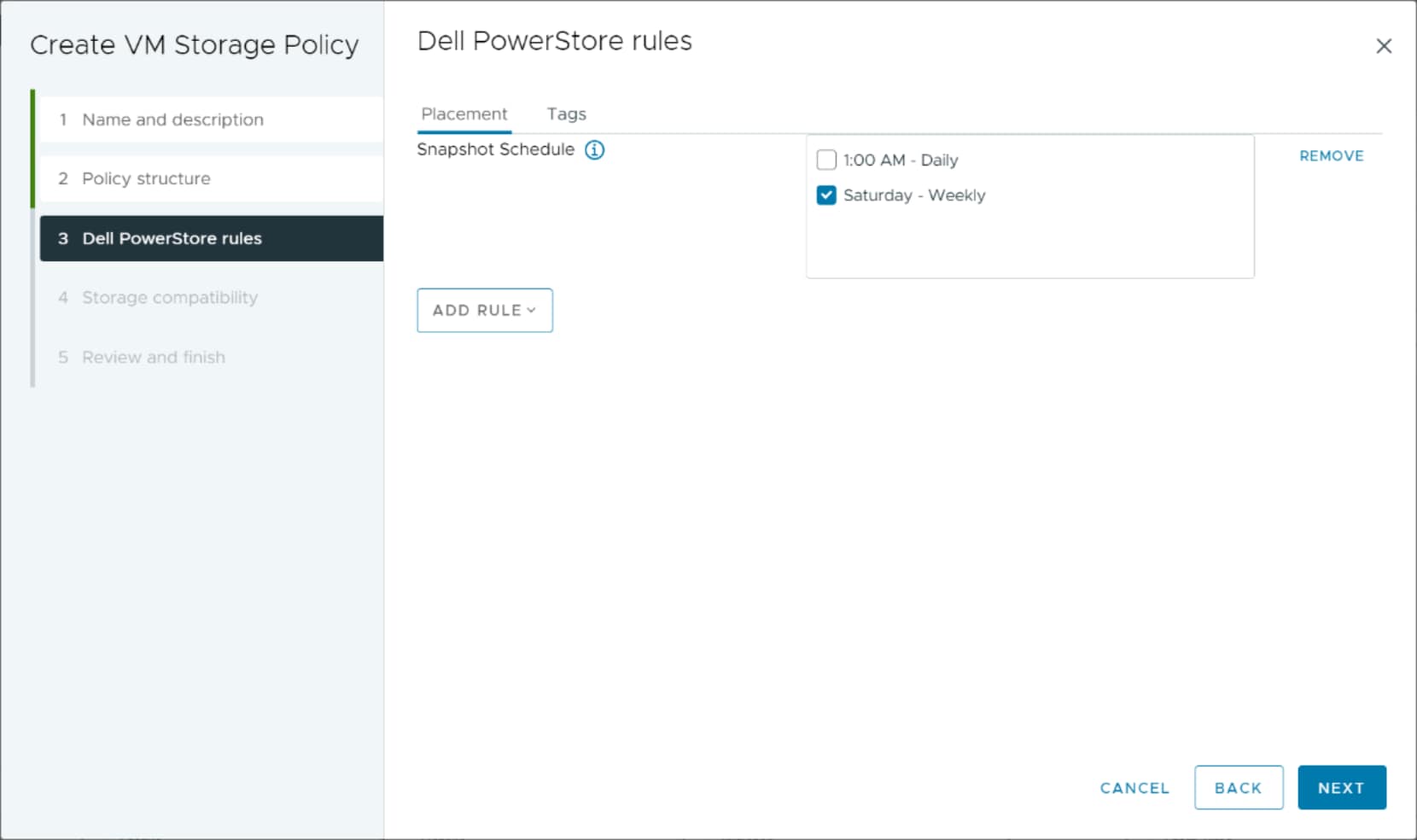
Figure 18. Create VM Storage Policy page
Virtual machines
Overview
VMs that are stored on PowerStore vVol datastores are automatically discovered and displayed in PowerStore Manager. All VMs stored on the vVol datastores are displayed. This page includes a list of VMs including the name, operating system, CPUs, memory, and more, as shown in the following figure:
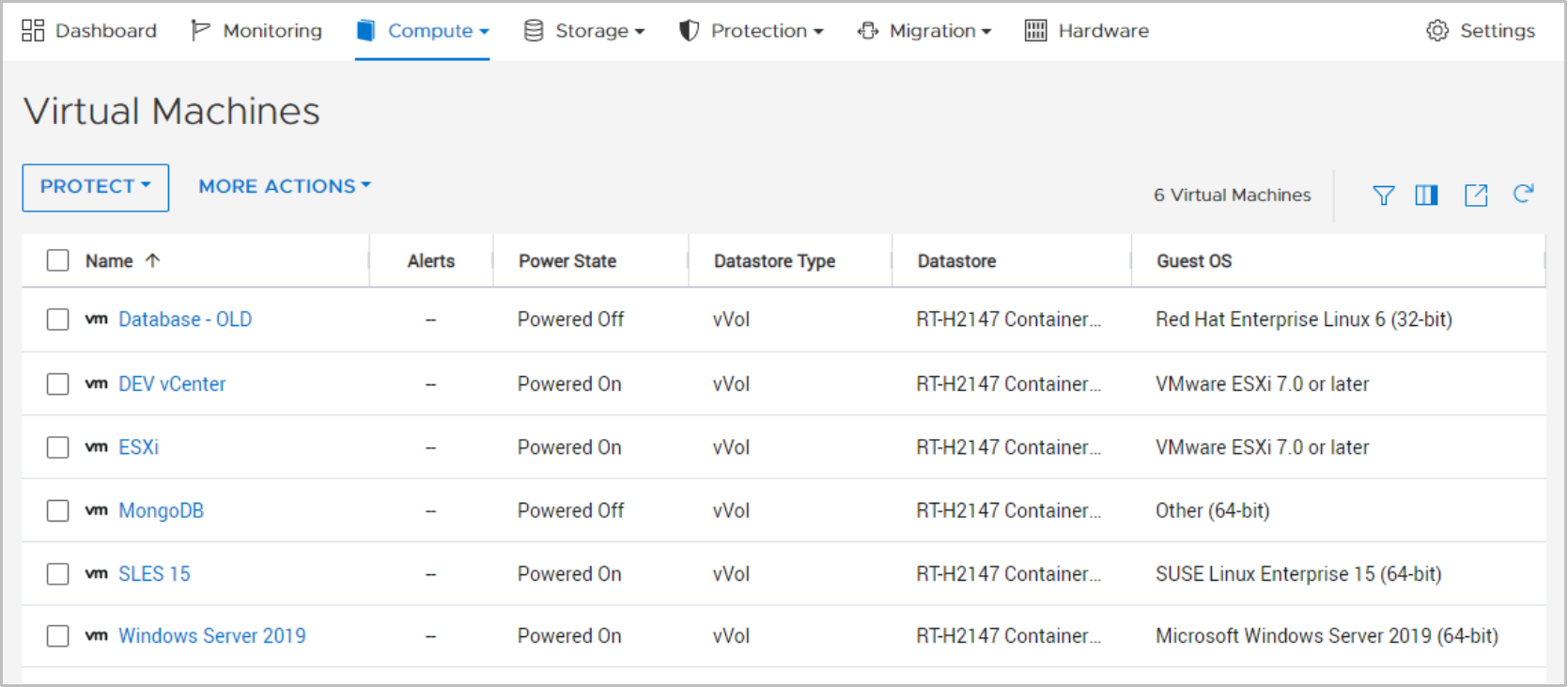
Figure 19. Virtual Machines page
Click each VM to view more details such as capacity, compute and storage performance, alerts, protection, and virtual volumes for that VM. See the following figure:
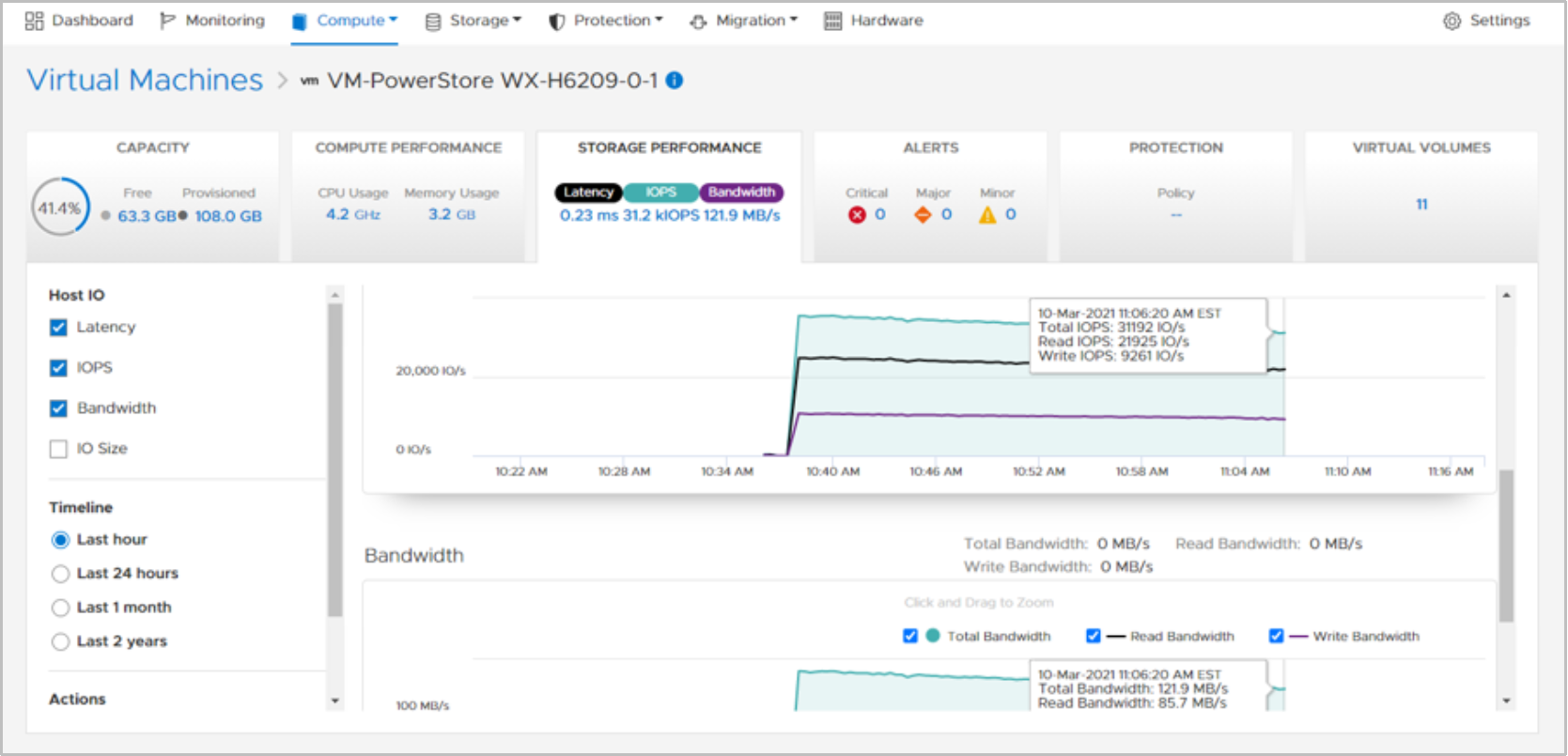
Figure 20. VM storage performance
Starting in PowerStoreOS 3.0, you can determine the type of backing storage for virtual machines with the new Datastore Type column (see Figure 21). This column shows if the virtual machine is deployed entirely onto NFS, VMFS, or vVol storage hosted on the PowerStore. If the virtual machine contains storage from two or more storage types, this column displays the Datastore Type Mixed.
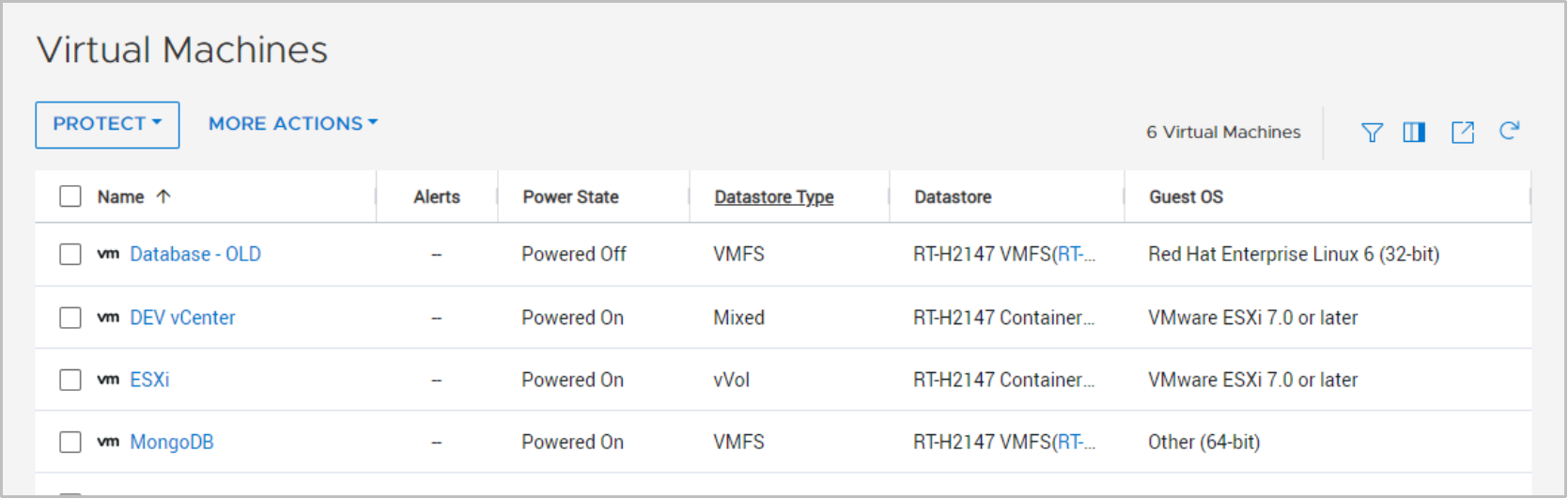
Figure 21. VM datastore type
Virtual machines deployed onto storage classified as Datastore Type mixed will only contain the compute performance and virtual volumes tabs when viewing the details. The capacity, storage performance, alerts, and protection tabs are not available to these virtual machines. Virtual machines deployed onto storage classified as Datastore Type NFS or VMFS will only show the computer performance tab.
Protection
The Protection card enables administrators to manage snapshots and configure protection policies for a VM. This page enables you to create a manual snapshot or modify and delete existing snapshots. Before PowerStoreOS 3.0, a protection policy could also be applied to the VM to take snapshots automatically, such as for volumes and file systems. With the release of PowerStoreOS 3.0, snapshot schedules are only applied to a virtual machine through vSphere using VM Storage Policies. See the section Storage Policy Based Management for more details about VM Storage Policies.
The following figure shows the VM protection page where you can configure snapshots and protection policies:
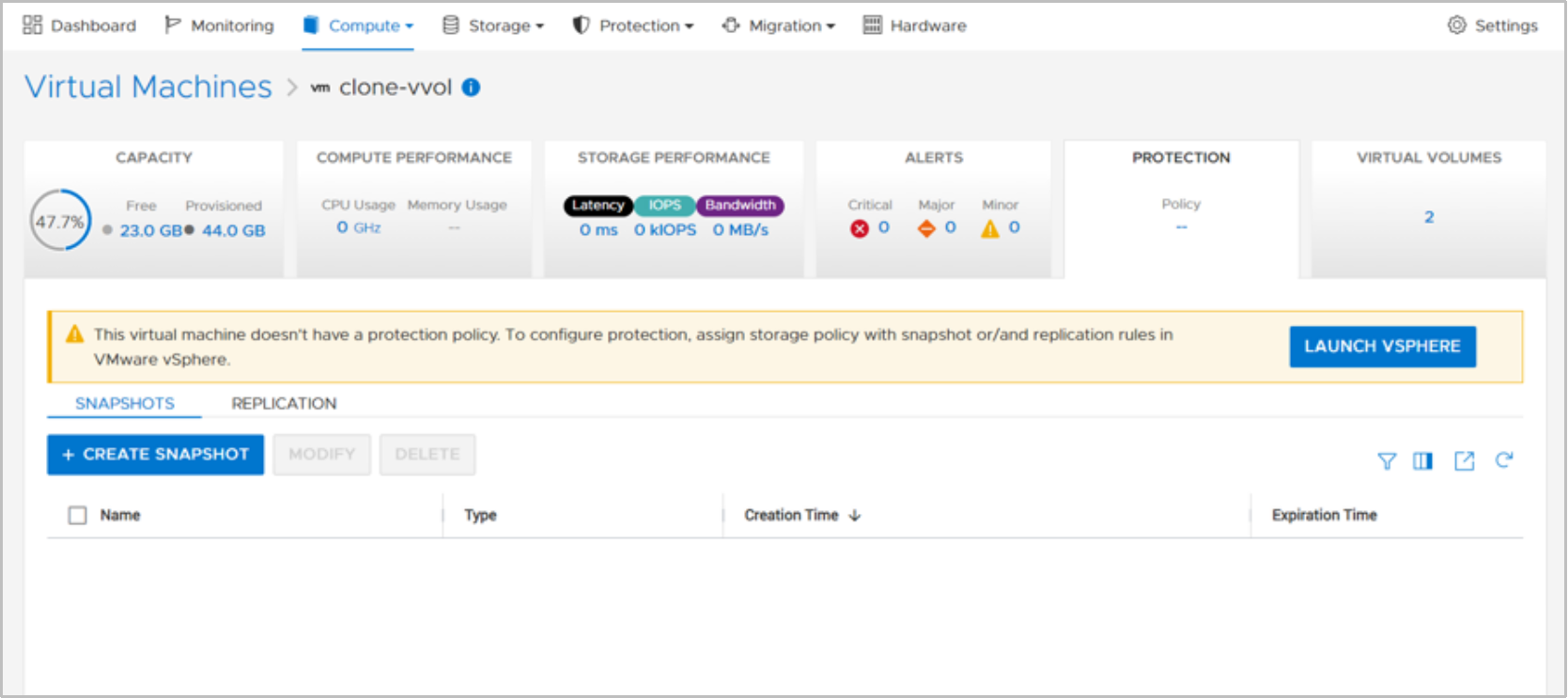
Figure 22. VM protection
VM snapshots are visible in both PowerStore Manager and vCenter, regardless of where they are created. You can view information about VM snapshots in the Manage Snapshots page in vCenter. You can also initiate a revert operation from here to restore the VM using the snapshot. You can revert to any snapshot in the snapshot tree.
Snapshots that are taken from PowerStore do not include the guest VM memory. This behavior means that the VM memory contents and power state are not preserved, but the snapshot is crash consistent. After the snapshot restore operation completes, the VM reverts to a powered-off state and can be powered back on. The following figure shows a VM with manual and scheduled snapshots that are created from PowerStore:
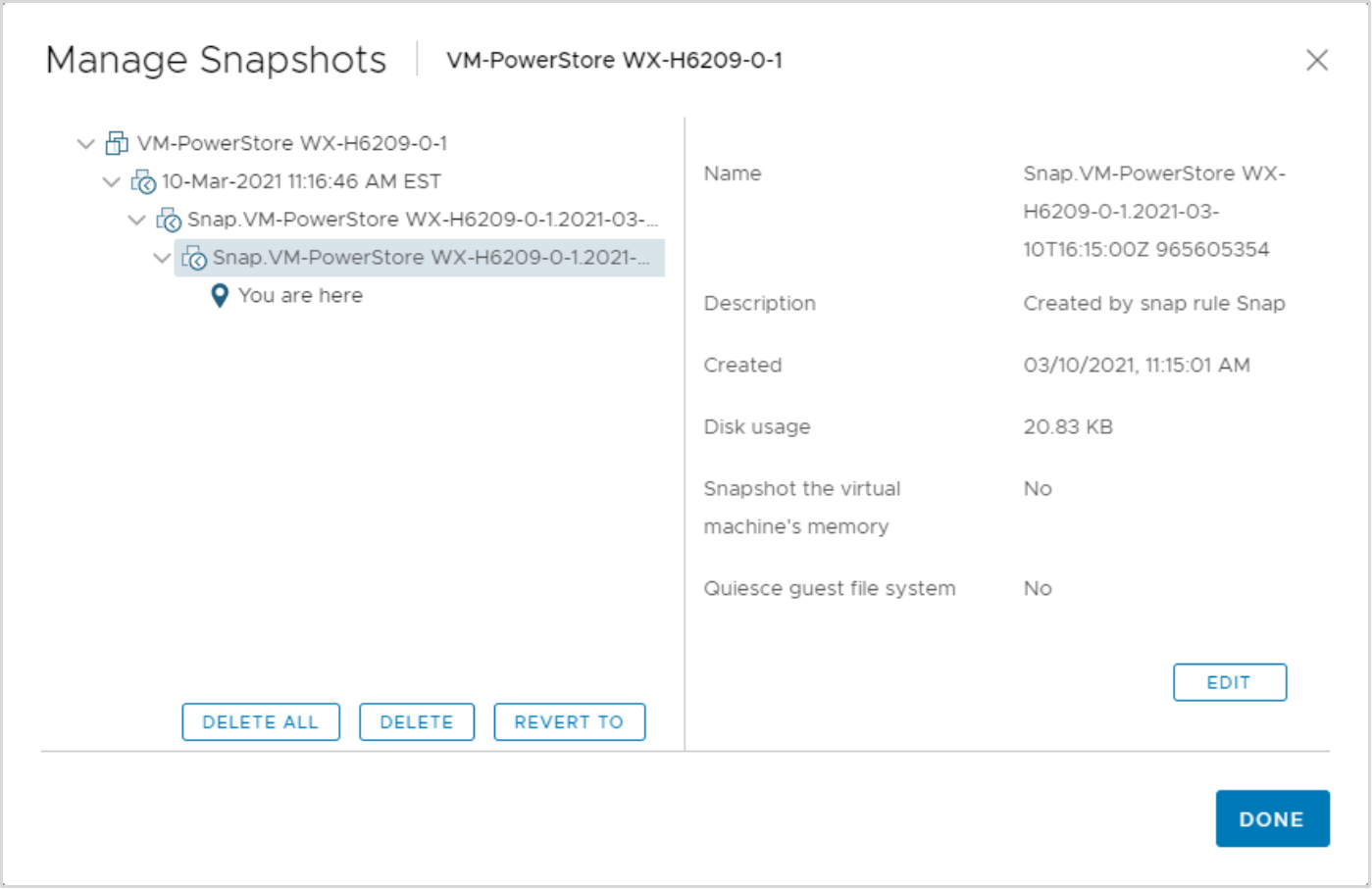
Figure 23. VM snapshots
vSphere enforces a limit of 31 snapshots for each VM. If this limit is reached, the oldest snapshot is automatically deleted chronologically starting with the oldest when the next snapshot is created by the policy. Although manually created snapshots count towards this limit, they are never automatically deleted because they do not have an expiration date.
In large environments, it is possible to initiate many snapshot requests to vCenter at once. To prevent overloading vCenter, PowerStore sends a maximum of five simultaneous create snapshot operations to vCenter. The remaining operations are queued and started as each create snapshot operation completes. PowerStore also sends a maximum of five simultaneous delete snapshot operations to vCenter. Although the create snapshot operations are sent individually, delete snapshot operations can be sent in batches, up to a limit of five. Because these two limits are different, it is possible to have a total of five create and five delete snapshot operations simultaneously on different VMs.
For more information about snapshots and protection policies, see the document PowerStore: Snapshots and Thin Clones.
Virtual Volumes
The type of vVol provisioned depends on the type of data that is being stored:
- Data: Stores data such as VMDKs, snapshots, full clones, and fast clones. At least one data vVol is required per VM to store its hard disk.
- Config: Stores standard VM configuration data such as .vmx files, logs, and NVRAM. At least one config vVol is required per VM to store its .vmx configuration file.
- Swap: Stores a copy of the VM memory pages when the VM is powered on. Swap vVols are automatically created and deleted when VMs are powered on and off. The swap vVol size matches the VM memory size.
- Memory: Stores a complete copy of VM memory on disk when suspended, or for a with-memory snapshot.
At a minimum, three vVols are required for each powered-on VM: data for the hard disk, config for the configuration, and swap for the memory pages.
The Virtual Volumes card provides details about the vVols used for the VM. PowerStore uses the VASA protocol to communicate with vSphere to create, bind, unbind, and delete vVols automatically, as needed. Manual management of these vVols is not required. This page also provides options to migrate vVols, manage the Watchlist, and collect support materials.
Information such as the vVol name, type, capacity, storage container, appliance, and I/O priority are displayed, as shown in the following figure:
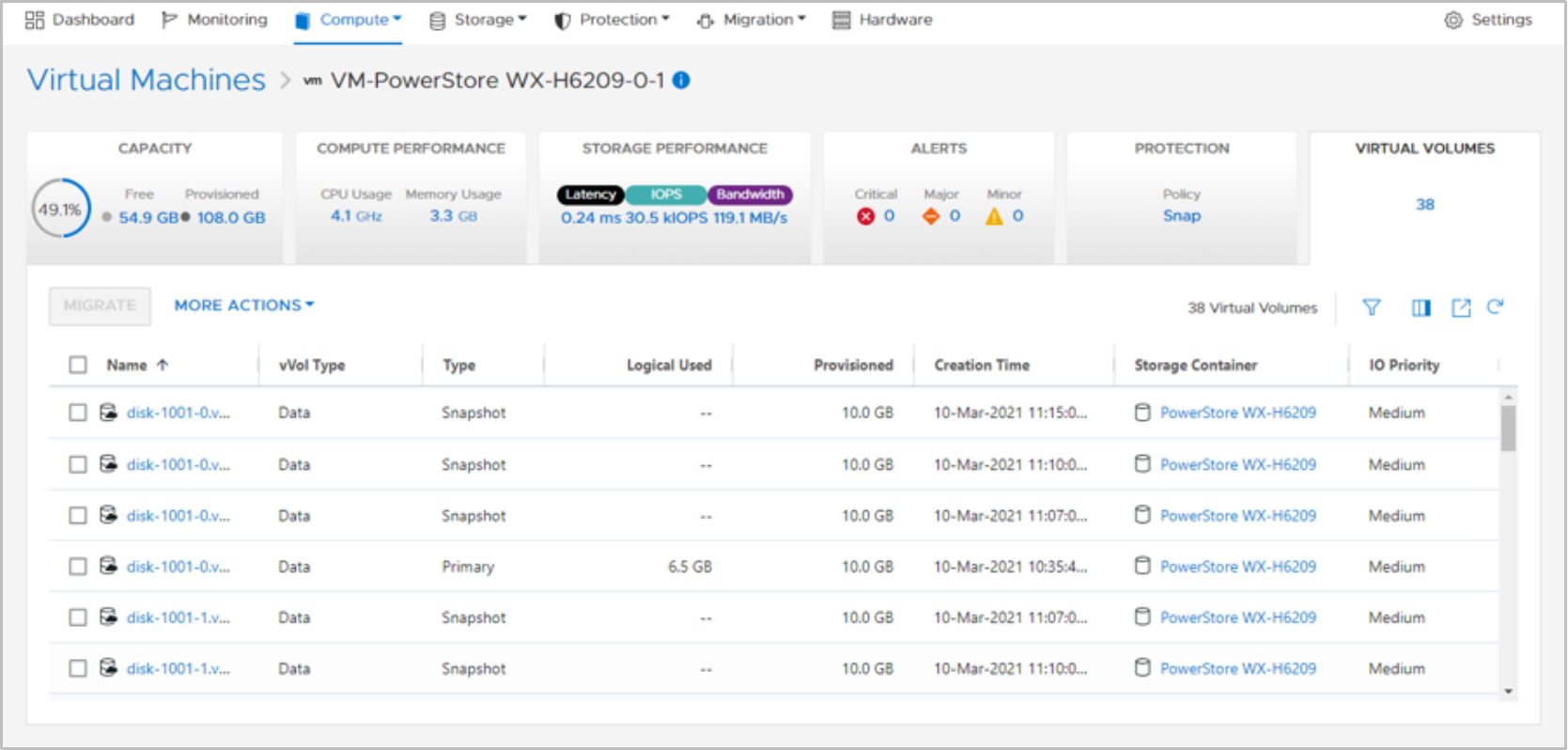
Figure 24. Virtual Volumes
Virtual Volume migration
In PowerStoreOS 1.0, vVols can be migrated between appliances within the cluster. However, it is limited to vVols that are not in use so the virtual machine must be powered off before any of its vVols can be migrated. Starting with PowerStoreOS 2.0, online vVol migration is supported. This functionality allows vVols that are used for powered-on virtual machines to be migrated between appliances within the cluster.
In order to support online vVol migration, the ESXi host must be running VMware ESXi 6.7 P02 or higher. Previous versions of VMware ESXi do not support online vVol migration as this functionality requires ESXi vVol rebind orchestration. In this scenario, the vVol must be unbound manually by powering off the virtual machine or the ESXi host must be upgraded to the appropriate version.
The online migration operation is transparent to the virtual machine and no rescans are required. Like volume migrations, both manual and assisted migrations are available for vVols. The migration traffic flows over the first two ports of the four-port card using the Intra-Cluster Management (ICD) and Intra-Cluster Data (ICD) IPv6 networks.
It is possible to have multiple vVols for a single virtual machine spread across multiple appliances. The best practice recommendation is to have all vVols for a virtual machine on the same appliance. Online vVol migration can be used as a nondisruptive method to consolidate a virtual machine’s vVols onto a single appliance.
vVol migrations can be initiated from the VM Details > Virtual Volumes or Storage Container Details > Virtual Volumes pages. The following figure shows the migrate operation:
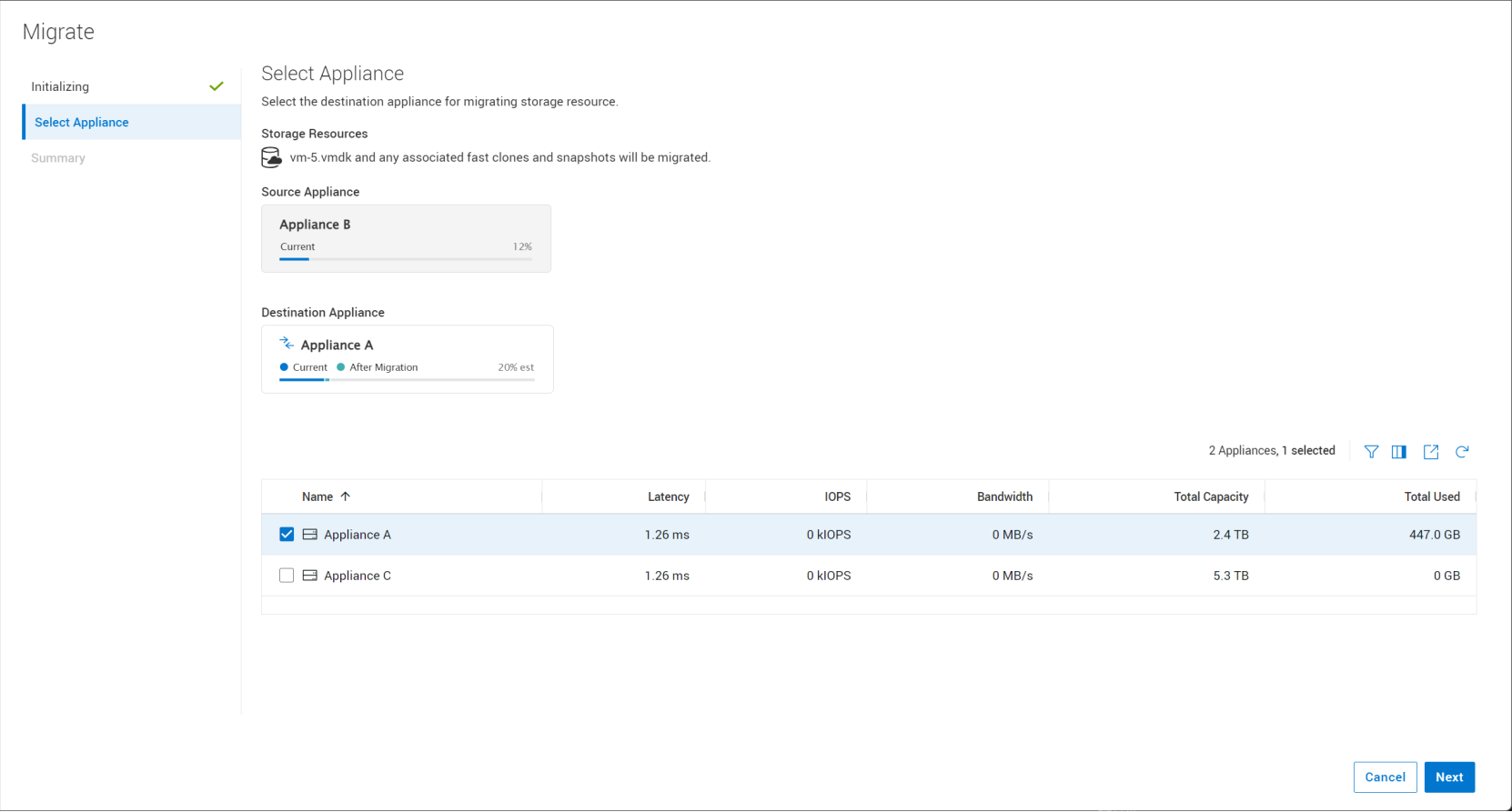
Figure 25. vVol migration
Here is the workflow for an online vVol migration:
- Administrator creates a migration session. The system creates a connection between the source and destination appliances.
- Initial sync: The source vVols data, fast clones, and snapshots are migrated to the destination.
- Delta sync and nondisruptive cutover.
- A final delta copy is completed.
- PowerStore and ESXi coordinate to perform rebind events, enabling an automated and nondisruptive cutover to the new appliance.
For more information about manual and assisted migrations, see the document Dell PowerStore: Clustering and High Availability.
Virtual Volume storage placement
To enable optimal virtualization performance, accounting for a virtual machine’s storage placement is important. This section provides placement recommendations when using vVol storage.
For optimal performance, keep all vVols for a VM together on a single appliance. When provisioning a new VM, PowerStore groups all its vVols onto the same appliance. In a multi-appliance cluster, the appliance that has the highest amount of free capacity is selected. This selection is maintained even if the provisioning results in a capacity imbalance between appliances afterward. If all vVols for a VM cannot fit on a single appliance due to space, system limits, or health issues, the remaining vVols are provisioned onto the appliance with the next-highest amount of free capacity.
When provisioning a VM from a template or cloning an existing VM, PowerStore places the new vVols onto the same appliance as the source template or VM. This action enables the new VM to take advantage of data reduction to increase storage efficiency. For VM templates that are frequently deployed, it is recommended to create one template per appliance and evenly distribute VMs between appliances by selecting the appropriate template.
When taking a snapshot of an existing VM, new vVols are created to store the snapshot data. These new vVols are stored on the same appliance as the source vVols. In situations where the source vVols are spread across multiple appliances, the vVols created by the snapshot operation also become spread. vVol migrations can be used to consolidate a VM’s vVols onto the same appliance.
Virtual Volume node affinity
Each vVol has an attribute that is designated by PowerStore’s Resource Balancer called node affinity. The node affinity specifies the preferred path to the vVol, either through Node A or Node B. Paths on one node are designated as active/optimized while the paths on the other node are designated as active/non-optimized. Because both nodes on PowerStore are active and have full access to the vVol, the non-optimized paths can continue servicing IO if all optimized paths become unavailable. The architecture enables both load balancing and high availability.
In PowerStoreOS 4.0, dynamic node affinity is available for vVols. This provides Resource Balancer the ability to dynamically change a vVol’s node affinity based on performance metrics. This allows the appliance to maintain relatively consistent utilization, latency, and performance across both nodes. This has several benefits including balancing hardware utilization, optimizing performance, and providing the ability to adapt as workloads change.
This feature is designed to be completely transparent to the administrator and clients. The system makes changes automatically and intelligently as needed. It is enabled automatically after upgrading to PowerStoreOS 4.0 or later. It does not require any user intervention and is non-disruptive to clients.
Performance metrics are collected every five minutes and the rebalance operation happens every 30 minutes. For a rebalance to be initiated, the following criteria must be met:
- One node must have at least 50% or higher CPU utilization
- One node must have a sustained 20% or more deviation from the ideal balance of 50/50
- An internal latency check must pass to confirm that the rebalance is beneficial
If these checks pass, PowerStore attempts to first migrate volumes to achieve balance. If no further balancing can be done on volumes and there is still an imbalance, vVol node affinity can be changed in the next cycle. One vVol can be changed per cycle. Resource Balancer aims to achieve an even balance between the two nodes based on the throughput and bandwidth workload, regardless of the resource type.
When a vVol rebalance is initiated, PowerStore coordinates with all of the ESXi hosts to update the peer protocol endpoint to be the active/optimized path. When complete, this results in ESXi directing IO to the protocol endpoint on the peer node. ESXi automatically quiesces IOs until the pathing update is complete.
Data and config vVols are eligible for balancing. Data vVols store data, such as VM hard disks, snapshots, full clones, and fast clones and generally have the most IO. Config vVols store standard VM configuration data, such as .vmx files, logs, and NVRAM.
Some vVols are excluded from balancing. vVols that are unbound are not in use, such as a powered-off VM, so these are excluded from balancing. Also, vVols that have a migration in progress or were recently moved are excluded to avoid interference with ongoing migrations or moving resources back too quickly.
VAAI
Overview
VMware datastores
Overview
vVol datastores
NFS datastores
VMFS datastores
Migration
Migration
PowerStore is designed to integrate easily and seamlessly into an existing VMware vSphere environment. Native vSphere features and tools can be used between PowerStore and external ESXi hosts.
This ability enables performing quick and simple migrations by using tools such as vMotion and Storage vMotion. vMotion can be used to move VM compute from one ESXi host to another. Storage vMotion can be used to move VM storage off the current datastore and onto the PowerStore vVol datastore. You also have the option of performing both a vMotion and Storage vMotion simultaneously, as shown in the following figure:
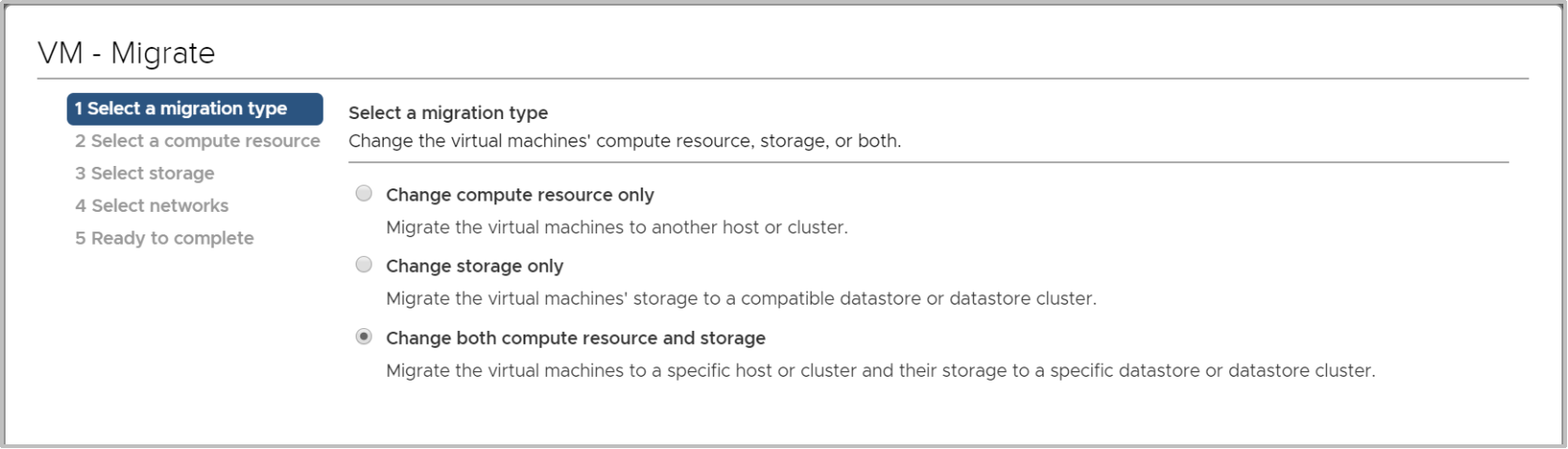
Figure 26. Compute and Storage vMotion
Metro Volume
Metro Volume
vVol replication
vVol replication
VMware plug-ins
Introduction
Virtual Storage Integrator
Virtual Storage Integrator (VSI) brings storage provisioning, management, and monitoring capabilities to the standard VMware vSphere Client interface. Viewing and performing common storage tasks can be accomplished directly from vSphere, without needing to launch PowerStore Manager. The VSI plug-in also provides visibility into the storage system, enabling administrators to see the underlying storage on which their VMs are running. When connecting external ESXi hosts to PowerStore, use VSI to scan the host and apply best practices for performance and availability. The following figure shows the datastore creation wizard in VSI:
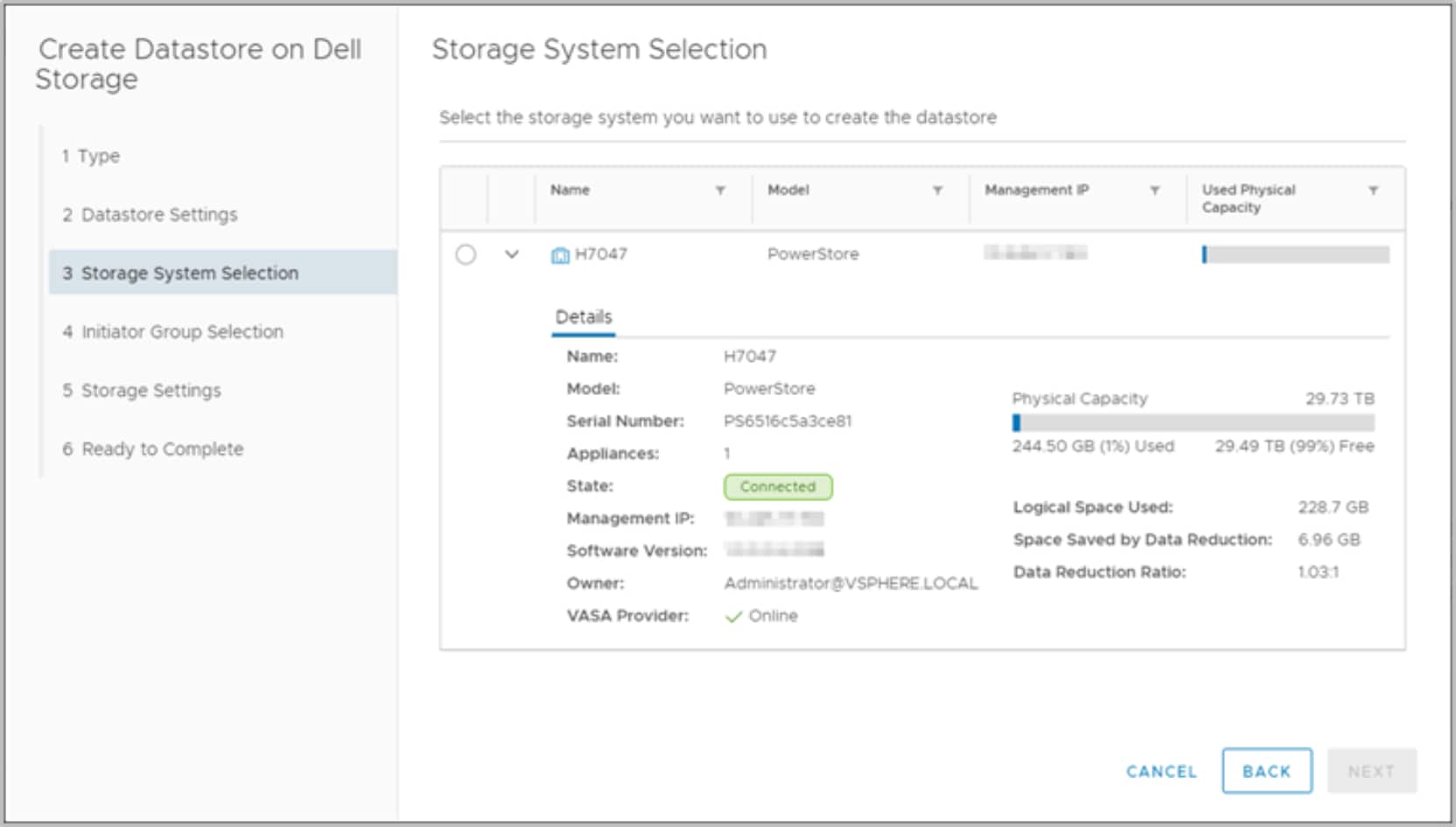
Figure 27. Creating a datastore using VSI
vRealize Orchestrator
VMware vRealize Orchestrator (vRO) enables creating automation workflows to streamline VMware and PowerStore tasks. The PowerStore plug-in includes many workflows such as provisioning storage, managing hosts, configuring protection, and viewing the details of the resources.
The vRO framework allows individual workflows to be put together to build a custom workflow. For example, you can create a custom vRO workflow that connects an ESXi host to the iSCSI target on the PowerStore appliance and then registers the host on the appliance. The vRO workflow engine can be used with vRealize Automation to create a policy-based self-service environment.
The following figure shows some of the workflows available in vRO with the PowerStore plug-in:
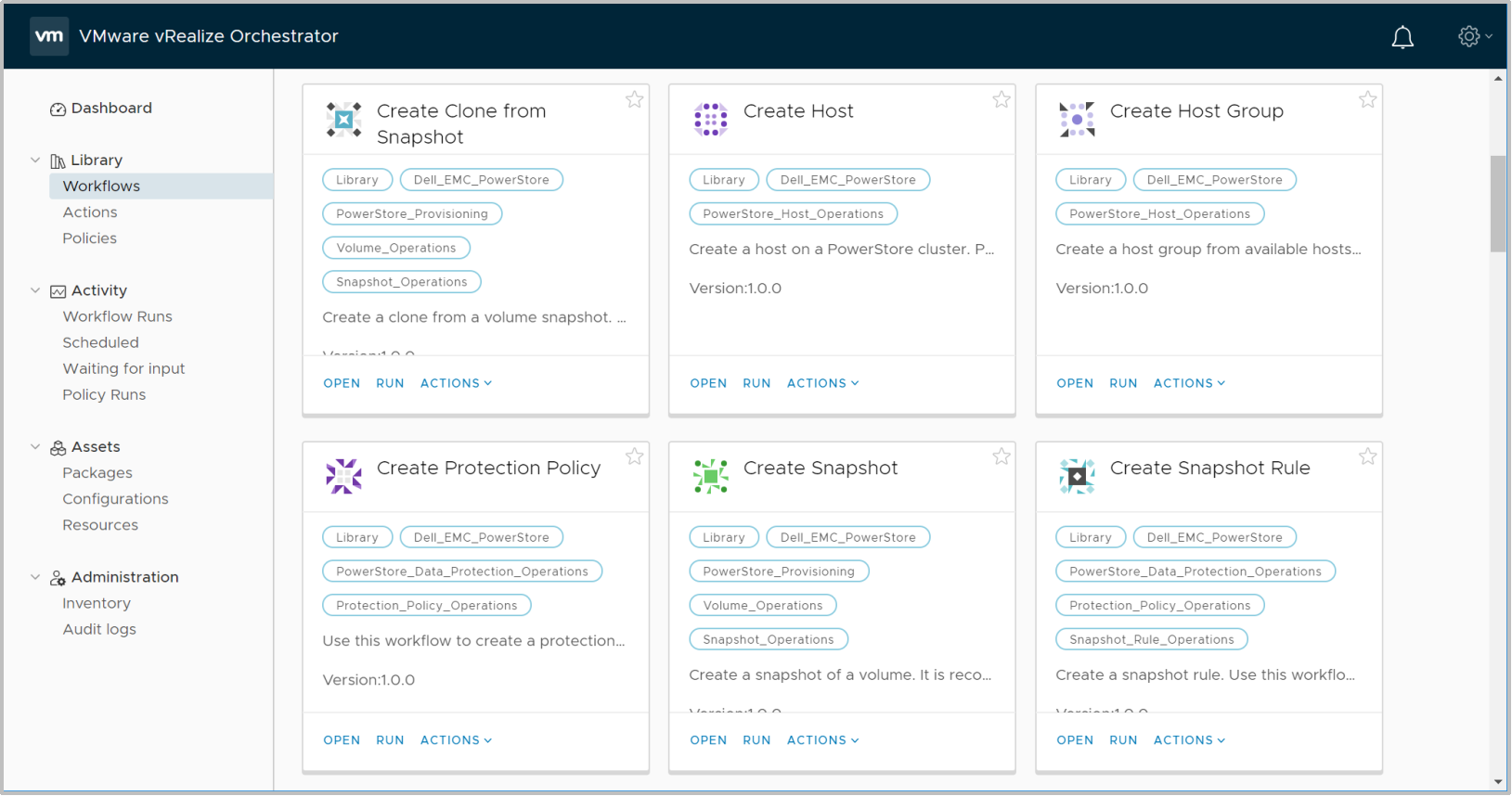
Figure 28. vRealize Orchestrator
Storage Replication Adapter
A PowerStore Storage Replication Adapter (SRA) is available for customers that are using array-based replication and VMware Site Recovery Manager (SRM) for disaster recovery. For SRM to manage PowerStore replication properly, the SRA must be installed on the SRM Server hosts at the recovery and protected sites. The following figure shows the PowerStore SRA in SRM:
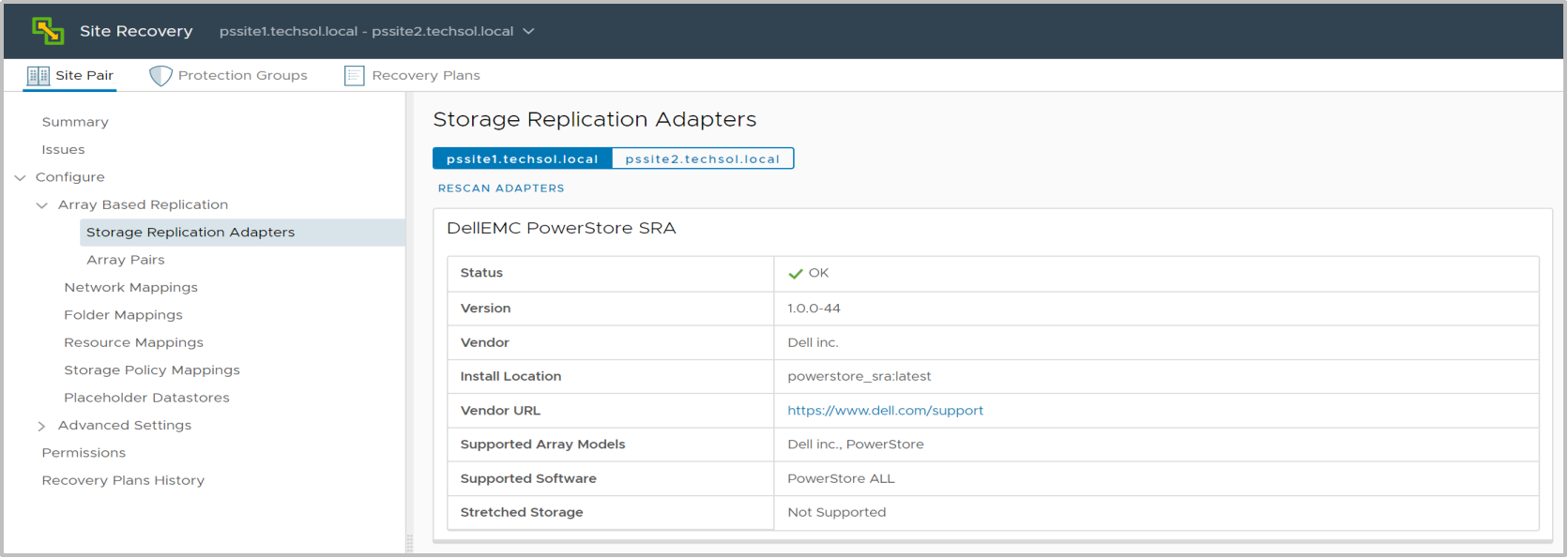
Figure 29. PowerStore SRA
Best practices
Site Recovery Manager ships with a default configuration that is tuned for a large cross-section of environments. However, each environment is unique in terms of architecture, infrastructure, size, and recovery time objectives. Larger and more complex SRM environments may require tuning adjustments for SRM to work properly. See the document Dell PowerStore: Site Recovery Manager Best Practices for more information.