Dell Pro Max GB10: Multi-node LLM deployment
Overview
The Dell Pro Max GB10 comes with 128 GB of memory and is prepared to support up to 200B parameter models for inference on FP4 and 70B parameter models for fine tuning.
However, we can stack 2 nodes with direct cable connections to double that support and deploy up to a 400B parameter model for inference.
This blog covers the process of connecting two Dell Pro Max GB10 workstations and shows an example of how to deploy a model larger than 200B parameters using those two nodes.
Interconnecting two Dell Pro Max GB10
Each workstation comes with one dual port NVIDIA ConnectX-7 that can be used to interconnect up to two workstations using a QSFP cable for direct 200GbE connection. In our lab we verified the connection with one and two cables and both types of connection work. Using two cables provides a small improvement in performance on the NCCL test.
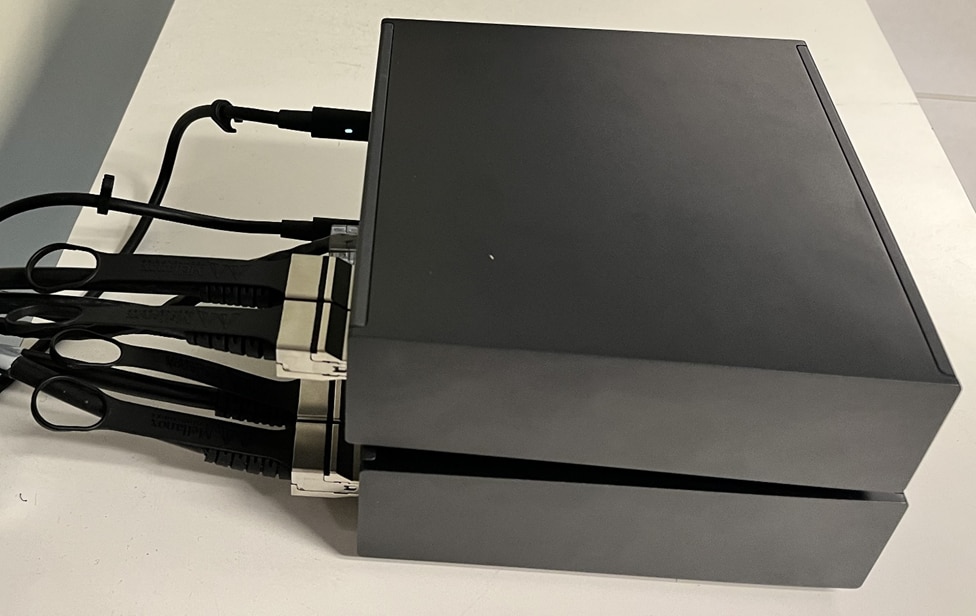
Figure 1 - Cables interconnecting the Dell Pro Max GB10
To configure the workstations, you must connect the proper cable and follow the instructions on How to Cluster Two Dell Pro Max with GB10 systems. The procedure is straightforward, but there is one caveat if you want to use the 2 ports. Because the automatic IP assignment has an overlap of the subnetmask on the ports, this overlap prevents correct communication. Our recommendation is to use the automatic IP assignment only if you are using a single cable.
If the goal is to use two cables (for network redundancy) you must configure the IPs manually and make sure that the subnets are not overlapping or the NCCL communication will not work correctly.
NCCL Test
NVIDIA provides a detailed guide on how to prepare and run the NCCL test here. You are required to clone the correct GitHub repository and compile the software to run on a GB10 workstation. We have outlined these steps, including all of the commands needed to run. We also show the improved NCCL results if you connected them using 2 cables.
delluser@promaxgb10-4ebd:~$ mpirun -np 2 -H 172.17.255.31:1,172.17.255.32:1 --mca plm_rsh_agent "ssh -o UserKnownHostsFile=/dev/null -o StrictHostKeyChecking=no" -x LD_LIBRARY_PATH=$LD_LIBRARY_PATH $HOME/nccl-tests/build/all_gather_perf -b 16G -e 16G -f 2
Authorization required, but no authorization protocol specified
Authorization required, but no authorization protocol specified
Warning: Permanently added '172.17.255.32' (ED25519) to the list of known hosts.
Authorization required, but no authorization protocol specified
Authorization required, but no authorization protocol specified
Authorization required, but no authorization protocol specified
Authorization required, but no authorization protocol specified
# nccl-tests version 2.17.6 nccl-headers=22803 nccl-library=22803
# Collective test starting: all_gather_perf
# nThread 1 nGpus 1 minBytes 17179869184 maxBytes 17179869184 step: 2(factor) warmup iters: 1 iters: 20 agg iters: 1 validation: 1 graph: 0
#
# Using devices
#  Rank  0 Group  0 Pid  18975 on promaxgb10-4ebd device  0 [000f:01:00] NVIDIA GB10
#  Rank  1 Group  0 Pid  62039 on promaxgb10-4a0d device  0 [000f:01:00] NVIDIA GB10
#
#                                                              out-of-place                       in-place
#       size         count      type   redop    root     time   algbw   busbw  #wrong     time   algbw   busbw  #wrong
#        (B)    (elements)                               (us)  (GB/s)  (GB/s)             (us)  (GB/s)  (GB/s)
 17179869184    2147483648     float    none      -1   336706   51.02   25.51       0   334056   51.43   25.71       0
# Out of bounds values : 0 OK
# Avg bus bandwidth    : 25.6128
#
# Collective test concluded: all_gather_perf
As a comparison, the following is the result when using 1 port, showing that 2 cables can provide around 14% better communication speed.
# nccl-tests version 2.17.6 nccl-headers=22803 nccl-library=22803
# Collective test starting: all_gather_perf
# nThread 1 nGpus 1 minBytes 17179869184 maxBytes 17179869184 step: 2(factor) warmup iters: 1 iters: 20 agg iters: 1 validation: 1 graph: 0
#
# Using devices
#  Rank  0 Group  0 Pid   5808 on promaxgb10-4ebd device  0 [000f:01:00] NVIDIA GB10
#  Rank  1 Group  0 Pid   7044 on promaxgb10-4a0d device  0 [000f:01:00] NVIDIA GB10
#
#                                                              out-of-place                       in-place
#       size         count      type   redop    root     time   algbw   busbw  #wrong     time   algbw   busbw  #wrong
#        (B)    (elements)                               (us)  (GB/s)  (GB/s)             (us)  (GB/s)  (GB/s)
 17179869184    2147483648     float    none      -1   388267   44.25   22.12       0   383466   44.80   22.40       0
# Out of bounds values : 0 OK
# Avg bus bandwidth    : 22.2623
#
# Collective test concluded: all_gather_perf
Multinode LLM Inference
Now that we have interconnected two Dell Pro Max GB10 workstations, let us show you how deploying the model nvidia/Qwen3-235B-A22B-FP4 on single node fails, but works with 2-nodes connected!
Create an OpenMPI hostfile
vLLM uses the OpenMPI to communicate between the nodes, so we must create a hostfile with the IP addresses of both nodes for MPI operations.
For each node, get the IP address of your network interface (ip addr show enp1s0f0np0), and on your primary node create the hostfile ~/openmpi-hostfile with the collected IP addresses:
delluser@promaxgb10-4ebd:~$ cat > ~/openmpi-hostfile <<EOF
<IP-of-node-1>
<IP-of-node-2>
EOF
Start containers on both nodes
Run following command on both nodes to start the containers.
docker run -d --rm \
  --name trtllm-multinode \
  --gpus '"device=all"' \
  --network host \
  --ulimit memlock=-1 \
  --ulimit stack=67108864 \
  --device /dev/infiniband:/dev/infiniband \
  -e UCX_NET_DEVICES="enp1s0f0np0,enp1s0f1np1" \
  -e NCCL_SOCKET_IFNAME="enp1s0f0np0,enp1s0f1np1" \
  -e OMPI_MCA_btl_tcp_if_include="enp1s0f0np0,enp1s0f1np1" \
  -e OMPI_MCA_orte_default_hostfile="/etc/openmpi-hostfile" \
  -e OMPI_MCA_rmaps_ppr_n_pernode="1" \
  -e OMPI_ALLOW_RUN_AS_ROOT="1" \
  -e OMPI_ALLOW_RUN_AS_ROOT_CONFIRM="1" \
  -v ~/.cache/huggingface/:/root/.cache/huggingface/ \
  -v ~/.ssh:/tmp/.ssh:ro \
  nvcr.io/nvidia/tensorrt-llm/release:1.0.0rc3 \
  sh -c "curl https://raw.githubusercontent.com/NVIDIA/dgx-spark-playbooks/refs/heads/main/nvidia/trt-llm/assets/trtllm-mn-entrypoint.sh | sh"
Verify containers are running
On both nodes you should see similar output.
delluser@promaxgb10-4a0d:~$ docker ps
CONTAINER ID   IMAGE                                          COMMAND                  CREATED       STATUS       PORTS     NAMES
59a77ce86681   nvcr.io/nvidia/tensorrt-llm/release:1.0.0rc3   "/opt/nvidia/nvidia_…"   2 hours ago   Up 2 hours             trtllm-multinode
Copy the hostfile to the primary container
delluser@promaxgb10-4ebd:~$ docker cp ~/openmpi-hostfile trtllm-multinode:/etc/openmpi-hostfile
Successfully copied 2.05kB to trtllm-multinode:/etc/openmpi-hostfile
Save the container reference
delluser@promaxgb10-4ebd:~$ export TRTLLM_MN_CONTAINER=trtllm-multinode
Generate the configuration file
delluser@promaxgb10-4ebd:~$ docker exec $TRTLLM_MN_CONTAINER bash -c 'cat <<EOF > /tmp/extra-llm-api-config.yml
print_iter_log: false
kv_cache_config:
  dtype: "auto"
  free_gpu_memory_fraction: 0.9
cuda_graph_config:
  enable_padding: true
EOF'
Download the model
Access the first container and start the download of the model.
delluser@promaxgb10-4ebd:~$ export HF_TOKEN=<Your-Hugging-Face-token>


delluser@promaxgb10-4ebd:~$ docker exec \
  -e MODEL="nvidia/Qwen3-235B-A22B-FP4" \
  -e HF_TOKEN=$HF_TOKEN \
  -it $TRTLLM_MN_CONTAINER bash -c 'mpirun -x HF_TOKEN bash -c "huggingface-cli download $MODEL"'
Warning: Permanently added '[███.███.███.███]:2233' (ED25519) to the list of known hosts.
Fetching 40 files:   0%|          | 0/40 [00:00<?, ?it/s]Downloading 'config.json' to '/root/.cache/huggingface/hub/models--nvidia--Qwen3-235B-A22B-FP4/blobs/79f93e824c4f804a256d4d598ete'
Downloading 'LICENSE' to '/root/.cache/huggingface/hub/models--nvidia--Qwen3-235B-A22B-FP4/blobs/99ddf9deb60b7715d13f9de7e557da5eae11070f.incomplete'
Downloading 'config.json' to '/root/.cache/huggingface/hub/models--nvidia--Qwen3-235B-A22B-FP4/blobs/79f93e824c4f804a256d4d598d7cba614a4293c3.incomplete'
Downloading 'generation_config.json' to '/root/.cache/huggingface/hub/models--nvidia--Qwen3-235B-A22B-FP4/blobs/e4f1d3193e99a3e5d7047edf56e93a6e933fa31b.incomplete'
.
.
.
Download complete. Moving file to /root/.cache/huggingface/hub/models--nvidia--Qwen3-235B-A22B-FP4/blobs/0407d2873efc8b2936788c41c75e9da53c300b8fa6cd16599d0e74d672661afe
Fetching 40 files:  75%|███████▌  | 30/40 [18:53<05:30, 33.03s/it]Download complete. Moving file to /root/.cache/huggingface/hub/models--nvidia--Qwen3-235B-A22B-FP4/blobs/aeb13307a71af773318809eed3cbe794b4492dae4
Download complete. Moving file to /root/.cache/huggingface/hub/models--nvidia--Qwen3-235B-A22B-FP4/blobs/0407d2873efc8b2936788c41c75e9da53c300b8fa6cd16599d0e74d672661afe
Download complete. Moving file to /root/.cache/huggingface/hub/models--nvidia--Qwen3-235B-A22B-FP4/blobs/005a583b0d8ebc069d1b8013ffaecfbae0144b404312cd02b370528b72df05a4
Fetching 40 files:  70%|███████   | 28/40 [18:54<08:38, 43.22s/it]Download complete. Moving file to /root/.cache/huggingface/hub/models--nvidia--Qwen3-235B-A22B-FP4/blobs/e3e86a69dbf6f892d65302abea73d39ceedb1d87e
Download complete. Moving file to /root/.cache/huggingface/hub/models--nvidia--Qwen3-235B-A22B-FP4/blobs/c4932031bcf1455658a06b954436d1c2dbf88f6041efedff5242e99d0a6bfca4
Fetching 40 files:  80%|████████  | 32/40 [18:54<03:23, 25.40s/it]Download complete. Moving file to /root/.cache/huggingface/hub/models--nvidia--Qwen3-235B-A22B-FP4/blobs/55ae45e3cbbce2d73a6fb8373ce219c413bd2252a
Download complete. Moving file to /root/.cache/huggingface/hub/models--nvidia--Qwen3-235B-A22B-FP4/blobs/dbcccd9f01f34c2840b73f0cce9c4f786b43c62f53d56793722b30821979df4d
Fetching 40 files: 100%|██████████| 40/40 [18:54<00:00, 28.36s/it]
/root/.cache/huggingface/hub/models--nvidia--Qwen3-235B-A22B-FP4/snapshots/21cfa2c9e152032eb60647ee7b46a2bbcd8d76d2
Download complete. Moving file to /root/.cache/huggingface/hub/models--nvidia--Qwen3-235B-A22B-FP4/blobs/55ae45e3cbbc97ef31ce2758538a8e1c717e2d73a6fb8373ce219c413bd2252a
Download complete. Moving file to /root/.cache/huggingface/hub/models--nvidia--Qwen3-235B-A22B-FP4/blobs/4a87113d6f9605b2e1ce43db2a6c53978c7b43fe7267df22d116c5079045f67d
Fetching 40 files:  78%|███████▊  | 31/40 [18:54<04:18, 28.76s/it]Download complete. Moving file to /root/.cache/huggingface/hub/models--nvidia--Qwen3-235B-A22B-FP4/blobs/e3e86a69dbf6f892d65302abea73d39ceedb1d87e
Fetching 40 files:  85%|████████▌ | 34/40 [18:54<01:56, 19.45s/it]Download complete. Moving file to /root/.cache/huggingface/hub/models--nvidia--Qwen3-235B-A22B-FP4/blobs/dbcccd9f01f33c62f53d56793722b30821979df4d
Fetching 40 files: 100%|██████████| 40/40 [18:55<00:00, 28.38s/it]
/root/.cache/huggingface/hub/models--nvidia--Qwen3-235B-A22B-FP4/snapshots/21cfa2c9e152032eb60647ee7b46a2bbcd8d76d2
Serve the model
Start the model serving.
delluser@promaxgb10-4ebd:~$ docker exec \
  -e MODEL="nvidia/Qwen3-235B-A22B-FP4" \
  -e HF_TOKEN=$HF_TOKEN \
  -it $TRTLLM_MN_CONTAINER bash -c '
    mpirun -x HF_TOKEN trtllm-llmapi-launch trtllm-serve $MODEL \
      --tp_size 2 \
      --backend pytorch \
      --max_num_tokens 32768 \
      --max_batch_size 4 \
      --extra_llm_api_options /tmp/extra-llm-api-config.yml \
      --port 8355'
Warning: Permanently added '[███.███.███.███]:2233' (ED25519) to the list of known hosts.
mpi_rank: 1
tllm_mpi_size: 2
mpi_rank: 0
tllm_mpi_size: 2
TLLM_SPAWN_PROXY_PROCESS_IPC_ADDR: tcp://127.0.0.1:10012
rank1 run mgmn worker node with mpi_world_size: 2 ...
.
.
.
[12/26/2025-15:02:00] [TRT-LLM] [RANK 0] [I] Run generation only CUDA graph warmup for batch size=1
[12/26/2025-15:02:00] [TRT-LLM] [RANK 0] [I] Detected use_mrope: False
INFO:     Started server process [1971]
INFO:     Waiting for application startup.
INFO:     Application startup complete.
INFO:     Uvicorn running on http://localhost:8355 (Press CTRL+C to quit)
Validate the API server
Simple validation can be performed with the curl command on another bash.
delluser@promaxgb10-4ebd:~$ curl -s http://localhost:8355/v1/chat/completions \
  -H "Content-Type: application/json" \
  -d '{
    "model": "nvidia/Qwen3-235B-A22B-FP4",
    "messages": [{"role": "user", "content": "Paris is great because"}],
    "max_tokens": 64
  }'
{"id":"chatcmpl-648ede7f6a1f478ba52798caeebf53e8","object":"chat.completion","created":1766761980,"model":"nvidia/Qwen3-235B-A22B-FP4","choices":[{"index":0,"message":{"role":"assistant","content":"<think>\nOkay, the user wrote \"Paris is great because\" and wants me to continue. Let me think about what makes Paris special. First, the obvious things like famous landmarks: Eiffel Tower, Louvre Museum, Notre-Dame. Those are definitely highlights. Then there's the art scene—Paris has","reasoning_content":null,"tool_calls":[]},"logprobs":null,"finish_reason":"length","stop_reason":null,"disaggregated_params":null}],"usage":{"prompt_tokens":12,"total_tokens":76,"completion_tokens":64},"prompt_token_ids":null}
Launch the Open WebUI container
Optionally, we can run the following command on the Dell Pro Max GB10 where you have the TensorRT-LLM inference server running. For a multi-node setup, this would be the primary node to deploy a front-end container with open-webui.
delluser@promaxgb10-4ebd:~$ docker run \
  -d \
  -e OPENAI_API_BASE_URL="http://localhost:8355/v1" \
  -v open-webui:/app/backend/data \
  --network host \
  --add-host=host.docker.internal:host-gateway \
  --name open-webui \
  --restart always \
  ghcr.io/open-webui/open-webui:main
docker: Error response from daemon: failed to populate volume: error evaluating symlinks from mount source "/var/lib/docker/volumes/open-webui/_data": lstat /var/lib/docker/volumes/open-webui: no such file or directory
Run 'docker run --help' for more information
Access the Open WebUI interface
Open your web browser and navigate to http://<ip_of_main_GB10_node>:8080, on our case 172.17.255.31.
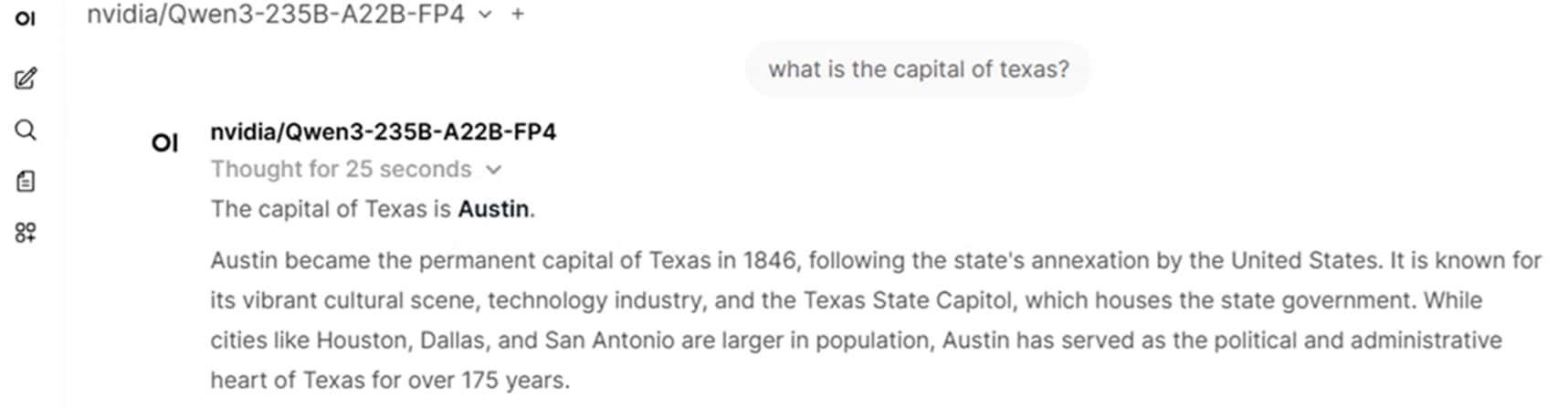
When you first access the interface, you must configure a user and password, then you can submit queries to the model that is spread over the two workstations as shown below.
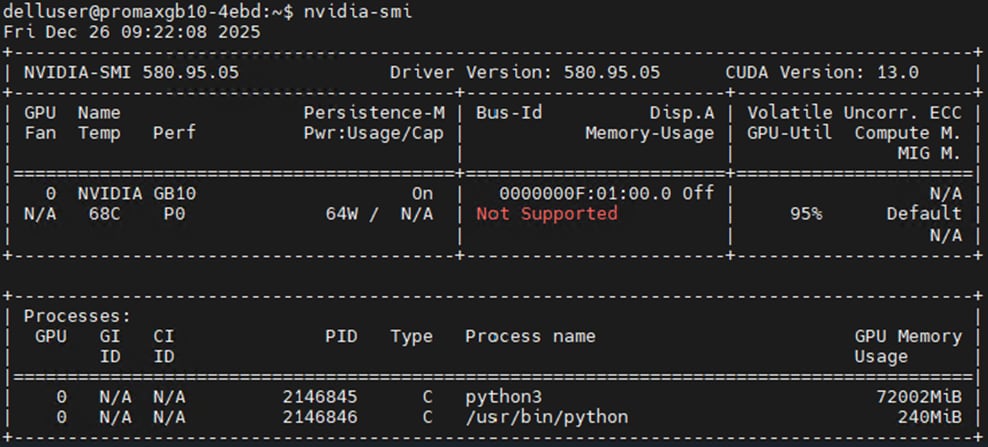
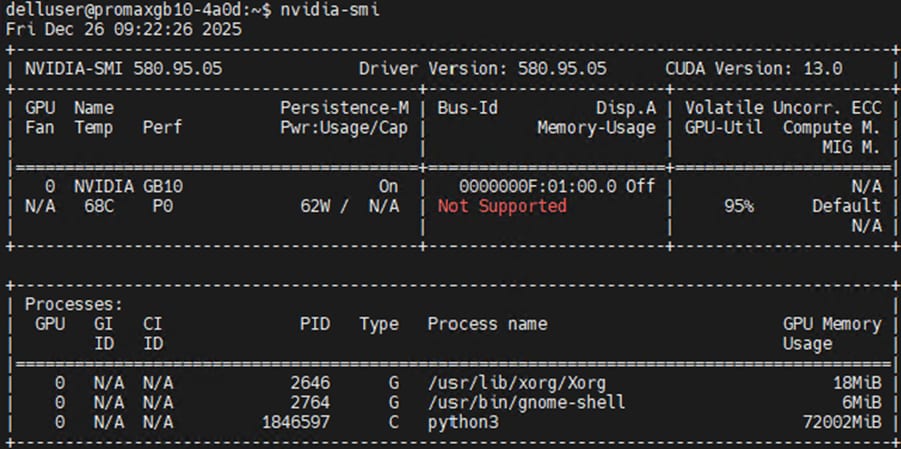
Below we can see that both Dell Pro Max workstations were running the python process and using 95% of the GPU during the query to the model.
Conclusion
Using two Dell Pro Max GB10 workstations expands the possibilities of running larger models for inference as well as fine-tuning. The back-to-back network connected Pro Max GB10 mimics cluster environments.
While it is not officially tested nor supported, it may even be possible to create small clusters using switches to interconnect more than two nodes.