Dell Storage with VMware Cloud Foundation
Introduction
Revisions
|
Date |
Description |
|
February 2019 |
Initial release |
|
Mach 2019 |
SC Series added |
|
April 2019 |
PowerMax NFS, VxFlex, and XtremIO added |
|
July 2019 |
PowerMax and Unity iSCSI steps added |
|
August 2019 |
Introducing Fibre Channel storage as principal storage for VMware Cloud Foundation workload domains |
|
December 2019 |
VMware Cloud Foundation 3.9 updates |
|
April 2020 |
PowerStore added |
|
May 2020 |
Added VMware vSphere Virtual Volumes (vVols) guidance |
|
June 2020 |
Clarified principal and supplemental storage; PowerFlex branding update |
|
October 2020 |
Added VMware Cloud Foundation 4.1 updates for vVols support |
|
June 2021 |
Added PowerStoreOS 2.0 updates |
|
November 2021 |
Updated template |
|
August 2022 |
Added PowerStoreOS 3.0 updates, deploying vVols on VMware Cloud Foundation 4.2 |
|
February 2023 |
VCF 4.5 supports NVMe-oF as supplemental storage |
We value your feedback
Dell Technologies and the authors of this document welcome your feedback on this document. Contact the Dell Technologies team by email.
Author: Jason Gates
Contributor: Nicholas Ringborg
Note: For links to other documentation for this topic, see the PowerStore Info Hub.
Overview
Digital Transformation is no longer a buzzword, but rather a direct reflection of the massive changes that are happening across every industry. Organizations are making substantial investments in IT to succeed in this environment, using data as an asset across all aspects of their business. There has also been substantial movement toward onboarding cloud services to accelerate innovation, expand to new locations, keep up with massive growth, and reduce costs of delivering IT.
As a result, IT departments are under significant pressure. They are no longer treated as a cost center, but, instead, IT is playing a significant role in shaping their organization’s overall digital strategy. The growth of organizations’ application ecosystems represents a large shift for many IT departments. Significant challenges along the way, such as aging data centers and legacy infrastructure, make it difficult to support their transformation ambitions.
IT departments are now forced to reexamine what they do and how they do it—prioritizing their business objectives to deliver greater efficiency, predictability, and business agility.
The need for a hybrid cloud model
The explosion of data and devices in addition to the continued focus on controlling and reducing operating expenses has accelerated the adoption of both public and private cloud computing. Making data-driven decisions and acting quickly on new ideas helps to deliver outstanding customer and user experiences and achieve success. To support this new paradigm, IT is addressing the needs of both traditional three-tier applications and new cloud-native applications, each with a different set of priorities.
For existing workloads, IT departments are looking to reduce costs and improve performance and efficiency. For cloud-native workloads, the priorities are around access to new cloud services such as containers for artificial intelligence or machine learning platforms. To address the specific needs of workloads, organizations are moving toward adopting public and private clouds.
However, operating in multiple clouds comes with another set of challenges, including operational silos, different management and operations tools, complex workload migrations, security concerns, and inconsistent SLAs. These problems are byproducts of the lack of consistent infrastructure and operations across clouds, slowing cloud adoption and limiting its effectiveness.
To overcome this complexity, the ideal choice for organizations is to embrace a consistent hybrid cloud strategy for both public and private clouds, allowing for the optimal deployment of workloads. According to research from analyst firm ESG (IDC Worldwide Quarterly Cloud IT Infrastructure Tracker, Q1, 2019, June 2019), half of organizations formulating hybrid cloud strategies have cited seamless compatibility with their on-premises infrastructure as their most important consideration. In other words, they need a hybrid cloud strategy that eliminates multicloud complexity, while providing flexible deployment options for high-value workloads.
VMware Cloud Foundation
VMware is a leader in providing both the virtualization and management software that support a software-defined data center (SDDC). The VMware vision of a modern data center starts with a foundation of software-defined infrastructure that is simple to manage, monitor, and operate. The architecture for the SDDC empowers companies to run hybrid clouds, delivering scalability, automation, and agility. It is based on well-established products from VMware, such as vSphere, vSAN, and NSX, providing compute, storage, and networking virtualization. Together with the VMware vRealize Suite, VMware Cloud Foundation brings additional management, self-service, automation, intelligent operations, life-cycle management, and financial transparency. With VMware Cloud Foundation, IT departments now have a powerful operational hub for their hybrid cloud environments and external storage arrays. This advantage helps deliver a strong foundation to deploy and manage both traditional and cloud-native workloads.
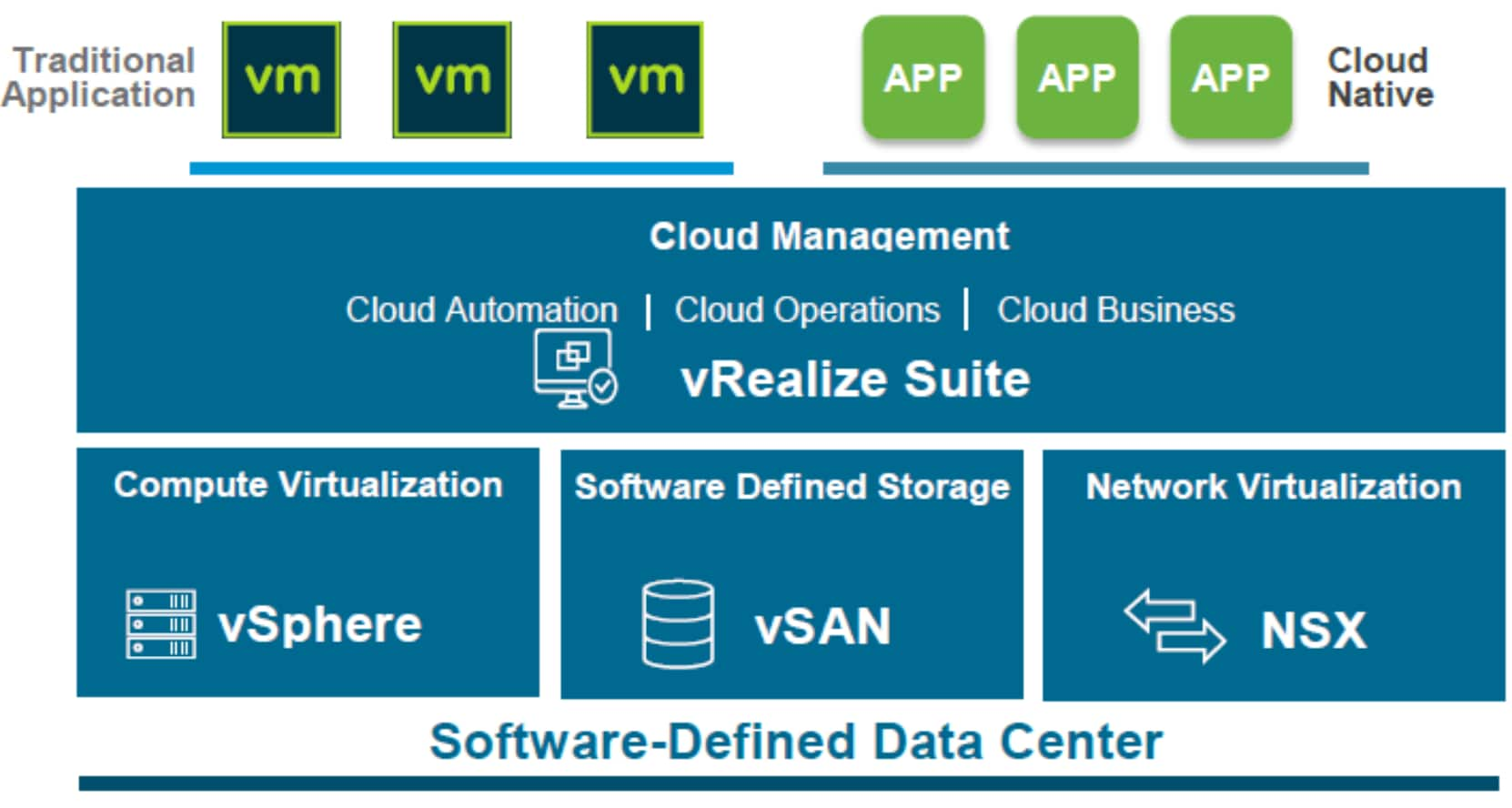
Figure 1. VMware software-defined data center architecture
Dell storage Validated Designs
Dell storage Validated Designs enable customers to bring hybrid cloud to a broader set of workloads that require independent scaling of storage and compute. This new option to consume resources provides deployment guidance for pretested Dell storage, compute, and networking infrastructure that has been validated with VMware Cloud Foundation. Using validated designs, customers can now support new and legacy workloads that have infrastructure-intensive requirements in the most efficient way possible.
Benefits of Validated Designs include:
- Rapid time-to-value with pretested infrastructure and deployment guidance
- Excellent performance with independent scaling of storage and compute
- Ability to leverage existing investments for hybrid cloud environments
Dell storage systems with VMware Cloud Foundation
Introduction
VMware Cloud Foundation brings immense value to simplify operations, manageability, and automation for customers looking to deploy and manage both traditional and modern applications. To address performance and scalability challenges with certain applications, VMware introduced support for external storage to address unique requirements.
Validated Designs are available for Dell PowerMax, Dell PowerStore, Dell Unity XT, and Dell PowerFlex.
Table 1. Workload domain usage per Dell storage system
|
Validated storage system |
Workload domain use |
|
PowerMax |
Principal, supplemental |
|
PowerStore |
Principal, supplemental |
|
Unity XT |
Principal, supplemental |
|
PowerFlex |
Supplemental |
Principal and supplemental storage for workload domains
Continuing a history of collaboration with VMware, Dell Technologies has qualified external storage solutions for VMware Cloud Foundation workload domains. Originally, the ability to use external NFSv3 as principal with FC storage as supplemental storage became available with VMware Cloud Foundation 3.5.1. Later, the use of VMFS on FC storage as principal storage in workload domains is available with VMware Cloud Foundation version 3.9, and vVols with VMware Cloud Foundation 4.1.
VMware Cloud Foundation supports four protocols for principal storage and seven protocols as supplemental storage for workload domains. The principal and supplemental storage terms merely describe when the storage is configured with the workload domain. The characteristics of these storage types have no relation to features or performance profiles, as both can be equally resilient and performant. Principal storage is used as the first datastore to initially deploy a workload domain, while supplemental storage is any subsequent storage added after the workload domain is deployed. Supplemental storage including PowerFlex, VMFS on iSCSI, NFSv4, and NVMe/FC are attached later using standard vCenter and array management tools.
Table 2. Protocol configuration options
|
Protocol |
Management Domain |
Workload Domains: Principal Storage |
Workload Domains: Supplemental Storage |
|
Yes |
Yes |
Yes |
|
|
NFSv3 |
No |
Yes |
Yes |
|
VMFS on FC |
No |
Yes |
Yes |
|
Virtual Volumes (vVols) |
No |
Yes |
Yes |
|
NFSv4 |
No |
No |
Yes |
|
VMFS on iSCSI |
No |
No |
Yes |
|
NVMe/FC |
No |
No |
Yes |
Customer use cases
Customers can now use Dell storage Validated Designs to build their own hybrid cloud infrastructure, combining the best of software-defined and traditional architectures. With more choices, they have deployment flexibility to meet unique external storage-intensive requirements such as the ability to scale storage capacity independent from compute capacity.
PowerMax, PowerStore, and Unity XT storage systems support Network File System (NFS), Fibre Channel (FC), and Virtual Volumes (vVols) as principal storage and iSCSI as supplemental storage. In addition, IP-based SAN storage products like PowerFlex are supported as supplemental storage.
Storage-intensive applications
Dell storage arrays are ideal for applications with demanding throughput and capacity needs. They are powerful additions to VMware Cloud Foundation environments, delivering the flexibility to scale storage independent of compute for greater performance and application flexibility. In addition, customers can also build new levels of storage resiliency with replication for disaster recovery from on-premises data centers to multiple sites, for example.
Investment protection
Customers with existing Dell storage infrastructure can now easily attach existing data capacity to their hybrid cloud environments. Attaching external storage enables them to take advantage of the advanced data services, performance, and capacity that PowerMax, PowerStore, Unity XT, and PowerFlex delivers.
Deployment automation
The vRealize Orchestrator (vRO) plug-in for PowerMax and PowerStore allows administrators to take advantage of VMware deployment tools of choice to rapidly stand up new environments with attached external storage. Customers can now run storage operations such as provisioning storage or scheduling snapshots directly from vRO. In addition, they can further automate storage-management activities by establishing workflows through a self-service portal using vRealize Automation (vRA). Workflows allow administrators to simplify the user experience and deliver a predefined catalog of items that users can deploy without prior knowledge of specific storage platforms. Examples of self-service items include:
- High-performance storage: Predefined storage for workloads that require low latency such as credit card authorizations for retail transactions. Users select preconfigured high-performance NVMe storage capacity that offers high read/write performance that is designed to support Online Transaction Processing (OLTP) transactional workloads.
- Data warehouse storage: Predefined storage for workloads that require large sequential read performance such as business analytics. Users select preconfigured high-capacity storage (such as NL-SAS or SATA drives) that offers great sequential read performance supporting large database queries.
Protocol deployment options
Principal and supplemental storage choices depend on the deployment platform selected for the VMware Cloud Foundation environment. The following figure illustrates the various options that can be used per workload domain.
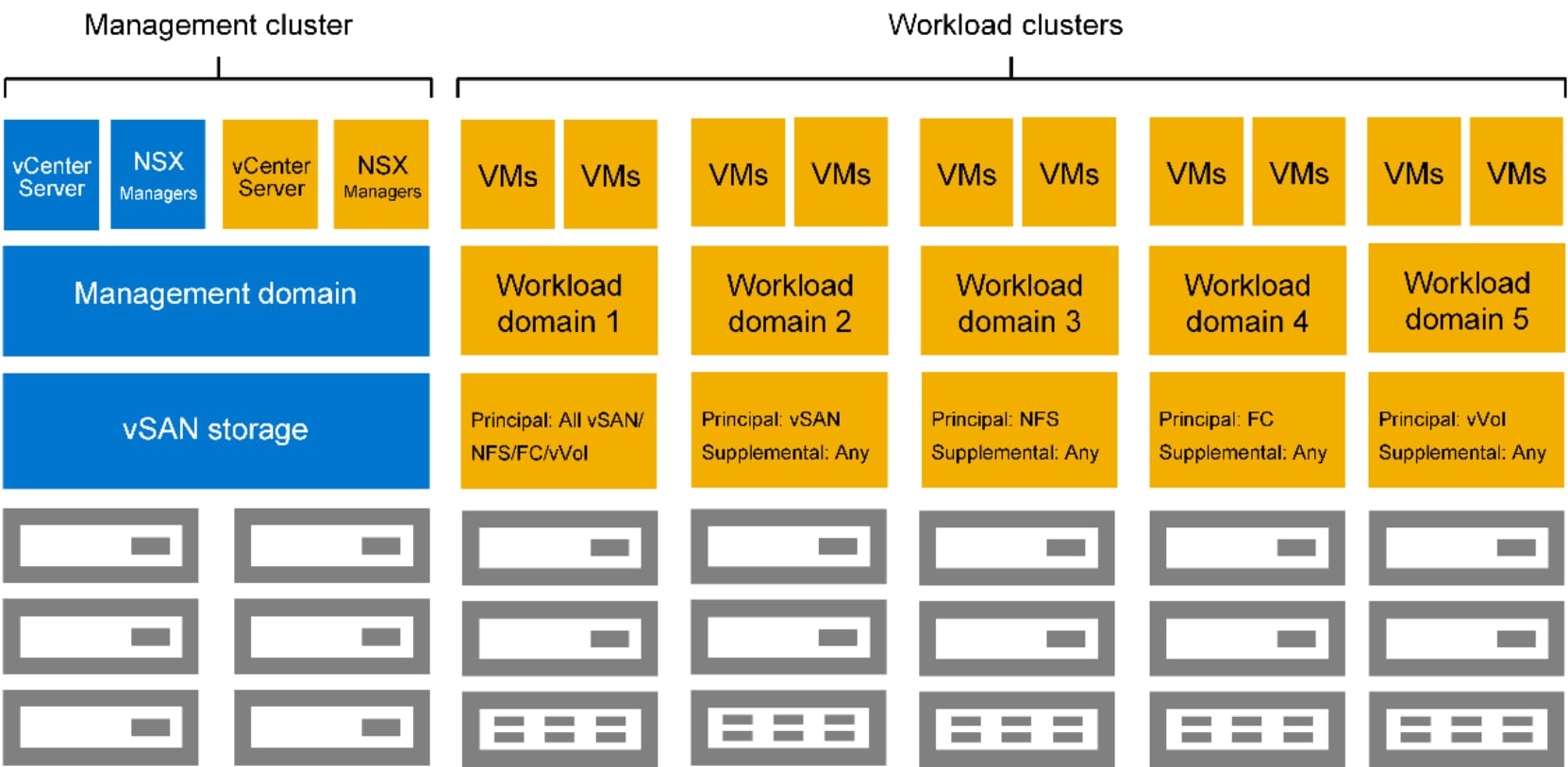
Figure 2. Dell storage deployment options for VMware vSAN ReadyNodes with VMware Cloud Foundation
Note: VMFS on iSCSI, NFSv4, and NVMe/FC can only be used as supplemental storage for workload domains with supported Dell arrays.
Prerequisites
Overview
Dell storage Validated Designs focus on Dell storage arrays using principal or supplemental storage for workload domains.
Before completing the main steps in this guide, complete the following prerequisites.
VMware Cloud Foundation:
- VMware Cloud Builder has deployed the management domain.
- Hosts are commissioned and are ready to be added to a new workload domain.
Dell storage:
Storage networking is configured to allow connectivity between the Dell arrays and the VMware Cloud Foundation workload hosts.
- For NFS and iSCSI configurations, dedicate a workload domain VLAN for an IP-based storage network pool.
VMware Cloud Foundation 4.1 and later versions allow separate VLANs for NFS and iSCSI.
- For FC configuration, the workload host initiator’s WWNs must be zoned with the SCSI target port WWNs for the array within the FC switch networks.
- For NVMe/FC configuration, the workload host initiator's NVMe WWNs must be zoned with the array’s NVMe WWNs.
Workload domain configuration with NFS
Introduction
When provisioning an NFS-based workload domain, the principal storage assignment for that workload domain must use either NFSv3 or vSAN storage for the initial cluster creation. Once the workload domain has been created, supplemental storage from other arrays or protocols can be added later. This section details how to configure NFSv3 storage to be used for workload domain creation.
VMware Cloud Foundation network pool configuration
Before creating the NFS share, a dedicated storage IP networking pool must be created for NFS traffic.
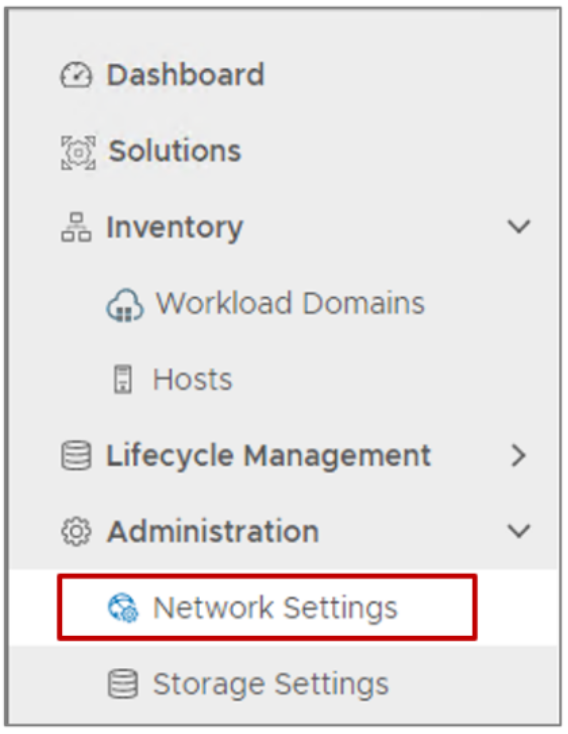
- From the SDDC Manager dashboard, in the left pane, expand Administration and click Network Settings.
- In the upper-right side of the page, click Create Network Pool.
- Create the network pool.
- Specify a Network Pool Name.
- For Network Type, select NFS.
- Enter the IP storage network information.
- When finished adding IP address ranges, click Save.
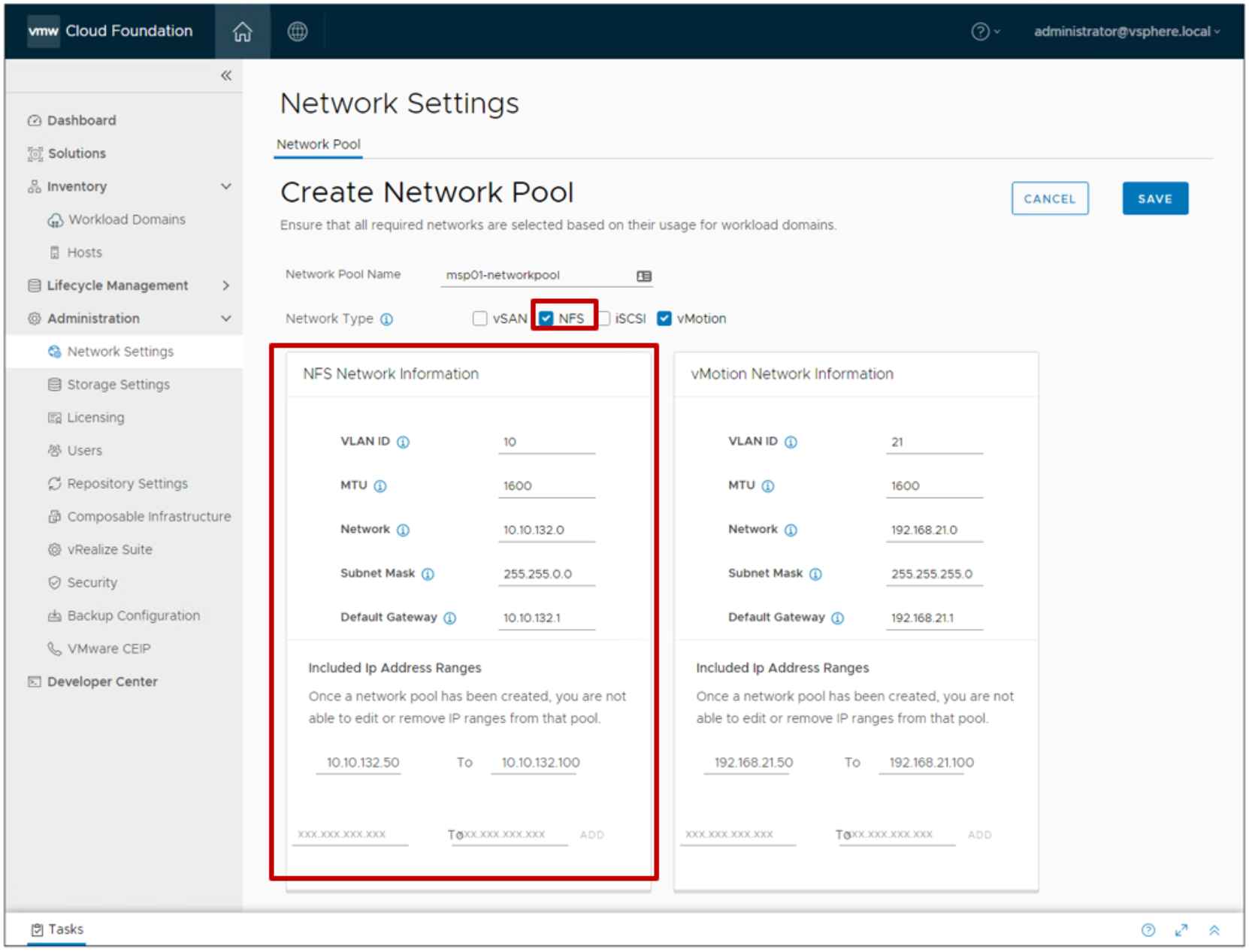
- Make note of the Included IP Address Ranges for later use when assigning host access permissions on the NFS share.
Dell storage configuration
This section details the steps for each of the various arrays to prepare the NFS mount points for VMware Cloud Foundation.
Dell Unity NFS share creation
To create the NFSv3 share on the Unity array, follow these steps:
- From within the Unity Unisphere interface, under Storage click File, click the NAS Servers section, and click the plus sign (+) to add a NAS server.
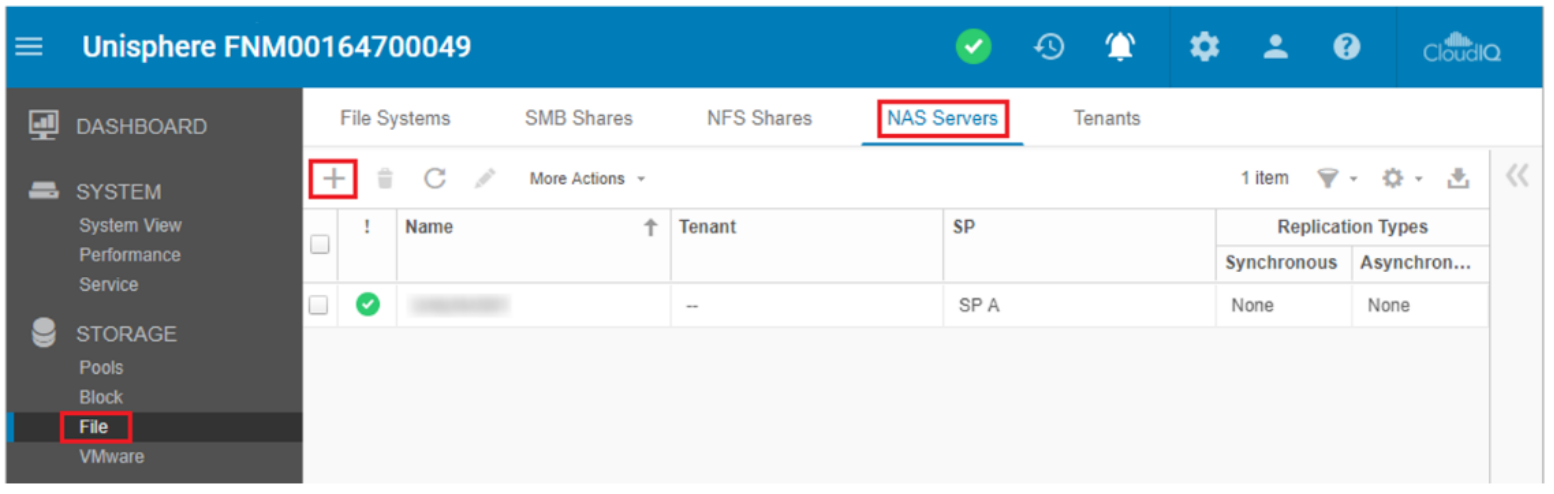
- Follow the wizard and specify the settings unique to your environment. Any configuration pages that require special attention are described in the following steps.
- On the Interface page, specify an IP address within the VLAN of the NFS network pool that was created earlier from the SDDC Manager, and click Next.
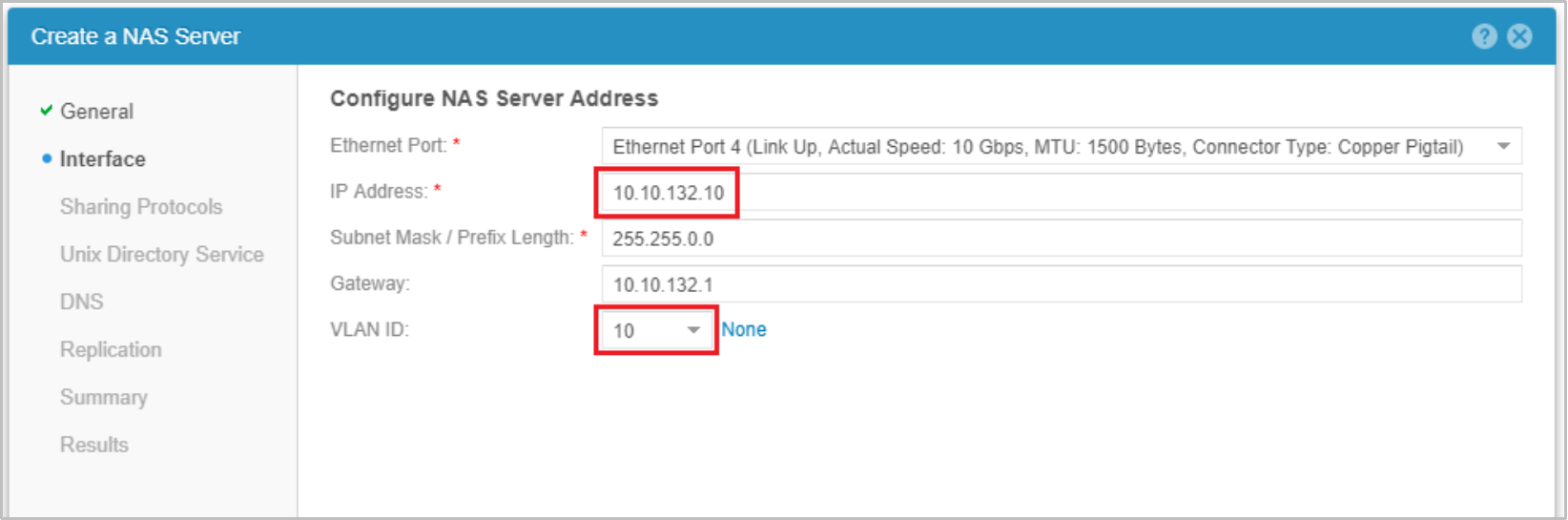
- On the Sharing Protocols page, select Linux/Unix shares (NFS) and click Next.
- On the Summary page, click Finish to create the NAS server.
Next, create the file system for the NFS share.
- Select the File Systems section and click the plus (+) to add a file system.
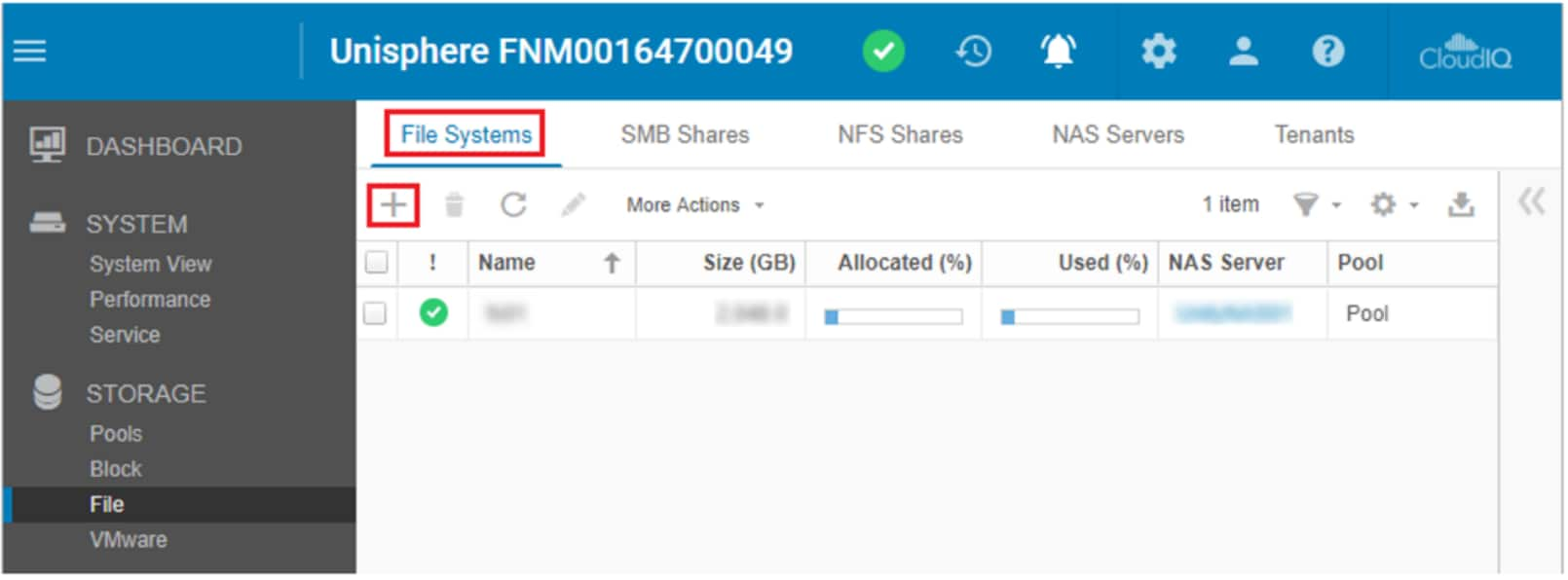
- On the Protocol page, select Linux/Unix Shares (NFS), select the NAS Server that was created previously, and click Next.
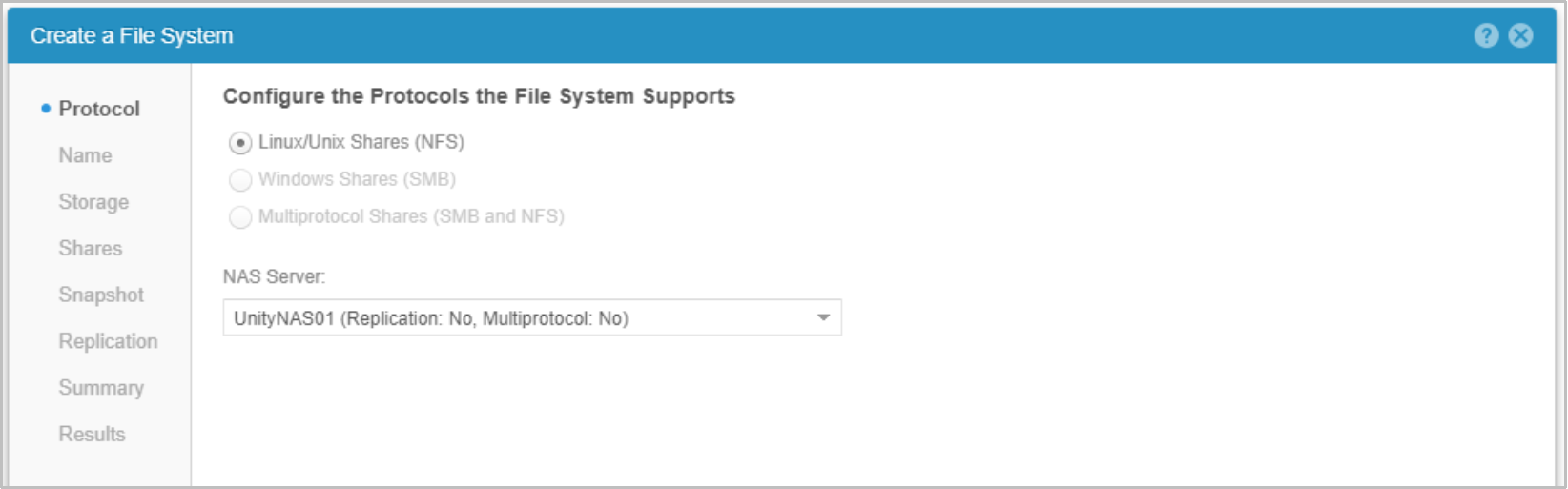
- Specify the options for the Name and click Next.
- On the Shares page, check the NFS Share (Linux/Unix) box, specify a share name, and click Next.
- Make note of the NFS Share Path for use later in configuring the NFS share from within the SDDC Manager.
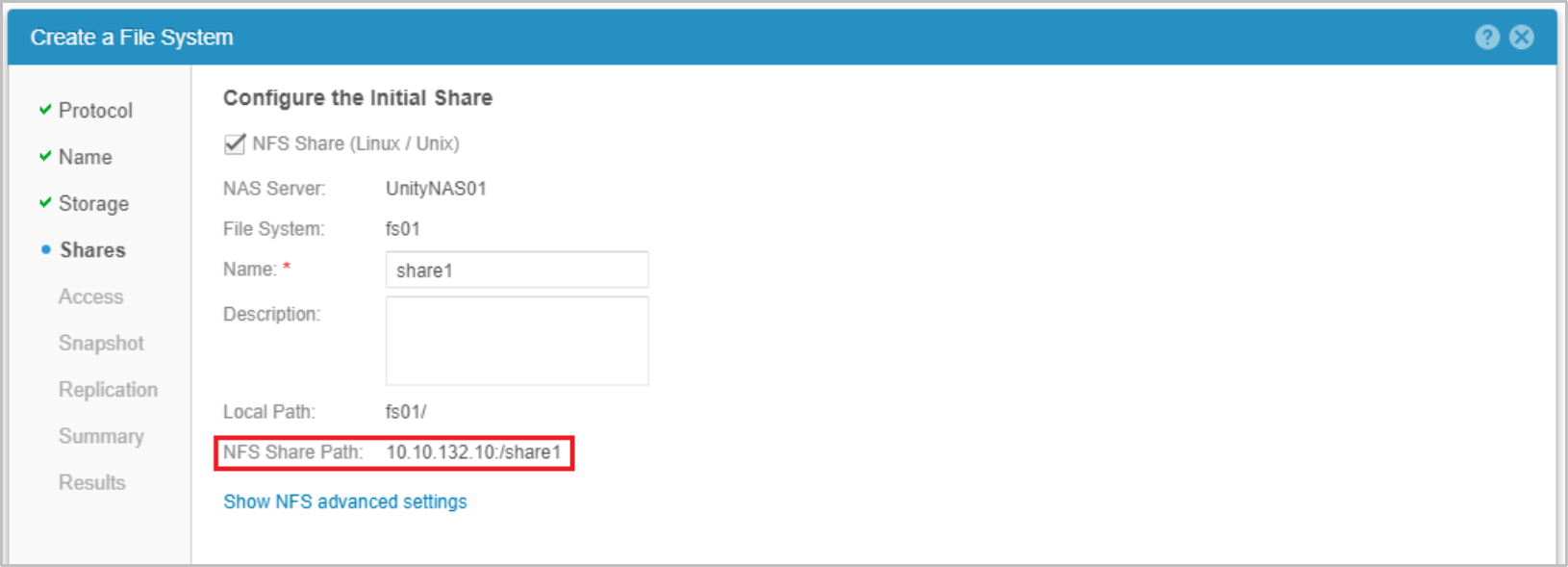
- On the Access page, set the Default Access to Read/Write, allow root, and click the plus sign (+) to customize the host access. In the section Customize access for the following hosts, add the Included IP Address Ranges assigned to the NFS network pool created in VMware Cloud Foundation network pool configuration. Click Next.
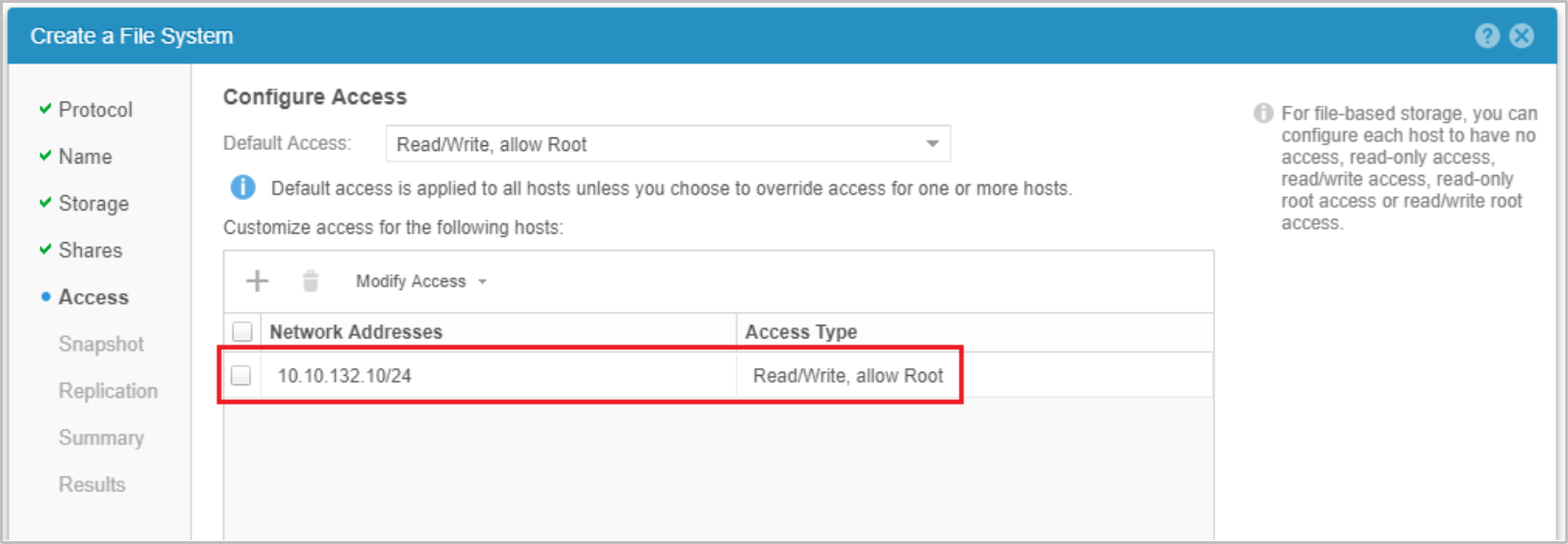
- Specify the options for the Snapshot and Replication pages. At the Summary page, click Finish.
Note: If the NFS share was previously created in Dell Unity NFS share creation, skip this section and perform the steps in PowerMax NFS share creation.
If the NFS share has not yet been created, perform the following steps.
- Select the NFS Shares section and click the plus (+) to add an NFS share.
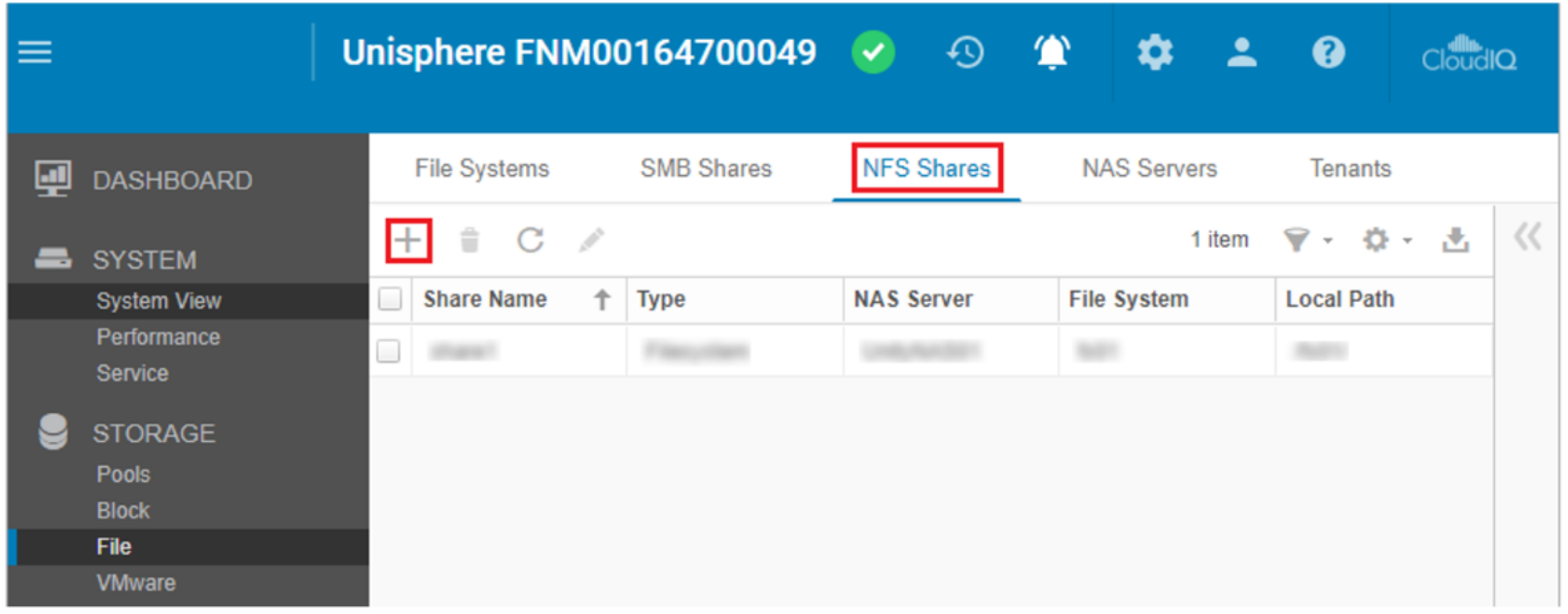
- On the File System page, select the file system that was created in the previous step and click Next.
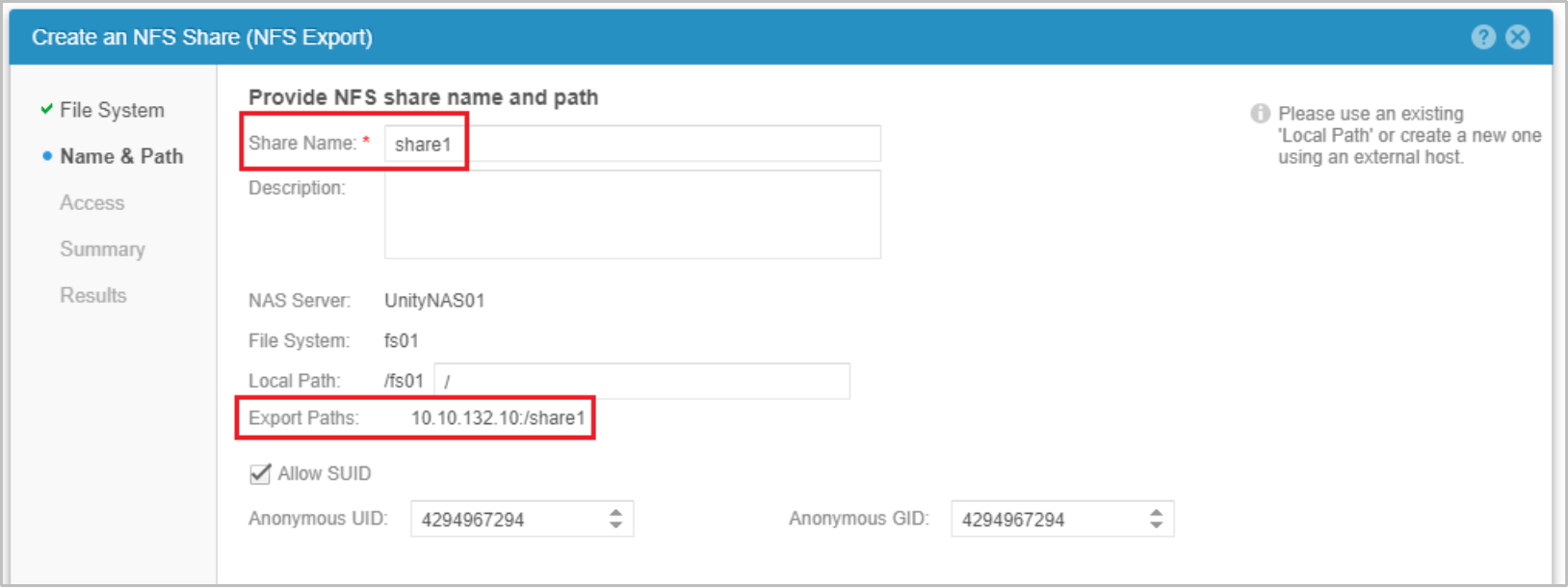
- On the Name & Path page, specify the Share Name. Keep note of the Export Paths address for use later when configuring the NFS share from within the SDDC Manager.
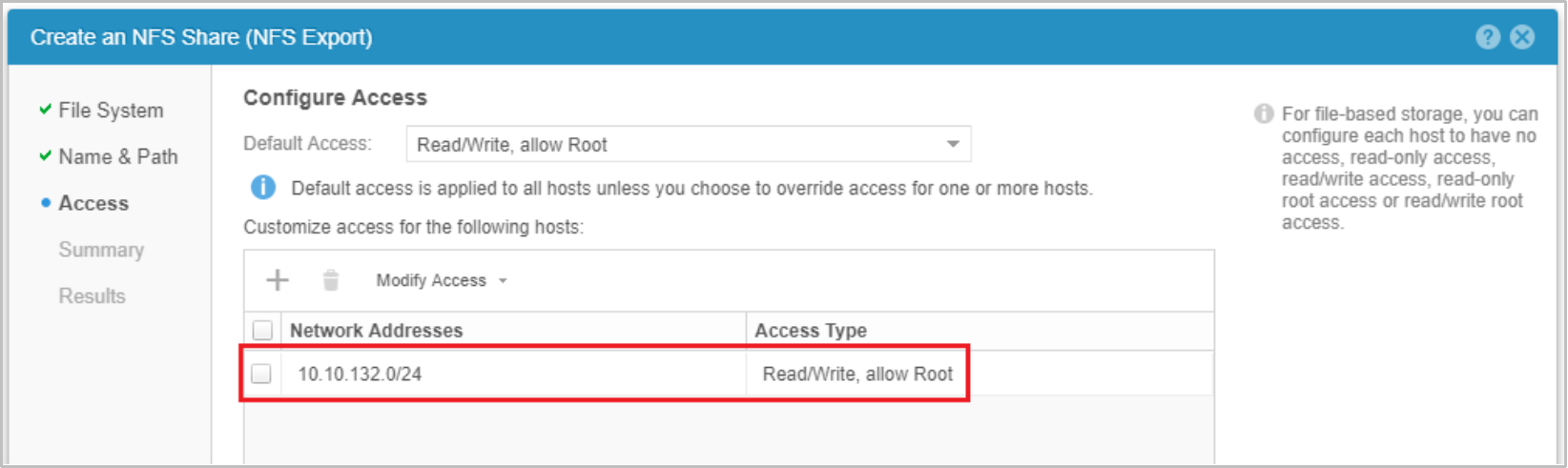
- On the Access page, set the Default Access to Read/Write, allow root and click the plus (+) to customize the host access. In the Customize access for the following hosts section, add the Included IP Address Ranges assigned to the NFS network pool created in VMware Cloud Foundation network pool configuration.
PowerMax NFS share creation
To create the NFS share on the PowerMax array, follow these steps:
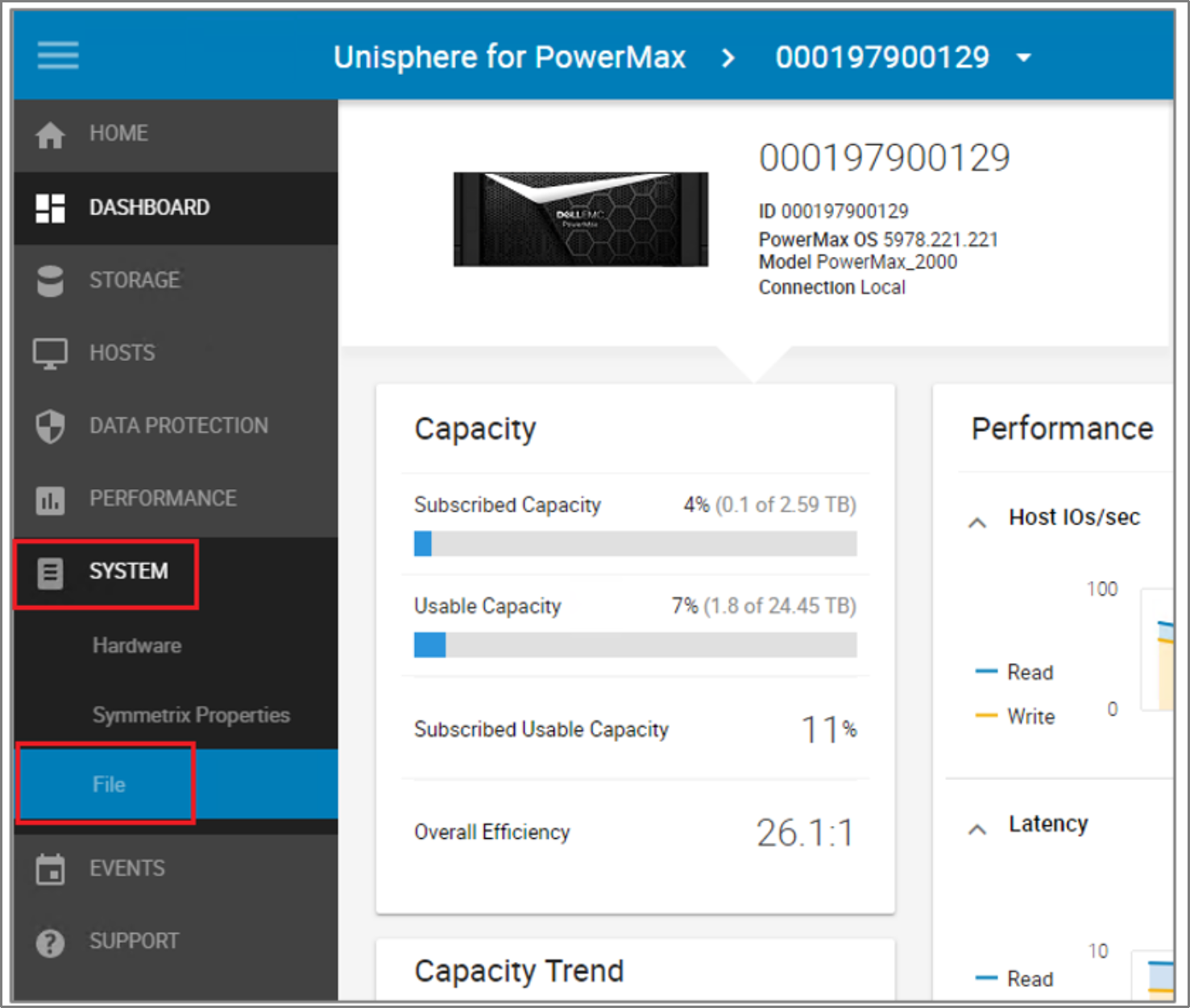
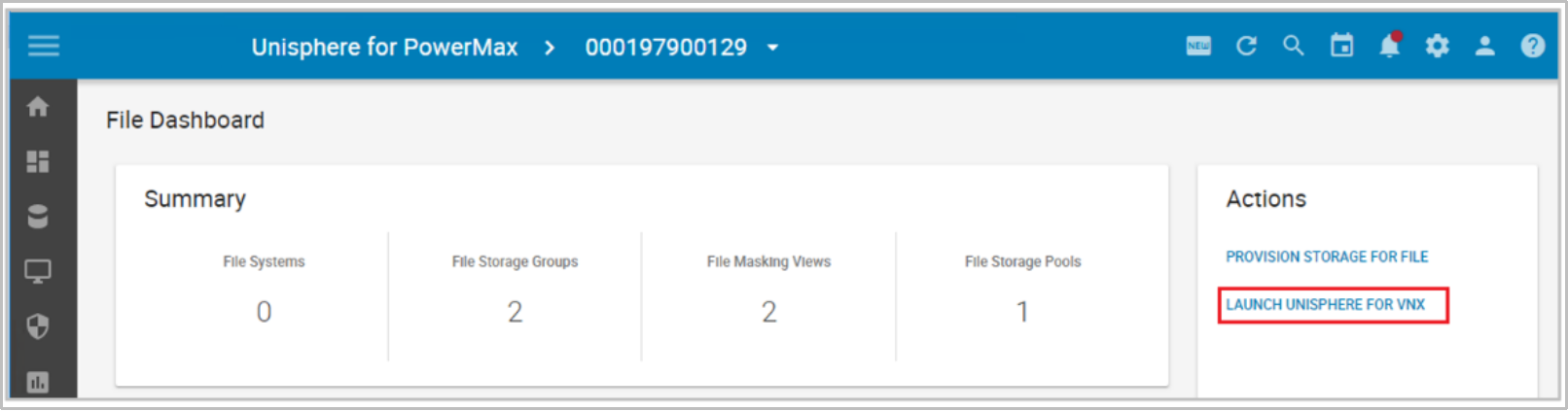
- In the Unisphere interface, click System > File.
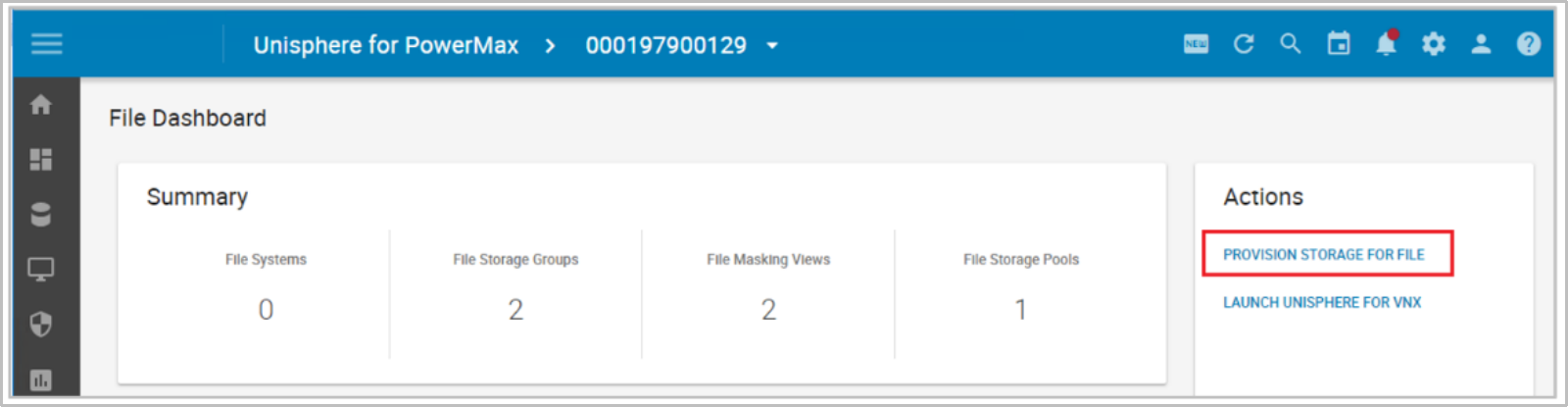
- In the Actions pane, click Provision Storage for File.
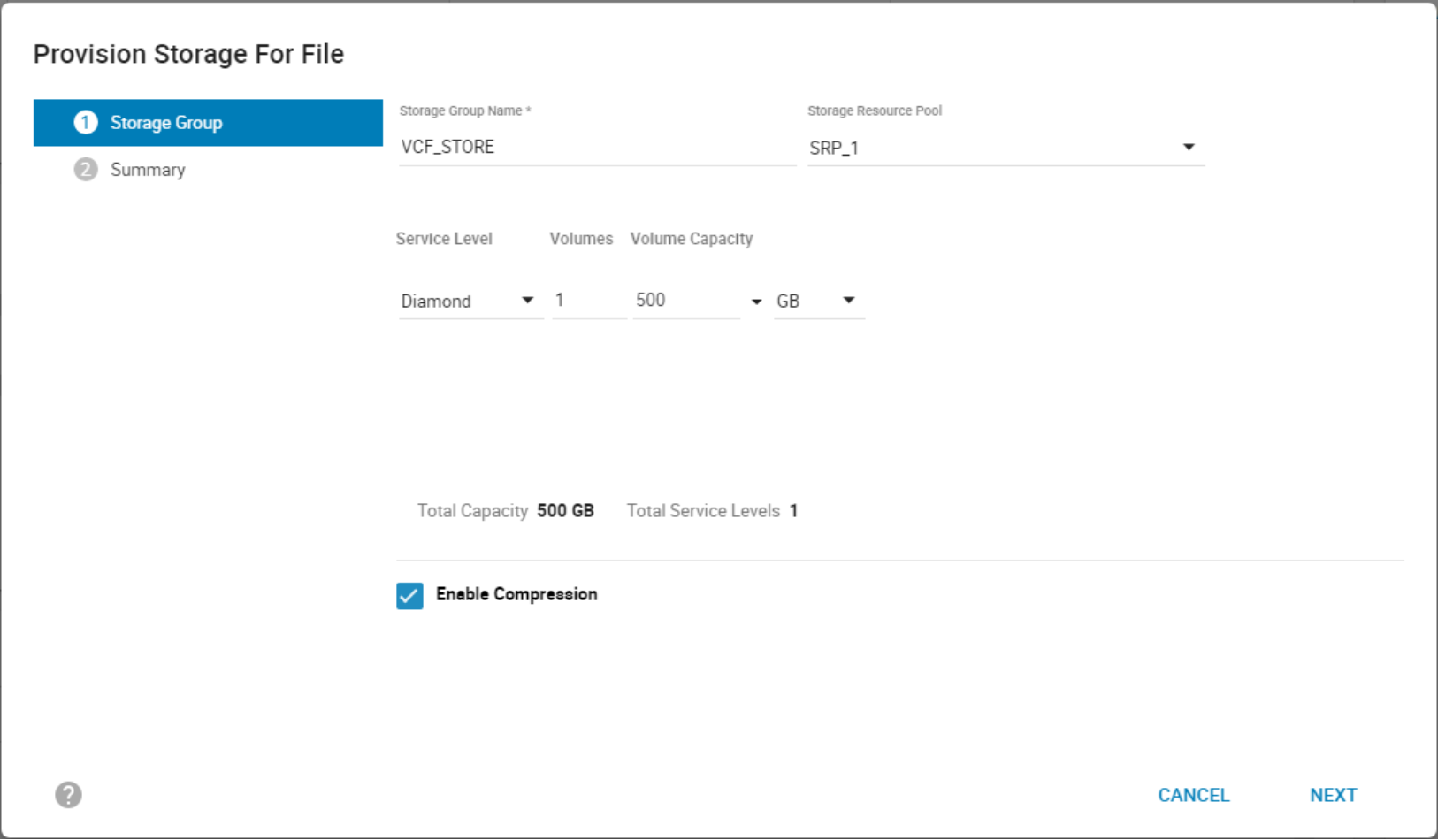
- In the Storage Group section, specify the Storage Group Name, select the Storage Resource Pool and the Service Level. Next, set Volumes to 1, set the Volume Capacity, and click Next.
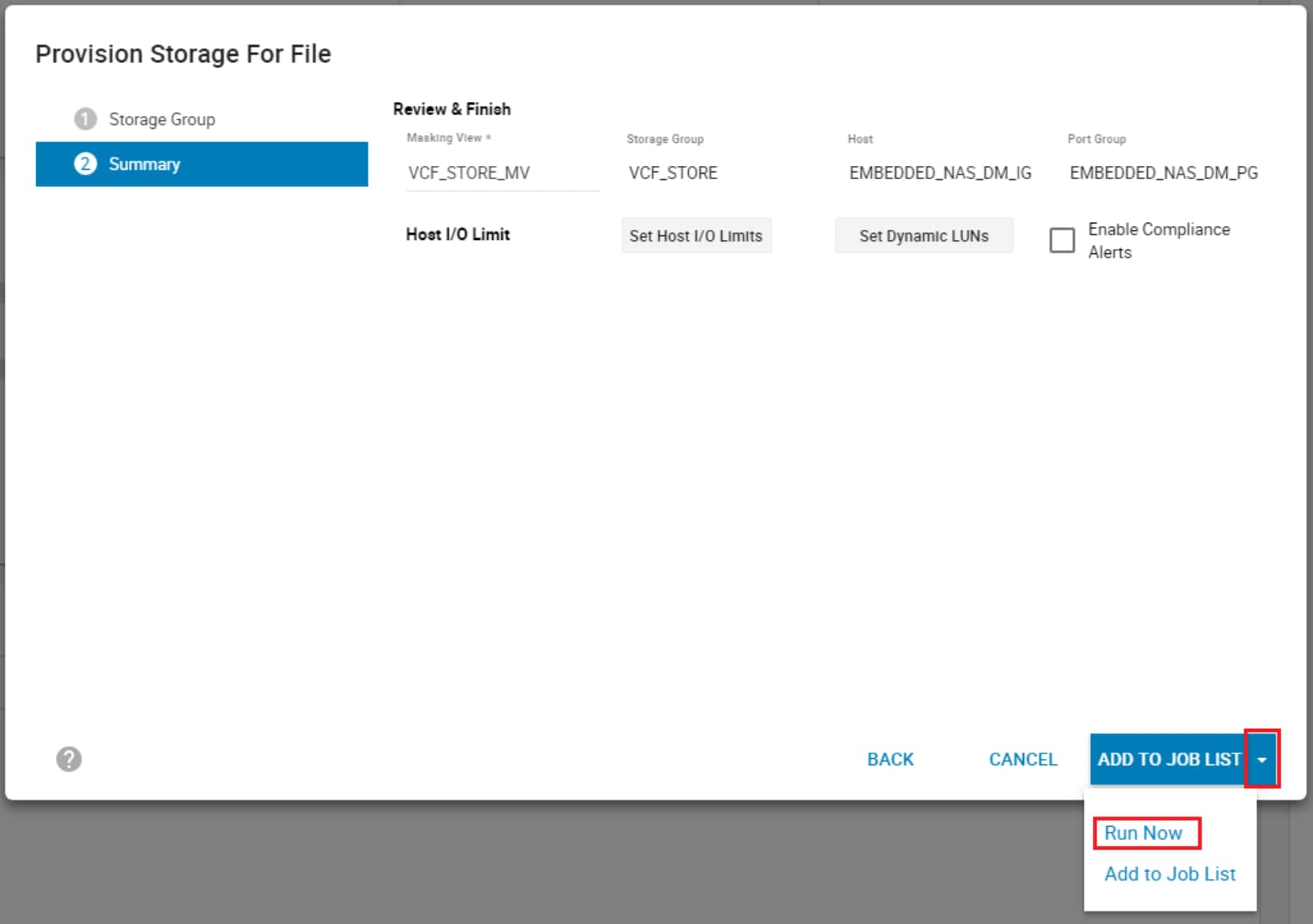
- On the Summary page, review the settings. Click the drop-down arrow next to Add to Job List and select Run Now.
- Launch Unisphere for VNX.
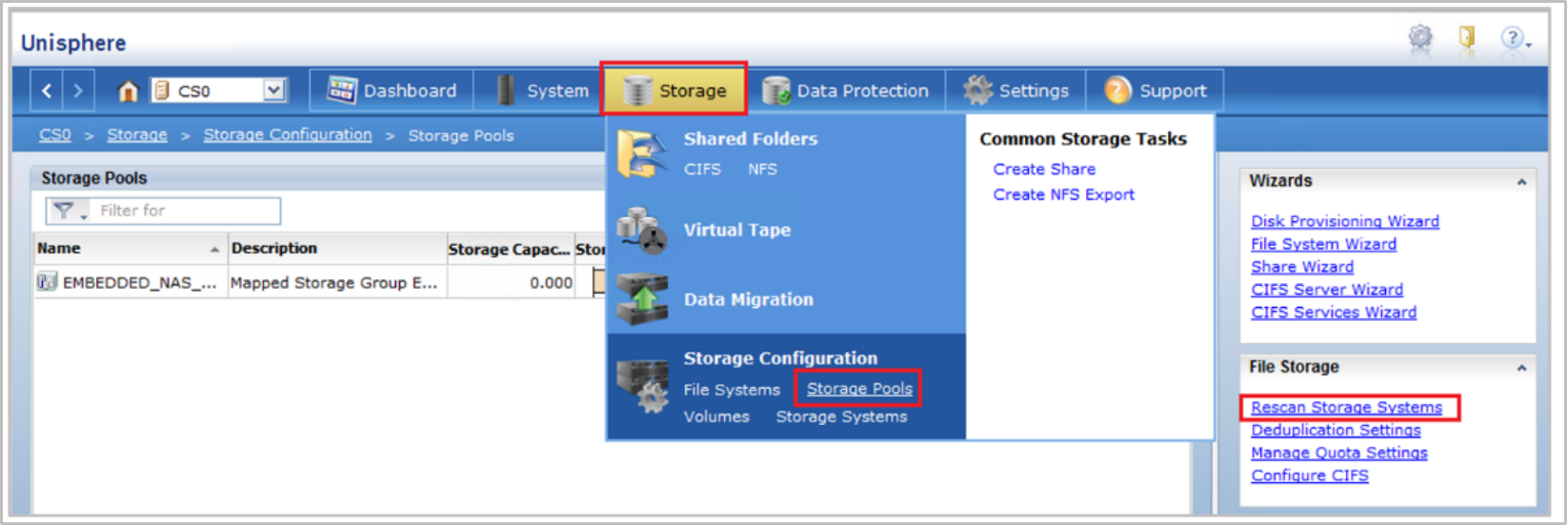
- When the administrative console opens, click Storage, Storage Pool. When the pane opens, click Rescan Storage Systems. When the dialog opens, click OK.
- To create the interface, click Settings > Network and click Interfaces.
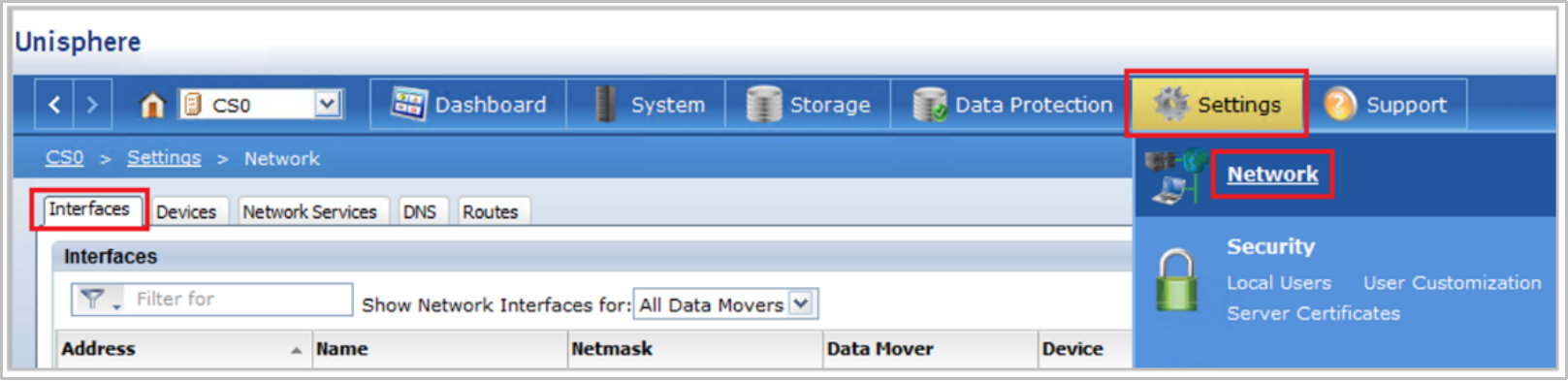
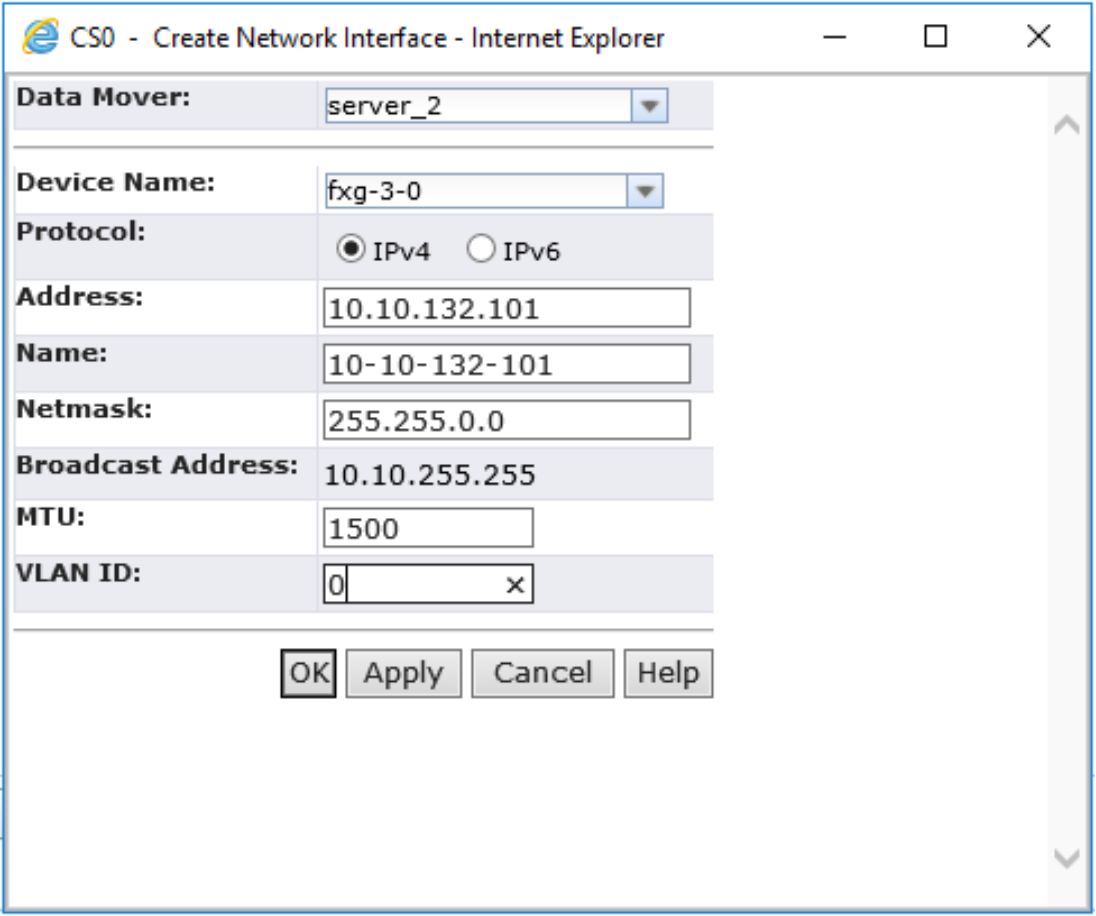
- At the bottom of the pane, click Create. Specify the interface settings and click OK.
Note this IP address for use in VMware Cloud Foundation workload domain deployment.
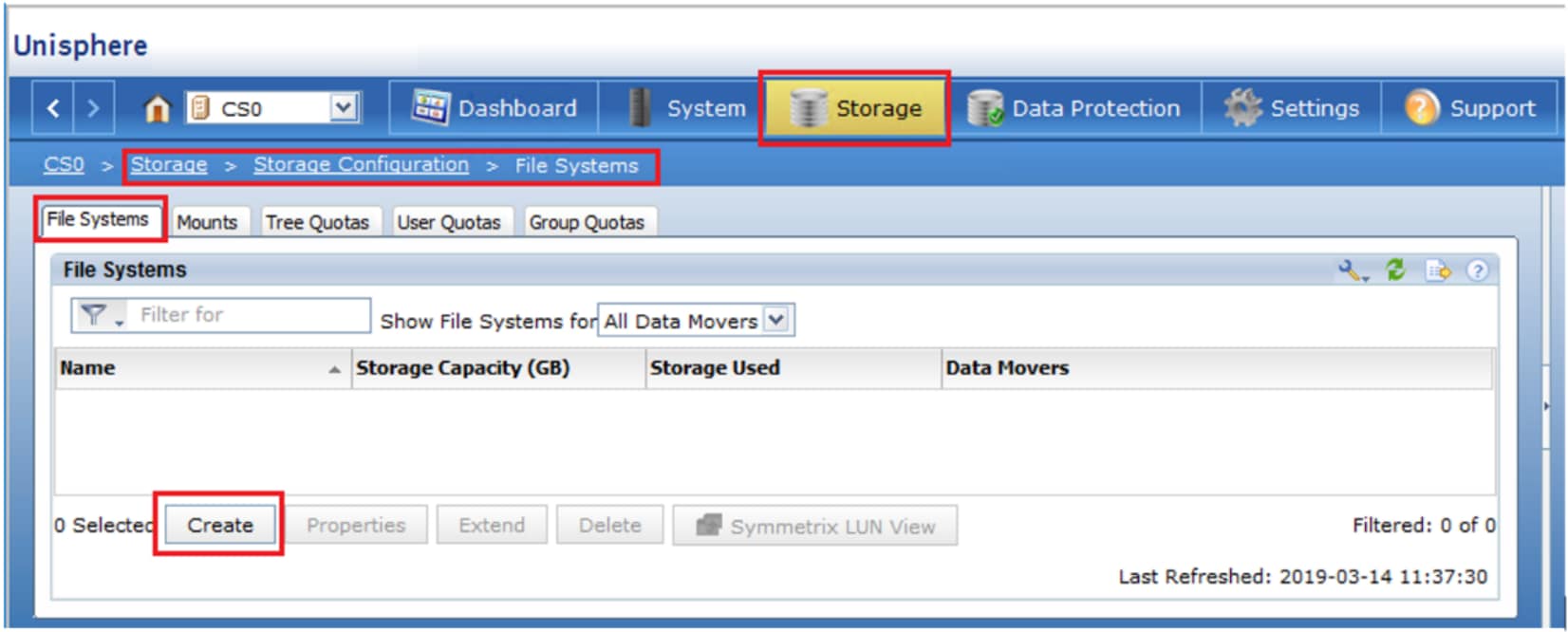
- To create the file system, click Storage > Storage Configuration > File Systems and click Create.
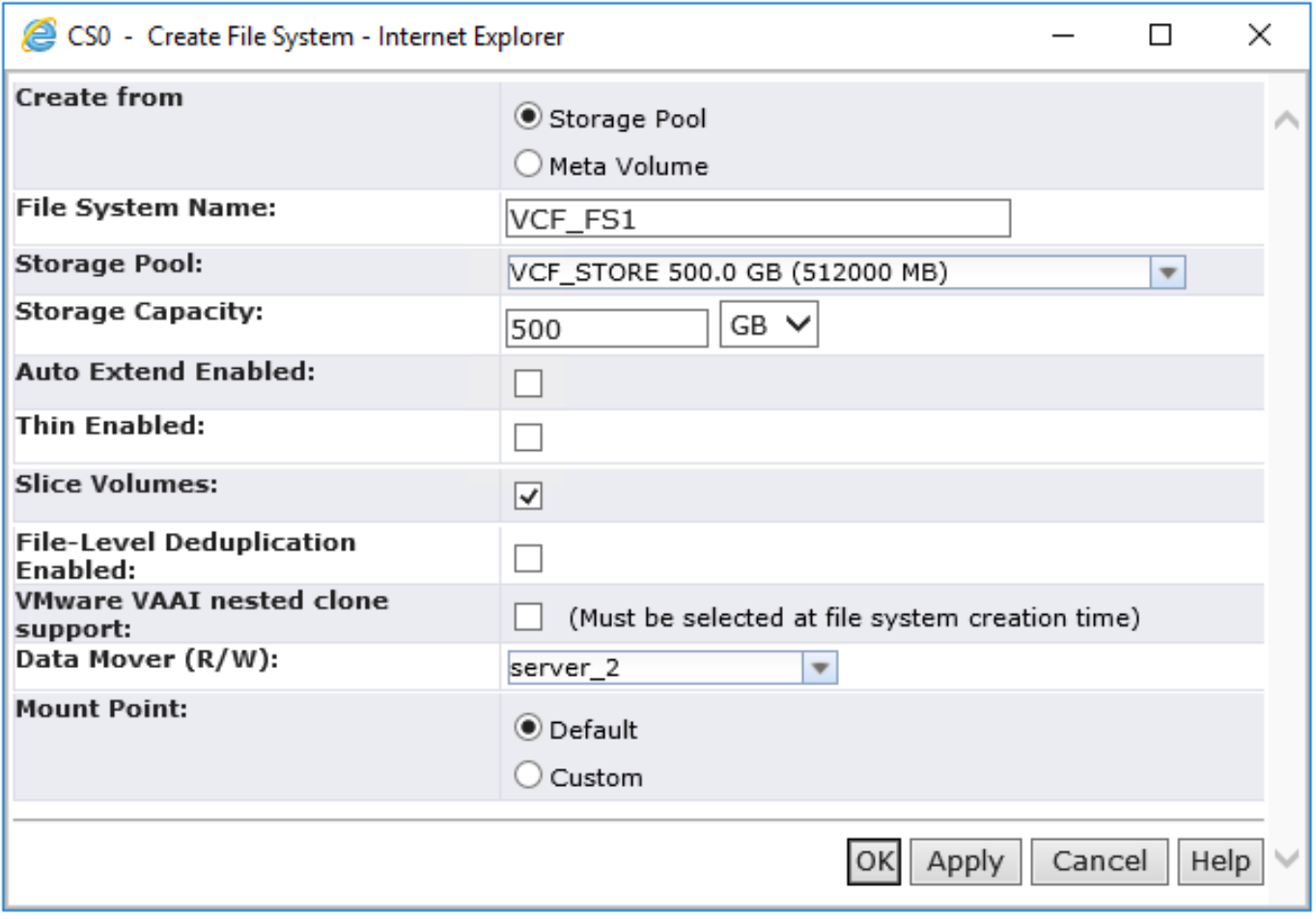
- Specify the options for the file system and click OK.
- To create the NFS export, right-click the file system, click NFS Exports, and click Create NFS Export.
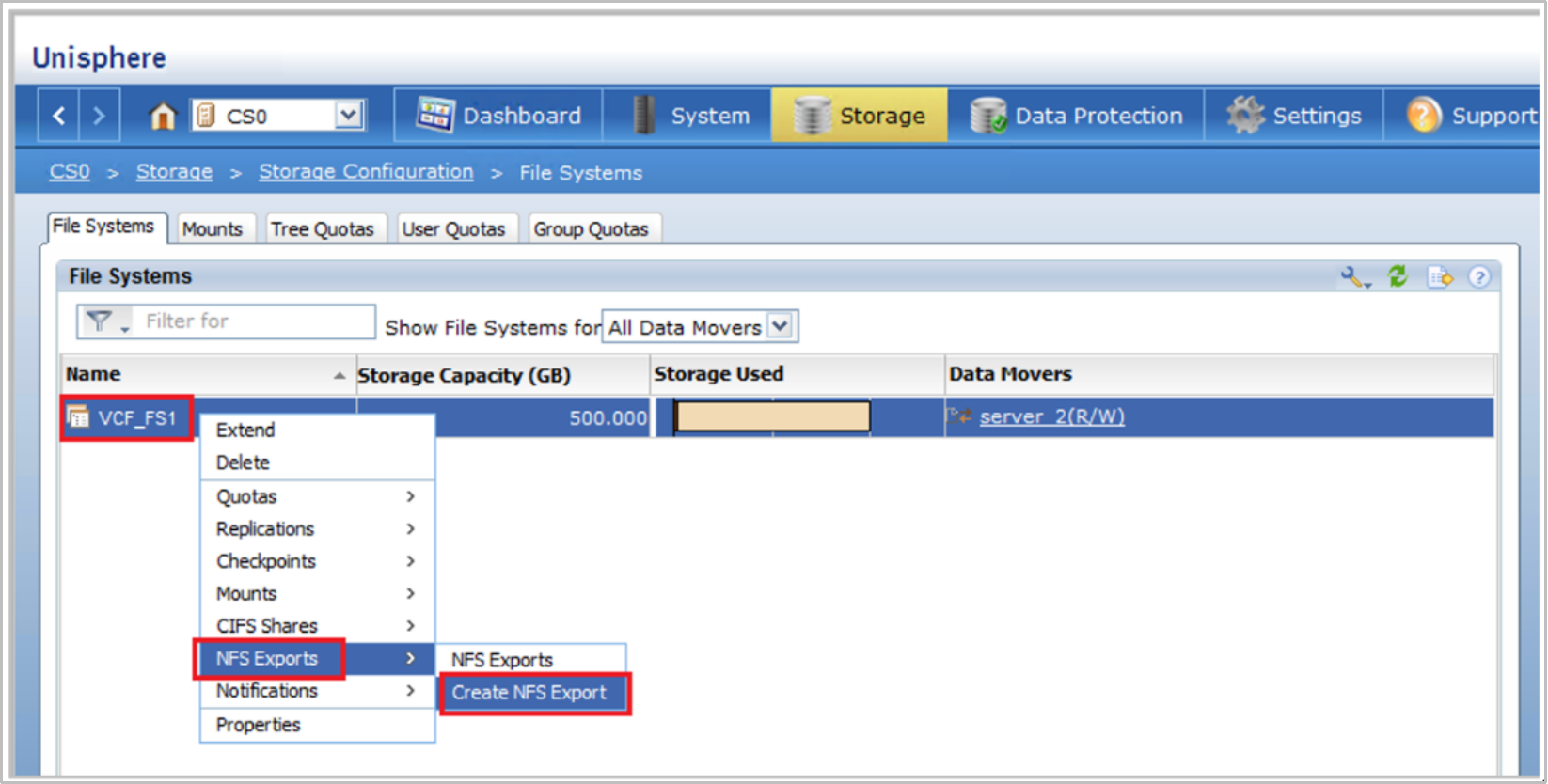
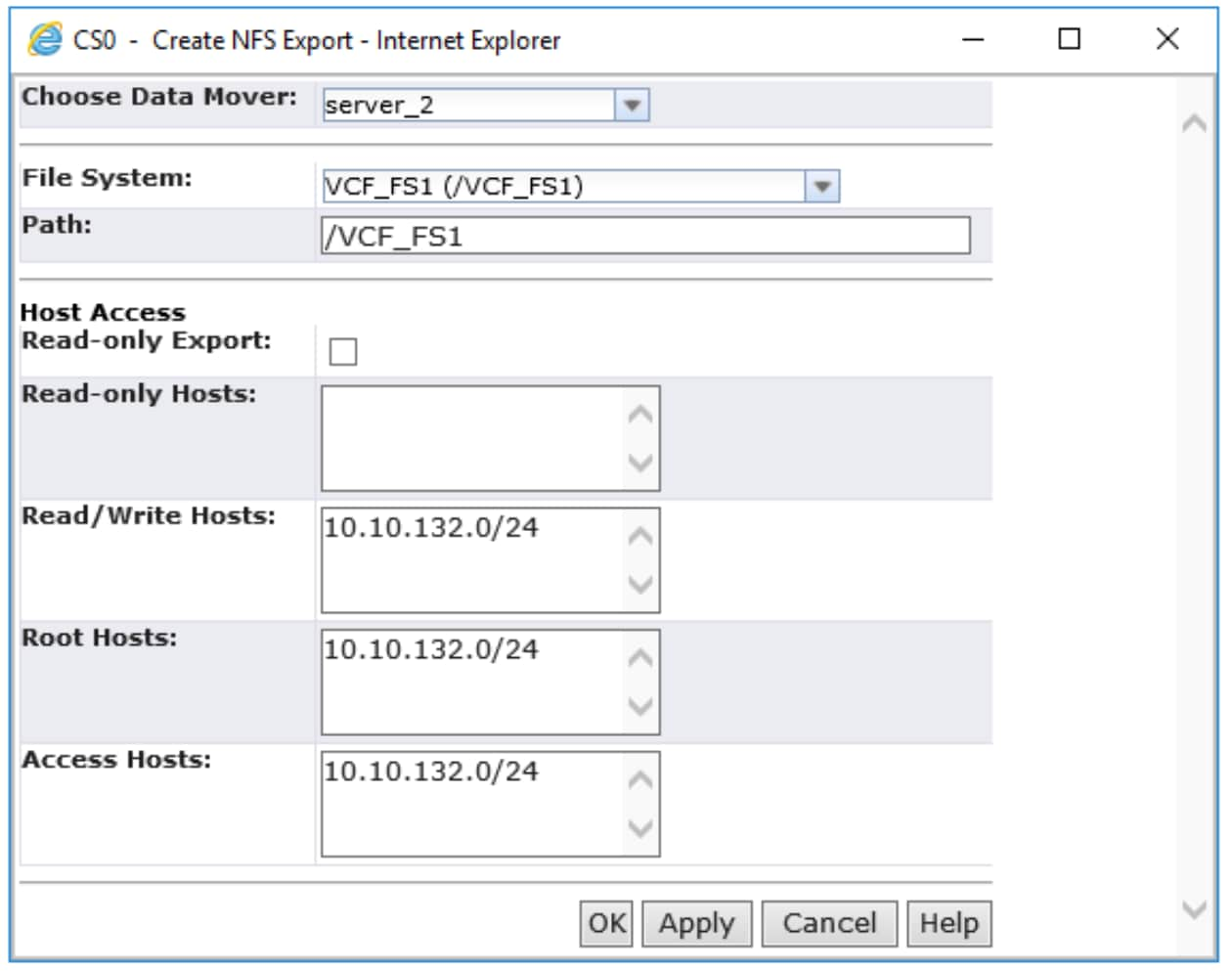
- In the Create NFS Export configuration dialog, enter the export and host information and click OK.
- Click Storage > Shared Folders and click NFS to reveal the share information needed for VMware Cloud Foundation workload domain deployment.
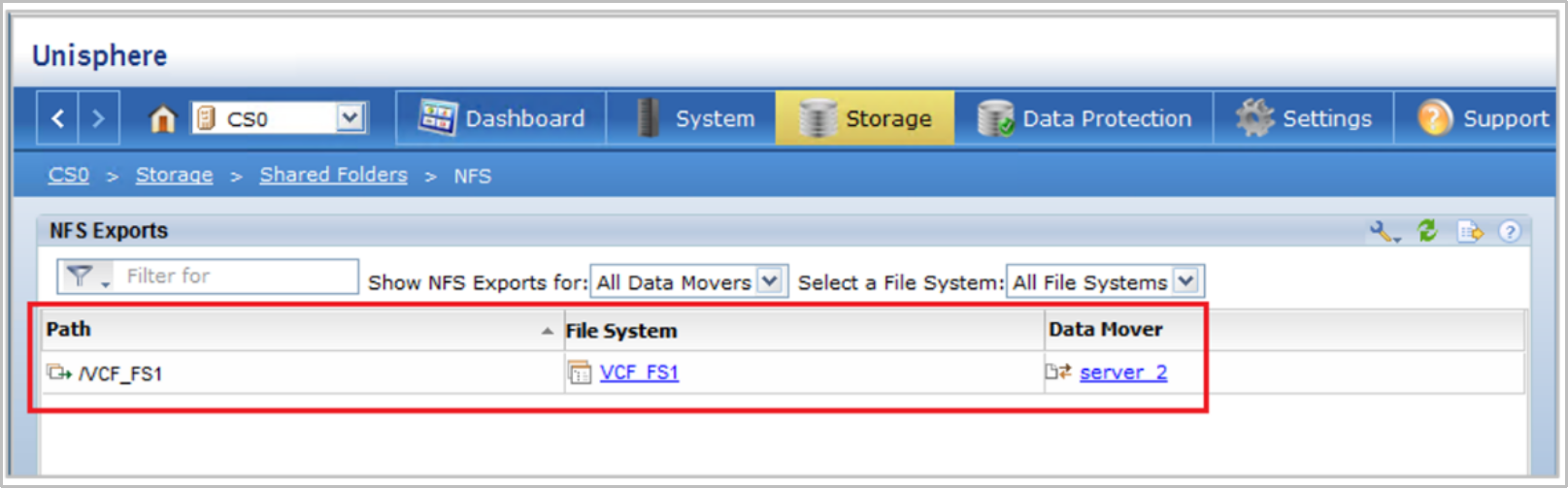
In this example, the NFS share is 10.10.132.101:VCF_FS1.
PowerStore NFS share creation
To create the NFSv3 share on the PowerStore appliance, follow these steps:
- From within the PowerStore Manager, click Storage, and click the plus sign (+) next to NAS Servers.
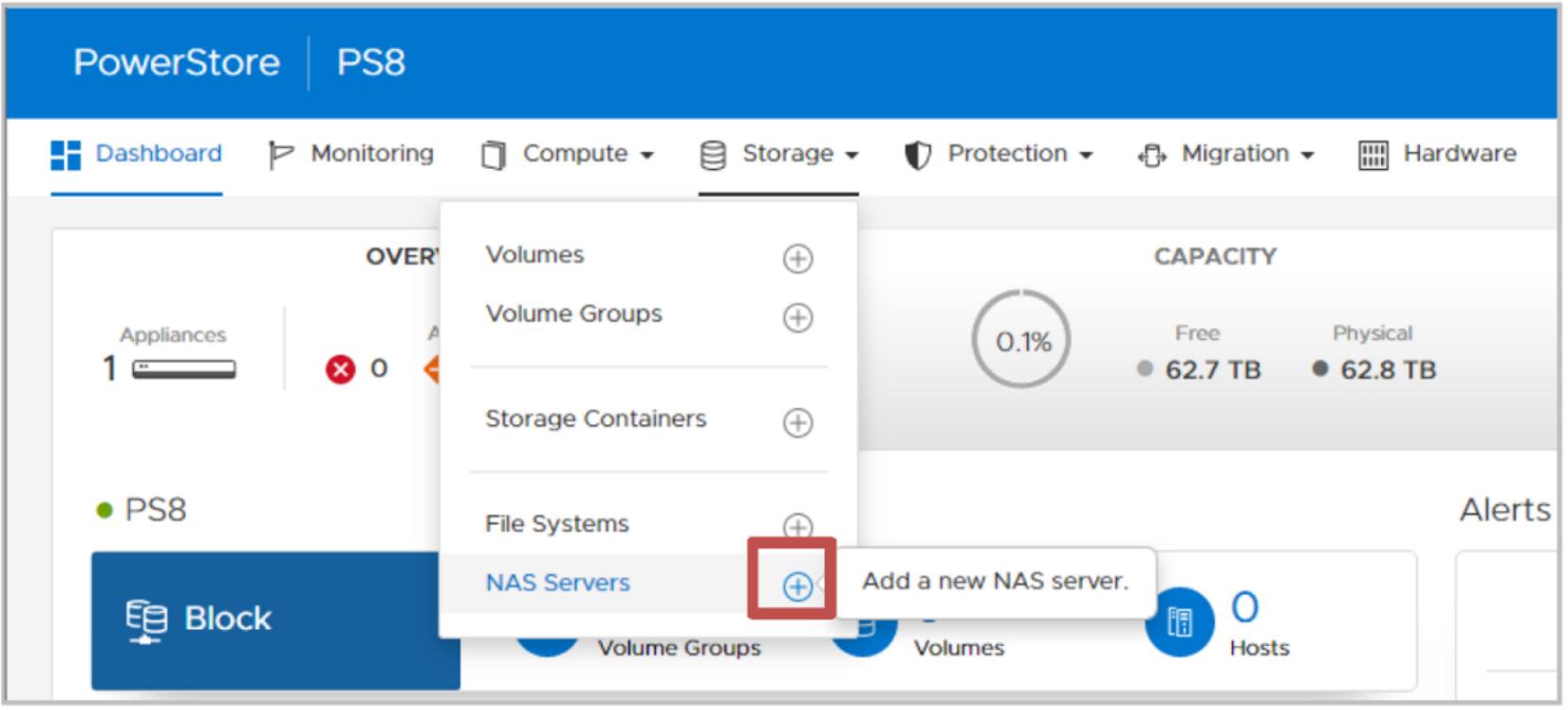
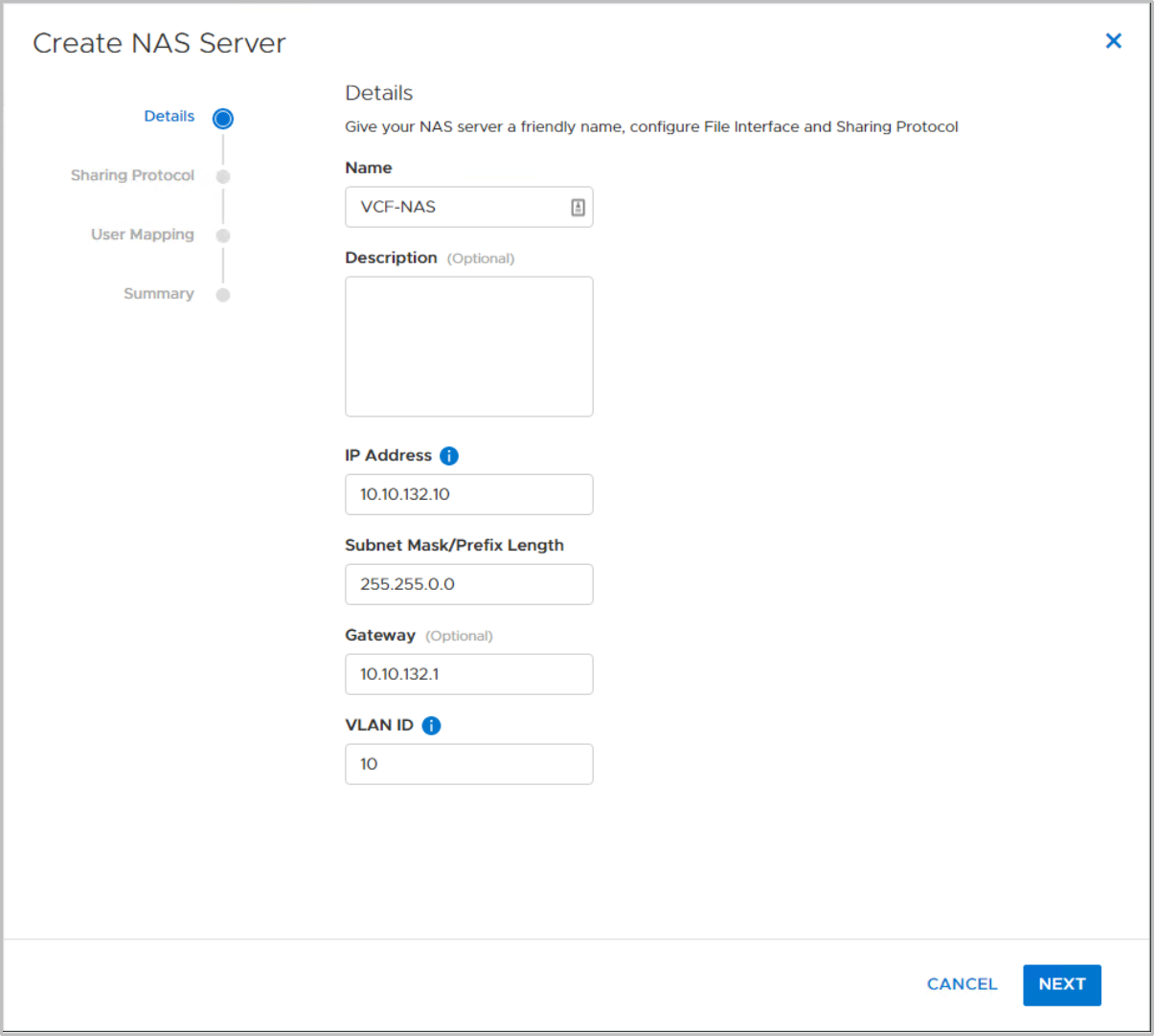
- Proceed through the wizard to specify the settings unique to your environment. Any configuration pages that require special attention are covered in the following steps.
- In the Details section, specify the name, and IP address for the NAS server. Ensure that the NAS server IP address is within the VLAN of the NFS network pool that was created earlier from the SDDC Manager and click Next.
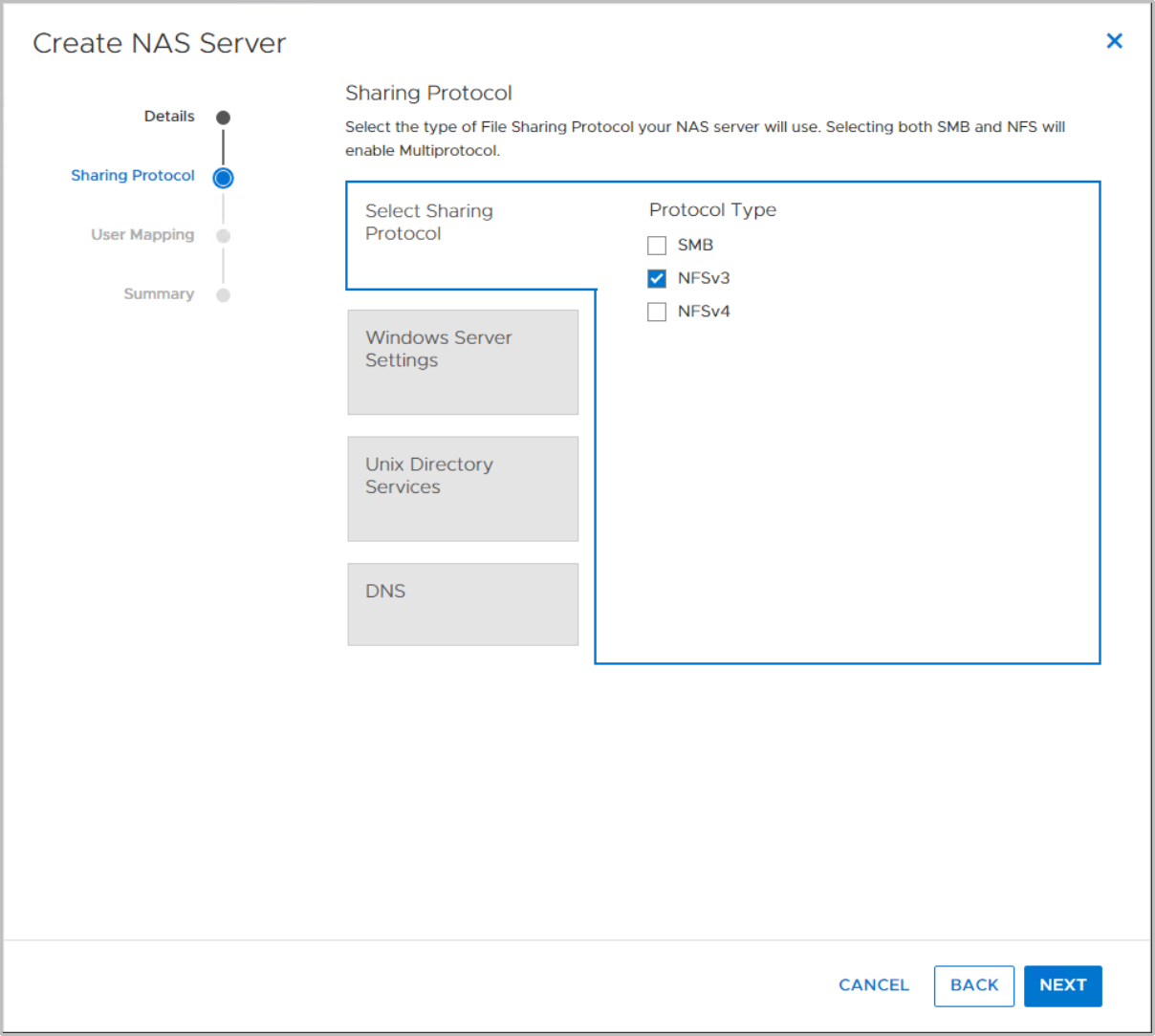
- In the Sharing Protocol section, select NFSv3, and click Next.
- (Optional) If using UNIX Directory Services, configure the settings, and click Next.
- (Optional) Configure the NAS Server DNS and click Next.
- At the Summary page, review the settings, and click CREATE NAS SERVER.
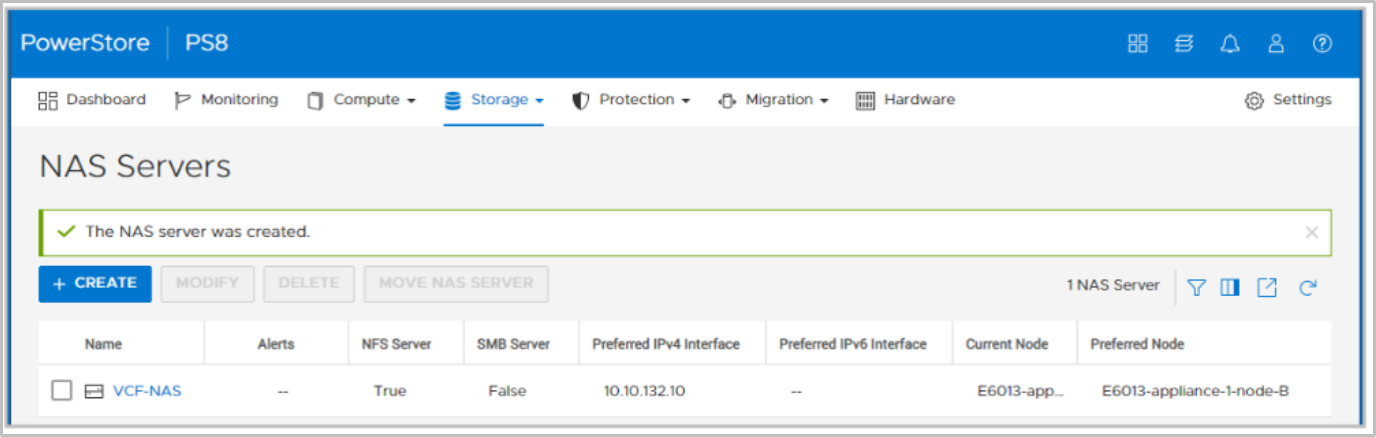
Next, create the file system for the NFS share.
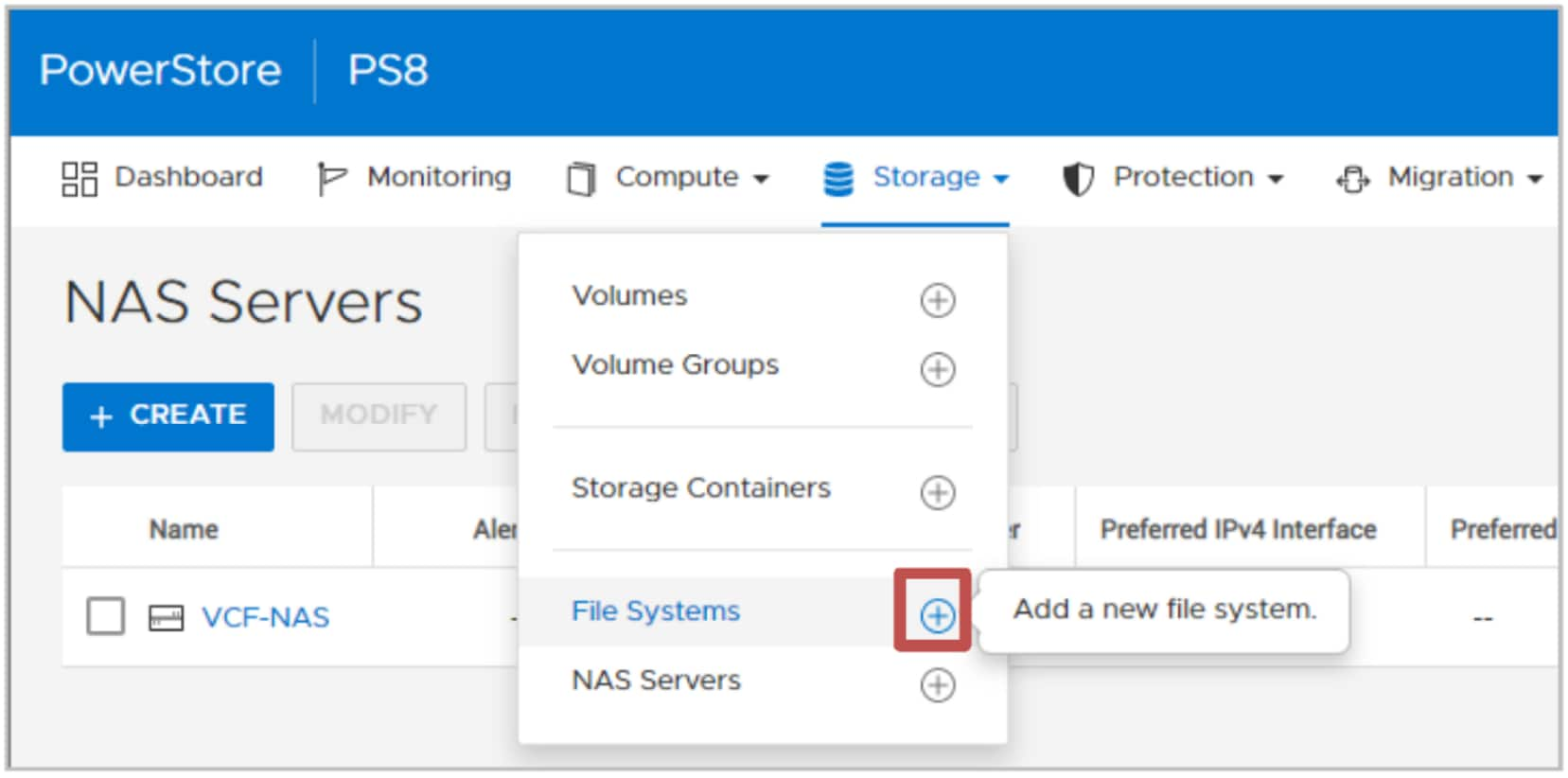
- To create the file system, click Storage, and click the plus (+) next to File Systems.
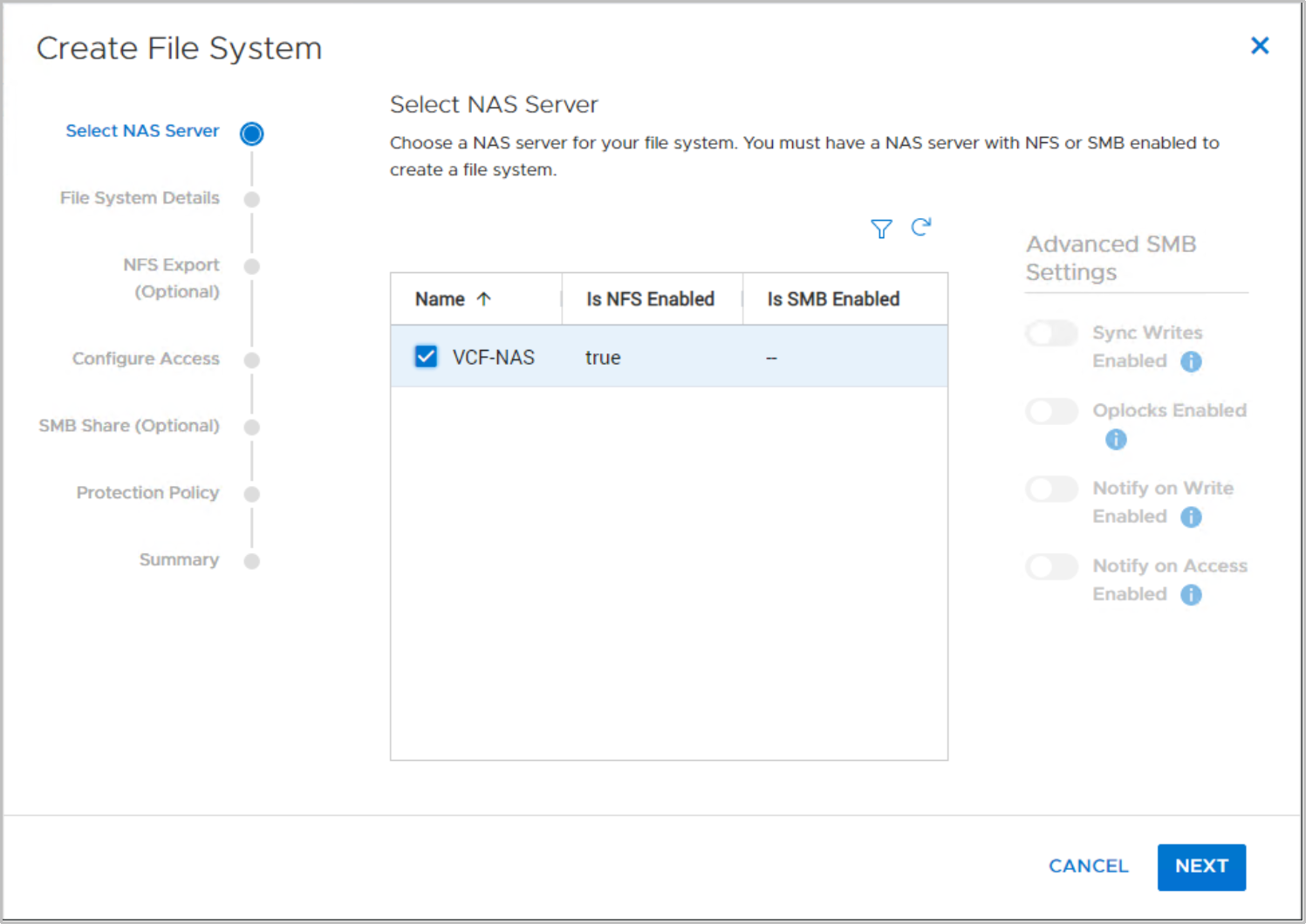
- In the Select NAS Server section, select the NAS server that was created previously, and click Next.
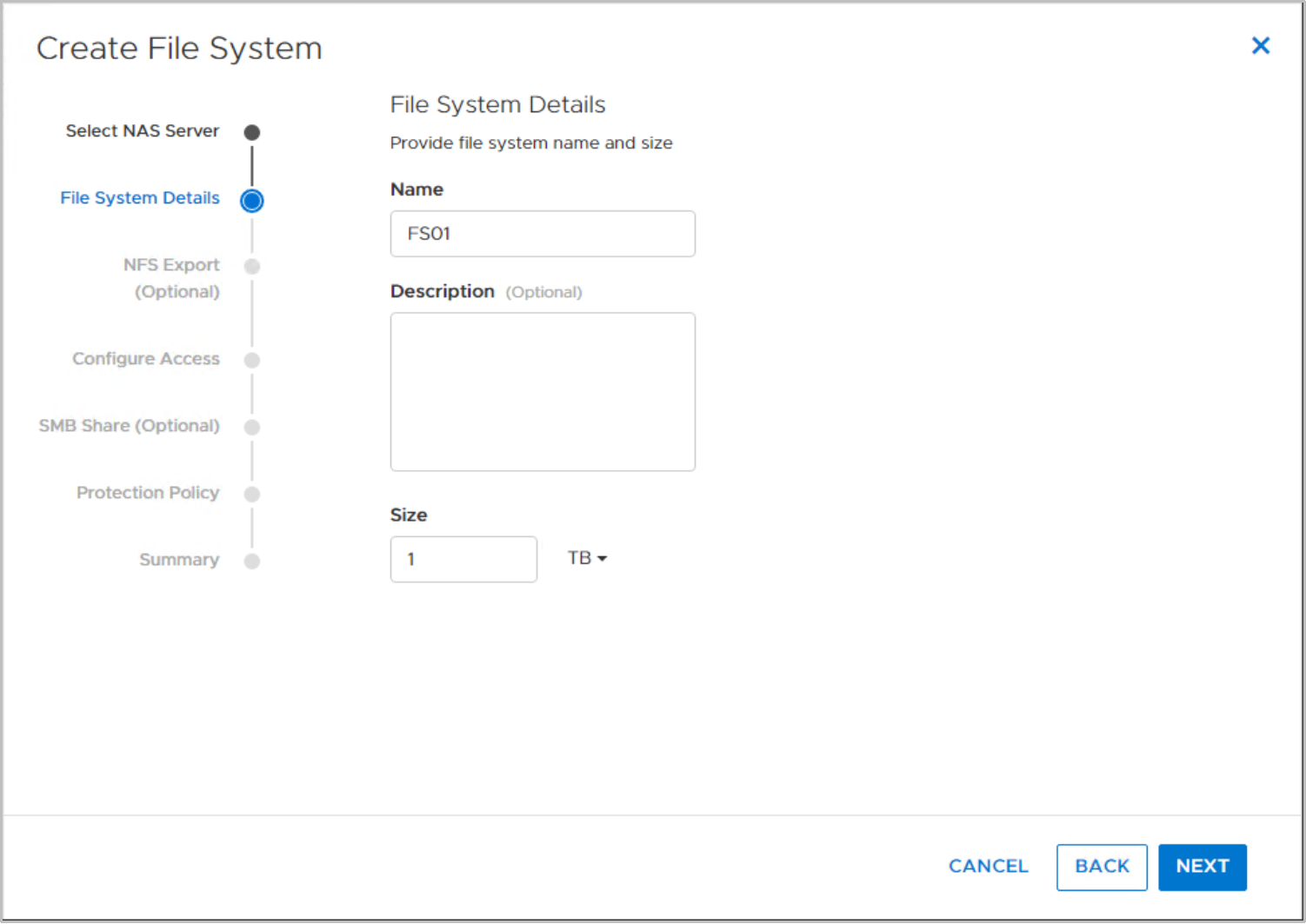
- In the File System Details, specify a name and size for the file system, and click Next.
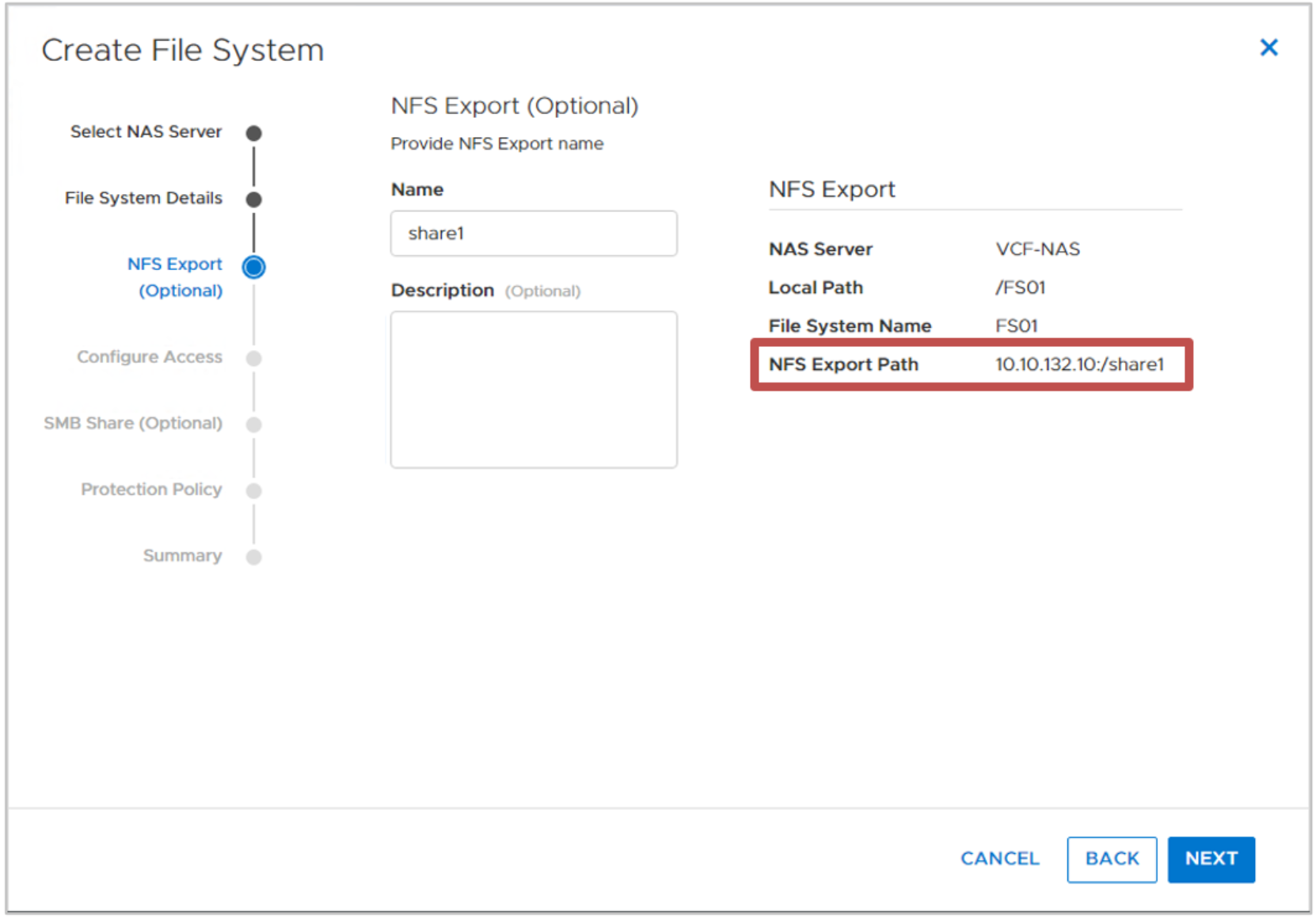
- On the NFS Export page, specify the Name for the export. Make note of the NFS Export Path for use later in configuring NFS options from within the SDDC Manager.
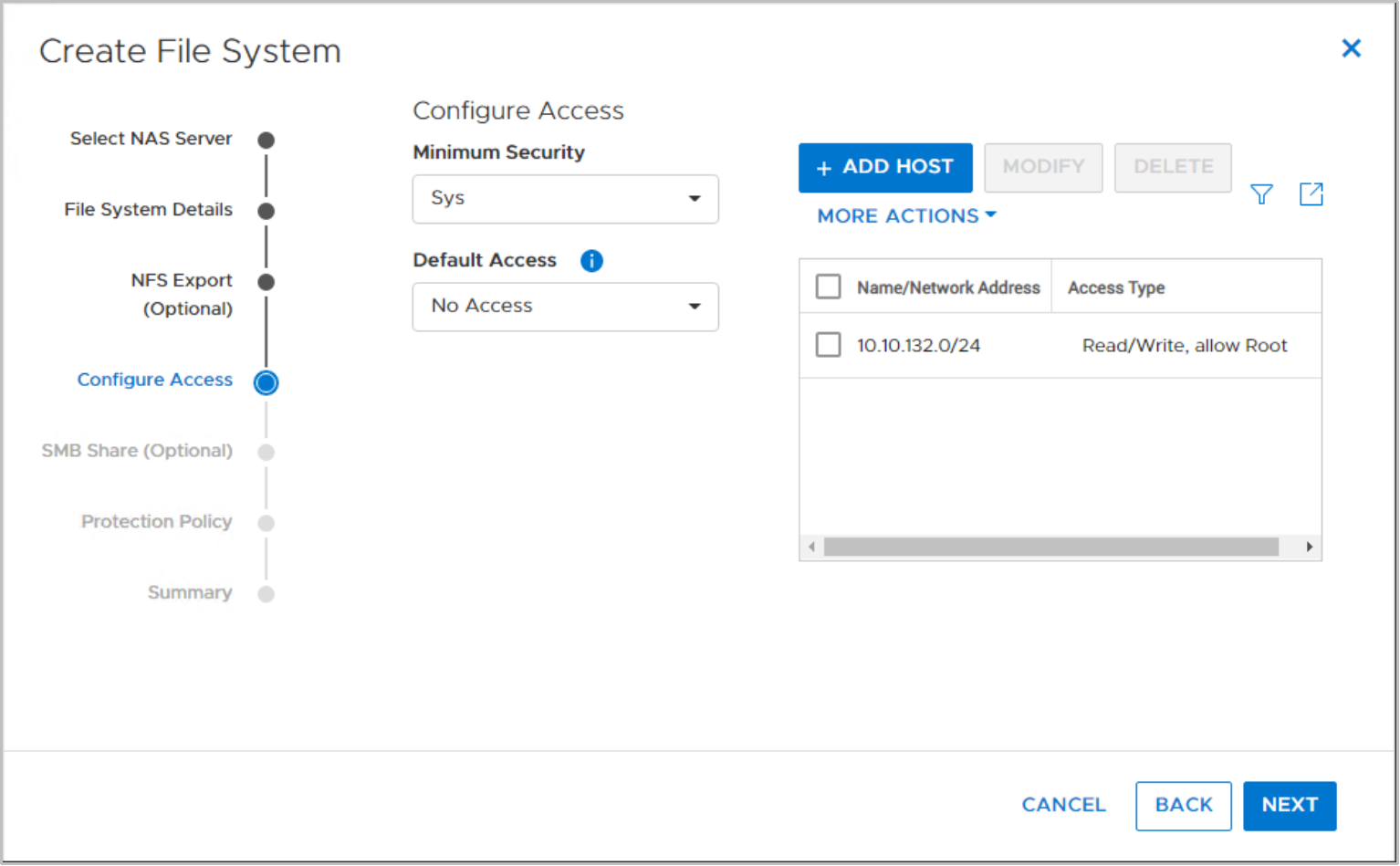
- On the Configure Access page, click ADD HOST to add the Included IP Address Ranges assigned to the NFS network pool created in VMware Cloud Foundation network pool configuration; assign Read/Write, allow root permissions.
- On the Protection Policy page, select the protection policy for the file system, and then click Next.
- At the Summary page, review the settings, and click CREATE FILE SYSTEM.
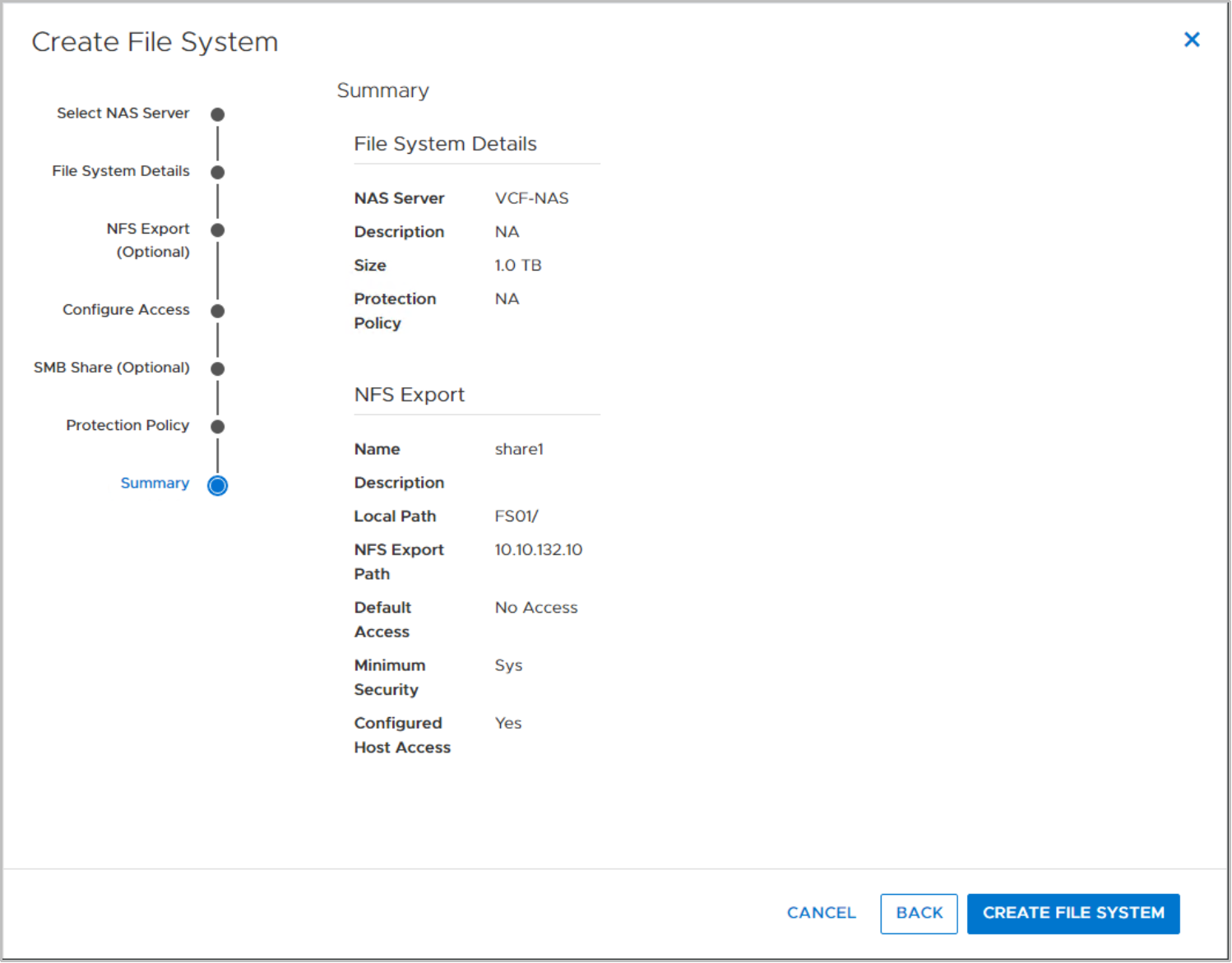
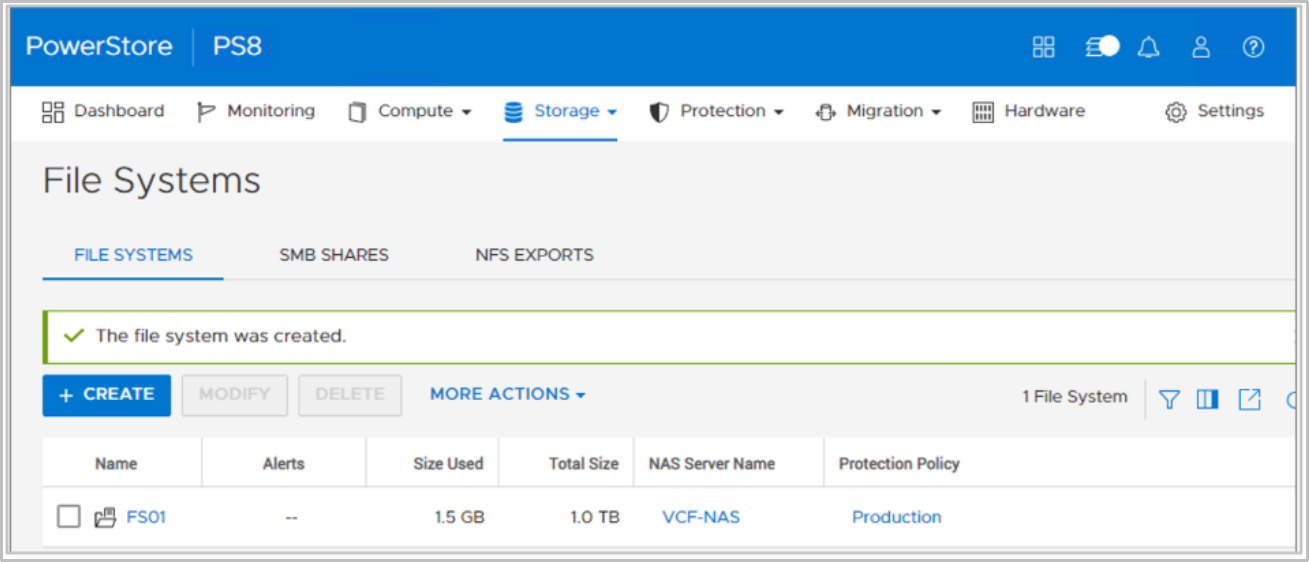
- When the file system is created, go to VMware Cloud Foundation workload domain deployment.
VMware Cloud Foundation workload domain deployment
This section describes how to deploy the NFS workload domain using the NFS share settings noted previously.
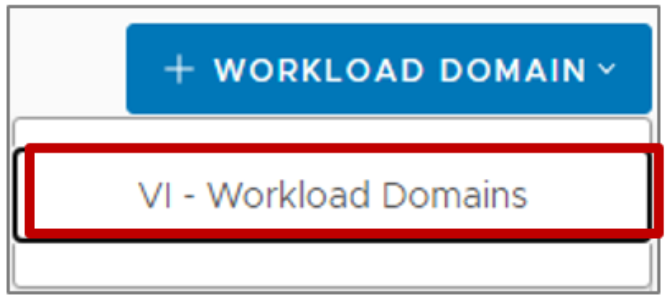
- From the SDDC Manager dashboard, click +Workload Domain and click VI - Virtual Infrastructure.
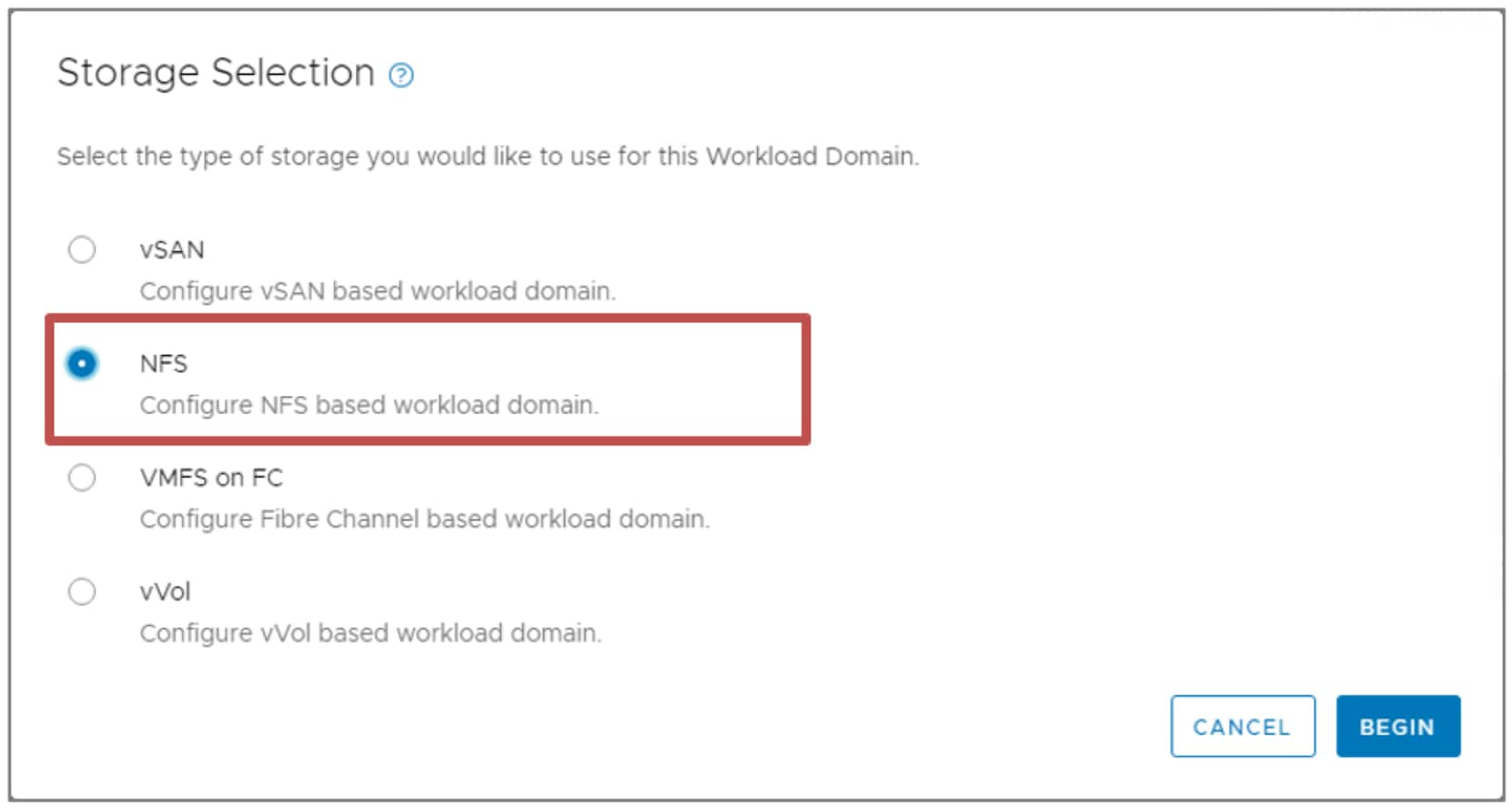
- For Storage Selection, select NFS and click Next.
- When the VI Configuration wizard begins, enter the environment-specific details into the Name, Compute, Networking, and Host Selection pages.
- At the NFS Storage page, enter the NFS share Export Paths information previously noted in Dell storage configuration.
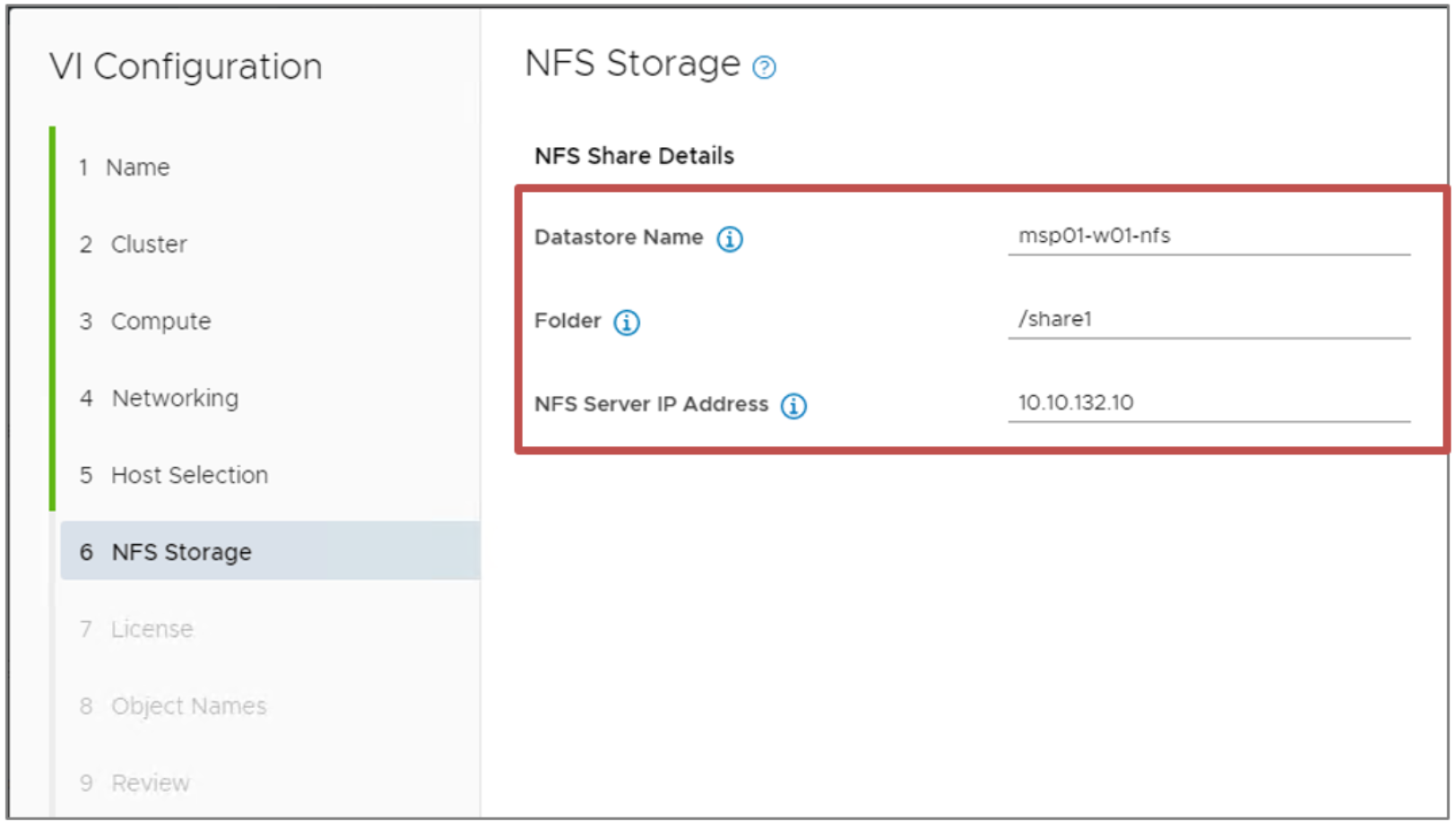
- On the next page, specify the Licenses and Object Names. On the Review page, click Finish to begin the workload domain deployment.
- When the workload domain has finished deployment, the NFS share information appears in the SDDC Manager interface.
Workload domain configuration with FC, NVMe-oF, iSCSI, or vVols
Introduction
When presenting external storage to VMware Cloud Foundation vSphere hosts, remember that VMFS datastores on FC can be principal or supplemental, while iSCSI and NVMe/FC are considered only supplemental storage for a workload domain. On creation, principal storage is required for initial workload domain deployment. Afterwards, the supplemental datastores can be presented to the workload hosts.
In addition, while principal storage can be monitored from within the SDDC Manager interface, all supplemental datastores must be managed independently through the workload domain VMware vCenter instance.
Note: Datastores from external arrays must only be presented to workload domains. vSAN is the only storage supported for use by the management domain hosts.
Caution: When upgrading VMware ESXi hosts within the VMware Cloud Foundation workload cluster, hosts requiring custom FC vSphere Installation Bundles (VIBs) might be overwritten, potentially causing an outage.
Using Fibre Channel as principal storage
This section covers the prerequisite steps that are required to use FC as principal storage for workload domain hosts.
Commission hosts for VMFS on FC
Before the workload domain can be created using FC as principal storage, the hosts must be commissioned with the VMFS on FC storage type.
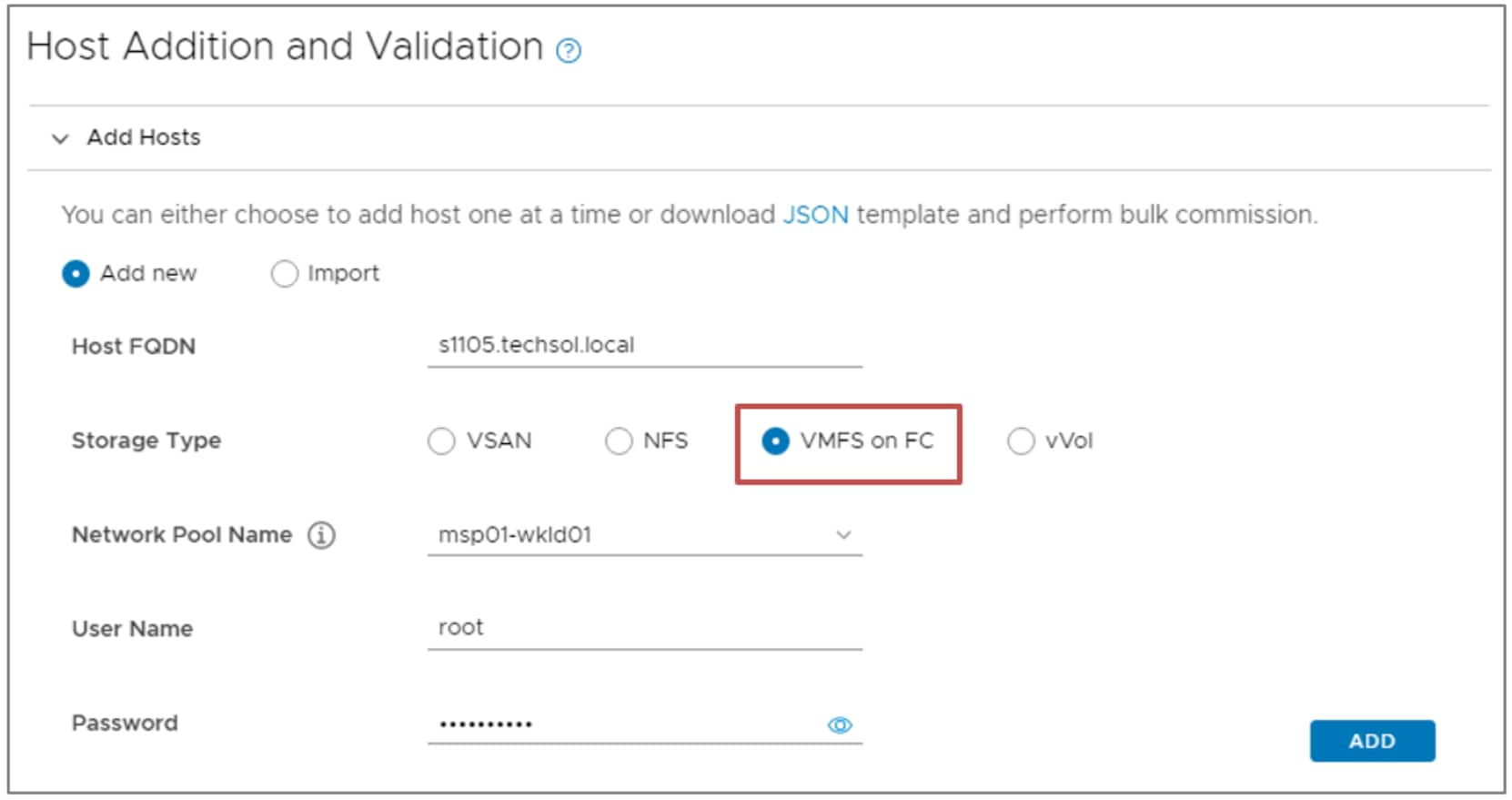
Figure 3. Selecting the VMFS on FC storage type for host commissioning
Create the VMFS datastore
The wizard for workload domain creation requires a preconfigured VMFS datastore that is visible to all the ESXi hosts used in the workload domain.
To create the datastore, follow these general steps:
- Verify that all the workload domain ESXi hosts have been zoned to the storage array.
- Create a datastore volume and present it to all the workload domain hosts.
Dell storage configuration includes instructions for each Dell storage array.
- Log in to the web client of one of the ESXi hosts and create the datastore.
- Rescan the storage adapters for new storage devices.
- Create a VMFS-6 datastore and note the datastore name for workload domain creation later.
- Log in to the remaining ESXi hosts web client to verify that the hosts can see the new datastore.
Workload domain creation
When you create the workload domain, the storage section of the wizard prompts for the VMFS-6 datastore name that was created previously. If the correct datastore name is not provided, the interface produces an error message like the one shown in the following figure.

Figure 4. Error message displayed when SDDC manager cannot detect the datastore on the workload domain hosts
Using Virtual Volumes as principal storage
Dell storage arrays that support VMware vSphere Virtual Volumes (vVols) can be used as principal or supplemental storage to workload domains. The VMware HCL for vVols can provide array, protocol, and VASA-provider versions that are required to use vVols with ESXi hosts in a VMware Cloud Foundation environment. See the respective Dell product administration guides listed in Appendix: Technical support and resources.
This section covers the prerequisite steps that are required to use vVols as principal storage for workload domain hosts.
Create a network pool
Create a network pool that aligns with the vVols storage protocol supported by the array.
- FC vVols: NFS or VMware vMotion only enabled network pool
- iSCSI vVols: iSCSI and vMotion only enabled network pool
- NFS vVols: NFS and vMotion only enabled network pool
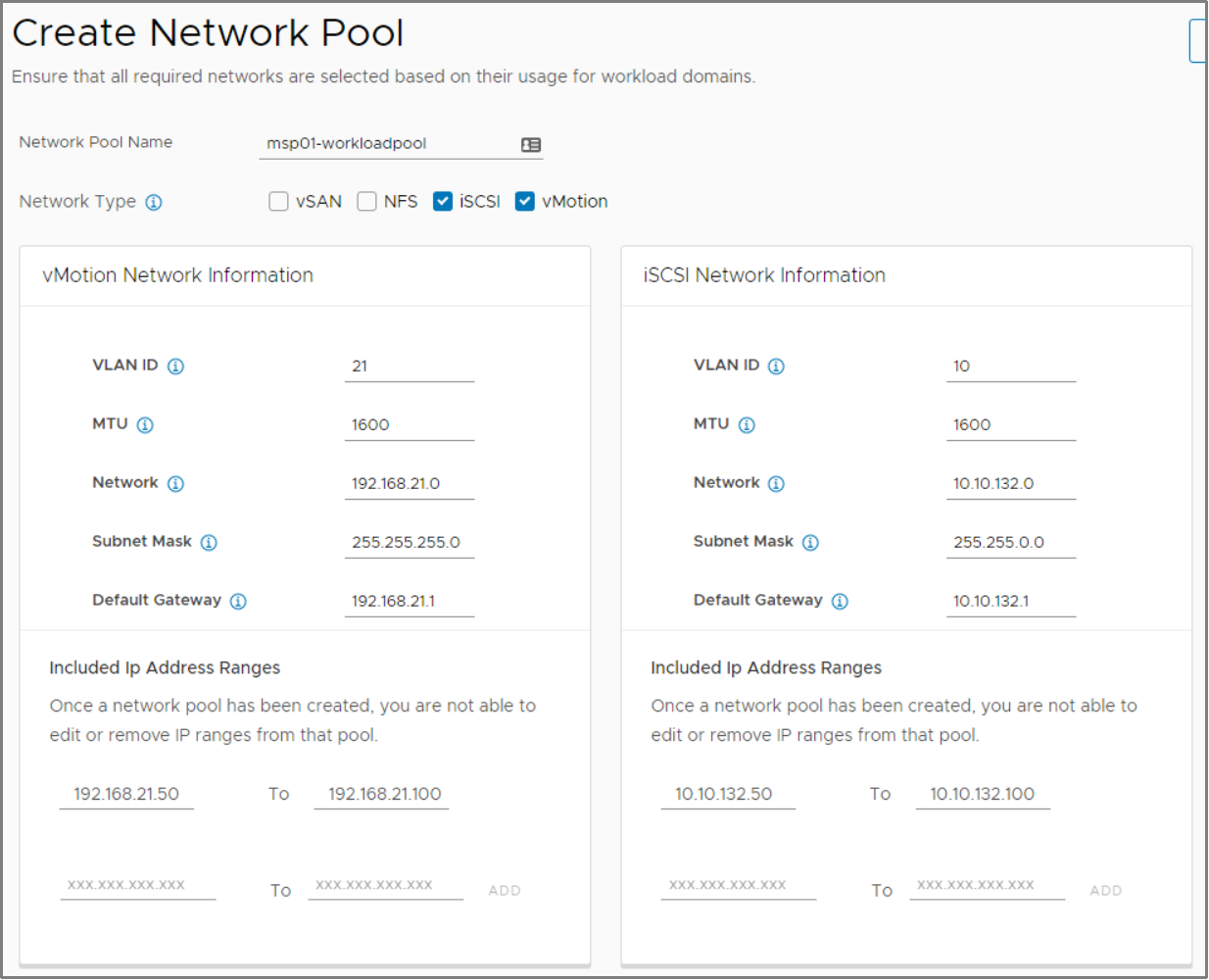
Figure 5. Example of a network pool supporting iSCSI vVols
Configure ESXi hosts for vVols
When configuring ESXi hosts to be used in a vVols workload domain, there are several prerequisite configuration items that must be completed.
Complete all host commissioning checklist steps
Ensure that the basic configuration of each ESXi host has been finished according to the current host commissioning checklist. This checklist is shown on the first page of the host commissioning wizard.
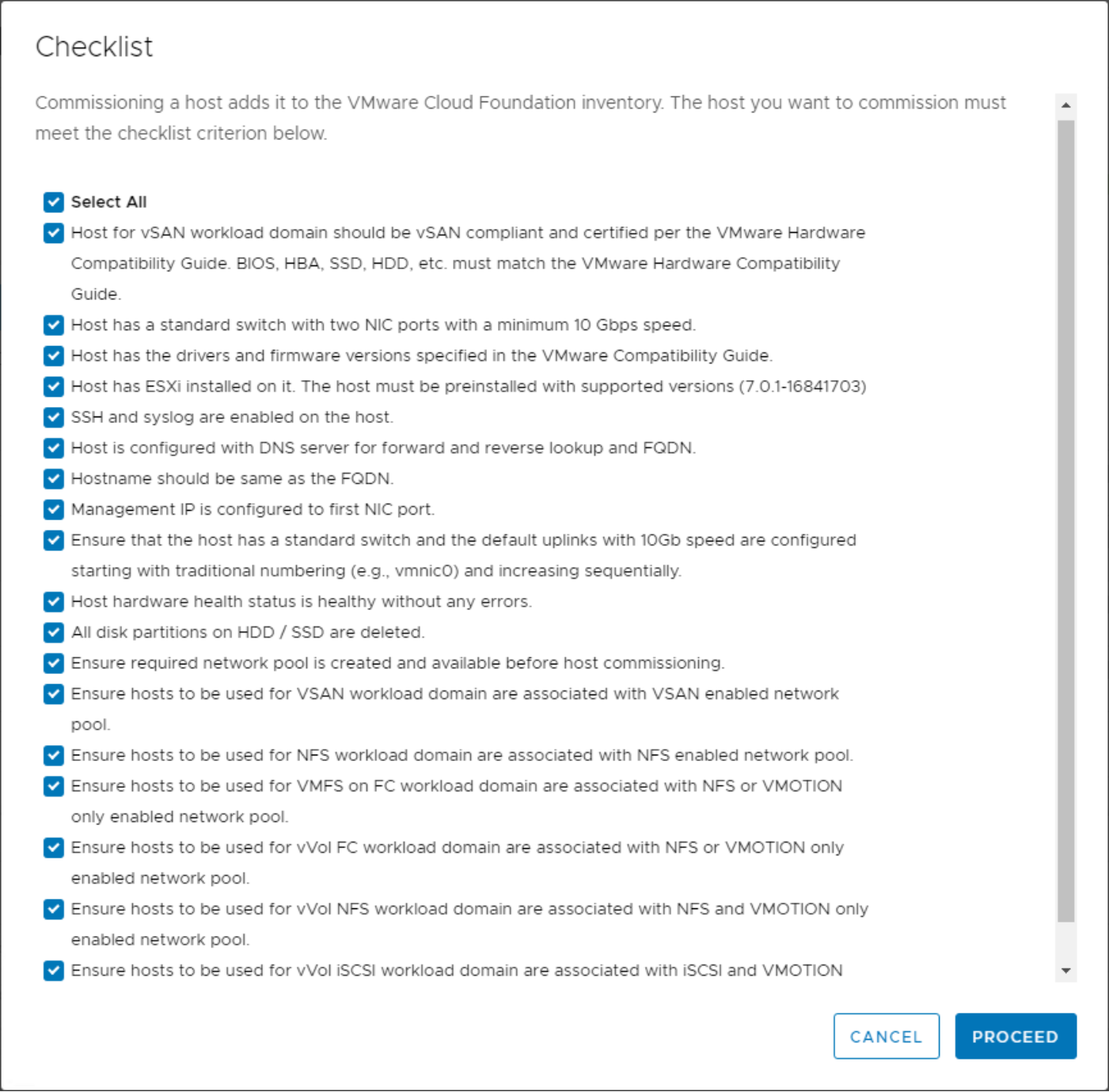
Figure 6. Example of Host Commissioning checklist in VMware Cloud Foundation 4.1
Configure ESXi hosts for FC vVols
In addition to the items on the host commissioning checklist, the following general configuration steps must be completed on the Dell storage array.
- Zone the FC fabric so that each initiator in the ESXi host is visible to the array.
- Create the host objects (hosts, host groups, port groups) on the array.
- If the array does not automatically configure protocol endpoints, provision them to each ESXi host.
Note: Before deploying the workload domain, test to ensure that vVols are working properly with the ESXi hosts.
Configure ESXi hosts for iSCSI vVols
To configure iSCSI vVols, multiple configuration steps are required for both the ESXi host and the storage array.
- Log directly into the ESXi user interface and enable the software iSCSI initiator by selecting Storage > Adapters > Software iSCSI > Enabled (see the following figure).
- Copy the full IQN from the Name & Alias field.
For example: iqn.1998-01.com.vmware:myhostname-1a2b3c4d
This IQN will be used later to create the host object on the array.
- Click Add dynamic target, and then add one or more target IPs for the storage array.
- Click Save configuration.
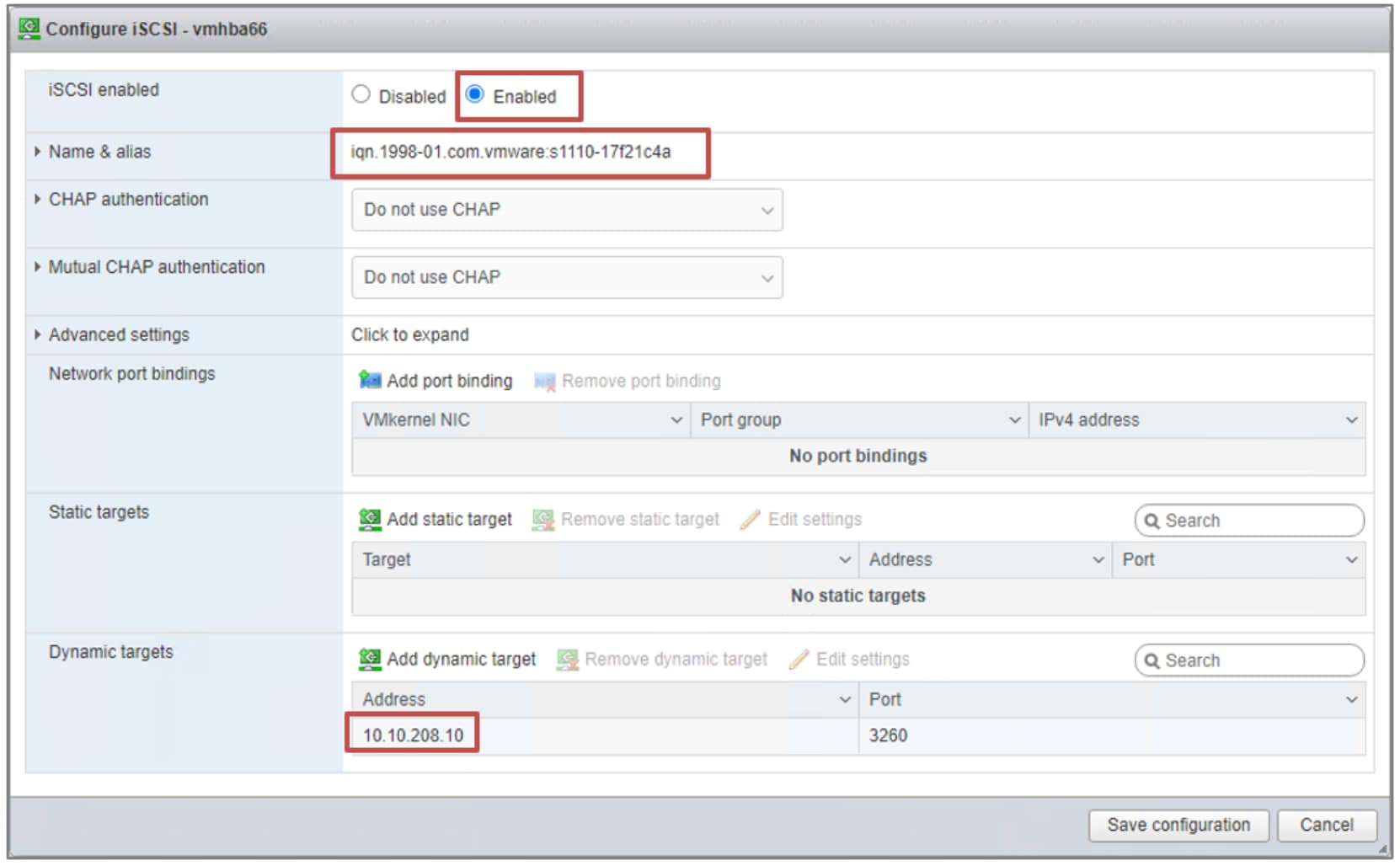
Figure 7. ESXi iSCSI vmhba configuration dialog
- Create the host objects (hosts, host groups, port groups) on the array.
The IQN address copied previously can be used to manually create the host objects.
- If the array does not automatically configure protocol endpoints, provision them to each ESXi host.
Note: Before deploying the workload domain, test to ensure that vVols are working properly with the ESXi hosts. To test iSCSI connectivity, temporarily add a VMkernel NIC with an unused static IP address within the iSCSI network pool range. Use vmkping to ensure connectivity to all the iSCSI targets. When testing is complete, you must remove the temporary VMkernel IP and associated port group from the ESXi host before commissioning, or validations will fail.
Configure ESXi hosts for NFS vVols
While there are no prerequisite configurations for the ESXi hosts to use NFS vVols, we recommend that you test connectivity between the ESXi host and the NAS server IP address.
Note: To test NFS connectivity, temporarily add a VMkernel NIC with an unused static IP address within the NFS network pool range. Use vmkping to test connectivity to the NAS protocol endpoints IP addresses. When testing is complete, remove the temporary VMkernel IP and associated port group from the ESXi host before commissioning, or validations will fail.
PowerStoreOS 3.0
PowerStoreOS 3.0 introduced new features with VMware Cloud Foundation, including full VASA 3.0 support. The following sections provide the steps to integrate PowerStore vVols with VMware Cloud Foundation.
Note: When creating the workload domain with vVols, ensure that the storage container name specified in the wizard exactly matches the container name on the array.
Add Storage Settings
Storage Settings allows administrators to add the VASA provider information for one or more arrays. To begin the wizard, click ADD VASA PROVIDER.
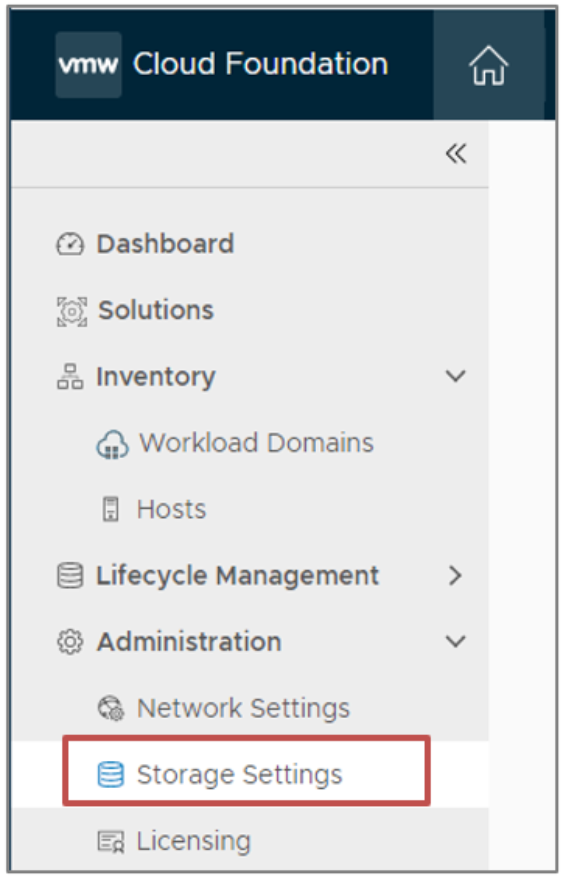
Figure 8. Storage Settings location
Enter the array’s VASA provider information, making sure to exactly match the storage container name as specified on the array. If needed, multiple container names and credentials can be added to each provider.
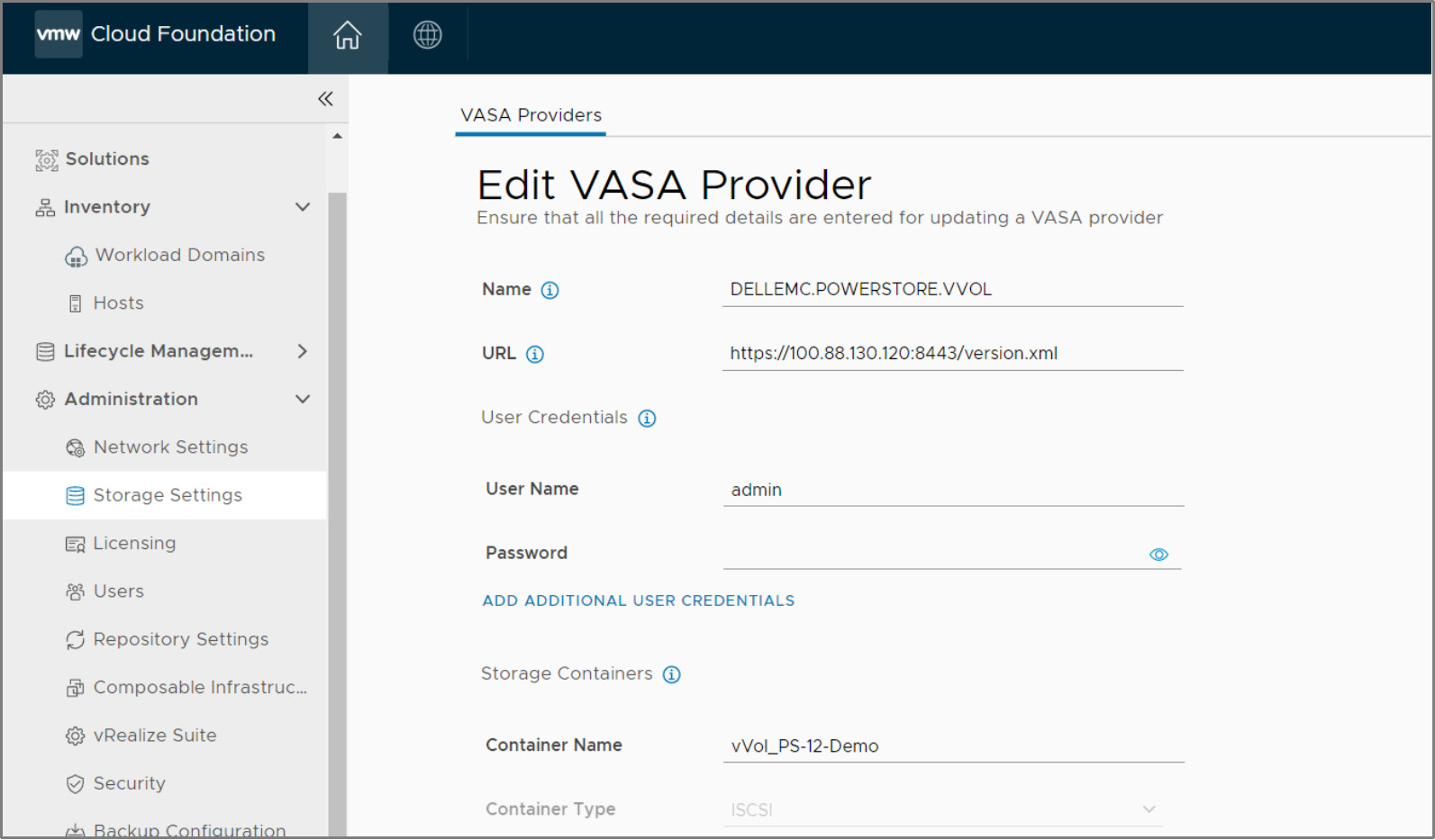
Figure 9. Example of entering VASA Provider information
Dell Technologies’ best practice is to create a dedicated security account on the array for the VASA provider to use.
Note: The VASA provider IP address must reside on the same management network as the vCenter server for the workload domain. vCenter must have network connectivity to the VASA provider to issue vVols instructions to the array.
Commission hosts for vVols
Before the workload domain can be created using vVols as principal storage, the hosts must be commissioned with the vVol storage type.
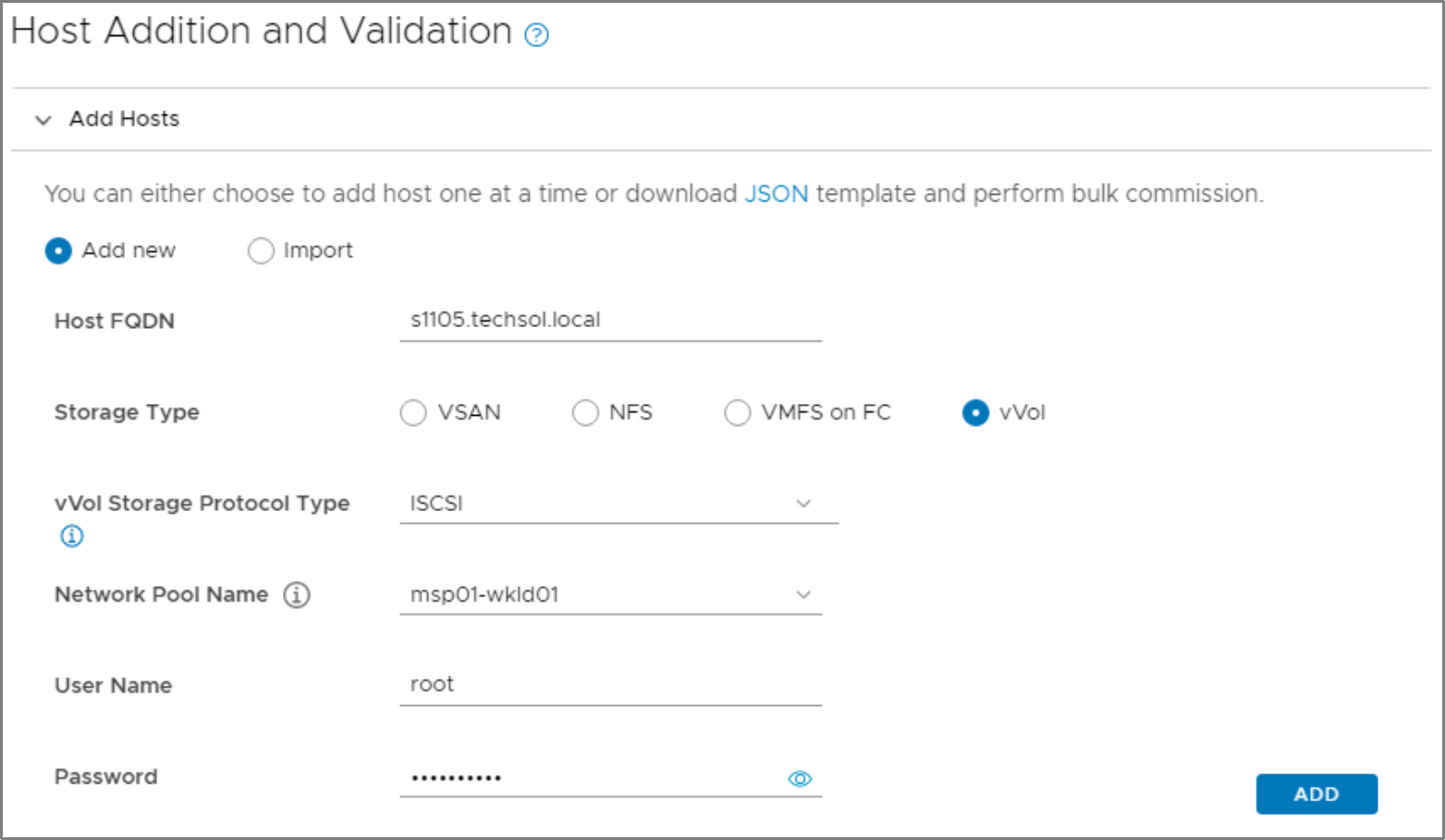
Figure 10. Selecting the vVol storage type for host commissioning
Create vVols-based workload domain
- From the SDDC Manager dashboard, click +Workload Domain and click VI - Workload Domains

Figure 11. Workload Domain Selection
- In the first window, select vVol from the available Storage selections.
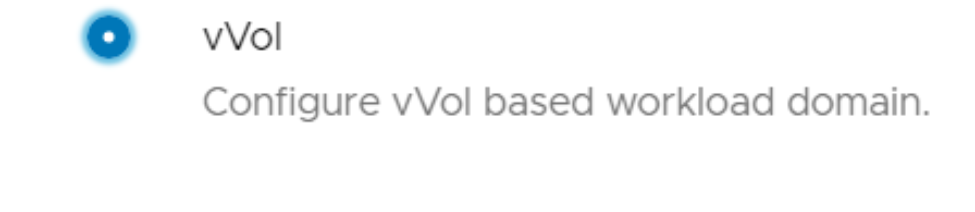
Figure 12. Select vVol
- Provide a Virtual Infrastructure and Org Name.
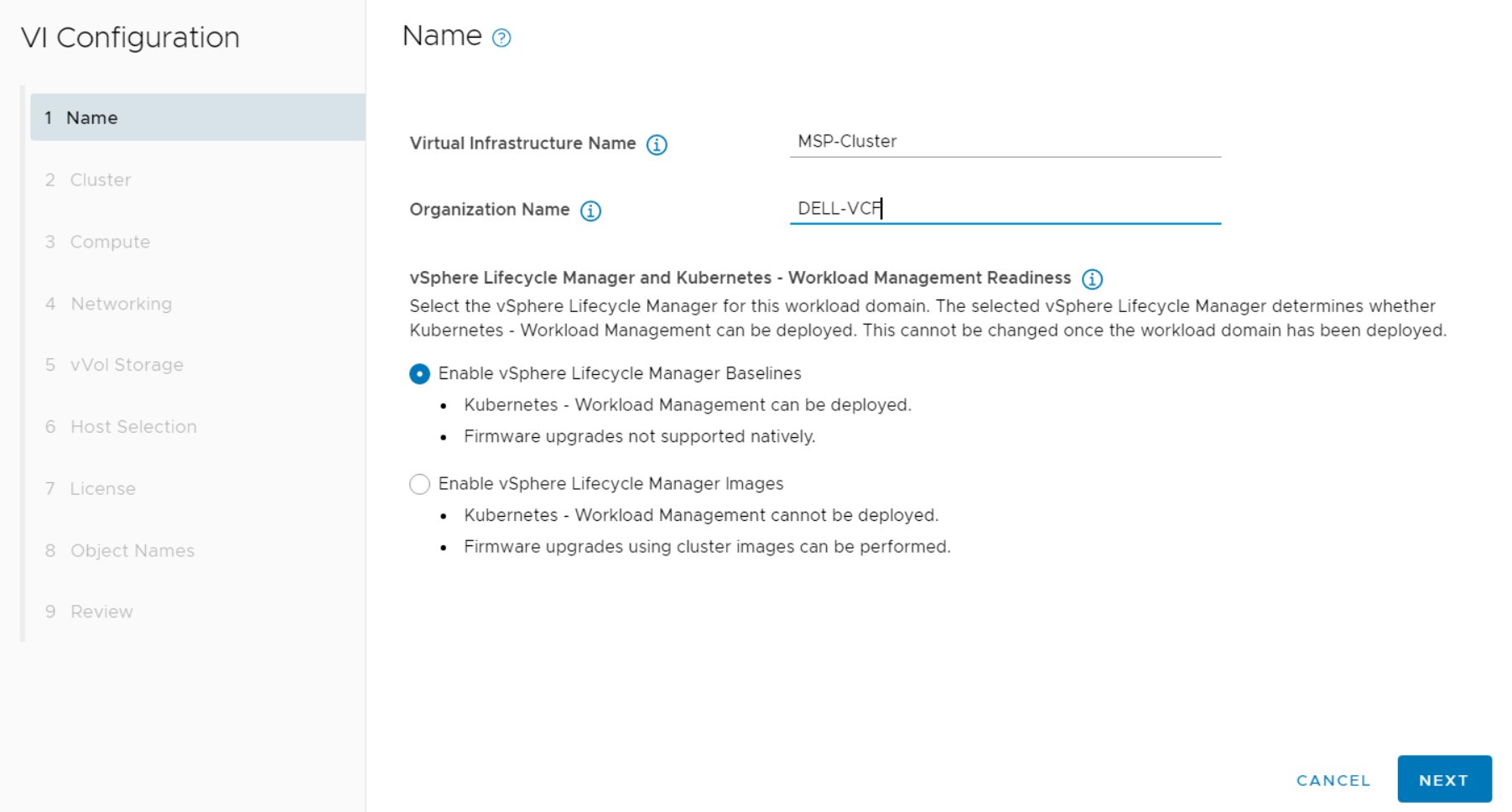
Figure 13. Virtual and Organization Name
- Provide a Cluster Name for the domain.
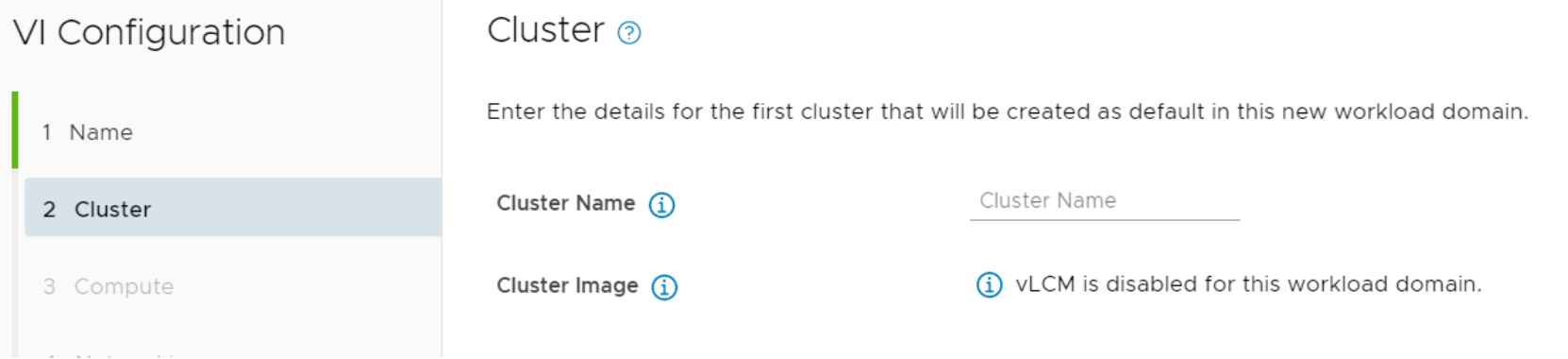
Figure 14. Cluster Name
- At the Networking step, add all NSX-T FQDNs to DNS.
The addresses should be automatically resolved.
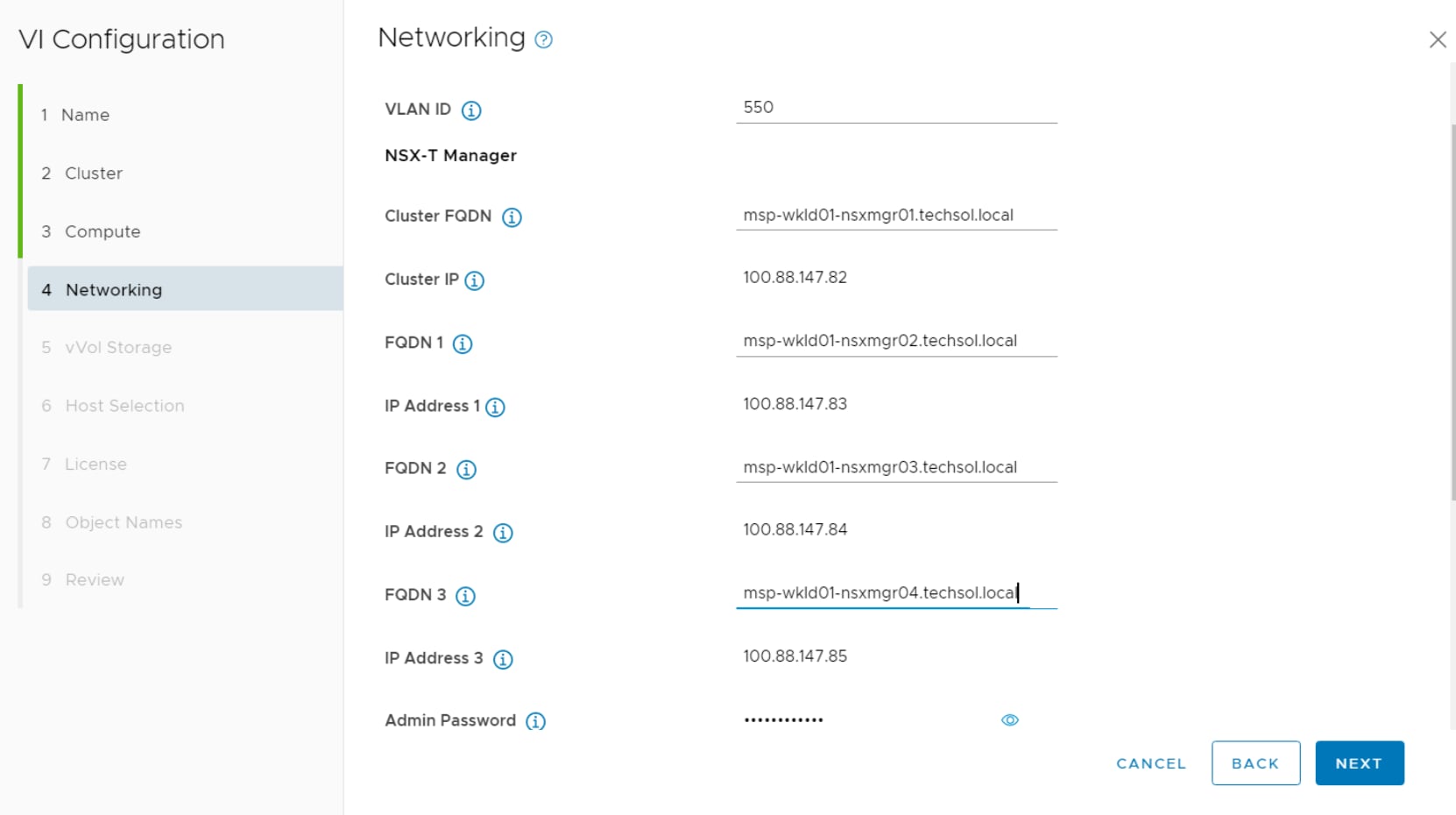
Figure 15. NSX-T network configurations
- In the vVol Storage section, specify which array and protocol to use.
In the following figure, iSCSI is the protocol type.
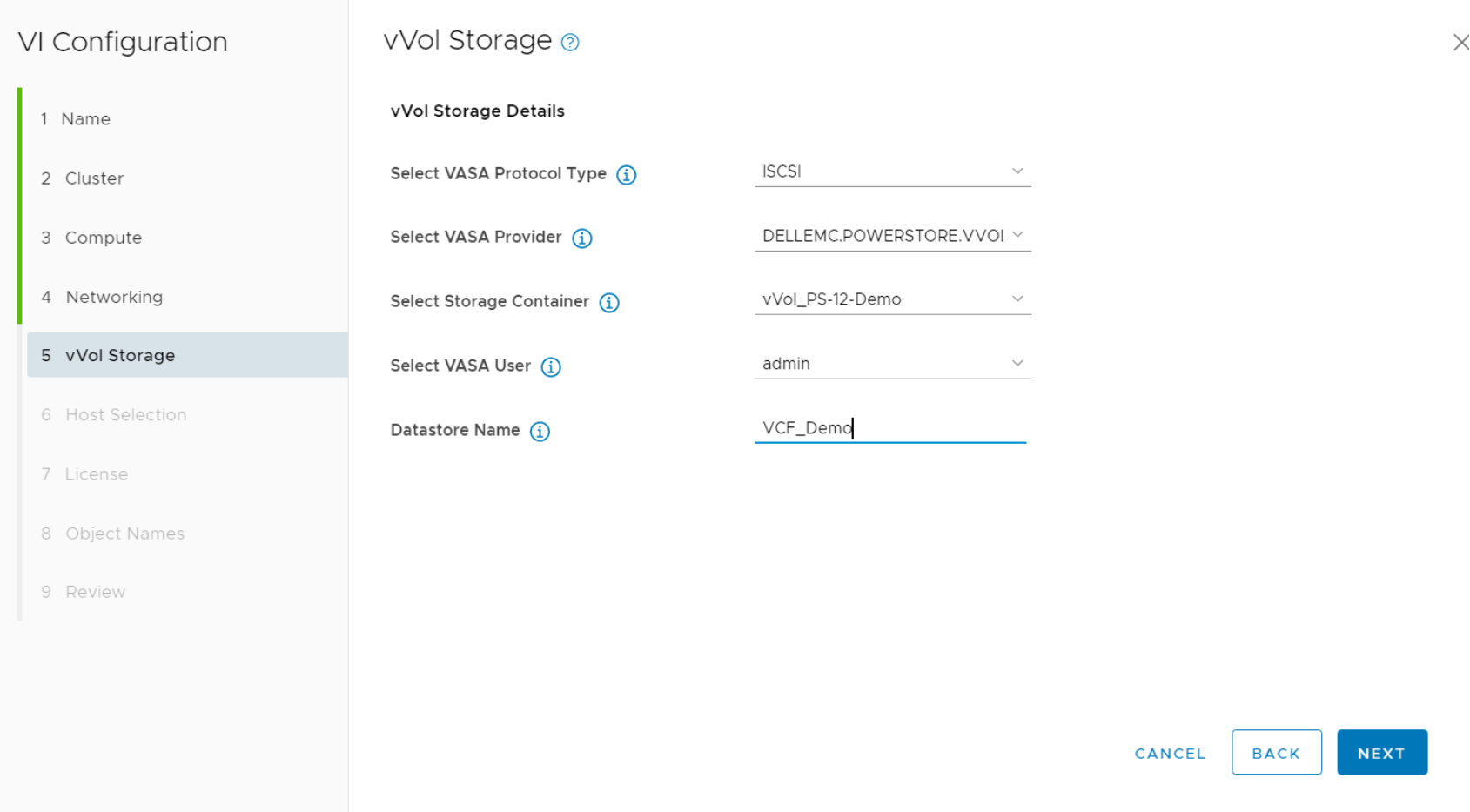
Figure 16. vVol Storage
- Select the hosts to use for this domain.
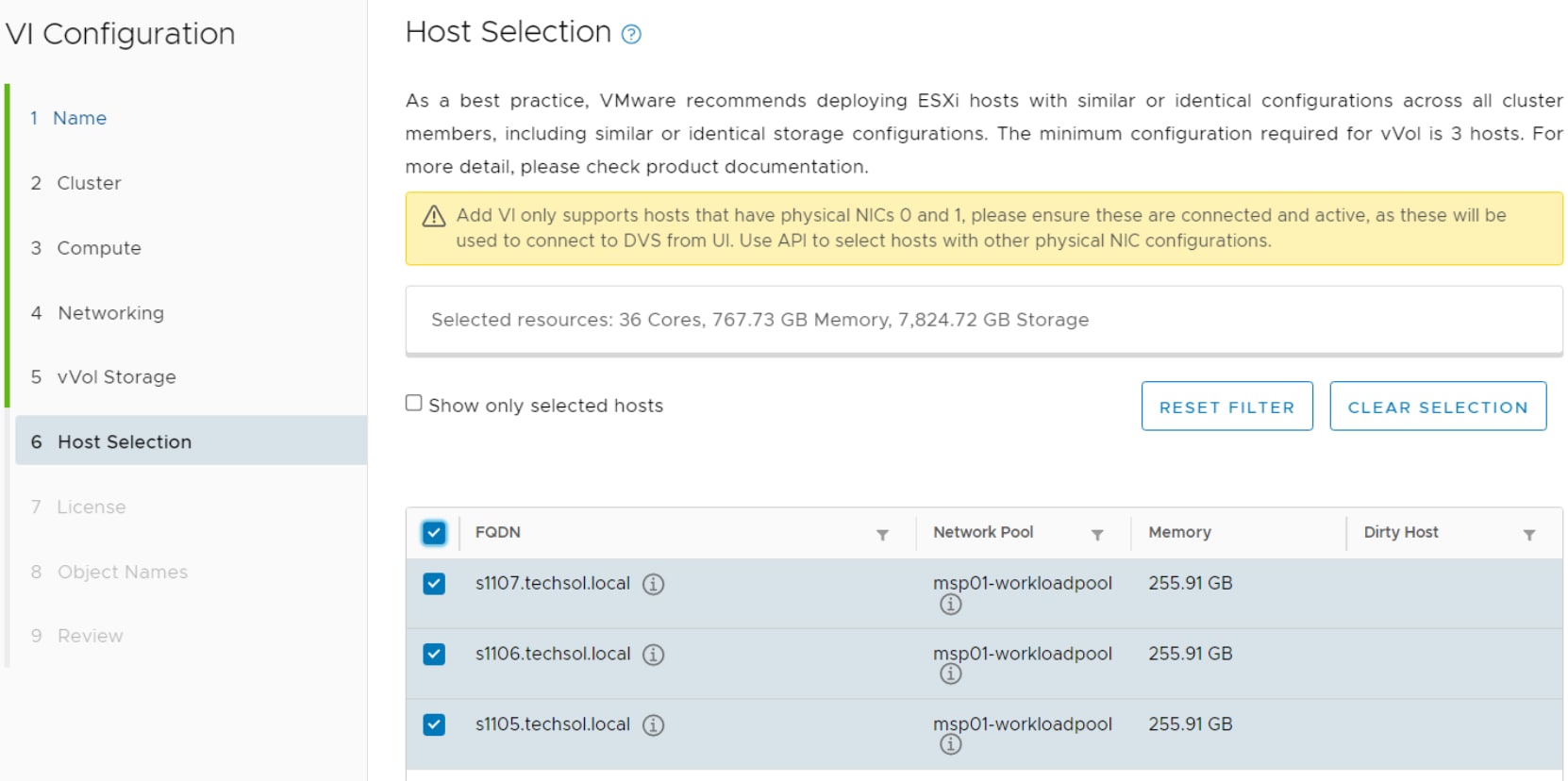
Figure 17. Host Selection page
- Select license keys.
- On the Object Names page, review the deployment specifications.
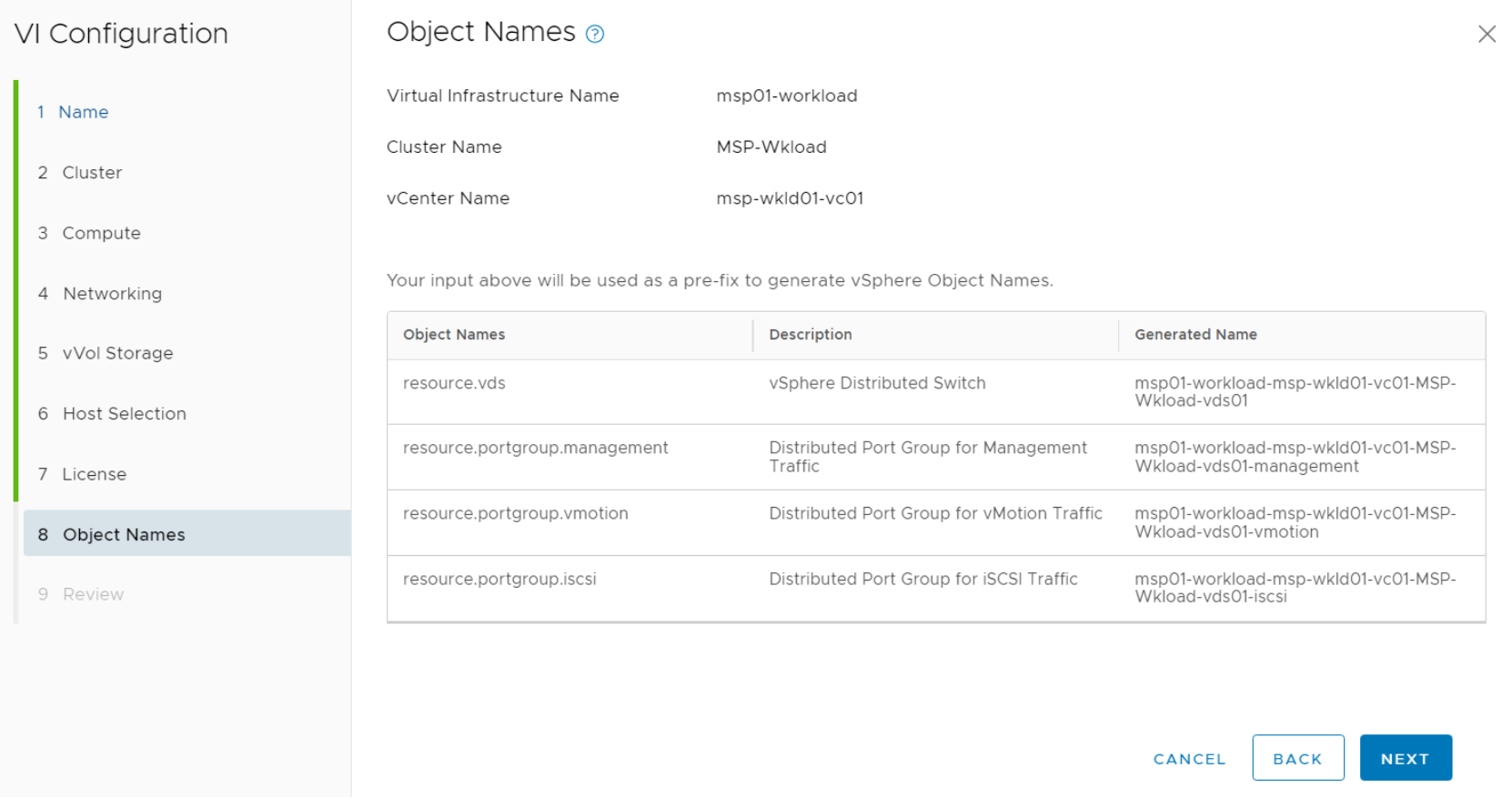
Figure 18. Review deployment parameters
Dell storage configuration
For each Dell storage product, the steps to provision storage to VMware Cloud Foundation vary. This section details the high-level steps for each storage system.
Dell Unity
The Unity array can present multiple protocols for the principal workload domain storage and iSCSI datastores for supplemental storage.
This document does not provide detailed steps for provisioning datastores to vSphere hosts. For more information, see Dell Unity Family: Configuring Hosts to Access VMware Datastores.
The high-level steps to provision storage to the workload cluster are as follows:
- If using VMFS on FC, perform the following steps:
- Create FC zones for the workload domain ESXi hosts.
- Perform the following steps in SDDC Manager:
i Commission the workload domain hosts.
ii Create a workload domain from the commissioned hosts.
If using a Unity NFS share for the storage selection, see the steps in Workload domain configuration with NFS.
- If using VMFS on iSCSI, perform the following steps:
- Add an iSCSI Distributed Port Group and assign it the iSCSI VLAN.
- Add a VMkernel adapter to each workload domain host with an IP in the storage network.
- Add a software iSCSI adapter to each workload domain host.
- Add the iSCSI targets for the array to the iSCSI adapter, and then rescan.
- Perform the following steps in the Unity Unisphere interface:
- Create the hosts for the workload domain ESXi hosts.
- Create a block LUN specifying the name, capacity, and other options needed for the datastore. Configure the host access to specify the workload domain vSphere hosts.
- Optionally, use the Create Datastore Wizard from the VMware storage section to automatically provision a datastore to the vSphere hosts, which bypasses the following manual datastore-creation steps.
- Create the datastore using the steps outlined in Datastore creation.
PowerMax
The PowerMax array can present multiple protocols for the principal workload domain storage, and it can present iSCSI datastores for supplemental storage. The process of presenting storage from PowerMax arrays to a workload domain is completed in the same manner as presenting storage to conventional vSphere clusters.
This document does not provide detailed steps for provisioning datastores to vSphere hosts. For more information, see Using Dell VMAX and PowerMax in VMware vSphere Environments.
The high-level steps to provision storage to the workload cluster are as follows:
- If using VMFS on FC, perform the following steps:
- Create FC zones for the workload domain VMware ESXi hosts.
- Perform the following steps in SDDC Manager:
i Commission the workload domain hosts.
ii Create a workload domain from the commissioned hosts.
- If using VMFS on iSCSI, perform the following steps:
- Add an iSCSI distributed port group and assign it the iSCSI VLAN.
- Add a VMkernel adapter to each workload domain host with an IP in the storage network.
- Add a software iSCSI adapter to each workload domain host.
- Add the iSCSI targets for the array to the iSCSI adapter and then rescan.
- Perform the following steps in the Unisphere for PowerMax interface:
- Create the port group for the PowerMax target ports zoned to the ESXi hosts.
- Create the hosts and hosts group for initiators belonging to the workload domain ESXi hosts.
- Create a storage group specifying the name and volume capacity for the datastore.
- Create the masking view to present the new volume to the workload domain vSphere cluster.
- Create the datastore using the steps outlined in Datastore creation.
PowerStore
The PowerStore T model appliance can present multiple protocols for the principal workload domain storage. For supplemental storage, the PowerStore T model can present iSCSI or NVMe/FC.
The PowerStore X model appliance can present storage externally to workload domain hosts as a VMFS on FC datastore for principal workload domain storage. For supplemental storage, the PowerStore X model can present iSCSI datastores. PowerStore X model ESXi hosts cannot be used to create or be used as part of a VMware Cloud Foundation workload domain cluster.
Detailed steps for provisioning datastores to vSphere hosts are not covered within this document. For more information, see the PowerStore Virtualization Infrastructure Guide.
The high-level steps to provision storage to the workload cluster are as follows:
- If using VMFS on FC, perform the following steps:
- Create FC zones for the workload domain ESXi hosts.
- Perform the following steps in SDDC Manager:
i Commission the workload domain hosts.
ii Create a workload domain from the commissioned hosts.
The workload domain storage selection must use:
- PowerStore T model – VMFS on FC, NFSv3, vSAN, or vVols
- PowerStore X model – VMFS on FC, or vSAN
If using a PowerStore NFSv3 share, see the steps in Workload domain configuration with NFS.
- If using VMFS on iSCSI, perform the following steps:
- Add an iSCSI Distributed Port Group and assign it the iSCSI VLAN.
- Add a VMkernel adapter to each workload domain host with an IP in the storage network.
- Add a software iSCSI adapter to each workload domain host.
- Add the iSCSI targets or Global Storage Discovery IP for the appliance to the iSCSI adapter and then rescan.
- If using NVMe/FC, perform the following steps:
- Create FC zones for the workload domain ESXi hosts.
Create zones with the NVMe WWNs (not the SCSI WWNs). Each PowerStore cluster FC Front End (FE) port is assigned one SCSI WWN and one NVMe WWN, which can be found in the PowerStore Manager’s hardware ports section.
- Enable NVMe support on the HBAs and change the NQN format according to the latest PowerStore Host Configuration Guide:
i With QLE HBAs, issue the following command:
esxcli system module parameters set -p ql2xnvmesupport=1 -m qlnativefc
ii With LPe3200X HBAs using the lpfc driver, issue the following command:
esxcli system module parameters set -m lpfc -p lpfc_enable_fc4_type=3
iii Change the NQN format with the following command:
esxcli system module parameters set -m vmknvme -p vmknvme_hostnqn_format=0
iv Reboot the host.
- Perform the following steps in SDDC Manager:
i Commission the workload domain hosts.
ii Create a workload domain from the commissioned hosts using a supported principal storage option. NVMe/FC datastores are only supported as supplemental storage.
- Perform the following steps in the PowerStore Manager:
- Create the hosts and host group for the workload domain ESXi hosts.
While the SCSI and NVMe WWNs on the ESXi host are potentially the same for each of the respective vmhba adapters, additional hosts and host groups must be created in the PowerStore Manager for the NVMe/FC ports.
- Create a volume specifying the name, size, and other options for the datastore. Configure the host mappings to specify the workload domain vSphere host group.
- Optionally, use the Dell Virtual Storage Integrator (VSI) vSphere plug-in to automatically provision a datastore to the vSphere hosts, which bypasses the manual datastore-creation steps described in Datastore creation.
- Create the datastore using the steps outlined in Datastore creation.
SC Series
The process of presenting storage from SC Series arrays to a workload domain is completed in the same manner as presenting storage to conventional vSphere clusters. Because FC datastores are added and managed outside of VMware Cloud Foundation, normal SC Series administrative tools can be used.
This document does not provide detailed steps for provisioning datastores to vSphere hosts. For more information, see the current Dell Storage Manager Administrator’s Guide on Dell.com/support.
The high-level steps to provision storage to the workload cluster are as follows:
- If using VMFS on FC, perform the following steps:
- Create FC zones for the workload domain ESXi hosts.
- Perform the following steps in SDDC Manager:
i Commission the workload domain hosts.
ii Create a workload domain from the commissioned hosts.
- If using VMFS on iSCSI, perform the following steps:
- Add an iSCSI Distributed Port Group and assign it the iSCSI VLAN.
- Add a VMkernel adapter to each workload domain host with an IP in the storage network.
- Add a software iSCSI adapter to each workload domain host.
- Add the iSCSI targets for each controller to the iSCSI adapter, and then rescan.
- Perform the following steps in Dell Storage Manager or Dell Unisphere for SC Series interface:
- Create the Server objects and Server Cluster for the workload domain ESXi hosts.
- Create a volume specifying the name, size, and other options for the datastore.
For the Server (Dell Storage Manager Client) or Server Mapping (Unisphere for SC Series web interface), select the server cluster previously created.
- Configure the server mappings to specify the workload domain vSphere cluster.
- Create the datastore using the steps outlined in Datastore creation.
PowerFlex
The process of presenting storage from a PowerFlex two-layer system (where storage and compute nodes remain separate operationally) to workload domains for supplemental storage is the same as presenting storage to conventional vSphere clusters. Because the datastores are managed outside of VMware Cloud Foundation, use only PowerFlex storage administrative tools for storage-specific operations.
The high-level steps to provision storage to the workload cluster are as follows:
- Prerequisites
- Set up and deploy the VMware Cloud Foundation management domain per VMware best practices.
- Set up and deploy the VMware Cloud Foundation workload domain per VMware best practices.
- Set up and deploy the PowerFlex two-layer configuration using PowerFlex Manager (VxFlex Manager) per PowerFlex Systems best practices.
- Installation
- Install and configure the PowerFlex SDC driver on the VMware Cloud Foundation workload domain compute nodes.
- Configure PowerFlex specific network options on the VMware Cloud Foundation workload domain compute nodes through vCenter.
- Post installation
- Create PowerFlex LUNs through the PowerFlex UI.
- Expose PowerFlex LUNs to workload domain nodes.
- Map PowerFlex LUNs to VMware Cloud Foundation workload domain nodes through vCenter.
- Create the datastore using the steps outlined in Datastore creation.
For more detailed information about deployment of PowerFlex systems as supplemental storage with VMware Cloud Foundation, see the PowerFlex Systems with VMware Cloud Foundation white paper.
XtremIO
The process of presenting storage from XtremIO storage controllers to a workload domain is completed in the same manner as presenting storage to conventional vSphere clusters. Since the datastores are managed outside of VMware Cloud Foundation, use only XtremIO administrative tools for storage-specific operations.
This document does not provide detailed steps for provisioning datastores to vSphere hosts.
The high-level steps to provision storage to the workload cluster are as follows:
- Perform the following steps in SDDC Manager:
- Commission the workload domain hosts.
- Create a workload domain from the commissioned hosts. The workload domain storage selection must use either VMFS on FC for FC arrays, or an alternative principal storage option such as vSAN for iSCSI arrays.
- Perform the following steps in the XtremIO Storage Management interface:
- Create the initiator group for initiators belonging to the workload domain ESXi hosts.
- Create a volume specifying the name, size, and other options for the datastore.
- Map the volume to the initiator group for the workload domain ESXi hosts.
- Create the datastore using the steps outlined in Datastore creation.
Datastore creation
After the storage device is presented to the ESXi cluster, switch to the workload domain’s VMware vCenter client to finish provisioning the datastore.
- To rescan for new storage, right-click the workload vSphere Cluster, click Storage, and click Rescan Storage.
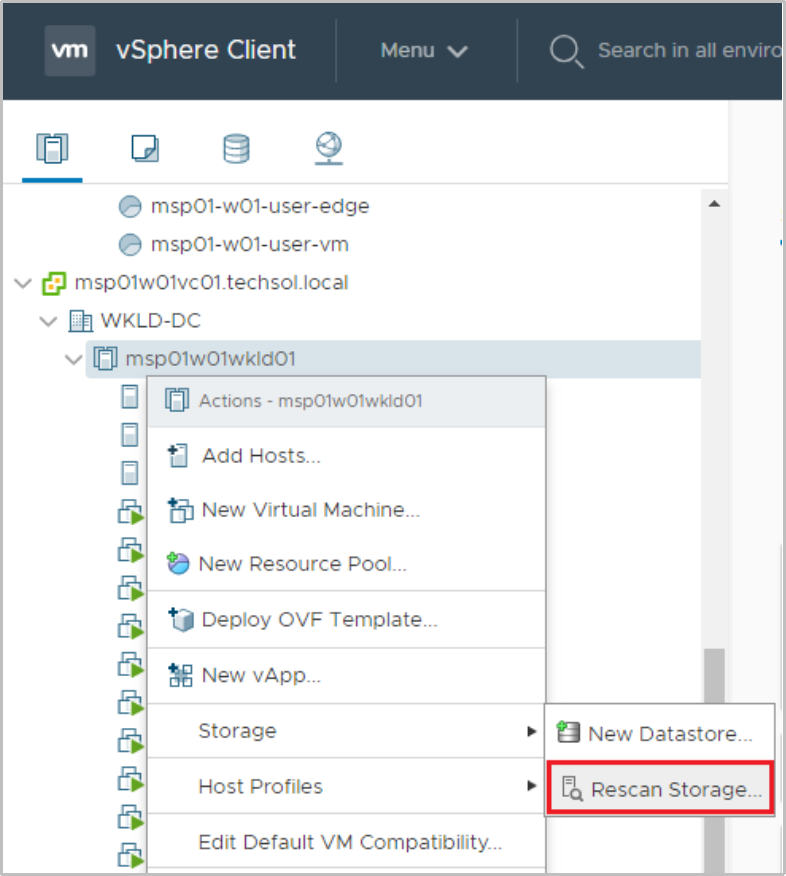
- Right-click the vSphere Cluster, click Storage, and click New Datastore.
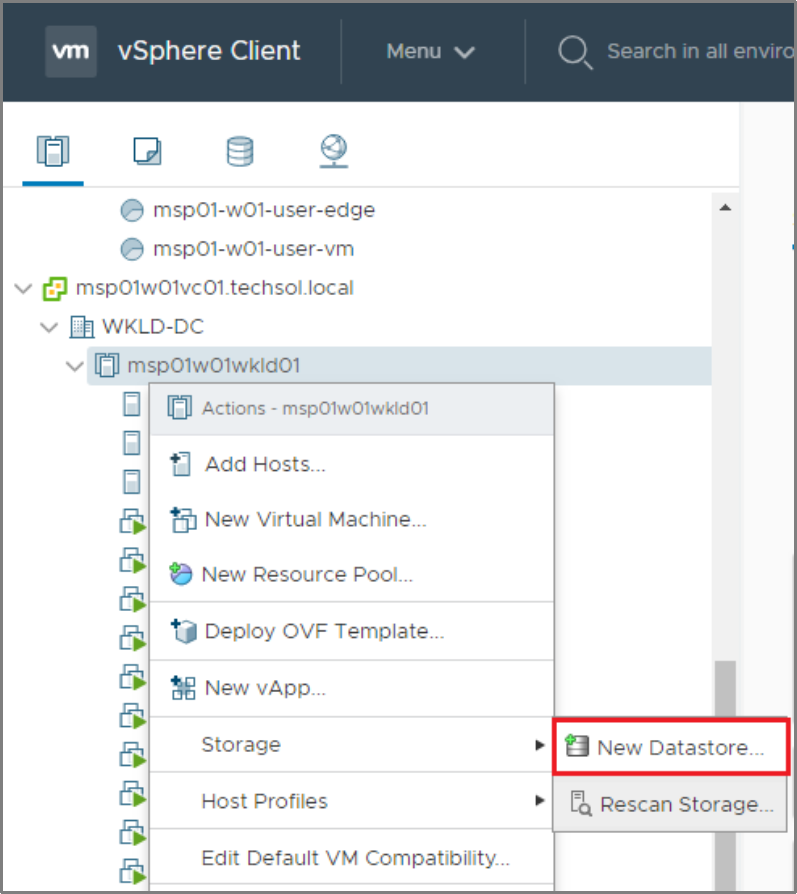
- Complete the New Datastore wizard to create the datastore for the workload cluster.
Appendix: Technical support and resources
The Dell Technologies Storage Info Hub provides expertise that helps to ensure customer success with Dell storage platforms.
Dell.com/powerstoredocs provides detailed documentation about how to install, configure, and manage PowerStore systems.
See the following links for other related resources:
- VMware Cloud Foundation
- Unity:
- Dell Unity: VMware vSphere Best Practices
- Dell Unity: Best Practices Guide - Best Practices for Performance and Availability
- Dell Unity: Virtualization Integration
- PowerMax:
- PowerStore:
- PowerFlex:
- XtremIO: