Dell Unity: Data Reduction
Executive summary
Overview
Audience
Revisions
We value your feedback
Terminology
Dell Unity Data Reduction Licensing
Dell Unity Data Reduction Licensing
Overview
Overview
Supported Configurations
Theory of Operation
Writes
Dell Unity Data Reduction works the same for both Block and File storage resources. Data reduction uses a software algorithm to analyze and achieve space savings within a storage resource. Error! Reference source not found. below is a high-level diagram of a storage resource with data reduction enabled. As shown in 0, data reduction occurs inline between System Cache and the storage resource.
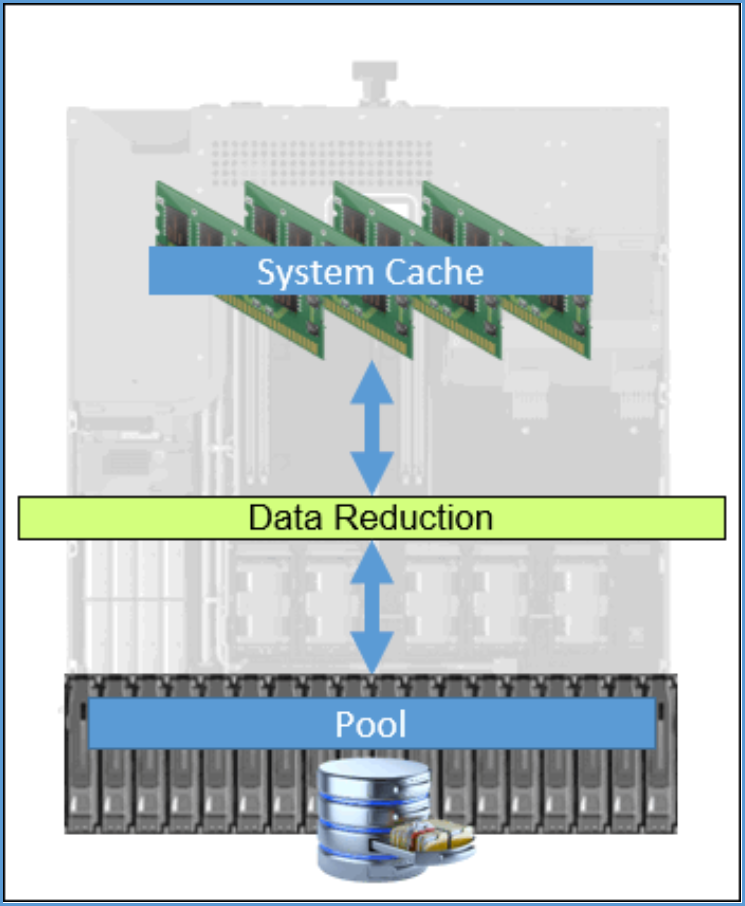
Figure 1. Dell Unity Data Reduction Overview
When data is written to the system, the data is saved in System Cache, and the write is acknowledged with the host. The data reduction algorithm is not invoked for write I/Os at this point in time in order to provide the fastest response to the host. Figure 2 below outlines an example of a write to a storage resource with data reduction enabled. No data has been written to the drives within the Pool at this time.
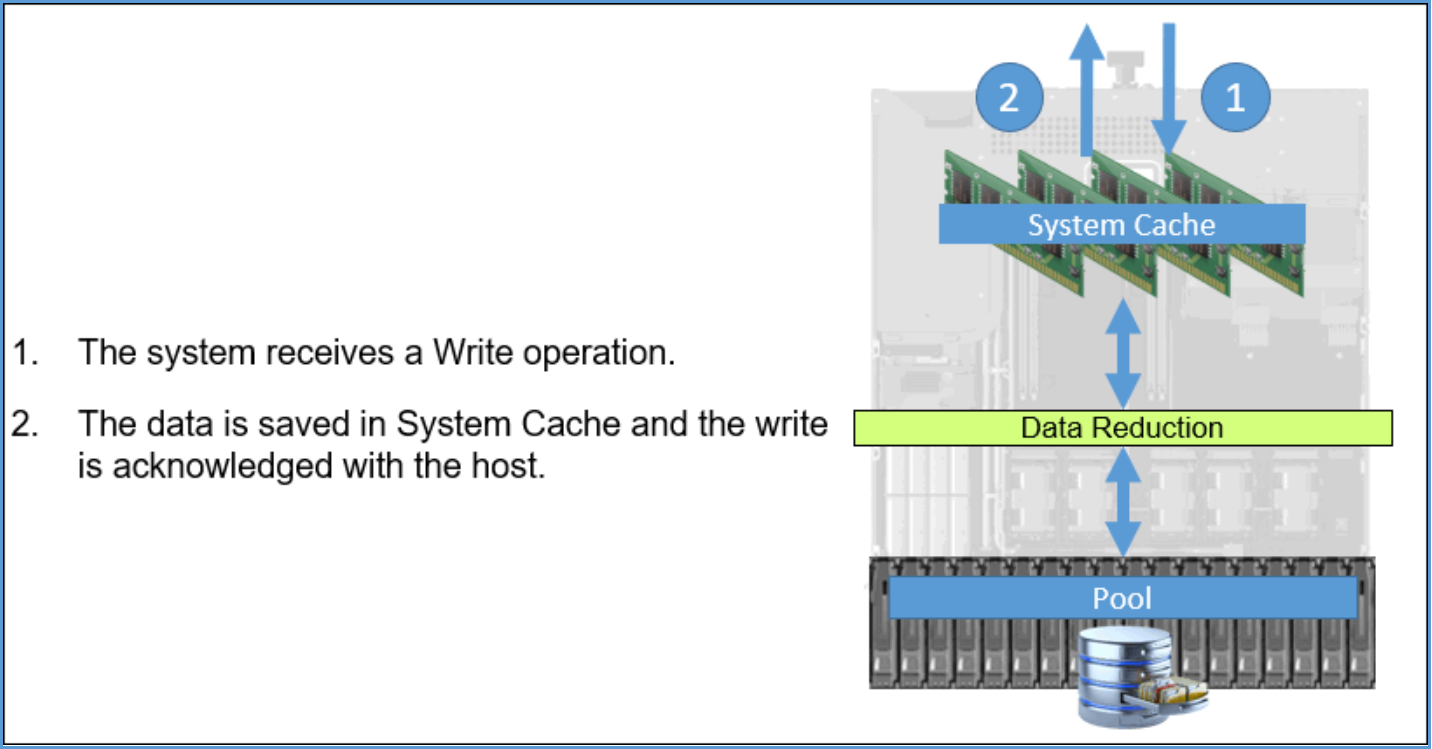
Figure 2. Host Write Example
In Dell Unity, before a write is saved in System Cache, the system ensures space is available and allocated for the I/O within the target storage resource. As all back-end allocations and lookups within the target resource are deferred until after writes are accepted into System Cache and the host is acknowledged, a portion of the private space within the storage resource’s overhead is tracked and utilized as a possible location to store the I/O when accepting data into cache. A storage resource’s private space is fixed in size and allocated at time of the storage resource’s creation. After the I/O is acknowledged, the normal cache cleaning process occurs. Space within the storage resource is utilized or allocated, if needed, and the data is saved to disk. This caching behavior not only applies to data reduction enabled resources, but it is also applicable to Block and File storage resources (excluding vVols).
For data reduction enabled storage resources, the data reduction process occurs during the System Cache’s proactive cleaning operations or when System Cache is flushing cache pages to the drives within the Pool. The data in this scenario may be new to the storage resource, or the data may be an update to existing blocks of data currently residing on disk. In either case, the data reduction algorithm occurs before the data is written to the drives within the Pool. During the data reduction process, multiple blocks are aggregated together and sent through the algorithm. After determining if savings can be achieved or data needs to be written to disk, space within the Pool is allocated if needed and the data is written to the drives. A high-level diagram of this operation is displayed in Error! Reference source not found. below.
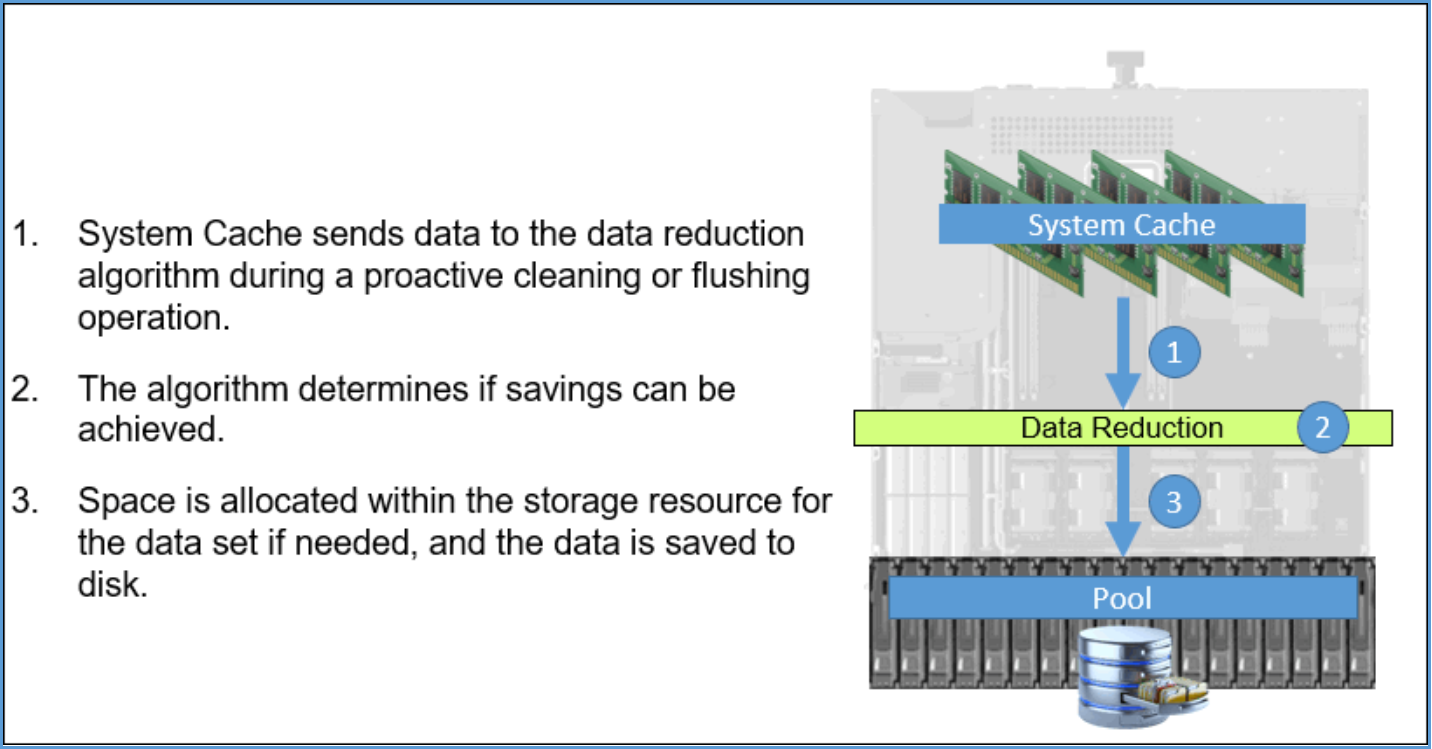
Figure 3. Dell Unity Data Reduction Example
Dell Unity’s Data Reduction feature includes multiple space efficiency algorithms to help reduce the total space occupied by a dataset. Included in the Data Reduction feature is deduplication, compression, and optionally Advanced Deduplication algorithms. Error! Reference source not found. below is an overview of the data reduction feature with Advanced Deduplication enabled. Before data is sent to the Data Reduction algorithm, it is first segmented into 8KB blocks. As an 8KB block of data passes through the algorithm, it may or may not touch all efficiency algorithms within data reduction. If a block can be deduplicated, the remainder of the data reduction algorithms are skipped, saving time and processing overhead. Each of the algorithms within data reduction feature will be discussed in detail later in this section.
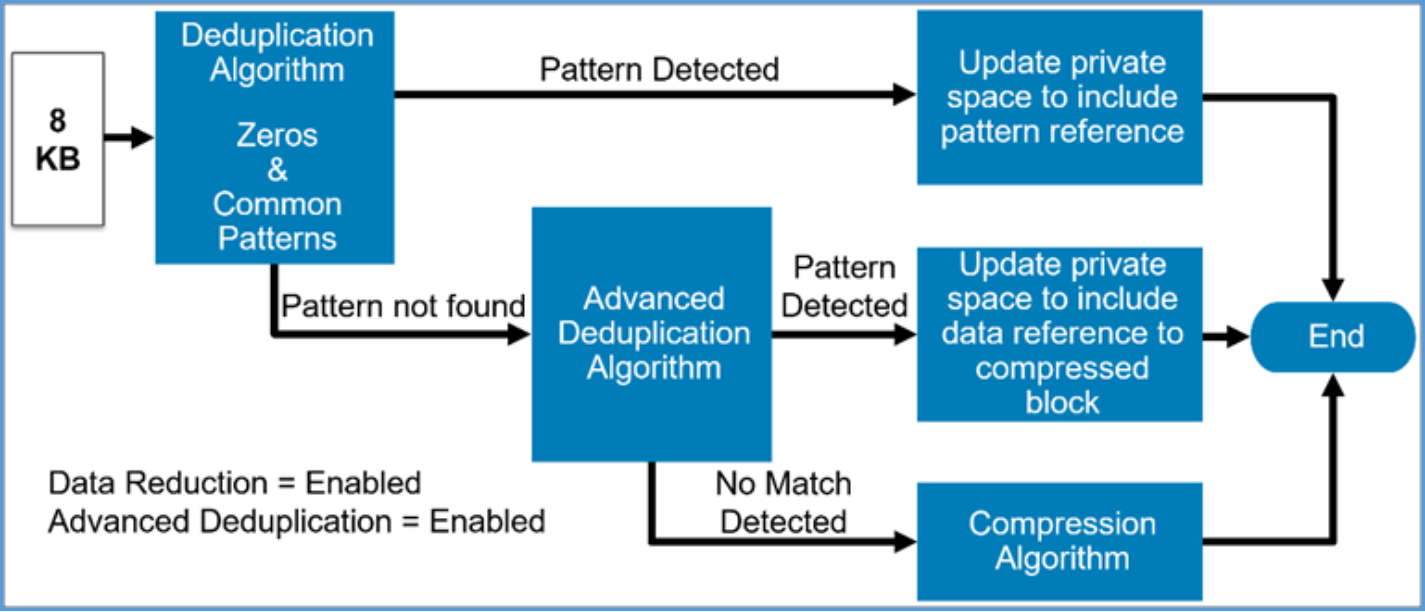
Figure 4. Dell Unity Data Reduction – Advanced Deduplication Enabled
With Advanced Deduplication disabled, a block of data entering the data reduction feature is only passed through the deduplication and compression algorithms. The compression algorithm is only reached when zeros or common patterns are not detected on the block of data. An example of data reduction with Advanced Deduplication disabled is shown in Figure 5.
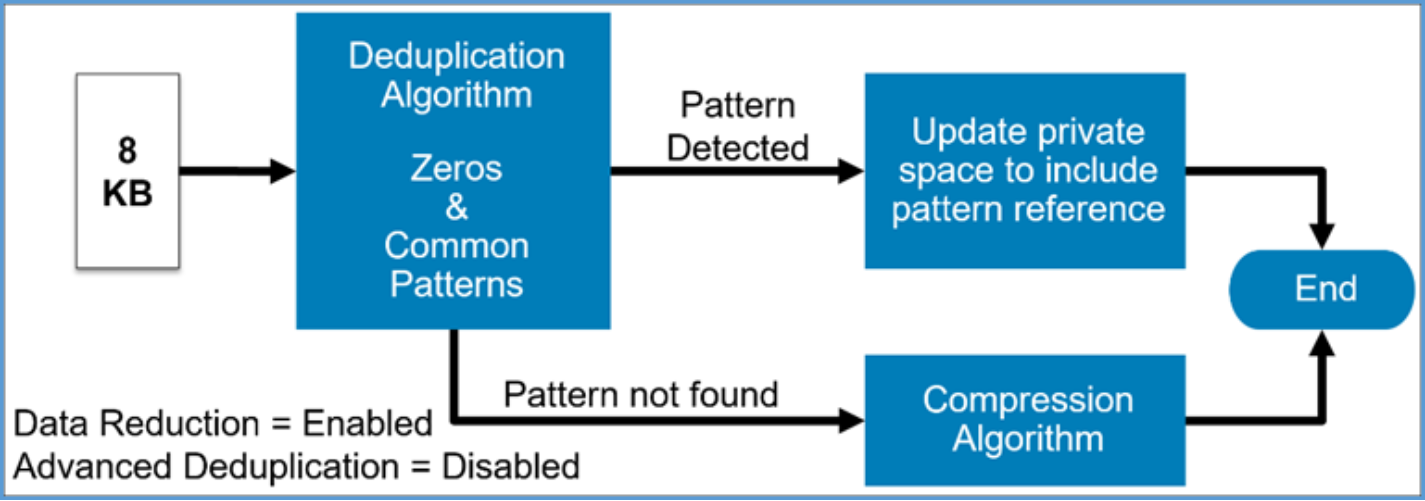
Figure 5. Dell Unity Data Reduction – Advanced Deduplication Disabled
Deduplication – Zeros and Common Patterns
When new data first enters the data reduction logic, it is first passed through the deduplication algorithm. The deduplication algorithm is a lightweight software algorithm which analyzes the blocks of data for known patterns. The patterns may be a block of zeros written by the host, or common patterns found in Dell Unity’s many use cases, such as virtual environments. If a pattern is detected, the private space within the storage resource is updated to include that the particular block is a pattern and information about how to recreate the data block if it is accessed in the future. No data is written to disk in this scenario, which helps reduce storage consumption and drive wear. Also, when deduplication finds a pattern match, the remainder of the data reduction feature is skipped for those blocks which saves system resources. In the instance where no pattern is detected, the data is passed to Advanced Deduplication if it is enabled. If the Advanced Deduplication option is disabled, the data is passed through the compression logic within the data reduction algorithm.
Advanced Deduplication
If Advanced Deduplication is enabled, and deduplication did not detect a pattern, the data is passed through Advanced Deduplication. Advanced Deduplication is a dynamic deduplication algorithm which reduces storage consumption by eliminating duplicate 8KB blocks within a storage resource. Advanced Deduplication will only compare and detect duplicate data found within a single storage resource, such as a LUN or File System. The Advanced Deduplication algorithm utilizes fingerprints created for each block of data to quickly identify duplicate data within the dataset. Error! Reference source not found. below shows the Advanced Deduplication algorithm in detail.
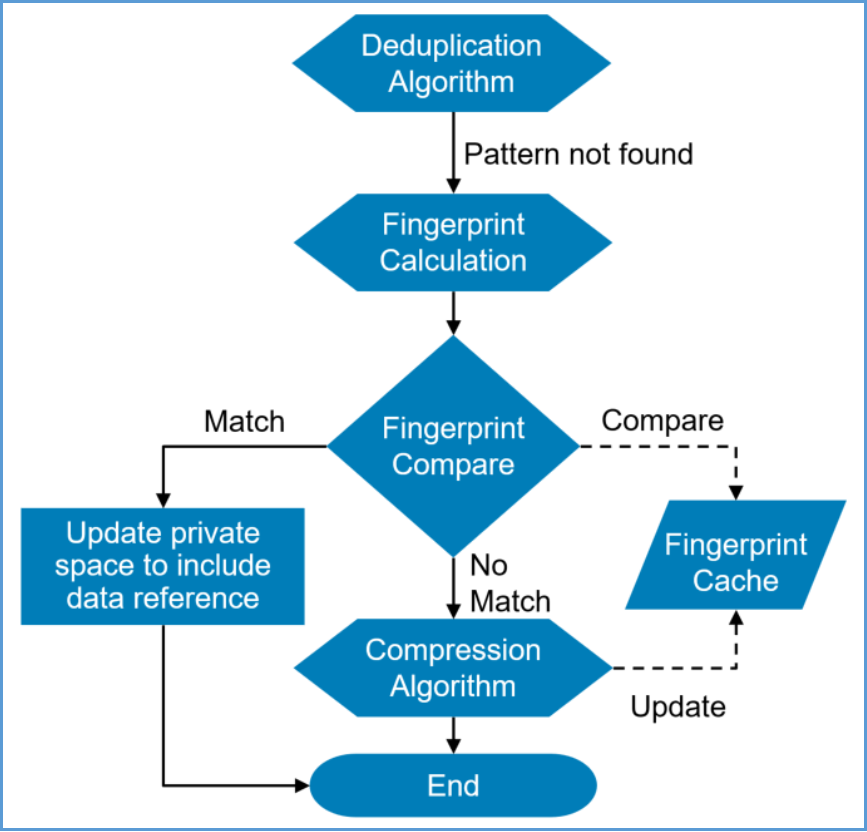
Figure 6. Dell Unity Data Reduction – Advanced Deduplication Algorithm
The fingerprint cache is a component of the Advanced Deduplication algorithm. The fingerprint cache is a region in system memory reserved for storing fingerprints for each storage resource with Advanced Deduplication enabled. There is one fingerprint cache per storage processor, and it contains the fingerprints for storage resources residing on that SP. Through machine learning and statistics, the fingerprint cache determines which fingerprints to keep, and which ones to replace with new fingerprints. The fingerprint cache algorithm learns which resources have high deduplication rates and allows those resources to consume more fingerprint locations.
If an 8KB block is not deduplicated by the zero and common pattern deduplication algorithm, the data is passed into the fingerprint calculation portion of the Advanced Deduplication algorithm. Each 8KB block receives a fingerprint, which is compared to the fingerprints for the storage resource. If a matching fingerprint is found, deduplication occurs and the private space within the resource is updated to include a reference to the block of data residing on disk. No data is written to disk at this time. Storage resource savings are compounded as deduplication can reference compressed blocks on disk. If a match is not found, the data is passed to the compression algorithm.
Compression
As blocks enter the compression algorithm, they are passed through the compression software. If savings can be achieved, space is allocated within the Pool which matches the compressed size of the data, the data is compressed, and the data is written to the Pool. When Advanced Deduplication is enabled, the fingerprint for the block of data is also stored with the compressed data on disk. The fingerprint cache is then updated to include the fingerprint for the new data. Compression will not compress data if no savings can be achieved. In this instance, the original block of data will be written to the Pool. Waiting to allocate space within the resource until after the compression algorithm is complete helps to not over-allocate space within the storage resource.
Reads
Overwrites
Creating Data Reduction Enabled Storage Resources
Enabling Data Reduction on an Existing Storage Resource
Local LUN Move
Disabling Data Reduction on a Resource
Management
Management
Determine if a Pool Supports Data Reduction
Creating a Data Reduction Enabled Storage Resource
Dell Unity Data Reduction is supported on Thin LUNs, whether standalone or within a Consistency Group, Thin File Systems, and Thin VMware VMFS and NFS Datastores. Advanced Deduplication can be enabled on resources which support Data Reduction and reside on a supported configuration. Each of these storage resources can be created using Unisphere, Unisphere CLI, or REST API. The following sections outline how you can easily create data reduction enabled storage resources using Unisphere and Unisphere CLI. Creating resources with Advanced Deduplication enabled will also be covered.
LUNs
In Unisphere, standalone Thin and Thick LUNs are created using the Create LUNs wizard, which can be found on the Block page. The Block page can be accessed by selecting Block under Storage in the left Unisphere pane. Error! Reference source not found. below shows the Create LUNs wizard. To create a data reduction enabled LUN or multiple data reduction enabled LUNs, ensure the Thin and Data Reduction checkboxes are checked in the Configure step. Once Data Reduction is enabled the Advanced Deduplication checkbox is shown and can be enabled for resources which support it. After customizing the other settings of the LUN, click Next.
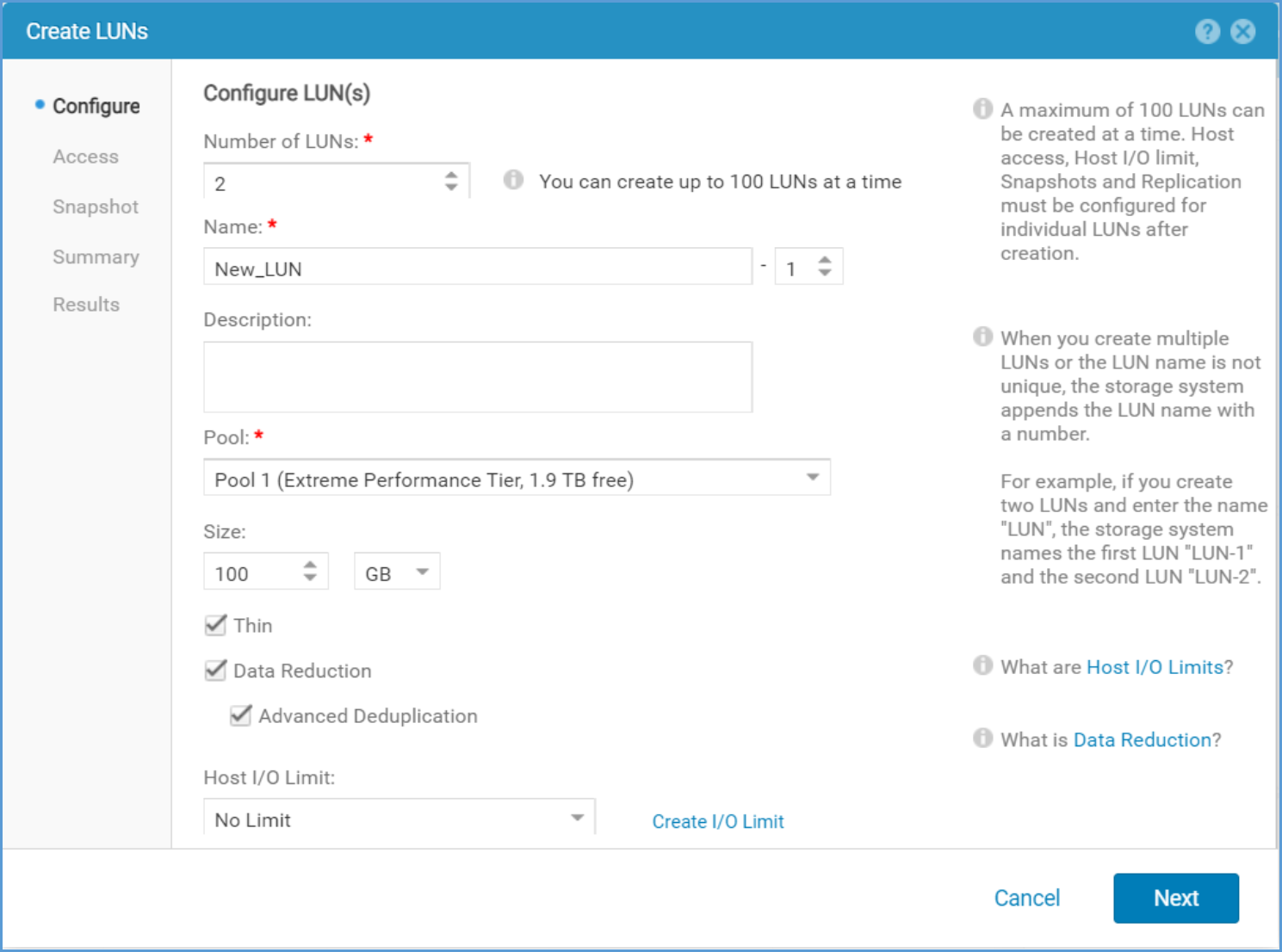
Figure 7. Create LUN Wizard – Configure Step
After configuring the other settings of the LUNs, the Summary step is displayed. An example of the Summary step when creating multiple LUNs with data reduction and Advanced Deduplication enabled is shown in Error! Reference source not found.. The Summary screen includes the Name(s) of the LUNs being created, and if Data Reduction and Advanced Deduplication will be enabled on the new LUNs.
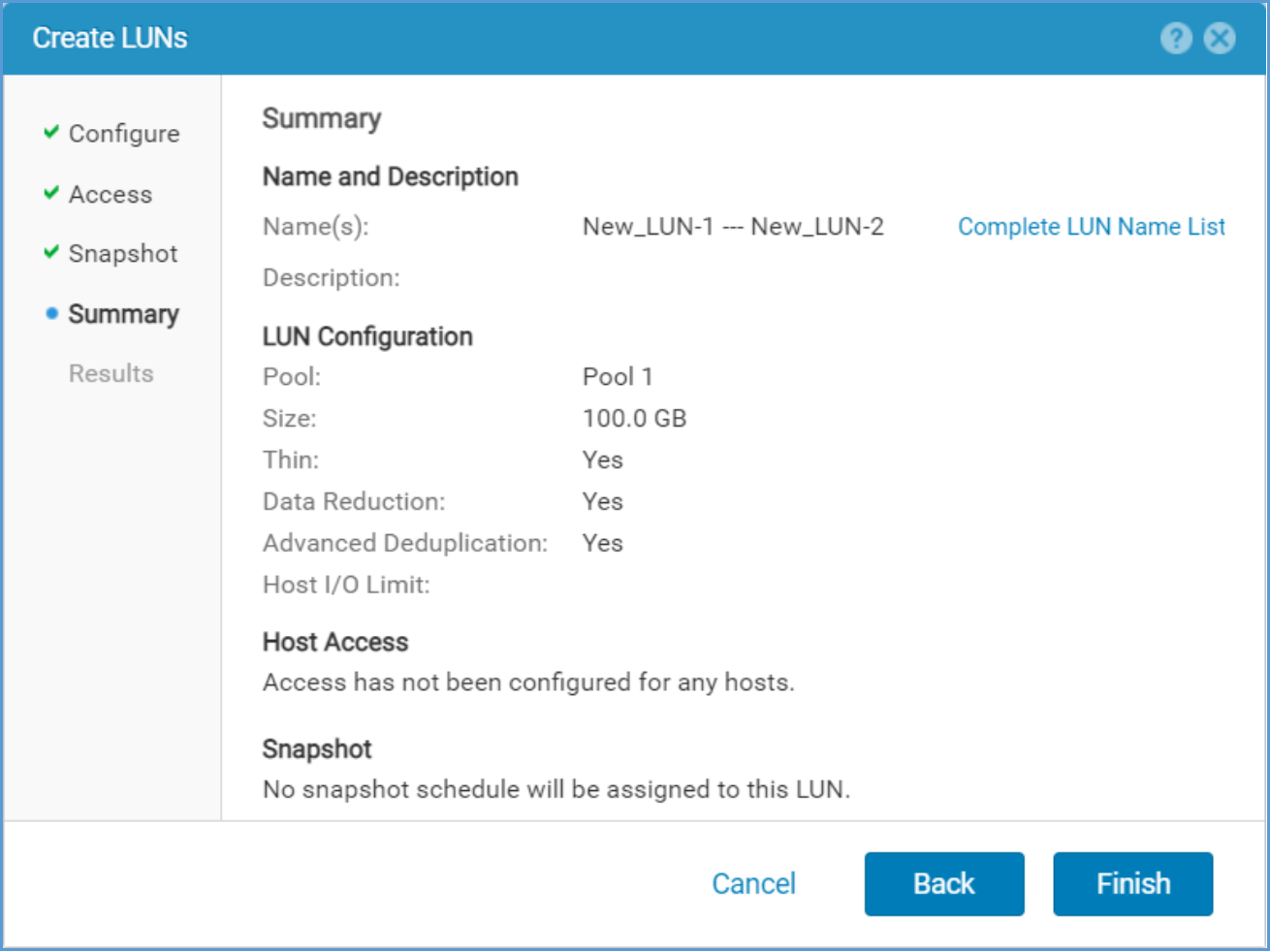
Figure 8. Create LUN Wizard – Summary Step
Consistency Groups
When creating a new Consistency Group, Thin LUNs can also be created with data reduction and Advanced Deduplication enabled. Consistency Groups can be created and configured by navigating to the Consistency Group tab within the Block page. The Configure LUNs window, shown below in Error! Reference source not found., has an option to create LUNs with data reduction and Advanced Deduplication enabled. To create LUNs with data reduction and Advanced Deduplication enabled within a Consistency Group, ensure the Thin, Data Reduction, and Advanced Deduplication boxes are checked before clicking OK.
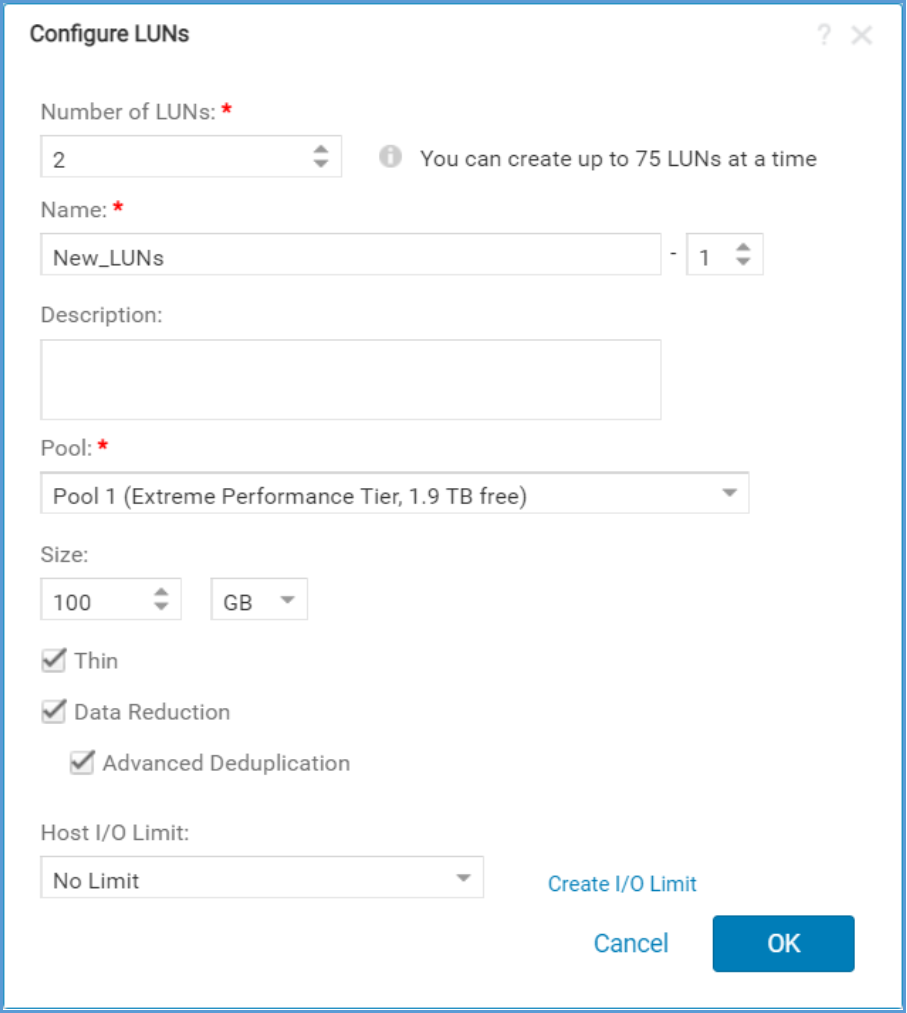
Figure 9. Configure LUNs step within the Create a Consistency Group Wizard
After configuring LUNs within the Consistency Group, the Storage screen within the Create a Consistency Group wizard is populated. An example of this window is shown in Error! Reference source not found.. From this screen you can see if the LUNs being created have data reduction and Advanced Deduplication enabled or not by reviewing the Data Reduction and Advanced Deduplication columns. The Data Reduction and Advanced Deduplication columns are not enabled by default but can be added to the view by clicking the Gear Icon and clicking the checkbox next to Data Reduction and Advanced Deduplication under the Columns option.
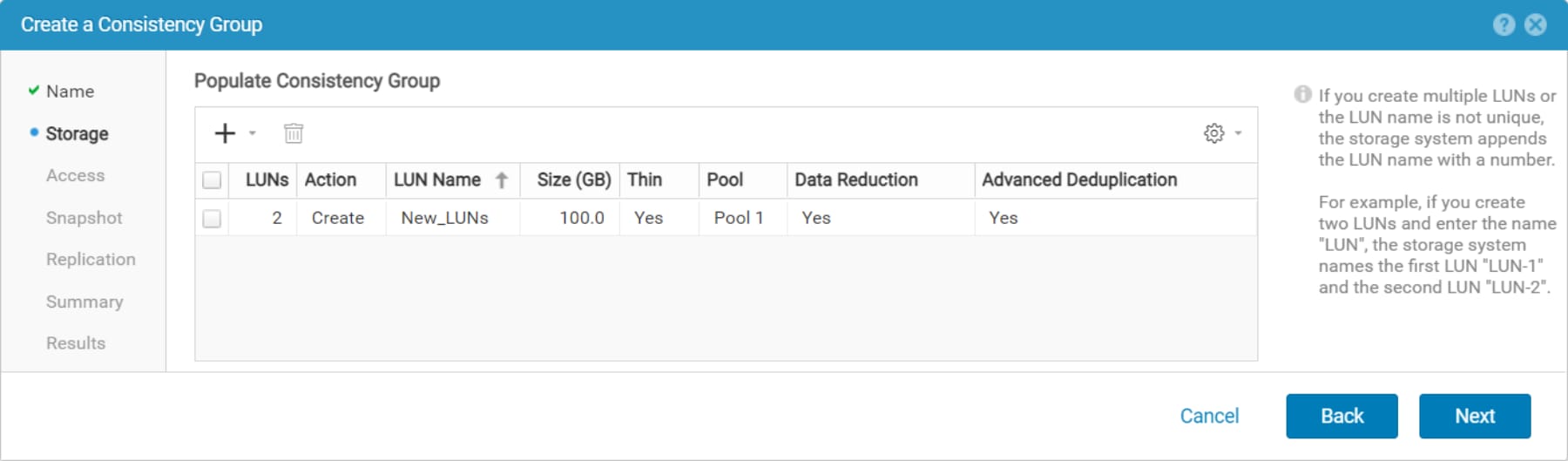
Figure 10. Create a Consistency Group - Populate a Consistency Group screen
File Systems
Data reduction is supported on Thin File Systems created on Dell UnityOS version 4.2 and later, and Advanced Deduplication can also be enabled if the resource resides on a supported configuration. In Unisphere, Thin File Systems are created using the Create a File System wizard, found on the File page. The File page can be accessed by selecting File under Storage in the left pane of Unisphere. Error! Reference source not found. below shows the Storage step within the Create a File System wizard. To enable data reduction, first ensure the Thin checkbox is checked, as data reduction is only available on Thin File Systems. Second, select the Data Reduction checkbox, which is disabled by default. If supported, once Data Reduction is enabled Advanced Deduplication can also be enabled. After customizing the other settings of the File System, click Next.
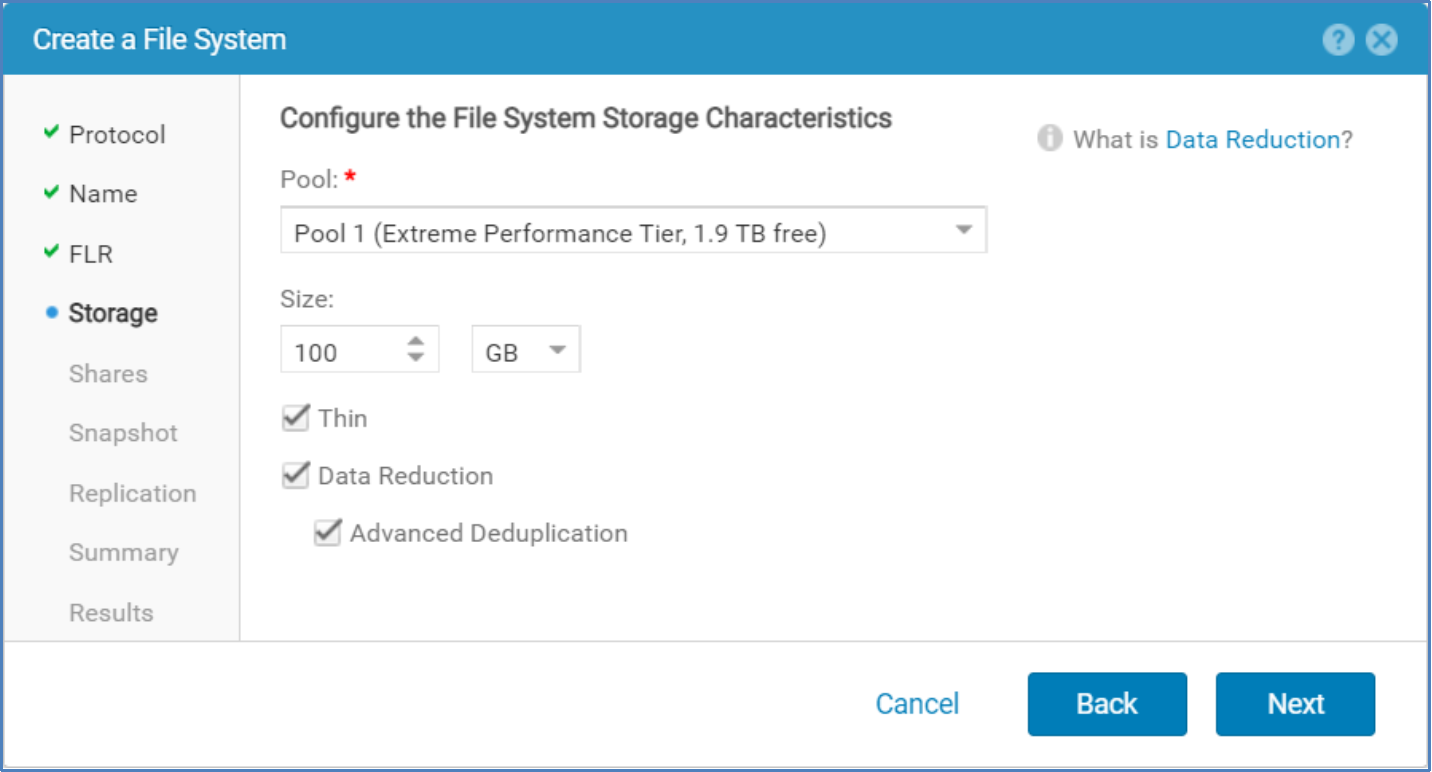
Figure 11. Create a File System Wizard – Storage Step
After configuring the other File System settings, the Summary step is displayed. This is the last step before the creation of the File System. An example of the Summary step can be seen in Error! Reference source not found.. The Summary screen includes entries for Data Reduction and Advanced Deduplication, which signifies if the File System will be configured with those features enabled (Yes) or disabled (No).
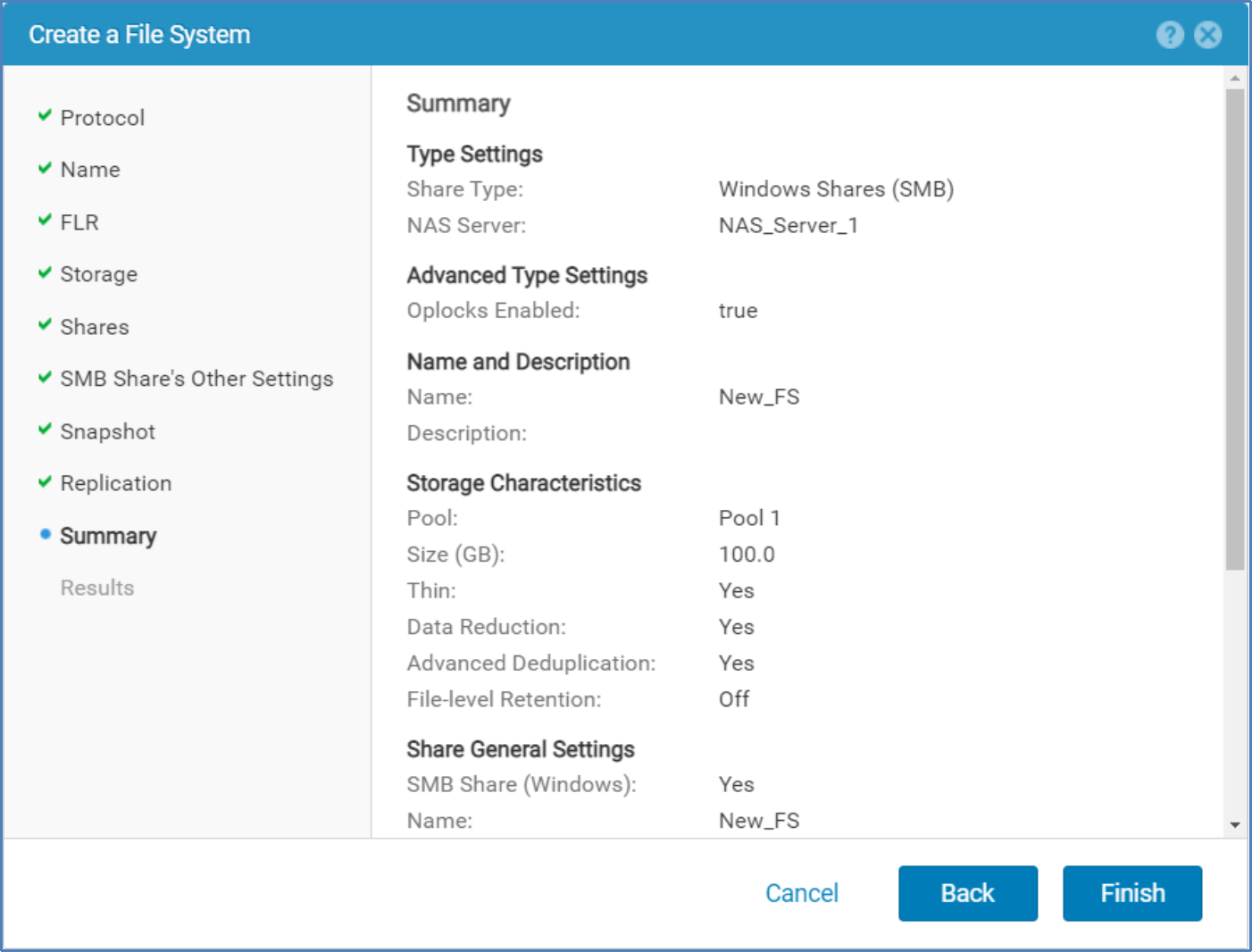
Figure 12. Create a File System Wizard – Summary Step
VMware VMFS And NFS Datastores
To create a VMware Datastore, first navigate to the VMware page, found by selecting VMware under Storage in the left Unisphere pane. While on the VMware page, select the + symbol on the Datastores tab to launch the Create VMware Datastore wizard. On the Type step, select File to create a VMware NFS Datastore, or Block to create a VMware VMFS Datastore. On the Storage step you can select which Pool to create the VMFS or NFS Datastore on, the size of the Datastore, if it will be Thin, and if data reduction and Advanced Deduplication are enabled. The Pool selected must support data reduction and the Thin checkbox must be selected for the Data Reduction option to be available. Data Reduction must be enabled and the configuration must be supported for the Advanced Deduplication option to be available. An example of the Storage step when creating a VMware VMFS Datastore is found in Error! Reference source not found.. The Storage step contains similar information when creating a VMware NFS Datastore.
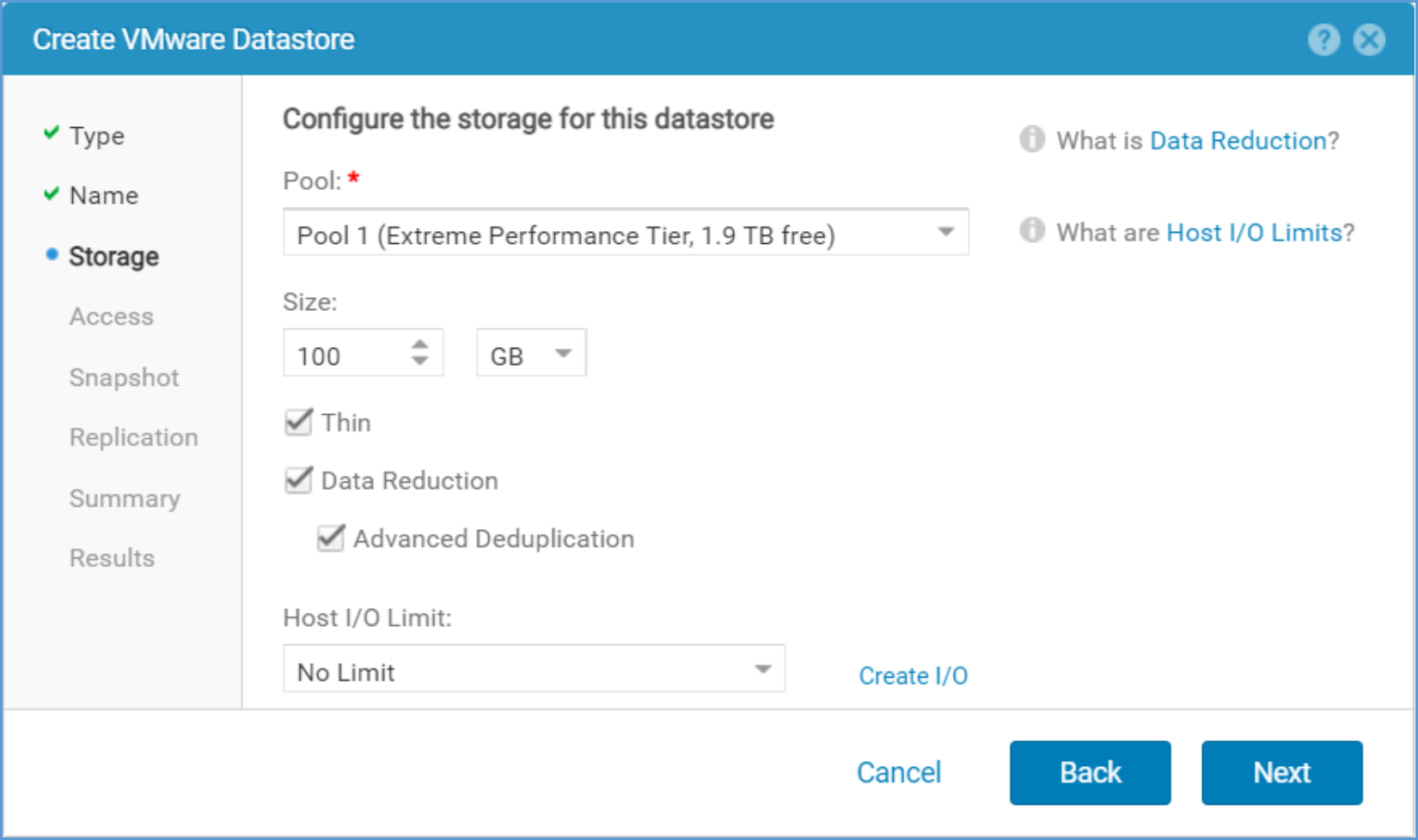
Figure 13. Create VMware VMFS Datastore Wizard – Storage Step
Enabling and Disabling Data Reduction on an Existing Storage Resource
Dell Unity Data Reduction, along with Advanced Deduplication, can be enabled or disabled on supported storage resources at any point in time. This can easily be accomplished using either Unisphere, Unisphere CLI, or REST API. The following sections outline how you can easily enable and disable the options on existing storage resources using Unisphere and Unisphere CLI.
LUNs
To enable and disable data reduction and Advanced Deduplication on an existing LUN, review the properties of the LUN from the Block page. The Block page can be accessed by selecting Block under Storage in the left Unisphere pane. After double clicking the Name of the LUN, or after selecting a LUN and clicking the Pencil (View/Edit) icon, the LUN Properties window is displayed. On the General tab, a checkbox for Data Reduction exists. Depending if data reduction is currently disabled or enabled on the storage resource, the box will either be unchecked or checked. To change the state of data reduction, simply check or uncheck the Data Reduction box and click Apply. Advanced Deduplication is only available once Data Reduction is enabled and the configuration supports it. Advanced Deduplication can be enabled or disabled independently to the Data Reduction setting. To change the state of Advanced Deduplication, simply check or uncheck the Advanced Deduplication box and click Apply.
Error! Reference source not found. below shows the Properties window of a LUN which currently has Data Reduction disabled. The Data Reduction box has been selected to enable data reduction on the resource but Apply has not yet been selected. When enabling data reduction on a resource, an informational message is displayed after checking the Data Reduction box. A similar message appears when Data Reduction is enabled, and the Advanced Deduplication box has been checked but Apply has not been selected. The message when enabling Data Reduction states:
Only the newly written data will have data reduction applied. Existing data will remain unchanged.
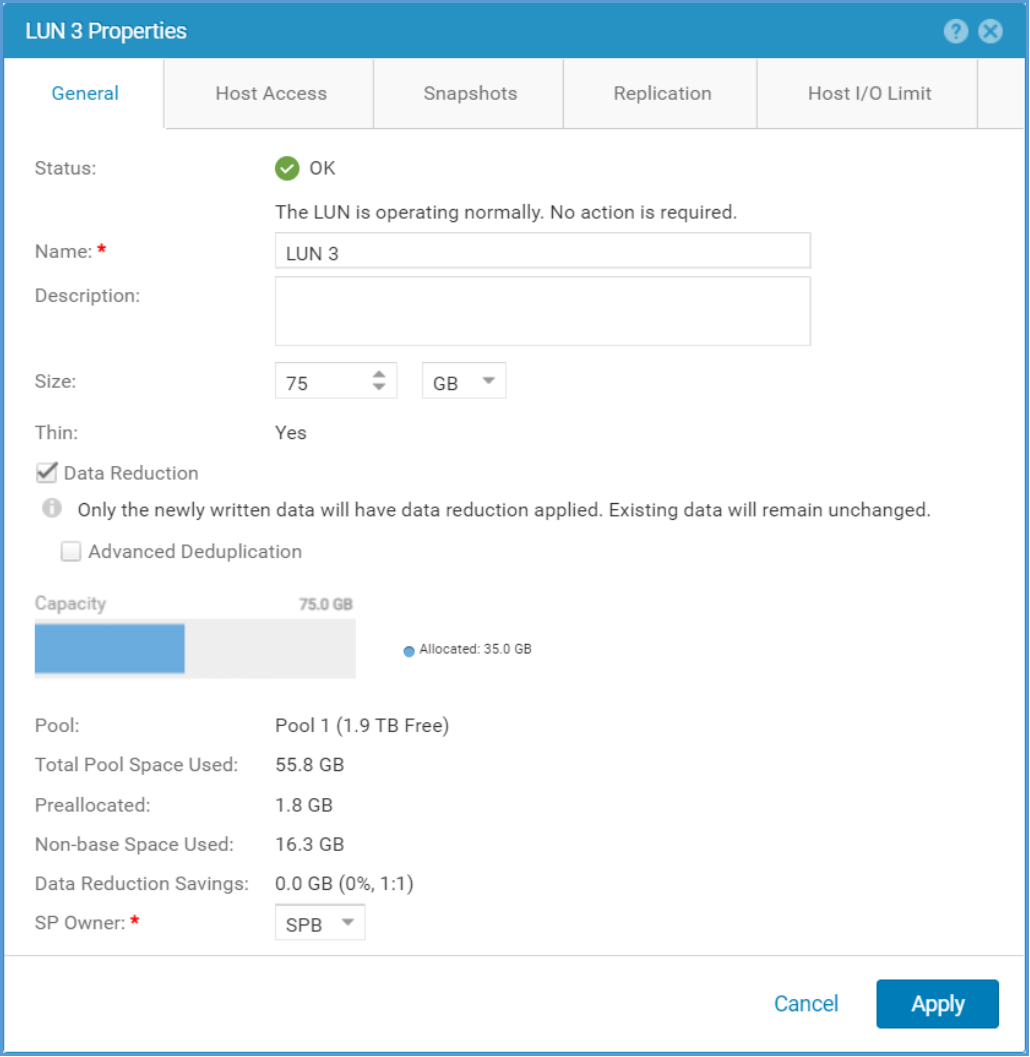
Figure 14. LUN Properties Window. Enabling Data Reduction Example
Error! Reference source not found. below shows the Properties window of a LUN which currently has Data Reduction and Advanced Deduplication enabled. The Advanced Deduplication box has been deselected to disable Advanced Deduplication on the resource but Apply has not yet been selected. When disabling Advanced Deduplication on a resource, an informational message is displayed after unchecking the Advanced Deduplication box. A similar message appears when Data Reduction is disabled but Apply has not been selected. The message when disabling Advanced Deduplication states:
Newly written data will not have advanced deduplication applied. Existing data will remain unchanged.
This message implies that the Local LUN Move option must be used to remove all Advanced Deduplication savings from the existing data within the storage resource if desired. If the Local LUN Move option is not utilized, then only overwrites to the LUN will cause Advanced Deduplication savings to decrease.
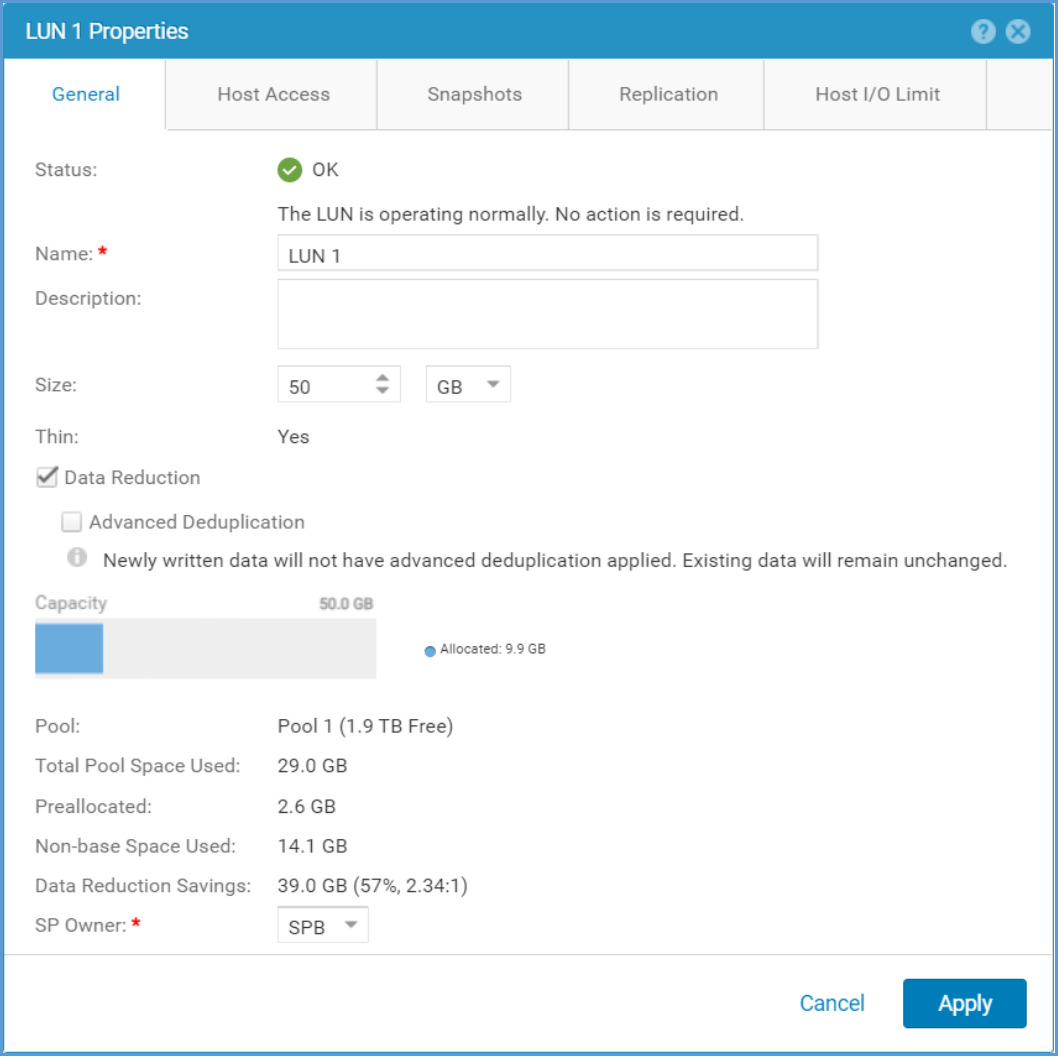
Figure 15. LUN Properties Window. Disabling Advanced Deduplication Example
Consistency Group LUNs
Enabling and disabling data reduction, along with Advanced Deduplication, on a LUN within a Consistency Group can be accomplished by first navigating to the Consistency Group tab within the Block page. From this page either double click the Name of a Consistency Group, or after selecting a Consistency Group click the Pencil (View/Edit) icon. This will open the Consistency Group Properties window. An example of this window can be seen in Figure 16.
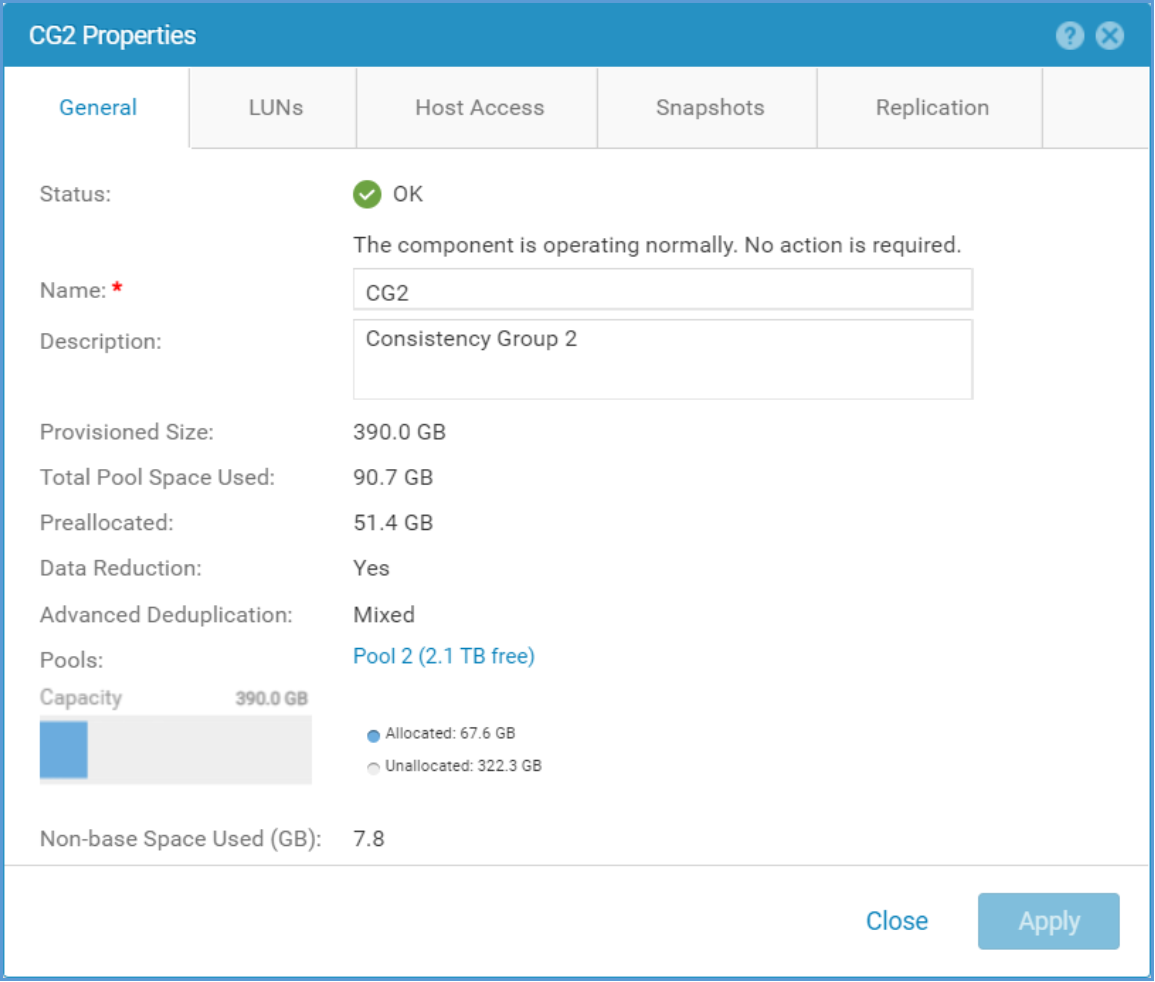
Figure 16. Consistency Group Properties Window
After opening the Consistency Group Properties window, navigate to the LUNs tab. From this screen you can view the current LUNs within the Consistency Group, and the current state of data reduction and Advanced Deduplication if the Data Reduction and Advanced Deduplication columns are displayed. A sample of the LUNs tab is shown in Error! Reference source not found.. To edit the settings of one of the LUNs, double click the LUN or select the LUN and click the Pencil icon.
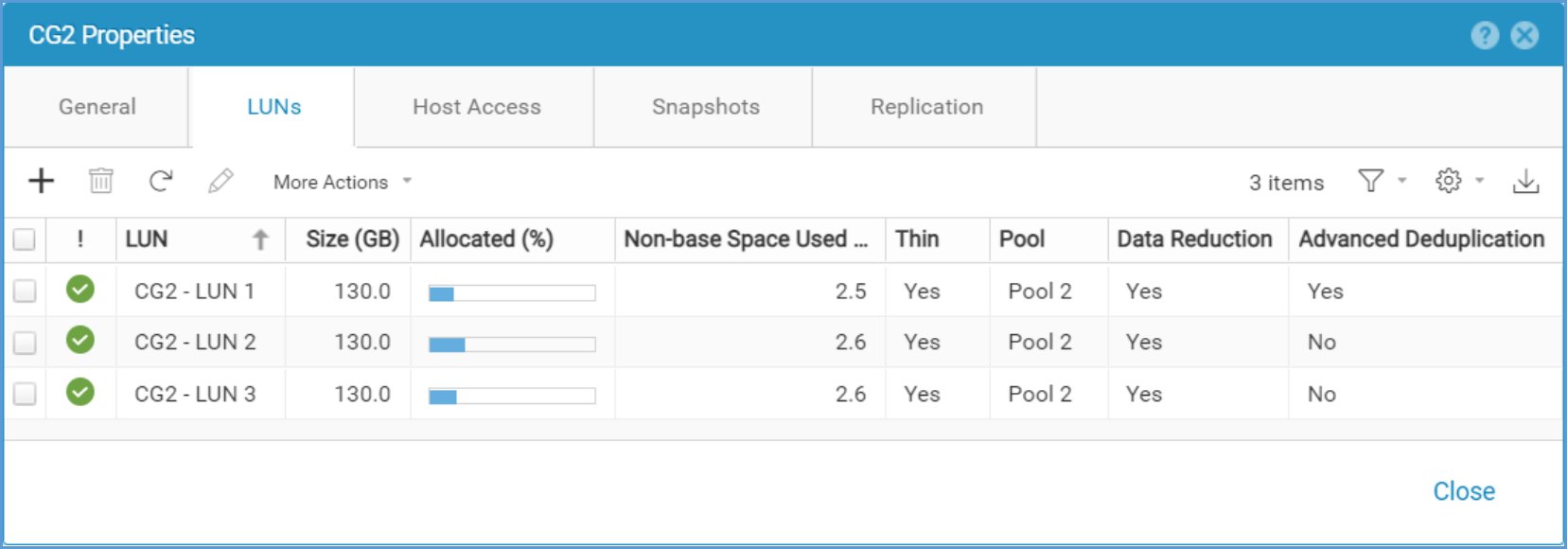
Figure 17. Consistency Group – LUNs Tab
The LUN Properties window is now shown. This is the exact same Properties window as a LUN not currently in a Consistency Group. An example of this window is shown in Error! Reference source not found.. As mentioned previously, to enable or disable data reduction, along with Advanced Deduplication on a LUN, simply check or uncheck the Data Reduction or Advanced Deduplication box and click Apply. The new state for data reduction and Advanced Deduplication are reflected in the LUNs tab within the Consistency Group Properties window.
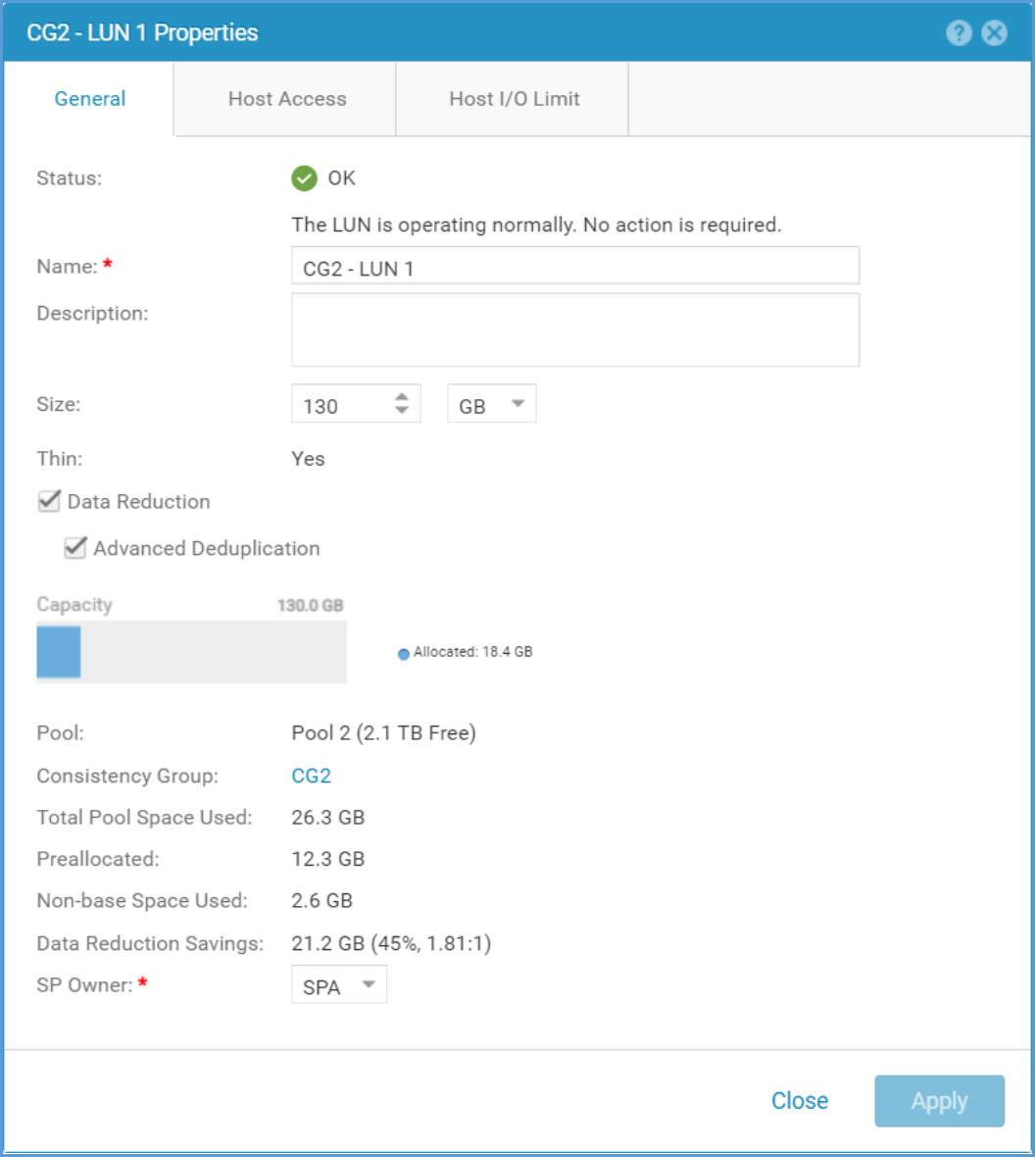
Figure 18. LUN Properties Window
File Systems
Data reduction can be enabled or disabled at any time on File Systems created on Dell UnityOS version 4.2 or later if they reside within a supported configuration. Advanced Deduplication can also be enabled or disabled at any point in time. To modify these settings, first navigate to the File page by selecting File under Storage in the left Unisphere pane. In this window, all existing File Systems on the system are displayed. To modify the data reduction or Advanced Deduplication setting on a File System, double click on a supported File System to modify it or select a File System and select the Pencil icon. The Properties window is now shown. To enable or disable data reduction, simply check or uncheck the Data Reduction box and click Apply. Likewise, to enable or disable the Advanced Deduplication setting on supported configurations, check or uncheck the Advanced Deduplication box and hit apply. A sample of the Properties window for a data reduction enabled File System is shown in Error! Reference source not found.. The File System currently has Data Reduction disabled, and the Data Reduction box has been selected to enable data reduction on the resource but Apply has not yet been selected. When enabling data reduction on a resource, an informational message is displayed after checking the Data Reduction box. A similar message is displayed when enabling Advanced Deduplication. The message when enabling Data Reduction on a File System states:
Only the newly written data will have data reduction applied. Existing data will remain unchanged.
This message outlines that only new writes to the File System or overwrites to existing data within the File System are considered for data reduction.
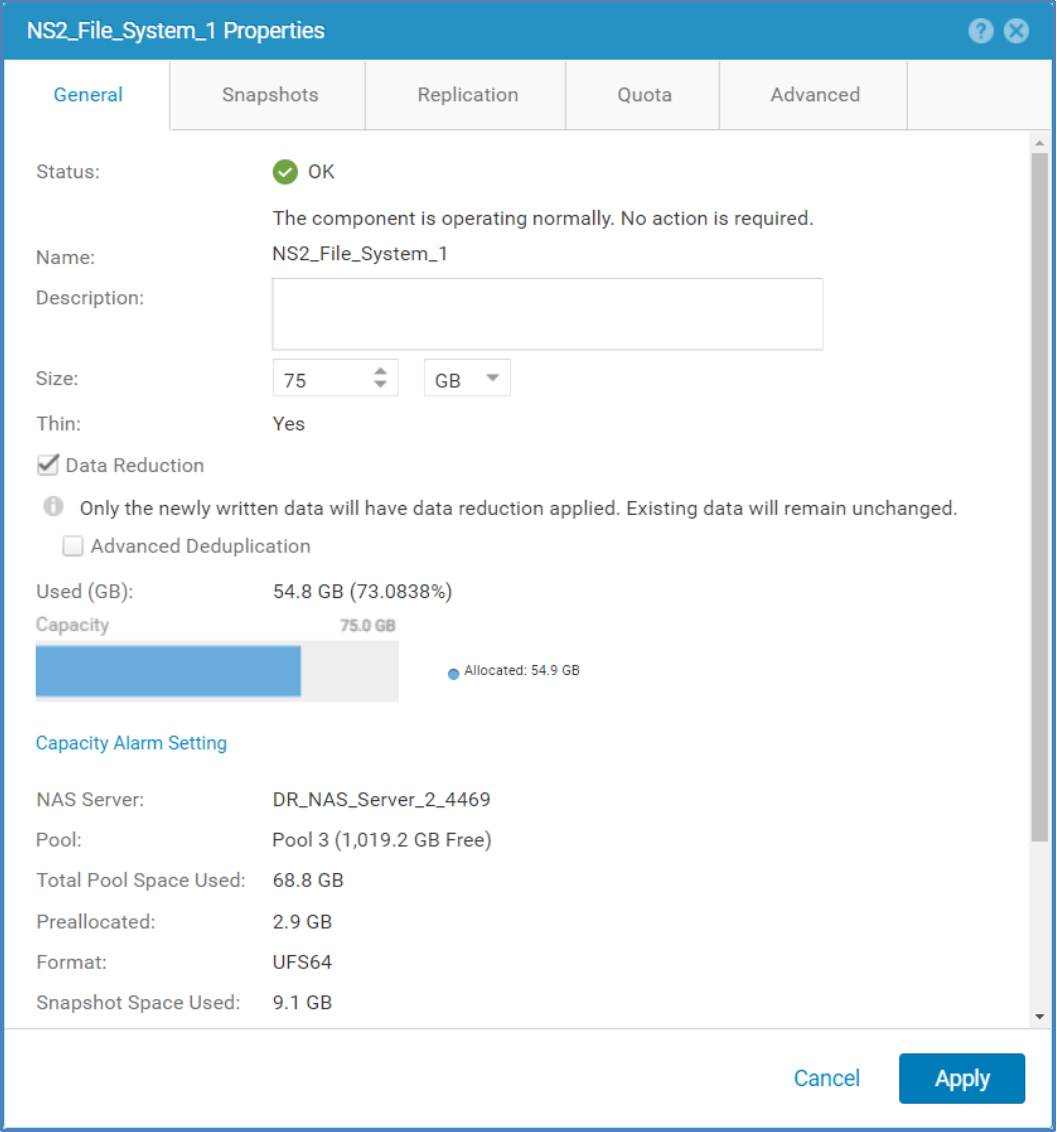
Figure 19. File System Properties Window – Enabling Data Reduction
When reviewing the Properties window for a File System which does not support data reduction, no option to enable data reduction will be shown. This is true for Thick File Systems, and any File Systems created on a code previous to Dell UnityOS version 4.2. Error! Reference source not found. below shows an example of the File System Properties window for a Thick File System. As you can see no option for data reduction is shown.
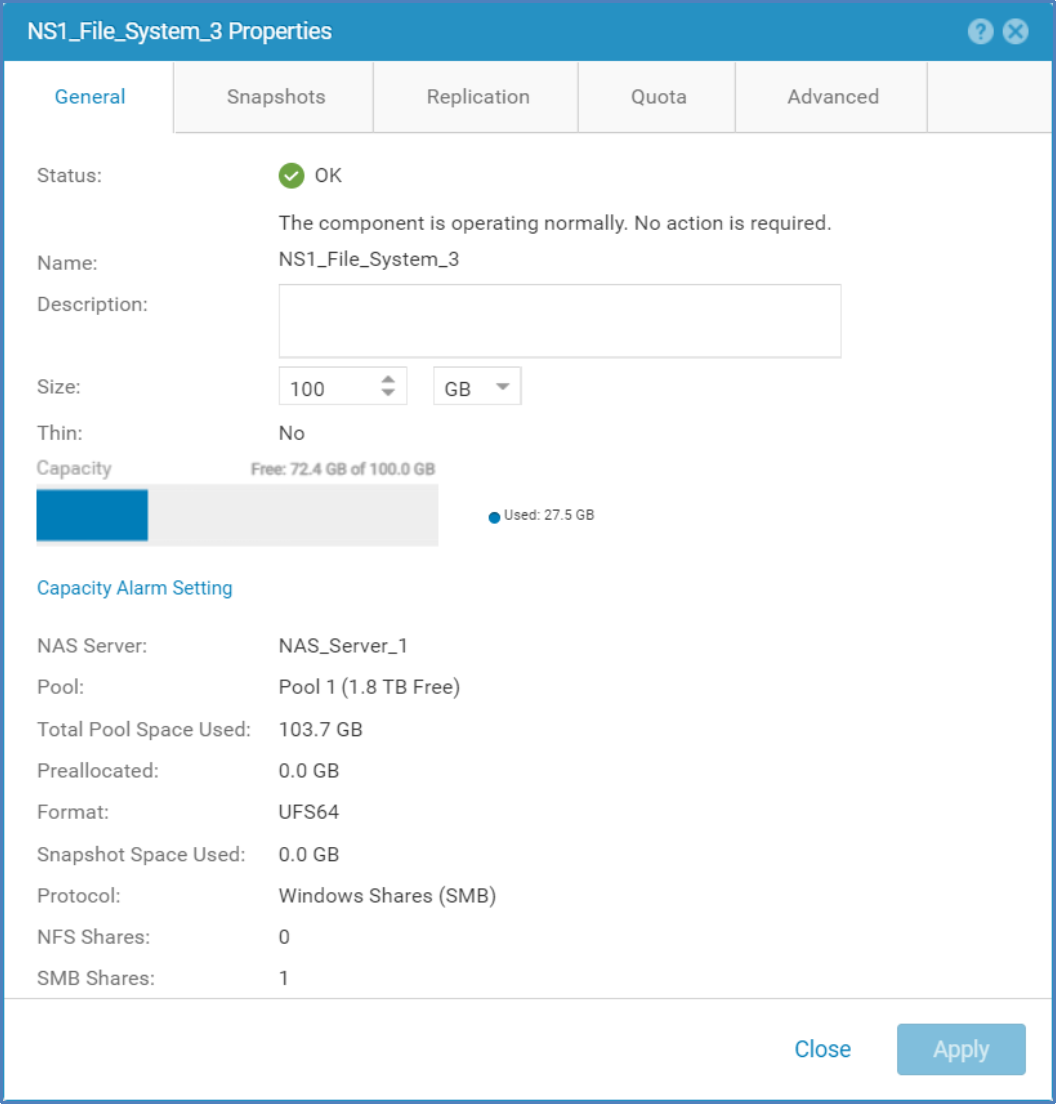
Figure 20. File System Properties Window – Data Reduction Not Supported
File System Properties Window – Disabling Advanced Deduplication below shows the Properties window of a File System which currently has data reduction enabled. The Advanced Deduplication box has been deselected to disable Advanced Deduplication on the resource but Apply has not yet been selected. When disabling Advanced Deduplication on a resource, an informational message is displayed after unchecking the Advanced Deduplication box. The message states:
Newly written data will not have advanced deduplication applied. Existing data will remain unchanged.
This message implies that only overwrites to the File System will cause data reduction savings to decrease.
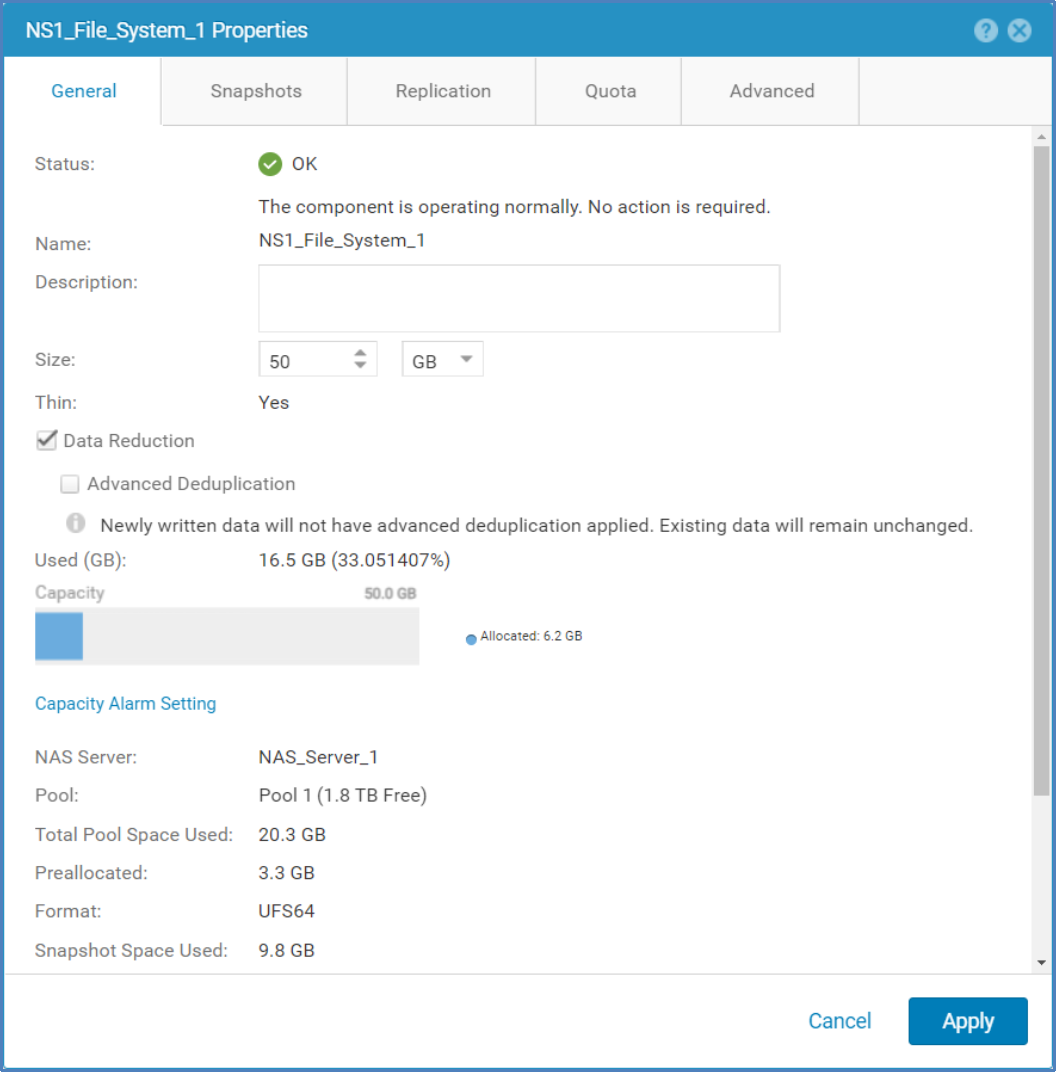
Figure 21. File System Properties Window – Disabling Advanced Deduplication
VMware VMFS and NFS Datastores
Enabling or disabling data reduction and Advanced Deduplication on existing VMware VMFS or NFS Datastores can be accomplished at any time through Unisphere, Unisphere CLI, or REST API. To enable or disable these features in Unisphere, first navigate to the VMware page within Unisphere. To do so, select VMware under Storage in the left Unisphere pane. All existing VMware Datastores are displayed on this page. To modify the VMware Datastore, double click on a Datastore, or select the Datastore and select the Pencil icon. The Properties window is now shown. To enabled or disable data reduction, simply check or uncheck the Data Reduction box and click Apply. To enabled or disable Advanced Deduplication, check or uncheck the Advanced Deduplication box and hit Apply. A sample of the Properties window for a VMware VMFS Datastore is shown in Error! Reference source not found..
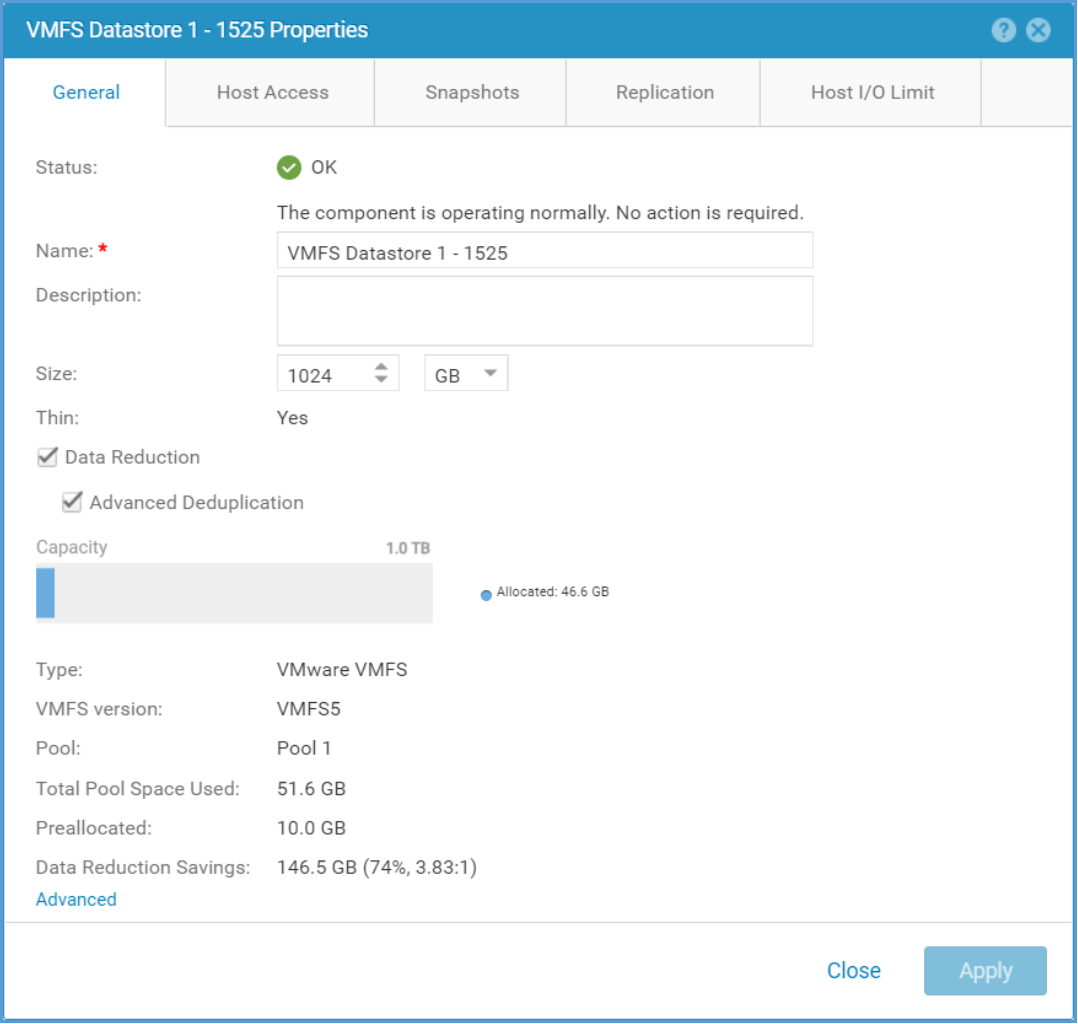
Figure 22. VMware VMFS Datastore – Properties Window
For VMware NFS Datastores, data reduction is only supported if the resource is Thin, resides on a supported Pool configuration, and is created while the system is running Dell UnityOS version 4.2 or later. If the resource supports data reduction, data reduction can be enabled or disabled at any time. If the resource is Thick, or was created on an earlier code, Unisphere will not display an option to enable data reduction. When attempting to enable or disable data reduction on a resource which does not support data reduction via Unisphere CLI or REST API, an error will be returned. Advanced Deduplication is only supported on resources which support Data Reduction, and currently reside on a configuration which supports Advanced Deduplication.
How to Determine Which Storage Resources Have Data Reduction Enabled
Dell Unity Data Reduction is supported on Thin LUNs, whether standalone or within a Consistency Group, Thin File Systems, and Thin VMware VMFS and NFS Datastores. For configurations that support it, Advanced Deduplication can be enabled on resources with Data Reduction enabled. The following sections outline how you can easily determine what the current state of data reduction and Advanced Deduplication are on existing resources using Unisphere. The current state of data reduction and Advanced Deduplication can also be determined via Unisphere CLI and REST API, but won’t be covered in the following sections.
LUNs
To review the status of data reduction and Advanced Deduplication on each of the LUNs created on the system, navigate to the Block page, which can be accessed by selecting Block under Storage in the left Unisphere pane. This page contains three columns specific for data reduction. The columns are Data Reduction, which shows if Data Reduction is enabled or not on the resource, Advanced Deduplication, which shows if Advanced Deduplication is enabled, and Data Reduction Savings (GB), which shows the amount of savings in GBs for the resource. To add these and other columns to the view, simply click the Gear Icon in the top right portion of the LUNs tab and select the columns to add under the Columns option. An example of this screen is shown in Error! Reference source not found..
Data reduction information has also been added to the quick properties view of the LUN tab on the Block page. After selecting a LUN, the right portion of the screen is populated with more information about the storage resource. In Error! Reference source not found., a data reduction enabled storage resource is selected. In the information provided in the right portion of the screen, you can determine if Data Reduction and Advanced Deduplication are enabled and the current Data Reduction Savings on the selected resource.
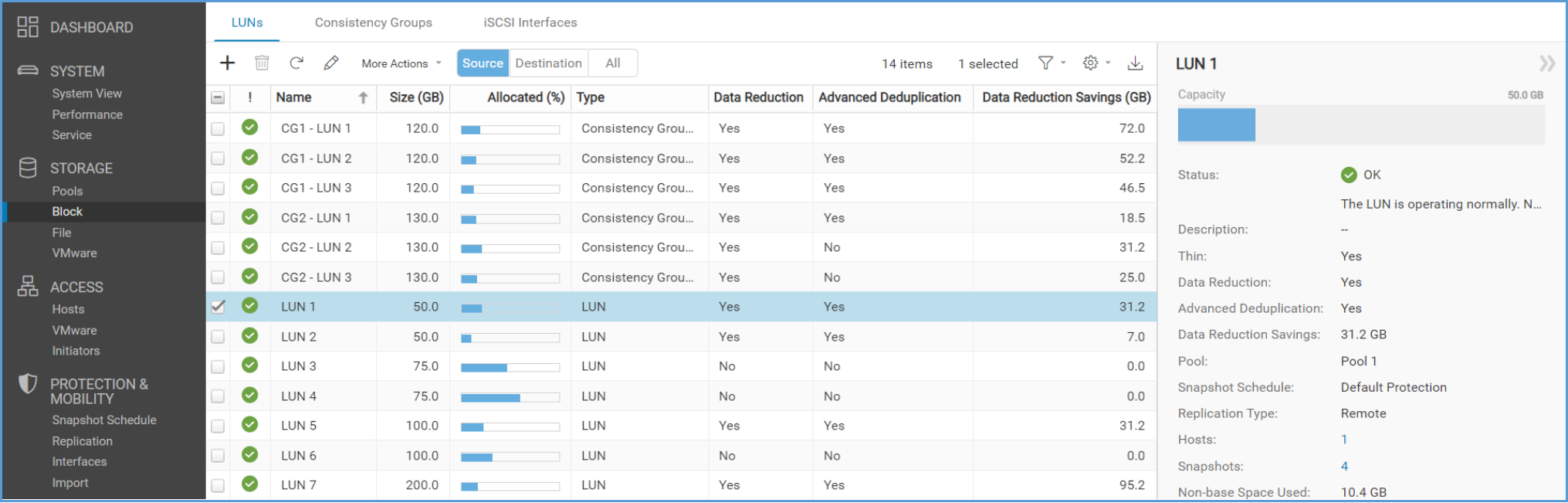
Figure 23. Block Page – LUNs Tab
Consistency Group LUNs
To review which Consistency Groups contain data reduction enabled LUNs, view the Consistency Group tab, which is found on the Block page. On this page, columns named Data Reduction and Advanced Deduplication can be added to the current view by clicking the Gear Icon and selecting Data Reduction or Advanced Deduplication under Column. An example of the Consistency Group tab with the Data Reduction and Advanced Deduplication columns displayed is shown in Error! Reference source not found.. The Data Reduction and Advanced Deduplication columns have three potential entries, No, Yes, and Mixed. No is displayed if none of the LUNs within the Consistency Group have the option enabled. Yes is displayed if all LUNs within the Consistency Group have the option enabled. Mixed is displayed if there are a mix of LUNs with the option enabled and disabled within the Consistency Group. After selecting a Consistency Group, the quick properties view also displays the Data Reduction and Advanced Deduplication options, and No, Yes, or Mixed.
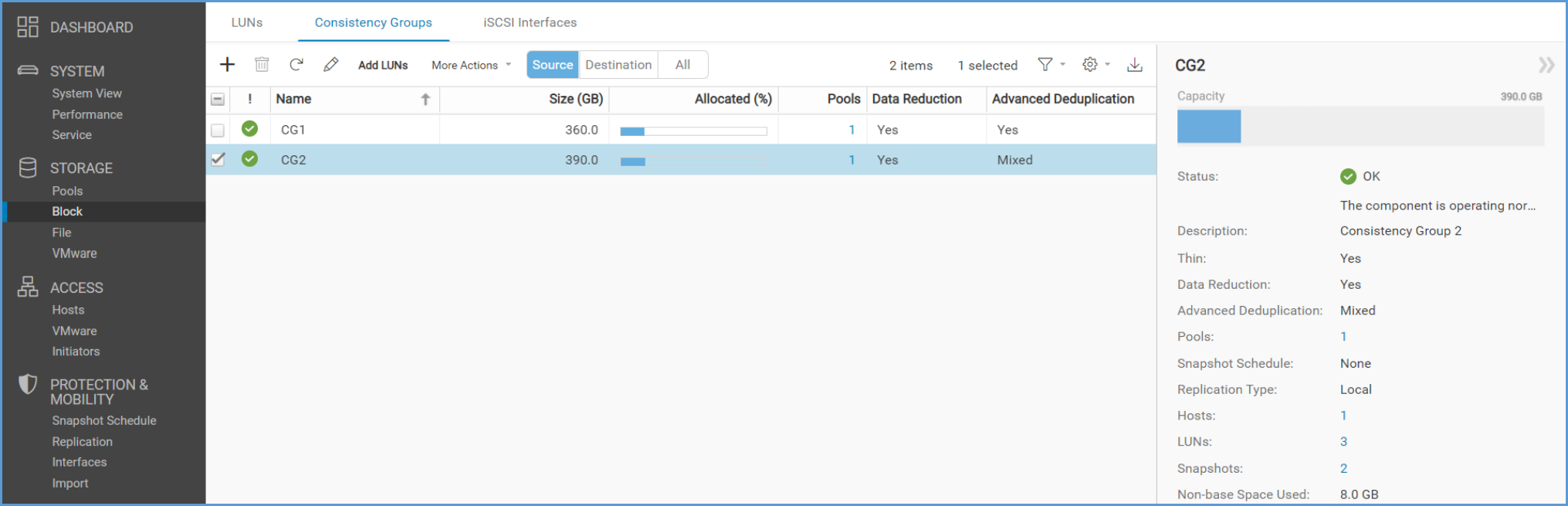
Figure 24. Block Page – Consistency Group Tab
File Systems
To review the status of data reduction on each of the File Systems, navigate to File Systems tab within the File page, which can be accessed by selecting File under Storage in the left Unisphere pane. This page contains three columns specific for data reduction. The columns are Data Reduction, which shows if data reduction is enabled or not on the resource, Advanced Deduplication, which shows if Advanced Deduplication is enabled, and Data Reduction Savings (GB), which shows the amount of savings in GBs for the resource. To add these and other columns to the view, simply click the Gear Icon in the top right portion of the File Systems tab and select the new columns to add under the Columns option. An example of this screen is shown in Error! Reference source not found..
When reviewing the Data Reduction, Advanced Deduplication, and Data Reduction Savings (GB) columns, the information provided depends on if the storage resource supports data reduction or not. For Thick File Systems or File Systems created on a code prior to Dell UnityOS version 4.2, -- is displayed in the columns to denote that the storage resource does not support data reduction. For Thin File Systems created on Dell UnityOS version 4.2 or later, the Data Reduction column will display Yes or No depending on if data reduction is enabled or not. No is also displayed for File Systems created on Dell UnityOS version 4.2 or later, and currently reside within a pool that does not support data reduction. The Advanced Deduplication column is available for configurations which support Advanced Deduplication and displays either Yes or No depending on the current state of Advanced Deduplication. The Data Reduction Savings (GB) column displays the amount of savings currently achieved within the File System. As data reduction savings are not removed when disabling data reduction on a storage resource, data reduction may be disabled, but savings still exist.
Data reduction information has also been added to the quick properties view of the File Systems tab on the File page. After selecting a File System, the right portion of the screen is populated with more information about the storage resource. In Error! Reference source not found., a data reduction enabled storage resource is selected. In the information provided in the right portion of the screen, you can determine if Data Reduction and Advanced Deduplication are enabled and the current Data Reduction Savings on the selected resource. This is an easy way to review the current state of data reduction on a specific resource if the Data Reduction, Advanced Deduplication, and Data Reduction Savings (GB) columns are not shown. The -- designation, which is explained above, is also used when the storage resource selected does not support data reduction.
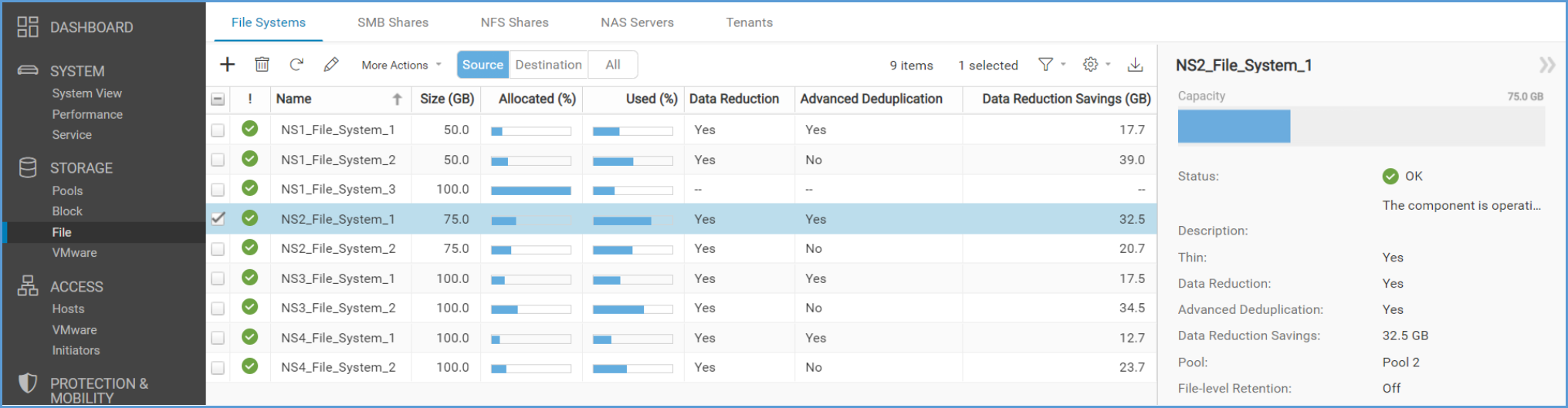
Figure 25. File Page – File Systems Tab
VMware VMFS and NFS Datastores
To review the status of data reduction on each of the VMware VMFS and NFS Datastores created on the system, navigate to the VMware page, which can be accessed by selecting VMware under Storage in the left Unisphere pane. This page contains three columns specific for data reduction. The columns are Data Reduction, which shows if data reduction is enabled or not on the resource, Advanced Deduplication, which shows if Advanced Deduplication is enabled, and Data Reduction Savings (GB), which shows the amount of savings in GBs for the resource. To add these and other columns to the view, simply click the Gear Icon in the top right portion of the Datastores tab and select the columns to add under the Columns option. An example of this screen is shown in Error! Reference source not found..
When reviewing the Data Reduction, Advanced Deduplication, and Data Reduction Savings (GB) columns, the information provided depends on if the storage resource supports data reduction or not. For Thick NFS Datastores or NFS Datastores created on a code prior to Dell UnityOS version 4.2, -- is displayed in the columns to denote that the storage resource does not support data reduction. For Datastores which support data reduction, the Data Reduction column will display Yes or No depending on if data reduction is enabled or not. No is also displayed for Datastores which support data reduction, but currently reside within a pool that does not support data reduction. The Advanced Deduplication column is available for configurations which support Advanced Deduplication and displays either Yes or No depending on the current state of Advanced Deduplication. The Data Reduction Savings (GB) column displays the amount of savings currently achieved within the File System. As space savings are not removed when disabling data reduction on a storage resource, data reduction may be disabled, but savings still exist.
Data reduction information is also added to the quick properties view of the Datastores tab on the VMware page. After selecting a VMware Datastore, the right portion of the screen is populated with more information about the storage resource. In Error! Reference source not found., a data reduction enabled storage resource has been selected. In the information provided in the right portion of the screen, you can determine if Data Reduction and Advanced Deduplication are enabled, and the current Data Reduction Savings on the selected resource. This is an easy way to review the current state of data reduction on a specific resource if the Data Reduction, Advanced Deduplication, and Data Reduction Savings (GB) columns are not shown. The -- designation, which is explained above, is also used when the storage resource selected does not support data reduction.
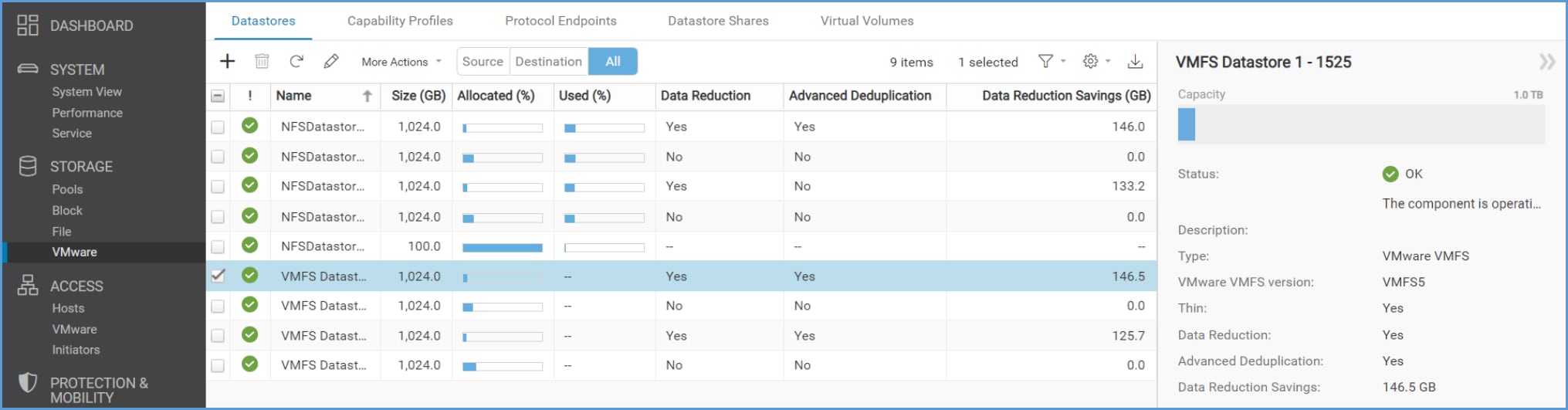
Figure 26. VMware Page – Datastores Tab
Local LUN Move
The Local LUN Move feature, also known as Move, provides native support for moving LUNs and VMFS Datastores online between pools or within the same pool. This ability allows for manual control over load balancing and rebalancing of data between pools. Local LUN Move leverages Transparent Data Transfer (TDX) technology, a multi-threaded, data copy engine. TDX is designed to help ensure a low impact on host access during a move session. In Dell UnityOS version 4.3, the Compress Now option has been deprecated.
Local LUN Move can also be leveraged to migrate a Block resource’s data to or from a resource with data reduction and/or Advanced Deduplication enabled. When Move is utilized to migrate data to a resource with data reduction enabled, as the data is migrated via the TDX data copy engine, all data will pass through the data reduction logic. If Advanced Deduplication is supported and enabled, the data will also pass through the Advanced Deduplication algorithm. This allows space savings to be achieved during the migration. When migrating to a resource with data reduction disabled, all space savings achieved on the source will be removed during the migration.
The Move option can be found on the Block page for LUNs. After selecting a storage resource, select the More Actions drop down list, then Move. This launches the Move dialog box. An example of the More Actions dialog box and the Move option can be found in Error! Reference source not found..

Figure 27. Block Page – Move Under More Actions
The Move LUN dialog box is shown in Error! Reference source not found. below. In this window the user will select the destination Pool for the new storage resource. The user will also select if the resource will be Thin, and if it will have data reduction and Advanced Deduplication enabled. The resource must be Thin for the data reduction option to be available. The Move operation is completely transparent to the host. To start the Move operation, simply select OK in the Move LUN dialog box.
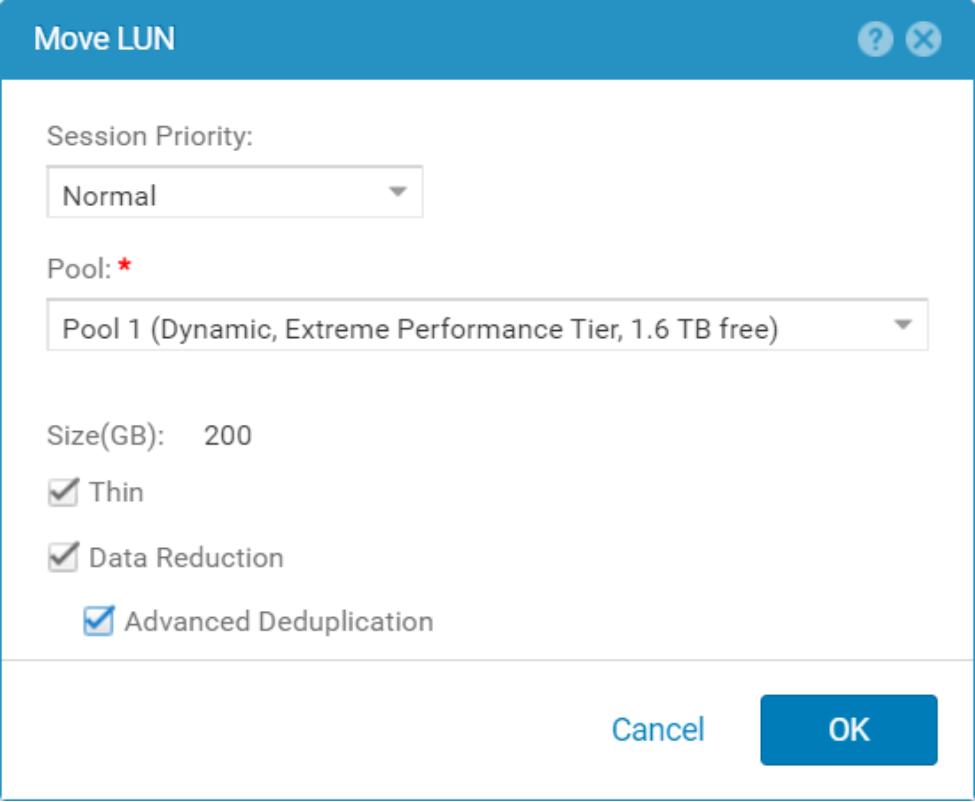
Figure 28. Move dialog box
Move can also be used for LUNs contained within a Consistency Group. The Move option for Consistency Groups is found on the LUNs tab within the Properties window of a Consistency Group. An example of this is shown in Error! Reference source not found.. After selecting a LUN within the Consistency Group, select More Actions, then Move. A similar dialog box as previously shown in Error! Reference source not found. is displayed. After selecting OK, the data is moved.
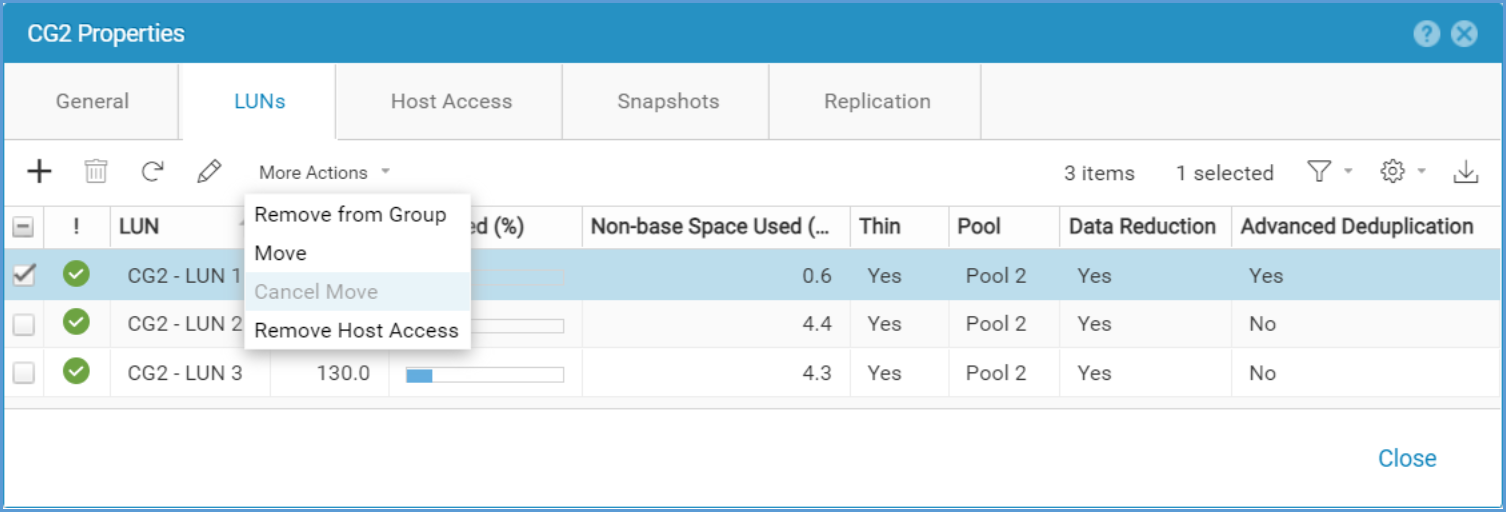
Figure 29. Move – Consistency Group Properties Window – LUNs Tab
Move can also be used with VMware VMFS Datastores. For VMware VMFS Datastores, the Move option is found on the Datastores tab of the VMware page. As shown in Error! Reference source not found., after selecting a VMware VMFS Datastore, the Move option can be found under More Actions. After selecting Move, a dialog box similar to Error! Reference source not found. is displayed.

Figure 30. Move – VMware VMFS Datastores
Savings Reporting
Dell Unity Data Reduction provides savings information at many different levels within the system, and in many different formats. Savings information is provided at the individual storage resource, the Pool, and the System level. For each of the levels, savings information is reported in GBs, percent savings, and as a ratio. The total savings not only includes savings due to data reduction on the storage resource, but also Advanced Deduplication savings and savings which are realized on any Snapshots and Thin Clones taken of the resource. All savings information is aggregated and then displayed at the Pool level and System level. The following sections outline where savings information can be viewed in Unisphere. Savings information is also accessible using Unisphere CLI and REST API but will not be covered in the following sections.
Storage Resource Level
Space savings information in the three formats are available within the Properties window of the storage resource. For LUNs, you will either need to access the Properties page from the Block page, or on the LUN tab from within the Consistency Group Properties window. As shown in Error! Reference source not found., data reduction savings are shown on the General tab within the LUN Properties Window.
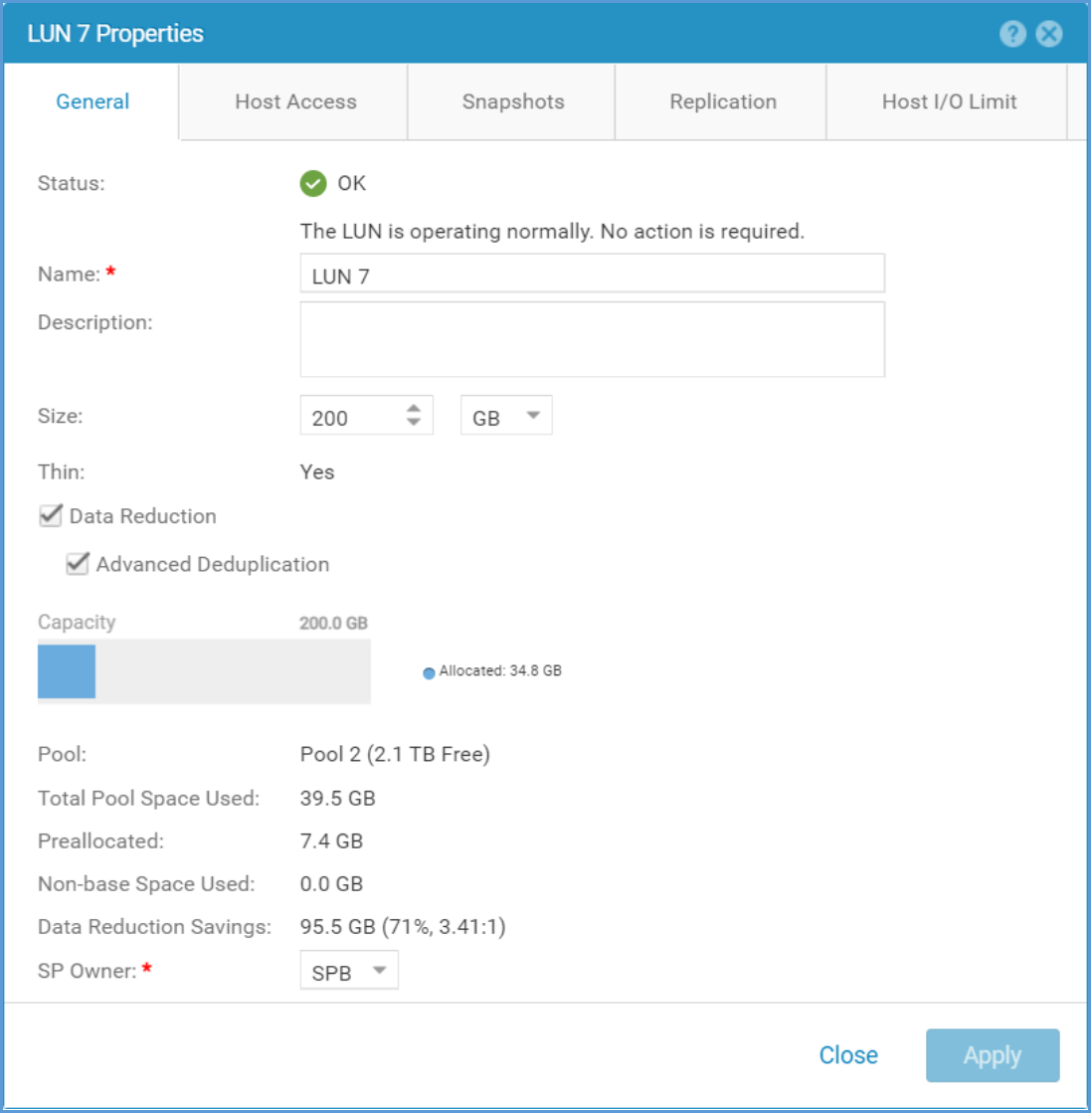
Figure 31. LUN Properties Window – Data Reduction Savings
File Systems also provide the same savings information as LUNs. Error! Reference source not found. below shows an example of the Properties window of a File System. As with LUNs, the data reduction savings are reported in GBs, % savings, and ratio.
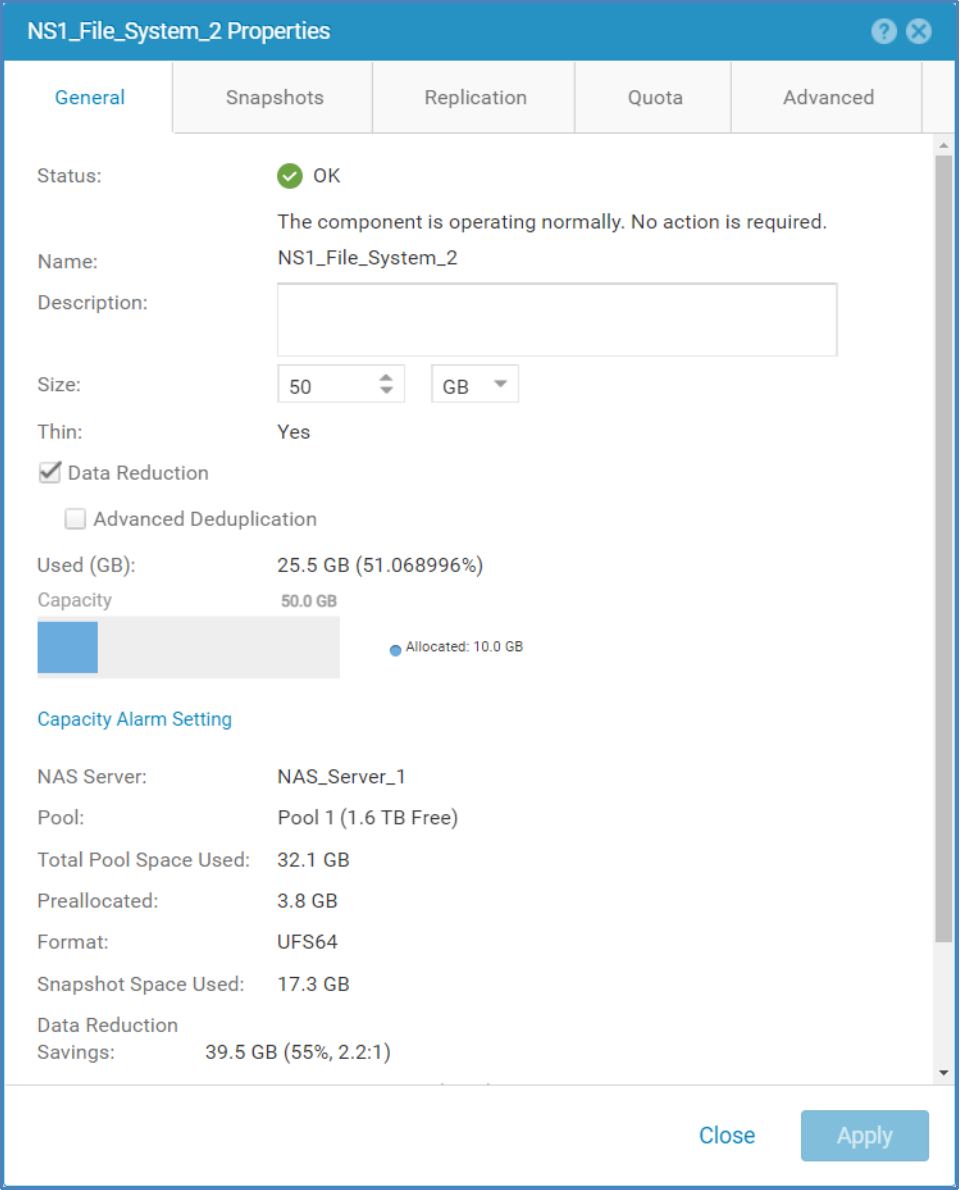
Figure 32. File System Properties Window – Data Reduction Savings
VMware VMFS Datastores display data reduction savings in the same manner as LUNs and File Systems. In the VMware VMFS Properties window on the General tab, the GBs saved, % savings, and ratio can be viewed. An example of this screen can be found in Figure 1.
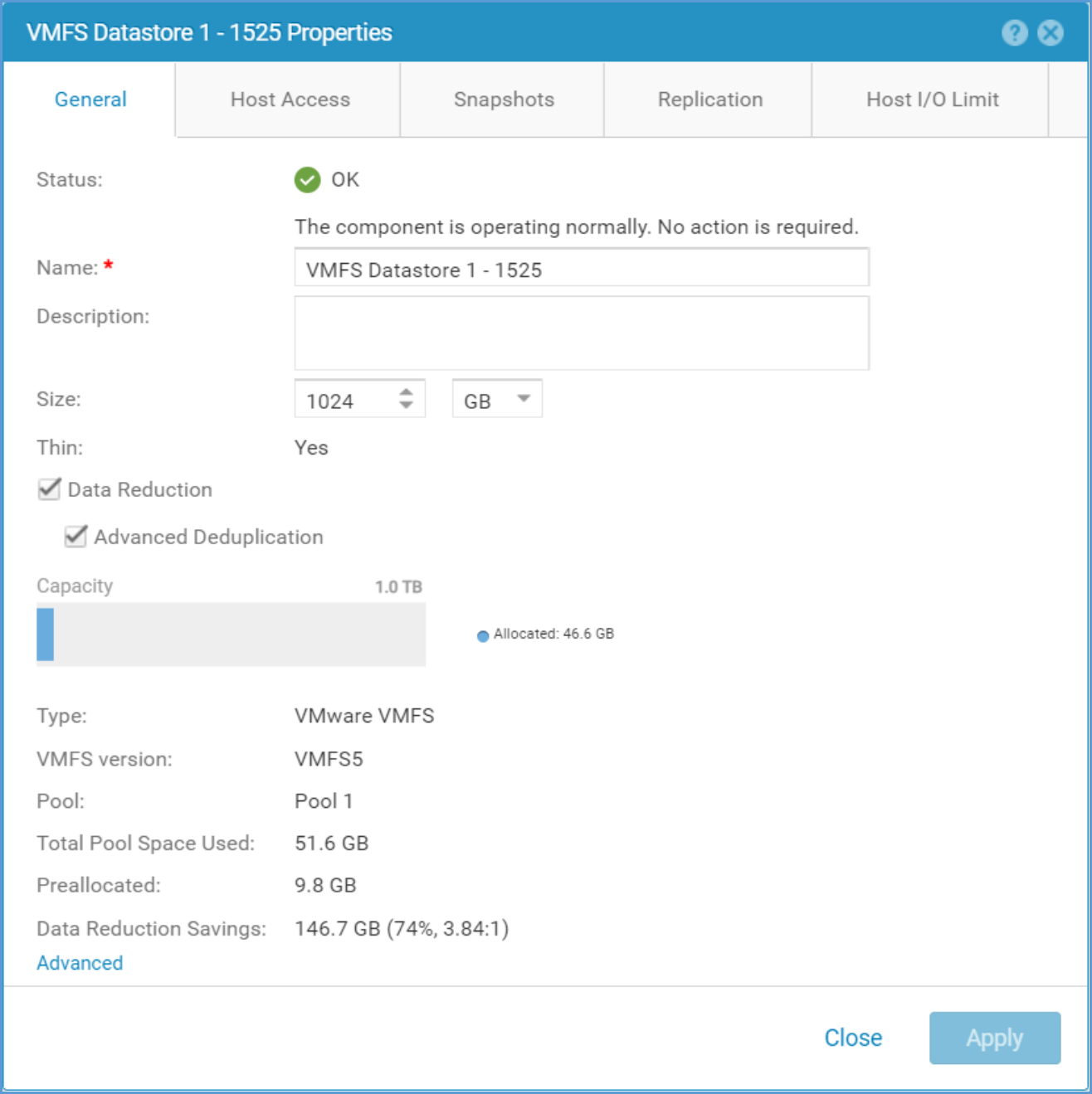
Figure 1. VMware VMFS Datastore Properties Window – Data Reduction Savings
VMware NFS Datastores display data reduction savings in the same manner as VMware VMFS Datastores. In the VMware NFS Properties window on the General tab, the GBs saved, % savings, and ratio can be viewed. An example of this screen can be found in Error! Reference source not found..
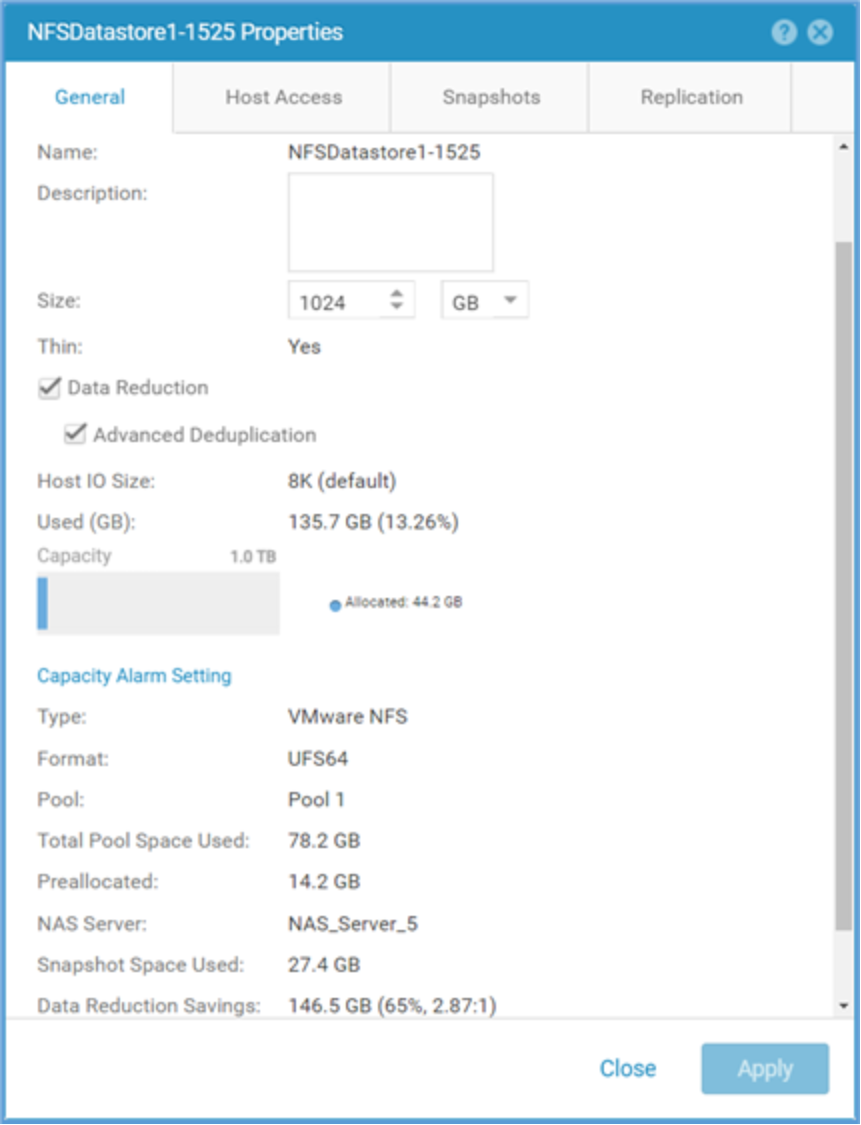
Figure 33. VMware NFS Datastore Properties Window – Data Reduction Savings
Pool Level
Data reduction information is also aggregated to the Pool level. Savings are reported in the three formats, which include the GBs saved, % savings, and ratio, on the Usage tab within the Pool Properties Window. The GBs savings reflects the total amount of space saved due to data reduction on storage resources and their Snapshots and Thin Clones. An example of the Usage tab can be seen in Error! Reference source not found..
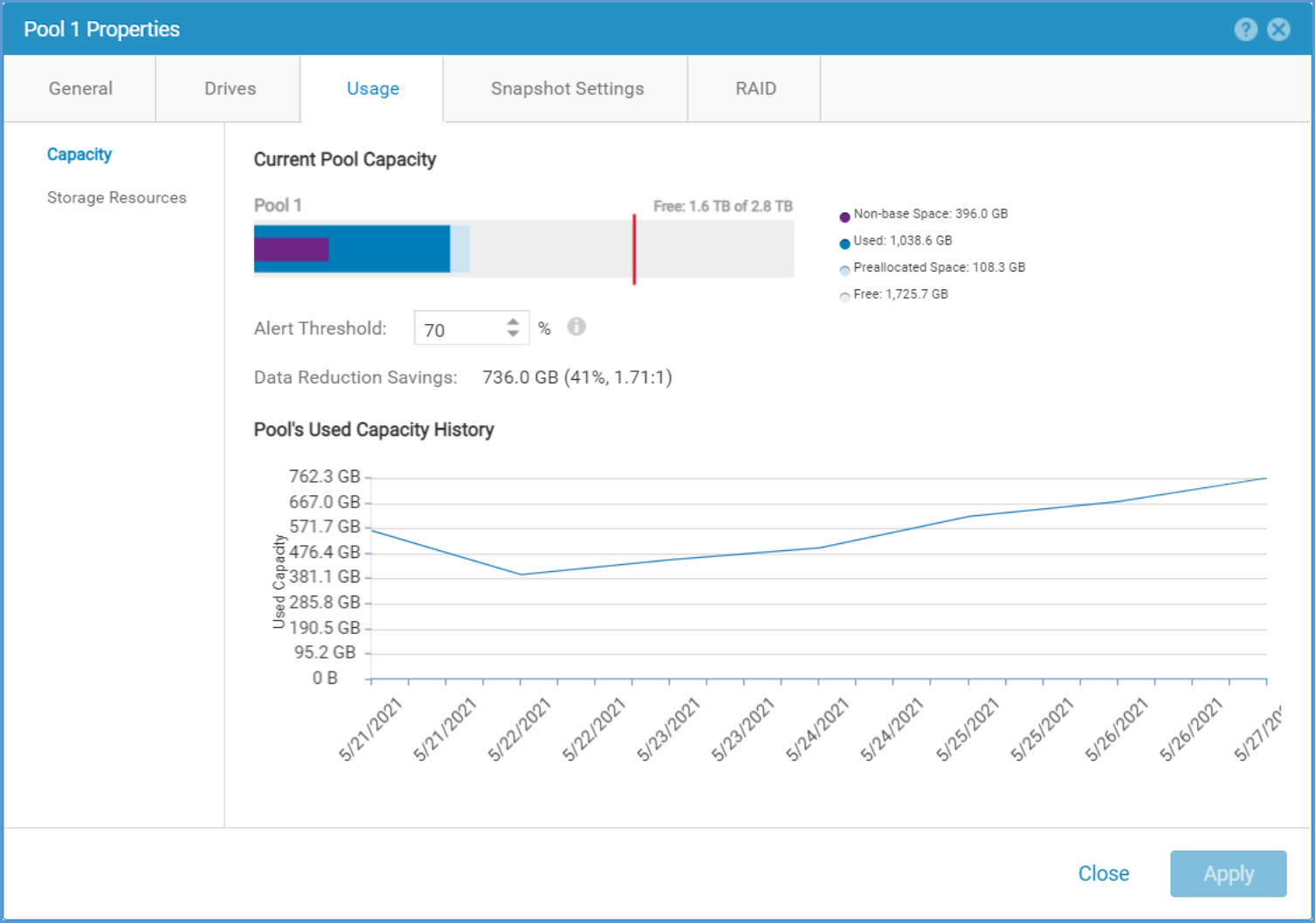
Figure 34. Pool Properties Window – Usage Tab – Data Reduction Savings
System Level
Data reduction savings information is also available at the System Level. The system level aggregates all savings across the entire system and displays them in the three formats available, GBs saved, % saved, and ratio. For the GBs saved, this value is the total amount of space saved due to data reduction, along with savings achieved by Snapshots and Thin Clones of data reduction enabled storage resources. In the Dell UnityOS 4.5 release, the system level data reduction savings information is displayed within the System Efficiency view block found on the system Dashboard page. To see the data reduction savings in the three values mentioned previously, hover over the Data Reduction value. In codes prior to this release, data reduction savings information is displayed in the System Capacity view block. If the view block is not shown on your system, you can add it by selecting the Main tab, clicking Customize, and adding the view block. An example of the System Efficiency view block, which is available in Dell UnityOS version 4.3 and later, is shown in Error! Reference source not found..
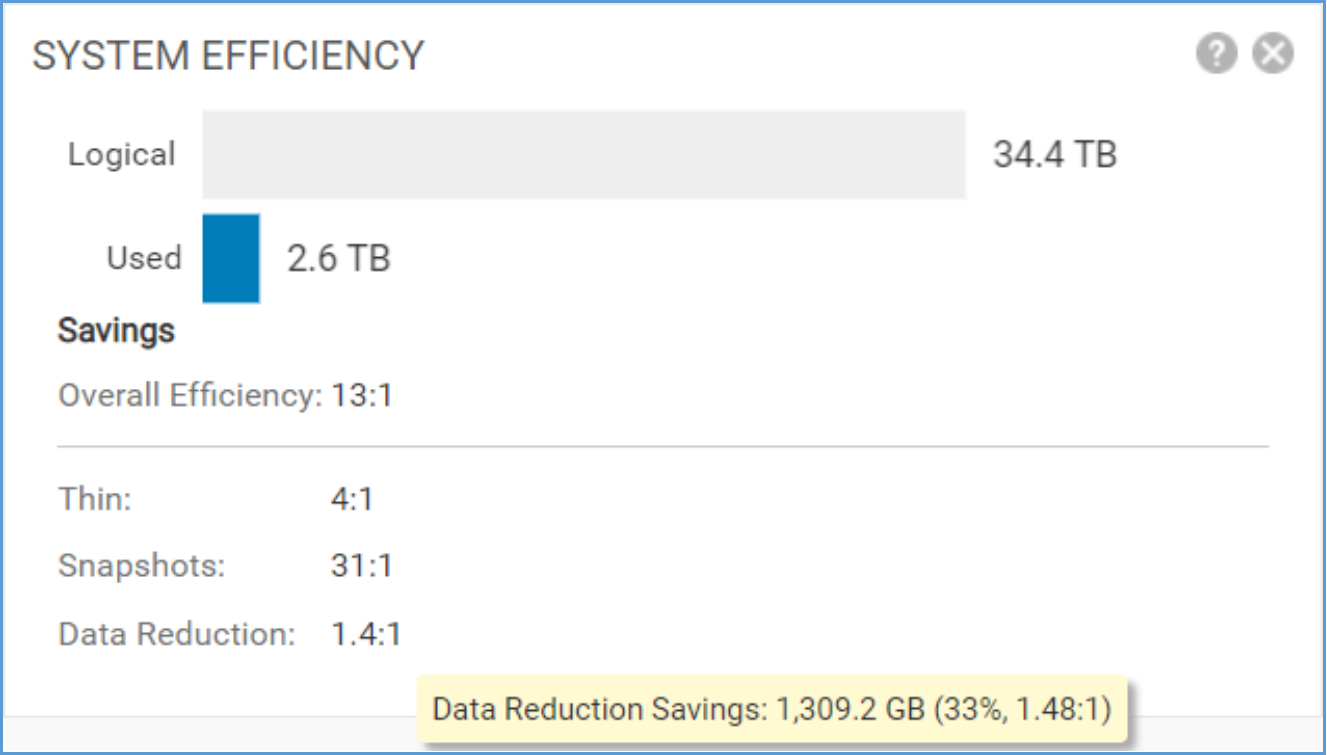
Figure 35. System Efficiency View Block – Unisphere Dashboard Page
Calculating Savings
In Dell UnityOS version 4.5, multiple changes were made to space reporting within the system. The space reporting updates affect the System, Pool, and Storage Resource values. With these changes, users are able to utilize the formulas, displayed in Error! Reference source not found., to calculate and verify the data reduction savings percentage and ratio for the System, Pools, and Storage Resources.

Figure 36. Data Reduction Savings Formulas