Dell Unity: Virtualization Integration
Executive summary
Overview
Audience
Revisions
We value your feedback
Introduction
Introduction
Terminology
Dell UnityVSA
Dell UnityVSA
VMware-aware Unisphere
VMware-aware Unisphere
Dell Unity systems feature tight integration with VMware vSphere to improve the ease of use, performance, and flexibility for VMware virtualized environments. Unisphere includes a dedicated access VMware page that allows for the end-to-end discovery of a VMware vSphere environment. Information about the VMware vCenters, ESXi hosts, virtual machines, and virtual disks is imported and displayed directly in Unisphere. The import process also registers the VMware hosts onto the Dell Unity system so they can be granted access to LUNs, VMFS datastores, NFS file systems or datastores, or vVol datastores.
To import this information (shown in Figure 1), do the following:
- In the VMware page > Access area, click the + icon.
- In the Add vCenter wizard, enter the Network Name or Address, User Name, and Password for the vCenter server or an individual ESXi host.
- Click Find.
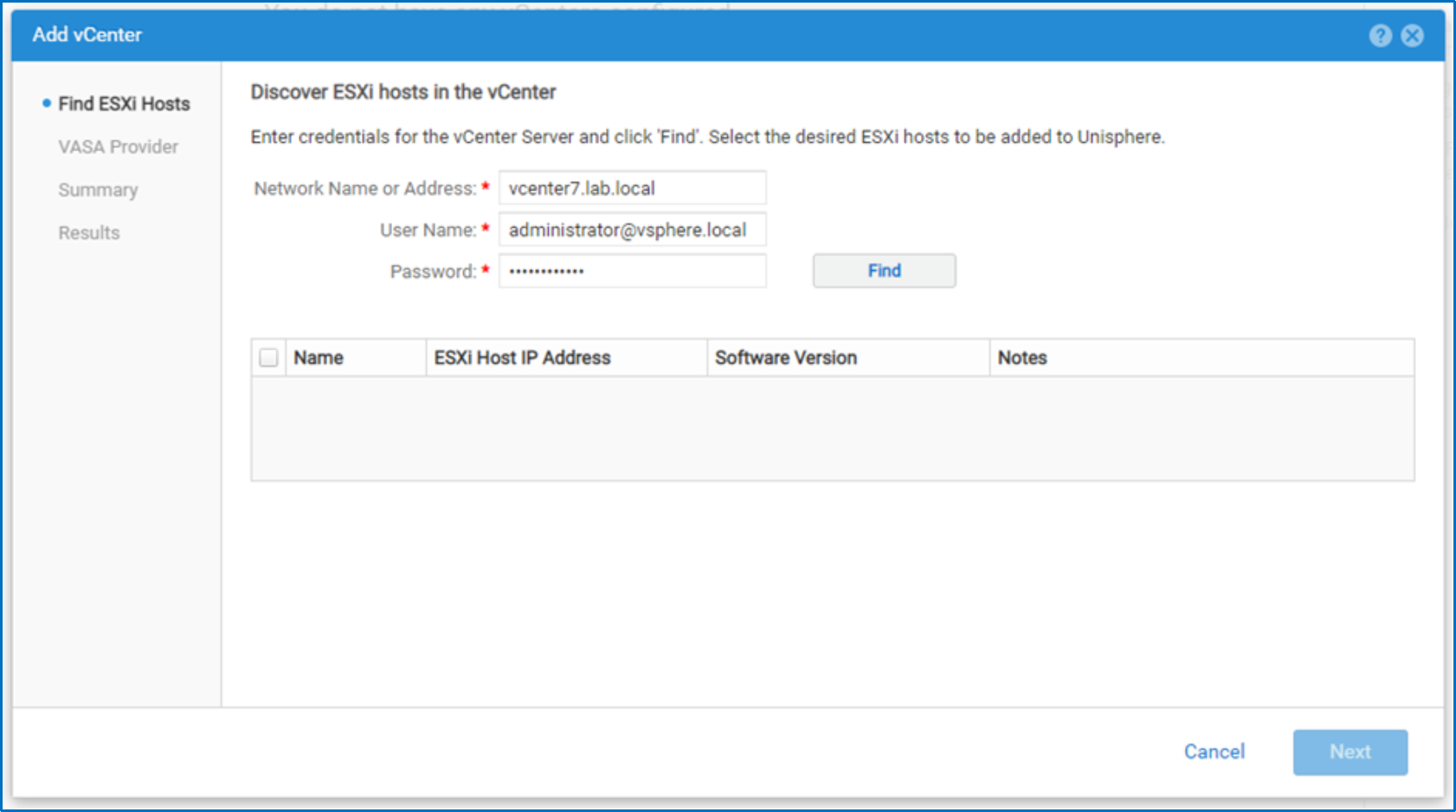
Figure 1. Add vCenter
Starting with Dell Unity OE version 5.3, when performing a vCenter Add operation, an additional step has been added to verify the vCenter’s certificate. The Verify Certificate step will present the vCenter’s certificate for review and acceptance during the vCenter Add (shown in Figure 2). When it is accepted, the Unity system will establish an SSL authenticated session with the vCenter.
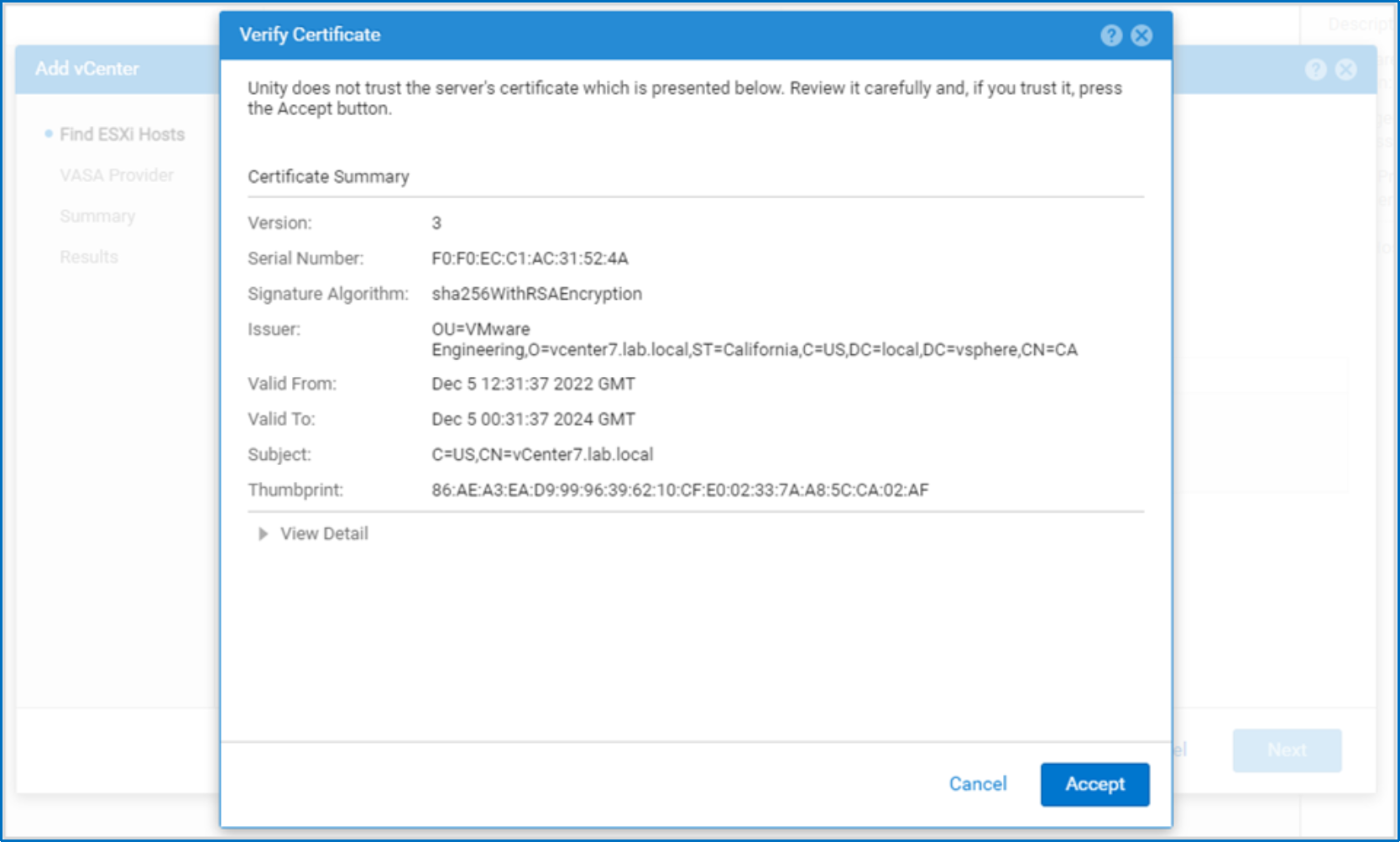
Figure 2. Verify vCenter certificate
If a vCenter is entered, all of the ESXi hosts managed by that vCenter are discovered and are eligible for import. You can select all or just a subset of the discovered ESXi hosts to be imported. Any Fibre Channel or iSCSI initiators on these ESXi hosts are also imported for host registration purposes.
After it is imported, the following information is populated in each tab:
- vCenters: The name and software version of the vCenters are displayed in the vCenters page.
- ESXi Hosts: This page provides a list of ESXi hosts along with the vCenter they are managed by, the code version, and the number of initiators.
- Virtual Machines: This page provides a list of virtual machines along with the ESXi host they are hosted on and the size of the VM.
- Virtual Disks: This page provides a list of virtual disks that are provided from this Dell Unity system along with the VM they are assigned to, the size of the virtual disk, and the datastore they came from.
In the More Actions drop-down menu, a vCenter or ESXi host can be polled for any software or hardware changes. The More Actions menu also provides an option to Verify Certificate for any existing integrated vCenter. In addition, the Find ESXi Hosts option under the More Actions on the vCenters page can be used to import any ESXi hosts that were previously skipped, as shown in Figure 3.
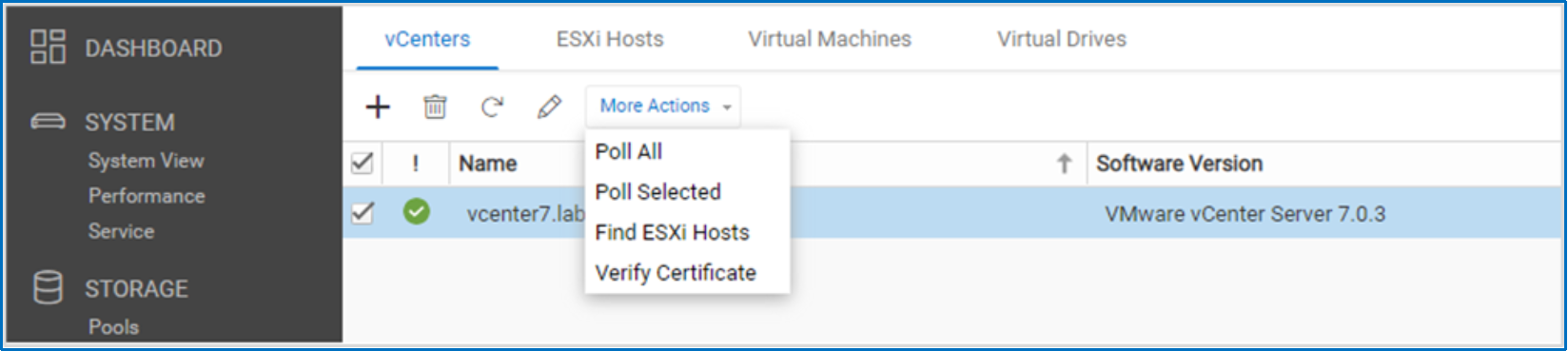
Figure 3. vCenters page
VMware datastores
VMware datastores
VMFS datastores
VMware NFS datastores
NFS datastores leverage the Dell Unity File System, a 64-bit file system architecture, which includes several advantages. Initial Dell Unity OE versions offered a 64 TB maximum file system size, which was increased to a maximum potential capacity of 256 TB with Dell Unity OE version 4.2. Other features include file system shrink, replication, snapshots, increased limits, and more. For more information about Dell Unity File System, see the Dell Unity: NAS Capabilities white paper on the Dell Unity XT Info Hub.
NFS datastores require an NFS-enabled NAS server to be created first. In the NFS datastore creation wizard, access can be configured to ESXi hosts. For any ESXi hosts that are provided access to this datastore, the new storage is automatically rescanned and made available to the ESXi host. The wizard also allows the Host IO Size to be selected, as shown in Figure 4.
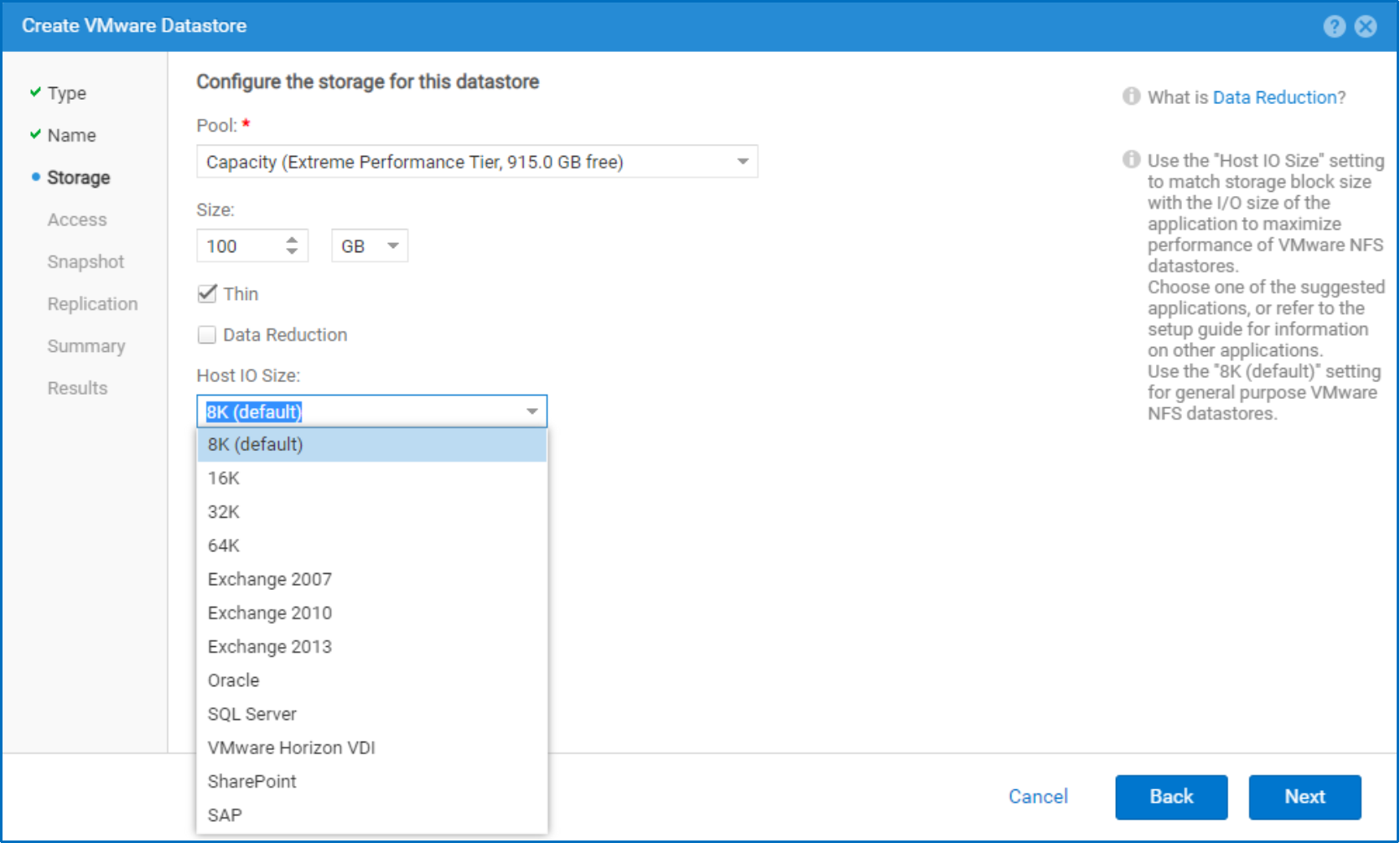
Figure 4. Host IO Size
The Host IO Size specifies the smallest guaranteed physical mapping within the file system. Select 8K (default), 16K, 32K, 64K, or a specific application from the drop-down menu to change this mapping. Matching this to the application’s block size provides benefits such as eliminating the overhead and performance impact of unnecessarily granular mappings.
If you are unsure about this setting, or if the datastore is for general-purpose use, use the default of 8K because this setting cannot be changed after the datastore is created. Configuring this to be larger than the actual host I/O size could result in increased overhead, reduced performance, and higher flash wear. However, configuring this to be too small does not allow the datastore to fully take advantage of the performance optimizations when the I/O size is matched. It is recommended to leave this at the default value of 8K for general-purpose datastores, or if you are not certain which application or I/O size is used on this datastore. If the system detects that most of the I/Os are different than the configured file system size, a warning is generated in Unisphere to alert the administrator.
VMware VAAI
VMware VAAI
VMware VASA
VMware VASA
vStorage API for Storage Awareness (VASA) is a VMware-defined and vendor-neutral API that enables vSphere to determine the capabilities of a storage system. The API requests basic storage information from the Dell Unity system, which is used for monitoring and reporting storage details to the user. For example, if a datastore has FAST Cache, thin, and auto-tier capabilities, this information is displayed and also used to monitor whether or not it is compliant with defined policies.
Dell Unity storage has a native VASA provider which supports VASA 1.0 through 3.0 protocols, so no external plugins or add-ons are required. In order to leverage VASA, the Dell Unity system must be added as a vendor provider in vSphere. For more information, see the section VMware vVols on Virtual Volumes. When the vendor provider has been added, VM storage policies can be created to determine the desired capabilities, as shown in Figure 5.
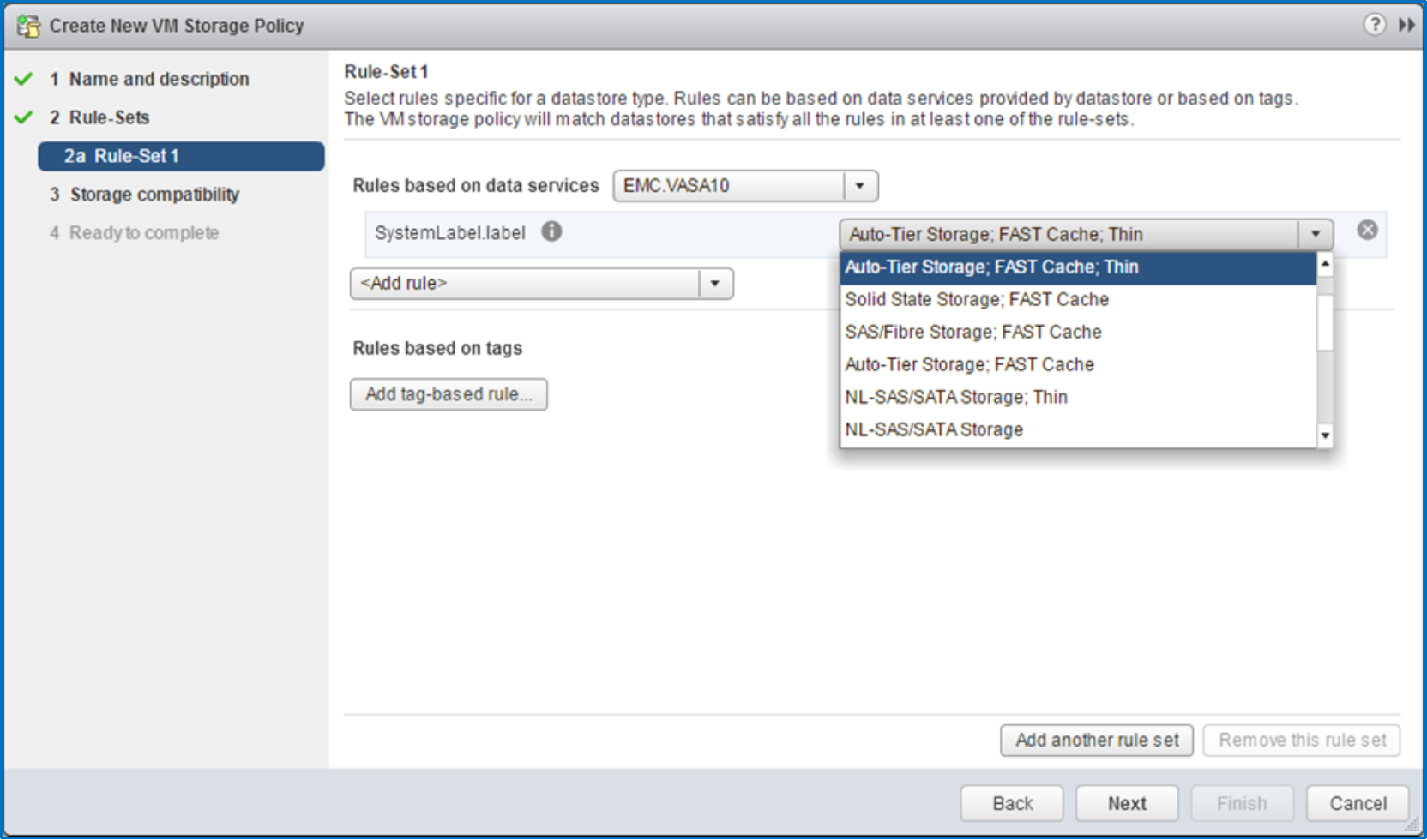
Figure 5. VM storage policies
If a policy is selected while provisioning a VM, the available datastores’ capabilities are checked and categorized as either compatible or incompatible. After deployment, the VM is continuously monitored for compliance with the selected policy. If a VM becomes uncompliant, an alert is provided to the administrator.
VMware vVols
VMware vVols
The Virtual Volumes (vVols) storage framework was introduced in VMware vSphere 6.0 and is based on the VASA 2.0+ protocol. Using vVols enables VM-granular data services and Storage Policy Based Management (SPBM). Configuring vVols requires the following:
- VMware vCenter 6.0 or newer
- VMware ESXi 6.0 or newer
- VMware vSphere Web Client
In traditional storage environments, LUNs formatted with VMFS or NFS mount points are used as datastores for virtual machines. Data services are applied at the LUN or file-system level, which means that all virtual machines that reside on that particular datastore are also affected.
Using vVols enables storing VM data on individual virtual volumes, which reside on a vVol datastore, also known as a storage container. Data services, such as snapshots and clones, can be applied at a VM-level of granularity and are offloaded to the Dell Unity system. Note that data reduction is not supported on vVols. Policies and profiles can be leveraged to ensure that VMs are stored on compliant storage. Any VMs that become noncompliant result in an alert to the administrator.
The workflow for provisioning a vVol datastore differs from traditional NFS or VMFS datastore provisioning. Figure 6 shows the vVol-datastore provisioning model on Dell Unity storage.
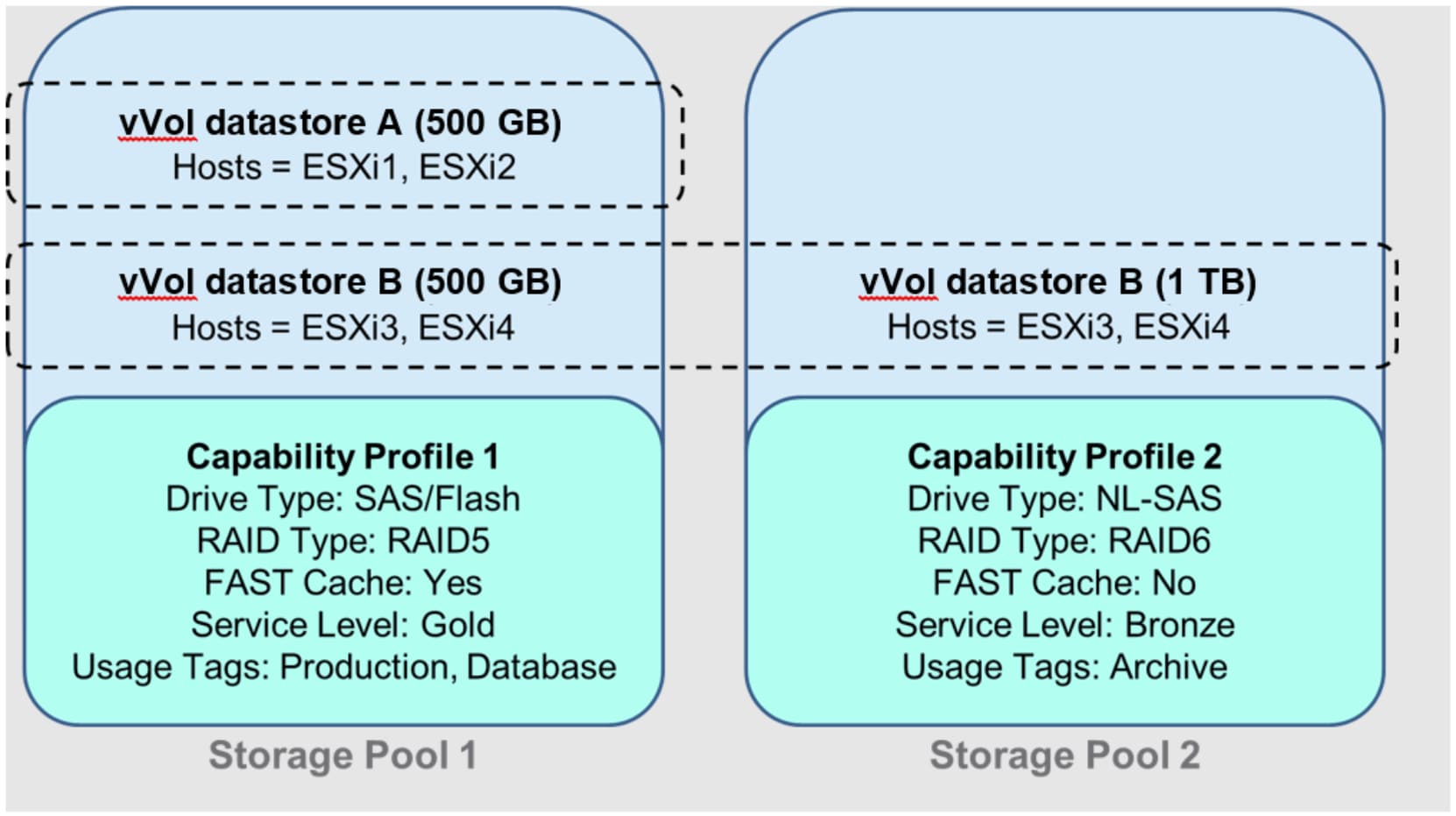
Figure 6. Provisioning model
The following is a high-level summary of the tasks that are completed by the storage administrator:
- Create storage pools.
- Create a capability profile for each storage pool.
- Configure NAS, iSCSI, or FC access.
- Register ESXi hosts.
- Create vVol datastores.
- Provide access to vVol datastores from ESXi hosts.
Capability profiles
Capability profiles are used to advertise the available characteristics of a storage pool as part of SPBM. These capabilities include tiering policies, FAST Cache, drive type, RAID level, and space efficiency which are exposed in vSphere as a service level (Bronze, Silver, Gold, or Platinum). The service level for a given capability profile is automatically calculated based on the previously mentioned capabilities of the underlying storage pool. In addition to the service level, storage administrators can create custom usage tags which are also exposed in vSphere. This allows for an additional level of detail when differentiating between capability profiles. When creating a storage pool, there is an option to also create a capability profile for that pool, as shown in Figure 7.
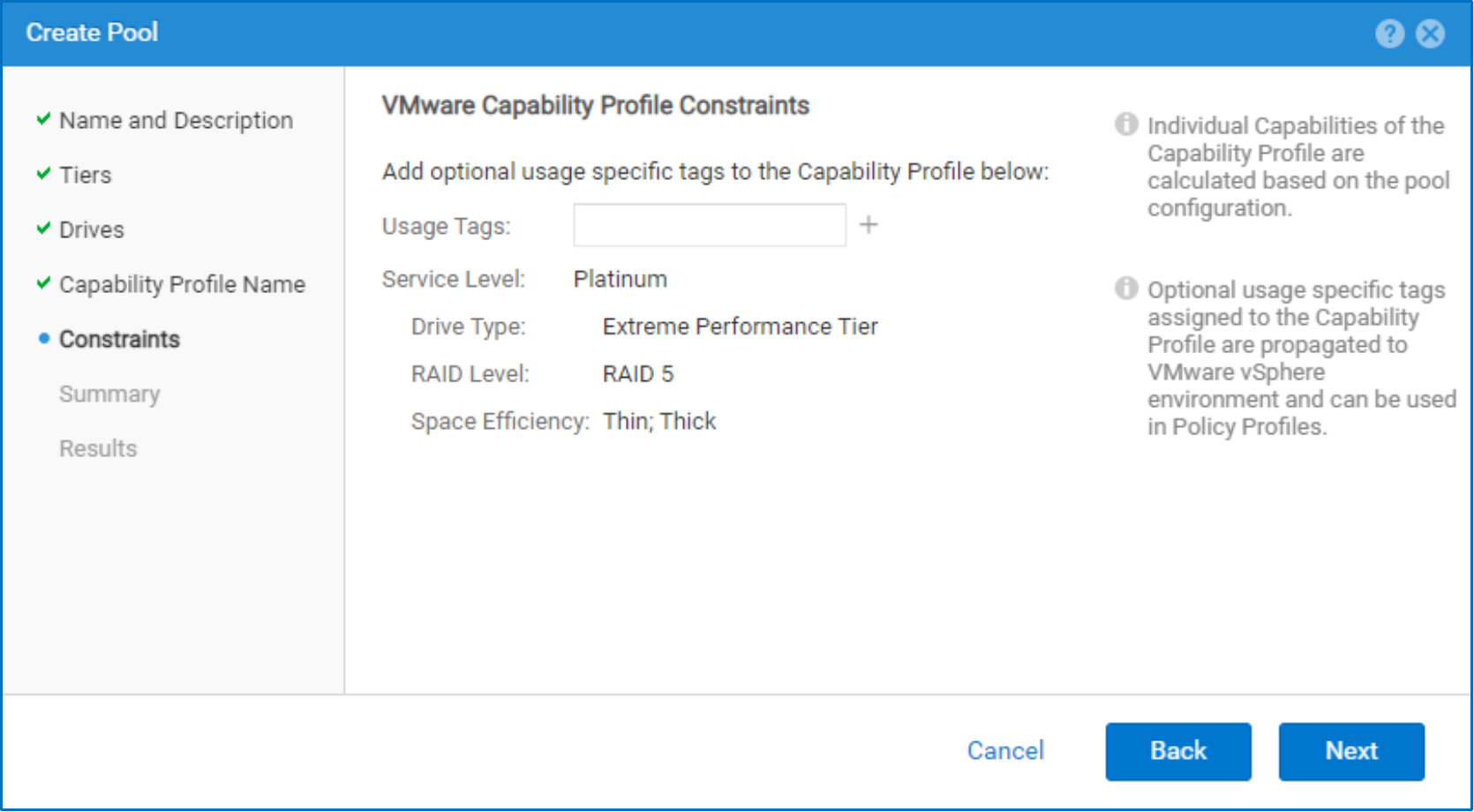
Figure 7. Capability Profile Constraints
Note: Dell UnityVSA, certain capabilities such as FAST Cache and RAID Type are not available, so they are omitted from the list below.
Capability profiles include the following capabilities:
Usage tags: These are user-defined tags that storage administrators create to designate what the capability profile is used for. Because these tags are also propagated to vSphere, they can be used as a communication mechanism between the storage and VMware administrators. For example, if the capability profile is tagged with Database, the VMware administrator can place database VMs on this capability profile.
Service level: This is a level such as Platinum, Gold, Silver, or Bronze that is calculated based on the tier and RAID types that comprise the pool. Due to the virtualized nature of the Dell UnityVSA solution, the RAID level is not included in the service level calculation. Table 1 and Table 2 provide information about how service levels are calculated for the different platforms.
Table 1. Dell Unity service levels
|
Type |
Platinum |
Gold |
Silver |
Bronze |
|
Single-tier pool |
Extreme performance |
Performance (RAID10) |
Performance (RAID5 or RAID6) |
Capacity |
|
Two-tier pool |
|
Extreme performance Performance |
Performance Capacity |
Extreme performance Capacity |
|
Three-tier pool |
|
Extreme performance Performance Capacity |
|
|
Table 2. Dell UnityVSA service levels
|
Type |
Gold |
Silver |
Bronze |
|
Single-tier pool |
Extreme performance |
Performance |
Capacity |
|
Two-tier pool |
Extreme performance Performance |
Performance Capacity |
Extreme performance Capacity |
|
Three-tier pool |
|
Extreme performance Performance Capacity |
|
Storage properties: The detailed storage properties are listed below. When creating a VM storage policy, use either usage tags or a service level.
- Tiering policies: This property shows the available tiering policies for this capability profile. This is only available for pools that include multiple tiers.
- FAST Cache: This shows whether or not FAST Cache is enabled on this pool. This is not available on Dell UnityVSA solutions.
- Drive type: This shows the drives that are in this pool, which can be the following:
- Capacity tier: Pool with only NL-SAS drives
- Extreme multitier: Multitiered pool including flash drives
- Extreme performance tier: Pool with only flash drives
- Multitier: Multitiered pool without any flash drives
- Performance tier: Pool with only SAS drives
- RAID level: This shows the RAID level used for this pool. If the pool consists of different RAID levels for each tier, this displays Mixed. This is not available on Dell UnityVSA solutions.
- Space efficiency: This is a standard VMware-defined capability that shows the thin and thick capabilities of this pool.
If the capability profile was not created during pool creation, it can also be created on an existing pool in the Capability Profiles tab of the VMware page. Create one capability profile for each storage pool that is used for vVols. This page displays all the existing capability profiles and their associated pools, as shown in Figure 8. You can also click the Edit button to see and update the details of the capability profile.
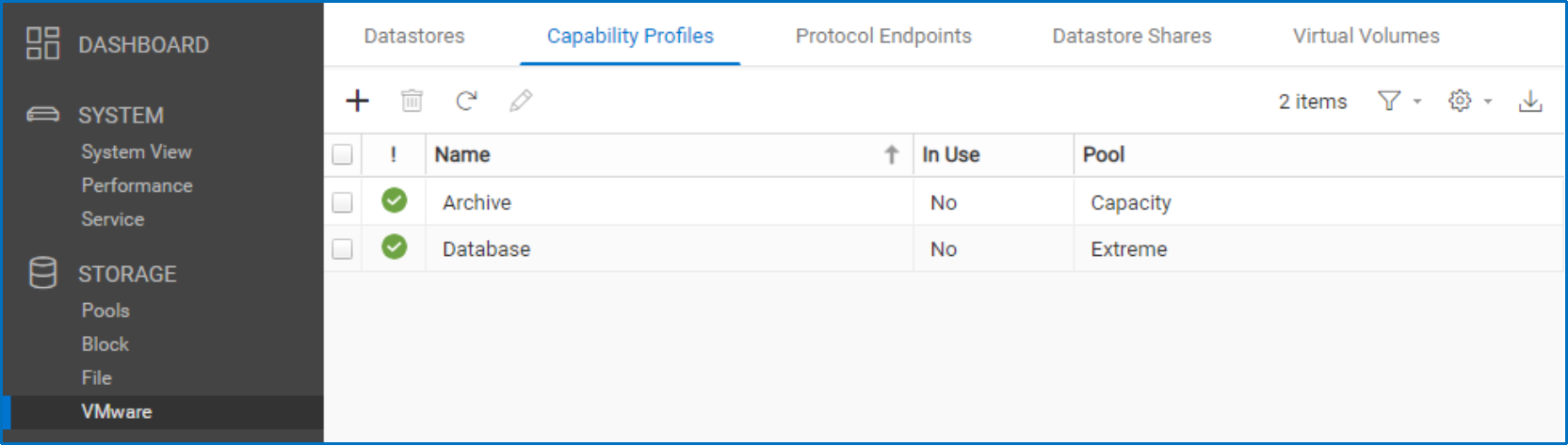
Figure 8. Capability Profiles page
Connectivity
Dell Unity supports access to vVol datastores over block and file protocols. Fibre Channel or iSCSI can be used for block access and NFSv3 is used for file access.
Note: vVols with NFSv4 is not supported on Dell Unity systems.
For Fibre Channel, ensure that the ESXi host is zoned to the FC ports on both SPs for multipathing purposes. Alternatively, the ESXi host can be directly connected to both SPs. When the connection and zoning are complete, the Fibre Channel ports log in and the process is complete when the World Wide Names (WWNs) are displayed in the Initiator Paths page.
If iSCSI is used, iSCSI interfaces must be created on both SPs. In the vSphere Web Client, add one of the iSCSI interfaces that was created as a dynamic discovery target. The iSCSI interface on the other SP is discovered automatically. Afterwards, run a rescan of the storage adapter and confirm the initiator IQNs are displayed in the Initiator Paths page.
File protocol access requires the creation of a NAS server, which contains file protocol configuration information such as networking, protocols, and DNS settings. It is highly advisable to create at least one vVols-enabled NAS server on each SP for load balancing and high availability purposes. Using vVols with IP multi-tenancy is not supported, and you cannot enable the vVol protocol endpoint on a NAS server that has a tenant association. To use vVols, you must use a NAS server that does not have a tenant assigned. In order to access vVol datastores, an NFS and vVols-enabled NAS server must be created, as shown in Figure 9.
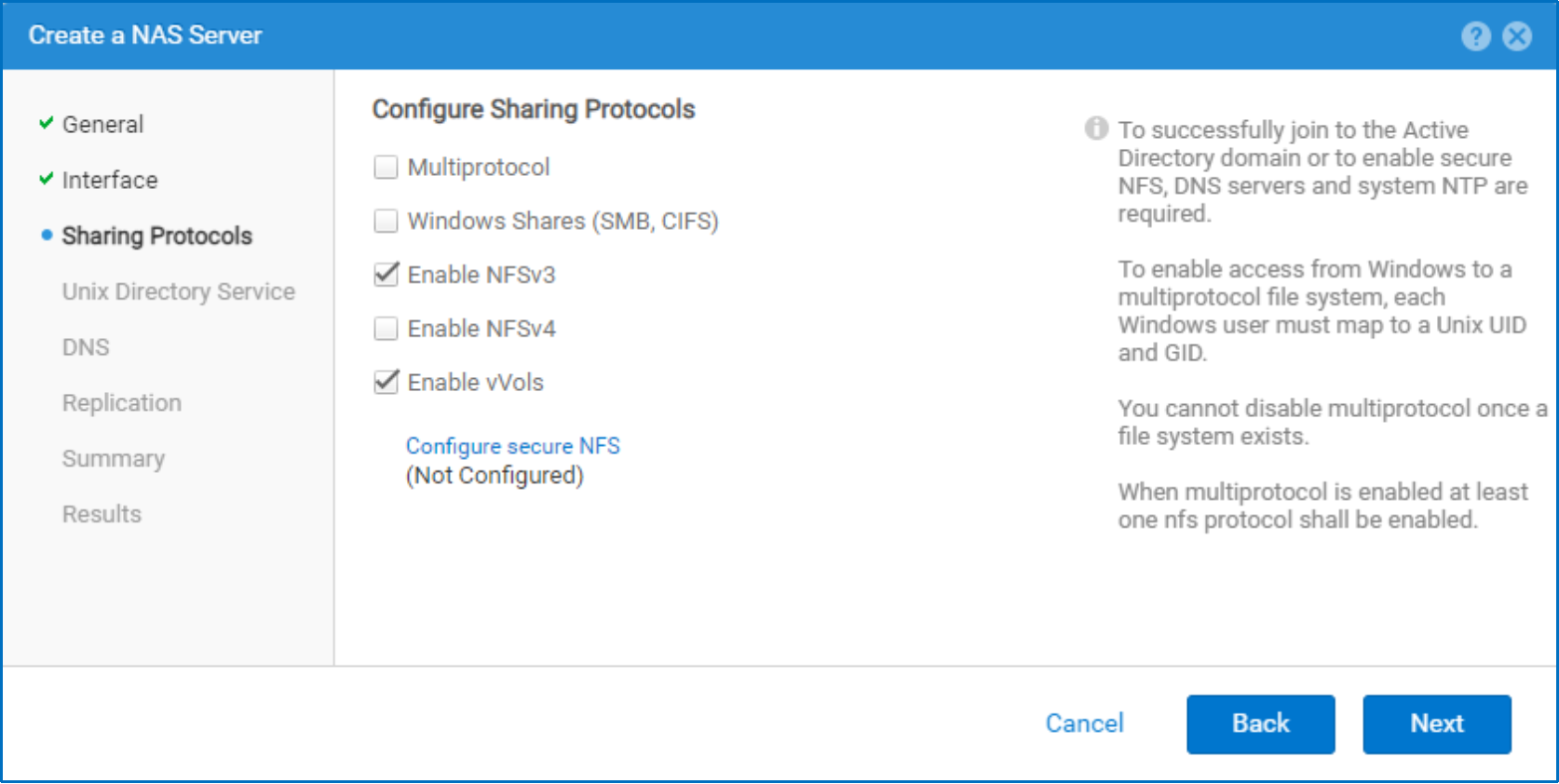
Figure 9. Creating a NAS server
vVol datastores
vVols can only be stored on vVol datastores; they cannot be stored on traditional NFS or VMFS datastores. In VMware terms, vVol datastores on Dell Unity systems are also known as storage containers. Dell Unity storage supports both block and file vVol datastores for access using iSCSI/Fibre Channel or NFS, respectively. When creating a vVol datastore, choose the appropriate option depending on the connectivity method that is configured, as shown in Figure 10.
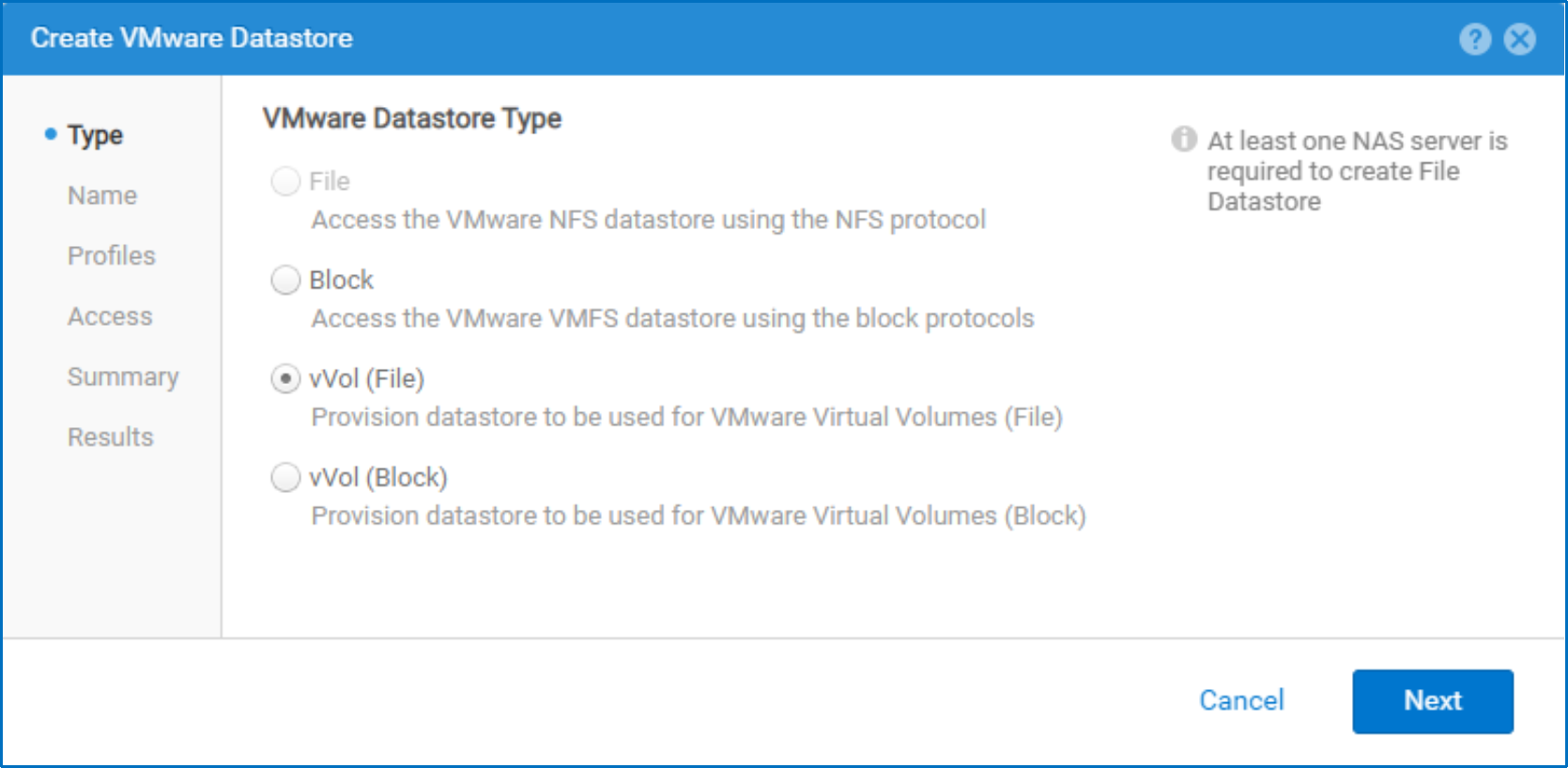
Figure 10. Choosing the VMware datastore type
All capability profiles that were previously created on the system are displayed in the datastore creation wizard. This allows you to select which capability profiles to include in this datastore. Selecting multiple capability profiles creates a vVol datastore that spans across multiple storage pools, which is a feature that is unique to Dell Unity vVol datastores. Doing this enables the datastore to be compatible with multiple VMware storage policies so VMs can be easily migrated by updating the storage policy. If a datastore only contains a single capability profile, it can still be migrated to using VMware Storage vMotion. In addition to selecting the capability profiles for this datastore, you can also configure how much storage to thinly allocate from each capability profile, as shown in Figure 11.
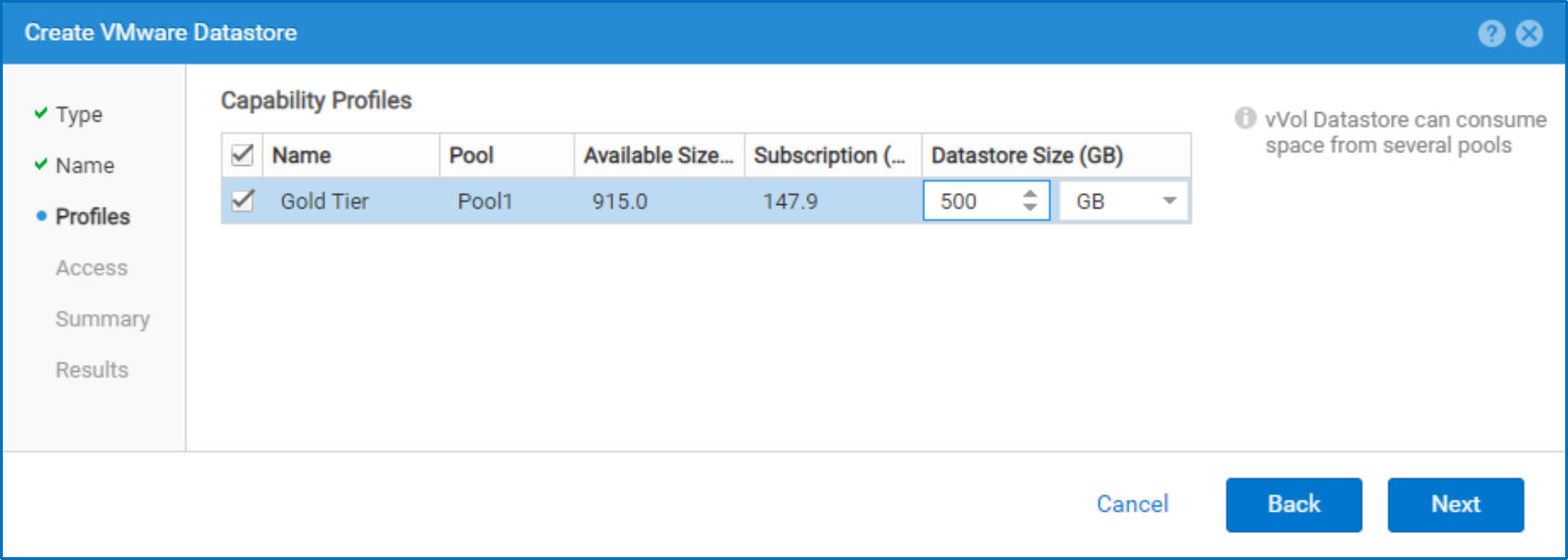
Figure 11. Configuring capability profiles
Regardless of which protocol is used for vVol datastore access, the ESXi hosts should be registered on the Dell Unity system so they can be granted access to the datastore. The registration process can be automated by importing the VMware environment (see the section VMware-aware Unisphere). ESXi hosts that attempt to mount datastores that they do not have access to appear as inaccessible. Host access can be added during creation, as shown in Figure 12, or configured on an existing vVol datastore.
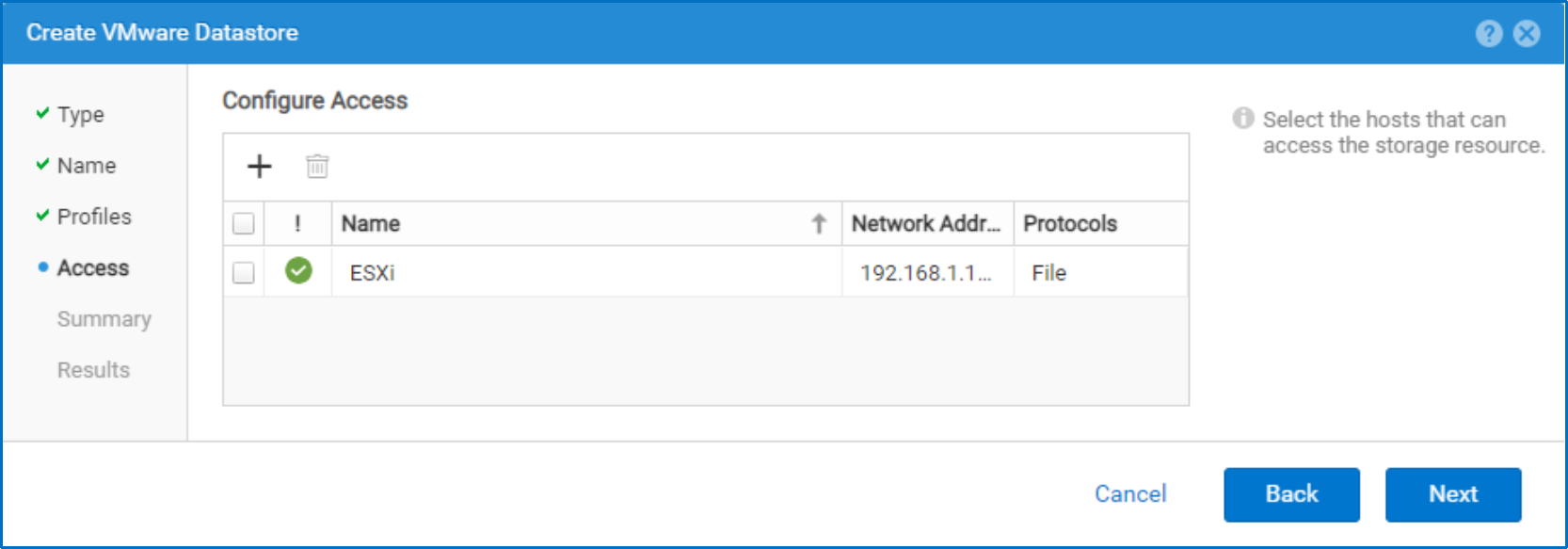
Figure 12. Configuring host access
Protocol endpoints
Protocol endpoints (PEs) are used as I/O access points from the ESXi host to the Dell Unity system. These endpoints establish a data path on-demand for virtual machines and their respective vVol datastores. vVols must be bound to a PE in order to service I/O, and when the vVol no longer needs to service I/O, the vVol becomes unbound. I/O from VMs is communicated through the PE to the respective vVol datastore on the storage system. A single protocol endpoint can multiplex I/O requests from a large number of VM clients to their Virtual Volumes. PEs are automatically created when host access is configured for vVol datastores. Unisphere includes a page that lists all PEs that currently exist on the system.
The behavior of PEs depends on whether block or file vVol datastores are used. For file vVol datastores, the NAS PE looks similar to an NFS mount point. For each file vVol datastore, a single protocol endpoint is created on each vVols-enabled NAS server, regardless of how many ESXi hosts have access to the datastore. All ESXi hosts share the same PE as a single I/O access point. A file vVol becomes bound to the associated NAS PE every time that VM is powered on. When the VM is powered off, the vVol is unbound from the PE. It is recommended to create at least one vVols-enabled NAS server on each SP for load balancing and high availability purposes.
Figure 13 shows a list of NAS PEs in Unisphere for two datastores.

Figure 13. NAS protocol endpoints
For block vVol datastores, the SCSI PE looks similar to a proxy LUN. However, unlike NAS PEs, each ESXi host that has access to the datastore has its own set of dedicated SCSI PEs. For each ESXi host that is granted access to a datastore, two SCSI PEs are automatically created for multipathing purposes. If the same host is granted access to another vVol datastore, two additional SCSI PEs are also created. The block vVol will be bound to the associated SCSI PE every time that the VM is powered on. When the VM is powered off, the PE is unbound. SCSI protocol endpoints are like LUN mount points that allow I/O access to vVols from the ESXi host to the storage system. Figure 14 shows a list of SCSI PEs in Unisphere for three hosts.
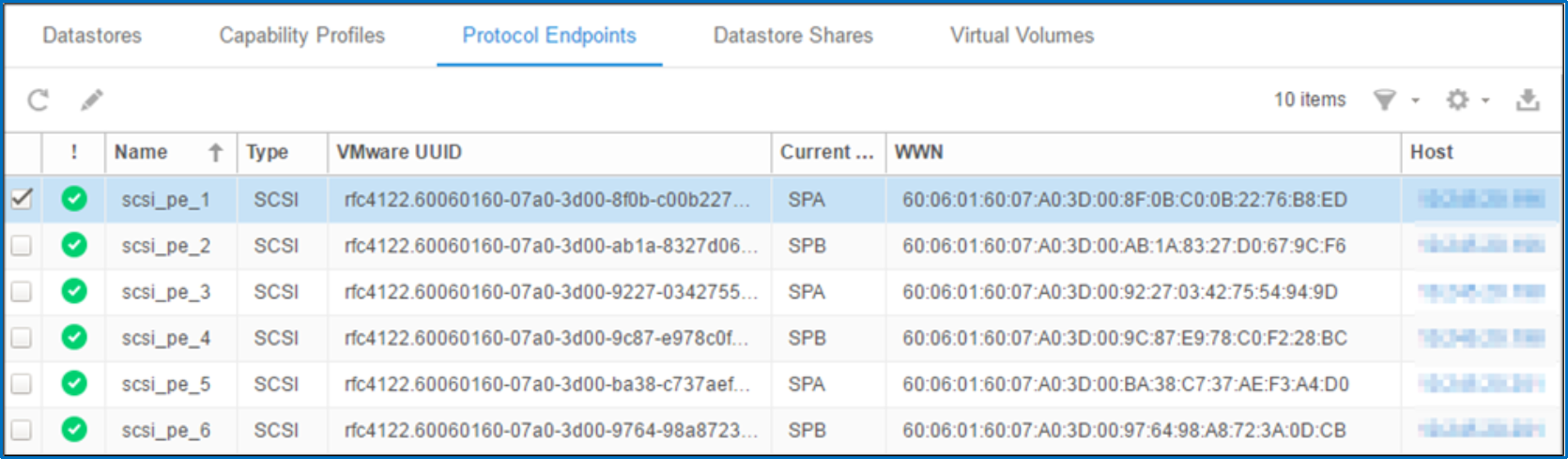
Figure 14. SCSI protocol endpoints
VASA vendor provider
Dell Unity storage has a native VASA provider that is used to facilitate communication between the vCenter and ESXi hosts and the Dell Unity system. Some of the responsibilities of the VASA provider include facilitating the offloading of data services, managing VASA sessions, handling client authentication, generating events and alarms, and converting the array data model into the generic VASA data model.
With the release of Dell Unity OE version 4.2, you can select to have the VASA provider automatically registered when you configure VMware access to a vCenter in the Add vCenter wizard. Only Dell Unity administrator credentials are required to add the VASA provider. If you are running an earlier version of code, in order to leverage the on-array VASA provider, you must manually add the Dell Unity system as a VASA vendor provider in vSphere. This establishes the control path between the ESXi host and the Dell Unity system.
As shown in Figure 15, enter the following information on the New Storage Provider page:
- Name: <System_Name>
- URL: https://<Management_IP>:8443/vasa/version.xml
- Username: admin (or another account with VM Administrator privileges)
- Password: <Password>
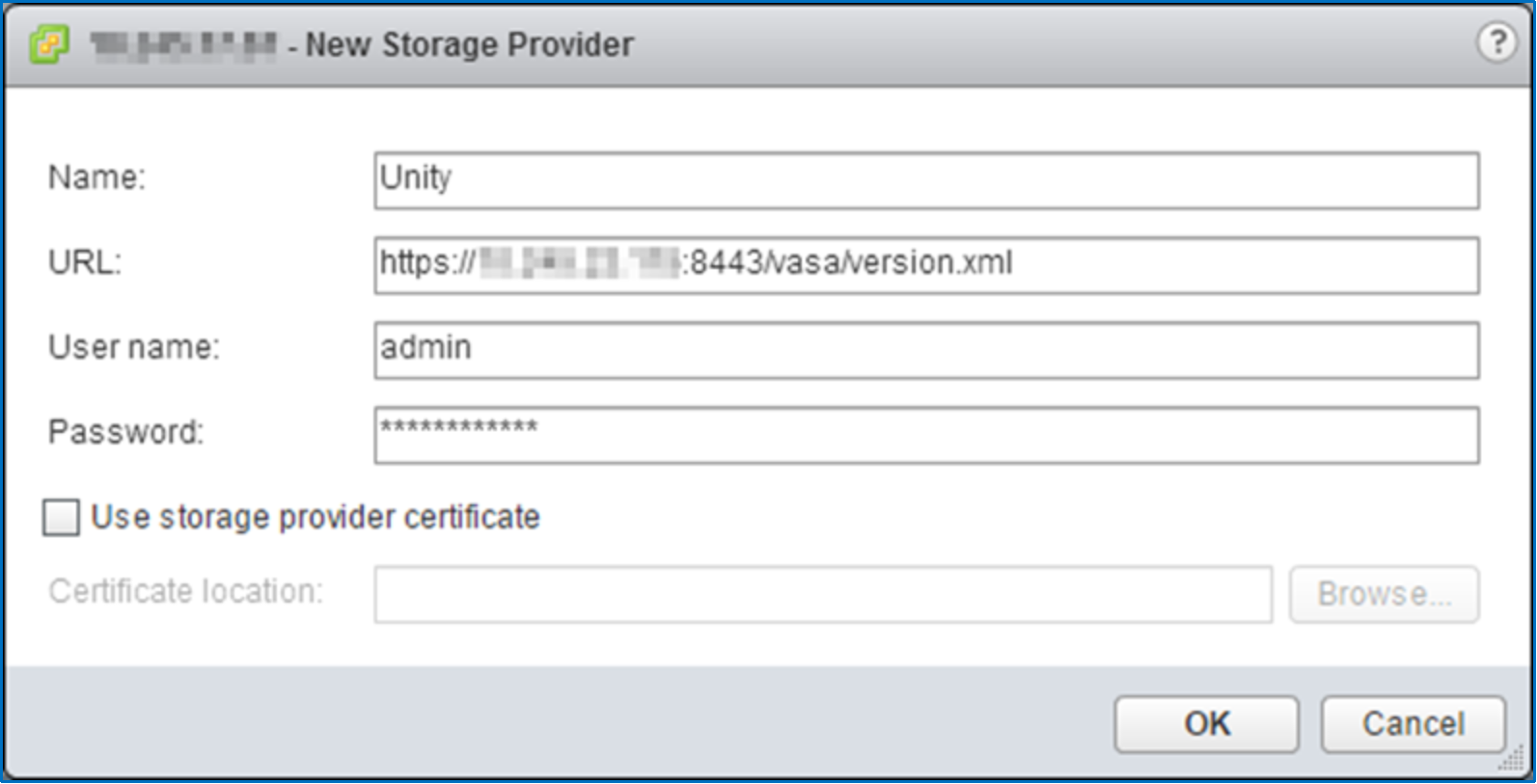
Figure 15. Specifying a new storage provider
When the vendor provider has been registered, ensure that the Status shows Online and Active. After adding the storage provider, you may have to refresh the vSphere Web Client for the system to be displayed. Note that you can only register the VASA vendor provider on a Dell Unity system to a single vCenter. Registering the same VASA vendor provider to another vCenter causes the original provider and its datastores to go offline.
Add datastores
Now that the VASA vendor provider has been added, the vVol-related information about the Dell Unity system can be passed to vSphere. This enables vVol datastores to be mounted to ESXi hosts for use. With the release of Dell Unity OE version 4.2, vVol datastores will be automatically mounted to ESXi hosts for use. Prior to Dell Unity OE version 4.2, vVol datastores will need to be manually added to the ESXi hosts. The administrator needs to add it using the New Datastore wizard in the vSphere Web Client. When adding the datastore, select the Type of VVOL, as shown in Figure 16.
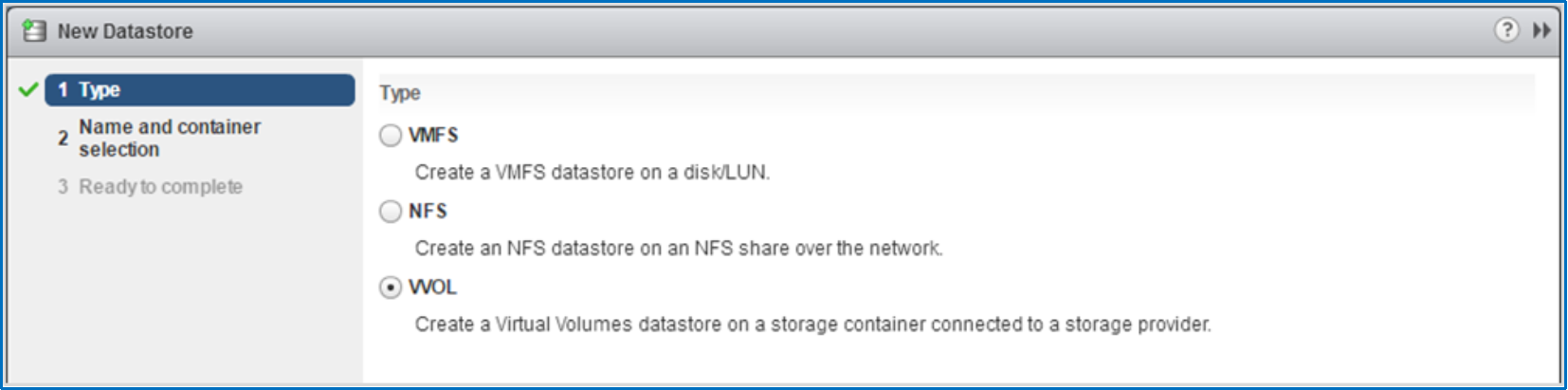
Figure 16. Adding vVol datastores
This displays a list of vVol datastores that are currently available on the Dell Unity system. Select the appropriate datastore and provide a name to mount the vVol datastore to an ESXi host as shown in Figure 17. When the datastore has been mounted on one ESXi host, right-click the datastore to easily mount the same datastore to other ESXi hosts.
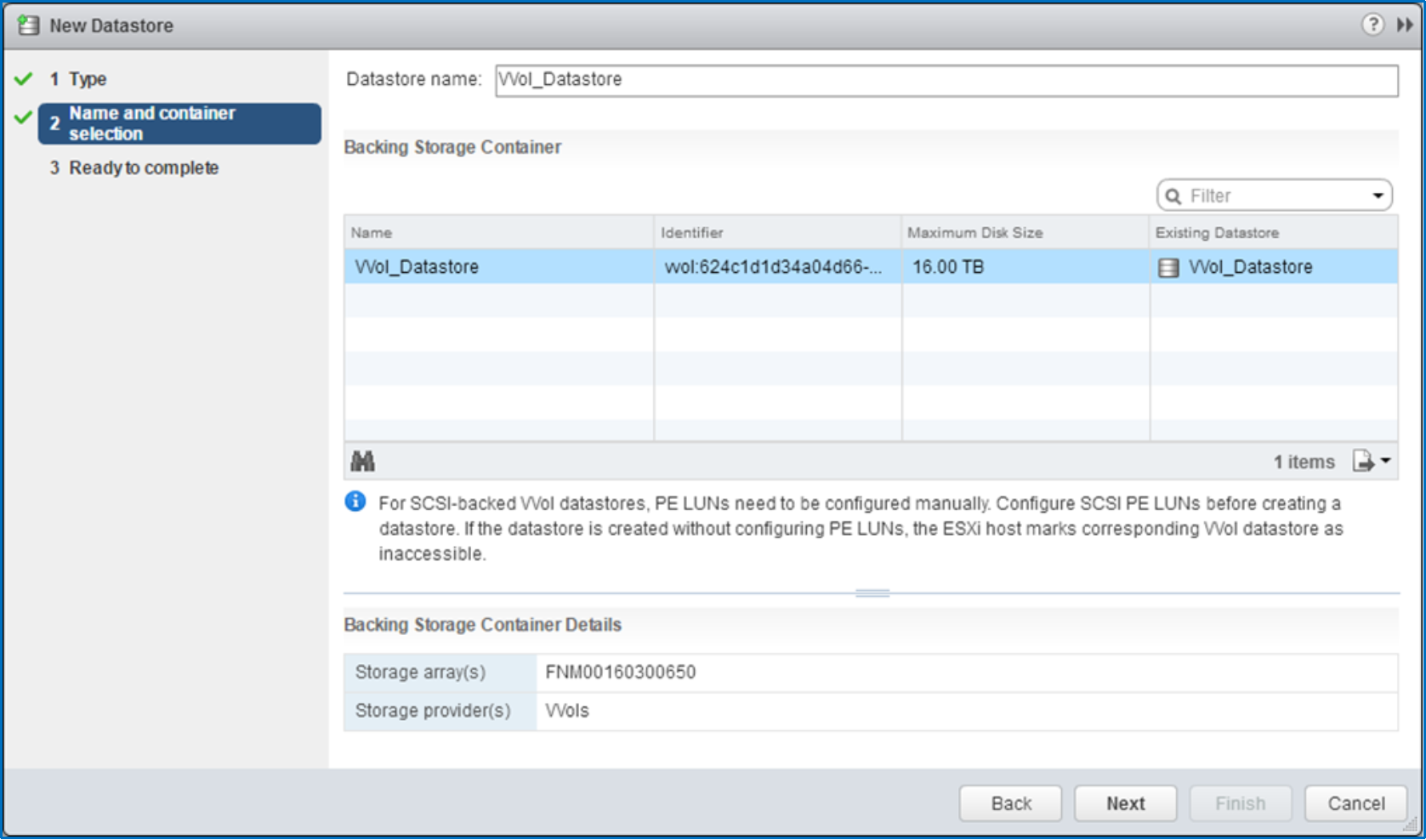
Figure 17. New datastore
Host I/O limits
In Dell Unity OE version 4.2, host I/O limits were expanded to support vVols. vVols support either an absolute limit or a density-based limit, defined by IOPS or IOPS per GB, respectively. Host I/O limits are supported on data vVols specifically, Host I/O limits cannot be applied to config, swap, or memory vVols. While the implementation of host I/O limits is the same for vVols and block resources, the management of vVol host I/O limits is done entirely through VMware vSphere. Host I/O limits can be created in vSphere as a rule for a storage policy and then assigned at either the VM or vVol level. Unisphere can be used to monitor the vVol rate limiting, with the capability to display any I/O limits associated with the vVol, and real-time performance metrics, as shown in Figure 18.
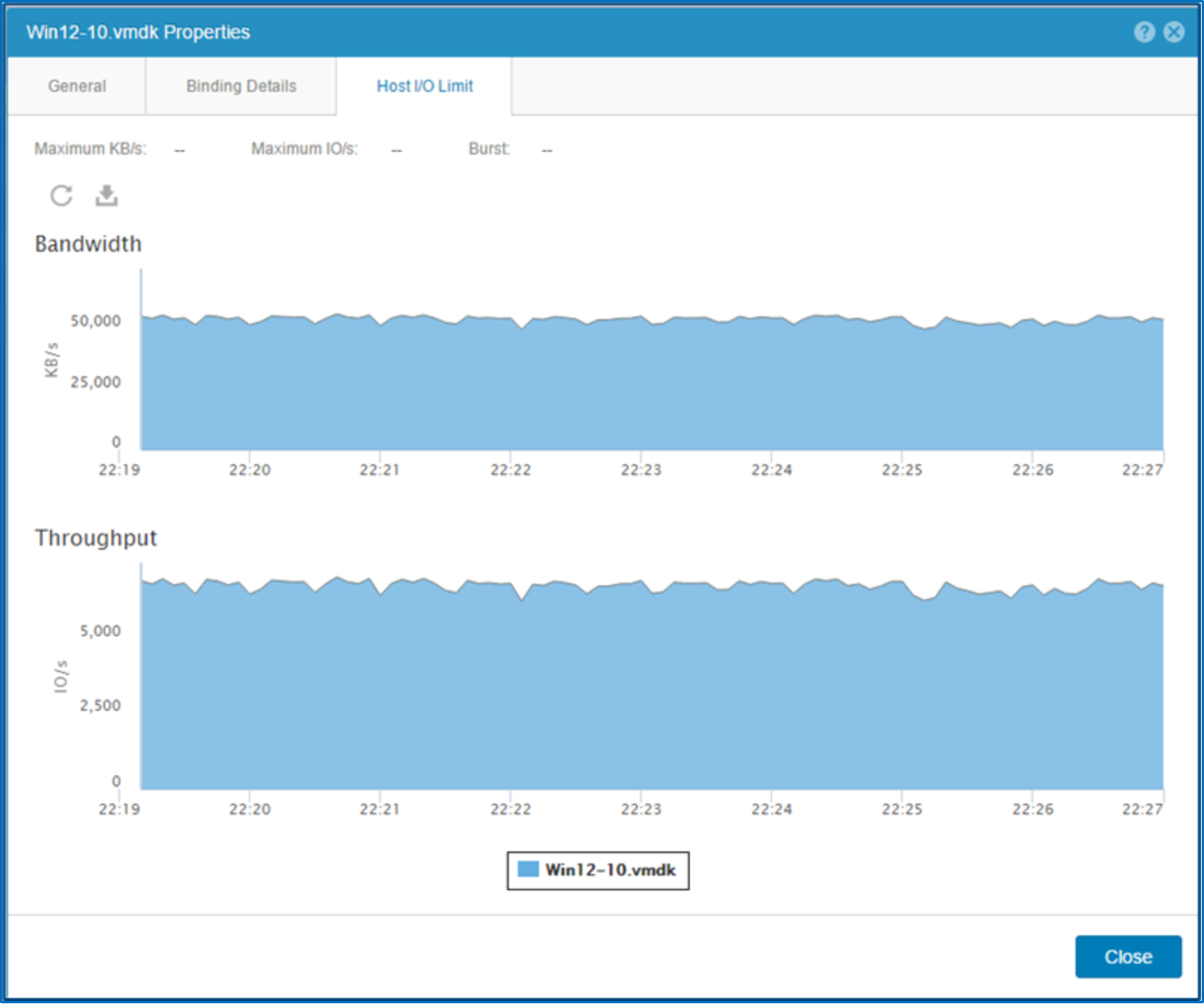
Figure 18. Viewing vVol real-time I/O metrics
In order to create a host I/O limit, when creating a VM storage policy, ensure that the field Rules based on data services field is set to EMC.UNITY.VVOL. Then, select I/O Limit as a new rule, and the configuration options for the I/O limit will be presented, as listed below. I/O limits can be created as either an absolute or density-based limit.
- Maximum Rate (IOPS): This field determines either the absolute limit or the IOPS per GB value, depending on which type of I/O limit is selected.
- Burst Rate (%): This field can be set between 0% and 100%. Setting this field to 0 results in an I/O limit without burst.
- Burst Duration (per hour): This field can be set to 1, 3, or 5 minutes. This is the length of time where the I/O limit will be temporarily raised by the burst percentage; this burst window will repeat every hour.
Host I/O limits can be configured within the same VM storage policy as the other capabilities, which are explained in the section VM storage policies. Host I/O limits are compatible with any Dell Unity vVol datastore, and no additional configuration is needed on the Dell Unity side to support this feature. Any Virtual Volumes which have a VM storage policy applied to them will be subject to the I/O limit defined in the VM storage policy, if it exists. Find more information about creating, applying, and managing VM storage policies in the section VM storage policies.
VM storage policies
VM storage policies, used for Storage Policy Based Management (SPBM), are authored by the VMware administrator to describe the desired capabilities when provisioning a VM. The storage and virtualization administrators can discuss policies in advance, ensuring that the Dell Unity system has capability profiles that are compliant with the configured VM storage policies. Any of the capabilities that are included in the capability profiles can be used to create policies. For example, the virtualization administrator can create a policy that will look for the usage tag Database. Any vVol datastores which contain a capability profile that has the usage tag database will be considered compliant. This ensures that any VMs with this storage policy are deployed on the storage pool that the storage administrator has designated for this purpose. Another example is creating a service level with a Platinum policy for when the best performance is required for a VM. When creating a VM storage policy, select EMC.UNITY.VVOL and choose the desired rule as shown in Figure 19.
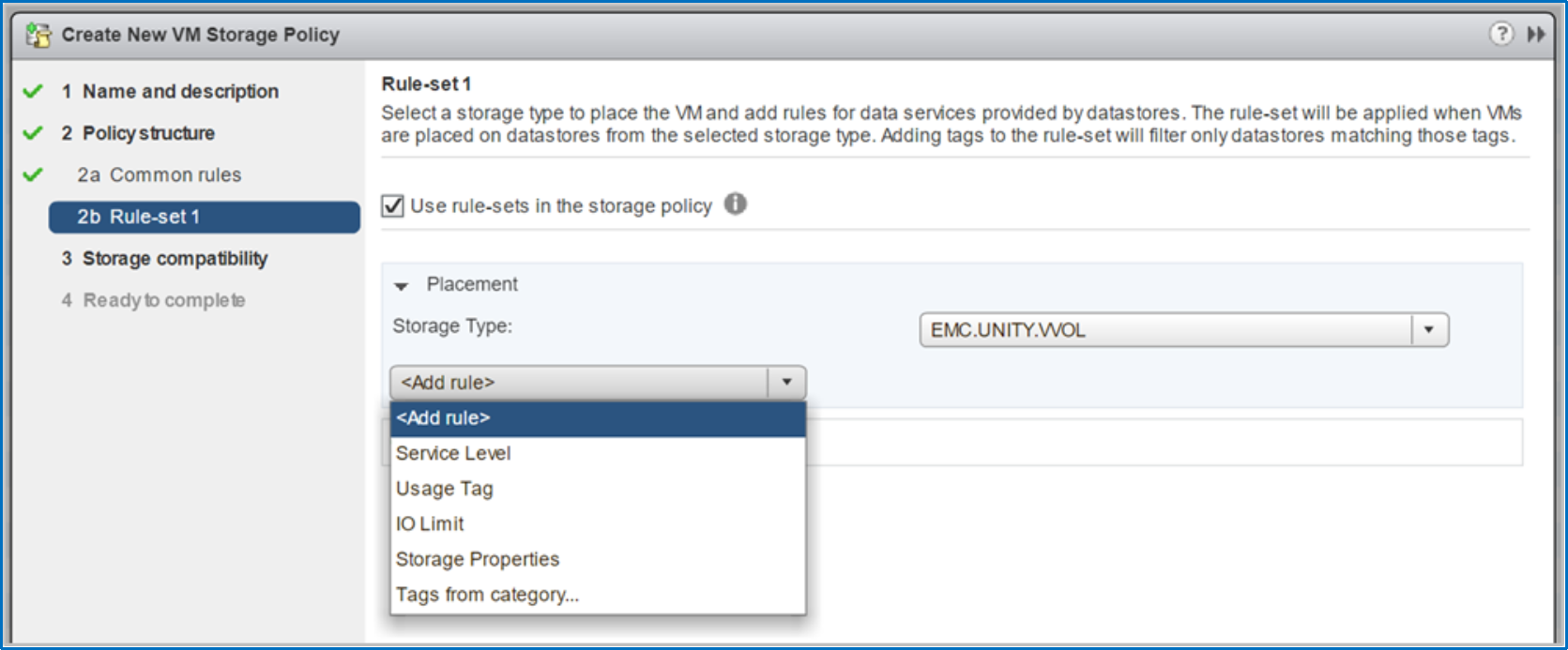
Figure 19. Creating a VM storage policy
Low-level storage properties can also be selected when creating VM storage policies. These include characteristics such as drive type, FAST Cache, RAID type, and tiering policy. These are designed to enable advanced VMware administrators who are familiar with storage capabilities to customize their VM storage policies.
The next screen in the wizard displays a list of compatible and incompatible datastores based on the selected capabilities, as shown in Figure 20.
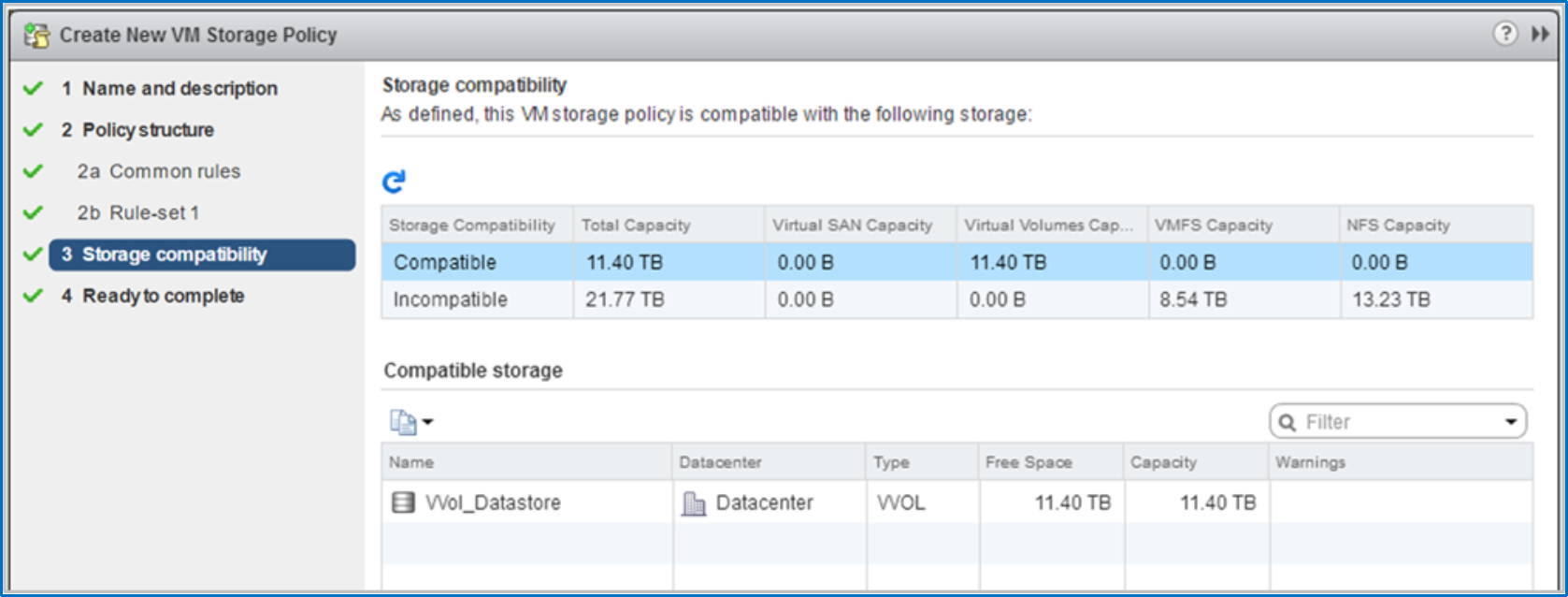
Figure 20. Viewing storage compatibility
After VM storage policies are configured, VMs can be deployed on vVol datastores similar to NFS and VMFS datastores. On the Select Storage step of the new VM wizard, there is a drop-down menu that displays the VM storage policies that were created in vSphere. When a policy is selected, its capabilities are compared with the capabilities of the available datastores. These datastores are categorized into compatible and incompatible categories to allow the administrator to easily identify datastores that are appropriate for that VM, as shown in Figure 21.
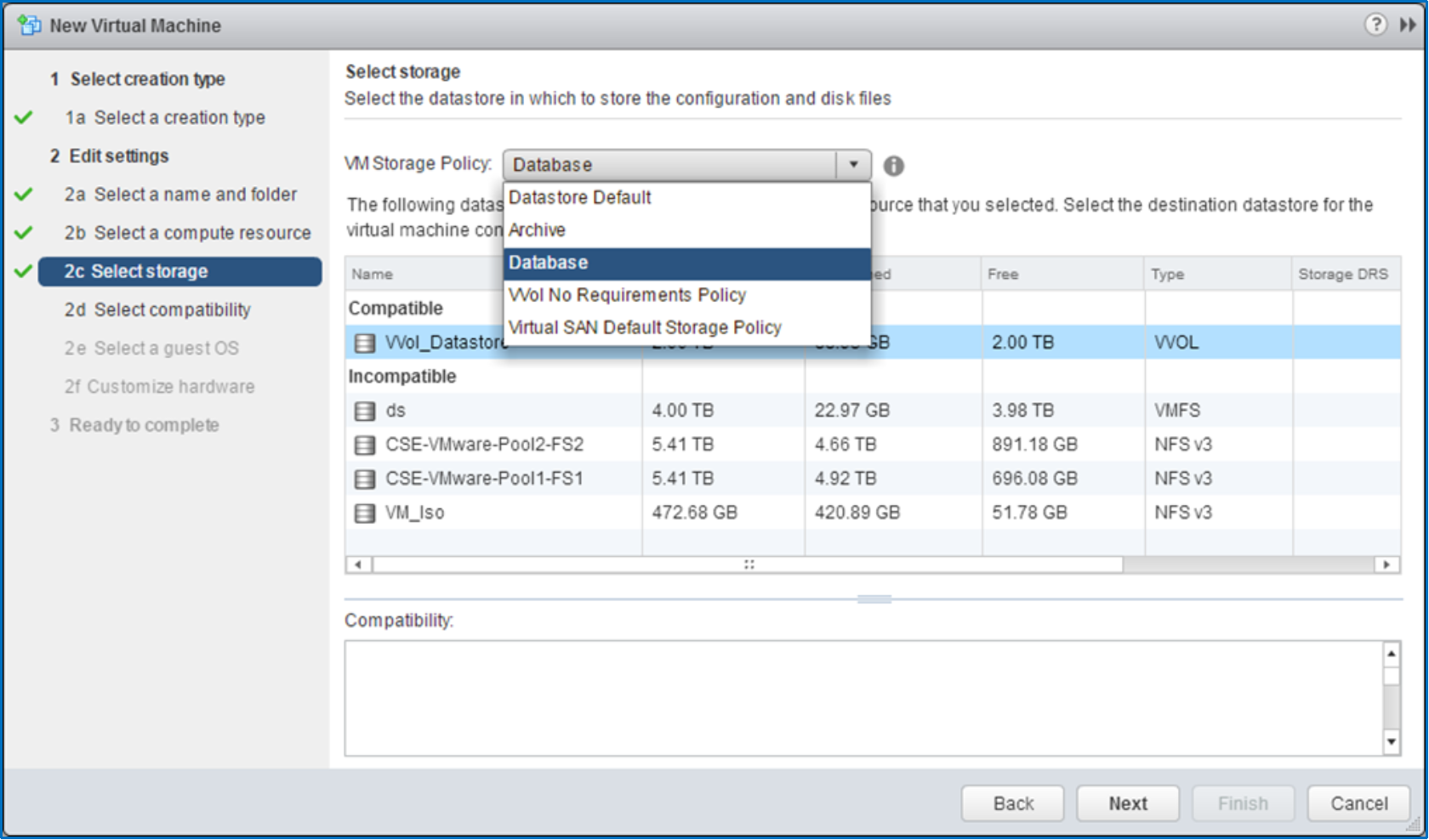
Figure 21. VM storage policies
After a VM is deployed using a VM storage policy, vSphere continues to periodically monitor the datastore to ensure continued compliance. The current compliance status and the last-checked date is displayed in the VM Summary page or the VM storage policy Monitor page. You can also initiate an on-demand compliance check on either of these pages. If the datastore falls out of compliance with the specified policy, this is displayed in vSphere Web Client to warn the administrator about the status, as shown in Figure 22.
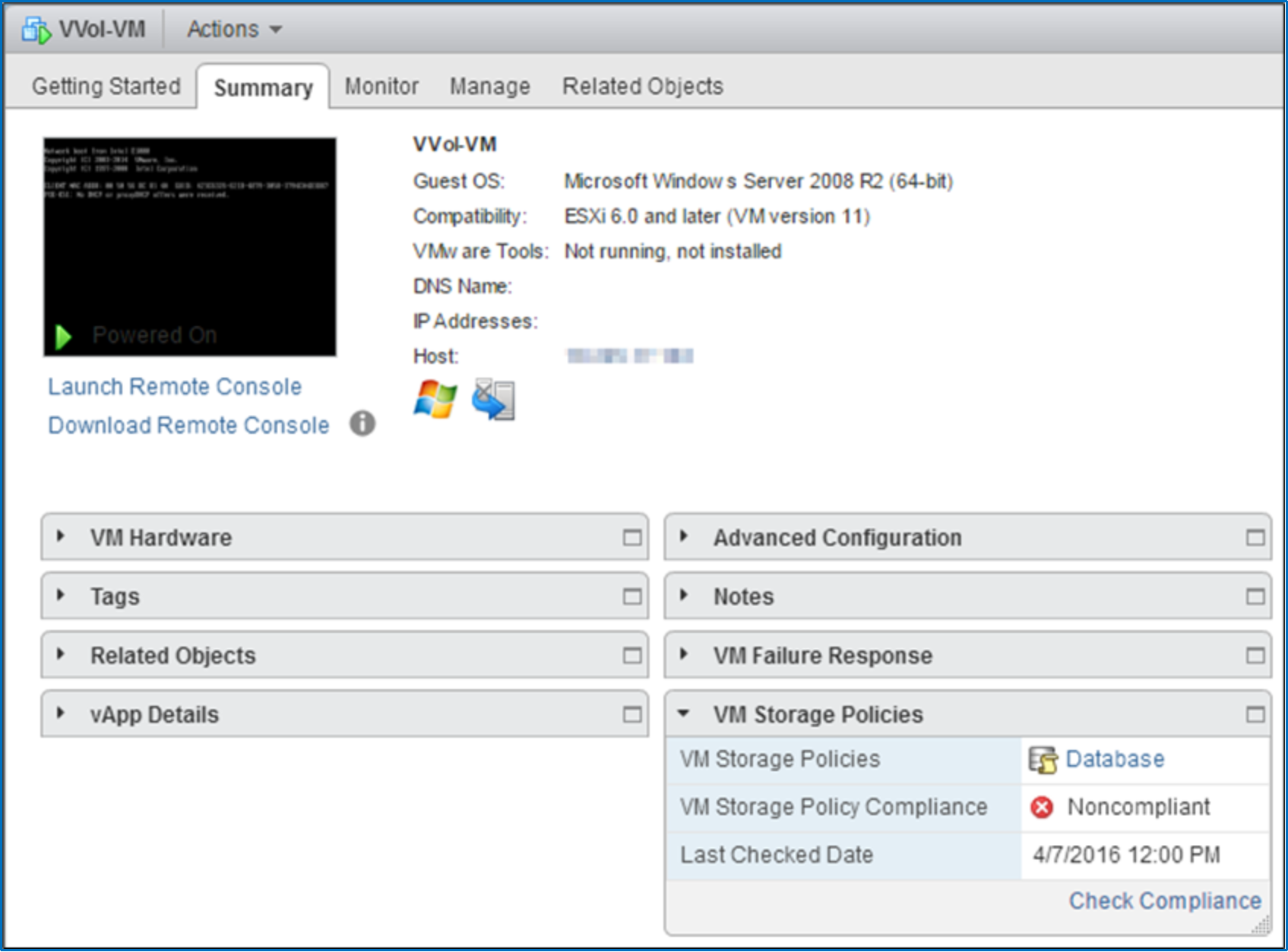
Figure 22. A noncompliant VM
It is possible to migrate VMs by using Storage vMotion. This provides the ability to move VMs to the datastores with the appropriate capabilities if the requirements change. VMs that have snapshots or fast clones cannot be migrated.
VMs can also be automatically migrated between back-end storage by changing the VM storage policy assigned to that VM. If the new VM storage policy is satisfied by a capability profile within the same vVol datastore, the VM is automatically migrated on the back end to ensure that it resides on a pool with the appropriate capabilities. Migrating the vVol by updating the VM storage policy can only be done if the new policy that you want to use is also available on the same vVol datastore. For example, if a single datastore contains two capability profiles for the Platinum and Bronze service levels, a VM storage profile update can be used to automatically migrate the VM’s vVols from one storage pool to the other.
To edit the VM storage policy assigned to a VM, right-click the VM to open the Manage VM Storage Policies page, as shown in Figure 23.
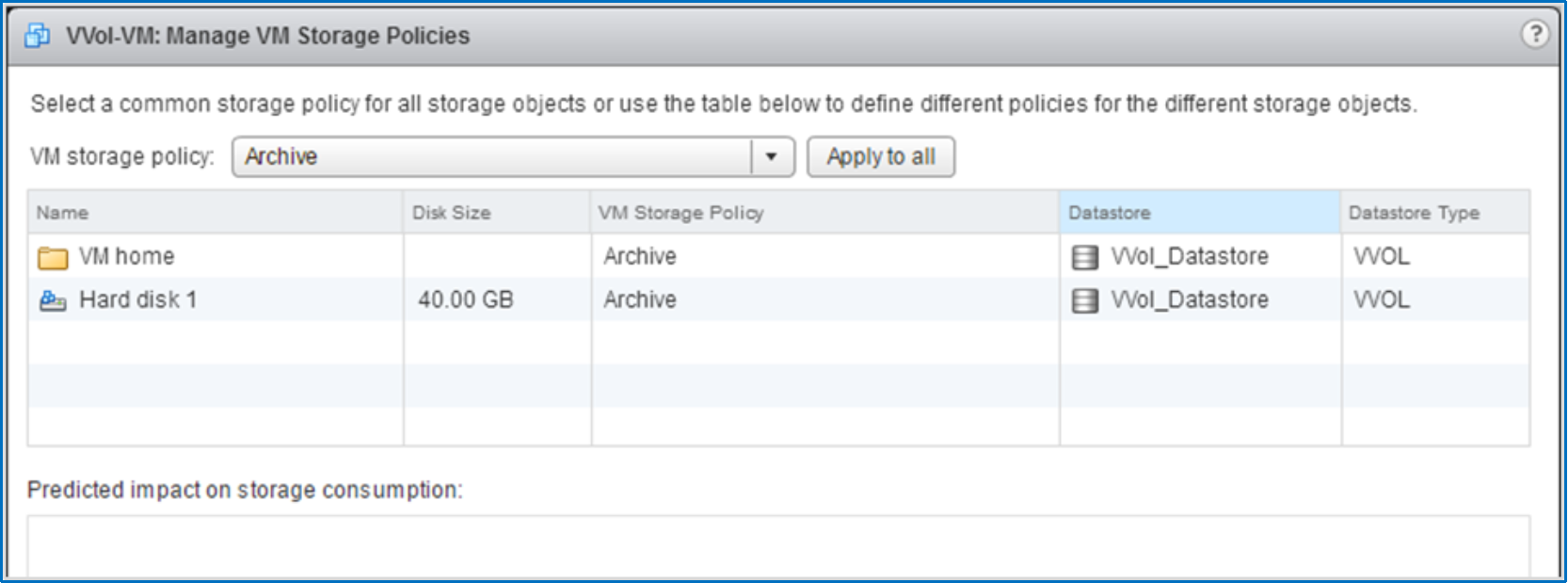
Figure 23. Editing the VM storage policy
Because each VM hard disk is stored on individual vVols, you can also apply a different VM storage policy to each individual hard disk. For example, for a database VM, you could put the database hard disk on the Platinum service level and put the log hard disk on the Gold service level.
If the current datastore does not have the required capabilities for the new VM storage policy, a VM storage policy update cannot be made. Instead, use Storage vMotion to migrate the VM to a different vVol datastore that has the appropriate capabilities. To do this, right-click the VM and click Migrate to move the VM to a different storage location. On the Select storage page, there is a drop-down menu for the VM storage policy. You can choose to keep the existing VM storage policy or select a new one on the new datastore. Similar to deploying a new VM, vSphere automatically categorizes the available datastores to help identify which datastores are compatible with this policy, as shown in Figure 24.
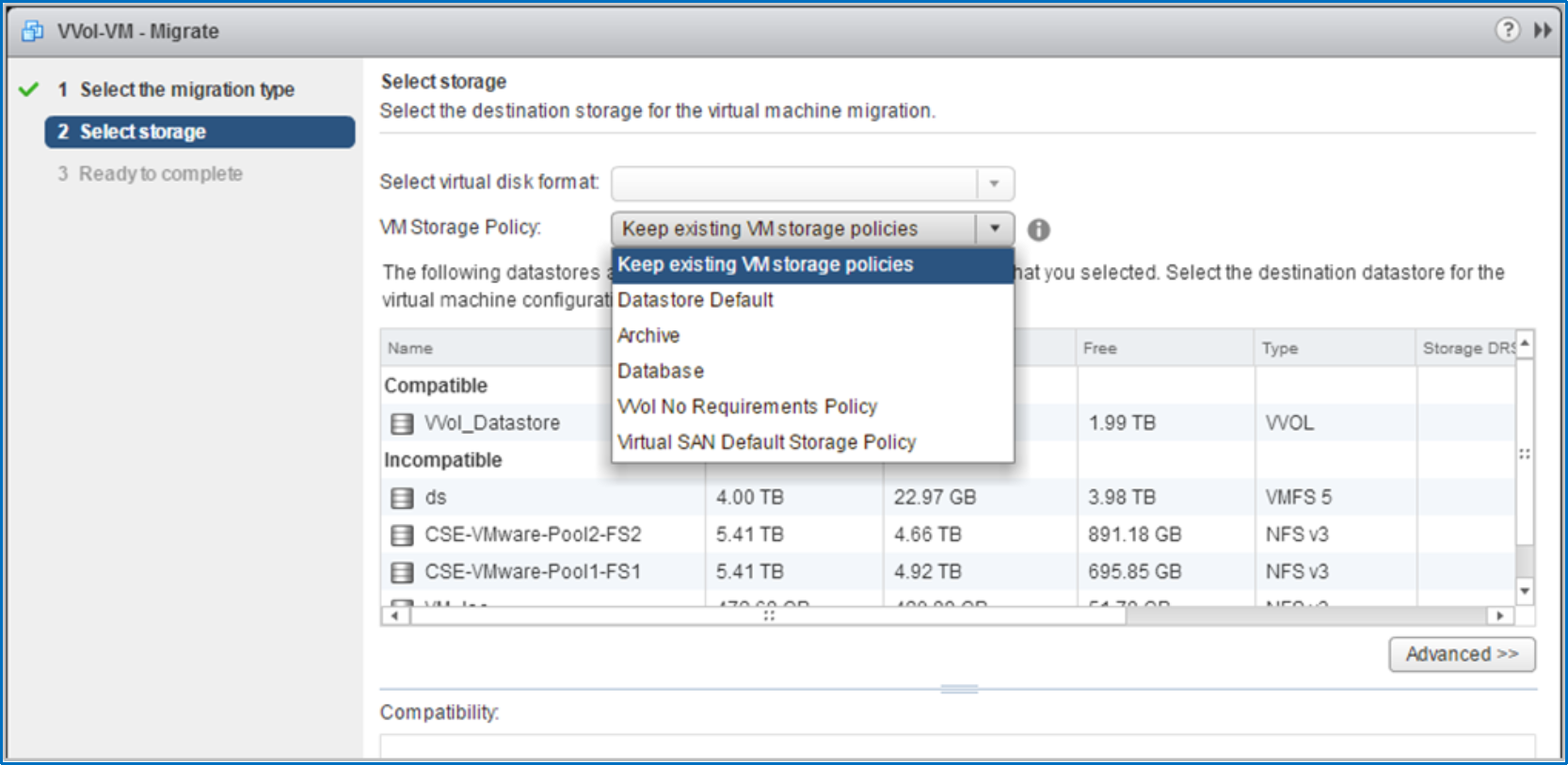
Figure 24. Using Storage vMotion
vVols
Traditionally, VM data is stored as a collection of files on a VMFS or NFS datastore, which is a LUN or file system on the storage system. With Virtual Volume (vVol) datastores, each file is stored on a dedicated storage object, called a Virtual Volume, on the storage system. Dell Unity storage keeps track of the different types of vVols and maps them to the VM to which they belong. This enables data services to be applied only to the vVols that are associated with a particular VM, instead of all of the VMs on the entire datastore.
Depending on the type of data that is being stored on the vVol, a certain type of vVol is provisioned:
- Data: Stores data such as VMDKs, snapshots, clones, and fast-clones. At least one data vVol is required per VM to store its hard disk.
- Config: Stores standard VM-level configuration data such as .vmx files, logs, and NVRAM. At least one config vVol is required per VM to store its .vmx configuration file.
- Swap: Stores a copy of a VM’s memory pages when the VM is powered on. Swap vVols are automatically created and deleted when VMs are powered on and off. The swap vVol size matches the VMs memory size.
- Memory: Stores a complete copy of a VM’s memory on disk when suspended, or for a with-memory snapshot.
At a minimum, three vVols are required for each powered-on VM: data for the hard disk, config for the configuration, and swap for the memory pages. Unisphere provides a list of the vVols that exist on the system. This is only for visibility and troubleshooting purposes because the management of vVols is handled automatically. Dell Unity storage uses the VASA protocol to communicate with vSphere to create, bind, unbind, and delete vVols as needed. With the release of Dell Unity OE version 4.1.2, support has been expanded to include VASA 3.0. The Virtual Volumes page in Unisphere is shown in Figure 25.
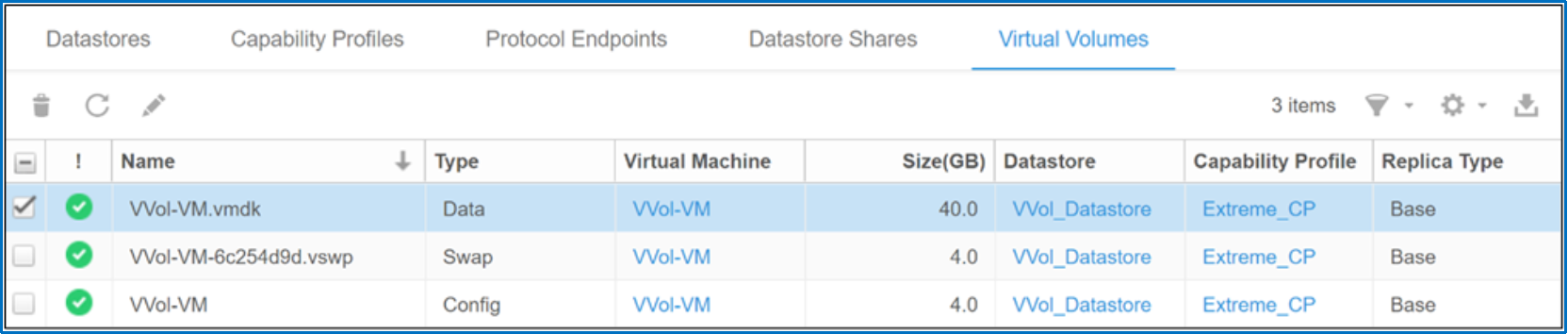
Figure 25. Virtual Volumes page
Open the Properties page to view more details of each type of vVol as shown in Figure 26.

Figure 26. Viewing vVol properties
VMs could potentially utilize several more vVols, depending on the configuration. For example, if additional hard disks are added to a VM, an additional data vVol is created for each hard disk. Another example is when a snapshot is taken of a VM, and a new data vVol is created to store the snapshot. If the VM is powered on and its memory is also included in the snapshot, a memory vVol is created to store the contents of the VM’s memory. As additional vVols are created, the Virtual Volumes page in Unisphere is updated with the latest information.
Data protection
Data protection features, such as snapshots and clones, can be applied at a VM-level of granularity by applying them only to the vVols that are related to a specific VM. Also, VASA allows vSphere to communicate with the Dell Unity system to facilitate offloading of these storage-related tasks to the Dell Unity system. Because these tasks are processed by the array, the ESXi host CPU, memory, and network utilization is reduced.
When a snapshot of a VM is initiated using the vSphere Web Client, it is offloaded to the Dell Unity system. Dell Unity storage creates a snapshot of the associated vVols for that particular VM, leaving other VMs on the same datastore unaffected because they are stored on different vVols. After the snapshot is created, a new data vVol is created to store the snapshots contents. The Replica Type is Ready Snap for the snapshot vVol as shown in Figure 27.
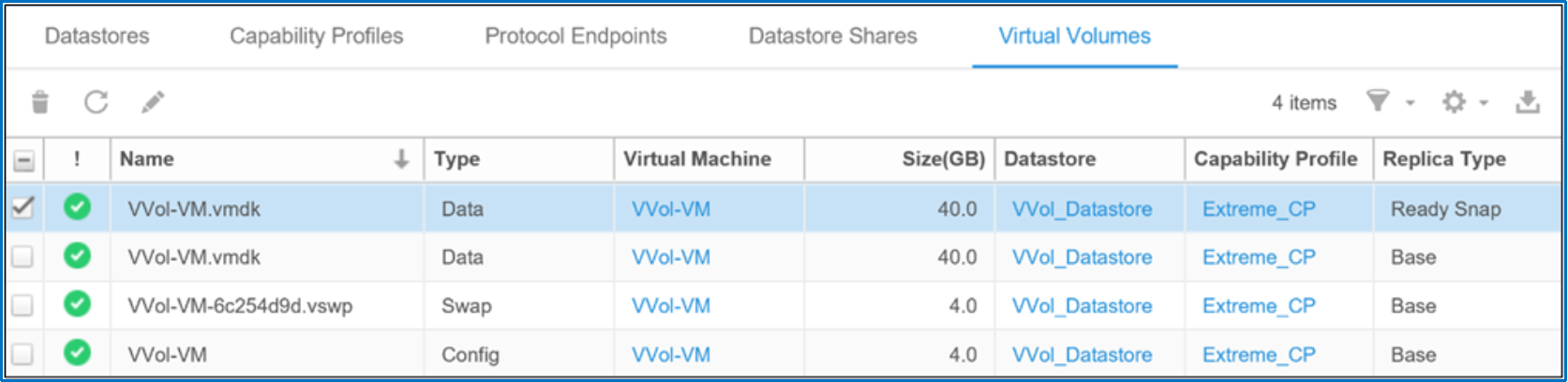
Figure 27. VM snapshot
The fast clones feature allows you to leverage snapshots to create a clone of a VM, which are offloaded to the Dell Unity system. A common use case where fast clones can be leveraged are VDI environments. Because snapshots are used and a full clone is not required, space efficiency is increased, and clones can be deployed very quickly. These clones are linked to the parent VM, so they must exist on the same storage container as the parent VM. Any changes on the parent VM or the snapshot do not have any effect on each other.
VM full cloning operations are also offloaded to the Dell Unity system. This significantly reduces ESXi host and network utilization because the data does not need to travel from the Dell Unity system to the ESXi host for reading, and then repeated again for writing. The VM storage policy can be selected when creating a clone, which allows for placement of the clone on to a different policy. After the clone is created, it can be managed as an independent VM. Any snapshots on the source VM do not get propagated to the clone. Dell Unity automatically creates a set of vVols for the clone, as shown in Figure 28.
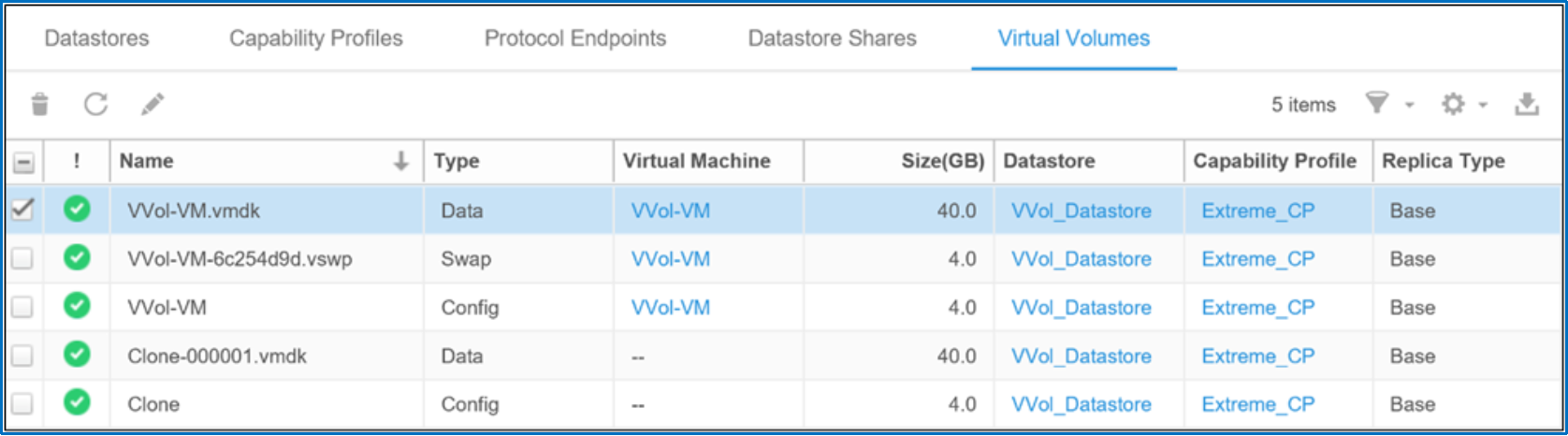
Figure 28. VM clone
Although Dell Unity storage includes a native VASA 3.0 provider, vVol replication is not supported. If VM-granular replication services are required, RecoverPoint for Virtual Machines can be leveraged. RecoverPoint for VMs is a software-only replication solution that provides any-point-in-time asynchronous and synchronous protection on a per-VM basis. It is storage agnostic, working in the hypervisor layer with all storage types supported by VMware, including vVols. For more information about RecoverPoint for VMs, reference the RecoverPoint for Virtual Machines Administrator’s Guide on the Dell Support website.
vVol metrics
Real-time vVol metrics are available using the Unisphere CLI (UEMCLI) or REST API. When viewing vVol metrics, vVols are identified using their UUID, which is a unique ID assigned to each vVol by VMware vSphere.
The following is an example of the CLI command used to view real-time vVol metrics:
uemcli /metrics/value/rt -path sp.*.storage.vvol.pool.*.datastore.*.readBytesRate show -interval 5
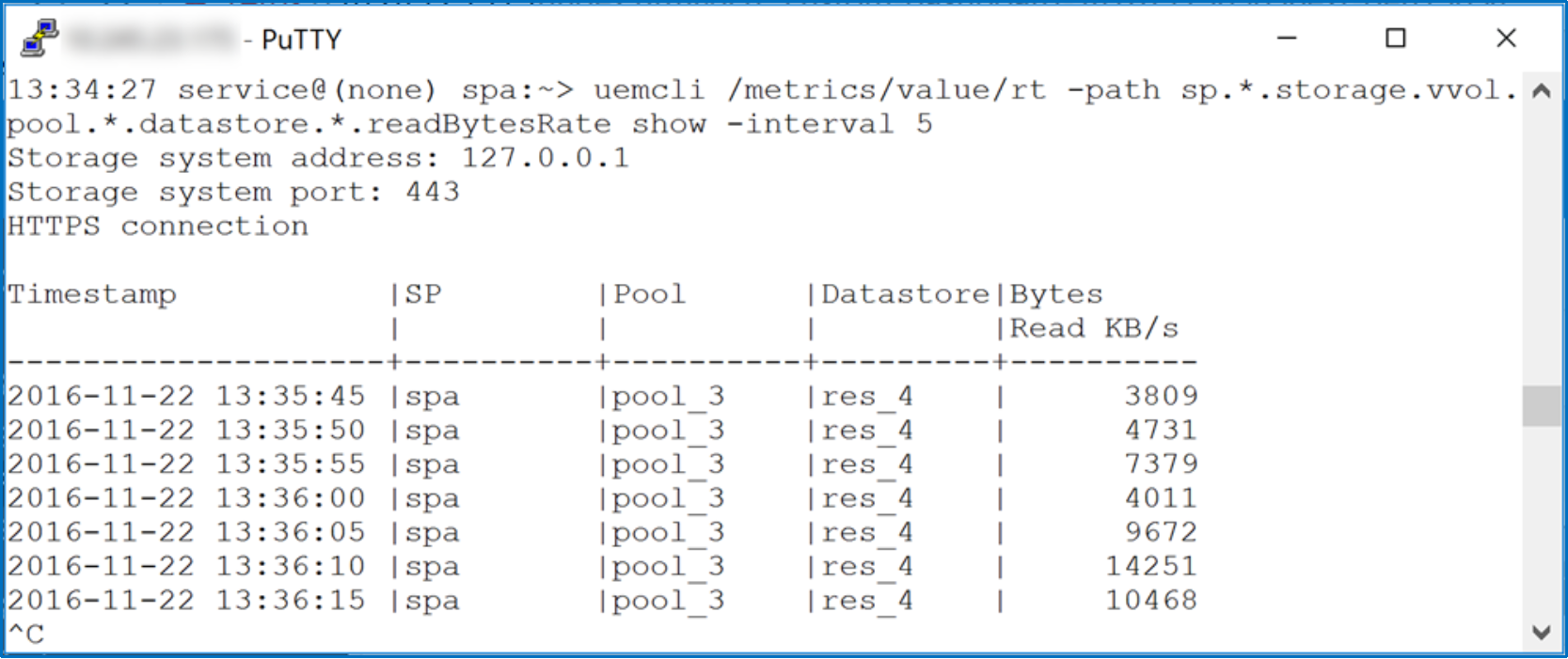
Figure 29. Viewing real-time vVol metrics from UEMCLI
Figure 30 shows a list of real-time vVol metrics that are available on Dell Unity storage.
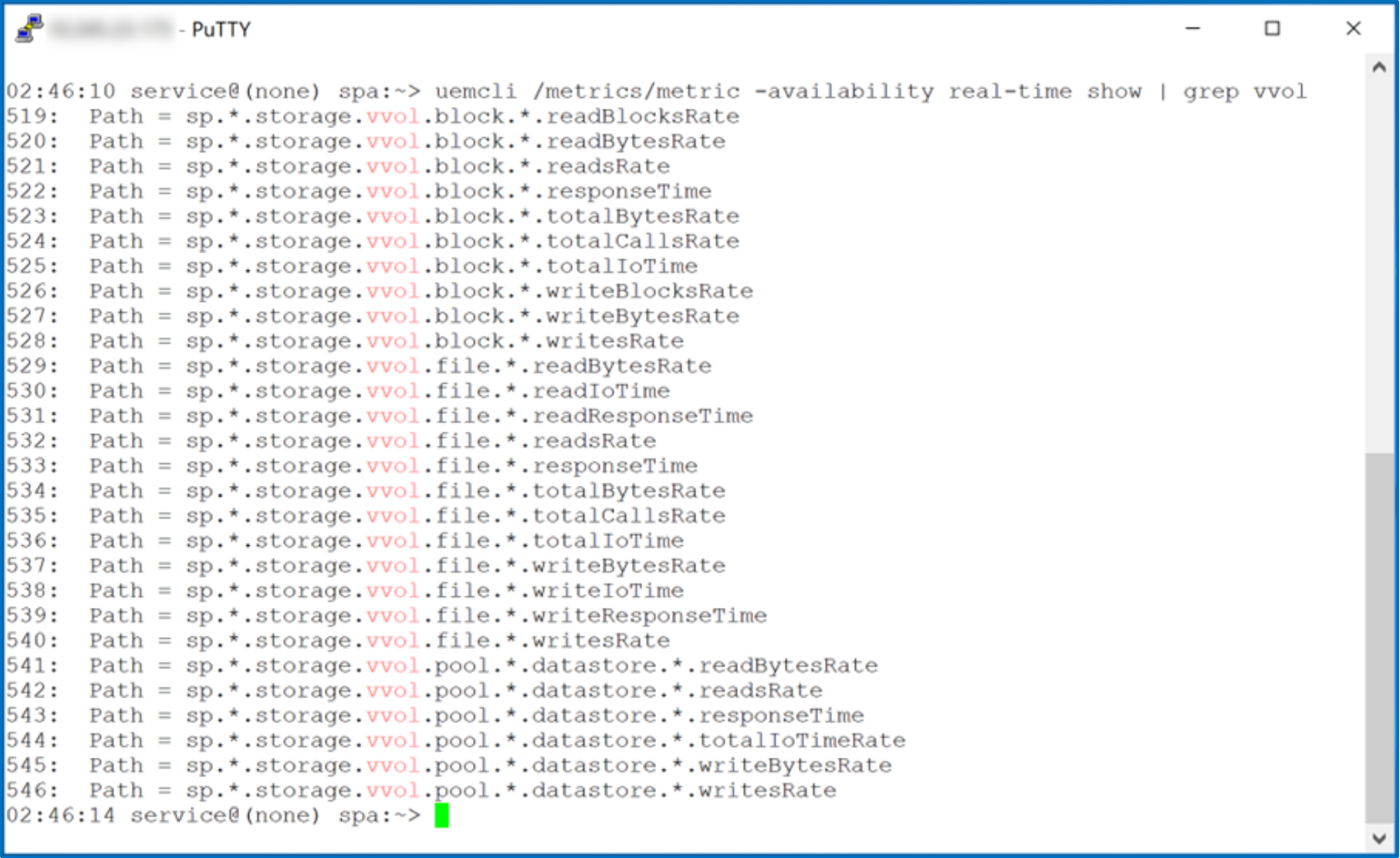
Figure 30. Real-Time vVol metrics
Starting with Dell Unity OE version 4.1, historical vVol metrics are available using Unisphere, the Unisphere CLI (UEMCLI), and the REST API. Figure 31 shows the available vVol metrics when adding a new chart to a historical dashboard under the Performance page. On the left, the system-level metrics are shown, while on the right, the vVol datastore metrics are shown.
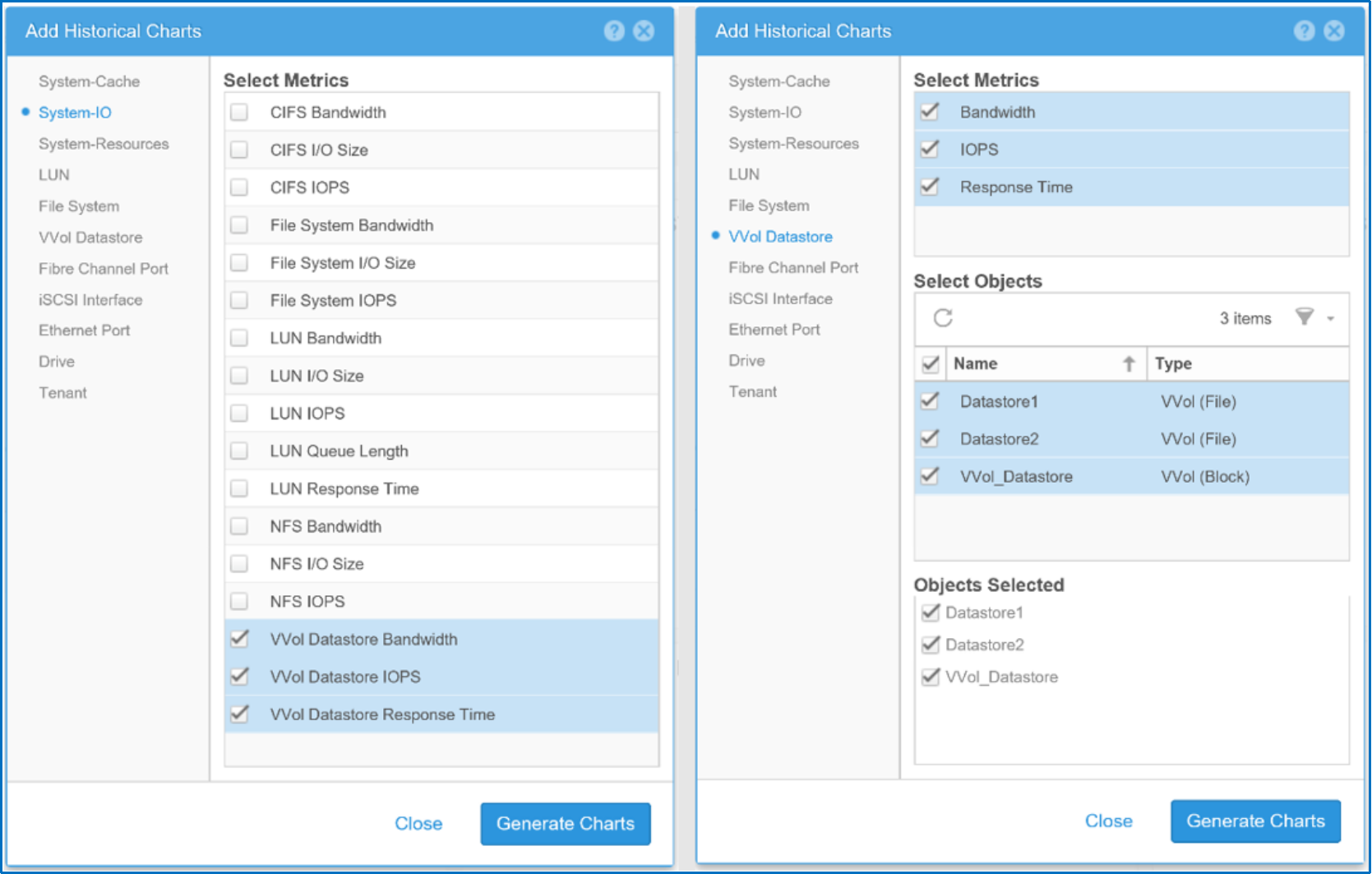
Figure 31. Adding historical charts
The following is an example of the CLI command to get historical vVol metrics:
uemcli /metrics/value/hist –path sp.*.storage.vvol.pool.*.datastore.*.readBytesRate show -interval 60
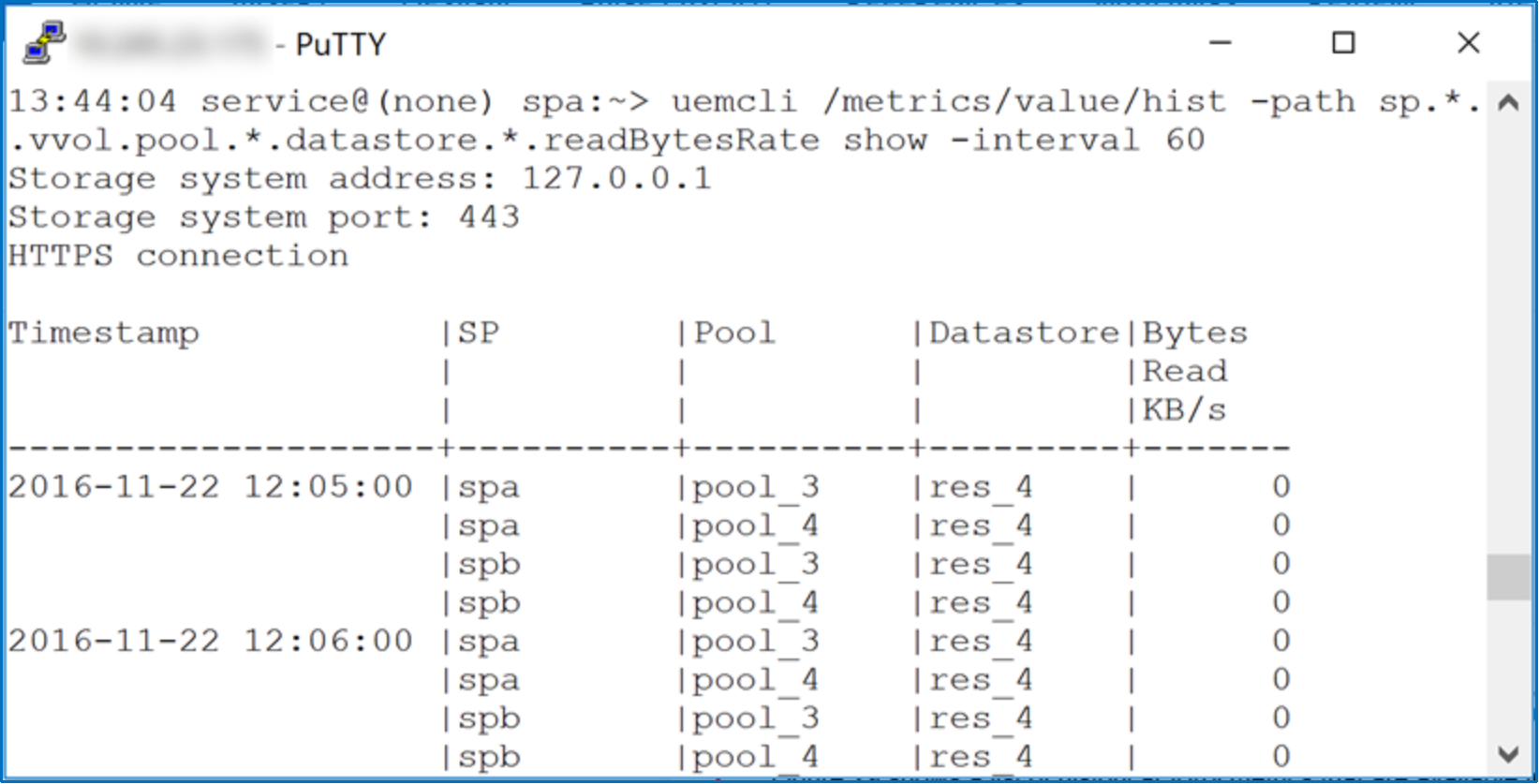
Figure 32. Viewing historical vVol metrics from UEMCLI
Figure 33 shows a list of historical vVol metrics that are available in Dell Unity storage.
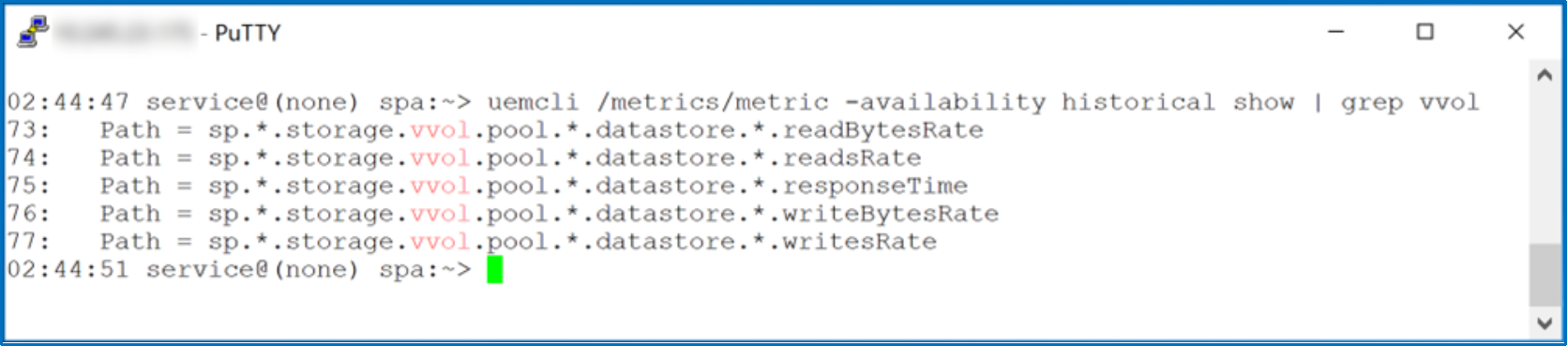
Figure 33. Viewing historical vVol metrics
For a vVol datastore that spans multiple pools, there is the option to view how much each pool contributes to the performance metric. The pool allocation per datastore can be seen by clicking the arrow next to the name of the datastore in the chart’s legend. Figure 34 gives an example of the IOPS pool allocation per datastore for a vVol datastore that spans two pools: Extreme_Pool and Capacity.
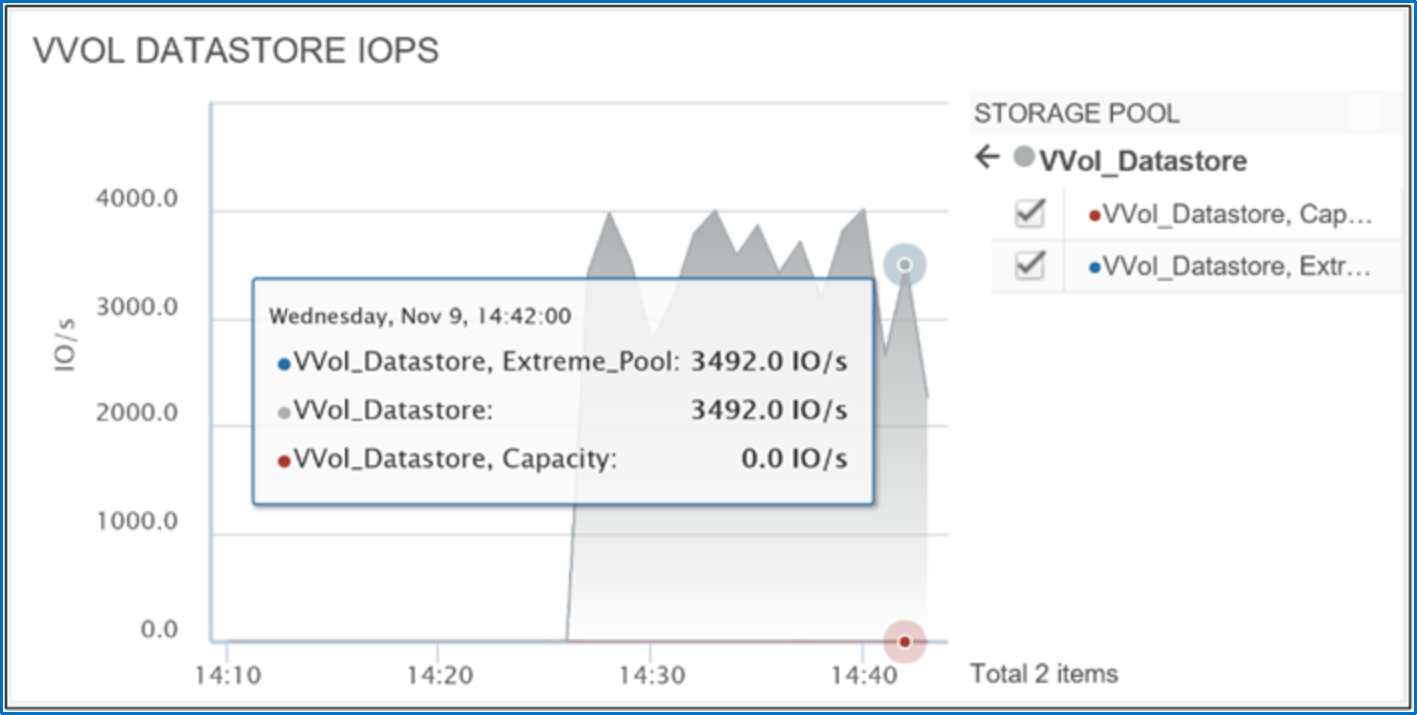
Figure 34. Pool allocation per datastore
Refer to the Unisphere Command Line Interface User Guide on Dell Support for more information about viewing historical and real-time metrics using UEMCLI.
Virtual Storage Integrator
Virtual Storage Integrator
The Dell Virtual Storage Integrator (VSI) for VMware vSphere Web Client is a free plug-in for VMware vCenter. It brings storage management capabilities to the VMware administrator through the standard VMware vSphere client interface. With VSI, there is no longer a need to use multiple management interfaces to view and perform various storage-related tasks. VSI enables administrators to view, manage, optimize, and map storage to VMware ESXi hosts. VSI for Dell Unity includes support for provisioning datastores and RDMs, configuring multipathing policies, reclaiming space, and more. Figure 35 shows the VSI menu in the VMware vSphere Web Client.
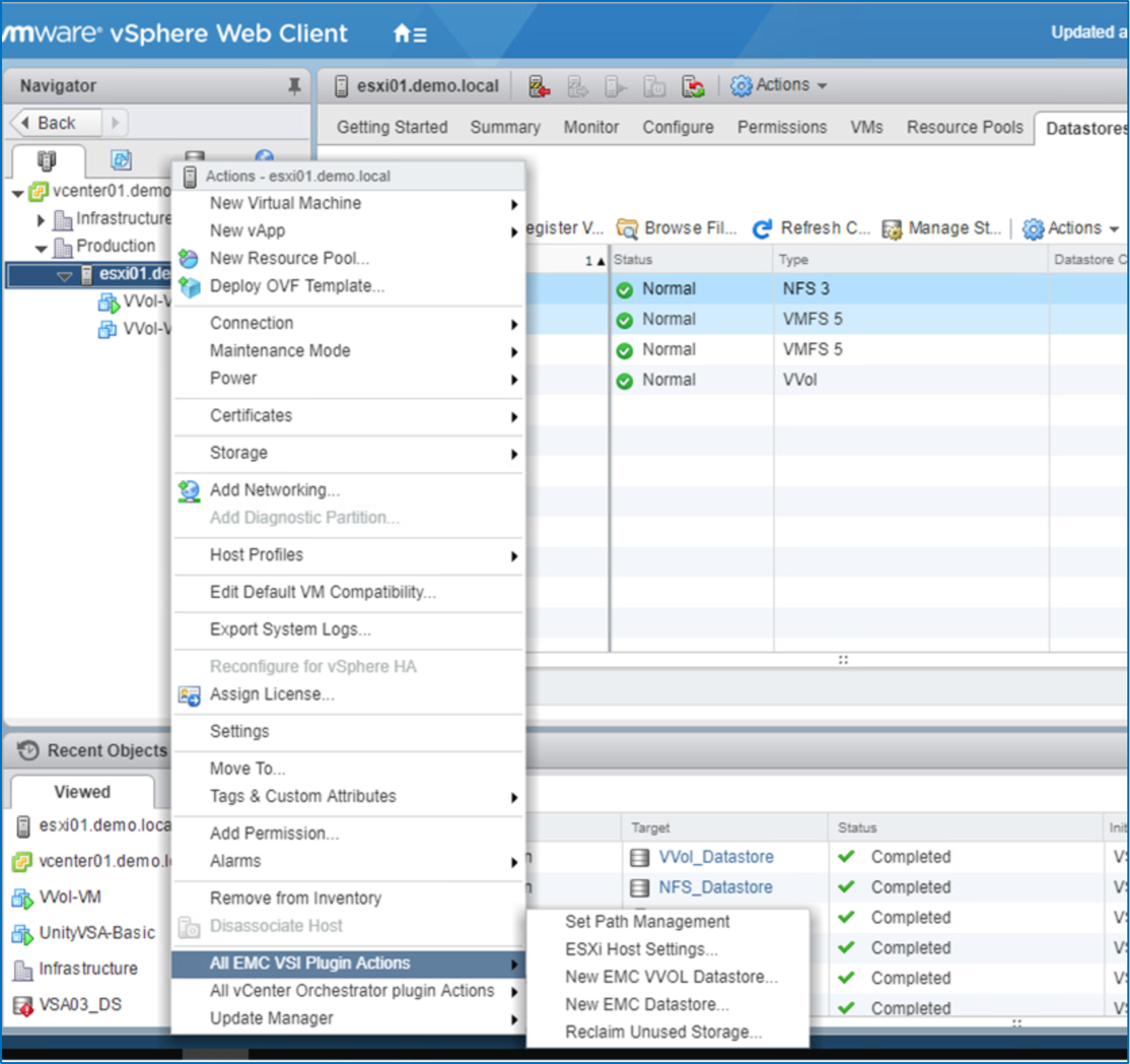
Figure 35. Virtual Storage Integrator menu
VSI also supports other Dell platforms including VNX, VNXe, PowerMax/VMAX, VPLEX, XtremIO, AppSync, and RecoverPoint. For more information about VSI, refer to the Dell VSI for VMware vSphere Web Client Product Guide on the Dell Support website.
Microsoft SMB3
Microsoft SMB3
SMB3 was introduced by Microsoft starting in Windows 8 and Windows Server 2012. Dell Unity storage supports SMB1, SMB2, and SMB3.02. Compared to previous versions, SMB3.02 includes enhancements that can be leveraged by Hyper-V such as continuous availability, multichannel, offload copy, protocol encryption, and shared VHDX support. Figure 36 shows the options that can be configured when creating an SMB share. For more information about SMB3, refer to the Dell Unity: NAS Capabilities white paper, available on the Dell Unity XT Info Hub.
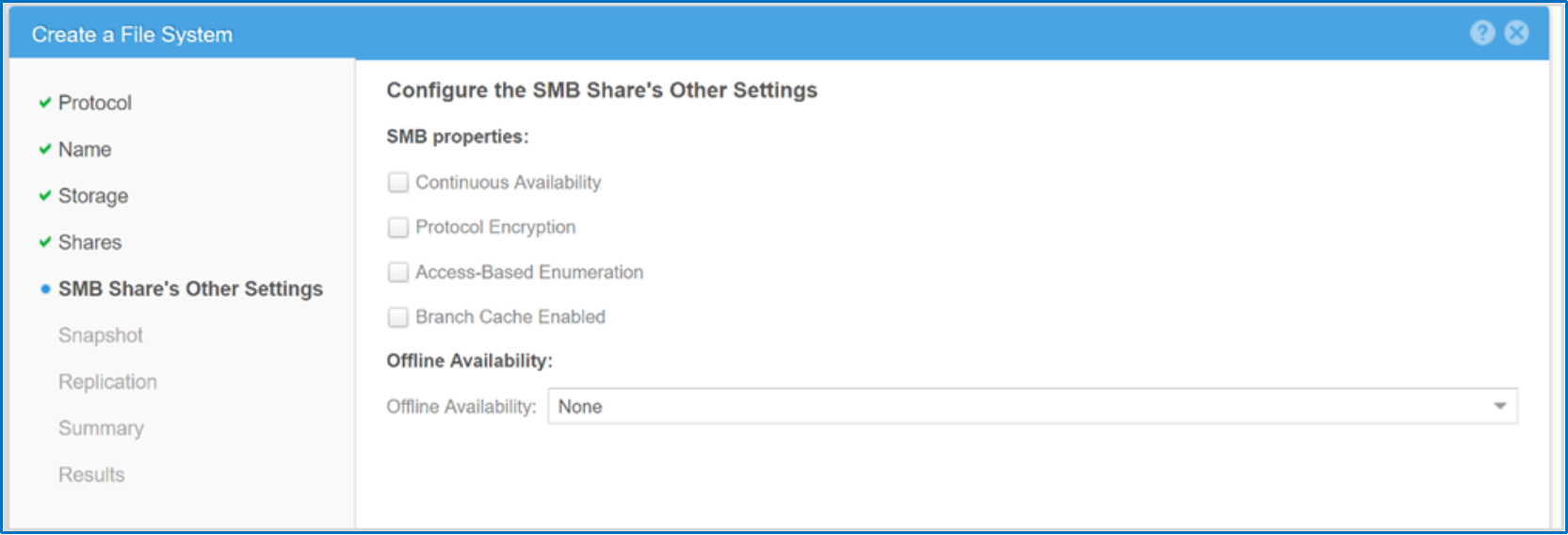
Figure 36. SMB share settings
Microsoft ODX
Microsoft ODX
Offloaded Data Transfer (ODX), introduced in Microsoft Windows Server 2012, is designed to offload operations from the Hyper-V host to the Dell Unity storage system. Moving data using traditional methods for tasks such as migrating virtual machines, backing up data, or copying large data files can be a time-consuming and resource-intensive process. By offloading these functions, ODX lowers the Hyper-V server’s CPU and network utilization to nearly zero during copy or move operations.
ODX accelerates copy operations using a token-based mechanism for reading and writing data within the Dell Unity system. Because only the small token is transferred between the hosts, all of the actual data movement is accomplished by the Dell Unity system. When the data movement is complete, the Dell Unity system sends the acknowledgment to the host to confirm the operation is complete. Figure 37 shows how ODX works.
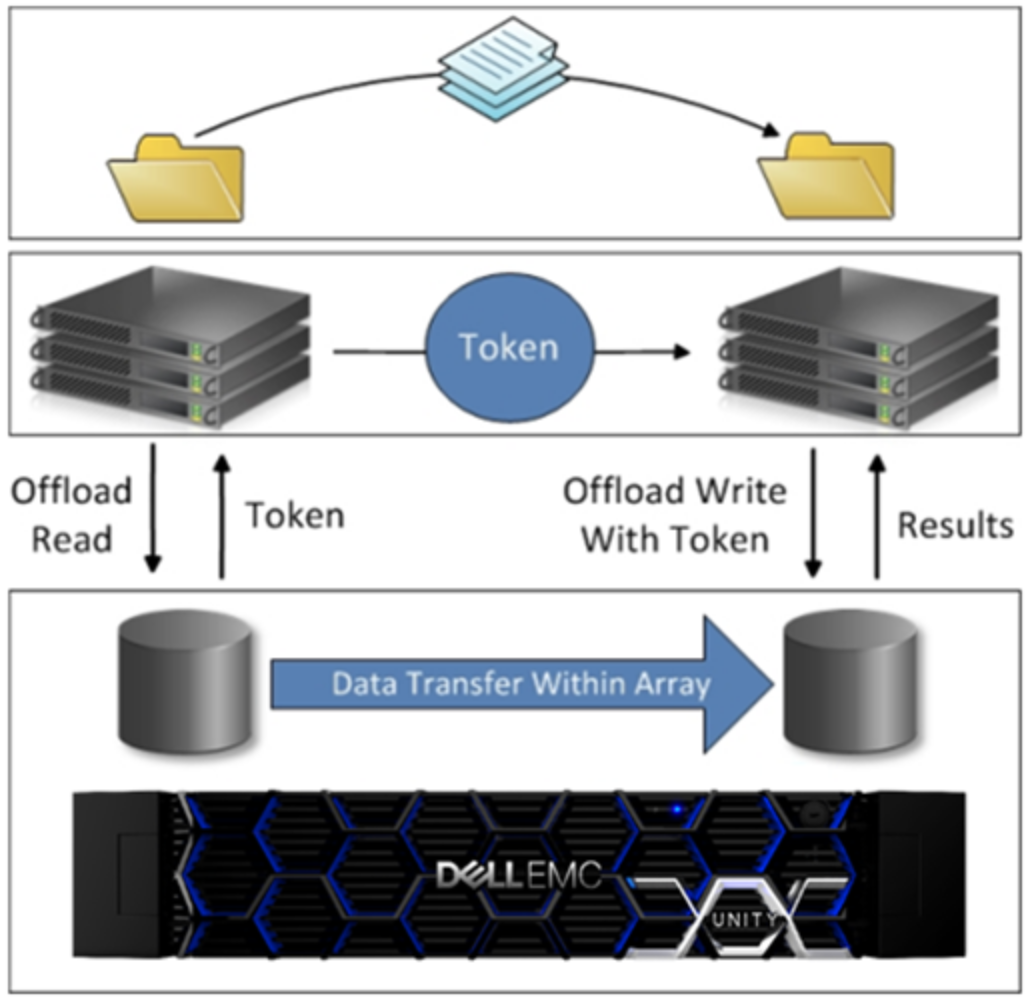
Figure 37. Offloaded data transfer
SMI-S
SMI-S
There is a strong focus in storage industry towards web-based management and the ability for applications to be able to manage various storage elements generically. The Storage Management Initiative Specification (SMI-S) is an industry-standard API that defines methods for management of a heterogeneous storage environment. Dell Unity storage includes on-array SMI-S 1.6 compliant API that can be leveraged by any application that supports SMI-S. Microsoft has made SMI-S the primary storage management interface for Windows Server 2012, Windows Server 2016, and System Center Virtual Machine Manager (SCVMM), as shown in Figure 38. See the SMI-S Programmers Guide for Unity on Dell Support for more information.
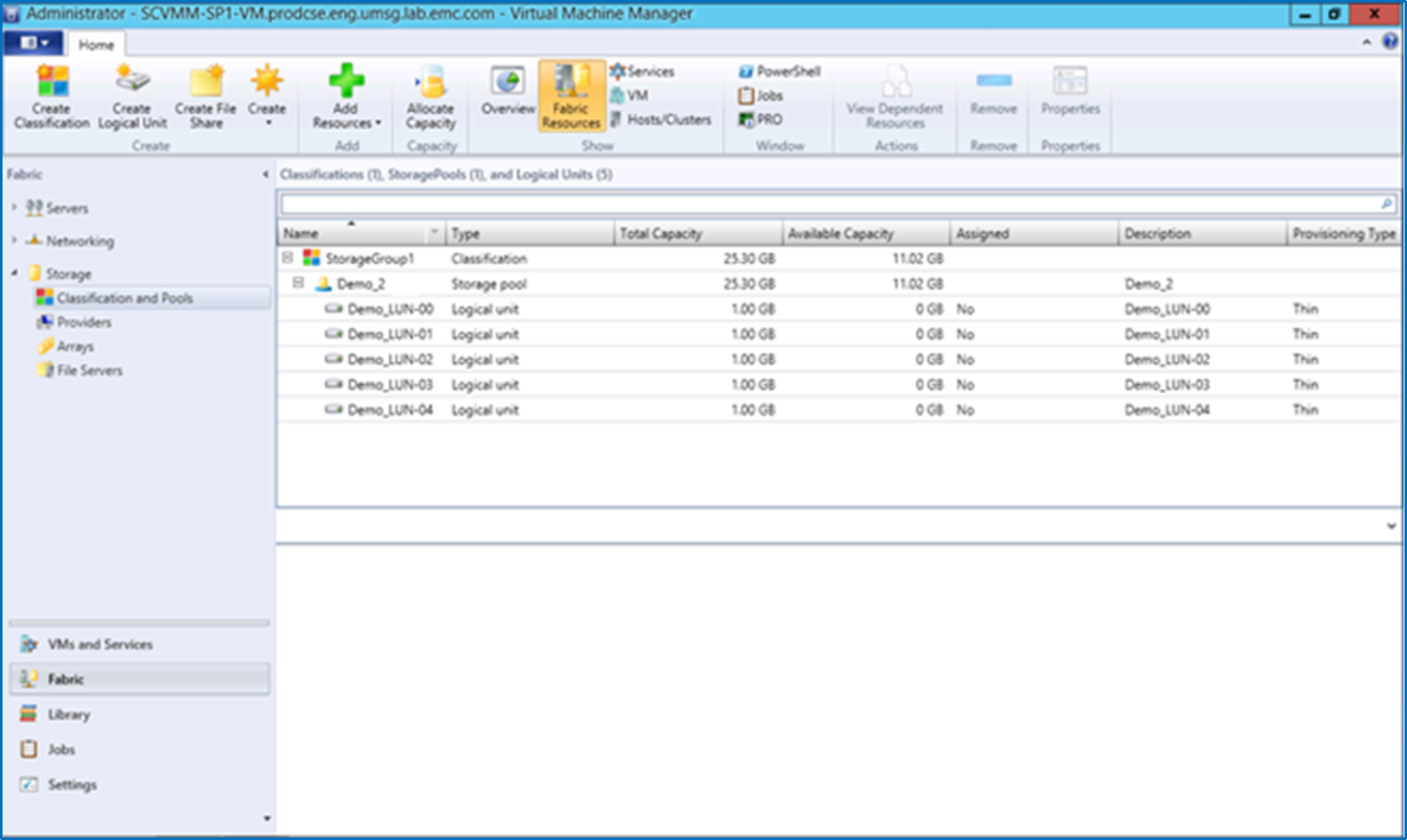
Figure 38. Microsoft SCVMM