Dell UnityVSA Overview

Oct 6, 2026
Dell UnityVSA Overview This white paper introduces the architecture, features, and functionality of Dell UnityVSA and Unity Cloud Edition.

Executive summary

Overview

Traditional storage systems consist of a software stack that runs on purpose-built hardware which is sold as a single product. Dell Unity Virtual Storage Appliance (UnityVSA) decouples the software stack from the physical hardware. This enables the software stack to be deployed on commodity off the shelf hardware. Dell UnityVSA increases agility and flexibility by enabling faster deployments, while also reducing hardware dependencies, allowing for hardware consolidation, and providing effective use of repurposed arrays.

Audience

This white paper is intended for storage or virtualization architects, administrators, partners, Dell employees, and anyone involved in evaluating, acquiring, managing, operating, or designing a virtualized environment using Dell UnityVSA.

Revisions

Date

Part number/
revision

Description

May 2016

H15092

Initial release - Dell UnityOS version 4.0

December 2016

H15092.1

Dell UnityOS version 4.1 updates

July 2017

H15092.2

Dell UnityOS version 4.2 updates

March 2018

H15092.3

Dell UnityOS version 4.3 updates

August 2018

H15092.4

Dell UnityOS version 4.4 updates

January 2019

H15092.5

Dell UnityOS version 4.5 updates

August 2019

H15092.6

Unity Cloud Edition HA updates

June 2021

H15092.7

Dell UnityOS version 5.1 updates

March 2025

H15092.8

Dell UnityOS version 5.5 updates

Terminology

The following table provides definitions for some terms used in this document.

Table 1.      Terminology

Term

Definition

File System

A storage resource that can be accessed through file sharing protocols such as SMB or NFS.

Fully Automated Storage Tiering (FAST VP)

A feature that relocates data to the most appropriate disk type depending on activity level to improve performance while reducing cost.

Internet Small Computer System Interface (iSCSI)

Provides a mechanism for accessing block-level data storage over network connections.

Logical Unit Number (LUN)

A block-level storage device that can be accessed using a protocol such as iSCSI.

Network File System (NFS)

A file access protocol that allows data access typically from Linux/UNIX hosts located on a network.

Server Message Block (SMB)

A file access protocol that allows data access typically from Windows hosts located on a network.

Snapshot

A point-in-time view of data stored on a storage resource. A user can recover files from a snapshot, restore a storage resource from a snapshot, or provide access to a host.

Software Defined Storage

A storage architecture where the software storage stack is decoupled from the physical storage hardware.

Storage Policy Based Management (SPBM)

Using storage policies to dictate where a VM will be stored, as opposed to choosing a datastore manually.

Storage Pool

A repository of disks from which storage resources such as LUNs and file systems can be created.

Storage Processor (SP)

A storage node that provides the processing resources for performing storage operations as well as servicing I/O between storage and hosts.

Thin Provisioning

A storage feature used to allocate storage on an as-needed basis from a larger reserved resource.

Unisphere

An HTML5 graphical user interface that is used to manage Dell Unity systems.

Unisphere Command Line Interface (UEMCLI)

An interface that allows a user to perform tasks on the storage system by typing commands instead of using the graphical user interface.

Virtual Storage Appliance (VSA)

A storage node that runs as a virtual machine instead of on purpose-built hardware.

vSphere API for Array Integration (VAAI)

A VMware API that allows storage-related tasks to be offloaded to the storage system.

vSphere API for Storage Awareness (VASA)

A VMware API that provides additional insight into the storage capabilities in vSphere.

Virtual Volumes (vVols)

A VMware storage framework which allows VM data to be stored on individual Virtual Volumes. This allows for data services to be applied at a VM-granularity and enables Storage Policy Based Management (SPBM).

Introduction

Introduction

Dell UnityVSA is a unified Software Defined Storage (SDS) solution that runs on the VMware vSphere platform. Dell UnityVSA provides a flexible storage option for environments that do not require dedicated storage systems such as test/development or remote office/branch office (ROBO) environments. Users can quickly provision a Dell UnityVSA on general purpose server hardware, which can result in reduced infrastructure costs and a quicker rate of deployment.

Both existing and new users can benefit from the Dell UnityVSA. Existing users can utilize existing third-party server hardware in their test/development or ROBO environments, while new and curious users can use UnityVSA to try out newer functionality, and APIs before purchasing a physical system.

Prior to UnityOS 4.5, Dell UnityVSA was available in Single-SP mode only. In the UnityOS 4.5 release, High Availability (HA) functionality was added, with the introduction of  UnityVSA Dual-SP (also known as Dell UnityVSA HA). Dell UnityVSA Dual-SP can continue system operations in the event of an SP failure, which significantly increases the system’s applicable use case scenarios and enables non-disruptive upgrades (NDU). From the UnityOS 5.1 release, UnityVSA Dual-SP supports additional hardware scaling options, which includes increased storage capacity and an additional 12-core CPU / 96GB memory deployment option. UnityVSA Dual-SP is available only with Professional Edition (PE) licenses in the following capacity options: 10TB, 25TB, 50TB, and 350TB.

For the remainder of this document, Dell UnityVSA Single-SP refers to the single node solution of Dell UnityVSA, while Dell UnityVSA Dual-SP refers to the HA (dual-node) solution. The term “Dell UnityVSA”  refers to both product types as they share the same feature set, and both utilize Unisphere for GUI management.

Requirements (Dell UnityVSA Single-SP)

Requirements (Dell UnityVSA Single-SP)

Dell UnityVSA Single-SP can run on any server that supports VMware ESXi and meets the minimum requirements. If local storage is used, a hardware RAID controller on the ESXi host must be used to configure redundant storage for Dell UnityVSA Single-SP. If storage is provided from a redundant storage system or server SAN, a RAID controller on the ESXi host is not required. A full description of the minimum and recommended requirements for Dell UnityVSA Single-SP is detailed below.

Note that the UnityVSA SP requirements from Table 1 refer to the UnityVSA Virtual Machine (VM) settings.

Table 1.      Server and VM Requirements (Dell UnityVSA Single-SP)


Minimum Requirements

Recommended Requirements

ESXi Requirements


ESXi host configuration


ESXi 6.5+

ESXi 6.5+

Hardware processor

Xeon E5 Series Dual Core CPU 64-bit x86 Intel 2GHz+ (SSE4.2 or greater)

Xeon Silver 4110 or higher

Hardware memory

20GB minimum for ESXi 6.5

36GB minimum for ESXi 6.5+

Hardware network

1x 1GbE (management and IO traffic go through the same physical port)

1x 10GbE (management and IO traffic go through the same physical port)

Hardware RAID

RAID Controller: 512MB NV cache and battery backed recommended

RAID Controller: 512MB NV cache and battery backed recommended

Disk

Any disk type as system disks

SSD as system disks

Datastore Requirements

VMware datastore (NFS and VMFS supported)

No requirement

Full-SSD datastore

UnityVSA SP Requirements

Virtual processor cores

2 (2GHz+)

2 (2GHz+)

Virtual system memory

12GB

12GB

Virtual network adapters

6 (4 adapters for I/O, 1 for Unisphere, and 1 for system use)

6 (4 adapters for I/O, 1 for Unisphere, and 1 for system use)

Requirements (Dell UnityVSA Dual-SP)

Requirements (Dell UnityVSA Dual-SP)

Dell UnityVSA Dual-SP has similar requirements as Dell UnityVSA Single-SP on a per SP basis. However, in terms of VMware requirements, a vCenter is mandatory. This manages both ESXi hosts which are being deployed. Dell UnityVSA Dual-SP also requires the configuration of an internal network including main communication between SPs using a common messaging conduit network known as CMI. A pair of heartbeat networks allow monitoring of the peer SP health from each SP.

The CMI network, and the heartbeat networks, must be configured on three separate unused VLANs (1 for CMI, and 1 for each heartbeat network) to provide network isolation for each network. The CMI network must be able to access both configured vmnic ports on each ESXi host, given that two vmnic ports are available, while each heartbeat network maps to a separate vmnic port on each ESXi host. For example, if “vmnic1” and “vmnic2” ports on an ESXi host are utilized for Dell UnityVSA Dual-SP, the CMI network must map to both “vmnic1” and “vmnic2” ports, the first heartbeat network must map to the “vmnic1” port, and the second heartbeat network must map to the “vmnic2” port. There are also a pair of storage heartbeat networks that must be configured on top of shared datastores. These act as a redundant heartbeat mechanism in case the primary heartbeat network mechanism fails. The storage heartbeat networks utilize BlockPing to verify peer SP connectivity.

It is recommended that you configure a fully redundant network design to ensure there is no single point of failure. For example, each heartbeat network should be mapped to separate physical ports on the ESXi hosts, mapped to separate VLANs from the CMI network VLAN, and be cabled to separate switches. Also, the storage heartbeat networks should come from two separate shared datastores from two separate storage systems. This allows for one switch failure, one network VLAN failure, or one cable failure, but will not affect the availability of the other network.

A full description of server requirements for Dell UnityVSA Dual-SP is detailed in Table 2 below. Note that the table requirements are the recommended best practice values and not the minimum values for deploying Dell UnityVSA Dual-SP. These values ensure full redundancy and avoid single points of failure. For example, it is possible to deploy Dell UnityVSA Dual-SP on a single ESXi host, but it is not recommended as it exposes the inherent HA nature of the solution.

Table 2.      Server and VM Requirements (Dell UnityVSA Dual-SP)


2-Core UnityVSA

12-Core UnityVSA

ESXi Requirements

ESXi host configuration

ESXi 6.5+ with both SPs on separate ESXi hosts

ESXi 6.5+ with both SPs on separate ESXi hosts

Hardware processor

Xeon Silver 4110 or higher

Xeon Silver 4110 or higher

Hardware memory

36GB for ESXi 6.5 or later per host

120GB for ESXi 6.5 or later per host

Hardware network

3 x 10 GbE (1 physical port for SP management and IO ports, 2 for inter-SP network)

3 x 10 GbE (1 physical port for SP management and IO ports, 2 for inter-SP network)

Hardware RAID

RAID card 512MB NV cache, battery backed recommended

RAID card 512MB NV cache, battery backed recommended

Disk

No disk type

SSD as system disks

Switch Requirements

Hardware switch

10GbE port support

10GbE port support

Datastore Requirements

VMware datastore (NFS and VMFS supported)

One full-SSD shared datastore and a separate full-SSD local swap datastore

One full-SSD shared datastore and a separate full-SSD local swap datastore

UnityVSA SP Requirements

Virtual processor cores

2 (2GHz+) for each SP

12 (2GHz+) for each SP

Virtual system memory

12GB for each SP

96GB for each SP

Virtual network adapters

9 for each SP (4 ports for I/O, 1 for Unisphere, 1 for system use, and 3 for internal communication)

9 for each SP (4 ports for I/O, 1 for Unisphere, 1 for system use, and 3 for internal communication)

vCenter

Required

Required

VLANs

3 (1 for Common Messaging Interface (CMI) SP-to-SP communication, 1 for Heartbeat 0, and 1 for Heartbeat 1)

VLANs must be unique and not used elsewhere on the network

3 (1 for Common Messaging Interface (CMI) SP-to-SP communication, 1 for Heartbeat 0, and 1 for Heartbeat 1)

VLANs must be unique and not used elsewhere on the network

Heartbeat Mechanism (Dual-SP)

If the CMI network fails for Dell UnityVSA Dual-SP, a heartbeat mechanism is required to investigate if the issue is network connectivity or if the peer SP is lost (ESXi host went offline). For example, if the CMI fails, but at least one of the heartbeat networks, network, or storage, remains alive and can contact the peer SP, the heartbeat mechanism forces SPA to boot into Service Mode so that all services then run on SPB. Without the CMI network, the SPs cannot communicate, take ownership of specific resources, or update read cache data. One of the SPs must be forced to go offline to ensure proper system management and storage resource management.

In the unlikely event that the CMI network, primary network heartbeats, and secondary storage heartbeats all fail and cannot ping the peer SP, one of two scenarios may have occurred. Either one of the SPs went offline (due to a power outage, ESXi reboot, or VM reboot) or both SPs are still online but all internal networks were disconnected. In the former scenario, this would result in a graceful failover of resources to the surviving SP, but in the latter case, both SPs would assume the peer is lost and try to take over as the primary SP. This results in a “split-brain” scenario which could lead to data corruption (where both SPs write to the same resource). This case is the worst-case scenario but can be mitigated by following the best practices for networking, mentioned above, or by deploying a Tie Breaker Node (TBN) to avoid “split-brain” scenarios. More information on the Tie Breaker Node can be found in the Tie Breaker Node section.

UnityVSA Dual-SP uses Layer 2 Ethernet broadcasts to monitor the heartbeats of connected systems. Each heartbeat network (HB0 and HB1) must reside on the same Layer 2 broadcast domain and VLAN and have Layer 2 broadcast traffic enabled.

Tie Breaker Node (Dual-SP)

Dell UnityVSA Dual-SP can deploy a VM along with two SPs for a more robust solution against failure scenarios. The deployment of a TBN is not required, but highly recommended as it avoids “split-brain” scenarios where data corruption could occur if all internal networks (CMI and heartbeats) between the two SPs become isolated. This is done by changing the failure behavior of the SPs in certain scenarios once the TBN is configured. The TBN communicates to each SP on the same primary heartbeat network that the SPs utilize with the same VLANs configured.

If the CMI network fails, at least one heartbeat network remains available (primary network heartbeat or storage heartbeat), and TBN communication is valid for both SPs, then the same behavior occurs as without a TBN. SPA boots into Service Mode and all services run on SPB. In the same scenario, if SPB could not communicate with the TBN, but the TBN can still communicate with SPA, SPB is booted into Service Mode and SPA takes over all system services.

In the scenario where all internal networks (CMI and heartbeat networks) go down which would normally result in “split-brain” without a TBN, one of three things could occur: The TBN is still accessible to both SPA and SPB, the TBN is only accessible by one SP, or the TBN is not accessible by either SP. In the first case, SPA is booted into Service Mode. In the second case, the peer SP that is not accessible by the TBN is booted into Service Mode. In the last case, both SPs are booted into Service Mode. In all scenarios “split-brain” is avoided, and even in the worst-case scenario where all communication is unavailable, the system will enter a state of data unavailability than continue in a state of potential data corruption.

The TBN also uses Layer 2 Ethernet broadcasts to monitor the heartbeats of connected systems. For the TBN to function, each heartbeat network must reside on the same Layer 2 broadcast domain and VLAN and have Layer 2 broadcast traffic enabled.

Server Requirements (Tie Breaker Node)

A full description for minimum server requirements for the TBN VM is detailed below. Note that the TBN should be deployed on a separate host than the Dell UnityVSA Dual-SP VMs to keep the VM on a separate fault domain.

Table 3.      VM Requirements (Tie Breaker Node)

Resource

Requirement

Virtual processor cores

2x vCPUs

Virtual system memory

2GB RAM

Hardware network

2x 1GbE+ unused vmnic ports for networking to Dell UnityVSA SPs

Hardware RAID

RAID Controller: 512MB NV cache and battery backed (recommended)

VMware ESXi

ESXi 6.5 – 7.0

Hardware switch

vLAN (or VXLAN) support is required (At least 3 VLANs must be available)

Disk space

At least 12GB of disk space

Product Offerings

Overview

Dell UnityVSA is available in the Professional or Community versions. Community Edition has a free perpetual license that can only be applied to a UnityVSA Single-SP deployment with a maximum of 4TB storage. Meanwhile, the Professional Edition licenses can be applied to both Single-SP and Dual-SP deployments and support various storage capacity, CPU, and memory options. From UnityOS 5.1, scaling capabilities have been increased allowing the Dual-SP deployment to reach a maximum of 12-cores and 96GB memory per-SP and up to 350TB of storage. Note that all Community and Professional Edition license and deployment options are also available on a Dell Unity Cloud Edition deployment.

Table 4.      UnityVSA Product Offerings


Community

Professional

Features

ALL

Licensing

Free (Perpetual)

Subscription

Capacity

4TB

10TB, 25TB, 50TB, 350TB

CPU

2-core

2-core / 12-core

Memory

12GB

12GB / 96GB

Storage processors

Single

Single / Dual (note that Single-SP deployment does not support a 350TB storage capacity license)

Support

Community

ProSupport

Use

Non-Production

Production

Cloud Edition

ALL

Dell UnityVSA Single-SP Community Edition

Dell UnityVSA Community Edition is a free product that includes all features without any expiration. The Dell UnityVSA software package, videos, and guides can be downloaded through the Dell Unity Community forum. Support is also provided through the Dell Unity Community forum, where inquiries and discussions with other Dell UnityVSA users are encouraged. There is a 4TB storage capacity and 2-core CPU with 12GB memory limit on the Community Edition and it can only be used for non-production use cases.

Dell UnityVSA Single-SP Professional Edition

Dell UnityVSA Single-SP Professional Edition is a subscription-based product, which is available at 10TB, 25TB, or 50TB storage capacity with 2-core and 12GB memory. Users can start with the Dell UnityVSA Single-SP Community Edition and then convert to the Dell UnityVSA Single-SP Professional Edition later. Installing the Professional Edition license does not disrupt the existing Dell UnityVSA Single-SP system. Users must purchase a Professional Edition subscription prior to using Dell UnityVSA Single-SP for production use cases. Professional Edition licenses can be purchased for one year at a time. While the subscription is active, users can contact support if any issues arise. Licenses are tied to the Dell UnityVSA Single-SP System ID and also have a minimum code requirement.

As a reminder, Dell UnityVSA (both Single-SP and Dual-SP) displays alerts at certain times in Unisphere prior to the license expiration date. The following table shows when alerts are generated leading up to the expiration date:

Table 5.      Expiration Alerts

Weeks

Days

4 weeks

6 days

3 weeks

5 days

2 weeks

4 days

1 week

3 days


2 days


1 day

Prior to the license expiration date, you should contact Dell to renew the subscription and install a new license. If a license expires, Dell UnityVSA continues to operate, and any existing resources are still accessible. However, users are prevented from provisioning any new resources and do not have a valid support contract.

For users who initially purchased a 10TB or 25TB subscription and require additional capacity, the following capacity upgrades are supported:

  • 10TB to 25TB upgrade
  • 10TB to 50TB upgrade
  • 25TB to 50TB upgrade

Capacity upgrades and license renewals can be installed non-disruptively. When a capacity upgrade is installed, the limits on the system also scale accordingly. For example, when upgrading from 10TB to 25TB, the maximum file system and LUN sizes become 25TB. Upgraded licenses only increase the capacity limits of the system and do not extend the subscription expiration date. However, the upgrade licenses are prorated according to the expiration date of the current license. Note that licenses expired or for a smaller capacity than the current license cannot be installed.

Dell UnityVSA Dual-SP Professional Edition

Dell UnityVSA Dual-SP Professional Edition is an annual subscription-based product, which is available at 10TB, 25TB, 50TB, and 350TB storage capacity limits. In Dell UnityOS 5.1, Dual-SP now supports an additional CPU and memory deployment option. The available options are a 2-core and 12GB memory per-SP deployment or a 12-core and 96GB memory per-SP deployment. Users cannot convert from a Single-SP to a Dual-SP deployment. Likewise, users cannot convert from a 2-core / 12GB memory deployment to a 12-core / 96GB memory deployment. Users must purchase a Professional Edition subscription prior to using Dell UnityVSA Dual-SP. Professional Edition licenses can be purchased for one year at a time. While the subscription is active, users can contact support if any issues arise. Licenses are tied to the Dell UnityVSA Dual-SP System UUID and also have a minimum code requirement of UnityOS 4.5.

Dell UnityVSA Dual-SP provides the same Unisphere alerts as Dell UnityVSA Single-SP for license expiration date and also can convert from a lower capacity to higher capacity license as needed. Same considerations apply.

Dell UnityVSA Single-SP Deployment

Dell UnityVSA Single-SP Deployment

Dell UnityVSA Single-SP is delivered in the form of an Open Virtualization Appliance (OVA) template and can be deployed on VMware vSphere ESXi 6.5 or later. Dell UnityVSA Single-SP is deployed using the OVF Deployment Wizard in the vSphere client as shown below.
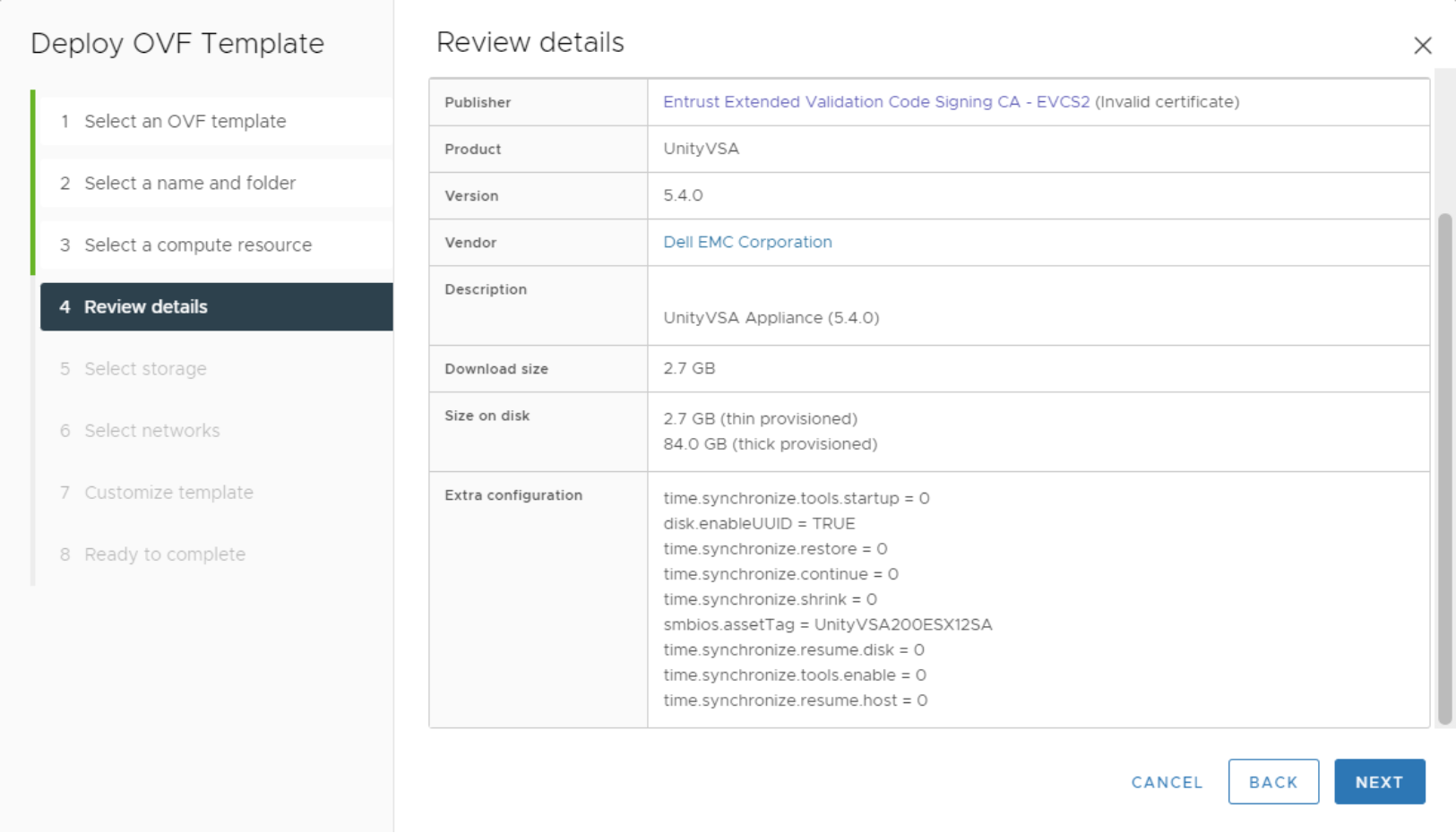
UnityVSA single Node OVA deployment details example

Figure 1.   Dell UnityVSA Deployment

The wizard walks through all the necessary steps to deploy Dell UnityVSA Single-SP including reviewing the license agreement, selecting a host, selecting a datastore, and configuring the network mappings for the data and management ports. If you need to change the network mapping after deployment, the virtual Ethernet adapter to Ethernet port mappings are:

  • Network adapter 2 à Management Port
  • Network adapter 3 à Ethernet Port 0
  • Network adapter 4 à Ethernet Port 1
  • Network adapter 5 à Ethernet Port 2
  • Network adapter 6 à Ethernet Port 3

See the Dell UnityVSA Installation Guide for more information on deploying Dell UnityVSA Single-SP.

Initial Boot

After provisioning is complete, the Dell UnityVSA Single-SP VM can be powered on for the first time. Do not make any changes to the VM, such as changing the virtual hardware configuration (CPU, memory, or NICs), as this causes Dell UnityVSA Single-SP to boot into service mode to prevent invalid configurations. The time it takes for the initial boot will vary depending on the infrastructure, especially the datastore's performance capabilities. This process can take between 20 to 60 minutes. You can monitor the boot status in the Summary tab for the VM. The DNS Name shows “Booting…” while the VM is starting up as shown below.
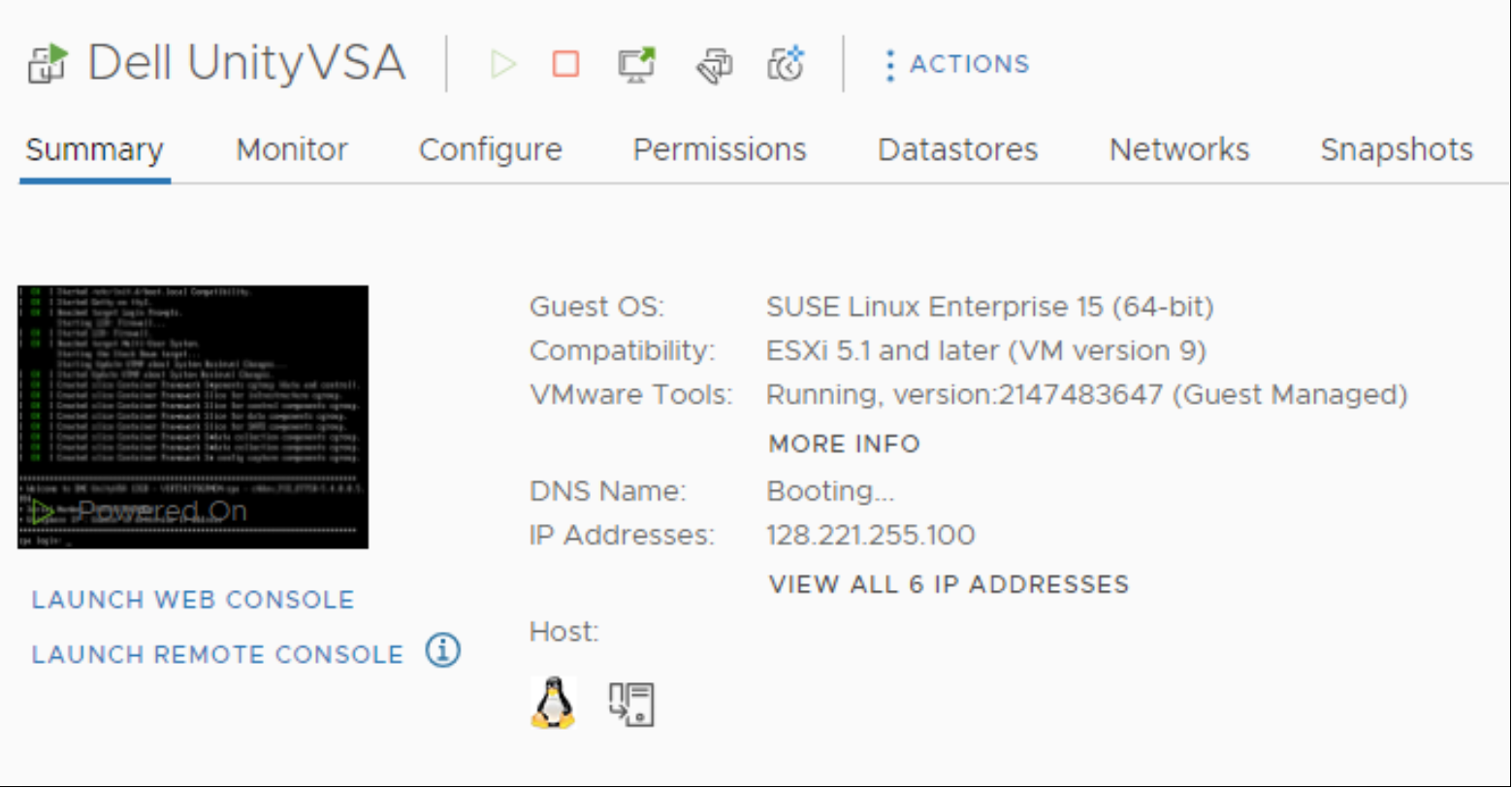
UnityVSA VM example from VMware

Figure 2.   Dell UnityVSA Booting

Once the boot process is complete, the DNS Name is updated to display the system name. If no system name is defined, this defaults to the serial number. If an IP address was already configured during deployment, Unisphere on Dell UnityVSA is now accessible.

IP Assignment

Dell UnityVSA Single-SP can be deployed using the ESXi host itself, or with a vCenter Server managing the ESXi host. Using vCenter enables the ability to customize the template by configuring the system name, IPv4 management settings, and/or IPv6 management settings as shown below.
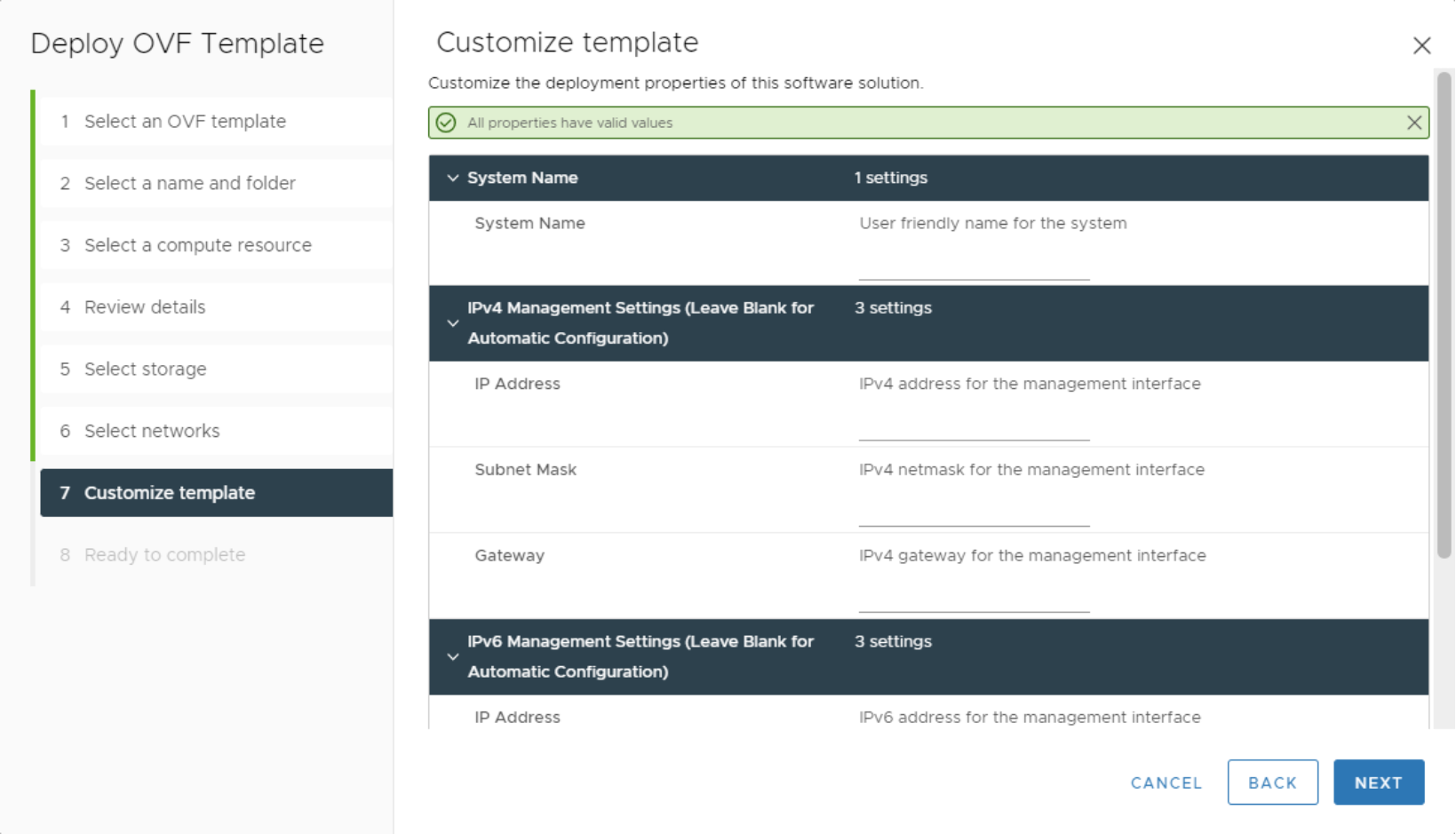
UnityVSA Vmware side deployment of single node system

Figure 3.   Dell UnityVSA Settings

If Dell UnityVSA Single-SP is deployed without a vCenter server, an IP address cannot be assigned during deployment. In this case, once the system has fully booted, it can be configured using the VMware Console or Windows tools such as Dell Unity Connection Utility or InitCLI:

  • VMware Console - Open the console for Dell UnityVSA Single-SP and login with the default credentials: service/service. Once logged in, run:
  • IPv4: svc_initial_config -f <Hostname> -4 “<IPv4_Address> <IPv4_Netmask> <IPv4_Gateway>”
  • IPv6: svc_initial_config -f <Hostname> -6 “<IPv6_Address> <IPv6_Prefix_Length> <IPv6_Gateway>”
  • Connection Utility - Use the Auto Discover option to discover the system on the same subnet and configure the system name, IPv4 management settings, and/or IPv6 management settings.
  • InitCLI - Run the following commands in a Command Prompt window to discover the system and configure the system name and IPv4 management settings.
  • Discover: initcli discover
  • IPv4: initcli configure -id <ID> -ipv4 static -addr <IPv4_Address> -mask <IPv4_Netmask> -gateway <IPv4_Gateway> -name <Hostname>.

Initial Configuration Wizard

After an IP is assigned, Unisphere can be launched by pointing a browser to the management IP address. You can login to Unisphere using the default credentials: admin/Password123#. When logging in for the first time, the Initial Configuration Wizard appears and guide you to:

  • Accept the End User License Agreement (EULA)
  • Change the passwords
  • Configure DNS and NTP Servers
  • Install a license
  • Configure Storage Pools
  • Configure SMTP Settings
  • Enter Dell Support Credentials
  • Create NAS Servers and iSCSI Interfaces

During the Unisphere Licenses step of the Initial Configuration Wizard, note the System UUID.

Locating UnityVSA system UUID needed for licensing

Figure 4.   System UUID

The System UUID is required to generate a license for Dell UnityVSA Single-SP. If you would like to use Dell UnityVSA Single-SP Community Edition, click the link to the Dell Software License Request Form from the Dell UnityVSA Single-SP download page. On this form, enter the System UUID and click Submit.
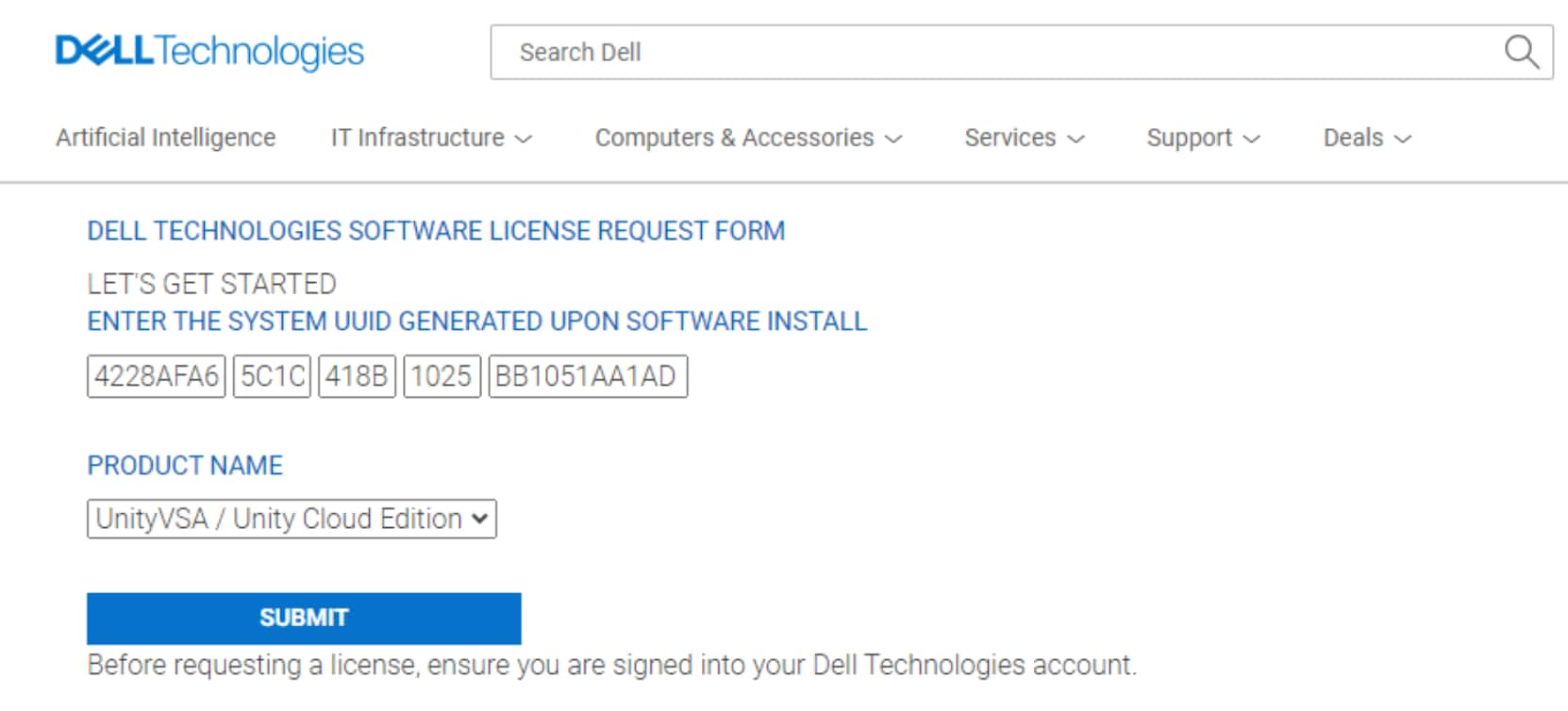
Dell Licensing Site example

Figure 5.   License Request Form

This generates a license and sends it to the email address that is associated with your Dell Online Support account. Once the license is received, it can be installed on the same step in the Initial Configuration Wizard. If you need a Professional Edition license, the System UUID is required to order a subscription.

Dell UnityVSA Dual-SP Deployment

Dell UnityVSA Dual-SP Deployment

Dell UnityVSA Dual-SP is delivered in the form of an Open Virtualization Appliance (OVA) template and can be deployed on VMware vSphere ESXi 6.5 or later. Dell UnityVSA Dual-SP is deployed using a Deployment Utility tool which can be downloaded from the Dell Technologies software downloads page. The tool utilizes the same OVA file that is used to deploy the single-SP solution of Dell UnityVSA but automates the internal networking configuration that is required to successfully connect both SP VMs that are deployed.
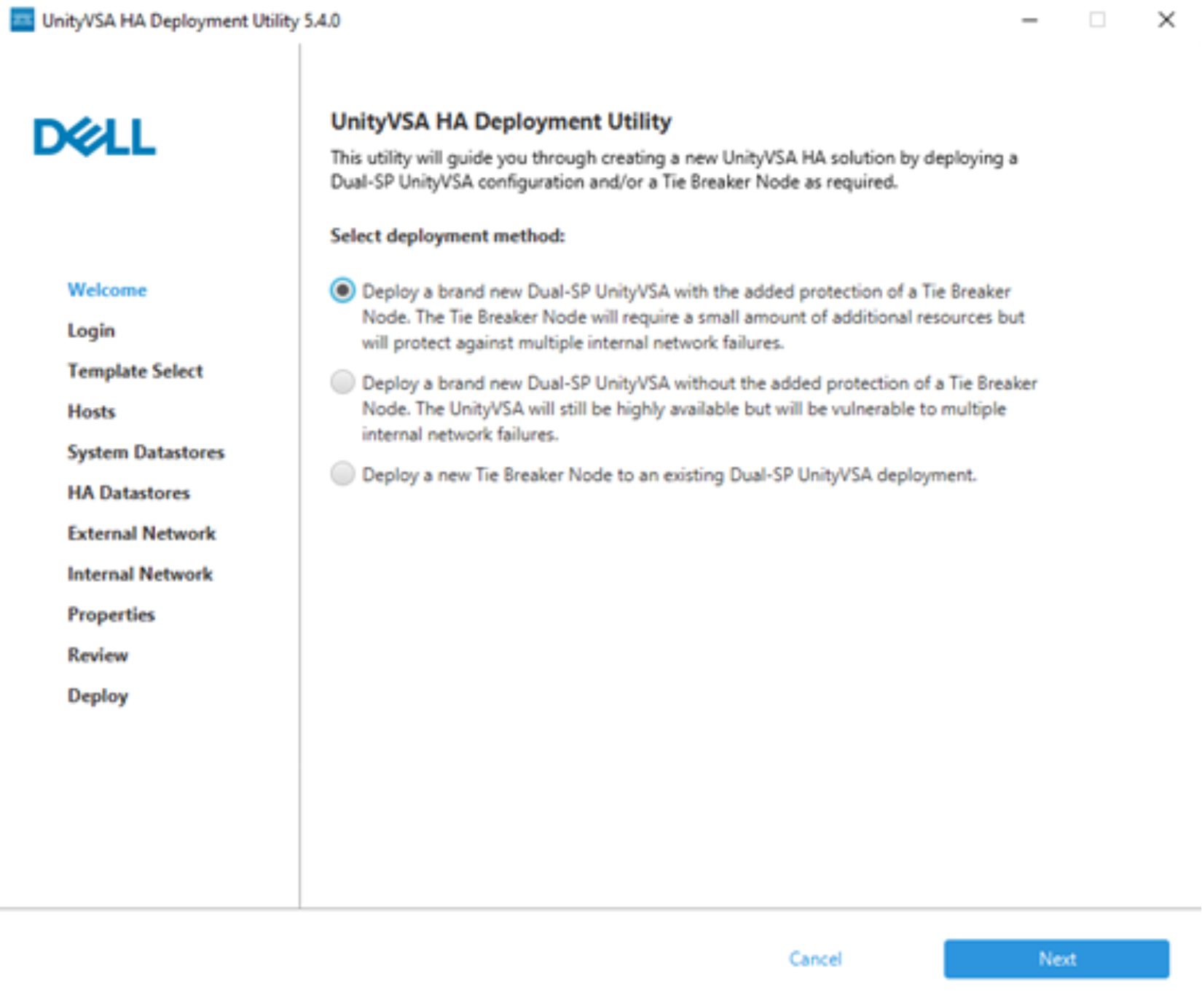
UnityVSA Dual Node deployment Utility

Figure 6.   Dell UnityVSA Dual-SP Deployment

The three options for deploying Dell UnityVSA Dual-SP include new Dell UnityVSA Dual-SP with TBN, new Dell UnityVSA Dual-SP without TBN, or just TBN. Note that the TBN is not configured automatically even if deployed with the Dell UnityVSA Dual-SP solution. It must be configured for usage by a system even if deployed with the SPs. TBN configuration can be done using the Initial Configuration Wizard in Unisphere.

The wizard walks through all of the necessary steps to deploy Dell UnityVSA Dual-SP including logging into associated vCenter, choosing a deployment type (2-core or 12-core Dual-SP) selecting hosts for SPA and SPB, selecting system and heartbeat datastores, and configuring the network mappings for the internal networks, and data and management ports. If you need to change the network mapping after deployment, the virtual Ethernet adapter to Ethernet port mappings are:

  • Network adapter 2 à Management Port
  • Network adapter 3 à Internal Heartbeat Network Port 0
  • Network adapter 4 à Internal Heartbeat Network Port 1
  • Network adapter 5 à Internal CMI Network
  • Network adapter 6 à Ethernet Port 0
  • Network adapter 7 à Ethernet Port 1
  • Network adapter 8 à Ethernet Port 2
  • Network adapter 9 à Ethernet Port 3

See the Dell UnityVSA Installation Guide for more information on deploying Dell UnityVSA Dual-SP.

Initial Boot

After provisioning is complete, the Dell UnityVSA Dual-SP VMs can be powered on for the first time if not automatically selected to be powered on in the Deployment Utility tool. Do not make any changes to the VMs, such as changing the virtual hardware configuration (CPU, memory, NICs, and so on), as this causes Dell UnityVSA Dual-SP to boot into service mode to prevent invalid configurations. The time it takes for the initial boot will vary depending on the infrastructure, especially the datastore's performance capabilities. This process can take between 20 to 60 minutes. You can monitor the boot status in the Summary tab for each VM. The DNS Name shows “Booting…” while each VM is starting up.
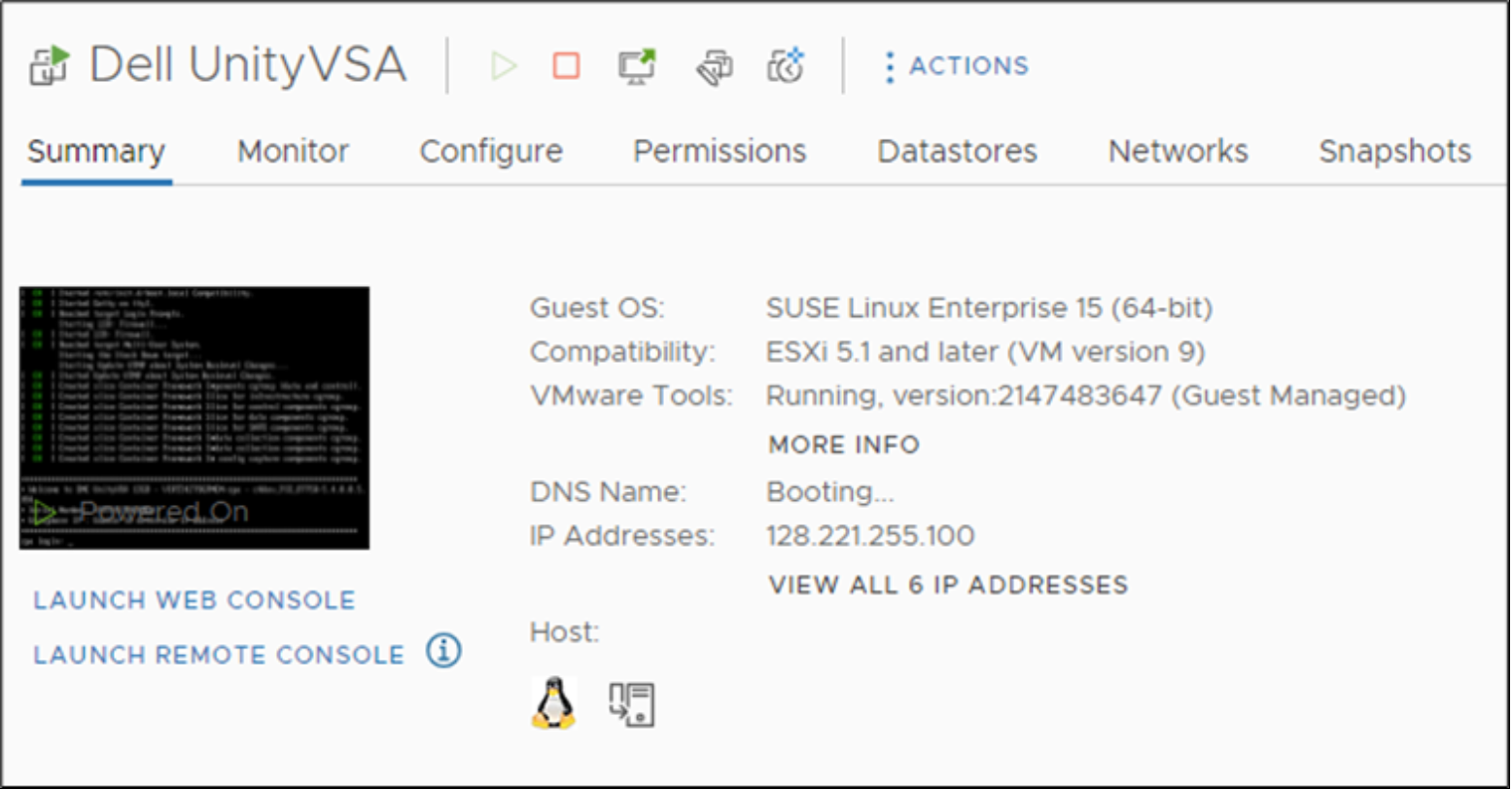
Example of a Dell UnityVSA VM

Figure 7.   Dell UnityVSA Booting

Once the boot process is complete, the DNS Name is updated to display the system name. If no system name is defined, this defaults to the serial number. If an IP address was already configured during deployment, Unisphere on Dell UnityVSA Dual-SP is now accessible.

Another way to determine if an SP VM is ready is by logging into the Remote Console for the VM and checking whether all services have started successfully as shown below.
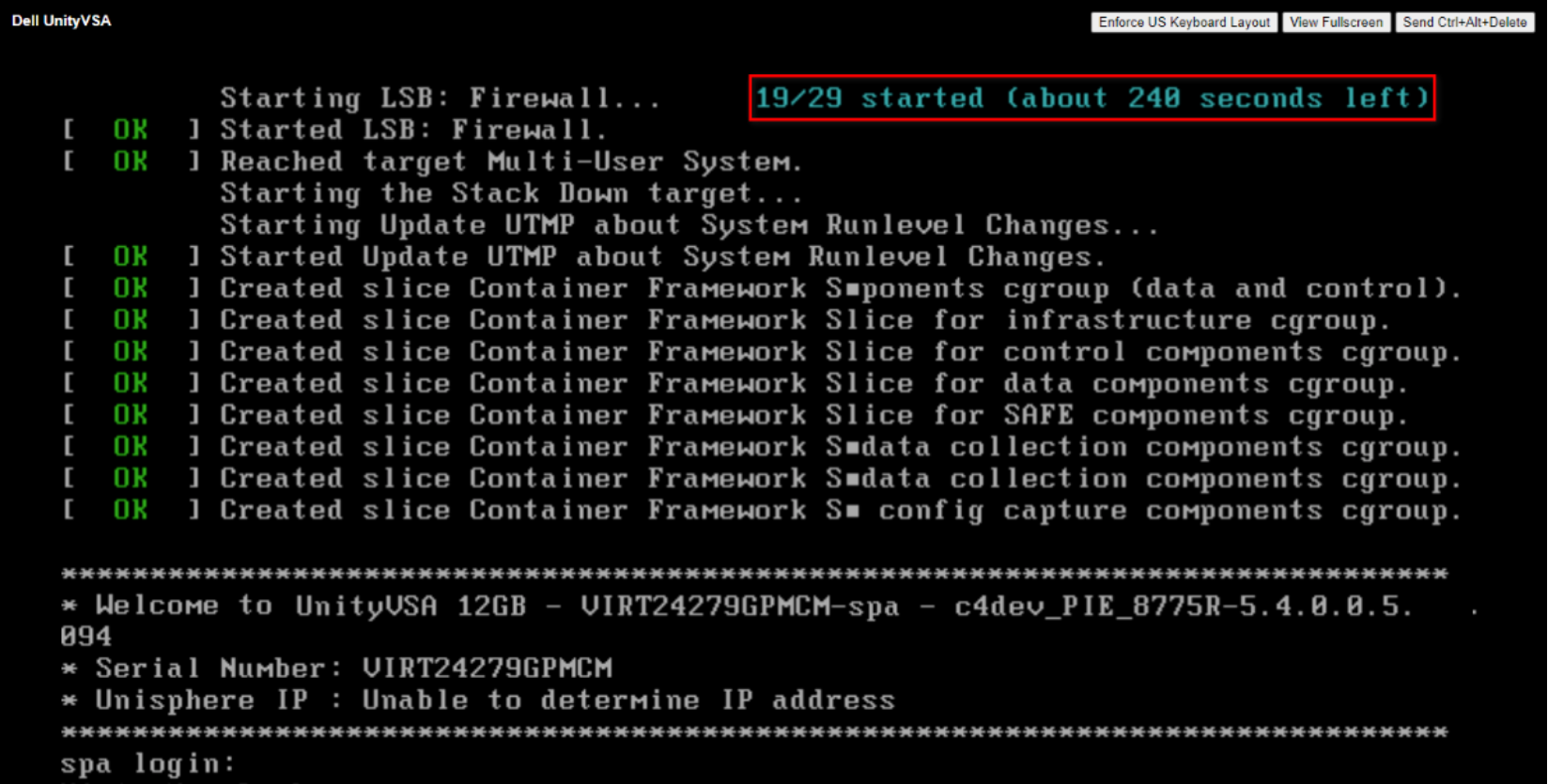
UnityVSA deployment booting up from VMware VM console

Figure 8.   Remote Console for SP VM (Services Started Successfully)

IP Assignment

Dell UnityVSA Dual-SP can only be deployed using the Deployment Utility tool which asks the user for management IP (IPv4 and/or IPv6) configuration in the wizard itself below.
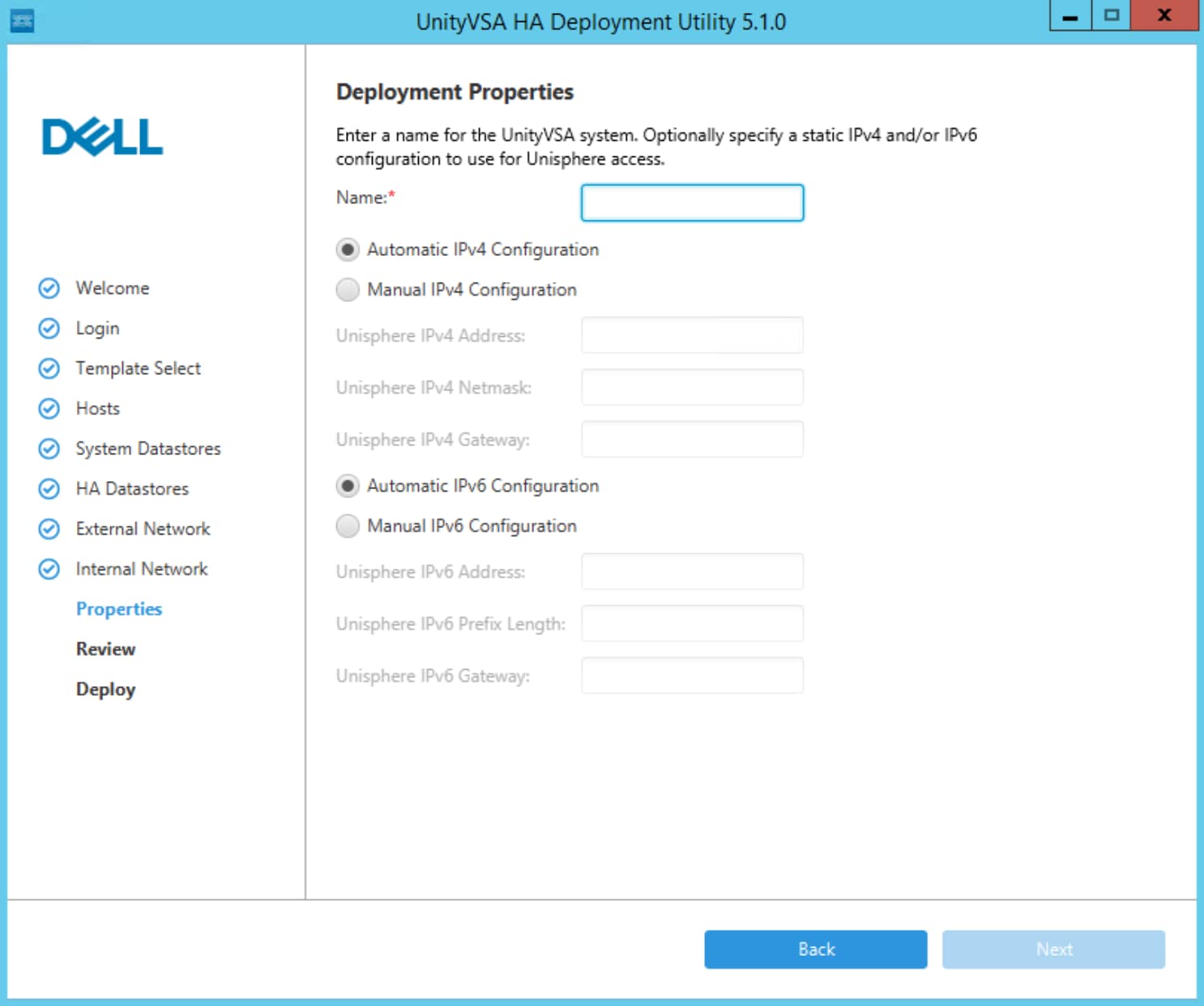
UnityVSA Deployment Wizard

Figure 9.   Dell UnityVSA Dual-SP Settings

If Dell UnityVSA Dual-SP was configured with the wrong IP address during deployment and the license agreement was not accepted yet, it can be reconfigured using the VMware Console or Windows tools such as Dell Unity Connection Utility or InitCLI:

  • VMware Console - Open the console for Dell UnityVSA Dual-SP and login with the default credentials: service/service. Once logged in, run:
  • IPv4: svc_initial_config -f <Hostname> -4 “<IPv4_Address> <IPv4_Netmask> <IPv4_Gateway>”
  • IPv6: svc_initial_config -f <Hostname> -6 “<IPv6_Address> <IPv6_Prefix_Length> <IPv6_Gateway>”
  • Connection Utility - Use the Auto Discover option to discover the system on the same subnet and configure the system name, IPv4 management settings, and/or IPv6 management settings.
  • InitCLI - Run the following commands in a Command Prompt window to discover the system and configure the system name and IPv4 management settings.
  • Discover: initcli discover
  • IPv4: initcli configure -id <ID> -ipv4 static -addr <IPv4_Address> -mask <IPv4_Netmask> -gateway <IPv4_Gateway> -name <Hostname>.

Initial Configuration Wizard

After an IP is assigned, Unisphere can be launched by pointing a browser to the management IP address. You can login to Unisphere using the default credentials: admin/Password123#. When logging in for the first time, the Initial Configuration Wizard appears and guides you to:

  • Accept the End User License Agreement (EULA)
  • Change the passwords
  • Configure DNS and NTP Servers
  • Install a license
  • Configure Storage Pools
  • Configure Tie Breaker Node (TBN)
  • Configure SMTP Settings
  • Enter Dell Support Credentials
  • Create NAS Servers and iSCSI Interfaces

During the TBN step of the Initial Configuration Wizard, the TBN VM can be selected, as shown in Figure 5. Note that the TBN must be configured manually even if it was deployed with the SP VMs with the Deploy Utility. The TBN can also be configured in the Settings menu under the Management section.
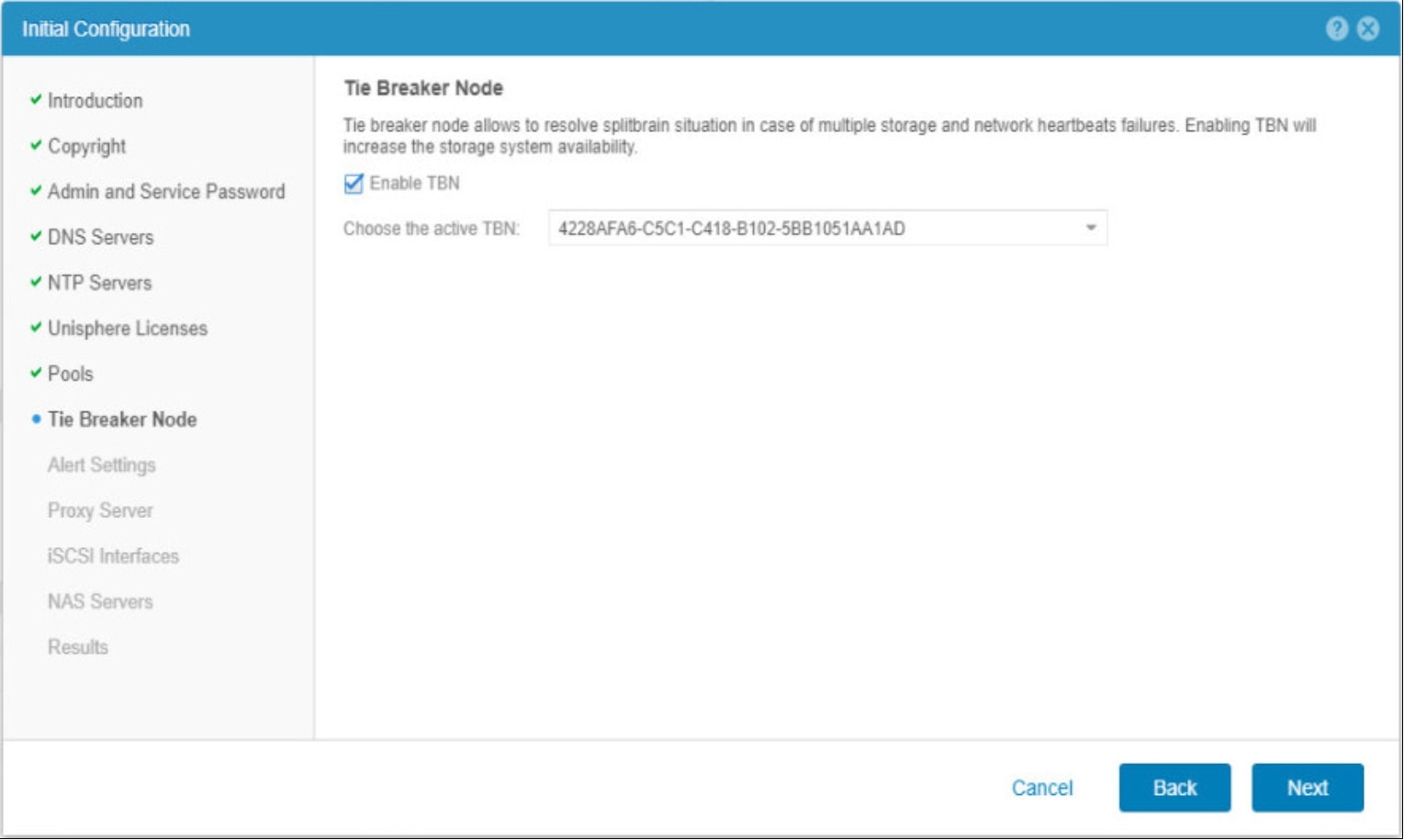
Example shows adding a Tie Breaker Node to a UnityVSA

Figure 10.    Tie Breaker Node Step (Initial Configuration Wizard)

Pool Provisioning

Pool Provisioning

To provision storage on Dell UnityVSA, virtual disks must first be added to the appliance. These virtual disks can be provided from RAID-protected server-based storage, storage from a Dell or third-party storage system, or server SAN storage such as ScaleIO. The configuration and speed of the virtual disks can impact the speed of configuration changes and overall performance on Dell UnityVSA. Workloads should be benchmarked accordingly for proper use.

For single-SP deployments, a new virtual disk must be added to the single VM, but for dual-SP deployments, the same virtual disk must be added to both SPA and SPB VMs to be successfully utilized by the Dell UnityVSA system. More information about the process of adding virtual disks can be found in the Dell UnityVSA Installation Guide.

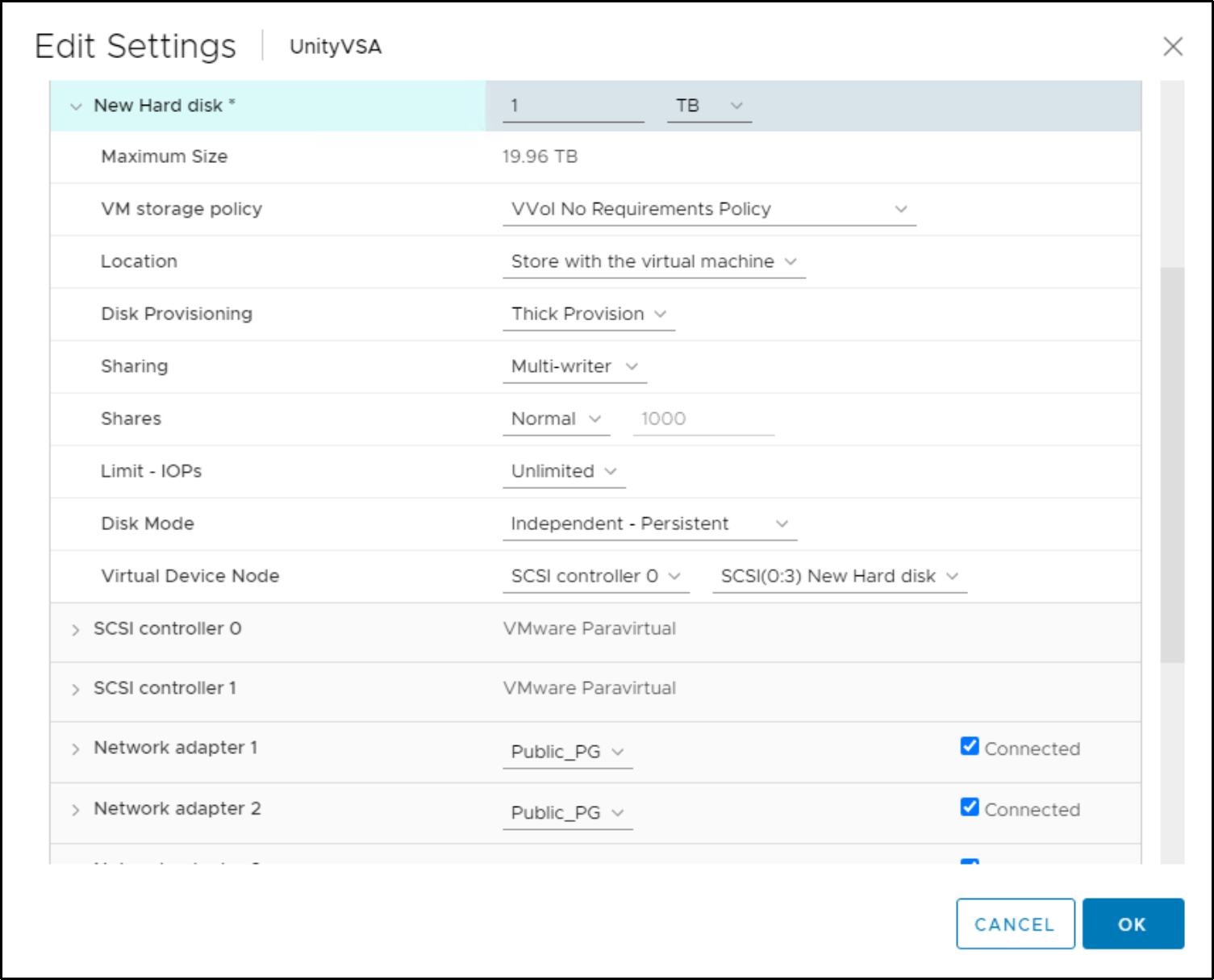
Note that Dell UnityVSA does not support RDM (Raw Device Mappings). It only supports VMDKs that are presented from a datastore. The minimum size of the new virtual disk is 10GB and the maximum size is equal to 62TB as this is the max VMDK disk size that VMware allows. If using a 50TB license, then the max VMDK size would be 50TB As shown below all virtual disks must use the following settings:

  • Disk Provisioning: Thick Provision Eager Zeroed. If the datastore does not have this option (vSAN) then Thick Provision should be selected.
  • Location: Any separate datastore than the SP VM(s). If Dual-SP deployment, the datastore must be accessible by both SPA and SPB VMs.
  • Sharing: Multi-Writer (if a Dual-SP deployment)
  • Disk Mode: Independent – Persistent (if a Dual-SP deployment)
  • Size: Greater than 10GB.

UnityVSA VM settings. Example shows adding a new Virtual Disk to the UnityVSA

Figure 11.    New Virtual Disk

When adding new virtual disks, also take note of the Virtual Device Node ID. This SCSI ID is displayed on the Virtual Disks page in Unisphere. This makes it easier to correlate the virtual disks in Unisphere to the ones in vSphere, especially if there are multiple virtual disks that are the same size. From UnityOS 5.1, you can add up to 50 additional virtual disks for data use on each Dell UnityVSA

It is crucial to not remove any virtual disks from the VM currently in use. Prior to removing a virtual disk, ensure it is not in use by any pools on Dell UnityVSA. When removing the unused disk, confirm the Virtual Device Node ID matches the SCSI ID displayed in Unisphere to ensure the correct virtual disk is being removed. If a virtual disk is accidentally removed but not deleted, it can be added back to Dell UnityVSA and it will be discovered automatically. However, if a used virtual disk is permanently deleted, the pool will go offline and cause data unavailability.

Resizing a virtual disk that is in use through VMware is also not supported. However, if the virtual disk is not part of a storage pool, you can remove it from Dell UnityVSA and add a new one of the preferred size. Virtual disks that are already part of a storage pool should never be resized because this can result in a failed and unrecoverable storage pool. If you accidentally resize a virtual disk that is not part of a storage pool, you can recover the virtual disk by removing it from Dell UnityVSA and adding it back.

If there is a possibility of upgrading the Dell UnityVSA capacity at a later time, it is important to avoid using all 50 virtual disks used for data. This leaves room to add additional virtual disks with more capacity after the upgraded license is installed. Otherwise, storage resources may need to be deleted to free up a virtual disk for expansion. Expanding virtual disks that are already configured in a storage pool is not supported and could result in data unavailable conditions.

Once one or more virtual disks have been added, a storage pool can be created. In Unisphere, navigate to the Pools page and click + to create a new pool. In the Create Pool wizard, tier assignments must be made for each virtual disk used for this pool.
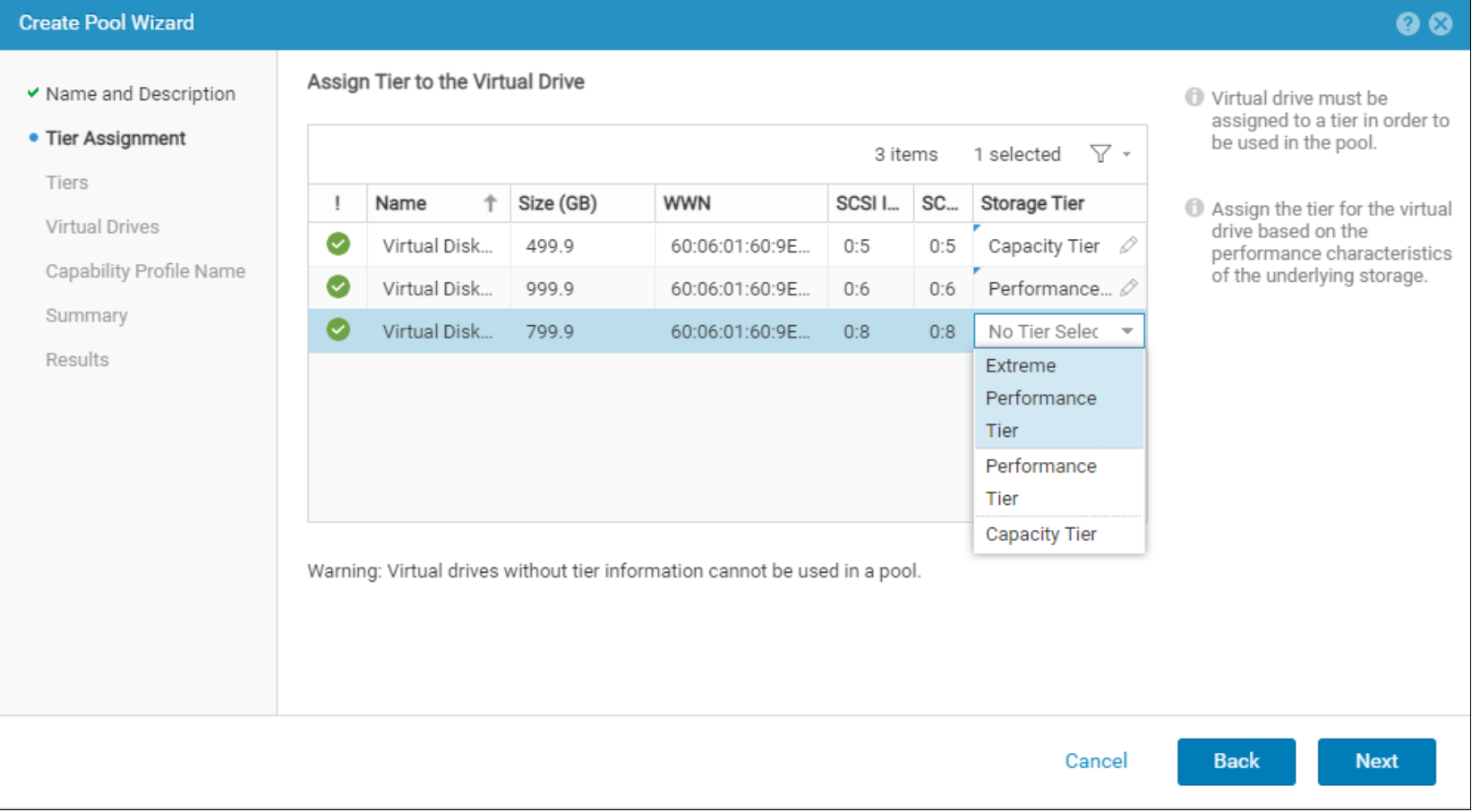
Example of assigning a Virtual disk a Storage Tier definition

Figure 12.    Tier Assignment

This information must be entered manually since the virtualization layer abstracts the virtual disk information from Dell UnityVSA. Typical Dell tier classification denotes Flash drives to be “Extreme Performance,” SAS drives to be “Performance,” and NL-SAS drives to be “Capacity.” Dell recommends adhering to this schema to ensure FAST VP relocates data to the appropriate virtual disks.

Virtual disks do not utilize redundancy technologies seen in physical storage systems, such as hot spares and drive rebuild. Instead, the RAID controller, storage system, or server SAN handles any drive failures that may occur. This enables you to create a storage pool from a single virtual disk.

Feature Set

Feature Set

Dell UnityVSA retains the ease-of-use and ease-of-management found in the Dell Unity family. It is designed to have a consistent look and feel across the Dell Unity family using HTML5-based Unisphere. Its feature set and data services are designed to be on par with the Dell Unity family. Note that there are some key differences between Dell UnityVSA and physical Dell Unity systems. For a quick reference to the differences in feature sets between Dell UnityVSA and physical Dell Unity systems, see Table 7 in the Comparison section of this white paper.

Unisphere

Unisphere is an HTML5-based graphical web-based management interface that is the primary monitoring and management tool for Dell UnityVSA. It provides tools for creating, configuring, and managing storage resources. Unisphere enables users to monitor storage operations and system status through a detailed graphical reporting service, which can pinpoint issues to specific components of the storage system. Unisphere also enables monitoring of storage system performance through graphs allowing technical users to see a deeper view of system utilization.

The Unisphere management interface for Dell UnityVSA matches much of the same functionality as seen on physical Dell Unity systems but includes virtualization-specific changes to certain pages such as Pools and System Health.

For more information about Unisphere, see Dell Unity: Unisphere Overview.

System Health

Status and health information about the virtual components of Dell UnityVSA can be found on the System View page. The Summary page behaves the same as a physical Dell Unity system where information including Name, Serial Number, System UUID, Software Version, and System Time are displayed.

On the Enclosures page, a graphical representation of the virtual components is presented instead since there are no hardware components. The virtualized management port and four data ports are displayed below. Note that the figure is of a Dell UnityVSA Single-SP system. A Dell UnityVSA Dual-SP system would display two SPs on this page.

Unisphere output of UnityVSA enclosure and system Ports

Figure 13.    Enclosures Page

On Dell UnityVSA, there is a Virtual page. This page provides details about the Virtual Disks that have been added, such as name, size, WWN, Storage Pool, SCSI ID, and tier, as shown below.
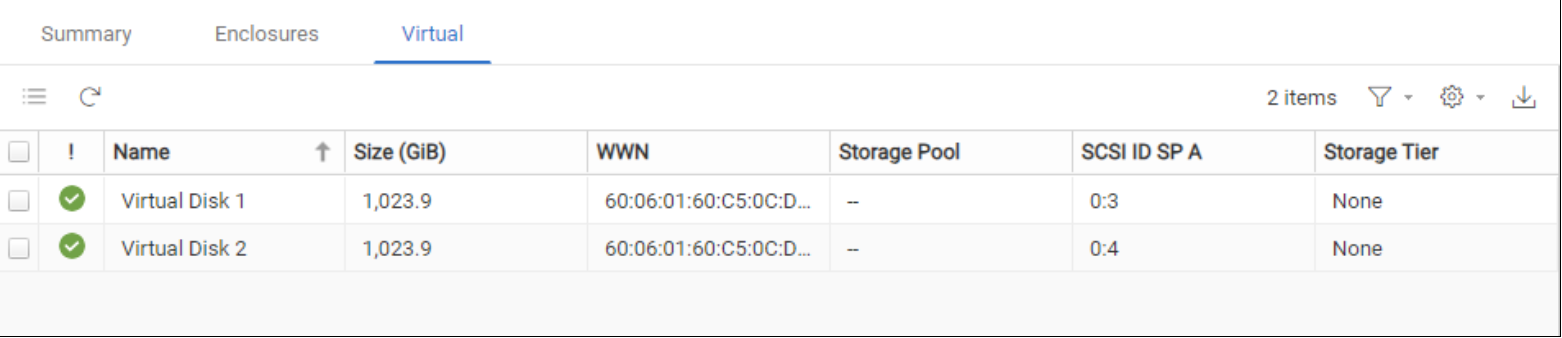
output of Virtual Disk that UnityVSA leverages as storage

Figure 14.    Virtual Disks

FAST VP

Fully Automated Storage Tiering for Virtual Pools (FAST VP) is available for both file and block data. It allows Dell UnityVSA to optimize storage utilization by automatically moving data to appropriate locations within a storage pool according to activity level, as shown below.
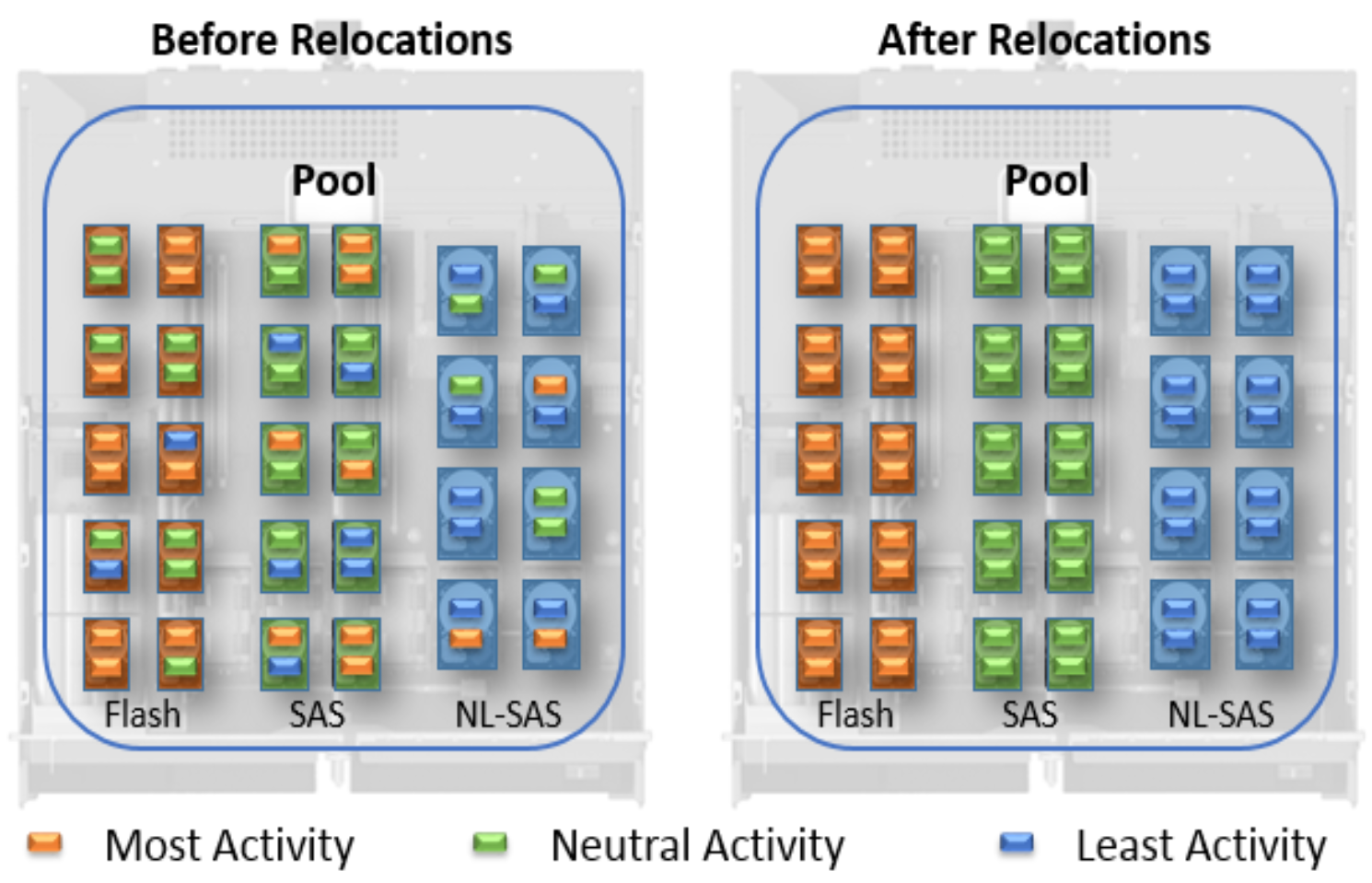
Diagram outlining how FAST VP restructures data on the system

Figure 15.    FAST VP

Data is moved in 256MB slices to the appropriate virtual drives, depending on the access patterns of the I/O and the configured tiering policy. The slices with the most activity are moved to the highest tier, while the slices with the least activity are moved to the bottom tier. By ensuring data is being served out of the appropriate disk, efficiency and performance can be significantly increased. For FAST VP to work properly on Dell UnityVSA, it is crucial to accurately define the disk type for each virtual disk during pool creation.

For more information about FAST VP, see Dell Unity: FAST Technology Overview.

Unified Snapshots

Dell UnityVSA features Unified Snapshots, which leverage pointer-based technology to create point-in-time views of data for both file and block storage resources. This feature leverages Redirect on Write (ROW) technology to redirect new writes to new locations in the storage pool.
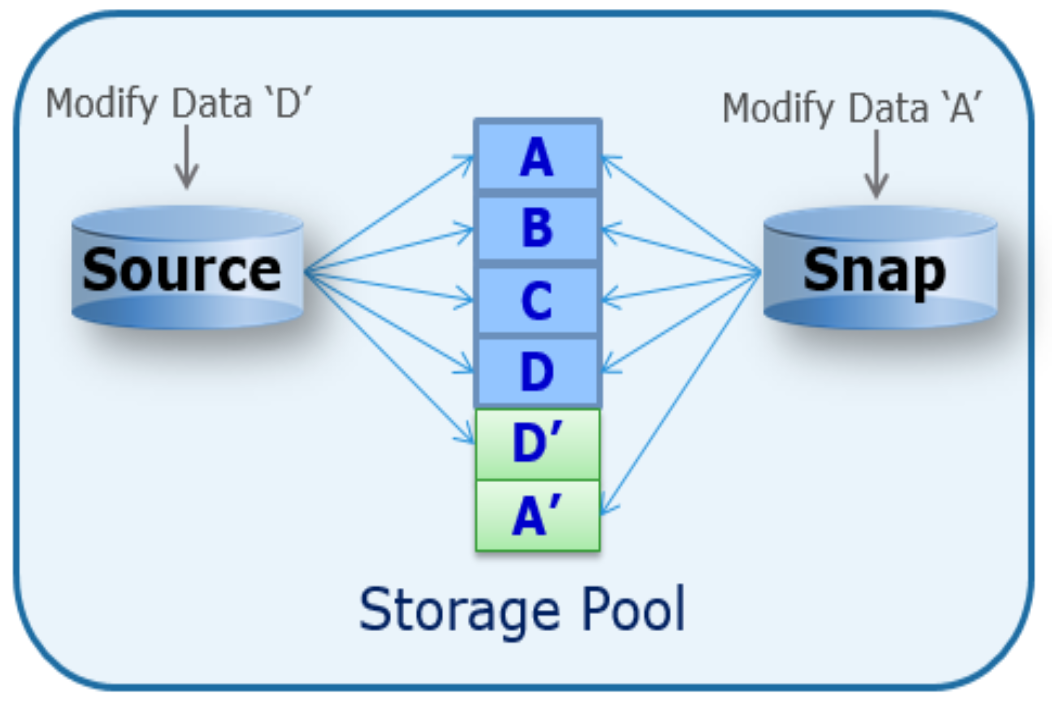
diagram of Snapshots tracking data

Figure 16.    Unified Snapshots

Unified Snapshots are used with file systems, LUNs, and NFS or VMFS datastores. Dell UnityVSA also includes an integrated snapshot scheduler which provides the ability to schedule snapshot creation and deletion.

For more information about Unified Snapshots, see the Dell Unity: Snapshots and Thin Clones.

Thin Clones

From Dell UnityOS 4.2, Thin Clones are supported. A Thin Clone is a read/write copy of a Block level storage resource (LUN, LUN within Consistency Group, or VMware VMFS Datastores) and are provisioned from read-only unattached snapshots. However, they are treated as primary resources so data services can be applied to Thin Clones in the same manner as LUNs. Thin Clones share the same blocks as their parent block level storage resources. Any changed data on the Thin Clone does not affect the base resource and vice versa. Also, any changes to the Thin Clone do not affect the snapshot source it was provisioned from. Users can create, view, modify, refresh, and delete Thin Clones from the Unisphere GUI, UEMCLI and REST API.

For more information about Thin Clones on the Dell Unity platform, see Dell Unity: Snapshots and Thin Clones.

Asynchronous Unified Replication

Asynchronous Unified Replication is available natively on Dell UnityVSA. This allows file and block resources to be replicated between Dell UnityVSA systems, between Dell UnityVSA and physical Dell Unity systems, and locally back to the same Dell UnityVSA system. The synchronization of data is automatically performed according to user-configured intervals, which can be between 5 minutes to 24 hours, or can be initiated manually. Different resources can also be replicated to different destinations, as shown below.
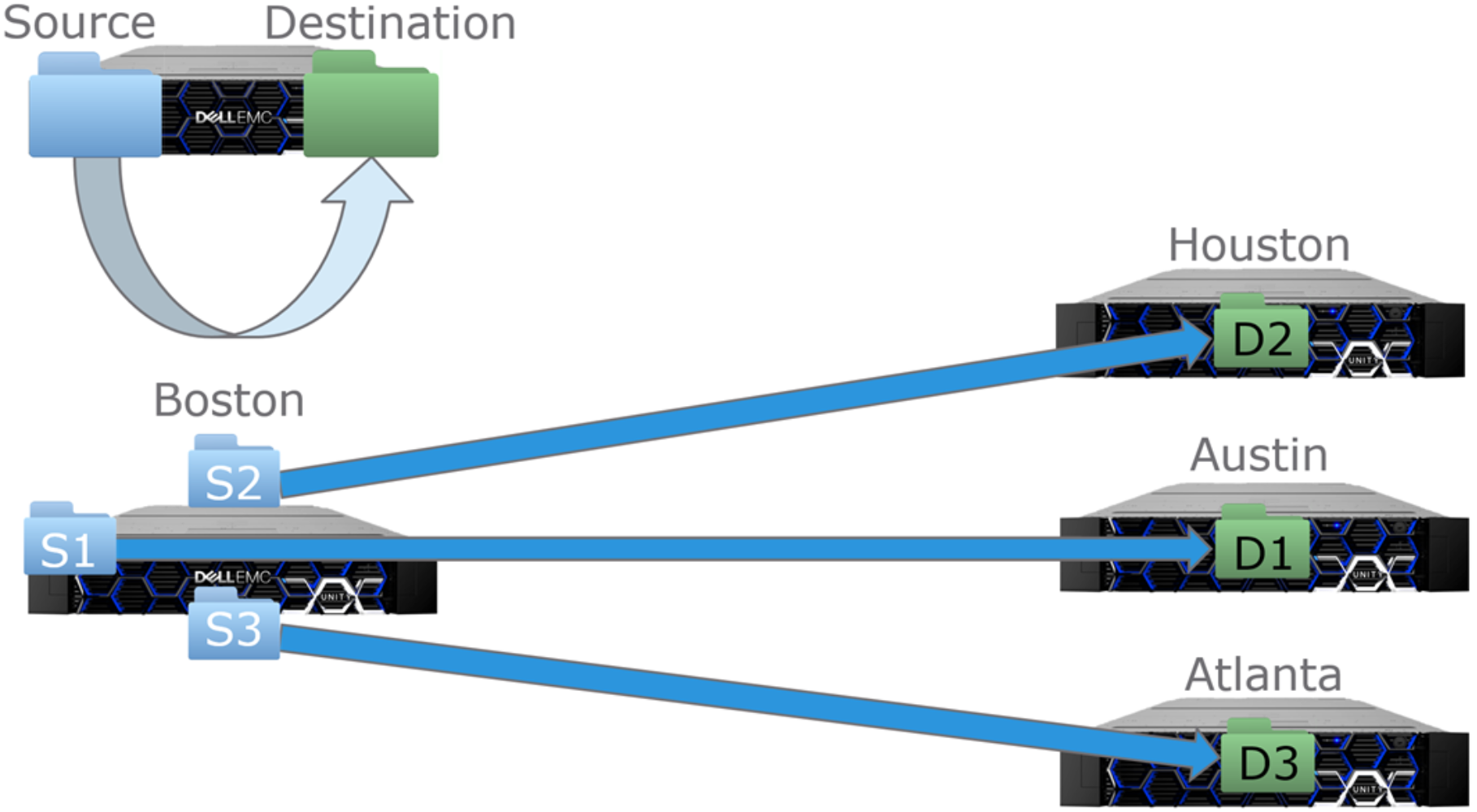
diagram of asynchronous replication configuration

Figure 17.    Unified Asynchronous Replication

Asynchronous unified replication can be used for file systems, LUNs, and NFS or VMFS datastores.

Dell Unity provides the ability to perform operations such as failover, failback, pause, and resume on individual NAS Servers and file systems. For example, to initiate a failover, you must first failover the NAS Server and then failover the individual file systems afterwards to enable access on the destination system. UnityOS 4.2 introduces an enhancement that enables group operations. The group operation automatically fails over all associated file systems if a failover is initiated on the NAS Server. Group operations can be used for failover, failover with sync, failback, pause, and resume. These operations remain available at the individual file system level, but any operation applied at the NAS Server level is a group operation. All other replication related operations such as create, sync, delete, and modify remain available only as individual operations.

For more information about Asynchronous Unified Replication, see  Dell Unity: Replication Technologies.

Snapshot Shipping

UnityOS 4.2 introduces the ability to replicate file and block snapshots along with the primary storage resource. Some benefits include the ability to configure a different retention policy on the destination for compliance purposes, improving cost efficiency by freeing up capacity from snapshots on the source system, and improvising resiliency by storing snapshots in a different fault domain.

This feature requires both the source and destination system to be running UnityOS 4.2 or later. Also, an asynchronous replication session must be created on the primary storage resource. This feature can be enabled during the replication session creation or at any time after.

This feature works with both manually initiated and snapshots taken by the integrated snapshot scheduler. A replicated snapshot retains the same properties and attributes as the source snapshot. This includes the name, description, creation time, taken by, and so on. For file snapshots, only read-only snapshots are eligible for replication. Read/write snapshots that are used for shares and exports cannot be replicated.

For more information about Snapshot Shipping, see Dell Unity: Replication Technologies and Dell Unity: Snapshots and Thin Clones.

LUNs and Consistency Groups

Dell UnityVSA provides hosts with access to LUNs through the iSCSI protocol. After a host connects to a provisioned LUN, it can use the LUN as if it were a local storage device. In terms of management, Unisphere allows users to create, view, manage, and delete LUNs. Finally, a LUN’s capacity can be increased but not decreased.

Consistency Groups are logical containers which allow users to organize LUNs into crash consistent groups. For example, assume a database application requires one LUN for the database and a separate LUN for log files. The disks can be managed as a single entity in Unisphere by adding the LUNs to a Consistency Group. This allows for operations, such as replication or snapshots, to be performed on all the LUNs in the Consistency Group at the same time.

Host I/O Limits

Host I/O limits are a feature which allows the user to control the amount of throughput and bandwidth consumed by block resources. This feature can be applied to LUNs, VMFS datastores, or attached snapshots. Users can configure the maximum IOPS, maximum bandwidth, or both depending on which limit is reached first. The user can also choose if a limit applies to each resource individually, or if a group of resources must share the configured limit.

In Dell UnityOS 4.1, density-based Host I/O Limits can be created which limits host activity based on the size of the block resource. For example, a density based I/O limit of 100 IOPS/GB for a 200GB LUN would result in an overall limit of 20,000 IOPS for the entire LUN. If sometime later the 200GB LUN was expanded to be a 250GB LUN, the I/O limit would automatically update to 25,000 IOPS for the LUN, saving the administrator managerial tasks and time. Like absolute I/O limits, density based I/O limits can also be shared among multiple resources.

Another feature in Dell UnityOS version 4.1 is burst policies for Host I/O Limits. This option is available for any Host I/O Limit policy and allows host activity/traffic to exceed the base policy limit by a user-specified percentage. The user specifies parameters of amount (percentage), duration, and frequency of the I/O limit burst allowance.

Dell Unity File System

Dell UnityVSA includes a 64-bit file system architecture that delivers great scalability, availability, performance, and space efficiency. Dell Unity allows a user to shrink and extend file systems. During these operations, Dell UnityVSA continues to service IO since they are performed transparently to the client. Shrink operations automatically reclaim freed space back to the pool. Also, the maximum capacity for the file system on Dell UnityVSA is 50TB and scales according to the licensed capacity. The file system is leveraged for SMB, NFS, multiprotocol file systems and NFS datastores.

From Dell UnityOS version 4.1, file systems can be configured with a minimum allocation size. This enables the storage administrator to control the guaranteed space allocation for a file system. When the minimum allocation size is configured during a new file system's creation, the size specified is allocated immediately. Note that starting with Dell UnityOS 4.2, newly created file systems no longer have the option to configure the minimum allocation size. However, Unisphere provides the ability to create thick file systems if space reservation is required. Note that there is no way to convert from thin to thick or thick to thin after a file system is created.

For more information about the file system, see Dell Unity: NAS Capabilities.

NAS Servers

NAS Servers host file systems on the Dell UnityVSA storage system. NAS Servers utilize virtual interfaces to enable host connectivity to SMB, NFS, and multiprotocol file systems, as well as VMware NFS Datastores and VMware Virtual Volumes. Depending on what is enabled on the NAS Server, SMB file systems and NFS file systems can be created either separately or in a multiprotocol configuration.

On a NAS server, interfaces can be configured to enable communication between the NAS Server, client, and external services. In addition, starting with Dell UnityOS 4.1, static routes can also be configured to determine where to forward a packet so that it can reach its destination. Static routes can either be a host or network route. A host route is the most specific type of route, which is only used when traffic is sent to a specific IP address. A network route is less specific and is used when sending traffic to a specific subnet. The system uses the most specific route available. If no host or network routes are defined, the default route is used (if configured).

Packet Reflect, also available from Dell UnityOS 4.1, is a feature that ensures outbound (reply) packets are sent back to the same host or router as the inbound (request) packet. This enables the NAS Server to bypass routing and ARP table lookups when replying to a packet, so no routing configuration is required.

In Dell UnityOS 4.1, for multi-protocol NAS Servers, users can use local files to resolve UNIX user identities for their Unix Directory Service (UDS) configuration. This is useful in cases where an external NIS or LDAP server is not available for UDS configuration, but multi-protocol is still needed thereby providing an easy alternative. Local files can be used to resolve UNIX user records in multiple ways including by passwd, group, hosts, net group, and/or home directories.

Starting with Dell UnityOS 4.2, several NAS enhancements are added including:

  • NAS Server Mobility – This allows the SP owner to change the existing NAS Server after they are created. This is automatically applied to all a NAS Server’s associated file systems, enabling this feature to be used for load balancing purposes or to resolve network issues.
  • NAS Server Parameters – This enables parameters to be configured at a NAS Server level. This enables a higher level of granularity and allows parameters to be automatically replicated as part of NAS Server replication.
  • SMB 3.1.1 Support - SMB 3.1.1 provides improved security and encryption traffic performance for SMB3 by changing the encryption algorithm from AES-CCM-128 to AES-GCM-128. This change improves performance under certain conditions such as large file transfers. In addition, this improves security against man-in-the-middle attacks.
  • NFSv4 and Kerberos Support for NFS Datastores: This allows the ability to use NFSv4 or Secure NFS for VMware NFS datastores. Previously, these protocols options were only available for traditional file systems.

For more information about NAS Servers and related features, see Dell Unity: NAS Capabilities.

Common Event Enabler (CEE)

Dell UnityVSA allows users to connect to a Common Anti-Virus Agent (CAVA) which can be used to identify and eliminate known viruses before they infect files on a system. CAVA is enabled using the Dell Common Event Enabler (CEE) framework which is available for download and installation for Windows or Linux environments. CAVA is for CIFS/SMB protocol and does not support NFS protocol.

From Dell UnityOS version 4.1, Dell UnityVSA can connect to a Common Event Publishing Agent (CEPA) using the existing CEE framework. CEPA is a mechanism that allows applications to receive file event notifications (for example, receive notifications when a file is created, opened, edited, renamed). CEPA is available for CIFS/SMB protocol and is configurable in a NAS server’s properties.

For more information about CEE, CAVA, and CEPA, see the technical papers titled Using the Common Event Enabler for Windows and Using the Common Event Enabler for Linux on Dell Online Support.

Quotas

File system quotas provide administrators with a way to prevent users from consuming more storage than they should. Soft and hard quotas can be applied to users or to a specific directory. Soft quotas can be temporarily exceeded until the grace period has expired while the hard quota limit can never be crossed. User and tree quotas can also be used in conjunction with each other to limit individual users to a certain capacity and the directory to a different capacity.

For more information about quotas, see the Dell Unity: NAS Capabilities.

Import

Dell UnityOS version 4.1 provides the ability to natively import data from an existing VNX1 or VNX2 storage system to a Dell Unity system allowing for greater ease of use and simplicity for customers looking to refresh their storage platforms. For Block data import, Dell UnityVSA utilizes the existing SAN Copy capabilities on the VNX series to copy over LUNs, Consistency Groups, and VMFS Datastores with a simple setup and workflow.

Dell UnityVSA can also relocate local block resources to different pools on the system. This gives users the option to balance resources across pools in case certain pools are being over/under-utilized.

For File data, users can import VDMs from VNX1 or VNX2 systems to NAS Servers on Dell UnityVSA storage systems. Dell UnityOS version 4.1 introduces Native File Import for NFSv3, and Dell UnityOS version 4.2 introduces Native File Import for SMB. This feature provides a native option for file migration to Dell Unity from a VNX1 or VNX2 system. In UnityOS version 5.1, multi-protocol file import is also supported.

For more information about migration technologies, see the Dell Unity: Migration Technologies.

Cloud Tiering Appliance (CTA)

Cloud Tiering Appliance (CTA) enables the ability to tier data from Dell UnityVSA to another location based on user-configured policies. An example of this includes moving any files that are larger than 50MB and have not been accessed in 30 days to the cloud. After a file is moved off the primary storage, an 8KB stub is left which points to the actual location of the data. Any requests to read the data that has been moved can be passed through or recalled from the cloud. From the end user point of view, this process is completely seamless since the stub resembles the actual file and the data continues to be accessible on demand.

From Dell UnityOS version 4.1 and CTA v11, CTA is available on Dell UnityVSA. When using CTA with Dell UnityVSA as the source, the following cloud repositories are supported: Dell Elastic Cloud Storage (ECS), Microsoft Azure, Amazon S3, and IBM Cloud Object Storage (COS). To utilize CTA, Dell UnityVSA must be running Dell UnityOS version 4.1 or later. When tiering to a cloud repository, CTA can also leverage compression and/or encryption.

Using CTA helps users achieve many benefits including reducing capital expenses by reclaiming capacity on primary storage, lowering operating expenses by reducing number of administrative tasks, and improved performance by reducing backup times. An illustration of the benefits of CTA is seen below.
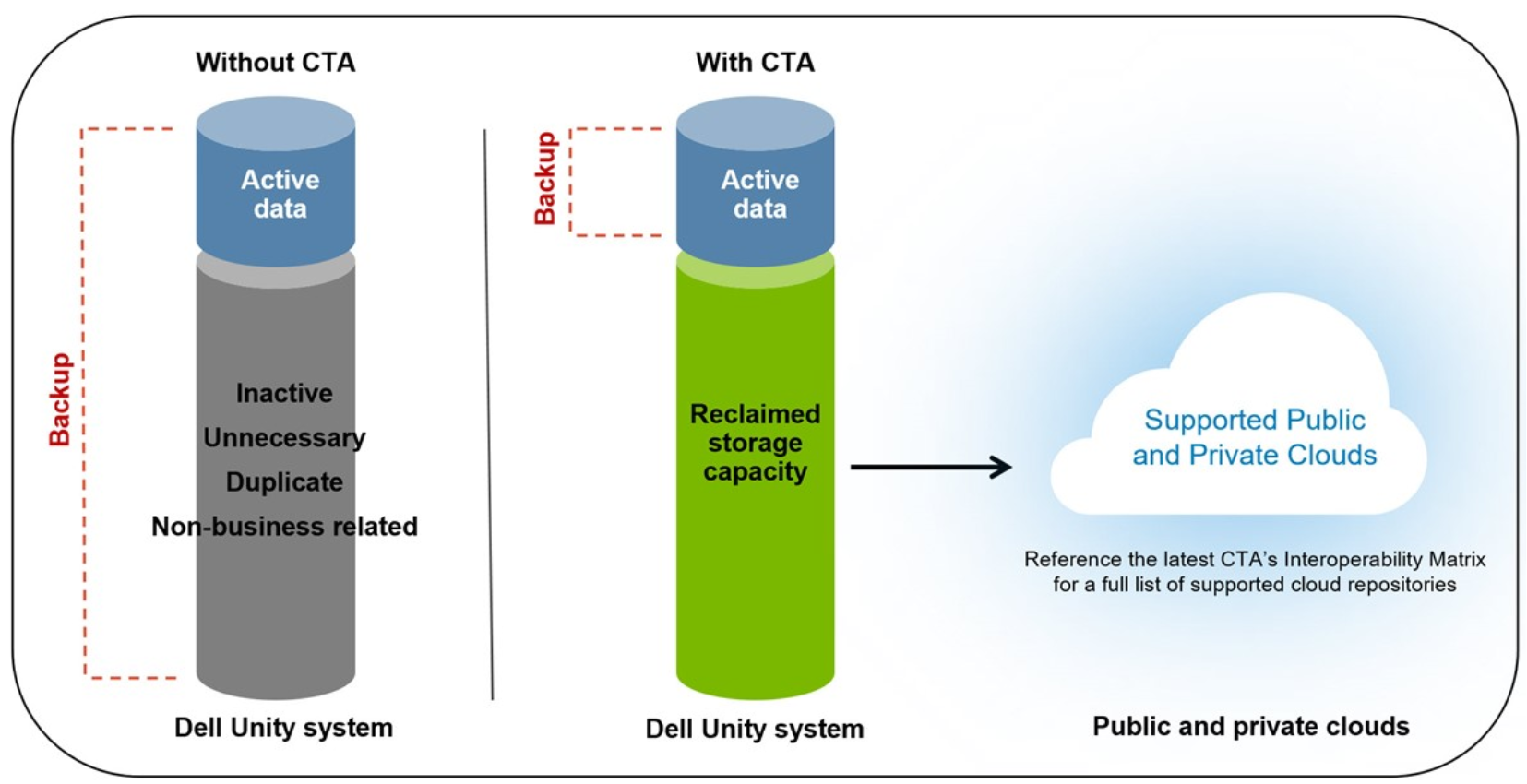
Diagram of Cloud Tiering Appliance with data

Figure 18.    Cloud Tiering Appliance

Starting with Dell UnityOS version 4.2 and CTA version 12, support for tiering of block snapshots to the cloud is available. This provides the ability to archive and restore block snapshots to and from the cloud. This works with both LUNs and Consistency Groups and leverages iSCSI connectivity between CTA and the Dell Unity system. Like file tiering, block snapshot tiering is also based on policies and schedules created by the administrator. Once a snapshot is archived to the cloud, it can be deleted off the Dell Unity system to free up storage. Snapshots can also be restored from the cloud on to a new storage resource on the Dell Unity system.

For more information about CTA support with Dell Unity, see Dell Unity: NAS Capabilities and Dell Unity Cloud Tiering Appliance.

Virtualization Integration

Dell UnityVSA has tight integration with virtualization technologies. Unisphere includes a VMware page where you can import and display the VMware vSphere environment details. This includes information about the VMware vCenter, ESXi hosts, Virtual Machines, and Virtual Disks. This process also registers the VMware hosts on Dell UnityVSA so they can be granted access to LUNs and VMFS, NFS, or vVol datastores. From UnityOS 5.1, Dell UnityVSA supports vSphere 7.0, which allows a Dell UnityVSA to be deployed into a vCenter 7.0 cluster or on a VMware ESXi 7.0 host. Users can also register a vCenter 7.0 cluster and/or VMware ESXi 7.0 hosts within Unisphere.

Unisphere allows for the creation of VMFS and NFS datastores. When a datastore is created and access is provided to an ESXi host, it is automatically rescanned and made available as a datastore in vSphere. These datastores can take advantage of the same data services that are available to LUNs and File Systems, such as snapshots and replication. Also, when creating an NFS datastore, the allocation unit (AU) size or application can be selected. This eliminates the overhead and performance impact of unnecessary granular mappings.

Dell UnityVSA also supports vStorage API for Array Integration (VAAI) and vStorage API for Storage Awareness (VASA). VAAI improves ESXi host resource (CPU, memory, network, and so on) utilization by offloading storage-related tasks to Dell UnityVSA. For example, an operation such as provisioning full clones from a template VM can be offloaded to Dell UnityVSA. Dell UnityVSA processes these requests internally, performs the write operations, and returns an update to the ESXi host once the requests are complete.

VASA is a VMware-defined and vendor neutral API that enables vSphere to determine the capabilities of a storage system. The API requests basic storage information from Dell UnityVSA, which is used for monitoring and reporting storage details to the user. For example, if a datastore has Flash and Thin capabilities, this information is displayed and used to determine if a defined policy is compliant. Dell UnityVSA has a native VASA provider which supports both the VASA 1.0, and 2.0 protocols, so no external plugins or add-ons are required.

For more information about Virtualization Integration, see the Dell Unity: Virtualization Integration.

VMware vSphere Virtual Volumes (vVols)

VMware vSphere Virtual Volumes (vVols) is a storage framework introduced in VMware vSphere 6. vVols enable VM-granular data services and Storage Policy Based Management (SPBM). In traditional storage environments, LUNs formatted with VMFS or NFS mount points are used as datastores for virtual machines. Data services were applied at the LUN or file system level, so all virtual machines that reside on that datastore were also affected.

vVols enables storing VM data on individual virtual volumes, which reside on a vVol datastore. Data services, such as snapshots and clones, can be applied at a VM-level granularity and are offloaded to Dell UnityVSA. Also, policies and profiles can be leveraged to ensure VMs are stored on compliant storage. Any VMs that become noncompliant result in an alert to the administrator.

When creating Capability Profiles on Dell UnityVSA, characteristics that are not available on Dell UnityVSA cannot be used. For example, RAID Type and FAST Cache are not available on Dell UnityVSA so they are omitted. Due to this, the calculations for Service Levels on Dell UnityVSA are different compared to physical Dell Unity systems. The following table shows the available Service Levels for Dell UnityVSA.

Table 6.      Service Levels

Type

Gold

Silver

Bronze

Single Tier Pool

Extreme Performance

Performance

Capacity

Two Tier Pool

Extreme Performance

Performance

Performance

Capacity

Extreme Performance

Capacity

Three Tier Pool


Extreme Performance

Performance

Capacity


Starting with Dell UnityOS version 4.2, Host I/O Limits are expanded to support vVols. vVols support either an absolute based limit or a density-based Host I/O limit, defined by IOPS or IOPS per GB, respectively. Host I/O Limits are supported on data vVols specifically. Host I/O Limits cannot be applied to config, swap, or memory vVols. While the implementation of Host I/O Limits is the same for vVols and Block resources, the management of vVol Host I/O Limits is done entirely through vSphere. Host I/O Limits can be created in vSphere as a rule for a Storage Policy and then assigned at either the VM or vVol level. Unisphere can be used to monitor the vVol, with the capability to display any I/O Limits associated with the vVol as well as real time performance metrics.

For more information about vVols, see Dell Unity: Virtualization Integration.

APEX AIOps (formerly CloudIQ)

CloudIQ (now APEX AIOps) is a cloud-based Software as a Service (SaaS) storage system monitoring solution provided by Dell. This free service requires the configuration of Secure Remote Services (SRS) and the user must allow the storage system to send data to APEX AIOps. APEX AIOps can provide a holistic view of multiple systems  on the same network or in various locations, allowing for a potential global view of datacenter environments as it relates to storage. APEX AIOps, as shown below, monitors not only the health of systems and storage resources configured, but also performance metric data in near real-time. It supports both All-Flash and Hybrid Dell Unity systems, and Dell UnityVSA Professional Editions.

In additional to an aggregated dashboard view across Dell Unity systems in a customer environment, APEX AIOps provides the benefit of displaying a proactive health score for each system which automatically identifies potential issues along with recommended remedies to help identify needed administrative tasks. Other benefits of using  APEX AIOps include reducing total cost of ownership (TCO) by faster remediation of issues, minimizing risk by identifying potential vulnerabilities, and higher uptime by optimizing performance and capacity usage of monitored systems.
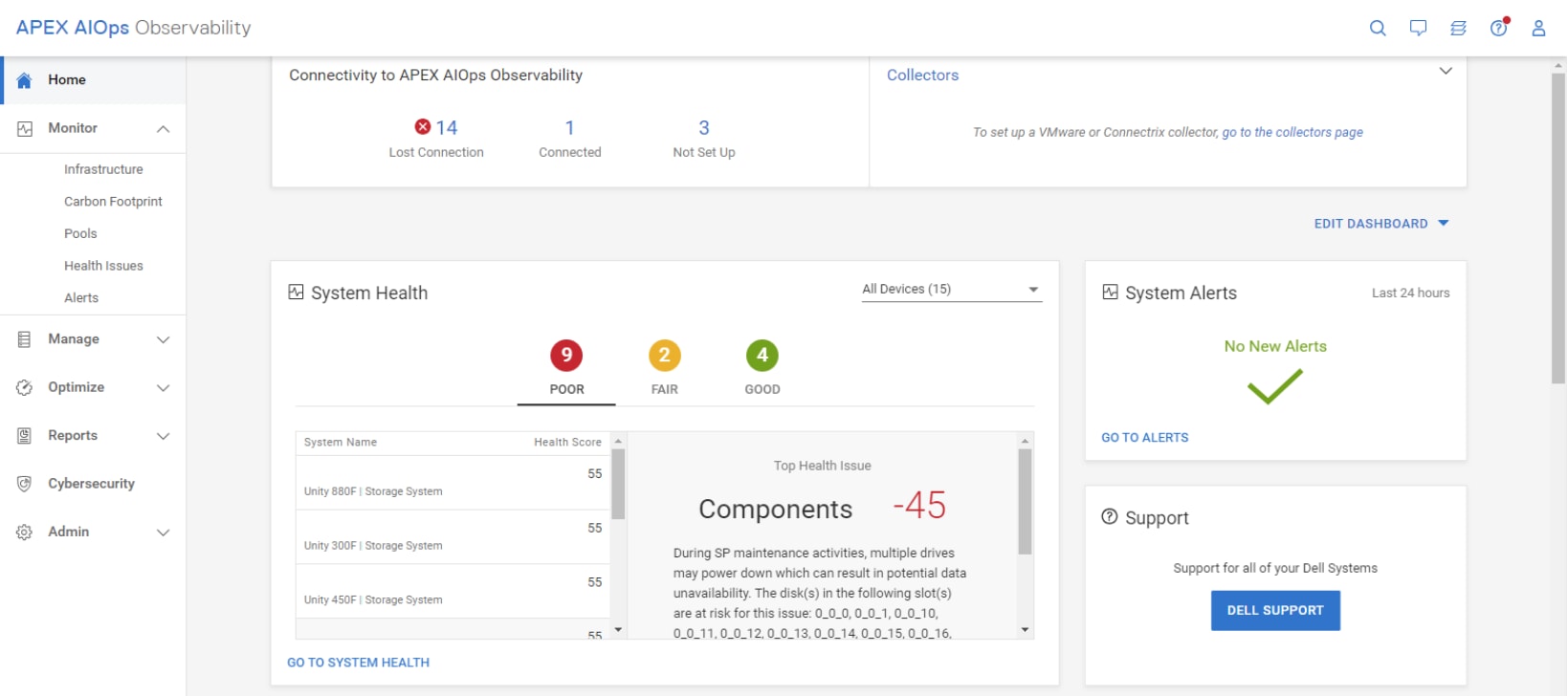
Apex AIOps Observability dashboard (formally known as CloudIQ)

Figure 19.    APEX AIOps dashboard page

For more information on APEX AIOps, see the APEX AIOps dashboard.

Unisphere Central

Unisphere Central is an application that enables administrators to monitor multiple Dell UnityVSA, Dell Unity, VNX, VNXe, and CLARiiON systems from a single interface. It collects information such as system state, alerts, capacity, and performance information and displays it in its HTML5 interface. It also features single sign on, system configuration cloning, and predictive pool capacity monitoring.

For more information about Unisphere Central, see Dell: Unisphere Central

Secure Remote Services

Secure Remote Services (SRS) gateway provides remote dial-in/dial-out connectivity to Dell UnityVSA. This allows the system to dial home and automatically open Service Requests (SRs) for any issues that may arise. It also allows Dell to securely transfer files, such as logs and configuration information, off the system for troubleshooting purposes. The gateway allows you to connect multiple Dell devices such as Dell UnityVSA, Dell Unity, VNX, VNXe, CLARiiON, Celerra, and more while maintaining just a single connection to Dell. When configuring Dell UnityVSA on the SRS gateway, the License Activation Key should be used instead of the Serial Number (prefixed with VIRT) or System UUID. The License Activation Key is required for SRS since this is tied to the Dell UnityVSA license.

For more information about SRS, see Dell Unity: Operating Environment.

REST API

Representational State Transfer (REST) is a management API that allows clients to interact with Dell UnityVSA using standard HTTP mechanisms and semantics. Operations that can be performed in Unisphere or UEMCLI can also be performed using REST API. Application developers can access REST API with any programming or scripting language capable of making HTTP requests, without requiring a separate client.

For more information about REST API, see Dell Unity: Operating Environment .

Comparison

Features

Although Dell UnityVSA is designed for small-scale deployments, its feature set is comparable to physical Dell Unity systems. They also share the same management interfaces and design. The following table compares the feature set between a Dell Unity and Dell UnityVSA system.

Table 7.      Feature Set

Feature

Dell Unity

Dell UnityVSA

APEX AIOps

ü

ü*

FAST VP

ü

ü

Host I/O Limits

ü

ü

iSCSI

ü

ü

Migration (Import)

ü

ü

Multiprotocol

ü

ü

NFS

ü

ü

Quotas

ü

ü

REST API

ü

ü

SMB

ü

ü

Thin Provisioning

ü

ü

Dell Unity File System

ü

ü

Unified Asynchronous Replication

ü

ü

Unified Snapshots

ü

ü

Unisphere Central

ü

ü

Unisphere HTML5 GUI

ü

ü

vVols

ü

ü

Compression/Data Reduction

ü


Data at Rest Encryption

ü


Data in Place conversion

ü


FAST Cache

ü


Fibre Channel

ü


RecoverPoint

ü


Synchronous Replication

ü


*APEX AIOps support is not available for Dell UnityVSA Community Edition

Note that the following features are not available on Dell UnityVSA:

Table 8.      List of Features Not Available on UnityVSA

Feature

Reason

Compression/Data Reduction

Dell UnityVSA does not have control over caching mechanisms to utilize compression or data reduction.

Data-in-Place (DIP) Conversions

Dell UnityVSA does not have physical components to convert to a higher performing model, so DIP is not available. This includes converting from a 2-core to 12-core deployment and from a Single-SP to a Dual-SP deployment.

Data at Rest Encryption

Encryption is not available on Dell UnityVSA since there is no SAS Controller. A server-based encryption solution or SEDs (Self-Encrypting Drives) can be leveraged if encryption is required.

FAST Cache

Due to the virtualized nature of Dell UnityVSA, the disk information is abstracted from the VM so FAST Cache cannot be used.

Fibre Channel

Dell UnityVSA only supports iSCSI for block connectivity.

Multi-Tenancy

Dell UnityVSA does not support network isolation for file tenants.

RecoverPoint

RecoverPoint is only available for physical Dell Unity systems.

Synchronous Replication

Synchronous Replication requires Fibre Channel, which is unavailable on Dell UnityVSA.

Note that the following features are different on Dell UnityVSA compared to physical Dell Unity systems:

Table 9.      Support Features on UnityVSA

Feature

Support Information

Secure Remote Services

Dell UnityVSA only supports the Secure Connect Gateway and does not support integrated SupportAssist.

Link Aggregation

The virtual ports on Dell UnityVSA cannot be used for link aggregation but the physical ports on the ESXi host can use link aggregation.

Non-Disruptive Software Upgrades

Code upgrades on Dell UnityVSA Single-SP require a reboot, which means the system must be taken offline temporarily to complete the upgrade. Dell UnityVSA Dual-SP Deployment upgrades are non-disruptive.

Quick Start Mode

This feature is designed to automatically configure pools in situations where FAST VP and FAST Cache are not licensed. Since users must select the appropriate tier for each virtual disk and FAST VP is included in the base license on Dell UnityVSA, this cannot be used on Dell UnityVSA.

Unisphere CLI/REST API

Some commands, such as those related to disks and storage pools, will be different in syntax for the Dell UnityVSA than a physical Dell Unity system. Features that are not available on the Dell UnityVSA will not be accessible via Unisphere CLI and REST API.

Write Cache

Dell UnityVSA does not have write cache since the contents may be lost if the VM is shut down unexpectedly.

Specifications

A high-level comparison of the specifications of the highest capacity Dell UnityVSA Dual-SP Professional Edition (12-core, 96GB memory, and 350TB) and the smallest physical Dell Unity system, Dell Unity XT 380F, is shown below. Dell UnityVSA software system limits are the same when comparing Single-SP deployments and Dual-SP deployments.

Table 10.  Specifications

Category

Dell Unity XT 380F

Dell UnityVSA (350TB)

Maximum Drives

500 (Dual SP)

50 vDisks (Dual-SP)

CPUs per SP

6 cores @ 1.7GHz

12 cores @ 2GHz+

Total System Memory

128GB

192GB

Max. FE ports per SP

12

4

Supported Protocols

SMB, NFS, iSCSI, FC

SMB, NFS, iSCSI

Supported Drive Types

Flash, NL-SAS, SAS

vDisk

Max. Drive/vDisk Size

15.36TB

62TB (VMware limit)

Max. Total Capacity

2.4PB

350TB

Max. Pool LUNs Per System

1000

64

Max. Pools Per System

20

16

Max. NAS Servers

90

16

Max. File Systems

1000

64

Max. Snapshots Per System

8000

128

Max. Replication Sessions

1000

32

Serviceability

Serviceability

Dell UnityVSA has been designed to be easy to deploy and use by storage administrators, virtualization managers, IT generalists, and more. Occasionally, there may be instances where Dell UnityVSA is unable to function adequately, potentially due to issues with the virtual and/or physical environments. When opening a support case for Dell UnityVSA, the following information should be included to expedite the troubleshooting process.

Returning to Normal Mode When in Service Mode

A Dell UnityVSA SP can boot in Service Mode for several reasons including issues with system software or lost communication to peer SP for dual-SP deployments. In any case, a Dell UnityVSA SP can be brought back to Normal Mode once the underlying issue has been resolved (for example, restored network connections to peer SP). This can be done by following the below procedure:

  1. Open the VMware console to corresponding Dell UnityVSA SP VM.
  2. Login as service user.
  3. Clear the boot counters by running the following command: svc_rescue_state -c
  4. Reboot SP VM by running the following command: svc_shutdown -r

If the SP VM is in a healthy state and underlying issues have been resolved, the SP VM will return to Normal Mode to continue system operations. A similar process can be initiated from the Unisphere management interface using the Service Tasks page for each corresponding SP.

Collect Service Information (Dell UnityVSA)

The Collect Service Information script can be executed on the Service page to gather data. This script collects information about the system, such as logs and configuration data, which is useful for troubleshooting. When this is run on Dell UnityVSA, additional VSA-specific data is also collected automatically.

Collect Service Information (Tie Breaker Node)

For Tie Breaker Node (TBN) in Dual-SP deployments, service collect information is only available with the TBN VM itself and not available through regular “Collect Service Information” using Dell UnityVSA system management interfaces. To collect service information for a TBN VM, the following process should be followed:

  1. Open a VMware Console window for the TBN VM.
  2. Login with the service user account.
  3. Default username and password: service/service.
  4. Configure a network IP for the TBN VM by using “svc_tbn_network” command.
  5. Run a data collect operation for the TBN VM by using the “svc_tbn_dc” command.
  1. Use WinSCP or similar program with SCP capabilities to copy the .tar data collected file from the TBN VM to your local computer.
  2. After finishing copying the data collect file, you can turn off the network interface by using the “svc_tbn_network” command.

The default TBN password can be changed by using the “svc_tbn_password” command. Also, the TBN VM can be rebooted from the console by running the “svc_tbn_shutdown” command.

Below is a table of available TBN service command scripts that can be utilized and their associated descriptions:

Table 11.  Tie Breaker Node Service Commands

Command

Help (Condensed)

svc_tbn_dc

Usage: svc_tbn_dc [-v|--version] [-h|--help]

This script is a user to collect trace in TBN VM.

svc_tbn_network

Usage:

  svc_tbn_network -v | --version

  svc_tbn_network -h | --help

  svc_tbn_network -a <IP address> -n <NETMASK_OR_PL> -g <gateway>

  svc_tbn_network -d | --dhcp4

  svc_tbn_network -o

This script allows a user to configure a network IP for the TBN VM.

svc_tbn_passwd

Usage: svc_tbn_passwd [-v|--version] [-h|--help]

This script allows a user to change the password of a service user.

svc_tbn_shutdown

Usage: svc_tbn_shutdown [-v|--version] [-h|--help] {-r | --reboot}

This script provides shutdown facilities.

Service Host Check

To assist the user with identifying defects in the environment, the service host check script can be used. This script checks for the following issues:

  • CPU over-subscription
  • Network latency
  • Dropped network packets
  • Network errors
  • Disk latency

The output of the script and its log is automatically included in the data collection. This information can be used to analyze disk and CPU data in more depth.

Users can also run the script manually to provide insight about host issues affecting Dell UnityVSA. To run this script, users must first gain access to the command line interface of Dell UnityVSA. This can be done by opening the VM console or by enabling SSH and connecting with an SSH client. Login with the service account and then run the svc_vp_hostcheck command.
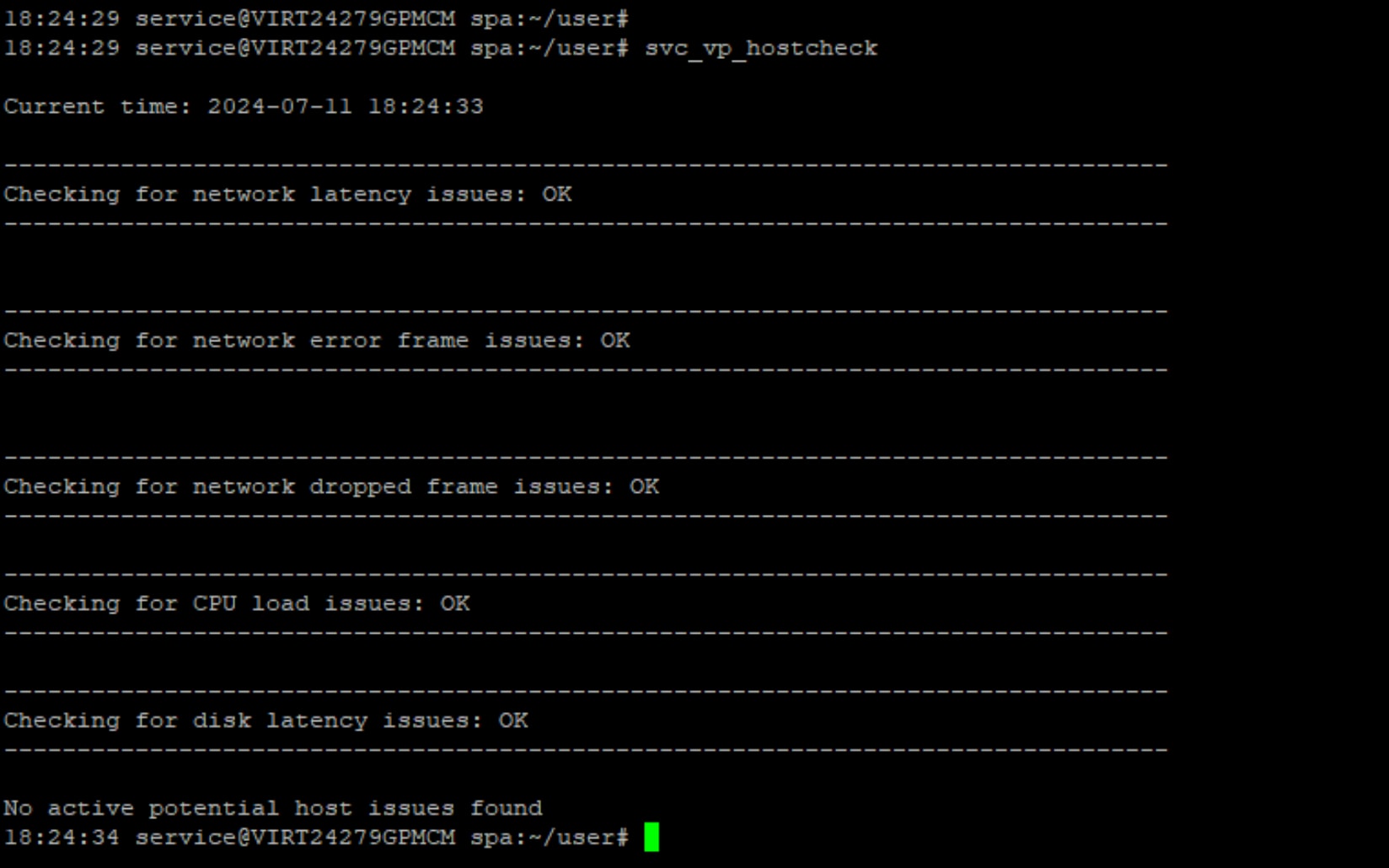
svc_vp_hostcheck example output

Figure 20.    Service Host Check

VMware System Logs

The VMware System Logs provide additional information about the configuration and environment that is used to host Dell UnityVSA. This information is also especially useful for troubleshooting purposes. The process to collect these logs depends on the version of vSphere. See the VMware Knowledge base for the latest information.

Storage Logs

If Dell UnityVSA is consuming storage from a Dell storage system on the backend, the logs from the storage system should also be included. Please include the names of the storage resources that are used for Dell UnityVSA. The process to collect these logs depends on the storage system. See the appropriate documentation for more information.

Administrator Password Reset

In case the admin password is forgotten, you can reset it back to default. This procedure requires a reboot of Dell UnityVSA SP, which results in an outage if using a single-SP solution, so a maintenance window should be scheduled. Note that this procedure also applies to Dell UnityVSA HA and only requires one SP to be rebooted. Follow these steps to reset the password:

  1. Open the VMware console for Dell UnityVSA SP VM (Either SP for dual-SP solution works).
  2. Login as the service user.
  3. Run the following command to reboot Dell UnityVSA SP: svc_shutdown -r.
  4. Wait a few minutes for Dell UnityVSA SP to shut down.
  5. When Boot is displayed, press Tab within three seconds to interrupt the boot process.
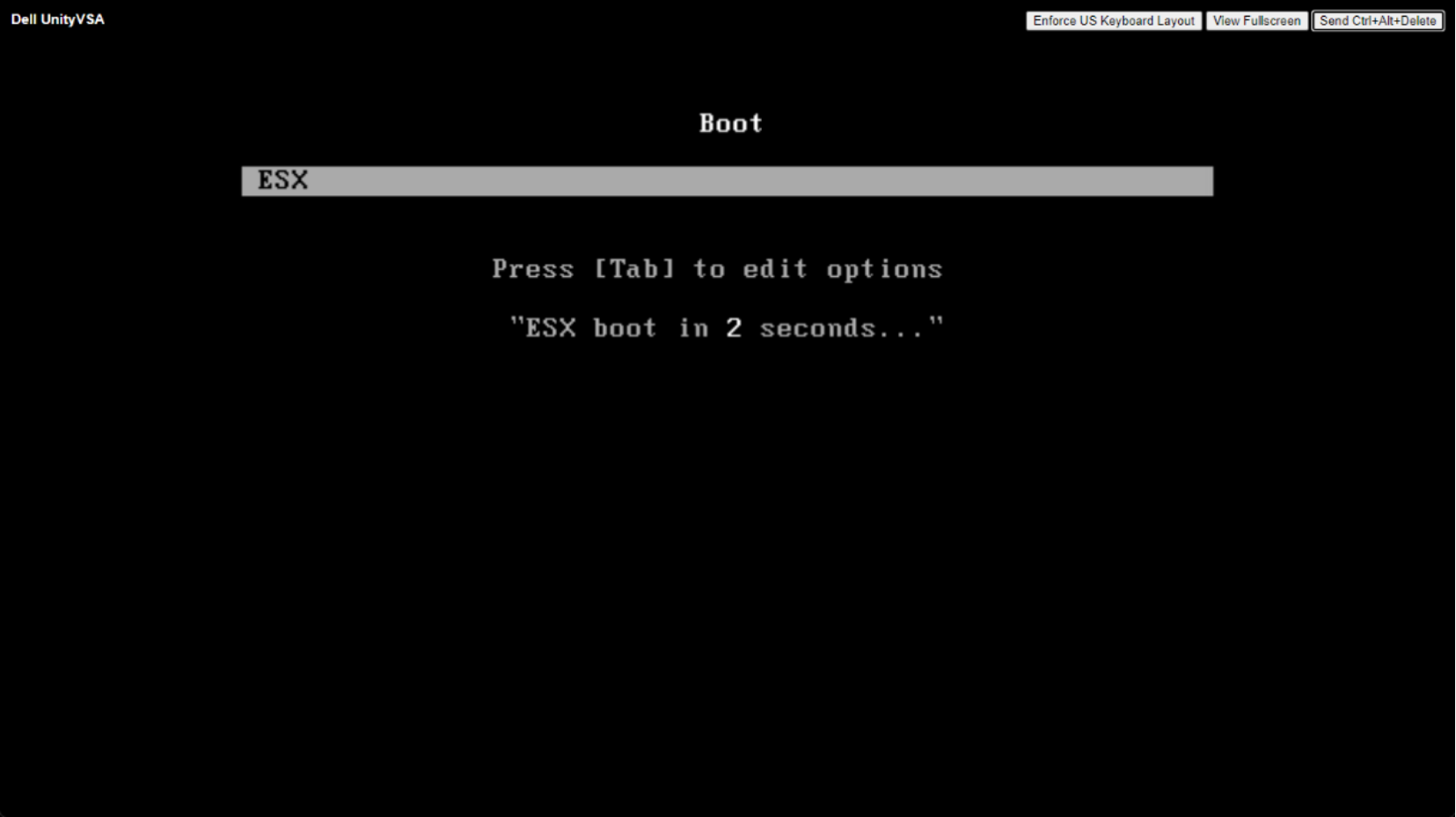
vmware console showing UnityVSA booting

Figure 21.    Boot

  1. Once the kernel parameters are displayed, append ”unityvsa_reset_admin_password” to the end and press Enter.
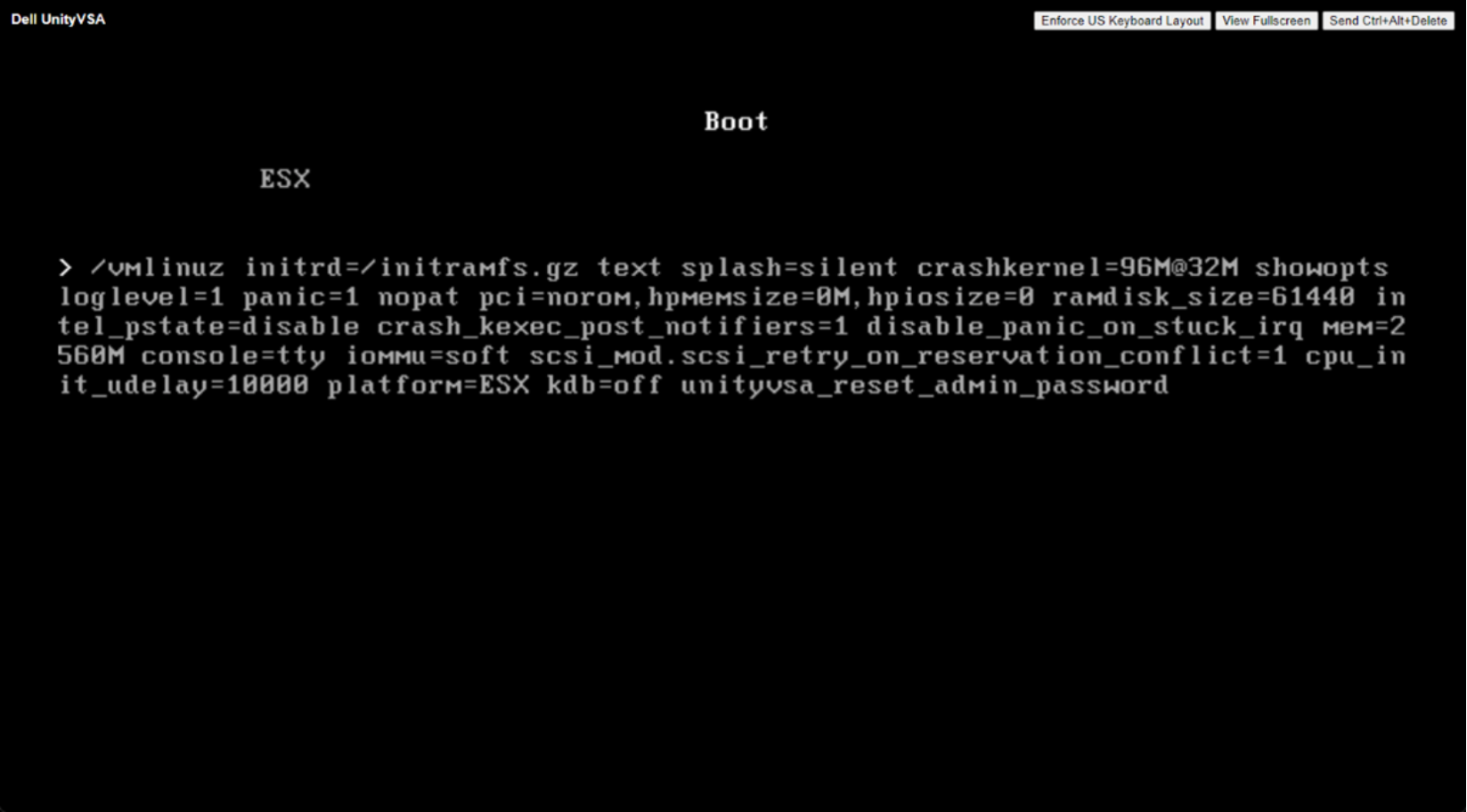
VMware console showing how to reset UnityVSA password

Figure 22.    Kernel Parameters

  1. Wait for Dell UnityVSA to boot up.
  2. Once the VM has fully booted, login to Unisphere using the default credentials: admin/Password123#.
  3. You are prompted to change the password to something other than the default., as shown below.
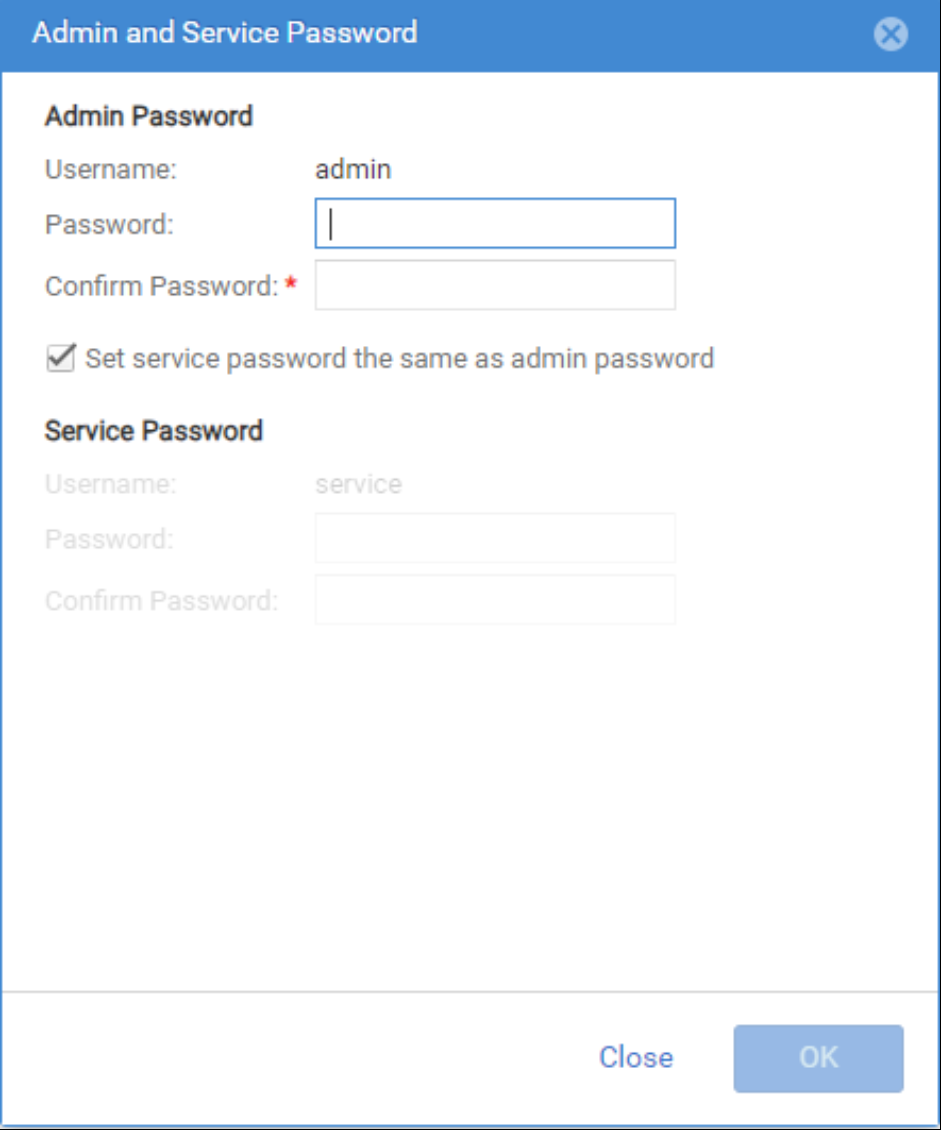
Unity admin and service credentials being set for first time

Figure 23.    Password Reset

Interoperability

VMware

VMware administrators should monitor Dell UnityVSA for alerts as they would for any other VM.

VMware features are designed to be used with standard VMs so special considerations must be taken when applying some of these features to Dell UnityVSA.

Table 12.  Supported Actions

Action

Recommendation

VMware High Availability (HA)

It is recommended to restart Dell UnityVSA in case of host failure. Note if deploying Dell UnityVSA dual-SP, it is recommended to set the anti-affinity rule between the two SP VMs before configuring VMware HA. This is to ensure the SP VMs remain on separate hosts and retain the HA nature of the solution.

Cold Migration

Cold migration can be used to migrate Dell UnityVSA VMs while the VM(s) are offline. If you want to relocate one of the UnityVSA dual-SP virtual disks, the following procedure should be followed:

1. Power off both SPs.

2. Remove all shared disks from the SPA VM, but do not delete the associated VMDK files. The shared disks include Hard disks 2, 4, 5 and all disks serving as virtual drives for capacity allocation.

3. Migrate the SPB VM to the destination host/datastores as applicable.

4. Then migrate the SPA VM to the destination host as applicable.

5. Reattach the shared disks to the SPA VM. Note that the first 3 shared disks that are serving as system disks and heartbeat datastores (30GB, 2MB and 2MB respectively) should be assigned to the same SCSI bus IDs (SCSI 0:1, 0:3, and 0:4 respectively) as those on the SPB VM.

6.  Power on both SPs

Table 13.  Not Recommended Actions

Action

Reason

Distributed Resource Scheduler (DRS)

Migrating Dell UnityVSA while the VM is online may cause latency issues.

Nested Virtualization

Do not run Dell UnityVSA inside a virtualized ESXi VM as this may cause degraded performance.

Fault Tolerance (FT)

Fault Tolerance should not be used due to the increased latency.

VM Replication

Dell UnityVSA cannot be replicated and failed over.

VM Snapshots

Taking or reverting Dell UnityVSA to snapshots is not supported.

VM Backup

Dell UnityVSA cannot be backed up and restored.

VM Suspend

Dell UnityVSA cannot be suspended and resumed but it can be powered off instead.

Storage vMotion

Storage vMotion cannot be used to migrate Dell UnityVSA virtual disks while the VM(s) are online. Alternatively, cold migration is supported for virtual disks while the VM(s) are offline.

vMotion

vMotion cannot be used if Dell UnityVSA SPs are online, but cold migration can be used to migrate Dell UnityVSA VM(s) to another host if the VM(s) are offline.

Dell Unity Cloud Edition with VMware Cloud on AWS

As users select a cloud operating model to support their applications, they look for the elasticity and scalability of public clouds and enterprise file capabilities such as tiering, quotas, and snapshots. They also wish to leverage the cloud for file synchronization and disaster recovery operations.

Dell Unity Cloud Edition addresses these requirements with support and certification for VMware Cloud (VMC) on Amazon Web Services (AWS). Dell Unity Cloud Edition can be easily deployed in a VMware Cloud SDDC (Software-Defined Data Center) to provide native file services such as NFS, SMB, FTP, and SFTP. Dell Unity Cloud Edition also enables disaster recovery between on premise deployed Dell Unity family systems and VMware Cloud-based appliances.

Dell Unity Cloud Edition supports both the Single-SP and Dual-SP deployment solutions in VMC. The Single-SP solution, running UnityOS 4.5 or later, can be deployed directly into VMC using the VMC vSphere Web Client. The dual-SP solution, running UnityOS 5.0.1 or later, is deployed using a deployment utility which runs on Windows 64-bit systems.
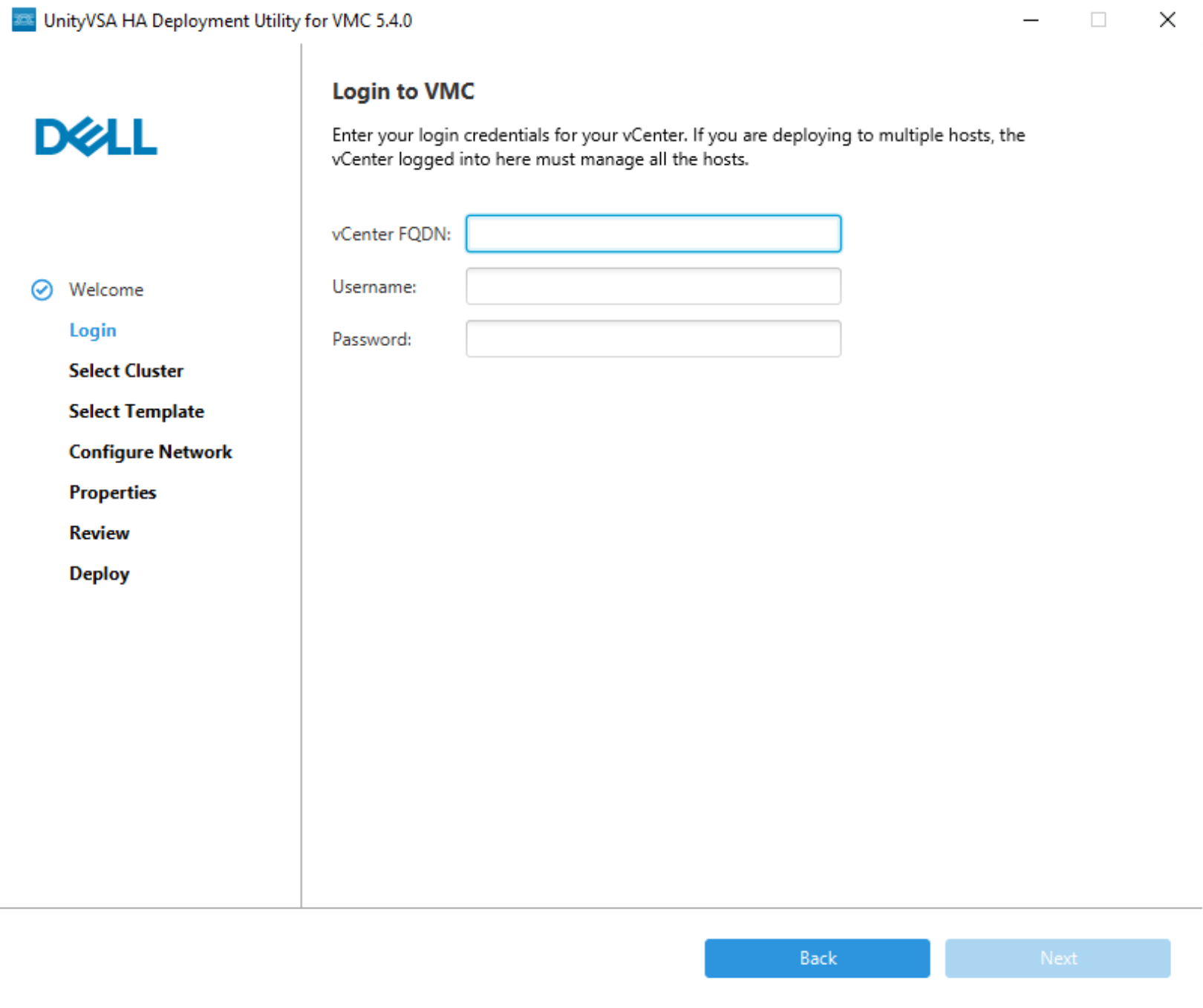
UnityVSA HA deployment wizard showing vCenter login credentials required

Figure 24.    Dell Unity Cloud Edition HA Deployment Utility

Dell Unity Cloud Edition (Single-SP) and Dell Unity Cloud Edition HA (Dual-SP) provides the enterprise file capabilities of the Dell Unity family within a VMware Cloud SDDC. Enterprise Capabilities such as snapshots, quotas, and tiering are delivered with a common experience. With Dell Unity Cloud Edition, file services are consumed within each Customer SDDC, so there is no need for an external file appliance or file service. Existing customers can now leverage Unity Cloud Edition as part of their hybrid-cloud strategy leveraging the flexibility of VMware Cloud.

Since Dell Unity Cloud Edition and the Cloud Tiering appliance (CTA) are designed for VMware ESXi, they are well suited to run within the VMware Cloud on AWS. Administrators can log into their cloud vCenter instance and deploy the appliances just as they would with their local or on-premises environment. This allows for flexible usage of Dell Unity Cloud Edition to augment a local array to provide file services to applications in the cloud, for DR, or to allow the CTA direct communications with Amazon S3 storage.
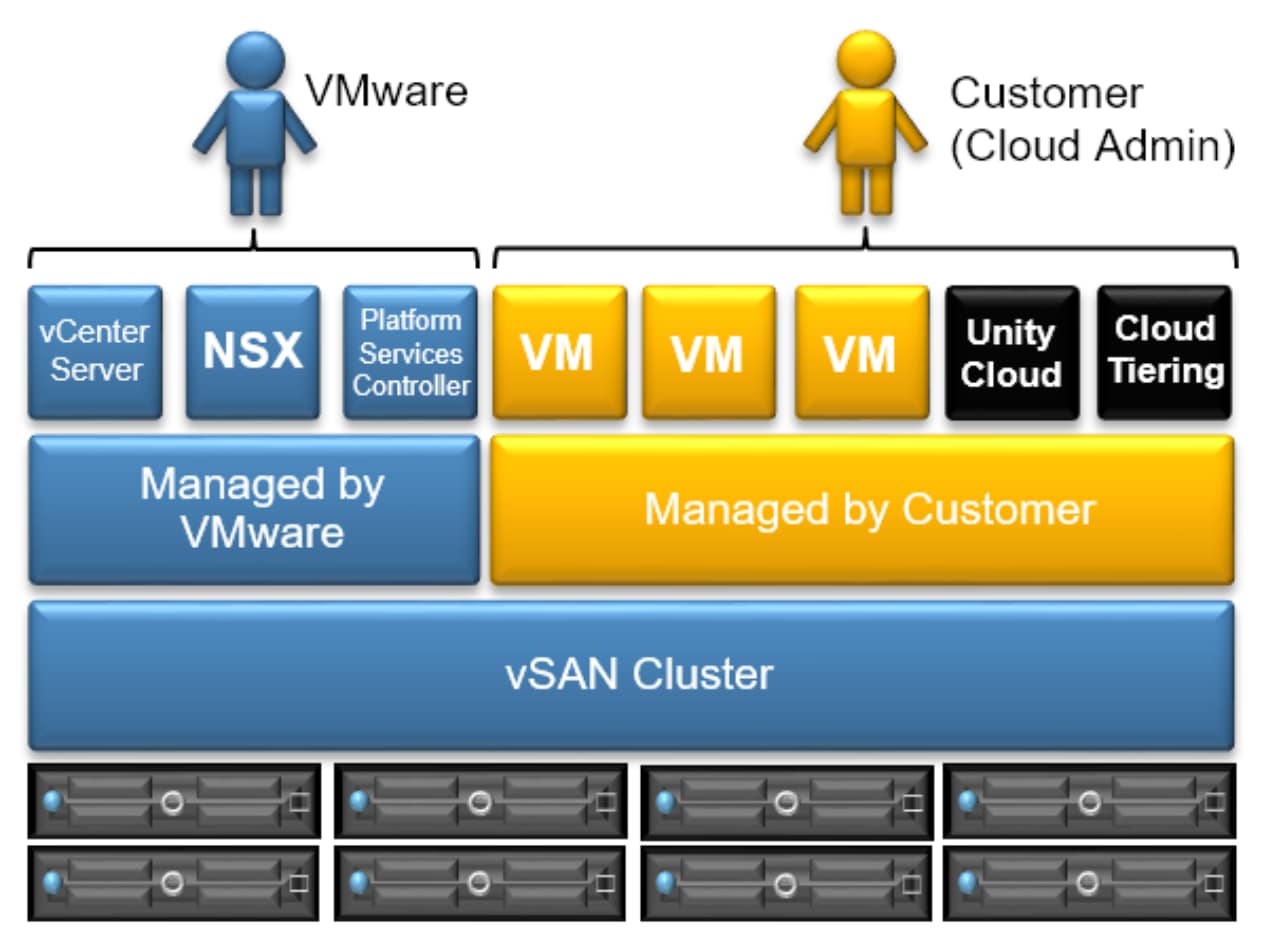
Shows Unity Cloud Edition and Cloud Tiering Appliance on VMware Cloud

Figure 25.    Unity Cloud Edition and Cloud Tiering Appliance on VMware Cloud

Dell Unity Cloud Edition is available on the VMware Solution Exchange and VMware Cloud Marketplace. For more information about Dell Unity Cloud Edition and Dell Unity Cloud Edition HA, reference the Dell Unity Cloud Edition with VMware Cloud on AWS white paper, available on Dell Unity XT Info Hub.

Dell UnityVSA with vSAN

Dell UnityVSA is certified to be VMware Ready for vSAN. Dell UnityVSA Single-SP can be leveraged in conjunction with vSAN to provide rich file services over SMB, NFS, FTP, and SFTP. Other features such as snapshots, replication, quotas, shrink/extend, multiprotocol, storage tiering, cloud tiering, migration, and more are also available. Dell UnityVSA Single-SP systems running on vSAN feature interoperability with other Dell systems for replication, migration, and disaster recovery use cases. Dell UnityVSA Dual-SP is not currently supported on VSAN deployments.

Dell UnityVSA is available on the VMware Solution Exchange marketplace. For more information about how to deploy Dell UnityVSA with VxRail, see Dell UnityVSA Installation Guide.
Dell UnityVSA emblem showing VMware Ready with vSAN

Figure 26.    Dell UnityVSA - VMware Ready for vSAN

Dell UnityVSA with VxRail

Dell UnityVSA Single-SP offers support for deployment on Dell VxRail Appliances. Combining these solutions offers a fully featured software-defined storage solution as well as a fully integrated Hyper Converged Infrastructure developed and tested by Dell and VMware.

The following minimum versions are supported for running Dell UnityVSA Single-SP on a Dell VxRail:

Table 14.  Minimum Code Requirements

System

Minimum Version

Dell UnityVSA

UnityOS 4.2 or later

Dell VxRail

VxRail OS 4.0 or later

When deploying and configuring the network for the Dell UnityVSA Single-SP on a VxRail Appliance, it is recommended to deploy the Dell UnityVSA Single-SP on the same network that is used by the client VMs that are residing on the VxRail appliance.

When Dell UnityVSA Single-SP is configured on a vSAN datastore, the overall IO throughput is limited by the I/O capabilities of the vSphere/vSAN cluster that is being used. The I/O capabilities of a vSAN cluster scales linearly as nodes are added to the cluster and as disk groups are added to the hosts. Likewise, the cluster throughput can be limited by the choice of network ports that are configured. The recommendation is to use NICs with 10Gb ports instead of NICs with 1Gb ports.

Photo of a VxRail system

Figure 27.    Dell VxRail

For more information about how to deploy Dell UnityVSA Single-SP with VxRail, see Dell UnityVSA Installation Guide.

Conclusion

Conclusion

Dell UnityVSA is a software-defined storage solution that enables increased flexibility and agility by enabling easy deployments and reduced dependencies on hardware. It enables the Dell Unity family to be deployed on general purpose hardware platforms. In test/development and remote office/branch office environments, Dell UnityVSA can be utilized to quickly deliver both block and file resources over iSCSI, SMB, and NFS. The rich feature set included in the base license comprises Unified Snapshots, Asynchronous Unified Replication, FAST VP, vVols, NAS capabilities, and more provides additional value.

References

Tags: