Delphix on Dell PowerFlex: Accelerating DevOps Workflows
Executive summary
Executive summary
Introduction
Audience
Terminology
We value your feedback
Product overview
PowerFlex family
PowerFlex software-defined infrastructure enables broad consolidation across the data center, encompassing almost any type of workload and architecture. The software-defined architecture offers automation and programmability of the complete infrastructure and provides scalability, performance, and resiliency to enable effortless adherence to stringent workload SLAs.
The PowerFlex family provides a foundation that combines compute and high-performance storage resources in a managed unified fabric. PowerFlex comes in flexible deployment options (rack, appliance, or custom nodes and in the public cloud) that enable independent (two-layer), HCI (single-layer), or mixed architectures. PowerFlex is ideal for high-performance applications and databases, building an agile private/hybrid cloud, or consolidating resources in heterogeneous environments.
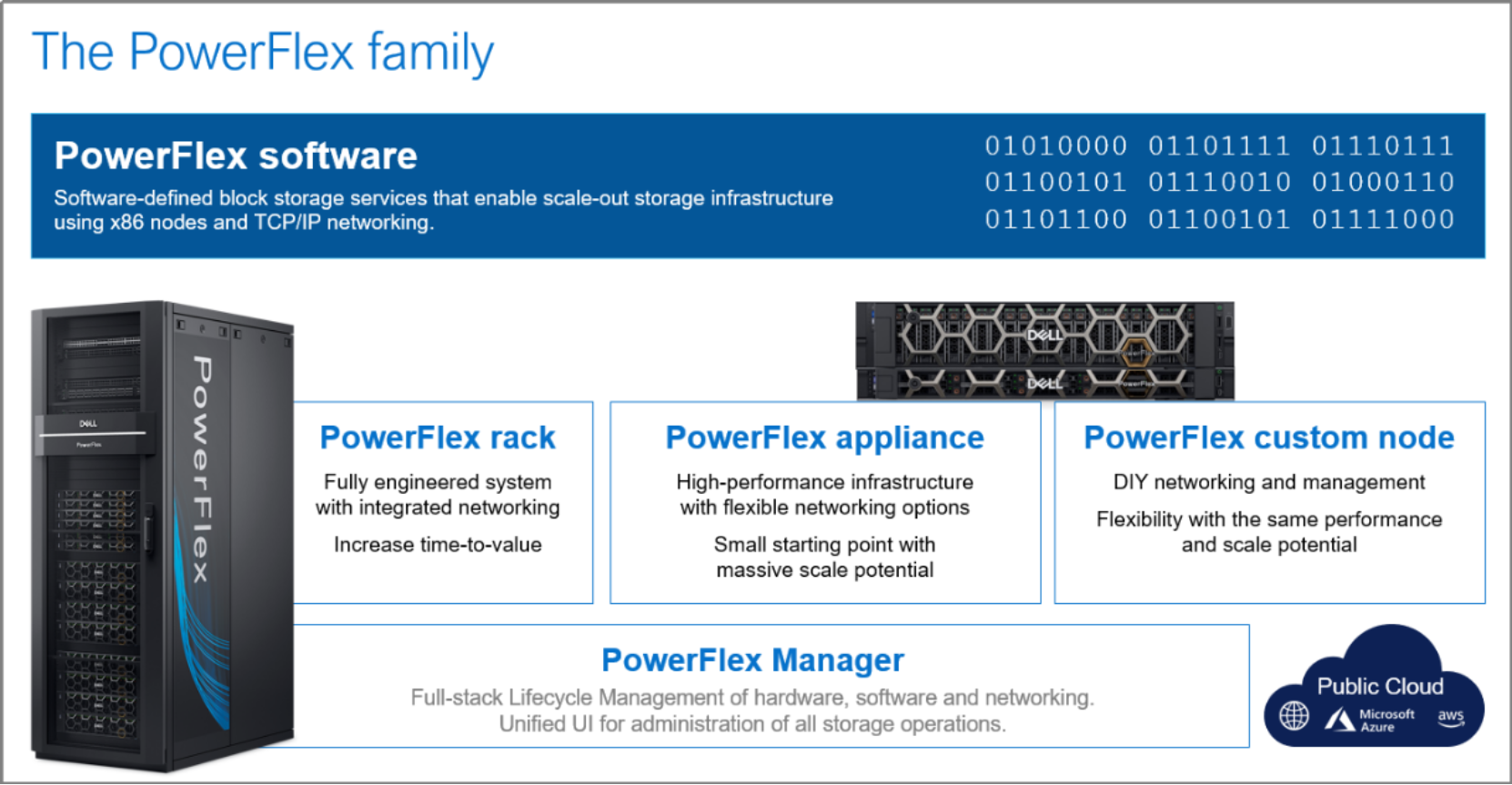
Figure 1. PowerFlex Family
PowerFlex software components
Software is the key differentiation in the PowerFlex offering. PowerFlex software components not only provide software-defined storage services, but also help simplify infrastructure management and orchestration. This software enables comprehensive IT Operational Management (ITOM) and Life Cycle Management (LCM) capabilities that span compute as well as storage infrastructure, from BIOS and Firmware to nodes, software, and networking.
PowerFlex
PowerFlex is the software foundation of PowerFlex software-defined infrastructure. It is a scale-out block storage service that is designed to deliver flexibility, elasticity, and simplicity with predictable high performance and resiliency at scale.
PowerFlex Manager
PowerFlex Manager is the software component in the PowerFlex family that enables ITOM automation and LCM capabilities for PowerFlex systems. Starting with PowerFlex 4.0, the unified PowerFlex Manager brings together three separate components used in previous releases – PowerFlex Manager, the core PowerFlex UI, and the PowerFlex gateway. The new PowerFlex UI runs in Kubernetes and embraces a modern development framework.
PowerFlex with NVMe over TCP (NVMe/TCP)
NVMe is a family of open specifications that defines an industry standard for both a logical interface and a communication protocol for accessing block storage across an internal PCIe fabric or through external fabrics such as TCP/IP and FC. NVMe is designed to take advantage of the internal parallelism and low latency inherent in flash-based media SSDs.
NVMe/TCP is an extension of the NVMe base specification that defines the binding of the NVMe protocol to message-based fabrics using TCP. By binding the NVMe protocol to TCP, NVMe/TCP enables the efficient end-to-end transfer of commands and data between NVMe hosts and NVMe controller devices by any standard Ethernet-based TCP/IP networks.
From PowerFlex release 4.x onwards, support for NVMe/TCP has been added for on-premises deployment with the introduction of a new Storage Data Target (SDT) component installed in the storage layer. The NVMe initiator in the operating system or hypervisor communicates with the SDT, which then communicates with the Storage Data Server (SDS). The NVMe initiator is part of the kernel of the application host operating system or hypervisor.
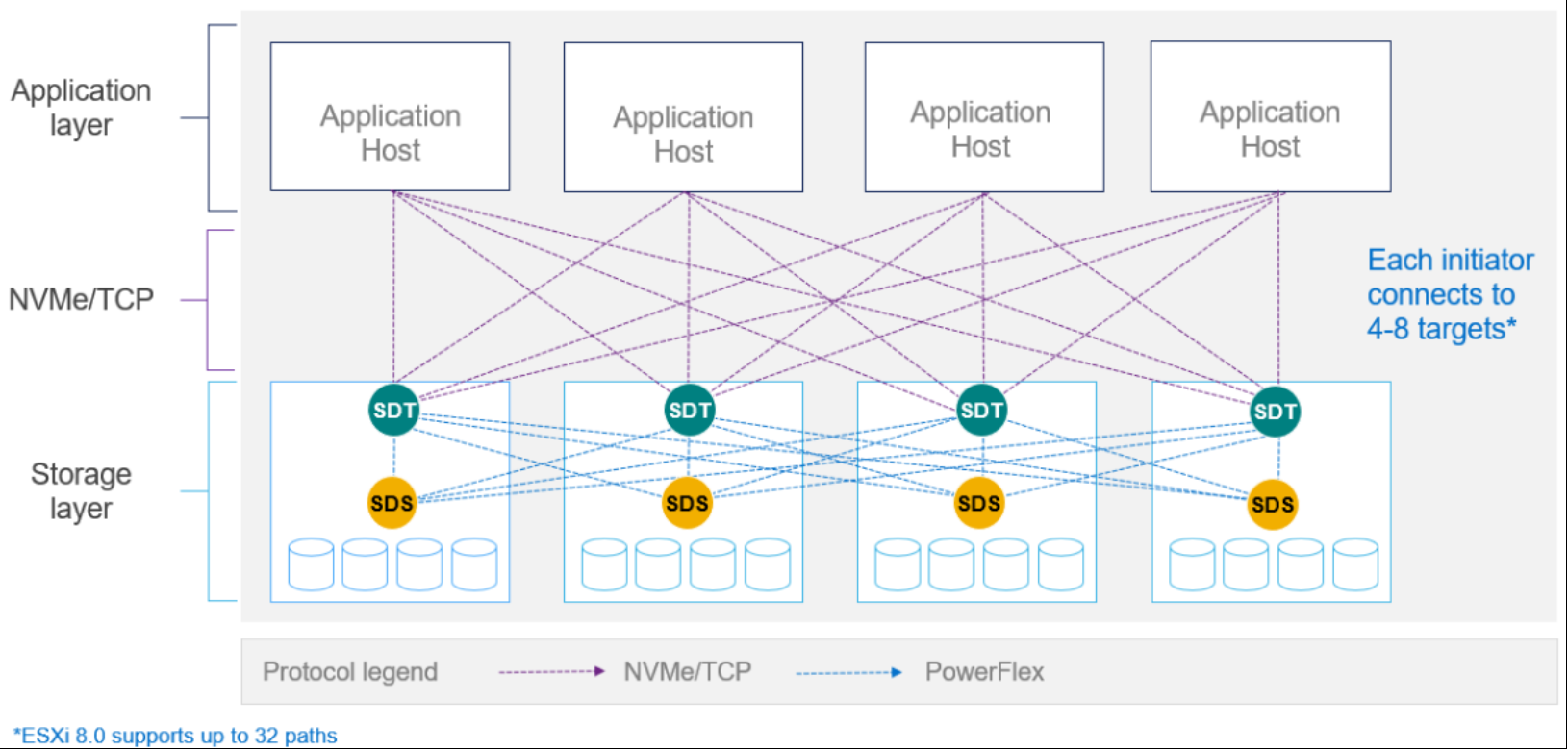
Figure 2. PowerFlex with NVMe/TCP
For more information, see PowerFlex with NVMe over TCP.
PowerFlex deployment architectures
PowerFlex software-defined storage offers flexibility of deployment architecture to help best meet the specific deployment and architectural requirements. PowerFlex can be deployed in a two-layer (Independent), single-layer (Hyperconverged/HCI), or a mixture of the two architectures (Mixed). OpenShift environments on PowerFlex use a two-layer (independent) architecture.
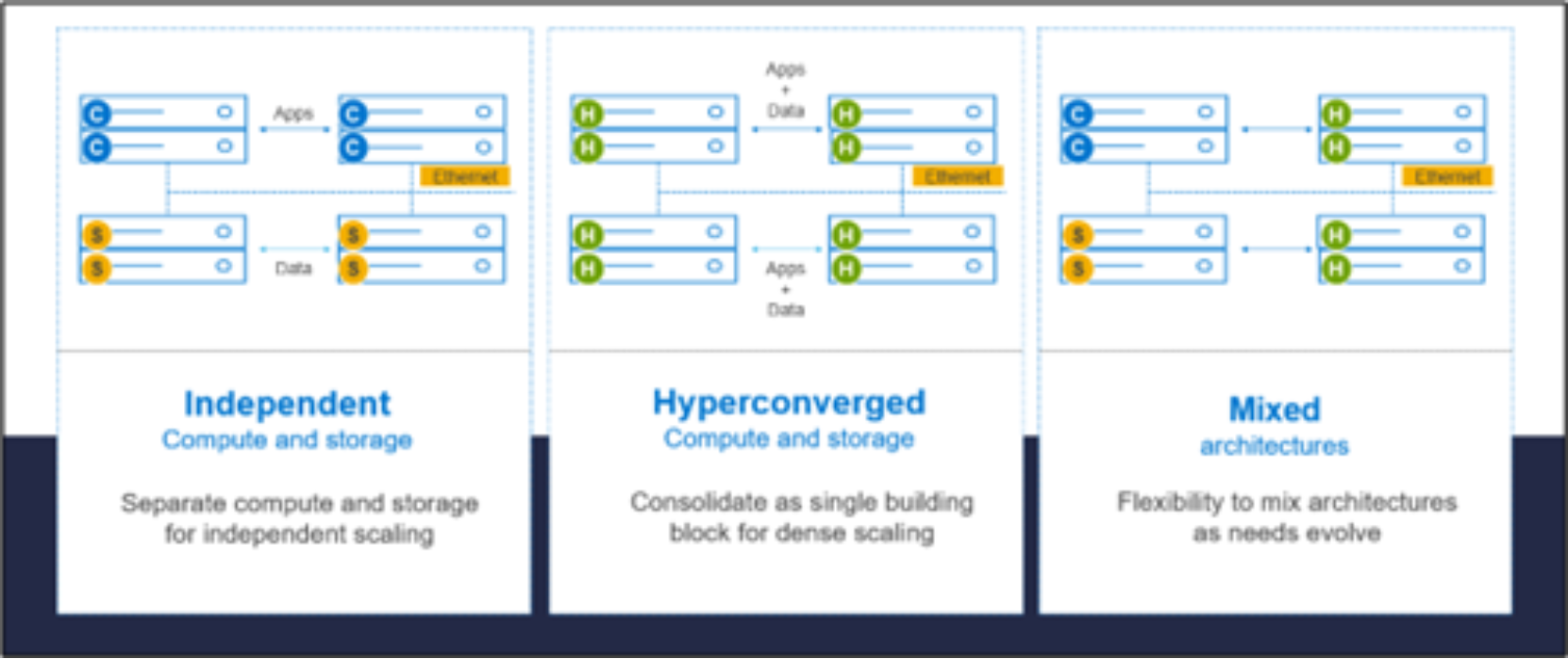
Figure 3. PowerFlex deployment architectures
Independent architecture
In an independent architecture, or two-layer architecture, some nodes provide storage capacity and host datasets while other, separate, and independent nodes, host applications and workloads. Compute and storage resources can be scaled independently by adding nodes to the cluster. This separation of compute and storage resources can also help minimize software licensing costs in certain situations. And this architecture can be ideal for hosting high-performance high-value databases and application workloads.
Hyperconverged architecture
In an HCI architecture, each node in the cluster contributes storage resources and hosts applications and workloads. This architecture allows you to scale your infrastructure uniformly and with a predefined building block that adds both storage and compute resources. This architecture is appropriate for data center and workload consolidation.
Mixed architecture
A mixed architecture is a combination of both the HCI and Independent architectures. As shown in Figure 3 there are some storages only nodes, compute only nodes, and HCI nodes as a part of the same PowerFlex cluster. This is a desirable architecture when working with an existing compute infrastructure and adding high-performance software-defined infrastructure. This can also be a starting point for a two-layer deployment design as external workloads are migrated to PowerFlex.
PowerFlex consumption options
PowerFlex rack
PowerFlex rack is a software-defined storage platform that delivers flexibility, elasticity, and simplicity with predictable performance and resiliency at scale by combining compute as well as high-performance storage resources in a managed unified network. This rack-scale engineered system, with integrated networking, enables customers to achieve the scalability and management requirements of a modern data center.
PowerFlex appliance
PowerFlex appliance is a PowerEdge server which has been configured to be a node in a software-defined storage deployment. This offering allows customers the flexibility and savings to bring their own compatible networking.
PowerFlex custom nodes
PowerFlex Custom Nodes are validated server building-blocks configured for use with PowerFlex. They are available with thousands of configuration options and are available for customers who prefer to build their own environments.
Dell APEX Block Storage for Public Cloud
PowerFlex software is also available in the public cloud as Dell APEX Block Storage for Public Cloud. It offers the same on-premises benefits of high-performance, linear scalability, and high resilience as in cloud. It also adds cloud-specific benefits, such as large volume sizes, extreme performance based on NVMe drives, and predictable scalability. The Dell APEX Block Storage self-healing architecture simplifies and increases the availability of infrastructure. It is designed to remain running even when it encounters failures. With fast rebuilds, Dell APEX Block Storage recovers rapidly from failures and keeps operating, without degrading performance or compromising availability. You can also extend this availability and configure it to protect your application availability across multiple availability zones.
PowerFlex CSI/CSM
An important component outside of PowerFlex that enables a flexible consumption model for Kubernetes is the PowerFlex CSI driver, developed as a part of the Dell Kubernetes strategy. After loading the CSI driver for PowerFlex into Kubernetes, it can be used to provision persistent volumes from the underlying PowerFlex storage resource. If the Kubernetes deployment is running low on PowerFlex storage resources, you can add PowerFlex storage nodes to increase the system capacity and performance.
The CSI driver connects the PowerFlex system and Kubernetes deployments. It is a storage broker which dynamically provisions volumes from PowerFlex through the PowerFlex API gateway to the Kubernetes cluster. Once the volume is available on PowerFlex, it is immediately mapped to the requesting pod. If a pod is destroyed or rescheduled, the CSI plug-in ensures that the volumes are remapped upon rescheduling of that pod.
- Customers running Kubernetes clusters on PowerFlex use the Dell Container Storage Modules (CSM), which extend the CSI driver capabilities. These modules:
- Provide enterprise storage capabilities to Kubernetes for cloud-native stateful applications.
- Reduce management complexity, so that developers can independently use enterprise storage with ease and automate daily operations.
- Extends storage functionality and capabilities beyond using the CSI driver alone.
These modules include snapshot, observability, authorization, application mobility, and resiliency.
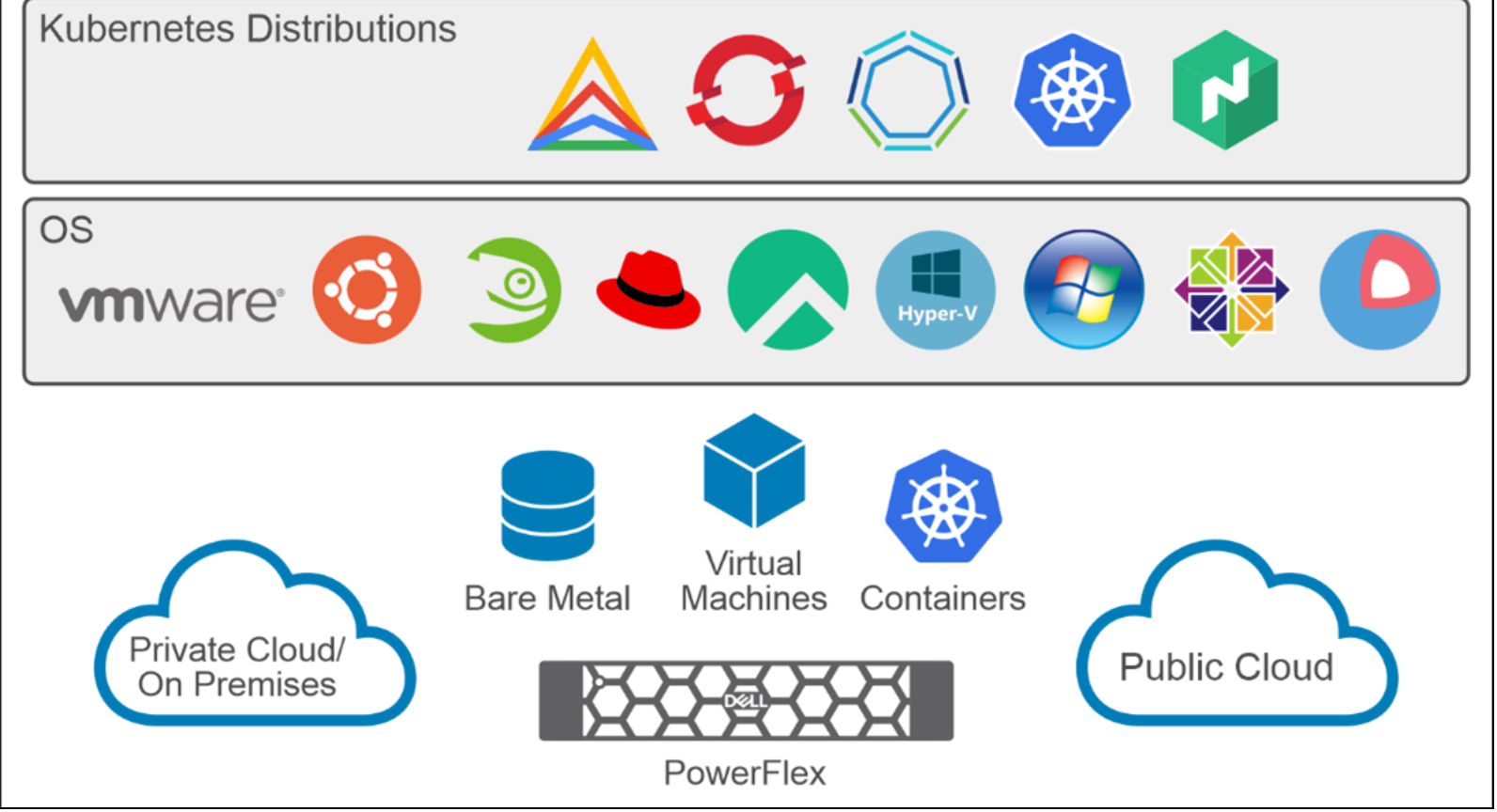 PowerFlex supports multiple operating systems, different deployment options on-premises and public cloud deployment models (available in AWS and Azure). PowerFlex is validated with leading Kubernetes distributions as shown in Figure 4.
Delphix DevOps appliance
Delphix DevOps appliance
Solution architecture
Solution architecture
Logical architecture
The following diagram shows the logical architecture of this solution:
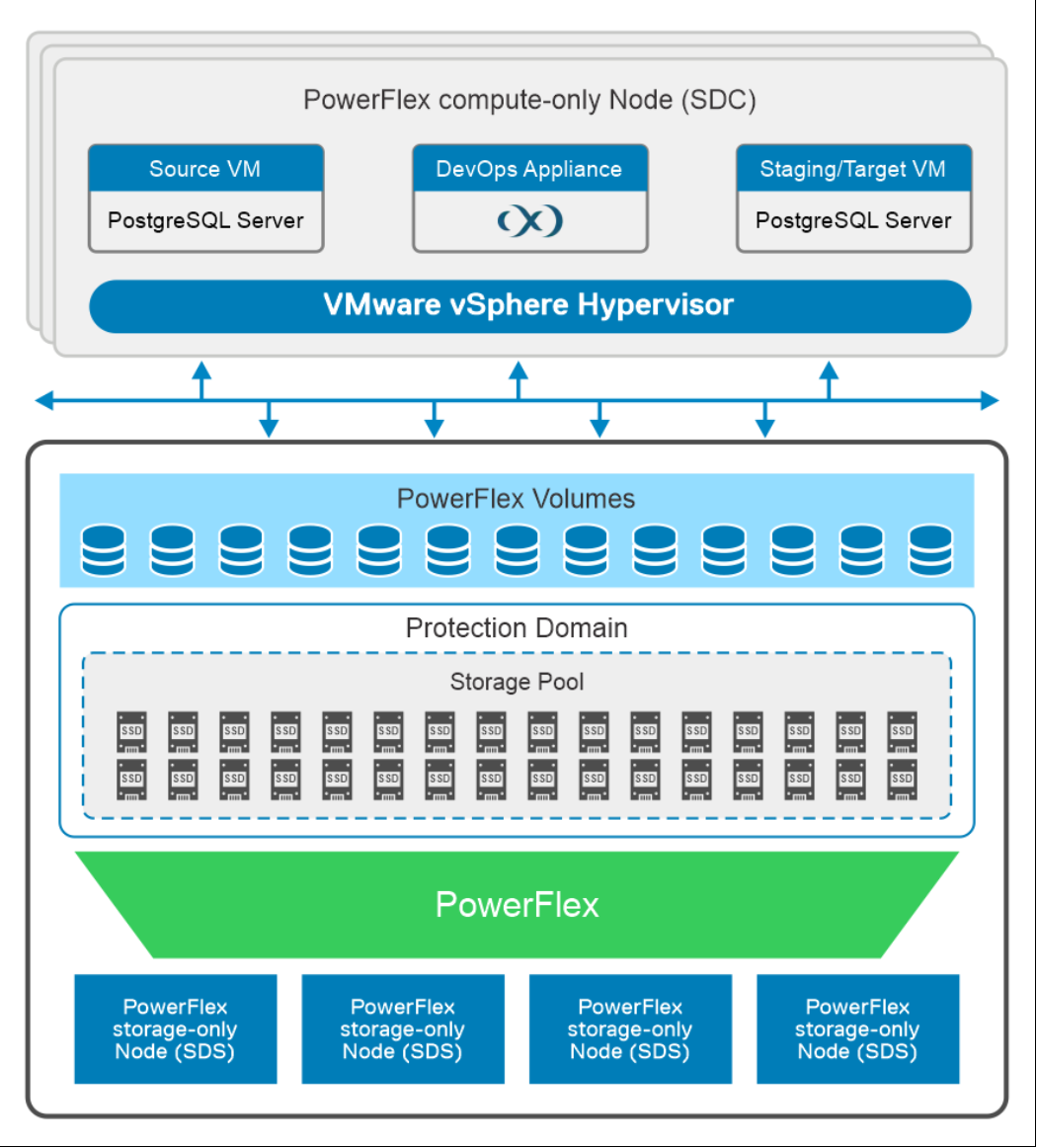
Figure 5. Logical design of Delphix DevOps appliance with Dell PowerFlex
The PowerFlex cluster is deployed on four PowerFlex storage-only nodes and three compute-only nodes using PowerFlex Manager. The four storage-only nodes are installed with the PowerFlex embedded operating system, and the compute-only nodes are installed with VMware ESXi hypervisor.
For more information about the test setup used in this paper, please see the Test configuration.
The Delphix DevOps Appliance is deployed on Dell PowerFlex. The Delphix DevOps Appliance consists of a set of components that work together to manage and provision virtual databases. These components are deployed as virtual machines on the Dell PowerFlex compute-only cluster nodes.
- Source Environment: This refers to the environment where the original PostgreSQL database resides. It includes the server hardware, operating system, and the running PostgreSQL instance.
- Delphix Engine: This is the software platform that manages and virtualizes the databases. It interacts with the source environment to capture and maintain a representation of the source database.
- Target environment: This refers to the environment where the data copies will be provisioned.
- Staging environment: This refers to the environment where the sourced data can be pre-processed to minimize any performance concerns.
For more information about the Delphix appliance configuration used in this solution, see the next section.
Note: In this test setup, a single system is used for both the Target environment and the Staging environment.
Network architecture
The following diagram shows the network architecture of this solution.
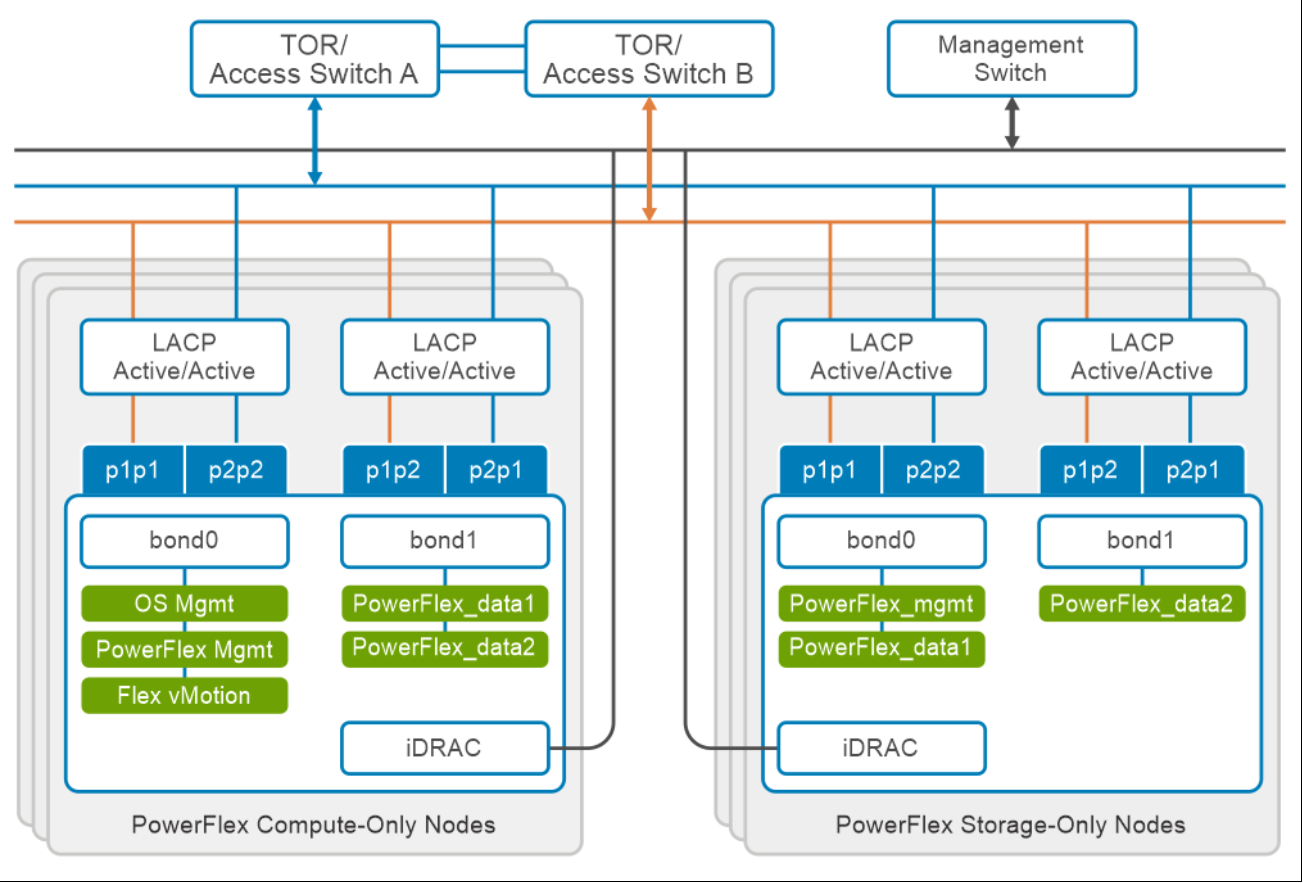
Figure 6. Network design of Delphix DevOps appliance with Dell PowerFlex
At the physical layer, two Top of Rack (TOR) switches are used for redundancy and load-balancing purposes at each site. A peer link is configured on both the TOR switches.
The network ports of different network interfaces on each PowerFlex nodes are configured to carry PowerFlex management, PowerFlex data1, and PowerFlex data2. An LACP bond is configured at the host level with two network interfaces to form a single-bonded (logical) interface for increased bandwidth and redundancy.
The bond0 and bond1 are the LACP bonded interfaces and are configured with multiple VLAN tagged interfaces for all the PowerFlex networks. The traffic is logically separated by creating VLANs which separate different traffic on the bond interfaces as shown in the preceding figure. PowerFlex data1 and data2 are used for data traffic.
The Delphix DevOps appliance uses the operating system management network to communicate between the Delphix engine, source, staging, and target environments.
The following table shows the different networks that are configured for this solution. For more information, see the Dell PowerFlex Appliance with PowerFlex 4.x Network Planning Guide | Dell US.
Table 1. Network details
|
Network type |
VLAN ID |
|
OS management |
105 |
|
PowerFlex management |
150 |
|
PowerFlex Data 1 |
151 |
|
PowerFlex Data 2 |
152 |
|
vMotion |
106 |
Deploying the Delphix engine on VMware
Prerequisites
Installation steps
This section details the steps for installing the Delphix engine using the Delphix supplied OVA file and using Dell PowerFlex storage for the underlying storage needs.
- Log in using the vSphere client to the vSphere server (or vCenter Server) where the Delphix engine needs to be installed.
- In the vSphere Client, click File.
- Select Deploy OVA Template.
- Navigate to the OVA file.
- Click Next.
- Select a hostname for the Delphix engine. This hostname will also be used in configuring the Delphix engine network.
- Select the data center where the Delphix engine will be located.
- Select the PowerFlex compute-only cluster and select the compute node running the ESXi hypervisor.
- Select a local datastore/volume to store data related to the Delphix operating system and Delphix virtual machine configuration. It should be thin-provisioned, with a minimum free space of 127 GB to store the data.
- Select the single virtual network that the Delphix engine uses.
- Click Finish. The installation begins, and the Delphix engine is created in the specified location.
- Once the installation has been completed, select the storage requirements as per the engine type requirements.
- For Continuous Data, edit the Delphix engine VM settings.
Create and add a minimum of four virtual disks that are provisioned from the PowerFlex storage volume created for data provisioning to store databases in the Delphix engine Continuous Data. The Delphix engine will stripe the database across these virtual disks, so for optimal I/O performance, each virtual disk should be equal in size and be configured as thick provisioned—Eager Zeroed. Additionally, these virtual disks should be distributed as evenly as possible across all SCSI I/O controllers, as shown in the following figure:
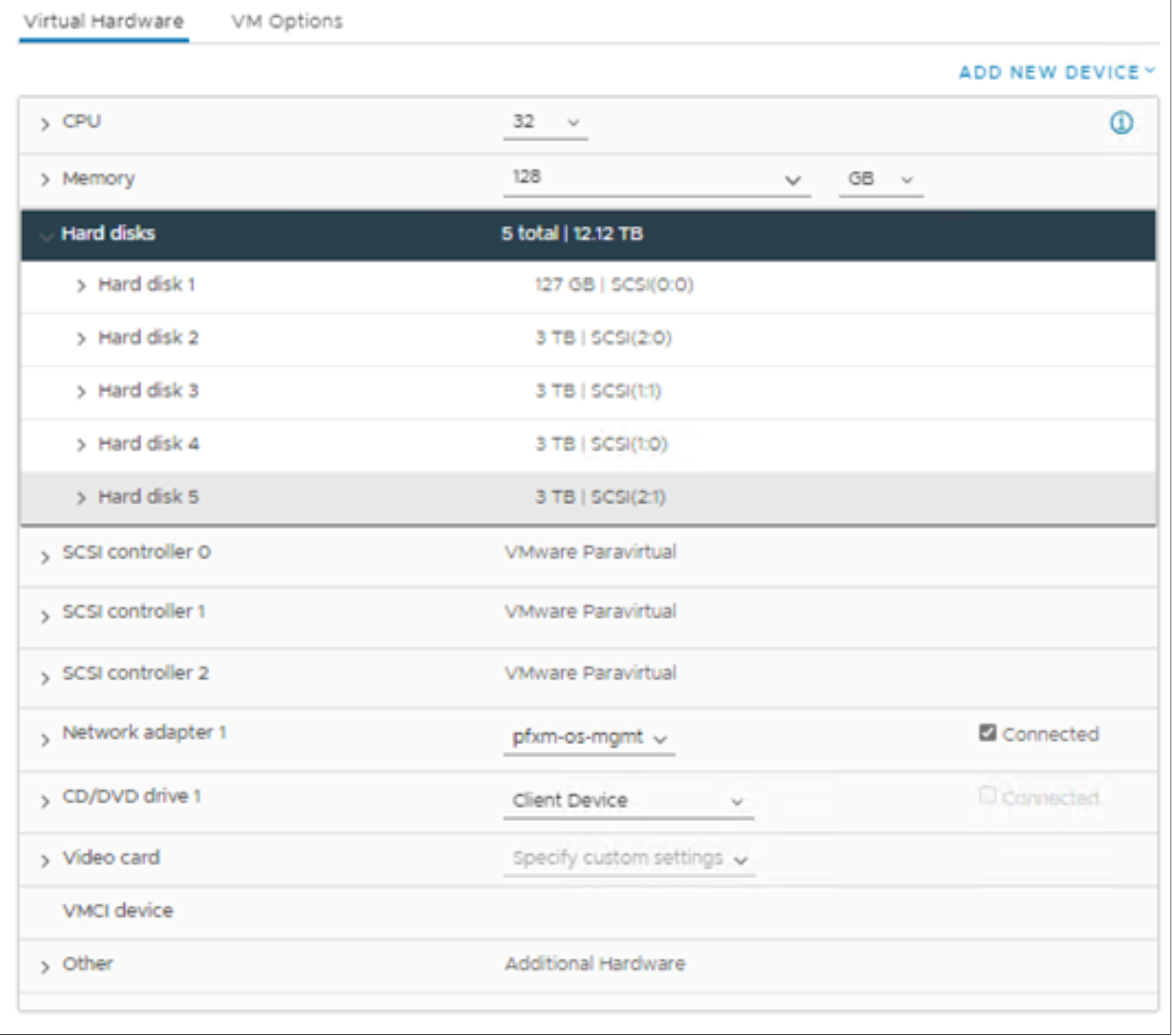
Figure 7. Delphix engine Continuous Data resource settings
- For Continuous Compliance, edit the Delphix engine VM settings.
Create and add a virtual disk that is provisioned from PowerFlex storage created for data masking to store data for Delphix engine Continuous Compliance operations.
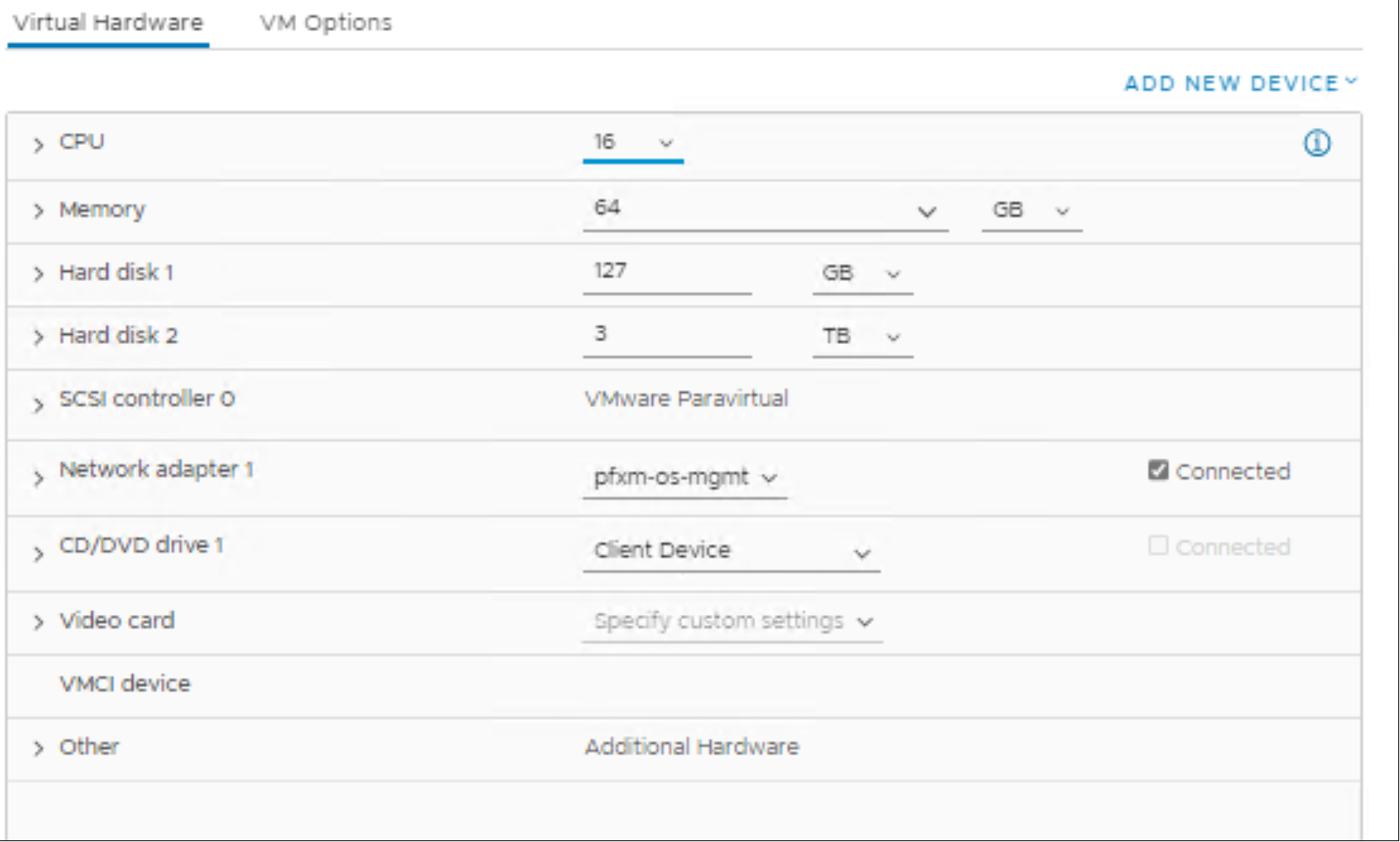
Figure 8. Delphix engine Continuous Compliance resource settings
- Power on the Delphix engine VM and proceed with the initial system configuration as described in Set up network access to the Delphix engine.
- For more information about the Delphix deployment on VMware, see Delphix deployment on VMware.
Set up network access to the Delphix engine
This section describes the steps for configuring the network access to the Delphix engine.
- Power on the Delphix engine VM and open the console.
- Wait for the Delphix management service and Delphix boot service to come online. This might take up to 10 minutes during the first boot.
- Press any key to access the sysadmin console.
- Enter sysadmin@SYSTEM for the username and sysadmin for the password.
The available network settings are shown along with the instructions for editing.
- Configure the hostname, DNS, static address, and default gateway.
- Commit the changes.
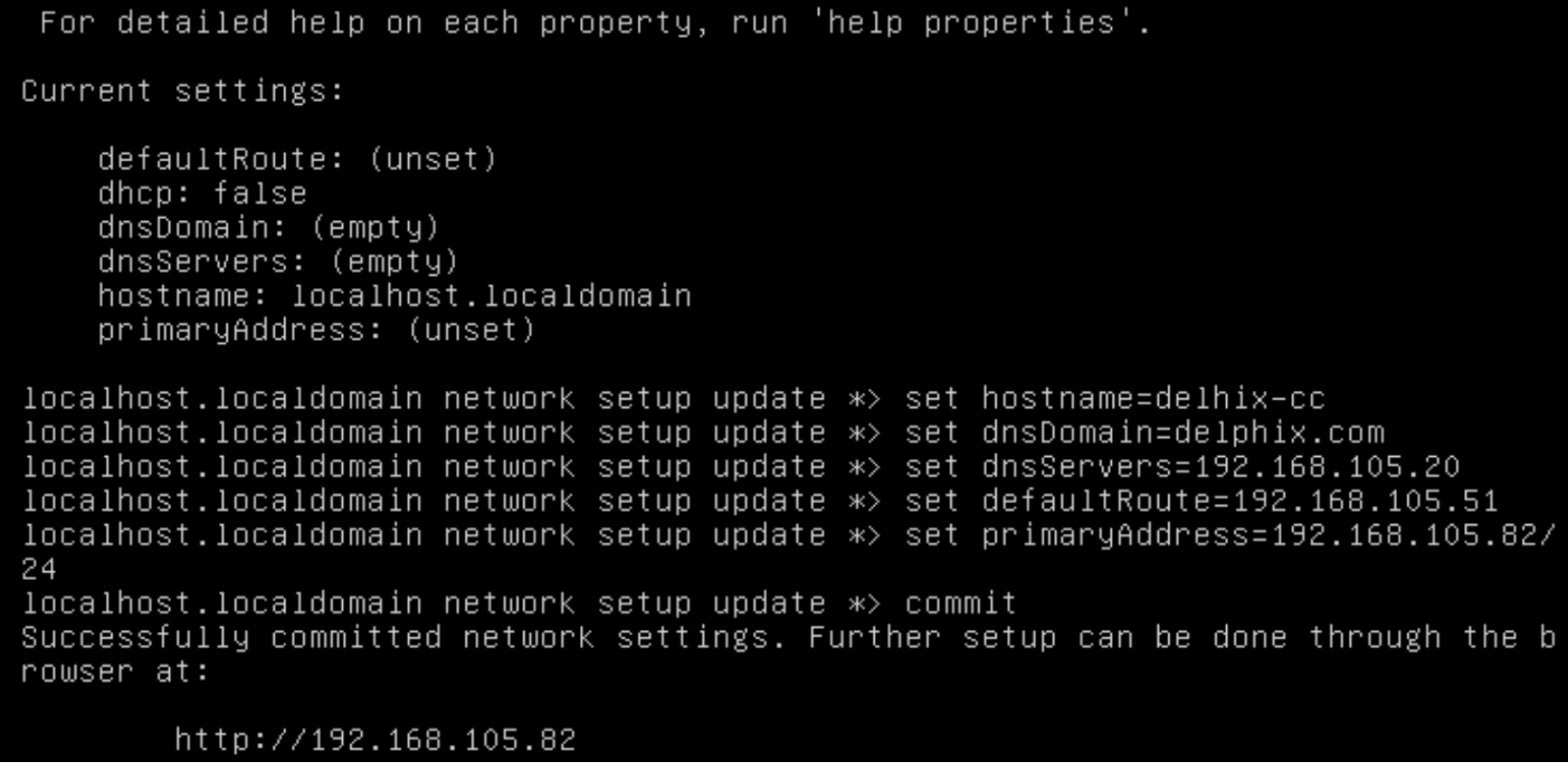
Figure 9. Network configuration
- Verify the Delphix engine access through a web browser by navigating to the displayed IP address.
- For more information about configuring the network access to the Delphix engine, see Network Access to the Delphix engine.
Initial setup of Delphix engine for Continuous Data
This section describes the steps for configuring the initial setup of the Delphix engine for Continuous Data through web interface.
- Connect to the Delphix engine Continuous Data at https://login/index.html#serverSetup.
- The Delphix setup application launches when it connects to the server.
Enter sysadmin login credentials, which initially default to the username sysadmin, with the initial default password of sysadmin. On the first login, which prompted it to change the initial default password. - The screen to configure the Delphix engine is shown as in the following figure:
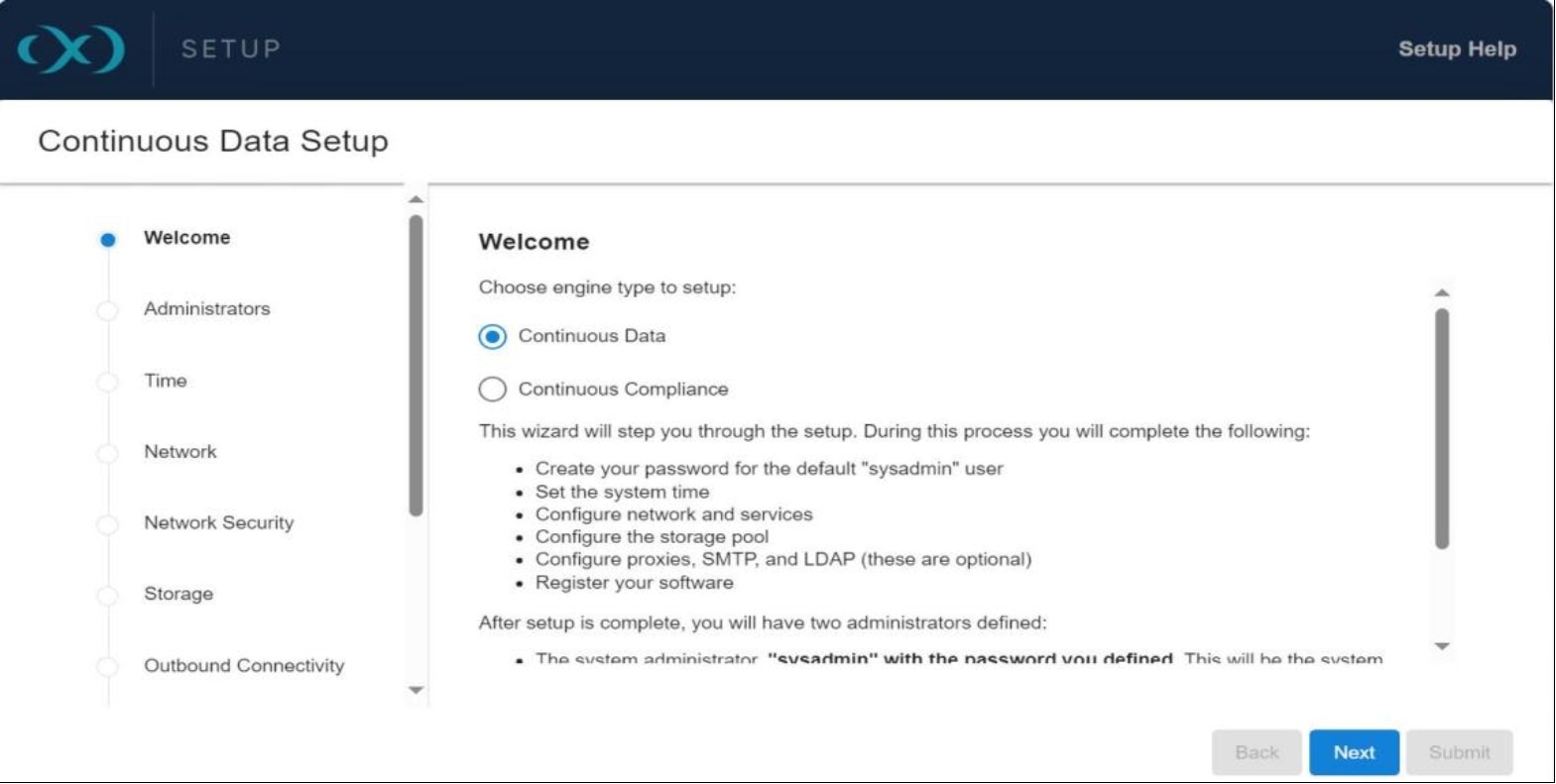
Figure 10. Delphix Continuous Data
- Select the engine type (Continuous Data or Continuous Compliance)
- Choose the engine type as Continuous Data for data virtualization.
Note: The setup for validation used two separate Delphix engines: one for Continuous Data and another for Continuous Compliance.
- Click Next.
- Configure user credentials for the following roles: System Administrator, Engine Administrator
- Select the storage configuration that is defined for the Delphix engine Continuous Data for data and logs.
- Select Network for access to the Delphix engine.
- Select System Time to synchronize the time between Virtual databases.
- Select Authentication as the default for enabling authentication services using user credentials defined for roles (System Administrator, Engine Administrator).
- Configure registration to allow Delphix support to access the Delphix engine. Note: the Delphix engine will work without it being registered.
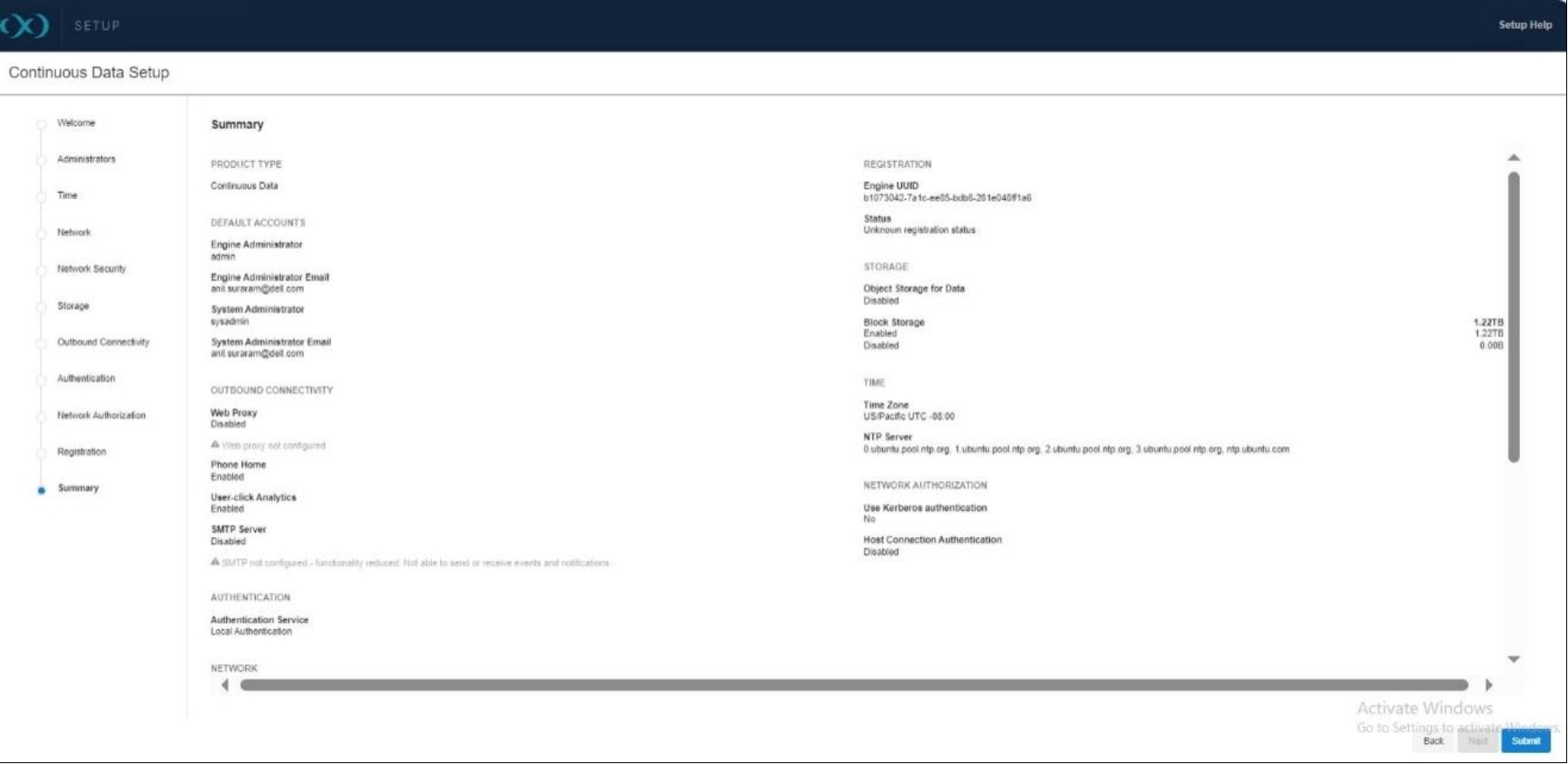
Figure 11. Delphix engine initial setup Summary
For more information about configuring the Delphix engine for Continuous Data, see Delphix engine initial setup.
Delphix PostgreSQL database configuration
Delphix PostgreSQL database configuration
Delphix engine configuration
Source host configuration
Staging host configuration
Target host configuration
Delphix PostgreSQL data provisioning
Delphix PostgreSQL data provisioning
Create the dSource
This section details the process of linking PostgreSQL data sources in Delphix, which includes creating a dSource (data source) object within the Delphix Engine.
This dSource points to the source PostgreSQL database and allows Delphix to capture and manage copies of that data.
- Log in to the Delphix engine (Continuous Data) and navigate to Manage > Environments.
- Select the environment containing the source PostgreSQL instance.
- Click the Databases tab and locate the PostgreSQL installation within the source environment.
- Click the + icon to add a database with a name.
- Navigate to Manage > Datasets, click +, and add dSource.
- On the Source window, select the database name created earlier.
- Under Delphix Initiated Backup – Single Database ingestion, click Add.
- Set the PostgresDB Replication User and password to be delphix.
- Set the source host address and leave the source port as 5432.
- Leave the staging port as 5433 and click Next.
- On the dSource Configuration page, name the dSource.Create a group Postgres and click Next.
- Choose the staging environment and user as postgres.
- Set the Mount Base to /mnt.
- No changes to policies, and no hooks.
- Review the summary and click Submit.
- Check that the dSource creation has been successfully completed in the Actions tab list.
- Check dSource created with the snapshot under the group created.
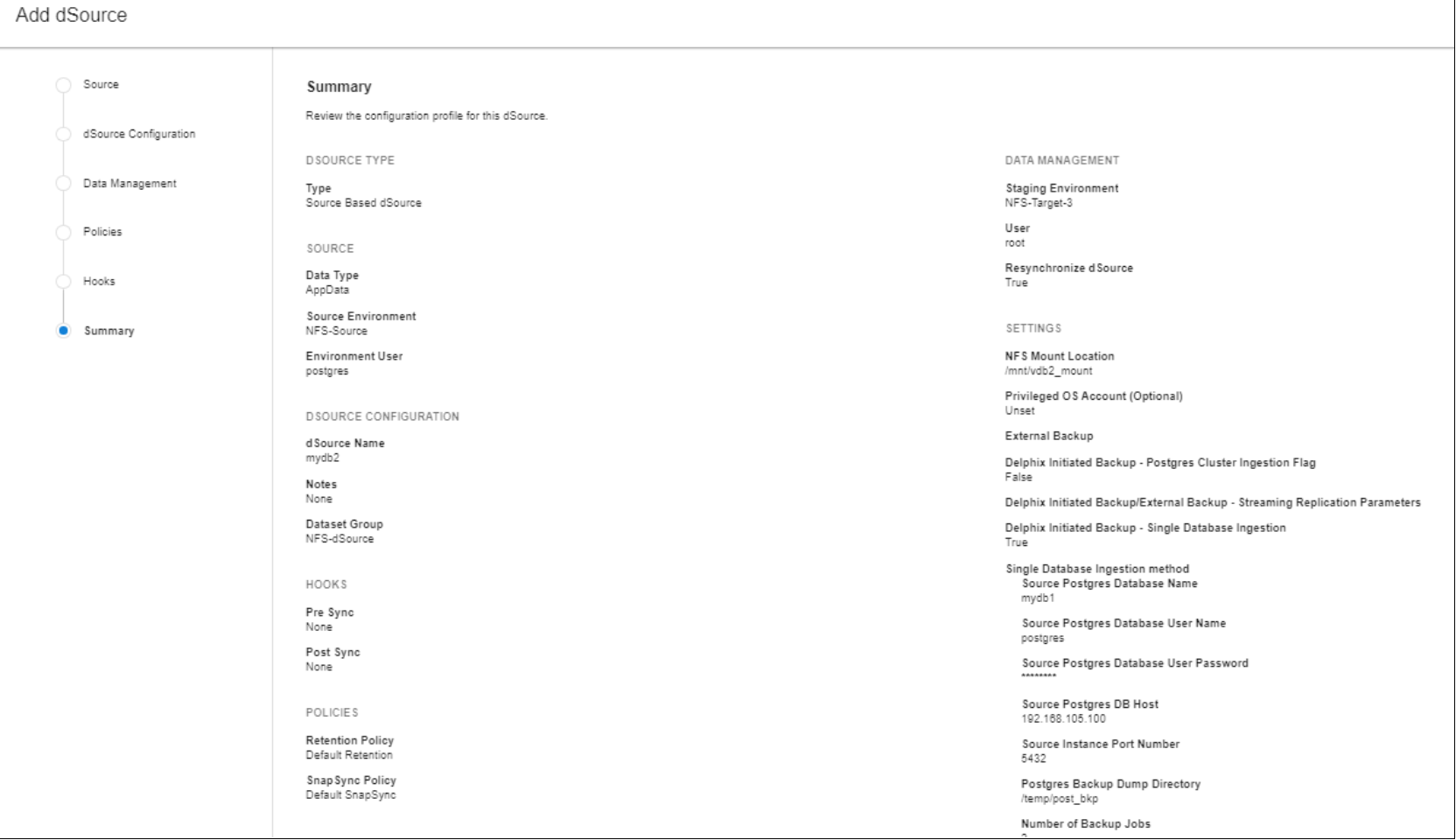
Figure 12. dSource summary
For more information about creating dSource, see Linking PostgreSQL data source.
Provision a VDB
This section details the process of to creating a VDB (virtual database) on PostgreSQL within Delphix. Delphix manages VDB creation through its own dSource (data source) and provisioning processes.
- Go to Manage > Datasets, select the snapshot, and click the leftmost icon to provision a database.
- In the Wizard, select Target Host as the environment and PostgreSQL instance as installation with the user as postgres.
- Select Add Dataset Group and name the target group and set the VDB name to devdb.
- Accept all other defaults and click through the Wizard.
- Review the summary page and click Submit.
- Check that the VDB provision has been successfully completed in the Actions tab list.
- Check the VDB provisioned under the created target group.
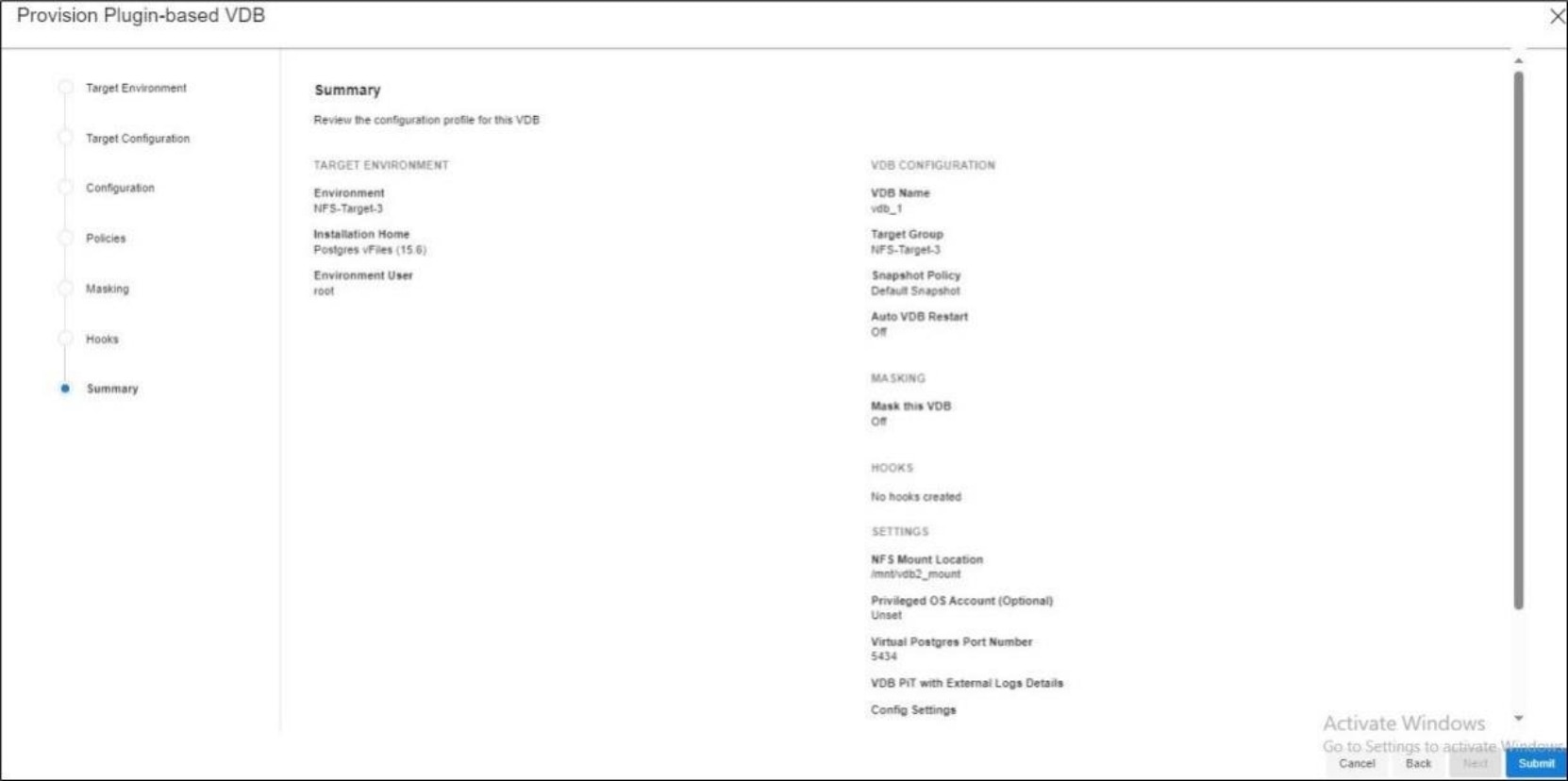
Figure 13. VDB Summary
For more information about provisioning a virtual database (VDB), see Provisioning PostgreSQL virtual database.
Delphix PostgreSQL data masking
Delphix PostgreSQL data masking
Prerequisites
Delphix engine (data masking) Initial setup
This section describes the steps for configuring the initial setup of Delphix engine for Continuous Compliance (data masking).
- Connect to the Delphix engine (data masking) athttps://login/index.html#serverSetup. The Delphix setup application is launched.
- Enter sysadmin login credentials, which initially default to the username Admin, with the initial default password of Admin-12. On the first login, which prompted it to change the initial default password.
- The screen to configure the Delphix engine is shown in the following figure:
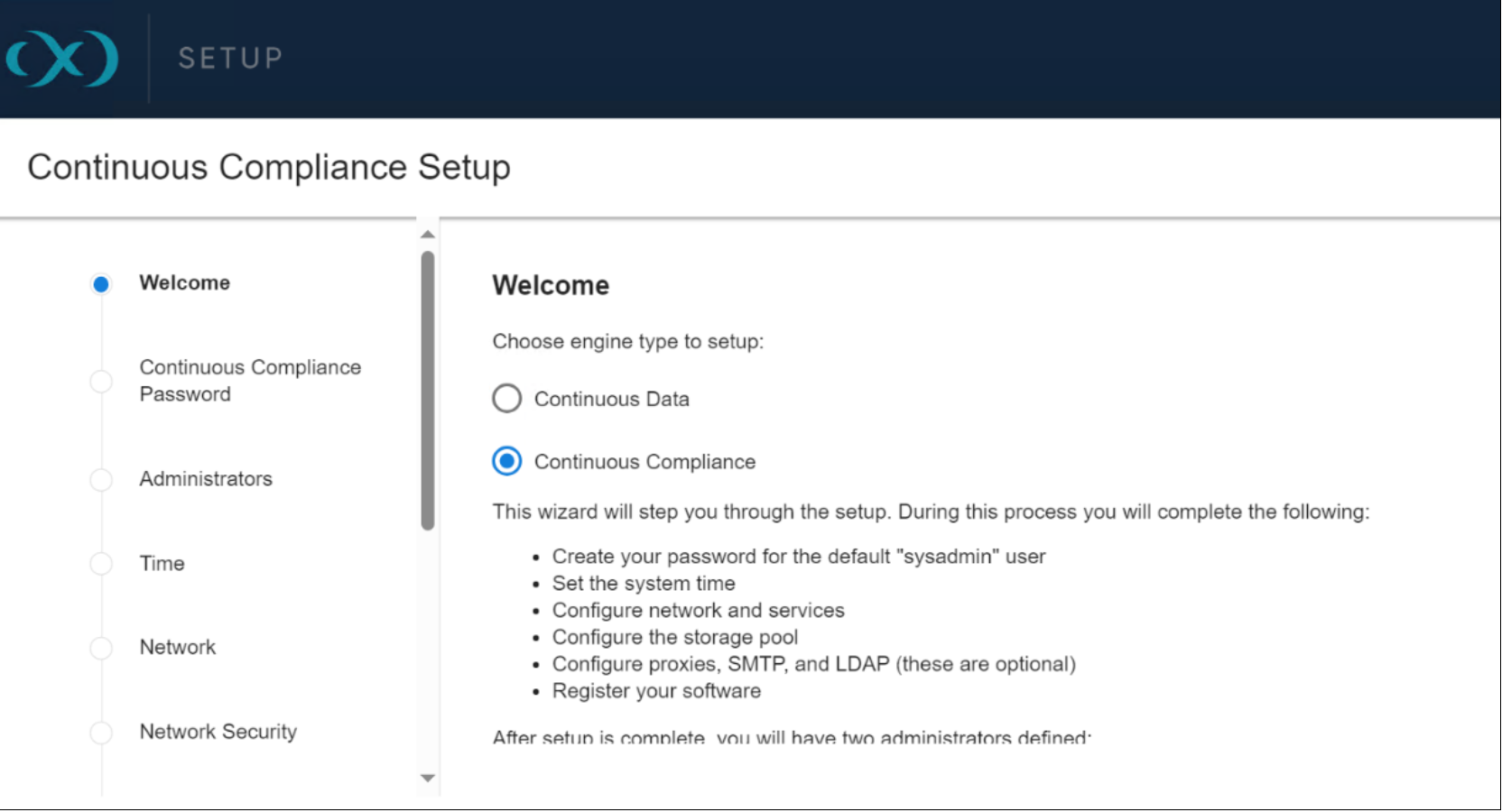
Figure 14. Delphix engine (data masking) dashboard
- Select the engine type (Continuous Data or Continuous Compliance)
- Choose the engine type as Continuous Compliance for data masking.
- Click Next.
- Enter the Continuous Compliance password (the default is Admin-12).
- Click Validate to validate the entered password with a masking service.
- In the Administrator tab, enter user credentials for various roles (System Administrator, Masking Administrator).
- Select the storage configuration defined for the Delphix engine Continuous Compliance for data masking.
- Select Network for access to the Delphix engine.
- Select System Time to synchronize the time between Virtual databases.
- Select Authentication as the default for enabling authentication services using user credentials defined for roles (System Administrator, Masking Administrator).
- Configure registration to allow Delphix support to access the Delphix engine, but the Delphix engine can also work without being registered. The following figure shows the Delphix engine initial setup summary:
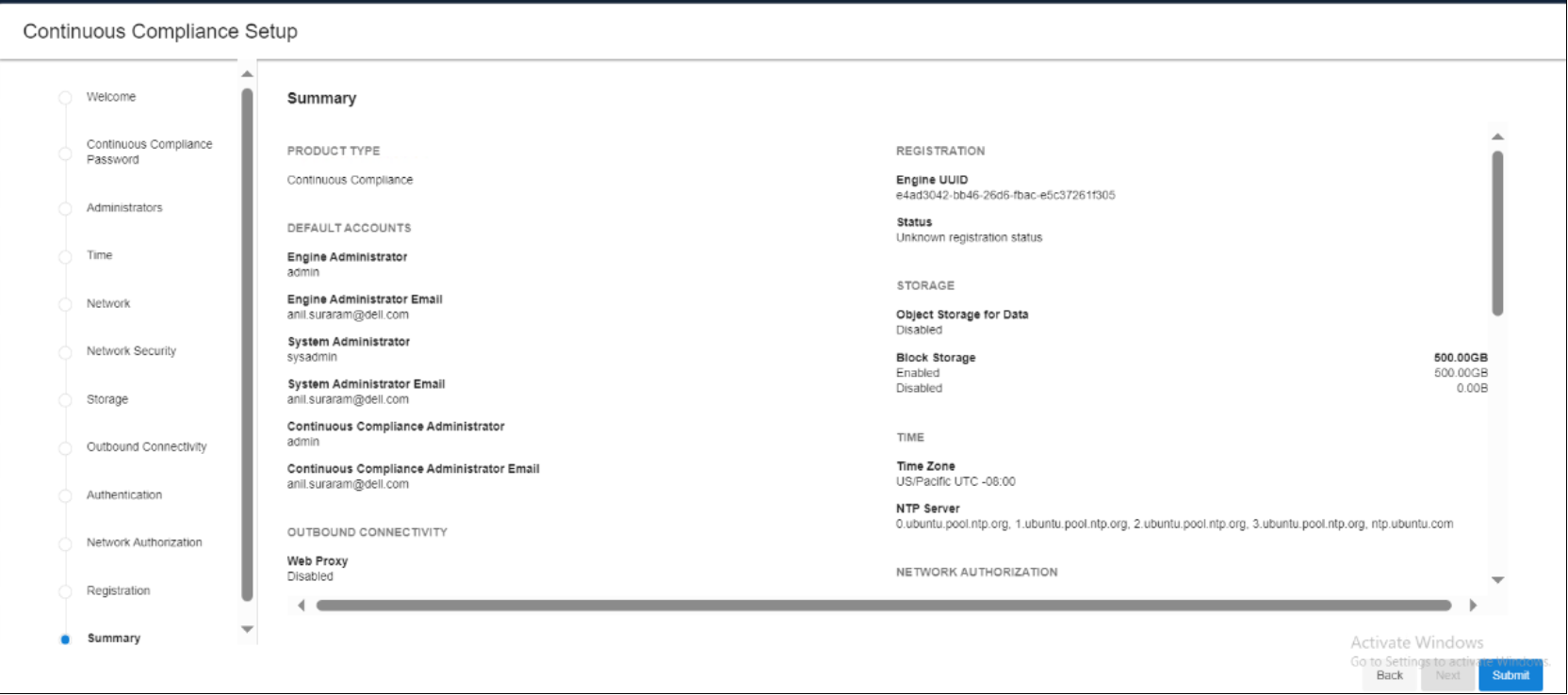
Figure 15. Delphix engine (data Masking) initial setup summary
For more information about configuring the initial setup of the Delphix engine for Continuous Compliance through web interface, see Delphix engine (data masking) Initial setup.
Add an application
Create an environment
Create a basic connector
Create a rule set
Create a profiling job
Create and run a mask job
This section details the process to create and run a masking job to mask sensitive data for a PostgreSQL database in the Delphix engine.
- On the Environment List/Summary screen, click the Environment Name.
- Click the + Masking Job button.
- Enter the required details in the Create Masking Job dialog:
- Enter the job name for masking.
- Choose In-Place from the Masking Method.
- Select Rule Set from the Rule Set drop-down list.
- No. of Streams: 1
- Update Threads 1
- Leave other fields at the default values.
- Click Save.
- Check that the masking job has been successfully created in the jobs list for the environment.
For more information about creating a masking job in the Delphix engine, see Create Masking Job.
Run masking job
This section details the process of running a masking job to mask sensitive data for a PostgreSQL database in the Delphix engine.
Before running the masking job, check the values of the PostgreSQL database table (an example is shown as follows):
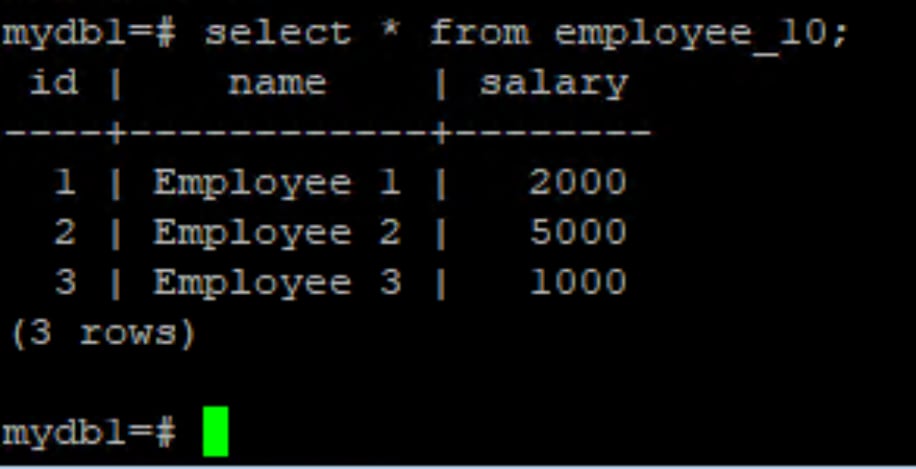
Figure 16. Before running a masking job
To run the masking job:
- Click the Run button on the masking job created in the Jobs list for the environment.
- Check that the masking job status has moved to running.
- Click the Monitor tab > Job Executions to see the list of jobs and their progress.
- Click the masking job name to view the job details for completion.
- Check PostgreSQL table values after the masking job is completed.
- Verify that the values have been masked (an example is shown as follows):
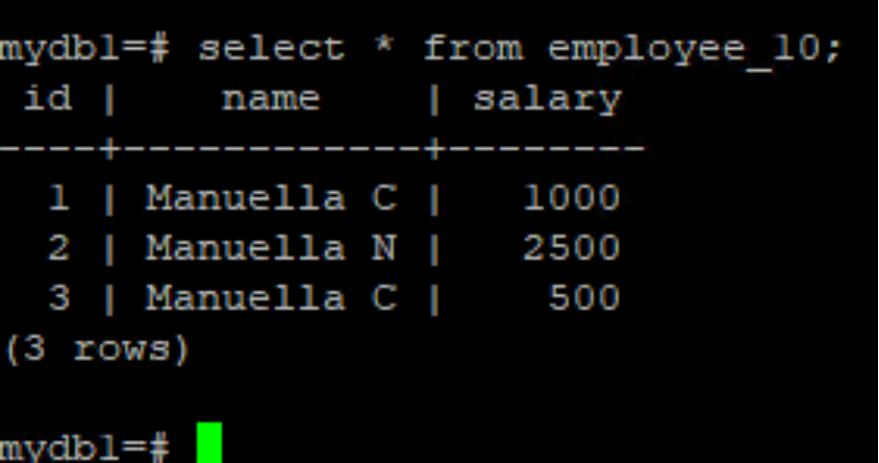
Figure 17. After running a masking Job