ECS Management REST API: Postman Collection
Executive summary
Overview
Revisions
We value your feedback
Executive summary
Executive summary
The Dell ECS Object Storage solution provides support for various APIs, not only for object storage (such as Amazon S3 and OpenStack Swift), but also for API driven management for configuration, monitoring, and reporting.
To facilitate easy consumption of the various APIs, Dell provides three API ‘collections’ that are packaged and importable into an API utility called Postman.
- ECS Management REST API commands
- ECS Influxdb API commands to retrieve performance metrics of an ECS appliance
- S3 API commands, including S3 Object-lock examples
Postman provides an easy-to-use interface for issuing API commands against the ECS appliance. The collections of API commands provide examples of issued commands and the returned results.
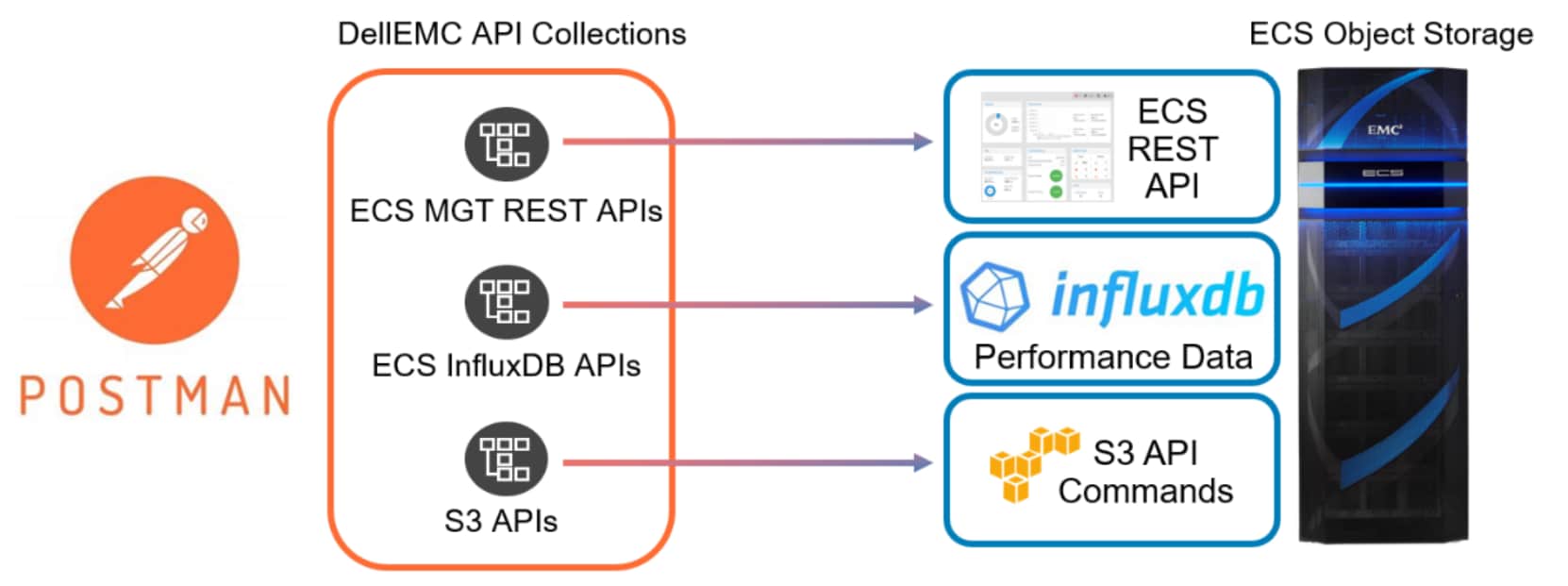
Collections can be downloaded and imported into Postman, instantly providing the available API commands in a ready-to-use format. Each collection contains collection-wide variables to set items specific to your ECS environment (such as ECS Node IP addresses, ECS Management User, ECS Object User, and ECS Bucket name). Some commands require supporting ‘payload’ files in a specific XML or JSON format.
Each collection also contains the necessary payload files with example formats to follow.
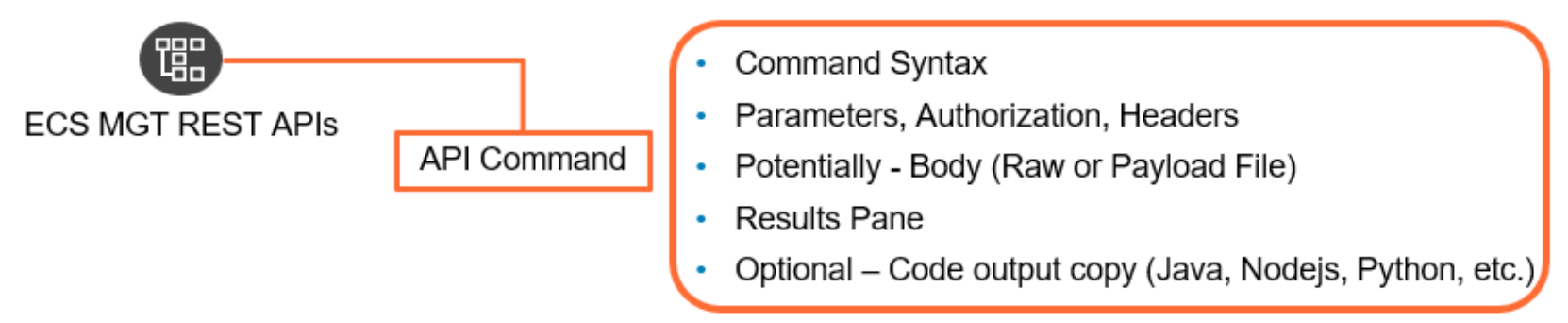
This document focuses on the ECS Management REST API feature of ECS and how to use Postman and the associated API collection to set up the environment and start issuing commands against ECS.
The other API collections, Influx DB APIs and S3 APIs, are not part of the scope of this document, though the process to import and configure the collection variables follows the same steps.
ECS Management REST API Overview
ECS Management REST API Overview
ECS provides a management REST API to interact with the configuration and reporting of both settings and metrics of the ECS appliance. The API commands cover ECS configuration and capacity monitoring metrics.
Performance Metrics are contained in the InfluxDB as part of the built-in Grafana for ECS Advanced Reporting and are not part of the scope of this document.
The complete ECS Management REST API documentation is available online at the following location:
http://doc.isilon.com/ECS/3.6/API/
https://dl.dell.com/content/docu101271_ecs-3-6-rest-api-reference.zip?language=en_us
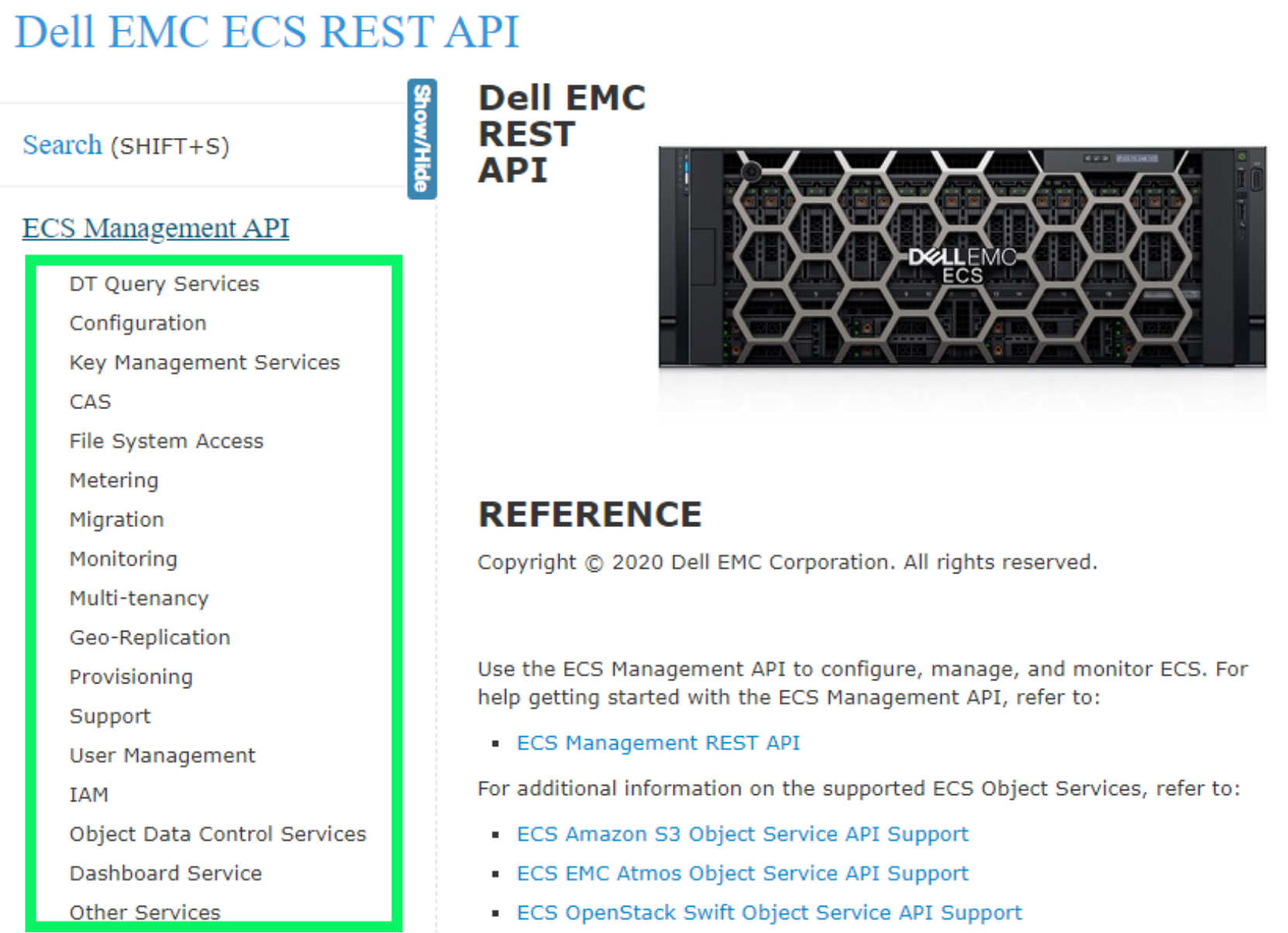
The documentation groups the API commands into several high-level categories, as shown in the following figure, on the left-hand side. Some sections have dozens of API commands and some only have a few.
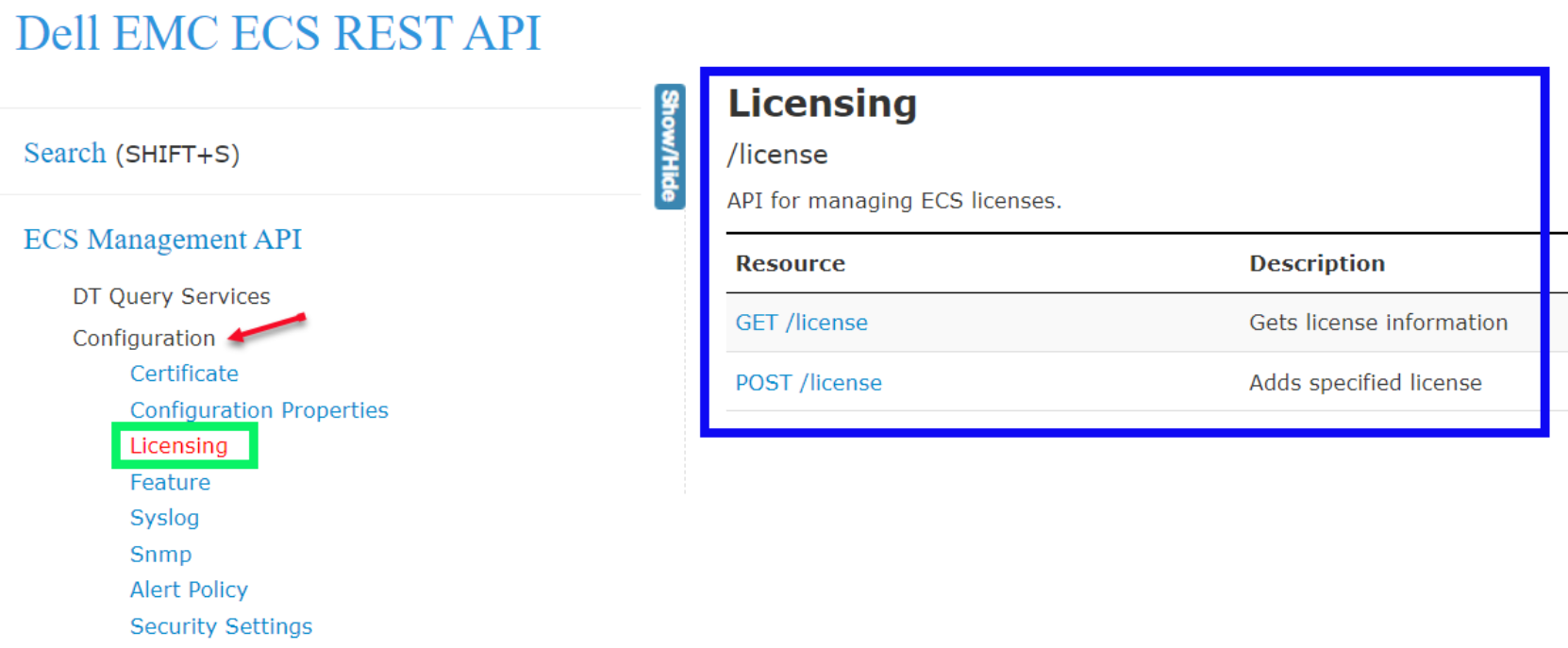
Clicking on any main category shows possible sub-categories into which the API commands are categorized. Selecting a sub-category (green box below) displays the available API commands and the description of what the command covers (blue box below on the right).
Capacity information for Namespaces and Buckets can be found in the Metering section. Selecting the Billing category is where metrics for single, or multiple, Namespaces and Buckets can be retrieved for a given point in time (now) or for a Sample Period with a defined Start and End date and times.
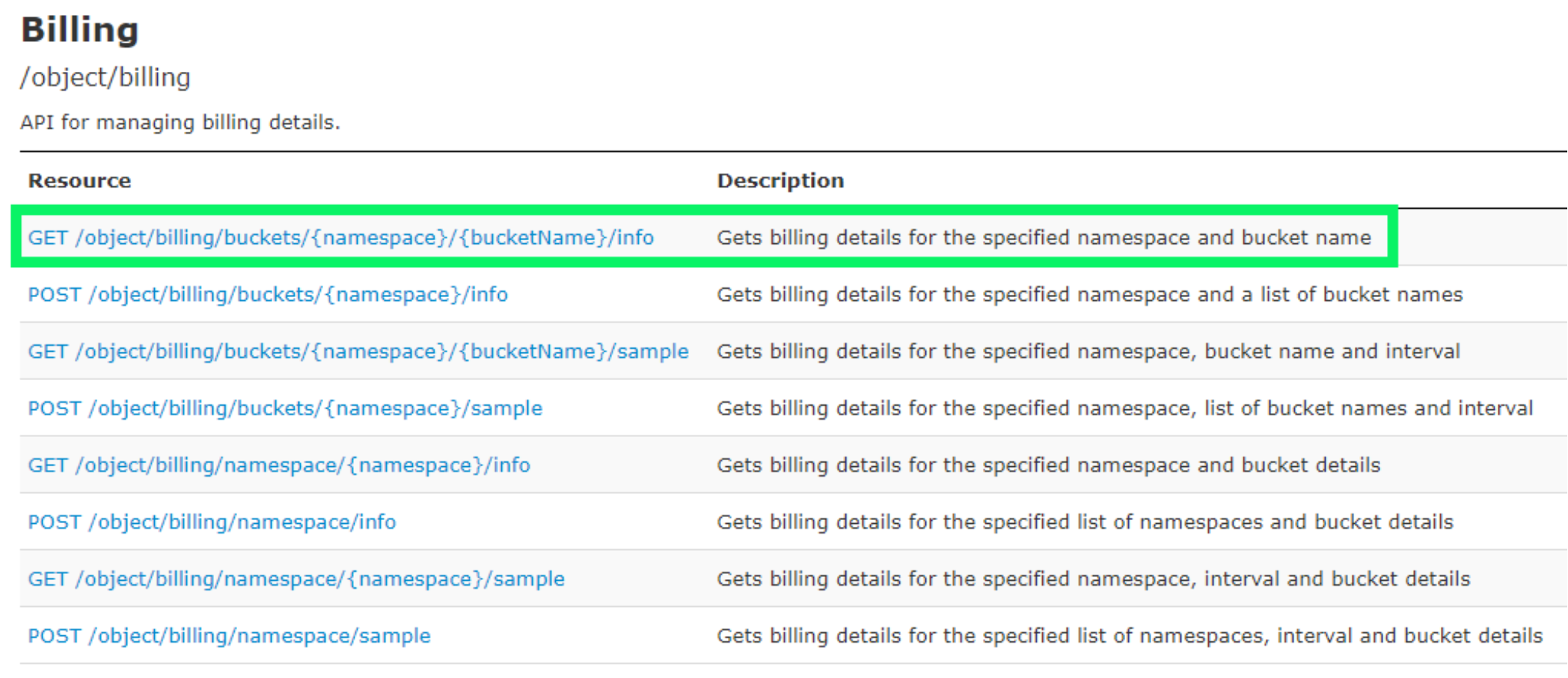
In the example below we see the first command to ‘Get billing details for a specified namespace and bucket name’, right under the command name is the general syntax of the command, shown below.
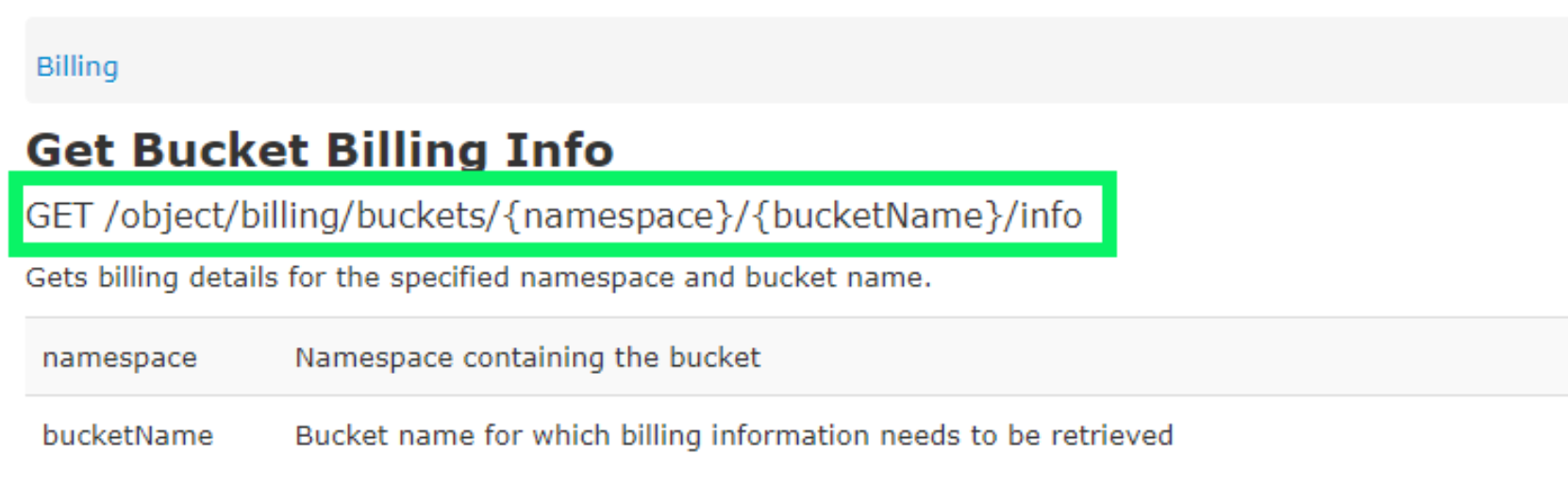
In the example above you can see that items in single curly brackets { } are strings specific to the ECS environment, such as Namespace and Bucket Name.
The command documentation page is broken into the following sections:
- Command Name, Syntax and Description
- Query Parameters (Required and/or Optional command parameters)
- Required Roles (ECS Management Access Role)
- Request Payload (Either additional file – JSON or XML or RAW content)
- Response Body (List of response fields, descriptions, and data type)
- Examples (XML or JSON formatted example commands – Request and Response)
Commands can be run using various methods (such as CURL, HTTP, and so on). To assist customers with an easy way to run and interact with these commands, the ECS Management REST API commands have been packaged into a ‘Collection’. This collection was created in an API utility program called Postman.
The collection of commands has been formatted so that various required inputs in the command syntax (such as ECS Endpoint, Namespace, ECS Management User, Buckets, and so on) are stored as Collection wide variables, displayed in double curly brackets {{variable}}, that can be set and persist through the command set. Not all command parameters are stored as Collection wide variables, some will be manually updated for the specific commands and are shown in single curly brackets: {parameter}.
Postman Configuration
Postman Configuration
The configuration prerequisites are:
- Postman downloaded and installed on your PC, from https://www.postman.com/downloads/
- ECS Management login credentials and access to the ECS UI and nodes
- ECS Postman Collection ZIP file (Postman Collection JSON and supporting Sample Files for commands) available here: https://dl.dell.com/downloads/DLD1156
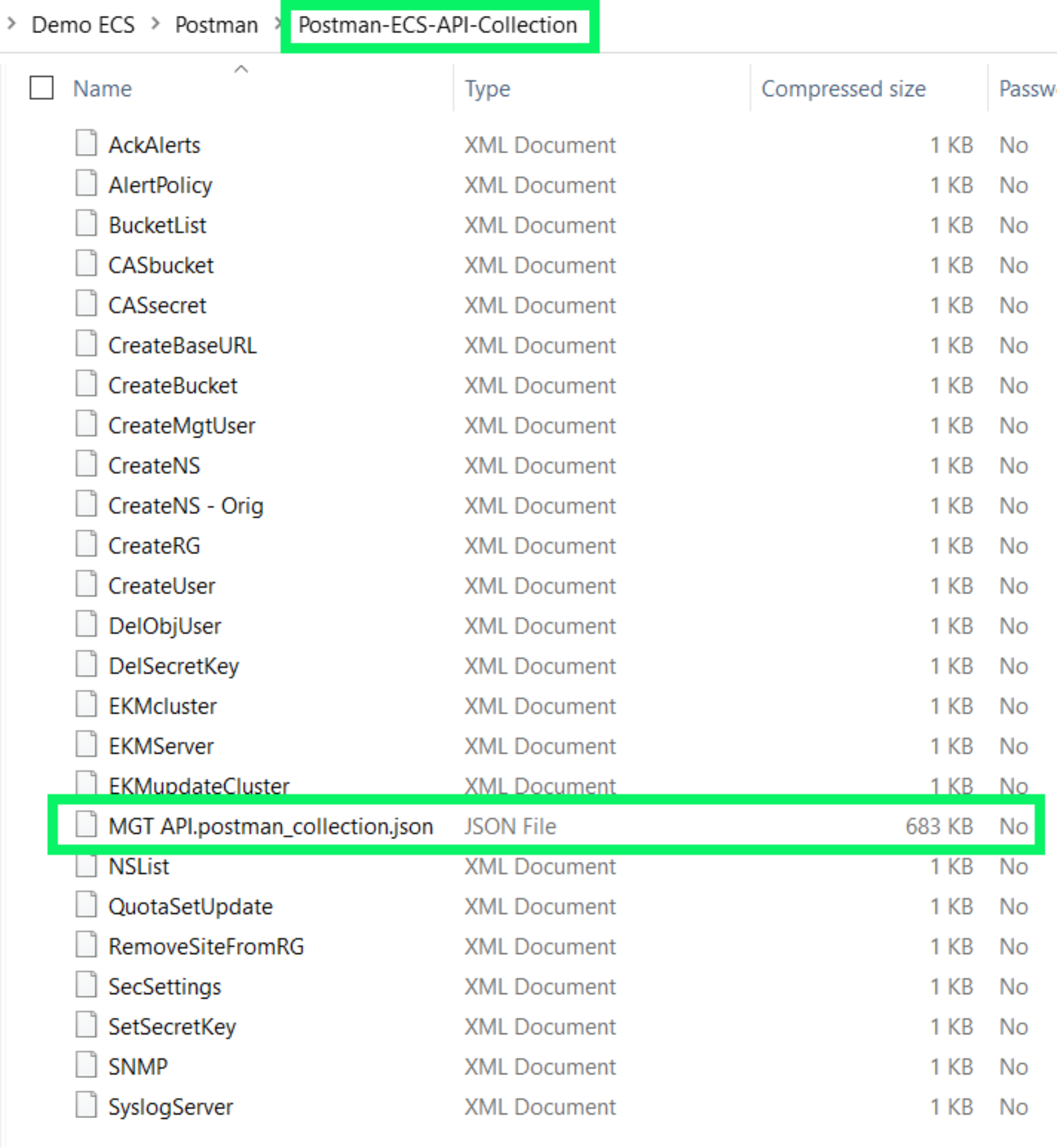
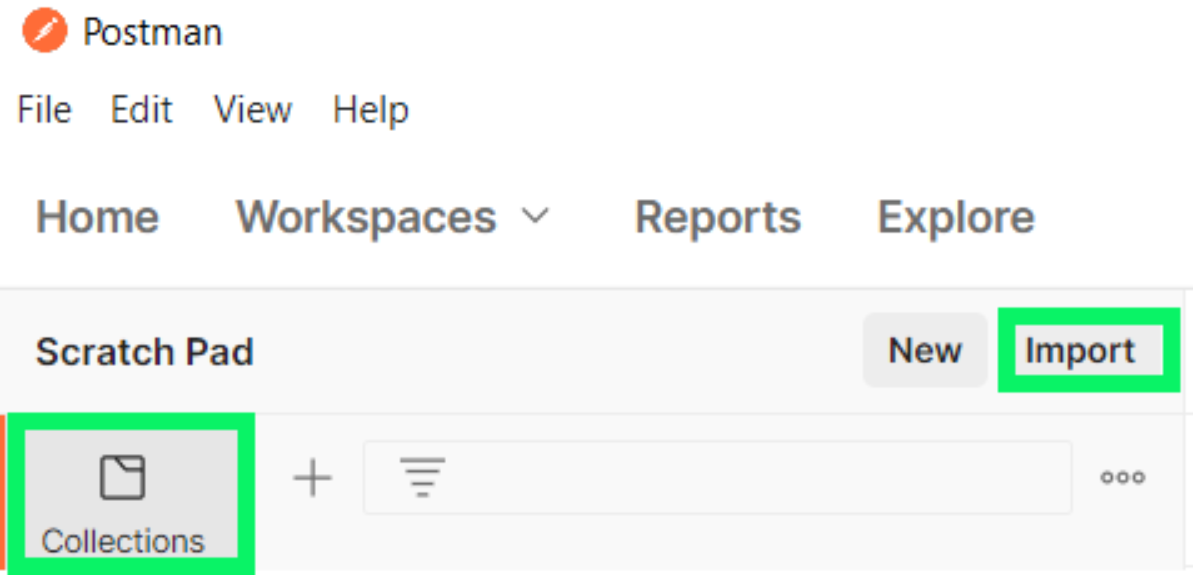
Open Postman and import the Collection JSON file by selecting the Collections item on the left, then click Import.
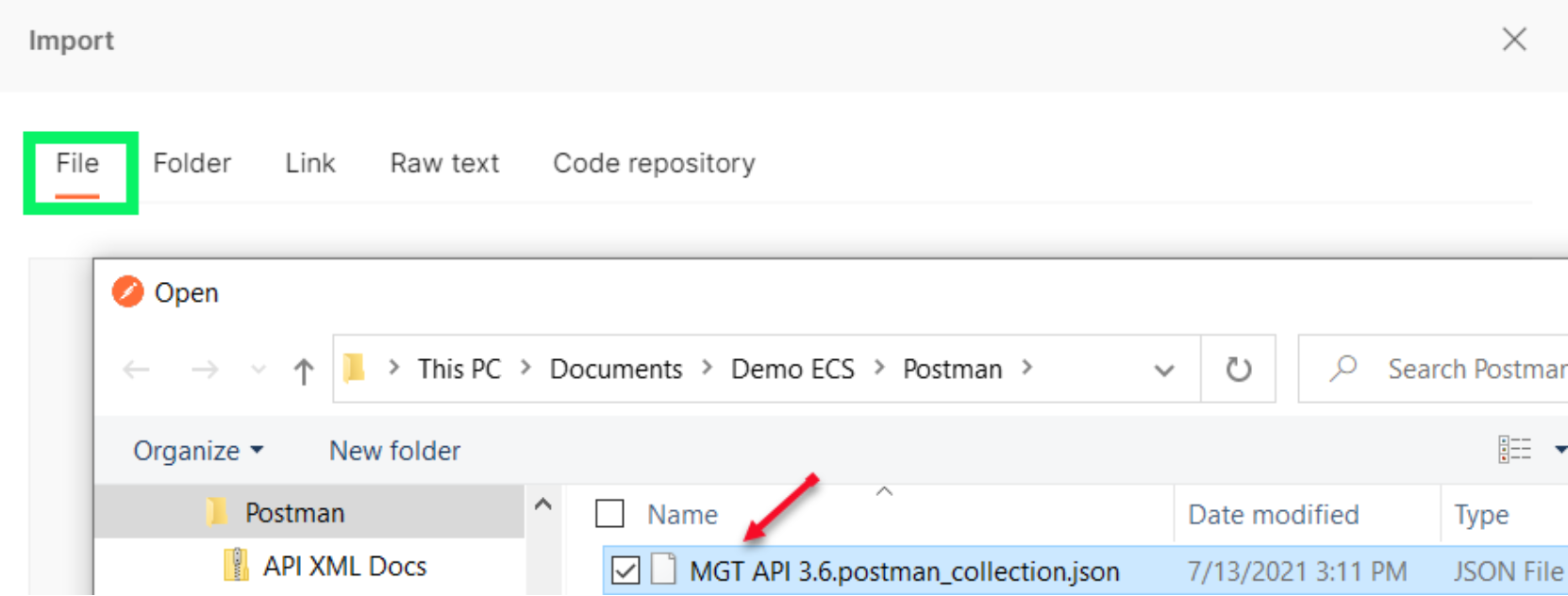
With the File tab selected, click the Upload Files icon and browse to the location where the ECS MGT postman collection JSON file was extracted from the ZIP file. Select the file and choose Open.
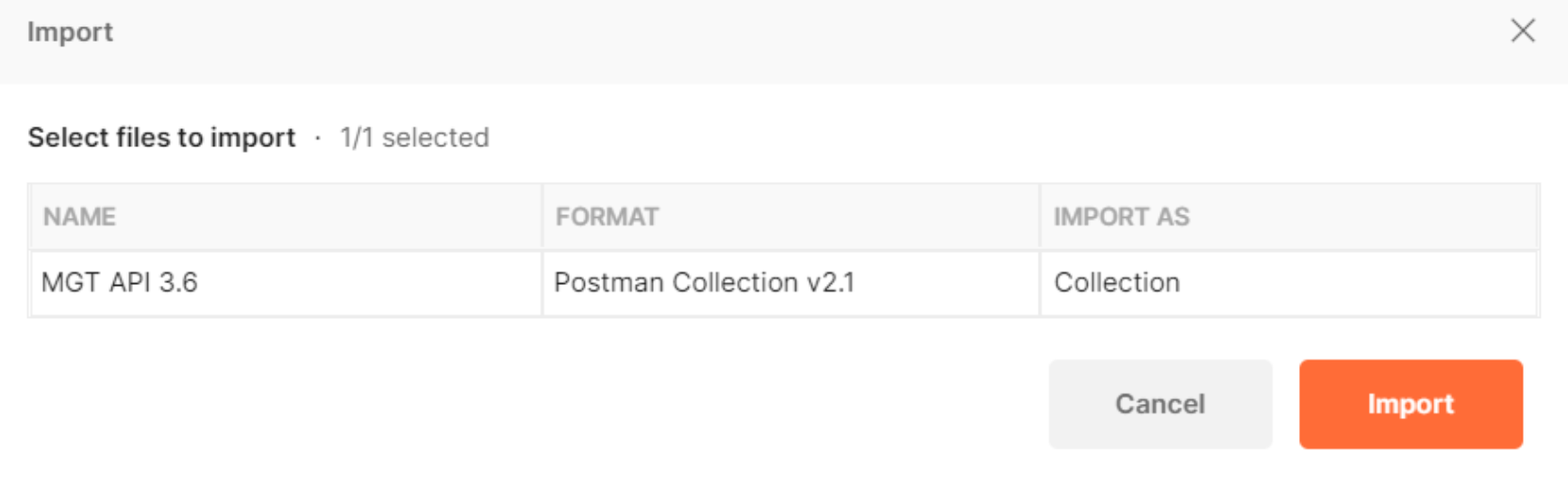
An Import summary screen appears. Select Import.
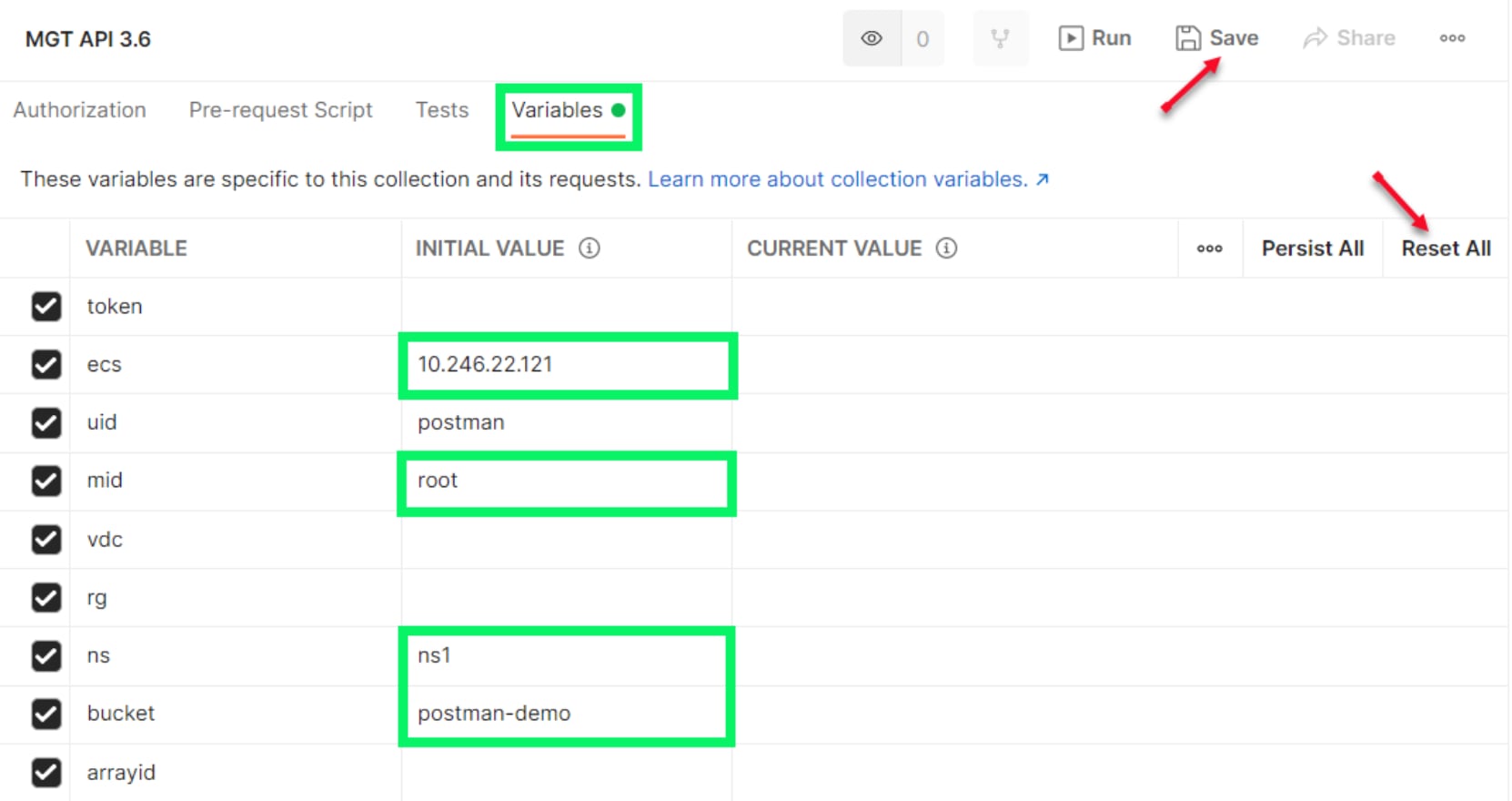
Your collection will now show up in the list of available Collections, as shown below. Select the main branch of the collection – MGT API 3.6 and then click the Variables tab on the right.

The collection uses several variables that need to be populated prior to use:
- ECS IP of one of the ECS nodes to initiate commands against
- UID Object User ID
- MID ECS Management User ID for authentication with appropriate Role
- VDC ECS Virtual Datacenter
- RG Replication Group (UID – not friendly name, will obtain from a specific
API command) - NS Namespace
- Bucket Bucket
- ArrayID Storage Pool ID (UID – not friendly name, will obtain from a specific
API command)
Those variables that need to be populated to get started are the ECS and MID.
For our initial command focus of Capacity Metering, the NS and Bucket variables will also be set. Once populated, click the Reset All button to set the variable as Current Value, then click Save.
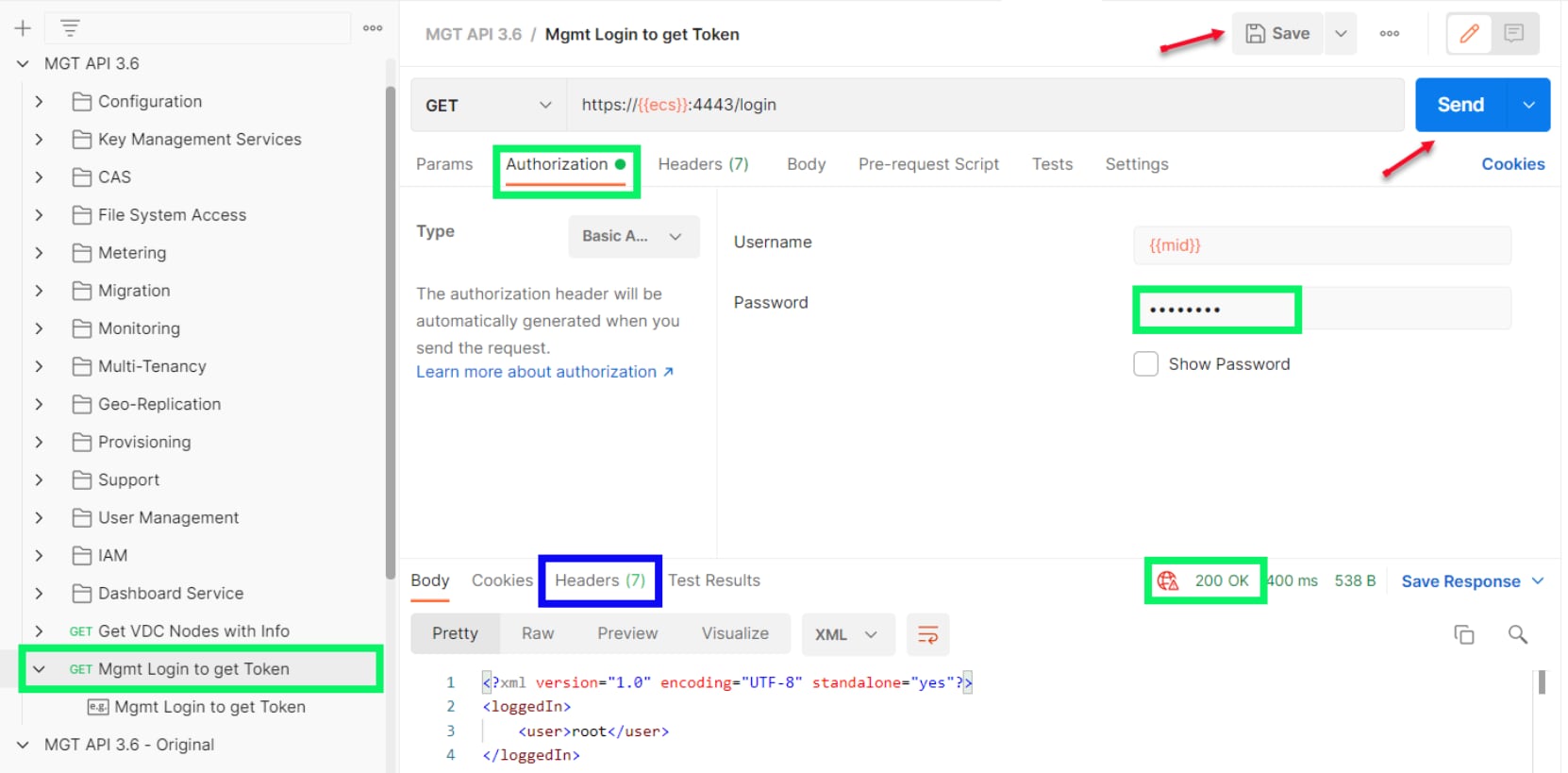
All the commands use an ECS Management User and the associated Token after the user authenticates. To obtain the token, click on the GET Mgmt Login to Get Token command, then choose the Authorization tab. Populate the password for the Management ID (MID) and then click Send. The command will authenticate to the ECS with the ID and password. If successful, a response code of 200 OK will be displayed. Click Save to save the password for the command.
Click on the Headers tab (blue box).
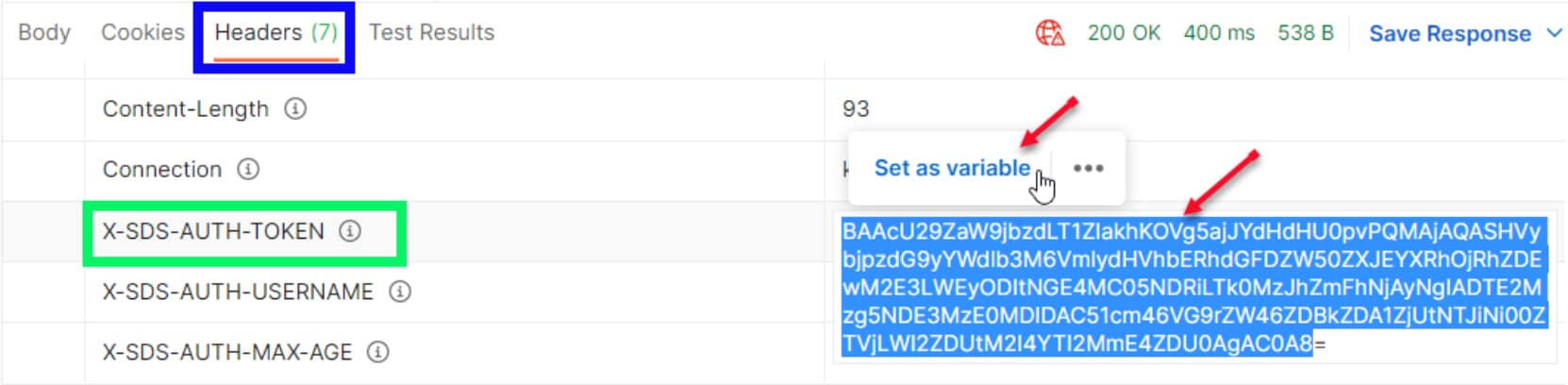
On the Headers tab, locate the X-SDS-AUTH-TOKEN row and then double click in the results cell (this long string box is the authenticated token string). A ‘Set as Variable’ box appears: click it.
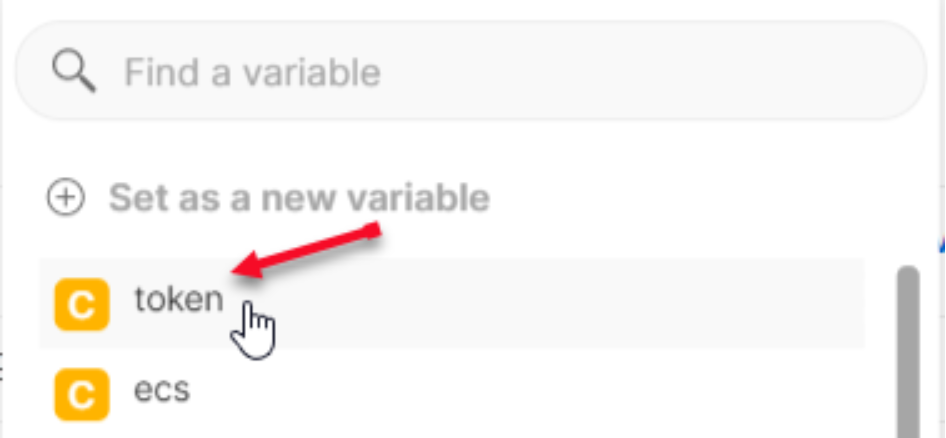
Select the Token variable to store this value as the current Token variable. The token is good for a few hours, after which time you will have to run the Mgmt Login to Get Token command again and update the variable with the new token again.
The collection is now configured to run any command with the correct authentication.
Running Postman Commands
Running Postman Commands
Each Postman command is organized in the same way that the ECS REST API documentation is laid out.
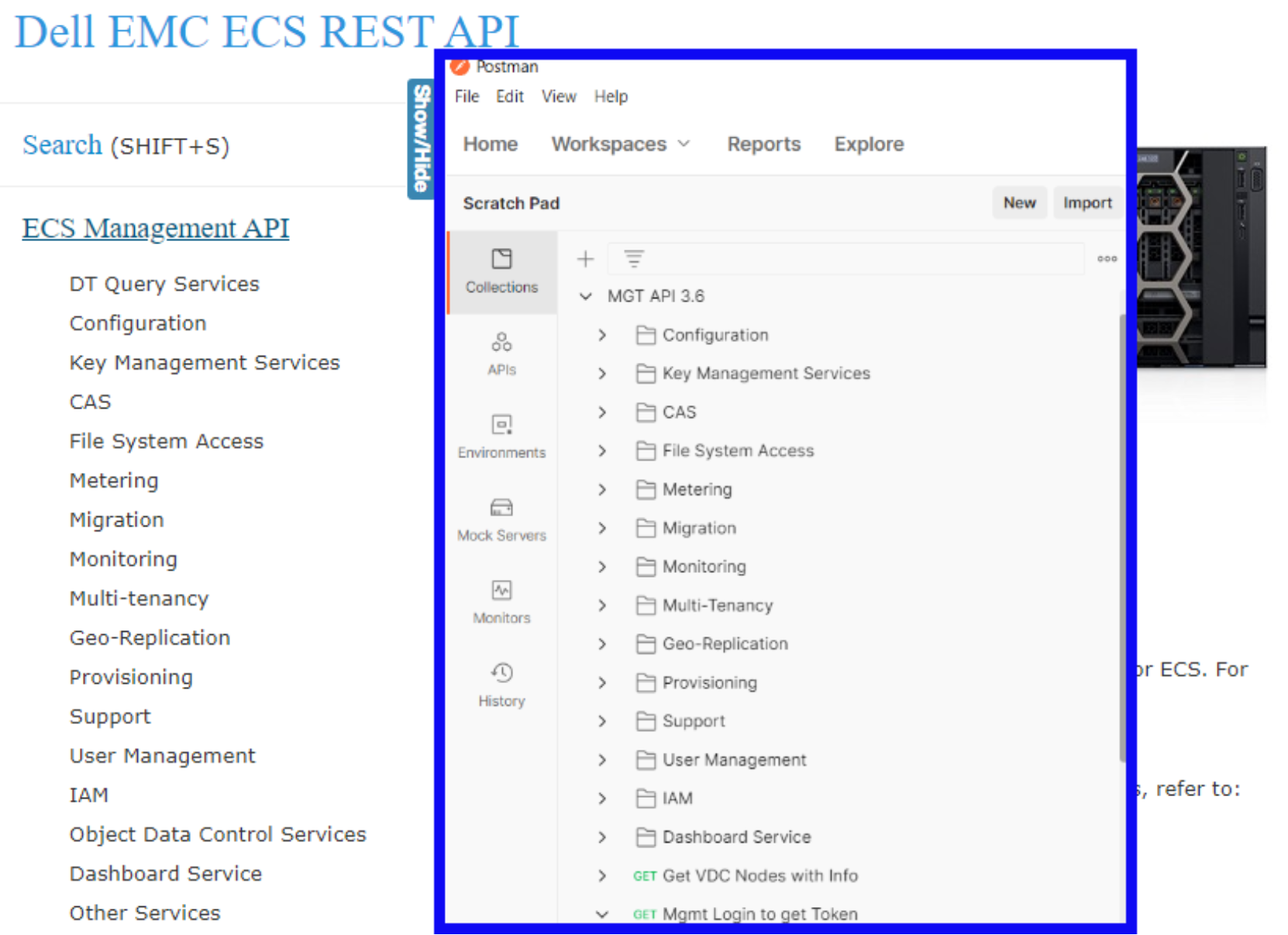
Under each main category you will find the associated commands that relate to that category. For example, under Metering you will find the Billing commands for obtaining Namespace and Bucket capacity information.
Almost every command also has an Example Command where the command has been performed and the results saved. You can find this under the command selection, as shown below.
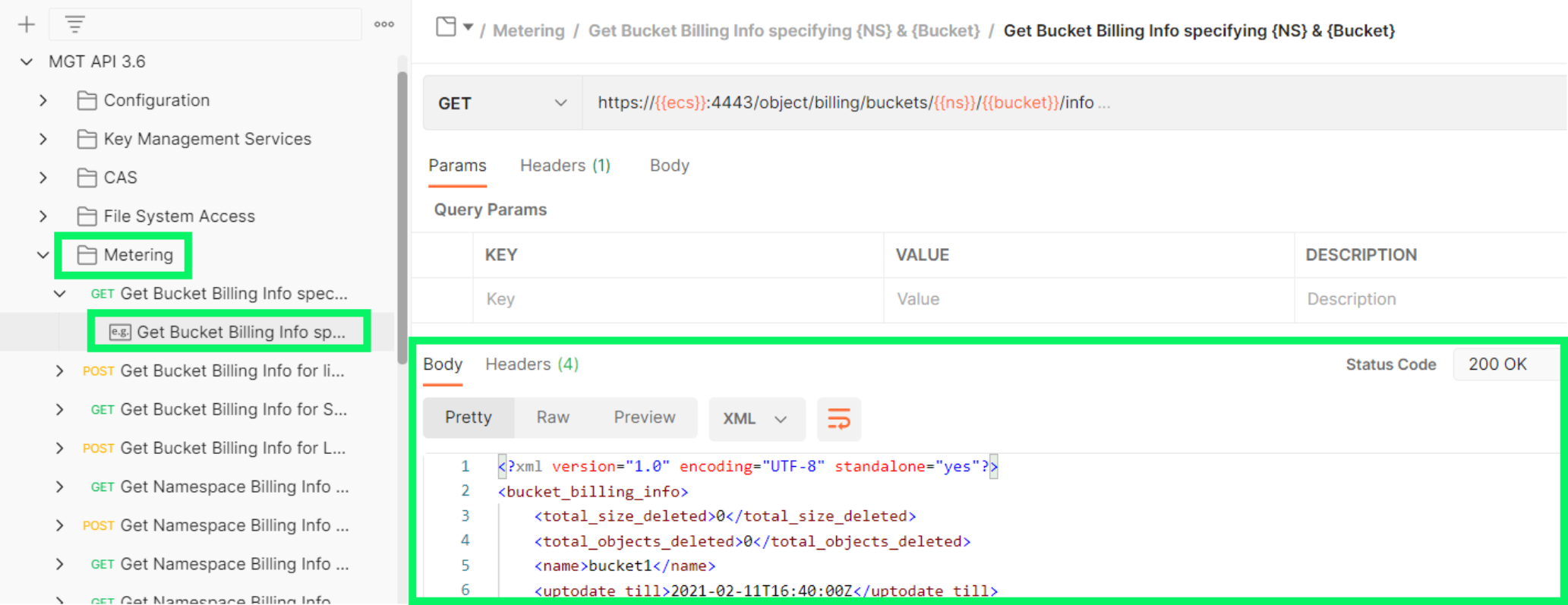
Some commands (usually POST commands) have an additional ‘Payload’ file that is required to be included with the command when submitted.
The Get Bucket Billing Info for list of Buckets specifying {NS} command is an example where a Payload file is required to be submitted with the command. Clicking on the Body tab of the command, we see in the Binary section that this command requires the BucketList.xml file that contains the list of Buckets to run the command against.
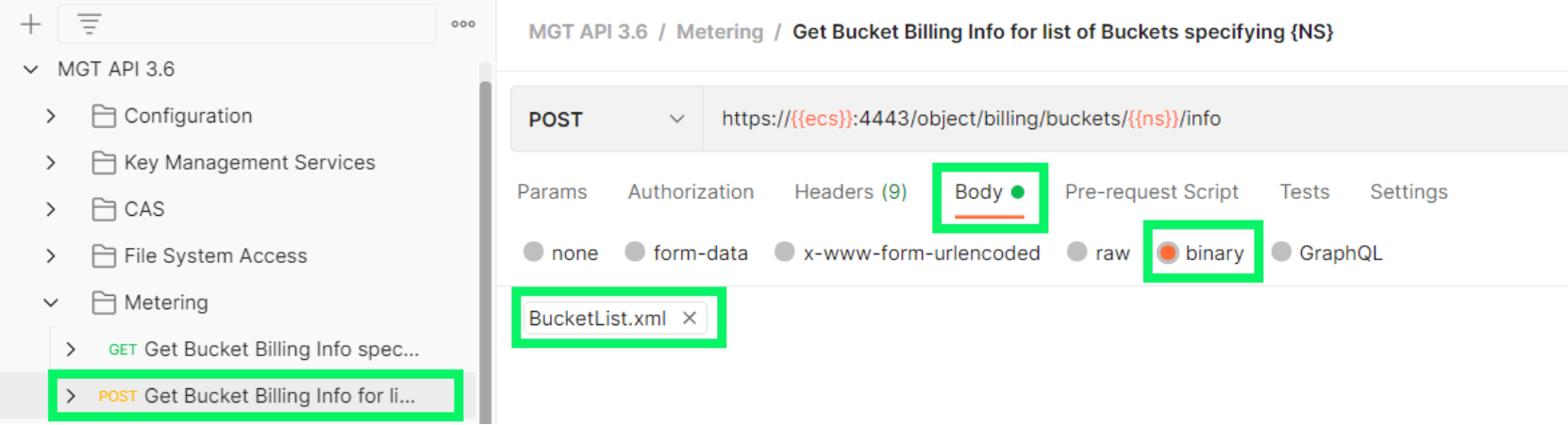
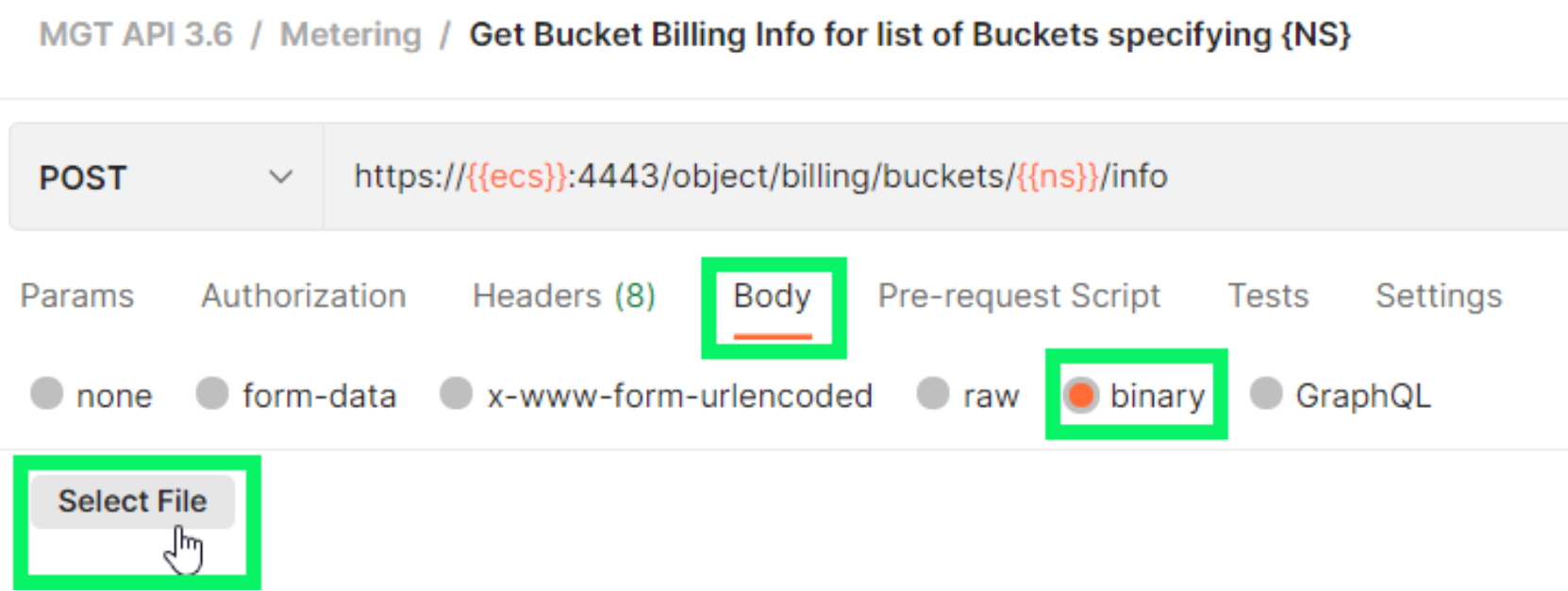
The collection ZIP file contained example Payload files. The stored ‘path’ to the file location will not be the same for your installation, so you will have to remove the Payload file from the Binary list and browse to the correct location of the same filename (remember the filename).
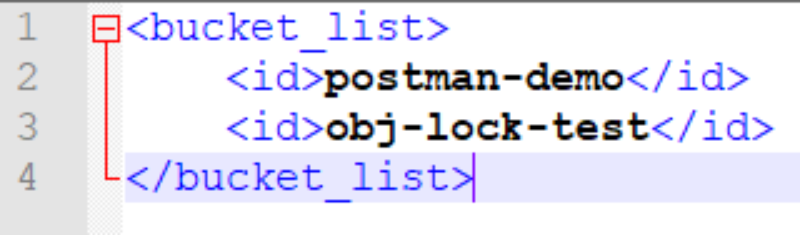
Because the content of the Payload file is also specific to the Demo environment, you will most likely have to edit the content of the file with the appropriate parameters specific to your environment. Both the REST API documentation and the file examples will help you determine the appropriate updates needed for the file content. The example BucketList.xml (make sure the filenames DO NOT have spaces in them) is shown below.
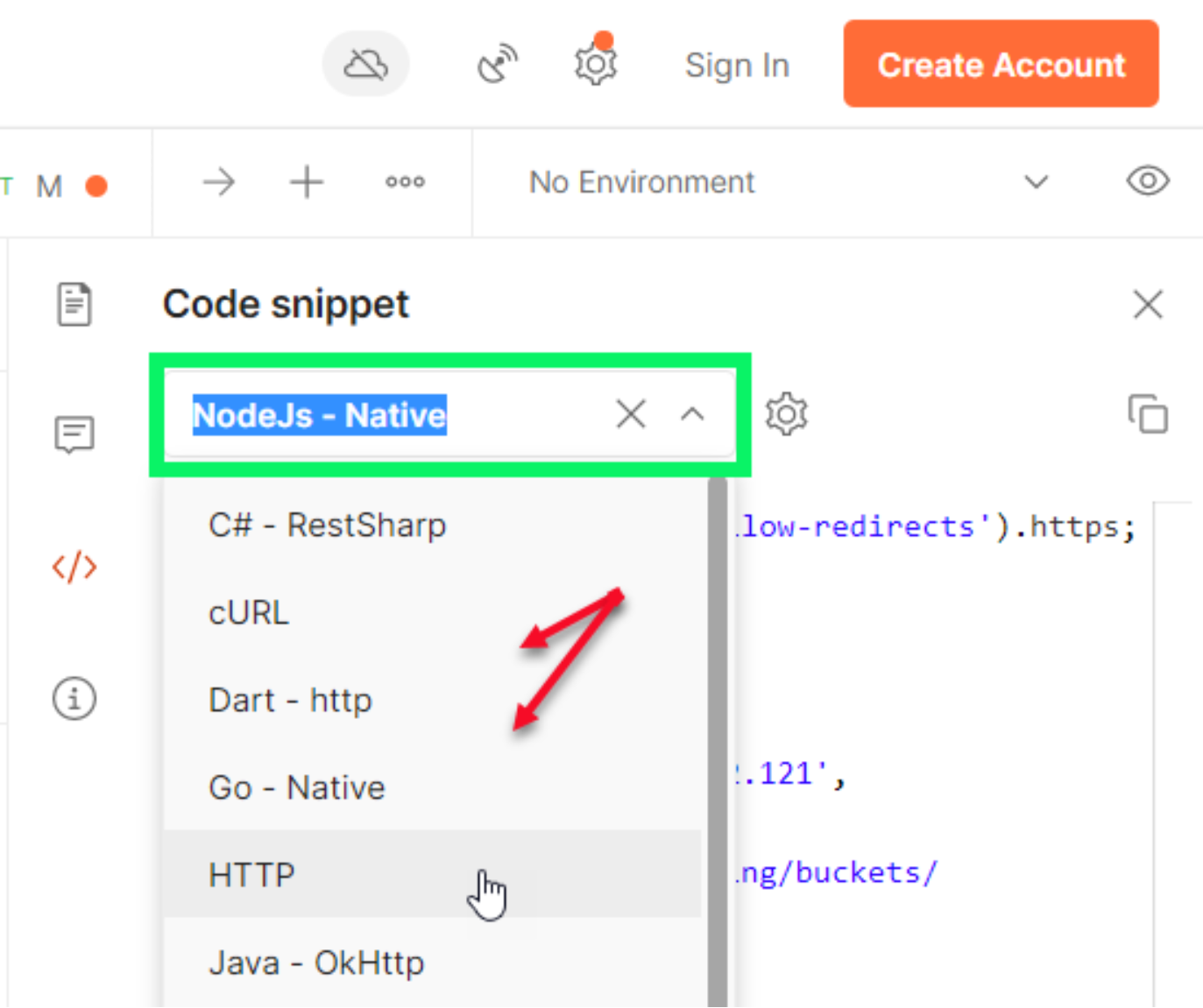
Another valuable feature of Postman is that it can take the commands and export the syntax in a variety of coding formats. For ANY of the commands you can select the Code button (along the Right hand icon bar) to expand the Code section and choose the language in which you would like to see the command formatted.
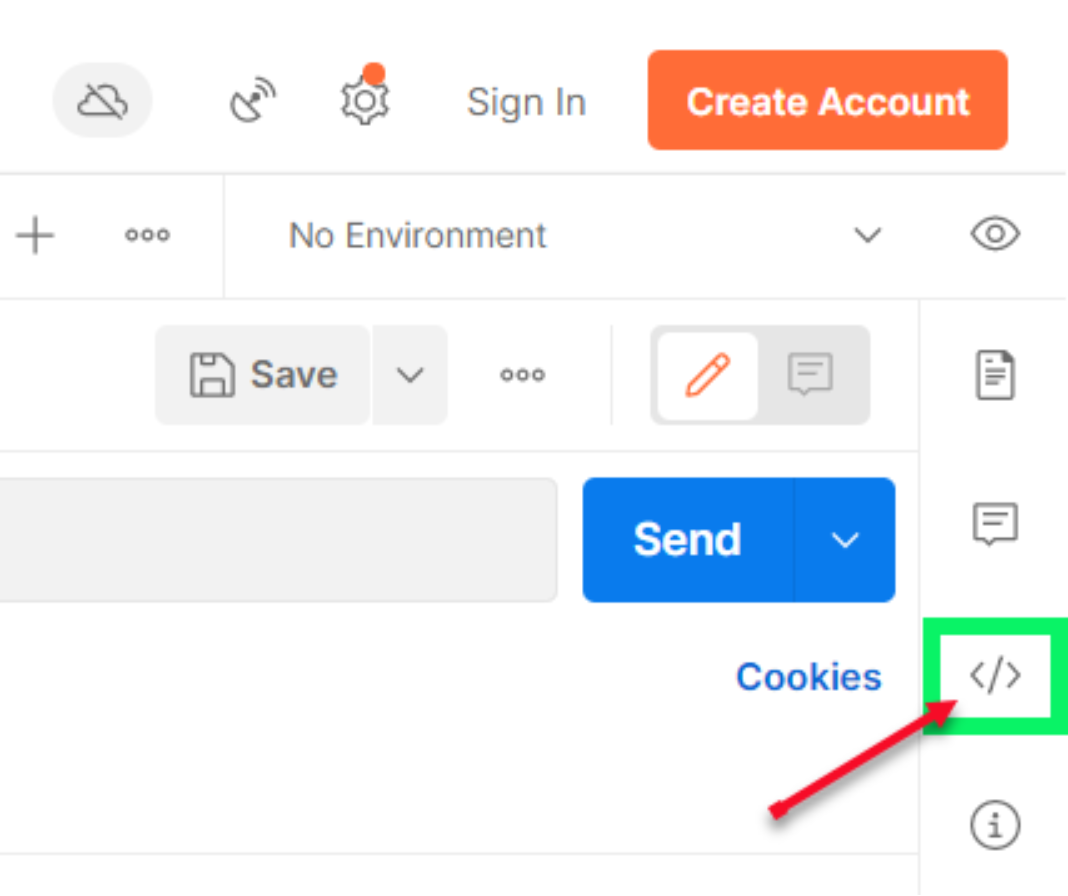
After you click on the Code button, the section expands and lets you select the language in which to display the command. You can then copy the command if you are creating a script with multiple commands in it.
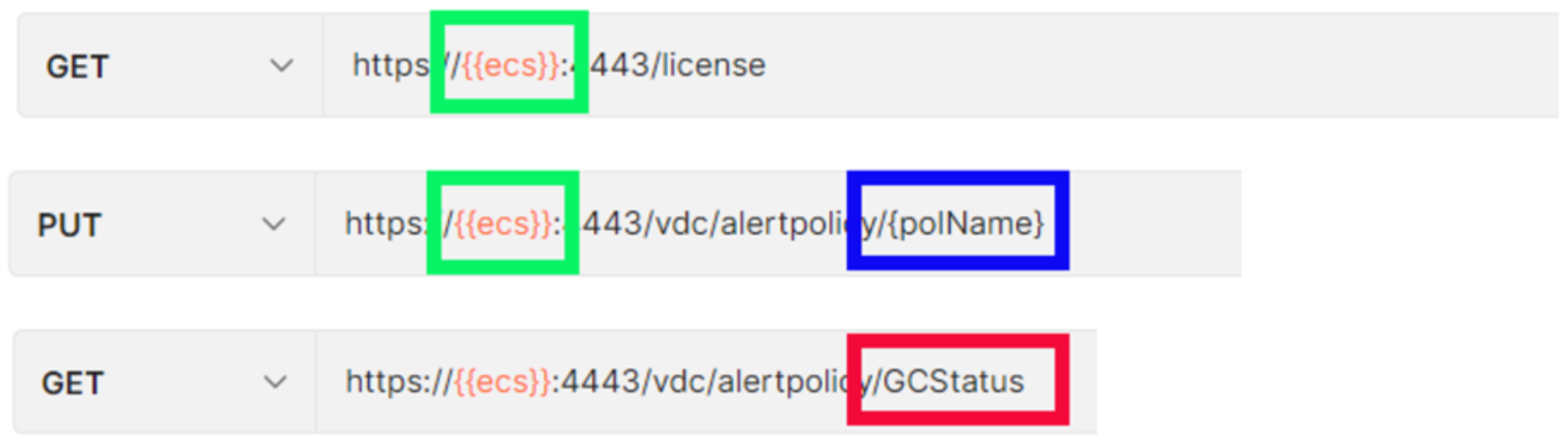
In the command syntax, note that variables are shown with double curly brackets on each side of the variable, as shown in the GREEN boxes below. Some commands have a section with only single curly brackets, as shown in the BLUE box below. This indicates that instead of the required string being pulled from a variable, it needs to be manually entered. Just replace the entire curly bracket with the appropriate value from your environment.
The Sample Commands are also useful by showing the actual example with a specific value from an environment, as indicated in the figure with the RED box.
ECS Capacity Commands
ECS Capacity Commands
There are several capacity commands in the Metering section. These commands return the same results as the ECS GUI display in the Monitor > Metering section.
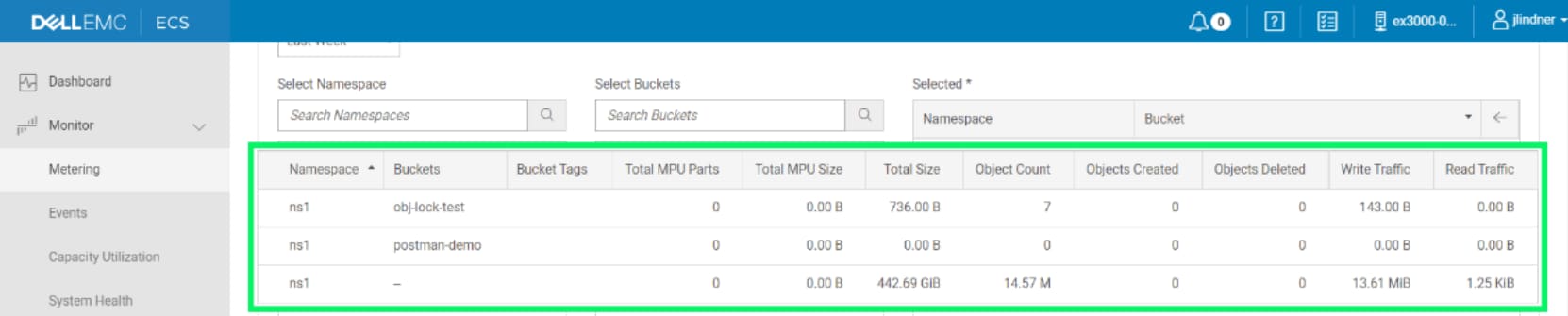
Those with a GET will return the metrics for individual Namespaces and/or Buckets, while those with a POST require a Payload file that includes a list of Namespaces and/or Buckets to return the query results.
Running the first command in the Metering section provides the capacity for one Bucket specifying the Namespace and Bucket in the command’s variables. The results of the command are shown below. You can also Save the Response results to an XML file for later manipulation of the data or for pulling it into other systems.
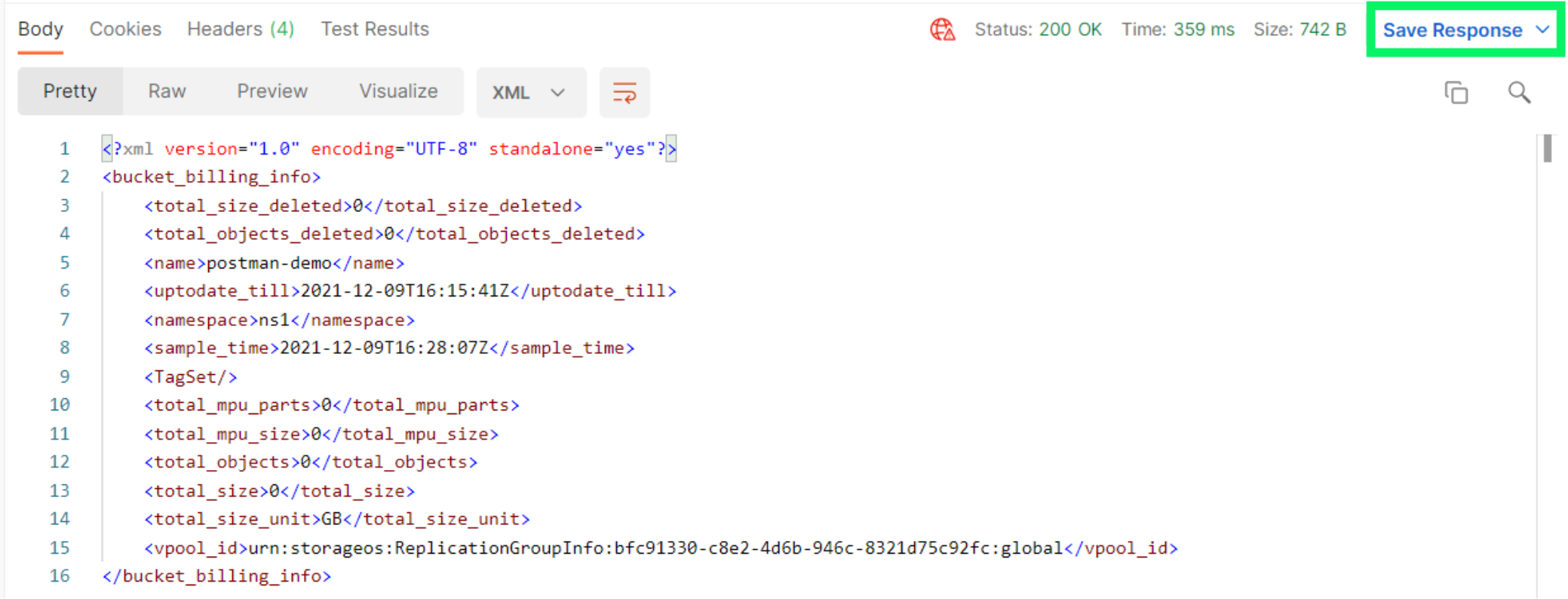
To view the results more easily, after saving the response to an XML file, you can import and convert it using Excel, as in the following steps.
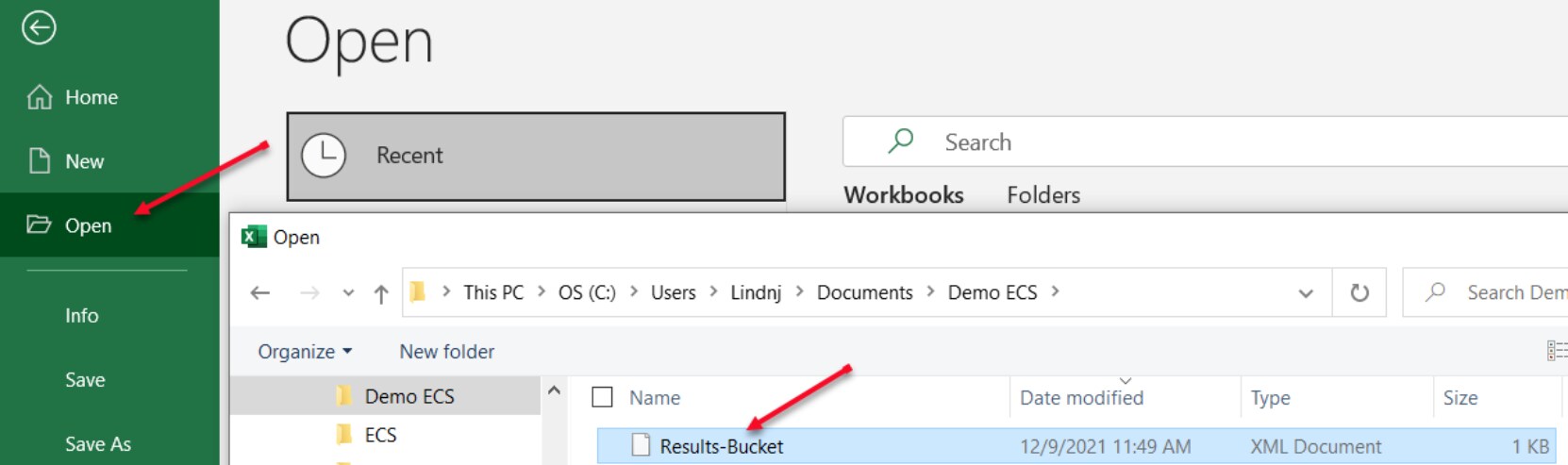
Launch Excel, and select Open. Browse to the location of the XML file, then select and click Open.
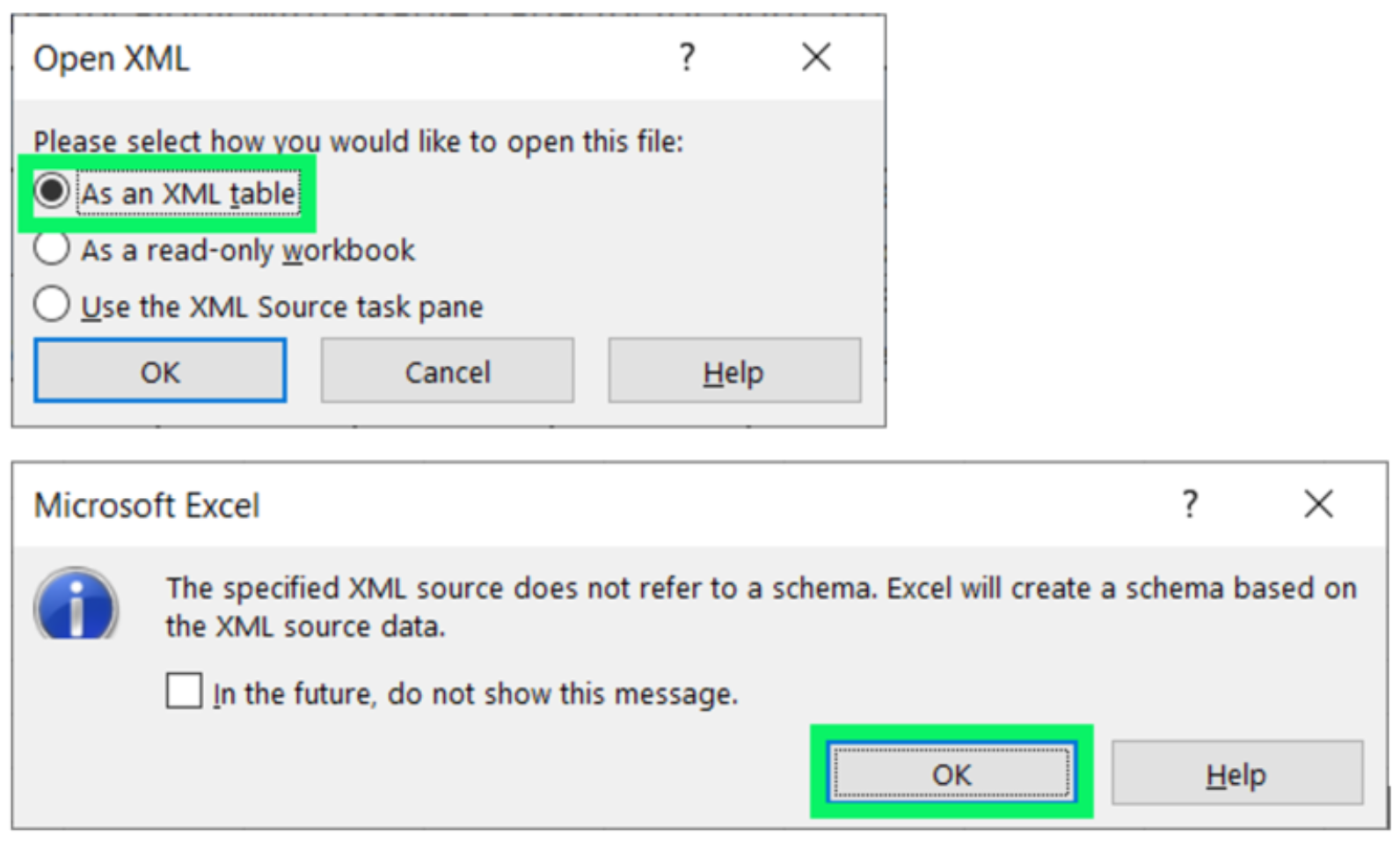
Excel automatically recognizes the XML structure and asks how you would like to open the file. Select As an XML Table.
The results are then displayed, but no Column headings are present.

You can manually create Column headings based on the XML field structure:
- Total Size Deleted
- Total Objects Deleted
- Bucket Name
- Up to Date
- Namespace
- Sample Time
- Total MPU Parts
- Total MPU Size
- Total Objects
- Total Size
- Total Size Unit
- VPool ID (Storage Pool ID)
The remaining commands can be submitted using the same steps. Remember that for any POST commands you will need to modify the associated Payload file (XML) with the correct parameters, Namespace, and/or Bucket Names in this case.